How to create a Java Gradle project using Command Line

HOME

In the previous tutorial, I have explained about How to create Gradle project in IntelliJ without Command Line. In this tutorial, I will explain how to create a Gradle Java project using Command Line.

Step 1 – Open Command Prompt. Change current folder to the folder where we want to create the Java project. 

 cd C:\Users\vibha\eclipse-workspace\Projects\Vibha_Personal\Gradle_Project

Step 2 – Create a Project from Gradle Template. Type the below command and press ENTER.

gradle init

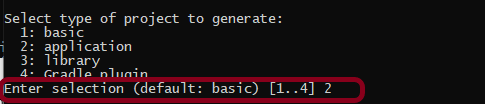
Step 3 – Select the type of project to generate. I’m selecting the application option as if I select basic, it won’t create a src directory. Type 2 and press ENTER.
Step 4 – Select implementation language. This is a Java project, so TYPE 3 and press ENTER.
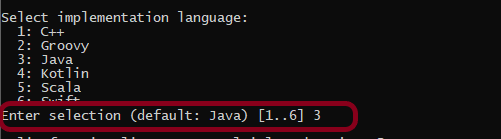
Step 5 – Select Split functionality across multiple subprojects. I have selected 1 as I want only 1 application. Type 1 and press ENTER.

Step 6 – Select build script DSL (Domain Specific Language) – As in Maven POM.xml (XML) is created to build a script file, here we can use Groovy or Kotlin to build the script file. Type 1 (Groovy) and press ENTER.

Step 7 – Select Test Framework – There are 4 different test frameworks. Depending on your requirement, select an option. I have selected 1 (JUnit 4) and press ENTER.
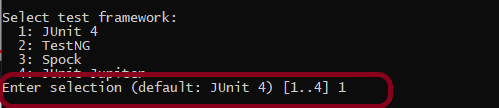
Step 8 – It needs the Project name and Source Package name. If I won’t provide the project name, it will take by default my current folder name which is Gradle_Project. Similarly, if I won’t provide the Source Package name, then it will provide the current project name as Source Package Name.

Project name – GradleDemoFromCMD
Source Package – com.example

Press ENTER. init script will run and create a Gradle project. You can see as the build is successfull.

Step 9 – Below is the project structure. As you can see, the name of the project is GradleDemoFromCMD, but that is not the name of the project folder here. But, when I’ll import this folder into Eclipse, the project name will be GradleDemoFromCMD.
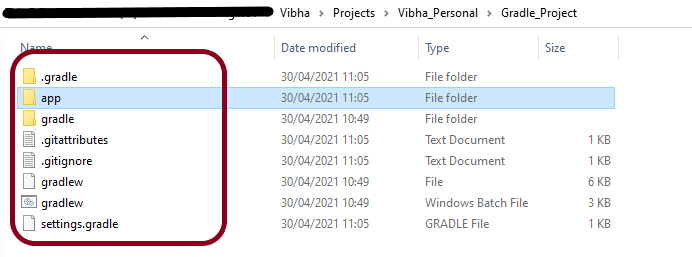
Step 10 – Open app folder. There should be src folder and build.gradle. Open build.gradle.

/*
 * This file was generated by the Gradle 'init' task.
 *
 * This generated file contains a sample Java application project to get you started.
 * For more details take a look at the 'Building Java & JVM projects' chapter in the Gradle
 * User Manual available at https://docs.gradle.org/7.0/userguide/building_java_projects.html
 */

plugins {
    // Apply the application plugin to add support for building a CLI application in Java.
    id 'application'
}

repositories {
    // Use Maven Central for resolving dependencies.
    mavenCentral()
}

dependencies {
    // Use JUnit test framework.
    testImplementation 'junit:junit:4.13.1'

    // This dependency is used by the application.
    implementation 'com.google.guava:guava:30.0-jre'
}

application {
    // Define the main class for the application.
    mainClass = 'com.example.App'
}

This build.gradle contains all the information which I have provided while creating the project.

That’s it! We have created a Gradle Project using Command Line.

Congratulations on making it through this tutorial and hope you found it useful! Happy Learning!! Cheers!!

How to create a Java Maven project using Command Line in IntelliJ

HOME

In the previous tutorial, I have explained How to create Maven Java project in Intellij without Command Line. In this tutorial, I will explain about creation of Java Maven Project using Command Line in IntelliJ.

Step 1 – Open IntelliJ IDEA IDE. Click on Terminal Button as shown in the below image.

Step 2 – Go to the path where you want to create the project. This can be done by typing command

cd path of folder

Step 3 – This tells Maven to generate a Java project from a Maven template.

mvn archetype:generate

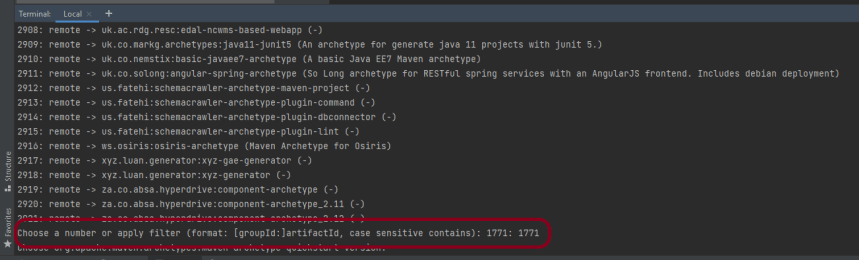
Step 4 – We need to mention the number as displayed on your screen in Command Prompt to proceed further. Like here, Choose a number or apply filter has 1771, so I have also mentioned 1771 in command prompt.

Step 5 – We need to provide again input in command prompt. This time program wants to know which version we want to use. I prefer to use the latest version. Here, it is 8, so I have selected version 8.

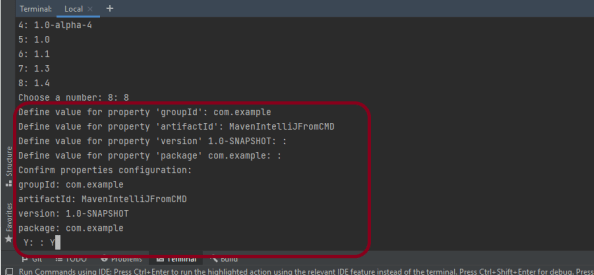
Step 6 – We need to provide 2 input here

A) Value of groupId – This serves as the group identifier of your Maven project, it should be in a form similar to Java packages, such as com.example
B) Value of artifactId – This serves as the group-local identifier of my Maven project like MavenIntelliJFromCMD
C) Value of Version – The initial version of our project. The default is 1.0-SNAPSHOT
D) Value of package – The name of our root package. The default is groupId we have created earlier.
We will notice the INFO message about the properties.

If the displayed settings are correct, then just enter Y in :: prompt.

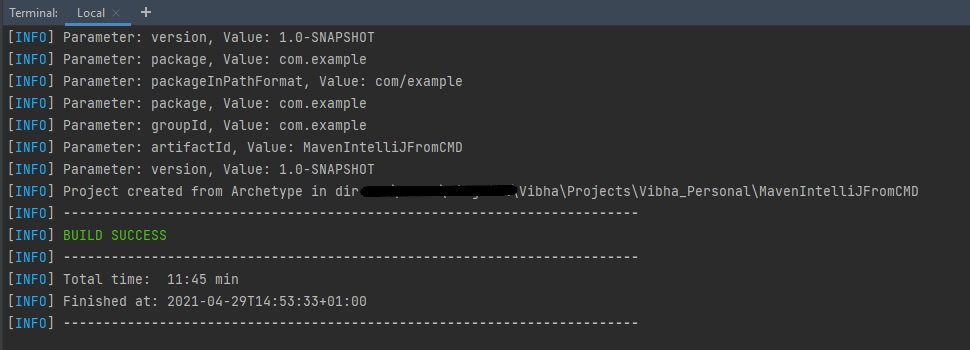
Step 7 – Successful Build – Below screenshot shows that the Maven IntelliJ Project built successfully.

Step 8 – Contents of Project Folder – Open folder MavenIntelliJFromCMD to see the contents of the folder. It should have POM file and src.

This project can be imported in IntelliJ and can be used further. To know how to import Java Maven project in Intellij, click here.

That’s it! We have created a Maven Project in IntelliJ using Command Line.

Congratulations on making it through this tutorial and hope you found it useful! Happy Learning!! Cheers!!
How to import Java Maven project in IntelliJ

Home

In the previous tutorial, I have explained How to create a Maven Project in IntelliJ. In this tutorail, I will explain how we can import a Java Maven project in IntelliJ IDE.

Step 1 – Open IntelliJ IDEA and Welcome Screen appears. Click Open button present on Welcome Screen.

Step 2 – Navigate to your Maven project and select the top-level folder. Select the project you want to Import. As you can see, I have selected – MavenProjectFromCMD option. Select OK button to proceed to next screen.

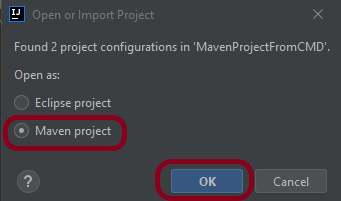
Step 3 – A screen appears to Open or Import project. It will have all the possible configurations for the project. As this is a Maven project, select Maven project and click OK Button.

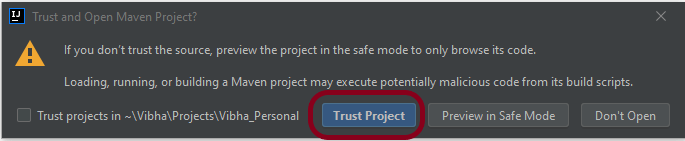
Step 4 – A warning message box will appears. Select Trust Project Button and move forward.

Step 5 -This screens shows that the project is imported.

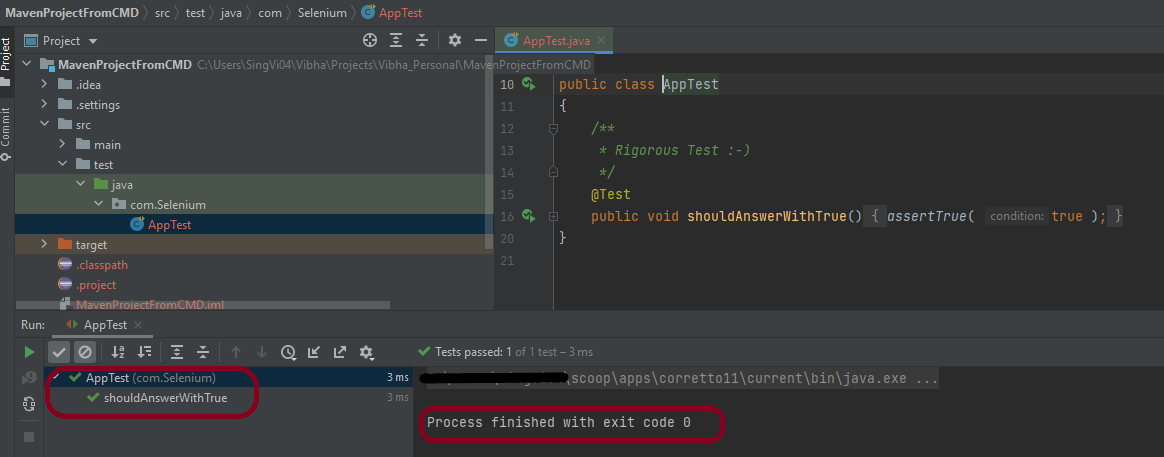
Step 6 – Run the test present in the project. Here, I have run AppTest. Right click on AppTest ->Run ‘AppTest’. Below screen shows that the project is imported successfully.

That’s it! So Simple!!!
Congratulations on making it through this tutorial and hope you found it useful! Happy Learning!!
How to create Maven project in IntelliJ

HOME

In the previous tutorial, I explained how to create a Simple Java project in IntelliJ IDEA IDE. In this tutorial, I will explain about creating a Maven project in IntelliJ IDE.

Step 1 – Open the IntelliJ. It will look as shown below. To create a New Project, click on New Project Icon.

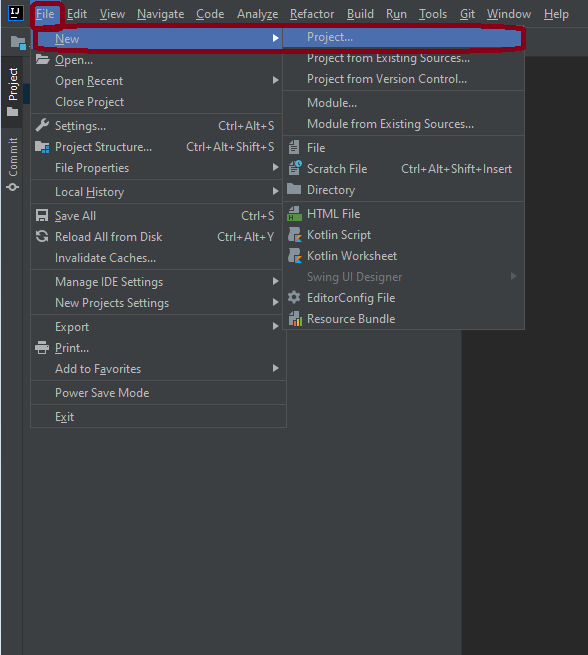
Step 2 – Click on File Option, hover on New Option, and click on Project Option as shown below.

Step 3 – Select New Project as Maven.
Project SDK should be current Java version available.
Select option for Create from archetype. This will enable the options to select archetype.
Select archetype : maven-archetype-quickstart.
Click on the Next Button.

Step 4 – Below screen will appear. Mention the Name, Group Id, Artifact Id, and Version. Click the Finish button

Name : MavenIntelliJDemo
Group Id : com.example
Artifact Id : MavenIntelliJDemo
Version : 1.0-SNAPSHOT

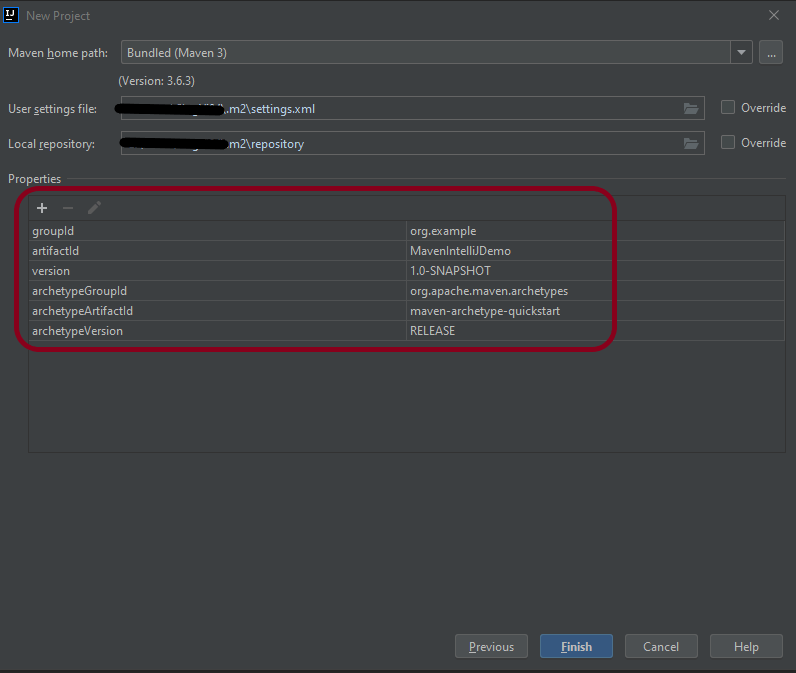
Step 5 – Verify the information in the below screen. Click on Finish Button.

Step 6 – This dialog box will appear on the screen. This provides you the option to open the project in the current window or will open a new window with this project. I’m selecting the option – New Window.

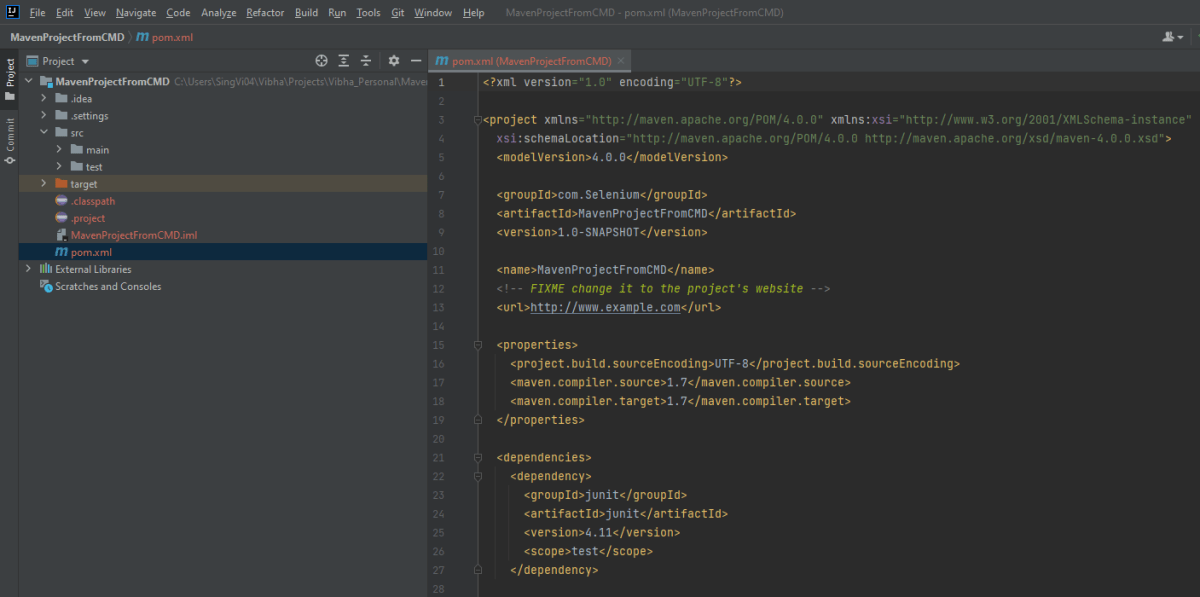
Step 7 – This screen shows the structure of the Maven project as well as the POM.xml file.

Step 8Project Folder Creation – We can see a folder with the name of the project – MavenIntelliJDemo in our Eclipse Workspace.

This is how we can create the Maven project – MavenIntelliJDemo in IntelliJ.

That’s it! Congratulations on making it through this tutorial and hope you found it useful! Happy Learning!!

How to create a Java project in IntelliJ

HOME

In the previous tutorial, I explained how to download and install IntelliJ on Windows. In this tutorial, I will explain how to create a Java project in IntelliJ.

  1. Open the IntelliJ. It will look as shown below. To create a New Project, click on the “New Project” Icon.

2. Select Project SDK as the Java version present on your system and select the option as Java. Click on the Next” button.

3. The next screen provides options to choose Project Template as shown below. Click on the Next” Button.

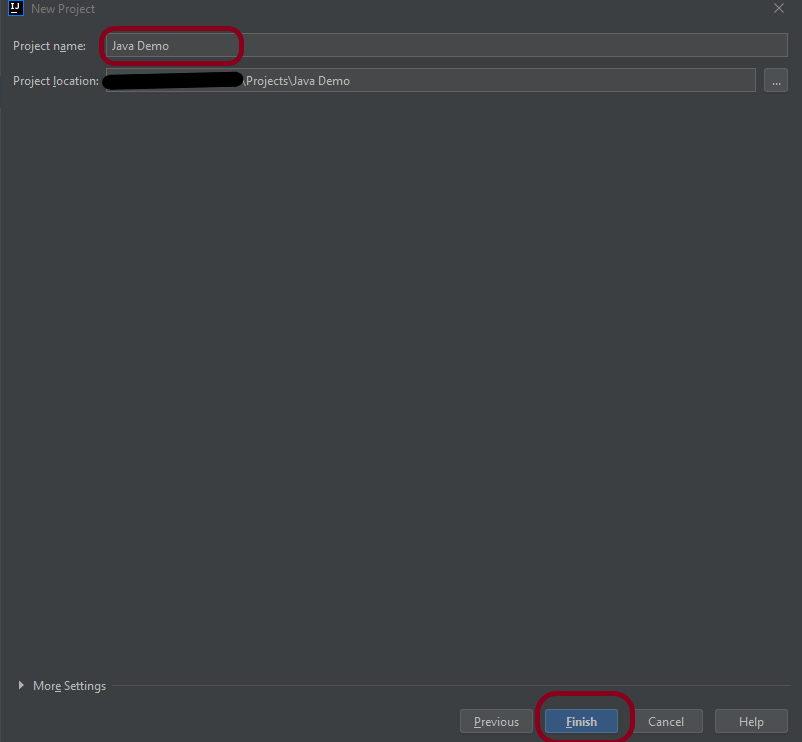
4. I have mentioned the Project Name as Java Demo and the path where I want to save my project on my computer.

5. Click on the “Finish” Button to create the project. It will also ask to create the directory as shown below.

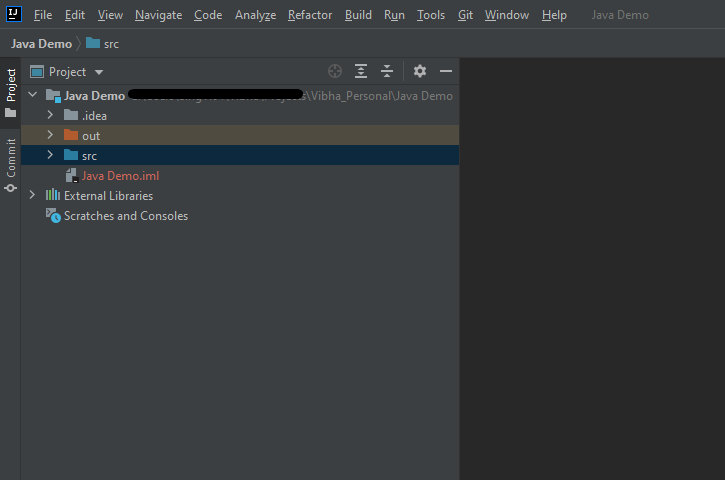
6. Click the “Create” button to grant permission. It will launch IDE as shown below.

Now, I have created a new Java Project named Java Demo. Let me create a new Java Class – HelloWorld.

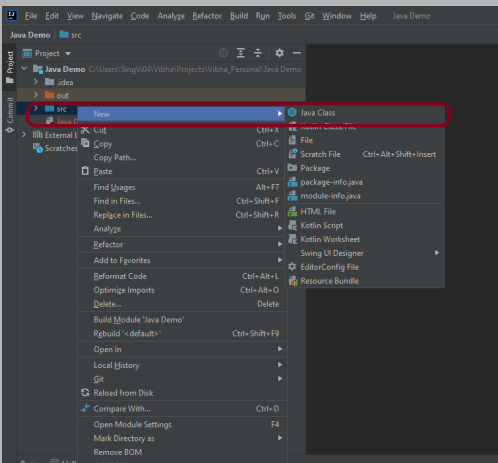
  1. Expand the Project Hello Word and right-click on the src folder, hover on New Option, and click on Java Class Option as shown below.

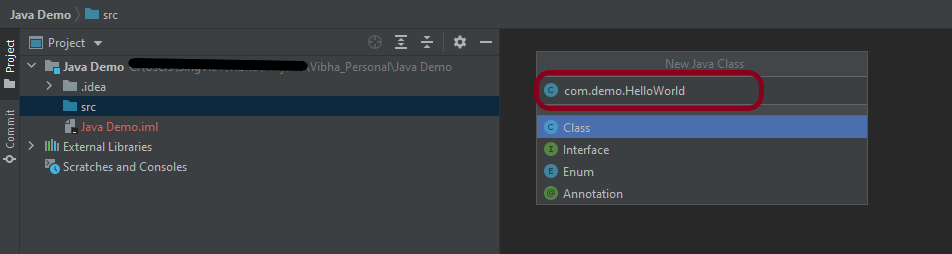
2. I have provided the Java Filename with the package as shown in the below image. Now press the Enter Key to create the packages and Java file.

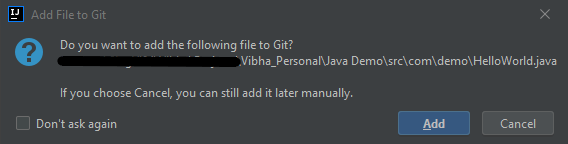
3. It will show a message to Add the File to Git. Depending on your requirement, select Add or Cancel. I don’t want to add the File to Git, so selected Cancel.

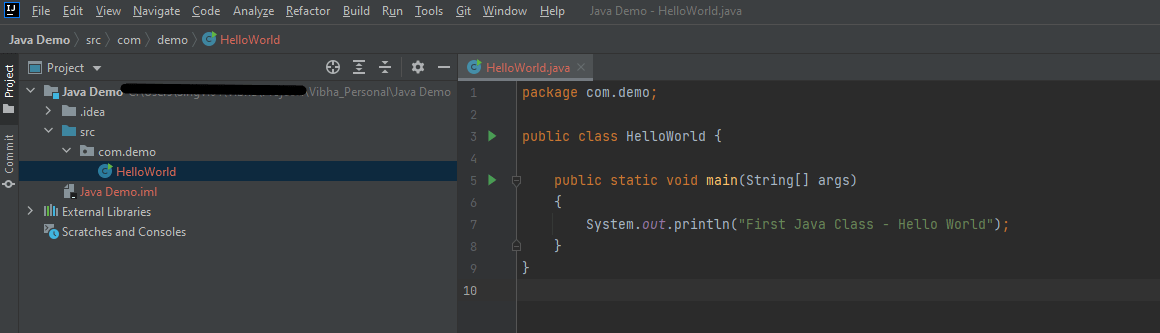
4. I have updated the “HelloWorld” class to print the first Java Class – Hello World on the console, as shown in the below image.

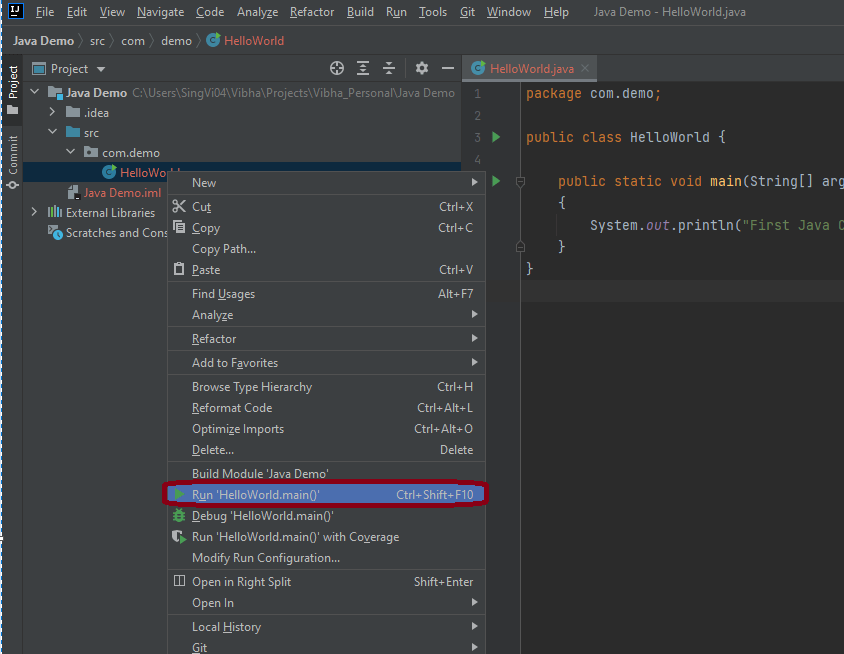
5. Now right-click on the “HelloWorld” class file and choose Run HelloWorld.main()” Option or press Ctrl + Shift + F10 to compile and execute the program as shown in the below image. It will also build the project.

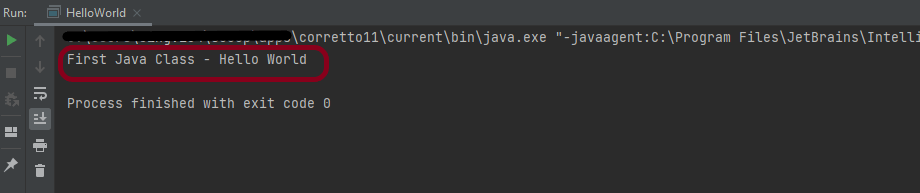
6. The final output of the program will be displayed on the console as shown below.

This is how we can create the Java Demo project to execute our first program in Java – HelloWorld.

That’s it! Congratulations on making it through this tutorial and hope you found it useful! Happy Learning!!

How to install IntelliJ on Windows

HOME

IntelliJ IDEA is one of the smartest IDE for Java development. It’s also the base of the official Android IDE i.e. Android Studio used for Android mobile application development. This tutorial provides all the steps required to install IntelliJ Idea on Windows 10 for Java development.

Download IntelliJ on Windows

  1. Click this link to download IntelliJ IDEA on your machine. It will open the download page as shown below. The IntelliJ IDEA provides two different installers i.e. Ultimate and Community. The Ultimate edition is commercial version (which has trial version for 30 days post which you needs license). The Community edition can be used for free. This tutorial shows the steps required to install the Community edition.

2. Download IntelliJ by clicking on Download button and use any one of the option either .exe or .jar. Below image shows IntelliJ.exe on your machine.

Installation of IntelliJ IDEA

  1. To start installation, double click on the idealC-2021.exe (this version can change in future).

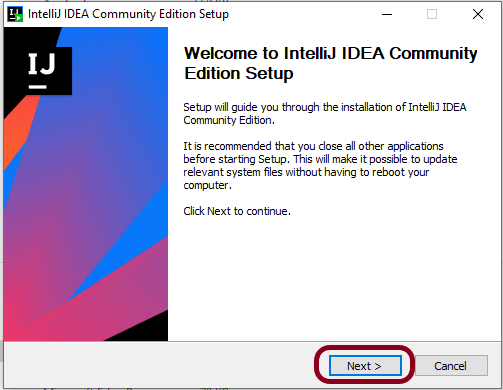
2. It will show the welcome screen as shown below. Click on the Next Button to continue with the installation.

3. It will provide options to choose the installation location as shown in below image. Make sure that you have sufficient space available on the selected drive since it will consume around 1.6 GB storage. Click on the Next Button after choosing the appropriate installation path.

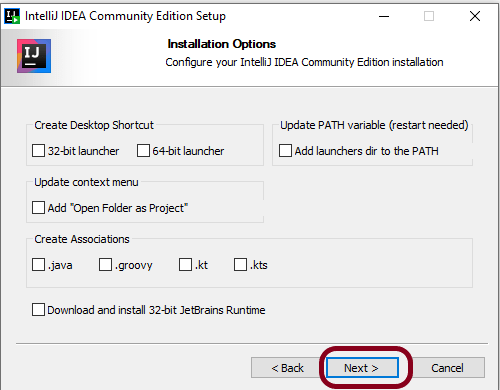
4. It will show the Installation options as shown below to configure system path, create 64-bit desktop launcher icon, Open Folder as Project, and file association for Java, Groovy, and Kotlin files. I have selected the option to create a desktop launcher icon. You may choose the options based on your requirements. Click on the Next Button after choosing the Installation Options.

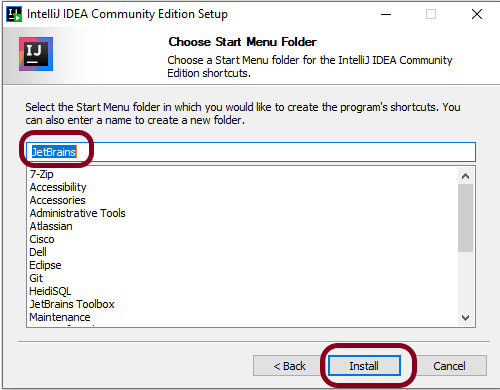
5. After choosing the Installation Options, the next screen shows options to configure the Start Menu Folder as shown below.

6. Click on the Install Button after selecting the Start Menu Folder option. It will show the installation progress as shown below.

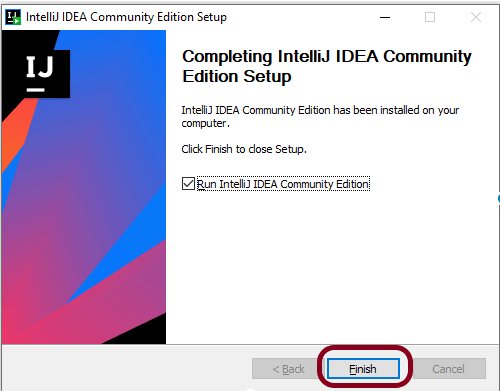
7. It will show the final screen after successfully installing IntelliJ IDEA as shown below.

8. Click on the Finish Button to close the installer. Below image shows that IntelliJ icon is placed at Desktop as we have selected in the previous step.

That’s it! We have downloaded and installed IntelliJ. Congratulations on making it through this tutorial and hope you found it useful! Happy Learning!!

In the next tutorial, I’ll explain how to create a new project in IntelliJ.