GitHub Actions is a powerful tool that can be used to automate your software development workflows. In this blog post, we will show you how to get started with GitHub Actions for Java Spring Boot.
Why GitHub?
The flexible aspects of GitHub Actions enable users to create powerful, fast, and efficient automated testing workflows in CI/CD environments.
CI/CD pipelines have contributed to the success of the DevOps cycle in all software development projects. This is a holistic process that bridges development and operations. Continuous integration helps development teams deploy code efficiently, and continuous delivery automates code deployment.
Implementation Steps
Step 1 – Create GitHub Actions and Workflows
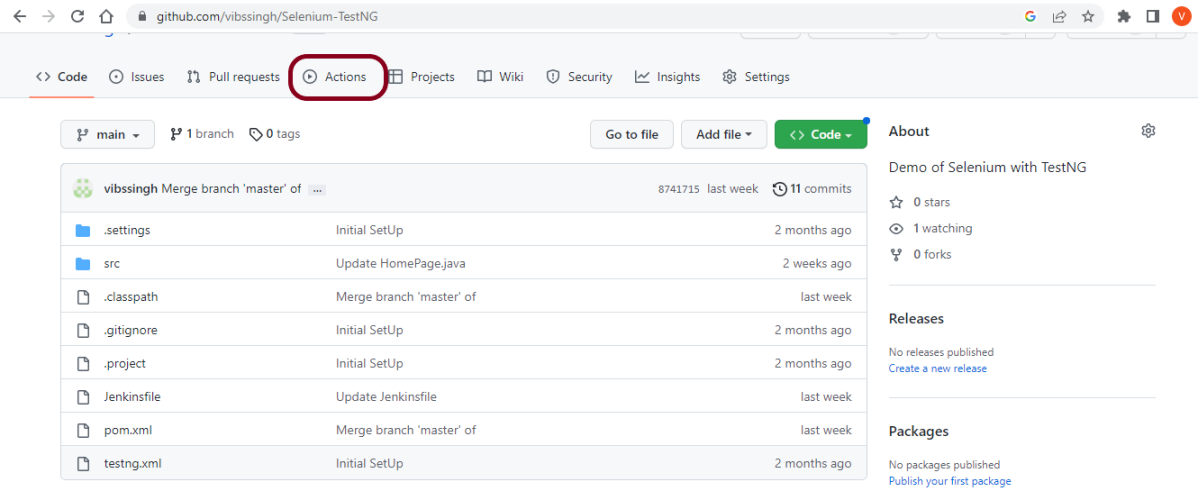
I have a repository available on GitHub – SpringBoot_Serenity_Cucumber_JUnit4_Demo as shown in the below image. Go to the “Actions” tab. Click on the “Actions” tab.

Step 2 – Select the type of Actions
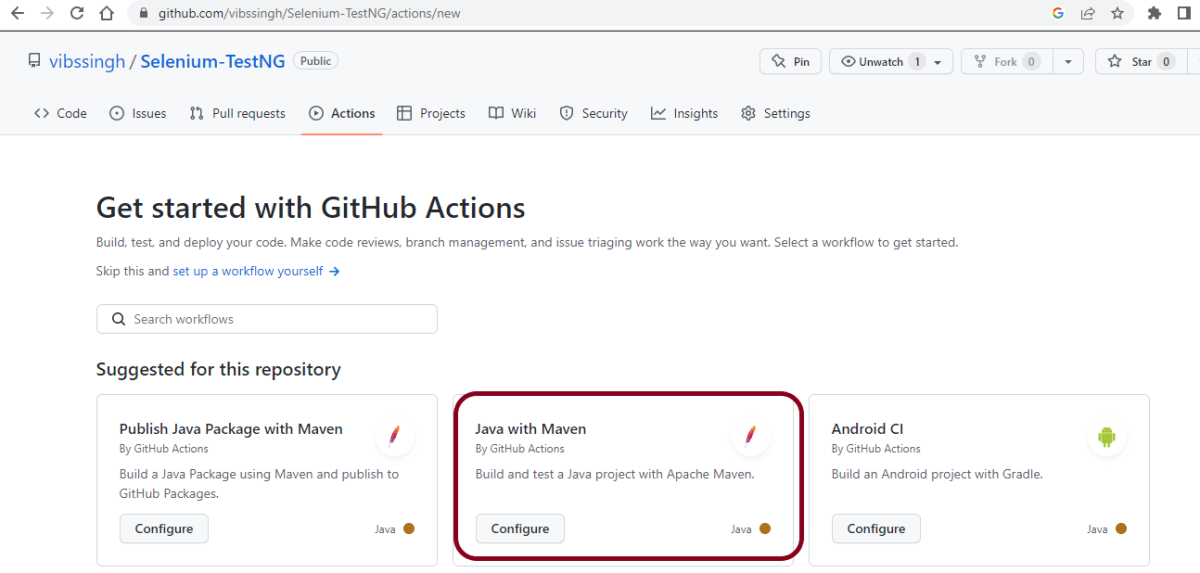
You will see that GitHub recommends Actions depending on the project. In our case, it is recommending actions suitable for a Java project. I have selected the “Java with Maven” option as my project is built in Maven.

Step 3 – Generation of Sample pipeline
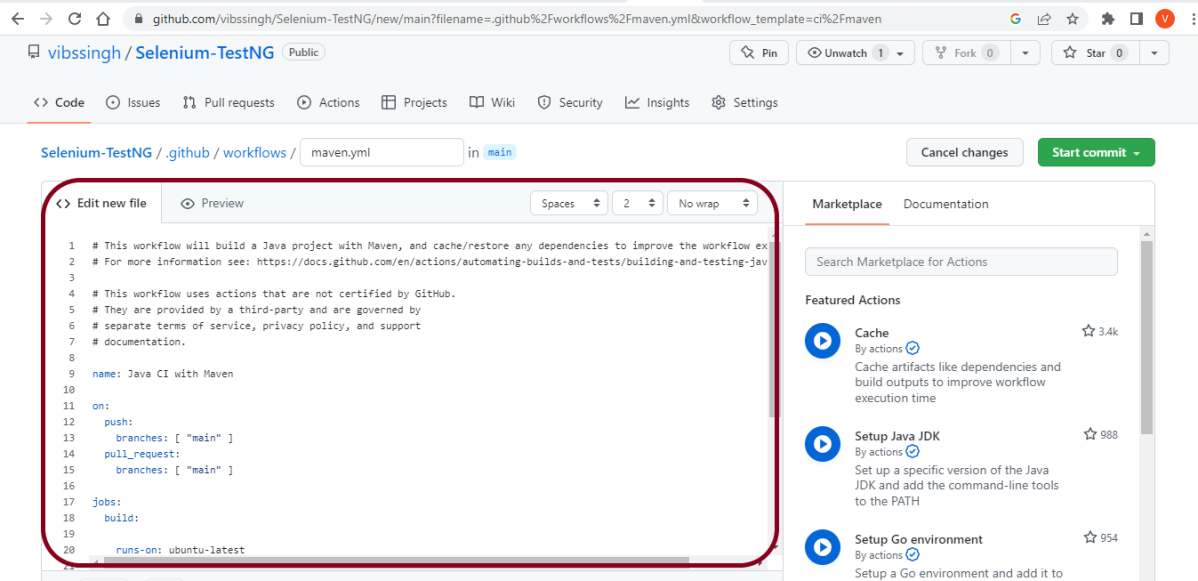
If you choose an existing option, it will automatically generate a .yaml for the project as shown below.
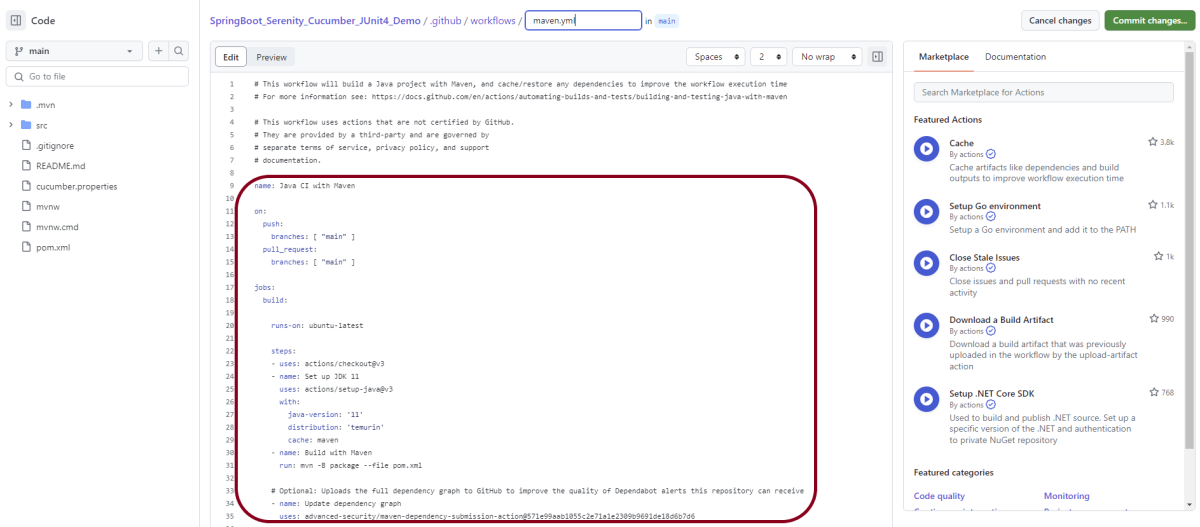
We will replace the current workflow with the following yml file as shown below:
name: Build and Test Java Spring Boot Application

on:
  push:
    branches: [ "main" ]
  pull_request:
    branches: [ "main" ]

jobs:
  build:

    runs-on: ubuntu-latest

    steps:
    - uses: actions/checkout@v3
    - name: Set up JDK 17
      uses: actions/setup-java@v3
      with:
        java-version: '17'
        distribution: 'temurin'
        cache: maven

    - name: Build with Maven
      run: mvn clean verify

    - name: Test Report
      uses: actions/upload-artifact@v3
      if: success() || failure()
      with:
          name: SpringBoot Report               # Name of the folder
          path: target/site/serenity/           # Path to test results
Step 4 – Commit the changes
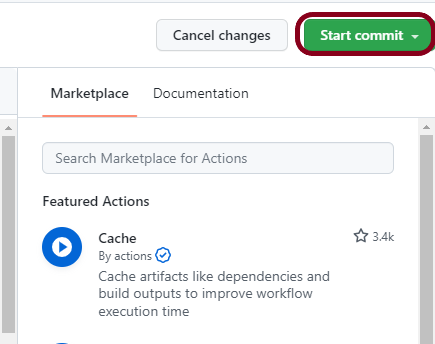
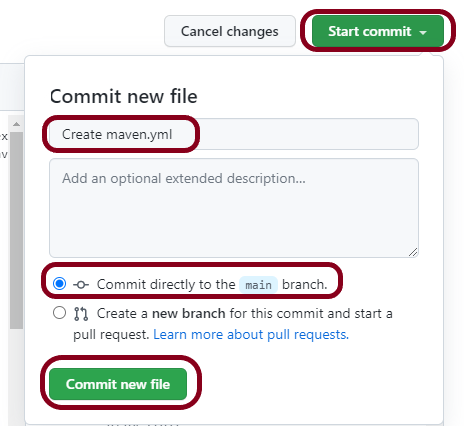
After the changes, hit the “Commit changes” button.
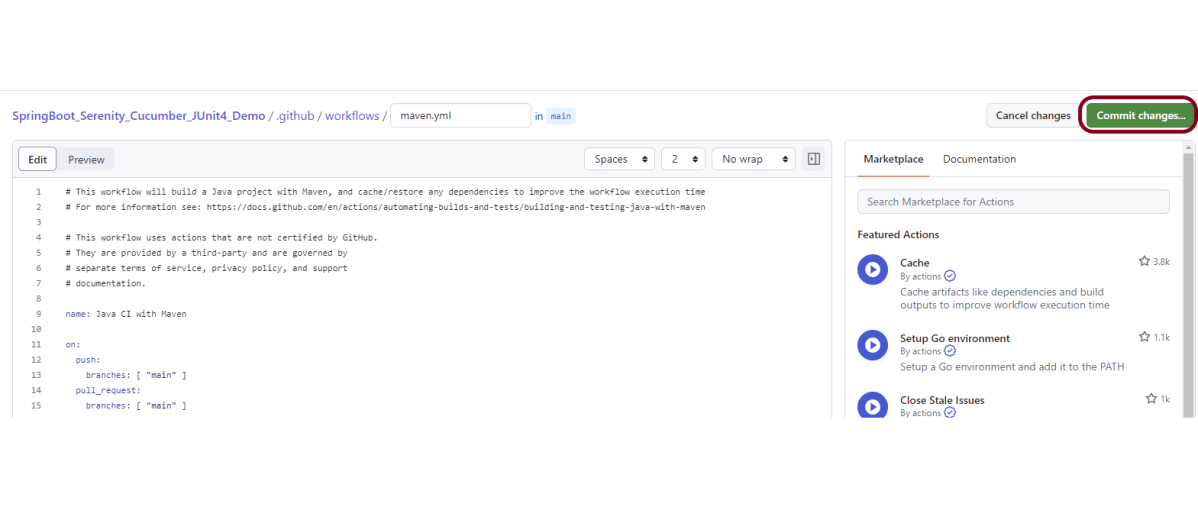
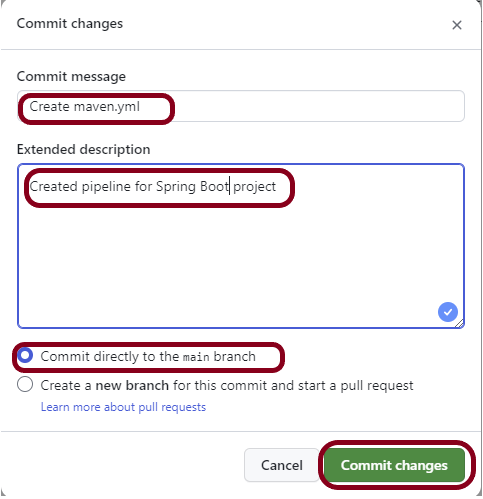
This will give the option to add a description for the commit. It will enable the user to commit either to the main branch. The user can also commit to any other branch that exists in the project. Click on the “Commit changes” button to set up the workflow file.
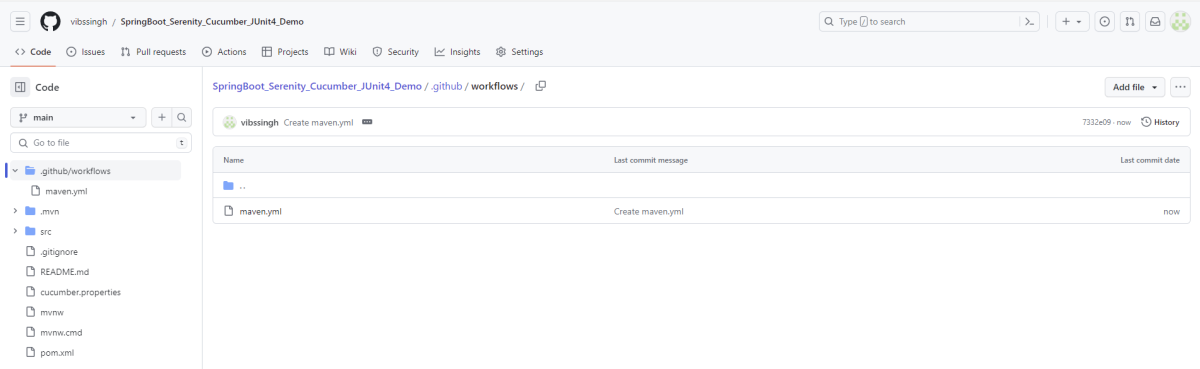
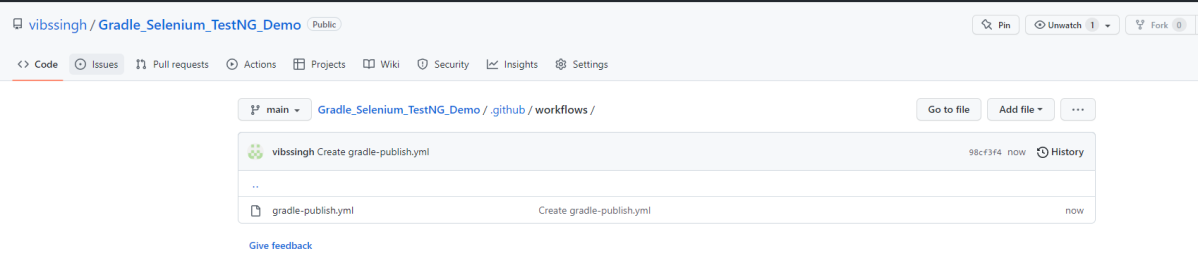
Below is the image of the newly created maven.yml file.
Step 5 – Verify that the workflow is running
Next, head over to the “Actions” tab, and you will see your YAML workflow file present under the tab. The yellow sign represents that the job is in the queue.

In Progress – When the job starts building and running, you will see the status change from “Queued” to “in progress”.

Passed – If the build is successful, you will see a green tick mark.

Failed – In case the build has failed, then there will be a red cross mark.

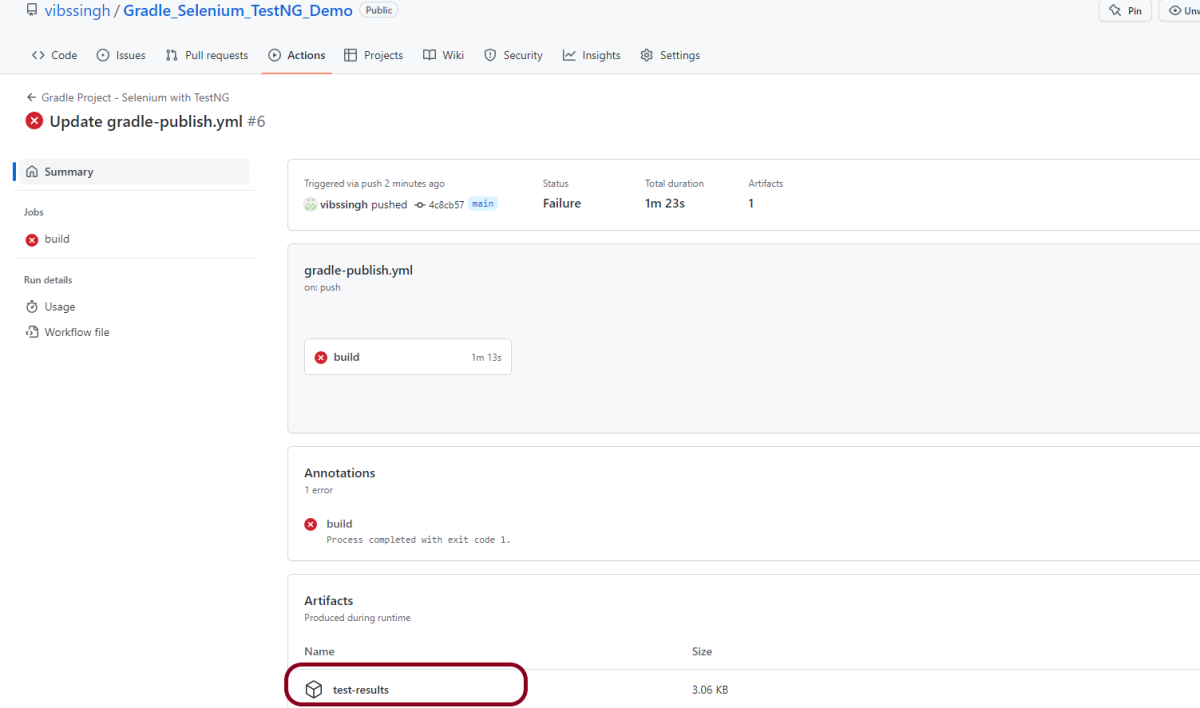
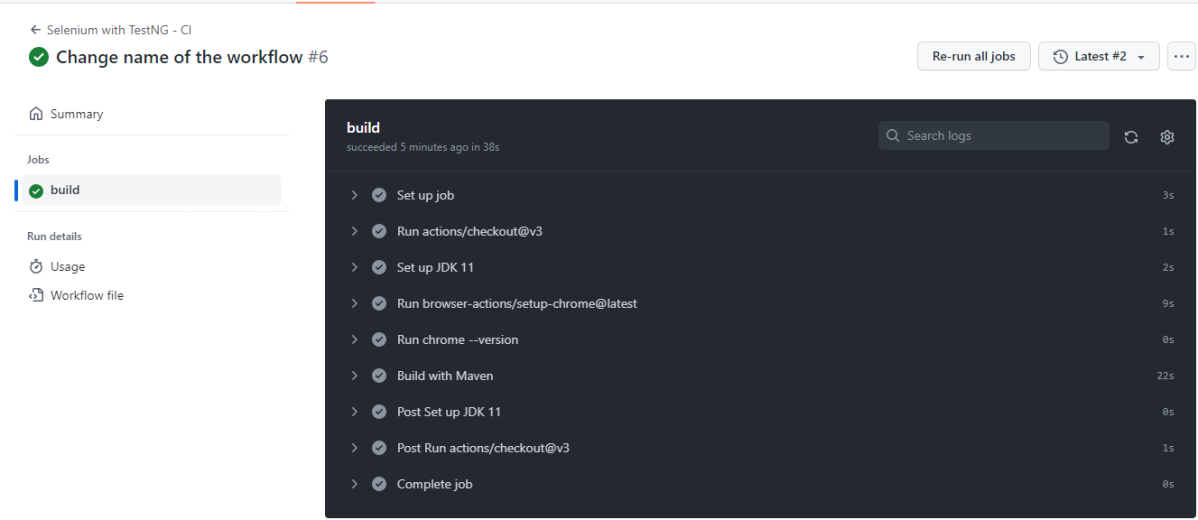
Click on the workflow and the below screen is displayed. It shows the status of the run of the workflow. It also shows the total time taken to run the workflow and the name of the .yml file.
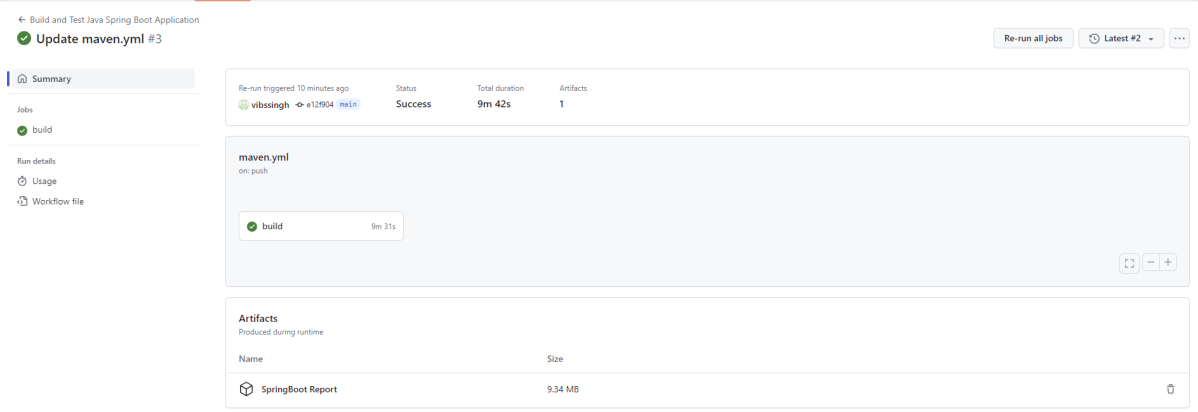
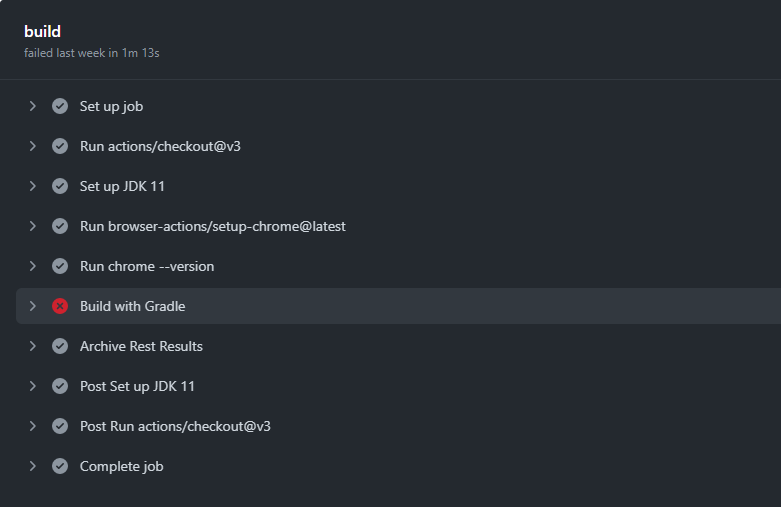
Below shows all the steps of the workflow.

Step 6 – Published artifacts on GitHub
Once the pipeline run, a SpringBoot Report folder will be generated as shown in the below image:

When we click on the folder SpringBoot Report, a zipped file will be downloaded. We can extract it to see all the files contained within it.
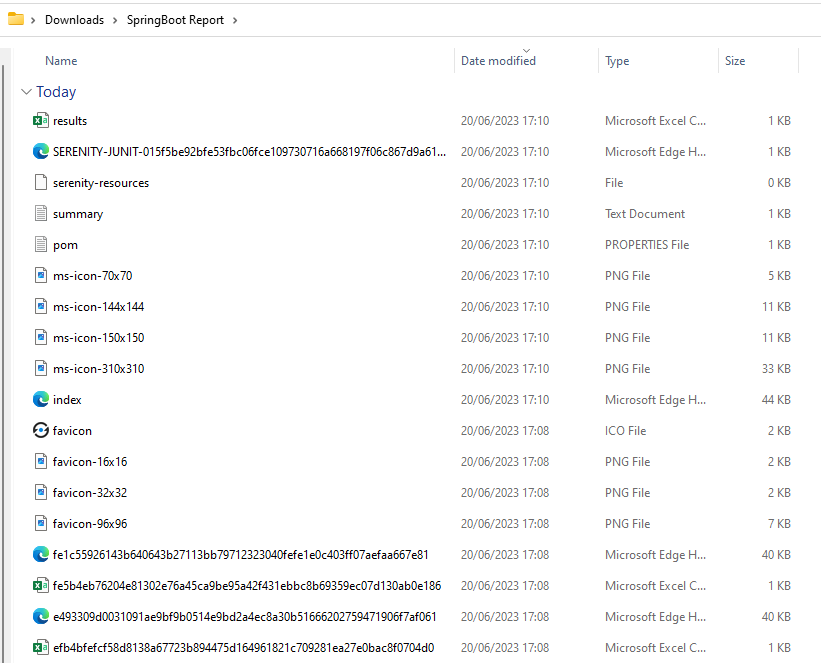
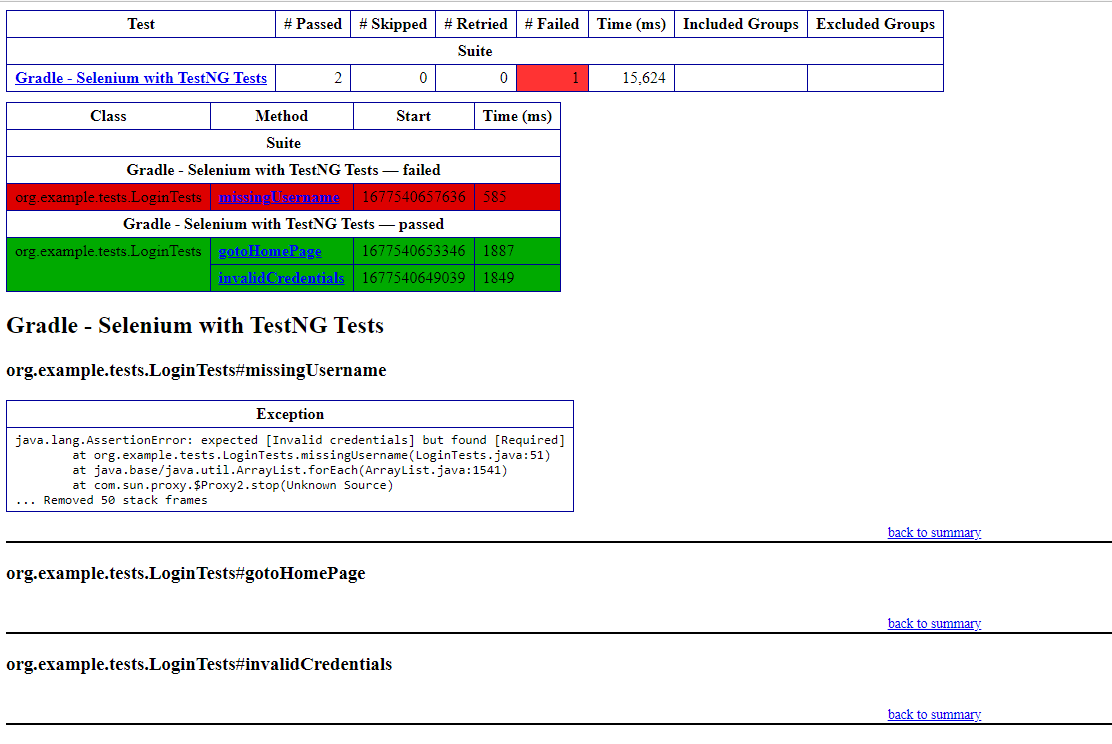
The image of the report is shown below:

The complete code can be found here on GitHub – SpringBoot_Serenity_Cucumber_JUnit4_Demo.
Congratulations! We just created our CI workflow for running our SpringBoot test cases.



















 QA Automation Expert