Jenkins GitLab Integration

HOME

The previous tutorial has explained how to install it onto a Windows 10 system and create a Maven or Gradle project in Jenkins. Jenkins and GitLab are two powerful tools on their own, but what about using them together? In this tutorial, learn about the benefits of a Jenkins GitLab integration and how to set up the integration on your own.

What is GitLab?

GitLab is a web-based Git repository that provides free open and private repositories, issue-following capabilities, and wikis. It is a complete DevOps platform that enables professionals to perform all the tasks in a project—from project planning and source code management to monitoring and security. Additionally, it allows teams to collaborate and build better software.

What is Jenkins?

Jenkins is a well-known open-source tool that aids in the implementation of Continuous Integration (CI) and Continuous Deployment/Continuous Delivery (CD) processes by automating parts of the software development pipeline such as building, testing, and deployment.

Jenkins Version Used – 2.361.2

In this version of Jenkins, Git Plugin is already installed. If the Git Plugin is not installed, then follow the below steps to add Git Plugin in Jenkins.

Step 1: Open your dashboard.

Click on the Manage Jenkins button on your Jenkins dashboard:

Step 2: Select Manage Plugins.

Click on the Manage Jenkins. Choose Manage Plugins.

Step 3:  Add Git Plugin

On the Plugins Page, go to the Available option.

  1. Select the GIT Plugin
  2. Click on Install without restart. The plugin will take a few moments to finish downloading depending on your internet connection, and will be installed automatically.
  3. You can also select the option Download now and Install after the restart button. In which plugin is installed after the restart
  4. You will be shown a “No updates available” message if you already have the Git plugin installed.

In my case, Git Plugin is already installed, so you can’t see it in the Available Plugin.

Step 4: Verify Git Plugin is installed

Once the plugins have been installed,
Go to Manage Jenkins on your Jenkins dashboard. You will see your plugins listed among the rest.

How to Integrate Jenkins With GitLab

Step 1: Create a new project using the Maven project plugin.

  1. Give the Name of the project.
  2. Click on the Maven project. 
  3. Click on the OK button.

In the General section, enter the project description in the Description box.

Click on create new jobs.

Enter the item name, select the job type, and click OK. We shall create a Maven project as an example.

Step 2: Describe the project in the description section

In the General section, enter the project description in the Description box.
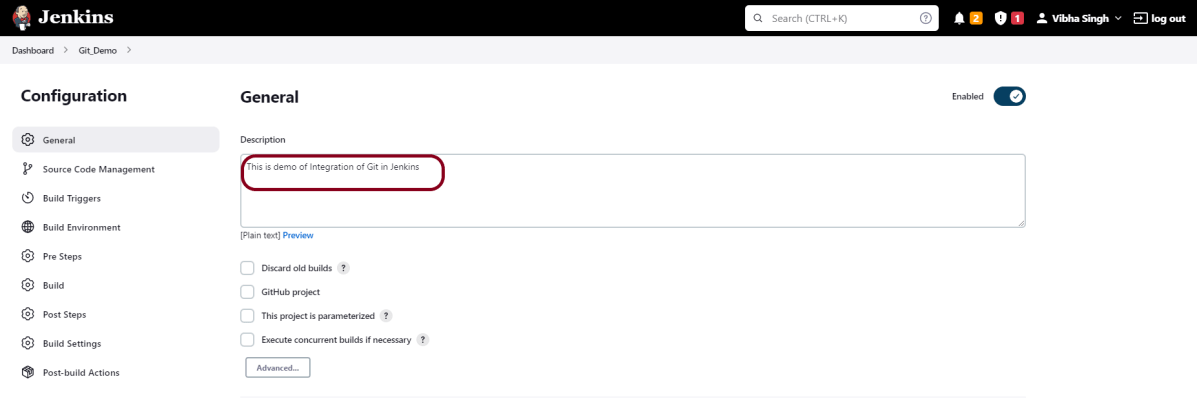
Step 3 – Source Code Management section

You will see a Git option under Source Code Management if your Git plugin has been installed in Jenkins.

Enter the Git repository URL to pull the code from GitHub. Enter the credentials to log in to GitLab.

I have already set up the credentials to log in to GitLab. Click on the Add button and select Jenkins.

Add the username and password used to log in to GitLab. Click on the “Add” button.

Note:- Please make sure that Git is installed on your local machine. To install Git on your local machine, go to this tutorial – How to install Git on Windows 10.

Step 4: Build Management

Go to the Build section of the new job.

  1. In the Root POM textbox, enter pom.xml
  2. In the Goals and options section, enter “clean test

Step 5: Select “Publish TestNG Results” from “Post Build Actions

Scroll down to “Post Build Actions” and click on the “Add Post Build Actions” drop-down list. Select “Publish TestNG Results“. 
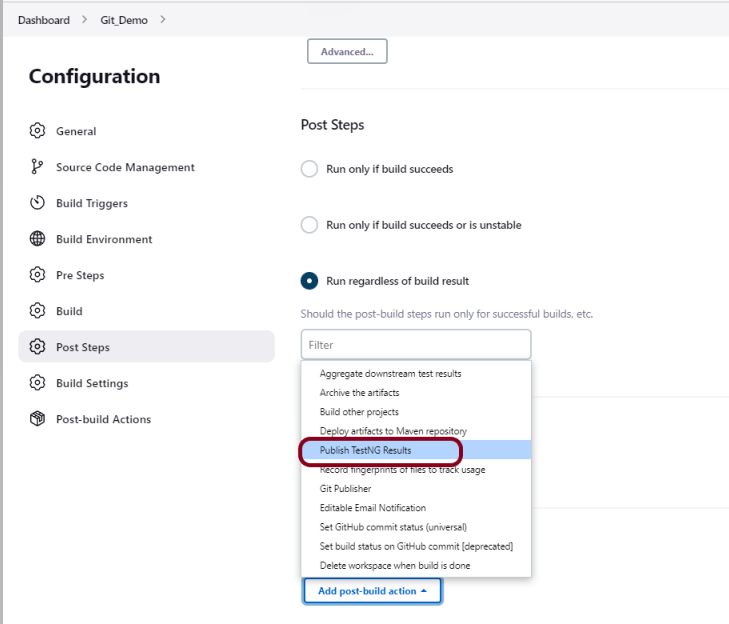
Enter TestNG XML Report Pattern as “**target/surefire-reports/testng-results.xml” and click on the “Save” button.
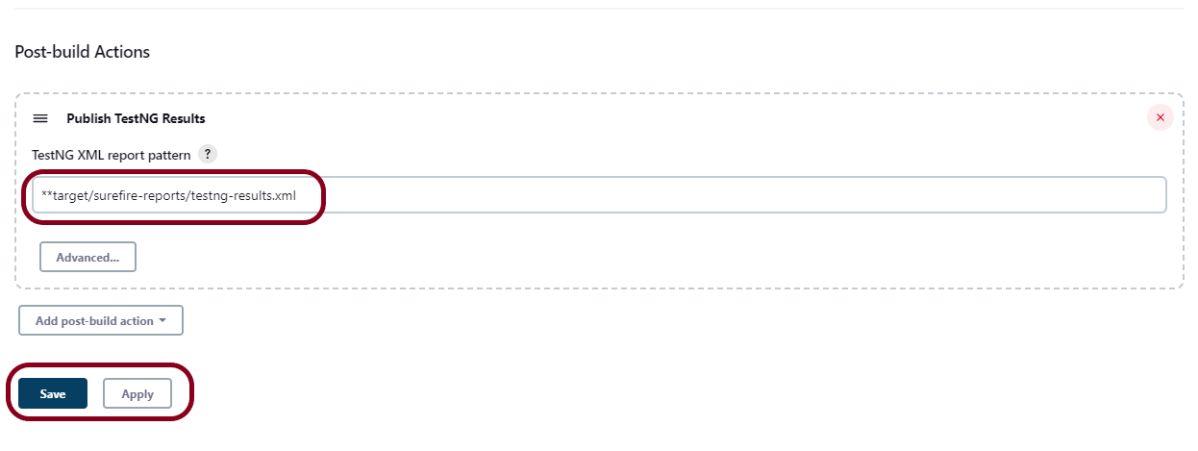
We have created a new project Git_Demo” with the configuration to run TestNG Tests and also to generate TestNG Reports after execution using Jenkins.

Step 6: Execute the tests

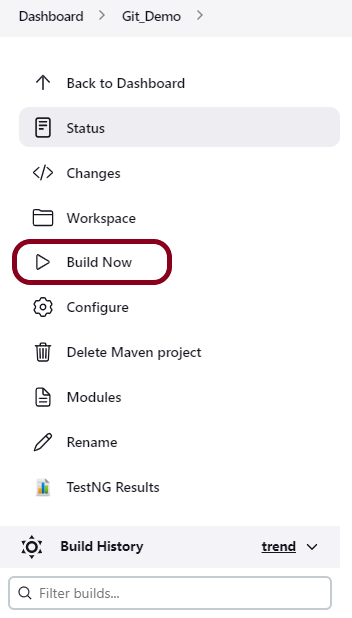
Let’s execute it now by clicking on the “Build Now” button. 
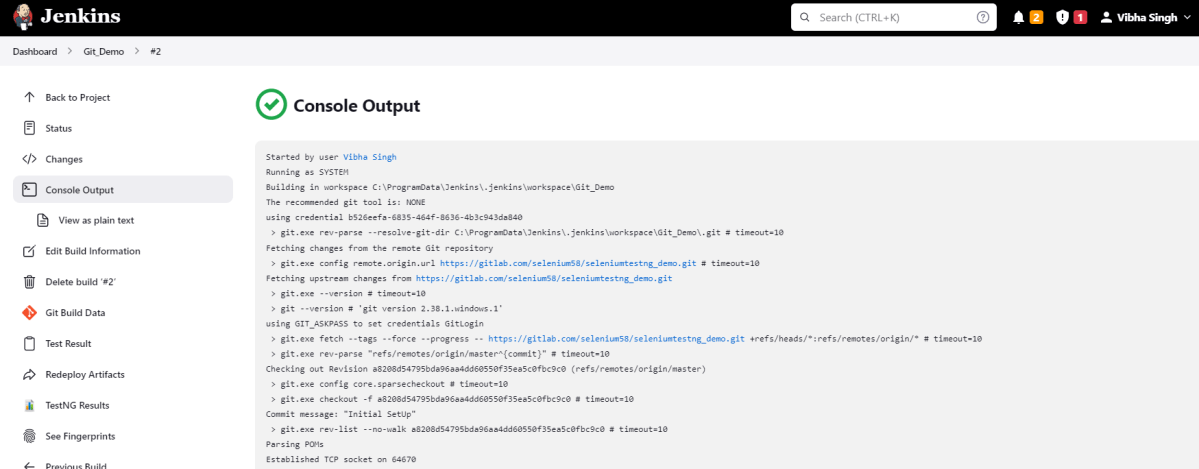
Right-click on Build Number (here in my case it is #2) and click on Console Output to see the result.
Step 7: View the TestNG Report

Once the execution is completed, we could see a link to view “TestNG Results“.
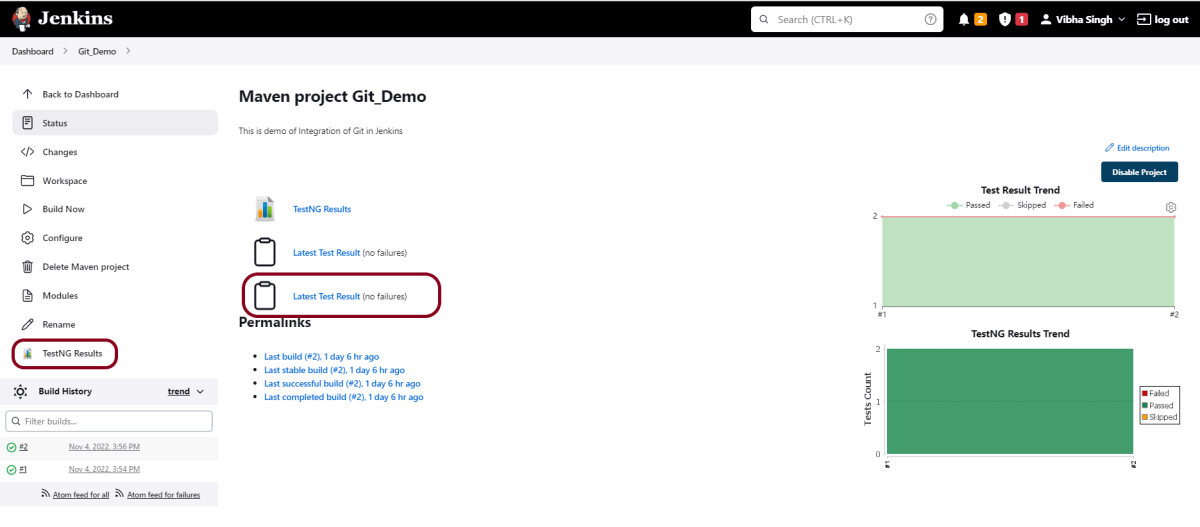
Click on the TestNG Results. It displays the summary of the tests.
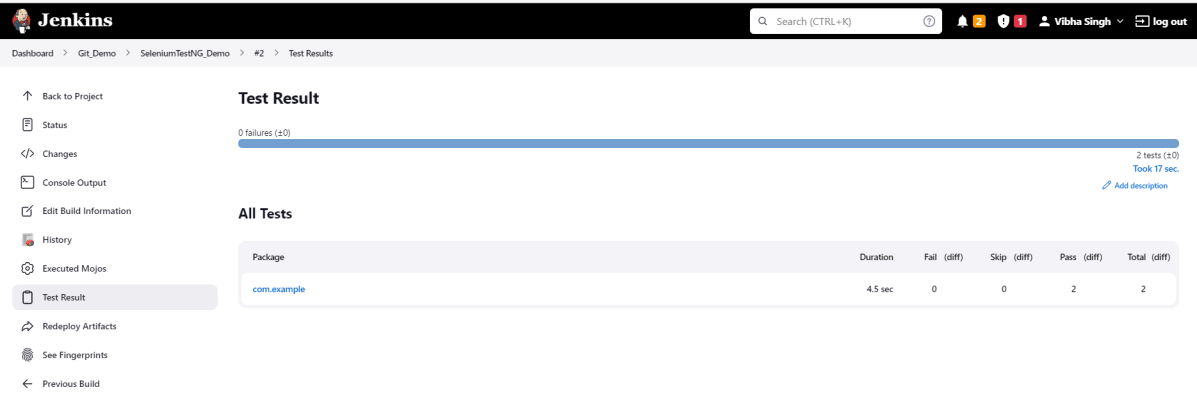
If you want to check the execution history, then click on the shown link.
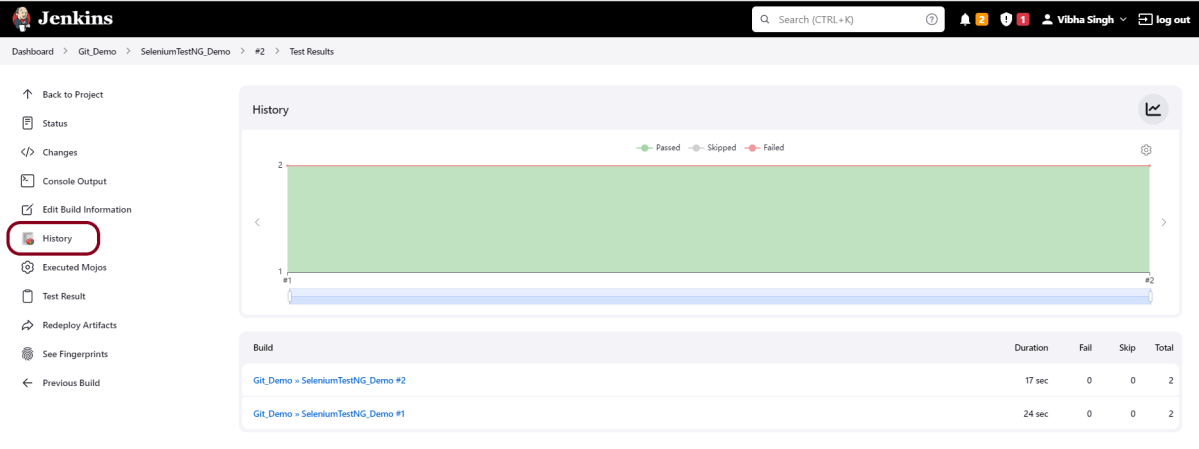
This way, we could integrate Git in Jenkins.

Congratulations on making it through this tutorial and hope you found it useful! Happy Learning!! Cheers!!

How to pull changes from Remote Repository to Local Repository – git pull

HOME

The previous tutorial has explained about pushing the changes from Local GIT Repository to Remote GIT Repository. This tutorial explains the process of pulling the changes from Remote Repository to Local GIT Repository. I’ll use GitLab to make the changes.

What is git pull?

The git pull command fetches and downloads content from the remote repository and integrates changes into the local repository. The git pull command is called as the combination of git fetch followed by git merge.

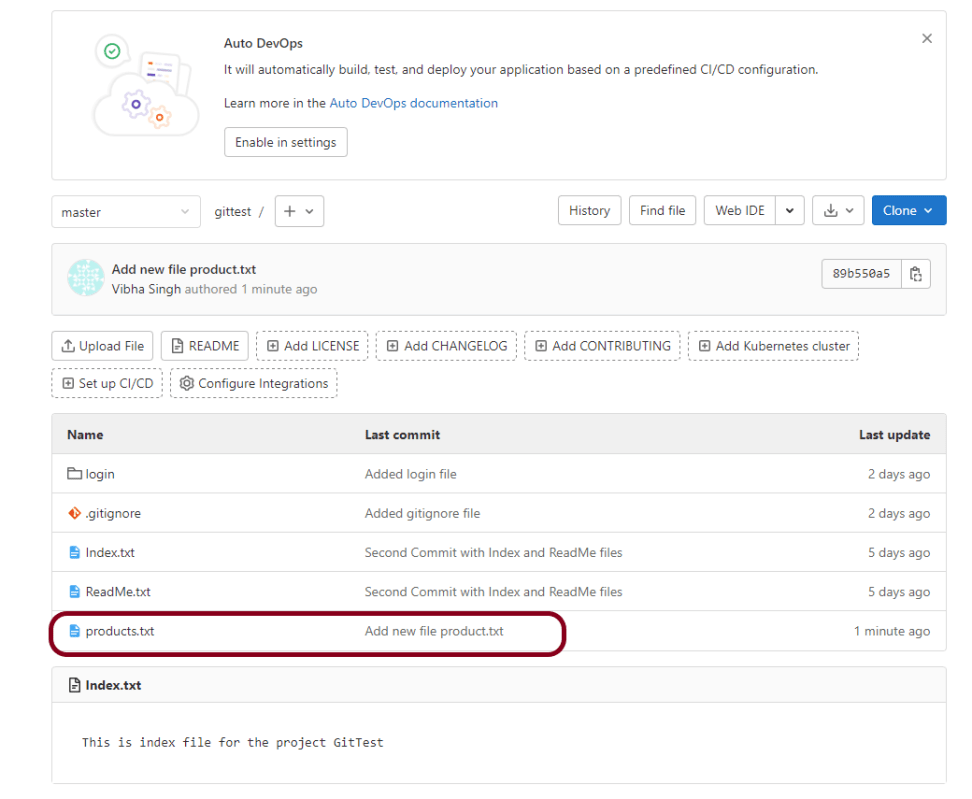
This is my project in GitLab. If, you don’t have any project in GitLab, follow the below steps to create a GIT local Repository and push it to GitLab.

Step 1– To create a new Git local Repository, use git init. The details are mentioned in this tutorial – How to create a new Git Repository – git init Command.

Step 2 – To create a new project in GitLab, refer to this tutorial – How to create a new project in GitLab.

Step 3 – To push your GIT local repository to Gitlab, refer to this tutorial – How to push new local GIT Repository to GitLab.

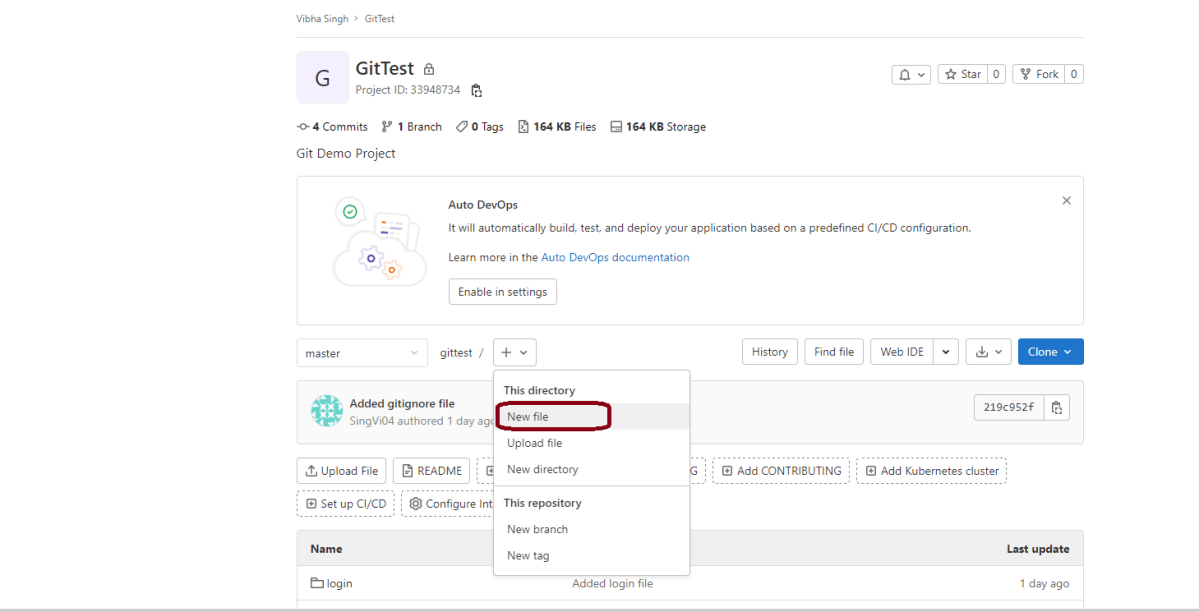
Step 4 – Let’s add a new file in the Remote Repository directly using GitLab. Follow the steps shown below to add and commit a new .

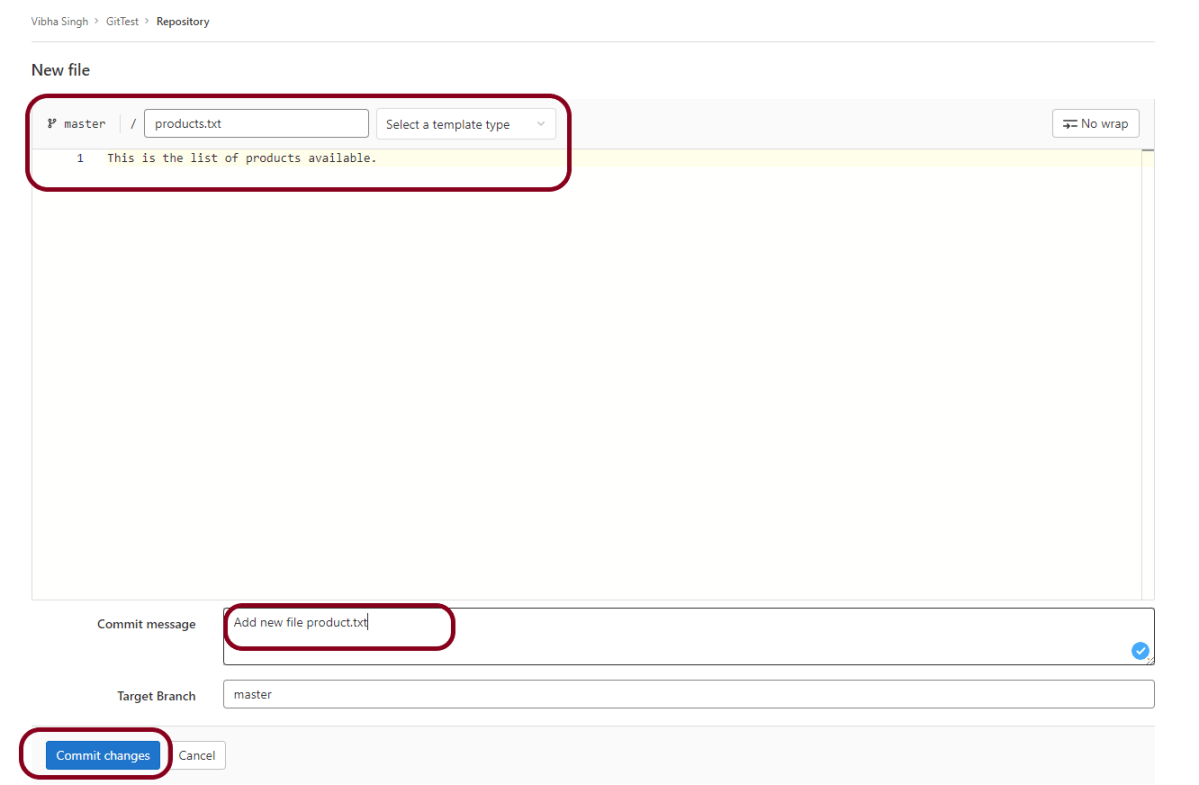
Step 5 – This is a new file. I have provided name to this file as products.txt. Add the comment as commit message. Click the Commit changes button to commit this change.

Below image shows that new file – products.txt is committed to this project.

Step 6 – Go to the directory where local GIT Repository is saved. Right-click and click on Git Bash Here to open GitBash at that place.

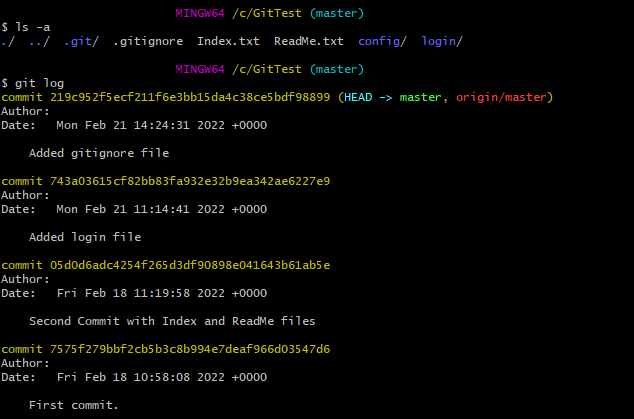
Use the below command to see the list of files present in GIT Local Repository.

ls -a
git log

Type git log to see the list of commits present.

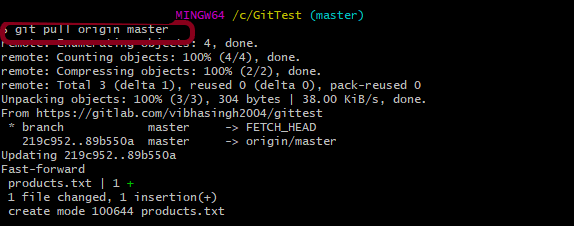
Step 7 – Type git pull command is used to pull the latest changes from Remote GIT Repository to local GIT Repository.

git pull origin master

This command says that pull the content from the “master” branch in the “origin” repo.

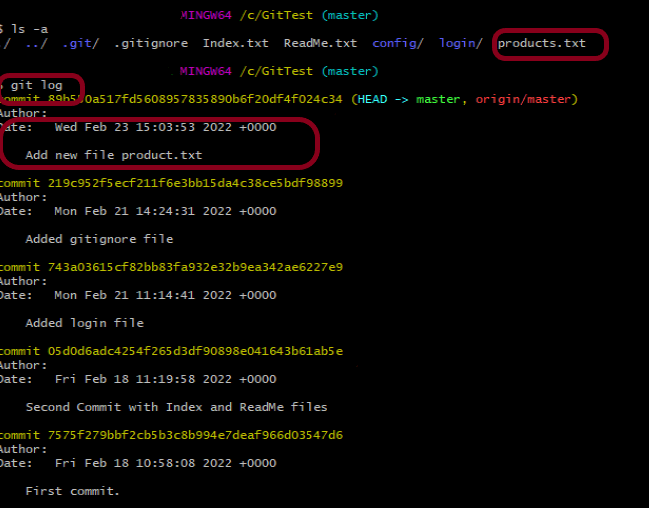
As the “git pull” command fetches and merges, we can see the newly added file named “products.txt” in my local repo.

Again use the below commands:

ls -a
git log

This shows that the new file – products.txt which was present in GitLab is now present in Git local Repository means latest change is pulled from GitLab to local Repository.

Congratulation!! We are able to pull the changes from Remote Repository to Local Repository. Happy Learning!!

How to create a branch in GIT

HOME

The previous tutorial has explained the committing of the changes in the GIT. This tutorial explains the creation of a new branch in GIT.

Branching is a feature available in most modern version control systems. Git branches are effectively a pointer to a snapshot of the changes. When we want to add a new feature or fix a bug, it is advisable to create a new branch to encapsulate the changes.  This helps you to clean up the future’s history before merging it. Git branches are an essential part of the everyday workflow. Git does not copy files from one directory to another, it stores the branch as a reference to a commit.

A branch represents an independent line of development. The git branch command allows us to create a new branch, and rename and delete the branch.

It’s important to understand that branches are just pointers to commits. When you create a branch, all Git needs to do is create a new pointer, it doesn’t change the repository in any other way. To create a branch, use this command:

git checkout -b branchName

Let me explain how to create a new branch with the help of an example:-

Step 1– Create a new GIT Repository – GitTest.

Step 2 – Right-click and click on Git Bash Here to open GitBash at that place.

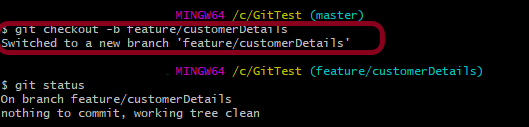
Step 3 – GIT Repo has already committed files – Index.txt, ReadMe.txt, .gitignore. Create a GIT local branch feature/customerDetails.

git checkout -b feature/customerDetails

Now, the branch is changed from master to feature/customerDetail.

Step 4 – Update the already committed Index.txt file. Later, type git add . to stage the file to GIT Staging area. Then, commit the Index.txt file.

echo -en "\n A new page for Customer is added." >>Index.txt
cat Index.txt
git status
git add.
git commit -m "Updated Index.txt file with Customer Detail"

Step 5 – Below command shows that the updated Index.txt is committed in new branch feature/customerDetails

git status

Step 6 – Type the below command to go back to the master branch.

git checkout master

Step 7 – Open Index.txt file in the master branch. It shows that there is no change in this file, as the changes were done in another new branch. To get the latest changes in the master branch, we need to merge the new local branch (feature/customerDetails) to the master branch.

To delete a branch, use the below command:

git branch -d feature/customerDetails

As the branch hasn’t been merged, the above command output an error message as shown in the above image.

To delete the branch forcefully, even if the changes are unmerged. Below is the command:

git branch -D feature/customerDetails

To rename the current branch, use the below command:

git branch -m feature/newCustomer

To get the list of all the branches, use the below command:

git branch -a

Congratulations on making it through this tutorial and hope you found it useful! Happy Learning!! Cheers!!
How to ignore files in GIT – gitignore

HOME

The previous tutorial has explained the addition of an empty file or directory to the GIT using .gitkeep. This tutorial explains how to not stage certain files in GIT (ignored file).

What type of files are ignored?

Ignored files are usually built artifacts and machine-generated files that can be derived from your repository source or should otherwise not be committed. Some common examples are:

  • dependency caches, such as the contents of /node_modules or /packages
  • compiled code, such as .o.pyc, and .class files
  • build output directories, such as /bin/out, or /target
  • files generated at runtime, such as .log.lock, or .tmp
  • hidden system files, such as .DS_Store or Thumbs.db
  • personal IDE config files, such as .idea/workspace.xml

Imagine we have 100 files, and we want to commit only 99 files and ignore 1 file. This seems to be a very difficult situation.

To add the files to the GIT Staging area, we can use git add command. If we use git add ., it will add all 100 files to the GIT Staging area. Another way is to mention git add file1, file2….. soon, which is also a very tedious task.

Ignored files are tracked in a special file named as .gitignore named which is checked in at the root of the repository.  We need to mention the file we want to ignore in .gitignore file.

Let me explain how to use .gitignore with the help of an example:-

Step 1 – Create a GIT Repository named as GitTest.

Step 2 – Right-click and click on Git Bash Here to open GitBash at that place.

Step 3 – Type git status to check if any file is not committed.

Step 4 – Create a new directory – config.

mkdir config

Step 5 – Create a file named test.class into the directory.

touch config/test.class

Step 6 – Type git status to check that config folder is untracked.

Step 7 – Create a .gitignore file.

touch .gitignore

Step 8 – Add the folder or file we want to ignore.

echo config/ >> .gitignore

Step 9 – Type git status again. This time, we can see that the untracked file is .gitignore not the config directory.

Congratulations!!! We are done. Have a happy Learning!!

How to commit an empty folder in GIT – gitkeep

HOME

In the previous tutorial, I have explained how to commit changes in GIT. This tutorial will explain how to commit an empty folder or directory in GIT.

GIT can not push empty directory or folder. It can only track files.

If we try to push a folder with nothing in it, although it will exist on our local machine, but nothing will go into the branch. A common, standardized practice to solve this issue is to push a file called .gitkeep into the empty folders. This is not a feature of GIT.

Let me explain this with an example

Step 1 – Create a GIT Repository with name GitTest.

Step 2 – Right-click and click on Git Bash Here to open GitBash at that place.

Step 3 – Create an empty directory named as login.

mkdir login

Step 4 – Type git status to check if new directory is tracked by Git or not. This image shows that GIT didn’t track the new directory login.

Step 5 – Create a new empty file called .gitkeep into the login directory.

touch login/.gitkeep

Step 6 – Type git status again and now the new directory login is tracked by GIT.

I hope this tutorial has helped you to understand this concept. Have a nice learning!!!

How to track commits in Git – git log command

HOME

The previous tutorial explains the process of staging and committing a change. But, to track all the commits that have occurred in the project, there is a command called git log.

What is git log command?

The git log command shows the snapshot of all the committed changes.  It is used for listing and filtering the project history, and searching for particular changes.

To explain the usage of the git log, let us follow a few steps.

Step 1 – Create an empty directory – GitTest.

Step 2 – Right-click and click on Git Bash Here to open GitBash at that place.

Step 3 – Type a git command as shown below. This command is used for the initial setup of a Git local Repository. To know how to create an empty directory, refer to this tutorial.

git init

Step 4 – Use the below command to display the state of the working directory and the staging area.

git status

Step 5 – Create 2 new files with some content – ReadMe.txt and Index.txt.

Step 6 – Use the below command to promote pending changes (new file or altered file) in the working directory, to the git Staging area.

git add ReadMe.txt

Step 7 – Use the below command to promote the changes from Staging Area to GIT local repository. This is our first commit.

git commit ReadMe.txt

Step 8 – Update ReadMe.txt file

Step 9 – Use the below command to promote both ReadMe.txt and Index.txt to the staging area, which means both files are staged.

git add .

Step 10 – Use the below command to commit both the files to GIT local Repository.

git commit -am "Second Commit with Index and ReadMe files"

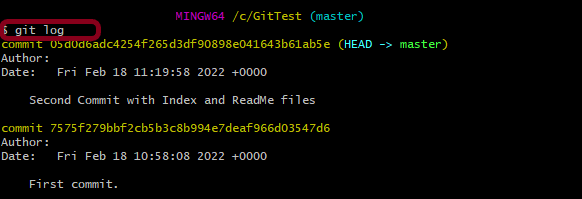
Step 11 – Type the below command to see the snapshot of all the commits.

git log

By default, formatting, shows the whole commit history. 

There are various configurations of git log:-

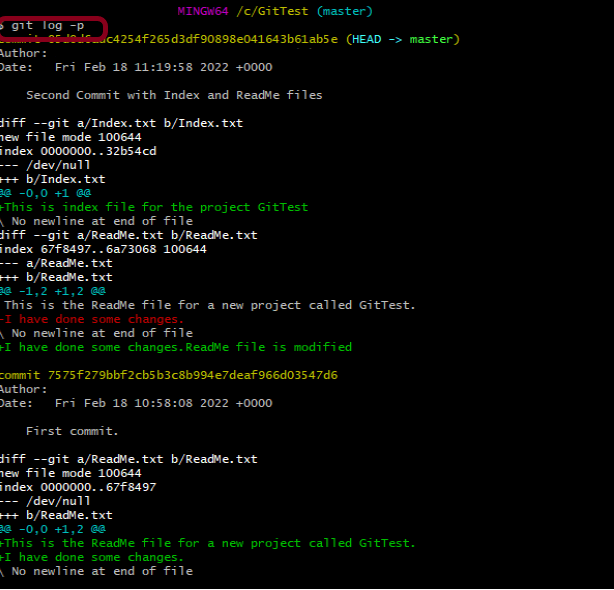
1. git log –patch or git log -p

This command shows the patch for each commit as well as their full differences.

2. git log –stat

This command displays the number of insertions and deletions to each file altered by each commit (note that modifying a line is represented as 1 insertion and 1 deletion). This is useful when you want a brief summary of the changes introduced by each commit. 

3. git log –pretty

git log --pretty=format:"%cn committed %h on %cd"

This command display each commit using printf-style placeholders. The %cn%h and %cd characters in the command are replaced with the committer name, abbreviated commit hash, and the committer date, respectively.

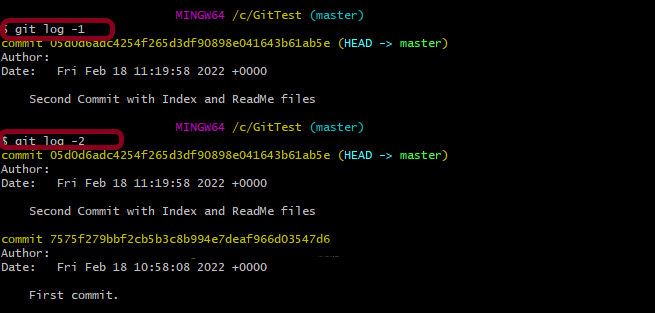
4. git log -n where n is the limit

git log -1

This command limits the number of commits to be displayed.

5. git log –author

git log --author ="Singh"

This command displays all commits for the specified author. If there is no match for the author, nothing will be displayed.

6. git log — fileName

git log -- Index.txt

This command displays those commits that include the specified file, which makes it easier to see the file’s history.

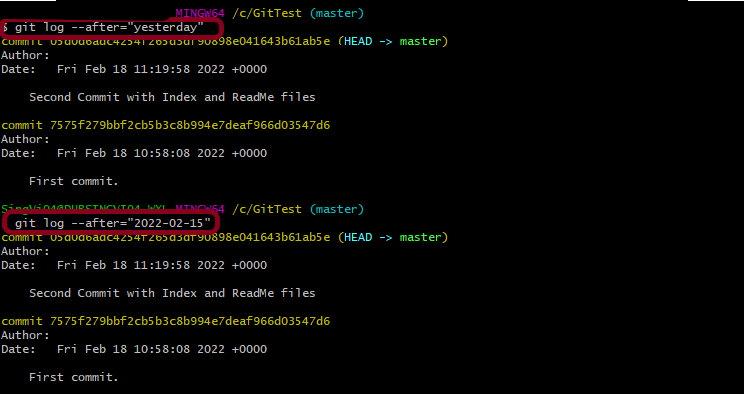
7. git log –after

git log --after="yesterday"
git log --after="2022-02-15"

This command displays a commit from a specific time frame. We can use both –after or –before.

Congratulations!! We have learned about the git log, which is very useful for tracking the changes. Happy Learning!!
How to commit changes in GIT – git commit command

HOME

The previous tutorial explains the staging of the changes. This tutorial explains how to commit changes in GIT.

As we remember from previous tutorials, committing a change (like new file, updated file, etc) is a 2 step process.

“git add” is the first command in a chain of operations that directs Git to “save” a snapshot of the current project state, into the commit history or can say . Now we can say that “git commit” is the second command in above chain of operations.

git commit is used to save the changes to the local Git Repository. When a file is changes and we use git commit, GIT will not automatically commit the changes. Instead, we need to use the “git add” command to mark the desired changes for inclusion.

Let me explain this with an example.

Step 1– Create an empty directory – GitTest.

Step 2Right-click and click on Git Bash Here to open GitBash at that place.

Step 3 – Type a git command as “git init”. This command is used for initial setup of a Git local Repository. To know how to create an empty directory, refer this tutorial.

Step 4 – Type git status command. This command displays the state of the working directory and the staging area.

Step 5 – Create 2 new files with some content – ReadMe.txt and Index.txt.

Step 6 – Type git add ReadMe.txt command. This will  promote pending changes (new file or altered file) in the working directory , to the git Staging area.

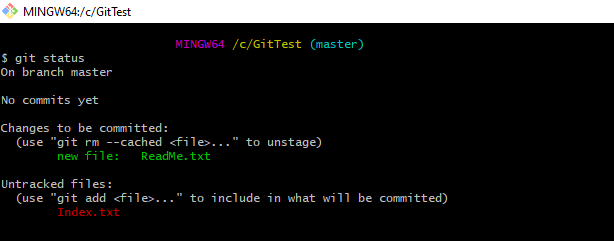
Step 7 – Type git status command.

This shows that ReadMe.txt file is already staged and Indesx.txt is not staged. As ReadMe.txt is already staged, we can commit this file to Git local Repository. This can be done by using the command “git commit”.

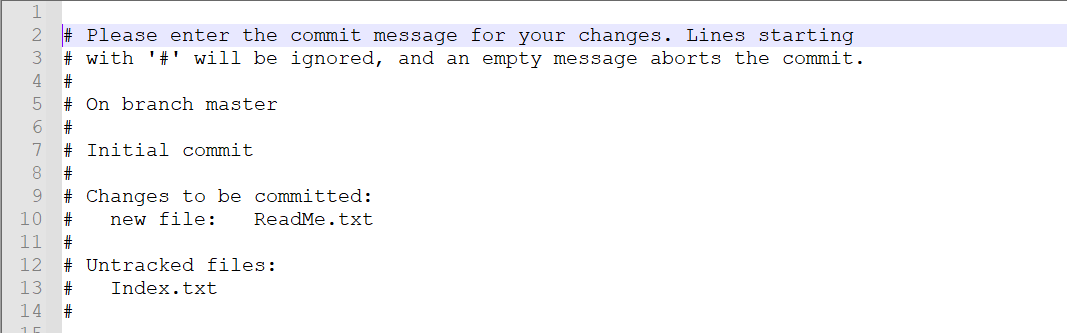
Step 8 – Type git commit “ReadMe.txt”.

git commit <fileName>

This will launch a text editor prompting you for a commit message. After you’ve entered a message, save the file and close the editor to create the actual commit. Below is the editor opens. I have added the message – First commit at line 15 (which is not commented – #)

This is how the message is displayed in GitBash now.

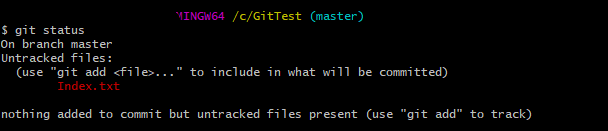
Step 9 – Type git status again. This command shows that now we have only Index.txt to stage and commit.

A shortcut command that immediately creates a commit with a passed commit message without opening of text editor.

git commit -m "commit message"

There are some other options to available with git commit.

  1. This command commit a snapshot of all changes present in Git Staging area.
git commit -a

2. A power user shortcut command that combines the -a and -m options. This combination immediately creates a commit of all the staged changes and takes an inline commit message.

git commit -am "commit message"

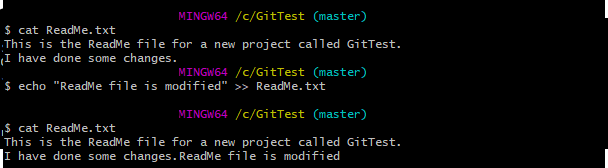
In the below example,

Step 1 – Modified Index.txt file

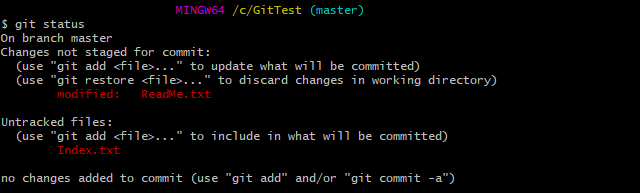
Step 2 – Type git status to see that ReadMe.txt is modified so needs to be staged again and Index.txt which also needs to be staged.

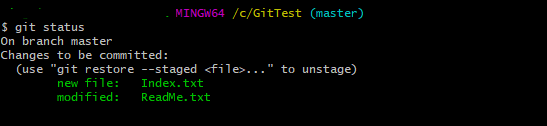
Step 3 – Type git add . to stage both files Index.txt and ReadMe.txt to Staging Area.

Step 4 – Type git status to check the status of both files.

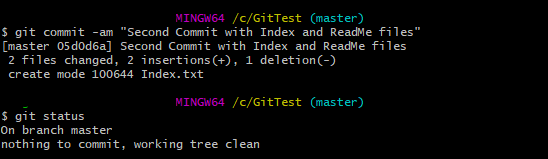
Step 5 – Type git commit -am “Second commit with Index and ReadMe files” to commit both the files.

Step 6 – Type git status to check if both the files are committed or not.

Hopefully, this tutorial will help you to understand the process of committing the changes in GIT. Happy Learning.

How to unstage the changes in Git – git rm command

HOME

The previous example has explained the staging of new files to the staging area.

What is git rm?

This command removes the file from the staging area. The files from the working directory will remain intact. This means that you’ll still have a copy of the file locally. The file will be removed from the index tracking of Git project.

Let us explain this with the help of an example.

  1. Create an empty Git RepositoryGitTest
  2. Create a new file – ReadMe.txt and add the file to staging area.
  3. Create another file – Index.html
  4. Update the first file – ReadMe.txt which is already staged.
  5. Use “git add .” to stage both the files.

Later, we realized that we don’t want to commit both the files. We try to commit the logically same files, like files created or changed to fix a particular bug. So, if in the future we want to track back the changes, it is easy to figure out which all files are changed or impacted.

We want to unstage the “Index.txt” file.

Use the below command to reset the changes from the staging area to the working directory.

git rm --cached Index.txt

The “cached” option specifies that the removal should happen only on the staging index.

I have used “git status” command and it shows that “ReadMe.txt” can either be unstage or commit. Whereas “Index.txt” is unstage. So, if we want to commit Index.txt, first we need to stage this file using git add command.

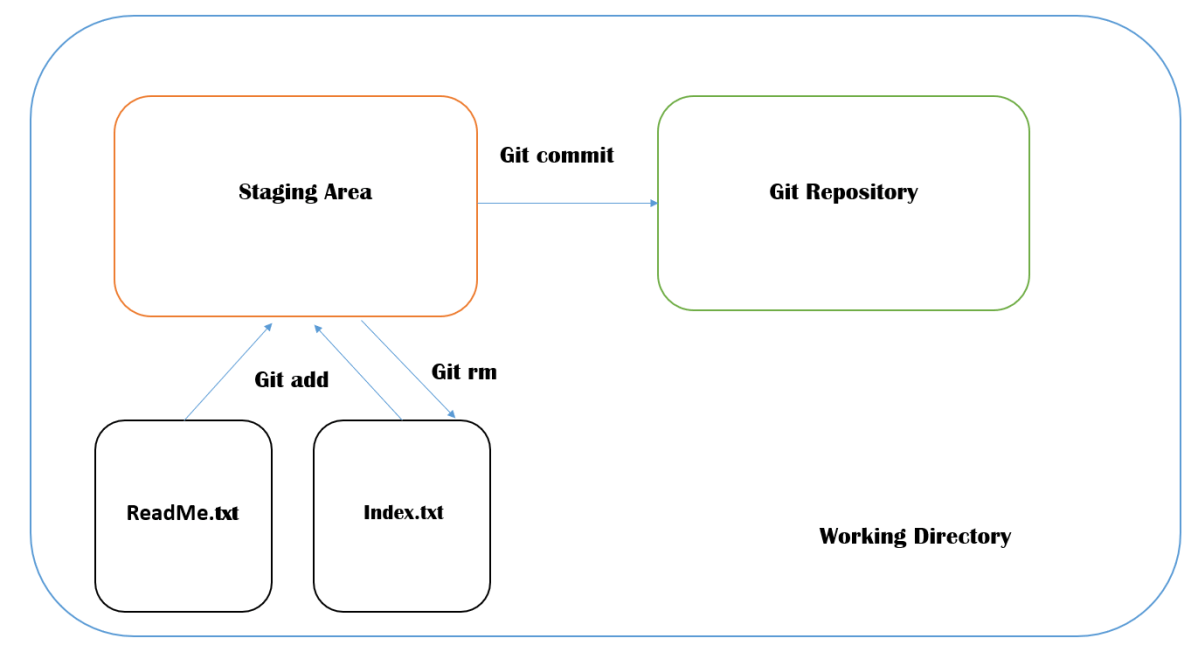
This image shows that git rm moves the staged file from Staging Area to back to working Directory.

I hope this tutorial has helped you to understand git rm command.

How to stage changes in Git – git add Command

HOME

The previous tutorial explains the creation of a Git Repository. This tutorial explains the steps to stage the changes in the Git Repository.

We have a new Git Repository named as GitTest. Go to the Git Repository and Right-click and select “Git Bash Here”.

To know how to create a new empty Git Repository, refer to this tutorial – How to create a new Git Repository – git init Command.

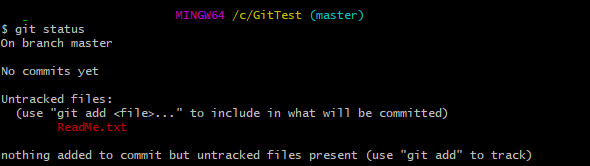
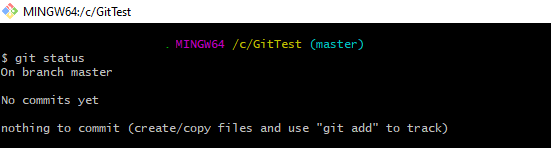
Type “git status” command on Git Bash and press enter.

This shows that there is no uncommitted file available in the Git Repository.

Scenario 1 – Adding/Staging a new file to Git

Now, let us create a new file called – ReadMe.txt in the Git Repository. Again, type the command – “git status”.

When we have added a new file and use the Git Status command, Git shows that the newly created file is an untracked file, since it is not yet tracked by GIT. It is showing a suggestion to use the “git add” command with the file name so that it can be included as a part of the next commit.

As suggested by Git, let us use the “git add” command to commit the file and then use “git status” command to see the status of Git.

When we ran the “git add” command, then changes from the working directory were copied (not moved) to the staging area. 

The primary function of the git add command is to promote pending changes (new file or altered file) in the working directory, to the git staging area. The staging area is one of Git’s more unique features.

Scenario 2 – Adding a new file to git and updating the already staged file

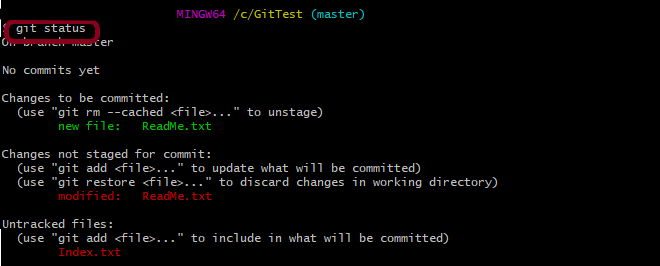
I have created another new file – “Index.txt” and updated the already staged file – “ReadMe.txt”. Type the command “git status” and see the message provided by Git.

This image provides 4 suggestions

  1. If we want to unstage the old file – ReadMe.txt, we can do that by using command “git rm”.
  2. The latest changes are not staged for ReadMe.txt file. This can be done by using “git add” command.
  3. If we want to move the latest changes from staging area to working directory, use “git restore” command.
  4. The new file Index.txt is not at all staged. So, it can be staged by using the command “git add“.

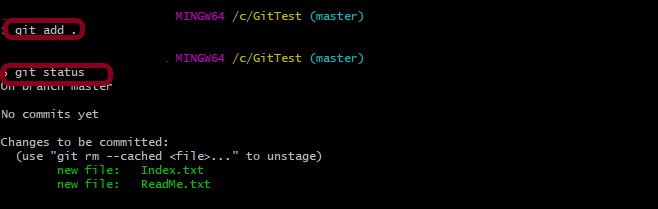
There are multiple ways to stage multiple files in Git.

The first way is to add the name of all the files, as shown below.

 git add ReadMe.txt Index.txt

The second way is to use the below command. This will stage all the unstaged files available in Git.

git add .

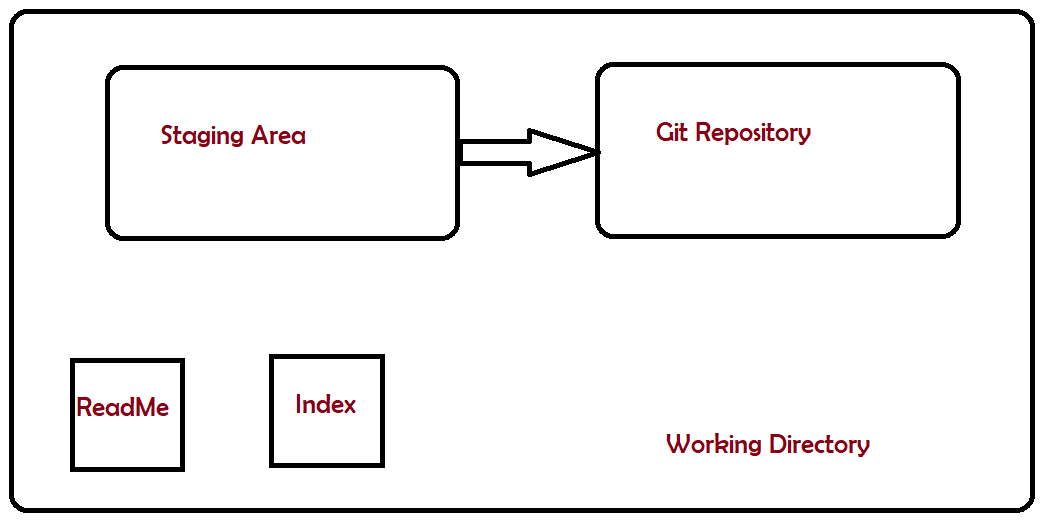
Staging Files – This diagram helps you to remember the difference between Staging Area and Git Repository.

I hope this has helped you to understand the difference between Staging Area and Git Repository.

How to create a new Git Repository – git init Command

HOME

I have explained the steps to install Git on Windows 10 in the last tutorial – How to install Git on Windows 10. This tutorial will explain the process to create a new Git Repository.

Git offers a better way of keeping track of changes by using the Git repository. A repository is a place that stores something like files, data, code, etc.

What is Git Repository?

A Git Repository stores file and keep track of the changes. A Git repository is a virtual storage of a project. It allows you to save versions of your code, which you can access when it is needed. That’s why all software project uses a version control system like Git. Git automatically will not start tracking changes to any file. We need to let git know where to track and what to track.

Let us understand how to use git init command.

Step 1 – Create an empty directory – GitTest.

Step 2 – Right-click and click on Git Bash Here.

Step 3 – Type a git command as “git status”.

As the new directory is not a git directory it showed a fatal messagefatal: not a git repository (or any of the parent directories): .git.

What is git status command?

The git status command displays the state of the working directory and the staging area. It lets you see which changes have been staged, which haven’t, and which files aren’t being tracked by Git. Status output does not show you any information regarding the committed project history.

Step 4 – Type git command – “git init”.

Here, you can see an empty git repository is created under C:/GitTest.

What is git init command?

git init is a one-time command which you use during the initial setup of a new repo. Executing this command will create a new .git subdirectory in your current working directory. This will also create a new main branch – master branch. Master or Main are default branch.

The git init” command creates a new hidden folder named.gitin the same directory where it was run.

Running git init in an existing repository is safe. It will not overwrite things that are already there. The primary reason for rerunning git init is to pick up newly added templates (or to move the repository to another place if –separate-git-dir is given).

Congratulation!!! We have understood the use of git init command.