Run Cucumber Test from Maven Command Line

Last Updated on

HOME

To have a successful and effective implementation of a test framework, it is always advisable that the test framework supports test execution in multiple ways.
The most commonly used ways to execute tests in Cucumber Framework are by running the tests using JUnit and TestNG.

To execute tests using JUnit, we need to create a JUnit Test Runner. Whereas, we need a Maven project to execute Cucumber tests from Command-Line.

Create a Maven project and add the below-mentioned dependencies to your Maven project.

<project xmlns="http://maven.apache.org/POM/4.0.0" xmlns:xsi="http://www.w3.org/2001/XMLSchema-instance"
  xsi:schemaLocation="http://maven.apache.org/POM/4.0.0 http://maven.apache.org/xsd/maven-4.0.0.xsd">
  <modelVersion>4.0.0</modelVersion>

  <groupId>com.example</groupId>
  <artifactId>Cucumber_TestNG_Demo</artifactId>
  <version>1.0-SNAPSHOT</version>
  <packaging>jar</packaging>

  <name>Cucumber_TestNG_Demo</name>
  <url>http://maven.apache.org</url>

  <properties>
    <project.build.sourceEncoding>UTF-8</project.build.sourceEncoding>
    <cucumber.version>7.15.0</cucumber.version>
    <selenium.version>4.16.1</selenium.version>
    <testng.version>7.9.0</testng.version>
    <maven.compiler.plugin.version>3.12.1</maven.compiler.plugin.version>
    <maven.surefire.plugin.version>3.2.3</maven.surefire.plugin.version>
    <maven.compiler.source.version>17</maven.compiler.source.version>
    <maven.compiler.target.version>17</maven.compiler.target.version>
  </properties>

  <dependencies>

    <dependency>
      <groupId>io.cucumber</groupId>
      <artifactId>cucumber-java</artifactId>
      <version>${cucumber.version}</version>
    </dependency>

    <dependency>
      <groupId>io.cucumber</groupId>
      <artifactId>cucumber-testng</artifactId>
      <version>${cucumber.version}</version>
      <scope>test</scope>
    </dependency>

    <!-- Selenium -->
    <dependency>
      <groupId>org.seleniumhq.selenium</groupId>
      <artifactId>selenium-java</artifactId>
      <version>${selenium.version}</version>
    </dependency>

    <!-- TestNG -->
    <dependency>
      <groupId>org.testng</groupId>
      <artifactId>testng</artifactId>
      <version>${testng.version}</version>
      <scope>test</scope>
    </dependency>

  </dependencies>
  <build>
    <plugins>
      <plugin>
        <groupId>org.apache.maven.plugins</groupId>
        <artifactId>maven-compiler-plugin</artifactId>
        <version>${maven.compiler.plugin.version}</version>
        <configuration>
          <source>${maven.compiler.source.version}</source>
          <target>${maven.compiler.target.version}</target>
        </configuration>
      </plugin>
      <plugin>
        <groupId>org.apache.maven.plugins</groupId>
        <artifactId>maven-surefire-plugin</artifactId>
        <version>${maven.surefire.plugin.version}</version>
        <configuration>
          <suiteXmlFiles>
            <suiteXmlFile>testng.xml</suiteXmlFile>
          </suiteXmlFiles>
        </configuration>
      </plugin>
    </plugins>
  </build>

</project>

Feature: Login to HRM Application

  Background:
    Given User is on HRMLogin page "https://opensource-demo.orangehrmlive.com/"

  @ValidCredentials
  Scenario: Login with valid credentials

    When User enters username as "Admin" and password as "admin123"
    Then User should be able to login successfully

  @InvalidCredentials
  Scenario Outline: Login with invalid credentials

    When User enters username as "<username>" and password as "<password>"
    Then User should be able to see error message "<errorMessage>"

    Examples:
      | username   | password  | errorMessage                      |
      | Admin      | admin12$$ | Invalid credentials               |
      | admin$$    | admin123  | Invalid credentials               |
      | abc123     | xyz$$     | Invalid credentials               |

Feature: Login to Home

  Background:
    Given User is on HRMLogin page "https://opensource-demo.orangehrmlive.com/"

  @ValidCredentialsHome
  Scenario: Login with valid credentials to got to home page

    When User enters username as "Admin" and password as "admin123"
    Then User should be able to login successfully and new Home page opens

Run Test from Command Line

1. Open the command prompt and change the directory to the project location where pom.xml is present.

C:\Users\Documents\Vibha\Automation\Cucumber_Selenium_TestNG

2. All feature files should be in src/test/resources and create the Cucumber Runner class as CucumberRunnerTest.
Note:- The Runner class name should end with Test to execute the tests from Command Line
Run the following command in the command prompt:

mvn clean test

mvn clean test runs Cucumber Features using Cucumber’s JUnit Runner. The @RunWith (Cucumber.class) annotation on the TestRunner class tells JUnit to start Cucumber. Cucumber runs time parses the command-line options to know what feature to run, where the Glue Code lives, what plugins to use, and so on.

3. The below screenshot shows that CucumberRunnerTest class is triggered.

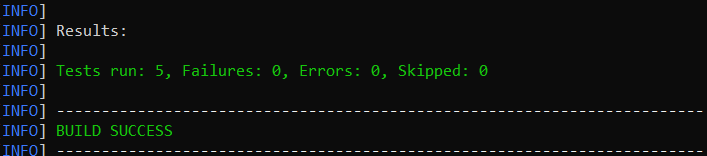
4. The below screenshot shows the build success output.
Cucumber provides several options that can be passed to on the command line.

2. Running Scenarios using Tags

If you are using Maven and want to run a subset of scenarios tagged with @ValidCredentials.

mvn clean test -Dcucumber.filter.tags="@ValidCredentials"

3. Running a Feature file

Suppose you want to run a single Feature File from the command line, then use the below syntax

mvn clean test -Dcucumber.features="src/test/resources/features/HomePage.feature"

4. Creating Cucumber Report from Command Line

If we want to generate a different report, then we can use the following command and see the HTML report generate at the location mentioned:

mvn clean test -Dcucumber.plugin="html:target/cucumber-reports/cucumberReport.html"

5. Passing multiple Parameters

If we want to pass more than one parameter, then we can use the following command

mvn clean test -Dcucumber.features="src/test/resources/features/LoginPage.feature" -Dcucumber.filter.tags="@ValidCredentials"

6. Running a Scenario without a tag

If we want to run a single Scenario from the command line and no tag is assigned to that scenario, this is how we specify

mvn clean test -Dcucumber.features="src/test/resources/features/LoginPage.feature:7"

That’s it! Congratulations on making it through this tutorial and hope you found it useful! Happy Learning!!

In the next tutorial, I explained to run Cucumber Gradle tests from Command Line.

Run TestNG tests from Command Line

HOME

The previous tutorial has explained the Integration of Selenium with TestNG and the tests are executed through either TestNG Suite or testng.xml. This tutorial explains the steps to run the TestNG Tests through the command line.

Prerequisite

  1. Selenium
  2. TestNG
  3. Maven
  4. Java 11
  5. Maven Compiler Plugin
  6. Maven Surefire Plugin

Imagine we need to run the TestNG Tests in CI/CD pipelines like Jenkins or GitLab, then we can’t right-click and select TestNG Suite or tesng.xml to run the tests. In such situations, the tests can be executed through the command line.

We need to add plugins to pom.xml to compile the test code and then run the tests. To know more about Maven Surefire Plugin for TestNG, refer to this blog.

 <build>
      <plugins>

         <!--  Compiler Plugin -->
         <plugin>
            <groupId>org.apache.maven.plugins</groupId>
            <artifactId>maven-compiler-plugin</artifactId>
            <version>3.8.1</version>
            <configuration>
               <source>11</source>
               <target>11</target>
            </configuration>
         </plugin>
         
         <!--  Plugin used to execute tests -->
         <plugin>
            <groupId>org.apache.maven.plugins</groupId>
            <artifactId>maven-surefire-plugin</artifactId>
            <version>3.0.0-M5</version>
            <configuration>
               <suiteXmlFiles>
                  <suiteXmlFile>testng.xml</suiteXmlFile>
               </suiteXmlFiles>
            </configuration>
         </plugin>
      </plugins>
   </build>
</project>

It is needed to add testng.xml to suiteXmlFile to start the execution of the tests.

<suiteXmlFiles>
       <suiteXmlFile>testng.xml</suiteXmlFile>
</suiteXmlFiles>

Create a sample class that has @Test methods. In the example below, we have created a class as below:

import static org.testng.Assert.assertTrue;
import static org.hamcrest.Matchers.containsString;
import static org.hamcrest.MatcherAssert.assertThat;
import org.openqa.selenium.By;
import org.openqa.selenium.WebDriver;
import org.openqa.selenium.firefox.FirefoxDriver;
import org.testng.annotations.AfterTest;
import org.testng.annotations.BeforeTest;
import org.testng.annotations.Test;

public class TestNGRunFromCommandLine {
	
	 WebDriver driver;
	 
	    @BeforeTest
	    public void setUp() {
	        System.setProperty("webdriver.gecko.driver",
	                "C:\\Users\\Vibha\\Software\\geckodriver\\geckodriver.exe");
	 
	        driver = new FirefoxDriver();
	        driver.get("https://opensource-demo.orangehrmlive.com/");
	 
	        driver.manage().window().maximize();
	    }
	 
	    @Test(description = "This test validates title of login functionality", priority = 0)
	    public void verifyLoginPage() {
	 
	        String expectedTitle = driver.findElement(By.xpath("//*[@id='logInPanelHeading']")).getText(); 
	        System.out.println("Title :" + expectedTitle);
	        assertTrue(expectedTitle.equalsIgnoreCase("LOGIN Panel"));
	    }
	 
	    @Test(description = "This test validates  successful login to Home page", priority = 1)
	    public void verifyHomePage() {
	 
	        System.out.println("Username Entered");
	        driver.findElement(By.name("txtUsername")).sendKeys("Admin");
	 
	        System.out.println("Password Entered");
	        driver.findElement(By.name("txtPassword")).sendKeys("admin123");
	         
	        driver.findElement(By.id("btnLogin")).submit();        
 
	        String newPageText = driver.findElement(By.xpath("//*[@id='content']/div/div[1]/h1")).getText();
	        System.out.println("newPageText :" + newPageText);
	        assertThat(newPageText, containsString("Dashboard"));
	    }
	 
	    @AfterTest
	    public void teardown() {
	 
	        driver.quit();
	    }
	}

The below is the testng.xml file, which will execute all the tests that are available under TestNGRunFromCommandLine class.

<?xml version="1.0" encoding="UTF-8"?>
<!DOCTYPE suite SYSTEM "https://testng.org/testng-1.0.dtd">
<suite name="Suite">
  <test name="Test">
    <classes>
      <class name="TestNG_Demo.TestNGRunFromCommandLine"/>
    </classes>
  </test>
</suite>

The below commands are used to execute the ‘testng.xml’ file from the command line. First, we need to go the place where the pom.xml of the project is placed. Then use the mvn compile test to compile the code and execute the TestNG tests.

cd C:\Users\Vibha\Projects\Vibha_Personal\ParallelTestsTestNG
mvn compile test

After executing the above command, it should execute the tests that we have specified in testng.xml file. Below is the screenshot after the execution of the tests.

This execution generates various TestNG Reports. We are concerned about emailable-report.html and index.html.

Emailable-Report.html

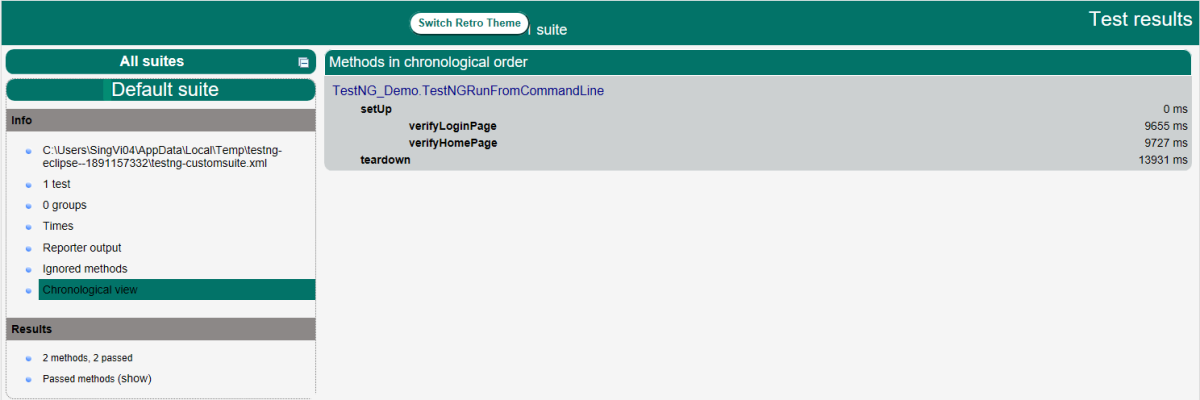
An emailable report is a type of summary report that one can transfer to other people in the team through any medium. Click on option “emailable-report.html”. Click on the options web browser. The output reports in TestNG reporting will look like below:

Index.html

Index report contains the index-like structure of different parts of the report, such as failed tests, test file, passed tests, etc.

Right-click on the index.html from the project directory. Select the option open with the web browser option.

The result will look like this:

Congratulations. This tutorial has explained running the tests of TestNG using Command Line. Happy Learning!!

How to run Parallel Tests in Selenium with TestNG
How to disable Selenium Test Cases using TestNG Feature – @Ignore
Screenshot of Failed Test Cases in Selenium WebDriver
Integration of Cucumber with Selenium and TestNG
How to Retry failed tests in TestNG – IRetryAnalyzer
DataProviders in TestNG

Run Cucumber7 with JUnit5 Tests from Maven Command Line

HOME

The previous tutorial will have explained to run Cucumber tests with JUnit4 or TestNG from Command-Line. Cucumber7 with JUnit5 has a lot of new configuration options. This tutorial will cover all the possible options.

To setup a framework with Cusumber7 and JUnit5, please refer to this tutorial – Integration of Cucumber7 with Selenium and JUnit5.

Below is the sample CucumberRunnerTests class for JUnit5.

import static io.cucumber.junit.platform.engine.Constants.GLUE_PROPERTY_NAME;
import org.junit.platform.suite.api.ConfigurationParameter;
import org.junit.platform.suite.api.SelectClasspathResource;
import org.junit.platform.suite.api.Suite;

@Suite
@IncludeEngines("cucumber")
@SelectClasspathResource("com/example")
@SelectClasspathResource("/features")
@ConfigurationParameter(key = GLUE_PROPERTY_NAME, value = "com.example")

public class CucumberRunnerTests  {

}

Run Test from Command Line

1. Open the command prompt and change the directory to the project location where pom.xml is present.

cd C:\Users\Vibha\eclipse-workspace_personnel\Cucumber7JUnit5_Demo

2. All feature files should be in src/test/resources and create the Cucumber Runner class as CucumberRunnerTest.
Note:- The Runner class name should end with Test to execute the tests from Command Line
Run the following command in the command prompt:

mvn clean test

mvn clean test runs Cucumber Features using Cucumber’s JUnit Runner.

3. The below screenshot shows the build success output.

Overriding Cucumber Options

Cucumber provides several options that can be passed to on the command line.

1. Running Scenarios using Tags from Command Line

If you are using Maven and want to run a subset of scenarios tagged with @ValidCredentials.

mvn clean test -Dcucumber.filter.tags="@ValidCredentials"

2. Running a Feature file from Command Line

Suppose you want to run a single Feature File from the command line, then use the below syntax

mvn clean test -Dcucumber.features=src/test/resources/features/LoginPage.feature

3. Passing plugin from Command Line

If we want to pass a plugin, please use the below-specified command:

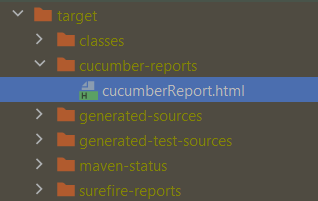
mvn clean test -Dcucumber.plugin=html:target/cucumber-reports/cucumberReport.html

You can see that the cucumberReport.html is generated by the plugin.

4. Passing multiple Parameter from Command Line

If we want to pass more than one parameter, then we can use the following command

mvn clean test -Dcucumber.features=src/test/resources/features/LoginPage.feature -Dcucumber.filter.tags="@ValidCredentials"

You can see that only 1 test is executed and rest 4 tests are skipped out of total 5 tests as shown in the Report.

5. Running a Scenario without a tag from Command Line

If we want to run a single Scenario from the command line and no tag is assigned to that scenario, this is how we specify

mvn clean test -Dcucumber.features=src/test/resources/features/LoginPage.feature:11

6. Ignoring a subset of scenarios

If we do not want to run any Scenario from the command line, this is how we specify

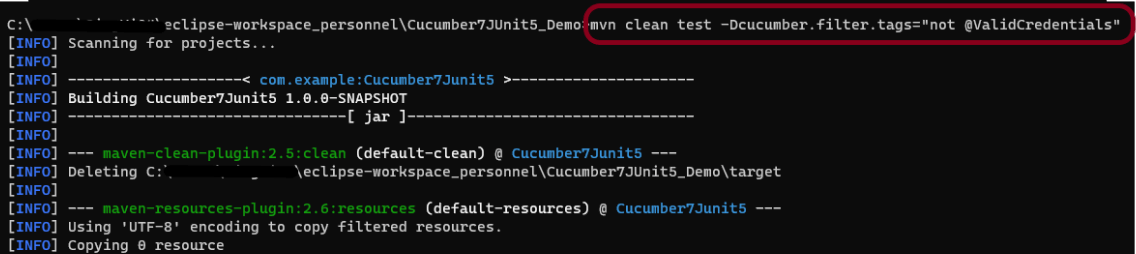
mvn clean test -Dcucumber.filter.tags="not @ValidCredentials"

There is a total of 5 tests, but only 4 will be executed and 1 will be skipped. The output of the above program is shown below:

7. Pass glue code through command line

If we want to pass glue code from the command line, this is how we specify

mvn clean test -Dcucumber.glue=com.example

8. Pass dry run value through command line

dry-run option can either be set as true or false. If it is set as true, it means that Cucumber will only check that every step mentioned in the Feature File has corresponding code written in the Step Definition file or not. By default, dry-run is False.

mvn clean test -Dcucumber.execution.dry-run=true

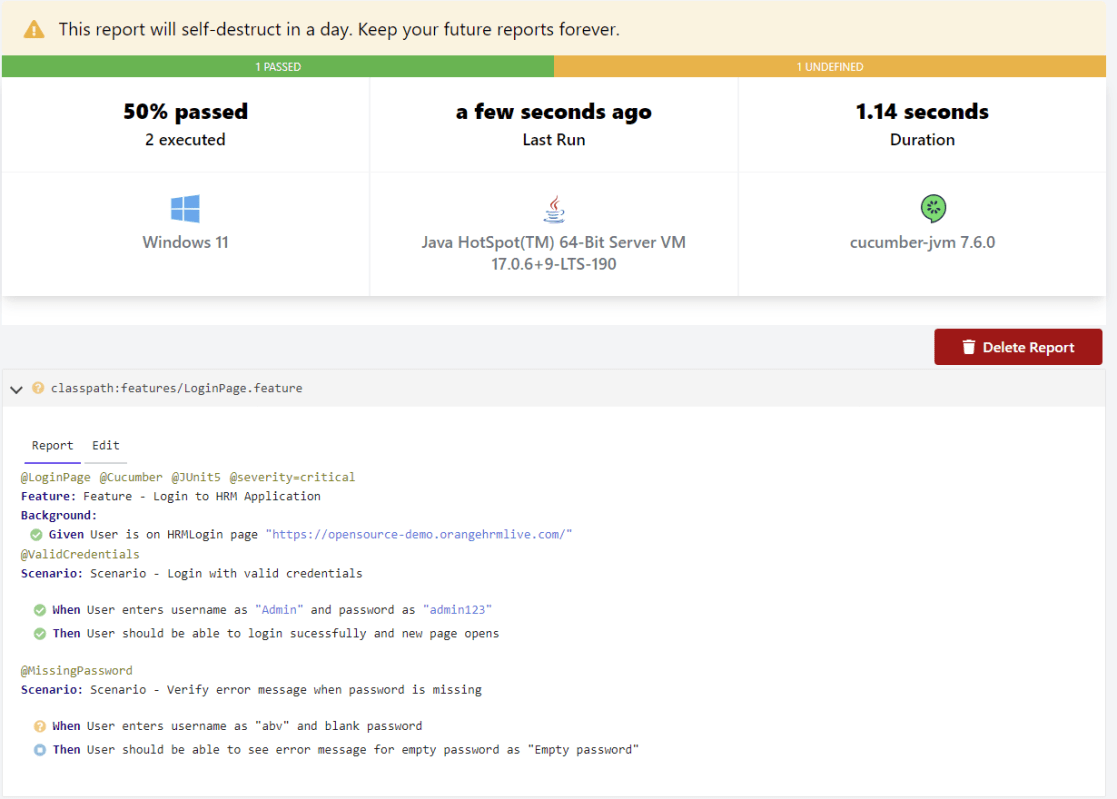
This image shows the steps in the feature file that does not have step definitions.

The cucumber report shows that out of 2 tests, 1 is executed and another one is undefined.

9. Pass snippet type value through command line

The default option for snippets is UNDERSCORE. This settings can be used to specify the way code snippets will be created by Cucumber.

mvn clean test -Dcucumber.snippet-type=camelcase

You can see that the code snippet is in camelCase. In the previous example, it underscored.

That’s it! Congratulations on making it through this tutorial and hope you found it useful! Happy Learning!!

How to run JUnit5 tests through Command Line

HOME

The previous tutorial explains to configure Junit in IntelliJ and run the tests as JUnit Tests. This tutorial shows the steps to run the tests through command line. We can ask, why we need to run the tests through command line?? There are many reasons, one of the reason is to achieve CI/CD. To run the tests in pipeline, they need to be run through command line. Another reason is that we don’t need to open the IDE to run the tests. Third reason is that many reports are only generated (Serenity, Cucumber), if the tests run through command line.

Below is a JUnit5 test.

import io.github.bonigarcia.wdm.WebDriverManager;
import org.junit.jupiter.api.*;
import org.openqa.selenium.WebDriver;
import org.openqa.selenium.chrome.ChromeDriver;
import org.openqa.selenium.chrome.ChromeOptions;

public class Demo {

    WebDriver driver;

    @BeforeEach
    public void setUp() {
        WebDriverManager.chromedriver().setup();
        ChromeOptions chromeOptions = new ChromeOptions();
        driver = new ChromeDriver(chromeOptions);
        driver.manage().window().fullscreen();
    }

    @Test
    public void Junit5Test() {
        driver.get("http://automationpractice.com/index.php");
        System.out.println("Title of Page :" + driver.getTitle());
        System.out.println("Page URL : " + driver.getCurrentUrl());
        Assertions.assertEquals("My Store",driver.getTitle());

    }

    @AfterEach
    public void tearDown() {
        driver.close();
    }
}

Let us see what happens when we try to run the JUnit tests through Command Line. This command is used to run the tests present in Demo class.

mvn clean test -Dtest=Demo

The output generated by the test is shown below

This shows that surefire-plugin is need to be add to the project to run t he tests successfully through command line.

Add surefire-plugin to the project

Go back to the Apache Maven Project and copy the code.

 <dependencies>

        <dependency>
            <groupId>org.junit.jupiter</groupId>
            <artifactId>junit-jupiter-engine</artifactId>
            <version>5.8.2</version>
            <scope>test</scope>
        </dependency>

        <dependency>
            <groupId>org.junit.jupiter</groupId>
            <artifactId>junit-jupiter-api</artifactId>
            <version>5.8.2</version>
            <scope>test</scope>
        </dependency>
 
</dependencies>       
    
<build>
        <plugins>
            <plugin>
                <groupId>org.apache.maven.plugins</groupId>
                <artifactId>maven-surefire-plugin</artifactId>
                <version>3.0.0-M5</version>
                <dependencies>
                    <dependency>
                        <groupId>org.junit.jupiter</groupId>
                        <artifactId>junit-jupiter-engine</artifactId>
                        <version>5.8.2</version>
                    </dependency>
                </dependencies>
            </plugin>
        </plugins>
    </build>

Again run the tests through command line using the command mentioned above. Now, will see that the tests are executed successfully.

Congratulations. We can see that JUnit5 tests are executed through command line. Happy Learning!!

Run Gradle Cucumber Tests from Command Line

HOME

The implementation of a test framework is considered successful and effective, if the test framework supports test execution in multiple ways.
The tests in a Gradle Cucumber Framework can be executed as JUnit Tests, Gradle Tests and Gradle commands from Command Line.

In this tutorial, I will explain to run Gradle tests from Command Line.

Versions Used

  1. Cucumber – 7.5.0
  2. Java – 11
  3. JUnit – 4.13.2
  4. Rest Assured – 4.3.3

To execute tests using JUnit Tests and Gradle Tests, we need to create a JUnit TestRunner.

Steps to follow

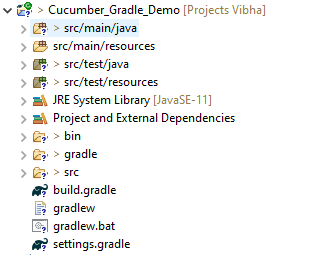
  1. Create a Gradle Java Project.
  2. Add Rest-Assured and Cucumber dependencies to the Gradle project
  3. Add Configuration to build.gradle
  4. Add Gradle Cucumber Task to build.gradle
  5. Create a feature file under src/test/resources
  6. Create the Step Definition class or Glue Code for the Test Scenario
  7. Run the tests from Command Line

Step 1 – Create a Gradle project

Step 2 – Add the below-mentioned dependencies in the Gradle project in build.gradle.

plugins {
    // Apply the java-library plugin to add support for Java Library

    id 'java-library'
 
}

repositories {
    // Use jcenter for resolving dependencies.
    // You can declare any Maven/Ivy/file repository here.
    jcenter()
    mavenCentral()
}

dependencies {
    // This dependency is exported to consumers, that is to say found on their compile classpath.
    api 'org.apache.commons:commons-math3:3.6.1'

    // This dependency is used internally, and not exposed to consumers on their own compile classpath.
    implementation 'com.google.guava:guava:29.0-jre'

    // Use JUnit test framework
    testImplementation 'junit:junit:4.13'
    testImplementation 'io.cucumber:cucumber-java:6.6.1'
    testImplementation 'io.cucumber:cucumber-junit:6.6.1'
    testImplementation 'io.rest-assured:rest-assured:4.3.3'
}

Step 3Add Configuration to build.gradle

configurations {
    cucumberRuntime {
        extendsFrom testImplementation
    }
}

Step 4Add Gradle Cucumber Task to build.gradle

task cucumber() {
    dependsOn assemble, testClasses
    doLast {
        javaexec {
            main = "io.cucumber.core.cli.Main"
            classpath = configurations.cucumberRuntime + sourceSets.main.output + sourceSets.test.output
            args = ['--plugin', 'pretty','--glue', 'Cucumber_Gradle_Demo.definitions', 'src/test/resources']
        }
    }
}

task getexample() {
    dependsOn assemble, compileTestJava
    doLast {
        javaexec {
            main = "io.cucumber.core.cli.Main"
            classpath = configurations.cucumberRuntime + sourceSets.main.output + sourceSets.test.output
            args = ['--plugin', 'pretty', '--glue', 'Cucumber_Gradle_Demo.definitions', 'src/test/resources/features/', '--tags', '@getexample']
        }
    }
}

task postexample() {
    dependsOn assemble, compileTestJava
    doLast {
        javaexec {
            main = "io.cucumber.core.cli.Main"
            classpath = configurations.cucumberRuntime + sourceSets.main.output + sourceSets.test.output
            args = ['--plugin', 'pretty', '--glue', 'Cucumber_Gradle_Demo.definitions', 'src/test/resources/features/', '--tags', '@postexample']
        }
    }
}

Here, task cucumber will execute all the tests present in the project irrespective of the number of feature files and scenarios within the feature file.

Step 5 Create a feature file under src/test/resources

I have created 2 sample feature files – API_GetExample.feature and API_PostExample.feature.

Below is the API_GetExample.feature

@getexample
Feature: Validation of get method
 
  @GetUserDetails
  Scenario Outline: Send a valid Request to get user details
 
  Given I send a request to the URL to get user details
  Then the response will return status 200 and id <id> and salary <employee_salary> and name "<employee_name>" and age <employee_age> and message "<message>"
 
Examples:
    |id  |employee_salary|employee_name |employee_age  |message                                  |
    |1   |320800         |Tiger Nixon   |61            |Successfully! Record has been fetched.   |
    
      
  @GetAllUsers    
  Scenario Outline: Send a valid Request to get the details of all the users
 
  Given I send a request to the URL to get the details of all the users
  Then the response will return status 200 and message "<message>"
 
Examples:
      |message                                  |
      | Successfully! All records has been fetched.   |

API_PostExample.feature

@postexample
Feature: Validation of POST method
 
  @CreateUser
  Scenario Outline: Send Request to create a user
 
  Given I send a request to the URL to create a new user
  Then the response will return status 200 and name "<employee_name>" and message "<message>"
 
Examples:
    |employee_name |message                                |
    |posttest      |Successfully! Record has been added.   |

1. Run Test from Command Line

1. Open the command prompt and change the directory to the project location.

cd C:\Users\Vibha\Projects\Vibha_Personal\Cucumber_Gradle_Demo

2. All feature files should be in src/test/resources and create the Cucumber Runner class as CucumberRunnerTest.
Note:- The Runner class name should end with Test to execute the tests from Command Line

2. Running all Feature files or Tests from Command Line

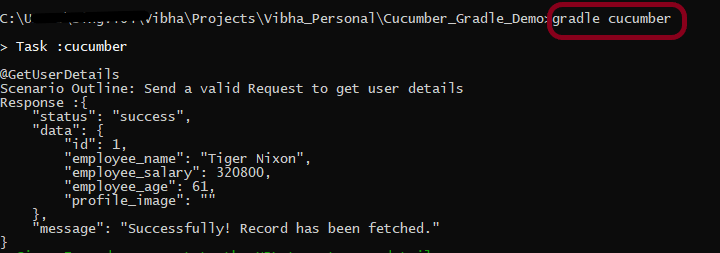
The below command will run all the tests present in the project. As you can see, there are 2 feature files – API_GetExample.feature contains 2 scenarios, and API_PostExample.feature contains 1 scenario.

gradle cucumber

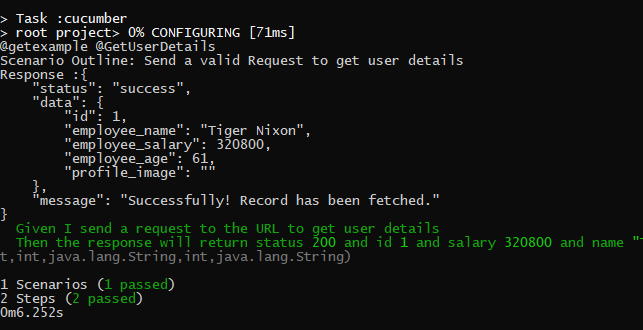
The below screenshot shows that Task: Cucumber is triggered.

The below screenshot shows that the tests are executed and the status of the tests.

3. Running a Feature file from Command Line

To run a particular feature, create a task – postexample for that feature in the build.gradle as shown in the below example.

task postexample() {
    dependsOn assemble, compileTestJava
    doLast {
        javaexec {
            main = "io.cucumber.core.cli.Main"
            classpath = configurations.cucumberRuntime + sourceSets.main.output + sourceSets.test.output
            args = ['--plugin', 'pretty', '--glue', 'Cucumber_Gradle_Demo.definitions', 'src/test/resources/features/', '--tags', '@postexample']
        }
    }
}

Add this task as a feature tag name and use it to run the test of that particular feature file.

@postexample
Feature: Validation of POST method

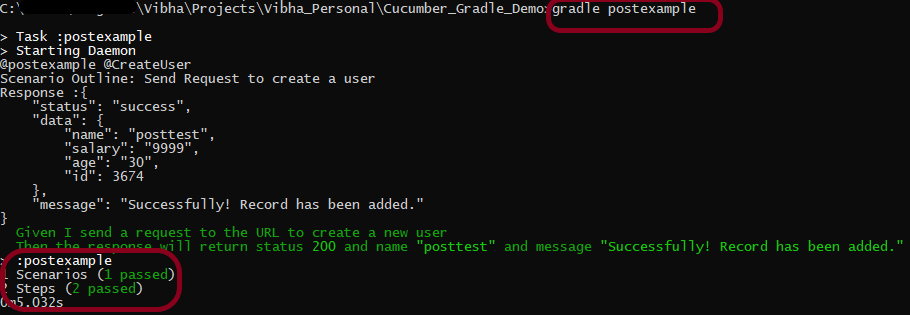
Use the below command to run the tests of API_PostExample.feature.

gradle postexample

4. Running Scenarios using Tags from Command Line

To execute the tests using tags, we need to add ‘–tags’, “${tags}” in build.gradle

task cucumber() {
    dependsOn assemble, testClasses
    doLast {
        javaexec {
            main = "io.cucumber.core.cli.Main"
            classpath = configurations.cucumberRuntime + sourceSets.main.output + sourceSets.test.output
            args = ['--plugin', 'pretty','--tags', "${tags}",'--glue', 'Cucumber_Gradle_Demo.definitions', 'src/test/resources']
        }
    }
}

Use the below-mentioned command to run the tests tagged with tag = GetUserDetails.

gradle cucumber -P tags=@GetUserDetails

5. Running a group of tests from Command Line

Below is the feature file

@getexample
Feature: Validation of get method
 
  @GetUserDetails @SmokeTest
  Scenario Outline: Send a valid Request to get a user details
 
  Given I send a request to the URL to get user details
  Then the response will return status 200 and id <id> and salary <employee_salary> and name "<employee_name>" and age <employee_age> and message "<message>"
 
Examples:
    |id  |employee_salary|employee_name |employee_age  |message                                  |
    |1   |320800         |Tiger Nixon   |61            |Successfully! Record has been fetched.   |
         
  @GetAllUsers 
  Scenario Outline: Send a valid Request to get the details of all the users
 
  Given I send a request to the URL to get the details of all the users
  Then the response will return status 200 and message "<message>"
 
Examples:
    |message                                        |
    | Successfully! All records has been fetched.   |
      
      
  @GetInvalidUsers @SmokeTest
  Scenario Outline: Send a valid Request to get the details of the invalid users
 
  Given I send a request to the URL to get the details of the invalid user
  Then the response will return status 200 and message "<message>"
 
Examples:
    | message                                  |
    | Successfully! Record has been fetched.   |   
      
  @GetInvalidUsers
  Scenario Outline: Send a valid Request to get the details of the user with id 0
 
  Given I send a request to the URL to get the details of the user with id 0
  Then the response will return status 200 and message "<message>" and error "<errorMessage>"
 
Examples:
    | message             | errorMessage  |
    | Not found record.   | id is empty   |  
        
  @Test3
  Scenario: Test 3
     
  Given I send a request to the URL to get the details of the user3
  Then the response will return successfully
  
  
  @Test4 
  Scenario: Test 4
     
  Given I send a request to the URL to get the details of the user4
  Then the response will return successfully
  

I want to run 2 tests – @GetUserDetails and @GetInvalidUsers. I can create a task with the name of @SmokeTest and assign these scenarios wit h the same tag. The task will look like as shown below:

task smokeTest() {
    dependsOn assemble, compileTestJava
    doLast {
        javaexec {
            main = "io.cucumber.core.cli.Main"
            classpath = configurations.cucumberRuntime + sourceSets.main.output + sourceSets.test.output
            args = ['--plugin', 'pretty', '--glue', 'com.example.definitions', 'src/test/resources/features/', '--tags', '@SmokeTest']
        }
    }
        
}

Use the below-mentioned command to run the tests.

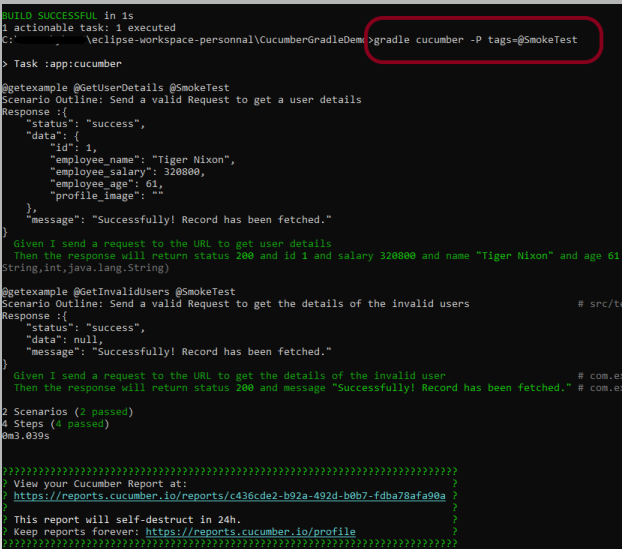
gradle cucumber -P tags=@SmokeTest

The output of the above program is

6. Skipping the execution of a group of tests from Command Line

In the below feature file, I have marked 4 tests as “@Ignore” and 2 are valid.

Feature: Validation of get method
 
  @GetUserDetails @SmokeTest
  Scenario Outline: Send a valid Request to get a user details
 
  Given I send a request to the URL to get user details
  Then the response will return status 200 and id <id> and salary <employee_salary> and name "<employee_name>" and age <employee_age> and message "<message>"
 
Examples:
    |id  |employee_salary|employee_name |employee_age  |message                                  |
    |1   |320800         |Tiger Nixon   |61            |Successfully! Record has been fetched.   |
    
      
  @GetAllUsers @Ignore
  Scenario Outline: Send a valid Request to get the details of all the users
 
  Given I send a request to the URL to get the details of all the users
  Then the response will return status 200 and message "<message>"
 
Examples:
    |message                                        |
    | Successfully! All records has been fetched.   |
      
      
  @GetInvalidUsers @SmokeTest @Ignore
  Scenario Outline: Send a valid Request to get the details of the invalid users
 
  Given I send a request to the URL to get the details of the invalid user
  Then the response will return status 200 and message "<message>"
 
Examples:
    | message                                  |
    | Successfully! Record has been fetched.   |   
      
  @GetInvalidUsers @Ignore
  Scenario Outline: Send a valid Request to get the details of the user with id 0
 
  Given I send a request to the URL to get the details of the user with id 0
  Then the response will return status 200 and message "<message>" and error "<errorMessage>"
 
Examples:
    | message             | errorMessage  |
    | Not found record.   | id is empty   |  
        
  @Test3 @Ignore
  Scenario: Test 3
     
  Given I send a request to the URL to get the details of the user3
  Then the response will return successfully
  
  
  @Test4 
  Scenario: Test 4
     
  Given I send a request to the URL to get the details of the user4
  Then the response will return successfully
     

Add the below-mentioned tag in the build.gradle.

def tags = (findProperty('tags') == null) ? 'not @Ignore' : findProperty('tags') + ' and not @Ignore'

Use the below-mentioned command to run the tests.

gradle cucumber 

The program will execute only 2 tests and will skip the rest 4 tests. The output of the above program is

If I use the tag @SmokeTest here in the command line, then it will run all the tests tagged with @SmokeTest, but will ignore the tests tagged with @Ignore. So, in this case, it will run only 1 test – @GetUserDetails.

gradle cucumber -P tags=@SmokeTest

7. Run multiple tags

Add the below code to build.gradle

test {
    systemProperty "cucumber.filter.tags", System.getProperty("cucumber.filter.tags")
     testLogging {
     showStandardStreams = true
 }
}

This will help us to run multiple tags in cucumber. (Cucumber6 and above uses, cucumber.filter.tags , so for the lower version use cucumber.options).

Use the below command to run 2 tests in gradle.

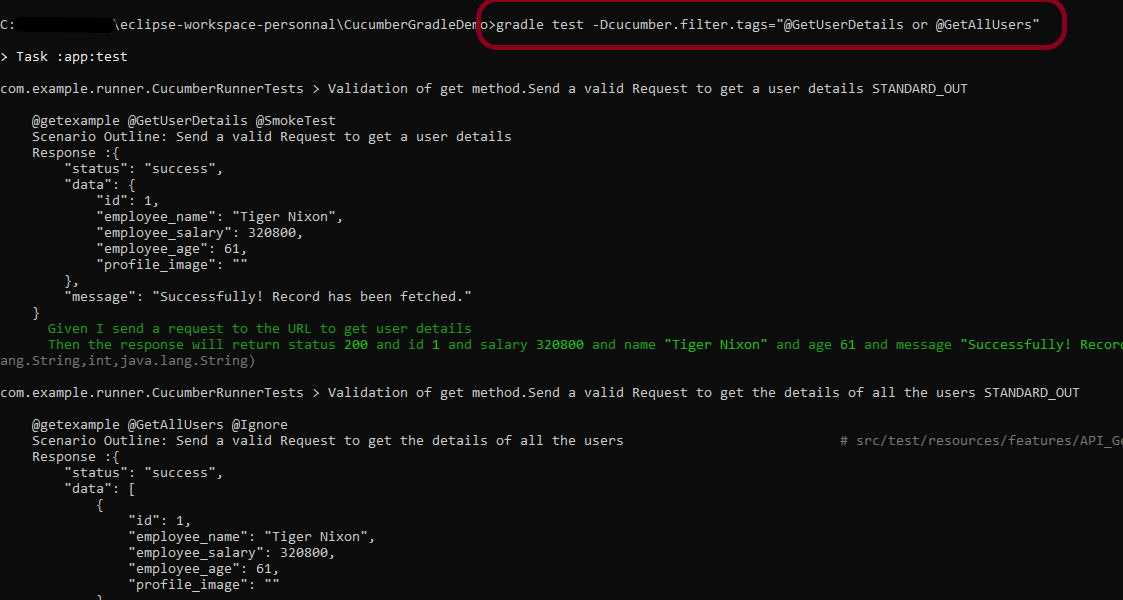
gradle test -Dcucumber.filter.tags="@GetUserDetails or @GetAllUsers"

or means that test tagged with either of these tags can be run. So, here 2 tests should run.

Congratulations on making it through this tutorial and hope you found it useful! Happy Learning!! Cheers!!

How to create Gradle Java project in IntelliJ using Command Line

HOME

In the previous tutorial, I have explained about How to create Gradle project in IntelliJ without Command Line. In this tutorial, I will explain how to create a Gradle Java project using Command Line in IntelliJ.
Implementation Steps

Step 1- Create a Project Folder and change the directory path to the folder where we want to save the latest files created post creation of the project. Here, I have created a folder – GradleIntelliJDemoFromCMD and changed the directory path.

cd C:\Users\Vibha\Projects\Vibha_Personal\GradleIntelliJDemoFromCMD

Step 2 – Open the Terminal in IntelliJ.

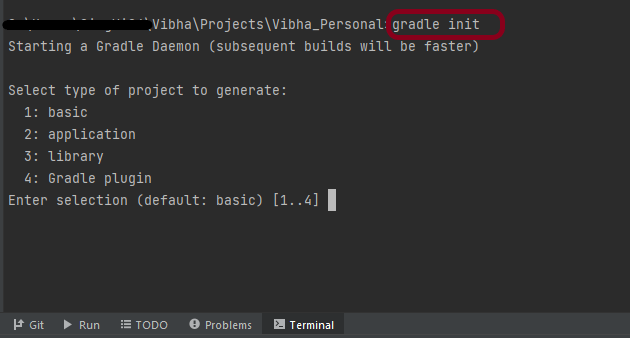
Step 3 – Gradle comes with a built-in task, called init , that initializes a new Gradle project in an empty folder. The init task uses the (also built-in) wrapper task to create a Gradle wrapper script, gradlew. Type the below command and press ENTER.

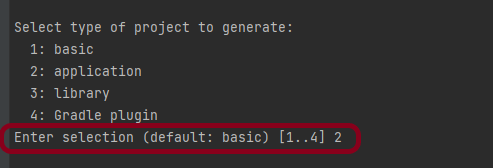
Step 4 – Select the type of project to generate. I’m selecting the application option as if I select basic, it won’t create a src directory. Type 2 and press ENTER.

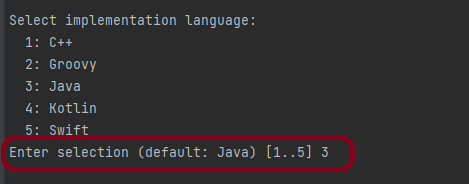
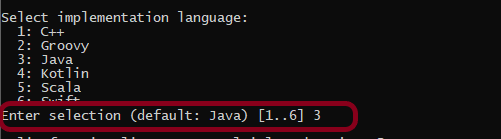
Step 5 – Select implementation language. This is a Java project, so TYPE 3 (Java) and press ENTER.

Step 6 – Select build script DSL (Domain Specific Language) – As in Maven POM.xml (XML) is created to build a script file, here we can use Groovy or Kotlin to build the script file. Type 1 (Groovy) and press ENTER.

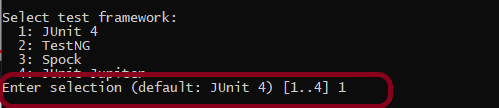
Step 7 – Select Test Framework – There are 4 different test frameworks. Depending on your requirement, select an option. I have selected 1 (JUnit 4) and press ENTER.

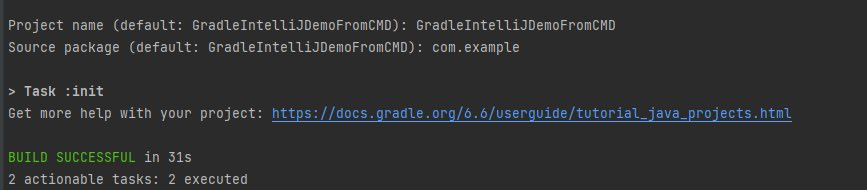
Step 8 – It needs the Project name and Source Package name. If I won’t provide the project name, it will take by default my current folder name which is Gradle_Project. Similarly, if I won’t provide the Source Package name, then it will provide the current project name as Source Package Name.

Project name – GradleIntelliJDemoFromCMD
Source Package – com.example

Press ENTER. init script will run and create a Gradle project. You can see as the build is successfull.

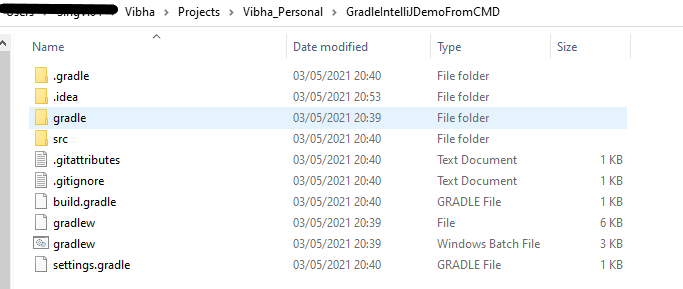
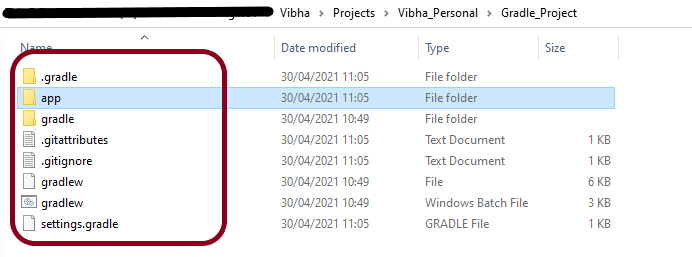
Step 9 – The project is created and placed under the folder GradleIntelliJDemoFromCMD as shown below.

This project structure will have below mentioned files:-

  1. Generated folder for wrapper files – wrapper
  2. Gradle wrapper start scripts – gradlew, gradlew.bat
  3. Settings file to define build name and subprojects – settings.gradle
  4. Build script of lib project – build.gradle
  5. Default Java source folder – src/main/java
  6. Default Java test source folder – src/test/java

That’s it. We are done.

Congratulations on making it through this tutorial and hope you found it useful! Happy Learning!! Cheers!!

How to create a Java Gradle project using Command Line

HOME

In the previous tutorial, I have explained about How to create Gradle project in IntelliJ without Command Line. In this tutorial, I will explain how to create a Gradle Java project using Command Line.
Step 1 – Open Command Prompt. Change current folder to the folder where we want to create the Java project. 

 cd C:\Users\vibha\eclipse-workspace\Projects\Vibha_Personal\Gradle_Project

Step 2 – Create a Project from Gradle Template. Type the below command and press ENTER.

gradle init

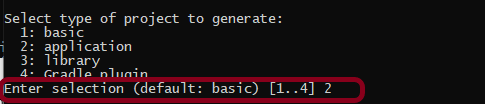
Step 3 – Select the type of project to generate. I’m selecting the application option as if I select basic, it won’t create a src directory. Type 2 and press ENTER.

Step 4 – Select implementation language. This is a Java project, so TYPE 3 and press ENTER.

Step 5 – Select Split functionality across multiple subprojects. I have selected 1 as I want only 1 application. Type 1 and press ENTER.

Step 6 – Select build script DSL (Domain Specific Language) – As in Maven POM.xml (XML) is created to build a script file, here we can use Groovy or Kotlin to build the script file. Type 1 (Groovy) and press ENTER.

Step 7 – Select Test Framework – There are 4 different test frameworks. Depending on your requirement, select an option. I have selected 1 (JUnit 4) and press ENTER.

Step 8 – It needs the Project name and Source Package name. If I won’t provide the project name, it will take by default my current folder name which is Gradle_Project. Similarly, if I won’t provide the Source Package name, then it will provide the current project name as Source Package Name.

Project name – GradleDemoFromCMD
Source Package – com.example

Press ENTER. init script will run and create a Gradle project. You can see as the build is successfull.

Step 9 – Below is the project structure. As you can see, the name of the project is GradleDemoFromCMD, but that is not the name of the project folder here. But, when I’ll import this folder into Eclipse, the project name will be GradleDemoFromCMD.

Step 10 – Open app folder. There should be src folder and build.gradle. Open build.gradle.

/*
 * This file was generated by the Gradle 'init' task.
 *
 * This generated file contains a sample Java application project to get you started.
 * For more details take a look at the 'Building Java & JVM projects' chapter in the Gradle
 * User Manual available at https://docs.gradle.org/7.0/userguide/building_java_projects.html
 */

plugins {
    // Apply the application plugin to add support for building a CLI application in Java.
    id 'application'
}

repositories {
    // Use Maven Central for resolving dependencies.
    mavenCentral()
}

dependencies {
    // Use JUnit test framework.
    testImplementation 'junit:junit:4.13.1'

    // This dependency is used by the application.
    implementation 'com.google.guava:guava:30.0-jre'
}

application {
    // Define the main class for the application.
    mainClass = 'com.example.App'
}

This build.gradle contains all the information which I have provided while creating the project.

That’s it! We have created a Gradle Project using Command Line.

Congratulations on making it through this tutorial and hope you found it useful! Happy Learning!! Cheers!!

Maven – How to create a Java project using Command Line


     In the previous tutorial, we have discussed about How to install Maven on Windows. In this tutorial, we will see how to use Maven to manage a Java project – Create and update the dependencies.

   1) Change current folder to the folder where we want to create the Java project 

   In my case I have my Eclipse Workspace mentioned at the below mentioned path 

    cd C:\Users\vibha\eclipse-workspace\Selenium

  2) Create a Project from Maven Template

This tells Maven to generate a Java project from a Maven template.

mvn archetype:generate

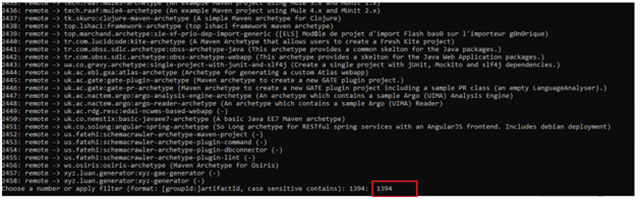
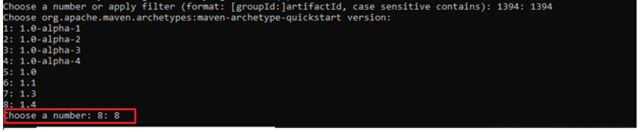
3) We need to mention the number as displayed on your screen in Command Prompt to proceed further. Like here, Choose a folder or apply has 1394, so I have also mentioned 1394 in command prompt.
4) We need to provide again  input in command prompt. This time program wants to know which version we want to use. I prefer to use the latest version. Here, it is 8, so I have selected version 8.

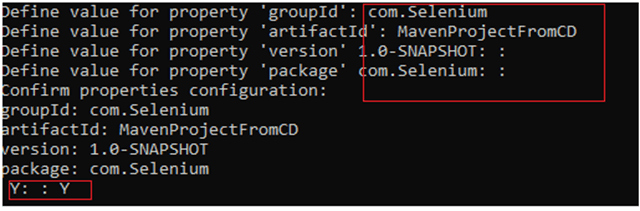
5) We need to provide 2 input here

A) Value of groupId – This serves as the group identifier of your Maven project, it should be in a form similar to Java packages, such as com.Selenium
B) Value of artifactId – This serves as the group-local identifier of my Maven project like MavenProjectFromCMD
C) Value of Version – The initial version of our project. The default is 1.0-SNAPSHOT
D) Value of package – The name of our root package. The default is groupId we have created earlier.
We will notice the INFO message about the properties. If the displayed settings are correct, then just enter Y in :: prompt.

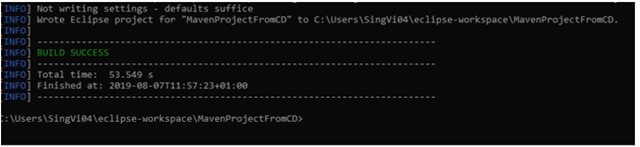
Successful Build – Below screenshot shows that the Maven Project built successfully.

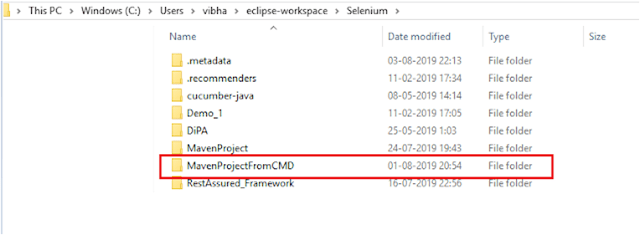
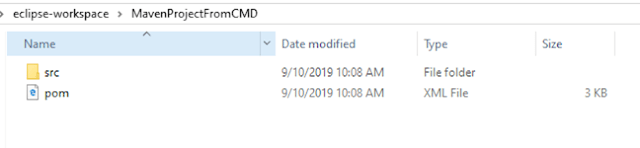
  6) Project Folder Creation – We can see a folder with the name of project – MavenProjectFromCMD in our Eclipse Workspace. In my case, it is                     

    C:\Users\vibha\eclipse-workspace\Selenium\MavenProjectFromCMD

7) Contents of Project Folder – Open folder MavenProjectFromCMD to see the contents of the folder. It should have POM file and src