In this tutorial, I will explain How to install Gradle on Windows.
Steps to follow:-
Step 1 – To install Gradle on window, we need to download Gradle from Official Gradle Site. I am downloading gradle-8.8.
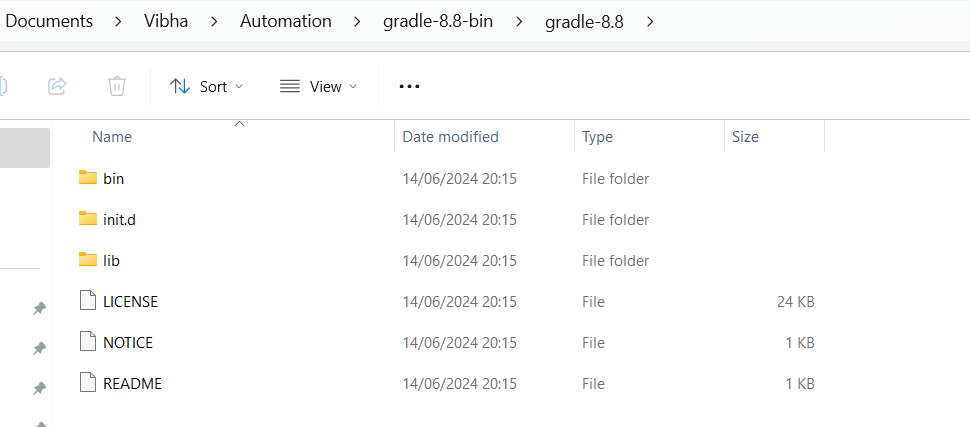
Step 2 – Create a new directory Documents\Vibha\Automationwith File Explorer.
Step 3 – Copy the extracted files under C:\Users\ykv12\Documents\Vibha\Automation\gradle-8.8-bin. Below is the image of the folder.
Step 4 – We need to configure GRADLE_HOMEenvironment variable. Type – “View Adva” in the search option and we will see the option – View Advanced system setting.
Step 5 – In System Properties dialog, select Advancedtab and click on the Environment Variables button.
Step 6 – In “Environment variables” dialog, System variables, Clicks on the New button and add a GRADLE_HOMEvariable .
Step 7 – Below is the image which shows addition of Environment Variables.
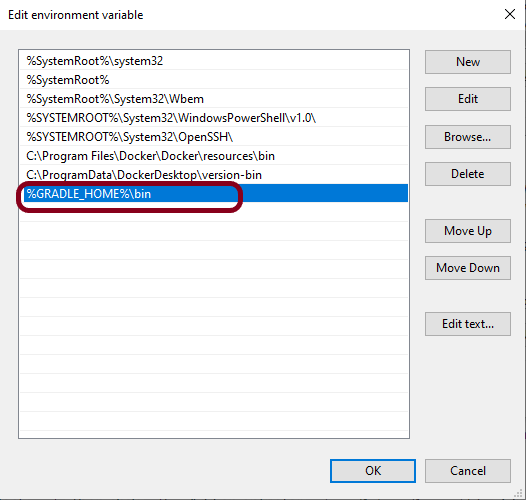
Step 8 – Add %GRADLE_HOME%\bin (full path till bin where gradle is placed on your machine) to Path. Click New Button present in System Variable and add GRADLE_HOME\bin.
How to verify if Gradle is install properly on your machine
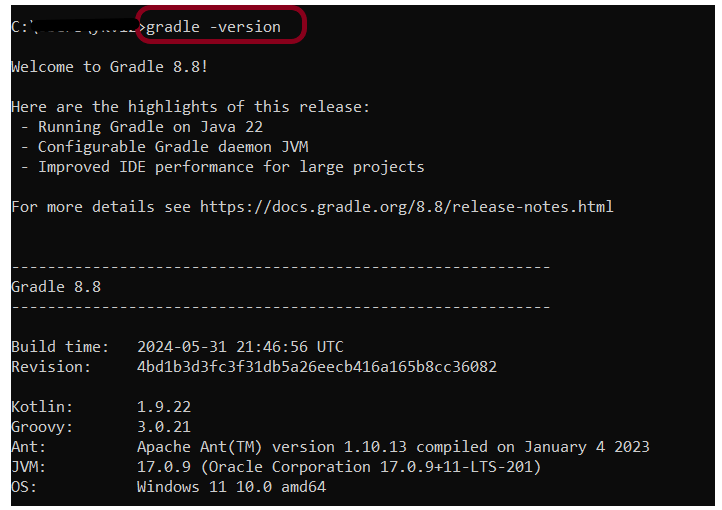
Open command prompt and type gradle -version, then the screen should look something like below screen.
That’s it! We have installed Gradle.
Congratulations on making it through this tutorial and hope you found it useful! Happy Learning!! Cheers!!
Step 1 – Open Command Prompt. Change current folder to the folder where we want to create the Java project.
cd C:\Users\vibha\eclipse-workspace\Projects\Vibha_Personal\Gradle_Project
Step 2 – Create a Project from Gradle Template. Type the below command and press ENTER.
gradle init
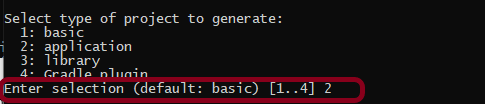
Step 3 – Select the type of project to generate. I’m selecting the application option as if I select basic, it won’t create a src directory. Type 2 and press ENTER.
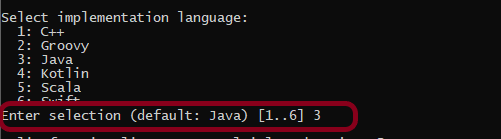
Step 4 – Select implementation language. This is a Java project, so TYPE 3 and press ENTER.
Step 5 – Select Split functionality across multiple subprojects. I have selected 1 as I want only 1 application. Type 1 and press ENTER.
Step 6 – Select build script DSL (Domain Specific Language) – As in Maven POM.xml (XML) is created to build a script file, here we can use Groovy or Kotlin to build the script file. Type 1 (Groovy) and press ENTER.
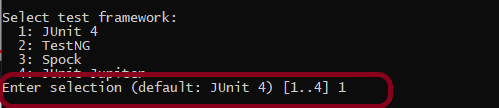
Step 7 – Select Test Framework – There are 4 different test frameworks. Depending on your requirement, select an option. I have selected 1 (JUnit 4) and press ENTER.
Step 8 – It needs the Project name and Source Package name. If I won’t provide the project name, it will take by default my current folder name which is Gradle_Project. Similarly, if I won’t provide the Source Package name, then it will provide the current project name as Source Package Name.
Project name – GradleDemoFromCMD Source Package – com.example
Press ENTER. init script will run and create a Gradle project. You can see as the build is successfull.
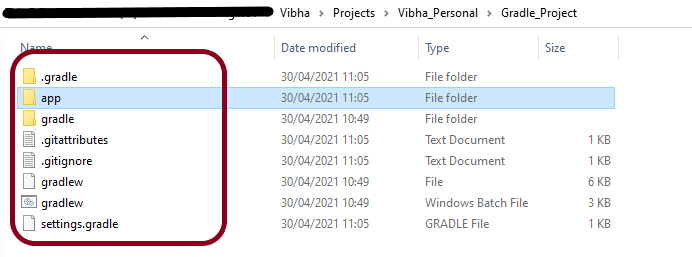
Step 9 – Below is the project structure. As you can see, the name of the project is GradleDemoFromCMD, but that is not the name of the project folder here. But, when I’ll import this folder into Eclipse, the project name will be GradleDemoFromCMD.
Step 10 – Open app folder. There should be src folder and build.gradle. Open build.gradle.
/*
 * This file was generated by the Gradle 'init' task.
 *
 * This generated file contains a sample Java application project to get you started.
 * For more details take a look at the 'Building Java & JVM projects' chapter in the Gradle
 * User Manual available at https://docs.gradle.org/7.0/userguide/building_java_projects.html
 */

plugins {
    // Apply the application plugin to add support for building a CLI application in Java.
    id 'application'
}

repositories {
    // Use Maven Central for resolving dependencies.
    mavenCentral()
}

dependencies {
    // Use JUnit test framework.
    testImplementation 'junit:junit:4.13.1'

    // This dependency is used by the application.
    implementation 'com.google.guava:guava:30.0-jre'
}

application {
    // Define the main class for the application.
    mainClass = 'com.example.App'
}
This build.gradle contains all the information which I have provided while creating the project.
That’s it! We have created a Gradle Project using Command Line.
Congratulations on making it through this tutorial and hope you found it useful! Happy Learning!! Cheers!!
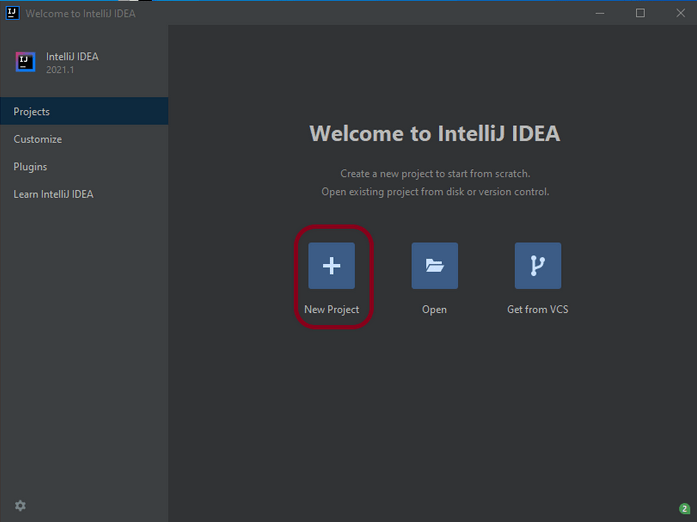
Step 1 – Open the IntelliJ. It will look as shown below. To create a New Project, click on New Project Icon.
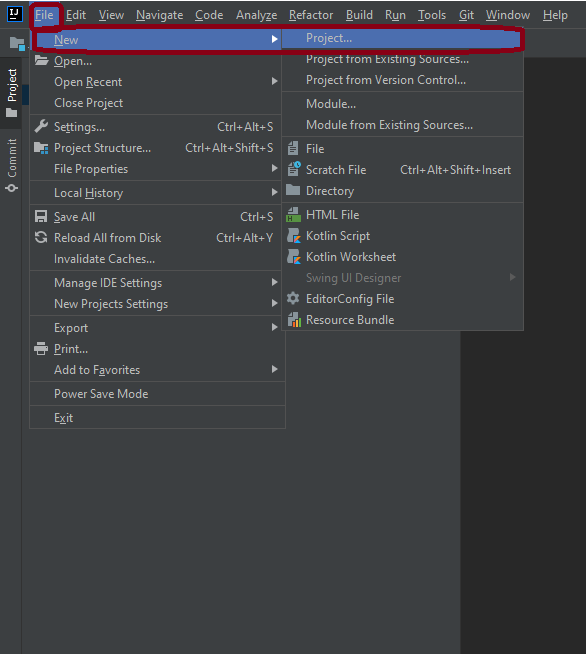
Step 2 – Click on File Option, hover on New Option and click on Project Option as shown below.
Step 3 – Select New Project as Gradle. Project SDK should be current Java version available. Additional Libraries – Java Click on the Next Button.
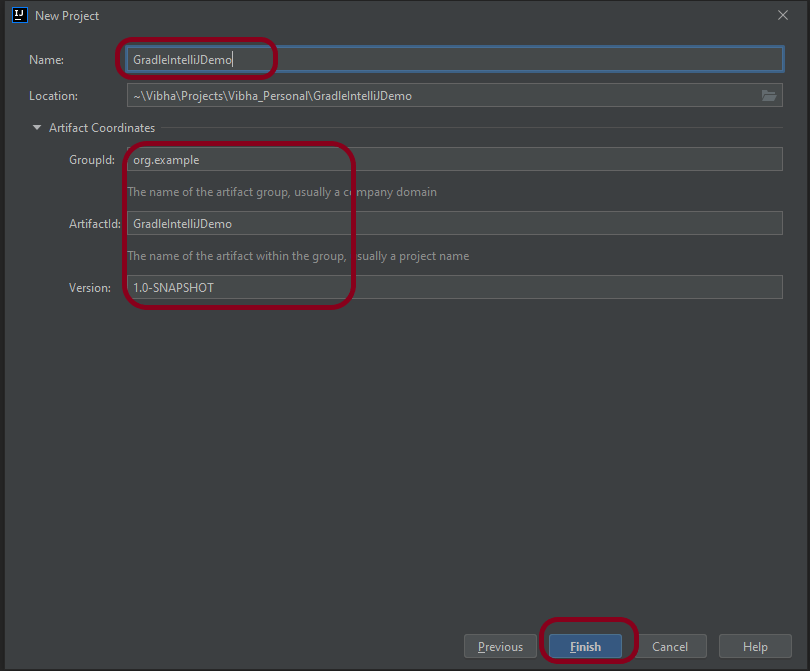
Step 4 – Below screen will appear. Mention the Name, Group Id, Artifact Id and Version . Click the Finish button
Name : GradleIntelliJDemo Group Id : com.example Artifact Id : GradleIntelliJDemo Version : 1.0-SNAPSHOT
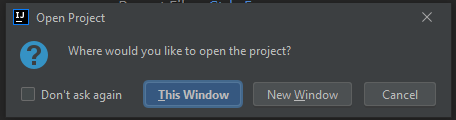
Step 5 – This dialog box will appear on the screen. This provides you the option to open the project in current window or will open a new window with this project. I’m selecting the option – New Window.
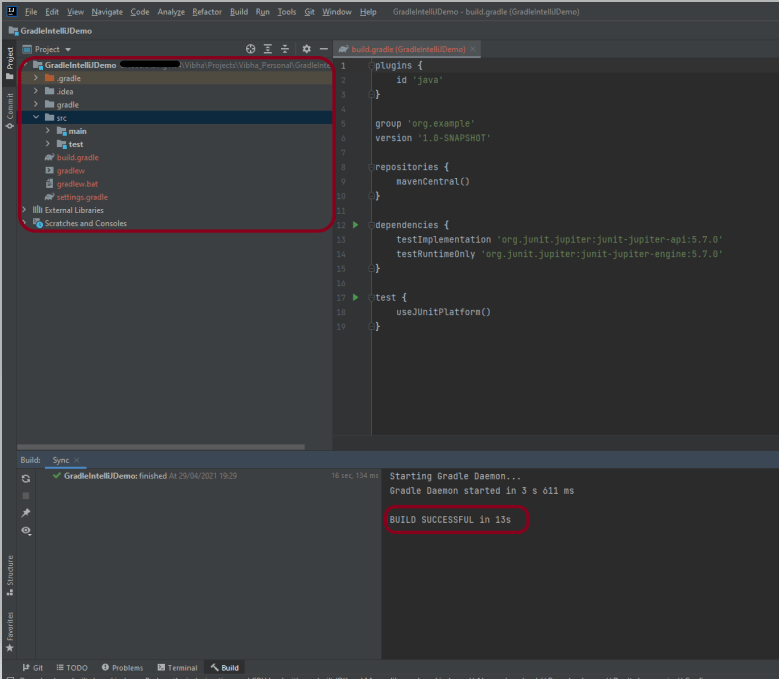
Step 6 – This screen shows the structure of Gradle project as well as build.gradle file.
Step 7 – Project Folder Creation – We can see a folder with the name of project – GradleIntelliJDemo in our Eclipse Workspace.
Step 8 – Right click build.gradle and select Run GradleIntelliJDemo. If the build is successful, below screen appears.
This is how we can create the Gradle project – MavenIntelliJDemo in IntelliJ.
Congratulations on making it through this tutorial and hope you found it useful! Happy Learning!! Cheers!!
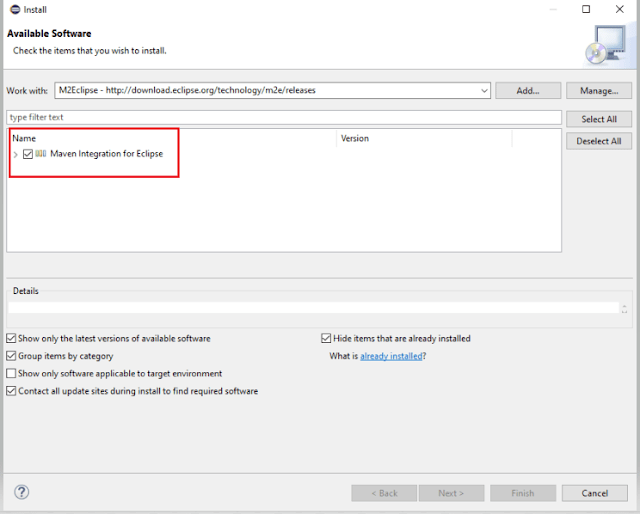
4. The m2e plugin will analyze the pom.xml and will configure the project and generate the Eclipse files automatically.
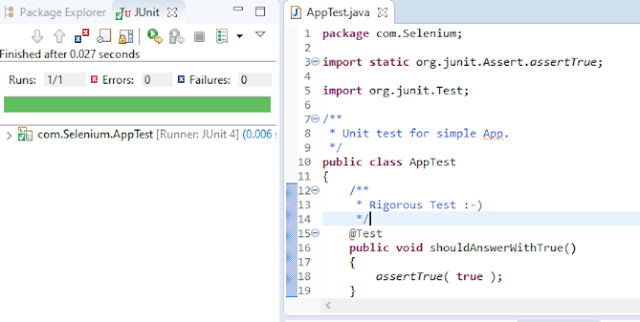
5. Below is the code of App.java. Run this code
package com.Selenium;

/**
 * Hello world!
 *
 */
public class App
{
    public static void main( String[] args )
    {
        System.out.println( "Hello World!" );
    }
}
6. Below is the code of AppTest.java. Run this code
package com.Selenium;

import static org.junit.Assert.assertTrue;
import org.junit.Test;

/**
 * Unit test for simple App.
 */
public class AppTest
{
    /**
     * Rigorous Test 🙂
     */
    @Test
    public void shouldAnswerWithTrue()
    {
        assertTrue( true );
    }
}
Note:- Apache Maven Eclipse Plugins like eclipse:eclipse, eclipse:clean, etc are retired. To know more about it, please refer the link
7. Structure of POM.xml
<?xml version="1.0"encoding="UTF-8"?>

<project xmlns="http://maven.apache.org/POM/4.0.0"xmlns:xsi="http://www.w3.org/2001/XMLSchema-instance"
  xsi:schemaLocation="http://maven.apache.org/POM/4.0.0 http://maven.apache.org/xsd/maven-4.0.0.xsd">
  <modelVersion>4.0.0</modelVersion>

  <groupId>com.Selenium</groupId>
  <artifactId>MavenProjectFromCMD</artifactId>
  <version>1.0-SNAPSHOT</version>

  <name>MavenProjectFromCMD</name>
  <!-- FIXME change it to the project's website -->
  <url>http://www.example.com</url>

  <properties>
    <project.build.sourceEncoding>UTF-8</project.build.sourceEncoding>
    <maven.compiler.source>1.7</maven.compiler.source>
    <maven.compiler.target>1.7</maven.compiler.target>
  </properties>

  <dependencies>
    <dependency>
      <groupId>junit</groupId>
      <artifactId>junit</artifactId>
      <version>4.11</version>
      <scope>test</scope>
    </dependency>
  </dependencies>

  <build>
    <pluginManagement><!-- lock down plugins versions to avoid using Mavendefaults (may be moved to parent pom) -->
      <plugins>
        <!-- clean lifecycle, see https://maven.apache.org/ref/current/maven-core/lifecycles.html#clean_Lifecycle -->
        <plugin>
          <artifactId>maven-clean-plugin</artifactId>
          <version>3.1.0</version>
        </plugin>

        <!-- default lifecycle, jar packaging: see https://maven.apache.org/ref/current/maven-core/default-bindings.html#Plugin_bindings_for_jar_packaging -->
        <plugin>
          <artifactId>maven-resources-plugin</artifactId>
          <version>3.0.2</version>
        </plugin>

        <plugin>
          <artifactId>maven-compiler-plugin</artifactId>
          <version>3.8.0</version>
        </plugin>

        <plugin>
          <artifactId>maven-surefire-plugin</artifactId>
          <version>2.22.1</version>
        </plugin>

        <plugin>
          <artifactId>maven-jar-plugin</artifactId>
          <version>3.0.2</version>
        </plugin>

        <plugin>
          <artifactId>maven-install-plugin</artifactId>
          <version>2.5.2</version>
        </plugin>

        <plugin>
          <artifactId>maven-deploy-plugin</artifactId>
          <version>2.8.2</version>
        </plugin>

        <!-- site lifecycle, see https://maven.apache.org/ref/current/maven-core/lifecycles.html#site_Lifecycle -->
        <plugin>
          <artifactId>maven-site-plugin</artifactId>
          <version>3.7.1</version>
        </plugin>

        <plugin>
          <artifactId>maven-project-info-reports-plugin</artifactId>
          <version>3.0.0</version>
        </plugin>
      </plugins>
    </pluginManagement>
  </build>
</project>
In the previous tutorial, we have discussed about How to install Maven on Windows. In this tutorial, we will see how to use Maven to manage a Java project – Create and update the dependencies.
1) Change current folder to the folder where we want to create the Java project
In my case I have my Eclipse Workspace mentioned at the below mentioned path
cd C:\Users\vibha\eclipse-workspace\Selenium
2) Create a Project from Maven Template
This tells Maven to generate a Java project from a Maven template.
mvn archetype:generate
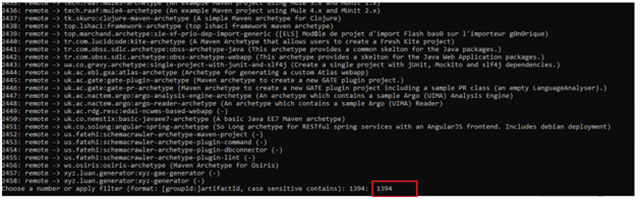
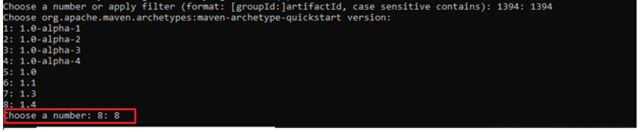
3) We need to mention the number as displayed on your screen in Command Prompt to proceed further. Like here, Choose a folder or apply has 1394, so I have also mentioned 1394 in command prompt.
4) We need to provide again input in command prompt. This time program wants to know which version we want to use. I prefer to use the latest version. Here, it is 8, so I have selected version 8.
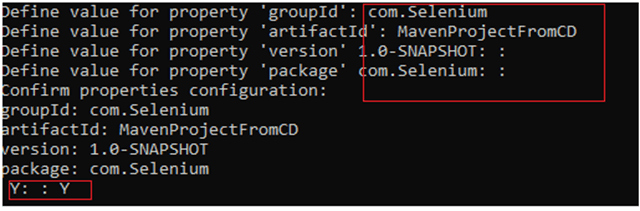
5) We need to provide 2 input here
A) Value of groupId – This serves as the group identifier of your Maven project, it should be in a form similar to Java packages, such as com.Selenium B) Value of artifactId – This serves as the group-local identifier of my Maven project like MavenProjectFromCMD C) Value of Version – The initial version of our project. The default is 1.0-SNAPSHOT D) Value of package – The name of our root package. The default is groupId we have created earlier. We will notice the INFO message about the properties. If the displayed settings are correct, then just enter Y in :: prompt.
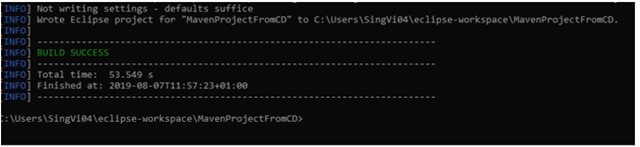
Successful Build – Below screenshot shows that the Maven Project built successfully.
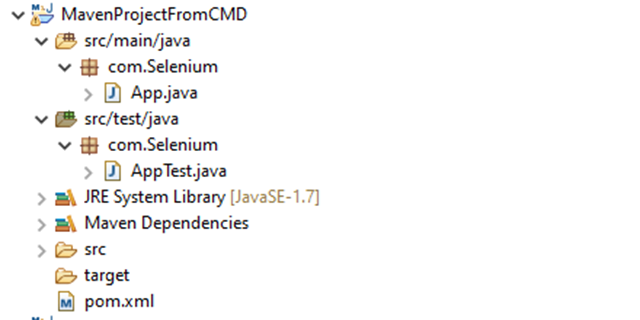
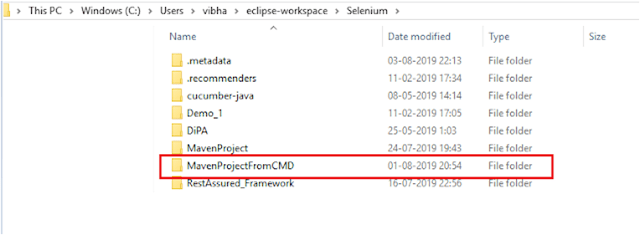
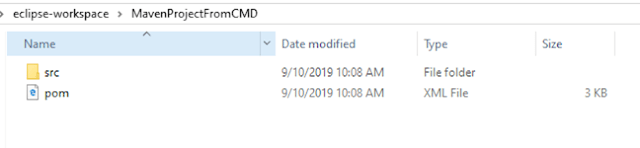
6) Project Folder Creation – We can see a folder with the name of project – MavenProjectFromCMD in our Eclipse Workspace. In my case, it is
Apache Maven is a software project management and comprehension tool. It uses the concept of a project object model (POM), Maven can manage a project’s build and reporting, and documentation from a central piece of information. MAVEN helps us in creating the project structure and managing and downloading the dependencies. We need to define the required dependencies in pom.xml.
Prerequisite:
Maven 3.3+ require JDK 1.7 or above to execute
Approximately 10MB is required for the Maven installation
Installation Steps
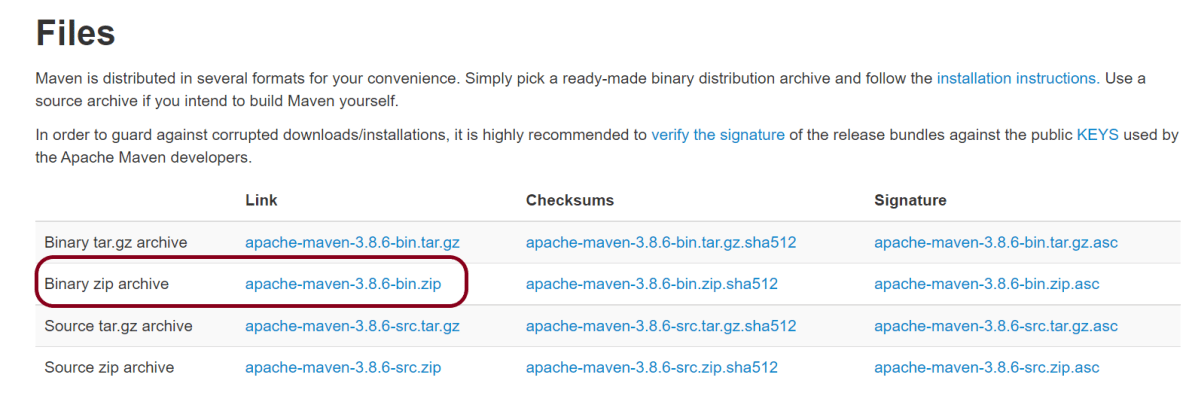
Step 1– To install Apache Maven on the window, we need to download Maven’s zip folder from the Official Maven Site. Download apache-maven-3.8.6-bin.zip.
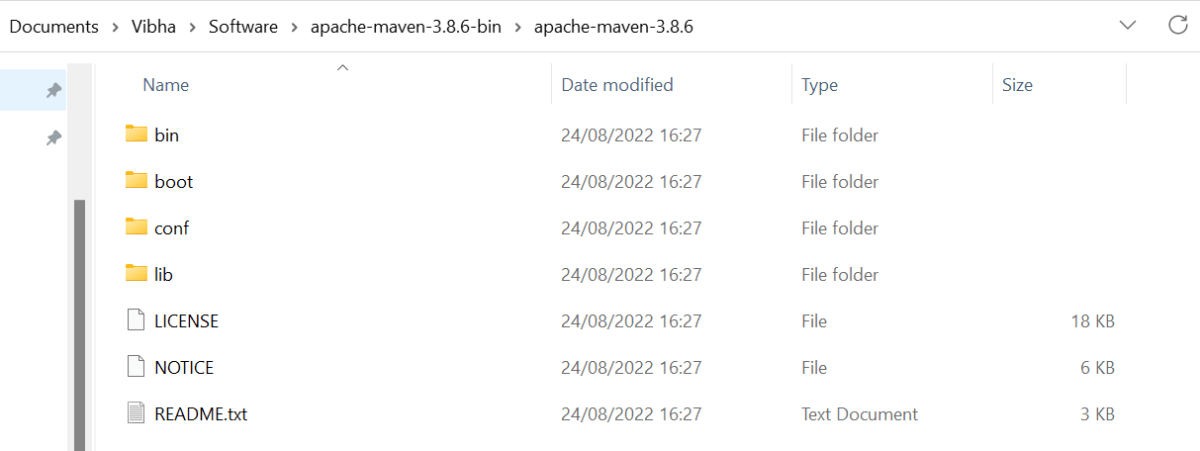
Step 2 – Unzip the downloaded folder and then it will have below-mentioned files. We do not need to install anything, just unzip the folder.
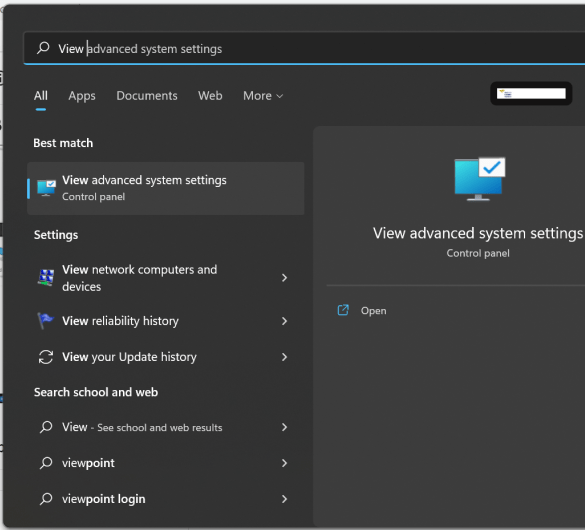
Step 3 – We need to configure MAVEN_HOME environment variable. Type – “View Adva” in the search option, and we will see the option – View Advanced system setting.
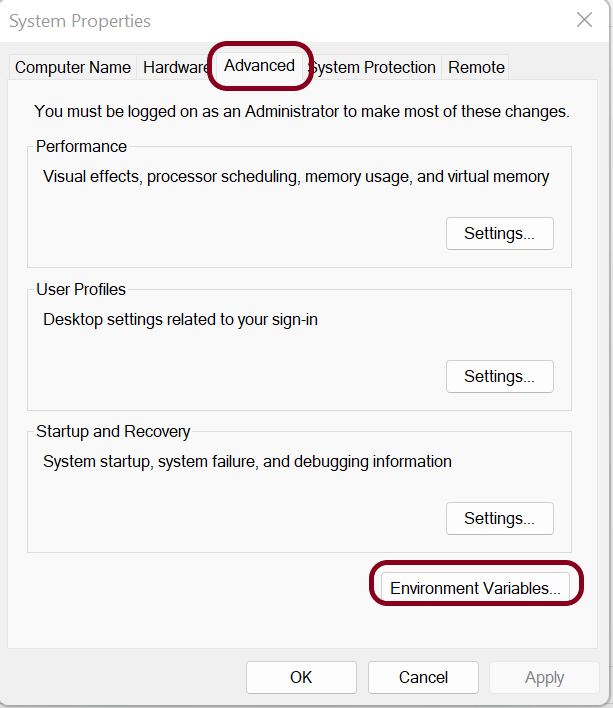
Step 4 – In the System Properties dialog, select the Advanced tab and click on the Environment Variables button.
Step 5 – In the “Environment variables” dialog, underUsers variables, Click on the New button and add a MAVEN_HOME variable.
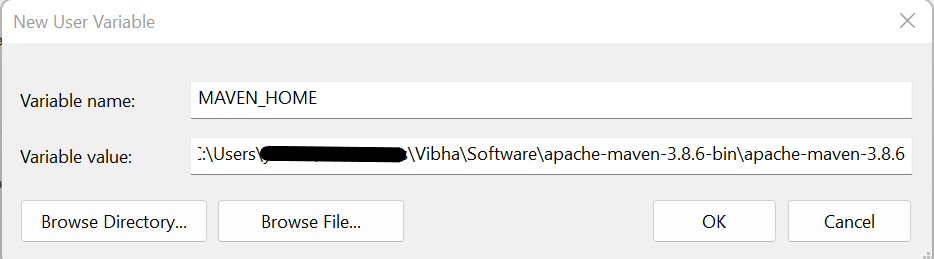
Step 6 – A dialog box will appear, mentioning Variable Name – MAVEN_HOME and Variable value – mention the path where the Apache folder is placed.
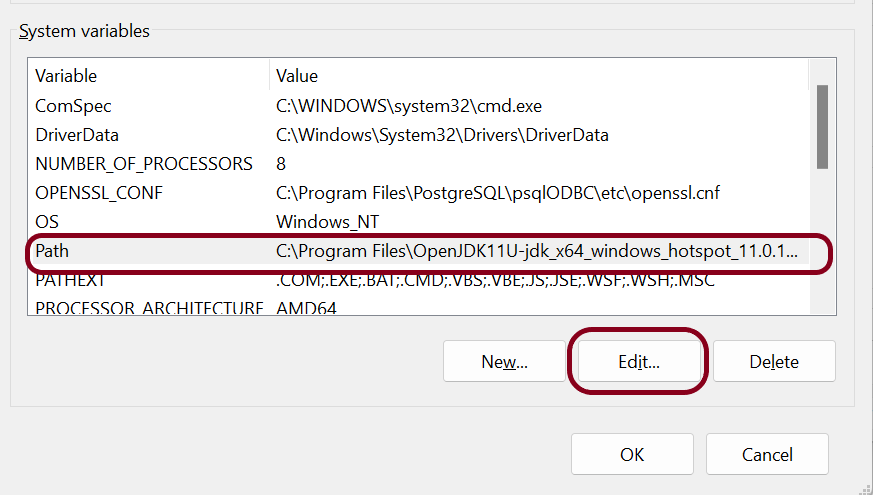
Step 7 – Add %MAVEN_HOME%\bin(full path till bin where Maven is placed on your machine) to Path present under System variables. Click the New Button present in System Variable and add MAVEN_HOME\bin.
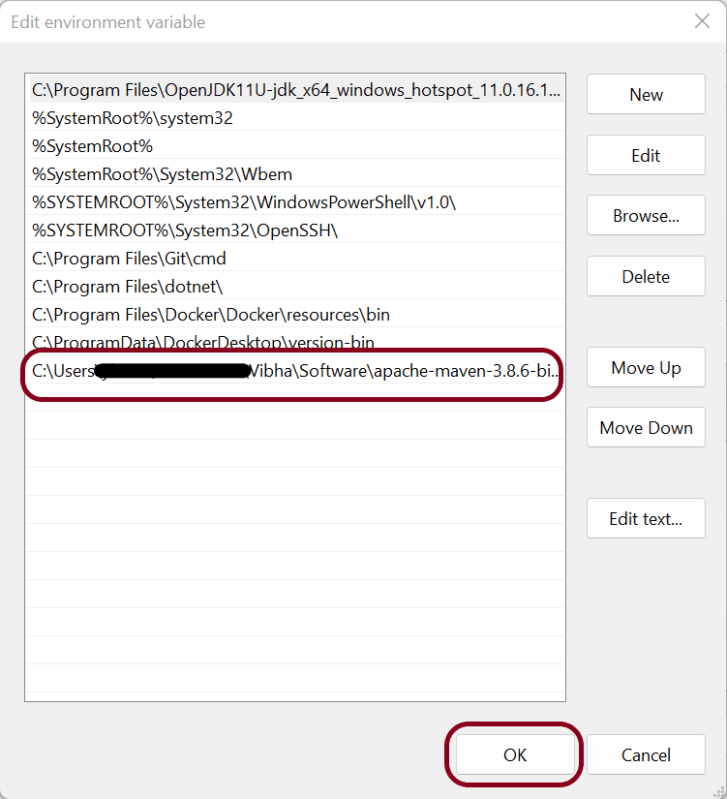
Step 8 – Once the Path is updated with %MAVEN_HOME%\bin. This is what it will look like.
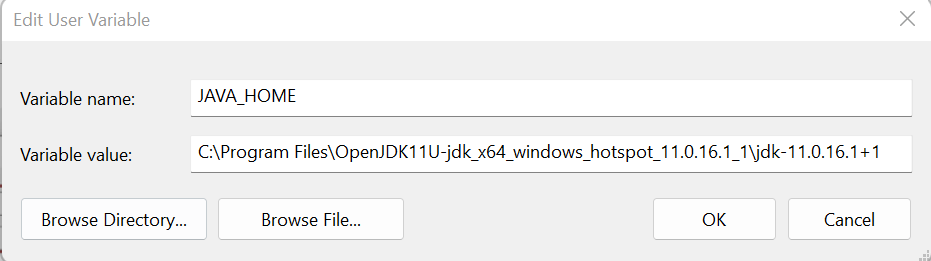
Step 9 – We have to make sure that JDK is installed and the JAVA_HOME environment variable is configured. If the JAVA_HOME variable is not configured, then add JAVA_HOME just like MAVEN_HOME in User Variable within Environment Variables.
How to verify if Maven is installed properly on your machine
Open the command prompt and type mvn -version, then the screen should look something like as shown below screen
This confirms that Maven is installed successfully and configured on your machine.
















 QA Automation Expert