How To Create Gradle Project with Cucumber to test Rest API

HOME

This tutorial describes the creation of the Gradle Java Project to test Rest API using Cucumber BDD and Rest-Assured.

In this tutorial, I will explain creating a framework for the testing of Rest API in Cucumber BDD.

  1. Cucumber – 6.8.1 or above
  2. Java 8 or above
  3. JUnit 4
  4. Gradle 6.6.1 (Build Tool)
  5. Rest Assured 4.3.3

Project Structure

Step 1- Download and Install Java

Cucumber and Rest-Assured need Java to be installed on the system to run the tests. Click here to learn How to install Java.

Step 2 – Download and setup Eclipse IDE on the system

The Eclipse IDE (integrated development environment) provides strong support for Java developers. Click here to learn How to install Eclipse.

Step 3 – Setup Gradle

To build a test framework, we need to add several dependencies to the project. This can be achieved by any build tool. I have used the Gradle Build Tool. Click here to learn How to install Gradle.

Step 4 – Create a new Gradle Project

To create a new Gradle project, go to the top left side and select File -> New Project -> Gradle -> Gradle project -> Next -> Enter Project Name and Project Location ->Next ->Select Gradle Version ->Next ->Review the Configuration -> Finish.

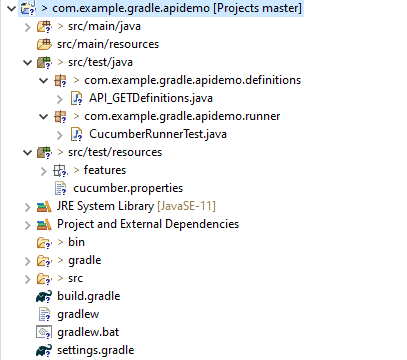
Click here to know How to create a Gradle Java project. Below is the structure of the Gradle project.

Step 5 – Add Rest-Assured and Cucumber dependencies to the Gradle project

This syntax is used for Gradle 5.0 and higher.

dependencies {
    // This dependency is exported to consumers, that is to say found on their compile classpath.
    api 'org.apache.commons:commons-math3:3.6.1'

    // This dependency is used internally, and not exposed to consumers on their own compile classpath.
    implementation 'com.google.guava:guava:29.0-jre'
    
    testImplementation 'io.cucumber:cucumber-java:6.8.1'
    testImplementation 'io.cucumber:cucumber-junit:6.8.1'
    testImplementation 'io.rest-assured:rest-assured:4.3.3'

If you are using Gradle 4.10.3 or older, use the below dependency block to build.gradle.

dependencies {
    testCompile 'io.cucumber:cucumber-java:6.8.1'
}

Step 6 – Add Configuration to build.gradle

The below configuration is added to the build.gradle when Gradle is 5.0 or higher version.

configurations {
    cucumberRuntime {
        extendsFrom testImplementation
    }
}

If Gradle is 4.10.3 or older, use the below configuration.

configurations {
    cucumberRuntime {
        extendsFrom testRuntime
    }
}

Step 7 – Add Gradle Cucumber Task to build.gradle 

task cucumber() {
    dependsOn assemble, testClasses
    doLast {
        javaexec {
            main = "io.cucumber.core.cli.Main"
            classpath = configurations.cucumberRuntime + sourceSets.main.output + sourceSets.test.output
            args = ['--plugin', 'pretty', '--glue', 'com.example.gradle.apidemo', 'src/test/resources']
        }
    }
}

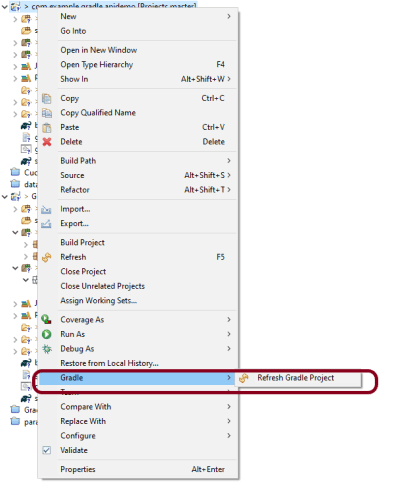
Once you have added dependencies, configurations, and Gradle cucumber task, Right-click on the project, Hover to the Gradle option, and click Refresh Gradle Project. Eclipse does not automatically update the classpath of the build.gradle file is updated. Select Gradle  Refresh Gradle Project from the context menu of the project or from your build.gradle file for that.

Step 8 – Create a feature file under src/test/resources

A new Gradle Project is created with 4 folders – src/main/java, src/main/resources, src/test/java and src/test/resources. Features are created under the src/test/resources directory. Create a folder with name features. Now, create the feature file in this folder. The feature file should be saved with the extension .feature. This feature file contains the test scenarios created to test the application. The Test Scenarios are written in Gherkins language in the format of Given, When, Then, And, But.

Below is an example of a Test Scenario where we are using the GET method to get the information from the API.

Feature: Validation of get method
 
@GetUserDetails
  Scenario Outline: Send a valid Request to get user details
 
  Given I send a request to the URL to get user details
  Then the response will return status 200 and id <id> and salary <employee_salary> and name "<employee_name>" and age <employee_age> and message "<message>"
 
Examples:
    |id  |employee_salary|employee_name |employee_age  |message                                  |
    |1   |320800         |Tiger Nixon   |61            |Successfully! Record has been fetched.   |
   

Step 9 – Create the Step Definition class or Glue Code for the Test Scenario

Step Definition acts as an intermediate to your runner and feature file. It stores the mapping between each step of the scenario in the Feature file. So when you run the scenario, it will scan the step definition file to check the matched glue or test code.

import io.restassured.http.ContentType;
 
import io.restassured.response.ValidatableResponse;
 
import static io.restassured.RestAssured.given;
import static org.hamcrest.Matchers.equalTo;
 
import io.cucumber.java.en.Given;
import io.cucumber.java.en.Then;
 
public class API_GETDefinitions {
     
 
    private ValidatableResponse validatableResponse;
 
    private String endpoint = "http://dummy.restapiexample.com/api/v1/employee/1";
  
    @Given("I send a request to the URL to get user details")
    public void sendRequest(){
        validatableResponse = given().contentType(ContentType.JSON)
                .when().get(endpoint).then();   
         
        System.out.println("Response :"+validatableResponse.extract().asPrettyString());
    }
  
  
    @Then("the response will return status {int} and id {int} and salary {int} and name {string} and age {int} and message {string}")
    public void verifyStatus(int statusCode, int id, int emp_Salary, String emp_name, int emp_age, String message ){
         
        validatableResponse.assertThat().statusCode(statusCode);
         
        validatableResponse.assertThat().body("data.id",equalTo(id));
         
        validatableResponse.assertThat().body("data.employee_salary",equalTo(emp_Salary));
         
        validatableResponse.assertThat().body("data.employee_name",equalTo(emp_name));
         
        validatableResponse.assertThat().body("data.employee_age",equalTo(emp_age));
         
        validatableResponse.assertThat().body("message",equalTo(message));      
         
    }
}

In order to use REST assured effectively, it’s recommended to statically import methods from the following classes:

import io.restassured.RestAssured.*
import io.restassured.matcher.RestAssuredMatchers.*
import static org.hamcrest.Matchers.*

given() method is imported from package:

import static io.restassured.RestAssured.given;

equalTo() method is imported from package:

import static org.hamcrest.Matchers;

Step 10 – Create a Cucumber Runner class 

A runner will help us to run the feature file and act as an interlink between the feature file and step definition Class. To know more about Runner, refer to this link.

import org.junit.runner.RunWith;

import io.cucumber.junit.Cucumber;
import io.cucumber.junit.CucumberOptions;

@RunWith(Cucumber.class)

@CucumberOptions(plugin ="pretty",features= {"src/test/resources/features/API_GET.feature"}, glue= {"com.example.gradle.apidemo"})

public class CucumberRunnerTest {

}

Step 11 – Run the tests from JUnit

You can execute the test script by right-clicking on the Test Runner class -> Run As JUnit.

Step 12 – Run the tests from the Command Line

Run the following Gradle task from the directory path where build.gradle file is located. To know more about this report, refer here.

gradle cucumber

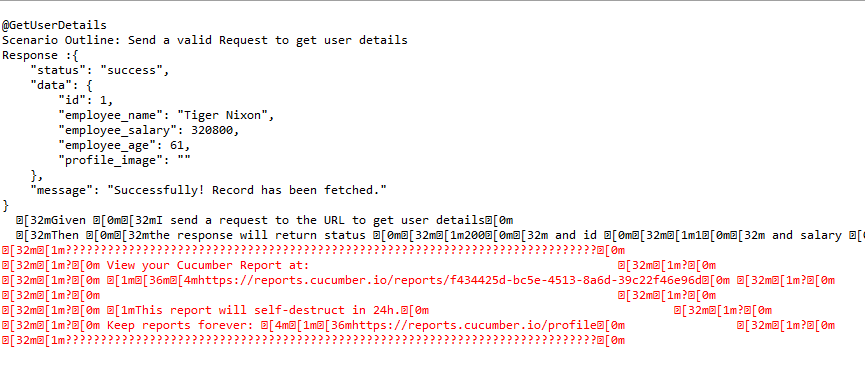
Below is the screenshot of the execution of Cucumber tests in Command-Line.

Step 13 – Cucumber Report Generation

To get Cucumber Test Reports, add cucumber.properties under src/test/resources and add the below instruction in the file.

cucumber.publish.enabled=true

Below is the image of the Cucumber Report.

We are done! Congratulations on making it through this tutorial and hope you found it useful! Happy Learning!!

Testing of SpringBoot REST Application using Serenity BDD and Rest Assured for GET Method

 HOME

In the previous tutorial, I have explain about SpringBoot and how to perform Integration testing of SpringBoot Application in BDD format using Serenity BDD and Cucumber. In this tutorial, I will explain about the Integration testing of SpringBoot Application for GET method.

Spring Boot is an open-source micro framework which provides Java developers with a platform to get started with an auto configurable production-grade Spring application. 

In this tutorial, lets see a SpringBoot  REST Application and how it can be tested with the help of Rest Assured and Serenity

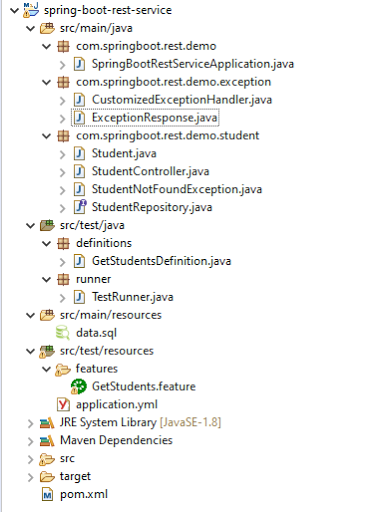
Below is the structure of a SpringBoot  application project

Below are various Java classes present in a SpringBoot REST Application/API

  • SpringBootRestServiceApplication.java – The Spring Boot Application class generated with Spring Initializer. This class acts as the launching point for application.
  • pom.xml – Contains all the dependencies needed to build this project. 
  • Student.java – This is JPA Entity for Student class
  • StudentRepository.java – This is JPA Repository for Student. This is created using Spring Data JpaRepository.
  • StudentController.java – Spring Rest Controller exposing all services on the student resource.
  • CustomizedExceptionHandler.java – This implements global exception handling and customize the responses based on the exception type.
  • ErrorDetails.java – Response Bean to use when exceptions are thrown from API.
  • StudentNotFoundException.java – Exception thrown from resources when student is not found.
  • data.sql –  Data is loaded from data.sql into Student table. Spring Boot would execute this script after the tables are created from the entities.

HTTP also defines standard response codes.

  • 200 – SUCESS
  • 404 – RESOURCE NOT FOUND
  • 400 – BAD REQUEST
  • 201 – CREATED
  • 401 – UNAUTHORIZED
  • 415 – UNSUPPORTED TYPE – Representation not supported for the resource
  • 500 – SERVER ERROR 

Let’s consider a few HTTP Methods:

  • GET : Should not update anything. Should return same result in multiple calls.

Possible Return Codes 200 (OK) + 404 (NOT FOUND) +400 (BAD REQUEST) 

  • POST : Should create a new resource. Ideally return JSON with link to newly created resource. Same return codes as get possible. In addition – Return code 201 (CREATED) can be used.
  • PUT : Update a known resource. ex: update client details. Possible Return Codes : 200(OK) + 404 (NOT FOUND) +400 (BAD REQUEST) 
  • DELETE : Used to delete a resource. Possible Return Codes : 200(OK).

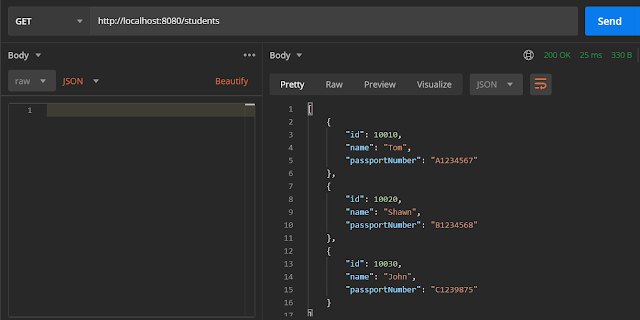
We will create a Student Resource exposing three services using proper URIs and HTTP methods:

  • Retrieve all Students – @GetMapping(“/students”)
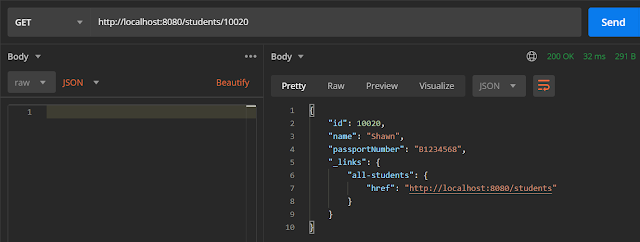
  • Get details of specific student – @GetMapping(“/students/{id}”)
  • Delete a student – @DeleteMapping(“/students/{id}”)
  • Create a new student – @PostMapping(“/students”)
  • Update student details – @PutMapping(“/students/{id}”)

To Test a SpringBoot Application for GET Method, we are using Rest Assured with Serenity BDD. Below mentioned dependencies are added in POM.xml

<dependency>
   <groupId>org.springframework.boot</groupId>
   <artifactId>spring-boot-starter-test</artifactId>
   <scope>test</scope>
</dependency>

<dependency>
   <groupId>org.springframework.security</groupId>
   <artifactId>spring-security-test</artifactId>
   <scope>test</scope>
</dependency>

<dependency>
   <groupId>net.serenity-bdd</groupId>
   <artifactId>serenity-core</artifactId>
   <version>2.2.0version>
   <scope>test</scope>
</dependency>

<dependency>
   <groupId>net.serenity-bdd</groupId>
   <artifactId>serenity-spring</artifactId>
   <version>2.2.0</version>
   <scope>test</scope>
</dependency>

<dependency>
   <groupId>net.serenity-bdd</groupId>
   <artifactId>serenity-cucumber5</artifactId>
   <version>2.2.0</version>
   <scope>test</scope>
</dependency>

<dependency>
   <groupId>net.serenity-bdd</groupId>
   <artifactId>serenity-rest-assured</artifactId>
   <version>2.2.0</version>
</dependency>
     
<dependency>
   <groupId>net.serenity-bdd</groupId>
  <artifactId>serenity-screenplay-rest</artifactId>
   <version>2.2.0</version>
   <scope>test</scope>
</dependency>

First, let us see what are @RestController, @AutoWired, @GetMapping and @PathVariable annotations.

1. @RestController

SpringBoot RestController annotation is use to create RESTful web services using Spring MVC. Spring RestController takes care of mapping request data to the request defined handles method.

2. @Autowired

The Spring framework enables automatic dependency injection. In other words, by declaring all the bean dependencies in a Spring configuration file, Spring container can autowire relationships between collaborating beans. This is called Spring bean autowiring. To know more about Autowired, you can refer this tutorial.

3. @GetMapping

It is annotation for mapping HTTP GET requests onto specific handler methods.
Specifically, @GetMapping is a composed annotation that acts as a shortcut for @RequestMapping(method = RequestMethod.GET)

4. @PathVariable

This annotation can be used to handle template variables in the request URI mapping, and use them as method parameters.
In this example, we use @PathVariable annotation to extract the templated part of the URI represented by the variable {id}.

A simple GET request to /students/{id} will invoke retrieveStudent with the extracted id value

http://localhost:8080/students/1001

Code of StudentController.java is below

@RestController
public class StudentController {

     @Autowired
     private StudentRepository studentRepository;

     @GetMapping("/students")
     public List retrieveAllStudents() {
           return studentRepository.findAll();
     }

     @GetMapping("/students/{id}")
     public EntityModel retrieveStudent(@PathVariable long id) {
           Optional student = studentRepository.findById(id);
           if (!student.isPresent())
                throw new StudentNotFoundException("id-" + id);
           EntityModel resource = EntityModel.of(student.get());

           WebMvcLinkBuilder linkTo = linkTo(methodOn(this.getClass()).retrieveAllStudents());
           resource.add(linkTo.withRel("all-students"));
           return resource;
     }

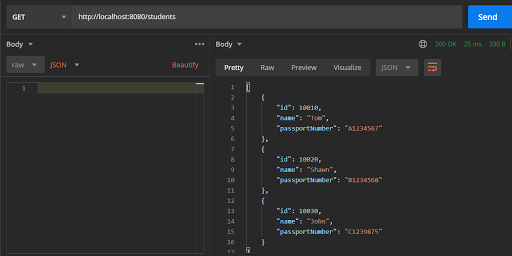
Scenario 1- Below picture shows how we can execute a Get Request Method on a Resource using Postman

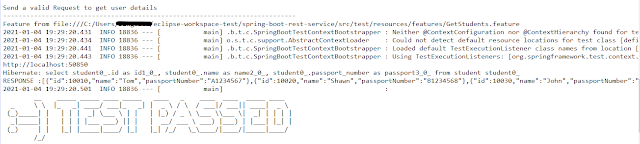
Above scenario can be tested in the below way.

@ReceiveUserDetails
 Scenario Outline: Send a valid Request to get user details
  Given I send a request to the URL "/students" to get user details
  Then the response will return status 200 and id and names and passport_no 
    
Examples:
    |studentID    |studentNames  |studentPassportNo|
    |10010        |Tom           |A1234567         |
    |10020        |Shawn         |B1234568         |
    |10030        |John          |C1239875         |

Test Code to test above scenario (StepDefinition file)

@SpringBootTest(classes = com.springboot.rest.demo.SpringBootRestServiceApplication.class, webEnvironment = WebEnvironment.RANDOM_PORT)

public class GetStudentsDefinition {
 
     private final static String BASE_URI = "http://localhost";
     
     @LocalServerPort
     private int port;
     
     private ValidatableResponse validatableResponse;
 
     private void configureRestAssured() {
           RestAssured.baseURI = BASE_URI;
           RestAssured.port = port;
     }
 
     protected RequestSpecification getAnonymousRequest() throws NoSuchAlgorithmException {
           configureRestAssured();
           return given();
     }
 
     @Given("^I send a request to the URL \"([^\"]*)\" to get user details$")
     public void iSendARequest(String endpoint) throws Throwable {
           validatableResponse = getAnonymousRequest().contentType(ContentType.JSON)
    .when().get(endpoint).then();       
     }
 
     @Then("^the response will return status (\\d+) and id (.*) and names (.*) and passport_no (.*)$")
     public void extractResponse(int status, String id, String studentName, 
     String passportNo) {
     validatableResponse.assertThat().statusCode(equalTo(status)).body(containsString(id))
                     .body(containsString(studentName)).body(containsString(passportNo));
 
     }

1. The @SpringBootTest annotation tells Spring Boot to look for a main configuration class (one with @SpringBootApplication, for instance) and use that to start a Spring application context.

2. WebEnvironment.RANDOM_PORT is used to create run the application at some random server port.

3. For assertion purpose, we use Hamcrest Matchers. Hamcrest is a framework for software tests. Hamcrest allows checking for conditions in your code via existing matchers classes. It also allows you to define your custom matcher implementations.

import static org.hamcrest.Matchers.containsString;
import static org.hamcrest.Matchers.equalTo;

4. @LocalServerPort gets the reference of port where the server has started. It helps in building the actual request URIs to mimic real client interactions.

5. ContentType.JSON is imported fromrestassured as well as ValidatableResponse

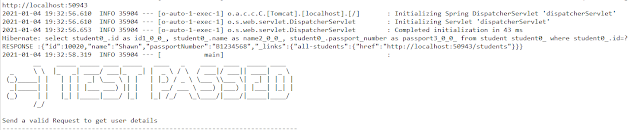
Scenario 2- Below picture shows how we can execute a Get Request Method to get detail of a specific Student. Here, we want details of student of Id 10020

@ReceiveAUserDetail
   Scenario: Send a valid Request to get user details
    Given I send a request to the URL "/students/10020" to get user detail of a specific user
    Then the response will return status 200 and name "Shawn"

Test Code to test above scenario (StepDefinition file)

@Given("^I send a request to the URL \"([^\"]*)\" to get user detail of a specific user$")
     public void sendRequestForSpecificUser(String endpoint) throws Throwable {
           validatableResponse = getAnonymousRequest().contentType(ContentType.JSON).when().get(endpoint).then();
           System.out.println("RESPONSE :" + validatableResponse.extract().asString());
     }
 
     @Then("^the response will return status (\\d+) and name \"([^\"]*)\"$")
     public void extractResponseOfSpecificUser(int status, String name) {
          validatableResponse.assertThat().statusCode(equalTo(status)).body("name", equalTo(name));
     }

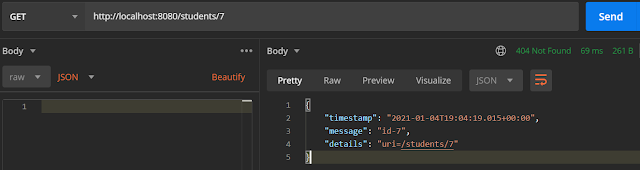
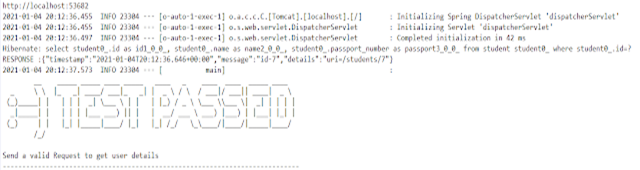
Scenario 3- Below picture shows how we can execute a Get Request Method for incorrect Student

@IncorrectUserId
   Scenario: Send a valid Request to get user details
    Given I send a request to the URL "/students/7" to get user detail of a specific user
    Then the response will return status 404 and message "id-7"

Test Code to test above scenario (StepDefinition file)

@Given("^I send a request to the URL \"([^\"]*)\" to get user detail of a specific user$")
     public void sendRequestForSpecificUser(String endpoint) throws Throwable {
           validatableResponse = getAnonymousRequest().contentType(ContentType.JSON).when().get(endpoint).then();
           System.out.println("RESPONSE :" + validatableResponse.extract().asString()); 
     }
 
     @Then("^the response will return status (\\d+) and message \"([^\"]*)\"$")
     public void extractResponseOfInvalidUser(int status, String message) {
         validatableResponse.assertThat().statusCode(equalTo(status)).body("message", equalTo(message));
 
     }

The next tutorial explains about the Testing of POST method in SpringBoot Application.

Cucumber Tutorial – Cucumber Reports

HOME

The previous tutorial is all about  JUnit Test Runner. In this tutorial, will show you how to generate reports in Cucumber. 

Cucumber with JUnit gives us the capability to generate reports in the form of HTML, XML, JSON & TXT. Cucumber frameworks generate very good and detailed reports, which can be share with all stakeholders. 

Let’s generate the Cucumber Report

Step 1 − Create a Maven project named MyCucumberProject in Eclipse.

Step 2 − Create a feature file named MyHoliday.feature under src/test/resources

Step 3 − Create a StepDefinition named MyHolidayDefinitions.java under src/test/java

Step 4 − Create a TestRunner class under src/test/resources

Step 5 − Run JUnit TestRunner class by right click Run As -> JUnit

Write the following code for Feature File

Feature: Book Flight and Hotel for Vacation

@BookOneWayFlight
Scenario: Book Flight for one way trip

  Given I live in Dublin with 2 adults and 2 kids
  And I want to book one way flight ticket from Dublin to London on 22nd Jan 2020
  When I search online
  Then TripAdvisor should provide me options of flights on 22nd Jan 2020
  And Cost of my flight should not be more than 50 Euro per person
  And Tickets should be refundable
 
@BookHotel
Scenario: Book Hotel for one the trip

  Given I need 1 room with 2 double beds
  And I want to book hotel from 22nd Jan 2020 to 25th Jan 2020
  When I search online
  Then TripAdvisor should provide me options of hotels for time period of 22nd Jan 2020 to 25th Jan 2020
  And Fare of my room should not be more than 200 Euro per night
  And Breakfast should be included in the room fare

Below is the full program, which shows the step definition of above mentioned feature 

import io.cucumber.java.en.And;
import io.cucumber.java.en.Given;
import io.cucumber.java.en.Then;
import io.cucumber.java.en.When;

public class MyHolidayDefinitions {

          @Given("^I live in Dublin with 2 adults and 2 kids$")
          public void needFlight() {
                   System.out.println("I live in Dublin with 2 adults and 2 kids");
          }

          @Given("^I need 1 room with 2 double beds$")
          public void needRoom() {
                   System.out.println("I need 1 room with 2 double beds");
          }

          @When("^I search online$")
          public void onlineSearch() {
                   System.out.println("I search online");
          }

          @Then("^TripAdvisor should provide me options of flights on 22nd Jan 2020$")
          public void searchFlightInTripAdvisor() {
                   System.out.println("TripAdvisor should provide me options of flights on 22nd Jan 2020");
          }

         @Then("^Cost of my flight should not be more than 50 Euro per person$")
          public void flightFare() {
                   System.out.println("Cost of my flight should not be more than 50 Euro per person");
          }

          @Then("^TripAdvisor should provide me options of hotels for time period of 22nd Jan 2020 to 25th Jan 2020")
          public void searchRoomInTripAdvisor() {
                   System.out.println(
                                      "TripAdvisor should provide me options of hotels for time period of 22nd Jan 2020 to 25th Jan 2020");
          }

          @And("^I want to book one way flight ticket from Dublin to London on 22nd Jan 2020$")
          public void ticketType() {
                   System.out.println("I want to book one way flight ticket from Dublin to London on 22nd Jan 2020");
          }

          @And("^I want to book hotel from 22nd Jan 2020 to 25th Jan 2020$")
          public void stayDuration() {
                   System.out.println("I want to book hotel from 22nd Jan 2020 to 25th Jan 2020");
          }

          @And("^Fare of my room should not be more than 200 Euro per night$")
          public void roomFare() {
                   System.out.println("Fare of my room should not be more than 200 Euro per night");
          }

          @And("^Breakfast should be included in the room fare$")
          public void includeBreakfast() {
                   System.out.println("Breakfast should be included in the room fare");
          }

          @And("^Tickets should be refundable$")
          public void refunableTicket() {
                   System.out.println("Tickets should be refundable");
          }
}

Cucumber HTML Reports

For HTML reports, add html:target/cucumber-reports to the @CucumberOptions plugin option.

import org.junit.runner.RunWith;

import io.cucumber.junit.Cucumber;
import io.cucumber.junit.CucumberOptions;

@RunWith(Cucumber.class)
@CucumberOptions(features = "src/test/resources/Feature/MyHoliday.feature", 
plugin = { "pretty","html:target/cucumber-reports" }, tags = { "" })

public class TestRunner {
}

We have specified the path of the Cucumber report, which we want it to generate it under the target folder. This will generate an HTML report at the location mentioned in the formatter

HTML Report Output

Cucumber Json Reports

For Json reports, add json:target/cucumber-reports/Cucumber.json to the @CucumberOptions plugin option.

import org.junit.runner.RunWith;

import io.cucumber.junit.Cucumber;
import io.cucumber.junit.CucumberOptions;

@RunWith(Cucumber.class)
@CucumberOptions(features = "src/test/resources/Feature/MyHoliday.feature", 
plugin = { "pretty","json:target/cucumber-reports/Cucumber.json" }, tags = { "" })

public class TestRunner {
}

JSON Report Output

Cucumber JUNIT XML Report

For JUNIT reports, add junit:targe/cucumber-reports/Cucumber.xml to the @CucumberOptions plugin option.

import org.junit.runner.RunWith;

import io.cucumber.junit.Cucumber;
import io.cucumber.junit.CucumberOptions;

@RunWith(Cucumber.class)
@CucumberOptions(features = "src/test/resources/Feature/MyHoliday.feature", 
plugin = { "pretty","junit:target/cucumber-reports/Cucumber.xml" }, tags = { "" })

public class TestRunner { 
}

Cucumber JUnit XML Report

Constant Throughput Timer in JMeter

HOME

What is Throughput?

Throughput is calculated as requests/units of time. The time is calculated from the start of the first sample to the end of the last sample. This includes any intervals between samples, as it is supposed to represent the load on the server.

The formula is: Throughput = (number of requests) / (total time)

Suppose we want to run the load test with constant throughput in JMeter, then JMeter has a group of elements, which are called “Timers”.  And one of them has the obvious title – “Constant Throughput Timer”. That is what we need. 

What is Constant Throughput Timer?

This timer allows us to keep total throughput constant. Constant Throughput Timer is only capable of pausing JMeter threads in order to slow them down to reach the target throughput, so make sure you have enough threads in order to guarantee the desired amount of requests per second. Also, be aware that the Constant Throughput Timer is precise enough only on a minute level, so you need to properly calculate the ramp-up period and let your test run long enough. Of course, if the server is not able to handle such a load, the throughput will be lowered. Throughput may decrease if other timers contradict the Constant Throughput timer.

Constant Throughput Timer will introduce random delays between requests in such a way that a load/stress of required throughput is sent to the application.

Screenshot of Control Panel of Constant Throughput Timer

Create a Test Plan in JMeter

Step 1 –  Add Thread Group

Select Test Plan on the tree

Add Thread Group                     

To add Thread Group: Right-click on the “Test Plan” and add a new thread group: Add -> Threads (Users) -> Thread Group

In the Thread Group control panel, enter Thread Properties as follows: 

Number of Threads: 1 – Number of users connects to the target website

Loop Count: Infinite  – Number of times to execute testing

Ramp-Up Period:

Duration: 5 sec

Step 2 –  Adding JMeter elements  

The JMeter element used here is HTTP Request Sampler. In HTTP Request Control Panel, the Path field indicates which URL request you want to send

Add HTTP Request Sampler

 To add: Right-click on Thread Group and select: Add -> Sampler -> HTTP Request

Below-mentioned are the values used in HTTP Request to perform the test

Name – HTTP Request 

Server Name or IP – localhost

Port– 8010

Method– POST

Path– /demo/helloworld

Step 3 –  Add Constant Throughput Timer

To add: Right-click on Thread Group and select: Add -> Timer-> Constant Throughput Timer

Add Target Throughput: 600 (means 600 requests in 60 sec, so 10 requests per sec) Select Calculate Throughput based on – this thread only (More details about the option are present.

Step 4 – Adding Listeners to Test Plan

Listeners – They show the results of the test execution. They can show results in a different format such as a tree, table, graph, or log file

We are adding the View Result Tree listener

View Result Tree – View Result Tree shows the results of the user request in basic HTML format

To add: Right-click Test Plan, Add -> Listener -> View Result Tree

We are adding a Summary Report listener

Summary Report – The summary report creates a table row for each differently named request in your test. This is similar to the Aggregate Report, except that it uses less memory.

To add: Right-click Test Plan, Add -> Listener -> Summary Report

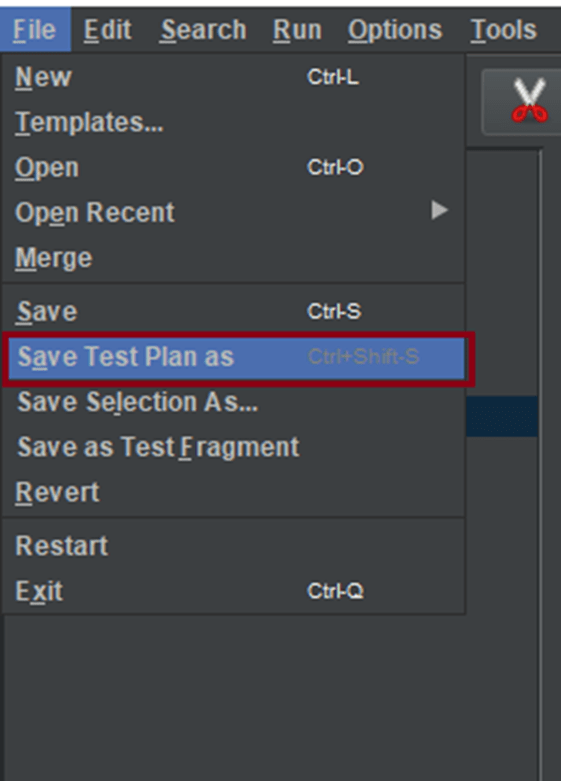
Step 5 – Save the Test Plan

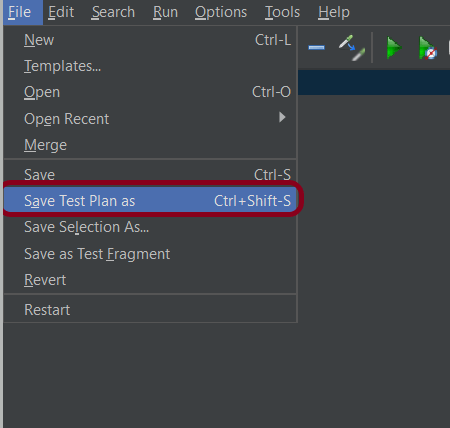
To Save: Click File Select -> Save Test Plan as ->Give the name of the Test Plan. It will be saved as .jmx format.

Step 6  – Run the Test Plan

Click on Green Triangle as shown at the top to run the test.

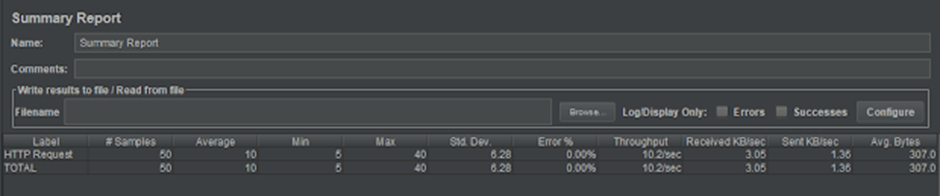
Step 7 – View the Execution Status

Click on Summary Report to see the status of Run. As we can see in the summary report, 50 requests are executed as 10 requests per sec (10*5=50 requests).

Congratulations on making it through this tutorial and hope you found it useful! Happy Learning!! Cheers!!

Install Apache JMeter in Ubuntu

HOME

What is Apache JMeter?

The Apache JMeter™ application is open-source software, a 100% pure Java application designed to load test functional behaviour and measure performance. 

It can use to simulate a heavy load on a server, group of servers, network or object to test its strength or to analyze overall performance under different load types.

In this tutorial, will discuss how to install JMeter in Ubuntu. For example, I’ll use Ubuntu Desktop 18.04.

We need to install Java, before installing Apache JMeter. 

How to Install Java in Ubuntu Desktop 18.04

The command below will display the version of Java installed on the system

java --version

The command below will download Java on the system in headless mode

sudo apt-get install openjdk-11-jre-headless

How to Install Apache JMeter in Ubuntu Desktop 18.04

After Java is installed, copy the link to the archive with the latest version of Apache JMeter from the official site http://jmeter.apache.org/download_jmeter.cgi and download it:

wget http://apache.volia.net//jmeter/binaries/apache-jmeter-5.2.1.tgz

Extract the archive:

tar -xf apache-jmeter-5.2.1.tgz

How to run Apache JMeter in Ubuntu?

The command below will run the test named – PerfTest.jmx in Apache Ubuntu

./apache-jmeter-5.2.1/bin/jmeter.sh -n -t ./PerfTest.jmx

The output of JMeter Test will look like as below. 

We can see the summary of the test which include Total number of Requests processed, Total Execution Time, Throughput, Average time taken to process a request, Minimum time taken to process a request, maximum time taken to process a request and error percentage.

Congratulations on making it through this tutorial and hope you found it useful! Happy Learning!! Cheers!!

Additional Tutorials

 How to send POST requests in JMeter
JMeter Authorization with access token
 Install Apache JMeter in Ubuntu
Constant Throughput Timer in JMeter
How to generate Random Variables in JMeter

SpringBoot Integration Test

HOME

1. What is SpringBoot?

Spring Boot is an open-source micro framework, which provides Java developers with a platform to get started with an auto configurable production-grade Spring application. 

  • Comes with embedded HTTP servers like Tomcat or Jetty to test web applications.
  • Adds many plugins that developers can use to work with embedded and in-memory databases easily. Spring allows you to connect easily with database and queue services like Oracle, PostgreSQL, MySQL, MongoDB, Redis, Solr, ElasticSearch, Rabbit MQ and others.

2. Integration Testing of Spring Boot Application

Integration testing of SpringBoot application is all about running an application in ApplicationContext and run tests. Spring Framework does have a dedicated test module for integration testing. It known as spring-test. If we are using spring-boot, then we need to use spring-boot-starter-test, which will internally use spring-test and other dependent libraries.

With the @SpringBootTest annotation, Spring Boot provides a convenient way to start up an application context to be use in a test. In this tutorial, we will discuss when to use @SpringBootTest and how to use it. SpringBoot provides the @SpringBootTest annotation, which we can use to create an application context containing all the objects we need for the Integration Testing It, starts the embedded server, creates a web environment and then enables methods to do Integration testing.

2.1 WebEnvironment

By default, @SpringBootTest does not start the webEnvironment to refine further  how your tests run. It has several options:

1. MOCK(Default): Loads a web ApplicationContext and provides a mock web environment
2. RANDOM_PORT: Loads a WebServerApplicationContext and provides a real web environment. The embedded server is start and listen on a random port. This is the one should be used for the integration test
3. DEFINED_PORT: Loads a WebServerApplicationContext and provides a real web environment.
4. NONE: Loads an ApplicationContext by using SpringApplication but does not provide any web environment

2.2 Write integration tests with @SpringBootTest

Let’s add the Maven dependencies needed to test SpringBoot application

<dependency>
    <groupId>org.springframework.boot</groupId>
    <artifactId>spring-boot-starter-parent</artifactId>
    <version>2.2.1.RELEASE</version>
    <type>pom</type>
</dependency>
<dependency>
    <groupId>org.springframework.boot</groupId>
    <artifactId>spring-boot-starter-web</artifactId>
</dependency>
<dependency>
    <groupId>org.springframework.boot</groupId>
    <artifactId>spring-boot-starter-test</artifactId>
    <scope>test</scope>
</dependency>
<dependency>
    <groupId>org.springframework.security</groupId>
    <artifactId>spring-security-test</artifactId>
    <scope>test</scope>
</dependency>

2.3 What is RestController?

SpringBoot RestController annotation is use to create RESTful web services using Spring MVC. Spring RestController takes care of mapping request data to the request defined handles method. This is the Spring boot rest controller used for the testing purpose

 A convenience annotation that is itself annotated with @Controller and @ResponseBody

Get() method  returns Hello world if request sends “hello” word otherwise, response returns “Try saying ‘hello'”

import org.springframework.web.bind.annotation.GetMapping;
import org.springframework.web.bind.annotation.PathVariable;
import org.springframework.web.bind.annotation.RequestMapping;
import org.springframework.web.bind.annotation.RestController;

@RestController
@RequestMapping("helloworld")
public class TestController {

     @GetMapping("/{greeting}")
      public String get(@PathVariable String greeting) {

            String response;
            if(greeting.equals("hello")) {
                 response = "Hello World";
            }else{
                 response = "Try saying 'hello'";
            }
         return response;
     }
}
 2.4 Integration Test

Let’s create a Feature file with a scenario where we send request to SpringBoot Application  and get valid response.

Feature: Test SpringBoot Request

   @ReceiveCorrectResponse
   Scenario: Send a valid SpringBoot Request to get correct response
    Given I send a springboot request to the URL "/helloworld/hello"
    Then the springboot response will return "Hello World"

The test class mentioned below contains integration tests for the spring boot rest controller mentioned above. This test class:

  • uses @SpringBootTest annotation which loads the actual application context.
  • uses WebEnvironment.RANDOM_PORT to create run the application at some random server port.
  • @LocalServerPort gets the reference of port where the server has started. It helps in building the actual request URIs to mimic real client interactions.
  • io.restassured.RestAssured is a Java DSL for simplifying testing of REST based services built on top of HTTP Builder
@SpringBootTest(webEnvironment = WebEnvironment.RANDOM_PORT)
public class SpringIntegrationTest {

       private final static String BASE_URI = "http://localhost";

       @LocalServerPort
       private int port;

       String endpoint = "/helloworld/hello";
       private ValidatableResponse validatableResponse;

       private void configureRestAssured() {
              RestAssured.baseURI = BASE_URI;
              RestAssured.port = port;
              RestAssured.basePath = "/demo";         
       }
       protected RequestSpecification getAnonymousRequest() throws NoSuchAlgorithmException
     {
              configureRestAssured();
              return given();
       }

       @Given("^I send a springboot request to the URL \"([^\"]*)\"$")
       public void iSendARequest(String endpoint) throws Throwable 
      {
              validatableResponse = getAnonymousRequest().contentType(ContentType.JSON).when().get(endpoint).then();
       }

      @Then("^the springboot response will return \"([^\"]*)\"$")
      public void extractResponse(String message) 
    {        validatableResponse.assertThat().statusCode(HttpStatus.OK.value()).body(containsString(message));
       }     
}
2.5 Demo

Run the above tests within Eclipse. The test class start the whole application in embedded server and the execute the test

The next tutorial is about the Integration Testing of SpringBoot Application using Serenity BDD and Cucumber

How to send GET Request in JMeter

HOME

What is Apache JMeter?

The Apache JMeter™ application is open source software, a 100% pure Java application designed to load test functional behavior and measure performance. It was design for testing Web Applications but has since expanded to other test functions.
It can used to simulate a heavy load on a server, group of servers, network or object to test its strength or to analyze overall performance under different load types.

How to send GET HTTP Request in JMeter?

We can perform GET as well as POST operation in JMeter. In this tutorial, we will only explain how we can perform GET operation.

Create a Test Plan in JMeter

Step 1 – Add Thread Group

  • Select Test Plan on the tree
  • Add Thread Group                                                                                           
    • To add Thread Group: Right click on the “Test Plan” and add a new thread group: Add -> Threads (Users) -> Thread Group

In the Thread Group control panel, enter Thread Properties as follows: We will take an example of row no 5.

  • Number of Threads: 5 – Number of users connects to the target website
  • Loop Count: 5  – Number of time to execute testing
  • Ramp-Up Period: 5 – It tells JMeter how long to delay before starting the next user. For example, if we have 5 users and a 5 -second Ramp-Up period, then the delay between starting users would be 1 second (5 seconds /5 users).

Step 2 –  Adding JMeter elements

The JMeter element used here is HTTP Request Sampler. In HTTP Request Control Panel, the Path field indicates which URL request you want to send.

2.1 Add HTTP Request Sampler

To add: Right-click on Thread Group and select: Add -> Sampler -> HTTP Request.

Below mentioned are the values use in HTTP Request to perform the test

  • Name – HTTP Request 
  • Server Name or IP – localhost
  • Port – 8010
  • Method – GET
  • Path – /demo/helloworld/demo

OR

URL – https://reqres.in/api/users?page=2

  • Name – HTTP GET Request 
  • Protocol – https
  • Server Name or IP – reqres.in
  • Port –
  • Method – GET
  • Path – /api/users?page=2

Step 3 – Adding Listeners to Test Plan

Listeners – They shows the results of the test execution. They can show results in a different format such as a tree, table, graph or log file

We are adding  View Result Tree listener

View Result Tree – View Result Tree show results of the user request in basic HTML format

To add: Right click Test Plan, Add -> Listener -> View Result Tree

Complete Test Plan will look like as shown below

Step 4 – Save the Test Plan

To Save: Click File Select -> Save Test Plan as ->Give name of the Test Plan. It will be save as .jmx format.

Sample .jmx File

Step 5  – Run the Test Plan

Click on Green Triangle as shown below to run the test.

Step 6 – View the Execution Status

Click on View Result Tree to see the status of Run. Successful request will be of Green color in the Text Section.

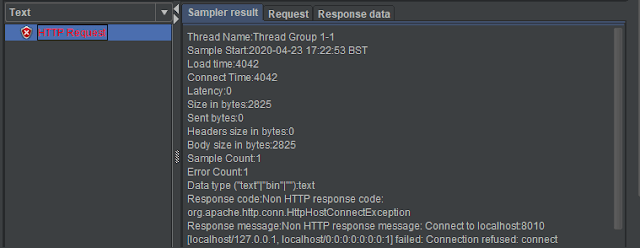
Sample of Failed Request. Failed request will be of Red color in View Result Tree under Text option. This screen sows the reason for the failure of the request like Connection refused here.

That’s it! Congratulations on making it through this tutorial and hope you found it useful! Happy Learning!!