How to track commits in Git – git log command

HOME

The previous tutorial explains the process of staging and committing a change. But, to track all the commits that have occurred in the project, there is a command called git log.

What is git log command?

The git log command shows the snapshot of all the committed changes.  It is used for listing and filtering the project history, and searching for particular changes.

To explain the usage of the git log, let us follow a few steps.

Step 1 – Create an empty directory – GitTest.

Step 2 – Right-click and click on Git Bash Here to open GitBash at that place.

Step 3 – Type a git command as shown below. This command is used for the initial setup of a Git local Repository. To know how to create an empty directory, refer to this tutorial.

git init

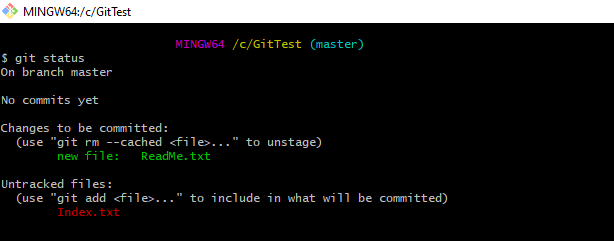
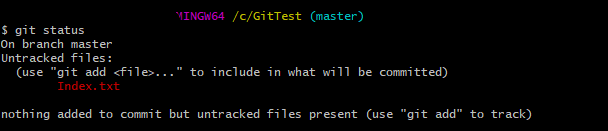
Step 4 – Use the below command to display the state of the working directory and the staging area.

git status

Step 5 – Create 2 new files with some content – ReadMe.txt and Index.txt.

Step 6 – Use the below command to promote pending changes (new file or altered file) in the working directory, to the git Staging area.

git add ReadMe.txt

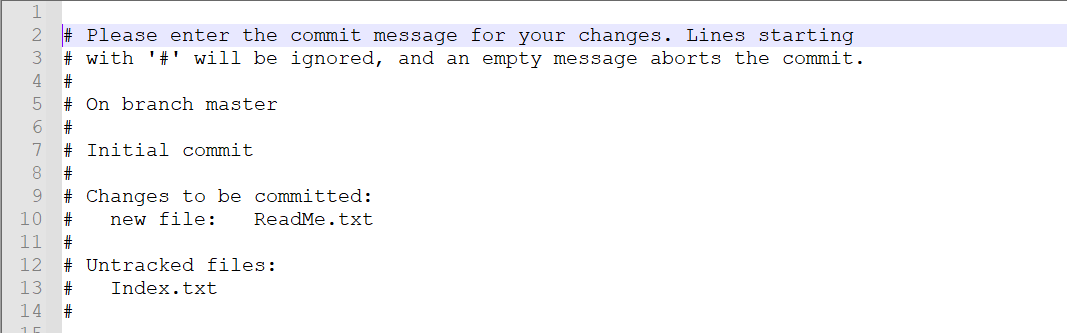
Step 7 – Use the below command to promote the changes from Staging Area to GIT local repository. This is our first commit.

git commit ReadMe.txt

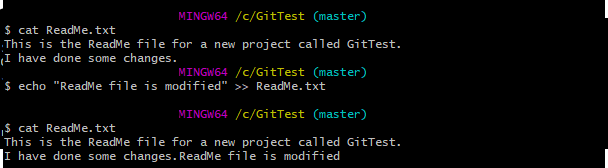
Step 8 – Update ReadMe.txt file

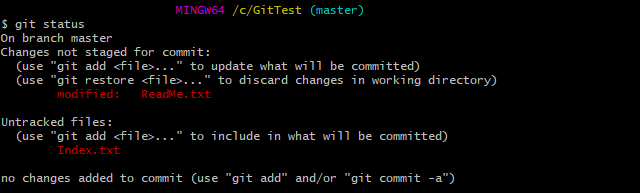
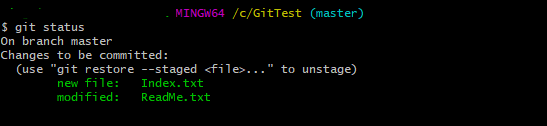
Step 9 – Use the below command to promote both ReadMe.txt and Index.txt to the staging area, which means both files are staged.

git add .

Step 10 – Use the below command to commit both the files to GIT local Repository.

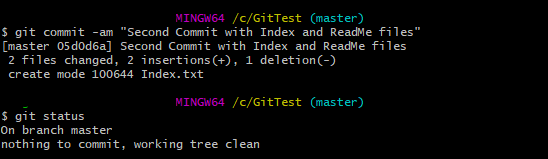
git commit -am "Second Commit with Index and ReadMe files"

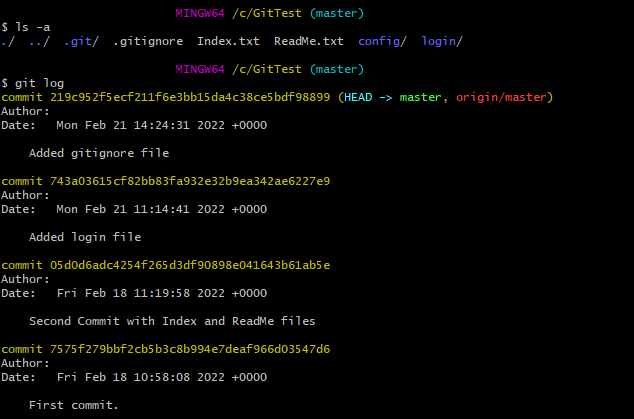
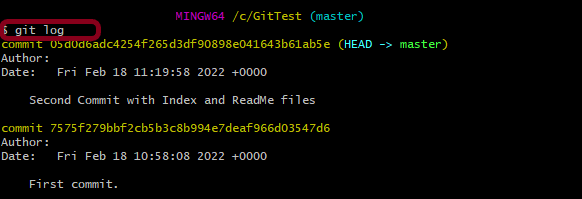
Step 11 – Type the below command to see the snapshot of all the commits.

git log

By default, formatting, shows the whole commit history. 

There are various configurations of git log:-

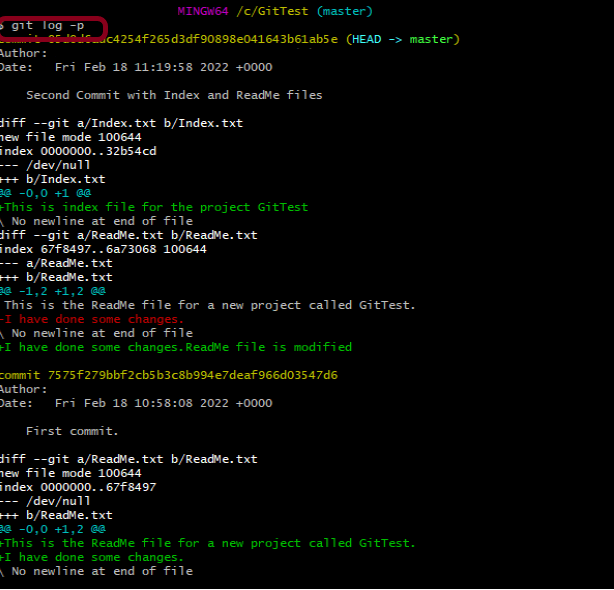
1. git log –patch or git log -p

This command shows the patch for each commit as well as their full differences.

2. git log –stat

This command displays the number of insertions and deletions to each file altered by each commit (note that modifying a line is represented as 1 insertion and 1 deletion). This is useful when you want a brief summary of the changes introduced by each commit. 

3. git log –pretty

git log --pretty=format:"%cn committed %h on %cd"

This command display each commit using printf-style placeholders. The %cn%h and %cd characters in the command are replaced with the committer name, abbreviated commit hash, and the committer date, respectively.

4. git log -n where n is the limit

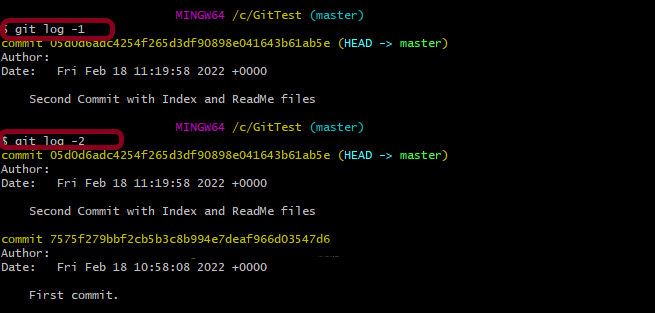
git log -1

This command limits the number of commits to be displayed.

5. git log –author

git log --author ="Singh"

This command displays all commits for the specified author. If there is no match for the author, nothing will be displayed.

6. git log — fileName

git log -- Index.txt

This command displays those commits that include the specified file, which makes it easier to see the file’s history.

7. git log –after

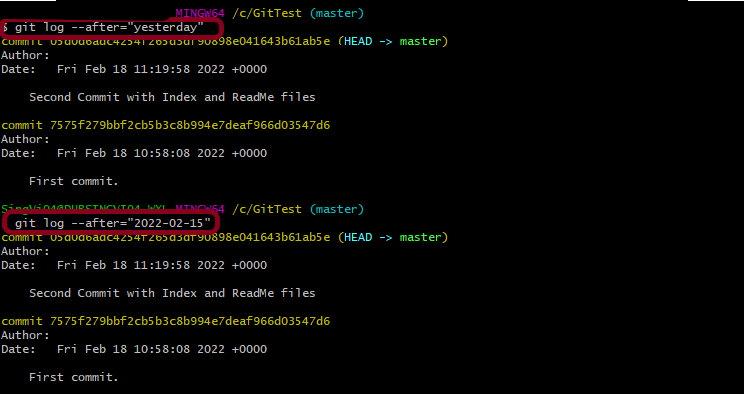
git log --after="yesterday"
git log --after="2022-02-15"

This command displays a commit from a specific time frame. We can use both –after or –before.

Congratulations!! We have learned about the git log, which is very useful for tracking the changes. Happy Learning!!
How to commit changes in GIT – git commit command

HOME

The previous tutorial explains the staging of the changes. This tutorial explains how to commit changes in GIT.

As we remember from previous tutorials, committing a change (like new file, updated file, etc) is a 2 step process.

“git add” is the first command in a chain of operations that directs Git to “save” a snapshot of the current project state, into the commit history or can say . Now we can say that “git commit” is the second command in above chain of operations.

git commit is used to save the changes to the local Git Repository. When a file is changes and we use git commit, GIT will not automatically commit the changes. Instead, we need to use the “git add” command to mark the desired changes for inclusion.

Let me explain this with an example.

Step 1– Create an empty directory – GitTest.

Step 2Right-click and click on Git Bash Here to open GitBash at that place.

Step 3 – Type a git command as “git init”. This command is used for initial setup of a Git local Repository. To know how to create an empty directory, refer this tutorial.

Step 4 – Type git status command. This command displays the state of the working directory and the staging area.

Step 5 – Create 2 new files with some content – ReadMe.txt and Index.txt.

Step 6 – Type git add ReadMe.txt command. This will  promote pending changes (new file or altered file) in the working directory , to the git Staging area.

Step 7 – Type git status command.

This shows that ReadMe.txt file is already staged and Indesx.txt is not staged. As ReadMe.txt is already staged, we can commit this file to Git local Repository. This can be done by using the command “git commit”.

Step 8 – Type git commit “ReadMe.txt”.

git commit <fileName>

This will launch a text editor prompting you for a commit message. After you’ve entered a message, save the file and close the editor to create the actual commit. Below is the editor opens. I have added the message – First commit at line 15 (which is not commented – #)

This is how the message is displayed in GitBash now.

Step 9 – Type git status again. This command shows that now we have only Index.txt to stage and commit.

A shortcut command that immediately creates a commit with a passed commit message without opening of text editor.

git commit -m "commit message"

There are some other options to available with git commit.

  1. This command commit a snapshot of all changes present in Git Staging area.
git commit -a

2. A power user shortcut command that combines the -a and -m options. This combination immediately creates a commit of all the staged changes and takes an inline commit message.

git commit -am "commit message"

In the below example,

Step 1 – Modified Index.txt file

Step 2 – Type git status to see that ReadMe.txt is modified so needs to be staged again and Index.txt which also needs to be staged.

Step 3 – Type git add . to stage both files Index.txt and ReadMe.txt to Staging Area.

Step 4 – Type git status to check the status of both files.

Step 5 – Type git commit -am “Second commit with Index and ReadMe files” to commit both the files.

Step 6 – Type git status to check if both the files are committed or not.

Hopefully, this tutorial will help you to understand the process of committing the changes in GIT. Happy Learning.

How to unstage the changes in Git – git rm command

HOME

The previous example has explained the staging of new files to the staging area.

What is git rm?

This command removes the file from the staging area. The files from the working directory will remain intact. This means that you’ll still have a copy of the file locally. The file will be removed from the index tracking of Git project.

Let us explain this with the help of an example.

  1. Create an empty Git RepositoryGitTest
  2. Create a new file – ReadMe.txt and add the file to staging area.
  3. Create another file – Index.html
  4. Update the first file – ReadMe.txt which is already staged.
  5. Use “git add .” to stage both the files.

Later, we realized that we don’t want to commit both the files. We try to commit the logically same files, like files created or changed to fix a particular bug. So, if in the future we want to track back the changes, it is easy to figure out which all files are changed or impacted.

We want to unstage the “Index.txt” file.

Use the below command to reset the changes from the staging area to the working directory.

git rm --cached Index.txt

The “cached” option specifies that the removal should happen only on the staging index.

I have used “git status” command and it shows that “ReadMe.txt” can either be unstage or commit. Whereas “Index.txt” is unstage. So, if we want to commit Index.txt, first we need to stage this file using git add command.

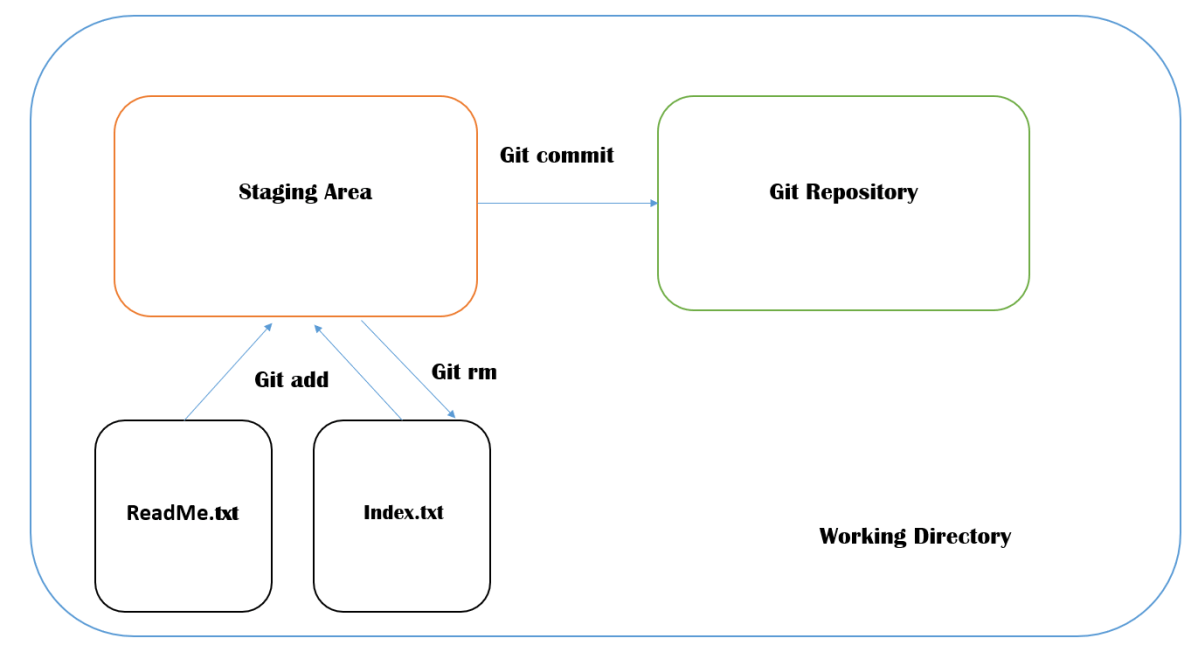
This image shows that git rm moves the staged file from Staging Area to back to working Directory.

I hope this tutorial has helped you to understand git rm command.

How to stage changes in Git – git add Command

HOME

The previous tutorial explains the creation of a Git Repository. This tutorial explains the steps to stage the changes in the Git Repository.

We have a new Git Repository named as GitTest. Go to the Git Repository and Right-click and select “Git Bash Here”.

To know how to create a new empty Git Repository, refer to this tutorial – How to create a new Git Repository – git init Command.

Type “git status” command on Git Bash and press enter.

This shows that there is no uncommitted file available in the Git Repository.

Scenario 1 – Adding/Staging a new file to Git

Now, let us create a new file called – ReadMe.txt in the Git Repository. Again, type the command – “git status”.

When we have added a new file and use the Git Status command, Git shows that the newly created file is an untracked file, since it is not yet tracked by GIT. It is showing a suggestion to use the “git add” command with the file name so that it can be included as a part of the next commit.

As suggested by Git, let us use the “git add” command to commit the file and then use “git status” command to see the status of Git.

When we ran the “git add” command, then changes from the working directory were copied (not moved) to the staging area. 

The primary function of the git add command is to promote pending changes (new file or altered file) in the working directory, to the git staging area. The staging area is one of Git’s more unique features.

Scenario 2 – Adding a new file to git and updating the already staged file

I have created another new file – “Index.txt” and updated the already staged file – “ReadMe.txt”. Type the command “git status” and see the message provided by Git.

This image provides 4 suggestions

  1. If we want to unstage the old file – ReadMe.txt, we can do that by using command “git rm”.
  2. The latest changes are not staged for ReadMe.txt file. This can be done by using “git add” command.
  3. If we want to move the latest changes from staging area to working directory, use “git restore” command.
  4. The new file Index.txt is not at all staged. So, it can be staged by using the command “git add“.

There are multiple ways to stage multiple files in Git.

The first way is to add the name of all the files, as shown below.

 git add ReadMe.txt Index.txt

The second way is to use the below command. This will stage all the unstaged files available in Git.

git add .

Staging Files – This diagram helps you to remember the difference between Staging Area and Git Repository.

I hope this has helped you to understand the difference between Staging Area and Git Repository.

How to create a new Git Repository – git init Command

HOME

I have explained the steps to install Git on Windows 10 in the last tutorial – How to install Git on Windows 10. This tutorial will explain the process to create a new Git Repository.

Git offers a better way of keeping track of changes by using the Git repository. A repository is a place that stores something like files, data, code, etc.

What is Git Repository?

A Git Repository stores file and keep track of the changes. A Git repository is a virtual storage of a project. It allows you to save versions of your code, which you can access when it is needed. That’s why all software project uses a version control system like Git. Git automatically will not start tracking changes to any file. We need to let git know where to track and what to track.

Let us understand how to use git init command.

Step 1 – Create an empty directory – GitTest.

Step 2 – Right-click and click on Git Bash Here.

Step 3 – Type a git command as “git status”.

As the new directory is not a git directory it showed a fatal messagefatal: not a git repository (or any of the parent directories): .git.

What is git status command?

The git status command displays the state of the working directory and the staging area. It lets you see which changes have been staged, which haven’t, and which files aren’t being tracked by Git. Status output does not show you any information regarding the committed project history.

Step 4 – Type git command – “git init”.

Here, you can see an empty git repository is created under C:/GitTest.

What is git init command?

git init is a one-time command which you use during the initial setup of a new repo. Executing this command will create a new .git subdirectory in your current working directory. This will also create a new main branch – master branch. Master or Main are default branch.

The git init” command creates a new hidden folder named.gitin the same directory where it was run.

Running git init in an existing repository is safe. It will not overwrite things that are already there. The primary reason for rerunning git init is to pick up newly added templates (or to move the repository to another place if –separate-git-dir is given).

Congratulation!!! We have understood the use of git init command.

How to install Git on Windows 10

HOME

This tutorial explains the steps to install Git on Windows 10.

Step 1 – To install Git, go to – Git (git-scm.com). I want to install Git on Windows, so can use highlighted option to install Git.

The latest version here is 2.34.1.

Step 2 – Save the Git.exe file.

Step 3 – Now open the installer you have downloaded and go through the installation process. Unless you know what you are doing, leave all settings to their defaults. Click the Next button.

Step 4 – Select the destination location where GIT will be installed. You can continue with the default location as shown below, or use the installation path suggested by Git. Click the Next button.

Step 5 – In this step, you need to select components to be installed. Apart from the pre-selected options, you may also want to select “Add a Git Bash Profile to Windows Terminal”. This can be useful later on, especially if you plan to use Visual Studio Code or other IDEs that have a built-in terminal window. Click the Next button.

Step 6 Select if you would like to GIT shortcut in the start menu. Click the Next button.

Step 7 – Select the default editor of GIT. I use Notepad++ as the default editor used by GIT.

Click the Next button.

Step 8 – Git hosting tools like GitHub or GitLab already use main as their default branch.

Click the Next button.

Step 9 – Click the Next button.

Step 10 – Click the Next button.

Step 11 – Select SSL/TLS library used by GIT to use for the HTTPS connection. Go with default selection and click the Next button.

Step 12 – Click the Next button.

Step 13 – Click the Next button.

Step 14 – Configure the default behaviour of the git pull command. Click the Next button.

Step 15 – Click the Next button.

Step 16 – Enable file system caching to boost performance, which is the default selection. Click the Next button.

Step 17 – Click the Install button.

Step 18 You will get the below screen after the successful installation of GIT. Click the Finish button. This wizard has also installed a new tool called Git Bash, a terminal alternative for cmd or Powershell.

From Git Bash or terminal of your choice, run the following command:-

git --version

You can also use Windows PowerShell as well.

We are done! Congratulations on making it through this tutorial and hope you found it useful! Happy Learning!!

XML Unmarshalling – Convert XML to Java objects using JAXB Version 3

HOME

The previous tutorial explain the Marshalling of Java Object to XML using JAXB Version 3.

There are tutorials about marshalling and unmarshalling XML using JAXB Version 2.

Marshalling – How to convert Java Objects to XML using JAXB

UnMarshalling- How to convert XML to Java Objects using JAXB

As of Java 11, JAXB is not part of the JRE anymore, and you need to configure the relevant libraries via your dependency management system, for example, either Maven or Gradle.

Configure the Java compiler level to be at least 11 and add the JAXB Version 3 dependencies to your pom file.

<!-- JAXB API v3.0.1 -->
<dependency>
    <groupId>jakarta.xml.bind</groupId>
    <artifactId>jakarta.xml.bind-api</artifactId>
    <version>3.0.1</version>
</dependency>

<!-- JAXB v3.0.2 reference implementation (curiously with com.sun coordinates) -->
<dependency>
    <groupId>com.sun.xml.bind</groupId>
    <artifactId>jaxb-impl</artifactId>
    <version>3.0.2</version>
    <scope>runtime</scope>
</dependency>

To know about the difference between JAXB Version 2 and JAXB Version3, refer this tutorial.

Sample XML Structure

<?xml version="1.0" encoding="UTF-8" standalone="yes"?>
<EmployeeDetail>
    <firstName>Terry</firstName>
    <lastName>Mathew</lastName>
    <age>30</age>
    <salary>75000.0</salary>
    <designation>Manager</designation>
    <contactNumber>+919999988822</contactNumber>
    <emailId>abc@test.com</emailId>
    <gender>female</gender>
    <maritalStatus>married</maritalStatus>
</EmployeeDetail>

Now, let us create the Java Objects (POJO) of above XML.

import jakarta.xml.bind.annotation.XmlAccessType;
import jakarta.xml.bind.annotation.XmlAccessorType;
import jakarta.xml.bind.annotation.XmlRootElement;

@XmlRootElement(name = "EmployeeDetail")
@XmlAccessorType(XmlAccessType.FIELD)
public class Employee {

	private String firstName;
	private String lastName;
	private int age;
	private double salary;
	private String designation;
	private String contactNumber;
	private String emailId;
	private String gender;
	private String maritalStatus;

	public Employee() {
		super();

	}

	// Getter and setter methods
	public String getFirstName() {
		return firstName;
	}

	public void setFirstName(String firstName) {
		this.firstName = firstName;
	}

	public String getLastName() {
		return lastName;
	}

	public void setLastName(String lastName) {
		this.lastName = lastName;
	}

	public int getAge() {
		return age;
	}

	public void setAge(int age) {
		this.age = age;
	}

	public double getSalary() {
		return salary;
	}

	public void setSalary(double salary) {
		this.salary = salary;
	}

	public String getDesignation() {
		return designation;
	}

	public void setDesignation(String designation) {
		this.designation = designation;
	}

	public String getContactNumber() {
		return contactNumber;
	}

	public void setContactNumber(String contactNumber) {
		this.contactNumber = contactNumber;
	}

	public String getEmailId() {
		return emailId;
	}

	public void setEmailId(String emailId) {
		this.emailId = emailId;
	}

	public String getGender() {
		return gender;
	}

	public void setGender(String gender) {
		this.gender = gender;
	}

	public String getMaritalStatus() {
		return maritalStatus;
	}

	public void setMaritalStatus(String maritalStatus) {
		this.maritalStatus = maritalStatus;
	}

    @Override
	public String toString() {
		return "Employee [FirstName=" + firstName + ", LastName=" + lastName + ", Age=" + age + ", Salary=" + salary
				+ ", Designation=" + designation + ", ContactNumber=" + contactNumber + ", EmailId=" + emailId
				+ ", Gender=" + gender + ", MaritalStatus=" + maritalStatus + "]";
	}
}

Let’s create a simple program using the JAXBContext which provides an abstraction for managing the XML/Java binding information necessary to implement the JAXB binding framework operations and unmarshal.

import java.io.File;

import org.junit.Test;

import jakarta.xml.bind.JAXBContext;
import jakarta.xml.bind.JAXBException;
import jakarta.xml.bind.Unmarshaller;

public class JAXBDeserialization {

	@Test
	public void JAXBUnmarshalTest() {

		try {

			String userDir = System.getProperty("user.dir");
			File file = new File(userDir + "\\src\\test\\resources\\JAXB_XML.xml");

			JAXBContext jaxbContext = JAXBContext.newInstance(Employee.class);

			Unmarshaller jaxbUnmarshaller = jaxbContext.createUnmarshaller();
			Employee employee = (Employee) jaxbUnmarshaller.unmarshal(file);
			System.out.println(employee);

		} catch (JAXBException e) {
			e.printStackTrace();
		}

	}

When we run the code above, we may check the console output to verify that we have successfully converted XML data into a Java object:

This response is the result of the toString() method in POJO Class.

There is another way to get the values of each node of XML.

   @Test
	public void JAXBUnmarshalTest1() {

		try {

			String userDir = System.getProperty("user.dir");
			File file = new File(userDir + "\\src\\test\\resources\\JAXB_XML.xml");

			JAXBContext jaxbContext = JAXBContext.newInstance(Employee.class);

			Unmarshaller jaxbUnmarshaller = jaxbContext.createUnmarshaller();
			Employee employee = (Employee) jaxbUnmarshaller.unmarshal(file);

			System.out.println("FirstName: " + employee.getFirstName());
			System.out.println("LastName: " + employee.getLastName());
			System.out.println("Age: " + employee.getAge());
			System.out.println("Salary: " + employee.getSalary());
			System.out.println("Contact Number: " + employee.getContactNumber());
			System.out.println("Designation: " + employee.getDesignation());
			System.out.println("Gender: " + employee.getGender());
			System.out.println("EmailId: " + employee.getEmailId());
			System.out.println("MaritalStatus: " + employee.getMaritalStatus());

		} catch (JAXBException e) {
			e.printStackTrace();
		}

	}

When we run the code above, we may check the console output to verify that we have successfully converted XML data into a Java object:

The Unmarshaller class governs the process of deserializing XML data into newly created Java content trees, optionally validating the XML data as it is unmarshalled. It provides overloading of unmarshal methods for many input kinds.

We are done! Congratulations on making it through this tutorial and hope you found it useful! Happy Learning!!

XML Marshalling – Convert Java objects to XML using JAXB Version 3

HOME

The previous tutorials have explained marshalling and unmarshalling of XML using JAXB Version 2.

As of Java 11, JAXB is not part of the JRE anymore, and you need to configure the relevant libraries via your dependency management system, for example, either Maven or Gradle.

Configure the Java compiler level to be at least 11 and add the JAXB Version 3 dependencies to your pom file.

<!-- JAXB API v3.0.1 -->
<dependency>
    <groupId>jakarta.xml.bind</groupId>
    <artifactId>jakarta.xml.bind-api</artifactId>
    <version>3.0.1</version>
</dependency>

<!-- JAXB v3.0.2 reference implementation (curiously with com.sun coordinates) -->
<dependency>
    <groupId>com.sun.xml.bind</groupId>
    <artifactId>jaxb-impl</artifactId>
    <version>3.0.2</version>
    <scope>runtime</scope>
</dependency>
Difference between javax.xml.* and jakarta.xml.*

Eclipse foundation rebrand the Java EE javax.xml.* to Jakarta EE jakarta.xml.*.

Below are some JAXB APIs in versions 2 and 3.

//@Since 3.0.0, rebrand to Jakarta.xml

import jakarta.xml.bind.annotation.XmlAccessType;
import jakarta.xml.bind.annotation.XmlAccessorType;
import jakarta.xml.bind.annotation.XmlRootElement;
import jakarta.xml.bind.annotation.XmlElement;
import jakarta.xml.bind.annotation.XmlTransient;
import jakarta.xml.bind.annotation.XmlType;

import jakarta.xml.bind.JAXBContext;
import jakarta.xml.bind.JAXBException;
import jakarta.xml.bind.Marshaller;
import jakarta.xml.bind.PropertyException;
import jakarta.xml.bind.Unmarshaller;

//JAXB Version 2.0

import javax.xml.bind.annotation.XmlAccessType;
import javax.xml.bind.annotation.XmlAccessorType;
import javax.xml.bind.annotation.XmlElement;
import javax.xml.bind.annotation.XmlRootElement;
import javax.xml.bind.annotation.XmlTransient;
import javax.xml.bind.annotation.XmlType;

import javax.xml.bind.JAXBContext;
import javax.xml.bind.JAXBException;
import javax.xml.bind.Marshaller;
import javax.xml.bind.PropertyException;
import javax.xml.bind.Unmarshaller;
Sample XML Structure
<?xml version="1.0" encoding="UTF-8" standalone="yes"?>
<EmployeeDetail>
    <firstName>Terry</firstName>
    <lastName>Mathew</lastName>
    <age>30</age>
    <salary>75000.0</salary>
    <designation>Manager</designation>
    <contactNumber>+919999988822</contactNumber>
    <emailId>abc@test.com</emailId>
    <gender>female</gender>
    <maritalStatus>married</maritalStatus>
</EmployeeDetail>

Now, let us create the Java Objects (POJO) of the above XML.

import jakarta.xml.bind.annotation.XmlAccessType;
import jakarta.xml.bind.annotation.XmlAccessorType;
import jakarta.xml.bind.annotation.XmlRootElement;

@XmlRootElement(name = "EmployeeDetail")
@XmlAccessorType(XmlAccessType.FIELD)
public class Employee {

	private String firstName;
	private String lastName;
	private int age;
	private double salary;
	private String designation;
	private String contactNumber;
	private String emailId;
	private String gender;
	private String maritalStatus;

	public Employee() {
		super();

	}

	// Getter and setter methods
	public String getFirstName() {
		return firstName;
	}

	public void setFirstName(String firstName) {
		this.firstName = firstName;
	}

	public String getLastName() {
		return lastName;
	}

	public void setLastName(String lastName) {
		this.lastName = lastName;
	}

	public int getAge() {
		return age;
	}

	public void setAge(int age) {
		this.age = age;
	}

	public double getSalary() {
		return salary;
	}

	public void setSalary(double salary) {
		this.salary = salary;
	}

	public String getDesignation() {
		return designation;
	}

	public void setDesignation(String designation) {
		this.designation = designation;
	}

	public String getContactNumber() {
		return contactNumber;
	}

	public void setContactNumber(String contactNumber) {
		this.contactNumber = contactNumber;
	}

	public String getEmailId() {
		return emailId;
	}

	public void setEmailId(String emailId) {
		this.emailId = emailId;
	}

	public String getGender() {
		return gender;
	}

	public void setGender(String gender) {
		this.gender = gender;
	}

	public String getMaritalStatus() {
		return maritalStatus;
	}

	public void setMaritalStatus(String maritalStatus) {
		this.maritalStatus = maritalStatus;
	}

    @Override
	public String toString() {
		return "Employee [FirstName=" + firstName + ", LastName=" + lastName + ", Age=" + age + ", Salary=" + salary
				+ ", Designation=" + designation + ", ContactNumber=" + contactNumber + ", EmailId=" + emailId
				+ ", Gender=" + gender + ", MaritalStatus=" + maritalStatus + "]";
	}
}

Let’s create a simple program using the JAXBContext which provides an abstraction for managing the XML/Java binding information necessary to implement the JAXB binding framework operations.

import java.io.StringWriter;

import org.junit.Test;

import jakarta.xml.bind.JAXBContext;
import jakarta.xml.bind.JAXBException;
import jakarta.xml.bind.Marshaller;
import jakarta.xml.bind.PropertyException;

public class JAXBSerialization {

	@Test
	public void serializationTest1() {

		try {

			Employee employee = new Employee();

			employee.setFirstName("Terry");
			employee.setLastName("Mathew");
			employee.setAge(30);
			employee.setSalary(75000);
			employee.setDesignation("Manager");
			employee.setContactNumber("+919999988822");
			employee.setEmailId("abc@test.com");
			employee.setMaritalStatus("married");
			employee.setGender("female");

			// Create JAXB Context
			JAXBContext context = JAXBContext.newInstance(Employee.class);

			// Create Marshaller
			Marshaller jaxbMarshaller = context.createMarshaller();

			// Required formatting
			jaxbMarshaller.setProperty(Marshaller.JAXB_FORMATTED_OUTPUT, Boolean.TRUE);

			// Print XML String to Console
			StringWriter sw = new StringWriter();

			// Write XML to StringWriter
			jaxbMarshaller.marshal(employee, sw);

			// Verify XML Content
			String xmlContent = sw.toString();
			System.out.println(xmlContent);

		} catch (PropertyException e) {
			e.printStackTrace();

		} catch (JAXBException e) {

		}
	}

}

When we run the code above, we may check the console output to verify that we have successfully converted the Java object into XML:

The Marshaller class is responsible for governing the process of serializing Java content trees back into XML data.

I hope this has helped you to understand the use of JAXB Version 3.

We are done! Congratulations on making it through this tutorial and hope you found it useful! Happy Learning!!
Assertions in ReadyAPI

HOME

What is an Assertion?

An assertion is used to test a logical expression. An assertion is true if the logical expression that is being tested is true and there are no bugs in the program. It can also be interpreted as a checkpoint or a validation point.

There are various types of assertions available in ReadyAPI. They are:-

  1. Property Content
  2. Compliance, Status and Standards
  3. Script
  4. SLA
  5. JMS Response
  6. Security

Example 1 – SLA Assertion

Let’s create an assertion that will check if the tested web service responds within a predefined time limit:

In Functional Tests, select POST Request in the Navigator panel and click Add Assertion:

In the dialog, select the SLA category on the left and then Response SLA on the right, and click Add

Let’s use 3000 milliseconds as the maximum allowed response time for our request. Enter 3000 and click the OK button.

Now, if the request takes longer than the specified number of milliseconds to complete, the assertion will trigger, and the test will fail. If the execution time is less than or equal to the specified value, the check will pass.

Run the request and see the SLA Response. This image shows that Response SLA Assertion is passed.

Example 2 – Check Response Contents

Now let’s see how you can verify response data. The sample response body has the JSON data format, so we will create an assertion for JSON data.

Make sure the request has a response.

In the subsequent dialog, select the Property Content category on the left and the JsonPath Match assertion on the right and click Add:

In the dialog, you need to enter a JSONPath expression that will extract some field from the response body and the expected value of this field:

Select the node on the toolbar and pick a value visually in the subsequent dialog. Let’s do this. Click the highlighted icon and select the name field of the first array item in the following dialog and click the OK button:

The JSONPath Expression field now contains the selector, and Expected Result contains the value extracted from the current response data:

Click the Save button to store the changes.

Since we have response data, the assertion will be applied immediately, and you will see its results on the Assertions page:

Example 3 – Check CONTAINS Assertion

In the subsequent dialog, select the Property Content category on the left and the JsonPath Match assertion on the right and click Add:

In the Contains Assertion dialog, I have mentioned “success” in Content which is present in the response body.

This image shows that the Contains Assertion is passed.

Now, let us add another Contains Assertion which does not contain the response body. In this case, the Assertion fails.

Example 4 – Smart Assertion

The Smart Assertion checks both the message content and the metadata such as headers, status codes, and parameters in accordance with the predefined set of rules.

To use this assertion, you need a ReadyAPI Test Pro license.

Send the request at least once so that ReadyAPI has a response to base the assertion on.

Received Data – The assertion will verify the payload of the request.

  • Received Metadata – The assertion will verify the metadata of the request; depending on the protocol, those can include headers, the HTTP status code, or Kafka partition and key values.

As I know, the Id value is dynamic for each response. So, I have unchecked that option.

The below image shows that the Smart Assertion is successful.

Now, let us add the id to the Smart Assertion.

This image shows that Smart Assertion is failing now.

We are done! Congratulations on making it through this tutorial and hope you found it useful! Happy Learning!!

How to add Test Suite in existing Project in ReadyAPI

HOME

The previous tutorial has explained to create a Test in a new project using ReadyAPI. This tutorial explains to add a new Test Suite to the existing project.

Steps to be followed

  1. Create a new Test Suite to old project
  2. Add new Test Case
  3. Add a Test Step
  4. Add Assertions
  5. Run the Test and verify Test Result
  6. Generate Test Report
  7. Sample Test Report

Create a new Test Suite for the old project

Step 1 – Go to the Existing Project as REST Project 1 here. Right-click on Functional Tests and select “New Test Suite”.

Step 2 – Enter a new test suite name. Click the OK button.

Step 3 – ReadyAPI will show the created functional Test Suite in the Navigator.

Add new Test Case

Step 4 – Right-click on the newly created Test Suite and select New Test Case as highlighted on the screen.

Step 5 – Enter a new Test Case name. Click OK.

Add a Test Step

Step 6 – Right-click the test case, to which you want to add the test step, and select Add Step from the context menu.

This image has an empty alt attribute; its file name is image-64.png

I’m selecting to add an HTTP Request.

An HTTP Request test step is a standalone HTTP request that can be used to call any HTTP service. This means you can use it to send an HTTP request through HTTP, HTTPS, or JMS.

Using the test step’s properties, you can specify the request type (GET, POST, or other), target URL, parameters, attachments, and other values. You can also define specific assertions for checking the server response.

Step 7 – To create an HTTP request, you do not need to have a service added to your project. When you add the test step, you will see the New HTTP Request Step dialog:

Test Step name – Specifies the name of a new test step.

Endpoint – Specifies the endpoint, to which the request will be sent.

Extract Params – This allows you to obtain parameters and their values from the URL specified in the Endpoint field.

Parameters – The list of request parameters. To modify them, use the toolbar buttons.

+ or Add Parameter– adds a new parameter.

X or or Delete Parameter– removes the selected parameter.

URL – extracts parameters from an endpoint specified in the ensuing dialog.

Method – specifies the type of the request (GET, POST, PUT, and so on).

Step 8 – This screen shows the addition of HTTP Request to the Test Case User 99999.

Step 9 – Click on HTTP Request and mention the request body as shown in the image. Media Type is configurable. I have selected application/json.

Add Assertions

Step 10 – Add Assertion to the Test Case. Click on Add Assertion button.

Step 11 – In the dialog, select the SLA category on the left and then Response SLA on the right, and click Add:

Step 12 – In the dialog, mention the time in ms to wait for the response and click the OK button.

Run the Test and verify Test Result

Step 13 – To run the Test Case, click on the Send button. The below image shows the successful response.

Test Report Generation

The Create Report dialog configuration varies depending on the report type you select. You can create project reports only on the level of the Functional tests in the Navigator.

Sample Test Report

Congratulations!! We have added a new test suite to the old project as well as run the test and generated the Test Report too.