New Features in Selenium 4

Last Updated On

HOME

Selenium is moved from version 3 to version 4 which is quite a huge step. What does this change mean? It means that a few of the old features of Selenium 3 are depreciated in Selenium 4 as well some new features are added to it also. I’m trying to explain a few of the latest updates done in Selenium 4.

Table of Contents

  1. Enhanced Selenium Grid
  2. Simplification to open a new Windows browser and Tabs
  3. Relative Locators
  4. TakeElementScreenshot
  5. New additions to the Actions Class
  6. Deprecation of Desired Capabilities
  7. Chrome Dev Tools

Selenium 3 – This is the latest version of Selenium3 available.

<dependency>
    <groupId>org.seleniumhq.selenium</groupId>
    <artifactId>selenium-java</artifactId>
    <version>3.141.59</version>
</dependency>

Selenium 4 – This is the latest version of Selenium 4 Libraries that are present in the Maven Central Repository.

<dependency>
    <groupId>org.seleniumhq.selenium</groupId>
    <artifactId>selenium-java</artifactId>
    <version>4.2.1</version>
</dependency>

1. Enhanced Selenium Grid

Managing Selenium Grid is now smooth and easy as there will no longer be any need to set up and start hubs and nodes separately. The grid can be deployed in 3 modes:

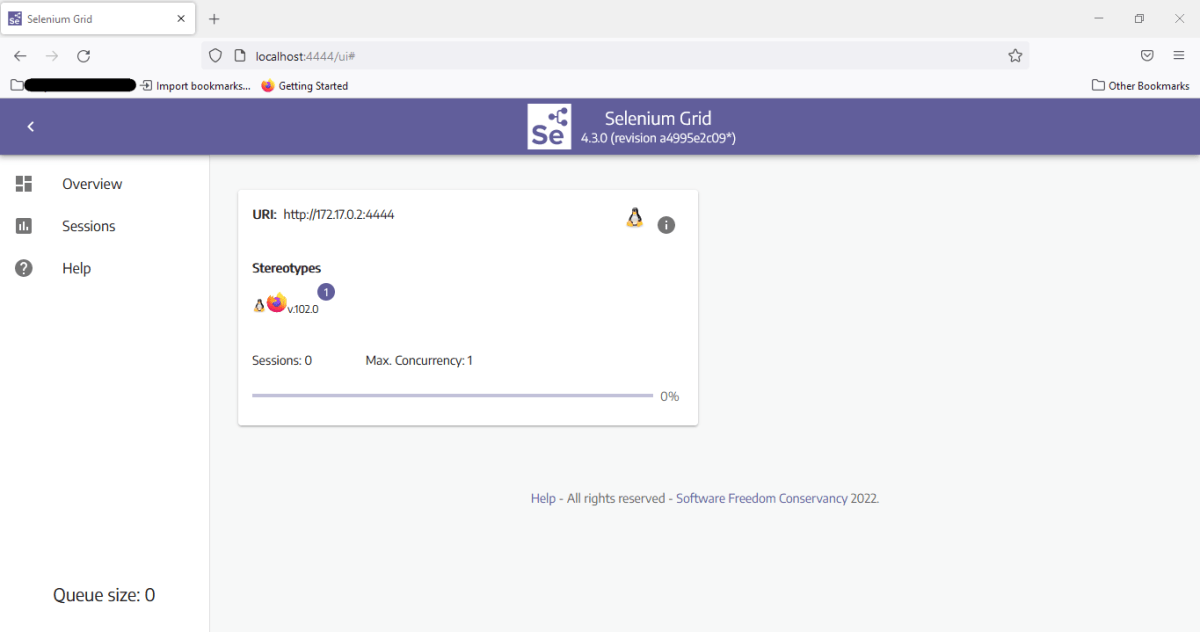
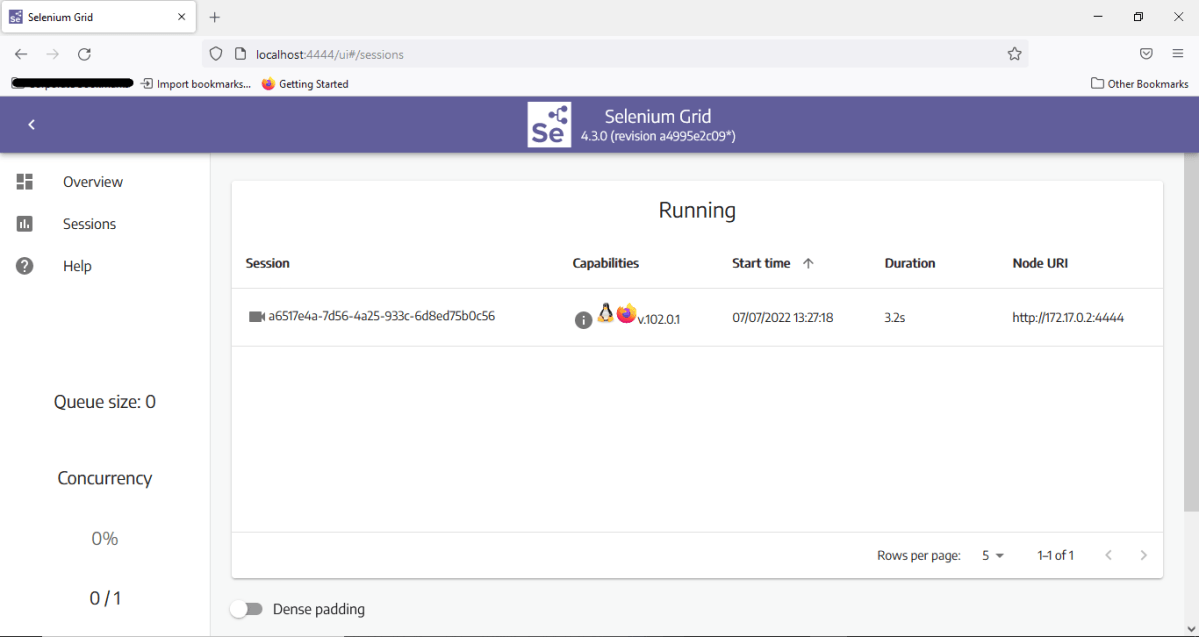
Standalone – Standalone is the union of all components, and to the user’s eyes, they are executed as one. A fully functional Grid of one is available after starting it in the Standalone mode. By default, the server will be listening on http://localhost:4444, and that’s the URL you should point your RemoteWebDriver tests. The server will detect the available drivers that it can use from the System PATH.

Hub and Node – It enables the classic Hub & Node(s) setup. These roles are suitable for small and middle-sized Grids

Distributed – On Distributed mode, each component needs to be started on its own. This setup is more suitable for large Grids.

Grid will now support IPv6 addresses and one can communicate with the Grid using the HTTPS protocol. In Grid 4, the configuration files used for spinning up the grid instances can be written in TOML (Tom’s Obvious, Minimal Language) which will make it easier for humans to understand.

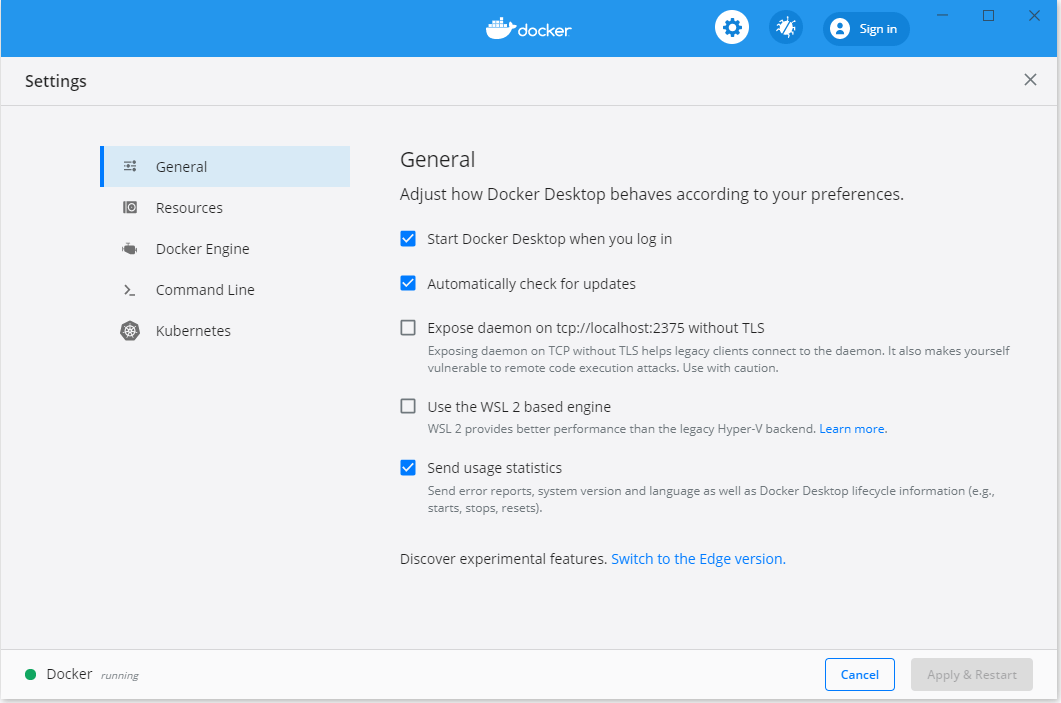
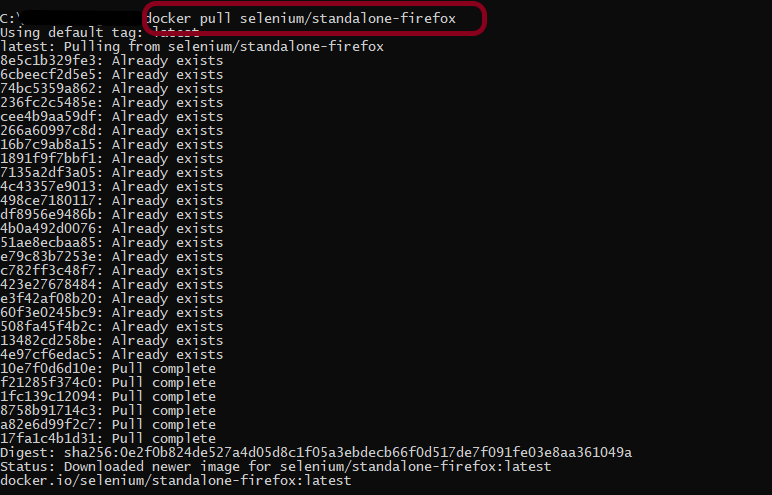
The new Selenium Grid comes with Docker support. It also supports advanced tools like AWS, Azure, and much more, useful in the DevOps process. Now Grid has a more user-friendly UI and contains relevant information related to the session, running, capacity, etc.

2. Simplification to open a new Windows browser and Tabs

There are a number of scenarios where you would want to open a new browser (or tab) and perform a certain set of actions in the newly opened window/tab. In Selenium 3, you have to create a new Web Driver object and then switch to the new window (or tab) using its unique WindowHandle to perform subsequent actions in that window (or tab).

Selenium 4 provides a new API new Window that lets you create a new window (or tab) and automatically switch to it. Since the new window or tab is created in the same session, it avoids creating a new WebDriver object. For switching to the new tab, pass WindowType.TAB to newWindow() method and for creating a new window, pass WindowType.WINDOW to newWindow() method.

public class NewWindowDemo {

	public static void main(String[] args) {
		System.setProperty("webdriver.chrome.driver",
				"C:\\Users\\Vibha\\Software\\chromedriver_win32_93.0.4577.15\\chromedriver.exe");
		WebDriver driver = new ChromeDriver();
		driver.manage().window().maximize();

		driver.get("https://www.bing.com/");
		System.out.println("New Page - Bing is opened");

		// Opens a new window and switches to new window
		driver.switchTo().newWindow(WindowType.WINDOW);

		// Opens duckduckgo homepage in the new opened window
		driver.navigate().to("https://www.duckduckgo.com/");

		System.out.println("New Page - DuckDuckGo is opened");

		driver.quit();
	}
}

Open a new Tab in Selenium 4

public class NewTabDemo {

	public static void main(String[] args) {

		System.setProperty("webdriver.chrome.driver",
				"C:\\Users\\Vibha\\Software\\chromedriver_win32_93.0.4577.15\\chromedriver.exe");
		
		WebDriver driver = new ChromeDriver();
		driver.manage().window().maximize();

		driver.get("https://www.bing.com/");
		System.out.println("New Page - Bing is opened");

		// Opens a new window and switches to new window
		driver.switchTo().newWindow(WindowType.TAB);

		// Opens duckduckgo homepage in the new opened window
		driver.navigate().to("https://www.duckduckgo.com/");

		System.out.println("New Tab is opened with DuckDuckGo");
		driver.quit();
	}
}

3. Relative Locators

Selenium 4 brings Relative Locators which are previously called as Friendly Locators. This functionality was added to help you locate elements that are nearby other elements. The Available Relative Locators are:

above
below
toLeftOf
toRightOf
near

findElement method now accepts a new method withTagName() which returns a RelativeLocator.

import static org.openqa.selenium.support.locators.RelativeLocator.with;

a) above() – Returns the WebElement, which appears above the specified element.

WebElement passwordField_above = driver.findElement(By.id("txtPassword"));
		WebElement emailAddressField_above = driver.findElement(with(By.tagName("input")).above(passwordField_above));

b) below() – Returns the WebElement, which appears below the specified element.

WebElement emailAddress_below = driver.findElement(By.id("txtUsername"));
WebElement passwordField_below = driver.findElement(with(By.tagName("input")).below(emailAddress_below));

c) toRightOf() – Target web element which is presented to the right of a specified element.

WebElement submitButton= driver.findElement(By.id("submit"));
WebElement cancelButton= driver.findElement(with(By.tagName("button"))
                                            .toLeftOf(submitButton));

d) toRightOf() – Returns the WebElement, which appears to the right of the specified element.

WebElement cancelButton= driver.findElement(By.id("cancel"));
WebElement submitButton= driver.findElement(with(By.tagName("button")).toRightOf(cancelButton));

e) near() – Returns the WebElement, which is at most 50px away from the specified element.

WebElement emailAddressLabel= driver.findElement(By.id("lbl-email"));
WebElement emailAddressField = driver.findElement(with(By.tagName("input")).near(emailAddressLabel));

4. TakeElementScreenshot

In Selenium 3, there was a provision to capture a screenshot of the entire web page. Selenium 4 onwards, there is a new option to capture screenshots of a particular WebElement. Hence, there is no need to use third-party tools like Shutterbug, Ashot, etc. (like in Selenium 3) for capturing a screenshot of WebElement.

The newly introduced method in Selenium 4 captures the screenshot of an element for the current browsing context. The screenshot returned by the WebDriver endpoint is encoded in the Base64 format.

This is how you can capture WebElement Screenshot in Selenium 4 (for Java):

import io.github.bonigarcia.wdm.WebDriverManager;
import org.apache.commons.io.FileUtils;
import org.openqa.selenium.By;
import org.openqa.selenium.OutputType;
import org.openqa.selenium.TakesScreenshot;
import org.openqa.selenium.WebDriver;
import org.openqa.selenium.WebElement;
import org.openqa.selenium.chrome.ChromeDriver;
import org.openqa.selenium.firefox.FirefoxDriver;

public class ScreenshotDemo {

	public static void main(String[] args) {
		WebDriverManager.chromedriver().setup();
		WebDriver driver = new ChromeDriver();
		driver.manage().window().maximize();
		driver.get("https://www.selenium.dev/");

		try {

			WebElement logo = driver.findElement(By.xpath("//*[@id='td-cover-block-0']/div/div/div/div/h1"));
			File source = ((TakesScreenshot) logo).getScreenshotAs(OutputType.FILE);
			FileUtils.copyFile(source, new File("./Screenshots/logo" + System.currentTimeMillis() + ".png"));
		} catch (Exception e) {
			System.out.println(e.getMessage());
		}

		System.out.println("The Screenshot is taken and saved under Screenshots folder");
		driver.quit();
	}

}

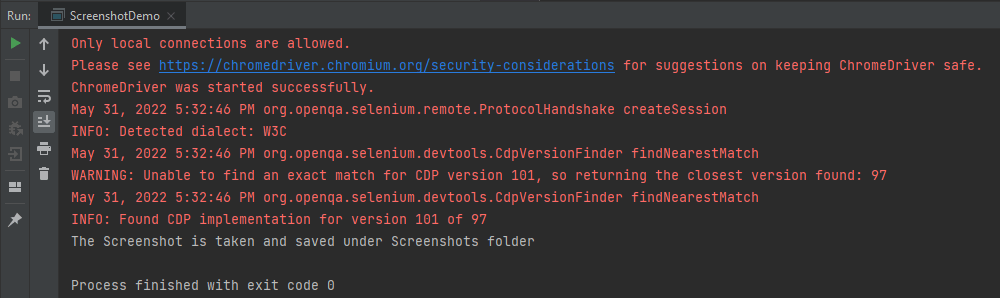
The output of the above program is
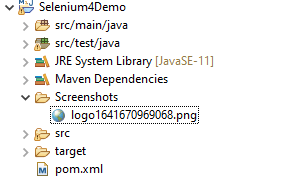
The picture will be saved in the Screenshots folder as shown below:

Below is the image of the screenshots.

5. New additions to the Actions Class

Actions Class in Selenium provides several methods for performing a single action or a series of actions on the WebElements present in the DOM. Mouse actions (e.g., click, double click, etc.) and Keyboard actions (e.g., keyUp, keyDown, sendKeys) are the two broad categories of Actions.
For demonstration, we will post the examples demonstrated in the Action class in the Selenium blog from Selenium 3 to Selenium 4.

With Selenium 4, new methods are added to the Actions class, which replaces the classes under the org.openqa.selenium.interactions package.

  • click(WebElement) is the new method added to the Actions class and it serves as the replacement of moveToElement(onElement).click() method.

Like the method in the versions before Selenium 4, click(WebElement) is used for clicking a web element.

  • doubleClick(WebElement)

This method is added to replace moveToElement(element).doubleClick(). It will perform a double-click on an element.

import io.github.bonigarcia.wdm.WebDriverManager;
import org.openqa.selenium.Alert;
import org.openqa.selenium.By;
import org.openqa.selenium.WebDriver;
import org.openqa.selenium.WebElement;
import org.openqa.selenium.chrome.ChromeDriver;
import org.openqa.selenium.interactions.Actions;

public class DoubleClick {
    public static void main(String[] args) {

        WebDriverManager.chromedriver().setup();
        WebDriver driver = new ChromeDriver();

        // Navigate to Url
        driver.get("https://demo.guru99.com/test/simple_context_menu.html");

        // Store 'doubleClickButton' button web element
        WebElement doubleClickButton = driver.findElement(By.xpath("//*[@id='authentication']/button"));
        Actions actionProvider = new Actions(driver);

        // Perform double-click action on the element
        actionProvider.doubleClick(doubleClickButton).build().perform();
        Alert alert = driver.switchTo().alert();
        System.out.println("Alert Text\n" +alert.getText());
        alert.accept();
        
        driver.close();
    }
}

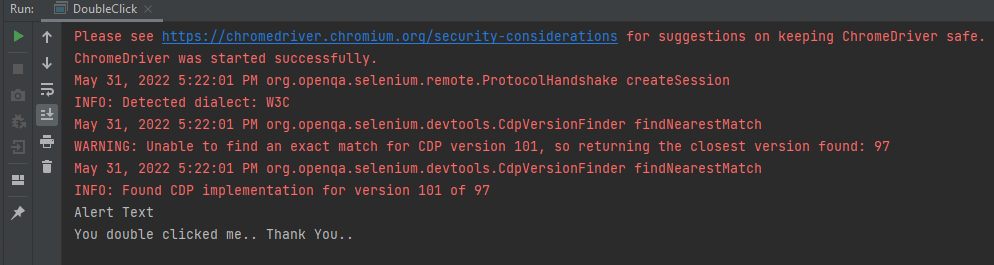
The output of the above program is

  • clickAndHold(WebElement)

This method will replace the moveToElement(onElement).clickAndHold(). It is used to click on an element without releasing the click.

  • contextClick(WebElement)

This method will replace moveToElement(onElement).contextClick(). It will perform the right-click operation.

  • release()

This method (user for releasing the pressed mouse button) was initially a part of org.openqa.selenium.interactions.ButtonReleaseAction class. Now with the updated version of Selenium, it has been moved to the Actions class.

import io.github.bonigarcia.wdm.WebDriverManager;
import org.openqa.selenium.By;
import org.openqa.selenium.WebDriver;
import org.openqa.selenium.WebElement;
import org.openqa.selenium.chrome.ChromeDriver;
import org.openqa.selenium.interactions.Actions;

public class clickAndHold {
    public static void main(String[] args) {

        WebDriverManager.chromedriver().setup();
        WebDriver driver = new ChromeDriver();

        // Navigate to Url
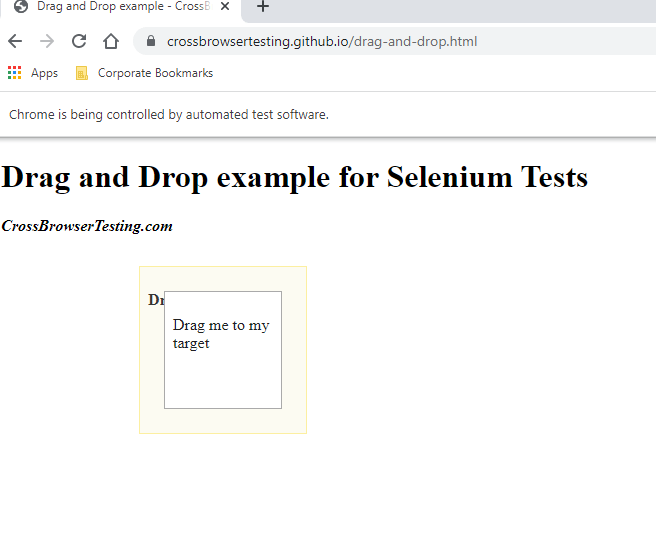
        driver.get("https://crossbrowsertesting.github.io/drag-and-drop.html");
        driver.manage().window().maximize();

        // Find element xpath which we need to drag
        WebElement from = driver.findElement(By.id("draggable"));

        // Find element xpath where we need to drop
        WebElement to = driver.findElement(By.id("droppable"));

        Actions actionProvider = new Actions(driver);

        // Perform click-and-hold action on the element
        actionProvider.clickAndHold(from).build().perform();

       // Move to drop Webelement
        actionProvider.clickAndHold(to).build().perform();

        //Release drop element
        actionProvider.release(to).build().perform();
    }
}

The output of the above program is
6. Deprecation of Desired Capabilities

In Selenium 3, desired Capabilities were primarily used in the test scripts to define the test environment (browser name, version, operating system) for execution on the Selenium Grid.

In Selenium 4, capabilities objects are replaced with Options. This means testers now need to create an Options object, set test requirements, and pass the object to the Driver constructor.

Listed below are the Options objects to be used going forward for defining browser-specific capabilities:

Firefox – FirefoxOptions
Chrome – ChromeOptions
Internet Explorer (IE) – InternetExplorerOptions
Microsoft Edge – EdgeOptions
Safari – SafariOptions

Below is an example of Options

import org.openqa.selenium.WebDriver;
import org.openqa.selenium.chrome.ChromeDriver;
import org.openqa.selenium.chrome.ChromeOptions;
import io.github.bonigarcia.wdm.WebDriverManager;

public class ChromeOptionsHeadless {

	public static void main(String[] args) {

		WebDriverManager.chromedriver().setup();

		ChromeOptions chromeOptions = new ChromeOptions();
		chromeOptions.setBrowserVersion("100");
		chromeOptions.setPlatformName("Windows 10");

		WebDriver driver = new ChromeDriver(chromeOptions);

		driver.get("https://duckduckgo.com/");
		System.out.println("Title of Page :" + driver.getTitle());

		// Close the driver
		driver.close();

	}
}

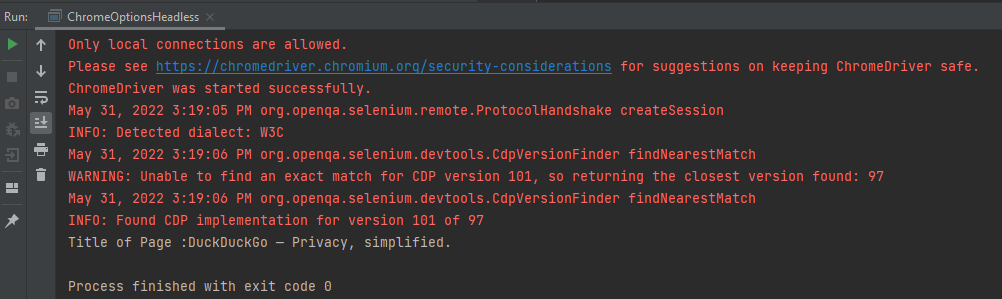
The output of the above program is
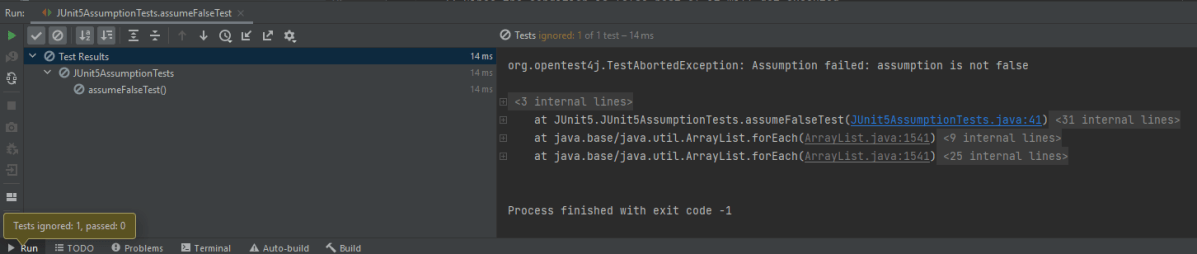
Similarly, we can create the action class for other browsers like Firefox.

FirefoxOptions options = new FirefoxOptions();
 
// Create an object of WebDriver class and pass the Firefox Options object as an argument
WebDriver driver = new FirefoxDriver(options);

7. Chrome Dev Tools

In the new version of Selenium, they have made some internal changes in the API. Earlier in Selenium 3, the Chrome driver extends directly to the Remote Web Driver class. But now in Selenium 4, the Chrome driver class extends to Chromium Driver. Chromium Driver class has some predefined methods to access the dev tool.

Note: Chromium Driver extends the Remote Web driver class.

By using the API, we can perform the following operations:

  • Enable Network Offline
  • Enable Network Online
  • Get Console Logs
  • Load Insure Web Site

How to parameterize Tests in JUnit5

HOME

JUnit5  enables us to execute a single test method multiple times with a different sets of data. This is called Parameterization. Parameterized Tests are declared just like regular @Test methods but use the @ParameterizedTest annotation.

This article shows you how to run a test multiple times with different arguments, so-called ‘Parameterized Tests’, let’s see the following ways to provide arguments to the test:

  • @ValueSource
  • @EnumSource
  • @MethodSource
  • @CsvSource
  • @CsvFileSource
  • @ArgumentsSource

We need to add junit-jupiter-params to support parameterized tests. In the case of Maven, add the dependency to POM.xml

<dependency>
    <groupId>org.junit.jupiter</groupId>
    <artifactId>junit-jupiter-params</artifactId>
    <version>5.8.2</version>
    <scope>test</scope>
</dependency>

In case of Gradle, add the dependency as

testCompile("org.junit.jupiter:junit-jupiter-params:5.8.2")

1. @ValueSource

Let us start with a simple example. The following example demonstrates a parameterized test that uses the @ValueSource annotation to specify an integer array as the source of arguments. The following @ParameterizedTest method will be invoked three times, with the values 5,6, and 0 respectively.

@ParameterizedTest
@ValueSource(ints = {5, 6, 0})
void test_int_arrays(int b) {

    int a= 5;
    int sum = a + b;
    assertTrue(sum>8);
 }

When executing the above-parameterized test method, each invocation will be reported separately.

The output of the above program is:

One of the limitations of value sources is that they only support these types:

  • short (with the shorts attribute)
  • byte (bytes attribute)
  • int (ints attribute)
  • long (longs attribute)
  • float (floats attribute)
  • double (doubles attribute)
  • char (chars attribute)
  • java.lang.String (strings attribute)
  • java.lang.Class (classes attribute)

Also, we can only pass one argument to the test method each time.

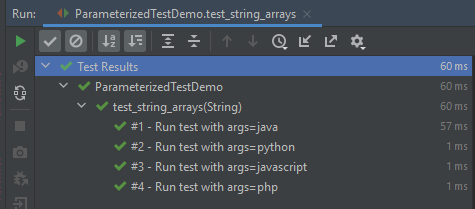
In the below example, an array of strings is passed as the argument to the Parameterized Test.

@ParameterizedTest(name = "#{index} - Run test with args={0}")
@ValueSource(strings = {"java", "python", "javascript","php"})
void test_string_arrays(String arg) {
        assertTrue(arg.length() > 1);
}

The output of the above program is:

@NullSource

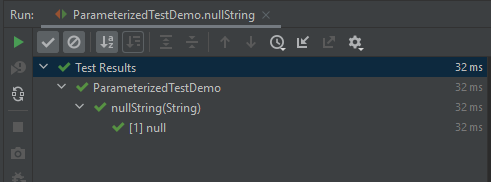
It provides a single null an argument to the annotated @ParameterizedTest method.

    @ParameterizedTest()
    @NullSource
    void nullString(String text) {
        assertTrue(text == null);
    }
    

The output of the above program is:

@EmptySource

It provides a single empty argument to the annotated @ParameterizedTest method of the following types:

  • java.lang.String
  • java.util.List
  • java.util.Set
  • java.util.Map
  • primitive arrays (e.g. int[])
  • object arrays (e.g. String[])
 @ParameterizedTest
    @EmptySource
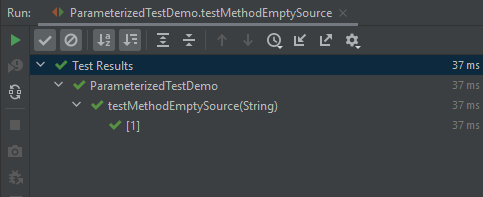
    void testMethodEmptySource(String argument) {
        assertTrue(StringUtils.isEmpty(argument));
        assertTrue(StringUtils.isBlank(argument));
    }

The output of the above program is:

@NullAndEmptySource

We can pass empty or null values into the test via @EmptySource, @NullSource, or @NullAndEmptySource (since JUnit 5.4).

Let’s see the following example to test an isEmpty() method.

import org.junit.jupiter.params.ParameterizedTest;
import org.junit.jupiter.params.provider.EmptySource;
import org.junit.jupiter.params.provider.NullSource;
import org.junit.jupiter.params.provider.ValueSource;
import static org.junit.jupiter.api.Assertions.*;

public class ParameterizedTestDemo {

    @ParameterizedTest(name = "#{index} - isEmpty()? {0}")
    @NullSource
    @EmptySource
    @ValueSource(strings = { " ", "   ", "\t", "\n","a"})
    void nullEmptyAndBlankStrings(String text) {
        assertTrue(text == null || text.trim().isEmpty());
    }
}

The parameterized test method result in seven invocations: 1 for null, 1 for the empty string, 4 for the explicit blank strings supplied via @ValueSource, and 1 non-blank string “a” supplied via @ValueSource.

The output of the above program is:

2. @EnumSource

@EnumSource provides a convenient way to use Enum constants.

public class EnumParameterizedTest {

    enum Error {
         Request_Invalid,
         Request_Timeout,
         RequestHeader_Invalid,
         Concurrency_Failed,
         ExternalCall_Failed,
         Schema_Invalid,
         Authentication_Failed;
    }

    @ParameterizedTest
    @EnumSource(Error.class)
    void test_enum(Error error) {
       assertNotNull(error);
    }
}

The output of the above program is:

The annotation provides an optional names attribute that lets you specify which constants shall be used, like in the following example. If omitted, all constants will be used.

    @ParameterizedTest(name = "#{index} - Is Error contains {0}?")
    @EnumSource(value = Error.class, names = {"Request_Invalid", "ExternalCall_Failed", "Concurrency_Failed", "Authentication_Failed"})
    void test_enum_include(Error error) {
       assertTrue(EnumSet.allOf(Error.class).contains(error));
    }

The output of the above program is:

The @EnumSource annotation also provides an optional mode attribute that enables fine-grained control over which constants are passed to the test method. For example, you can exclude names from the enum constant pool or specify regular expressions as in the following examples.

 @ParameterizedTest
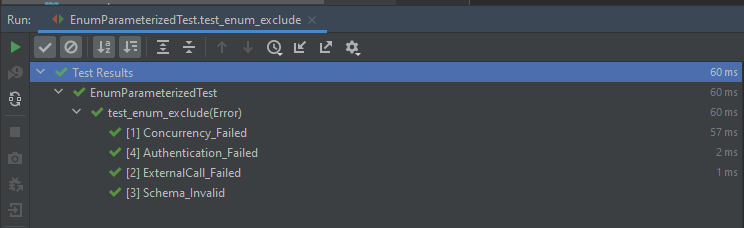
 @EnumSource(value = Error.class, mode = EnumSource.Mode.EXCLUDE, names = {"Request_Invalid", "Request_Timeout", "RequestHeader_Invalid"})
    void test_enum_exclude(Error error) {
        EnumSet<Error> excludeRequestRelatedError = EnumSet.range(Error.Concurrency_Failed, Error.Authentication_Failed);
        assertTrue(excludeRequestRelatedError.contains(error));
  }

The output of the above program is:

EnumSource.Mode.EXCLUDE – It selects all declared enum constants except those supplied via the names attribute.

EnumSource.Mode.MATCH_ALL – It selects only those enum constants whose names match any pattern supplied via the names attribute.

  @ParameterizedTest
    @EnumSource(mode = EnumSource.Mode.MATCH_ALL, names = "^.*Invalid")
    void test_match(Error error) {
        assertTrue(error.name().contains("Invalid"));
    }

The output of the above program is

3. @MethodSource

@MethodSource allows you to refer to one or more factory methods of the test class or external classes.

Factory methods within the test class must be static unless the test class is annotated with @TestInstance(Lifecycle.PER_CLASS); whereas, factory methods in external classes must always be static. In addition, such factory methods must not accept any arguments.

If you only need a single parameter, you can return a Stream of instances of the parameter type as demonstrated in the following example.

   @ParameterizedTest(name = "#{index} - Test with String : {0}")
    @MethodSource("stringProvider")
    void test_method_string(String arg) {
        assertNotNull(arg);
    }

    // this need static
    static Stream<String> stringProvider() {
        return Stream.of("java", "junit5", null);
    }

The output of the above program is

If you do not explicitly provide a factory method name via @MethodSource, JUnit Jupiter will search for a factory method that has the same name as the current @ParameterizedTest method by convention. This is demonstrated in the following example.

    @ParameterizedTest(name = "#{index} - Test with String : {0}")
    @MethodSource
    void test_no_factory_methodname(String arg) {
        assertNotNull(arg);
    }

    static Stream<String> test_no_factory_methodname() {
        return Stream.of("java", "junit5", null);
    }

The output of the above program is

Streams for primitive types (DoubleStream, IntStream, and LongStream) are also supported as demonstrated by the following example.

 @ParameterizedTest(name = "#{index} - Test with Int : {0}")
    @MethodSource("rangeProvider")
    void test_method_int(int arg) {
        assertTrue(arg < 6);
    }
    
    static IntStream rangeProvider() {
        return IntStream.range(0, 6);
    }

The output of the above program is

If a parameterized test method declares multiple parameters, you need to return a collection, stream, or array of Arguments instances or object arrays as shown below.

    @ParameterizedTest
    @MethodSource("stringIntAndListProvider")
    void testWithMultiArgMethodSource(String str, int num, List<String> list) {
        assertEquals(5, str.length());
        assertTrue(num >=1 && num <=2);
        assertEquals(2, list.size());
    }

    static Stream<Arguments> stringIntAndListProvider() {
        return Stream.of(
                arguments("apple", 1, Arrays.asList("a", "b")),
                arguments("lemon", 2, Arrays.asList("x", "y"))
        );
    }

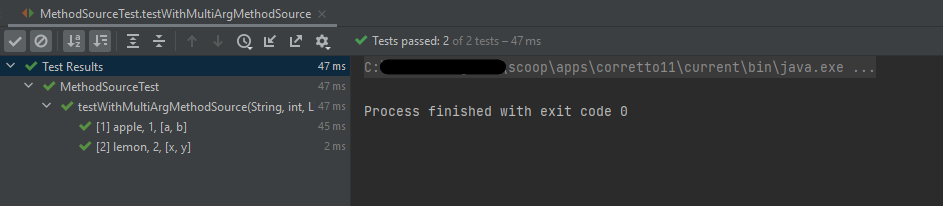
The output of the above program is

4. @CsvSource

@CsvSource allows you to express argument lists as comma-separated values (i.e., CSV String literals). Each string provided via the value attribute in @CsvSource represents a CSV record and results in one invocation of the parameterized test.

import org.junit.jupiter.params.ParameterizedTest;
import org.junit.jupiter.params.provider.CsvSource;
import static org.junit.jupiter.api.Assertions.assertEquals;

public class CSVParameterizedTest {

    @ParameterizedTest
    @CsvSource({
            "java,      4",
            "javascript,   7",
            "python,    6",
            "HTML,    4",
    })


    void test(String str, int length) {
        assertEquals(length, str.length());
    }
}

The output of the above program is

5. @CsvFileSource

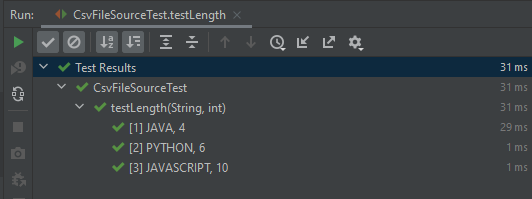
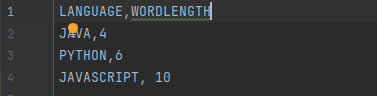
@CsvFileSource lets us use comma-separated value (CSV) files from the classpath or the local file system. Each record from a CSV file results in one invocation of the parameterized test. The first record may optionally be used to supply CSV headers.

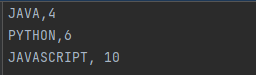
csvdemo.csv

    @ParameterizedTest
    @CsvFileSource(resources = "/csvdemo.csv")

    void testLength(String str, int length) {
        Assertions.assertEquals(length, str.length());
    }

The output of the above program is

csv file with the heading

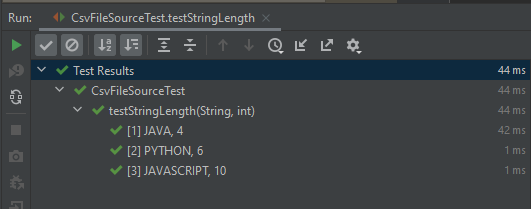
JUnit can ignore the headers via the numLinesToSkip attribute.

    @ParameterizedTest
    @CsvFileSource(files = "src/test/resources/csvdemo.csv",numLinesToSkip = 1)

    void testStringLength(String str, int length) {
        Assertions.assertEquals(length, str.length());
    }

The output of the above program is

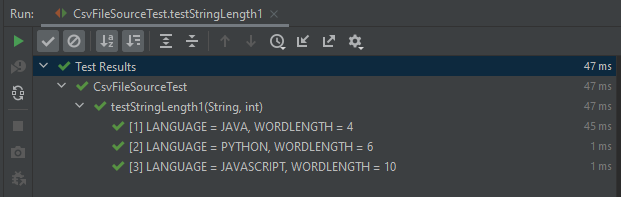
If you would like the headers to be used in the display names, you can set the useHeadersInDisplayName attribute to true. The examples below demonstrate the use of useHeadersInDisplayName.

 @ParameterizedTest(name = "[{index}] {arguments}")
    @CsvFileSource(files = "src/test/resources/csvdemo.csv",useHeadersInDisplayName = true)

    void testStringLength1(String str, int length) {
        assertEquals(length, str.length());
    }

The output of the above program is

6. @ArgumentsSource

@ArgumentsSource can be used to specify a custom, reusable ArgumentsProvider. Note that an implementation of ArgumentsProvider must be declared as either a top-level class or as a static nested class.

import org.junit.jupiter.api.extension.ExtensionContext;
import org.junit.jupiter.params.provider.Arguments;
import org.junit.jupiter.params.provider.ArgumentsProvider;
import java.util.stream.Stream;

public class CustomArgumentsProvider implements ArgumentsProvider {

    @Override
    public Stream<? extends Arguments>
    provideArguments(ExtensionContext extensionContext) throws Exception {
        return Stream.of("java", "junit5", "junit4", null).map(Arguments::of);
    }
}
import org.junit.jupiter.params.ParameterizedTest;
import org.junit.jupiter.params.provider.ArgumentsSource;
import static org.junit.jupiter.api.Assertions.assertNotNull;

public class ArgumentsSourceTest {

    @ParameterizedTest
    @ArgumentsSource(CustomArgumentsProvider.class)
    void test_argument_custom(String arg) {
        assertNotNull(arg);
    }
}

The output of the above program is

Congratulation. We have understood parameterization in JUnit5 tests. Happy Learning!!

How to run JUnit5 tests in order

HOME

The general practices say that automated tests should be able to run independently and with no specific order, as well as the result of the test should not depend on the results of previous tests. But there are situations where a specific order of test execution can be justified, especially in integration or end-to-end tests. The test methods don’t follow a specific order by default to execute the tests. The test cases need not necessarily execute in the order in which they have been written.

There are different ways or modes to set the order of execution for the test cases.  This article shows how to control the JUnit 5 test execution order via the following MethodOrderer classes:

  • DisplayName – sorts test methods alphanumerically based on their display names
  • MethodName – sorts test methods alphanumerically based on their names and formal parameter lists
  • Alphanumeric – sorts test methods alphanumerically based on their names and formal parameter lists. This is deprecated from JUnit Version 5.7 onwards
  • OrderAnnotation – sorts test methods numerically based on values specified via the @Order annotation
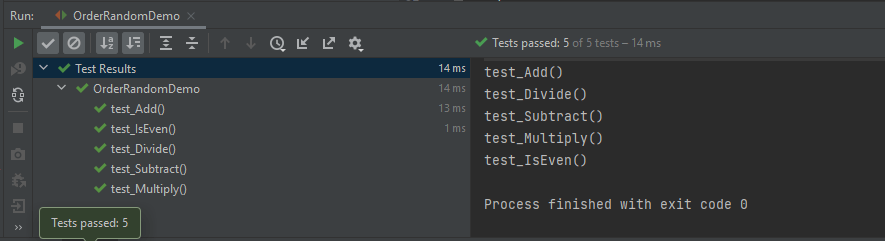
  • Random – orders test methods pseudo-randomly and support the configuration of a custom seed
  • Custom Order – A custom ordering sequence can be implemented by the interface MethodOrderer and providing it as the argument to @TestMethodOrder.

Let us create JUnit5 Tests and execute them.

public class OrderRandomDemo {

    @Test
    void test_Add() {

        System.out.println("test_Add()");
        assertEquals(10, 3 + 7);
    }

    @Test
    void test_Subtract() {

        System.out.println("test_Subtract()");
        assertEquals(10, 14 - 4);
    }

    @Test
    void test_Multiply() {

        System.out.println("test_Multiply()");
        assertEquals(10, 5 * 2);
    }

    @Test
    void test_Divide() {

        System.out.println("test_Divide()");
        assertEquals(10, 30 / 3);
    }

    @Test
    void test_IsEven() {

        System.out.println("test_IsEven()");
        assertEquals(0, 10%2);
    }

}

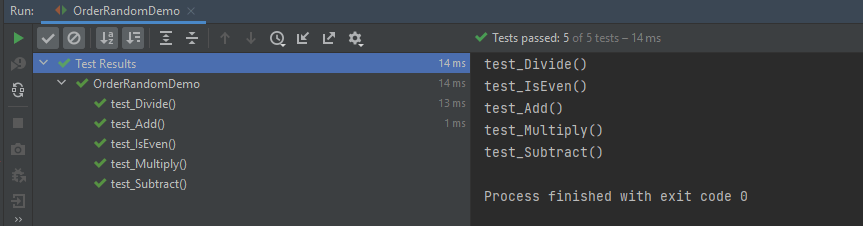
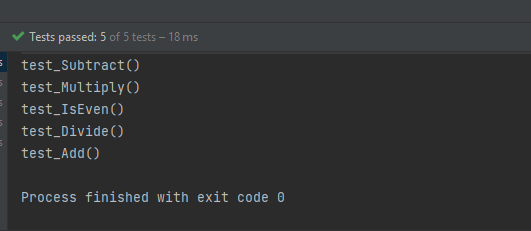
The output of the above program

1. DisplayName

It sorts test methods alphanumerically based on their display names. Test Method can be anything annotated with @Test, @RepeatedTest, @ParameterizedTest, @TestFactory, or @TestTemplate.

@TestMethodOrder(MethodOrderer.DisplayName.class)

@TestMethodOrder is a type-level annotation that is used to configure a MethodOrderer for the test methods of the annotated test class or test interface.

MethodOrderer defines the API for ordering the test methods in a given test class.

Test Method – It is any method annotated with @Test, @RepeatedTest, @ParameterizedTest, @TestFactory, or @TestTemplate.

DisplayName.class – MethodOrderer that sorts methods alphanumerically based on their names using String.compareTo(String).
If two methods have the same name, String representations of their formal parameter lists will be used as a fallback for comparing the methods.

An example of sorting the tests based on their display names.

import org.junit.jupiter.api.DisplayName;
import org.junit.jupiter.api.MethodOrderer;
import org.junit.jupiter.api.Test;
import org.junit.jupiter.api.TestMethodOrder;
import static org.junit.jupiter.api.Assertions.assertEquals;

@TestMethodOrder(MethodOrderer.DisplayName.class)
public class DisplayNameOrderedTests {

    @DisplayName("C")
    @Test
    void test_Add() {

        System.out.println("test_Add()");
        assertEquals(10, 3 + 7);
    }


    @DisplayName("E")
    @Test
    void test_Multiply() {

        System.out.println("test_Multiply()");
        assertEquals(10, 5 * 2);
    }

    @DisplayName("A")
    @Test
    void test_Divide() {

        System.out.println("test_Divide()");
        assertEquals(10, 30 / 3);
    }


    @DisplayName("D")
    @Test
    void test_Subtract() {

        System.out.println("test_Subtract()");
        assertEquals(10, 18 - 8);
    }

    @DisplayName("B")
    @Test
    void test_IsEven() {

        System.out.println("test_IsEven()");
        assertEquals(0, 18%2);
    }
}

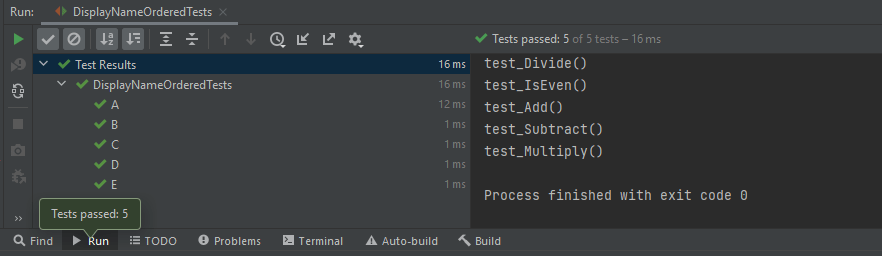
We can see that the test methods are sorted alphanumerically based on their display name starting from A to E. The output of the above program

2. MethodName

This annotation sorts methods alphanumerically based on their names using String.compareTo(String).
If two methods have the same name, String representations of their formal parameter lists will be used as a fallback for comparing the methods.

@TestMethodOrder(MethodOrderer.MethodName.class)

Let us see an example of MethodName.

import org.junit.jupiter.api.MethodOrderer;
import org.junit.jupiter.api.Test;
import org.junit.jupiter.api.TestMethodOrder;
import static org.junit.jupiter.api.Assertions.assertEquals;

@TestMethodOrder(MethodOrderer.MethodName.class)
class MethodNameOrderedTests {

    @Test
    void testE() {

        System.out.println("testE");
        assertEquals(10, 3 + 7);
    }

    @Test
    void testA() {

        System.out.println("testA");
        assertEquals(10, 14 - 4);
    }

    @Test
    void testC() {
        System.out.println("testC");
        assertEquals(10, 5 * 2);
    }

    @Test
    void testB() {
        System.out.println("testB");
        assertEquals(10, 30 / 3);
    }

    @Test
    void testD() {
        System.out.println("testD");
        assertEquals(10, 10 + 0);
    }

}

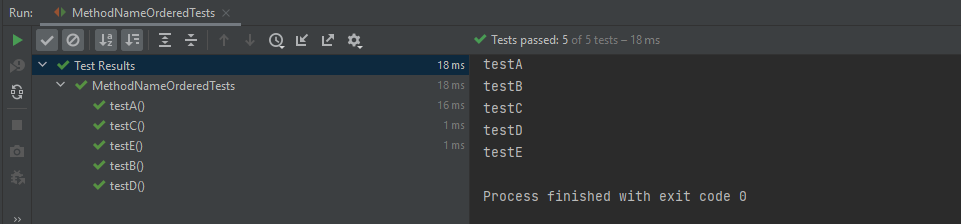
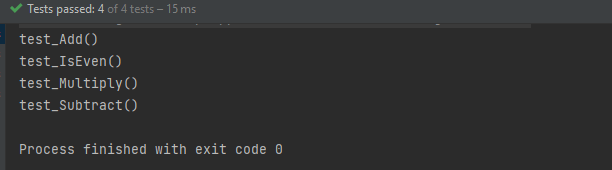
The output of the above program

3. OrderAnnotation

This sorts test method numerically based on values specified via the @Order annotation.
Any methods that are assigned the same order value will be sorted arbitrarily adjacent to each other.
When any method is not annotated with @Order, it will be assigned the default order value, which will effectively cause them to appear at the end of the sorted list.

@TestMethodOrder(MethodOrderer.OrderAnnotation.class)

Let us see an example of OrderAnnotation.

import org.junit.jupiter.api.MethodOrderer;
import org.junit.jupiter.api.Order;
import org.junit.jupiter.api.Test;
import org.junit.jupiter.api.TestMethodOrder;
import static org.junit.jupiter.api.Assertions.assertEquals;

@TestMethodOrder(MethodOrderer.OrderAnnotation.class)
public class OrderAnnotationDemo {

    @Test
    @Order(3)
    void test_Add() {

        System.out.println("test_Add()");
        assertEquals(10, 3 + 7);
    }

    @Test
    @Order(4)
    void test_IsOdd() {
        System.out.println("test_IsOdd()");
        assertEquals(1, 11%2);
    }

    @Test
    void test_Subtract() {
        System.out.println("test_Subtract()");
        assertEquals(10, 14 - 4);
    }

    @Test
    @Order(1)
    void test_Multiply() {
        System.out.println("test_Multiply()");
        assertEquals(10, 5 * 2);
    }

    @Test
    @Order(4)
    void test_Divide() {
        System.out.println("test_Divide()");
        assertEquals(10, 30 / 3);
    }

    @Test
    @Order(2)
    void test_IsEven() {
        System.out.println("test_IsEven()");
        assertEquals(0, 10%2);
    }
}

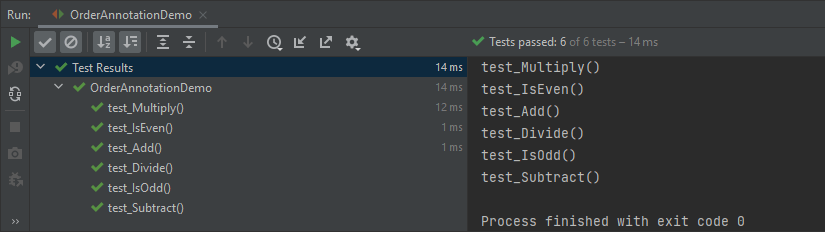
Here, test_Subtract() is not assigned any order value, so it is displayed as the last one in the last.

4. Random

These sorts of test methods are pseudo-randomnly.

@TestMethodOrder(MethodOrderer.Random.class)

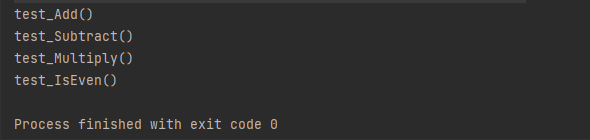
Let us create a program to show the random order of tests in JUnit5.

import org.junit.jupiter.api.MethodOrderer;
import org.junit.jupiter.api.Test;
import org.junit.jupiter.api.TestMethodOrder;
import static org.junit.jupiter.api.Assertions.assertEquals;

@TestMethodOrder(MethodOrderer.Random.class)
public class OrderRandomDemo {

    @Test
    void test_Add() {

        System.out.println("test_Add()");
        assertEquals(10, 3 + 7);
    }

    @Test
    void test_Subtract() {

        System.out.println("test_Subtract()");
        assertEquals(10, 14 - 4);
    }

    @Test
    void test_Multiply() {

        System.out.println("test_Multiply()");
        assertEquals(10, 5 * 2);
    }

    @Test
    void test_Divide() {

        System.out.println("test_Divide()");
        assertEquals(10, 30 / 3);
    }

    @Test
    void test_IsEven() {

        System.out.println("test_IsEven()");
        assertEquals(0, 10%2);
    }
}

The output of the above program

5. Custom Order

We can define our own custom ordering sequence by implementing the interface MethodOrderer and providing it as the argument to @TestMethodOrder.

Here, the tests are arranged in descending method order.

import org.junit.jupiter.api.MethodDescriptor;
import org.junit.jupiter.api.MethodOrderer;
import org.junit.jupiter.api.MethodOrdererContext;

public class DescendingMethodOrder implements MethodOrderer {

    @Override
    public void orderMethods(MethodOrdererContext context) {
        context.getMethodDescriptors().sort((MethodDescriptor m1, MethodDescriptor m2) ->
                m2.getMethod().getName().compareTo(m1.getMethod().getName()));
    }
    
}

Now, test the above custom order.

import org.junit.jupiter.api.Test;
import org.junit.jupiter.api.TestMethodOrder;
import static org.junit.jupiter.api.Assertions.assertEquals;

@TestMethodOrder(DescendingMethodOrder.class)
public class CustomOrderTests {

    @Test
    void test_Add() {
        System.out.println("test_Add()");
        assertEquals(10 , 4 + 6);
    }

    @Test
    void test_Subtract() {
        System.out.println("test_Subtract()");
        assertEquals(10 , 17 - 7);
    }

    @Test
    void test_Multiply() {
        System.out.println("test_Multiply()");
        assertEquals(10 , 5 * 2);
    }

    @Test
    void test_Divide() {
        System.out.println("test_Divide()");
        assertEquals(10 , 20/2);
    }

    @Test
    void test_IsEven() {
        System.out.println("test_IsEven()");
        assertEquals(0 , 20%2);
    }
}

Notice the test output. The tests are executed in descending order. The result of the above program is

Test Classes Ordering

  1. ClassName: sorts test classes alphanumerically based on their fully qualified class names.
  2. DisplayName: sorts test classes alphanumerically based on their display names (see display name generation precedence rules).
  3. OrderAnnotation: sorts test classes numerically based on values specified via the @Order annotation.
  4. Random: orders test classes pseudo-randomly and support the configuration of a custom seed.
The configured ClassOrderer will be applied to all top-level test classes (including static nested test classes) and @Nested test classes.

1. ClassName

The Test Classes are sorted alphanumerically based on their fully qualified class names.

package JUnit5;

import org.junit.jupiter.api.ClassOrderer;
import org.junit.jupiter.api.Nested;
import org.junit.jupiter.api.Test;
import org.junit.jupiter.api.TestClassOrder;

import static org.junit.jupiter.api.Assertions.assertEquals;

@TestClassOrder(ClassOrderer.ClassName.class)
public class ClassNameOrderTests {

    @Nested
    class Addition {

        @Test
        void test_Add() {
            System.out.println("test_Add()");
            assertEquals(10, 3 + 7);
        }
    }

    @Nested
    class IsEven {

        @Test
        void test_IsEven() {
            System.out.println("test_IsEven()");
            assertEquals(0, 10 % 2);
        }
    }

    @Nested
    class Subtraction {

        @Test
        void test_Subtract() {
            System.out.println("test_Subtract()");
            assertEquals(9, 14 - 5);
        }
    }

    @Nested
    class Multiply {

        @Test
        void test_Multiply() {
            System.out.println("test_Multiply()");
            assertEquals(10, 5 * 2);
        }
    }
}

The result of the above program is

2. DisplayName

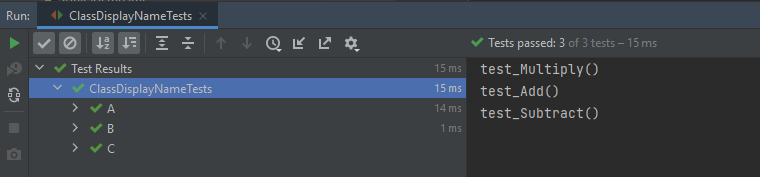
It sorts test classes alphanumerically based on their display names.

package JUnit5;

import org.junit.jupiter.api.*;

import static org.junit.jupiter.api.Assertions.assertEquals;

@TestClassOrder(ClassOrderer.DisplayName.class)
public class ClassDisplayNameTests {

    @Nested
    @DisplayName("B")
    class AppFlowTests {

        @Test
        void test_Add() {
            System.out.println("test_Add()");
            assertEquals(10, 6 + 4);
        }
    }

    @Nested
    @DisplayName("C")
    class TearDownTests {

        @Test
        void test_Subtract() {
            System.out.println("test_Subtract()");
            assertEquals(10, 15 - 5);

        }
    }

    @Nested
    @DisplayName("A")
    class SetupTests {

        @Test
        void test_Multiply() {
            System.out.println("test_Multiply()");
            assertEquals(10, 5 * 2);
        }
    }
}

The result of the above program is

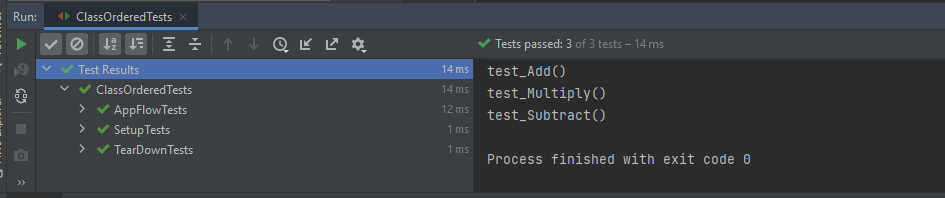
3. OrderAnnotation in Class

The test classes are sorted numerically based on values specified via the @Order annotation.

import org.junit.jupiter.api.*;

import static org.junit.jupiter.api.Assertions.assertEquals;

@TestClassOrder(ClassOrderer.ClassName.class) //sorts test classes alphanumerically based on their fully qualified class names.
public class ClassOrderedTests {

    @Nested
    @Order(2)
    class AppFlowTests {

        @Test
        void test_Add() {
            System.out.println("test_Add()");
            assertEquals(10, 3 + 7);
        }
    }

    @Nested
    @Order(3)
    class TearDownTests {

        @Test
        void test_Subtract() {
            System.out.println("test_Subtract()");
            assertEquals(9, 14 - 5);
        }
    }

    @Nested
    @Order(1)
    class SetupTests {

        @Test
        void test_Multiply() {
            System.out.println("test_Multiply()");
            assertEquals(10, 5 * 2);
        }
    }
}

The result of the above program is

4. Random

The test classes are sorted pseudo-randomly and support the configuration of a custom seed.
import org.junit.jupiter.api.*;
import static org.junit.jupiter.api.Assertions.assertEquals;

@TestClassOrder(ClassOrderer.Random.class)
public class ClassRandomTests {

    @Nested
    class Addition {

        @Test
        void test_Add() {
            System.out.println("test_Add()");
            assertEquals(10, 3 + 7);
        }
    }

    @Nested
    class IsEven {

        @Test
        void test_IsEven() {
            System.out.println("test_IsEven()");
            assertEquals(0, 10 % 2);
        }
    }

    @Nested
    class Subtraction {

        @Test
        void test_Subtract() {
            System.out.println("test_Subtract()");
            assertEquals(9, 14 - 5);
        }
    }

    @Nested
    class Multiply {

        @Test
        void test_Multiply() {
            System.out.println("test_Multiply()");
            assertEquals(10, 5 * 2);
        }
    }
}

The result of the above program is

Congratulation!! We have gone through different types of ordering in JUnit5. Happy Learning!!
How to run JUnit5 tests through Command Line

HOME

The previous tutorial explains to configure Junit in IntelliJ and run the tests as JUnit Tests. This tutorial shows the steps to run the tests through command line. We can ask, why we need to run the tests through command line?? There are many reasons, one of the reason is to achieve CI/CD. To run the tests in pipeline, they need to be run through command line. Another reason is that we don’t need to open the IDE to run the tests. Third reason is that many reports are only generated (Serenity, Cucumber), if the tests run through command line.

Below is a JUnit5 test.

import io.github.bonigarcia.wdm.WebDriverManager;
import org.junit.jupiter.api.*;
import org.openqa.selenium.WebDriver;
import org.openqa.selenium.chrome.ChromeDriver;
import org.openqa.selenium.chrome.ChromeOptions;

public class Demo {

    WebDriver driver;

    @BeforeEach
    public void setUp() {
        WebDriverManager.chromedriver().setup();
        ChromeOptions chromeOptions = new ChromeOptions();
        driver = new ChromeDriver(chromeOptions);
        driver.manage().window().fullscreen();
    }

    @Test
    public void Junit5Test() {
        driver.get("http://automationpractice.com/index.php");
        System.out.println("Title of Page :" + driver.getTitle());
        System.out.println("Page URL : " + driver.getCurrentUrl());
        Assertions.assertEquals("My Store",driver.getTitle());

    }

    @AfterEach
    public void tearDown() {
        driver.close();
    }
}

Let us see what happens when we try to run the JUnit tests through Command Line. This command is used to run the tests present in Demo class.

mvn clean test -Dtest=Demo

The output generated by the test is shown below

This shows that surefire-plugin is need to be add to the project to run t he tests successfully through command line.

Add surefire-plugin to the project

Go back to the Apache Maven Project and copy the code.

 <dependencies>

        <dependency>
            <groupId>org.junit.jupiter</groupId>
            <artifactId>junit-jupiter-engine</artifactId>
            <version>5.8.2</version>
            <scope>test</scope>
        </dependency>

        <dependency>
            <groupId>org.junit.jupiter</groupId>
            <artifactId>junit-jupiter-api</artifactId>
            <version>5.8.2</version>
            <scope>test</scope>
        </dependency>
 
</dependencies>       
    
<build>
        <plugins>
            <plugin>
                <groupId>org.apache.maven.plugins</groupId>
                <artifactId>maven-surefire-plugin</artifactId>
                <version>3.0.0-M5</version>
                <dependencies>
                    <dependency>
                        <groupId>org.junit.jupiter</groupId>
                        <artifactId>junit-jupiter-engine</artifactId>
                        <version>5.8.2</version>
                    </dependency>
                </dependencies>
            </plugin>
        </plugins>
    </build>

Again run the tests through command line using the command mentioned above. Now, will see that the tests are executed successfully.

Congratulations. We can see that JUnit5 tests are executed through command line. Happy Learning!!

JUnit5 Assertions Example

HOME

JUnit5 contains the assertions available as in JUnit 4 Assertions as well there are a few additional new asserts too. In this post, let’s discuss each new assertion in JUnit5 works in detail with examples.

1. assertIterableEquals

The assertIterableEquals() asserts that the expected and the actual iterables are deeply equal. In order to be equal, both iterable must return equal elements in the same order and it isn’t required that the two iterables are of the same type in order to be equal.

Example 1 – In this example, the number of elements as well as the sequence of elements is in the same order in both Iterables. It is not mandatory to have Iterables of the same type, so we can see as one of the Iterable is ArrayList whereas another Iteratble is of type LinkedList.

@Test
void iterableEqualsPositive() {
     Iterable<String> iterat1 = new ArrayList<>(asList("Java", "Junit", "Test"));
     Iterable<String> iterat2 = new LinkedList<>(asList("Java", "Junit", "Test"));

     assertIterableEquals(iterat1, iterat2);
  }

The assertion passes as the sequence and number of elements in both Iterables are the same.

Example 2 – In the below example, the ordering of elements in the Iterables is different.

@Test
void iterableEqualsNegative() {
     Iterable<String> iterat1 = new ArrayList<>(asList("Java", "Junit", "Test"));
     Iterable<String> iterat2 = new ArrayList<>(asList("Java","Test","Junit" ));

     assertIterableEquals(iterat1, iterat2);
 }

Here, we can see that the sequence of elements in Iterable are different, so the assertion fails.

Example 3 – In the below example, the number of elements is different in the Iterables. Iterable 1 has 3 elements whereas Iterable 2 has 4 elements.

@Test
void iterableEqualsNegative1() {
     Iterable<String> iterat1 = new ArrayList<>(asList("Java", "Junit", "Test"));
     Iterable<String> iterat2 = new LinkedList<>(asList("Java", "Junit", "Test","Junit5"));

     assertIterableEquals(iterat1, iterat2);
 }

As both Iterables do not have same number of elements, so the Assertion has failed.

Note:- There are no assertions like assertNotIterableEquals() or assertIterableNotEquals().

2. assertLinesMatch

This Assertion asserts that the expected list of Strings matches the actual list of String.
This method differs from other assertions that effectively only check String.equals(Object), in that it uses the following staged matching algorithm:
For each pair of expected and actual lines do
a) check if expected.equals(actual) – if yes, continue with next pair
b) otherwise treat expected as a regular expression and check via String.matches(String) – if yes, continue with the next pair
c) otherwise check if an expected line is a fast-forward marker, if yes apply to fast-forward actual lines accordingly (see below) and goto 1.

Example 1 – In the below example, expected has a regular expression that matches with the elements of actual.

@Test
void linesMatchPositive() {
    List<String> expected = asList("Java", "\\d+", ".*");
    List<String> actual = asList("Java", "11", "JUnit");

    assertLinesMatch(expected, actual);
}

As the regular expression of elements matches, the assertion passes.

Example 2 – In the below example, the elements in the lists are different.

@Test
void linesMatchNegative1() {
   List<String> expected = asList("Java", "\\d+", ".*");
   List<String> actual = asList("Test","Java", "11");

   assertLinesMatch(expected, actual);
}

The assertion fails as the elements are different in actual and expected.

Example 3 – In the below example, the number of elements is different in expected and actual lists.

@Test
void linesMatchNegative2() {
    List<String> expected = asList("Java", "\\d+", ".*");
    List<String> actual = asList("Java", "11");

    assertLinesMatch(expected, actual);
}

The assertion fails as the number of elements in expected is 3 whereas 2 elements are available in actual list.

3. assertThrows

The new assertThrows() assertion allows us a clear and a simple way to assert if an executable throws the specified exception type.

Example 1 – In the below example, the length of string arr is null, so it throws a NullPointerException

@Test
void exceptionTestingPositive() {

    String arr = null;
    Exception exception = assertThrows(NullPointerException .class, () -> arr.length() );
    assertEquals(null, exception.getMessage());
 }

Result

Example 2 – In the below example, the exception thrown by String arr is NullPointerException. But, we are asserting it with ArithmeticException.

@Test
 void exceptionTestingNegative() {

     String arr = null;
     Exception exception = assertThrows(ArithmeticException .class, () -> arr.length() );
     assertEquals("Arithmetic Exception", exception.getMessage());
 }

Result

4. assertTimeout

When we want to assert that execution of the supplied executable completes before the given timeout, we can use assertTimeout().

Example 1 – In the below example, assertTimeout() is 2 sec, which means the assertion should be completed within 2 secs. We are waiting for 1 sec and then perform the assertion.

 @Test
     void assertTimeoutPositive() {
       int a = 4;
       int b= 5;
        assertTimeout(
                ofSeconds(2),
                () -> {
                    // code that requires less then 2 seconds to execute
                    Thread.sleep(1000);
                }
        );
        assertEquals(9, (a + b));
    }

As the assertion is within the specified time of assertTimeout(), the timeout assertion passes and the test passes.

Example 2 – In the below example, assertTimeout() is 2 sec whereas are waiting for 5 sec and then performing the assertion.

  @Test
   void assertTimeoutNegative() {
        int a = 4;
        int b= 5;
        assertTimeout(
                ofSeconds(2),
                () -> {
                    // code that requires less then 2 seconds to execute
                    Thread.sleep(5000);
                }
        );
        assertEquals(9, (a + b));
    }

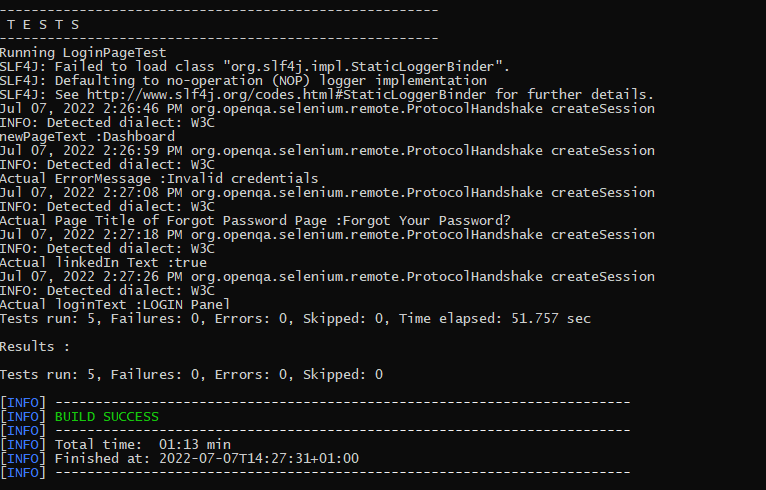
As the assertion is outside the specified time of assertTimeout(), so the test fails. The assertion fails with an error message similar to: “execution exceeded timeout of 2000 ms by 3010 ms”.

Example 3 – In the below example, the assertion is mentioned just after

The executable will be executed in the same thread as that of the calling code. Consequently, execution of the executable will not be preemptively aborted if the timeout is exceeded.

@Test
 void assertTimeoutNegative1() {
    int a = 4;
    int b= 5;
    assertTimeout(
        ofSeconds(2),
        () -> {
                // code that requires less then 2 seconds to execute
                 Thread.sleep(5000);
                 assertEquals(10, (a + b));
              }
        );
    }

This shows that the assertion assertEquals() is still executed after the timeout also.

5. assertTimeoutPreemptively()

This assertion works just like assertTimeout(). When we want to assert that the execution of the supplied executable completes before the given timeout, we can use assertTimeoutPreemptively(). The only difference is that here the executable will be executed in a different thread than that of the calling code, whereas in assertTimeout() the executable will be executed in the same thread as that of the calling code. Furthermore, execution of the executable will be preemptively aborted if the timeout is exceeded here as contrary to assertTimeout() where the executable will not be preemptively aborted.

@Test
    void assertPreemptiveTimeoutNegative() {
        int a = 4;
        int b= 5;
        assertTimeoutPreemptively(
                ofSeconds(2),
                () -> {
                    // code that requires less then 2 seconds to execute
                    Thread.sleep(5000);
                    assertEquals(9, (a + b));
                }
        );
    }

Result

There is another very famous assertion called assertAll() [Group Assertions]. This is discussed in another tutorial.

In this post, We saw that JUnit Jupiter comes with many of the assertion methods that JUnit 4 has and adds a few that lend themselves well to being used with Java 8 lambdas. All JUnit Jupiter assertions are static methods in the org.junit.jupiter.api.Assertions class.

Grouped Assertions in JUnit 5 – assertAll()

HOME

org.junit.jupiter.api.Assertions

What is JUnit5?

JUnit 5 is composed of several different modules from three different sub-projects.

JUnit 5 = JUnit Platform + JUnit Jupiter + JUnit Vintage

The JUnit Platform serves as a foundation for launching testing frameworks on the JVM. It also defines the Test Engine  API for developing a testing framework that runs on the platform.

JUnit Jupiter is the combination of the new programming model and extension model for writing tests and extensions in JUnit 5. The Jupiter sub-project provides a Test Engine for running Jupiter-based tests on the platform.

JUnit Vintage provides a Test Engine for running JUnit 3 and JUnit 4 based tests on the platform. It requires JUnit 4.12 or later to be present on the classpath or module path.

To use JUnit5, add the Junit5 maven dependency to the POM.xml

<dependency>
    <groupId>org.junit.jupiter</groupId>
    <artifactId>junit-jupiter-engine</artifactId>
    <version>511.4</version>
    <scope>test</scope>
</dependency>

<dependency>
	<groupId>org.junit.jupiter</groupId>
	<artifactId>junit-jupiter-api</artifactId>
    <version>5.11.4</version>
	<scope>test</scope>
</dependency>

Grouped Assertions With Heading As Parameter

Example 1 – The following example demonstrates positive assertions using `assertAll()` in JUnit 5. All assertions in this example are of the same type, specifically `assertEquals()`, grouped within an `assertAll()` assertion. The heading parameter for this group of assertions is “GroupedAssertionsWithSameAssertionType”.

@Test
void allPositive1() {
   assertAll(
     "GroupedAssertionsWithSameAssertionType",
      () -> assertEquals(8, 5+3, "8 is not sum of 5 and 3"),
      () -> assertEquals("java", "JAVA".toLowerCase()),
      () -> assertEquals(16,4*4,"16 is not product of 4 and 4")
   );
}

Result

As all 3 assertions pass, so the final result passes.

Example 2 – The following example demonstrates using `assertAll()` in JUnit 5 to group assertions of different types – assertEquals(), assertNotNull and assertNotEquals() within a single test. It consists of the heading parameter with the value “GroupedAssertionsWithDifferentAssertionType”.

@Test
void allPositive2() {

    String str ="Spring";
    assertAll(
        "GroupedAssertionsWithDifferentAssertionType",
         () -> assertEquals(8, 5+3, "8 is not sum of 5 and 3"),
         () -> assertNotNull(str, () -> "The string should be null"),
         () -> assertEquals("java", "JAVA".toLowerCase()),
         () -> assertNotEquals(20,5*3,"20 is product of 5 and 3")
    );
 }

Result

As all 3 assertions pass, so the final result passes.

Example 3 – In the below example, out of 4 assertions, 3 assertions are failing, so the output will have the detail about all 3 assertion errors.

 @Test
 void allNegative() {

    String str ="Spring";
    Iterable<String> iterat1 = new ArrayList<>(asList("Java", "Junit4", "Test"));
    Iterable<String> iterat2 = new ArrayList<>(asList("Java", "Junit5", "Test"));
    
    assertAll(
        "Negative-GroupedAssertionsWithDifferentAssertionType",
        () -> assertIterableEquals(iterat1, iterat2),
        () -> assertNull(str, () -> "The string should be null"),
        () -> assertEquals("java", "JAVA"),
        () -> assertNotEquals(20,5*3,"20 is product of 5 and 3")
     );
 }

Result

As one of the asserts in the group fails, instead of AssertionFailureError it results in MultipleFailuresError thereby displaying the heading of the grouped assertion passed as the input parameter i.e. Negative-GroupedAssertionsWithDifferentAssertionType in this example. This image shows all the 3 assertion failures.

Assertion 1 fails as we were expecting JUnit4, but response has JUnit5
Assertion 2 fails as the string was not NULL.
Assertion 3 fails as Java is not equal to JAVA (case sensitivity).

Grouped Assertions Without Heading As Parameter

The assertAll () can be implemented without using the heading parameter. The below example is the same as the above one, we are just skipping the heading part.

@Test
void allNegative() {

      String str ="Spring";
      Iterable<String> iterat1 = new ArrayList<>(asList("Java", "Junit4", "Test"));
      Iterable<String> iterat2 = new ArrayList<>(asList("Java", "Junit5", "Test"));
      
     // In a grouped assertion all assertions are executed, and all failures will be reported together
      assertAll(
          () -> assertIterableEquals(iterat1, iterat2),
          () -> assertNull(str, () -> "The string should be null"),
          () -> assertEquals("java", "JAVA"),
          () -> assertNotEquals(20,5*3,"20 is product of 5 and 3")
      );
  }

Result

The result displays without a heading.

Nested Or Dependent Grouped Assertions

When one assertAll() includes one or more assertAll() then these are referred to as Nested or Dependent grouped assertions.

Example 1 – In this case, first, the assertAll() validates if the sum is correct or not. The sum is correct here, so the control moves to the nested assertAll() to verify all the assertions present within it.

@Test
void allDependentPositive() {

   String str ="Spring";

   // Within a code block, if an assertion fails the subsequent code in the same block will be skipped.
    assertAll(
         "DependentPositiveAssertions",
         () -> {
                assertEquals(8, 5 + 3, "8 is not sum of 5 and 3");

                // Executed only if the previous assertion is valid.
                assertAll("sub-heading",
                   () -> assertNotNull(str, () -> "The string should be null"),
                   () -> assertEquals("java", "JAVA".toLowerCase()),
                   () -> assertEquals(20, 5 * 4, "20 is product of 5 and 4")
                ); // end of inner AssertAll()
           }

      );  // end of outer AssertAll()
 }

Result

All the assertions within nested assertAll() are passes. So the final result passes.

Example 2 – In the below example, outer AssertAll() fails, so all the assertions within nested/dependent assertAll() are not executed.

 @Test
 void allDependentNegative() {

    String str ="Spring";

    // Within a code block, if an assertion fails the subsequent code in the same block will be skipped.
    assertAll(
       "DependentPositiveAssertions",
        () -> {
                assertEquals(8, 5 + 4, "8 is not sum of 5 and 3");

                // Executed only if the previous assertion is valid.
                assertAll("sub-heading",
                   () -> assertNull(str, () -> "The string should be null"),
                   () -> assertNotEquals("java", "JAVA".toLowerCase()),
                   () -> assertNotEquals(20, 5 * 4, "20 is product of 5 and 4")
               ); // end of inner AssertAll()
           }

        ); // end of outer AssertAll()
    }

Result

Example 3 – In the below example, outer AssertAll() passes, so all the assertions within nested/dependent assertAll() are executed. But due to the failure of assertNull, the nested assertions are not evaluated, and the report will indicate the failure of `assertNull` first

@Test
void allDependentNegative1() {

    String str ="Spring";

   // Within a code block, if an assertion passes the subsequent code in the same block will be executed.
    assertAll(
      "DependentNegativeAssertions",
      () -> {
             assertEquals(8, 5 + 3, "8 is not sum of 5 and 3");

             // Executed only if the previous assertion is valid.
             assertAll("sub-heading",
               () -> assertNull(str, () -> "The string should be null"),
               () -> assertNotEquals("java", "JAVA".toLowerCase()),
               () -> assertNotEquals(20, 5 * 4, "20 is product of 5 and 4")
             ); // end of inner AssertAll()
         }

      ); // end of outer AssertAll()
    }

Result

The nested assertions have failed. So they can be seen in the execution status.

In short,

  1. When first assertAll() method passes, then all the subsequent assertions within that block will be executed and these assertions can further pass or fails.
  2. When the first assertAll() assertion fails, then the execution of subsequent assertions is skipped.

That’s it! Congratulations on making it through this tutorial and hope you found it useful! Happy Learning!!

How to run Rest API Tests in GitLab CI/CD

HOME

This tutorial explains the process to run the Rest API Tests in the GitLab pipeline. This is a significant step towards achieving CI/CD. Ideally, the tests need to run after any change (minor/major) before merging the change to the master branch. Suppose there are 100 changes in a day, and any QA won’t want to start the tests manually 100 times in a day. So, now adding tests to the GitLab pipeline comes into the picture. We can add a test stage to the pipeline and the tests will run automatically when the pipeline run, or we can schedule the tests to run automatically every hour or day using GitLab pipeline.

Prerequisite:

  1. Rest Assured – 4.3.3
  2. Java 11
  3. Maven / Gradle
  4. TestNG /JUnit
  5. GitLab account

To use GitLab CI/CD, we need to keep 2 things in mind:-

a) Make sure a runner is available in GitLab to run the jobs. If there is no runner, install GitLab Runner and register a runner for your instance, project, or group.

b) Create a .gitlab-ci.yml file at the root of the repository. This file is where you define your CI/CD jobs.

Step 1 – Create a new Maven Project

Step 2 – Add dependencies to the project

<dependencies>
      
      <dependency>
         <groupId>org.testng</groupId>
         <artifactId>testng</artifactId>
         <version>7.4.0</version>
         <scope>test</scope>
      </dependency>
      
      <dependency>
         <groupId>io.rest-assured</groupId>
         <artifactId>rest-assured</artifactId>
         <version>4.3.3</version>
         <scope>test</scope>
      </dependency>
      
      <dependency>
         <groupId>org.json</groupId>
         <artifactId>json</artifactId>
         <version>20210307</version>
      </dependency>
   </dependencies>
   
<build>
    <plugins>
        
        <!-- Compiler plug-in -->
         <plugin>
            <groupId>org.apache.maven.plugins</groupId>
            <artifactId>maven-compiler-plugin</artifactId>
            <version>3.5.1</version>
            <configuration>
               <source>11</source>
               <target>11</target>
            </configuration>
         </plugin>

         <!-- Added Surefire Plugin configuration to execute tests -->
         <plugin>
            <groupId>org.apache.maven.plugins</groupId>
            <artifactId>maven-surefire-plugin</artifactId>
            <version>3.0.0-M5</version>
            <configuration>
               <suiteXmlFiles>
                  <suiteXmlFile>testng.xml</suiteXmlFile>
               </suiteXmlFiles>
            </configuration>
         </plugin>
      </plugins>
   </build>
</project>

It is needed to add maven-surefire plugin to run the TestNG tests through command line. To know more about this, please refer to this tutorial.

Step 3 – Create the Test Code to test the Rest API

Here, 2 tests are created. One of the tests gets all the employee data (GET) whereas another test creates an employee (POST).

import static io.restassured.RestAssured.given;
import static org.hamcrest.Matchers.equalTo;

import org.json.JSONObject;
import org.testng.annotations.Test;

import io.restassured.http.ContentType;

public class RestAPIDemo {

	@Test(description = "To get the details of employee with id 2", priority = 0)
	public void verifyUser() {

		// Given
		given()
				// When
				.when().get("http://dummy.restapiexample.com/api/v1/employee/2")
				
               // Then
				.then().statusCode(200).statusLine("HTTP/1.1 200 OK")
				
                // To verify booking id at index 2
				.body("data.employee_name", equalTo("Garrett Winters"))
				.body("message", equalTo("Successfully! Record has been fetched."));
	}

	@Test(description = "To create a new employee", priority = 1)
	public void createUser() {

		JSONObject data = new JSONObject();

		// Map<String, String> map = new HashMap<String, String>();

		data.put("employee_name", "APITest");
		data.put("employee_salary", "99999");
		data.put("employee_age", "30");

		// GIVEN
		given().baseUri("http://dummy.restapiexample.com/api").contentType(ContentType.JSON).body(data.toString())

				// WHEN
				.when().post("/v1/create")

				// THEN
				.then().statusCode(200).body("data.employee_name", equalTo("APITest"))
				.body("message", equalTo("Successfully! Record has been added."));

	}
}

Step 4 – Create testng.xml to run the tests through TestNG

Now, let’s create a testng.xml to run the TestNG tests. If JUnit is used instead of TestNG, then this step is not needed.

<?xml version="1.0" encoding="UTF-8"?>
<!DOCTYPE suite SYSTEM "https://testng.org/testng-1.0.dtd">
<suite name="Suite">
  <test name="Test">
    <classes>
      <class name="com.example.RestAssured_TestNG_Demo.RestAPIDemo"/>
    </classes>
  </test> <!-- Test -->
</suite> <!-- Suite -->

Step 5 – Run the tests through the command line

Now, let us execute the tests through the command line. Go to the place where pom.xml of the project is placed and use the below command to run the tests. This step makes sure that all the tests are running as expected.

GitLab Section

Step 6 – Create a blank project in GitLab

Refer to this tutorial to create a new blank project – How to create a new project in GitLab.

Step 7 – Push the project from the local repository to GitLab Repository

Refer to this tutorial to push the changes – How to push new local GIT Repository to GitLab.

Step 8 – Create .gitlab-ci.yml file in the project in GitLab

It is a YAML file where you configure specific instructions for GitLab CI/CD. In the .gitlab-ci.yml, we can define:

  • The scripts you want to run.
  • Other configuration files and templates you want to include.
  • Dependencies and caches.
  • The commands you want to run in sequence and those you want to run in parallel.
  • The location to deploy your application.
  • Whether you want to run the scripts automatically or trigger any of them manually.

image: adoptopenjdk/maven-openjdk11

stages:
  - test

variables:
  MAVEN_OPTS: "-Dmaven.repo.local=.m2/repository"

test:
  stage: test
  allow_failure: true

# Run the tests
  script:
    - mvn $MAVEN_OPTS clean package
    - mvn compile test

# Store artifacts
  artifacts:
    when: always
    name: "report"
    paths:
    - target/surefire-reports/*
    expire_in: 1 h

Step 9 – Run the tests in the GitLab pipeline

Now, when a new change is committed, a pipeline kicks off and it runs all the tests.

Step 10 – Check the status of the pipeline

Once the Status of the pipeline changes to either failed or passed.. that means the tests are already executed. Here, the pipeline is passed with brown colour means that the execution of the test is completed with some failures.

I have added an artifact in the gitalb-ci.yml with the name “report”. This artifact creates a folder with the name “report” and the reports in this folder come from the path /target/surefire-reports. This artifact gives us an option to download the reports or browse the report. This report will be available for 1 hour only as mentioned in the gitlab-ci.yml.

Step 11 – Download the report

Click on the Download button and the report zip file is downloaded. Unzip the folder, and it contains all different types of surefire-reports.

Example of Emailable-Report.html

Example of Index.html

Congratulations. This tutorial has explained the steps to run Selenium tests in GitLab CI/CD. Happy Learning!!

JUnit4 Assertions

HOME

JUnit provides overloaded assertion methods for all primitive types and objects and arrays (of primitives or Objects). The parameter order is the expected value followed by an actual value. Optionally, the first parameter can be a String message that is output on failure. Only failed assertions are recorded. Assertions is a JUnit API or library of functions through which you can verify if a particular logic or condition returns true or false after execution of the test. If it returns false, then an AssertionError is thrown.

import org.junit.Assert.*;

In order to increase the readability of the test and of the assertions itself, it’s always recommended to import statically the respective class.

import static org.junit.Assert.*;

The assertEquals() assertion verifies that the expected and the actual values are equal. Below is an example of assertion pass.

@Test
public void equalsPositive() {
    String expected = "JUnit";
    String actual = "JUnit";

    assertEquals("Expected and Actual Strings are not equal",expected,actual);
}

The output of the above program is

If expected and actual values are not equal, an AssertionError without a message is thrown. Below is an example of AssertionError thrown by assertEquals().

@Test
public void equalsNegative() {
    String expected = "JUnit";
    String actual = "JUnit Test";

    assertEquals(expected,actual);
}

The output of the above program is

2. assertEquals with NULL

If expected and actual are NULL, then they are considered equal in assertEqual().

@Test
public void test2() {

    String expected = null;
    String actual = null;

    assertEquals("Expected and Actual Strings are not null",expected,actual);
}

The output of the above program is

3. assertNotEquals()

The assertNotEquals() assertion verifies that the expected and the actual values are not equal. Below is an example where expected and actual values are not equal.

 @Test
  public void notEqualsPositive() {
      String expected = "JUnit";
      String actual = "JUnit5";

      assertNotEquals("Expected and Actual Strings are equal",expected,actual);

 }

The output of the above program is

If expected and actual values are equal, then an AssertionError with a message is thrown. Below is an example of AssertionError thrown by assertNotEquals().

@Test
public void notEqualsNegative() {
   String expected = "JUnit";
    String actual = "JUnit";

    assertNotEquals("Expected and Actual Strings are equal",expected,actual);
}

The output of the above program is

4. assertArrayEquals()

If we want to assert that two arrays are equals, we can use the assertArrayEquals(). In the below example, two arrays are equal, so there is no AssertionError.

    @Test
    public void arrayEqualsPositive() {
        char[] expected = {'j','u','n','i','t'};
        char[] actual = {'j','u','n','i','t'};

        assertArrayEquals("Expected and Actual Arrays are not equal",expected,actual);

    }

The output of the above program is

Below is an example of AssertionError thrown by assertArrayEquals(), when arrays are different.

    @Test
    public void arrayEqualsNegative() {
        char[] expected = {'J','U','n','i','t'};
        char[] actual = "JUnit Test".toCharArray();

        assertArrayEquals("Expected and Actual Arrays are not equal",expected,actual);

    }

The output of the above program is

5. assertNull()

When we want to test if an object is null we can use the assertNull() assertion.

    @Test
    public void nullPositive() {

        String str = null;
        assertNull("String is not null",str);

    }

The output of the above program is

If the object is not null, then an AssertionError is thrown with the given message. Below is an example of AssertionError thrown by assertNull().

 @Test
 public void nullNegative() {

    String str = "Happy";
    assertNull("String is not null",str);

 }

The output of the above program is

6. assetNotNull()

If we want to assert that an object should not be null, we can use the assertNotNull assertion. Below is an example of object not null.

 @Test
    public void notNullPositive() {

        String str = "Spring";
        assertNotNull("String is null",str);

    }

The output of the above program is

If the object is null, then an AssertionError is thrown with the given message. Below is an example of AssertionError thrown by assertNotNull().

   @Test
    public void notNullNegative() {

        String str = null;
        assertNotNull("String is null",str);

    }

The output of the above program is

7. assertFalse()

If we want to verify that the condition is false, we can use assertFalse() assertion.

    @Test
    public void falsePositive() {

        String str1 = "Happy Days";
        String str2 = new String("Summer");
        assertFalse("String 2 is not present in String 1", str1.contains(str2));

    }

The output of the above program is

If the condition is true, then an AssertionError is thrown with the given message. Below is an example of AssertionError thrown by assertFalse().

    @Test
    public void falseNegative() {

        String str1 = "Happy Days";
        String str2 = new String("Happy");
        assertFalse("String 2 is not present in String 1", str1.contains(str2));

    }

The output of the above program is

8. assertTrue()

If we want to verify that the condition is true, we can use assertTrue() assertion.

@Test
public void truePositive() {

    String str1 = "Happy Days";
    String str2 = new String("Days");
    assertTrue("String 2 is present in String 1", str1.contains(str2));

}

The output of the above program is

If the condition is false, then an AssertionError is thrown with the given message. Below is an example of AssertionError thrown by assertTrue().

    @Test
    public void trueNegative() {

        String str1 = "Happy Days";
        String str2 = new String("Healthy");
        assertTrue("String 2 is present in String 1", str1.contains(str2));

    }

The output of the above program is

10. assertSame()

The assertSame() internally uses operator == to validate if two objects are equal. Despite the two string values are the same, the below test fails. The reason is that the two object references are different.

In the below example, str1 and str2 have same value as well refer to the same memory addresses, so the assertion pass.

@Test
public void samePositive() {

   String str1 = "Happy";
   String str2 = str1;
   assertSame("String1 and String 2 have different object reference",str1, str2);

 }

The output of the above program is

Both the string objects str1 and str2 have the same value but are referring to the different memory addresses that result in the failure of the assert function.

@Test
public void sameNegative() {

    String str1 = "Happy";
    String str2 = new String("Happy");
    assertSame("String1 and String 2 have different object reference",str1, str2);

    }

The output of the above program is

11. fail()

The fail assertion fails a test throwing an AssertionFailedError. It can be used to verify that an actual exception is thrown or when we want to make a test failing during its development.

@Test
public void test14() {

    String str1 = "Happy Days";
    String str2 = new String("Happy");
    Assert.fail("Fail this test");
}

The output of the above program is

What is the difference between assertEquals() and assertSame() assertions?

assertEquals() uses equals() method to compare objects, while assertSame() uses == operator to asserts that two objects refer to the same object.

In the below example, str1 and str2 both have the same value. So, the assertion passes here when we use assertEquals().

@Test
public void test10() {

   String str1 = "Happy";
   String str2 = new String("Happy");
   Assert.assertEquals("String1 and String 2 are equal",str1, str2);

}

In the below example, both str1 and str2 have same value but different object reference, so the assertion fails with assertSame().

@Test
public void test11() {

    String str1 = "Happy";
    String str2 = new String("Happy");
    Assert.assertSame("String1 and String 2 have different object reference",str1, str2);
}

In the below example, str1 and str2 have the same object reference. So, now the assertion passes with assertSame().

 @Test
 public void test12() {

    String str1 = "Happy";
    String str2 = str1;
    Assert.assertSame("String1 and String 2 have different object reference",str1, str2);

 }

The output of the above program is

Dependency Injection in Cucumber using Pico-Container

HOME

In this tutorial, we will use the constructor injection technique to share web driver instances in multiple-step definitions using PicoContainer.

Why do we need Dependency Injection in Cucumber?

A new Framework is built that contains several Page Objects, Step Definitions, Feature files, and Helper Classes. Eventually, new Feature Files will be added that contain the steps that are already present in the existing Step Definition files. In this case, we will prefer to use the existing Step Definitions instead of creating new ones. But, Cucumber does not support Inheritance means it does not allow extending classes that contain Step Definitions or Hooks (@After, @Before, etc.). Now, Dependency Injection comes into the picture.

In Cucumber, if we want to share the state between multiple-step definition files, we will need to use dependency injection (DI). There are several options: PicoContainer, Spring, OpenEJB, etc. If you’re not already using DI, then it is recommended to use PicoContainer. Otherwise, use the one that’s already in use, because you should only have one.

To use PicoContainer, add the following dependency to the POM.xml

<dependency>
    <groupId>io.cucumber</groupId>
    <artifactId>cucumber-picocontainer</artifactId>
    <version>7.0.0</version>
    <scope>test</scope>
</dependency>

Let me explain this with the help of an example.

Imagine there are 2 feature files. These feature files are using the same browser initialization and website. Now, instead of creating the browser initialization twice for 2 feature files, why not create a Common Class and mention these details in that class and using DI, call this class in the main Step Definition classes.

Feature File 1 – HomePage.feature

Below is the example of feature file 1.

Feature: Home page validation
  
Background:
   Given User Navigates to HRM login page
   And User login with valid credentials
 
   @ValidQuickLaunch
   Scenario Outline: Login with valid credentials to check QuickLanuch options  
     
   When User is in Dashboard page
     Then there are valid QuickLaunch options '<options>'
         
    Examples: 
        | options                  |
        | Assign Leave             |
        | Leave List               |
        | Timesheets               |
 
     
    @ValidLegendOptions    
    Scenario Outline: Login with valid credentials to check Manu Options 
     
   When User is in Dashboard page
     Then there are valid Legend options '<legendOptions>'
         
    Examples: 
        | legendOptions               |
        | Not assigned to Subunits    |
        | Administration              |
        | Client Services             |

Feature File 2 – LoginPage.feature

Below is the example of feature file 2.

Feature: Login to HRM Application 
  
   @ValidCredentials
   Scenario: Login with valid credentials
      
    Given User is on Home page
    When User enters username as "Admin"
    And User enters password as "admin123"
    Then User should be able to login sucessfully

Next, create a new class that holds the common data. For example:

public class ApplicationHooks {

	private WebDriver driver;

	@Before
	public void setUp() {
		setDriver();
	}

	public void setDriver() {

		WebDriverManager.chromedriver().setup();
		driver = new ChromeDriver();
		driver.manage().window().maximize();
		driver.get("https://opensource-demo.orangehrmlive.com/");
	}

	public WebDriver getDriver() {
		return driver;
	}

	@After
	public void tearDown() {
		getDriver().quit();
	}
}

Then, in each of your step definition files that you want to use this common data, you can add a constructor that takes Step Data as an argument. This is where the injection occurs. For example:

LoginDefinition

public class LoginDefinition {

	private ApplicationHooks hooks;

	public LoginDefinition(ApplicationHooks hooks) {

		this.hooks = hooks;
	}

	@Given("User is on Home page")
	public void userOnHomePage() {

		System.out.println("Home Page is opened");
	}

	@When("User enters username as {string}")
	public void entersUsername(String userName) throws InterruptedException {

		System.out.println("Username Entered");
		hooks.getDriver().findElement(By.name("txtUsername")).sendKeys(userName);

	}

	@When("User enters password as {string}")
	public void entersPassword(String passWord) throws InterruptedException {

		System.out.println("Password Entered");
		hooks.getDriver().findElement(By.name("txtPassword")).sendKeys(passWord);

		hooks.getDriver().findElement(By.id("btnLogin")).submit();
	}

	@Then("User should be able to login sucessfully")
	public void sucessfullLogin() throws InterruptedException {

		String newPageText = hooks.getDriver().findElement(By.id("welcome")).getText();
		System.out.println("newPageText :" + newPageText);
		Assert.assertTrue(newPageText.contains("Welcome"));

	}
}

HomeDefinition

public class HomePageDefinition {

	ApplicationHooks hooks;

	public HomePageDefinition(ApplicationHooks hooks) {
		this.hooks = hooks;
	}

	@Given("User Navigates to HRM login page")
	public void userOnHomePage() {

		System.out.println("HRM login Page is opened");
	}

	@Given("User login with valid credentials")
	public void entersCredentials() throws InterruptedException {

		hooks.getDriver().findElement(By.name("txtUsername")).sendKeys("Admin");
	hooks.getDriver().findElement(By.name("txtPassword")).sendKeys("admin123");
		hooks.getDriver().findElement(By.id("btnLogin")).submit();

	}

	@When("User is in Dashboard page")
	public void verifyDashboardPage() {

		String dashboardTitle = hooks.getDriver().findElement(By.id("welcome")).getText();
		Assert.assertTrue(dashboardTitle.contains("Welcome"));

	}

	@Then("there are valid QuickLaunch options {string}")
	public void verifyQuickLinks(String options) throws InterruptedException {

		switch (options) {
		case "Assign Leave":
			String linkOne = hooks.getDriver()
					.findElement(By.xpath(
							"//*[@id='dashboard-quick-launch-panel-menu_holder']/table/tbody/tr/td[1]/div/a/span"))
					.getText();
			Assert.assertEquals(linkOne, options);

			break;
		case "Leave List ":
			String linkTwo = hooks.getDriver()
					.findElement(By.xpath(
							"//*[@id='dashboard-quick-launch-panel-menu_holder']/table/tbody/tr/td[2]/div/a/span"))
					.getText();
			Assert.assertEquals(linkTwo, options);
			Thread.sleep(1000);
			break;

		case "Timesheets":
			String linkThree = hooks.getDriver()
					.findElement(By.xpath(
							"//*[@id='dashboard-quick-launch-panel-menu_holder']/table/tbody/tr/td[3]/div/a/span"))
					.getText();
			Assert.assertEquals(linkThree, options);
			break;

		default:
			break;
		}

	}

	@Then("there are valid Legend options {string}")
	public void verifyMenuOptions(String options) throws InterruptedException {

		switch (options) {
		case "Not assigned to Subunits":
			String linkOne = hooks.getDriver()
					.findElement(
							By.xpath("//*[@id='div_legend_pim_employee_distribution_legend']/table/tbody/tr[1]/td[2]"))
					.getText();
			Assert.assertEquals(linkOne, options);
			break;

		case "Administration":
			String linkTwo = hooks.getDriver()
					.findElement(
							By.xpath("//*[@id='div_legend_pim_employee_distribution_legend']/table/tbody/tr[2]/td[2]"))
					.getText();
			Assert.assertEquals(linkTwo, options);
			break;

		case "Client Services":
			String linkThree = hooks.getDriver()
					.findElement(
							By.xpath("//*[@id='div_legend_pim_employee_distribution_legend']/table/tbody/tr[3]/td[2]"))
					.getText();
			Assert.assertEquals(linkThree, options);
			break;
		default:
			break;

		}
	}
}

Create a Test Runner Class to execute the tests.

import org.junit.runner.RunWith;

import io.cucumber.junit.Cucumber;
import io.cucumber.junit.CucumberOptions;

@RunWith(Cucumber.class)

@CucumberOptions(features= {"src/test/resources"}, glue= {"com.cucumber"})
public class RunCucumberTest {

}

Execute the tests either through JUnit Runner or Command-Line using maven.

The test Report can be accessed from the link provided in the execution status:

We are done! Congratulations on making it through this tutorial and hope you found it useful! Happy Learning!!

Run Selenium Tests in GitLab CI/CD

Last Updated on

HOME

This tutorial explains the process to run the Selenium Tests in the GitLab pipeline. This is a very important step towards achieving CI/CD. Ideally, the tests need to run after any change (minor/major) before merging the latest change to the master branch. Suppose there are 100 changes merged to the master branch in a day. It is expected to run the tests every time before deployment. In this case, any QA won’t want to start the tests manually 100 times in a day. Now, what should be done to overcome this problem. Now, adding tests to the GitLab pipeline comes into the picture. We can add a test stage to the pipeline and the tests will run automatically when the pipeline run.

Table of Contents

  1. Prerequisite
  2. What is GitLab CI/CD Workflow?
  3. What is a headless browser?
  4. Implementation Steps
    1. Create a new Maven Project
    2. Add the dependencies to the POM.xml
    3. Create the Test Code
    4. Create testng.xml to run the tests
    5. Run the tests through command line
  5. GitLab Section
    1. Create a blank project in GitLab
    2. Push the project from local repository to Gitlab Repository
    3. Create a .gitlab-ci.yml file in the project in GitLab
    4. Run the tests in the GitLab pipeline
    5. Check the status of the pipeline
    6. Download the report

Prerequisite

  1. Selenium
  2. TestNG/JUnit (for Assertions)
  3. Java 11
  4. Maven/ Gradle
  5. GitLab Account

What is GitLab CI/CD Workflow?

Build the proposed changes. Then, push the commits to a feature branch. This branch should be in a remote repository that’s hosted in GitLab. The push triggers the CI/CD pipeline for your project. Then, GitLab CI/CD runs automated scripts (sequentially or in parallel) to build as well as to test the application. After a successful run of the test scripts, GitLab CI/CD deploys your changes automatically to any environment (DEV/QA/UAT/PROD). But if the test stage is failed in the pipeline, then the deployment is stopped.

After the implementation works as expected:

  • Get the code reviewed and approved.
  • Merge the feature branch into the default branch.
    • GitLab CI/CD deploys your changes automatically to a production environment.

To use GitLab CI/CD, we need to keep 2 things in mind:

a) Make sure a runner is available in GitLab to run the jobs. If there is no runner, install GitLab Runner and register a runner for your instance, project, or group.

b) Create a .gitlab-ci.yml file at the root of the repository. This file is where CI/CD jobs are defined.

The Selenium tests run on a headless browser in the pipeline.

What is a headless browser?

A headless browser is like any other browser, but without a Head/GUI (Graphical User Interface).  A headless browser is used to automate the browser without launching the browser. While the tests are running, we cannot see the browser. However, we can see the test results coming on the console.

To explain, I have created 2 Selenium tests and used TestNG for asserting the tests. The tests will run on a headless Chrome browser. One more thing to keep in mind is that when tests run on a headless Chrome browser, the window screen won’t be full screen. So, the screen needs to be maximized explicitly otherwise some of the tests would fail.

Implementation Steps

Step 1 – Create a new Maven Project

Step 2- Add the dependencies to the POM.xml

Add the below-mentioned dependencies that need to add to the project to the pom.xml in Maven Project.

 <dependencies>

        <dependency>
            <groupId>io.github.bonigarcia</groupId>
            <artifactId>webdrivermanager</artifactId>
            <version>5.1.0</version>
        </dependency>

        <dependency>
            <groupId>org.seleniumhq.selenium</groupId>
            <artifactId>selenium-java</artifactId>
            <version>3.141.59</version>
        </dependency>

        <dependency>
            <groupId>org.testng</groupId>
            <artifactId>testng</artifactId>
            <version>7.5</version>
            <scope>test</scope>
        </dependency>
                   
    </dependencies>
    <build>
     <plugins>
     
     <!--  Compiler Plugin -->
    
    <plugin>
        <groupId>org.apache.maven.plugins</groupId>
        <artifactId>maven-compiler-plugin</artifactId>
        <version>3.8.1</version>
        <configuration>
           <source>11</source>
           <target>11</target>
        </configuration>
    </plugin>
     
      <!--  Plugin used to execute tests -->
      <plugin>
        <groupId>org.apache.maven.plugins</groupId>
        <artifactId>maven-surefire-plugin</artifactId>
        <version>3.0.0-M5</version>
        <configuration>
          <suiteXmlFiles>
            <suiteXmlFile>testng.xml</suiteXmlFile>
          </suiteXmlFiles>
        </configuration>
      </plugin>
     </plugins>
  </build>
</project>

As explained in one of the previous tutorial, it is needed to add the maven-surefire-plugin to run the TestNG tests through the command line.

Step 3 – Create the Test Code

This is the BaseTest Class. The WebDriver is initialized here. It operates in headless mode and full screen. At the end, the WebDriver is closed.

import org.openqa.selenium.WebDriver;
import org.openqa.selenium.chrome.ChromeDriver;
import org.openqa.selenium.chrome.ChromeOptions;
import org.testng.annotations.AfterMethod;
import org.testng.annotations.BeforeMethod;

import io.github.bonigarcia.wdm.WebDriverManager;

public class BaseTest {
	
	WebDriver driver;
	
	@BeforeMethod
	public void beforeTests() {
        WebDriverManager.chromedriver().setup();
        ChromeOptions options=new ChromeOptions();
        options.setHeadless(true);
        options.addArguments("window-size=1920,1200");
        driver=new ChromeDriver(options);
        driver.get("https://opensource-demo.orangehrmlive.com/");
    }

	@AfterMethod
    public void afterTests() {
        driver.quit();
    }

}

There are 2 different pages that need to be tested – LoginPage and ForgetPasswordPage

LoginPage contains the tests to log in to the application. After successful login, the application moves to the next webpage – HomePage. You can see that BaseTest class is extended in both the Test classes.

import org.openqa.selenium.By;
import org.testng.Assert;
import org.testng.annotations.Test;

@Test
public class LoginPage extends BaseTest{
	
	@Test
	public void validCredentials() throws InterruptedException {

	        driver.findElement(By.name("txtUsername")).sendKeys("Admin");	        
	        driver.findElement(By.name("txtPassword")).sendKeys("admin123");
	        driver.findElement(By.id("btnLogin")).click();
	         String newPageText = driver.findElement(By.xpath("//*[@id='content']/div/div[1]/h1")).getText();
	        System.out.println("newPageText :" + newPageText);
	        Assert.assertEquals(newPageText,"Dashboard");

	}

}

ForgetPasswordPage

import org.openqa.selenium.By;
import org.testng.Assert;
import org.testng.annotations.Test;

@Test
public class ForgetPasswordPage extends BaseTest{
	
	@Test
	public void getHeading() {
		
		Thread.sleep(1000);
		driver.findElement(By.xpath("//*[@id='forgotPasswordLink']/a")).click();
		String heading = driver.findElement(By.xpath("//*[@id='content']/div[1]/div[2]/h1")).getText();
		System.out.println("Title : "+ heading );
		Assert.assertEquals(heading, "Forgot Your Password?");
	}
	
}

Step 4 – Create testng.xml to run the tests

Now, let’s create a testng.xml to run the TestNG tests. If JUnit is used instead of TestNG, then this step is not needed.

<?xml version="1.0" encoding="UTF-8"?>
<!DOCTYPE suite SYSTEM "https://testng.org/testng-1.0.dtd">
<suite name="Suite">
  <test name="Test">
    <classes>
      <class name="org.example.DockerDemo.LoginPage"/>
      <class name="org.example.DockerDemo.ForgetPasswordPage"/>
    </classes>
  </test> <!-- Test -->
</suite> <!-- Suite -->

Step 5 – Run the tests through command line

Now, let us execute the tests through the command line. Go to the place where the pom.xml of the project is placed and use the below command to run the tests. This step makes sure that all the tests are running as expected.

mvn compile test

GitLab Section

Step 6 – Create a blank project in GitLab

To know, how to create a blank new project in GitLab, please refer to this tutorial.

Step 7 – Push the project from local repository to Gitlab Repository

To know, how to push the changes in GitLab, please refer to this tutorial.

Step 8 – Create a .gitlab-ci.yml file in the project in GitLab

There are many ways to create a new file in GitLab. One of the ways is to create a file as shown in the below image.

It is a YAML file where you configure specific instructions for GitLab CI/CD. In the .gitlab-ci.yml, we can define:

  • The scripts you want to run.
  • Other configuration files and templates you want to include.
  • Dependencies and caches.
  • The commands you want to run in sequence and those you want to run in parallel.
  • The location to deploy your application to.
  • Whether you want to run the scripts automatically or trigger any of them manually.
image: markhobson/maven-chrome

stages:
  - test

variables:
  MAVEN_OPTS: "-Dmaven.repo.local=.m2/repository"

test:
  stage: test
  allow_failure: true

# Run the tests  
  script:
    - mvn $MAVEN_OPTS clean package
    - mvn compile test

# Store artifacts
  artifacts:
    when: always
    name: "report"
    paths:
    - target/surefire-reports/*
    expire_in: 1 h

Image – markhobson/maven-chrome is used in this test. It is a docker image for Java automated UI tests.

This gitlab-ci.yml has only 1 stage. It is a test stage that contains the command to run the tests. It also creates an artifact that contains all the surefire reports. These reports can be saved as Test Evidence.

Step 9 – Run the tests in the GitLab pipeline

Now, when a new change is committed, a pipeline kicks off and it runs all the tests.

Step 10 – Check the status of the pipeline

Once the Status of the pipeline changes to either failed or passed.. that means the tests are already executed.

As you can see the Status is failed here which means that the execution is completed. Let us see the logs of the execution it shows that out of 2 tests, 1 test passed and 1 test failed. This shows that tests are running successfully in the GitLab pipeline.

As I have added an artifact also in the gitalb-ci.yml, which is highlighted in the image. This artifact creates a folder with the name “report” and the reports in this folder come from the path /target/surefire-reports. This artifact gives us the option to download the reports or browse the report. This report will be available for 1 hour only as mentioned in the gitlab-ci.yml.

Step 11 – Download the report

Once, will click on the download button, it will download “report.zip”. Unzip the folder and it looks like something as shown below:

Example of Emailable-Report.html

Example of Index.html

Congratulations. This tutorial has explained the steps to run Selenium tests in GitLab CI/CD. Happy Learning!!