Testing of Gradle SpringBoot Application with Serenity and JUnit5

HOME

In the previous tutorial, I explained about  Testing of Gradle SpringBoot Application with Serenity, Cucumber and JUnit4. In this tutorial, I will explain the Testing of the SpringBoot Application with Serenity and JUnit5.

Prerequisite:

Spring Boot 3.0.4 requires Java 17 and is compatible with and including Java 19. Spring Framework 6.0.6 or above is also required.

Explicit build support is provided for the following build tools:

  1. Maven – 3.5+
  2. Gradle – 7.x (7.5 or later) and 8.x

This framework consists of

  1. SpringBoot Starter Parent – 3.1.0
  2. Serenity Rest Assured – 3.6.12
  3. Spring
  4. Java 17
  5. Gradle – 7.6.1
  6. JUnit Jupiter API – 5.9.2
  7. JUnit Jupiter Engine – 5.9.2
  8. Serenity JUnit5 – 3.6.12

What is SpringBoot Application?

 Spring Boot is an open-source micro-framework that provides Java developers with a platform to get started with an auto-configurable production-grade Spring application. 

  • Comes with embedded HTTP servers like Tomcat or Jetty to test web applications.
  • Adds many plugins that developers can use to work with embedded and in-memory databases easily. Spring allows you to easily connect with database and queue services like Oracle, PostgreSQL, MySQL, MongoDB, Redis, Solr, ElasticSearch, Rabbit MQ, and others.

Project Directory Structure
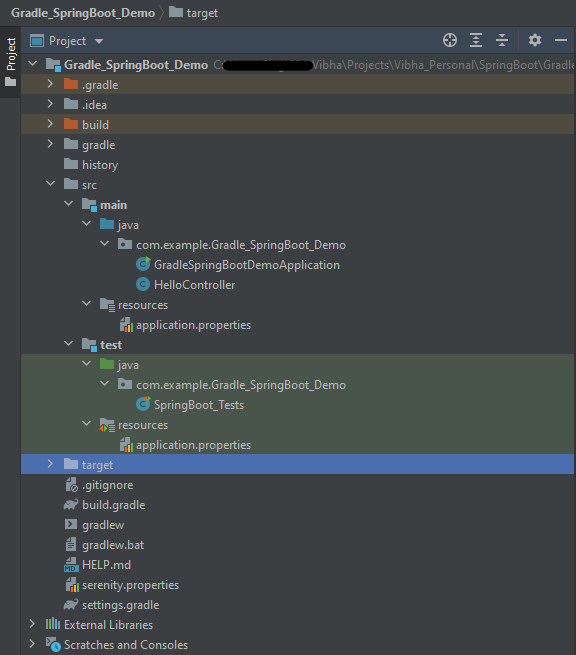
Implementation Steps

  1. Create a source folder – src/test/resources to create properties file
  2. Add SpringBootTest, Serenity Rest Assured, and Serenity-JUnit5 dependencies to the project
  3. Create the Test classes.
  4. Create an application.properties file in src/test/resources
  5. Run the tests from JUnit5
  6. Run the tests from Command Line
  7. Serenity Report Generation

Step 1 – Create a source folder – src/test/resources to create test scenarios in the Feature file

Right-click on the test directory and select New->Directory and select resources (Maven Source Directories).

Step 2 – Add SpringBootTest, Rest Assured, and allure dependencies to the project

We have added SpringBootTest, SpringBoot Web, Tomcat, Spring Web, Rest Assured, and Serenity-JUnit5 dependencies to the build.gradle.

plugins {
	id 'java'
	id 'org.springframework.boot' version '3.1.0-SNAPSHOT'
	id 'io.spring.dependency-management' version '1.1.0'
	id 'net.serenity-bdd.serenity-gradle-plugin' version '3.6.7'
}

group = 'com.example'
version = '0.0.1-SNAPSHOT'
sourceCompatibility = '17'

repositories {
	mavenCentral()
	maven { url 'https://repo.spring.io/milestone' }
	maven { url 'https://repo.spring.io/snapshot' }
}

dependencies {

	implementation 'org.springframework.boot:spring-boot-starter'
	implementation 'org.springframework.boot:spring-boot-starter-web'
	implementation 'org.springframework.boot:spring-boot-starter-tomcat'
	implementation 'org.springframework:spring-web'

	testImplementation 'org.springframework.boot:spring-boot-starter-test'
	testImplementation 'net.serenity-bdd:serenity-junit5:3.6.12'
	testImplementation 'org.junit.jupiter:junit-jupiter-api:5.9.2'
	testImplementation 'org.junit.jupiter:junit-jupiter-engine:5.9.2'
	testImplementation 'net.serenity-bdd:serenity-core:3.6.12'
	testImplementation 'net.serenity-bdd:serenity-rest-assured:3.6.12'
	testImplementation 'net.serenity-bdd:serenity-spring:3.6.12'
}

tasks.named('test') {
	useJUnitPlatform() {}
	testLogging {
		showStandardStreams = true
	}
	systemProperties System.getProperties()
}

gradle.startParameter.continueOnFailure = true

test.finalizedBy(aggregate)

Step 3 – Create the Test classes

  • uses @SpringBootTest annotation which loads the actual application context.
  • uses WebEnvironment.RANDOM_PORT to create and run the application at some random server port.
  • @LocalServerPort gets the reference of the port where the server has started. It helps in building the actual request URIs to mimic real client interactions.

Below is the Test Class, created in the src/test/java directory.

import io.restassured.response.ValidatableResponse;
import net.serenitybdd.junit5.SerenityJUnit5Extension;
import org.junit.jupiter.api.Assertions;
import org.junit.jupiter.api.Test;
import org.junit.jupiter.api.extension.ExtendWith;
import org.springframework.beans.factory.annotation.Value;
import org.springframework.boot.test.context.SpringBootTest;
import org.springframework.boot.test.web.server.LocalServerPort;
import static io.restassured.RestAssured.given;

@ExtendWith(SerenityJUnit5Extension.class)
@SpringBootTest(webEnvironment = SpringBootTest.WebEnvironment.RANDOM_PORT)
public class SpringBootDemoDefinitions {

    private final static String BASE_URI = "http://localhost:";

    @LocalServerPort
    private int port;

    @Value("${server.servlet.context-path}")
    private String basePath;
    
   private ValidatableResponse response;

    @Test
    public void verifyController1() throws Exception  {
        response = given().contentType("application/json")
                .header("Content-Type", "application/json")
                .when().get(BASE_URI + port + basePath+ "/").then().statusCode(200);

        String Actual = response.extract().asString();
        System.out.println("Result :"+Actual);
        Assertions.assertEquals("Hello World, Spring Boot!", Actual);
    }

    @Test
    public void verifyController2() throws Exception  {
        response = given().contentType("application/json")
                .header("Content-Type", "application/json")
                .when().get(BASE_URI + port + basePath+ "/qaautomation").then().statusCode(200);

        String Actual = response.extract().asString();
        System.out.println("Result :"+Actual);
        Assertions.assertEquals("Hello QA Automation!", Actual);
    }
}

This class sends the request and receives a response after performing the GET operation. Here, the validation of the response also takes place by asserting the expected and actual response

Step 4 – Create an application.properties file in src/test/resources

Application.properties is created under src/ test/java

spring.profiles.active=test
server.port=9091
server.servlet.context-path=/demo

spring.profiles.active – property to specify which profiles are active. The default profile is always active.
server.port – By default, the embedded server starts on port 8080. Now the server will start on port 8090
server.servlet.context-path – the context path in Spring Boot can be changed by setting a property, server.servlet.context-path.

Step 5 – Run the tests from JUnit5

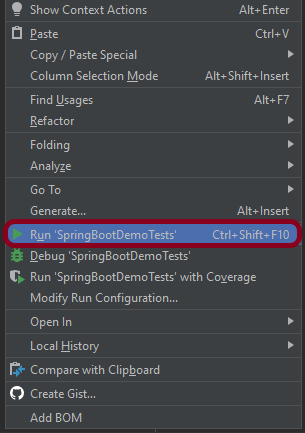
Right-click on the Test class and select Run ‘SpringBoot_Tests’.

The output of the above program is

This image shows that the profile name is “test”. Application is started on port – “65221” and the context path is “/demo”.

Step 6 – Run the tests from Command Line

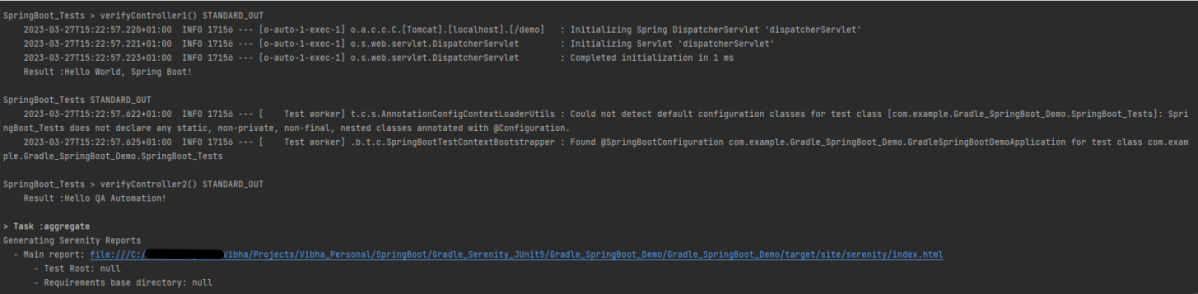
Run the tests from the command line by using the below command

gradle clean test

The output of the above program is
Step 7 – Serenity Report Generation

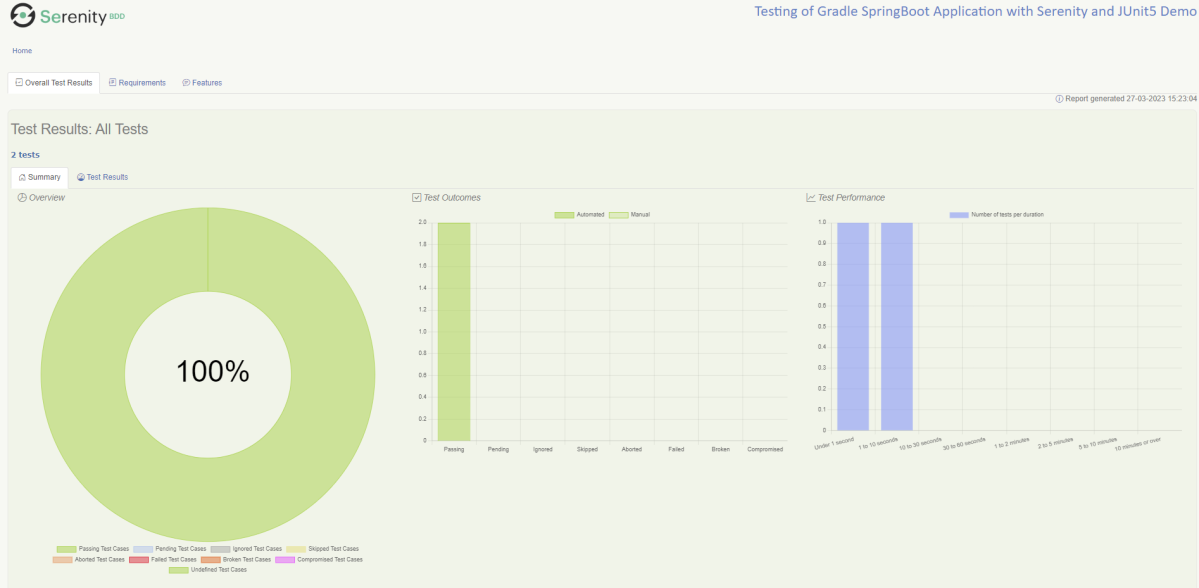
The best part about Serenity is the report generation by it. The Reports contain all possible type of information, you can think of with minimal extra effort. There is multiple types of reports are generated. We are interested in index.html .
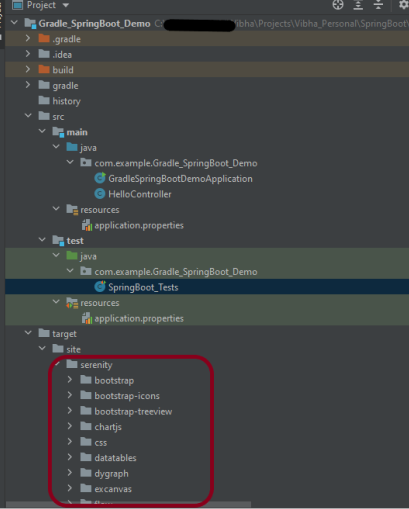
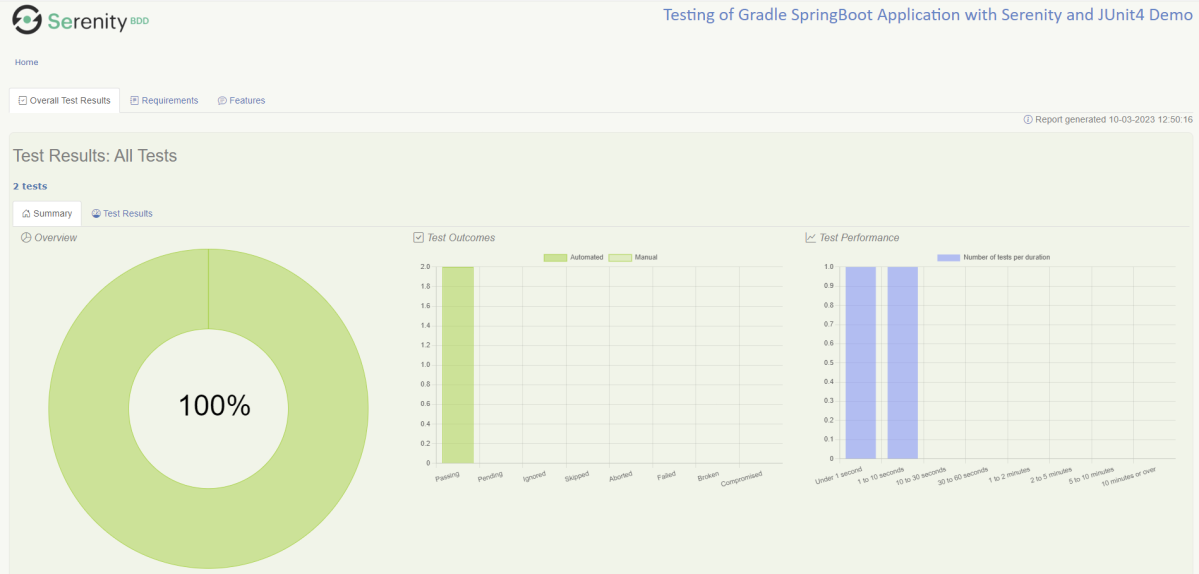
Below is the new Serenity Report.
We are done! Congratulations on making it through this tutorial and hope you found it useful! Happy Learning!!

How to install PyCharms on Windows 11

HOME

This tutorial will explain the step-by-step process to download and install PyCharm on Windows.

Prerequisite:

Python is already installed on the machine.

You can refer to this tutorial to install Python on Windows 11.

Installation Steps

Step 1 –  To download PyCharm visit the website https://www.jetbrains.com/pycharm/download/, and it will give you two options: Professional or Community. The professional edition of PyCharm requires a subscription, while the community edition is free. Click the “DOWNLOAD” button under the Community Section.

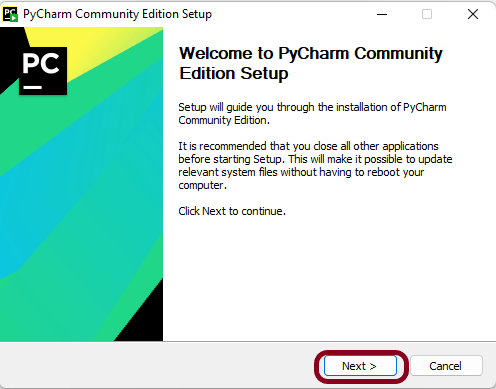
Step 2 – Once the download is complete, run the exe to install PyCharm. The setup wizard should have started. Click the “Next” button.

Step 3 – On the next screen, Change the installation path if required. Click the “Next” button.

Step 4 –  On the next screen, you can create a desktop shortcut if you want, Add Open Folder as Project, Create Associations, Update PATH variable (restart needed), and click on the “Next” button.

Step 5 – Choose the start menu folder. Keep selecting JetBrains and click on the “Install” button.


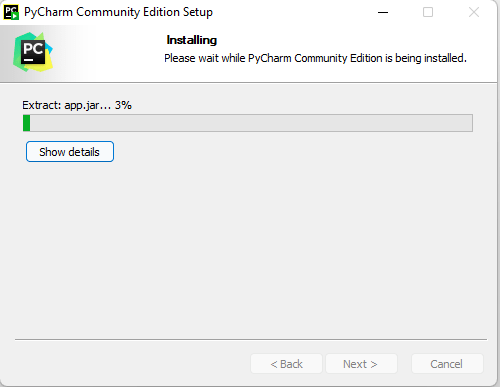
Step 6 – Wait for the installation to finish.


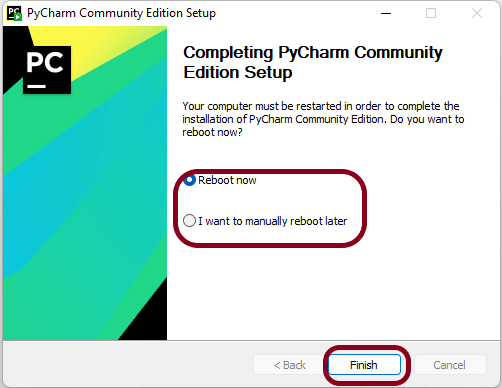
Step 7 – Once the installation is finished, you should receive a message screen that PyCharm is installed. You can select either of the options – Reboot now or I want to manually reboot later and click the “Finish” button.

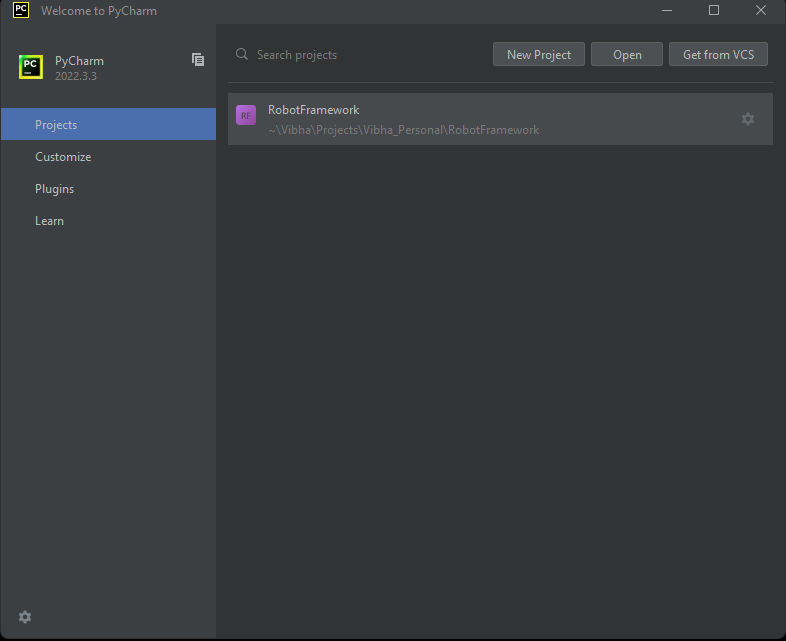
Step 8 – After you click on the “Finish” button, the following screen will appear. I already have created a new project, so you can see the RobotFramework project here.

Testing of SpringBoot Application with Serenity and JUnit5

HOME

In the previous tutorial, I explained about Integration Testing of SpringBoot Application with Serenity BDD, Cucumber and JUnit4. In this tutorial, I will explain the Testing of the SpringBoot Application with Serenity and JUnit5.

This framework consists of

  1. SpringBoot Starter Parent – 3.1.0
  2. Serenity – 3.6.12
  3. Serenity JUnit5 – 3.6.12
  4. Serenity Rest Assured – 3.6.12
  5. Serenity Spring – 3.6.12
  6. JUnit Platform – 1.9.2
  7. Java 17
  8. Maven – 3.8.6

What is SpringBoot Application?

 Spring Boot is an open-source micro-framework that provides Java developers with a platform to get started with an auto-configurable production-grade Spring application. 

  • Comes with embedded HTTP servers like Tomcat or Jetty to test web applications.
  • Adds many plugins that developers can use to work with embedded and in-memory databases easily. Spring allows you to easily connect with database and queue services like Oracle, PostgreSQL, MySQL, MongoDB, Redis, Solr, ElasticSearch, Rabbit MQ, and others.

Project Directory Structure

What is RestController?

HTTP requests are handled by a controller in Spring’s approach to building RESTful web services. The @RestController annotation identifies these components, and the GreetingController shown below (from src/main/java/com/example/springboot_demo/HelloController.java) handles GET requests for / and /qaautomation by returning a new instance of the Greeting class. Spring RestController takes care of mapping request data to the request-defined handles method.

import org.springframework.web.bind.annotation.GetMapping;
import org.springframework.web.bind.annotation.RestController;
 
@RestController
public class HelloController {
     
    @GetMapping(path="/")
    String hello() {
        return "Hello World, Spring Boot!";
    }
     
     
    @GetMapping(path="/qaautomation")
    String qaautomation() {
        return "Hello QA Automation!";
    }
 
}

Implementation Steps

  1. Create a source folder – src/test/resources to create properties file
  2. Add SpringBootTest, Serenity and JUnit5 dependencies to the project
  3. Create the Test and Helper classes.
  4. Create an application.properties file in src/test/resources
  5. Create serenity.properties at the root of the project
  6. Run the tests from JUnit5
  7. Run the tests from Command Line
  8. Serenity Report Generation

Step 1 – Create a source folder – src/test/resources to create test scenarios in the Feature file

Right-click on the test directory and select New->Directory and select resources (Maven Source Directories).

Step 2 – Add SpringBootTest, Serenity, and JUnit5 dependencies to the project

We have added SpringBootTest, Serenity, Rest Assured, and JUnit5 dependencies to pom.xml.

<?xml version="1.0" encoding="UTF-8"?>
<project xmlns="http://maven.apache.org/POM/4.0.0" xmlns:xsi="http://www.w3.org/2001/XMLSchema-instance"
	xsi:schemaLocation="http://maven.apache.org/POM/4.0.0 https://maven.apache.org/xsd/maven-4.0.0.xsd">
	<modelVersion>4.0.0</modelVersion>
	<parent>
		<groupId>org.springframework.boot</groupId>
		<artifactId>spring-boot-starter-parent</artifactId>
		<version>3.1.0-SNAPSHOT</version>
		<relativePath/> <!-- lookup parent from repository -->
	</parent>

	<groupId>com.example</groupId>
	<artifactId>springboot_demo</artifactId>
	<version>0.0.1-SNAPSHOT</version>
	<name>springboot_demo</name>
	<description>Demo project for Spring Boot</description>

	<properties>
		<java.version>17</java.version>
		<serenity.version>3.6.12</serenity.version>
		<junit.platform.version>1.9.2</junit.platform.version>
		<maven.surefire.plugin.version>3.0.0-M9</maven.surefire.plugin.version>
		<maven.failsafe.plugin.version>3.0.0-M9</maven.failsafe.plugin.version>
		<maven.compiler.plugin.version>3.10.1</maven.compiler.plugin.version>
		<maven.compiler.source.version>17</maven.compiler.source.version>
		<maven.compiler.target.version>17</maven.compiler.target.version>
		<spring.maven.plugin.version>3.0.4</spring.maven.plugin.version>
		<tags></tags>
	</properties>

	<dependencies>
		<dependency>
			<groupId>org.springframework.boot</groupId>
			<artifactId>spring-boot-starter</artifactId>
		</dependency>

		<dependency>
			<groupId>org.springframework.boot</groupId>
			<artifactId>spring-boot-starter-test</artifactId>
			<scope>test</scope>
			<exclusions>
				<exclusion>
					<groupId>junit</groupId>
					<artifactId>junit</artifactId>
				</exclusion>
			</exclusions>
		</dependency>

		<dependency>
			<groupId>org.springframework.boot</groupId>
			<artifactId>spring-boot-starter-web</artifactId>
		</dependency>

		<dependency>
			<groupId>org.springframework.boot</groupId>
			<artifactId>spring-boot-starter-tomcat</artifactId>
			<scope>provided</scope>
		</dependency>

		<dependency>
			<groupId>org.springframework</groupId>
			<artifactId>spring-web</artifactId>
		</dependency>

		<dependency>
			<groupId>net.serenity-bdd</groupId>
			<artifactId>serenity-core</artifactId>
			<version>${serenity.version}</version>
			<scope>test</scope>
		</dependency>

		<!--  Serenity with JUnit5 -->
		<dependency>
			<groupId>net.serenity-bdd</groupId>
			<artifactId>serenity-junit5</artifactId>
			<version>${serenity.version}</version>
		</dependency>

		<!--  Serenity with Rest Assured -->
		<dependency>
			<groupId>net.serenity-bdd</groupId>
			<artifactId>serenity-rest-assured</artifactId>
			<version>3.6.12</version>
		</dependency>

		<!--  Serenity with Spring -->
		<dependency>
			<groupId>net.serenity-bdd</groupId>
			<artifactId>serenity-spring</artifactId>
			<version>3.6.12</version>
			<scope>test</scope>
		</dependency>

		<dependency>
			<groupId>org.junit.platform</groupId>
			<artifactId>junit-platform-suite</artifactId>
			<version>${junit.platform.version}</version>
			<scope>test</scope>
		</dependency>
	</dependencies>


	<build>
		<plugins>
			<plugin>
				<groupId>org.springframework.boot</groupId>
				<artifactId>spring-boot-maven-plugin</artifactId>
				<version>${spring.maven.plugin.version}</version>
			</plugin>

			<plugin>
				<groupId>org.apache.maven.plugins</groupId>
				<artifactId>maven-surefire-plugin</artifactId>
				<version>${maven.surefire.plugin.version}</version>
				<configuration>
					<skip>true</skip>
				</configuration>
			</plugin>

			<plugin>
				<groupId>org.apache.maven.plugins</groupId>
				<artifactId>maven-failsafe-plugin</artifactId>
				<version>${maven.failsafe.plugin.version}</version>
				<configuration>
					<includes>
						<include>**.java</include>
						<include>**/Tests.java</include>
					</includes>
				</configuration>
				<executions>
					<execution>
						<goals>
							<goal>integration-test</goal>
							<goal>verify</goal>
						</goals>
					</execution>
				</executions>
			</plugin>
			<plugin>
				<groupId>org.apache.maven.plugins</groupId>
				<artifactId>maven-compiler-plugin</artifactId>
				<version>${maven.compiler.plugin.version}</version>
				<configuration>
					<source>${maven.compiler.source.version}</source>
					<target>${maven.compiler.target.version}</target>
				</configuration>
			</plugin>

			<plugin>
				<groupId>net.serenity-bdd.maven.plugins</groupId>
				<artifactId>serenity-maven-plugin</artifactId>
				<version>${serenity.version}</version>
				<dependencies>
					<dependency>
						<groupId>net.serenity-bdd</groupId>
						<artifactId>serenity-single-page-report</artifactId>
						<version>${serenity.version}</version>
					</dependency>
				</dependencies>
				<configuration>
					<reports>single-page-html</reports>
				</configuration>
				<executions>
					<execution>
						<id>serenity-reports</id>
						<phase>post-integration-test</phase>
						<goals>
							<goal>aggregate</goal>
						</goals>
					</execution>
				</executions>
			</plugin>
		</plugins>
	</build>

	<repositories>
		<repository>
			<id>spring-milestones</id>
			<name>Spring Milestones</name>
			<url>https://repo.spring.io/milestone</url>
			<snapshots>
				<enabled>false</enabled>
			</snapshots>
		</repository>
		<repository>
			<id>spring-snapshots</id>
			<name>Spring Snapshots</name>
			<url>https://repo.spring.io/snapshot</url>
			<releases>
				<enabled>false</enabled>
			</releases>
		</repository>
	</repositories>
	<pluginRepositories>
		<pluginRepository>
			<id>spring-milestones</id>
			<name>Spring Milestones</name>
			<url>https://repo.spring.io/milestone</url>
			<snapshots>
				<enabled>false</enabled>
			</snapshots>
		</pluginRepository>
		<pluginRepository>
			<id>spring-snapshots</id>
			<name>Spring Snapshots</name>
			<url>https://repo.spring.io/snapshot</url>
			<releases>
				<enabled>false</enabled>
			</releases>
		</pluginRepository>
	</pluginRepositories>

</project>

Step 3 – Create the Test classes

  • uses @SpringBootTest annotation which loads the actual application context.
  • uses WebEnvironment.RANDOM_PORT to create and run the application at some random server port.
  • @LocalServerPort gets the reference of the port where the server has started. It helps in building the actual request URIs to mimic real client interactions.

Below is the code of the StepDefinition and Helper class. These classes are created in the src/test/java directory.

AbstractRestAssuredHelper

import io.restassured.RestAssured;
import io.restassured.specification.RequestSpecification;
import net.serenitybdd.rest.SerenityRest;
import org.springframework.beans.factory.annotation.Value;
import org.springframework.boot.test.context.SpringBootTest;
import org.springframework.boot.test.web.server.LocalServerPort;

@SpringBootTest(webEnvironment = SpringBootTest.WebEnvironment.RANDOM_PORT)
public abstract class AbstractRestAssuredHelper {
    private final static String BASE_URI = "http://localhost";

    @LocalServerPort
    private int port;

    @Value("${server.servlet.context-path}")
    private String basePath;

    protected void configureRestAssured() {
        RestAssured.baseURI = BASE_URI;
        RestAssured.port = port;
        RestAssured.basePath = basePath;

    }

    protected RequestSpecification getAnonymousRequest() {
        configureRestAssured();
        return SerenityRest.given();
    }
}

This class sends the request and receives a response after performing the GET operation. Here, the validation of the response also takes place by asserting the expected and actual response

import io.restassured.response.ValidatableResponse;
import net.serenitybdd.junit5.SerenityJUnit5Extension;
import net.thucydides.core.annotations.Steps;
import org.junit.jupiter.api.Assertions;
import org.junit.jupiter.api.Test;
import org.junit.jupiter.api.extension.ExtendWith;

@ExtendWith(SerenityJUnit5Extension.class)
class SpringbootDemoApplicationTests {

	@Steps
	AbstractRestAssuredHelper helper;

	private ValidatableResponse response;


	@Test
	public void verifyController1()  {
		response = helper.getAnonymousRequest()
				.header("Content-Type", "application/json")
				.when().get("/").then().statusCode(200);

		String Actual = response.extract().asString();
		System.out.println("Result :"+Actual);
		Assertions.assertEquals("Hello World, Spring Boot!", Actual);
	}

	@Test
	public void verifyController2()   {
		response =  helper.getAnonymousRequest()
				.header("Content-Type", "application/json")
				.when().get("/qaautomation").then().statusCode(200);

		String Actual = response.extract().asString();
		System.out.println("Result :"+Actual);
		Assertions.assertEquals("Hello QA Automation!", Actual);
	}
}

Step 4 – Create an application.properties file in src/test/resources

Application.properties is created under src/test/resources for the test profileIf you want to run the SpringBootApplication from DEV profile, then create application.properties file in src/main/resources.

spring.profiles.active=test
server.port=8090
server.servlet.context-path=/demo

spring.profiles.active – property to specify which profiles are active. The default profile is always active.
server.port – By default, the embedded server starts on port 8080. Now the server will start on port 8090
server.servlet.context-path – the context path in Spring Boot can be changed by setting a property, server.servlet.context-path.

Step 5 – Create serenity.properties at the root of the project

serenity.project.name = Testing of SpringBoot Application with Serenity and JUnit5 Demo

Step 6 – Run the tests from JUnit5

Right-click on the Test class and select RunSpringBootDemoApplicationTests’.

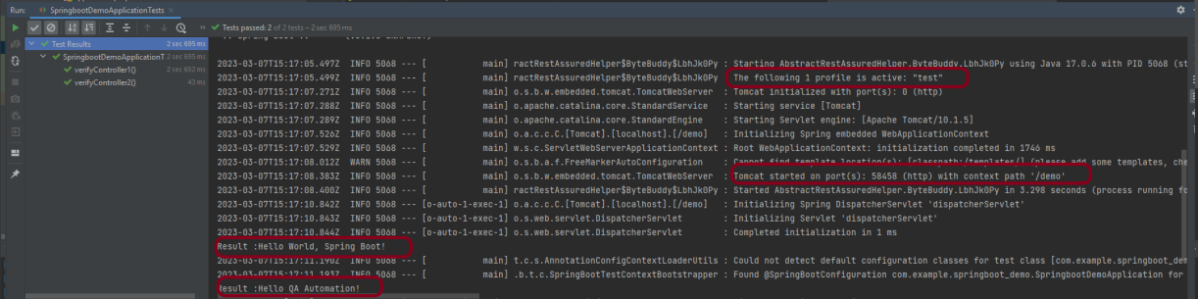
The output of the above program is

This image shows that the profile name is “test”. Application is started on port – “58458” and the context path is “/demo”.

Step 7 – Run the tests from Command Line

Run the tests from the command line by using the below command

mvn clean verify

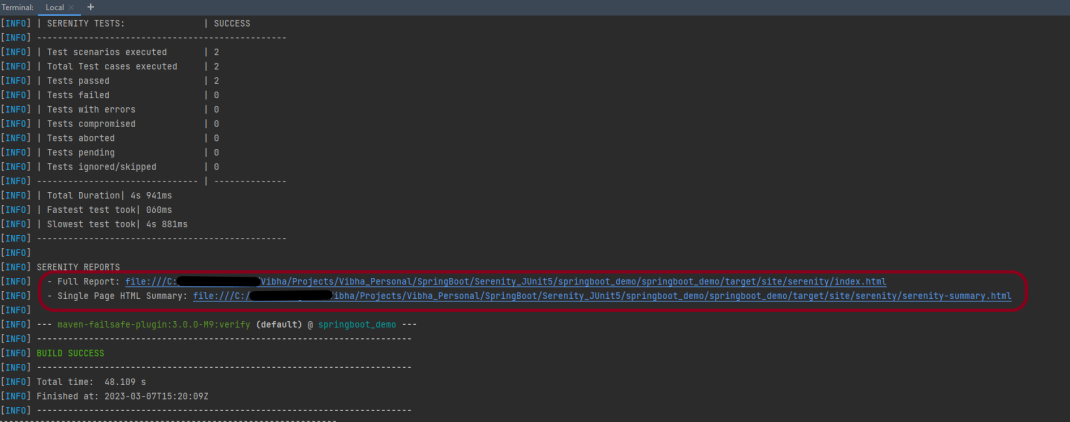
The output of the above program is

Step 8 – Serenity Report Generation

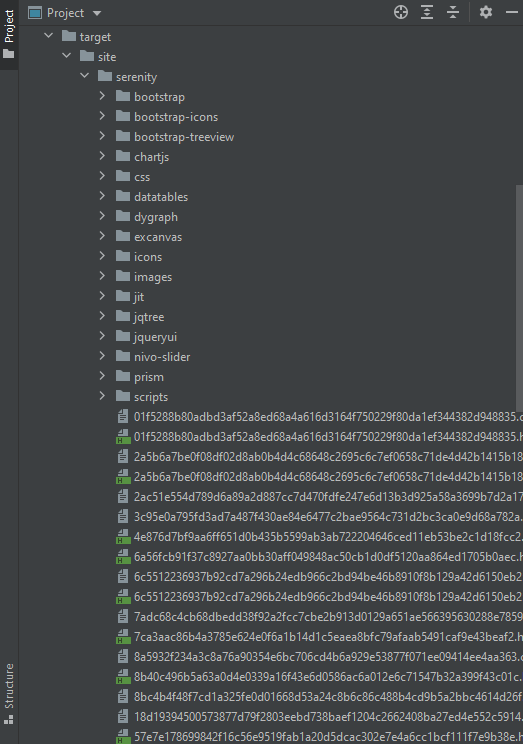
The serenity test reports are generated under target/site/serenity.

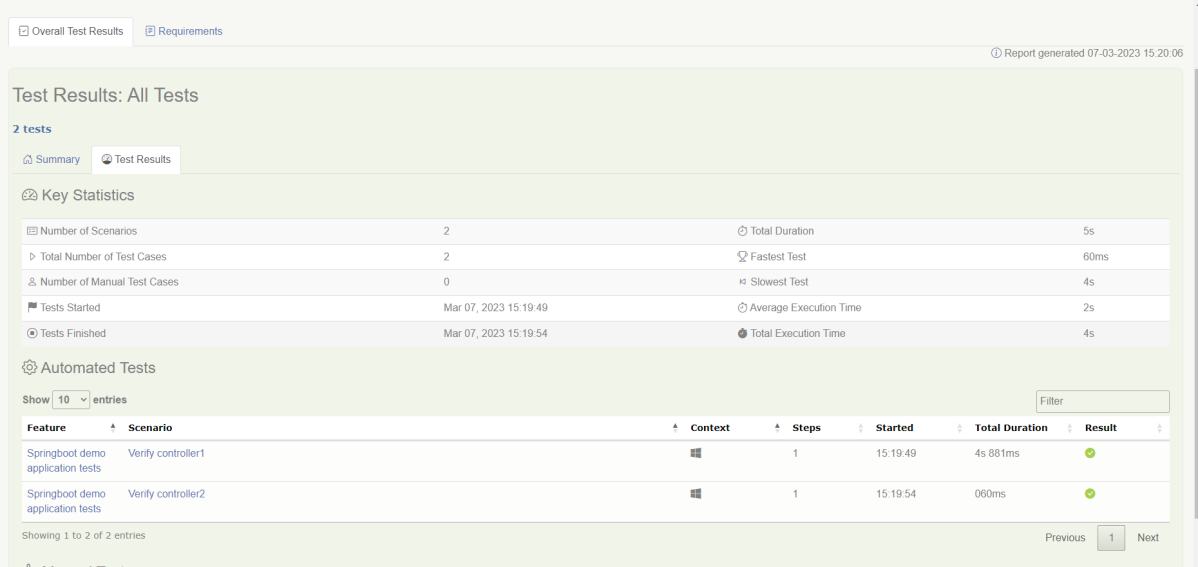
Below is the sample Index.html Report.

Go to Test Results, present at the top left of the index.html page.

Serenity-Summary.html

If you want to have Springboot Application in Gradle and you want to use Serenity and JUnit5. Please refer to this tutorial – Testing of Gradle SpringBoot Application with Serenity and JUnit5.

We are done! Congratulations on making it through this tutorial and hope you found it useful! Happy Learning!!

How to Install Python on Windows 11

HOME

Python is becoming a popular programming language for both new and experienced developers. Python is a flexible and versatile programming language with strengths in scripting, automation, data analysis, machine learning, and back-end development.

In this tutorial, we’ll install Python on Windows 11 using the Python installer for Windows.

Prerequisites

You’ll need a computer running Windows 11 with administrative privileges and an internet connection.

Installation Steps

Step 1 – Download the Python Installer

Go to the official website of Python – Python download page for Windows.

Click on the latest version of Python for Windows. Click the appropriate link for your system to download the executable file: Windows installer (64-bit) or Windows installer (32-bit). In this case, I have selected – Python 3.11.2

Step 2 – Running the Executable Installer

After the installer is downloaded, double-click the .exe file, for example, “python-3.11.2-amd64 .exe“, to run the Python installer.

If you want to save the installation file in a different location, click on Customize installation; otherwise, continue with Install Now.

Once the installation is complete, the below pop-up box will appear: Setup was successful.

Step 3 – Adding Python to the Environment Variables 

Go to Start and enter View advanced system settings in the search bar. Click on View advanced system settings.

In the System Properties dialog, click the Advanced tab and then click Environment Variables.

Depending on your installation:

  • If you selected Install for all users during installation, select Path from the list of System Variables and click Edit.
  • If you didn’t select Install for all users during installation, select Path from the list of User Variables and click Edit.

Click the “New” button and enter the Python directory path, then click the “OK” button until all the dialogs are closed.

Step 4 – Verify the Python Installation

You can verify whether the Python installation is successful either through the command line or through the Integrated Development Environment (IDLE) application if you chose to install it.

Go to Start and enter cmd in the search bar. Click Command Prompt.

Enter the following command in the command prompt:

python --version

PIP gets installed along with python, and you can check the same in the command line as follows.

pip --version

We can also check the version of Python by opening the IDLE application.

Go to Start and search for Python. You can see Python 3.11 (64-bit) and IDLE. Let’s open IDLE, which is the short form for Integrated Development Environment, and run a simple print statement.

Congratulations!! We are able to install Python on Windows 11.

Selenium Tests failing on Chrome Version 111

HOME

UPDATE – 27/03/2023

Selenium Version – 4.8.3 has implemented the fix for Chrome Version 111. As per the below changelog, we don’t need to add “–remote-allow-origins=*”, if we are using Selenium Version – 4.8.3.

Selenium ChangeLog

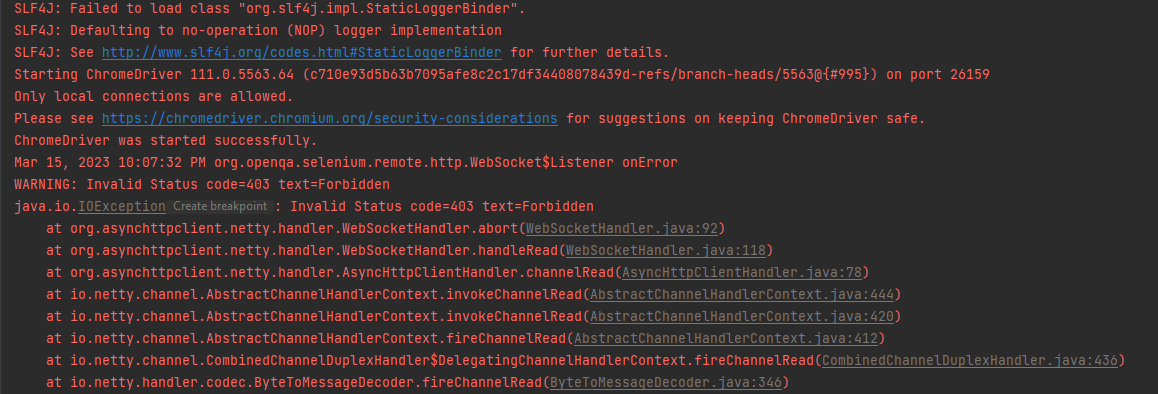
Chrome Version 111 is recently released that has broken the Selenium Tests. In the current scenario, I’m using Selenium 4.8.0. You can see a simple Selenium test where we want to open a Chrome Browser and open Google.com failed.

import io.github.bonigarcia.wdm.WebDriverManager;
import org.openqa.selenium.WebDriver;
import org.openqa.selenium.chrome.ChromeDriver;
import java.time.Duration;

public class ChromeTests {

    public static void main(String[] args) {

        WebDriverManager.chromedriver().setup();
        WebDriver driver = new ChromeDriver();
        driver.manage().timeouts().implicitlyWait(Duration.ofSeconds(20));
        driver.get("https://www.google.com/");
        String PageTiltle = driver.getTitle();
        System.out.println("Page Title :"+PageTiltle);
        driver.close();
    }
}

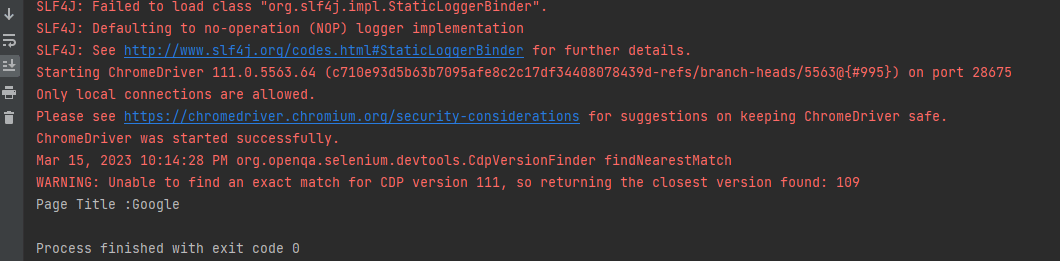
The output of the above program is

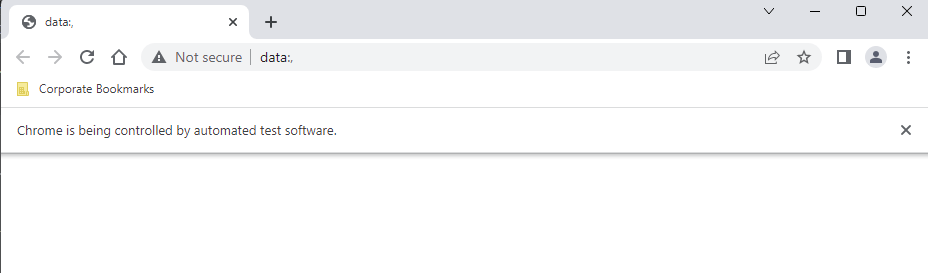
Below is the screenshot of the Chrome Browser trying to open Google.com.

One of the solutions is to add “–remote-allow-origins=*” to ChromeOptions. The sample code is shown below:

import io.github.bonigarcia.wdm.WebDriverManager;
import org.openqa.selenium.WebDriver;
import org.openqa.selenium.chrome.ChromeDriver;
import org.openqa.selenium.chrome.ChromeOptions;
import java.time.Duration;

public class ChromeTests {

    public static void main(String[] args) {

        ChromeOptions options = new ChromeOptions();
        options.addArguments("--remote-allow-origins=*");
        WebDriver driver = new ChromeDriver(options);
        driver.manage().timeouts().implicitlyWait(Duration.ofSeconds(20));
        driver.get("https://www.google.com/");
        String PageTiltle = driver.getTitle();
        System.out.println("Page Title :"+PageTiltle);
        driver.close();
    }
}

By default, Selenium 4 is compatible with Chrome v75 and greater. 

The output of the above program is

Hopefully, this trick will help you in your automation journey.

Testing of Gradle SpringBoot Application with Serenity, Cucumber and JUnit4

HOME

In the previous tutorial, I explained about Integration Testing of Springboot with Cucumber and TestNG. In this tutorial, I will explain the Testing of the Gradle SpringBoot Application with Serenity, Cucumber, and JUnit4.

Prerequisite:

Spring Boot 3.0.4 requires Java 17 and is compatible with and including Java 19. Spring Framework 6.0.6 or above is also required.

Explicit build support is provided for the following build tools:

  1. Maven – 3.5+
  2. Gradle – 7.x (7.5 or later) and 8.x

This framework consists of

  1. SpringBoot Starter Parent – 3.1.0
  2. Serenity –  3.6.12
  3. Serenity Cucumber – 3.6.12
  4. Serenity JUnit4 – 3.6.12
  5. Serenity Rest Assured – 3.6.12
  6. Spring
  7. Java 17
  8. Gradle – 7.6.1

What is SpringBoot Application?

 Spring Boot is an open-source micro-framework that provides Java developers with a platform to get started with an auto-configurable production-grade Spring application. 

  • Comes with embedded HTTP servers like Tomcat or Jetty to test web applications.
  • Adds many plugins that developers can use to work with embedded and in-memory databases easily. Spring allows you to easily connect with database and queue services like Oracle, PostgreSQL, MySQL, MongoDB, Redis, Solr, ElasticSearch, Rabbit MQ, and others.

What is RestController?

HTTP requests are handled by a controller in Spring’s approach to building RESTful web services. The @RestController annotation identifies these components, and the HelloController shown below (from src/main/java/com/example/springboot_demo/HelloController.java) handles GET requests for / and /qaautomation by returning a new instance of the Greeting class. Spring RestController takes care of mapping request data to the request-defined handles method.

import org.springframework.web.bind.annotation.GetMapping;
import org.springframework.web.bind.annotation.RestController;
 
@RestController
public class HelloController {
     
    @GetMapping(path="/")
    String hello() {
        return "Hello World, Spring Boot!";
    }
     
     
    @GetMapping(path="/qaautomation")
    String qaautomation() {
        return "Hello QA Automation!";
    }
 
}

Project Directory Structure

Implementation Steps

  1. Create a source folder – src/test/resources to create properties file
  2. Add SpringBootTest, Rest Assured, and JUnit4 dependencies to the project
  3. Create a feature file in src/test/resources
  4. Create the StepDefinition and Helper classes.
  5. Create a Serenity Runner class in the src/test/java directory
  6. Create an application.properties file in src/test/resources
  7. Create a serenity.properties at the root level of the project
  8. Run the tests from Command Line
  9. Serenity Report Generation
  10. Cucumber Report Generation

Step 1 – Create a source folder – src/test/resources to create test scenarios in the Feature file

Right-click on the test directory and select New->Directory and select resources (Maven Source Directories).

Step 2 – Add SpringBootTest, Rest Assured, and other dependencies to the project

We have added SpringBootTest, SpringBoot Web, Tomcat, Spring Web, Rest Assured, and JUnit4 dependencies to the build.gradle.

plugins {
	id 'java'
	id 'org.springframework.boot' version '3.1.0-SNAPSHOT'
	id 'io.spring.dependency-management' version '1.1.0'
	id "net.serenity-bdd.serenity-gradle-plugin" version "3.6.7"
}

group = 'com.example'
version = '0.0.1-SNAPSHOT'
sourceCompatibility = '17'

repositories {
	mavenCentral()
	maven { url 'https://repo.spring.io/milestone' }
	maven { url 'https://repo.spring.io/snapshot' }
}


dependencies {

	implementation 'org.springframework.boot:spring-boot-starter'
	implementation 'org.springframework.boot:spring-boot-starter-web'
	implementation 'org.springframework.boot:spring-boot-starter-tomcat'
	implementation 'org.springframework:spring-web'

	testImplementation 'org.springframework.boot:spring-boot-starter-test'
	testImplementation 'net.serenity-bdd:serenity-core:3.6.12'
	testImplementation 'net.serenity-bdd:serenity-cucumber:3.6.12'
	testImplementation 'net.serenity-bdd:serenity-rest-assured:3.6.12'
	testImplementation 'net.serenity-bdd:serenity-spring:3.6.12'
	testImplementation 'net.serenity-bdd:serenity-junit:3.6.12'
	testImplementation 'org.junit.vintage:junit-vintage-engine'

}

tasks.named('test') {
	useJUnit() {}
	testLogging {
		showStandardStreams = true
	}
	systemProperties System.getProperties()
}

gradle.startParameter.continueOnFailure = true

test.finalizedBy(aggregate)

Step 3 – Create a feature file in src/test/resources

Below is an example of a feature file that shows a sample test scenario. Feature file should end with .feature. It contains the test scenarios in the form of simple English using the terms Given, When, Then, And.

Feature: SpringBoot Request
   
@ReceiveCorrectResponse

   Scenario Outline: Send a valid Request to get correct response
    Given I send a request to the URL "<url>"
    Then the response will return "<response>"

   Examples:
   | url             | response                   |
   | /               | Hello World, Spring Boot!  |
   | /qaautomation   | Hello QA Automation!       |

Step 4 – Create the StepDefinition and Helper classes.

Below is the code of the StepDefinition and Helper class. These classes are created in the src/test/java directory.

  • uses @SpringBootTest annotation which loads the actual application context.
  • uses WebEnvironment.RANDOM_PORT to create and run the application at some random server port.
  • @LocalServerPort gets the reference of the port where the server has started. It helps in building the actual request URIs to mimic real client interactions.

AbstractRestAssuredHelper

import io.restassured.RestAssured;
import io.restassured.specification.RequestSpecification;
import net.serenitybdd.rest.SerenityRest;
import org.springframework.beans.factory.annotation.Value;
import org.springframework.boot.test.context.SpringBootTest;
import org.springframework.boot.test.context.SpringBootTest.WebEnvironment;
import org.springframework.boot.test.web.server.LocalServerPort;


@SpringBootTest(webEnvironment = WebEnvironment.RANDOM_PORT)
public abstract class AbstractRestAssuredHelper {
     private final static String BASE_URI = "http://localhost";
 
     @LocalServerPort
     private int port;

     @Value("${server.servlet.context-path}")
     private String basePath;
 
     protected void configureRestAssured() {
           RestAssured.baseURI = BASE_URI;
           RestAssured.port = port;
           RestAssured.basePath = basePath;
           
 
     }

     protected RequestSpecification getAnonymousRequest() {
           configureRestAssured();
           return SerenityRest.given();
     }
}

This class sends the request and receives a response after performing the GET operation. Here, the validation of the response also takes place by asserting the expected and actual response

import io.cucumber.java.en.Given;
import io.cucumber.java.en.Then;
import io.restassured.response.Response;
import net.serenitybdd.rest.SerenityRest;
import net.thucydides.core.annotations.Steps;
import org.junit.Assert;

public class SpringBootDemoDefinitions {

	@Steps
    AbstractRestAssuredHelper helper;
    private Response response;

    @Given("I send a request to the URL {string}")
    public void iSendARequest(String endpoint) throws Exception  {
         response = helper.getAnonymousRequest()
                    .header("Content-Type", "application/json").when().get(endpoint);
    }

    @Then("the response will return {string}")
    public void extractResponse(String Expected ) {
          SerenityRest.restAssuredThat(response -> response.statusCode(200));
          String Actual = response.asString();    
          System.out.println("Result :"+Actual);
          Assert.assertEquals(Expected, Actual);
    }
}

Step 5 – Create a Serenity Runner class in the src/test/java directory

We cannot run a Feature file on its own in cucumber-based framework. We need to create a Java class that will run the Feature File. It is the starting point for JUnit to start executing the tests. TestRunner class is created under src/test/javaWhen you run the tests with serenity, you use the CucumberWithSerenity test runner.

import org.junit.runner.RunWith;
import io.cucumber.junit.CucumberOptions;
import net.serenitybdd.cucumber.CucumberWithSerenity;

@RunWith(CucumberWithSerenity.class)
@CucumberOptions(features = "src/test/resources/features", tags = "", glue = "com.example.Gradle_SpringBoot_Demo", publish = true)

public class SpringRunnerTests {

}

Step 6 – Create an application.properties file in src/test/resources

Application.properties is created under src/test/java

spring.profiles.active=dev
server.port=9091
server.servlet.context-path=/demo

spring.profiles.active – property to specify which profiles are active. The default profile is always active.
server.port – By default, the embedded server starts on port 8080. Now the server will start on port 8090
server.servlet.context-path – the context path in Spring Boot can be changed by setting a property, server.servlet.context-path.

Step 7 – Create a serenity.properties at the root level of the project

serenity.project.name = Testing of Gradle SpringBoot Application with Serenity and JUnit4 Demo

Step 8 – Run the tests from Command Line

Run the tests from the command line by using the below command

gradle clean test

The output of the above program is

This image shows that the profile name is “dev”. Application is started on port – “54462” and the context path is “/demo”.

Step 9 – Serenity Report Generation

By default, the test report generated by Serenity is placed under target/site/serenity/index.html. Below is the sample Serenity Report.

Below is the sample Serenity Report.

Step 10 – Cucumber Report Generation

A Cucumber Report can be generated by adding publish=true in SpringRunnerTests as shown in the above example. Click on the link provided in the execution status.

Cucumber Report

Congratulations on making it through this tutorial and hope you found it useful! Happy Learning!! Cheers!!

Testing of SpringBoot Application with TestNG

HOME

In the previous tutorial, I explained about Integration Testing of SpringBoot Application with Serenity BDD, Cucumber and JUnit4. This one provides a comprehensive tutorial on integration testing of a SpringBoot application using SpringBoot Test and TestNG. It covers essential topics like SpringBoot application, RestController, prerequisites, dependency list, project directory structure, and detailed test implementation steps. 

What is SpringBoot Application?

 Spring Boot is an open-source micro-framework that provides Java developers with a platform to get started with an auto-configurable production-grade Spring application. 

  • Comes with embedded HTTP servers like Tomcat or Jetty to test web applications.
  • Adds many plugins that developers can use to work with embedded and in-memory databases easily. Spring allows you to easily connect with database and queue services like Oracle, PostgreSQL, MySQL, MongoDB, Redis, Solr, ElasticSearch, Rabbit MQ, and others.

What is RestController?

HTTP requests are handled by a controller in Spring’s approach to building RESTful web services. The @RestController annotation identifies these components, and the GreetingController shown below (from src/main/java/com/example/HelloController.java) handles GET requests for / and /qaautomation by returning a new instance of the Greeting class. Spring RestController takes care of mapping request data to the request-defined handles method.

import org.springframework.web.bind.annotation.GetMapping;
import org.springframework.web.bind.annotation.RestController;

@RestController
public class HelloController {
	
    @GetMapping(path="/")
    String hello() {
        return "Hello World, Spring Boot!";
    }
    
    
    @GetMapping(path="/qaautomation")
    String qaautomation() {
        return "Hello QA Automation!";
    }

}

In this tutorial, I will explain the Integration Testing of the SpringBoot Application using SpringBoot Test and TestNG.

Prerequisite

Spring Boot 3.0.4 requires Java 17 and is compatible with and including Java 19. Spring Framework 6.0.6 or above is also required.

Explicit build support is provided for the following build tools:

  1. Maven – 3.5+
  2. Gradle – 7.x (7.5 or later) and 8.x

Dependency List

  1. SpringBoot Starter Parent – 3.2.5
  2. TestNG – 7.10.2
  3. Rest Assured – 5.4.0
  4. Java 17
  5. Maven – 3.9.6

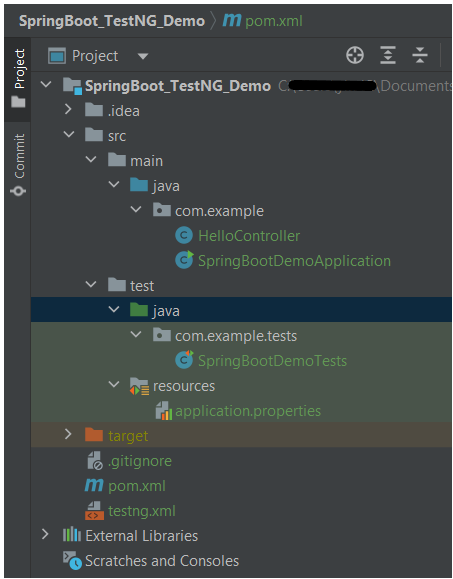
Project Directory Structure

Test Implementation Steps

Step 1 – Create a source folder – src/test/resources

Right-click on the test directory and select New->Directory and select resources (Maven Source Directories).

Step 2 – Add dependencies to the project

We have added SpringBootTest, SpringBoot Tomcat, SpringBoot Web, Spring Web, Rest Assured, and TestNG dependencies to the pom.xml.

<project xmlns="http://maven.apache.org/POM/4.0.0" xmlns:xsi="http://www.w3.org/2001/XMLSchema-instance"
xsi:schemaLocation="http://maven.apache.org/POM/4.0.0 http://maven.apache.org/xsd/maven-4.0.0.xsd">
<modelVersion>4.0.0</modelVersion>

<parent>
<groupId>org.springframework.boot</groupId>
<artifactId>spring-boot-starter-parent</artifactId>
<version>3.3.0-SNAPSHOT</version>
<relativePath/> <!-- lookup parent from repository -->
</parent>

<groupId>com.example</groupId>
<artifactId>SpringBoot_TestNG_Demo</artifactId>
<version>1.0-SNAPSHOT</version>
<packaging>jar</packaging>

<name>SpringBoot_TestNG_Demo</name>
<url>http://maven.apache.org</url>

<properties>
<java.version>17</java.version>
<rest.assured.version>5.4.0</rest.assured.version>
<testng.version>7.10.2</testng.version>
<maven.compiler.plugin.version>3.13.0</maven.compiler.plugin.version>
<maven.compiler.source.version>17</maven.compiler.source.version>
<maven.compiler.target.version>17</maven.compiler.target.version>
<maven.surefire.plugin.version>3.2.5</maven.surefire.plugin.version>
</properties>

<dependencies>
<dependency>
<groupId>org.springframework.boot</groupId>
<artifactId>spring-boot-starter</artifactId>
</dependency>

<dependency>
<groupId>org.springframework.boot</groupId>
<artifactId>spring-boot-starter-test</artifactId>
<scope>test</scope>
</dependency>

<dependency>
<groupId>org.springframework.boot</groupId>
<artifactId>spring-boot-starter-web</artifactId>
</dependency>

<dependency>
<groupId>org.springframework.boot</groupId>
<artifactId>spring-boot-starter-tomcat</artifactId>
<scope>provided</scope>
</dependency>

<dependency>
<groupId>org.springframework</groupId>
<artifactId>spring-web</artifactId>
</dependency>

<!-- Rest Assured -->
<dependency>
<groupId>io.rest-assured</groupId>
<artifactId>rest-assured</artifactId>
<version>${rest.assured.version}</version>
<scope>test</scope>
</dependency>

<!-- TestNG -->
<dependency>
<groupId>org.testng</groupId>
<artifactId>testng</artifactId>
<version>${testng.version}</version>
<scope>test</scope>
</dependency>


</dependencies>

<build>
<plugins>
<plugin>
<groupId>org.springframework.boot</groupId>
<artifactId>spring-boot-maven-plugin</artifactId>
</plugin>

<plugin>
<groupId>org.apache.maven.plugins</groupId>
<artifactId>maven-surefire-plugin</artifactId>
<version>${maven.surefire.plugin.version}</version>
<configuration>
<suiteXmlFiles>
<suiteXmlFile>testng.xml</suiteXmlFile>
</suiteXmlFiles>
</configuration>
<dependencies>
<dependency>
<groupId>org.apache.maven.surefire</groupId>
<artifactId>surefire-testng</artifactId>
<version>${maven.surefire.plugin.version}</version>
</dependency>
</dependencies>
</plugin>

<plugin>
<groupId>org.apache.maven.plugins</groupId>
<artifactId>maven-compiler-plugin</artifactId>
<version>${maven.compiler.plugin.version}</version>
<configuration>
<source>${maven.compiler.source.version}</source>
<target>${maven.compiler.target.version}</target>
</configuration>
</plugin>
</plugins>
</build>


</project>

Step 3 – Create the Test classes

  • uses @SpringBootTest annotation which loads the actual application context.
  • uses WebEnvironment.RANDOM_PORT to create and run the application at some random server port.
  • @LocalServerPort gets the reference of the port where the server has started. It helps in building the actual request URIs to mimic real client interactions.

Below is the code of the sample Test class. These classes are created in the src/test/java directory.

import io.restassured.response.ValidatableResponse;
import org.springframework.beans.factory.annotation.Value;
import org.springframework.boot.test.context.SpringBootTest;
import org.springframework.boot.test.web.server.LocalServerPort;
import org.springframework.test.context.testng.AbstractTestNGSpringContextTests;
import org.testng.Assert;
import org.testng.annotations.Test;
import static io.restassured.RestAssured.given;

@SpringBootTest(webEnvironment = SpringBootTest.WebEnvironment.RANDOM_PORT)
public class SpringBootDemoTests extends AbstractTestNGSpringContextTests {

    private final static String BASE_URI = "http://localhost:";

    @LocalServerPort
    private int port;

    @Value("${server.servlet.context-path}")
    private String basePath;

    private ValidatableResponse response;

    @Test
    public void verifyController1()  {
         response = given().contentType("application/json")
                    .header("Content-Type", "application/json")
                 .when().get(BASE_URI + port + basePath + "/").then().statusCode(200);

         String Actual = response.extract().asString();
          System.out.println("Result :"+Actual);
          Assert.assertEquals("Hello World, Spring Boot!", Actual);
    }

    @Test
    public void verifyController2()   {
        response = given().contentType("application/json")
                .header("Content-Type", "application/json")
                .when().get(BASE_URI + port + basePath + "/qaautomation").then().statusCode(200);

        String Actual = response.extract().asString();
        System.out.println("Result :"+Actual);
        Assert.assertEquals("Hello QA Automation!", Actual);
    }
}

The AbstractTestNGSpringContextTests is an abstract base class having the ApplicationContext supported in the testNG explicitly.

This class sends the request and receives a response after performing the GET operation. Here, the validation of the response also takes place by asserting the expected and actual response.

Step 4 – Create an application.properties file in src/test/resources

Application.properties is created under src/ test/java

spring.profiles.active=test
server.port=8089
server.servlet.context-path=/demo

spring.profiles.active – property to specify which profiles are active. The default profile is always active.
server.port – By default, the embedded server starts on port 8080. Now the server will start on port 8089
server.servlet.context-path – the context path in Spring Boot can be changed by setting a property, server.servlet.context-path.

Step 5 – Run the tests from Test Class

Right-click on the Test class and select RunSpringBootDemoTests’.

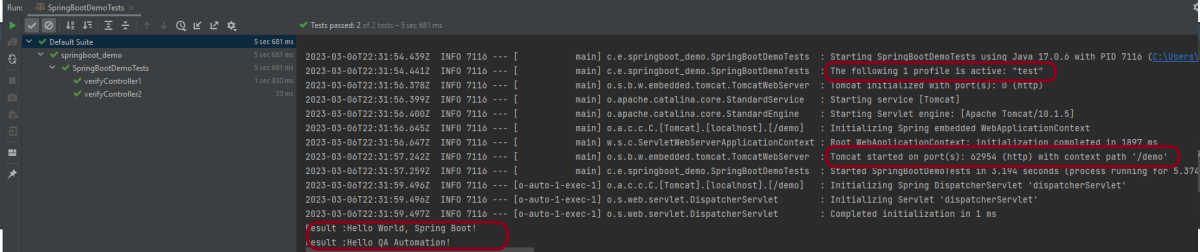
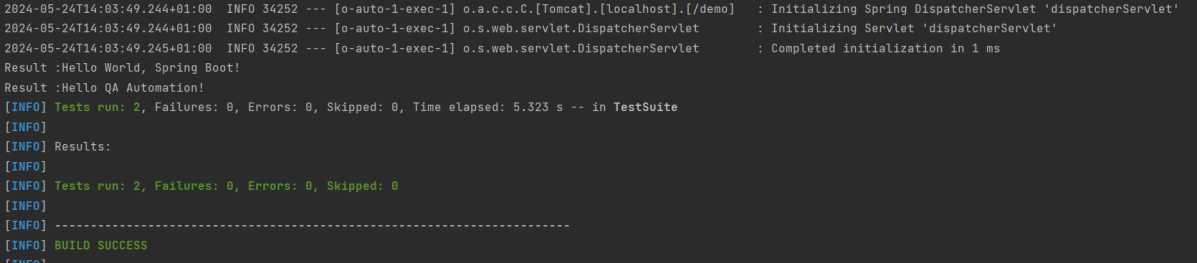
The output of the above program is

This image shows that the profile name is “test”. Application is started on port – “62954” and the context path is “/demo”.

Step 6 – Run the tests from testng.xml

<?xml version = "1.0"encoding = "UTF-8"?>
<!DOCTYPE suite SYSTEM "http://testng.org/testng-1.0.dtd">
<suite name = "Suite1">
<test name = "TestNG Demo">
<classes>
<class name = "com.example.tests.SpringBootDemoTests"/>
</classes>
</test>
</suite>

Right-click on testng.xml and select Run ‘…\testng.xml’.

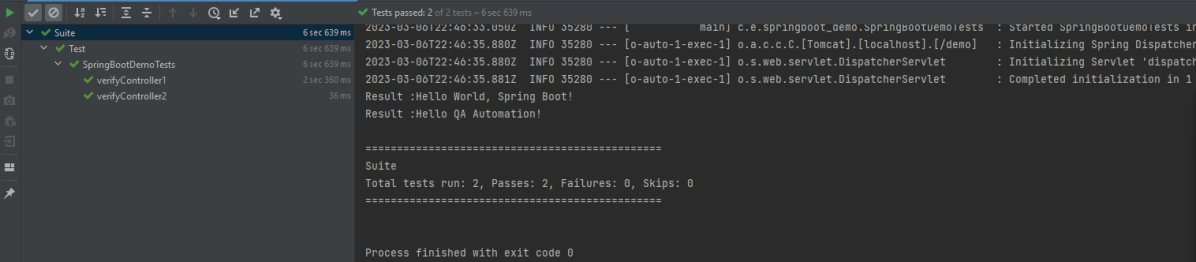
The output of the above program is

Step 7 – TestNG Report Generation

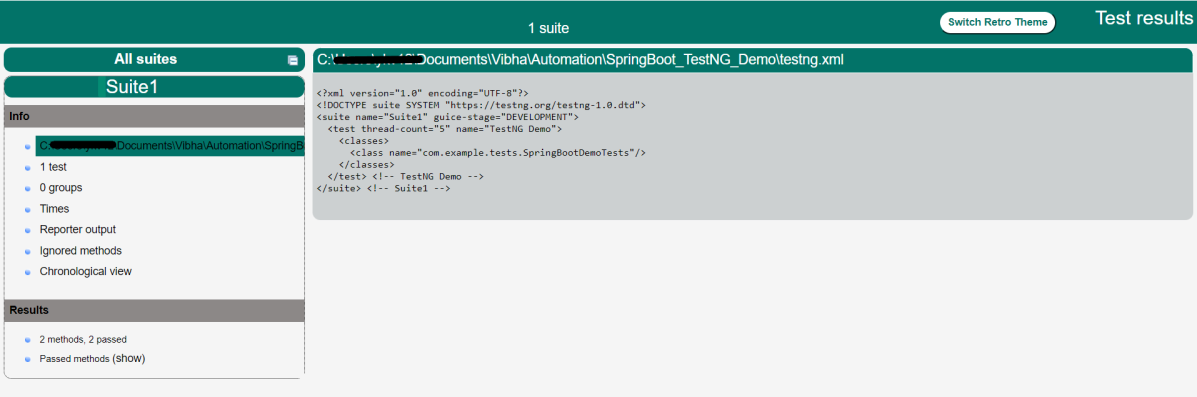
The test report generated by TestNG is placed under test-output/index.html.

Index.html

TestNG produces an “index.html” report, and it resides under the test-output folder. The below image shows index.html report. This report contains a high-level summary of the tests.

Emailable-Report.html

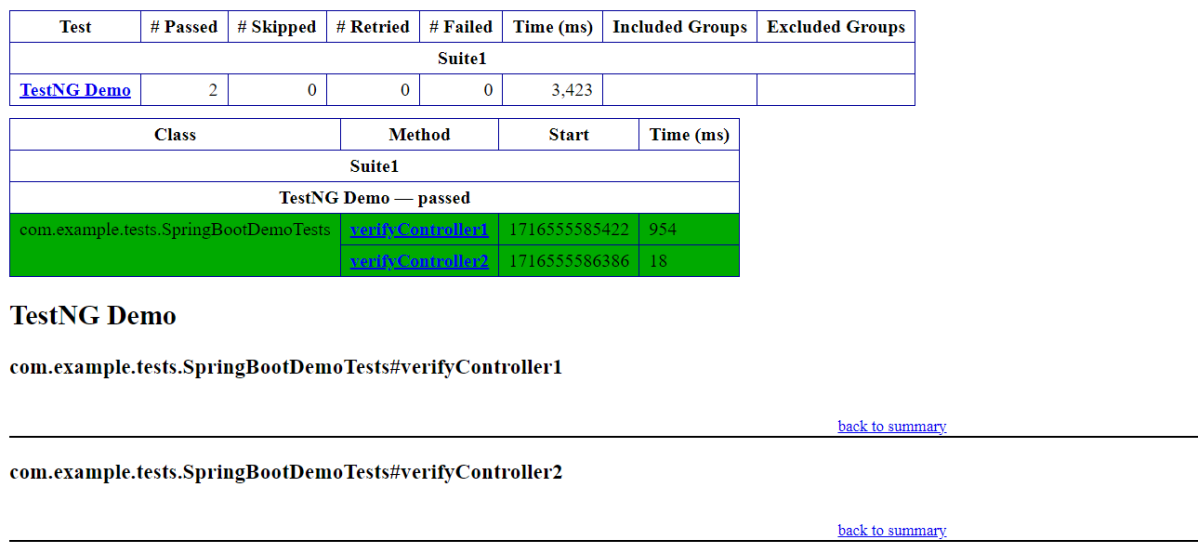
Test-Output folder also contains Emailable-Report.html. Open “emailable-report.html“, as this is an HTML report open it with the browser. The below image shows emailable-report.html.

<plugin>
<groupId>org.apache.maven.plugins</groupId>
<artifactId>maven-surefire-plugin</artifactId>
<version>${maven.surefire.plugin.version}</version>
<configuration>
<suiteXmlFiles>
<suiteXmlFile>testng.xml</suiteXmlFile>
</suiteXmlFiles>
</configuration>
<dependencies>
<dependency>
<groupId>org.apache.maven.surefire</groupId>
<artifactId>surefire-testng</artifactId>
<version>${maven.surefire.plugin.version}</version>
</dependency>
</dependencies>
</plugin>
mvn clean test

Congratulations on making it through this tutorial and hope you found it useful! Happy Learning!! Cheers!!
How to run Gradle tests in the GitHub pipeline

HOME

The previous tutorial explained the steps to run the Selenium tests in the GitHub pipeline (Maven project). This tutorial explains the steps to run the Gradle project in the GitHub pipeline.

Important points to keep in mind:

1. We don’t need to think about the Chromedriver.exe we are using WebDriver Manager to handle that instead of adding it to our project like the following:

WebDriverManager.chromedriver().setup();

2. The Selenium tests need to run in the headless mode. As we are using Chrome browser, use the below code:

ChromeOptions options = new ChromeOptions();
options.addArguments("--no-sandbox");
options.addArguments("--disable-dev-shm-usage");
options.addArguments("--headless");
driver = new ChromeDriver(options);

3. Install Chrome browser in ubuntu. Use the below code:

- uses: browser-actions/setup-chrome@latest
- run: chrome --version

To know more about Chrome installation, please refer to this tutorial – browser-actions/setup-chrome.

Implementation Steps

Step 1 – Create GitHub Actions and Workflows

I have a repository available on GitHub – Gradle_Selenium_TestNG_Demo as shown in the below image. Go to the Actions tab.  Click on the “Actions” tab.

Step 2 – Select the type of Actions

You will see that GitHub recommends Actions depending on the project. In our case, it is recommending actions suitable for a Java project. I have selected the “Publish Java Package with Gradle” option.

Step 3 – Generation of Sample pipeline

If you choose an existing option, it will automatically generate a .yaml for the project as shown below.

We will replace the current workflow with the following yml file as shown below:

name: Gradle Project - Selenium with TestNG

on:
  push:
    branches: [ "main" ]
  pull_request:
    branches: [ "main" ]

jobs:
  build:

    runs-on: ubuntu-latest
    permissions:
      contents: read
      packages: write

    steps:
    - uses: actions/checkout@v3
    - name: Set up JDK 11
      uses: actions/setup-java@v3
      with:
        java-version: '11'
        distribution: 'temurin'
        
    - uses: browser-actions/setup-chrome@latest
    - run: chrome --version     

    - name: Build with Gradle
      run: gradle clean test
      
    - name: Archive Rest Results
      uses: actions/upload-artifact@v3
      if: success() || failure()
      with:
        name: test-results
        path: GradleReports/emailable-report.html

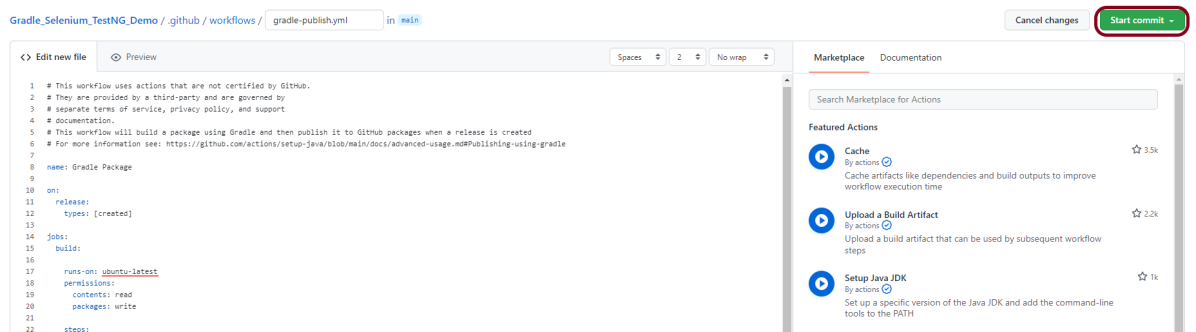
Step 4 – Commit the changes

After the changes, hit the “Start Commit” button.

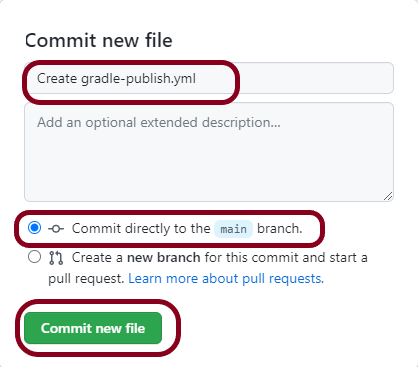
This will give the option to add a description for the commit. It will also enable the user to commit either to the main branch or commit to any other branch that exists in the project. Click on the “Commit new file” button to set up the workflow file.

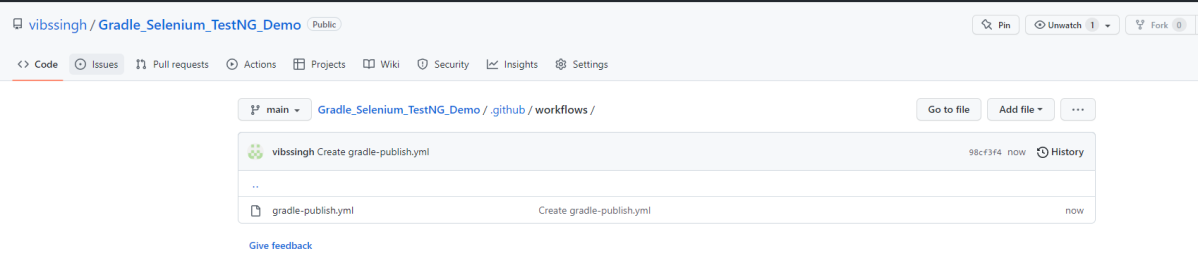
A folder with the name .github/workflows will be created that will contain a gradle-publish.yml file as shown below:

Step 5 – Verify that the workflow is running

Next, head over to the “Actions” tab, and you will see your YAML workflow file present under the tab. The yellow sign represents that the job is in the queue.

In Progress – When the job starts building and running, you will see the status change from “Queued” to “in progress”.

Passed –If the build is successful, you will see a green tick mark. 

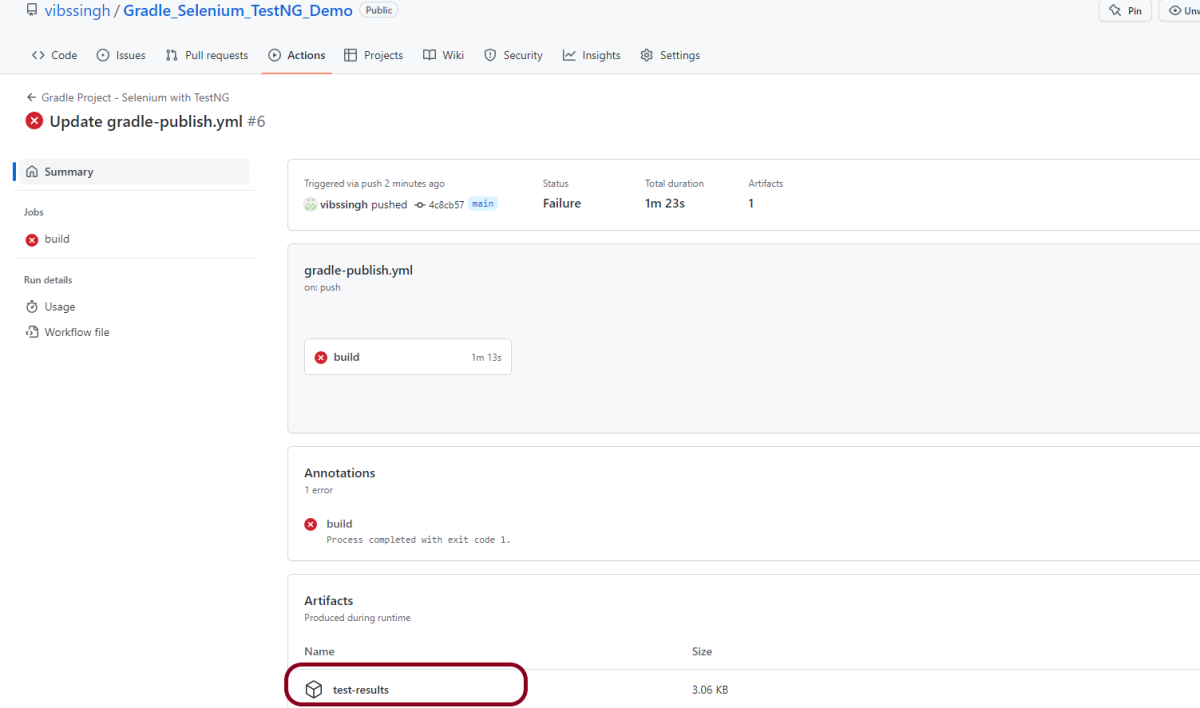
Click on the workflow and the below screen is displayed. It shows the status of the run of the workflow, the total time taken to run the workflow, and the name of the .yml file.

Failed – In case the build has failed which in this case any of the tests is failed, then there will be a red cross mark.

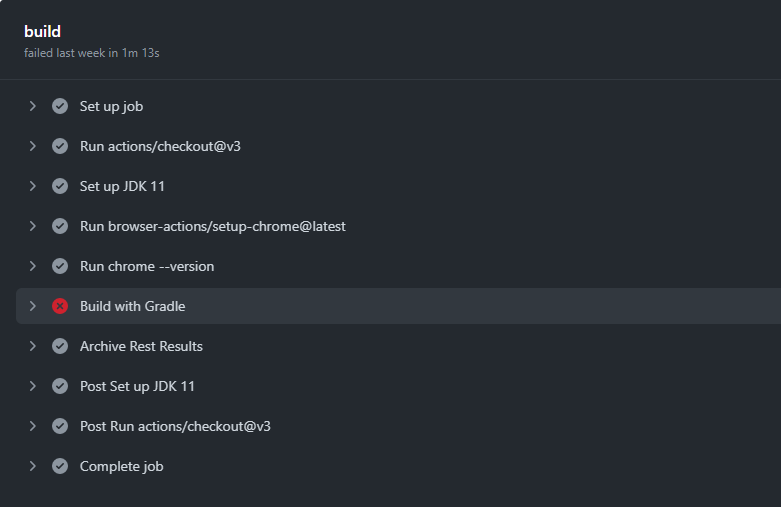
Below shows all the steps of the workflow.

Build with Gradle steps failed because out of 2 tests, one of the tests failed. So, it appears in red colour. I personally love this feature because it gives an idea about the test execution status immediately if all the tests are passed or anything is failed.

Published artifacts on GitHub

Once the pipeline run, a test-results folder will be generated as shown in the below image:

When we click on the folder test-results, a zipped file will be downloaded, and we can extract it to see all the files contained within it.

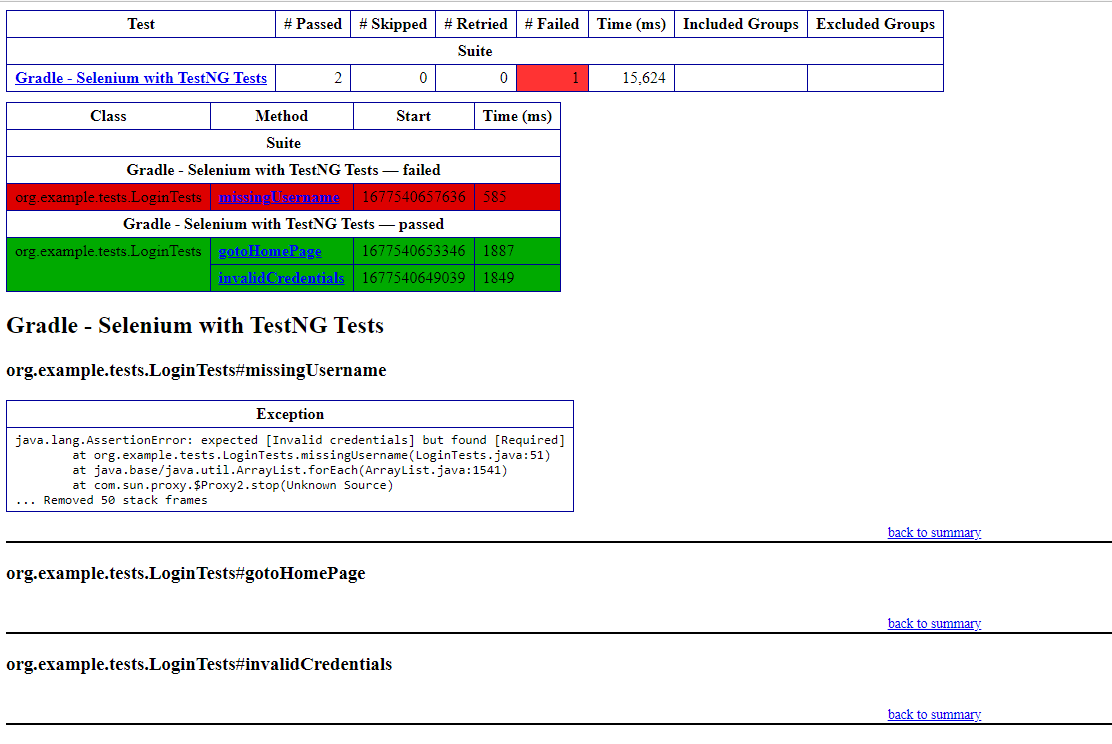
The image of the report is shown below:

The complete code can be found here in GitHub.

How to upload artifacts in GitHub?

HOME

When a GitHub Actions workflow completes a build successfully, artifacts such as zip files, compiled code, Java JAR files, and other assembled components are created. Once the workflow is completed, the Docker container on which the GitHub Actions artifacts are created vanishes. However, it is not difficult for a developer to request that GitHub archive those artifacts and make them available as a downloadable link.

Steps to Publish GitHub Action Artifact

  1. Complete the GitHub Actions build steps. Add a stage for the Artifact – Test Report upload.

2. Enter the path to the files that must be uploaded. I’m copying all the files generated by Serenity that are in the target/site/serenity folder.

3. Use GitHub’s upload-artifact action to download all the files in the serenity folder and compress them into a zip file called Serenity Report.zip.

4. Run the GitHub Actions workflow and look for the published artifacts on the build page of the workflow.

How to create a GitHub Action?

Please refer to this tutorial to understand the steps to create a GitHub Action – How to run Selenium tests with GitHub Actions.

GitHub Action Artifact YAML Example

If the previous step is failed, and we still want to proceed to the next step, then use the below status syntax:

if: success() || failure()

To read more about the status check function, you can refer to this.

name: Serenity Rest Assured with JUnit4

on:
  push:
    branches: [ "main" ]
  pull_request:
    branches: [ "main" ]

jobs:
  build:

    runs-on: ubuntu-latest

    steps:
    - uses: actions/checkout@v3
    - name: Set up JDK 11
      uses: actions/setup-java@v3
      with:
        java-version: '11'
        distribution: 'temurin'
        cache: maven
    
    - name: Build with Maven
      run: mvn clean verify
      
    - name: Test Report
      uses: actions/upload-artifact@v3
      if: success() || failure()
      with:
          name: Serenity Report               # Name of the folder
          path: target/site/serenity/           # Path to test results


Published artifacts on GitHub

From the logs of the Workflow, you can see that the Test Report step was executed successfully.

Once the pipeline run, a Serenity Report folder will be generated as shown in the below image:

When we click on the folder Serenity Report, a zipped file will be downloaded, and we can extract it to see all the files contained within it.

You can see the GitHub pipeline here – GitHub Artifact Upload.

How to run Selenium tests with GitHub Actions

Last Updated On

HOME

This tutorial explains the steps to create a GitHub Action for the Selenium tests and execute the tests in that workflow.

Table of Contents

  1. Why GitHub?
  2. Important points
  3. Implementation Steps
    1. Create GitHub Actions and Workflows
    2. Select the type of Actions
    3. Generation of Sample pipeline
    4. Commit the changes
    5. Verify that the workflow is running

Why GitHub?

The flexible aspects of Selenium WebDrivers and GitHub Actions enable users to create powerful, fast, and efficient automated testing workflows in CI/CD environments.

CI/CD pipelines have contributed to the success of the DevOps cycle in all software development projects. This is a holistic process that bridges development and operations. Continuous integration helps development teams deploy code efficiently, and continuous delivery automates code deployment.

Important points

1. We don’t need to think about the Chromedriver.exe we are using WebDriver Manager to handle that instead of adding it to our project like the example:

 WebDriverManager.chromedriver().setup();

2. The Selenium tests need to run in the headless mode. As we are using Chrome browser, use the below code:

          ChromeOptions options = new ChromeOptions();
          options.addArguments("--no-sandbox");
          options.addArguments("--disable-dev-shm-usage");
          options.addArguments("--headless");
	      driver = new ChromeDriver(options);

3. Install Chrome browser in ubuntu. Use the below code:

    - uses: browser-actions/setup-chrome@latest
    - run: chrome --version

Implementation Steps

Step 1 – Create GitHub Actions and Workflows

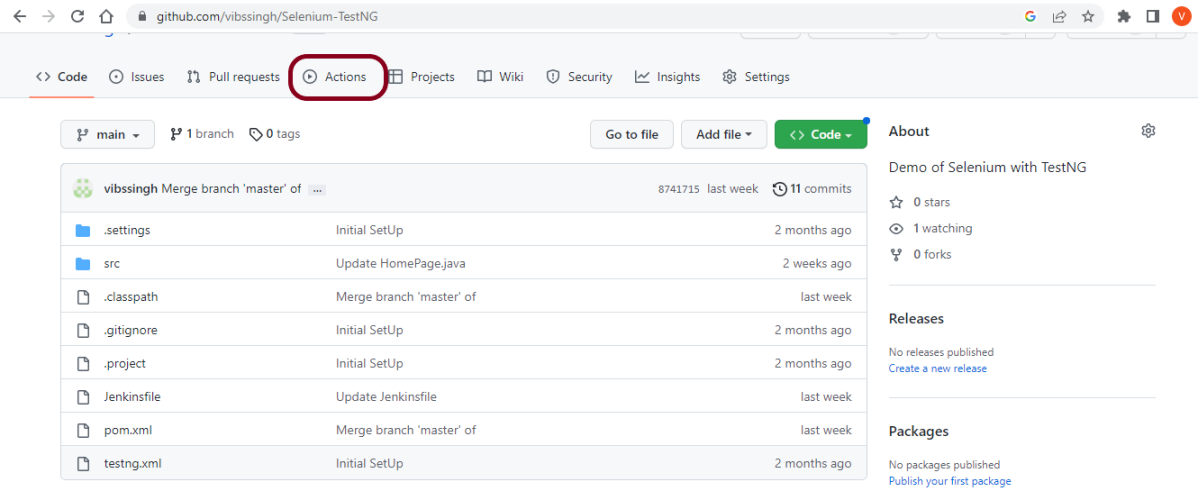
I have a repository available in GitHub – Selenium-TestNG as shown in the below image. Go to the “Actions” tab.  Click on the “Actions” tab.

Step 2 – Select the type of Actions

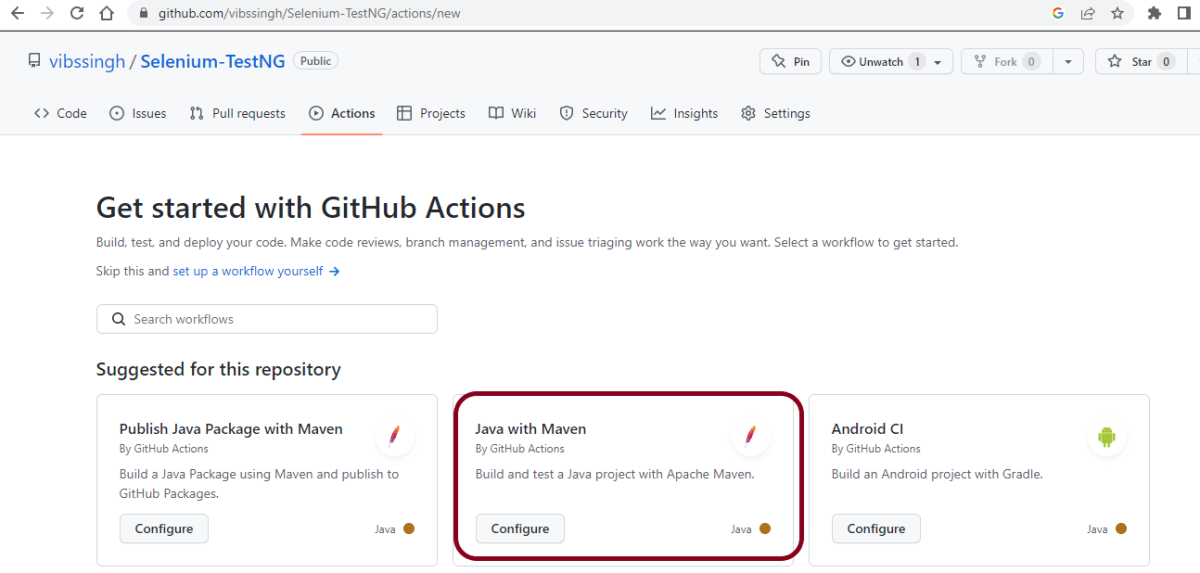
You will see that GitHub recommends Actions depending on the project. In our case, it is recommending actions suitable for a Java project. I have selected the “Java with Maven” option as my project is built in Maven.

Step 3 – Generation of Sample pipeline

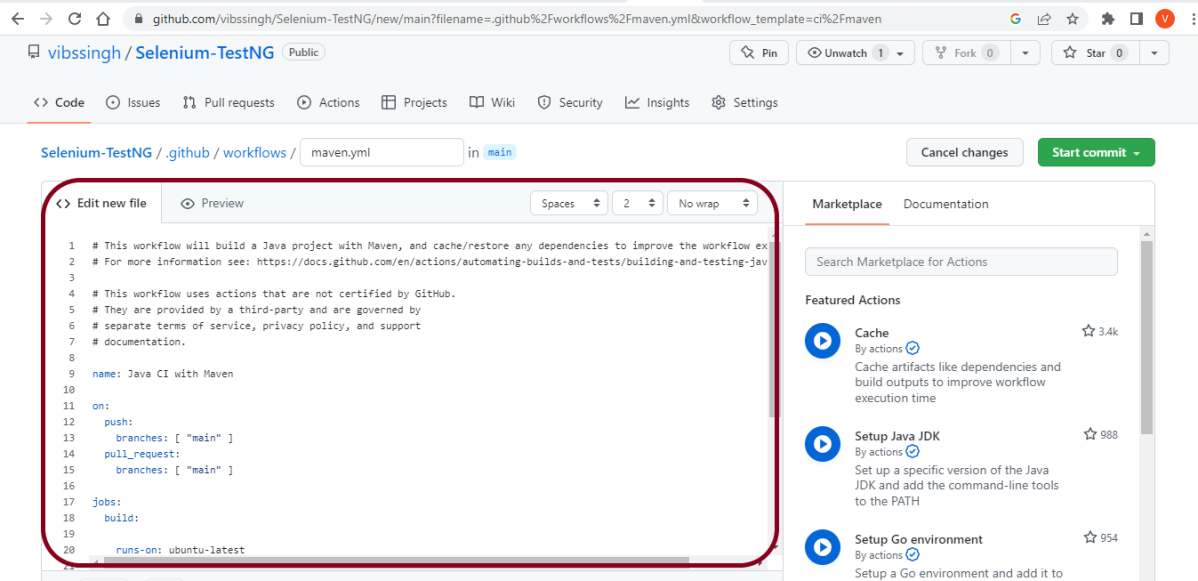
If you choose an existing option, it will automatically generate a .yaml for the project as shown below.

We will replace the current workflow with the next yml file as shown below:

name: Selenium with TestNG - CI

on:
  push:
    branches: [ "main" ]
  pull_request:
    branches: [ "main" ]

jobs:
  build:

    runs-on: ubuntu-latest

    steps:
    - uses: actions/checkout@v3
    - name: Set up JDK 17
      uses: actions/setup-java@v3
      with:
        java-version: '17'
        distribution: 'temurin'
        cache: maven
    
    - uses: browser-actions/setup-chrome@latest
    - run: chrome --version
    
    - name: Build with Maven
      run: mvn -B clean test

The workflow file usually consists of the below attributes:

name: Java CI with Maven Name of workflow: This is an optional attribute.The name of the workflow is denoted by the keyword “name”. If you wish to include multiple CI jobs in your project, it is recommended to name each one appropriately.
on: [push] :
On attribute – This attribute is mandatory and specifies the trigger for this workflow. There are several actions you can include such as push, pull request, release, etc. for more information on the events, check the official guide here.
jobs: Under the jobs attribute, groups together all the jobs that run in the workflow.
runs-on: ubuntu-latest Configures the job to run on the latest version of an Ubuntu Linux runner. This means that the job will execute on a fresh virtual machine hosted by GitHub
steps: Under this option, the actions used by the particular workflow, and the multiple jobs that would run under the workflow are mentioned. These jobs run in parallel. If you want to run the jobs in the order in the CI pipelines, you must add the “needs” attribute. It is crucial to ensure that every workflow has at least one job. In our sample workflow, we only have one job as shown in image above.
uses: actions/checkout@v3
The uses keyword specifies that this step will run v3 of the actions/checkout action. This is an action that checks out your repository onto the runner, allowing you to run scripts or other actions against your code (such as build and test tools). You should use the checkout action any time your workflow will run against the repository’s code.
uses: actions/setup-java@v3
with:
java-version: ’17’
This step uses the actions/setup-java@v3 action to install the specified version of the Java (this example uses v17).

Step 4 – Commit the changes

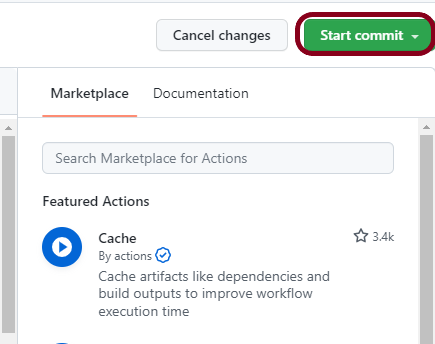
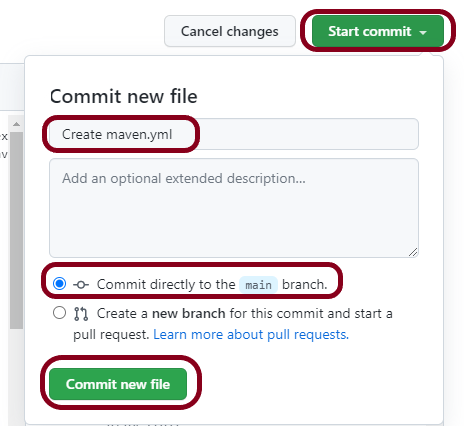
After the changes, hit the “Start Commit” button.

This will give the choice to add a description for the commit. It will also allow the user to commit either to the main branch or commit to any other branch that exists in the project. Click on the “Commit new file” button to set up the workflow file.

Step 5 – Verify that the workflow is running

Next, head over to the “Actions” tab, and you will see your YAML workflow file available under the tab. The yellow sign represents that the job is in the queue.

In Progress – When the job starts building and running, you will see the status change from “Queued” to “in progress”.

Passed – If the build is successful, you will see a green tick mark. 

Click on the workflow and the below screen is displayed. It shows the status of the run of the workflow, the total time taken to run the workflow, and the name of the .yml file.

Below are all the steps of the workflow.

Failed – In case the build has failed, then there will be a red cross mark.

To learn more about Chrome installation, please refer to this tutorial – browser-actions/setup-chrome.

The complete code can be found here on GitHub – vibssingh/Selenium-TestNG.

Congratulations! We just created our CI workflow for running our Selenium test cases.