How to run Chrome tests in headless mode in Selenium

HOME

This tutorial explains the steps to run the Selenium tests for Chrome browser in headless mode. We are going to run the tests in Selenium 4 as well as Selenium 3.

What is headless browser?

A headless browser is like any other browser, but without a Head/GUI (Graphical User Interface).  A headless browser is used to automate the browser without launching the browser. While the tests are running, we could not see the browser, but we can see the test results coming on the console.

Headless browser testing is generally faster when compared to actual UI testing as it doesn’t wait for the whole page to render before performing any action.

When we need to execute automated test cases remotely on a server or in any of the build and release pipelines for continuous integration servers like Gitlab or Jenkins, it is not always possible to install real browsers on such remote machines. We can use headless browsers to run automation tests efficiently.

It is easy to perform multi-tasking with a Headless browser. The browser or our machine can do anything else while the tests run in the background.

There are 2 ways to add dependencies to the Selenium project.

Download Selenium Version from here (Selenium 3 & Selenium 4)

Download ChromeDriver Binary (Selenium 3 only)

Download the latest version of WebDriverManager (Selenium 3 only)

Once the Selenium and WebDriverManager folders are downloaded, unzip the folder. Once the zip file is extracted, reference these jar files in the project. For this, navigate to project properties and click Build Path-> Configure Build Path in Eclipse. Click “Add External Jars“. After clicking on the “Add External JARs“, selected all the extracted JARs. The JARs files are present in the project.

2. Add the below dependencies to pom.xml or build.gradle.

Add below dependencies to the project.

 <dependency>
      <groupId>org.seleniumhq.selenium</groupId>
      <artifactId>selenium-java</artifactId>
      <version>4.16.1</version>
 </dependency>

package com.example.steps;

import org.openqa.selenium.WebDriver;
import org.openqa.selenium.chrome.ChromeDriver;
import org.openqa.selenium.chrome.ChromeOptions;
import org.openqa.selenium.firefox.FirefoxDriver;
import org.openqa.selenium.firefox.FirefoxOptions;

public class ChromeOptionsHeadless_Demo {

    public static void main(String[] args) {

        // Create an object of Chrome Options class
        ChromeOptions options = new ChromeOptions();

        // Set Firefox Headless mode as TRUE
        options.addArguments("--headless=new");

        // Create an object of WebDriver class and pass the Chrome Options object
        // as an argument
        WebDriver driver = new ChromeDriver(options);

        // Navigate to site url
        driver.get("https://duckduckgo.com/");

        System.out.println("Executing Chrome Driver in Headless mode..");
        System.out.println("Page Title : " + driver.getTitle());
        System.out.println("Page URL  : " + driver.getCurrentUrl());

        // Close the driver
        driver.quit();
    }

}

Add below dependencies to the project.

 <dependency>
      <groupId>org.seleniumhq.selenium</groupId>
      <artifactId>selenium-java</artifactId>
      <version>3.141.59</version>
 </dependency>

We know that to execute Selenium automation scripts on browsers like chrome or firefox, we must download the binary files of these drivers like chromedriver and geckodriver, etc. After this, we need to set the path to these binaries in the automation script or add the classpath location. Here, we want to execute Selenium WebDriver automation scripts on the Chrome browser, then you need first to download chromedriver.exe and then use the System.setProperty  method to set its path as follows:

	// Set the path of ChromeDriver
	System.setProperty("webdriver.chrome.driver",
				"C:\\Users\\Vibha\\Software\\chromedriver_win32_98.0.4758.102\\chromedriver.exe");

The complete program looks like as shown below:

import org.openqa.selenium.chrome.ChromeDriver;
import org.openqa.selenium.chrome.ChromeOptions;

public class ChromeOptionsHeadless1 {

	public static void main(String[] args) {

		// Set the path of ChromeDriver
		System.setProperty("webdriver.chrome.driver",
				"C:\\Users\\Vibha\\Software\\chromedriver_win32_98.0.4758.102\\chromedriver.exe");

		// Create an object of Chrome Options class
		ChromeOptions options = new ChromeOptions();

		// pass the argument –headless to Chrome Options class.
		options.addArguments("--headless");

		// Create an object of Chrome Driver class and pass the Chrome Options object as
		// an argument
		ChromeDriver driver = new ChromeDriver(options);

		System.out.println("Executing Chrome Driver in Headless mode..");
		driver.get("https://duckduckgo.com/");

		System.out.println("Title of Page :" + driver.getTitle());
		System.out.println("Page URL  : " + driver.getCurrentUrl());

		// Close the driver
		driver.close();

	}
}

How to run headless Chrome Tests in Selenium using WebDriverManager?

WebDriverManager

<!-- https://mvnrepository.com/artifact/io.github.bonigarcia/webdrivermanager -->
<dependency>
    <groupId>io.github.bonigarcia</groupId>
    <artifactId>webdrivermanager</artifactId>
    <version>5.1.0</version>
</dependency>

WebDriverManager has an automated way to download browser executables(exes) or binaries. It supports different browsers like Chrome, Firefox, Microsoft Edge, Internet Explorer, Opera, or PhantomJS.

WebDriverManager.chromedriver().setup: checks for the latest version of the specified WebDriver binary. If the binaries are not present on the machine, then it will download the WebDriver binaries. Next, it instantiates the Selenium WebDriver instance with the ChromeDriver.

import org.openqa.selenium.chrome.ChromeDriver;
import org.openqa.selenium.chrome.ChromeOptions;

import io.github.bonigarcia.wdm.WebDriverManager;

public class ChromeOptionsHeadless2 {

	public static void main(String[] args) {

		// WebDriverManager downloads chrome browser executables or binaries.
		WebDriverManager.chromedriver().setup();

		// Create an object of Chrome Options class
		ChromeOptions options = new ChromeOptions();

		// pass the argument –headless to Chrome Options class.
		options.addArguments("--headless");

		// Create an object of Chrome Driver class and pass the Chrome Options object as
		// an argument
		ChromeDriver driver = new ChromeDriver(options);

		System.out.println("Executing Chrome Driver in Headless mode..");
		driver.get("https://duckduckgo.com/");

		System.out.println("Title of Page :" + driver.getTitle());
		System.out.println("Page URL  : " + driver.getCurrentUrl());

		// Close the driver
		driver.close();

	}

}

Congratulations!! We are able to run Chrome tests in Selenium in headless mode.

How to run Firefox tests in headless mode in Selenium

HOME

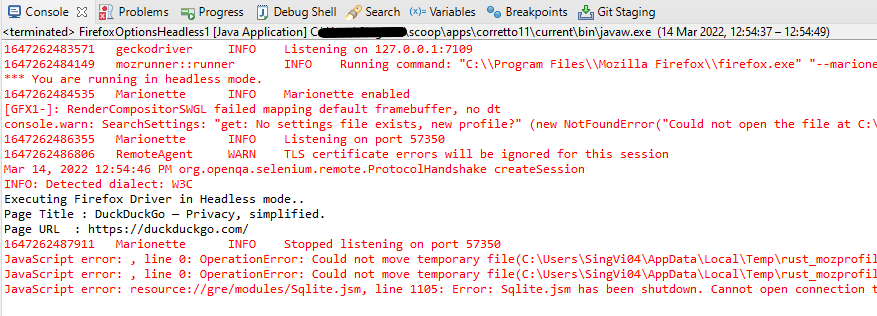
This tutorial explains the steps to run the Selenium tests on Firefox browser in headless mode. We are going to run the tests in Selenium. To run the Selenium tests on Chrome browser in headless mode, refer this tutorial.

To start with, we need to add dependencies to the project.

Manually add the dependencies to the project

Download Selenium Version from here

Download Firefox Binary from here

Download the latest version of WebDriverManager (Download this if you want to use WebDriverManager to download browser executables(exes) or binaries automatically, then skip downloading FireFox Binary).

<dependency>
    <groupId>org.seleniumhq.selenium</groupId>
    <artifactId>selenium-java</artifactId>
    <version>4.16.1</version>
</dependency>

import org.openqa.selenium.WebDriver;
import org.openqa.selenium.firefox.FirefoxDriver;
import org.openqa.selenium.firefox.FirefoxOptions;

public class FirefoxOptionsHeadless_Demo {

    public static void main(String[] args) {

        // Create an object of Firefox Options class
        FirefoxOptions options = new FirefoxOptions();

        // Set Firefox Headless mode as TRUE
        options.addArguments("-headless");

        // Create an object of WebDriver class and pass the Firefox Options object
        // as an argument
        WebDriver driver = new FirefoxDriver(options);

        // Navigate to site url
        driver.get("https://duckduckgo.com/");

        System.out.println("Executing Firefox Driver in Headless mode..");
        System.out.println("Page Title : " + driver.getTitle());
        System.out.println("Page URL  : " + driver.getCurrentUrl());

        // Close the driver
        driver.quit();
    }

}

Add the below dependencies to pom.xml or build.gradle.

<!-- https://mvnrepository.com/artifact/org.seleniumhq.selenium/selenium-java -->
    <dependency>
      <groupId>org.seleniumhq.selenium</groupId>
      <artifactId>selenium-java</artifactId>
      <version>3.141.59</version>
    </dependency>

What is headless browser?

A headless browser is like any other browser, but without a GUI (Graphical User Interface).  A headless browser is used to automate the browser without launching the browser. While the tests are running, we could not see the browser, but we can see the test results coming on the console. This makes the test execution faster than normal execution. This is suitable for parallel testing as UI tests needs a lot of memory and resources.

import org.openqa.selenium.WebDriver;
import org.openqa.selenium.firefox.FirefoxDriver;
import org.openqa.selenium.firefox.FirefoxOptions;

public class FirefoxOptionsHeadless1 {

	public static void main(String[] args) {

		// Set the path of GeckoDriver
		System.setProperty("webdriver.gecko.driver",
				"C:\\Users\\Vibha\\Software\\geckodriver\\geckodriver.exe");

		// Create an object of Firefox Options class
		FirefoxOptions options = new FirefoxOptions();

		// Set Firefox Headless mode as TRUE
		options.setHeadless(true);

		// Create an object of WebDriver class and pass the Firefox Options object
		// as an argument
		WebDriver driver = new FirefoxDriver(options);

		// Navigate to site url
		driver.get("https://duckduckgo.com/");

		System.out.println("Executing Firefox Driver in Headless mode..");
		System.out.println("Page Title : " + driver.getTitle());
		System.out.println("Page URL  : " + driver.getCurrentUrl());

		// Close the driver
		driver.close();
	}
}

How to run headless Firefox Tests in Selenium using WebDriverManager?

WebDriverManager

<!-- https://mvnrepository.com/artifact/io.github.bonigarcia/webdrivermanager -->
<dependency>
    <groupId>io.github.bonigarcia</groupId>
    <artifactId>webdrivermanager</artifactId>
    <version>5.1.0</version>
</dependency>

WebDriverManager.firefoxdriver().setup(): checks for the latest version of the specified WebDriver binary. If the binaries are not present on the machine, then it will download the WebDriver binaries. In this case, it is not needed to download Firefox binary and set up the path

import org.openqa.selenium.WebDriver;
import org.openqa.selenium.firefox.FirefoxDriver;
import org.openqa.selenium.firefox.FirefoxOptions;

import io.github.bonigarcia.wdm.WebDriverManager;

public class FirefoxOptionsHeadless2 {

	public static void main(String[] args) {

		WebDriverManager.firefoxdriver().setup();

		// Create an object of Firefox Options class
		FirefoxOptions options = new FirefoxOptions();

		// Set Firefox Headless mode as TRUE
		options.setHeadless(true);

		// Create an object of Firefox Driver class and pass the Firefox Options object
		// as an argument
		WebDriver driver = new FirefoxDriver(options);

		// Navigate to the url
		driver.get("https://duckduckgo.com/");

		System.out.println("Executing Firefox Driver in Headless mode..");
		System.out.println("Page Title : " + driver.getTitle());
		System.out.println("Page URL  : " + driver.getCurrentUrl());

		// Close the driver
		driver.close();
	}

}

Congratulations!! We have run the tests in headless mode in FireFox.

Serenity Report for Web Application with Cucumber6 and Junit

Last Updated On

HOME

In the previous tutorial, I explained the Testing of Web Application using Serenity BDD with Cucumber5 and JUnit4. In this tutorial, I’ll explain how to generate a Serenity Report for a web application using Serenity BDD with Cucumber6 and JUnit4.

Serenity BDD produces great test reports that act as Living Documentation for the product.

Table of Contents

  1. Prerequisite
  2. Dependency List
  3. Implementation Steps
    1. Update the Properties section in Maven pom.xml
    2. Add Serenity, Serenity Cucumber, and JUnit dependencies to POM.xml
    3. Update the Build Section of pom.xml
    4. Create a Feature file
    5. Create the Step Definition class or Glue Code
    6. Create a Serenity-Cucumber Runner class
    7. Create serenity.conf file under src/test/resources
    8. Create serenity.properties file at the root of the project
    9. Run the tests through the command line which generates Serenity Report
  4. Serenity Report
    1. Requirement View
    2. Test Results
    3. Capability
    4. Feature

Prerequisite

  1. Java 11 installed
  2. Maven installed
  3. Eclipse or IntelliJ installed

Dependency List:

  1. Java 17
  2. Maven – 3.9.6
  3. Serenity – 4.0.30
  4. Serenity Cucumber – 4.0.30
  5. JUnit – 4.13.2
  6. Maven Surefire Plugin – 3.2.3
  7. Maven Failsafe Plugin – 3.2.3
  8. Maven Compiler Plugin – 3.12.1

Implementation Steps

Step 1 – Update the Properties section in Maven pom.xml

 <properties>
    <project.build.sourceEncoding>UTF-8</project.build.sourceEncoding>
    <serenity.version>4.0.30</serenity.version>
    <junit.version>4.13.2</junit.version>
    <maven.compiler.plugin.version>3.12.1</maven.compiler.plugin.version>
    <maven.surefire.plugin.version>3.2.3</maven.surefire.plugin.version>
    <maven.failsafe.plugin.version>3.2.3</maven.failsafe.plugin.version>
    <maven.compiler.source.version>17</maven.compiler.source.version>
    <maven.compiler.target.version>17</maven.compiler.target.version>
    <tags></tags>
    <parallel.tests></parallel.tests>
    <webdriver.base.url></webdriver.base.url>
 </properties>

Step 2 – Add Serenity, Serenity Cucumber, and JUnit dependencies to POM.xml

<dependencies>
    <dependency>
      <groupId>net.serenity-bdd</groupId>
      <artifactId>serenity-core</artifactId>
      <version>${serenity.version}</version>
      <scope>test</scope>
    </dependency>

    <dependency>
      <groupId>net.serenity-bdd</groupId>
      <artifactId>serenity-junit</artifactId>
      <version>${serenity.version}</version>
      <scope>test</scope>
    </dependency>

    <dependency>
      <groupId>net.serenity-bdd</groupId>
      <artifactId>serenity-screenplay-webdriver</artifactId>
      <version>${serenity.version}</version>
      <scope>test</scope>
    </dependency>

    <dependency>
      <groupId>net.serenity-bdd</groupId>
      <artifactId>serenity-cucumber</artifactId>
      <version>${serenity.version}</version>
      <scope>test</scope>
    </dependency>

    <dependency>
      <groupId>junit</groupId>
      <artifactId>junit</artifactId>
      <version>${junit.version}</version>
      <scope>test</scope>
    </dependency>

  </dependencies>

Step 3 – Update the Build Section of pom.xml

<project xmlns="http://maven.apache.org/POM/4.0.0" xmlns:xsi="http://www.w3.org/2001/XMLSchema-instance"
  xsi:schemaLocation="http://maven.apache.org/POM/4.0.0 http://maven.apache.org/xsd/maven-4.0.0.xsd">
  <modelVersion>4.0.0</modelVersion>

  <groupId>com.example</groupId>
  <artifactId>SerenityCucumberJunit4Demo</artifactId>
  <version>1.0-SNAPSHOT</version>
  <packaging>jar</packaging>

  <name>SerenityCucumberJunit4Demo</name>
  <url>http://maven.apache.org</url>

  <properties>
    <project.build.sourceEncoding>UTF-8</project.build.sourceEncoding>
    <serenity.version>4.0.30</serenity.version>
    <junit.version>4.13.2</junit.version>
    <maven.compiler.plugin.version>3.12.1</maven.compiler.plugin.version>
    <maven.surefire.plugin.version>3.2.3</maven.surefire.plugin.version>
    <maven.failsafe.plugin.version>3.2.3</maven.failsafe.plugin.version>
    <maven.compiler.source.version>17</maven.compiler.source.version>
    <maven.compiler.target.version>17</maven.compiler.target.version>
    <tags></tags>
    <parallel.tests></parallel.tests>
    <webdriver.base.url></webdriver.base.url>
  </properties>

  <dependencies>
    <dependency>
      <groupId>net.serenity-bdd</groupId>
      <artifactId>serenity-core</artifactId>
      <version>${serenity.version}</version>
      <scope>test</scope>
    </dependency>

    <dependency>
      <groupId>net.serenity-bdd</groupId>
      <artifactId>serenity-junit</artifactId>
      <version>${serenity.version}</version>
      <scope>test</scope>
    </dependency>

    <dependency>
      <groupId>net.serenity-bdd</groupId>
      <artifactId>serenity-screenplay-webdriver</artifactId>
      <version>${serenity.version}</version>
      <scope>test</scope>
    </dependency>

    <dependency>
      <groupId>net.serenity-bdd</groupId>
      <artifactId>serenity-cucumber</artifactId>
      <version>${serenity.version}</version>
      <scope>test</scope>
    </dependency>

    <dependency>
      <groupId>junit</groupId>
      <artifactId>junit</artifactId>
      <version>${junit.version}</version>
      <scope>test</scope>
    </dependency>

  </dependencies>
  <build>
    <plugins>
      <plugin>
        <groupId>org.apache.maven.plugins</groupId>
        <artifactId>maven-surefire-plugin</artifactId>
        <version>${maven.surefire.plugin.version}</version>

        <configuration>
          <skip>false</skip>
        </configuration>
      </plugin>

      <plugin>
        <artifactId>maven-failsafe-plugin</artifactId>
        <version>${maven.failsafe.plugin.version}</version>
        <configuration>
          <includes>
            <include>**/Test*.java</include>
          </includes>
          <systemPropertyVariables>
            <webdriver.base.url>${webdriver.base.url}</webdriver.base.url>
          </systemPropertyVariables>
          <parallel>classes</parallel>
          <threadCount>${parallel.tests}</threadCount>
          <forkCount>${parallel.tests}</forkCount>
        </configuration>
        <executions>
          <execution>
            <goals>
              <goal>integration-test</goal>
              <goal>verify</goal>
            </goals>
          </execution>
        </executions>
      </plugin>

      <plugin>
        <groupId>org.apache.maven.plugins</groupId>
        <artifactId>maven-compiler-plugin</artifactId>
        <version>${maven.compiler.plugin.version}</version>
        <configuration>
          <source>${maven.compiler.source.version}</source>
          <target>${maven.compiler.target.version}</target>
        </configuration>
      </plugin>

      <plugin>
        <groupId>net.serenity-bdd.maven.plugins</groupId>
        <artifactId>serenity-maven-plugin</artifactId>
        <version>${serenity.version}</version>
        <dependencies>
          <dependency>
            <groupId>net.serenity-bdd</groupId>
            <artifactId>serenity-single-page-report</artifactId>
            <version>${serenity.version}</version>
          </dependency>
        </dependencies>
        <configuration>
          <tags>${tags}</tags>
          <reports>single-page-html</reports>
        </configuration>
        <executions>
          <execution>
            <id>serenity-reports</id>
            <phase>post-integration-test</phase>
            <goals>
              <goal>aggregate</goal>
            </goals>
          </execution>
        </executions>
      </plugin>
    </plugins>
  </build>
</project>

Step 4 – Create a Feature file

Feature file should be saved as an extension of .feature. Add the test scenarios in this feature file. I have added sample test scenarios. The test scenarios are written in Gherkins language. A feature file is created under src/test/resources.

Feature: Login to HRM  

   @ValidCredentials
   Scenario: Login with valid credentials
   
    Given User is on Home page
    When User enters username as "Admin"
    And User enters password as "admin123"
    Then User should be able to login successfully
    
    @InValidCredentials    
    Scenario Outline: Login with invalid credentials
   
    Given User is on Home page
    When User enters username as '<username>'
    And User enters password as '<password>'
    Then User should be able to see error message '<errorMessage>'
      
   Examples:
    |username  |password  |errorMessage                    |
    |admin     |admin     |Invalid credentials             |
    |          |admin123  |Username cannot be empty        | 
    |Admin     |          |Password cannot be empty        |
    |          |          |Username cannot be empty        |
 
   @ForgetPassword  
   Scenario: Verify Forget Password Functionality
   
    Given User is on Home page
    When User clicks on Forgot your password link
    Then User should be able to see new page which contains Reset Password button
   

Step 5 – Create the Step Definition class or Glue Code

Create a StepDefinition class for LoginPage.feature.

package com.example.definitions;

import com.example.steps.StepDashboardPage;
import com.example.steps.StepForgetPasswordPage;
import com.example.steps.StepLoginPage;
import io.cucumber.java.en.Given;
import io.cucumber.java.en.Then;
import io.cucumber.java.en.When;
import net.serenitybdd.annotations.Steps;
import org.junit.Assert;

import static org.junit.Assert.assertTrue;

public class LoginPageDefinitions {

    @Steps
    StepLoginPage loginPage;

    @Steps
    StepDashboardPage dashPage;

    @Steps
    StepForgetPasswordPage forgetpasswordPage;

    @Given("User is on Home page")
    public void openApplication() {
        loginPage.open();
        System.out.println("Page is opened");
    }

    @When("User enters username as {string}")
    public void enterUsername(String userName) {
        System.out.println("Enter Username");
        loginPage.inputUserName(userName);
    }

    @When("User enters password as {string}")
    public void enterPassword(String passWord) {
        loginPage.inputPassword(passWord);

        loginPage.clickLogin();
    }

    @Then("User should be able to login successfully")
    public void clickOnLoginButton() {
        dashPage.loginVerify();
    }

    @Then("User should be able to see error message {string}")
    public void unsuccessfulLogin(String expectedErrorMessage)  {

        String actualErrorMessage = loginPage.errorMessage();
        Assert.assertEquals(expectedErrorMessage, actualErrorMessage);
    }

    @When("User clicks on Forgot your password link")
    public void clickForgetPasswordLink() {
        loginPage.clickForgetPasswordLink();
    }

    @Then("User should be able to see new page which contains Reset Password button")
    public void verifyForgetPasswordPage() {

        assertTrue(forgetpasswordPage.ForgetPasswordPage());
    }

}

Serenity Step Libraries integrate smoothly into Cucumber Step Definition files; all you need to do is to annotate a step library variable with the @Steps annotation. Methods that represent a business task or action (inputUserName()), and that will appear in the reports as a separate step, is annotated with the @Step annotation. Other methods, such as loginVerify(), query the state of the application and are used in assert statements.

Here, I have created 3 StepClasses – StepLoginPage, StepDashboardPage, and StepForgetPasswordPage

StepLoginPage

package com.example.steps;

import net.serenitybdd.annotations.Step;
import net.serenitybdd.core.pages.PageObject;
import net.serenitybdd.core.pages.WebElementFacade;
import org.openqa.selenium.support.FindBy;

public class StepLoginPage extends PageObject {

    @FindBy(name = "username")
    WebElementFacade username;

    @FindBy(name = "password")
    WebElementFacade password;

    @FindBy(xpath = "//*[@id='app']/div[1]/div/div[1]/div/div[2]/div[2]/form/div[3]/button")
    WebElementFacade submitButton;

    @FindBy(xpath = "//*[@id='app']/div[1]/div/div[1]/div/div[2]/div[2]/div/div[1]/div[1]/p")
    WebElementFacade errorMessage;

    @FindBy(xpath = "//*[@id='app']/div[1]/div/div[1]/div/div[2]/div[2]/form/div[4]/p")
    WebElementFacade linkText;

    @Step("Enter Username")
    public void inputUserName(String userName) {
        username.sendKeys((userName));
    }

    @Step("Enter Password")
    public void inputPassword(String passWord) {
        password.sendKeys((passWord));
    }

    @Step("Click Submit Button")
    public void clickLogin() {
        submitButton.click();
    }

    @Step("Error Message on unsuccessful login")
    public String errorMessage() {
        String actualErrorMessage = errorMessage.getText();
        return actualErrorMessage;
    }

    @Step("Click Forget Password Link")
    public void clickForgetPasswordLink() {
        linkText.click();

        System.out.println("Clicked on Forgot Password Link");
    }

}

StepDashboardPage

package com.example.steps;

import net.serenitybdd.core.pages.PageObject;
import net.serenitybdd.core.pages.WebElementFacade;
import org.junit.Assert;
import org.openqa.selenium.support.FindBy;

public class StepDashboardPage extends PageObject {

    @FindBy(xpath = "//*[@id='app']/div[1]/div[1]/header/div[1]/div[1]/span/h6")
    WebElementFacade dashboardText;

    public void loginVerify() {

        String dashboardTitle = dashboardText.getText();
        Assert.assertTrue(dashboardTitle.contains("Dashboard"));
    }
}

StepForgetPasswordPage

package com.example.steps;

import net.serenitybdd.annotations.Step;
import net.serenitybdd.core.pages.PageObject;
import net.serenitybdd.core.pages.WebElementFacade;
import org.openqa.selenium.support.FindBy;

public class StepForgetPasswordPage extends PageObject {

    @FindBy(xpath = "//*[@id='app']/div[1]/div[1]/div/form/h6")
    WebElementFacade forgetLink;

    @Step("Verify Forget Password Page ")
    public boolean ForgetPasswordPage() {
        Boolean resetPasswordButton = forgetLink.isDisplayed();

        return resetPasswordButton;
    }
}

Step 6 – Create a Serenity-Cucumber Runner class

We cannot run a Feature file on its own in a cucumber-based framework. We need to create a Java class, which will run the Feature File. It is the starting point for JUnit to start executing the tests. TestRunner class creates under src/ test/java. When you run the tests with serenity, you use the CucumberWithSerenity test runner. If the feature files are not in the same package as the test runner class, you also need to use the @CucumberOptions class to provide the root directory where the feature files are found.

import org.junit.runner.RunWith;

import io.cucumber.junit.CucumberOptions;
import net.serenitybdd.cucumber.CucumberWithSerenity;

@RunWith(CucumberWithSerenity.class)
@CucumberOptions(plugin = {}, features = "src/test/resources/features/LoginPage.feature", glue = "com.example.definitions")

public class SerenityRunnerTests {

}

Step 7 – Create serenity.conf file under src/test/resources

Serenity.conf file is used to specify various features like the type of webdriver used, various test environments, run tests in headless mode, and many more options.

webdriver.driver. – This tells Serenity which browser to use for the test execution. You can configure this in several locations – serenity.properties or serenity.conf. Here, I have provided this information in serenity.conf

We can also configure the webdriver.base.url property for different environments in the serenity.conf configuration file, in the src/test/resources directory. Below is an example of the same.

headless.mode = false

environments {
  chrome {
    webdriver {
      driver = chrome
      autodownload = true
      capabilities {
        browserName = "chrome"
        acceptInsecureCerts = true
        "goog:chromeOptions" {
          args = ["test-type", "ignore-certificate-errors", "--window-size=1920,1080",
            "incognito", "disable-infobars", "disable-gpu", "disable-default-apps", "disable-popup-blocking"]
        }
      }
    }
  }
  edge {
    webdriver {
      capabilities {
        browserName = "MicrosoftEdge"
        "ms:edgeOptions" {
          args = ["test-type", "ignore-certificate-errors","--window-size=1920,1080",
            "incognito", "disable-infobars", "disable-gpu", "disable-default-apps", "disable-popup-blocking"]
        }
      }
    }
  }
  firefox {
    webdriver {
      capabilities {
        browserName = "firefox"
        pageLoadStrategy = "normal"
        acceptInsecureCerts = true
        unhandledPromptBehavior = "dismiss"
        strictFileInteractability = true

        "moz:firefoxOptions" {
          args = ["--window-size=1920,1080"],
          prefs {
            "javascript.options.showInConsole": false
          },
          log {"level": "info"},
        }
      }
    }
  }
}

#
# Define drivers for different platforms. Serenity will automatically pick the correct driver for the current platform
#

environments {
  default {
    webdriver.base.url = "https://opensource-demo.orangehrmlive.com/"
  }
  dev {
    webdriver.base.url = "https://opensource-demo.orangehrmlive.com/dev"
  }
  staging {
    webdriver.base.url = "https://opensource-demo.orangehrmlive.com/staging"
  }
  prod {
    webdriver.base.url = "https://opensource-demo.orangehrmlive.com/prod"
  }
}

Once the environment section is present in your serenity.conf file, you can use the environment system property to use the properties for a given environment. For example, the following would cause the staging URLs to be used:

mvn clean verify -Denvironment=staging

The default environment will be used if no other value is provided. In our example, I will not provide any environment, so it will pick the default environment.

Step 8 – Create serenity.properties file at the root of the project

serenity.project.name = Serenity and Cucumber Report Demo

Step 9 – Run the tests through the command line which generates Serenity Report

Open the command line and go to the location where pom.xml of the project is present and type the below command.

mvn clean verify -Denvironment=firefox

I have provided the location of the Firefox driver through the command line. I believe this is the best way to run the test. We can hard-code the path in the test code or in serenity.conf file. If you don’t want to pass the location of webdriver through the command line, then mention the details of webdriver in serenity.conf and just use the below command for execution.

mvn clean verify

Below is the image of the execution status.

This also provides the location of the serenity report as highlighted in the above image.

Serenity Report

Requirement View

In Serenity, requirements are organized in a hierarchy. We can get an idea of the full directory structure (in src/test/features directory) for the project.

The Test Results tab (shown below) tells you about the acceptance tests that were executed for this set of requirements. 

Test Results

At the bottom of the Test Results tab, you will find the actual test results – the list of all the tests, automated and manual, that were executed for this requirement.

Feature

This provides the detail of all the Test Scenarios present in a Feature File.

Below is an example of a Scenario Outline in the Report. It shows all the examples mentioned in the feature file.

This screen shows the test steps and screenshots of each step.

We are done! Congratulations on making it through this tutorial and hope you found it useful! Happy Learning!!

The complete code can be found on GitHub – vibssingh/SerenityCucumberJUnit4_Demo.

Serenity BDD with Cucumber and JUnit4 for Web Application

HOME

Relationship between Web Application, Serenity BDD, Cucumber, and Selenium

Implementation Steps

Step 1: Add Serenity, Cucumber, and JUnit4 dependencies to the Maven project

The pom.xml will look like something as shown below.

<project xmlns="http://maven.apache.org/POM/4.0.0" xmlns:xsi="http://www.w3.org/2001/XMLSchema-instance"
  xsi:schemaLocation="http://maven.apache.org/POM/4.0.0 http://maven.apache.org/xsd/maven-4.0.0.xsd">
  <modelVersion>4.0.0</modelVersion>

  <groupId>com.example</groupId>
  <artifactId>SerenityCucumberJunit4Demo</artifactId>
  <version>1.0-SNAPSHOT</version>
  <packaging>jar</packaging>

  <name>SerenityCucumberJunit4Demo</name>
  <url>http://maven.apache.org</url>

  <properties>
    <project.build.sourceEncoding>UTF-8</project.build.sourceEncoding>
    <serenity.version>4.0.30</serenity.version>
    <serenity.maven.version>3.5.1</serenity.maven.version>
    <junit.version>4.13.2</junit.version>
    <maven.compiler.plugin.version>3.12.1</maven.compiler.plugin.version>
    <maven.surefire.plugin.version>3.2.3</maven.surefire.plugin.version>
    <maven.failsafe.plugin.version>3.2.3</maven.failsafe.plugin.version>
    <maven.compiler.source.version>17</maven.compiler.source.version>
    <maven.compiler.target.version>17</maven.compiler.target.version>
    <tags></tags>
    <parallel.tests></parallel.tests>
    <webdriver.base.url></webdriver.base.url>
  </properties>

  <dependencies>
    <dependency>
      <groupId>net.serenity-bdd</groupId>
      <artifactId>serenity-core</artifactId>
      <version>${serenity.version}</version>
      <scope>test</scope>
    </dependency>

    <dependency>
      <groupId>net.serenity-bdd</groupId>
      <artifactId>serenity-junit</artifactId>
      <version>${serenity.version}</version>
      <scope>test</scope>
    </dependency>

    <dependency>
      <groupId>net.serenity-bdd</groupId>
      <artifactId>serenity-screenplay-webdriver</artifactId>
      <version>${serenity.version}</version>
      <scope>test</scope>
    </dependency>

    <dependency>
      <groupId>net.serenity-bdd</groupId>
      <artifactId>serenity-cucumber</artifactId>
      <version>${serenity.version}</version>
      <scope>test</scope>
    </dependency>

    <dependency>
      <groupId>junit</groupId>
      <artifactId>junit</artifactId>
      <version>${junit.version}</version>
      <scope>test</scope>
    </dependency>

  </dependencies>
  <build>
    <plugins>
      <plugin>
        <groupId>org.apache.maven.plugins</groupId>
        <artifactId>maven-surefire-plugin</artifactId>
        <version>${maven.surefire.plugin.version}</version>

        <configuration>
          <skip>false</skip>
        </configuration>
      </plugin>

      <plugin>
        <artifactId>maven-failsafe-plugin</artifactId>
        <version>${maven.failsafe.plugin.version}</version>
        <configuration>
          <includes>
            <include>**/Test*.java</include>
          </includes>
          <systemPropertyVariables>
            <webdriver.base.url>${webdriver.base.url}</webdriver.base.url>
          </systemPropertyVariables>
          <parallel>classes</parallel>
          <threadCount>${parallel.tests}</threadCount>
          <forkCount>${parallel.tests}</forkCount>
        </configuration>
        <executions>
          <execution>
            <goals>
              <goal>integration-test</goal>
              <goal>verify</goal>
            </goals>
          </execution>
        </executions>
      </plugin>

      <plugin>
        <groupId>org.apache.maven.plugins</groupId>
        <artifactId>maven-compiler-plugin</artifactId>
        <version>${maven.compiler.plugin.version}</version>
        <configuration>
          <source>${maven.compiler.source.version}</source>
          <target>${maven.compiler.target.version}</target>
        </configuration>
      </plugin>

      <plugin>
        <groupId>net.serenity-bdd.maven.plugins</groupId>
        <artifactId>serenity-maven-plugin</artifactId>
        <version>${serenity.version}</version>
        <dependencies>
          <dependency>
            <groupId>net.serenity-bdd</groupId>
            <artifactId>serenity-single-page-report</artifactId>
            <version>${serenity.version}</version>
          </dependency>
        </dependencies>
        <configuration>
          <tags>${tags}</tags>
          <reports>single-page-html</reports>
        </configuration>
        <executions>
          <execution>
            <id>serenity-reports</id>
            <phase>post-integration-test</phase>
            <goals>
              <goal>aggregate</goal>
            </goals>
          </execution>
        </executions>
      </plugin>
    </plugins>
  </build>
</project>

Step 2: Create a Feature File under src/test/resources

Feature File is an entry point to the Cucumber tests. This is a file where you will describe your tests in Descriptive language (Like English). A feature file can contain a scenario or can contain many scenarios in a single feature file. Below is an example of a Feature file.

Feature: Login Page

@ValidCredentials
   Scenario: Login with valid credentials
   
    Given User is on Home page
    When User enters username as "Admin"
    And User enters password as "admin123"
    Then User should be able to login successfully
    
@InValidCredentials    
   Scenario Outline: Login with invalid credentials
   
    Given User is on Home page
    When User enters username as '<username>'
    And User enters password as '<password>'
    Then User should be able to see error message '<errorMessage>'
    
  Examples:
   | username   | password  | errorMessage                      |
   | $$$$$      | ££££££££  | Invalid credentials               |
   | admin      | Admin123  | Invalid credentials               | 
   | Admin123   | admin     | Invalid credentials               |  
    

Step 3: Create the Step Definition class

The glue code shown below uses Serenity step libraries as action classes to make the tests easier to read and to improve maintainability.

These classes declare using the Serenity @Steps annotation. The @Steps annotation tells Serenity to create a new instance of the class, and inject any other steps or page objects that this instance might need.

Each action class models a particular facet of user behavior: navigating to a particular page, performing a search, or retrieving the results of a search. These classes design to be small and self-contained, which makes them more stable and easier to maintain.

LoginPageDefinition contains the steps to open the web browser, enter the username, enter the password and click on the Login Button

package com.example.definitions;

import com.example.steps.StepDashboardPage;
import com.example.steps.StepLoginPage;
import io.cucumber.java.en.Given;
import io.cucumber.java.en.Then;
import io.cucumber.java.en.When;
import net.serenitybdd.annotations.Steps;
import org.junit.Assert;

public class LoginPageDefinitions {

    @Steps
    StepLoginPage loginPage;

    @Steps
    StepDashboardPage dashPage;

    @Given("User is on Home page")
    public void openApplication() {
        loginPage.open();
        System.out.println("Page is opened");
    }

    @When("User enters username as {string}")
    public void enterUsername(String userName) {
        System.out.println("Enter Username");
        loginPage.inputUserName(userName);
    }

    @When("User enters password as {string}")
    public void enterPassword(String passWord) {
        loginPage.inputPassword(passWord);

        loginPage.clickLogin();
    }

    @Then("User should be able to login successfully")
    public void clickOnLoginButton() {
        dashPage.loginVerify();
    }

    @Then("User should be able to see error message {string}")
    public void unsucessfulLogin(String expectedErrorMessage) throws InterruptedException {

        String actualErrorMessage = loginPage.errorMessage();
        Assert.assertEquals(expectedErrorMessage, actualErrorMessage);
    }

}

This annotation lets you define a URL or a set of URLs that work with a particular page.

@DefaultUrl("https://opensource-demo.orangehrmlive.com/")

StepLoginPage is created by extending it from PageObject class. In this class,   $() method used below, which locates a web element using a By locator or an XPath or CSS expression. This class is responsible for uniquely locating elements on the page, and it does this by defining locators or occasionally by resolving web elements dynamically.

package com.example.steps;

import net.serenitybdd.annotations.Step;
import net.serenitybdd.core.pages.PageObject;
import net.serenitybdd.core.pages.WebElementFacade;
import org.openqa.selenium.support.FindBy;

public class StepLoginPage extends PageObject {

    @FindBy(name = "username")
    WebElementFacade username;

    @FindBy(name = "password")
    WebElementFacade password;

    @FindBy(xpath = "//*[@id='app']/div[1]/div/div[1]/div/div[2]/div[2]/form/div[3]/button")
    WebElementFacade submitButton;

    @FindBy(xpath = "//*[@id='app']/div[1]/div/div[1]/div/div[2]/div[2]/div/div[1]/div[1]/p")
    WebElementFacade errorMessage;

    @FindBy(xpath = "//*[@id='app']/div[1]/div/div[1]/div/div[2]/div[2]/form/div[4]/p")
    WebElementFacade linkText;

    @Step("Enter Username")
    public void inputUserName(String userName) {
        username.sendKeys((userName));
    }

    @Step("Enter Password")
    public void inputPassword(String passWord) {
        password.sendKeys((passWord));
    }

    @Step("Click Submit Button")
    public void clickLogin() {
        submitButton.click();
    }

    @Step("Error Message on unsuccessful login")
    public String errorMessage() {
        String actualErrorMessage = errorMessage.getText();
        return actualErrorMessage;
    }

}

StepDashboardPage is also created by extending Page Object Model. Here, we are verifying the Dashboard page

package com.example.steps;

import net.serenitybdd.core.pages.PageObject;
import net.serenitybdd.core.pages.WebElementFacade;
import org.junit.Assert;
import org.openqa.selenium.support.FindBy;

public class StepDashboardPage extends PageObject {

    @FindBy(xpath = "//*[@id='app']/div[1]/div[1]/header/div[1]/div[1]/span/h6")
    WebElementFacade dashboardText;

    public void loginVerify() {

        String dashboardTitle = dashboardText.getText();
        Assert.assertTrue(dashboardTitle.contains("Dashboard"));
    }
}

Step 4: Create Serenity Test Runner under src/test/java

We cannot run a Feature file on its own in a cucumber-based framework. We need to create a Java class, which will run the Feature File. It is the starting point for JUnit to start executing the tests. TestRunner class creates under src/test/java. When you run the tests with serenity, you use the CucumberWithSerenity test runner. If the feature files are not in the same package as the test runner class, you also need to use the @CucumberOptions class to provide the root directory where the feature files found.

import io.cucumber.junit.CucumberOptions;
import net.serenitybdd.cucumber.CucumberWithSerenity;
import org.junit.runner.RunWith;

@RunWith(CucumberWithSerenity.class)
@CucumberOptions(plugin = { "pretty" }, features = "src/test/resources/features/LoginPage.feature",
        glue="com.example.definitions")

public class SerenityRunnerTests {}

Step 5: Create serenity.conf (Configuration File)

Serenity uses serenity.conf file in the src/test/resources directory to configure test execution options. serenity.config can also contain the environment URL and other options like headless mode and soon. 

headless.mode = false

webdriver {
  driver = chrome
  capabilities {
    browserName = "chrome"
    acceptInsecureCerts = true
    "goog:chromeOptions" {
      args = ["remote-allow-origins=*","test-type", "no-sandbox", "ignore-certificate-errors", "--window-size=1920,1080",
        "incognito", "disable-infobars", "disable-gpu", "disable-default-apps", "disable-popup-blocking",
        "disable-dev-shm-usage", "disable-extensions", "disable-web-security", "disable-translate", "disable-logging"]
    }
  }
}


#
# Define drivers for different platforms. Serenity will automatically pick the correct driver for the current platform
#

environments {
  default {
    webdriver.base.url = "https://opensource-demo.orangehrmlive.com/"
  }
  dev {
    webdriver.base.url = "https://opensource-demo.orangehrmlive.com/dev"
  }
  staging {
    webdriver.base.url = "https://opensource-demo.orangehrmlive.com/staging"
  }
  prod {
    webdriver.base.url = "https://opensource-demo.orangehrmlive.com/prod"
  }
}

serenity.project.name = Serenity and Cucumber and JUnit4 Demo

Step 7: Executing the tests as JUnit Tests

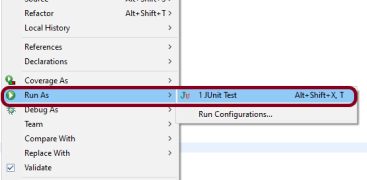
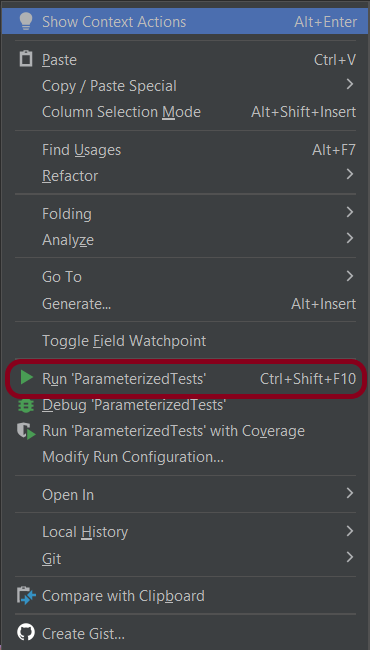
We can run the tests as JUnit tests. Right-click on the Runner class and select Run As Junit Test (Eclipse).

Step 8: Executing the tests through the command line

You can run the tests from the command line by using the below command:

mvn clean verify

By default, the tests will run using Firefox. You can run them in Chrome by overriding the driver system property, e.g.

$ mvn clean verify -Ddriver=chrome

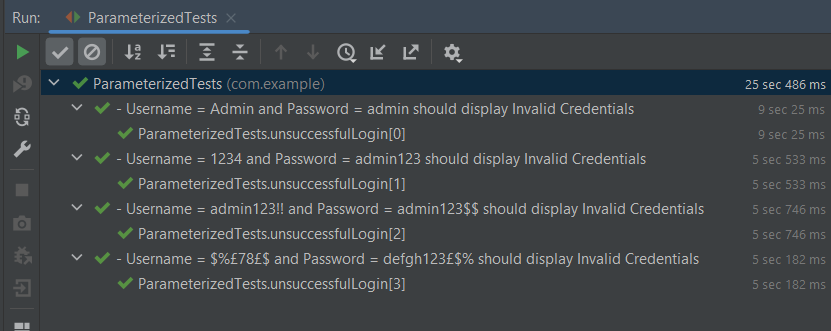
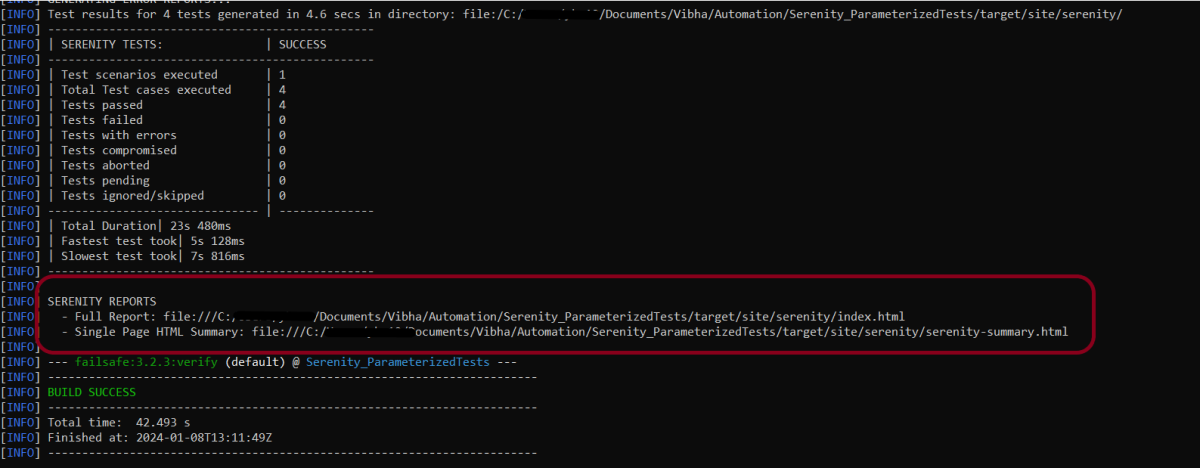
The test execution status looks like something this

Step 9: View the Serenity Reports

The test report generated by Serenity is placed under target/site/serenity.

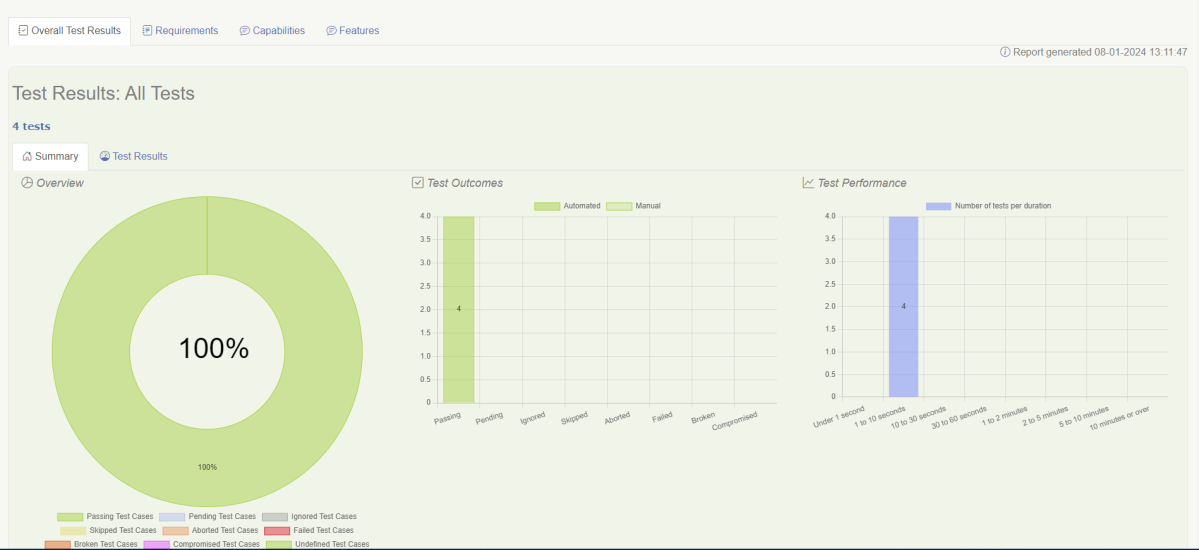
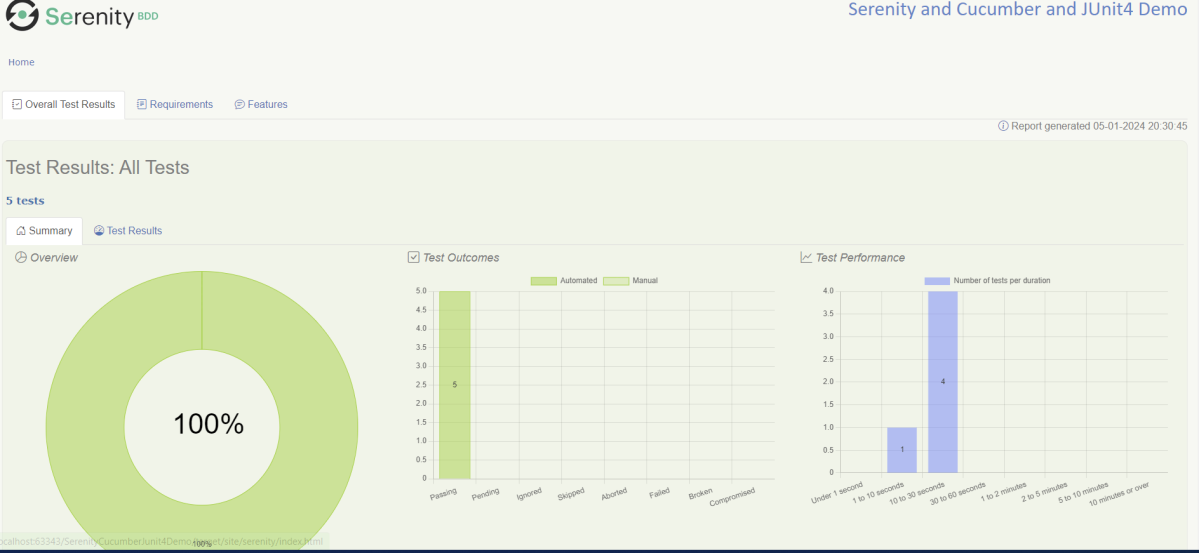
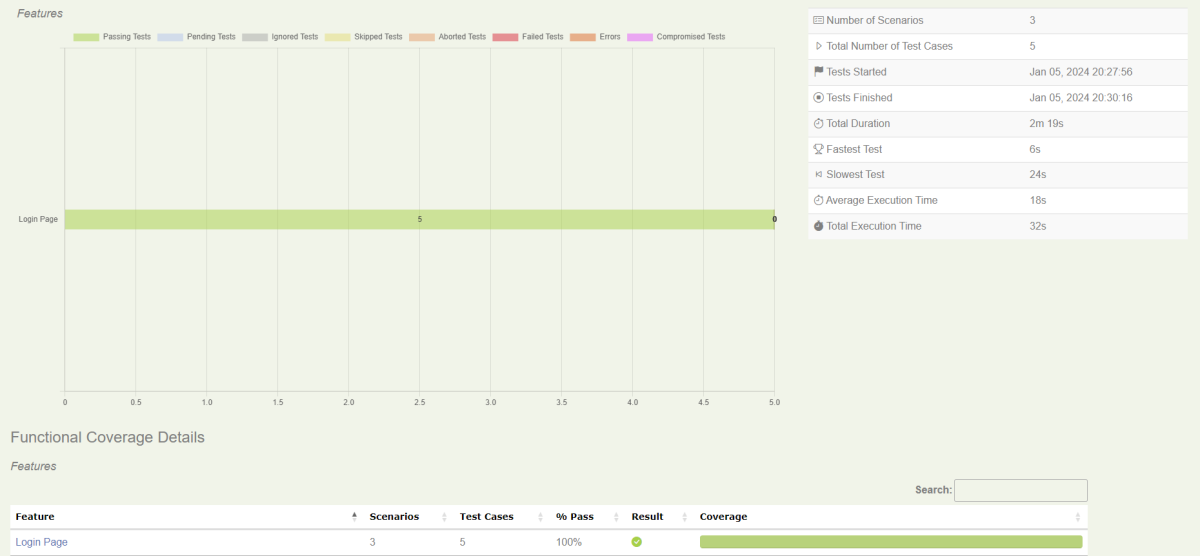
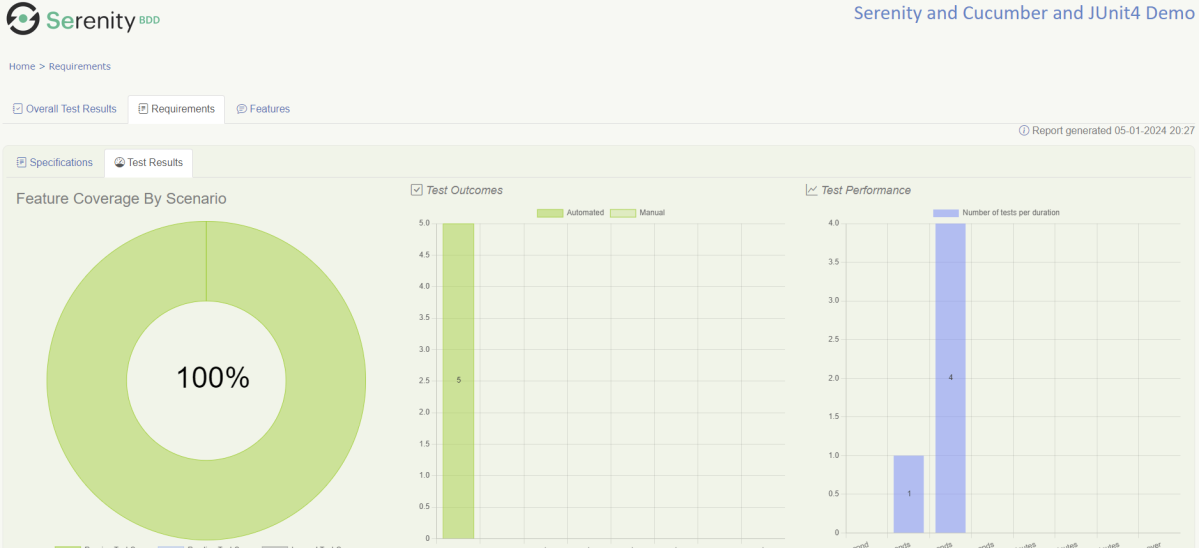
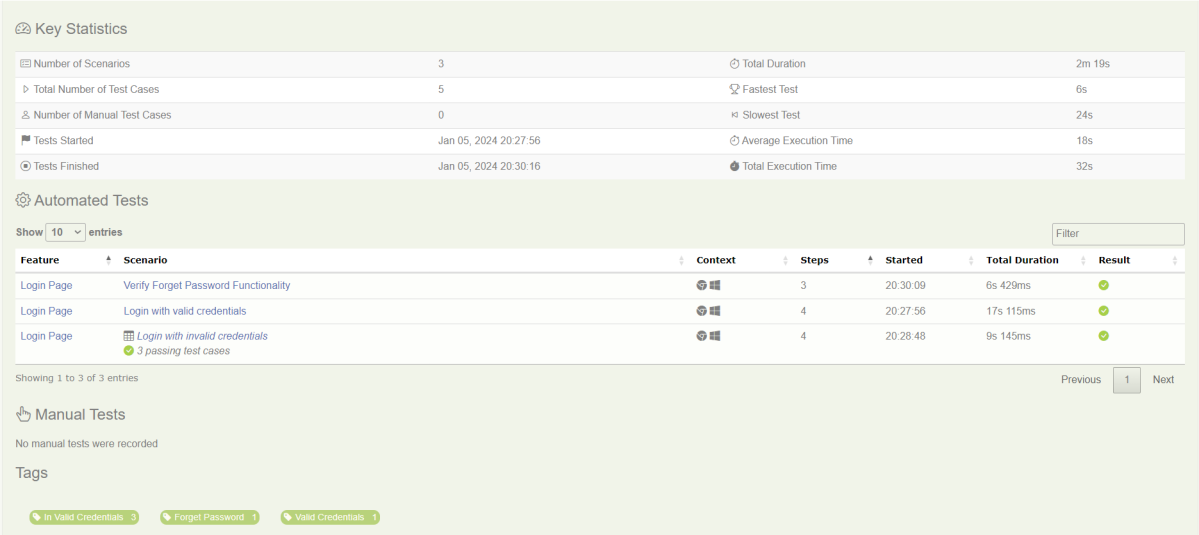
There are a lot of reports under the Serenity folder. But we are interested in 2 reports – index.html and serenity-summary.html.

Index.html

Serenity-Summary.html

Congratulations on making it through this tutorial and hope you found it useful! Happy Learning!! Cheers!!

Additional Tutorials:

Serenity BDD with Cucumber for SpringBoot Application
Serenity BDD with Cucumber and Rest Assured
Serenity Report for Web Application with Cucumber6 and Junit
Serenity Emailable HTML Report
Serenity BDD with Gradle and Cucumber for Web Application

How to host Extent Report on GitHub Pages with Github Actions

Last Updated On

HOME

This tutorial explains the steps to host Extent Reports on GitHub Pages with GitHub Actions.

Table of Contents

What is GitHub Action?

Important points

1. The Web Application tests need to run in the headless mode in GitHub Workflow.

          ChromeOptions options = new ChromeOptions();
          options.addArguments("--no-sandbox");
          options.addArguments("--disable-dev-shm-usage");
          options.addArguments("--headless");
	      driver = new ChromeDriver(options);

2. Use the below code to use gh-pages branch to host the Extent Report:

    - name: Deploy pages
      uses: JamesIves/github-pages-deploy-action@v4.5.0
      with:
        branch: gh-pages
        folder: ./ExtentReport/Reports

Implementation Steps

Step 1 – Create GitHub Actions and Workflows

I have a repository available in GitHub – ExtentReport_GitHubActions as shown in the below image. Go to the “Actions” tab.  Click on the “Actions” tab.

Step 2 – Select the type of Actions

You will see that GitHub recommends Actions depending on the project. In our case, it is recommending actions suitable for a Java project. I have selected the “Java with Maven” option as my project is built in Maven.

Step 3 – Generation of Sample pipeline

If you choose an existing option, it will automatically generate a .yaml for the project as shown below.

We will replace the current workflow with the following yml file that will generate the ExtentReport in the GitHub as shown below:

name: ExtentReport

on:
  push:
    branches: [ "main" ]
  pull_request:
    branches: [ "main" ]

jobs:
  build:

    runs-on: ubuntu-latest

    steps:
    - uses: actions/checkout@v3
    - name: Set up JDK 17
      uses: actions/setup-java@v3
      with:
        java-version: '17'
        distribution: 'temurin'
        cache: maven
    - name: Build with Maven
      run: mvn clean test

    - name: Deploy pages
      uses: JamesIves/github-pages-deploy-action@v4.5.0
      with:
        branch: gh-pages
        folder: ./ExtentReport/Reports

Step 4 – Commit the changes

After the changes, hit the “Start Commit” button.

This will give the option to add a description for the commit. It will also enable the user to commit either to the main branch or commit to any other branch that exists in the project. Click on the “Commit new file” button to set up the workflow file.

Step 5 – Verify that the workflow is running

Next, head over to the “Actions” tab, and you will see your YAML workflow file present under the tab. The yellow sign represents that the job is in the queue. The pipeline will fail. It is because gh-pages is not configured yet now.

Click on the workflow and the below screen is displayed. It shows the status of the run of the workflow, the total time taken to run the workflow, and the name of the .yml file.

Below are all the steps of the workflow.

https://vibssingh.github.io/ExtentReport_GitHubActions/

The complete code can be found here on GitHub - vibssingh/ExtentReport_GitHubActions.

Congratulations! We just created our CI workflow for running the ExtentReport in GitHub.

Run Cucumber Test from Maven Command Line

Last Updated on

HOME

To have a successful and effective implementation of a test framework, it is always advisable that the test framework supports test execution in multiple ways.
The most commonly used ways to execute tests in Cucumber Framework are by running the tests using JUnit and TestNG.

To execute tests using JUnit, we need to create a JUnit Test Runner. Whereas, we need a Maven project to execute Cucumber tests from Command-Line.

Create a Maven project and add the below-mentioned dependencies to your Maven project.

<project xmlns="http://maven.apache.org/POM/4.0.0" xmlns:xsi="http://www.w3.org/2001/XMLSchema-instance"
  xsi:schemaLocation="http://maven.apache.org/POM/4.0.0 http://maven.apache.org/xsd/maven-4.0.0.xsd">
  <modelVersion>4.0.0</modelVersion>

  <groupId>com.example</groupId>
  <artifactId>Cucumber_TestNG_Demo</artifactId>
  <version>1.0-SNAPSHOT</version>
  <packaging>jar</packaging>

  <name>Cucumber_TestNG_Demo</name>
  <url>http://maven.apache.org</url>

  <properties>
    <project.build.sourceEncoding>UTF-8</project.build.sourceEncoding>
    <cucumber.version>7.15.0</cucumber.version>
    <selenium.version>4.16.1</selenium.version>
    <testng.version>7.9.0</testng.version>
    <maven.compiler.plugin.version>3.12.1</maven.compiler.plugin.version>
    <maven.surefire.plugin.version>3.2.3</maven.surefire.plugin.version>
    <maven.compiler.source.version>17</maven.compiler.source.version>
    <maven.compiler.target.version>17</maven.compiler.target.version>
  </properties>

  <dependencies>

    <dependency>
      <groupId>io.cucumber</groupId>
      <artifactId>cucumber-java</artifactId>
      <version>${cucumber.version}</version>
    </dependency>

    <dependency>
      <groupId>io.cucumber</groupId>
      <artifactId>cucumber-testng</artifactId>
      <version>${cucumber.version}</version>
      <scope>test</scope>
    </dependency>

    <!-- Selenium -->
    <dependency>
      <groupId>org.seleniumhq.selenium</groupId>
      <artifactId>selenium-java</artifactId>
      <version>${selenium.version}</version>
    </dependency>

    <!-- TestNG -->
    <dependency>
      <groupId>org.testng</groupId>
      <artifactId>testng</artifactId>
      <version>${testng.version}</version>
      <scope>test</scope>
    </dependency>

  </dependencies>
  <build>
    <plugins>
      <plugin>
        <groupId>org.apache.maven.plugins</groupId>
        <artifactId>maven-compiler-plugin</artifactId>
        <version>${maven.compiler.plugin.version}</version>
        <configuration>
          <source>${maven.compiler.source.version}</source>
          <target>${maven.compiler.target.version}</target>
        </configuration>
      </plugin>
      <plugin>
        <groupId>org.apache.maven.plugins</groupId>
        <artifactId>maven-surefire-plugin</artifactId>
        <version>${maven.surefire.plugin.version}</version>
        <configuration>
          <suiteXmlFiles>
            <suiteXmlFile>testng.xml</suiteXmlFile>
          </suiteXmlFiles>
        </configuration>
      </plugin>
    </plugins>
  </build>

</project>

Feature: Login to HRM Application

  Background:
    Given User is on HRMLogin page "https://opensource-demo.orangehrmlive.com/"

  @ValidCredentials
  Scenario: Login with valid credentials

    When User enters username as "Admin" and password as "admin123"
    Then User should be able to login successfully

  @InvalidCredentials
  Scenario Outline: Login with invalid credentials

    When User enters username as "<username>" and password as "<password>"
    Then User should be able to see error message "<errorMessage>"

    Examples:
      | username   | password  | errorMessage                      |
      | Admin      | admin12$$ | Invalid credentials               |
      | admin$$    | admin123  | Invalid credentials               |
      | abc123     | xyz$$     | Invalid credentials               |

Feature: Login to Home

  Background:
    Given User is on HRMLogin page "https://opensource-demo.orangehrmlive.com/"

  @ValidCredentialsHome
  Scenario: Login with valid credentials to got to home page

    When User enters username as "Admin" and password as "admin123"
    Then User should be able to login successfully and new Home page opens

Run Test from Command Line

1. Open the command prompt and change the directory to the project location where pom.xml is present.

C:\Users\Documents\Vibha\Automation\Cucumber_Selenium_TestNG

2. All feature files should be in src/test/resources and create the Cucumber Runner class as CucumberRunnerTest.
Note:- The Runner class name should end with Test to execute the tests from Command Line
Run the following command in the command prompt:

mvn clean test

mvn clean test runs Cucumber Features using Cucumber’s JUnit Runner. The @RunWith (Cucumber.class) annotation on the TestRunner class tells JUnit to start Cucumber. Cucumber runs time parses the command-line options to know what feature to run, where the Glue Code lives, what plugins to use, and so on.

3. The below screenshot shows that CucumberRunnerTest class is triggered.

4. The below screenshot shows the build success output.

Cucumber provides several options that can be passed to on the command line.

2. Running Scenarios using Tags

If you are using Maven and want to run a subset of scenarios tagged with @ValidCredentials.

mvn clean test -Dcucumber.filter.tags="@ValidCredentials"

3. Running a Feature file

Suppose you want to run a single Feature File from the command line, then use the below syntax

mvn clean test -Dcucumber.features="src/test/resources/features/HomePage.feature"

4. Creating Cucumber Report from Command Line

If we want to generate a different report, then we can use the following command and see the HTML report generate at the location mentioned:

mvn clean test -Dcucumber.plugin="html:target/cucumber-reports/cucumberReport.html"

5. Passing multiple Parameters

If we want to pass more than one parameter, then we can use the following command

mvn clean test -Dcucumber.features="src/test/resources/features/LoginPage.feature" -Dcucumber.filter.tags="@ValidCredentials"

6. Running a Scenario without a tag

If we want to run a single Scenario from the command line and no tag is assigned to that scenario, this is how we specify

mvn clean test -Dcucumber.features="src/test/resources/features/LoginPage.feature:7"

That’s it! Congratulations on making it through this tutorial and hope you found it useful! Happy Learning!!

In the next tutorial, I explained to run Cucumber Gradle tests from Command Line.

How to run Robot Framework in GitHub Actions

Last Updated On

HOME

This tutorial explains the steps to create a GitHub Action for the Robot Framework in Python and execute the tests in that workflow.

Table of Contents

Why GitHub?

GitHub serves as a collaborative platform that supports version control, code collaboration, automated testing, and issue tracking, all of which are crucial elements in the software testing process. It promotes transparency, collaboration, and efficiency in the development and testing workflows.

CI/CD pipelines have contributed to the success of the DevOps cycle in all software development projects. This is a holistic process that bridges development and operations. Continuous integration helps development teams deploy code efficiently, and continuous delivery automates code deployment.

Implementation Steps

Step 1 – Create GitHub Actions and Workflows

I have a repository available in GitHub – RobotFramework_POM as shown in the below image. Go to the “Actions” tab.  Click on the “Actions” tab.

Step 2 – Select the type of Actions

You will see that GitHub recommends Actions depending on the project. In our case, it is recommending actions suitable for a Java project. I have selected the “Python application” option as my project is built in Maven.

Step 3 – Generation of Sample pipeline

If you choose an existing option, it will automatically generate a .yaml for the project as shown below.

We will replace the current workflow with the following yml file as shown below:

name: Robot Framework - Python
on:
  push:
    branches: [ "main" ]
  pull_request:
    branches: [ "main" ]

permissions:
  contents: read

jobs:
  test:
    runs-on: ubuntu-latest
    
    steps:
      - uses: actions/checkout@v3
      - name: Set up Python 3.12.1
        uses: actions/setup-python@v3
        with:
          python-version: 3.12.1
  
      - name: Install dependencies
        run: |
          python -m pip install --upgrade pip
          pip install robotframework
          pip install robotframework-seleniumlibrary
  
      - name: Test with RobotFramework
        run: robot .  
        
      - name: Test Report Generation
        uses: actions/upload-artifact@v4
        if: success() || failure()
        with:
          name: Report                # Name of the folder
          path: report.html           # Path to test results

python -m pip install --upgrade pip

pip install robotframework
pip install robotframework-seleniumlibrary

Step 4 – Commit the changes

After the changes, hit the “Start Commit” button.

This will give the option to add a description for the commit. It will also enable the user to commit either to the main branch or commit to any other branch that exists in the project. Click on the “Commit new file” button to set up the workflow file.

Step 5 – Verify that the workflow is running

Next, head over to the “Actions” tab, and you will see your YAML workflow file present under the tab. The yellow sign represents that the job is in the queue.

In Progress – When the job starts building and running, you will see the status change from “Queued” to “In progress”.

Passed – If the build is successful, you will see a green tick mark. 

Click on the workflow and the below screen is displayed. It shows the status of the run of the workflow, the total time taken to run the workflow, and the name of the .yml file.

Below shows all the steps of the workflow.

The complete code can be found here on GitHub – vibssingh/RobotFramework_POM.

Congratulations! We just created our CI workflow for running our Python Robot Framework.

GIT Tutorials

HOME

Git is a Distributed Version Control System (VCS) which is originally developed in 2005 by Linus Torvalds (Creator of Linux) and is open source, i.e. freely available to use. It is the most popular and most used version control tool right now. A staggering number of software projects rely on Git for version control, including commercial projects as well as open source. 

Chapter 1 How to install Git on Windows 10
Chapter 2 How to create a new Git Repository – git init Command
Chapter 3 How to clone a Git Repository – git clone – NEW
Chapter 4 How to stage changes in Git – git add Command
Chapter 5 How to unstage the changes in Git – git rm command
Chapter 6 How to commit changes in GIT – git commit command
Chapter 7 How to track commits in Git – git log command
Chapter 8 How to commit an empty folder in GIT – gitkeep
Chapter 9 How to ignore files in GIT – gitignore
Chapter 10 How to create a branch in GIT
Chapter 11 How to stash changes in GIT – git stash command
Chapter 12 How to push new local GIT Repository to GitLab
Chapter 13 How to change a remote repository’s URL using git?
Chapter 14 Git Cheat Sheet – NEW

How to change a remote repository’s URL using git?

HOME

git remote -v

git remote set-url origin https://github.com/vibssingh/Serenity_Cucumber_JUnit5.git

How to run Rest API tests with GitHub Actions

Last Updated On

HOME

This tutorial explains the steps to create a GitHub Action for the Java Rest API tests and execute the tests in that workflow.

Table of Contents

Why GitHub?

GitHub serves as a collaborative platform that supports version control, code collaboration, automated testing, and issue tracking, all of which are crucial elements in the software testing process. It promotes transparency, collaboration, and efficiency in the development and testing workflows.

CI/CD pipelines have contributed to the success of the DevOps cycle in all software development projects. This is a holistic process that bridges development and operations. Continuous integration helps development teams deploy code efficiently, and continuous delivery automates code deployment.

Implementation Steps

Step 1 – Create GitHub Actions and Workflows

I have a repository available in GitHub – RestAssured_TestNG_Demo as shown in the below image. Go to the “Actions” tab.  Click on the “Actions” tab.

Step 2 – Select the type of Actions

You will see that GitHub recommends Actions depending on the project. In our case, it is recommending actions suitable for a Java project. I have selected the “Java with Maven” option as my project is built in Maven.

Step 3 – Generation of Sample pipeline

If you choose an existing option, it will automatically generate a .yaml for the project as shown below.

We will replace the current workflow with the following yml file as shown below:

name: Rest API Tests using Rest Assured with TestNG
 
on:
  push:
    branches: [ "main" ]
  pull_request:
    branches: [ "main" ]
 
jobs:
  build:
 
    runs-on: ubuntu-latest
 
    steps:
    - uses: actions/checkout@v4
    - name: Set up JDK 17
      uses: actions/setup-java@v4
      with:
        java-version: '17'
        distribution: 'temurin'
        cache: maven
     
    - name: Test Execution
      run: mvn clean test
       
    - name: Test Report Generation
      uses: actions/upload-artifact@v4
      if: success() || failure()
      with:
          name: TestNG Report                 # Name of the folder
          path: target/surefire-reports/      # Path to test results

Step 4 – Commit the changes

After the changes, hit the “Start Commit” button.

This will give the option to add a description for the commit. It will also enable the user to commit either to the main branch or commit to any other branch that exists in the project. Click on the “Commit new file” button to set up the workflow file.

Step 5 – Verify that the workflow is running

Next, head over to the “Actions” tab, and you will see your YAML workflow file present under the tab. The yellow sign represents that the job is in the queue.

In Progress – When the job starts building and running, you will see the status change from “Queued” to “in progress”.

Passed – If the build is successful, you will see a green tick mark. 

Click on the workflow and the below screen is displayed. It shows the status of the run of the workflow, the total time taken to run the workflow, and the name of the .yml file.

Below shows all the steps of the workflow.

The complete code can be found here on GitHub – vibssingh/RestAssured_TestNG_Demo.

Congratulations! We just created our CI workflow for running our Rest API test cases.