Allure Report with Cucumber, Selenium and TestNG

Last Updated On

HOME

In the previous tutorial, I explained the Integration of the Allure Report with Selenium and TestNG. In this tutorial, I will explain how to Integrate Allure Report with Cucumber, Selenium, and TestNG.

The below example covers the implementation of Allure Reports with Cucumber, Selenium, TestNG, Java, and Maven. Before starting, make sure to install Allure on your machine. Refer to this tutorial to install allure – What is Allure Report?.

Table of Contents

  1. Prerequisite
  2. Dependency List
  3. Implementation Steps
    1. Update the Properties section in Maven pom.xml
    2. Add Cucumber5, Selenium, TestNG, Allure-Cucumber5, and Allure-TestNG dependencies
    3. Update the Build Section of pom.xml in the Allure Report Project
    4. Create a Feature file
    5. Create the Step Definition class or Glue Code
    6. Create a TestNG Cucumber Runner class
    7. Create testng.xml for the project
    8. Run the Test and Generate Allure Report
  4. Allure Report Dashboard
    1. Categories in Allure Report
    2. Suites in Allure Report
    3. Graphs in Allure Report
    4. Timeline in Allure Report
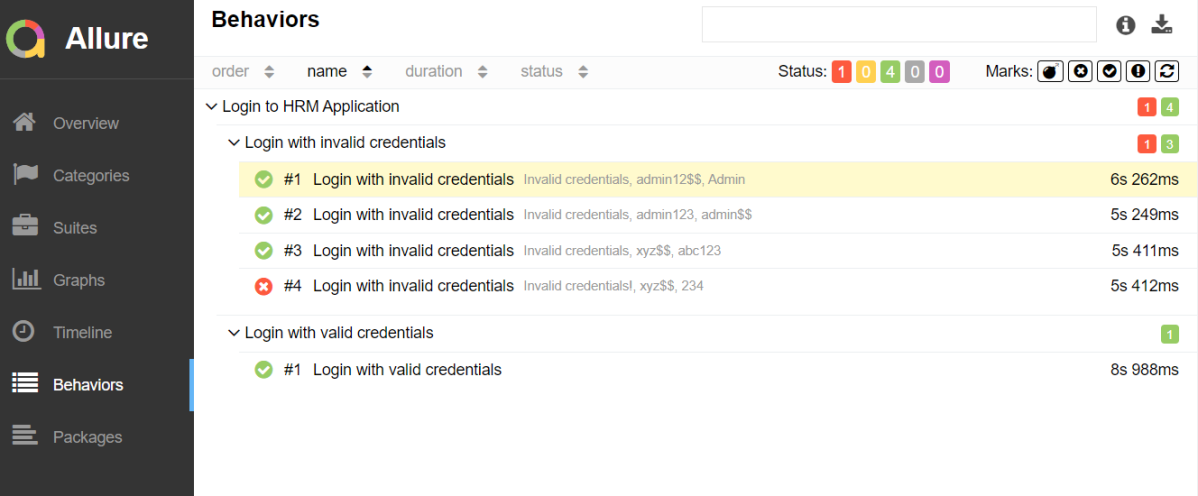
    5. Behaviours of Allure Report
    6. Packages in Allure Report

Prerequisite

  1. Java 17 installed
  2. Maven installed
  3. Eclipse or IntelliJ installed
  4. Allure installed

Dependency List

  1. Selenium – 4.16.1
  2. Java 17
  3. Cucumber – 7.15.0
  4. Maven – 3.9.6
  5. Allure Report – 2.25.0
  6. Allure Maven – 2.12.0
  7. Aspectj – 1.9.21
  8. Maven Compiler Plugin – 3.12.1
  9. Maven Surefire Plugin – 3.2.3

Implementation Steps

Step 1 – Update the Properties section in Maven pom.xml

<properties>
    <project.build.sourceEncoding>UTF-8</project.build.sourceEncoding>
    <cucumber.version>7.15.0</cucumber.version>
    <selenium.version>4.16.1</selenium.version>
    <testng.version>7.9.0</testng.version>
    <maven.compiler.plugin.version>3.12.1</maven.compiler.plugin.version>
    <maven.surefire.plugin.version>3.2.3</maven.surefire.plugin.version>
    <maven.compiler.source.version>17</maven.compiler.source.version>
    <maven.compiler.target.version>17</maven.compiler.target.version>
    <allure.junit4.version>2.25.0</allure.junit4.version>
    <aspectj.version>1.9.21</aspectj.version>
    <allure.version>2.25.0</allure.version>
    <allure.maven>2.12.0</allure.maven>
</properties>

Step 2 – Add dependencies to pom.xml

Add Cucumber, Selenium, TestNG, Allure-Cucumber, and Allure-TestNG dependencies to pom.xml (Maven Project).

<dependencyManagement>
    <dependencies>
      <dependency>
        <groupId>io.qameta.allure</groupId>
        <artifactId>allure-bom</artifactId>
        <version>${allure.version}</version>
        <type>pom</type>
        <scope>import</scope>
      </dependency>
    </dependencies>
  </dependencyManagement>


  <dependencies>

    <dependency>
      <groupId>io.cucumber</groupId>
      <artifactId>cucumber-java</artifactId>
      <version>${cucumber.version}</version>
    </dependency>

    <dependency>
      <groupId>io.cucumber</groupId>
      <artifactId>cucumber-testng</artifactId>
      <version>${cucumber.version}</version>
      <scope>test</scope>
    </dependency>

    <!-- Selenium -->
    <dependency>
      <groupId>org.seleniumhq.selenium</groupId>
      <artifactId>selenium-java</artifactId>
      <version>${selenium.version}</version>
    </dependency>

    <!-- TestNG -->
    <dependency>
      <groupId>org.testng</groupId>
      <artifactId>testng</artifactId>
      <version>${testng.version}</version>
      <scope>test</scope>
    </dependency>

    <!--Allure Cucumber Dependency-->
    <dependency>
      <groupId>io.qameta.allure</groupId>
      <artifactId>allure-cucumber7-jvm</artifactId>
      <scope>test</scope>
    </dependency>

    <!--Allure Reporting Dependency-->
    <dependency>
      <groupId>io.qameta.allure</groupId>
      <artifactId>allure-testng</artifactId>
      <scope>test</scope>
    </dependency>

  </dependencies>

Step 3 – Update the Build Section of pom.xml in the Allure Report Project

<build>
    <plugins>
      <plugin>
        <groupId>org.apache.maven.plugins</groupId>
        <artifactId>maven-compiler-plugin</artifactId>
        <version>${maven.compiler.plugin.version}</version>
        <configuration>
          <source>${maven.compiler.source.version}</source>
          <target>${maven.compiler.target.version}</target>
        </configuration>
      </plugin>
      <plugin>
        <groupId>org.apache.maven.plugins</groupId>
        <artifactId>maven-surefire-plugin</artifactId>
        <version>${maven.surefire.plugin.version}</version>
        <configuration>
          <suiteXmlFiles>
            <suiteXmlFile>testng.xml</suiteXmlFile>
          </suiteXmlFiles>
          <argLine>
            -javaagent:"${settings.localRepository}/org/aspectj/aspectjweaver/${aspectj.version}/aspectjweaver-${aspectj.version}.jar"
          </argLine>
        </configuration>
        <dependencies>
          <dependency>
            <groupId>org.aspectj</groupId>
            <artifactId>aspectjweaver</artifactId>
            <version>${aspectj.version}</version>
            <scope>runtime</scope>
          </dependency>
        </dependencies>
      </plugin>
      <plugin>
        <groupId>io.qameta.allure</groupId>
        <artifactId>allure-maven</artifactId>
        <version>${allure.maven}</version>
        <configuration>
          <reportVersion>${allure.maven}</reportVersion>
        </configuration>
      </plugin>
    </plugins>
  </build>

<project xmlns="http://maven.apache.org/POM/4.0.0" xmlns:xsi="http://www.w3.org/2001/XMLSchema-instance"
  xsi:schemaLocation="http://maven.apache.org/POM/4.0.0 http://maven.apache.org/xsd/maven-4.0.0.xsd">
  <modelVersion>4.0.0</modelVersion>

  <groupId>com.example</groupId>
  <artifactId>AllureReport_Cucumber_TestNG</artifactId>
  <version>1.0-SNAPSHOT</version>
  <packaging>jar</packaging>

  <name>AllureReport_Cucumber_TestNG</name>
  <url>http://maven.apache.org</url>

  <properties>
    <project.build.sourceEncoding>UTF-8</project.build.sourceEncoding>
    <cucumber.version>7.15.0</cucumber.version>
    <selenium.version>4.16.1</selenium.version>
    <testng.version>7.9.0</testng.version>
    <maven.compiler.plugin.version>3.12.1</maven.compiler.plugin.version>
    <maven.surefire.plugin.version>3.2.3</maven.surefire.plugin.version>
    <maven.compiler.source.version>17</maven.compiler.source.version>
    <maven.compiler.target.version>17</maven.compiler.target.version>
    <allure.junit4.version>2.25.0</allure.junit4.version>
    <aspectj.version>1.9.21</aspectj.version>
    <allure.version>2.25.0</allure.version>
    <allure.maven>2.12.0</allure.maven>
  </properties>

  <!-- Add allure-bom to dependency management to ensure correct versions of all the dependencies are used -->
  <dependencyManagement>
    <dependencies>
      <dependency>
        <groupId>io.qameta.allure</groupId>
        <artifactId>allure-bom</artifactId>
        <version>${allure.version}</version>
        <type>pom</type>
        <scope>import</scope>
      </dependency>
    </dependencies>
  </dependencyManagement>

  <dependencies>

    <dependency>
      <groupId>io.cucumber</groupId>
      <artifactId>cucumber-java</artifactId>
      <version>${cucumber.version}</version>
    </dependency>

    <dependency>
      <groupId>io.cucumber</groupId>
      <artifactId>cucumber-testng</artifactId>
      <version>${cucumber.version}</version>
      <scope>test</scope>
    </dependency>

    <!-- Selenium -->
    <dependency>
      <groupId>org.seleniumhq.selenium</groupId>
      <artifactId>selenium-java</artifactId>
      <version>${selenium.version}</version>
    </dependency>

    <!-- TestNG -->
    <dependency>
      <groupId>org.testng</groupId>
      <artifactId>testng</artifactId>
      <version>${testng.version}</version>
      <scope>test</scope>
    </dependency>

    <!--Allure Cucumber Dependency-->
    <dependency>
      <groupId>io.qameta.allure</groupId>
      <artifactId>allure-cucumber7-jvm</artifactId>
      <scope>test</scope>
    </dependency>

    <!--Allure Reporting Dependency-->
    <dependency>
      <groupId>io.qameta.allure</groupId>
      <artifactId>allure-testng</artifactId>
      <scope>test</scope>
    </dependency>

  </dependencies>

  <build>
    <plugins>
      <plugin>
        <groupId>org.apache.maven.plugins</groupId>
        <artifactId>maven-compiler-plugin</artifactId>
        <version>${maven.compiler.plugin.version}</version>
        <configuration>
          <source>${maven.compiler.source.version}</source>
          <target>${maven.compiler.target.version}</target>
        </configuration>
      </plugin>
      <plugin>
        <groupId>org.apache.maven.plugins</groupId>
        <artifactId>maven-surefire-plugin</artifactId>
        <version>${maven.surefire.plugin.version}</version>
        <configuration>
          <suiteXmlFiles>
            <suiteXmlFile>testng.xml</suiteXmlFile>
          </suiteXmlFiles>
          <argLine>
            -javaagent:"${settings.localRepository}/org/aspectj/aspectjweaver/${aspectj.version}/aspectjweaver-${aspectj.version}.jar"
          </argLine>
        </configuration>
        <dependencies>
          <dependency>
            <groupId>org.aspectj</groupId>
            <artifactId>aspectjweaver</artifactId>
            <version>${aspectj.version}</version>
            <scope>runtime</scope>
          </dependency>
        </dependencies>
      </plugin>
      <plugin>
        <groupId>io.qameta.allure</groupId>
        <artifactId>allure-maven</artifactId>
        <version>${allure.maven}</version>
        <configuration>
          <reportVersion>${allure.maven}</reportVersion>
        </configuration>
      </plugin>
    </plugins>
  </build>
</project>

Step 4 – Create a Feature file

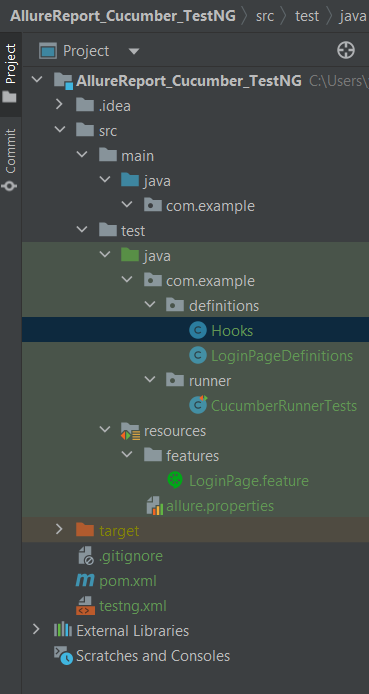
Create a folder – features within src/test/resources to create test scenarios in the Feature file.
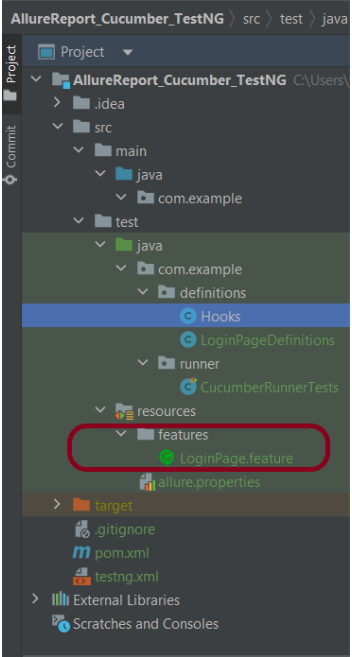
Feature file should be saved as an extension of .feature. Add the test scenarios in this feature file. I have added sample test scenarios. In this feature file. The test scenarios are written in Gherkins language.

Feature: Login to HRM Application

  Background:
    Given User is on HRMLogin page "https://opensource-demo.orangehrmlive.com/"

  @ValidCredentials
  Scenario: Login with valid credentials

    When User enters username as "Admin" and password as "admin123"
    Then User should be able to login successfully and new page open

  @InvalidCredentials
  Scenario Outline: Login with invalid credentials

    When User enters username as "<username>" and password as "<password>"
    Then User should be able to see error message "<errorMessage>"

    Examples:
      | username   | password  | errorMessage                      |
      | Admin      | admin12$$ | Invalid credentials               |
      | admin$$    | admin123  | Invalid credentials               |
      | abc123     | xyz$$     | Invalid credentials               |
      | 234        | xyz$$     | Invalid credentials!              |

Step 5 – Create the Step Definition class or Glue Code

Below is the code for the Hooks.

package com.example.definitions;

import io.cucumber.java.After;
import io.cucumber.java.Before;
import io.cucumber.java.Scenario;
import org.openqa.selenium.OutputType;
import org.openqa.selenium.TakesScreenshot;
import org.openqa.selenium.WebDriver;
import org.openqa.selenium.chrome.ChromeDriver;
import org.openqa.selenium.chrome.ChromeOptions;

import java.time.Duration;

public class Hooks {
    protected static WebDriver driver;
    public final static int TIMEOUT = 5;

    @Before
    public void setUp() {

        ChromeOptions options = new ChromeOptions();
        options.addArguments("--start-maximized");
        driver = new ChromeDriver(options);
        driver.manage().timeouts().implicitlyWait(Duration.ofSeconds(TIMEOUT));

    }

    @After
    public void tearDown(Scenario scenario) {
        try {
            String screenshotName = scenario.getName();
            if (scenario.isFailed()) {
                TakesScreenshot ts = (TakesScreenshot) driver;
                byte[] screenshot = ts.getScreenshotAs(OutputType.BYTES);
                scenario.attach(screenshot, "img/png", screenshotName);
            }
        } catch (Exception e) {
            e.printStackTrace();
        }
        driver.quit();
    }

}

LoginPageDefinition

package com.example.definitions;


import io.cucumber.java.en.Given;
import io.cucumber.java.en.Then;
import io.cucumber.java.en.When;

import org.openqa.selenium.By;
import org.testng.Assert;

public class LoginPageDefinitions {

   Hooks hooks;


    @Given("User is on HRMLogin page {string}")
    public void loginTest(String url) {

        hooks.driver.get(url);

    }

    @When("User enters username as {string} and password as {string}")
    public void goToHomePage(String userName, String passWord) {

        // login to application
        hooks.driver.findElement(By.name("username")).sendKeys(userName);
        hooks.driver.findElement(By.name("password")).sendKeys(passWord);
        hooks.driver.findElement(By.xpath("//*[@class='oxd-form']/div[3]/button")).submit();

        // go the next page
    }

    @Then("User should be able to login successfully and new page open")
    public void verifyLogin() {

        String homePageHeading = hooks.driver.findElement(By.xpath("//*[@class='oxd-topbar-header-breadcrumb']/h6")).getText();

        //Verify new page - HomePage
        Assert.assertEquals(homePageHeading,"Dashboard");

    }

    @Then("User should be able to see error message {string}")
    public void verifyErrorMessage(String expectedErrorMessage) {

        String actualErrorMessage = hooks.driver.findElement(By.xpath("//*[@class='orangehrm-login-error']/div[1]/div[1]/p")).getText();

        // Verify Error Message
        Assert.assertEquals(actualErrorMessage, expectedErrorMessage);

    }

}

Step 6 – Create a TestNG Cucumber Runner class

We need to create a class called Runner class to run the tests. This class will use the TestNG annotation @Test, which tells TestNG what is the test runner class.

package com.example.runner;

import org.testng.annotations.Test;
import io.cucumber.testng.AbstractTestNGCucumberTests;
import io.cucumber.testng.CucumberOptions;


@Test
@CucumberOptions(tags = "", features = {"src/test/resources/features"}, glue = {"com.example.definitions"},
        plugin = {"pretty","io.qameta.allure.cucumber7jvm.AllureCucumber7Jvm"})

public class CucumberRunnerTests extends AbstractTestNGCucumberTests{

}

Note:- @Test annotation marks this class as part of the test. So, if we will remove this annotation, the Allure Report executes CucumberRunnerTests as a separate test suite, so there will be duplicate results.

Step 7 – Create testng.xml for the project

<?xml version = "1.0"encoding = "UTF-8"?>
<!DOCTYPE suite SYSTEM "http://testng.org/testng-1.0.dtd">
<suite name = "Suite1">
    <test name = "Test Demo">
        <classes>
            <class name = "com.example.runner.CucumberRunnerTests"/>
        </classes>
    </test>
</suite>

Step 8 – Run the Test and Generate Allure Report

To run the tests, use the below command

mvn clean test

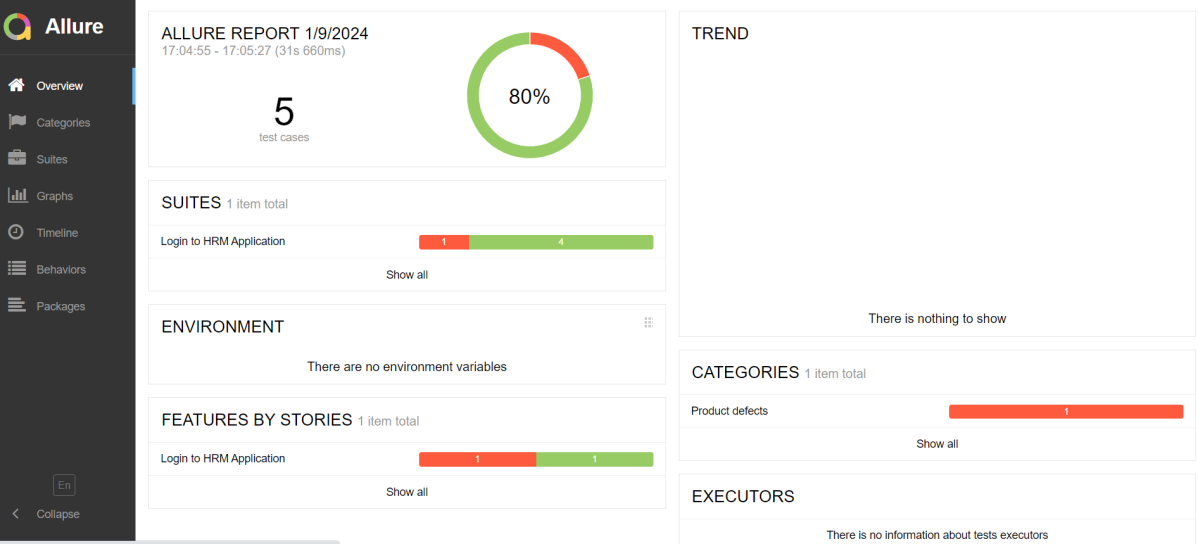
In the below image, we can see that one test failed and four passed out of five tests.
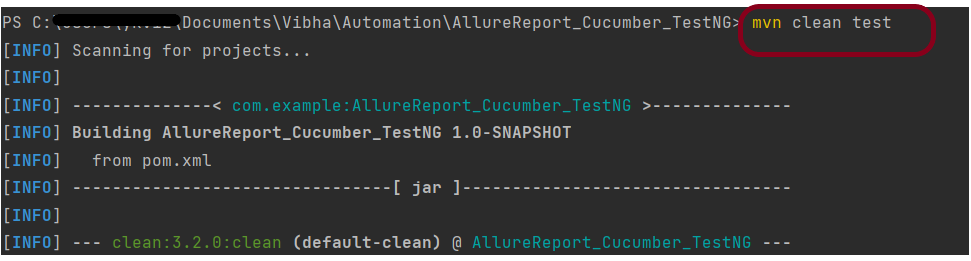
This will create the allure-results folder with all the test reports within target folder. These files will be used to generate Allure Report.

Use the below command to generate the Allure Report

allure serve

This will generate the beautiful Allure Test Report as shown below.

Allure Report Dashboard

Categories in Allure Report

The categories tab gives you a way to create custom defect classifications to apply for test results. There are two categories of defects – Product Defects (failed tests) and Test Defects (broken tests).

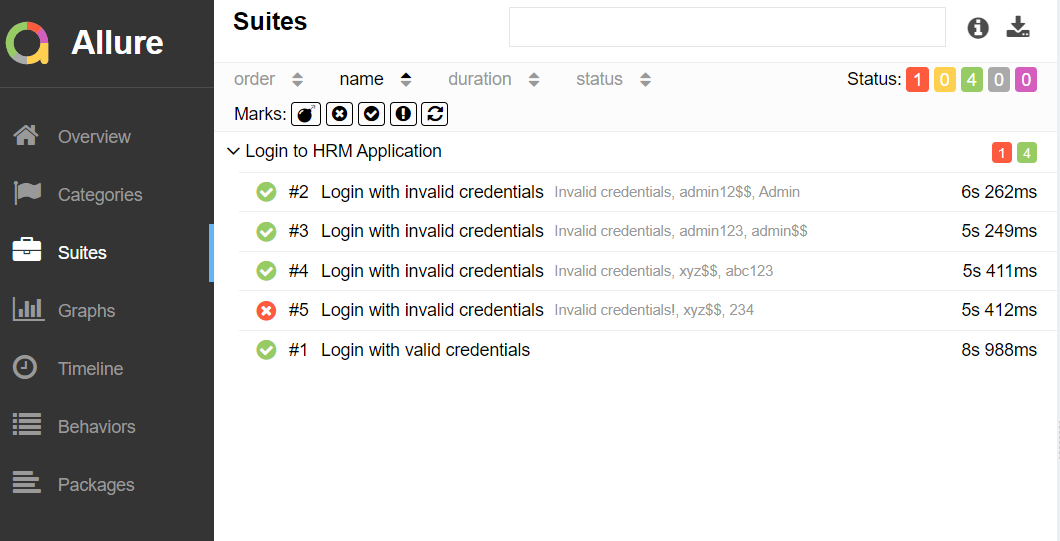
Suites in Allure Report

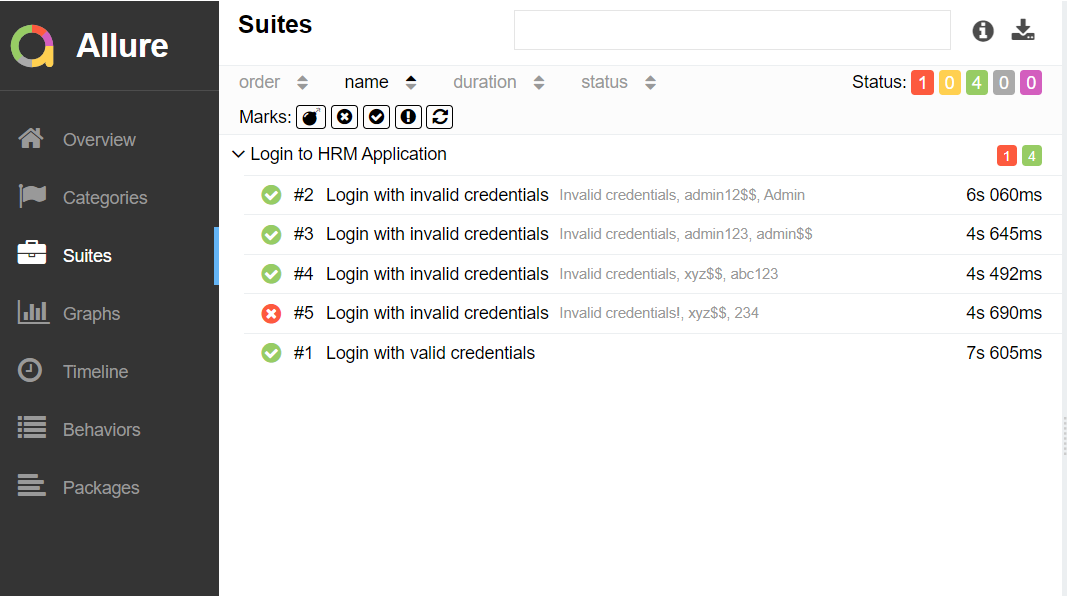
On the Suites tab a standard structural representation of executed tests, grouped by suites and classes can be found. Here, we have 2 suits – Feature and Surefire test. Surefire tests are executed from CucumberRunnerTests.
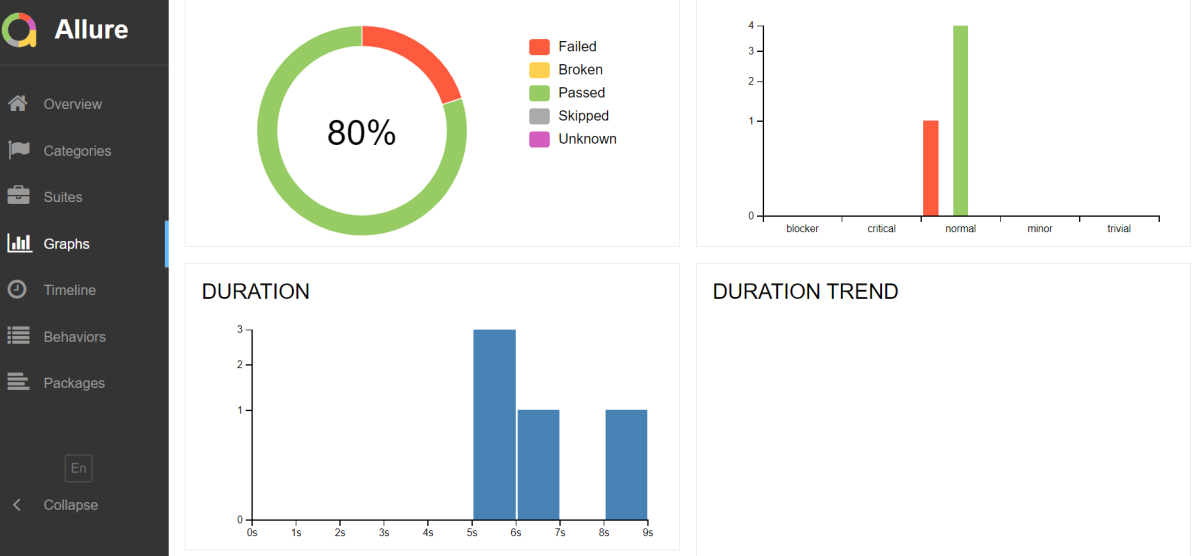
Graphs in Allure Report

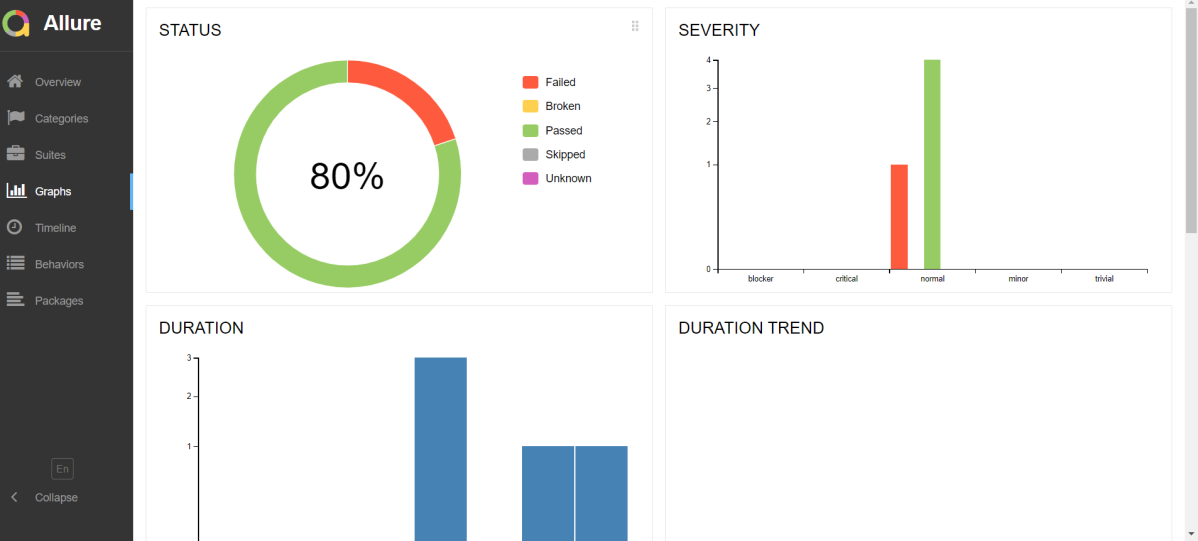
Graphs allow you to see different statistics collected from the test data: status breakdown or severity and duration diagrams.
Timeline in Allure Report

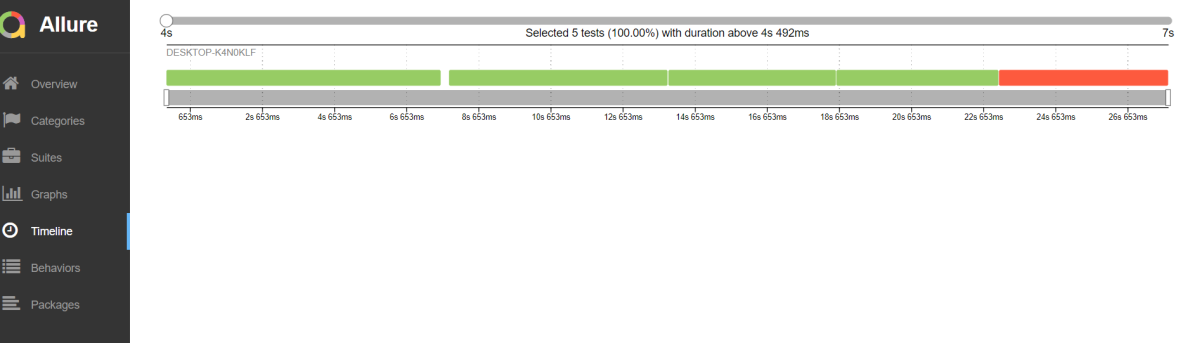
The timeline tab visualizes retrospective test execution, allure adaptors collect precise timings of tests, and here on this tab, they are arranged accordingly to their sequential or parallel timing structure.
Behaviours of Allure Report

This tab groups test results according to Epic, Feature, and Story tags.

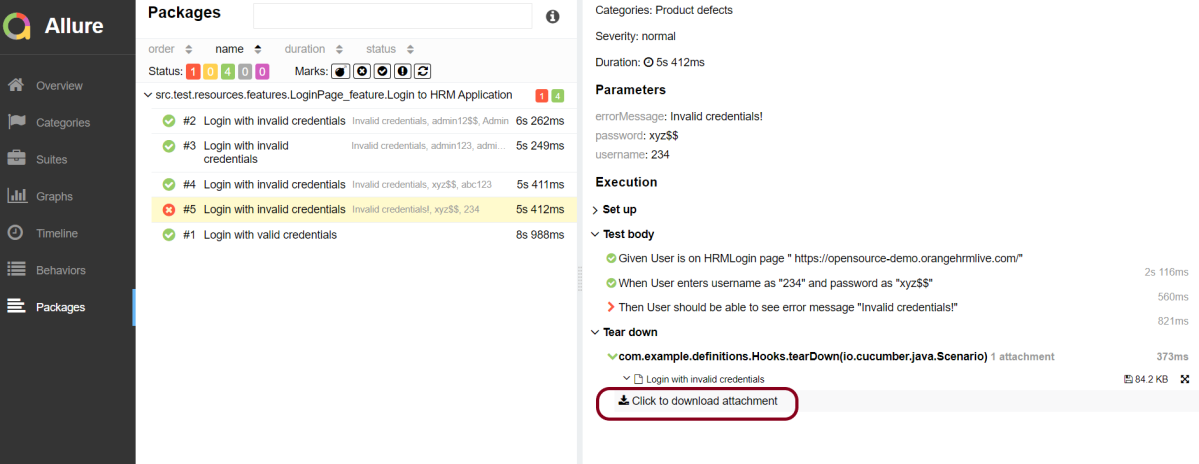
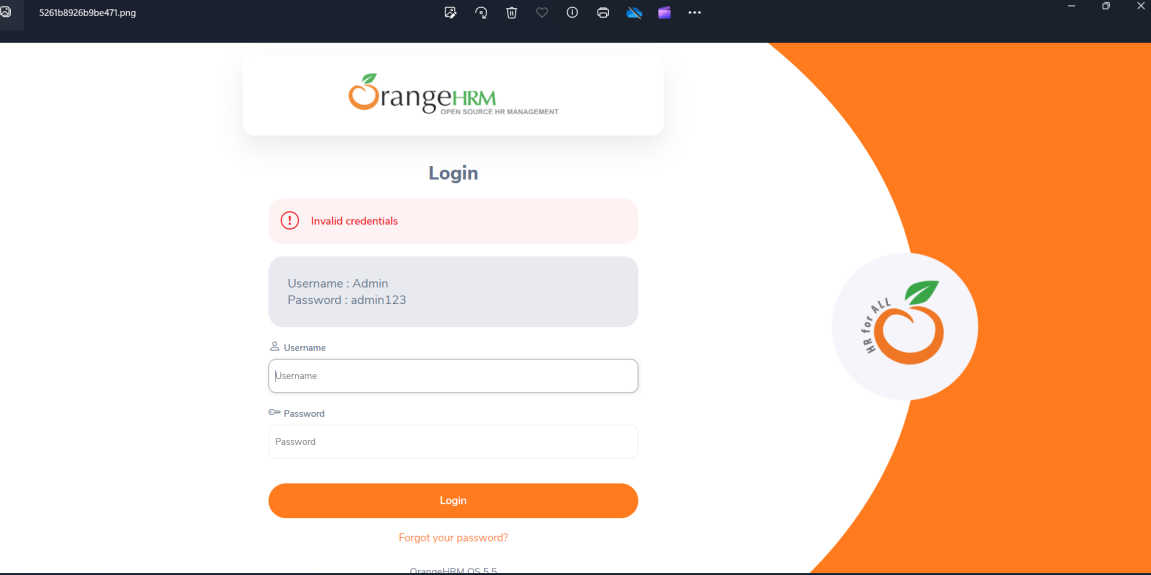
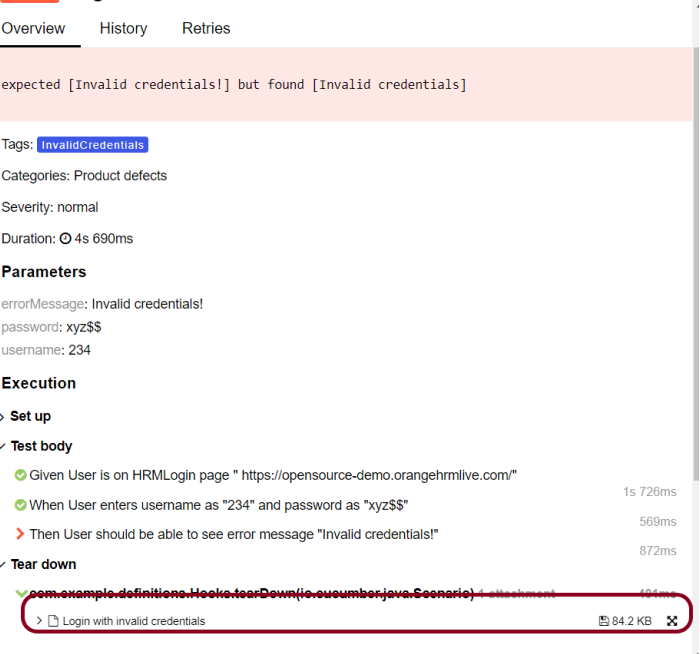
Screenshot attached to the failed test case
Packages in Allure Report

The packages tab represents a tree-like layout of test results, grouped by different packages.
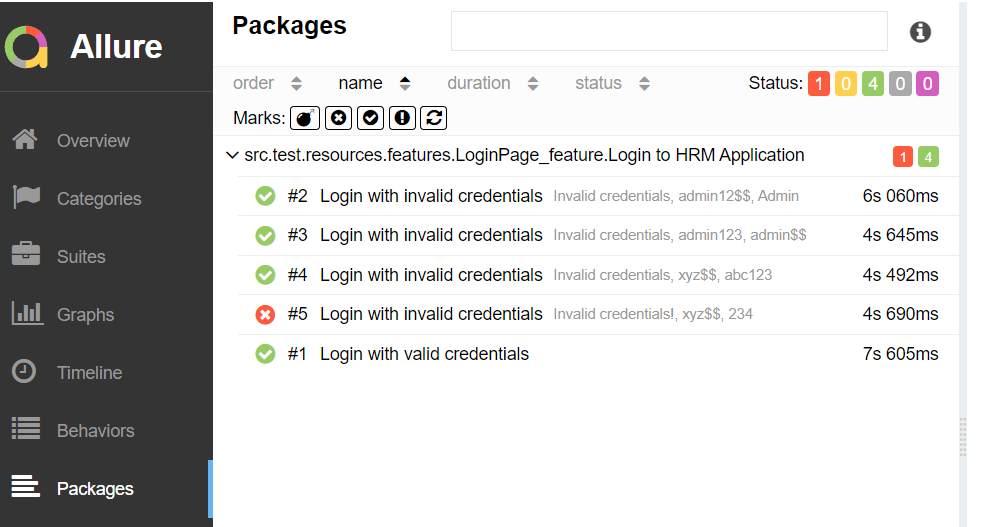
When we don’t use @Test in CucumberRunnerTests.java, then as mentioned above the Allure report will have duplicate details.

Congratulations!! We have integrated an allure report with Cucumber, Selenium, and TestNG. I hope this tutorial is useful to you.

Additional Tutorials on Allure Reports

Integration of Allure Report with Selenium and JUnit4
Integration of Allure Report with Selenium and TestNG
Gradle – Allure Report for Selenium and JUnit4
Gradle – Allure Report for Cucumber, Selenium and TestNG
Integration of Allure Report with Rest Assured and JUnit4

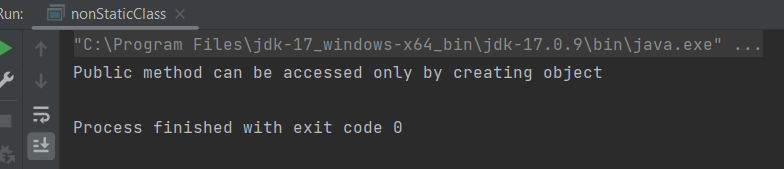
Difference between Static Method and Non-Static Method

HOME

package com.example.definitions;

public class staticMyClass {

    static void MyStatic_Method() { // Static Method
        System.out.println("Static method can be accessed without creating object");
    }

    public void MyPublic_Method() { // Public Method
        System.out.println("Public  method can be accessed only by creating object");
    }

    public static void main(String[] args) {
        MyStatic_Method(); // Calling Static Method

    }
}


public class nonStaticClass {

    static void MyStatic_Method() { // Static Method
        System.out.println("Static method can be accessed without creating object");
    }

    public void MyPublic_Method() { // Public Method
        System.out.println("Public method can be accessed only by creating object");
    }

    public static void main(String[] args) {

        nonStaticClass stat = new nonStaticClass();
        stat.MyPublic_Method();   // Calling Non Static Method


    }
}

How to manage driver executables using WebDriverManager

HOME

The traditional way to use any browser in Selenium tests is to download browser binaries, and we need to set the path of these files in our script like below or its location should be added to the classpath.

System.setProperty("webdriver.chrome.driver", "/absolute/path/to/binary/chromedriver");

The process of manually downloading and managing these drivers for each of the operating systems is very painful. We also have to check when new versions of the binaries are released / new browser versions are released. We should check the compatibility for all the executables and add them.

How to download all the driver executables automatically?

The automatic download of the drivers can be done by WebDriverManager. WebDriverManager is a library that allows controlling web browsers programmatically. It provides a cross-browser API that can be used to drive web browsers (e.g., Chrome, Edge, or Firefox, among others) using different programming languages (e.g., Java, JavaScript, Python, C#, or Ruby). The primary use of Selenium WebDriver is implementing automated tests for web applications.

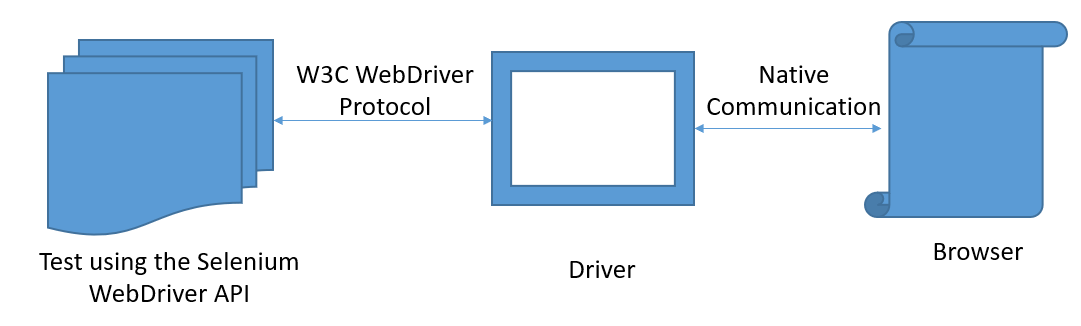
The communication between the WebDriver API and the driver binary is done using a standard protocol called W3C WebDriver (formerly the so-called JSON Wire Protocol). Then, the communication between the driver and the browser is done using the native capabilities of each browser.

How To add WebDriverManager to a Selenium project manually?

Download the latest version of WebDriverManager from here.

It will download a zip file. Now extract the jar/zip file. It will show various .jar under the folder, as shown below:

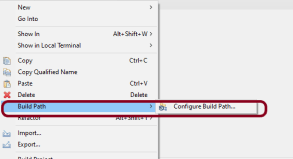
Once we extract the zip file, we have to reference these jar files in our project. For this, navigate to project properties and click Build Path-> Configure Build Path in Eclipse

Click “Add External Jars” as per the steps highlighted below to include all the WebDriverManager jars extracted.

After clicking on the “Add External JARs“, all the selected extracted JARs are added to the project.

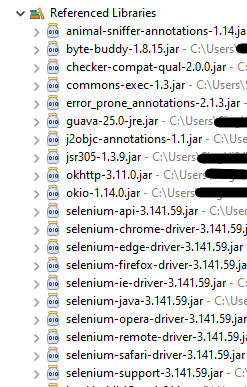
When this finishes, the project references show these referenced jars in the project explorer as highlighted below, and they are ready to be consumed in the Selenium test scripts.

Chrome

The below code snippet shows a quick usage of WebDriverManager with Chrome:

import org.openqa.selenium.WebDriver;
import org.openqa.selenium.chrome.ChromeDriver;
import org.openqa.selenium.chrome.ChromeOptions;

import io.github.bonigarcia.wdm.WebDriverManager;

public class Demo {

	public static void main(String[] args) {

		WebDriverManager.chromedriver().setup();

		// Create an object of Chrome Options class
		ChromeOptions chromeOptions = new ChromeOptions();

		// Create an object of WebDriver class and pass the Chrome Options object as
		// an argument
		WebDriver driver = new ChromeDriver(chromeOptions);

		System.out.println("Executing Chrome Driver");

		driver.get("https://www.bing.com/");
		System.out.println("Title of Page :" + driver.getTitle());
		System.out.println("Page URL : " + driver.getCurrentUrl());

		// Close the driver
		driver.close();

	}
}

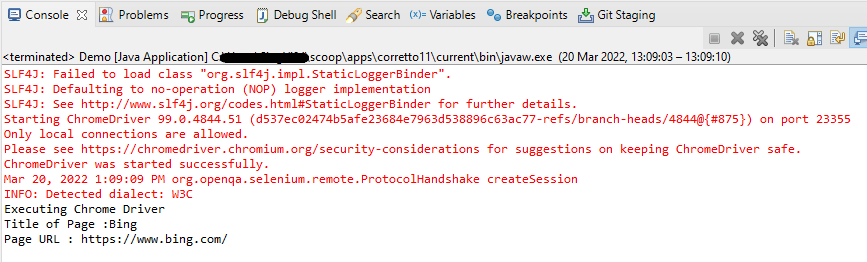
The output of the above program is

FireFox Driver

The below code snippet shows a quick usage of WebDriverManager with FireFox:

import org.openqa.selenium.WebDriver;
import org.openqa.selenium.firefox.FirefoxDriver;
import org.openqa.selenium.firefox.FirefoxOptions;

import io.github.bonigarcia.wdm.WebDriverManager;

public class FireFoxDemo {

	public static void main(String[] args) {

		WebDriverManager.firefoxdriver().setup();

		// Create an object of Firefox Options class
		FirefoxOptions firefoxOptions = new FirefoxOptions();

	    // Create an object of WebDriver class and pass the Firefox Options object
		// as an argument
		WebDriver driver = new FirefoxDriver(firefoxOptions);

		System.out.println("Executing Firefox Driver");

		driver.get("https://www.bing.com/");
		System.out.println("Title of Page :" + driver.getTitle());
		System.out.println("Page URL : " + driver.getCurrentUrl());

		// Close the driver
		driver.close();

	}
}

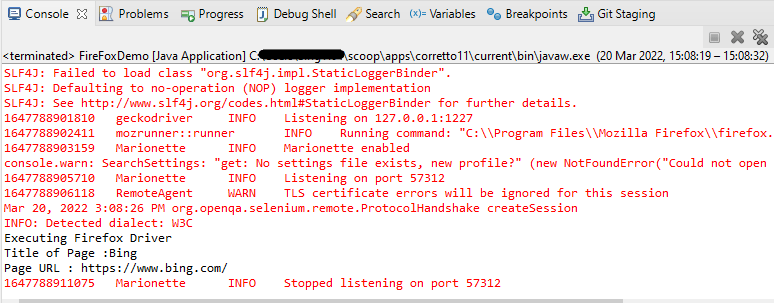
The output of the above program is

Microsoft Edge

The below code snippet shows a quick usage of WebDriverManager with Microsoft Edge:

import org.openqa.selenium.WebDriver;
import org.openqa.selenium.edge.EdgeDriver;
import org.openqa.selenium.edge.EdgeOptions;
import io.github.bonigarcia.wdm.WebDriverManager;

public class EdgeDemo {

	public static void main(String[] args) {

		WebDriverManager.edgedriver().setup();

		// Create an object of Edge Options class
		EdgeOptions edgeOptions = new EdgeOptions();

		// Create an object of WebDriver class and pass the Edge Options object
		// as an argument
		WebDriver driver = new EdgeDriver(edgeOptions);

		System.out.println("Executing Microsoft Edge Driver");

		driver.get("https://www.bing.com/");
		System.out.println("Title of Page :" + driver.getTitle());
		System.out.println("Page URL : " + driver.getCurrentUrl());

		// Close the driver
		driver.close();

	}
}

The output of the above program is

The basic use of these managers is the following:

WebDriverManager.chromedriver().setup();
WebDriverManager.firefoxdriver().setup();
WebDriverManager.edgedriver().setup();
WebDriverManager.operadriver().setup();
WebDriverManager.chromiumdriver().setup()
WebDriverManager.iedriver().setup();

How To add WebDriverManager to a Selenium project using Maven or Gradle?

To use WebDriverManager in a Maven built project, the below-mentioned dependency is needed to add to the pom.xml.

<!-- https://mvnrepository.com/artifact/io.github.bonigarcia/webdrivermanager -->
<dependency>
    <groupId>io.github.bonigarcia</groupId>
    <artifactId>webdrivermanager</artifactId>
    <version>5.1.0</version>
</dependency>

For Gradle project, add the below to the build.gradle.

dependencies {
    testCompile("io.github.bonigarcia:webdrivermanager:5.1.0")
}

How to instantiate a specific browser version using WebDriverManager?

WebDriverManager provides the ability to download a specific version of the browser. For example, the latest chromedriver version is 100.0.4896.20 (released on 2022-03-04). But if we want an earlier version, say, Chromedriver version 98.0.4758.102, we have to add the following code.

import org.openqa.selenium.WebDriver;
import org.openqa.selenium.chrome.ChromeDriver;
import org.openqa.selenium.chrome.ChromeOptions;
import io.github.bonigarcia.wdm.WebDriverManager;

public class Demo {

	public static void main(String[] args) {

		WebDriverManager.chromedriver().driverVersion("98.0.4758.102").setup();

		// Create an object of Chrome Options class
		ChromeOptions chromeOptions = new ChromeOptions();

		// Create an object of WebDriver class and pass the Chrome Options object as
		// an argument
		WebDriver driver = new ChromeDriver(chromeOptions);

		System.out.println("Executing Chrome Driver");

		driver.get("https://www.bing.com/");
		System.out.println("Title of Page :" + driver.getTitle());
		System.out.println("Page URL : " + driver.getCurrentUrl());

		// Close the driver
		driver.close();

	}
}

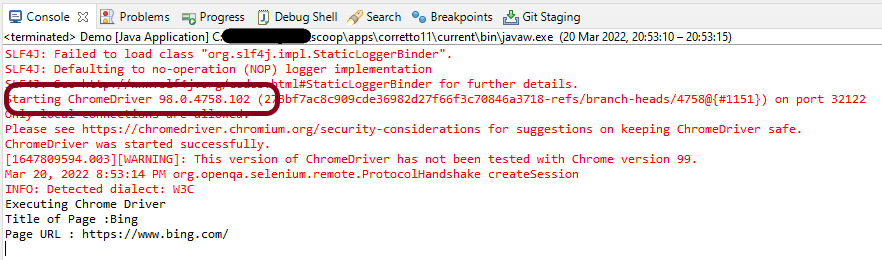
The output of the above program is

As we can see from the above screenshot, as a result of executing the above program, the Chromedriver started successfully. We can see the details of starting the chrome driver instance in the first line of output. Here we have set the Chrome version to 98.0.4758.102″.

Congratulations!! We have learned to download drivers automatically.

How to test PUT Request Using Python Requests

HOME

pip install -U requests

pip install -U pytest

import requests

ENDPOINT = 'https://reqres.in/api/users/2'


def test_update_user():
    request_body = {
        "name": "Vibha",
        "Job": "CTO"
    }

    response = requests.put(ENDPOINT, request_body)
    response_body = response.json()
    print(response_body)
    assert response.status_code == 200
    assert response_body["Job"] == "CTO"

Requests in Python

HOME

How to test POST Request Using Python Requests

HOME

pip install -U requests

pip install -U pytest

import requests

ENDPOINT = 'https://reqres.in/api/users'


def test_create_user():

    response = requests.post(ENDPOINT, {"name": "Vibha", "job": "CTO"})
    response_body = response.json()
    print(response_body)
    assert response.status_code == 201
    assert response_body["name"] == "Vibha"
    assert response_body["job"] == "CTO"

def test_create_user1():
    payload = {
        "name": "Vibha",
        "job": "CTO"
    }

    response = requests.post(ENDPOINT, payload)
    response_body = response.json()
    print(response_body)
    assert response.status_code == 201
    assert response_body["name"] == "Vibha"
    assert response_body["job"] == "CTO"

Allure Report with Cucumber, Selenium and JUnit4
HOME

In the previous tutorial, I have explained the Integration of the Allure Report with Selenium and JUnit4. In this tutorial, I will explain how to Integrate Allure Report with Cucumber7 and JUnit4.

Below example covers the implementation of Allure Reports in Selenium using JUnit4, Java and Maven.

  1. Prerequisite
  2. Dependency List
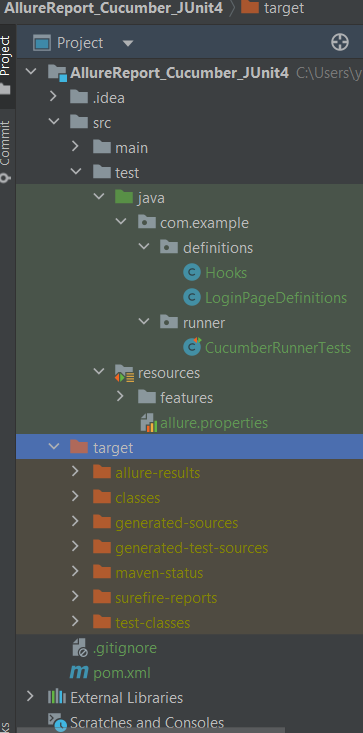
  3. Project Structure
  4. Implementation Steps
    1. Update Properties section in Maven pom.xml
    2. Add dependencies to POM.xml
    3. Update Build Section of pom.xml in Allure Report Project
    4. Create Feature file in src/test/resources
    5. Create the Step Definition class or Glue Code
    6. Create a Cucumber Runner class
    7. Create allure.properties in src/test/resources
    8. Run the Test and Generate Allure Report
    9. Generate Allure Report

Prerequisite

  1. Java 11 or above installed
  2. Maven installed
  3. Eclipse or IntelliJ installed
  4. Allure installed and configured

Dependency List:

  1. Selenium – 4.16.1
  2. Java 17
  3. Cucumber – 7.15.0
  4. Maven – 3.9.5
  5. Allure BOM – 2.25.0
  6. Aspectj – 1.9.21
  7. Allure Maven – 2.12.0
  8. JUnit – 4.13.2

Implementation Steps

Step 1 – Update Properties section in Maven pom.xml

<properties>
    <project.build.sourceEncoding>UTF-8</project.build.sourceEncoding>
    <cucumber.version>7.15.0</cucumber.version>
    <selenium.version>4.16.1</selenium.version>
    <junit.version>4.13.2</junit.version>
    <maven.compiler.plugin.version>3.12.1</maven.compiler.plugin.version>
    <maven.surefire.plugin.version>3.2.3</maven.surefire.plugin.version>
    <maven.compiler.source.version>17</maven.compiler.source.version>
    <maven.compiler.target.version>17</maven.compiler.target.version>
    <allure.junit4.version>2.25.0</allure.junit4.version>
    <aspectj.version>1.9.21</aspectj.version>
    <allure.version>2.25.0</allure.version>
    <allure.maven>2.12.0</allure.maven>
 </properties>

Step 2 – Add dependencies to POM.xml

 <dependencies>
     
     <!--Cucumber Dependencies-->     
    <dependency>
      <groupId>io.cucumber</groupId>
      <artifactId>cucumber-java</artifactId>
      <version>${cucumber.version}</version>
    </dependency>
    
    <dependency>
      <groupId>io.cucumber</groupId>
      <artifactId>cucumber-junit</artifactId>
      <version>${cucumber.version}</version>
       <scope>test</scope>
    </dependency>
 
   <!--Selenium Dependency-->
    <dependency>
      <groupId>org.seleniumhq.selenium</groupId>
      <artifactId>selenium-java</artifactId>
      <version>${selenium.version}</version>
    </dependency>   

   <!--Hamcrest Dependency-->
    <dependency>
      <groupId>org.hamcrest</groupId>
      <artifactId>hamcrest</artifactId>
      <version>2.2</version>
      <scope>test</scope>
    </dependency>
    
   <!--Allure Cucumber Dependency-->     
      <dependency>
        <groupId>io.qameta.allure</groupId>
        <artifactId>allure-cucumber5-jvm</artifactId>
        <version>${allure.cucumber5.version}</version>
    </dependency>
    
     <!--Allure Reporting Dependency-->     
    <dependency>
        <groupId>io.qameta.allure</groupId>
        <artifactId>allure-junit4</artifactId>
        <version>${allure.junit4.version}</version>
        <scope>test</scope>
    </dependency>

  </dependencies>

Step 3 – Update Build Section of pom.xml in Allure Report Project

<build>
        <plugins>
            <plugin>
                <groupId>org.apache.maven.plugins</groupId>
                <artifactId>maven-compiler-plugin</artifactId>
                <version>${maven.compiler.plugin.version}</version>
                <configuration>
                    <source>${maven.compiler.source.version}</source>
                    <target>${maven.compiler.target.version}</target>
                </configuration>
            </plugin>
            <plugin>
                <groupId>org.apache.maven.plugins</groupId>
                <artifactId>maven-surefire-plugin</artifactId>
                <version>${maven.surefire.plugin.version}</version>
                <configuration>
                    <argLine>
                        -javaagent:"${settings.localRepository}/org/aspectj/aspectjweaver/${aspectj.version}/aspectjweaver-${aspectj.version}.jar"
                    </argLine>
                </configuration>
                <dependencies>
                    <dependency>
                        <groupId>org.aspectj</groupId>
                        <artifactId>aspectjweaver</artifactId>
                        <version>${aspectj.version}</version>
                        <scope>runtime</scope>
                    </dependency>
                </dependencies>
            </plugin>
            <plugin>
                <groupId>io.qameta.allure</groupId>
                <artifactId>allure-maven</artifactId>
                <version>${allure.maven}</version>
                <configuration>
                    <reportVersion>${allure.maven}</reportVersion>
                </configuration>
            </plugin>
        </plugins>
    </build>

<project xmlns="http://maven.apache.org/POM/4.0.0" xmlns:xsi="http://www.w3.org/2001/XMLSchema-instance"
         xsi:schemaLocation="http://maven.apache.org/POM/4.0.0 http://maven.apache.org/xsd/maven-4.0.0.xsd">
    <modelVersion>4.0.0</modelVersion>

    <groupId>com.example</groupId>
    <artifactId>AllureReport_Cucumber_JUnit4</artifactId>
    <version>1.0-SNAPSHOT</version>
    <packaging>jar</packaging>

    <name>AllureReport_Cucumber_JUnit4</name>
    <url>http://maven.apache.org</url>

    <properties>
        <project.build.sourceEncoding>UTF-8</project.build.sourceEncoding>
        <cucumber.version>7.15.0</cucumber.version>
        <selenium.version>4.16.1</selenium.version>
        <junit.version>4.13.2</junit.version>
        <maven.compiler.plugin.version>3.12.1</maven.compiler.plugin.version>
        <maven.surefire.plugin.version>3.2.3</maven.surefire.plugin.version>
        <maven.compiler.source.version>17</maven.compiler.source.version>
        <maven.compiler.target.version>17</maven.compiler.target.version>
        <allure.junit4.version>2.25.0</allure.junit4.version>
        <aspectj.version>1.9.21</aspectj.version>
        <allure.version>2.25.0</allure.version>
        <allure.maven>2.12.0</allure.maven>
    </properties>

    <!-- Add allure-bom to dependency management to ensure correct versions of all the dependencies are used -->
    <dependencyManagement>
        <dependencies>
            <dependency>
                <groupId>io.qameta.allure</groupId>
                <artifactId>allure-bom</artifactId>
                <version>${allure.version}</version>
                <type>pom</type>
                <scope>import</scope>
            </dependency>
        </dependencies>
    </dependencyManagement>


    <dependencies>

        <dependency>
            <groupId>io.cucumber</groupId>
            <artifactId>cucumber-java</artifactId>
            <version>${cucumber.version}</version>
        </dependency>

        <dependency>
            <groupId>io.cucumber</groupId>
            <artifactId>cucumber-junit</artifactId>
            <version>${cucumber.version}</version>
            <scope>test</scope>
        </dependency>

        <!-- Selenium -->
        <dependency>
            <groupId>org.seleniumhq.selenium</groupId>
            <artifactId>selenium-java</artifactId>
            <version>${selenium.version}</version>
        </dependency>

        <!-- JUnit4 -->
        <dependency>
            <groupId>junit</groupId>
            <artifactId>junit</artifactId>
            <version>${junit.version}</version>
            <scope>test</scope>
        </dependency>

        <!--Allure Cucumber Dependency-->
        <dependency>
            <groupId>io.qameta.allure</groupId>
            <artifactId>allure-cucumber7-jvm</artifactId>
            <scope>test</scope>
        </dependency>

        <!--Allure Reporting Dependency-->
        <dependency>
            <groupId>io.qameta.allure</groupId>
            <artifactId>allure-junit4</artifactId>
            <scope>test</scope>
        </dependency>

    </dependencies>

    <build>
        <plugins>
            <plugin>
                <groupId>org.apache.maven.plugins</groupId>
                <artifactId>maven-compiler-plugin</artifactId>
                <version>${maven.compiler.plugin.version}</version>
                <configuration>
                    <source>${maven.compiler.source.version}</source>
                    <target>${maven.compiler.target.version}</target>
                </configuration>
            </plugin>
            <plugin>
                <groupId>org.apache.maven.plugins</groupId>
                <artifactId>maven-surefire-plugin</artifactId>
                <version>${maven.surefire.plugin.version}</version>
                <configuration>
                    <argLine>
                        -javaagent:"${settings.localRepository}/org/aspectj/aspectjweaver/${aspectj.version}/aspectjweaver-${aspectj.version}.jar"
                    </argLine>
                </configuration>
                <dependencies>
                    <dependency>
                        <groupId>org.aspectj</groupId>
                        <artifactId>aspectjweaver</artifactId>
                        <version>${aspectj.version}</version>
                        <scope>runtime</scope>
                    </dependency>
                </dependencies>
            </plugin>
            <plugin>
                <groupId>io.qameta.allure</groupId>
                <artifactId>allure-maven</artifactId>
                <version>${allure.maven}</version>
                <configuration>
                    <reportVersion>${allure.maven}</reportVersion>
                </configuration>
            </plugin>
        </plugins>
    </build>
</project>

Step 4 – Create Feature file in src/test/resources
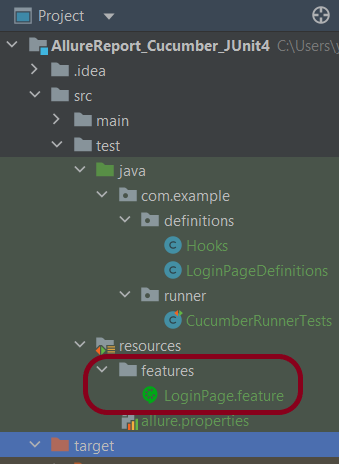
Create source folder – src/test/resources and features folder within src/test/resources to create test scenarios in Feature file. Feature file should be saved as an extension of .feature. Add the test scenarios in this feature file. I have added sample test scenarios. In this feature file, I have created a scenario for successful login and one Scenario Outline for failed login. The test scenarios are written in Gherkins language.

Feature: Login to HRM Application

  Background:
    Given User is on HRMLogin page "https://opensource-demo.orangehrmlive.com/"

  @ValidCredentials
  Scenario: Login with valid credentials

    When User enters username as "Admin" and password as "admin123"
    Then User should be able to login successfully and new page open

  @InvalidCredentials
  Scenario Outline: Login with invalid credentials

    When User enters username as "<username>" and password as "<password>"
    Then User should be able to see error message "<errorMessage>"

    Examples:
      | username   | password    | errorMessage                      |
      | Admin        | admin12$$ | Invalid credentials               |
      | admin$$     | admin123   | Invalid credentials               |
      | abc123       | xyz$$          | Invalid credentials               |
      | 234             | xyz$$         | Invalid credentials!              |

Step 5 – Create the Step Definition class or Glue Code

package com.example.definitions;

import io.cucumber.java.en.Given;
import io.cucumber.java.en.Then;
import io.cucumber.java.en.When;
import org.junit.Assert;
import org.openqa.selenium.By;

public class LoginPageDefinitions {

   Hooks hooks;

    @Given("User is on HRMLogin page {string}")
    public void loginTest(String url) {

        hooks.driver.get(url);

    }

    @When("User enters username as {string} and password as {string}")
    public void goToHomePage(String userName, String passWord) {

        // login to application
        hooks.driver.findElement(By.name("username")).sendKeys(userName);
        hooks.driver.findElement(By.name("password")).sendKeys(passWord);
        hooks.driver.findElement(By.xpath("//*[@class='oxd-form']/div[3]/button")).submit();

        // go the next page
    }

    @Then("User should be able to login successfully and new page open")
    public void verifyLogin() {

        String homePageHeading = hooks.driver.findElement(By.xpath("//*[@class='oxd-topbar-header-breadcrumb']/h6")).getText();

        //Verify new page - HomePage
        Assert.assertEquals("Dashboard",homePageHeading);

    }

    @Then("User should be able to see error message {string}")
    public void verifyErrorMessage(String expectedErrorMessage) {

        String actualErrorMessage = hooks.driver.findElement(By.xpath("//*[@class='orangehrm-login-error']/div[1]/div[1]/p")).getText();

        // Verify Error Message
        Assert.assertEquals(expectedErrorMessage,actualErrorMessage);

    }

}

Hook.java

package com.example.definitions;

import io.cucumber.java.After;
import io.cucumber.java.Before;
import io.cucumber.java.Scenario;
import org.openqa.selenium.OutputType;
import org.openqa.selenium.TakesScreenshot;
import org.openqa.selenium.WebDriver;
import org.openqa.selenium.chrome.ChromeDriver;
import org.openqa.selenium.chrome.ChromeOptions;

import java.time.Duration;

public class Hooks {
    protected static WebDriver driver;
    public final static int TIMEOUT = 5;

    @Before
    public void setUp() {

        ChromeOptions options = new ChromeOptions();
        options.addArguments("--start-maximized");
        driver = new ChromeDriver(options);
        driver.manage().timeouts().implicitlyWait(Duration.ofSeconds(TIMEOUT));

    }

    @After
    public void tearDown(Scenario scenario) {
        try {
            String screenshotName = scenario.getName();
            if (scenario.isFailed()) {
                TakesScreenshot ts = (TakesScreenshot) driver;
                byte[] screenshot = ts.getScreenshotAs(OutputType.BYTES);
                scenario.attach(screenshot, "img/png", screenshotName);
            }
        } catch (Exception e) {
            e.printStackTrace();
        }
        driver.quit();
    }
}

Step 6 – Create a Cucumber Runner class

We need to create a class called Runner class to run the tests. This class will use the JUnit annotation @RunWith(), which tells JUnit what is the test runner class.

package com.example.runner;

import org.junit.runner.RunWith;
import io.cucumber.junit.Cucumber;
import io.cucumber.junit.CucumberOptions;

@RunWith(Cucumber.class)
@CucumberOptions(tags = "", features = {"src/test/resources/features"}, glue = {"com.example.definitions"},
        plugin = {"pretty","io.qameta.allure.cucumber7jvm.AllureCucumber7Jvm"})

public class CucumberRunnerTests  {

}

allure.results.directory=target/allure-results

Step 8 – Run the Test and Generate Allure Report

To run the tests, use the below command

mvn clean test

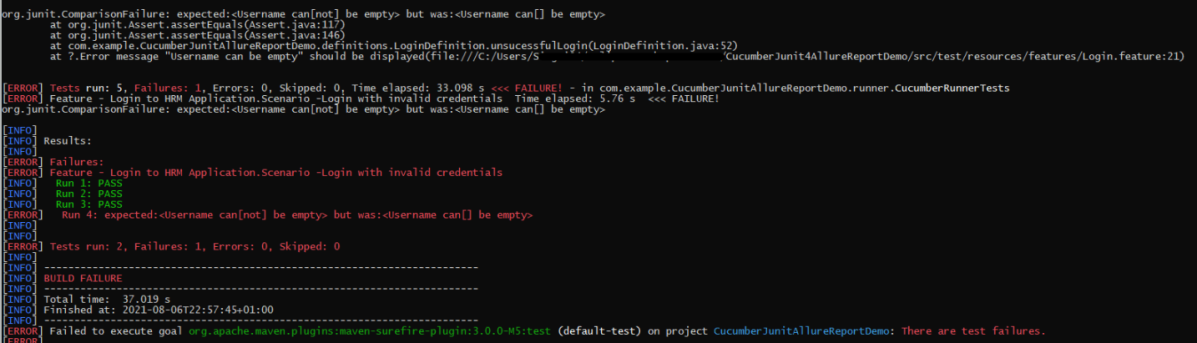
In the below image, we can see that one test is failed and four passed out of five tests.

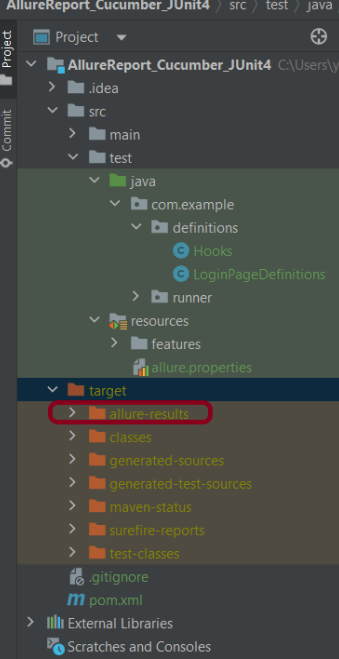
This will create allure-results folder with all the test report. These files will be use to generate Allure Report.

Change current directory to target directory and then use the below command to generate the Allure Report

allure serve

This will generate the beautiful Allure Test Report as shown below.

Allure Report Dashboard

It shows detail of all the test steps and the screenshot of the failed test step also as shown below.

Categories in Allure Report

Categories tab gives you the way to create custom defects classification to apply for test results. There are two categories of defects – Product Defects (failed tests) and Test Defects (broken tests).

Suites in Allure Report

On the Suites tab a standard structural representation of executed tests, grouped by suites and classes can be found.

Graphs in Allure Report

Graphs allow you to see different statistics collected from the test data: statuses breakdown or severity and duration diagrams.

Timeline in Allure Report

Timeline tab visualizes retrospective of tests execution, allure adaptors collect precise timings of tests, and here on this tab they are arranged accordingly to their sequential or parallel timing structure.

Behaviors of Allure Report

This tab groups test results according to Epic, Feature and Story tags.

Packages in Allure Report

Packages tab represents a tree-like layout of test results, grouped by different packages.

Python Tutorials

HOME

Robot Framework

Configure Selenium with Python

Python Requests

PyTest Framework

Data Driven Tests using CSV file in Serenity

HOME

In the previous tutorial, I have explained the Data Driven Tests in Serenity where test data are defined in Tests. In this tutorial, I will explain the Data Driven tests in Serenity where we will get the test data from CSV file.

To start with this tutorial, refer this tutorial also which explains how to setup a project with Serenity and JUnit4.

Project Structure

Serenity lets us perform data-driven testing using test data in a CSV file. We store our test data in a CSV file (by default with columns separated by commas), with the first column acting as a header.

We need to create a test class containing properties that match the columns in the test data, as you did for the data-driven test in the previous example. The test class will typically contain one or more tests that use these properties as parameters to the test step or Page Object methods.

Here, we need to keep in mind that as the tests are parameterized , we need to use the Parameterized test runner to perform data-driven tests.

@RunWith(SerenityParameterizedRunner.class)

This is imported from below package

net.serenitybdd.junit.runners.SerenityParameterizedRunner;

@UseTestDataFrom annotation is used to indicate where to find the CSV file (this can either be a file on the classpath or a relative or absolute file path – putting the data set on the class path (e.g. in src/test/resources) makes the tests more portable).

@UseTestDataFrom(value = "testdata/credentials.csv")

Below is the example of the Parameterized Tests.

ParameterizedTestsUsingCSV Class contains the SerenityParameterizedRunner as well as provides the path of the test data file using @UseTestDataFrom, and the Tests.

The Serenity Parameterized Runner creates a new instance of this class for each row of data in the CSV file, assigning the properties with corresponding values in the test data. As you can see, I have mentioned 3 variables in the CSV file – userName, passWord, and errorMessage. I have declared the same private variables in the Test Class too – username, password, and errorMessage that match the columns in the test data file. Keep this in mind, that the column name should be the same in test data file and Test.

import net.serenitybdd.annotations.Managed;
import net.serenitybdd.annotations.Steps;
import net.serenitybdd.annotations.Title;
import net.serenitybdd.core.Serenity;
import net.serenitybdd.junit.runners.SerenityParameterizedRunner;
import net.thucydides.junit.annotations.Qualifier;
import net.thucydides.junit.annotations.TestData;
import net.thucydides.junit.annotations.UseTestDataFrom;
import org.junit.Test;
import org.junit.runner.RunWith;
import org.openqa.selenium.WebDriver;

import static org.assertj.core.api.Assertions.assertThat;

@RunWith(SerenityParameterizedRunner.class)
@UseTestDataFrom(value = "testdata/credentials.csv")
public class ParameterizedTests {

    private String userName;
    private String passWord;
    private String errorMessage;

    @Managed(options = "--start-maximized")
     WebDriver driver;

    @Steps
    NavigateActions navigate;

    @Steps
    StepLoginPage loginPage;


    @TestData(columnNames = "Username, Password, ErrorMessage")

    @Qualifier
    public String qualifier(){return " - " + " Username = " + userName + " and " + " Password = " + passWord + " should display " + errorMessage;}

    @Test
    @Title("Login to application with invalid credential generates error message")
    public void unsuccessfulLogin() {

        // Given
        navigate.toTheHomePage();

        // When
        loginPage.inputUserName(userName);
        loginPage.inputPassword(passWord);
        loginPage.clickLogin();

        // Then
        Serenity.reportThat("Passing invalid credentials generates error message",
                () -> assertThat(assertThat(loginPage.errorMessage()).isEqualToIgnoringCase(errorMessage)));

    }

}

The heading of parameters present in the Serenity Report (Index.html) like Username, Password, and Error Message are generated by @TestData(columnNames).

The description of the Test Step in the Serenity Report is modified by using @Qualifier. It is used to mark a method as a qualifier in an instantiated data-driven test case.

The test class needs to have a WebDriver instance with a @Managed annotation for Serenity to manage it in the background. That is all that is required, we do not need to manage the driver anymore. Each test class will need this driver variable declaration.

The Test Class uses Step Class (StepLoginPage) and Action Class (NavigateActions) to perform the Tests. StepLoginPage contains test steps that represent the level of abstraction between the code that interacts with the application. NavigateAction page is used to open an environment-specific page defined in the serenity.config file under the pages section.

StepLoginPage

import net.serenitybdd.annotations.Step;
import net.serenitybdd.core.pages.PageObject;
import net.serenitybdd.core.pages.WebElementFacade;
import org.openqa.selenium.support.FindBy;

public class StepLoginPage extends PageObject {

    @FindBy(name = "username")
    WebElementFacade username;

    @FindBy(name = "password")
    WebElementFacade password;

    @FindBy(xpath = "//*[@id='app']/div[1]/div/div[1]/div/div[2]/div[2]/form/div[3]/button")
    WebElementFacade submitButton;

    @FindBy(xpath = "//*[@id='app']/div[1]/div/div[1]/div/div[2]/div[2]/div/div[1]/div[1]/p")
    WebElementFacade errorMessage;

    @FindBy(xpath = "//*[@id='app']/div[1]/div/div[1]/div/div[2]/div[2]/form/div[4]/p")
    WebElementFacade linkText;

    @Step("Enter Username")
    public void inputUserName(String userName) {
        username.sendKeys((userName));
    }

    @Step("Enter Password")
    public void inputPassword(String passWord) {
        password.sendKeys((passWord));
    }

    @Step("Click Submit Button")
    public void clickLogin() {
        submitButton.click();
    }

    @Step("Error Message on unsuccessful login")
    public String errorMessage() {
        String actualErrorMessage = errorMessage.getText();
        return actualErrorMessage;
    }

    @Step("Click Forget Password Link")
    public void clickForgetPasswordLink() {
        linkText.click();

        System.out.println("Clicked on Forgot Password Link");
    }

}

NavigateActions

import net.serenitybdd.annotations.Step;
import net.serenitybdd.core.steps.UIInteractionSteps;

public class NavigateActions extends UIInteractionSteps {

    @Step
    public void toTheHomePage() {
        openPageNamed("loginForm");
    }
}

Serenity.config

headless.mode = false

pages{
  loginForm = "https://opensource-demo.orangehrmlive.com/"
  }

environments {
  chrome {
    webdriver {
      driver = chrome
      autodownload = true
      capabilities {
        browserName = "chrome"
        acceptInsecureCerts = true
        "goog:chromeOptions" {
          args = ["--start-maximized", "ignore-certificate-errors",
            "incognito", "disable-infobars", "disable-gpu", "disable-default-apps", "disable-popup-blocking"]
        }
      }
    }
  }
}

This test can be executed by JUnit as well as from the command line

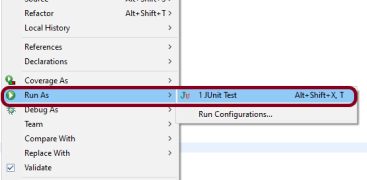
JUnit – Right-click on the Test, select Run As, and then select JUnit Test in Eclipse.

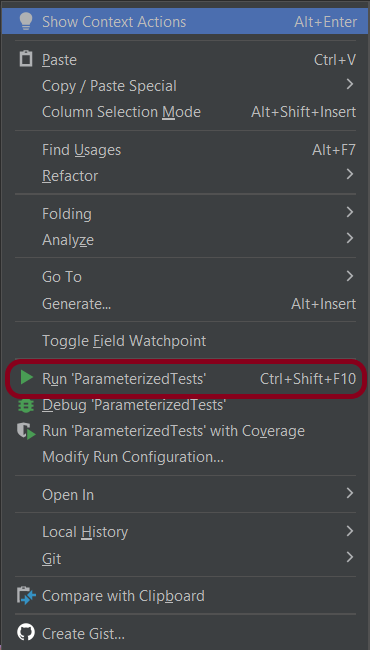
If you are using IntelliJ, then right-click and select Run “ParameterizedTests”

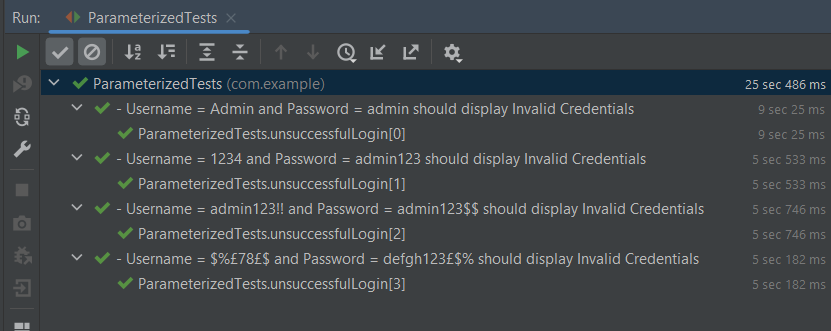
The Test execution status can be seen as shown below:

To run the tests using the command line, use the below command

mvn clean verify

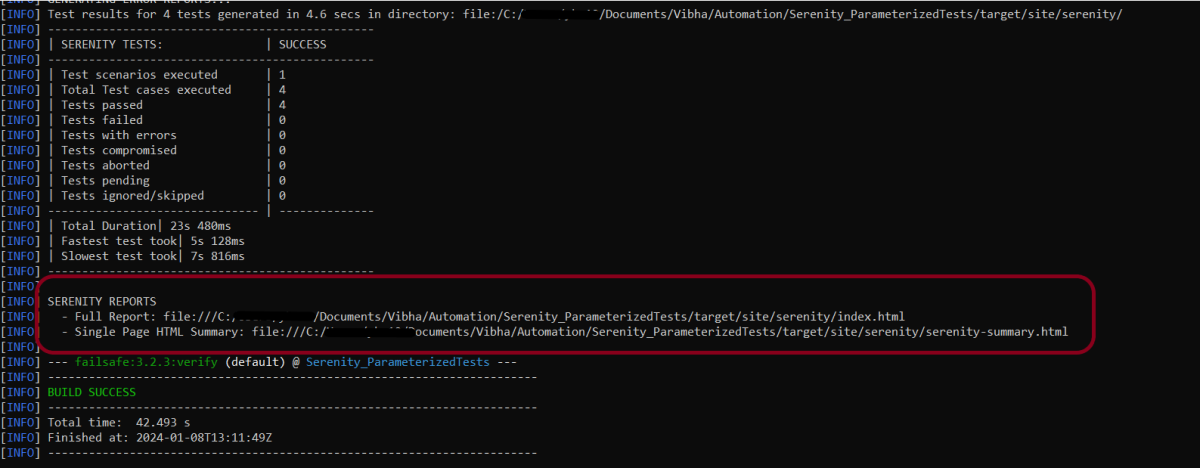
This will execute the tests and will generate the Test Execution Report as shown below.

The reports are generated as shown in the below image.

Serenity generates very descriptive and beautiful reports – Index.html and Serenity Summary Report.

Index.html

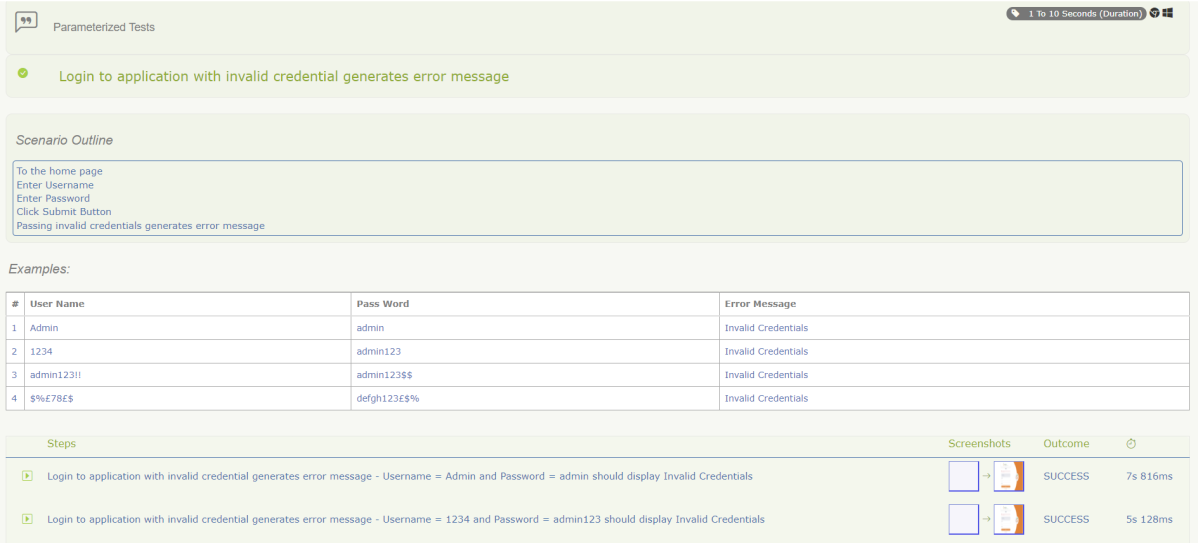
This page provides the detail about the Test, its corresponding test data, the status of each test scenario with screenshots, and the execution time of each test.

This is the expanded view of all the test steps of a test with their screenshots. This also shows the execution time of each step in the test.

Serenity Summary Report

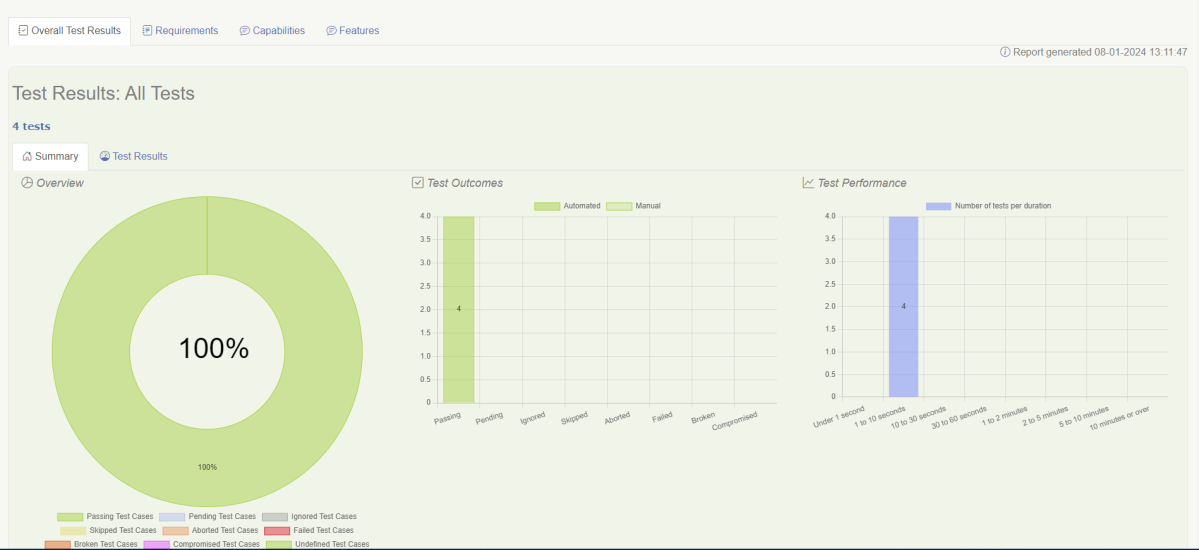
This report is a single-page, self-contained HTML summary report, containing an overview of the test results, and a configurable breakdown of the status of different areas of the application.

We are done! Congratulations on making it through this tutorial and hope you found it useful! Happy Learning!!

How to test GET Request Using Python Requests

HOME

pip install -U requests

pip install -U pytest

import requests

ENDPOINT = 'https://reqres.in/api/'
USER = 'users/2'


def test_get_user_successful():
    response = requests.get(ENDPOINT+USER)
    response_body = response.json()
    print(response_body)
    assert response.status_code == 200
    assert response_body["data"]["id"] == 2
    assert response_body["data"]["first_name"] == "Janet"
    assert response_body["data"]["last_name"] == "Weaver"

def test_get_user_unsuccessful():
    response = requests.get(ENDPOINT+USER)
    print(response.json())
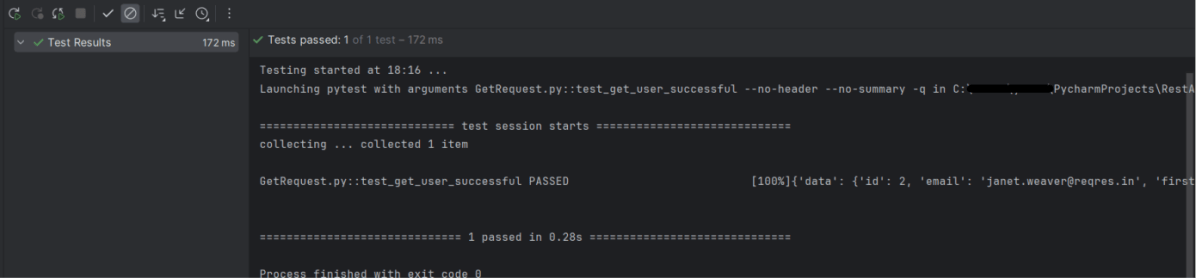
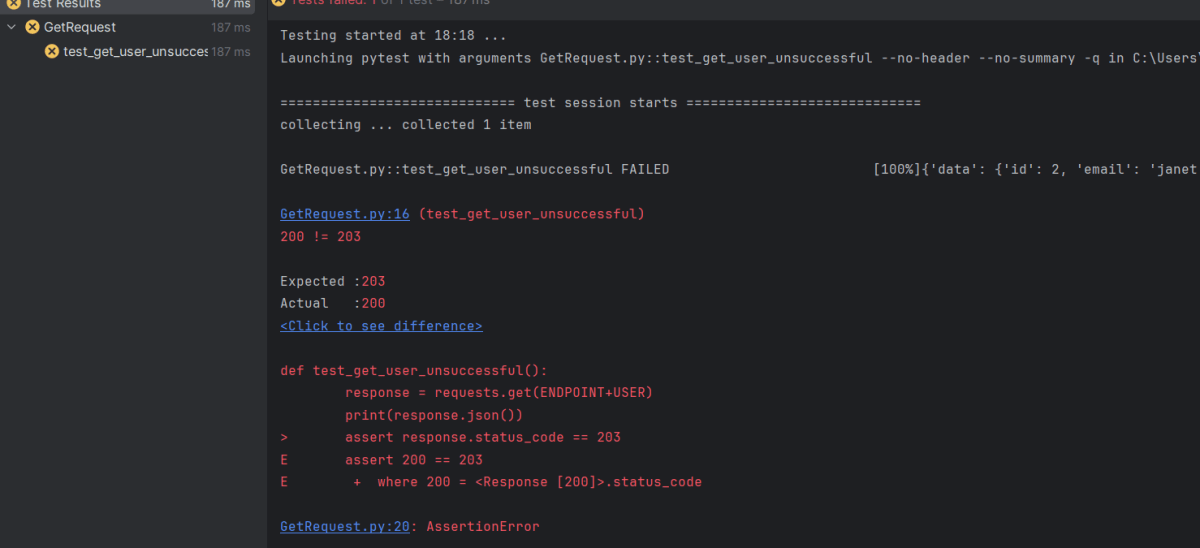
    assert response.status_code == 203