Are you familiar with REST APIs and want to test your understanding? This post contains 25 useful REST API multiple-choice questions (quiz) to self-test your knowledge of REST API development.
16. Which of the following HTTP Status code means FORBIDDEN, states that user is not having access to method being used for example, delete access without admin rights?
1) 2) Representational State Transfer 2) 2) HTTP 3) 4) Request Header 4) 3) Both (1) and (2) 5) 2) 404 6) 1) 500 7) 3) Success 8) 1) CREATE 9) 1) POST 10) 2) PUT 11) 1) /{resource}/{resource-id}/{sub-resource}/{sub-resource-id} 12) 2) Created 13) 1) GET, POST, PUT, DELETE 14) 2) DELETE 15) 1) GET /users/{id} 16) 1) 403 17) 3) The resource requested has been found and moved temporarily to new URL location. 18) 4) Informational 19) 2) PUT updates the entire resource, while PATCH updates only specific fields of a resource 20) 2) It defines the format of the request payload 21) 3) It provides authentication credentials for accessing protected resources 22) 2) The property that a method can be called multiple times without different outcomes 23) 2) To retrieve the communication options available on a resource or server 24) 3) curl 25) 4) no-cache/no-store
A Data Driven Framework is a software testing framework that separates the test script logic from the test data. The test data is stored separately in external files like csv, xlsx, or databases that allows easy maintenance of the framework. In data driven framework, the test scripts retrieves the input values and expected results from the external source and write the actual result to the same source like spreadsheets, XML files, CSV files or database.
Project Structure
Here is the final snapshot of our project.
Dependency List
Selenium – 4.21.0
TestNG – 7.10.2
Apache POI – 5.2.5
Commons – 2.16.1
Maven Surefire – 3.2.5
Maven Compiler – 3.13.0
Java 17
Maven – 3.9.6
Implementation Steps
Step 1- Download and Install Java
Selenium needs Java to be installed on the system to run the tests. Click here to learn How to install Java.
Step 2 – Download and setup Eclipse IDE on the system
The Eclipse IDE (integrated development environment) provides strong support for Java developers, which is needed to write Java code. Click here to learn How to install Eclipse.
Step 3 – Setup Maven
To build a test framework, we need to add a number of dependencies to the project. It is a very tedious and cumbersome process to add each dependency manually. So, to overcome this problem, we use a build management tool. Maven is a build management tool that is used to define project structure, dependencies, build, and test management. Click here to learn How to install Maven.
In this example, we will access 2 web pages, “Login” and “Home” pages.
Hence, we will create 2 Java classes in Page Layer – LoginPage.java and HomePage.java and a BasePage class to initialize the driver using PageFactory.
BasePage
package com.example.pages;

import org.openqa.selenium.WebDriver;
import org.openqa.selenium.support.PageFactory;

public class BasePage {
    public WebDriver driver;

    public BasePage(WebDriver driver) {
        this.driver = driver;
        PageFactory.initElements(driver,this);
    }

}
LoginPage
package com.example.pages;

import com.example.utils.ExcelUtils;
import org.openqa.selenium.WebDriver;
import org.openqa.selenium.WebElement;
import org.openqa.selenium.support.FindBy;
import org.openqa.selenium.support.PageFactory;

public class LoginPage extends BasePage{

    public LoginPage(WebDriver driver) {
        super(driver);

    }

    @FindBy(name = "username")
    public WebElement userName;

    @FindBy(name = "password")
    public WebElement password;

    @FindBy(xpath = "//*[@class='oxd-form']/div[1]/div/span")
    public WebElement missingUsernameErrorMessage;

    @FindBy(xpath = "//*[@class='oxd-form']/div[2]/div/span")
    public WebElement missingPasswordErrorMessage;

    @FindBy(xpath = "//*[@class='oxd-form']/div[3]/button")
    public WebElement login;

    @FindBy(xpath = "//*[@id='app']/div[1]/div/div[1]/div/div[2]/div[2]/div/div[1]/div[1]/p")
    public  WebElement errorMessage;


    public void login(String strUserName, String strPassword) {

        userName.sendKeys(strUserName);
        password.sendKeys(strPassword);
        login.click();

    }

    public String getMissingUsernameText() {
        return missingUsernameErrorMessage.getText();
    }

    public String getMissingPasswordText() {
        return missingPasswordErrorMessage.getText();
    }

    public String getErrorMessage() {
        return errorMessage.getText();
    }

    public LoginPage saveTestResults(int row, int column) {
        ExcelUtils.rowNumber = row ;
        ExcelUtils.columnNumber = column;
        return this;
    }

}
HomePage
import org.openqa.selenium.WebDriver;
import org.openqa.selenium.WebElement;
import org.openqa.selenium.support.FindBy;
import org.openqa.selenium.support.PageFactory;

public class HomePage extends BasePage {

    public HomePage(WebDriver driver) {
        super(driver);

    }

    @FindBy(xpath = "//*[@id='app']/div[1]/div[1]/header/div[1]/div[1]/span/h6")
    public  WebElement homePageUserName;

    public String getHomePageText() {
        return homePageUserName.getText();
    }

}
Step 7 – Create an ExcelUtils Class
In order to manipulate excel files and do excel operations, we should create an excel file and called it “ExcelUtils” under utils package as shown below.
package com.example.utils;

import org.apache.poi.ss.usermodel.DataFormatter;
import org.apache.poi.xssf.usermodel.XSSFCell;
import org.apache.poi.xssf.usermodel.XSSFRow;
import org.apache.poi.xssf.usermodel.XSSFSheet;
import org.apache.poi.xssf.usermodel.XSSFWorkbook;

import java.io.FileInputStream;
import java.io.FileNotFoundException;
import java.io.FileOutputStream;
import java.io.IOException;

public class ExcelUtils {

    public static final String testDataExcelFileName = "testdata.xlsx"; //Global test data excel file
    public static final String currentDir = System.getProperty("user.dir");  //Main Directory of the project
    public static final String resourcePath = "\\src\\test\\resources\\";  //Main Directory of the project
    public static String testDataExcelPath = null; //Location of Test data excel file
    private static XSSFWorkbook excelWorkBook; //Excel WorkBook
    private static XSSFSheet excelWorkSheet; //Excel Sheet
    private static XSSFCell cell; //Excel cell
    private static XSSFRow row; //Excel row
    public static int rowNumber; //Row Number
    public static int columnNumber; //Column Number
    public static FileInputStream ExcelFile;
    public static DataFormatter formatter;
    public static FileOutputStream fileOut;


    // This method has two parameters: "Test data excel file name" and "Excel sheet name"
    // It creates FileInputStream and set excel file and excel sheet to excelWBook and excelWSheet variables.
    public static void setExcelFileSheet(String sheetName) throws IOException {

        testDataExcelPath = currentDir + resourcePath;

        // Open the Excel file
        ExcelFile = new FileInputStream(testDataExcelPath + testDataExcelFileName);
        excelWorkBook = new XSSFWorkbook(ExcelFile);
        excelWorkSheet = excelWorkBook.getSheet(sheetName);

    }

    //This method reads the test data from the Excel cell.
    public static String getCellData(int rowNum, int colNum) {
        cell = excelWorkSheet.getRow(rowNum).getCell(colNum);
        formatter = new DataFormatter();
        return formatter.formatCellValue(cell);
    }

    //This method takes row number as a parameter and returns the data of given row number.
    public static XSSFRow getRowData(int rowNum) {
        row = excelWorkSheet.getRow(rowNum);
        return row;
    }

    //This method gets excel file, row and column number and set a value to the that cell.
    public static void setCellData(String value, int rowNum, int colNum) throws IOException {
        row = excelWorkSheet.getRow(rowNum);
        cell = row.getCell(colNum);
        if (cell == null) {
            cell = row.createCell(colNum);
            cell.setCellValue(value);
        } else {
            cell.setCellValue(value);
        }

        // Write to the workbook
        fileOut = new FileOutputStream(testDataExcelPath + testDataExcelFileName);
        excelWorkBook.write(fileOut);
        fileOut.flush();
        fileOut.close();
    }
}
In this file, I wrote all excel operation methods.
setExcelFileSheet: This method has two parameters: “testdata.xlsx” and “LoginData”. It creates FileInputStream and set excel file and excel sheet to excelWorkBook and excelWorkSheet variables.
getCellData: This method reads the test data from the Excel cell. We are passing row numbers and column numbers as parameters.
getRowData: This method takes row number as a parameter and returns the data of the given row number.
setCellData: This method gets an excel file, row, and column number and sets a value to that cell.
Step 8 – Create a Listener Class
We need to create a TestNG Listener class to check the status of each of the test.
import com.example.tests.BaseTests;
import org.openqa.selenium.WebDriver;
import org.testng.ITestContext;
import org.testng.ITestListener;
import org.testng.ITestResult;
import java.io.IOException;

public class TestListener implements ITestListener {

    private static String getTestMethodName(ITestResult iTestResult) {
        return iTestResult.getMethod().getConstructorOrMethod().getName();
    }

    @Override
    public void onStart(ITestContext iTestContext) {
        System.out.println("I am in onStart method :" + iTestContext.getName());
    }

    @Override
    public void onFinish(ITestContext iTestContext) {
        System.out.println("I am in onFinish method :" + iTestContext.getName());
    }

    @Override
    public void onTestStart(ITestResult iTestResult) {
        System.out.println("I am in onTestStart method :" + getTestMethodName(iTestResult) + ": start");
    }

    @Override
    public void onTestSuccess(ITestResult iTestResult)  {
        System.out.println("I am in onTestSuccess method :" + getTestMethodName(iTestResult) + ": succeed");
        try {
            ExcelUtils.setCellData("PASSED", ExcelUtils.rowNumber, ExcelUtils.columnNumber);
        } catch (IOException e) {
            throw new RuntimeException(e);
        }
    }

    @Override
    public void onTestFailure(ITestResult iTestResult)  {
        System.out.println("I am in onTestFailure method :" + getTestMethodName(iTestResult) + " failed");
        try {
            ExcelUtils.setCellData("FAILED", ExcelUtils.rowNumber, ExcelUtils.columnNumber);
        } catch (IOException e) {
            throw new RuntimeException(e);
        }
    }

    @Override
    public void onTestSkipped(ITestResult iTestResult) {
        System.out.println("I am in onTestSkipped method :" + getTestMethodName(iTestResult) + ": skipped");
        try {
            ExcelUtils.setCellData("SKIPPED", ExcelUtils.rowNumber, ExcelUtils.columnNumber);
        } catch (IOException e) {
            throw new RuntimeException(e);
        }
    }

    @Override
    public void onTestFailedButWithinSuccessPercentage(ITestResult iTestResult) {
        System.out.println("Test failed but it is in defined success ratio " + getTestMethodName(iTestResult));
    }
}
Step 9 – Create a BaseTests Class
This BaseTests class contains the setup and tearDown methods to initialize the driver at the start of the test and exit the driver at the end of the test.
import org.openqa.selenium.WebDriver;
import org.openqa.selenium.chrome.ChromeDriver;
import org.openqa.selenium.chrome.ChromeOptions;
import org.testng.annotations.AfterMethod;
import org.testng.annotations.BeforeMethod;

import java.time.Duration;

public class BaseTests {

    public static WebDriver driver;
    public final static int TIMEOUT = 10;

    @BeforeMethod
    public void setup() {

        ChromeOptions options = new ChromeOptions();
        options.addArguments("--remote-allow-origins=*");
        options.addArguments("--no-sandbox");
        options.addArguments("--disable-dev-shm-usage");
        options.addArguments("--headless");
        driver = new ChromeDriver(options);
        driver.manage().window().maximize();
        driver.get("https://opensource-demo.orangehrmlive.com/");
        driver.manage().timeouts().implicitlyWait(Duration.ofSeconds(TIMEOUT));

    }

    @AfterMethod
    public void tearDown() {
        driver.quit();
    }

}
Step 10 – Create a Test Excel File
Create a test file – testdata.xlsx and place it in src/test/resources. I have stored the following data in the file.
Test Case Name – Name of the test case
Username
Password
ExpectedResponse – This is the response we expect to get from the execution for the particular test.
ActualResponse – This is the response we get after the execution of the particular test
Status – This could be pass, fail, skip
Step 11 – Create the Tests in src/test/java
In the below LoginPageTests class, we have 4 different tests and we are failing test – validCredentials() to show that the test result will be saved in testdata.xlsx file for both passed and failed tests.
package com.example.tests;

import com.example.pages.HomePage;
import com.example.pages.LoginPage;
import com.example.utils.ExcelUtils;
import com.example.utils.TestListener;
import org.openqa.selenium.WebDriver;
import org.testng.Assert;
import org.testng.annotations.BeforeTest;
import org.testng.annotations.Listeners;
import org.testng.annotations.Test;
import java.io.IOException;

@Listeners({TestListener.class })
public class LoginPageTests extends BaseTests{

    String actualResponse;

    @BeforeTest
    public void setupTestData() throws IOException {

        System.out.println("Setup Test Data");
        ExcelUtils.setExcelFileSheet("LoginData");
    }

    @Test
    public void invalidCredentials() throws IOException {

        LoginPage objLoginPage = new LoginPage(driver);
        objLoginPage.login(ExcelUtils.getCellData(1,1), ExcelUtils.getCellData(1,2));
        actualResponse = objLoginPage.getErrorMessage();
        ExcelUtils.setCellData(actualResponse,1,4);
        objLoginPage.saveTestResults(1,5);
        Assert.assertEquals(actualResponse,ExcelUtils.getCellData(1,3));
    }

    @Test
    public void missingUsername() throws IOException {

        LoginPage objLoginPage = new LoginPage(driver);
        objLoginPage.login(ExcelUtils.getCellData(2,1), ExcelUtils.getCellData(2,2));
        actualResponse = objLoginPage.getMissingUsernameText();
        ExcelUtils.setCellData(actualResponse,2,4);
        objLoginPage.saveTestResults(2,5);
        Assert.assertEquals(actualResponse,ExcelUtils.getCellData(2,3));
    }

    @Test
    public void missingPassword() throws IOException {

        LoginPage objLoginPage = new LoginPage(driver);
        objLoginPage.login(ExcelUtils.getCellData(3,1), ExcelUtils.getCellData(3,2));
        actualResponse = objLoginPage.getMissingPasswordText();
        ExcelUtils.setCellData(actualResponse,3,4);
        objLoginPage.saveTestResults(3,5);
        Assert.assertEquals(actualResponse,ExcelUtils.getCellData(3,3));
    }

    //Fail this test
    @Test
    public void validCredentials() throws IOException {

        LoginPage objLoginPage = new LoginPage(driver);
        objLoginPage.login(ExcelUtils.getCellData(4,1), ExcelUtils.getCellData(4,2));
        HomePage objHomePage = new HomePage(driver);
        actualResponse = objHomePage.getHomePageText();
        ExcelUtils.setCellData(actualResponse,4,4);
        objLoginPage.saveTestResults(4,5);
        Assert.assertEquals(actualResponse,ExcelUtils.getCellData(4,3));
    }

}
Step 12 – Create testng.xml at the root of the project
<?xml version="1.0" encoding="UTF-8"?>
<!DOCTYPE suite SYSTEM "https://testng.org/testng-1.0.dtd">
<suite name="Data Driven Framework">
    <test name="Login Test">
        <classes>
            <class name="com.example.tests.LoginPageTests"/>
        </classes>
    </test> <!-- Test -->
</suite> <!-- Suite -->
Step 13 – Run the tests through testng.xml
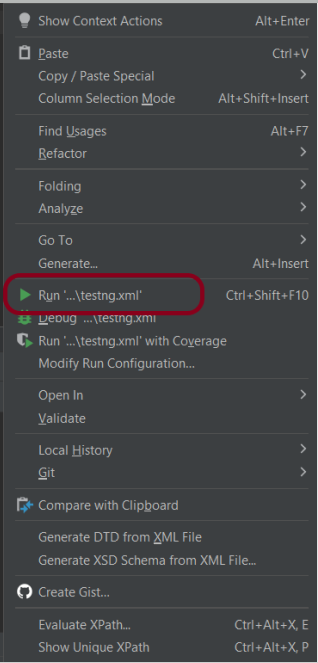
Right-click on the testng.xml and select “Run ..\testng.xml”.
The output of the above execution is
As expected, 3 test are passed and 1 test is failed.
The testdata.xlsx file will be updated with the actual response and the test execution status as shown in the below image.
Note – Make sure to close the excel workbook before starting the test execution, otherwise the test execution will be in the hung state.
Step 14 – View TestNG Reports
If you are using IntelliJ, the HTML Reports do not generate automatically. Go to the Configuration -> Listeners -> select Use default Reporters.
The TestNG Reports will be generated in test-output folder.
We are concerned about 2 reports – index.html and emailable-report.html.
index.html
emailable-report.html
Summary:
The test scripts in Data Driven Framework can be reused with different sets of test data.
The Test data can be easily modified without modifying the actual code implementation.
This framework has used excel as an external source to store the test data and test results.
In Java, a properties file is a simple text-based file used to store configuration or settings in key-value pairs. It provides a convenient way to externalize application-specific parameters that can be easily modified without modifying the source code.
Properties File is always storing information about the configuration parameters such as project configuration data such as URL, username, password, and project settings config like browser name, environment, and so on.
Properties files have a “.properties” extension.
Why do we need Properties File?
Properties files provide a convenient way to store configuration settings or parameters that can be easily modified without modifying the source code. It is not always a best practice to store the values as hard coded in the project.
With properties files, you can have different versions of the file tailored for specific environments (e.g., development, testing, production). Each environment can have its own set of configurations while sharing common structure and keys.
How to read data in a Properties File?
Steps to implement:
Let us create a properties file (name it as config.properties)
Add configuration data to the properties file.
Create a java class to read the config file (name it as ConfigFileReader)
1.Create a Property File
Create a text file with the “.properties“ extension and define key-value pairs in it. For example, create a file named “config.properties”.
2. Add configuration data to the properties file.
We have added the configuration data to the property file in key-value pairs :
FileInputStream: This class is used to read data from a file in the form of a sequence of bytes.load Method: The load method of the Properties class is used to read a properties file from an input stream.
The output of the above execution is
Congratulations on making it through this tutorial and hope you found it useful! Happy Learning!! Cheers!!
Are you familiar with Cucumber and want to test your understanding? This post contains 25 useful Cucumber multiple-choice questions (quiz) to self-test your knowledge of Cucumber.
You can find the questions for the below-mentioned answers in this post –
Are you familiar with Cucumber and want to test your understanding? This post has 25 useful Cucumber multiple-choice questions (quiz) to self-test your knowledge of Cucumber.
Scenario Outline: Login to Home Page
  Given user is logged in
  When user clicks <link>
  Then user will be logged out

  @mobile
  Examples:
    | link                   |
    |  mobile logout |

  @desktop
  Examples:
    | link                    |
    | desktop logout |
1) b) Selenium is the open-source test automated tool to test web-based UI which supports many different languages like Java, Python, Perl, PHP, Ruby, and C#.
2) a) Interface
WebDriver is an interface in Selenium which provides a simple interface to interact with and test web applications. It encompasses several implementations like ChromeDriver, FirefoxDriver, and others, each corresponding to different web browsers.
3) e) WebElement
WebElement is not considered a standalone component of Selenium; instead, it is an interface within Selenium WebDriver used to represent elements on a web page.
4) b) ASP
5) b) Compilation error- Cannot instantiate the type WebDriver
In Selenium, WebDriveris an interface, and you cannot instantiate an interface directly. You need to create an instance of a class that implements the WebDriverinterface, such as ChromeDriver, FirefoxDriver, etc.
WebDriver driver = new ChromeDriver();
6) c) Chromedriver
To run Selenium WebDriver scripts on the Chrome browser, we use ChromeDriver.
// Initialize ChromeDriver
WebDriver driver = new ChromeDriver();
7) d) i, ii, iii
8) a) thread.sleep();
It can be used to pause the execution in Java (and consequently in Selenium tests) for a specified duration, it is not considered a Selenium-specific wait mechanism.
11) b) driver.close() closes the current window and d) driver.quit() closes every associated window with this driver and quits the driver
12) b) //tag-name[@attribute=’attribute value’]
13) a) isDisplayed()
It returns true if the element is visible and false if it is not.
14) b) isEnabled()
It returns true if the element is enabled and false if it is not.
15) b) StaleElementReferenceException
This exception is thrown when a web element that was previously located is no longer present in the DOM (Document Object Model). If the web page is refreshed or modified after locating an element, the reference to that element may become stale, leading to this exception.
16) b) .*
17) a) WebElement element = driver.findElement(By.xpath(“//*[contains(text(), ‘ QAAutomation’)]”));
i. navigate().to("url") - driver.navigate().to("https://www.qaautomation.expert");
ii. open("url") - driver.get("https://www.qaautomation.expert");
20) a) sendKeys() is used to enter the text inthe textbox.
// Locate the text box element
WebElement textBox = driver.findElement(By.id("textboxId"));

// Enter text into the text box
textBox.sendKeys("Sample text");
Cucumber is not an API automation tool, but it works well with other API automation tools.
There are 2 most commonly used Automation Tools for JVM to test API – Rest-Assured and Karate. In this tutorial, I will use RestAssured with Cucumber and TestNG for API Testing.
REST Assured is a Java library that provides a domain-specific language (DSL) for writing powerful, maintainable tests for RESTful APIs. REST Assured can be used easily in combination with existing unit testing frameworks, such as JUnit and TestNG. Rest assured, no matter how complex the JSON structures are, Rest Assured has methods to retrieve data from almost every part of the request and response.
What is Cucumber?
Cucumber is one such open-source tool, which supports Behaviour Driven Development(BDD). In simple words, Cucumber can be defined as a testing framework, driven by plain English. It serves as documentation, automated tests, and development aid – all in one.
Each scenario is a set of steps that the Cucumber must complete. Cucumber validates the software’s compliance with the specification and generates a report indicating success or failure for each scenario.
The cucumber must adhere to some basic syntax rules known as Gherkin to comprehend the scenarios.
In this tutorial, I will explain creating a framework for the testing of Rest API in Cucumber BDD.
Dependency List
Cucumber – 7.18.0
Java 17
TestNG – 7.10.2
Maven – 3.9.6
Rest Assured – 5.4.0
Maven Compiler – 3.13.0
Maven Surefire – 3.2.5
Project Structure
Implementation Steps
Step 1 – Download and Install Java
Cucumber and Rest-Assured need Java to be installed on the system to run the tests. Click here to learn How to install Java.
Step 2 – Download and setup Eclipse IDE on the system
The Eclipse IDE (integrated development environment) provides strong support for Java developers. Click here to learn How to install Eclipse.
Step 3 – Setup Maven
To build a test framework, we need to add several dependencies to the project. Click here to learn How to install Maven.
Step 4 – Create a new Maven Project
File -> New Project-> Maven-> Maven project-> Next -> Enter Group ID & Artifact ID -> Finish
Step 5 – Install the Cucumber Eclipse plugin for the Eclipse project(Eclipse Only)
The Cucumber plugin is an Eclipse plugin that allows Eclipse to understand the Gherkin syntax. Cucumber Eclipse Plugin highlights the keywords present in the Feature File. To install Cucumber Eclipse Plugin, please refer to this tutorial – How to install Cucumber Eclipse Plugin.
Step 6 – Create source folder src/test/resources
Create source folder src/test/resources to create test scenarios in the Feature file.
A new Maven Project is created with 2 folders – src/main/java and src/test/java. To create test scenarios, we need a new source folder called – src/test/resources. To create this folder, right-click on your Maven project ->select New ->Java, and then Source Folder.
Mention the source folder name as src/test/resources and click the Next button. This will create a source folder under your new Maven project.
Step 7 – Add dependencies to the project
Add Rest Assured, Cucumber, and TestNG dependencies in the pom.xml/build.gradle. REST Assured includes JsonPath and XmlPath as transitive dependencies.
Step 8 – Add Maven Compiler Plugin and Surefire Plugin
The compiler plugin is used to compile the source code of a Maven project. This plugin has two goals, which are already bound to specific phases of the default lifecycle:
Step 9 – Create a feature file under src/test/resources
Create a folder with name features. Now, create the feature file in this folder. The feature file should be saved with the extension .feature. This feature file contains the test scenarios created to test the application. The Test Scenarios are written in Gherkins language in the format of Given, When, Then, And, But.
Below is an example of a Test Scenario where we are using the GET method to get the information from the API.
Feature: Validation of get method

  @GetUserDetails
  Scenario Outline: Send a valid Request to get user details

    Given I send a request to the URL to get user details
    Then the response will return status <statusCode> and id <id> and email "<employee_email>" and first name "<employee_firstname>" and last name "<employee_lastname>"

    Examples:
    | statusCode | id  | employee_email          | employee_firstname | employee_lastname |
    | 200        | 2   | janet.weaver@reqres.in  | Janet              | Weaver            |
Step 10 – Create the Step Definition class or Glue Code
StepDefinition acts as an intermediate to your runner and feature file. It stores the mapping between each step of the scenario in the Feature file. So when you run the scenario, it will scan the step definition file to check the matched glue or test code.
import io.cucumber.java.en.Given;
import io.cucumber.java.en.Then;
import io.restassured.http.ContentType;
import io.restassured.response.ValidatableResponse;

import static io.restassured.RestAssured.given;
import static org.hamcrest.Matchers.equalTo;

public class APIDemoDefinitions {

    private ValidatableResponse validatableResponse;
    private String endpoint = "https://reqres.in/api/users/2";

    @Given("I send a request to the URL to get user details")
    public void sendRequest(){
        validatableResponse = given().contentType(ContentType.JSON)
                .when().get(endpoint).then();

        System.out.println("Response :"+validatableResponse.extract().asPrettyString());
    }

    @Then("the response will return status {int} and id {int} and email {string} and first name {string} and last name {string}")
    public void verifyStatus(int expectedStatusCode, int expectedId, String expectedEmail, String expectedFirstName, String expectedLastName){

        validatableResponse.assertThat().statusCode(expectedStatusCode).body("data.id",equalTo(expectedId)).and()
                .body("data.email",equalTo(expectedEmail)).body("data.first_name",equalTo(expectedFirstName))
                .body("data.last_name",equalTo(expectedLastName));

    }
}
To use REST assured effectively it’s recommended to statically import methods from the following classes:
A runner will help us run the feature file and act as an interlink between the feature file and the StepDefinition Class.
import io.cucumber.testng.AbstractTestNGCucumberTests;
import io.cucumber.testng.CucumberOptions;

@CucumberOptions(tags = "", features = {"src/test/resources/features"}, glue = {"com.example.stepdefinitions"},
        plugin = {})
public class CucumberRunnerTests extends AbstractTestNGCucumberTests {

}
Note:- The name of the Runner class should end with Test otherwise we can’t run the tests using Command-Line.
Step 12 – Create a testng.xml file
Create a testng.xml at the root of the project.
<?xml version="1.0" encoding="UTF-8"?>
<!DOCTYPE suite SYSTEM "https://testng.org/testng-1.0.dtd">
<suite name="Suite">
    <test  name="Rest Assured, Cucumber with TestNG Test">
        <classes>
            <class name="com.example.runner.CucumberRunnerTests"/>
        </classes>
    </test> <!-- Test -->
</suite> <!-- Suite -->
Step 13 – Run the tests from TestNG
You can execute the test script by right-clicking on TestRunner class -> Run As TestNG (Eclipse).
You can execute the test script by right-clicking on TestRunner class -> Run CucumberRunnerTests (IntelliJ).
Step 14 – Run the tests from the testng.xml
Right-click on the testng.xml. Click on Run’...\testng.xml’.
Step 15 – TestNG Report Generation
TestNG generates various types of reports under the test-output or target folder like emailable-report.html, index.html, and testng-results.xml.
We are interested in the ‘emailable-report.html’ report. Open “emailable-report.html“, as this is an HTML report, and open it with the browser. The below image shows emailable-report.html.
emailable-report.html
Index.html
TestNG also produces “index.html” report, and it resides under the test-output folder. The below image shows the index.html report.
Step 16 – Run the tests from the Command Line
Run the below command in the command prompt to run the tests and to get the test execution report.
mvn clean test
The output of the above program is
Step 17 – Cucumber Report Generation
To get Cucumber Test Reports, add cucumber.properties under src/test/resources and add the below instruction in the file.
Many REST API endpoints require authentication to return the response. To authenticate the request, we will need to provide an authentication token with the required scopes or permissions. First, we need to generate an access token. Then, we pass it to the second request to get the desired response.
What is an Access Token?
An access token is a credential that is used to authenticate and authorize requests made to an API. It proves the user’s identity and permissions. This allows them to access protected resources or perform specific actions within the API.
Access tokens are usually represented as strings of characters (e.g., alphanumeric) that are generated by the server and provided to clients upon successful authentication. Access tokens often have an expiration time associated with them, after which they become invalid. This helps ensure security by limiting their lifespan.
Using access tokens helps ensure secure communication between clients and servers by preventing unauthorized access to protected resources. Without a valid access token, requests may be rejected or limited in their scope.
Access tokens enable stateless communication between client and server. This means that each request contains all necessary authentication and authorization information within itself. This eliminates the need for servers to store session-related data, improving scalability and reducing overhead.
Let us create a class that will generate the access token.
In the above example, a token is generated as shown below.
It is a JSON Response. We need only the token part and not the {“access_token”} part. So we have used the below command to extract the token part only.
JsonPath jsonPath = new JsonPath(token);
accessToken = jsonPath.getString("access_token");
What is Oauth2()?
OAuth 2.0 (Open Authorization 2.0) is an industry-standard protocol for authorization and delegation of access to protected resources on the web. It allows users to securely grant limited access to their resources hosted on one website or application. This site is called the “resource server.” The access is given to another website or application, which is called the “client.”
Below is a test. We are passing the token generated in the previous request for authentication. This token is used in another request with oauth2().
AccessToken_Example
import java.io.IOException;

public class AccessToken_Example extends AbstractHelper {

    Response response;

   @Test
    public void testRequest() throws IOException {

        response = RestAssured.given()
                .auth().oauth2(generateToken())
                .when().get("https://localhost/8080/coreid").then()
                .extract()
                .response();

        System.out.println("Response :" + response.asString());
        int statusCode = response.getStatusCode();

        Assert.assertEquals(200,statusCode);
    }
}
The output of the above program is
Summary:
1. Access tokens are obtained through an authentication process. This may include logging in with a username and password or using a third-party authentication service like OAuth. 2. Once authenticated, the access token contains information about the user’s permissions and privileges within the system. Use this access token and pass it to another request to get the required response.
Allure Framework is a flexible lightweight multi-language test report tool that not only shows a very concise representation of what has been tested in a neat web report form but allows everyone participating in the development process to extract the maximum useful information from the everyday execution of tests.
How Allure Report is generated?
Allure is based on standard xUnit results output but adds some supplementary data. Any report is generated in two steps. During test execution (first step), a small library called adapter attached to the testing framework saves information about executed tests to XML files. We already provide adapters for popular Java, PHP, Ruby, Python, Scala, and C# test frameworks. During report generation (second step), the XML files are transformed into an HTML report. This can be done with a command line tool, a plugin for CI, or a build tool.
Similarly, when we run our tests, every popular test framework generates junit-style XML report or testng style which will be used by Allure to generate HTML report.
In the below example, we use the maven surefire plugin which automatically generates xml test reports and stores them in target/surefire-reports. And these XML files are transformed into an HTML report by Allure.
Allure reports have provided adapters for Java, PHP, Ruby, Python, Scala, and C# test frameworks.
Allure report has the below-mentioned annotation.
@Epic @Features @Stories/@Story
We can add Epic, Feature, and Stories annotations to the test to describe the behaviour of the test.
@Severity(SeverityLevel.BLOCKER) – @Severity annotation is used in order to prioritize test methods by severity.
@Description(“Regression Testing”)– We can add a detailed description for each test method. To add such a description, use the @Description annotation.
@Step – In order to define steps in Java code, you need to annotate the respective methods with @Step annotation. When not specified, the step name is equal to the annotated method name.
@Attachment– An attachment in Java code is simply a method annotated with@Attachment that returns either a String or byte[], which should be added to the report.
@Link – We can link the tests to Defect Tracker or JIRA Ticket.
Below is an example that shows how to use various Allure Annotations in the Test.
@Epic("Web Application Regression Testing")
@Feature("Login Page Tests")
@Listeners(TestExecutionListener.class)
public class LoginTests extends BaseTest {

	LoginPage objLogin;
	DashboardPage objDashboardPage;

	@Severity(SeverityLevel.NORMAL)
	@Test(priority = 0, description = "Verify Login Page")
	@Description("Test Description : Verify the title of Login Page")
	@Story("Title of Login Page")
	public void verifyLoginPage() {

		// Create Login Page object
		objLogin = new LoginPage(driver);

		// Verify login page text
		objLogin.verifyPageTitle();
	}
}
Install Allure
For Windows, Allure is available from the Scoop command line installer.







 QA Automation Expert