The previous tutorial explained the generation of Extent Report 5 for Cucumber7 and TestNG. This tutorial explains how to add screenshots to the Extent Report.
Table of Contents
Project Structure

To set up the above project, please refer to this tutorial – ExtentReports Version 5 for Cucumber 7 and TestNG.
We want to add screenshots of failed tests to the Extent Report Version 5.
Step 1 – Add Screenshot configuration in extent.properties
extent.reporter.spark.start=true
extent.reporter.spark.out=Reports/Spark.html

#FolderName
basefolder.name=ExtentReports/SparkReport_
basefolder.datetimepattern=d_MMM_YY HH_mm_ss

#Screenshot
screenshot.dir=/Screenshots/
screenshot.rel.path=../Screenshots/
In the above example, we have provided the name “ExtentReports/SparkReport_”. It means that a folder starts with the name “SparkReport_” under the “ExtentReports” folder. The date-time pattern we have provided in another format is the basis of a valid pattern. It will concatenate with the folder name to generate a unique folder for each execution.

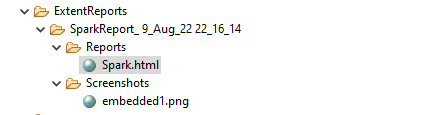
As seen in the image above, the “Reports” and “Screenshots” folders get created inside the new folder of SparkReports_. If we look inside the folder, we can see that the report was generated.
We can browse the screenshot folder to see all the screenshots taken during each step. Additionally, screenshots will be generated and named automatically.
Step 2 – Add a method to capture the screenshot
@After
public static void tearDown(Scenario scenario) {

		//validate if scenario has failed
		if(scenario.isFailed()) {
			final byte[] screenshot = ((TakesScreenshot) driver.getScreenshotAs(OutputType.BYTES);
			scenario.attach(screenshot, "image/png", scenario.getName());
		}
In the preceding example, the tearDown() method accepts a Scenario type object. The Scenario can be found within the io.cucumber. We used Selenium’s standard screenshot feature within the method. As an example, we’d like to read the file as a byte[] type. As a parameter, the attach method accepts byte[] type objects. Scenario.attach also includes a screenshot with each step of the scenario. To get the complete project, please refer to this tutorial – ExtentReports Version 5 for Cucumber 6 and TestNG.
The updated Hooks class will be as shown below:
import org.openqa.selenium.OutputType;
import org.openqa.selenium.TakesScreenshot;
import com.example.utils.HelperClass;
import io.cucumber.java.After;
import io.cucumber.java.Before;
import io.cucumber.java.Scenario;

public class Hooks {

	@Before
    public static void setUp() {

       HelperClass.setUpDriver();
    }

	@After
	public static void tearDown(Scenario scenario) {

		//validate if scenario has failed
		if(scenario.isFailed()) {
			final byte[] screenshot = ((TakesScreenshot) HelperClass.getDriver()).getScreenshotAs(OutputType.BYTES);
			scenario.attach(screenshot, "image/png", scenario.getName());
		}

		HelperClass.tearDown();
	}
}
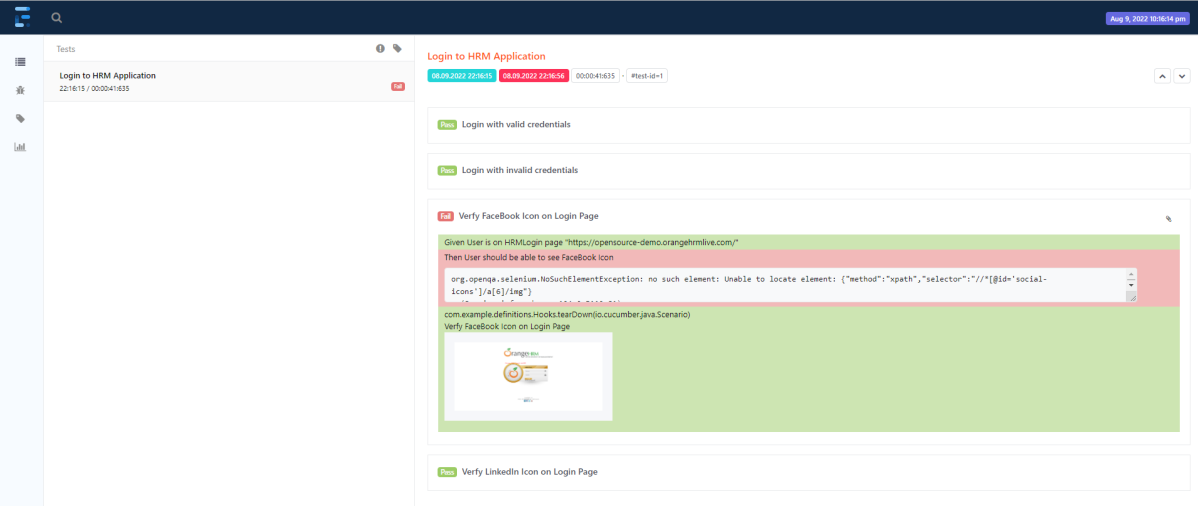
Let’s open the report and view the report. As you can see, besides the scenario, an attachment sign is available, which means something attaches to the scenario. As we have only one failed step, only one screenshot has been captured, as seen in the above image. Right-click on Spark.html and select Open with Web Browser.
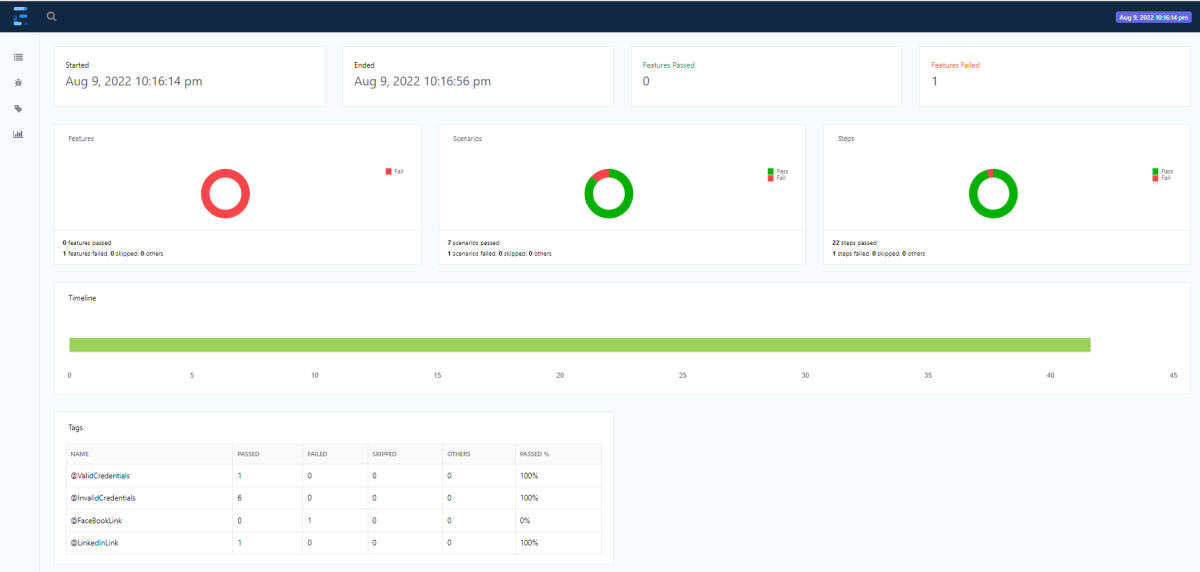
The report also has a summary section that displays the summary of the execution. The summary includes the overview of the pass/fail using a pictogram, start time, end time, and pass/fail details of features as shown in the image below.
The complete code can be found on GitHub.
Congratulations!! We can attach screenshots of the failed tests. Happy Learning!!
Additional Tutorials
 QA Automation Expert
Is it possible to remove package details above filename of image embedded.
com.example.definitions.Hooks.etc..
LikeLike
is it possible to have scenario name instead of embeded
LikeLike
How to add screenshot in testrunner?
LikeLike
1.How to add screenshot method in testrunner using selenium cucumber java
2. using above code, screenshot folder is not created, can anyone help me in solving?
LikeLike
Can I get helper class code and screenshot code in testrunner file
LikeLike
@After
public static void tearDown(Scenario scenario) {
//validate if scenario has failed
if(scenario.isFailed()) {
final byte[] screenshot = ((TakesScreenshot) HelperClass.getDriver()).getScreenshotAs(OutputType.BYTES);
scenario.attach(screenshot, “image/png”, scenario.getName());
}
May I get the helper class code to write in testrunner class?
LikeLike
Hi Soumya, I have never written any methods in TestRunner. I prefer to keep TestRunner class clean. Thats why I have created a Hook class and mentioned the screenshot code in it. To get the full picture, you can try to use this tutorial – https://qaautomation.expert/2022/08/22/extentreports-version-5-for-cucumber-7-and-testng/.
LikeLike
How to get full failed screenshot including url?
LikeLike
getFullPageScreenshotAs() is the method to create full page screenshot for firefox in Selenium4. If any other browser, then you need to use third party tool to get full screenshot. To get page url, you can use it like this – scenario.attach(screenshot, “image/png”, HelperClass.getDriver().getCurrentUrl());
LikeLike
How to add author name in report?
LikeLike
You can add systeminfo to the extent.properties file to add author name such as systeminfo.authorname=Vibha
LikeLike
Hi adding the screen shot getting error as change screen shot to TakesScreen shot
LikeLike