How to set variable values from Runtime command in Robot Framework

HOME

In this tutorial, we will set the variable values from the Run time command argument in Robot Framework using Selenium WebDriver and Python.

Variables can be changed from the command line using the –variable (-v) option or a variable file using the –variablefile (-V) option. Variables set from the command line are universally accessible for all executed test data files, and they override any variables with the same names in the Variable section and variable files imported into the test data.

Individual variables are established using the syntax –variable name:value, where name is the variable’s name without the $ symbol and value is its value. This option can be used multiple times to define multiple variables. This syntax can only be used to establish scalar variables, and they can only receive string values.

Prerequisite:

  1. Install Python
  2. Install PIP
  3. Install Robot Framework
  4. Install Robot framework Selenium Library
  5. Install PyCharm IDE

Please refer to this tutorial to install Robot Framework – How to install and setup Robot Framework for Python.

Implementation Steps:

Step 1.1 – Open PyCharm and create a new project. Go to File and select “New Project” from the main menu.
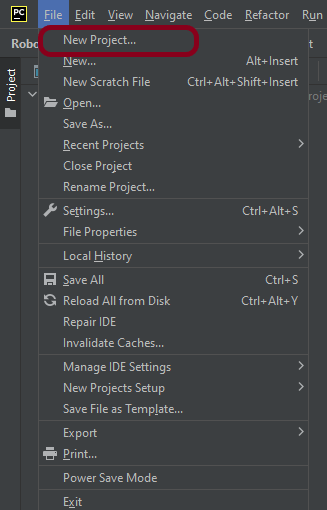
Step 1.2 – Choose the project location. Click the “Browse” button next to the Location field and specify the directory for your project.

Deselect the Create a main.py welcome script checkbox because you will create a new Python file for this tutorial.

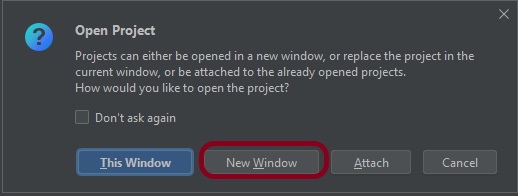
Step 1.3 – A new dialog will appear asking to Open the project using any one of the given options. I have selected New Window as I like to have separate windows for each project.
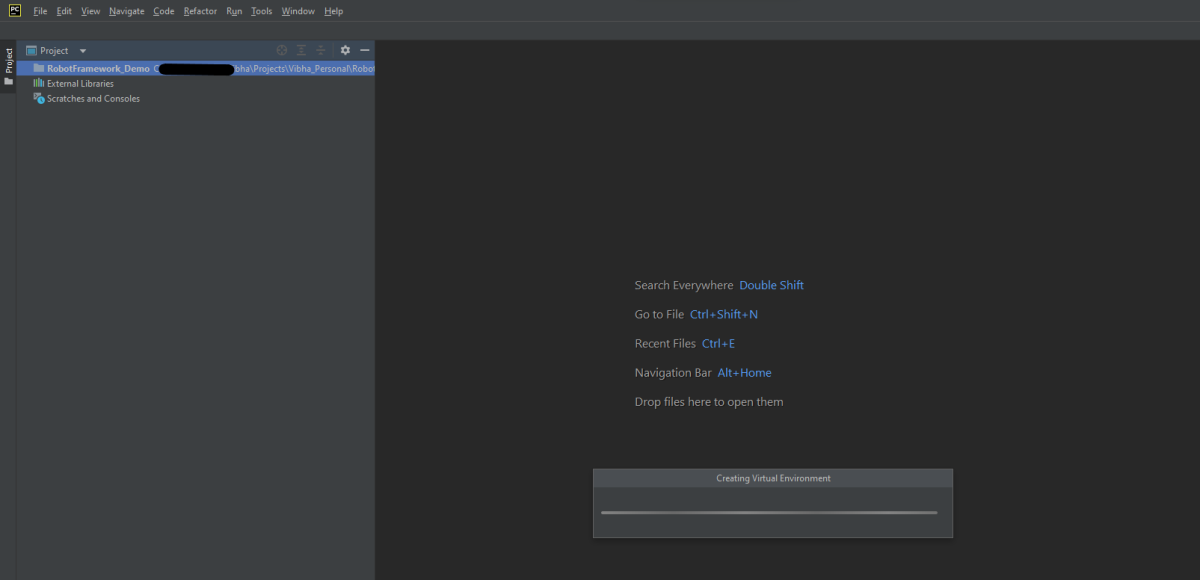
Below is the image of the new project created in PyCharms.
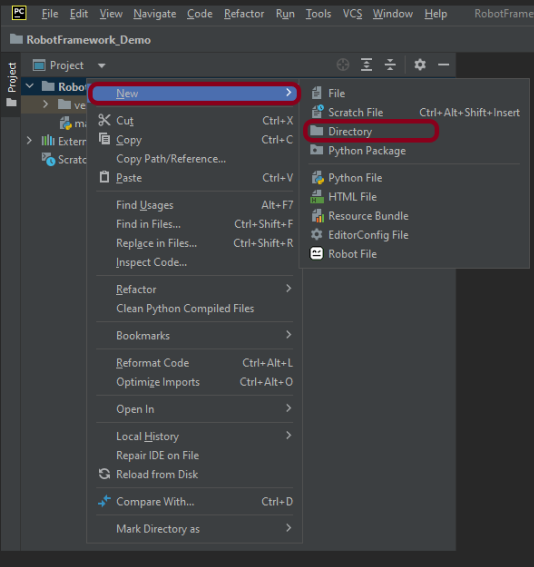
Step 2 – Create a new directory in the new project

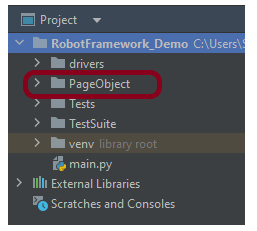
Right-Click on the project, select New->Directory and provide name as PageObject
Below is the image of the new directory.
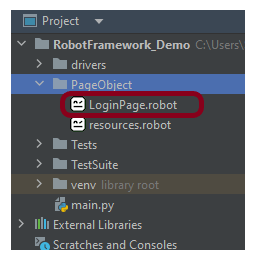
Right-click on the new directory select New File and provide the name LoginPage.robot as shown below:
Step 3 – Download ChromeBinaries from the below location

The tests are going to use the Chrome browser, so we need to download the ChromeBinaries to open a blank browser in Chrome.

https://chromedriver.chromium.org/
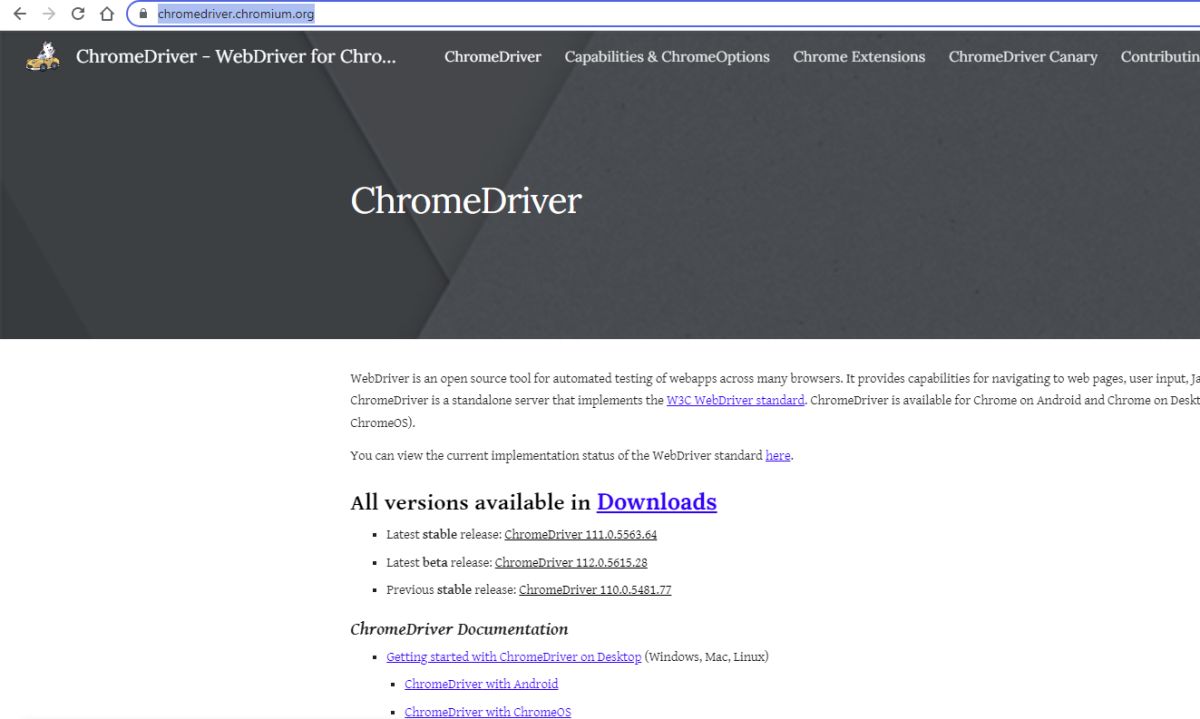
The chromedriver and geckodriver are placed in a folder name drivers in the RobotFramework_Demo project. I have renamed chromedriver to chrome and geckodriver to firefox.

Step 4 – Create a simple Selenium Test

*** Settings ***
Documentation       Tests to login to Login Page
Library     SeleniumLibrary

*** Variables ***
${valid_username}     Admin
${valid_password}       admin123
${invalid_username}     1234
${invalid_password}     45678
${blank_username}
${blank_password}
${url}      https://opensource-demo.orangehrmlive.com/web/index.php/auth/login
${browser_name}      Chrome
${login_error_message}      css:.oxd-alert-content--error
${dashboard_title}       css:.oxd-topbar-header-breadcrumb-module
${missing_username_error_message}    xpath://*[@class='oxd-form']/div[1]/div/span
${missing_password_error_message}   xpath://*[@class='oxd-form']/div[2]/div/span


*** Test Cases ***

Validate Unsuccessful Login using invalid credentials
    [Tags]    SMOKE
    Open the Browser with URL
    Fill the login form     ${valid_username}       ${invalid_password}
    Verify the error message is correct
    Close Browser Session

Validate Unsuccessful Login for blank username
    [Tags]    REGRESSION
    Open the Browser with URL
    Fill the login form     ${blank_username}       ${valid_password}
    Verify the error message is displayed for username
    Close Browser Session

Validate Unsuccessful Login for blank password
    [Tags]    SMOKE     REGRESSION
    Open the Browser with URL
    Fill the login form     ${valid_username}       ${blank_password}
    Verify the error message is displayed for password
    Close Browser Session

Validate successful Login
    [Tags]    UAT
    Open the Browser with URL
    Fill the login form     ${valid_username}       ${valid_password}
    Verify Dashboard page opens
    Close Browser Session

*** Keywords ***

Open the Browser with URL
    Create Webdriver    ${browser_name}  executable_path=/Vibha_Personal/RobotFramework_Demo/drivers/${browser_name}
    Go To       ${url}
    Maximize Browser Window
    Set Selenium Implicit Wait    5

Fill the login form
   [Arguments]    ${username}      ${password}
   Input Text    css:input[name=username]   ${username}
   Input Password    css:input[name=password]   ${password}
   Click Button    css:.orangehrm-login-button

Verify the error message is correct
    Element Text Should Be    ${login_error_message}    Invalid credentials

Verify Dashboard page opens
    Element Text Should Be    ${dashboard_title}      Dashboard

Verify the error message is displayed for username
     Element Text Should Be    ${missing_username_error_message}      Required

Verify the error message is displayed for password
      Element Text Should Be    ${missing_password_error_message}      Required

Close Browser Session
    Close Browser

Step 5 – Set Variable values from the Runtime command

In the above example, we are using the Chrome browser to run the tests. I want to run the tests on the Firefox browser, but without making any changes to the existing code. How this can be achieved? We can pass variable

robot --variable browser_name:Firefox .

The output of the above program is
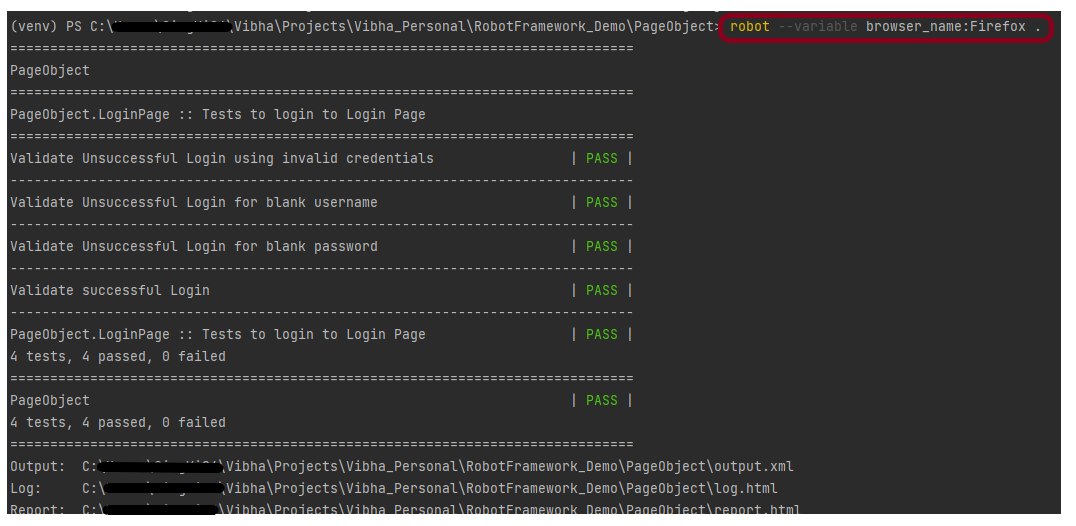
We have the test case passed. The Robot Framework generates log.html, output.xml, and report.html by default.

Let us now see the report and log details.

Report

Right-click on report.html. Select Open In->Browser->Firefox (any browser of your wish).

The Report generated by the framework is shown below:

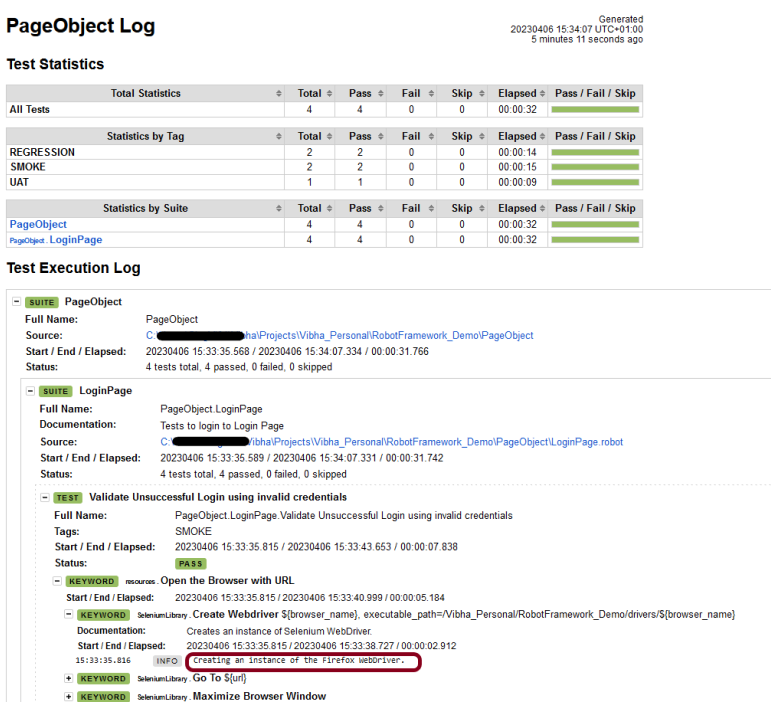
Log

Robot Framework has multiple log levels that control what is shown in the automatically generated log file. The default Robot Framework log level is INFO.

Right-click on log.html. Select Open In->Browser->Firefox (any browser of your wish).
Variables with Tags

If you want to execute only test scenario tagged with UAT using firefox browser, it can be done using the below command:

robot --variable browser_name:Firefox --include UAT .

The output of the above program is

That’s it! Congratulations on making it through this tutorial and hope you found it useful! Happy Learning!!

Additional Tutorials
How to Install Python on Windows 11
How to run all the tests from the folder in Robot Framework
How to rerun failed tests in Robot Framework
How to implement tagging in Robot Framework
Page Object Model in Robot Framework with Selenium and Python
How to load data from CSV files in the Robot Framework?

What are variables in Robot Framework?

HOME

Variables are an essential component of Robot Framework and can be utilized in almost any place in test data. Simply said, if we have values that change frequently and are utilized several times in different test scenarios, adding a variable can help. So, if our value changes in the future, we can just update it in one place, and it will be reflected in all the test cases. Test data and locators are the finest use cases for variables.

In Robot Framework, there are four sorts of variables.

1. Scalar (Identifier: $) – The most common way to use variables in Robot Framework test data is using the scalar variable syntax like ${var}. When this syntax is used, the variable name is replaced with its value as-is.

2. List (Identifier: @) – If a variable value is a list or list-like, a list variable like @{EXAMPLE} is used. In this case, the list is expanded, and individual items are passed in as separate arguments.

3. Dictionary (Identifier: &) – A variable containing a Python dictionary or a dictionary-like object can be used as a dictionary variable like &{EXAMPLE}. In practice, this means that the dictionary is expanded and individual items are passed as named arguments to the keyword.

4. Environment (Identifier: %) – Robot Framework allows using environment variables in the test data using the syntax %{ENV_VAR_NAME}. They are limited to string values.
 

*** Variables ***
${STRING}           cute name                #Scalar
${INT_AS_STRING}    1                     #Scalar
${INT_AS_INT}       ${1}                    #Scalar
${FLOAT}            ${3.14}                   #Scalar
@{LIST}             one    two    three
&{DICTIONARY}       string=name    int=${1}    list=@{LIST}
${ENVIRONMENT}      %{PATH}

Let’s write a simple test using all the above identifiers:

*** Settings ***
Documentation    To validate the Login Form
Library     SeleniumLibrary
Library    Collections
Test Teardown    Close Browser Session


*** Variables ***
${valid_username}     Admin                          #Scalar
${valid_password}       admin123                   #Scalar
${url}      https://opensource-demo.orangehrmlive.com/web/index.php/auth/login        #Scalar
&{VisibleElements}  Forgot your password?=css:.orangehrm-login-forgot-header         #Dictionary


*** Test Cases ***

Validate Elements on Login Page
    Open the Browser with URL
    Verify Element on Login Page


Validate Successful Login
    Open the Browser with URL
    Fill the login form
    Verify Dashboard page opens
    Verify items in Dashboard page

Verify Environment variable

*** Keywords ***

Open the Browser with URL
    Create Webdriver    Chrome  executable_path=/Vibha_Personal/RobotFramework_Demo/drivers/chromedriver_linux64
    Go To       ${url}
    Maximize Browser Window
    Set Selenium Implicit Wait    5

Verify Element on Login Page
    Element Should Be Visible       ${VisibleElements}[Forgot your password?]

Fill the login form
   Input Text    css:input[name=username]   ${valid_username}
   Input Password    css:input[name=password]   ${valid_password}
   Click Button    css:.orangehrm-login-button

Verify Dashboard page opens
    Element Text Should Be    css:.oxd-topbar-header-breadcrumb-module   Dashboard

Verify items in Dashboard page

    @{expectedList} =      Create List      Admin   PIM   Leave     Time    Recruitment  My Info  Performance     Dashboard   Directory  Maintenance  Buzz             #List
    ${elements} =   Get Webelements    css:.oxd-main-menu-item--name
    @{actualList} =     Create List
    FOR    ${element}    IN      @{elements}
        LOG  ${element.text}
        Append To List    ${actualList}     ${element.text}
    END

    Lists Should Be Equal    ${expectedList}         ${actualList}

Close Browser Session
    Close Browser

1. ${valid_username} Admin and ${valid_password} admin123 are both scalar variables because we have the $ sign. The variables are storing the username and password values.

2. @{expectedList} is a list variable (identified by the sign @) storing 11 elements in a list (or Array).

3. &{VisibleElements} Forgot your password?=css:.orangehrm-login-forgot-header is a Dictionary variable (identified by &) storing two locators in the form of key=value.

Execute the tests

We need the below command to run the Robot Framework script.

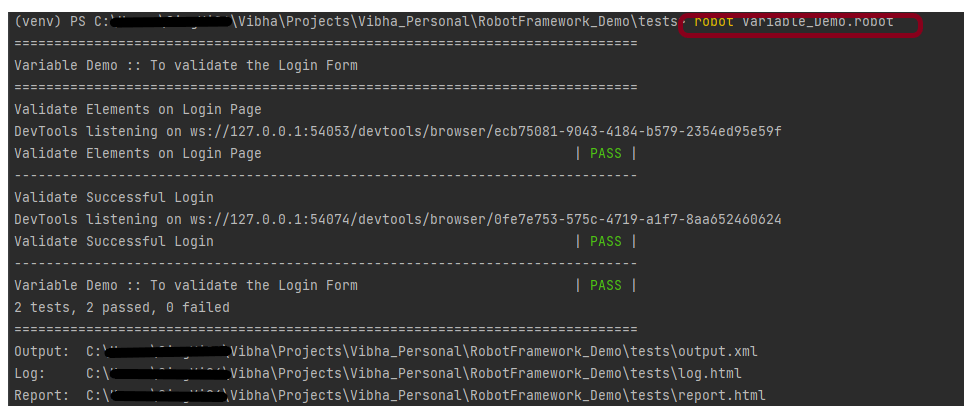
robot Variable_Demo.robot

The output of the above program is

View Report and Log

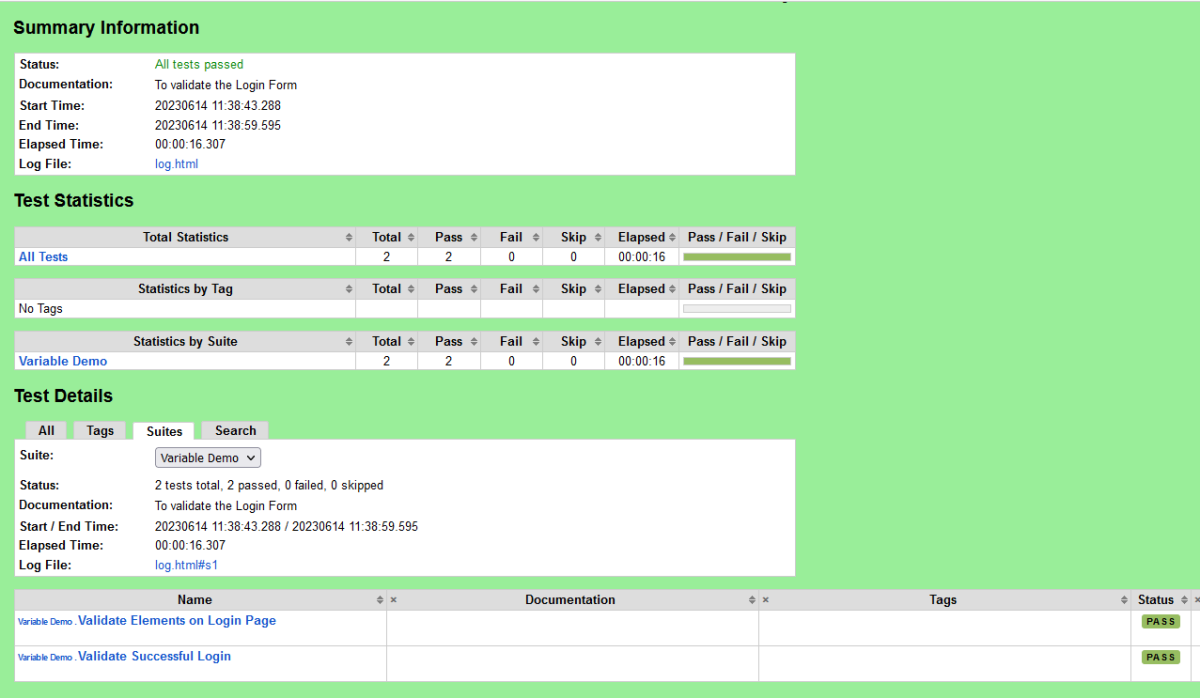
We have the test case passed. The Robot Framework generates log.html, output.xml, and report.html by default.

Let us now see the report and log details.

Report

Right-click on report.html. Select Open In->Browser->Firefox(any browser of your wish).

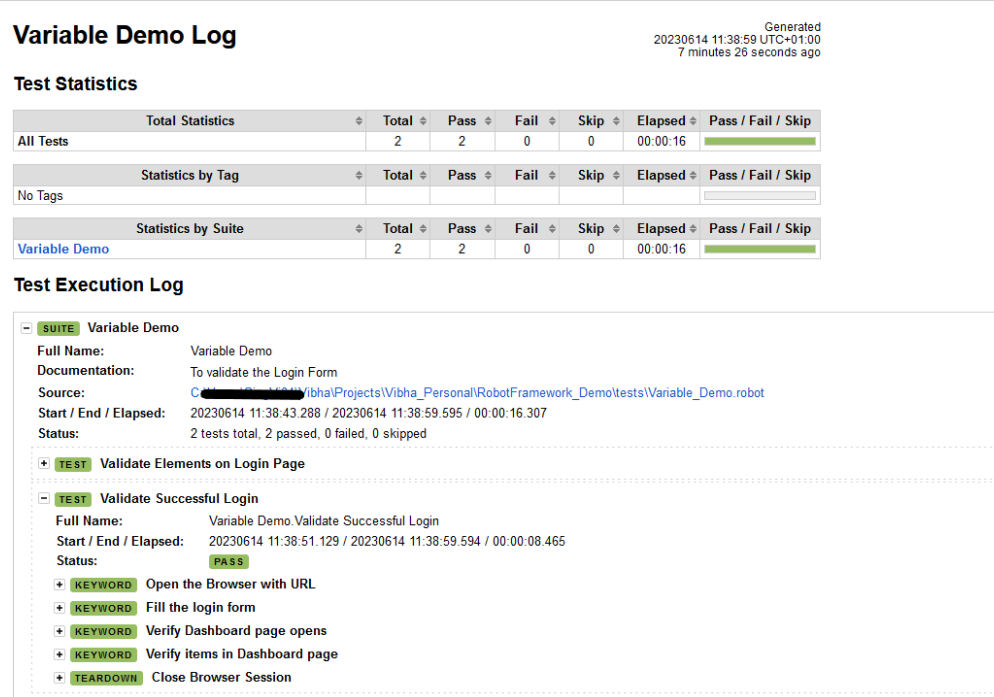
Log

Robot Framework has multiple log levels that control what is shown in the automatically generated log file. The default Robot Framework log level is INFO.

Right-click on log.html. Select Open In->Browser->Firefox(any browser of your wish).

The list elements are shown below

That’s it! Congratulations on making it through this tutorial and hope you found it useful! Happy Learning!!

Robot Framework Features – Settings, Libraries, Variables, Keywords, Resources, Reports, Logs

HOME

The previous tutorial has explained What is Robot Framework and its advantages. This tutorial will explain the various features available in this framework.

1. Settings

The Setting section is used to import libraries, resource files, and variable files and to define metadata for test suites and test cases. It can be included in test case files and resources.

The most commonly used are:

NameDescription
LibraryUsed for importing libraries.
ResourceUsed for taking resource files into use.
DocumentationUsed for specifying a test suite or resource file documentation.
VariablesUsed for taking variable files into use.
MetadataUsed for setting free test suite metadata.
Test SetupUsed for specifying a default test setup.
Test TeardownUsed for specifying a default test teardown.
Test TemplateUsed for specifying a default template keyword for test cases.

Example of Setting:

*** Settings ***
Documentation    To validate the Login Form
Library     SeleniumLibrary
Test Teardown    Close Browser

2. Test Cases

The settings in the Test Case section are always specific to the test case for which they are defined. Some of these settings override the default values defined in the Settings section.

Example of Test Case:

*** Test Cases ***
Validate Unsuccessful Login
    Open the Browser with URL
    Fill the login form
    Verify error message is correct

3. Keywords

The Keyword section settings are unique to the user keyword for which they are defined. The robot architecture includes built-in keywords as well as keywords from libraries such as the Selenium Library. (open browser, close browser, maximize browser, etc.). We can also make user-defined keywords out of other user-defined keywords or built-in or library keywords. We can also give arguments to those keywords, which turns them into functions that can be reused.

Example of Keywords:

*** Keywords ***
Open the Browser with URL
    Create Webdriver    Chrome  executable_path=/Vibha_Personal/RobotFramework/drivers/chromedriver_linux64
    Go To    https://opensource-demo.orangehrmlive.com/web/index.php/auth/login
    Maximize Browser Window
    Set Selenium Implicit Wait    5

4. Libraries

Many external libraries, such as SeleniumLibrary, Database Library, FTP Library, and HTTP Library, are supported by the Robot architecture. SeleniumLibrary is mostly used to communicate with browsers and aid in web application and UI testing. Robot framework also includes its own libraries for strings, dates, integers, and so on.

Normally, test libraries are imported by selecting the Library option in the Setting section and entering the library name in the following column. The collection name, unlike most other data, is case and space sensitive. If a library is part of a package, use the complete name, including the package name.

Example of Libraries:

Library     SeleniumLibrary
Library     String

5. Variables

Variables which are defined in the *** Variables *** section are available in all test cases and keywords in the same file.
Variables defined in the *** Variables *** section are suite variables.
If a .resource or a .robot file with a *** Variables *** section is imported into a test suite, and the variables there also become suite variables.

Example of Variables:

 ${result}=  Get Text    CSS:.oxd-alert-content-text

6. Resources

Resource files are imported using the Resource setting in the Settings section so that the path to the resource file is given as an argument to the setting.  The robot framework also allows the import of robot files with keywords externally to be used with test cases. Resources are very easy to use and are of great help when we need to use some keywords already written for other test projects.

Example of Resource File:

*** Settings ***
Documentation
Library     SeleniumLibrary

*** Variables ***
${valid_username}     Admin
${valid_password}       admin123
${invalid_username}     1234
${invalid_password}     45678
${url}      https://opensource-demo.orangehrmlive.com/web/index.php/auth/login

*** Keywords ***

Open the Browser with URL
    Create Webdriver    Chrome  executable_path=/Vibha_Personal/RobotFramework/drivers/chromedriver_linux64
    Go To       ${url}
    Maximize Browser Window
    Set Selenium Implicit Wait    5

Close Browser Session
    Close Browser

7. Reports and Logs

The robot framework provides all test suite and test case execution details in the shape of reports and logs. The log file contains all the test case’s execution information. Details such as whether the test case failed or passed, the time required for execution, and the steps needed to run the test case are provided.

Report

Log

That’s it! Congratulations on making it through this tutorial and hope you found it useful! Happy Learning!!