How to report Manual Tests in Serenity Report

HOME

Cucumber is primarily and traditionally used for automating executable specifications. But with Serenity BDD, you can add special tags to indicate that a scenario represents a manual test case.

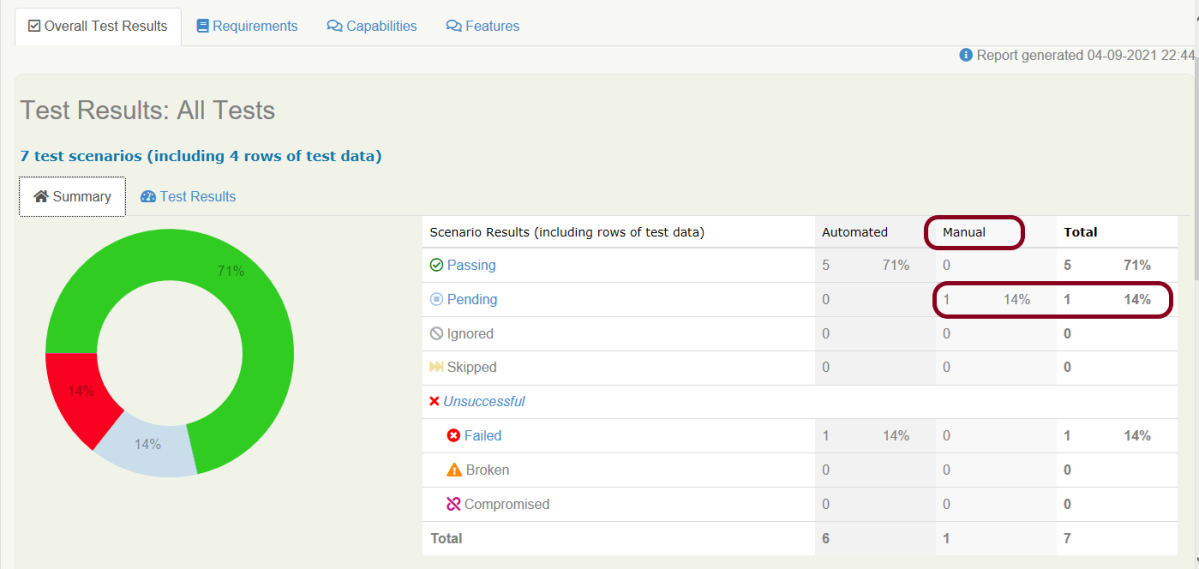
You can flag any Cucumber scenario as manual simply by using the @manual tag. In the below example, I have tagged a scenario as “@manual”. The last scenario is tagged as “manual”. By default, @manual scenarios are marked as pending in the Serenity reports.

Feature: Login to HRM  

   @ValidCredentials
   Scenario: Login with valid credentials
   
    Given User is on Home page
    When User enters username as "Admin"
    And User enters password as "admin123"
    Then User should be able to login successfully
    
    @InValidCredentials    
    Scenario Outline: Login with invalid credentials
   
    Given User is on Home page
    When User enters username as '<username>'
    And User enters password as '<password>'
    Then User should be able to see error message '<errorMessage>'
      
   Examples:
    |username  |password  |errorMessage                    |
    |admin     |admin     |Invalid credentials             |
    |          |admin123  |Username cannot be empty        | 
    |Admin     |          |Password cannot be empty        |
    |          |          |Username can be empty        |
 
   @ForgetPassword  
   Scenario: Verify Forget Password Functionality
   
    Given User is on Home page
    When User clicks on Forgot your password link
    Then User should be able to see new page which contains Reset Password button
   
   @manual
   Scenario: Verify credentials present in Master Database not older than 30 days
   
    Given User is connected to Master Database
    Then Username "Admin" and password "admin123" are present in Master Database not older than 30 days

Execute the test suite using below command

mvn clean verify

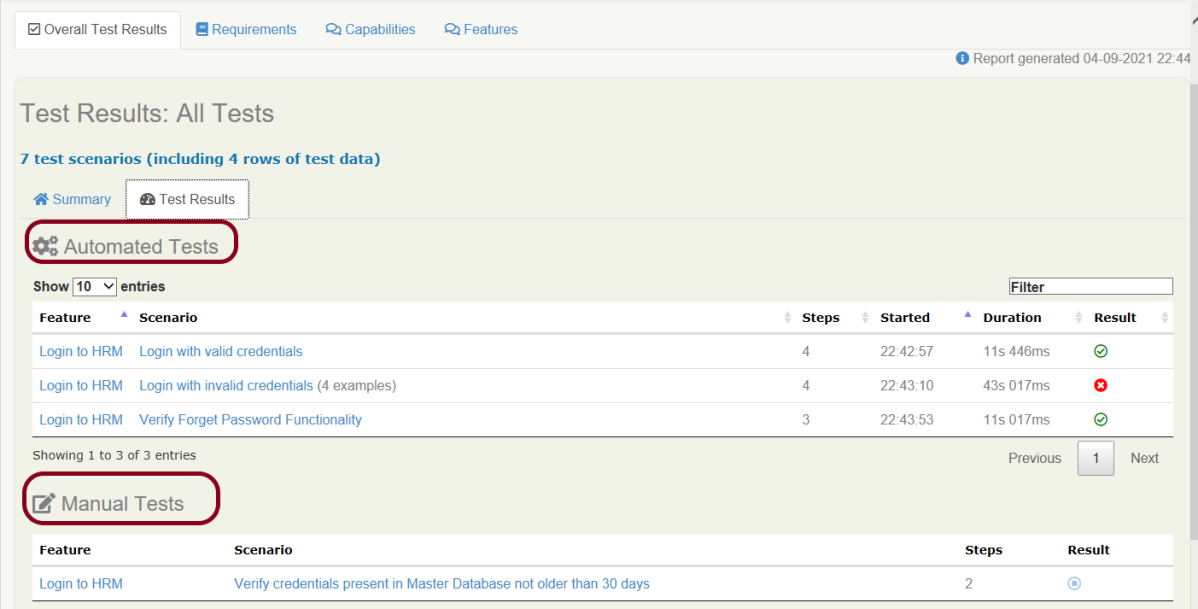
The scenario marked with @manual tag will now appear as a Manual test case in the Serenity report (Index.html). To know how to create Serenity Report, click here.
We can indicate a different result by adding the @manual-result tag as shown here:

A passing test: @manual-result:passed
A failing test: @manual-result:failed
A compromised test: @manual-result:compromised

If we want to record the result of a manual test, we should include both the @manual and the @manual-result tags.

   @manual
   @manual-result:passed
   Scenario: Verify credentials present in Master Database not older than 30 days
   
   Given User is connected to Master Database
   Then Username "Admin" and password "admin123" are present in Master Database not older than 30 days
    
   @manual
   @manual-result:failed
   Scenario: Verify different credentials are provided to Admin, Dev and QA to access Master Database
   
   Given User is connected to Master Database
   Then Different credentials are provided to Admin, Business, Dev and QA to access Master Database
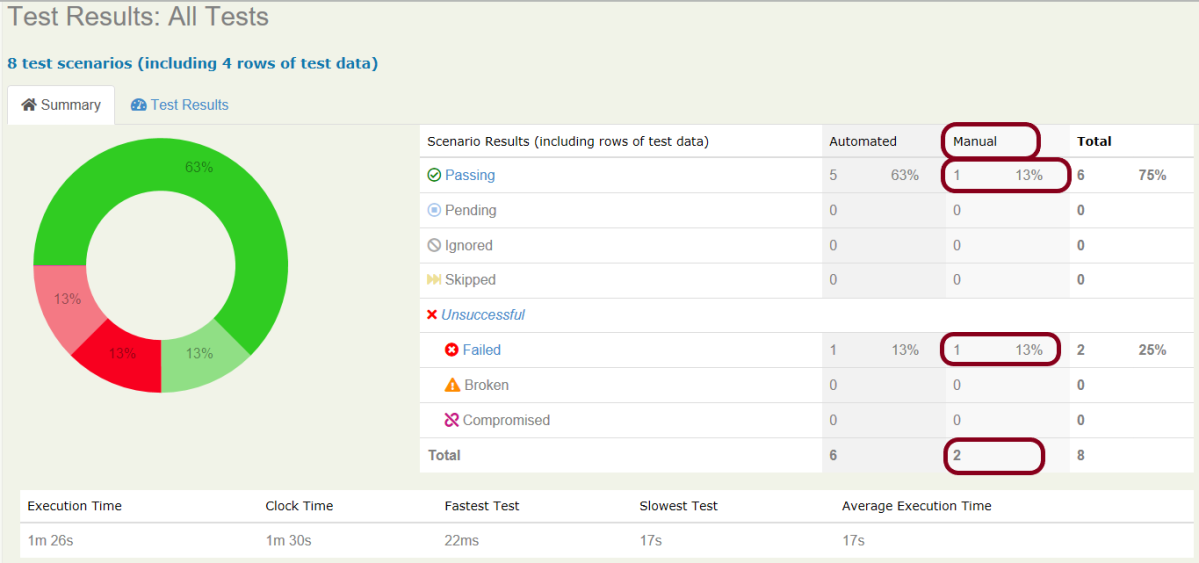
This image shows that there are 2 manual tests. I have marked one manual test as passed and another one as failed which is clearly shown in this image.

How to update Manul Test Results

In the below example, we are considering that the team is working on Sprint-1. We have executed the manual tests and marked the status in the feature file as shown below.

  @manual
  @manual-result:passed
  @manual-last-tested:sprint-1
  Scenario: Verify credentials present in Master Database not older than 30 days
   
  Given User is connected to Master Database
  Then Username "Admin" and password "admin123" are present in Master Database not older than 30 days
    
  @manual
  @manual-result:failed
  @manual-last-tested:sprint-1
  Scenario: Verify different credentials are provided to Admin, Dev and QA to access Master Database
   
  Given User is connected to Master Database
  Then Different credentials are provided to Admin, Business, Dev and QA to access Master Database

In the Serenity properties , the team also records the current version (or sprint number):

serenity.project.name = Serenity and Cucumber Report Demo
current.target.version = sprint-1

Now, execute the feature file. This is how the report look like.
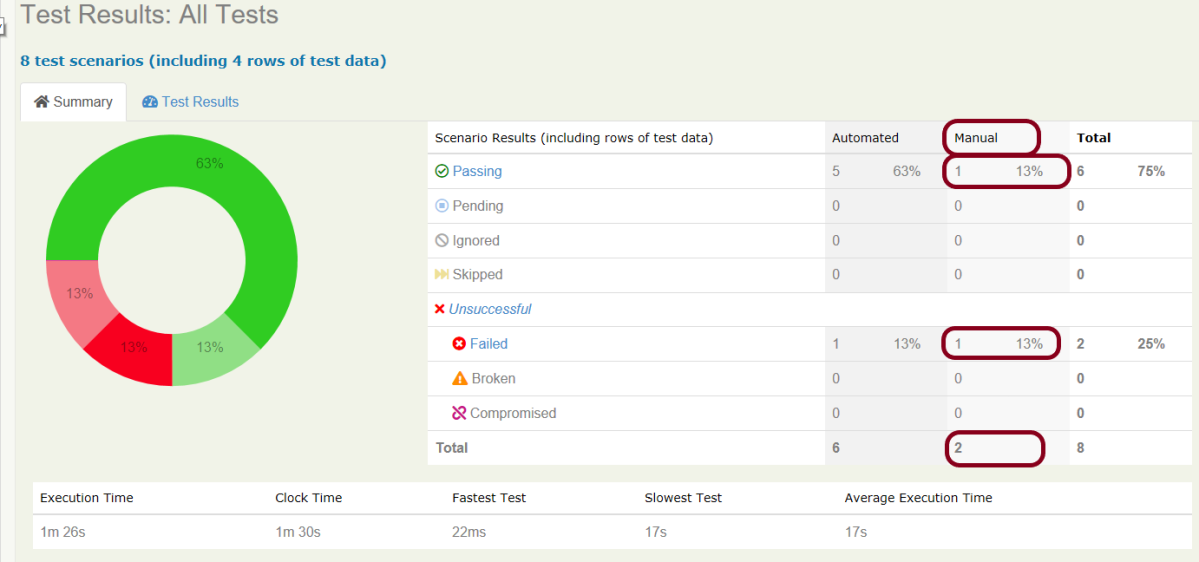
Now, we are in next sprint. Update the value of current.target.version in serenity.properties file.

serenity.project.name = Serenity and Cucumber Report Demo
current.target.version = sprint-2

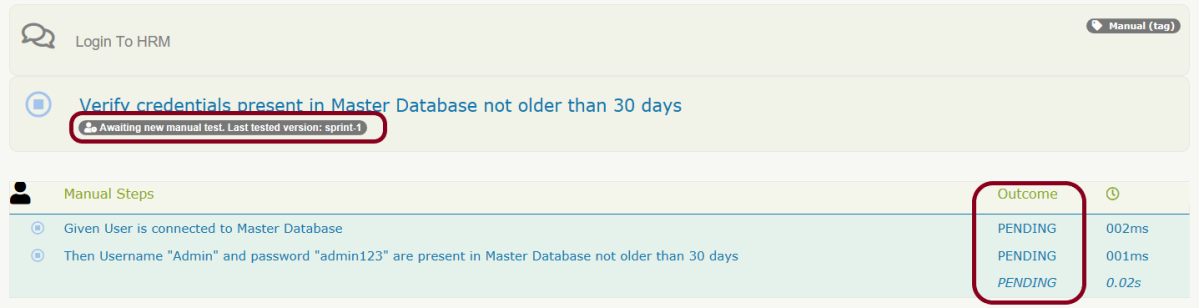
Now, when the manual scenario is processed, it will be marked as pending, with a note indicating that a new manual test is required:
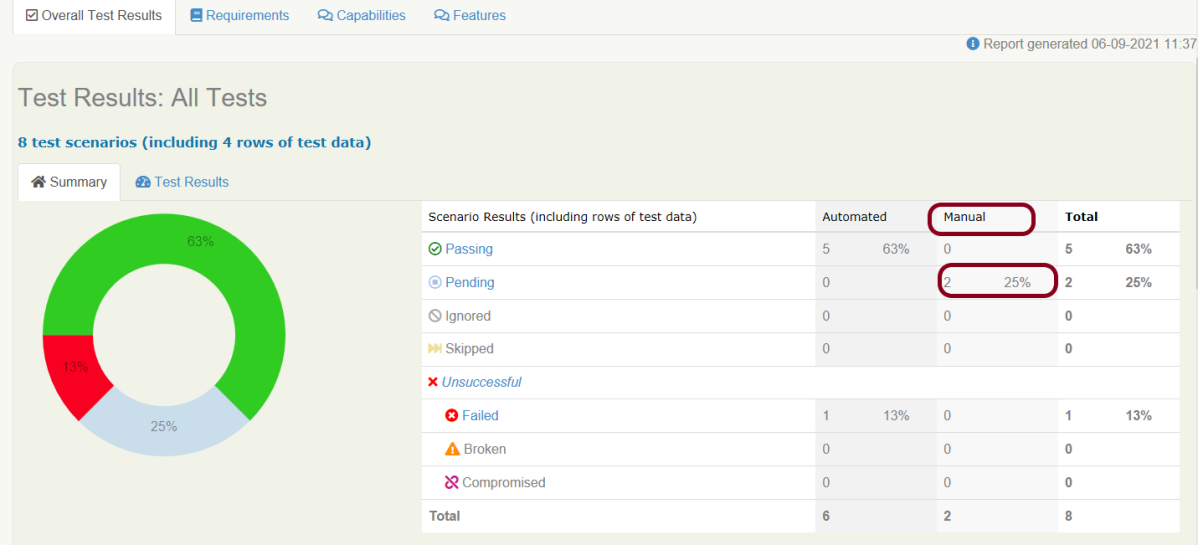
Both the maual tests which were marked as pass and fail are now pending tests as shown in the image.

We are done! Congratulations on making it through this tutorial and hope you found it useful! Happy Learning!!
Serenity BDD with Gradle and Cucumber for Web Application

HOME

In the previous tutorial, I have explained about Integration Testing of SpringBoot Application with Serenity BDD and Cucumber in Maven project. This tutorial describes the creation of the Gradle Java Project to test a web application using Cucumber6 and JUnit4.

In this tutorial, I will explain creating a framework for the testing of Web Applications in Cucumber BDD.

Pre-Requisite

  1. Java 11 installed
  2. Gradle installed
  3. Eclipse or IntelliJ installed

This framework consists of:

  1. Serenity – 2.6.0
  2. Serenity Cucumber – 2.6.0
  3. Java 11
  4. JUnit – 4.13.2
  5. Gradle – 7.2

Steps to setup Gradle Java Project for Web Application using Serenity, Cucumber6 and JUnit4

  1. Download and Install Java on the system
  2. Download and setup Eclipse IDE on the system
  3. Setup Gradle on System and create a new Gradle Project
  4. Update repositories, plugins, and dependencies to the Gradle project
  5. Create a feature file under src/test/resources
  6. Create the Step Definition class or Glue Code for the Test Scenario
  7. Create a Serenity Cucumber Runner class
  8. Create serenity.conf file under src/test/resources
  9. Create serenity.properties file at the root of the project
  10. Run the tests through commandline which generates Serenity Report

Step 1- Download and Install Java

Cucumber and Rest-Assured need Java to be installed on the system to run the tests. Click here to know How to install Java.

Step 2 – Download and setup Eclipse IDE on system

The Eclipse IDE (integrated development environment) provides strong support for Java developers. Click here to know How to install Eclipse.

Step 3 – Setup Gradle

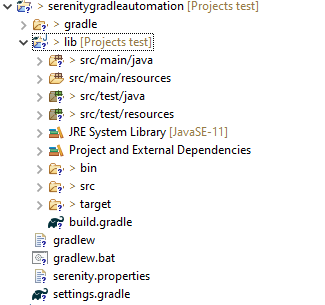
To build a test framework, we need to add several dependencies to the project. This can be achieved by any build Tool. I have used Gradle Build Tool. Click here to know How to install Gradle. Click here to know How to create a Gradle Java project. Below is the structure of the Gradle project.

Step 4 – Update repositories, plugin, and dependencies to the Gradle project

defaultTasks 'clean', 'test', 'aggregate'

repositories {
    mavenLocal()
    jcenter()
}

buildscript {
    repositories {
        mavenLocal()
        jcenter()
    }
    dependencies {
        classpath("net.serenity-bdd:serenity-gradle-plugin:2.4.24")
    }
}

apply plugin: 'java'
apply plugin: 'eclipse'
apply plugin: 'idea'
apply plugin: 'net.serenity-bdd.aggregator'

sourceCompatibility = 11
targetCompatibility = 11

dependencies {
   
    testImplementation 'net.serenity-bdd:serenity-core:2.6.0'
    testImplementation 'net.serenity-bdd:serenity-cucumber6:2.6.0'
    testImplementation 'net.serenity-bdd:serenity-screenplay:2.6.0'
    testImplementation 'net.serenity-bdd:serenity-screenplay-webdriver:2.6.0'
    testImplementation 'junit:junit:4.13.1'
}

test {
    testLogging.showStandardStreams = true
    systemProperties System.getProperties()
}

gradle.startParameter.continueOnFailure = true

test.finalizedBy(aggregate)

Step 5 – Create a feature file under src/test/resources

A Feature File is an entry point to the Cucumber tests. This is a file where you will describe your tests in Descriptive language (Like English). A feature file can contain a scenario or can contain many scenarios in a single feature file. Below is an example of Feature file.

Feature: Login to HRM  

   @ValidCredentials
   Scenario: Login with valid credentials
   
    Given User is on Home page
    When User enters username as "Admin"
    And User enters password as "admin123"
    Then User should be able to login successfully

Step 6 – Create the Step Definition class or Glue Code for the Test Scenario

The steps definition file stores the mapping between each step of the test scenario defined in the feature file with a code of the function to be executed. So, now when Cucumber executes a step of the scenario mentioned in the feature file, it scans the step definition file and figures out which function is to be called.

Create a StepDefinition class for LoginPage.feature

public class LoginPageDefinitions {
 
    @Steps
    StepLoginPage loginPage;
 
    @Steps
    StepDashboardPage dashPage;
 
    @Steps
    StepForgetPasswordPage forgetpasswordPage;
 
    @Given("User is on Home page")
    public void openApplication() {
        loginPage.open();
        System.out.println("Page is opened");
    }
 
    @When("User enters username as {string}")
    public void enterUsername(String userName) {
        System.out.println("Enter Username");
        loginPage.inputUserName(userName);
    }
 
    @When("User enters password as {string}")
    public void enterPassword(String passWord) {
        loginPage.inputPassword(passWord);
 
        loginPage.clickLogin();
    }
 
    @Then("User should be able to login successfully")
    public void clickOnLoginButton() {
        dashPage.loginVerify();
    }
   
}

Serenity Step Libraries integrate smoothly into Cucumber Step Definition files; all you need to do is to annotate a step library variable with the @Steps annotation.  Methods that represent a business task or action (inputUserName()), and that will appear in the reports as a separate step, are annotated with the @Step annotation. Here, I have created two StepClasses – StepLoginPage and StepDashboardPage

public class StepLoginPage extends PageObject {
 
    @Step("Enter Username")
    public void inputUserName(String userName) {
        $(By.name("txtUsername")).sendKeys((userName));
    }
 
    @Step("Enter Password")
    public void inputPassword(String passWord) {
        $(By.name("txtPassword")).sendKeys((passWord));
    }
 
    @Step("Click Submit Button")
    public void clickLogin() {
        $(By.name("Submit")).click();
    } 
 
}

StepDashboardPage

public class StepDashboardPage extends PageObject {
 
    @Step("Successful login")
    public void loginVerify() {
        String dashboardTitle = $(By.id("welcome")).getText();
        assertThat(dashboardTitle, containsString("Welcome"));
    }
}

Step 7 – Create a Serenity Cucumber Runner class

import org.junit.runner.RunWith;

import io.cucumber.junit.CucumberOptions;
import net.serenitybdd.cucumber.CucumberWithSerenity;

@RunWith(CucumberWithSerenity.class)
@CucumberOptions(plugin = {}, features = "lib/src/test/resources/features", glue = "serenitygradleautomation.definitions")

public class CucumberTestSuite {

}

Step 8 – Create serenity.conf file under src/test/resources

Serenity.conf file is used to specify various features like the type of webdriver used, various test environments, run tests in headless mode, and many more options.

webdriver {
    driver = firefox
}
 
 
environments {
  default {
    webdriver.base.url = "https://opensource-demo.orangehrmlive.com/"
  }
  dev {
    webdriver.base.url = "https://opensource-demo.orangehrmlive.com/dev"
  }
  staging {
    webdriver.base.url = "https://opensource-demo.orangehrmlive.com/staging"
  }
  prod {
    webdriver.base.url = "https://opensource-demo.orangehrmlive.com/prod"
  }
}

Step 9 – Create serenity.properties file at the root of the project

serenity.project.name = Serenity and Cucumber Gradle Demo

Step 10 – Run the tests through commandline which generates Serenity Report

Open the command line and go to the location where gradle.build of the project is present and type the below command.

gradle test

The Serenity report is generated under /lib/target/site/serenity.

Serenity Report

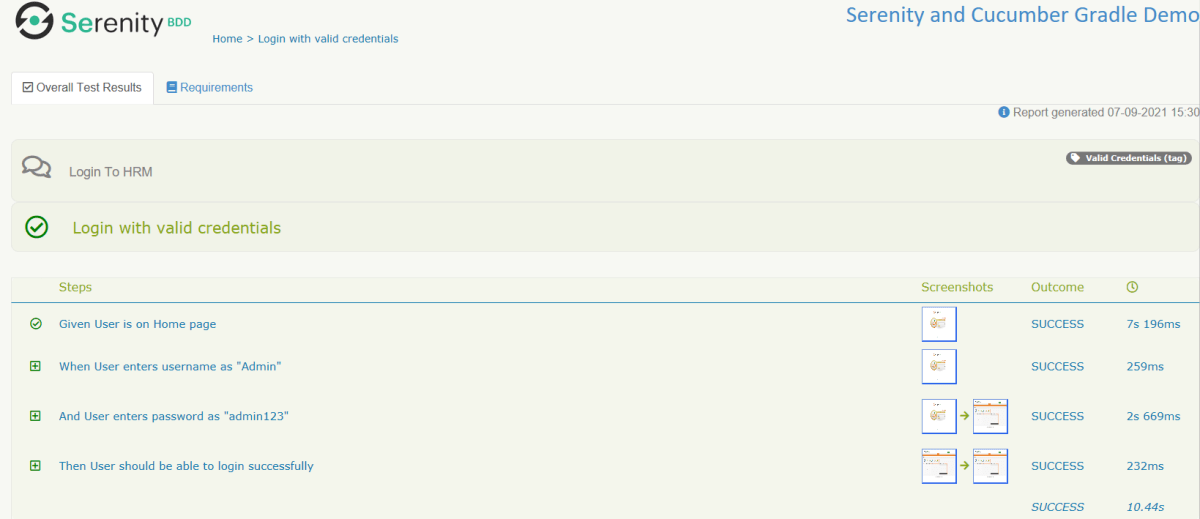
Below is the image of Overall Test Result with steps and screenshots.

That’s it! Congratulations on making it through this tutorial and hope you found it useful! Happy Learning!!

Serenity Emailable HTML Report

HOME

In the previous tutorial, I explained the Generation of Serenity Report (index.html) using Cucumber6 and JUnit. Index.html report that acts both as a test report and living documentation for the product. It has various views like Overall Test Status, Requirement View, Capabilities View, and Features View.

Sometimes it is useful to be able to send a short summary of the test outcomes via email. Serenity allows us to generate a single-page, self-contained HTML summary report, containing an overview of the test results, and a configurable breakdown of the status of different areas of the application. 

Pre-Requisite

  1. Java 11 installed
  2. Maven installed
  3. Eclipse or IntelliJ installed

This framework consists of:

  1. Java 11
  2. Maven – 3.8.1
  3. Serenity – 2.6.0
  4. Serenity Maven – 2.6.0
  5. Serenity Cucumber6 – 2.6.0
  6. JUnit – 4.13.2
  7. Maven Surefire Plugin – 3.0.0-M5
  8. Maven Failsafe Plugin – 3.0.0-M5
  9. Maven Comiler Plugin – 3.8.1

Implementation Steps

  1. Update Properties section in Maven pom.xml
  2. Add repositories and pluginRepository to Maven pom.xml
  3. Add Serenity, Serenity Cucumber and JUnit dependencies to POM.xml
  4. Update Build Section of pom.xml
  5. Create source folder – src/test/resources and features folder within src/test/resources to create test scenarios in Feature file
  6. Create the Step Definition class or Glue Code
  7. Create a Serenity-Cucumber Runner class
  8. Create serenity.conf file under src/test/resources
  9. Create serenity.properties file in the root of the project
  10. Run the tests through commandline which generates Serenity Report

To know about Step 1 to 3, please refer here. These steps are the same for Index.html report and emailable report.

Now, add the below-mentioned plugin. These reports are configured in the Serenity Maven plugin, where you need to do two things. First, you need to add a dependency for the serenity-emailer module in the plugin configuration. Then, you need to tell Serenity to generate the email report when it performs the aggregation task.

<plugin>
    <groupId>net.serenity-bdd.maven.plugins</groupId>
    <artifactId>serenity-maven-plugin</artifactId>
    <version>${serenity.version}</version>
    <dependencies> 
        <dependency>
            <groupId>net.serenity-bdd</groupId>
            <artifactId>serenity-single-page-report</artifactId>
            <version>${serenity.version}</version>
        </dependency>
        <dependency>
            <groupId>net.serenity-bdd</groupId>
            <artifactId>serenity-navigator-report</artifactId>
            <version>${serenity.version}</version>
        </dependency>
    </dependencies>
    <configuration>
        <tags>${tags}</tags>
        <reports>single-page-html,navigator</reports> 
    </configuration>
    <executions>
        <execution>
            <id>serenity-reports</id>
            <phase>post-integration-test</phase>
            <goals>
                <goal>aggregate</goal>
            </goals>
        </execution>
    </executions>
</plugin>

Step 10 – Run the tests through commandline which generates Serenity Report

Open the command line and go to the location where pom.xml of the project is present and type the below command.

mvn verify -Dwebdriver.gecko.driver="C:\\Users\\Vibha\\Software\\geckodriver-v0.26.0-win64\\geckodriver.exe"

I have provided the location of Firefoxdriver through the command line. I believe this is the best way to run the test. We can hard-code the path in the test code or in serenity.conf file. In that case, you don’t need to provide the location of Firefoxdriver through command line. You can use the below command.

mvn verify

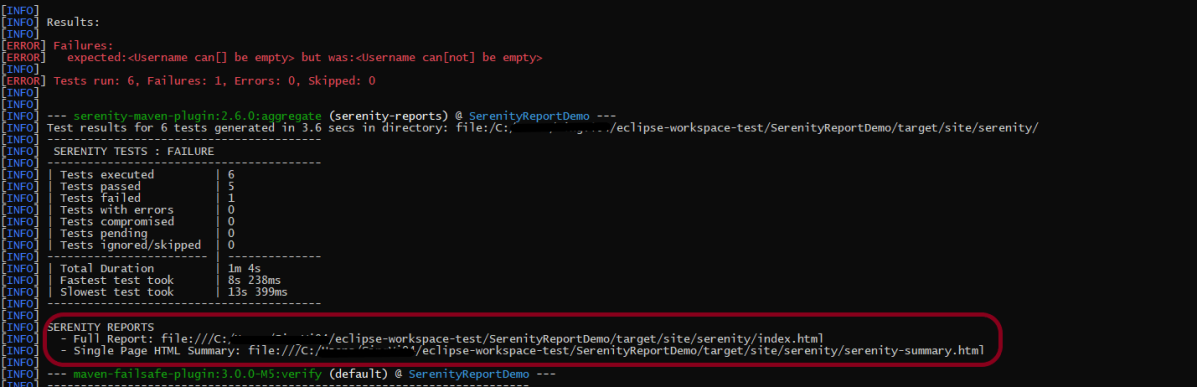
The output of the above program is

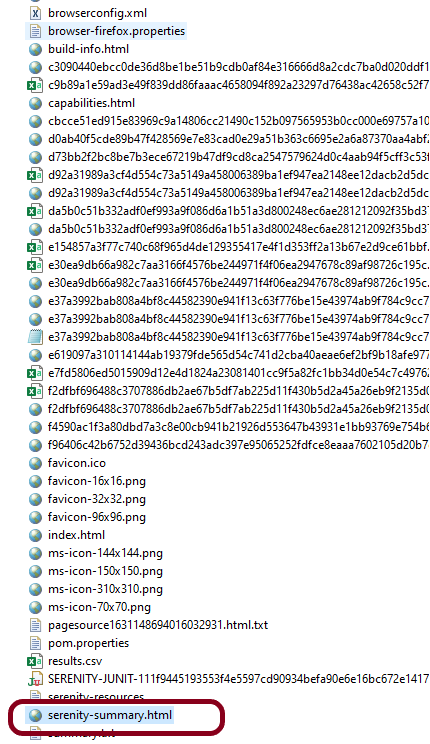
This image shows that two different types of reports are generated by Serenity – Full Report (index.html) and Single Page HTML Summary ( serenity-summary.html ).

This emailable report is called serenity-summary.html. This is generated under site/serenity/ serenity-summary.html

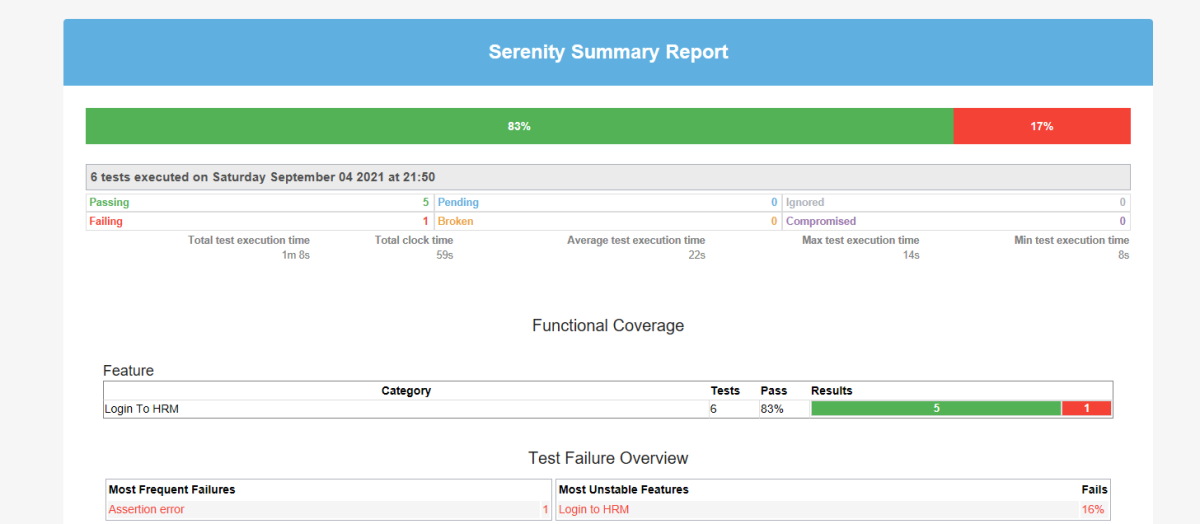
You can see a sample of such a report here:

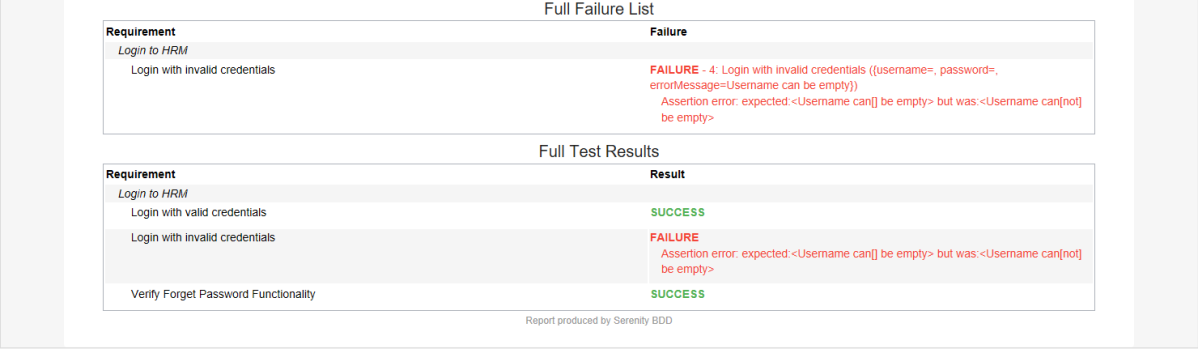
As you can see in the above execution status, out of six tests, one test failed. The same information is displayed in the report.

This report provides a summary of the test execution.

The Functional Coverage section lets us highlight key areas of your application. By default, this section will list test results for each Feature. But we can configure the report to group results by other tags as well.

We are done! Congratulations on making it through this tutorial and hope you found it useful! Happy Learning!!