Integration of REST Assured with TestNG

Last Updated On

HOME

As we know, REST Assured is a Java DSL for simplifying the testing of REST-based services built on top of HTTP Builder. In this tutorial, I’ll create a Test Framework for the testing of REST API using REST Assured and TestNG as the test framework.

Table of Contents

  1. Dependency List
  2. Detailed Step Description
    1. Download and Install Java
    2. Download and setup Eclipse IDE on the system
    3. Setup Maven
    4. Create a new Maven Project
    5. Add REST Assured and TestNG dependencies to the project
    6. Create a TEST file under src/test/java to write the test code
    7. Test Execution through TestNG
    8. Run the tests from TestNG.xml
    9. TestNG Report Generation

Dependency List

  1. REST Assured – 5.3.2
  2. Java 8 or above
  3. TestNG – 7.8.0
  4. Maven – 3.8.1
  5. Maven Compiler Plugin – 3.11.0
  6. Maven Surefire Plugin – 3.1.2
  7. Json – 20230618

Detailed Step Description

Step 1- Download and Install Java

Java needs to be present on the system to run the tests. Click here to know How to install Java. To know if Java is installed or not on your machine, type this command in the command line. This command will show the version of Java installed on your machine.

java -version

Step 2 – Download and setup Eclipse IDE on the system

The Eclipse IDE (integrated development environment) provides strong support for Java developers, which is needed to write Java code. Click here to know How to install Eclipse.

Step 3 – Setup Maven

To build a test framework, we need to add a number of dependencies to the project. It is a very tedious and cumbersome process to add each dependency manually. So, to overcome this problem, we use a build management tool. Maven is a build management tool that is used to define project structure, dependencies, build, and test management. Click here to know How to install Maven.

To know if Maven is already installed or not on your machine, type this command in the command line. This command will show the version of Maven installed on your machine.

mvn -version

Step 4 – Create a new Maven Project

Click here to know How to create a Maven project

Below is the Maven project structure. Here,

Group Id – org.example
Artifact Id – RestAssured_TestNG_Demo
Version – 0.0.1-SNAPSHOT
Package – org. example

Step 5 – Add REST Assured and TestNG dependencies to the project

Add the below-mentioned dependencies to the project.

<?xml version="1.0" encoding="UTF-8"?>
<project xmlns="http://maven.apache.org/POM/4.0.0"
         xmlns:xsi="http://www.w3.org/2001/XMLSchema-instance"
         xsi:schemaLocation="http://maven.apache.org/POM/4.0.0 http://maven.apache.org/xsd/maven-4.0.0.xsd">
    <modelVersion>4.0.0</modelVersion>

    <groupId>org.example</groupId>
    <artifactId>RestAssured_TestNG_Demo</artifactId>
    <version>1.0-SNAPSHOT</version>

    <properties>
        <hamcrest.version>1.3</hamcrest.version>
        <testng.version>7.8.0</testng.version>
        <rest-assured.version>5.3.2</rest-assured.version>
        <json.version>20230618</json.version>
        <maven.compiler.plugin.version>3.11.0</maven.compiler.plugin.version>
        <maven.compiler.source>11</maven.compiler.source>
        <maven.compiler.target>11</maven.compiler.target>
        <maven.surefire.plugin.version>3.1.2</maven.surefire.plugin.version>
        <project.build.sourceEncoding>UTF-8</project.build.sourceEncoding>
    </properties>

    <dependencies>

        <!-- Hamcrest Dependency -->
        <dependency>
            <groupId>org.hamcrest</groupId>
            <artifactId>hamcrest-all</artifactId>
            <version>${hamcrest.version}</version>
            <scope>test</scope>
        </dependency>

        <!-- TestNG Dependency -->
        <dependency>
            <groupId>org.testng</groupId>
            <artifactId>testng</artifactId>
            <version>${testng.version}</version>
        </dependency>

        <!-- Rest Assured -->
        <dependency>
            <groupId>io.rest-assured</groupId>
            <artifactId>rest-assured</artifactId>
            <version>${rest-assured.version}</version>
            <scope>test</scope>
        </dependency>

        <!-- JSON Dependency -->
        <dependency>
            <groupId>org.json</groupId>
            <artifactId>json</artifactId>
            <version>${json.version}</version>
        </dependency>

    </dependencies>

    <build>
        <plugins>
            <plugin>
                <groupId>org.apache.maven.plugins</groupId>
                <artifactId>maven-compiler-plugin</artifactId>
                <version>${maven.compiler.plugin.version}</version>
                <configuration>
                    <source>${maven.compiler.source}</source>
                    <target>${maven.compiler.target}</target>
                </configuration>
            </plugin>

            <plugin>
                <groupId>org.apache.maven.plugins</groupId>
                <artifactId>maven-surefire-plugin</artifactId>
                <version>${maven.surefire.plugin.version}</version>
                <configuration>
                    <suiteXmlFiles>
                        <suiteXmlFile>testng.xml</suiteXmlFile>
                    </suiteXmlFiles>        
                </configuration>         
            </plugin>
        </plugins>
    </build>
</project>

Step 6 – Create a TEST file under src/test/java to write the test code.

To learn how to create a JSON Request body using JSONObject, please refer to this tutorial – How to test POST request from JSON Object in Rest Assured.

To know more about priority in TestNG, please refer to this tutorial.

import io.restassured.http.ContentType;
import org.json.JSONObject;
import org.testng.annotations.Test;
import static io.restassured.RestAssured.given;
import static org.hamcrest.Matchers.equalTo;

public class RestAPITests {

    @Test(description = "To get the details of user with id 3", priority = 0)
    public void verifyUser() {

        // Given
        given()

                // When
                .when()
                .get("https://reqres.in/api/users/3")

                // Then
                .then()
                .statusCode(200)
                .statusLine("HTTP/1.1 200 OK")

                // To verify user of id 3
                .body("data.email", equalTo("emma.wong@reqres.in"))
                .body("data.first_name", equalTo("Emma"))
                .body("data.last_name", equalTo("Wong"));
    }

    @Test(description = "To create a new user", priority = 1)
    public void createUser() {

        JSONObject data = new JSONObject();

        data.put("name", "RestAPITest");
        data.put("job", "Testing");

        // GIVEN
        given()
                .contentType(ContentType.JSON)
                .body(data.toString())

                // WHEN
                .when()
                .post("https://reqres.in/api/users")

                // THEN
                .then()
                .statusCode(201)
                .body("name", equalTo("RestAPITest"))
                .body("job", equalTo("Testing"));

    }

}

Step 7 – Test Execution through TestNG

Go to the Runner class and right-click Run As TestNG Test. The tests will run as TestNG tests. (Eclipse)

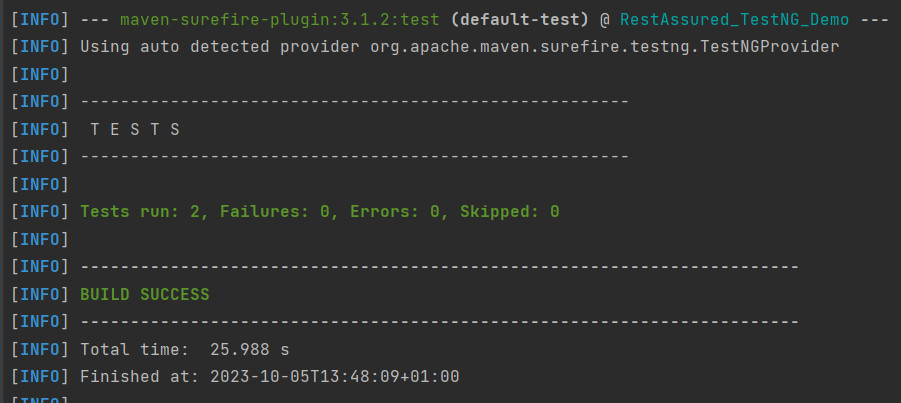
This is how the execution console will look like. (IntelliJ)

Step 8 – Run the tests from TestNG.xml

Create a TestNG.xml as shown below and run the tests as TestNG. Here, the tests are present in class – com.example. Selenium_TestNGDemo.API_Test.

<?xml version = "1.0"encoding = "UTF-8"?>
<!DOCTYPE suite SYSTEM "http://testng.org/testng-1.0.dtd">
<suite name = "Suite1">
    <test name = "TestNG Test Demo">
        <classes>
            <class name = "org.example.RestAPITests"/>
        </classes>
    </test>
</suite>

Step 9 – TestNG Report Generation

After the test execution, refresh the project, and a new folder with the name test-output will be generated. This folder contains the reports generated by TestNG. The structure of folder test-output looks as shown below.

Emailable-report.html

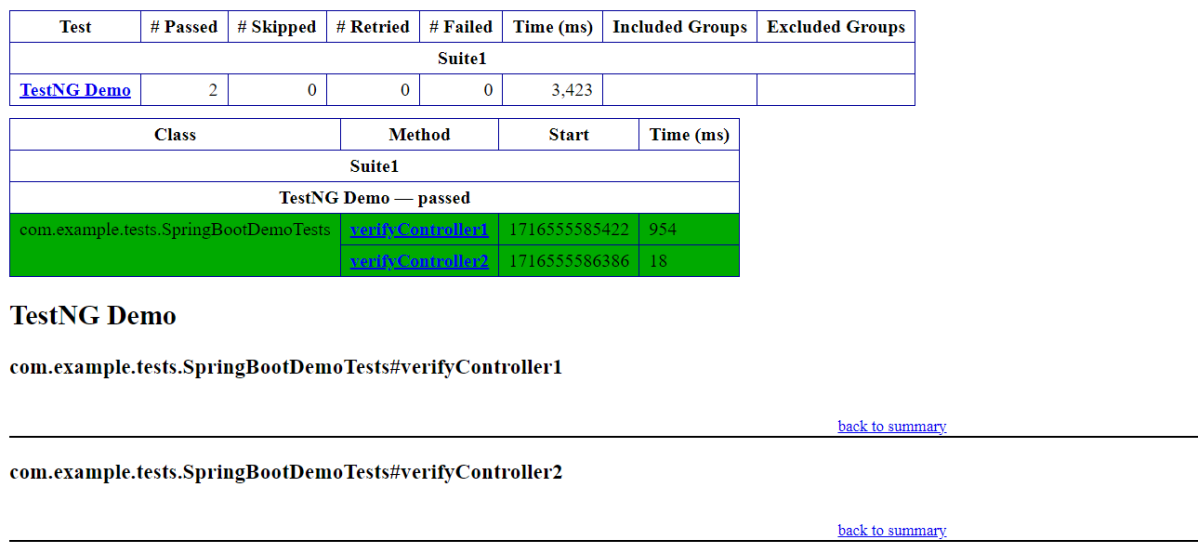
We are interested inemailable-report.htmlreport. Open “emailable-report.html”, as this is an HTML report, open it with the browser. The below image shows emailable-report.html.

Index.html

TestNG also produces “index.html” report, and it resides under the test-output folder. The below image shows the index.html report. This report contains a high-level summary of the tests.

We are done! Congratulations on making it through this tutorial and hope you found it useful! Happy Learning!!

How to create JSON Array Request Body – org.json

Last Updated On

HOME

In the last tutorial, I explained How to test POST JSON Object request using Java Map in Rest Assured. In this tutorial, I will create a request body using JSON Array in Rest Assured. This request body can be used for POST or PUT operations.

Table of Contents

  1. What is JSONArray?
  2. How to create JSONArray Request Body or payload?
  3. Complex JSON Array

What is JSONArray?

JSONArray represents an immutable JSON array (an ordered sequence of zero or more values). It also provides an unmodifiable list view of the values in the array.

  1. JSON array can store multiple value types. The values in a JSONArray can be of the following types: JsonObject, JsonArray, JsonString, JsonNumber, JsonValue.TRUE, JsonValue.FALSE, and JsonValue.NULL.
  2. The array index begins with 0.
  3. The square brackets [ ] are used to declare the JSON array.

An API can accept a JSON Array payload as a request body. Imagine, we want to add employee details of more than one employee in the below example. In this case, we can pass multiple JSON objects within a JSON array. I have explained 2 ways to create JSON Object – map or JsonObject. Refer to any one of the tutorials to get to know about the creation of JSON Object.

To create a JSON Array, we need to add org.json Maven dependency, as shown below. The latest version can be found here.

<dependency>
    <groupId>org.json</groupId>
    <artifactId>json</artifactId>
    <version>20240303</version>
</dependency>  

JSONObject is imported from the package:

import org.json.JSONObject;

JSONArray is imported from the package:

import org.json.JSONArray;

Below is an example of JSONArray.

How to create JSONArray Request Body or payload?

  1. Create a JSON Object and add the first employee details.
  2. Create another JSON Object and add second guest details.
  3. Create a JSONArray.
  4. Add both JSON Objects to JSONArray.

Below is an example of creating a request from JSONArray with multiple JSON Objects.  I am using a logger just to print the JSON body in the Console. 

import io.restassured.RestAssured;
import io.restassured.http.ContentType;
import org.json.JSONArray;
import org.json.JSONObject;
import org.junit.Test;
import static org.hamcrest.Matchers.equalTo;

public class Json_Demo {

    @Test
    public void passBodyAsJsonArrayDemo() {

        // JSON Object for first employee
        JSONObject data1 = new JSONObject();

        data1.put("employee_name", "ObjectTest");
        data1.put("profile_image", "test1.png");
        data1.put("employee_age", "30");
        data1.put("employee_salary", "11111");

        // JSON Object for second employee
        JSONObject data2 = new JSONObject();

        data2.put("employee_name", "MapTest");
        data2.put("profile_image", "test2.png");
        data2.put("employee_age", "20");
        data2.put("employee_salary", "99999");

        // Creating JSON array to add both JSON objects
        JSONArray array = new JSONArray();
        array.put(data1);
        array.put(data2);

        // Send the request
        RestAssured.given()
                .contentType(ContentType.JSON)
                .body(array.toString())
                .log().all()

                .when()
                .post("https://dummy.restapiexample.com/api/v1/create")

                .then()
                .assertThat().statusCode(200)
                .body("message", equalTo("Successfully! Record has been added."))
                .log().all();
    }
}

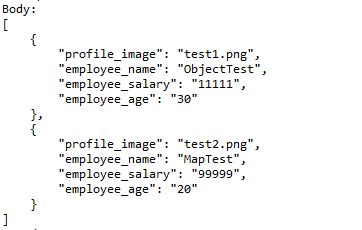
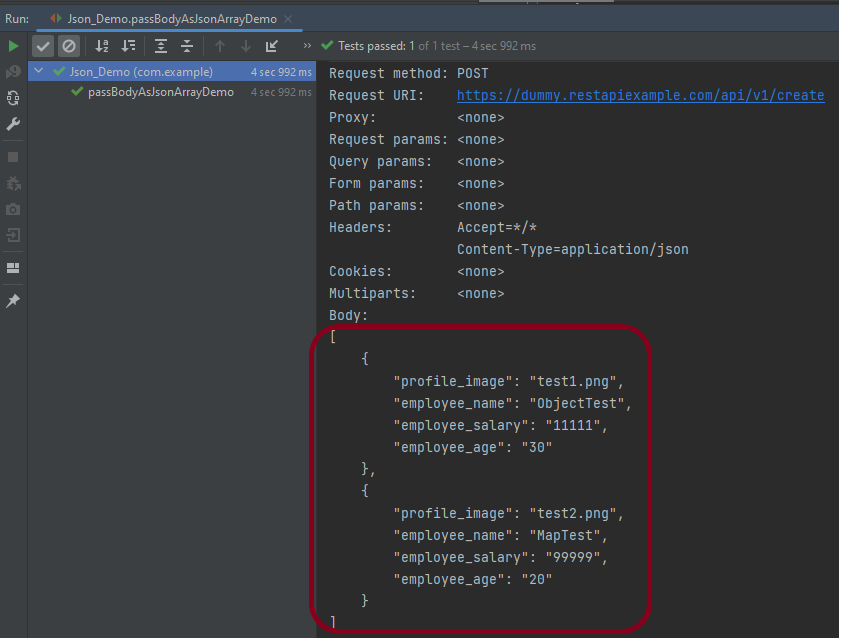
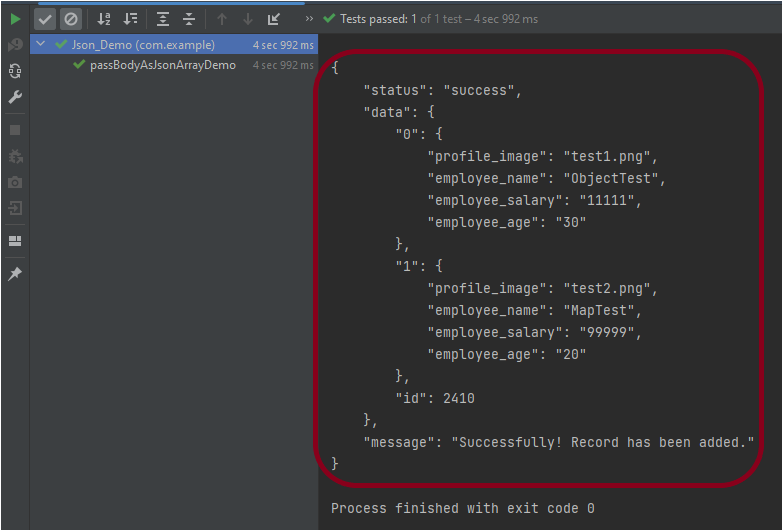
The output of the above program is

       // JSON Object for first employee
        JSONObject data1 = new JSONObject();

        data1.put("employee_name", "ObjectTest");
        data1.put("profile_image", "test1.png");
        data1.put("employee_age", "30");
        data1.put("employee_salary", "11111");

        // JSON Object for second employee
        JSONObject data2 = new JSONObject();

        data2.put("employee_name", "MapTest");
        data2.put("profile_image", "test2.png");
        data2.put("employee_age", "20");
        data2.put("employee_salary", "99999");
JSONArray array = new JSONArray();
array.put(data1);
array.put(data2);
contentType(ContentType.JSON)
.body(array.toString())
.log().all()
.post("https://dummy.restapiexample.com/api/v1/create")
.assertThat().statusCode(200)
.body("message", equalTo("Successfully! Record has been added."))
.log().all()

Complex JSON Array

Let us see an example of a complex JSON Array. This structure represents two separate employee data sets. Each is contained within its own JSON array. The whole is encapsulated within a larger JSON object identified by keys employee1 and employee2.


{
    "employee1": [
      {
        "firstname": "Tom",
        "salary": 720000,
        "age": 59,
        "lastname": "Mathew"
     }
    ],
    "employee2": [
     {
        "firstname": "Perry",
        "salary": 365000,
        "age": 32,
        "lastname": "David"
    }
   ]
}

The above JSON Array can be created as

import org.json.JSONArray;
import org.json.JSONObject;
import org.junit.Test;

public class Json_Demo {

    @Test
    public void passBodyAsJsonArray() {

        // JSON Object for first employee
        JSONObject data1 = new JSONObject();

        data1.put("firstname", "Tom");
        data1.put("lastname", "Mathew");
        data1.put("age", 59);
        data1.put("salary", 720000);

        // JSON Object for second employee
        JSONObject data2 = new JSONObject();

        data2.put("firstname", "Perry");
        data2.put("lastname", "David");
        data2.put("age", 32);
        data1.put("salary", 365000);

        // Creating first JSON array
        JSONArray array1 = new JSONArray();
        array1.put(data1);

        // Creating second JSON array
        JSONArray array2 = new JSONArray();
        array2.put(data2);

        // Create JSON Object to add both JSONArrays
        JSONObject data3 = new JSONObject();
        data3.put("employee1", array1);
        data3.put("employee2", array2);

        System.out.println(data3.toString(4));

    }
}

JSONObject data1 = new JSONObject();
data1.put("firstname", "Tom");
data1.put("lastname", "Mathew");
data1.put("age", 59);
data1.put("salary", 720000);

JSONObject data2 = new JSONObject();
data2.put("firstname", "Perry");
data2.put("lastname", "David");
data2.put("age", 32);
data2.put("salary", 365000);

JSONArray array1 = new JSONArray();
array1.put(data1);

JSONArray array2 = new JSONArray();
array2.put(data2);

A third JSONObject, data3, is created to aggregate the two JSON arrays under separate keys: employee1 and employee2.

JSONObject data3 = new JSONObject();
data3.put("employee1", array1);
data3.put("employee2", array2);
System.out.println(data3.toString(4));

Similarly, there is another way to create this JSON Structure.

import org.json.JSONArray;
import org.json.JSONObject;
import org.junit.Test;

public class Json_Demo {

    @Test
    public void passBodyAsJsonArray1() {

        // Creating JSON array to add first JSON object
        JSONArray array1 = new JSONArray();
        array1.put(new JSONObject().put("firstname", "Tom").put("lastname", "Mathew").put("age", 59).put("salary",
                720000));

        // Creating JSON array
        JSONArray array2 = new JSONArray();
        array2.put(new JSONObject().put("firstname", "Perry").put("lastname", "David").put("age", 32).put("salary",
                365000));

        // Create JSON Object to add JSONArrays
        JSONObject data1 = new JSONObject();
        data1.put("employee1", array1);
        data1.put("employee2", array2);

        System.out.println(data1.toString(4));

    }
}

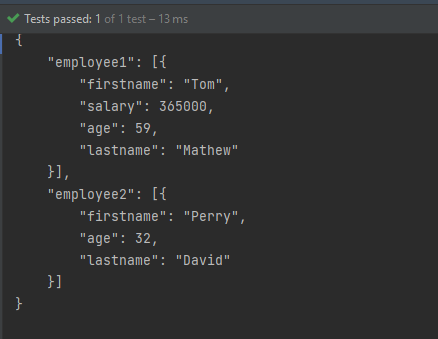
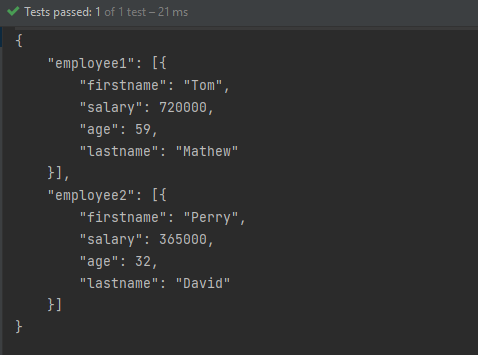
The output of the above program is

Congratulations on making it through this tutorial and hope you found it useful! Happy Learning!! Cheers!!

Testing of SpringBoot Application with JUnit5

HOME

In the previous tutorial, I explained about SpringBoot and how to perform Integration testing of SpringBoot Application. In this tutorial, I will explain about the Testing of the SpringBoot Application with JUnit5.

Prerequisite:

Spring Boot 3.0.4 requires Java 17 and is compatible with and including Java 19. Spring Framework 6.0.6 or above is also required.

Explicit build support is provided for the following build tools:

  1. Maven – 3.5+
  2. Gradle – 7.x (7.5 or later) and 8.x

Dependency List

  1. SpringBoot Starter Parent – 3.1.0
  2. Rest Assured – 5.3.0
  3. Java 17
  4. Maven – 3.8.6

What is SpringBoot Application?

 Spring Boot is an open-source micro-framework that provides Java developers with a platform to get started with an auto-configurable production-grade Spring application. 

  • Comes with embedded HTTP servers like Tomcat or Jetty to test web applications.
  • Adds many plugins that developers can use to work with embedded and in-memory databases easily. Spring allows you to easily connect with database and queue services like Oracle, PostgreSQL, MySQL, MongoDB, Redis, Solr, ElasticSearch, Rabbit MQ, and others.

Project Directory Structure

SpringBoot – 3.1.0-SNAPSHOT contains the JUnit 5 dependencies in it as shown in the below image. So, we don’t need to add them explicitly to the build.gradle.

Implementation Steps

Step 1 – Create a source folder – src/test/resources

Right-click on the test directory, select New->Directory and select resources (Maven Source Directories).

Step 2 – Add SpringBoot, and JUnit5 dependencies to the project

We have added SpringBootTest, and JUnit5 dependencies to pom.xml.

<?xml version="1.0" encoding="UTF-8"?>
<project xmlns="http://maven.apache.org/POM/4.0.0" xmlns:xsi="http://www.w3.org/2001/XMLSchema-instance"
	xsi:schemaLocation="http://maven.apache.org/POM/4.0.0 https://maven.apache.org/xsd/maven-4.0.0.xsd">
	<modelVersion>4.0.0</modelVersion>
	<parent>
		<groupId>org.springframework.boot</groupId>
		<artifactId>spring-boot-starter-parent</artifactId>
		<version>3.1.0-SNAPSHOT</version>
		<relativePath/> <!-- lookup parent from repository -->
	</parent>

	<groupId>com.example</groupId>
	<artifactId>SpringBoot_JUnit5_Demo</artifactId>
	<version>0.0.1-SNAPSHOT</version>
	<name>SpringBoot_JUnit5_Demo</name>
	<description>Demo project for Spring Boot</description>

	<properties>
		<java.version>17</java.version>
		<junit-jupiter.version>5.9.2</junit-jupiter.version>
		<rest.assured.version>5.3.0</rest.assured.version>
		<maven.compiler.plugin.version>3.10.1</maven.compiler.plugin.version>
		<maven.compiler.source.version>17</maven.compiler.source.version>
		<maven.compiler.target.version>17</maven.compiler.target.version>
		<maven.surefire.plugin.version>3.0.0-M9</maven.surefire.plugin.version>
		<maven.failsafe.plugin.version>3.0.0-M9</maven.failsafe.plugin.version>
		<maven.site.plugin.version>3.12.0</maven.site.plugin.version>
		<maven.surefire.report.plugin.version>3.0.0-M6</maven.surefire.report.plugin.version>
	</properties>

	<dependencies>
		<dependency>
			<groupId>org.springframework.boot</groupId>
			<artifactId>spring-boot-starter</artifactId>
		</dependency>

		<dependency>
			<groupId>org.springframework.boot</groupId>
			<artifactId>spring-boot-starter-test</artifactId>
			<scope>test</scope>
		</dependency>

		<dependency>
			<groupId>org.springframework.boot</groupId>
			<artifactId>spring-boot-starter-web</artifactId>
		</dependency>

		<dependency>
			<groupId>org.springframework.boot</groupId>
			<artifactId>spring-boot-starter-tomcat</artifactId>
			<scope>provided</scope>
		</dependency>

		<dependency>
			<groupId>org.springframework</groupId>
			<artifactId>spring-web</artifactId>
		</dependency>

		<!-- Rest Assured -->
		<dependency>
			<groupId>io.rest-assured</groupId>
			<artifactId>rest-assured</artifactId>
			<version>${rest.assured.version}</version>
			<scope>test</scope>
		</dependency>


	</dependencies>

	<build>
		<plugins>
			<plugin>
				<groupId>org.springframework.boot</groupId>
				<artifactId>spring-boot-maven-plugin</artifactId>
				<version>3.0.4</version>
			</plugin>

			<plugin>
				<groupId>org.apache.maven.plugins</groupId>
				<artifactId>maven-site-plugin</artifactId>
				<version>${maven.site.plugin.version}</version>
			</plugin>

			<plugin>
				<groupId>org.apache.maven.plugins</groupId>
				<artifactId>maven-surefire-plugin</artifactId>
				<version>${maven.surefire.plugin.version}</version>
				<configuration>
					<testFailureIgnore>true</testFailureIgnore>
				</configuration>
			</plugin>
			
			<plugin>
				<groupId>org.apache.maven.plugins</groupId>
				<artifactId>maven-compiler-plugin</artifactId>
				<version>${maven.compiler.plugin.version}</version>
				<configuration>
					<source>${maven.compiler.source.version}</source>
					<target>${maven.compiler.target.version}</target>
				</configuration>

			</plugin>
		</plugins>
	</build>
	
	<reporting>
		<plugins>
			<plugin>
				<groupId>org.apache.maven.plugins</groupId>
				<artifactId>maven-surefire-report-plugin</artifactId>
				<version>${maven.surefire.report.plugin.version}</version>
			</plugin>
		</plugins>
	</reporting>

	<repositories>
		<repository>
			<id>spring-milestones</id>
			<name>Spring Milestones</name>
			<url>https://repo.spring.io/milestone</url>
			<snapshots>
				<enabled>false</enabled>
			</snapshots>
		</repository>
		<repository>
			<id>spring-snapshots</id>
			<name>Spring Snapshots</name>
			<url>https://repo.spring.io/snapshot</url>
			<releases>
				<enabled>false</enabled>
			</releases>
		</repository>
	</repositories>
	
	<pluginRepositories>
		<pluginRepository>
			<id>spring-milestones</id>
			<name>Spring Milestones</name>
			<url>https://repo.spring.io/milestone</url>
			<snapshots>
				<enabled>false</enabled>
			</snapshots>
		</pluginRepository>
		
		<pluginRepository>
			<id>spring-snapshots</id>
			<name>Spring Snapshots</name>
			<url>https://repo.spring.io/snapshot</url>
			<releases>
				<enabled>false</enabled>
			</releases>
		</pluginRepository>
	</pluginRepositories>

</project>

Step 3 – Create the Test classes

  • uses @SpringBootTest annotation which loads the actual application context.
  • uses WebEnvironment.RANDOM_PORT to create and run the application at some random server port.
  • @LocalServerPort gets the reference of the port where the server has started. It helps in building the actual request URIs to mimic real client interactions.

Below is the code of the Test class. These classes are created in the src/test/java directory.

import io.restassured.response.ValidatableResponse;
import org.junit.jupiter.api.Assertions;
import org.junit.jupiter.api.Test;
import org.springframework.beans.factory.annotation.Value;
import org.springframework.boot.test.context.SpringBootTest;
import org.springframework.boot.test.web.server.LocalServerPort;
import static io.restassured.RestAssured.given;

@SpringBootTest(webEnvironment = SpringBootTest.WebEnvironment.RANDOM_PORT)
public class SpringBootDemoTests {

    private final static String BASE_URI = "http://localhost:";

    @LocalServerPort
    private int port;

    @Value("${server.servlet.context-path}")
    private String basePath;

    private ValidatableResponse response;

    @Test
    public void verifyController1() throws Exception  {
         response = given().contentType("application/json")
                    .header("Content-Type", "application/json")
                 .when().get(BASE_URI + port + basePath+ "/").then().statusCode(200);

         String Actual = response.extract().asString();
          System.out.println("Result :"+Actual);
          Assertions.assertEquals("Hello World, Spring Boot!", Actual);
    }

    @Test
    public void verifyController2() throws Exception  {
        response = given().contentType("application/json")
                .header("Content-Type", "application/json")
                .when().get(BASE_URI + port + basePath+ "/qaautomation").then().statusCode(200);

        String Actual = response.extract().asString();
        System.out.println("Result :"+Actual);
        Assertions.assertEquals("Hello QA Automation!", Actual);
    }
}

This class sends the request and receives a response after performing the GET operation. Here, the validation of the response also takes place by asserting the expected and actual response

Step 4 – Create an application.properties file in src/test/resources

Application.properties is created under src/test/java

spring.profiles.active=test
server.port=8089
server.servlet.context-path=/demo

spring.profiles.active – property to specify which profiles are active. The default profile is always active.
server.port – By default, the embedded server starts on port 8080. Now the server will start on port 8089
server.servlet.context-path – the context path in Spring Boot can be changed by setting a property, server.servlet.context-path.

Step 5 – Run the tests from JUnit5

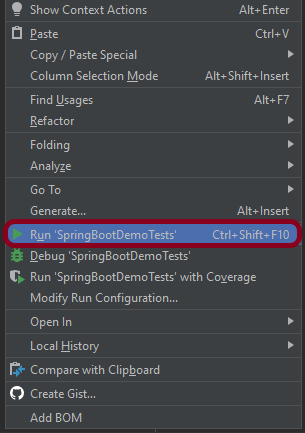
Right-click on the Test class and select RunSpringBootDemoTests’.

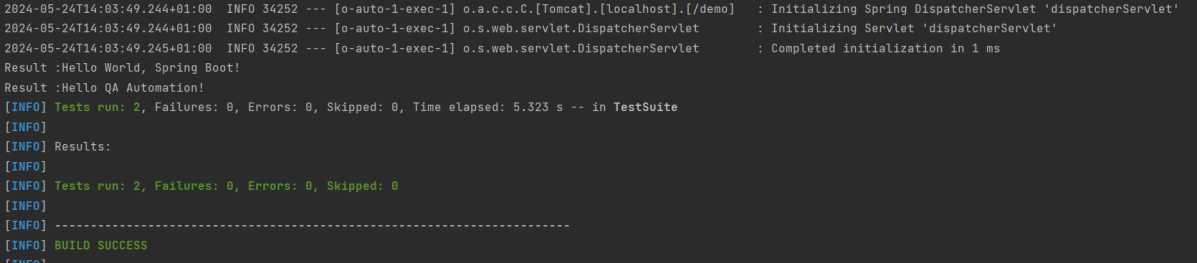
The output of the above program is

This image shows that the profile name is “test”. Application is started on port – “64733” and the context path is “/demo”.

Step 6 – Run the tests from the Command Line

Run the tests from the command line by using the below command

mvn clean test site

The output of the above program is

Step 7 – Surefire Report Generation

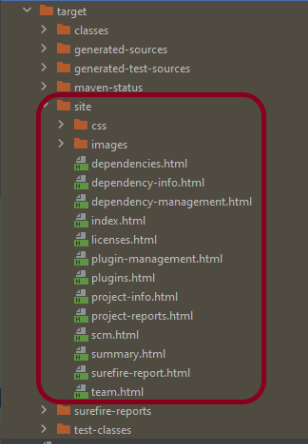
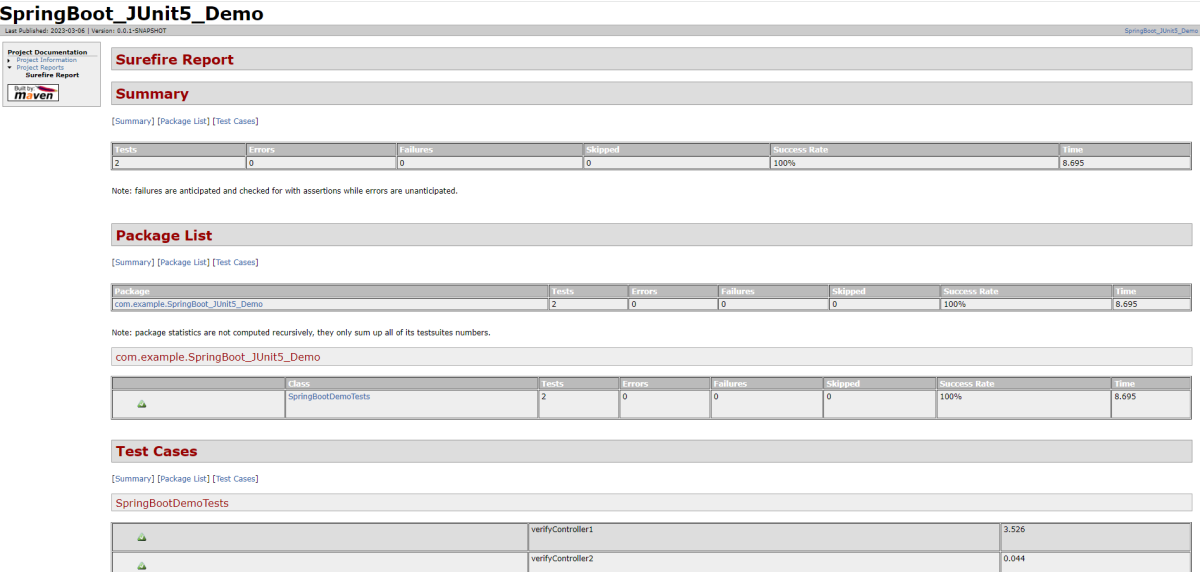
The test report generated by JUnit is placed under target/site/index.html.

Below is the sample Surefire Report.

Congratulations on making it through this tutorial and hope you found it useful! Happy Learning!! Cheers!!

Testing of SpringBoot Application with Serenity BDD, Cucumber and JUnit5

HOME

In the previous tutorial, I explained about Integration Testing of Springboot with Cucumber and JUnit4. In this tutorial, I will explain the Testing of the SpringBoot Application in BDD format using Serenity Bdd and Cucumber and JUnit5.

What is Serenity BDD?

Serenity BDD is an open-source library that aims to make the idea of living documentation a reality.

Serenity BDD helps you write cleaner and more maintainable automated acceptance and regression tests faster. Serenity also uses the test results to produce illustrated, narrative reports that document and describe what your application does and how it works. Serenity tells you not only what tests have been executed, but more importantly, what requirements have been tested.

What is SpringBoot Application?

 Spring Boot is an open-source micro framework that provides Java developers with a platform to get started with an auto-configurable production-grade Spring application. 

  • Comes with embedded HTTP servers like Tomcat or Jettyto test web applications.
  • Adds many plugins that developers can use to work with embedded and in-memory databases easily. Spring allows you to easily connect with database and queue services like Oracle, PostgreSQL, MySQL, MongoDB, Redis, Solr, ElasticSearch, Rabbit MQ, and others.

  1. SpringBoot Starter Parent – 3.1.5
  2. Serenity –  4.0.18
  3. Serenity Cucumber – 4.0.18
  4. Serenity Rest Assured – 4.0.18
  5. Cucumber – 7.14.0
  6. Java 17
  7. JUnit Platform – 1.10.0
  8. Maven – 3.8.6

Project Directory Structure

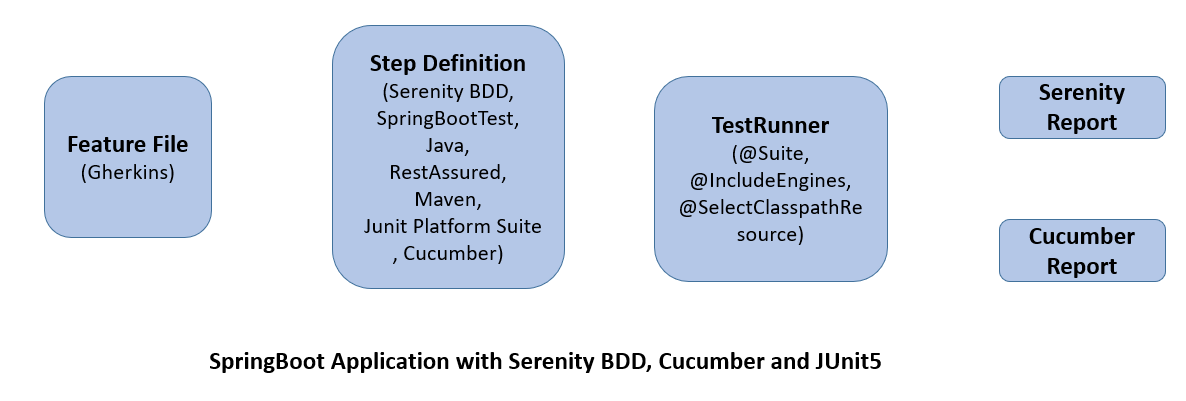
Relationship between SpringBoot, Serenity BDD, Cucumber, and JUnit5

What is RestController?

HTTP requests are handled by a controller in Spring’s approach to building RESTful web services. The @RestController annotation identifies these components, and the GreetingController shown below (from src/main/java/com/example/springboot_demo/HelloController.java) handles GET requests for / and /qaautomation by returning a new instance of the Greeting class. Spring RestController takes care of mapping request data to the request-defined handles method.

import org.springframework.web.bind.annotation.GetMapping;
import org.springframework.web.bind.annotation.RestController;
  
@RestController
public class HelloController {
      
    @GetMapping(path="/")
    String hello() {
        return "Hello World, Spring Boot!";
    }
      
      
    @GetMapping(path="/qaautomation")
    String qaautomation() {
        return "Hello QA Automation!";
    }
  
}

Implementation Steps

Step 1 – Create a source folder – src/test/resources 

Right-click on the test directory select New->Directory and select resources (Maven Source Directories).

Step 2 – Add SpringBoot, Serenity, Cucumber, and JUnit5 dependencies to the project

We have added SpringBootTest, Serenity, Cucumber, JUnit5, Cucumber Junit Platform Engine, and many more.

<?xml version="1.0" encoding="UTF-8"?>
<project xmlns="http://maven.apache.org/POM/4.0.0" xmlns:xsi="http://www.w3.org/2001/XMLSchema-instance"
	xsi:schemaLocation="http://maven.apache.org/POM/4.0.0 https://maven.apache.org/xsd/maven-4.0.0.xsd">
	<modelVersion>4.0.0</modelVersion>

	<parent>
		<groupId>org.springframework.boot</groupId>
		<artifactId>spring-boot-starter-parent</artifactId>
		<version>3.1.5</version>
		<relativePath/> <!-- lookup parent from repository -->
	</parent>

	<groupId>com.example</groupId>
	<artifactId>SpringBoot3_Serenity_Cucumber_JUnit5_Demo</artifactId>
	<version>0.0.1-SNAPSHOT</version>
	<name>demo</name>
	<description>Demo project for Spring Boot</description>

	<properties>
		<project.build.sourceEncoding>UTF-8</project.build.sourceEncoding>
		<serenity.version>4.0.18</serenity.version>
		<serenity.cucumber.version>4.0.18</serenity.cucumber.version>
		<junit.platform.version>1.10.0</junit.platform.version>
		<cucumber.version>7.14.0</cucumber.version>
		<maven.surefire.plugin.version>3.2.1</maven.surefire.plugin.version>
		<maven.failsafe.plugin.version>3.2.1</maven.failsafe.plugin.version>
		<parallel.tests></parallel.tests>
		<maven.compiler.plugin>3.11.0</maven.compiler.plugin>
		<maven.compiler.source.version>17</maven.compiler.source.version>
		<maven.compiler.target.version>17</maven.compiler.target.version>
		<encoding>UTF-8</encoding>
		<tags></tags>
	</properties>
	
	<dependencies>
		<dependency>
			<groupId>org.springframework.boot</groupId>
			<artifactId>spring-boot-starter</artifactId>
		</dependency>

		<dependency>
			<groupId>org.springframework.boot</groupId>
			<artifactId>spring-boot-starter-test</artifactId>
			<scope>test</scope>
		</dependency>

		<dependency>
			<groupId>org.springframework.boot</groupId>
			<artifactId>spring-boot-starter-web</artifactId>
		</dependency>

		<dependency>
			<groupId>org.springframework.boot</groupId>
			<artifactId>spring-boot-starter-tomcat</artifactId>
			<scope>provided</scope>
		</dependency>

		<dependency>
			<groupId>org.springframework</groupId>
			<artifactId>spring-web</artifactId>
		</dependency>

		<!-- Serenity Core -->
		<dependency>
			<groupId>net.serenity-bdd</groupId>
			<artifactId>serenity-core</artifactId>
			<version>${serenity.version}</version>
			<scope>test</scope>
		</dependency>

		<!-- Serenity With Cucumber -->
		<dependency>
			<groupId>net.serenity-bdd</groupId>
			<artifactId>serenity-cucumber</artifactId>
			<version>${serenity.version}</version>
			<scope>test</scope>
		</dependency>

		<dependency>
			<groupId>net.serenity-bdd</groupId>
			<artifactId>serenity-screenplay</artifactId>
			<version>${serenity.version}</version>
			<scope>test</scope>
		</dependency>

		<dependency>
			<groupId>net.serenity-bdd</groupId>
			<artifactId>serenity-screenplay-webdriver</artifactId>
			<version>${serenity.version}</version>
			<scope>test</scope>
		</dependency>

		<dependency>
			<groupId>net.serenity-bdd</groupId>
			<artifactId>serenity-ensure</artifactId>
			<version>${serenity.version}</version>
			<scope>test</scope>
		</dependency>

		<!-- Serenity With Rest Assured -->
		<dependency>
			<groupId>net.serenity-bdd</groupId>
			<artifactId>serenity-rest-assured</artifactId>
			<version>${serenity.version}</version>
			<scope>test</scope>
		</dependency>

		<!-- Serenity With Spring -->
		<dependency>
			<groupId>net.serenity-bdd</groupId>
			<artifactId>serenity-spring</artifactId>
			<version>${serenity.version}</version>
			<scope>test</scope>
		</dependency>

		<dependency>
			<groupId>io.cucumber</groupId>
			<artifactId>cucumber-junit-platform-engine</artifactId>
			<version>${cucumber.version}</version>
			<scope>test</scope>
		</dependency>

		<dependency>
			<groupId>org.junit.platform</groupId>
			<artifactId>junit-platform-suite</artifactId>
			<version>${junit.platform.version}</version>
			<scope>test</scope>
		</dependency>

	</dependencies>

	<build>
		<plugins>
			<plugin>
				<groupId>org.springframework.boot</groupId>
				<artifactId>spring-boot-maven-plugin</artifactId>
			</plugin>

				<plugin>
					<groupId>org.apache.maven.plugins</groupId>
					<artifactId>maven-surefire-plugin</artifactId>
					<version>${maven.surefire.plugin.version}</version>
					<configuration>
						<skip>true</skip>
					</configuration>
				</plugin>
				<plugin>
					<artifactId>maven-failsafe-plugin</artifactId>
					<version>${maven.failsafe.plugin.version}</version>
					<configuration>
						<includes>
							<include>**/*Test.java</include>
							<include>**/SpringRunnerTests.java</include>
							<include>**/*TestSuite.java</include>
							<include>**/When*.java</include>
						</includes>
						<parallel>classes</parallel>
						<parallel>methods</parallel>
						<useUnlimitedThreads>true</useUnlimitedThreads>
					</configuration>
					<executions>
						<execution>
							<goals>
								<goal>integration-test</goal>
								<goal>verify</goal>
							</goals>
						</execution>
					</executions>
				</plugin>
				<plugin>
					<groupId>org.apache.maven.plugins</groupId>
					<artifactId>maven-compiler-plugin</artifactId>
					<version>${maven.compiler.plugin}</version>
					<configuration>
						<source>${maven.compiler.source.version}</source>
						<target>${maven.compiler.target.version}</target>
					</configuration>
				</plugin>
				<plugin>
					<groupId>net.serenity-bdd.maven.plugins</groupId>
					<artifactId>serenity-maven-plugin</artifactId>
					<version>${serenity.version}</version>
					<configuration>
						<tags>${tags}</tags>
					</configuration>
					<executions>
						<execution>
							<id>serenity-reports</id>
							<phase>post-integration-test</phase>
							<goals>
								<goal>aggregate</goal>
							</goals>
						</execution>
					</executions>
				</plugin>
			</plugins>
	</build>
	<repositories>
		<repository>
			<id>spring-milestones</id>
			<name>Spring Milestones</name>
			<url>https://repo.spring.io/milestone</url>
			<snapshots>
				<enabled>false</enabled>
			</snapshots>
		</repository>
		<repository>
			<id>spring-snapshots</id>
			<name>Spring Snapshots</name>
			<url>https://repo.spring.io/snapshot</url>
			<releases>
				<enabled>false</enabled>
			</releases>
		</repository>
	</repositories>
	<pluginRepositories>
		<pluginRepository>
			<id>spring-milestones</id>
			<name>Spring Milestones</name>
			<url>https://repo.spring.io/milestone</url>
			<snapshots>
				<enabled>false</enabled>
			</snapshots>
		</pluginRepository>
		<pluginRepository>
			<id>spring-snapshots</id>
			<name>Spring Snapshots</name>
			<url>https://repo.spring.io/snapshot</url>
			<releases>
				<enabled>false</enabled>
			</releases>
		</pluginRepository>
	</pluginRepositories>

</project>

Step 3 – Create a feature file under src/test/resources

Below is an example of a feature file that shows a sample test scenario.

Feature: SpringBoot Request
   
@ReceiveCorrectResponse

   Scenario Outline: Send a valid Request to get correct response
    Given I send a request to the URL "<url>"
    Then the response will return "<response>"

   Examples:
   | url                       | response                             |
   | /                          | Hello World, Spring Boot!  |
   | /qaautomation   | Hello QA Automation!        |

The test class mentioned below (AbstractRestAssuredHelper) contains integration tests for the spring boot rest controller mentioned. This test class:

  • uses @SpringBootTest annotation which loads the actual application context.
  • uses WebEnvironment.RANDOM_PORT to create and run the application at some random server port.
  • @LocalServerPort gets the reference of the port where the server has started. It helps in building the actual request URIs to mimic real client interactions.

Step 4 – Create the StepDefinition and Helper classes

Below is the code of the StepDefinition and Helper class. These classes are created in the src/test/java directory.

AbstractRestAssuredHelper

import io.restassured.RestAssured;
import io.restassured.specification.RequestSpecification;
import net.serenitybdd.rest.SerenityRest;

import org.springframework.beans.factory.annotation.Value;
import org.springframework.boot.test.context.SpringBootTest;
import org.springframework.boot.test.context.SpringBootTest.WebEnvironment;
import org.springframework.boot.test.web.server.LocalServerPort;


@SpringBootTest(webEnvironment = WebEnvironment.RANDOM_PORT)
public abstract class AbstractRestAssuredHelper {
     private final static String BASE_URI = "http://localhost";
 
     @LocalServerPort
     private int port;

     @Value("${server.servlet.context-path}")
     private String basePath;
 
     protected void configureRestAssured() {
           RestAssured.baseURI = BASE_URI;
           RestAssured.port = port;
           RestAssured.basePath = basePath;
           
 
     }

     protected RequestSpecification getAnonymousRequest() {
           configureRestAssured();
           return SerenityRest.given();
     }
}

This class sends the request and receives a response after performing the GET operation. Here, the validation of the response also takes place by asserting the expected and actual response

To use Rest-assured, Serenity provides the class SerenityRest

import io.cucumber.java.en.Given;
import io.cucumber.java.en.Then;
import io.restassured.response.Response;
import net.serenitybdd.rest.SerenityRest;
import net.thucydides.core.annotations.Steps;
import org.junit.jupiter.api.Assertions;

public class SpringBootDemoDefinitions {

	@Steps
    AbstractRestAssuredHelper helper;
    private Response response;

    @Given("I send a request to the URL {string}")
    public void iSendARequest(String endpoint) throws Exception  {
         response = helper.getAnonymousRequest().contentType("application/json")
                    .header("Content-Type", "application/json").when().get(endpoint);
    }

    @Then("the response will return {string}")
    public void extractResponse(String Expected ) {
          SerenityRest.restAssuredThat(response -> response.statusCode(200));
          String Actual = response.asString();    
          System.out.println("Result :"+Actual);
          Assertions.assertEquals(Expected, Actual);
    }
}

Step 5 – Create a Serenity Runner class in the src/test/java directory

We cannot run a Feature file on its own in a cucumber-based framework. We need to create a Java class that will run the Feature File. It is the starting point for JUnit to start executing the tests. TestRunner class is created under src/ test/java

import org.junit.platform.suite.api.ConfigurationParameter;
import org.junit.platform.suite.api.IncludeEngines;
import org.junit.platform.suite.api.SelectClasspathResource;
import org.junit.platform.suite.api.Suite;
import static io.cucumber.junit.platform.engine.Constants.GLUE_PROPERTY_NAME;
import static io.cucumber.junit.platform.engine.Constants.PLUGIN_PROPERTY_NAME;

@Suite
@IncludeEngines("cucumber")
@SelectClasspathResource("com.example")
@SelectClasspathResource("/features")
@ConfigurationParameter(key = GLUE_PROPERTY_NAME, value = "com.example.definitions")
@ConfigurationParameter(key = PLUGIN_PROPERTY_NAME, value = "io.cucumber.core.plugin.SerenityReporterParallel,pretty,timeline:build/test-results/timeline")
public class SpringRunnerTests {
}

@Suite – annotation from JUnit 5 to make this class a run configuration for the test suite.
@IncludeEngines(“cucumber”) – tells JUnit 5 to use the Cucumber test engine to run features.
@SelectClasspathResource(“/features”) – to change the location of your feature files (if you do not add this annotation classpath of the current class will be used).
@ConfigurationParameter(key = GLUE_PROPERTY_NAME, value = “com.example.SpringBoot_Demo.definitions”) – this annotation specifies the path to steps definitions (java classes).

Step 6 – Run the tests from JUnit5

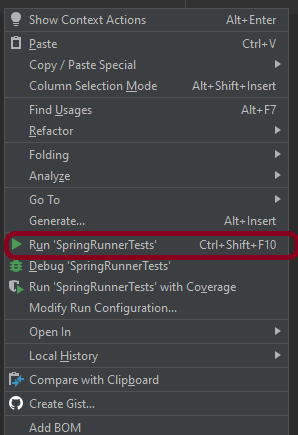
You can run the tests from SpringRunnerTests class. Right-click on the class and select Run ‘SpringRunnerTests’.

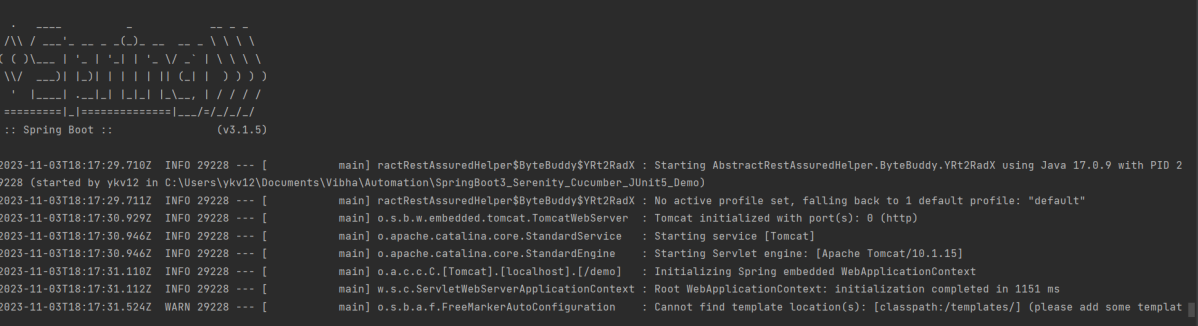
The output of the above program is

Step 7 – Run the tests from the Command Line

Run the tests from the command line by using the below command

mvn clean verify

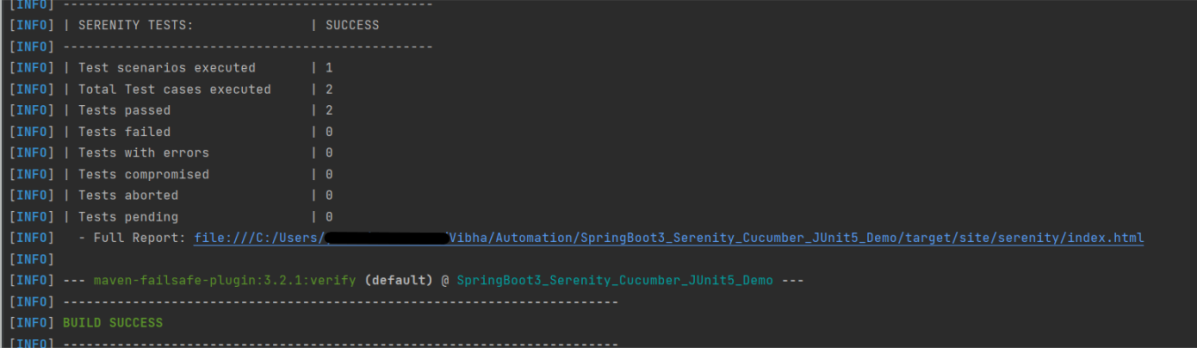
The output of the above program is

The test execution status is shown below:

Step 8 – Serenity Report Generation

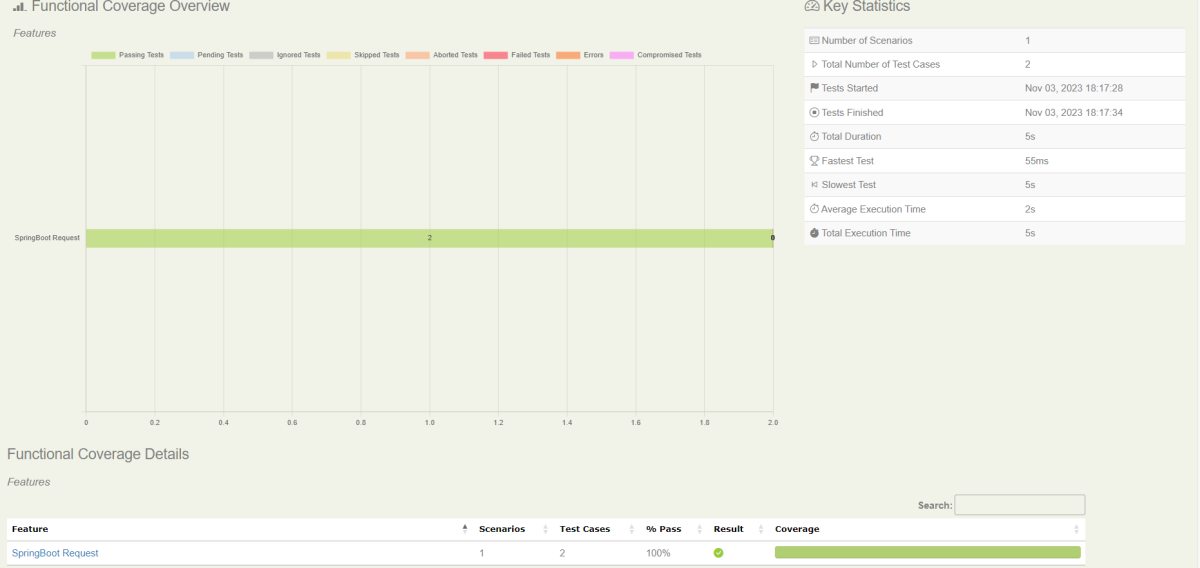
By default, the test report generated by Serenity is placed under target/site/serenity/index.html. Below is the sample Serenity Report.

Go to the Test Results tab and we can see all the test scenarios.

Step 9 – Cucumber Report Generation

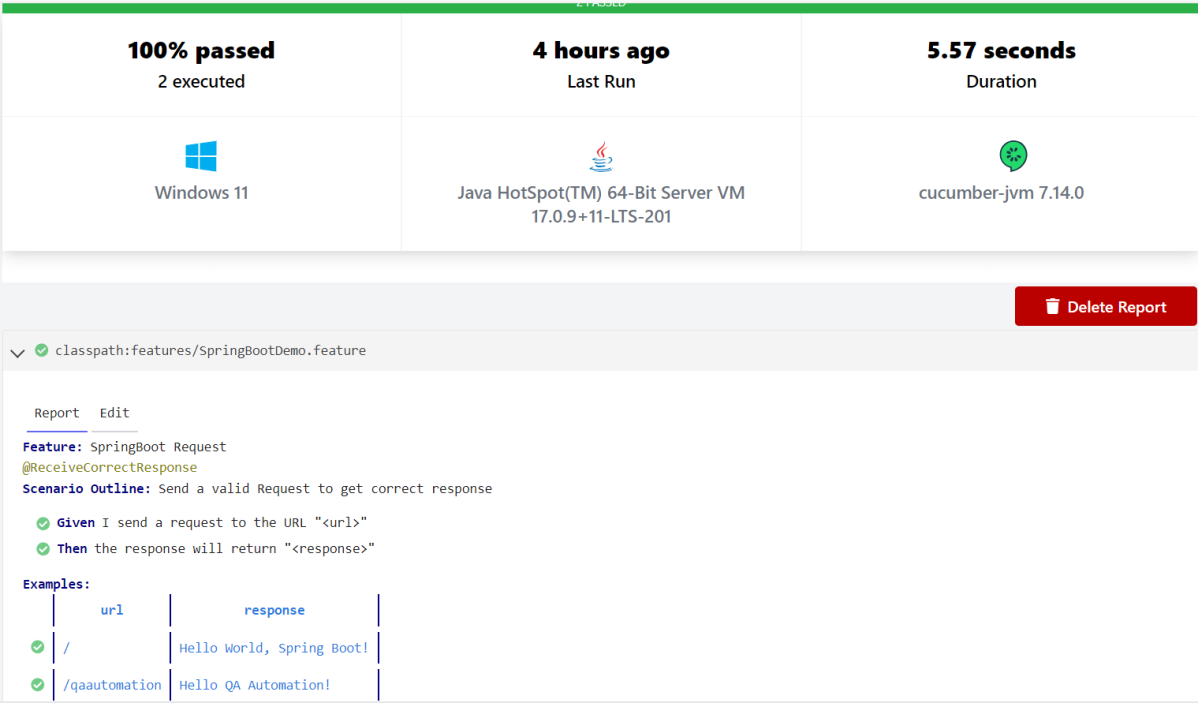
Cucumber Report can be generated by adding publish=true in SpringRunnerTests as shown in the above example. Click on the link provided in the execution status.

Cucumber Report

The next tutorial explains the Testing of SpringBoot REST Application using Serenity BDD and Rest Assured for GET Method.

The complete code can be found on GitHub.

Testing of Gradle SpringBoot Application with Serenity and JUnit5

HOME

In the previous tutorial, I explained about  Testing of Gradle SpringBoot Application with Serenity, Cucumber and JUnit4. In this tutorial, I will explain the Testing of the SpringBoot Application with Serenity and JUnit5.

Prerequisite:

Spring Boot 3.0.4 requires Java 17 and is compatible with and including Java 19. Spring Framework 6.0.6 or above is also required.

Explicit build support is provided for the following build tools:

  1. Maven – 3.5+
  2. Gradle – 7.x (7.5 or later) and 8.x

This framework consists of

  1. SpringBoot Starter Parent – 3.1.0
  2. Serenity Rest Assured – 3.6.12
  3. Spring
  4. Java 17
  5. Gradle – 7.6.1
  6. JUnit Jupiter API – 5.9.2
  7. JUnit Jupiter Engine – 5.9.2
  8. Serenity JUnit5 – 3.6.12

What is SpringBoot Application?

 Spring Boot is an open-source micro-framework that provides Java developers with a platform to get started with an auto-configurable production-grade Spring application. 

  • Comes with embedded HTTP servers like Tomcat or Jetty to test web applications.
  • Adds many plugins that developers can use to work with embedded and in-memory databases easily. Spring allows you to easily connect with database and queue services like Oracle, PostgreSQL, MySQL, MongoDB, Redis, Solr, ElasticSearch, Rabbit MQ, and others.

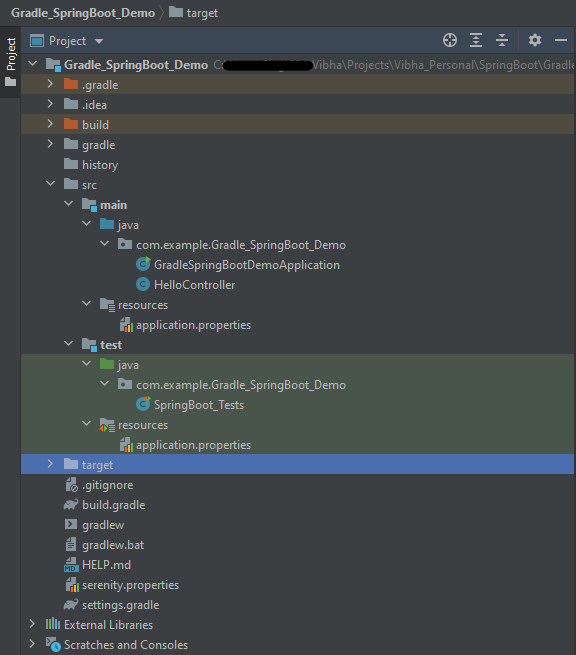
Project Directory Structure

Implementation Steps

  1. Create a source folder – src/test/resources to create properties file
  2. Add SpringBootTest, Serenity Rest Assured, and Serenity-JUnit5 dependencies to the project
  3. Create the Test classes.
  4. Create an application.properties file in src/test/resources
  5. Run the tests from JUnit5
  6. Run the tests from Command Line
  7. Serenity Report Generation

Step 1 – Create a source folder – src/test/resources to create test scenarios in the Feature file

Right-click on the test directory and select New->Directory and select resources (Maven Source Directories).

Step 2 – Add SpringBootTest, Rest Assured, and allure dependencies to the project

We have added SpringBootTest, SpringBoot Web, Tomcat, Spring Web, Rest Assured, and Serenity-JUnit5 dependencies to the build.gradle.

plugins {
	id 'java'
	id 'org.springframework.boot' version '3.1.0-SNAPSHOT'
	id 'io.spring.dependency-management' version '1.1.0'
	id 'net.serenity-bdd.serenity-gradle-plugin' version '3.6.7'
}

group = 'com.example'
version = '0.0.1-SNAPSHOT'
sourceCompatibility = '17'

repositories {
	mavenCentral()
	maven { url 'https://repo.spring.io/milestone' }
	maven { url 'https://repo.spring.io/snapshot' }
}

dependencies {

	implementation 'org.springframework.boot:spring-boot-starter'
	implementation 'org.springframework.boot:spring-boot-starter-web'
	implementation 'org.springframework.boot:spring-boot-starter-tomcat'
	implementation 'org.springframework:spring-web'

	testImplementation 'org.springframework.boot:spring-boot-starter-test'
	testImplementation 'net.serenity-bdd:serenity-junit5:3.6.12'
	testImplementation 'org.junit.jupiter:junit-jupiter-api:5.9.2'
	testImplementation 'org.junit.jupiter:junit-jupiter-engine:5.9.2'
	testImplementation 'net.serenity-bdd:serenity-core:3.6.12'
	testImplementation 'net.serenity-bdd:serenity-rest-assured:3.6.12'
	testImplementation 'net.serenity-bdd:serenity-spring:3.6.12'
}

tasks.named('test') {
	useJUnitPlatform() {}
	testLogging {
		showStandardStreams = true
	}
	systemProperties System.getProperties()
}

gradle.startParameter.continueOnFailure = true

test.finalizedBy(aggregate)

Step 3 – Create the Test classes

  • uses @SpringBootTest annotation which loads the actual application context.
  • uses WebEnvironment.RANDOM_PORT to create and run the application at some random server port.
  • @LocalServerPort gets the reference of the port where the server has started. It helps in building the actual request URIs to mimic real client interactions.

Below is the Test Class, created in the src/test/java directory.

import io.restassured.response.ValidatableResponse;
import net.serenitybdd.junit5.SerenityJUnit5Extension;
import org.junit.jupiter.api.Assertions;
import org.junit.jupiter.api.Test;
import org.junit.jupiter.api.extension.ExtendWith;
import org.springframework.beans.factory.annotation.Value;
import org.springframework.boot.test.context.SpringBootTest;
import org.springframework.boot.test.web.server.LocalServerPort;
import static io.restassured.RestAssured.given;

@ExtendWith(SerenityJUnit5Extension.class)
@SpringBootTest(webEnvironment = SpringBootTest.WebEnvironment.RANDOM_PORT)
public class SpringBootDemoDefinitions {

    private final static String BASE_URI = "http://localhost:";

    @LocalServerPort
    private int port;

    @Value("${server.servlet.context-path}")
    private String basePath;
    
   private ValidatableResponse response;

    @Test
    public void verifyController1() throws Exception  {
        response = given().contentType("application/json")
                .header("Content-Type", "application/json")
                .when().get(BASE_URI + port + basePath+ "/").then().statusCode(200);

        String Actual = response.extract().asString();
        System.out.println("Result :"+Actual);
        Assertions.assertEquals("Hello World, Spring Boot!", Actual);
    }

    @Test
    public void verifyController2() throws Exception  {
        response = given().contentType("application/json")
                .header("Content-Type", "application/json")
                .when().get(BASE_URI + port + basePath+ "/qaautomation").then().statusCode(200);

        String Actual = response.extract().asString();
        System.out.println("Result :"+Actual);
        Assertions.assertEquals("Hello QA Automation!", Actual);
    }
}

This class sends the request and receives a response after performing the GET operation. Here, the validation of the response also takes place by asserting the expected and actual response

Step 4 – Create an application.properties file in src/test/resources

Application.properties is created under src/ test/java

spring.profiles.active=test
server.port=9091
server.servlet.context-path=/demo

spring.profiles.active – property to specify which profiles are active. The default profile is always active.
server.port – By default, the embedded server starts on port 8080. Now the server will start on port 8090
server.servlet.context-path – the context path in Spring Boot can be changed by setting a property, server.servlet.context-path.

Step 5 – Run the tests from JUnit5

Right-click on the Test class and select Run ‘SpringBoot_Tests’.

The output of the above program is

This image shows that the profile name is “test”. Application is started on port – “65221” and the context path is “/demo”.

Step 6 – Run the tests from Command Line

Run the tests from the command line by using the below command

gradle clean test

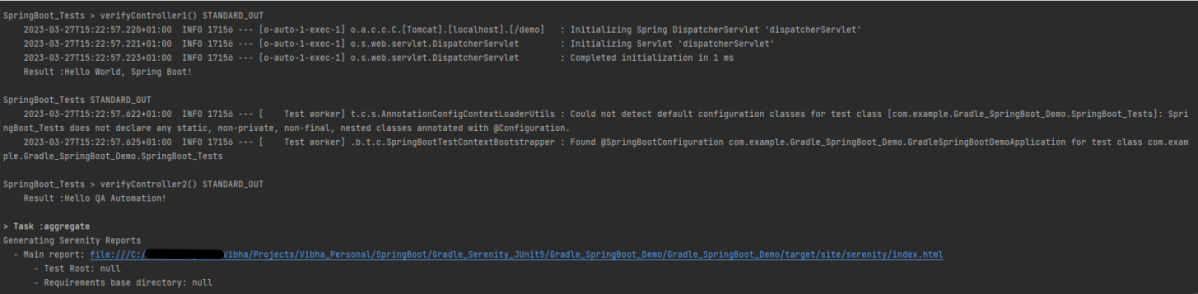
The output of the above program is

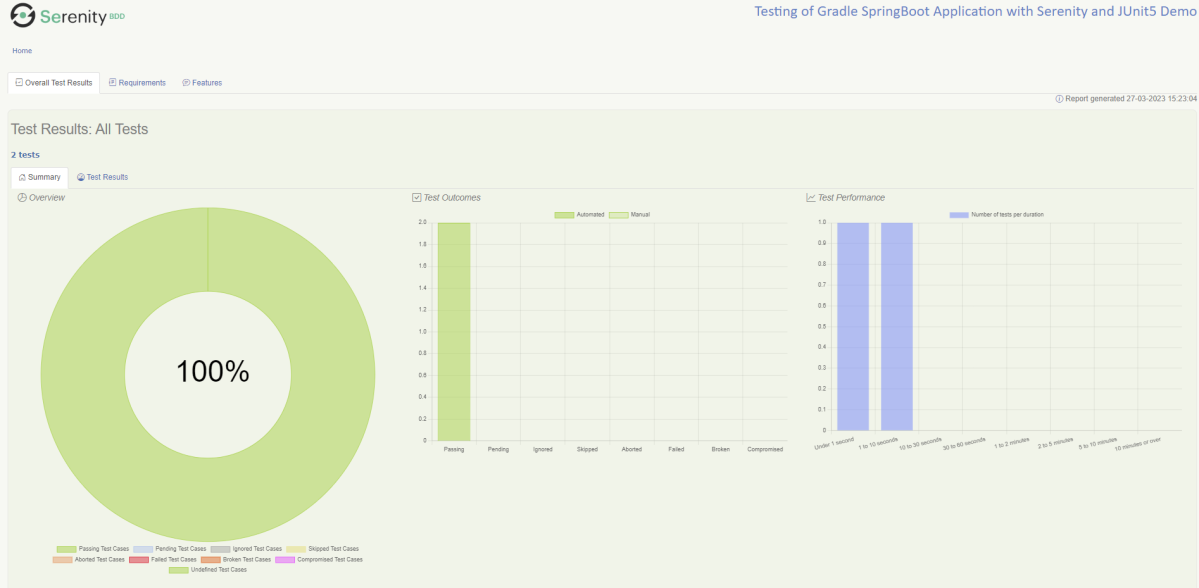
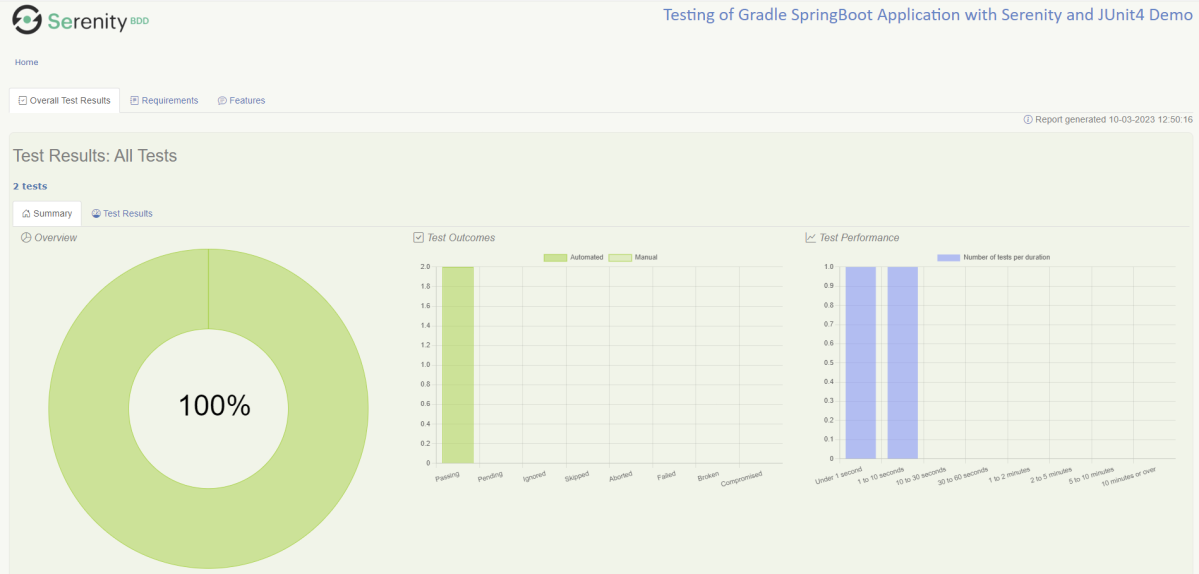
Step 7 – Serenity Report Generation

The best part about Serenity is the report generation by it. The Reports contain all possible type of information, you can think of with minimal extra effort. There is multiple types of reports are generated. We are interested in index.html .

Below is the new Serenity Report.

We are done! Congratulations on making it through this tutorial and hope you found it useful! Happy Learning!!

Testing of SpringBoot Application with Serenity and JUnit5

HOME

In the previous tutorial, I explained about Integration Testing of SpringBoot Application with Serenity BDD, Cucumber and JUnit4. In this tutorial, I will explain the Testing of the SpringBoot Application with Serenity and JUnit5.

This framework consists of

  1. SpringBoot Starter Parent – 3.1.0
  2. Serenity – 3.6.12
  3. Serenity JUnit5 – 3.6.12
  4. Serenity Rest Assured – 3.6.12
  5. Serenity Spring – 3.6.12
  6. JUnit Platform – 1.9.2
  7. Java 17
  8. Maven – 3.8.6

What is SpringBoot Application?

 Spring Boot is an open-source micro-framework that provides Java developers with a platform to get started with an auto-configurable production-grade Spring application. 

  • Comes with embedded HTTP servers like Tomcat or Jetty to test web applications.
  • Adds many plugins that developers can use to work with embedded and in-memory databases easily. Spring allows you to easily connect with database and queue services like Oracle, PostgreSQL, MySQL, MongoDB, Redis, Solr, ElasticSearch, Rabbit MQ, and others.

Project Directory Structure

What is RestController?

HTTP requests are handled by a controller in Spring’s approach to building RESTful web services. The @RestController annotation identifies these components, and the GreetingController shown below (from src/main/java/com/example/springboot_demo/HelloController.java) handles GET requests for / and /qaautomation by returning a new instance of the Greeting class. Spring RestController takes care of mapping request data to the request-defined handles method.

import org.springframework.web.bind.annotation.GetMapping;
import org.springframework.web.bind.annotation.RestController;
 
@RestController
public class HelloController {
     
    @GetMapping(path="/")
    String hello() {
        return "Hello World, Spring Boot!";
    }
     
     
    @GetMapping(path="/qaautomation")
    String qaautomation() {
        return "Hello QA Automation!";
    }
 
}

Implementation Steps

  1. Create a source folder – src/test/resources to create properties file
  2. Add SpringBootTest, Serenity and JUnit5 dependencies to the project
  3. Create the Test and Helper classes.
  4. Create an application.properties file in src/test/resources
  5. Create serenity.properties at the root of the project
  6. Run the tests from JUnit5
  7. Run the tests from Command Line
  8. Serenity Report Generation

Step 1 – Create a source folder – src/test/resources to create test scenarios in the Feature file

Right-click on the test directory and select New->Directory and select resources (Maven Source Directories).

Step 2 – Add SpringBootTest, Serenity, and JUnit5 dependencies to the project

We have added SpringBootTest, Serenity, Rest Assured, and JUnit5 dependencies to pom.xml.

<?xml version="1.0" encoding="UTF-8"?>
<project xmlns="http://maven.apache.org/POM/4.0.0" xmlns:xsi="http://www.w3.org/2001/XMLSchema-instance"
	xsi:schemaLocation="http://maven.apache.org/POM/4.0.0 https://maven.apache.org/xsd/maven-4.0.0.xsd">
	<modelVersion>4.0.0</modelVersion>
	<parent>
		<groupId>org.springframework.boot</groupId>
		<artifactId>spring-boot-starter-parent</artifactId>
		<version>3.1.0-SNAPSHOT</version>
		<relativePath/> <!-- lookup parent from repository -->
	</parent>

	<groupId>com.example</groupId>
	<artifactId>springboot_demo</artifactId>
	<version>0.0.1-SNAPSHOT</version>
	<name>springboot_demo</name>
	<description>Demo project for Spring Boot</description>

	<properties>
		<java.version>17</java.version>
		<serenity.version>3.6.12</serenity.version>
		<junit.platform.version>1.9.2</junit.platform.version>
		<maven.surefire.plugin.version>3.0.0-M9</maven.surefire.plugin.version>
		<maven.failsafe.plugin.version>3.0.0-M9</maven.failsafe.plugin.version>
		<maven.compiler.plugin.version>3.10.1</maven.compiler.plugin.version>
		<maven.compiler.source.version>17</maven.compiler.source.version>
		<maven.compiler.target.version>17</maven.compiler.target.version>
		<spring.maven.plugin.version>3.0.4</spring.maven.plugin.version>
		<tags></tags>
	</properties>

	<dependencies>
		<dependency>
			<groupId>org.springframework.boot</groupId>
			<artifactId>spring-boot-starter</artifactId>
		</dependency>

		<dependency>
			<groupId>org.springframework.boot</groupId>
			<artifactId>spring-boot-starter-test</artifactId>
			<scope>test</scope>
			<exclusions>
				<exclusion>
					<groupId>junit</groupId>
					<artifactId>junit</artifactId>
				</exclusion>
			</exclusions>
		</dependency>

		<dependency>
			<groupId>org.springframework.boot</groupId>
			<artifactId>spring-boot-starter-web</artifactId>
		</dependency>

		<dependency>
			<groupId>org.springframework.boot</groupId>
			<artifactId>spring-boot-starter-tomcat</artifactId>
			<scope>provided</scope>
		</dependency>

		<dependency>
			<groupId>org.springframework</groupId>
			<artifactId>spring-web</artifactId>
		</dependency>

		<dependency>
			<groupId>net.serenity-bdd</groupId>
			<artifactId>serenity-core</artifactId>
			<version>${serenity.version}</version>
			<scope>test</scope>
		</dependency>

		<!--  Serenity with JUnit5 -->
		<dependency>
			<groupId>net.serenity-bdd</groupId>
			<artifactId>serenity-junit5</artifactId>
			<version>${serenity.version}</version>
		</dependency>

		<!--  Serenity with Rest Assured -->
		<dependency>
			<groupId>net.serenity-bdd</groupId>
			<artifactId>serenity-rest-assured</artifactId>
			<version>3.6.12</version>
		</dependency>

		<!--  Serenity with Spring -->
		<dependency>
			<groupId>net.serenity-bdd</groupId>
			<artifactId>serenity-spring</artifactId>
			<version>3.6.12</version>
			<scope>test</scope>
		</dependency>

		<dependency>
			<groupId>org.junit.platform</groupId>
			<artifactId>junit-platform-suite</artifactId>
			<version>${junit.platform.version}</version>
			<scope>test</scope>
		</dependency>
	</dependencies>


	<build>
		<plugins>
			<plugin>
				<groupId>org.springframework.boot</groupId>
				<artifactId>spring-boot-maven-plugin</artifactId>
				<version>${spring.maven.plugin.version}</version>
			</plugin>

			<plugin>
				<groupId>org.apache.maven.plugins</groupId>
				<artifactId>maven-surefire-plugin</artifactId>
				<version>${maven.surefire.plugin.version}</version>
				<configuration>
					<skip>true</skip>
				</configuration>
			</plugin>

			<plugin>
				<groupId>org.apache.maven.plugins</groupId>
				<artifactId>maven-failsafe-plugin</artifactId>
				<version>${maven.failsafe.plugin.version}</version>
				<configuration>
					<includes>
						<include>**.java</include>
						<include>**/Tests.java</include>
					</includes>
				</configuration>
				<executions>
					<execution>
						<goals>
							<goal>integration-test</goal>
							<goal>verify</goal>
						</goals>
					</execution>
				</executions>
			</plugin>
			<plugin>
				<groupId>org.apache.maven.plugins</groupId>
				<artifactId>maven-compiler-plugin</artifactId>
				<version>${maven.compiler.plugin.version}</version>
				<configuration>
					<source>${maven.compiler.source.version}</source>
					<target>${maven.compiler.target.version}</target>
				</configuration>
			</plugin>

			<plugin>
				<groupId>net.serenity-bdd.maven.plugins</groupId>
				<artifactId>serenity-maven-plugin</artifactId>
				<version>${serenity.version}</version>
				<dependencies>
					<dependency>
						<groupId>net.serenity-bdd</groupId>
						<artifactId>serenity-single-page-report</artifactId>
						<version>${serenity.version}</version>
					</dependency>
				</dependencies>
				<configuration>
					<reports>single-page-html</reports>
				</configuration>
				<executions>
					<execution>
						<id>serenity-reports</id>
						<phase>post-integration-test</phase>
						<goals>
							<goal>aggregate</goal>
						</goals>
					</execution>
				</executions>
			</plugin>
		</plugins>
	</build>

	<repositories>
		<repository>
			<id>spring-milestones</id>
			<name>Spring Milestones</name>
			<url>https://repo.spring.io/milestone</url>
			<snapshots>
				<enabled>false</enabled>
			</snapshots>
		</repository>
		<repository>
			<id>spring-snapshots</id>
			<name>Spring Snapshots</name>
			<url>https://repo.spring.io/snapshot</url>
			<releases>
				<enabled>false</enabled>
			</releases>
		</repository>
	</repositories>
	<pluginRepositories>
		<pluginRepository>
			<id>spring-milestones</id>
			<name>Spring Milestones</name>
			<url>https://repo.spring.io/milestone</url>
			<snapshots>
				<enabled>false</enabled>
			</snapshots>
		</pluginRepository>
		<pluginRepository>
			<id>spring-snapshots</id>
			<name>Spring Snapshots</name>
			<url>https://repo.spring.io/snapshot</url>
			<releases>
				<enabled>false</enabled>
			</releases>
		</pluginRepository>
	</pluginRepositories>

</project>

Step 3 – Create the Test classes

  • uses @SpringBootTest annotation which loads the actual application context.
  • uses WebEnvironment.RANDOM_PORT to create and run the application at some random server port.
  • @LocalServerPort gets the reference of the port where the server has started. It helps in building the actual request URIs to mimic real client interactions.

Below is the code of the StepDefinition and Helper class. These classes are created in the src/test/java directory.

AbstractRestAssuredHelper

import io.restassured.RestAssured;
import io.restassured.specification.RequestSpecification;
import net.serenitybdd.rest.SerenityRest;
import org.springframework.beans.factory.annotation.Value;
import org.springframework.boot.test.context.SpringBootTest;
import org.springframework.boot.test.web.server.LocalServerPort;

@SpringBootTest(webEnvironment = SpringBootTest.WebEnvironment.RANDOM_PORT)
public abstract class AbstractRestAssuredHelper {
    private final static String BASE_URI = "http://localhost";

    @LocalServerPort
    private int port;

    @Value("${server.servlet.context-path}")
    private String basePath;

    protected void configureRestAssured() {
        RestAssured.baseURI = BASE_URI;
        RestAssured.port = port;
        RestAssured.basePath = basePath;

    }

    protected RequestSpecification getAnonymousRequest() {
        configureRestAssured();
        return SerenityRest.given();
    }
}

This class sends the request and receives a response after performing the GET operation. Here, the validation of the response also takes place by asserting the expected and actual response

import io.restassured.response.ValidatableResponse;
import net.serenitybdd.junit5.SerenityJUnit5Extension;
import net.thucydides.core.annotations.Steps;
import org.junit.jupiter.api.Assertions;
import org.junit.jupiter.api.Test;
import org.junit.jupiter.api.extension.ExtendWith;

@ExtendWith(SerenityJUnit5Extension.class)
class SpringbootDemoApplicationTests {

	@Steps
	AbstractRestAssuredHelper helper;

	private ValidatableResponse response;


	@Test
	public void verifyController1()  {
		response = helper.getAnonymousRequest()
				.header("Content-Type", "application/json")
				.when().get("/").then().statusCode(200);

		String Actual = response.extract().asString();
		System.out.println("Result :"+Actual);
		Assertions.assertEquals("Hello World, Spring Boot!", Actual);
	}

	@Test
	public void verifyController2()   {
		response =  helper.getAnonymousRequest()
				.header("Content-Type", "application/json")
				.when().get("/qaautomation").then().statusCode(200);

		String Actual = response.extract().asString();
		System.out.println("Result :"+Actual);
		Assertions.assertEquals("Hello QA Automation!", Actual);
	}
}

Step 4 – Create an application.properties file in src/test/resources

Application.properties is created under src/test/resources for the test profileIf you want to run the SpringBootApplication from DEV profile, then create application.properties file in src/main/resources.

spring.profiles.active=test
server.port=8090
server.servlet.context-path=/demo

spring.profiles.active – property to specify which profiles are active. The default profile is always active.
server.port – By default, the embedded server starts on port 8080. Now the server will start on port 8090
server.servlet.context-path – the context path in Spring Boot can be changed by setting a property, server.servlet.context-path.

Step 5 – Create serenity.properties at the root of the project

serenity.project.name = Testing of SpringBoot Application with Serenity and JUnit5 Demo

Step 6 – Run the tests from JUnit5

Right-click on the Test class and select RunSpringBootDemoApplicationTests’.

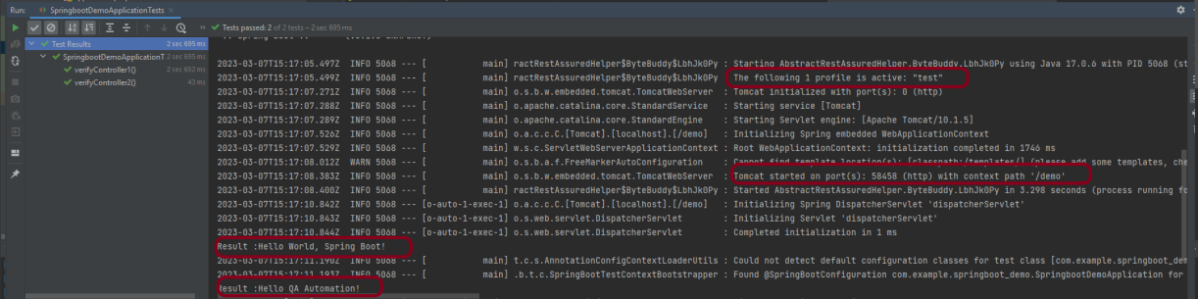
The output of the above program is

This image shows that the profile name is “test”. Application is started on port – “58458” and the context path is “/demo”.

Step 7 – Run the tests from Command Line

Run the tests from the command line by using the below command

mvn clean verify

The output of the above program is

Step 8 – Serenity Report Generation

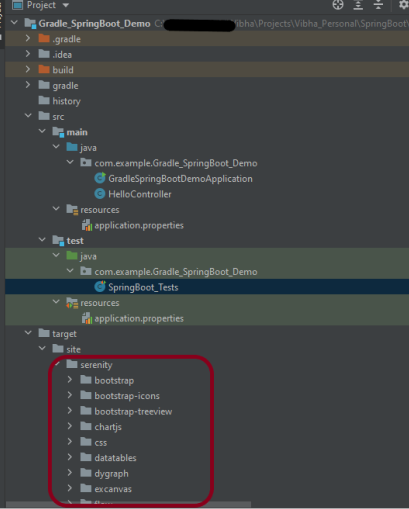
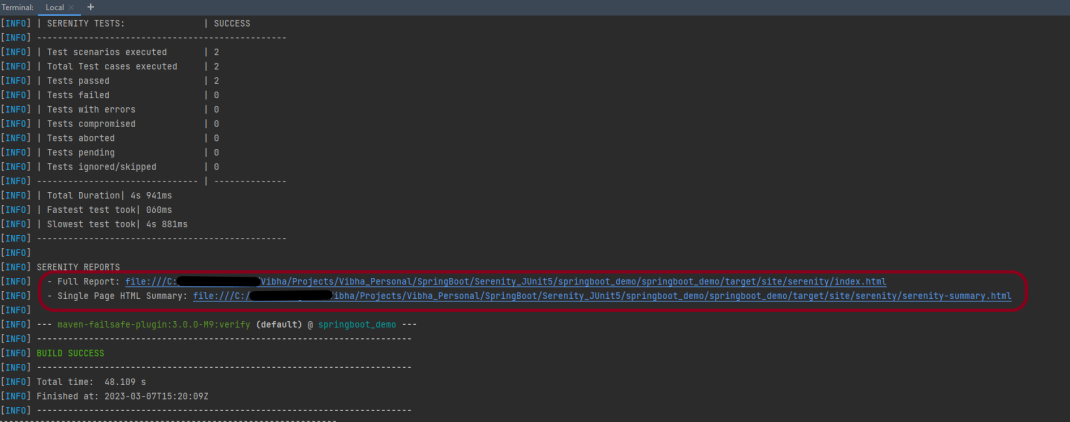
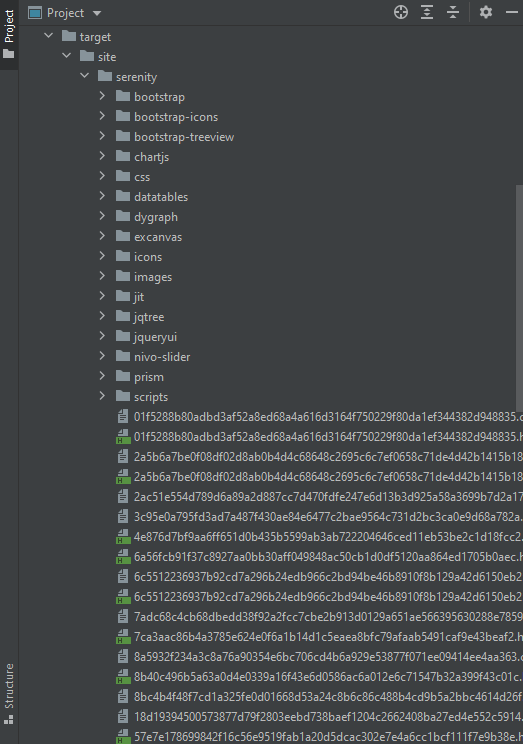
The serenity test reports are generated under target/site/serenity.

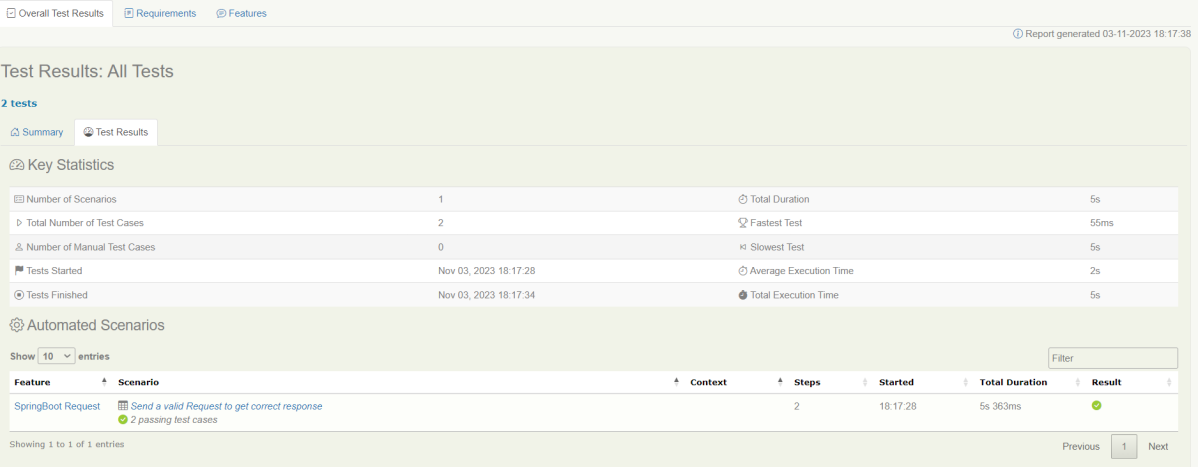
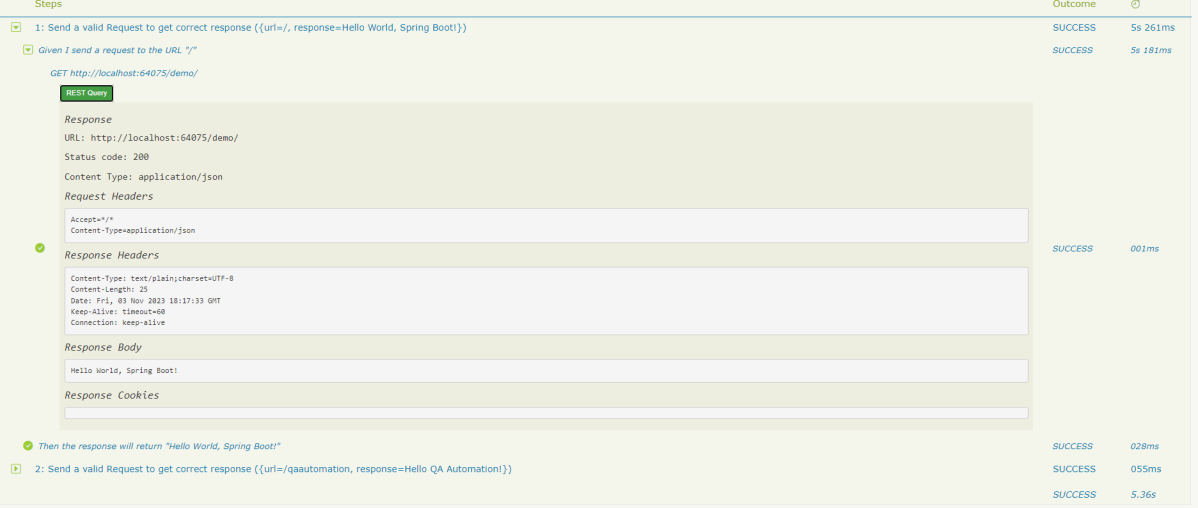
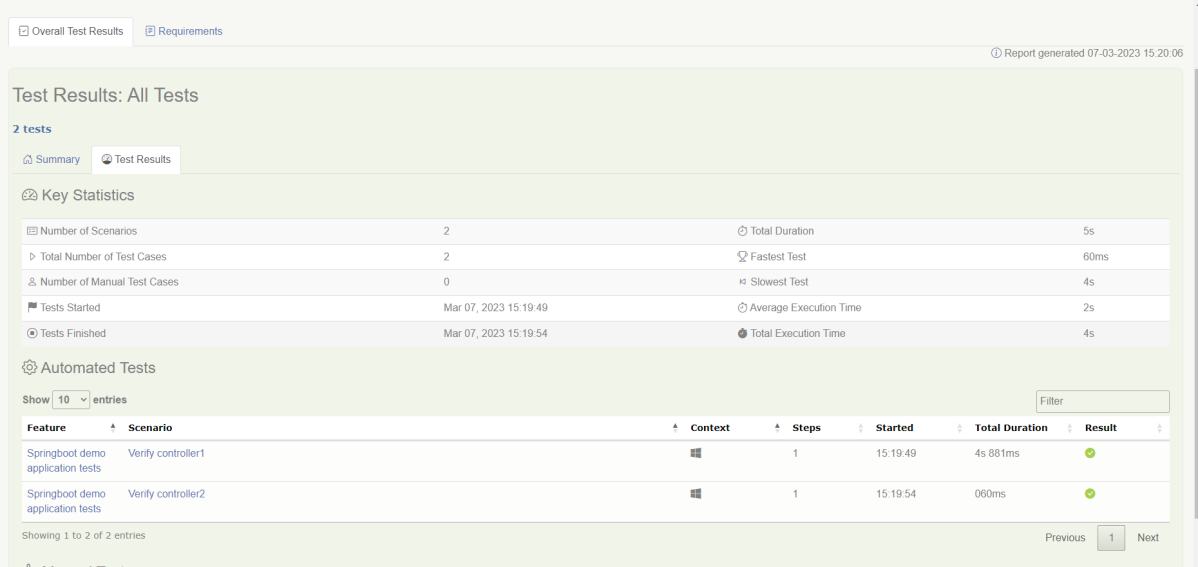
Below is the sample Index.html Report.

Go to Test Results, present at the top left of the index.html page.

Serenity-Summary.html

If you want to have Springboot Application in Gradle and you want to use Serenity and JUnit5. Please refer to this tutorial – Testing of Gradle SpringBoot Application with Serenity and JUnit5.

We are done! Congratulations on making it through this tutorial and hope you found it useful! Happy Learning!!

Testing of Gradle SpringBoot Application with Serenity, Cucumber and JUnit4

HOME

In the previous tutorial, I explained about Integration Testing of Springboot with Cucumber and TestNG. In this tutorial, I will explain the Testing of the Gradle SpringBoot Application with Serenity, Cucumber, and JUnit4.

Prerequisite:

Spring Boot 3.0.4 requires Java 17 and is compatible with and including Java 19. Spring Framework 6.0.6 or above is also required.

Explicit build support is provided for the following build tools:

  1. Maven – 3.5+
  2. Gradle – 7.x (7.5 or later) and 8.x

This framework consists of

  1. SpringBoot Starter Parent – 3.1.0
  2. Serenity –  3.6.12
  3. Serenity Cucumber – 3.6.12
  4. Serenity JUnit4 – 3.6.12
  5. Serenity Rest Assured – 3.6.12
  6. Spring
  7. Java 17
  8. Gradle – 7.6.1

What is SpringBoot Application?

 Spring Boot is an open-source micro-framework that provides Java developers with a platform to get started with an auto-configurable production-grade Spring application. 

  • Comes with embedded HTTP servers like Tomcat or Jetty to test web applications.
  • Adds many plugins that developers can use to work with embedded and in-memory databases easily. Spring allows you to easily connect with database and queue services like Oracle, PostgreSQL, MySQL, MongoDB, Redis, Solr, ElasticSearch, Rabbit MQ, and others.

What is RestController?

HTTP requests are handled by a controller in Spring’s approach to building RESTful web services. The @RestController annotation identifies these components, and the HelloController shown below (from src/main/java/com/example/springboot_demo/HelloController.java) handles GET requests for / and /qaautomation by returning a new instance of the Greeting class. Spring RestController takes care of mapping request data to the request-defined handles method.

import org.springframework.web.bind.annotation.GetMapping;
import org.springframework.web.bind.annotation.RestController;
 
@RestController
public class HelloController {
     
    @GetMapping(path="/")
    String hello() {
        return "Hello World, Spring Boot!";
    }
     
     
    @GetMapping(path="/qaautomation")
    String qaautomation() {
        return "Hello QA Automation!";
    }
 
}

Project Directory Structure

Implementation Steps

  1. Create a source folder – src/test/resources to create properties file
  2. Add SpringBootTest, Rest Assured, and JUnit4 dependencies to the project
  3. Create a feature file in src/test/resources
  4. Create the StepDefinition and Helper classes.
  5. Create a Serenity Runner class in the src/test/java directory
  6. Create an application.properties file in src/test/resources
  7. Create a serenity.properties at the root level of the project
  8. Run the tests from Command Line
  9. Serenity Report Generation
  10. Cucumber Report Generation

Step 1 – Create a source folder – src/test/resources to create test scenarios in the Feature file

Right-click on the test directory and select New->Directory and select resources (Maven Source Directories).

Step 2 – Add SpringBootTest, Rest Assured, and other dependencies to the project

We have added SpringBootTest, SpringBoot Web, Tomcat, Spring Web, Rest Assured, and JUnit4 dependencies to the build.gradle.

plugins {
	id 'java'
	id 'org.springframework.boot' version '3.1.0-SNAPSHOT'
	id 'io.spring.dependency-management' version '1.1.0'
	id "net.serenity-bdd.serenity-gradle-plugin" version "3.6.7"
}

group = 'com.example'
version = '0.0.1-SNAPSHOT'
sourceCompatibility = '17'

repositories {
	mavenCentral()
	maven { url 'https://repo.spring.io/milestone' }
	maven { url 'https://repo.spring.io/snapshot' }
}


dependencies {

	implementation 'org.springframework.boot:spring-boot-starter'
	implementation 'org.springframework.boot:spring-boot-starter-web'
	implementation 'org.springframework.boot:spring-boot-starter-tomcat'
	implementation 'org.springframework:spring-web'

	testImplementation 'org.springframework.boot:spring-boot-starter-test'
	testImplementation 'net.serenity-bdd:serenity-core:3.6.12'
	testImplementation 'net.serenity-bdd:serenity-cucumber:3.6.12'
	testImplementation 'net.serenity-bdd:serenity-rest-assured:3.6.12'
	testImplementation 'net.serenity-bdd:serenity-spring:3.6.12'
	testImplementation 'net.serenity-bdd:serenity-junit:3.6.12'
	testImplementation 'org.junit.vintage:junit-vintage-engine'

}

tasks.named('test') {
	useJUnit() {}
	testLogging {
		showStandardStreams = true
	}
	systemProperties System.getProperties()
}

gradle.startParameter.continueOnFailure = true

test.finalizedBy(aggregate)

Step 3 – Create a feature file in src/test/resources

Below is an example of a feature file that shows a sample test scenario. Feature file should end with .feature. It contains the test scenarios in the form of simple English using the terms Given, When, Then, And.

Feature: SpringBoot Request
   
@ReceiveCorrectResponse

   Scenario Outline: Send a valid Request to get correct response
    Given I send a request to the URL "<url>"
    Then the response will return "<response>"

   Examples:
   | url             | response                   |
   | /               | Hello World, Spring Boot!  |
   | /qaautomation   | Hello QA Automation!       |

Step 4 – Create the StepDefinition and Helper classes.

Below is the code of the StepDefinition and Helper class. These classes are created in the src/test/java directory.

  • uses @SpringBootTest annotation which loads the actual application context.
  • uses WebEnvironment.RANDOM_PORT to create and run the application at some random server port.
  • @LocalServerPort gets the reference of the port where the server has started. It helps in building the actual request URIs to mimic real client interactions.

AbstractRestAssuredHelper

import io.restassured.RestAssured;
import io.restassured.specification.RequestSpecification;
import net.serenitybdd.rest.SerenityRest;
import org.springframework.beans.factory.annotation.Value;
import org.springframework.boot.test.context.SpringBootTest;
import org.springframework.boot.test.context.SpringBootTest.WebEnvironment;
import org.springframework.boot.test.web.server.LocalServerPort;


@SpringBootTest(webEnvironment = WebEnvironment.RANDOM_PORT)
public abstract class AbstractRestAssuredHelper {
     private final static String BASE_URI = "http://localhost";
 
     @LocalServerPort
     private int port;

     @Value("${server.servlet.context-path}")
     private String basePath;
 
     protected void configureRestAssured() {
           RestAssured.baseURI = BASE_URI;
           RestAssured.port = port;
           RestAssured.basePath = basePath;
           
 
     }

     protected RequestSpecification getAnonymousRequest() {
           configureRestAssured();
           return SerenityRest.given();
     }
}

This class sends the request and receives a response after performing the GET operation. Here, the validation of the response also takes place by asserting the expected and actual response

import io.cucumber.java.en.Given;
import io.cucumber.java.en.Then;
import io.restassured.response.Response;
import net.serenitybdd.rest.SerenityRest;
import net.thucydides.core.annotations.Steps;
import org.junit.Assert;

public class SpringBootDemoDefinitions {

	@Steps
    AbstractRestAssuredHelper helper;
    private Response response;

    @Given("I send a request to the URL {string}")
    public void iSendARequest(String endpoint) throws Exception  {
         response = helper.getAnonymousRequest()
                    .header("Content-Type", "application/json").when().get(endpoint);
    }

    @Then("the response will return {string}")
    public void extractResponse(String Expected ) {
          SerenityRest.restAssuredThat(response -> response.statusCode(200));
          String Actual = response.asString();    
          System.out.println("Result :"+Actual);
          Assert.assertEquals(Expected, Actual);
    }
}

Step 5 – Create a Serenity Runner class in the src/test/java directory

We cannot run a Feature file on its own in cucumber-based framework. We need to create a Java class that will run the Feature File. It is the starting point for JUnit to start executing the tests. TestRunner class is created under src/test/javaWhen you run the tests with serenity, you use the CucumberWithSerenity test runner.

import org.junit.runner.RunWith;
import io.cucumber.junit.CucumberOptions;
import net.serenitybdd.cucumber.CucumberWithSerenity;

@RunWith(CucumberWithSerenity.class)
@CucumberOptions(features = "src/test/resources/features", tags = "", glue = "com.example.Gradle_SpringBoot_Demo", publish = true)

public class SpringRunnerTests {

}

Step 6 – Create an application.properties file in src/test/resources

Application.properties is created under src/test/java

spring.profiles.active=dev
server.port=9091
server.servlet.context-path=/demo

spring.profiles.active – property to specify which profiles are active. The default profile is always active.
server.port – By default, the embedded server starts on port 8080. Now the server will start on port 8090
server.servlet.context-path – the context path in Spring Boot can be changed by setting a property, server.servlet.context-path.

Step 7 – Create a serenity.properties at the root level of the project

serenity.project.name = Testing of Gradle SpringBoot Application with Serenity and JUnit4 Demo

Step 8 – Run the tests from Command Line

Run the tests from the command line by using the below command

gradle clean test

The output of the above program is

This image shows that the profile name is “dev”. Application is started on port – “54462” and the context path is “/demo”.

Step 9 – Serenity Report Generation

By default, the test report generated by Serenity is placed under target/site/serenity/index.html. Below is the sample Serenity Report.

Below is the sample Serenity Report.

Step 10 – Cucumber Report Generation

A Cucumber Report can be generated by adding publish=true in SpringRunnerTests as shown in the above example. Click on the link provided in the execution status.

Cucumber Report

Congratulations on making it through this tutorial and hope you found it useful! Happy Learning!! Cheers!!

Testing of SpringBoot Application with TestNG

HOME

In the previous tutorial, I explained about Integration Testing of SpringBoot Application with Serenity BDD, Cucumber and JUnit4. This one provides a comprehensive tutorial on integration testing of a SpringBoot application using SpringBoot Test and TestNG. It covers essential topics like SpringBoot application, RestController, prerequisites, dependency list, project directory structure, and detailed test implementation steps. 

What is SpringBoot Application?

 Spring Boot is an open-source micro-framework that provides Java developers with a platform to get started with an auto-configurable production-grade Spring application. 

  • Comes with embedded HTTP servers like Tomcat or Jetty to test web applications.
  • Adds many plugins that developers can use to work with embedded and in-memory databases easily. Spring allows you to easily connect with database and queue services like Oracle, PostgreSQL, MySQL, MongoDB, Redis, Solr, ElasticSearch, Rabbit MQ, and others.

What is RestController?

HTTP requests are handled by a controller in Spring’s approach to building RESTful web services. The @RestController annotation identifies these components, and the GreetingController shown below (from src/main/java/com/example/HelloController.java) handles GET requests for / and /qaautomation by returning a new instance of the Greeting class. Spring RestController takes care of mapping request data to the request-defined handles method.

import org.springframework.web.bind.annotation.GetMapping;
import org.springframework.web.bind.annotation.RestController;

@RestController
public class HelloController {
	
    @GetMapping(path="/")
    String hello() {
        return "Hello World, Spring Boot!";
    }
    
    
    @GetMapping(path="/qaautomation")
    String qaautomation() {
        return "Hello QA Automation!";
    }

}

In this tutorial, I will explain the Integration Testing of the SpringBoot Application using SpringBoot Test and TestNG.

Prerequisite

Spring Boot 3.0.4 requires Java 17 and is compatible with and including Java 19. Spring Framework 6.0.6 or above is also required.

Explicit build support is provided for the following build tools:

  1. Maven – 3.5+
  2. Gradle – 7.x (7.5 or later) and 8.x

Dependency List

  1. SpringBoot Starter Parent – 3.2.5
  2. TestNG – 7.10.2
  3. Rest Assured – 5.4.0
  4. Java 17
  5. Maven – 3.9.6

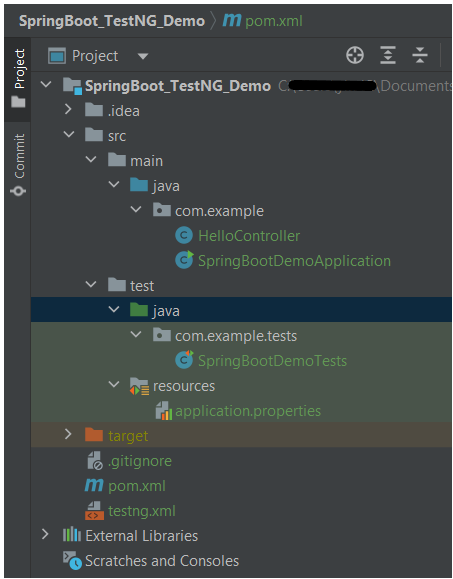
Project Directory Structure

Test Implementation Steps

Step 1 – Create a source folder – src/test/resources

Right-click on the test directory and select New->Directory and select resources (Maven Source Directories).

Step 2 – Add dependencies to the project

We have added SpringBootTest, SpringBoot Tomcat, SpringBoot Web, Spring Web, Rest Assured, and TestNG dependencies to the pom.xml.

<project xmlns="http://maven.apache.org/POM/4.0.0" xmlns:xsi="http://www.w3.org/2001/XMLSchema-instance"
xsi:schemaLocation="http://maven.apache.org/POM/4.0.0 http://maven.apache.org/xsd/maven-4.0.0.xsd">
<modelVersion>4.0.0</modelVersion>

<parent>
<groupId>org.springframework.boot</groupId>
<artifactId>spring-boot-starter-parent</artifactId>
<version>3.3.0-SNAPSHOT</version>
<relativePath/> <!-- lookup parent from repository -->
</parent>

<groupId>com.example</groupId>
<artifactId>SpringBoot_TestNG_Demo</artifactId>
<version>1.0-SNAPSHOT</version>
<packaging>jar</packaging>

<name>SpringBoot_TestNG_Demo</name>
<url>http://maven.apache.org</url>

<properties>
<java.version>17</java.version>
<rest.assured.version>5.4.0</rest.assured.version>
<testng.version>7.10.2</testng.version>
<maven.compiler.plugin.version>3.13.0</maven.compiler.plugin.version>
<maven.compiler.source.version>17</maven.compiler.source.version>
<maven.compiler.target.version>17</maven.compiler.target.version>
<maven.surefire.plugin.version>3.2.5</maven.surefire.plugin.version>
</properties>

<dependencies>
<dependency>
<groupId>org.springframework.boot</groupId>
<artifactId>spring-boot-starter</artifactId>
</dependency>

<dependency>
<groupId>org.springframework.boot</groupId>
<artifactId>spring-boot-starter-test</artifactId>
<scope>test</scope>
</dependency>

<dependency>
<groupId>org.springframework.boot</groupId>
<artifactId>spring-boot-starter-web</artifactId>
</dependency>

<dependency>
<groupId>org.springframework.boot</groupId>
<artifactId>spring-boot-starter-tomcat</artifactId>
<scope>provided</scope>
</dependency>

<dependency>
<groupId>org.springframework</groupId>
<artifactId>spring-web</artifactId>
</dependency>

<!-- Rest Assured -->
<dependency>
<groupId>io.rest-assured</groupId>
<artifactId>rest-assured</artifactId>
<version>${rest.assured.version}</version>
<scope>test</scope>
</dependency>

<!-- TestNG -->
<dependency>
<groupId>org.testng</groupId>
<artifactId>testng</artifactId>
<version>${testng.version}</version>
<scope>test</scope>
</dependency>


</dependencies>

<build>
<plugins>
<plugin>
<groupId>org.springframework.boot</groupId>
<artifactId>spring-boot-maven-plugin</artifactId>
</plugin>

<plugin>
<groupId>org.apache.maven.plugins</groupId>
<artifactId>maven-surefire-plugin</artifactId>
<version>${maven.surefire.plugin.version}</version>
<configuration>
<suiteXmlFiles>
<suiteXmlFile>testng.xml</suiteXmlFile>
</suiteXmlFiles>
</configuration>
<dependencies>
<dependency>
<groupId>org.apache.maven.surefire</groupId>
<artifactId>surefire-testng</artifactId>
<version>${maven.surefire.plugin.version}</version>
</dependency>
</dependencies>
</plugin>

<plugin>
<groupId>org.apache.maven.plugins</groupId>
<artifactId>maven-compiler-plugin</artifactId>
<version>${maven.compiler.plugin.version}</version>
<configuration>
<source>${maven.compiler.source.version}</source>
<target>${maven.compiler.target.version}</target>
</configuration>
</plugin>
</plugins>
</build>


</project>

Step 3 – Create the Test classes

  • uses @SpringBootTest annotation which loads the actual application context.
  • uses WebEnvironment.RANDOM_PORT to create and run the application at some random server port.
  • @LocalServerPort gets the reference of the port where the server has started. It helps in building the actual request URIs to mimic real client interactions.

Below is the code of the sample Test class. These classes are created in the src/test/java directory.

import io.restassured.response.ValidatableResponse;
import org.springframework.beans.factory.annotation.Value;
import org.springframework.boot.test.context.SpringBootTest;
import org.springframework.boot.test.web.server.LocalServerPort;
import org.springframework.test.context.testng.AbstractTestNGSpringContextTests;
import org.testng.Assert;
import org.testng.annotations.Test;
import static io.restassured.RestAssured.given;

@SpringBootTest(webEnvironment = SpringBootTest.WebEnvironment.RANDOM_PORT)
public class SpringBootDemoTests extends AbstractTestNGSpringContextTests {

    private final static String BASE_URI = "http://localhost:";

    @LocalServerPort
    private int port;

    @Value("${server.servlet.context-path}")
    private String basePath;

    private ValidatableResponse response;

    @Test
    public void verifyController1()  {
         response = given().contentType("application/json")
                    .header("Content-Type", "application/json")
                 .when().get(BASE_URI + port + basePath + "/").then().statusCode(200);

         String Actual = response.extract().asString();
          System.out.println("Result :"+Actual);
          Assert.assertEquals("Hello World, Spring Boot!", Actual);
    }

    @Test
    public void verifyController2()   {
        response = given().contentType("application/json")
                .header("Content-Type", "application/json")
                .when().get(BASE_URI + port + basePath + "/qaautomation").then().statusCode(200);

        String Actual = response.extract().asString();
        System.out.println("Result :"+Actual);
        Assert.assertEquals("Hello QA Automation!", Actual);
    }
}

The AbstractTestNGSpringContextTests is an abstract base class having the ApplicationContext supported in the testNG explicitly.

This class sends the request and receives a response after performing the GET operation. Here, the validation of the response also takes place by asserting the expected and actual response.

Step 4 – Create an application.properties file in src/test/resources

Application.properties is created under src/ test/java

spring.profiles.active=test
server.port=8089
server.servlet.context-path=/demo

spring.profiles.active – property to specify which profiles are active. The default profile is always active.
server.port – By default, the embedded server starts on port 8080. Now the server will start on port 8089
server.servlet.context-path – the context path in Spring Boot can be changed by setting a property, server.servlet.context-path.

Step 5 – Run the tests from Test Class

Right-click on the Test class and select RunSpringBootDemoTests’.

The output of the above program is

This image shows that the profile name is “test”. Application is started on port – “62954” and the context path is “/demo”.

Step 6 – Run the tests from testng.xml

<?xml version = "1.0"encoding = "UTF-8"?>
<!DOCTYPE suite SYSTEM "http://testng.org/testng-1.0.dtd">
<suite name = "Suite1">
<test name = "TestNG Demo">
<classes>
<class name = "com.example.tests.SpringBootDemoTests"/>
</classes>
</test>
</suite>

Right-click on testng.xml and select Run ‘…\testng.xml’.

The output of the above program is

Step 7 – TestNG Report Generation

The test report generated by TestNG is placed under test-output/index.html.

Index.html

TestNG produces an “index.html” report, and it resides under the test-output folder. The below image shows index.html report. This report contains a high-level summary of the tests.

Emailable-Report.html

Test-Output folder also contains Emailable-Report.html. Open “emailable-report.html“, as this is an HTML report open it with the browser. The below image shows emailable-report.html.

<plugin>
<groupId>org.apache.maven.plugins</groupId>
<artifactId>maven-surefire-plugin</artifactId>
<version>${maven.surefire.plugin.version}</version>
<configuration>
<suiteXmlFiles>
<suiteXmlFile>testng.xml</suiteXmlFile>
</suiteXmlFiles>
</configuration>
<dependencies>
<dependency>
<groupId>org.apache.maven.surefire</groupId>
<artifactId>surefire-testng</artifactId>
<version>${maven.surefire.plugin.version}</version>
</dependency>
</dependencies>
</plugin>
mvn clean test

Congratulations on making it through this tutorial and hope you found it useful! Happy Learning!! Cheers!!

Integration Testing of Springboot with Cucumber and TestNG

HOME

In this tutorial, I am going to build an automation framework to test the Springboot application with Cucumber, Rest Assured, and TestNG.

What is Springboot?

Spring Boot is an open-source micro-framework maintained by a company called Pivotal. It provides Java developers with a platform to get started with an auto-configurable production-grade Spring application. With it, developers can get started quickly without losing time on preparing and configuring their Spring application.

What is Cucumber?

Cucumber is a software tool that supports behavior-driven development (BDD). Cucumber can be defined as a testing framework, driven by plain English. It serves as documentation, automated tests, and development aid – all in one.

This framework consists of:

  1. Springboot – 2.5.2
  2. Cucumber – 7.3.4
  3. Java 11
  4. TestNG – 7.3.4
  5. Maven – 3.8.1
  6. RestAssured – 5.1.1

Steps to setup Cucumber Test Automation Framework for API Testing using Rest-Assured

  1. Add SpringbootTest, Rest-AssuredJUnit, and Cucumber dependencies to the project
  2. Create a source folder src/test/resources and create a feature file under src/test/resources
  3. Create the Step Definition class or Glue Code for the Test Scenario under the src/test/java directory
  4. Create a Cucumber Runner class under the src/test/java directory
  5. Run the tests from Cucumber Test Runner
  6. Run the tests from Command Line
  7. Run the tests from TestNG
  8. Generation of TestNG Reports
  9. Cucumber Report Generation

Below is the structure of a SpringBoot application project

We need the below files to create a SpringBoot Application.

SpringBootRestServiceApplication.java

The Spring Boot Application class is generated with Spring Initializer. This class acts as the launching point for the application.

import org.springframework.boot.SpringApplication;
import org.springframework.boot.autoconfigure.SpringBootApplication;

@SpringBootApplication
public class SpringBootRestServiceApplication {

    public static void main(String[] args) {

        SpringApplication.run(SpringBootRestServiceApplication.class, args);
    }
}

Student.java

This is JPA Entity for Student class

import javax.persistence.Entity;
import javax.persistence.GeneratedValue;
import javax.persistence.Id;
import javax.validation.constraints.NotBlank;
import javax.validation.constraints.NotNull;
import javax.validation.constraints.Size;

@Entity
public class Student {
    @Id
    @GeneratedValue
    private Long id;

    @NotNull
    @Size(min = 4, message = "Name should have atleast 4 characters")
    private String name;

    @NotBlank(message = "passportNumber is mandatory")
    private String passportNumber;

    public Student() {
        super();
    }

    public Student(Long id, String name, String passportNumber) {
        super();
        this.id = id;
        this.name = name;
        this.passportNumber = passportNumber;
    }

    public Long getId() {
        return id;
    }

    public void setId(Long id) {
        this.id = id;
    }

    public String getName() {
        return name;
    }

    public void setName(String name) {
        this.name = name;
    }

    public String getPassportNumber() {
        return passportNumber;
    }

    public void setPassportNumber(String passportNumber) {
        this.passportNumber = passportNumber;
    }
}

StudentRepository.java 

This is JPA Repository for Student. This is created using Spring Data JpaRepository.

import org.springframework.data.jpa.repository.JpaRepository;
import org.springframework.stereotype.Repository;

@Repository
public interface StudentRepository extends JpaRepository<Student, Long>{

}

StudentController.java

Spring Rest Controller exposes all services on the student resource.

import static org.springframework.hateoas.server.mvc.WebMvcLinkBuilder.linkTo;
import static org.springframework.hateoas.server.mvc.WebMvcLinkBuilder.methodOn;
import java.net.URI;
import java.util.List;
import java.util.Optional;
import javax.validation.Valid;
import org.springframework.beans.factory.annotation.Autowired;
import org.springframework.hateoas.EntityModel;
import org.springframework.hateoas.server.mvc.WebMvcLinkBuilder;
import org.springframework.http.ResponseEntity;
import org.springframework.web.bind.annotation.GetMapping;
import org.springframework.web.bind.annotation.PathVariable;
import org.springframework.web.bind.annotation.PostMapping;
import org.springframework.web.bind.annotation.RequestBody;
import org.springframework.web.bind.annotation.RestController;
import org.springframework.web.servlet.support.ServletUriComponentsBuilder;

@RestController
public class StudentController {

    @Autowired
    private StudentRepository studentRepository;

    @GetMapping("/students")
    public List<Student> retrieveAllStudents() {
        return studentRepository.findAll();
    }

    @GetMapping("/students/{id}")
    public EntityModel<Student> retrieveStudent(@PathVariable long id) {
        Optional<Student> student = studentRepository.findById(id);

        if (!student.isPresent())
            throw new StudentNotFoundException("id-" + id);

        EntityModel<Student> resource = EntityModel.of(student.get());

        WebMvcLinkBuilder linkTo = linkTo(methodOn(this.getClass()).retrieveAllStudents());

        resource.add(linkTo.withRel("all-students"));

        return resource;
    }

    @PostMapping("/students")
    public ResponseEntity<Object> createStudent(@Valid @RequestBody Student student) {
        Student savedStudent = studentRepository.save(student);

        URI location = ServletUriComponentsBuilder.fromCurrentRequest().path("/{id}")
                .buildAndExpand(savedStudent.getId()).toUri();

        return ResponseEntity.created(location).build();

    }
}

application.properties

Spring Boot automatically loads the application.properties whenever it starts up. You can de-reference values from the property file in the java code through the environment.

spring.jpa.defer-datasource-initialization=true

data.sql 

Data is loaded from data.sql into the Student table. Spring Boot would execute this script after the tables are created from the entities.

insert into student values(10001,'Annie', 'E1234567');
insert into student values(20001,'John', 'A1234568');
insert into student values(30001,'David','C1232268');
insert into student values(40001,'Amy','D213458');

Test Automation Framework Implementation

Step 1 – Add SpringbootTest, Cucumber, Rest-Assured, and TestNG dependencies to the project (Maven project)

 <properties>
        <project.build.sourceEncoding>UTF-8</project.build.sourceEncoding>
        <rest-assured.version>5.1.1</rest-assured.version>
        <cucumber.version>7.3.4</cucumber.version>
    </properties>

<dependencies>
        
        <dependency>
            <groupId>org.springframework.boot</groupId>
            <artifactId>spring-boot-starter-test</artifactId>
            <scope>test</scope>
        </dependency>

        <dependency>
            <groupId>io.rest-assured</groupId>
            <artifactId>rest-assured</artifactId>
            <version>${rest-assured.version}</version>
            <scope>test</scope>
        </dependency>

        <dependency>
            <groupId>io.cucumber</groupId>
            <artifactId>cucumber-java</artifactId>
            <version>${cucumber.version}</version>
        </dependency>

        <dependency>
            <groupId>io.cucumber</groupId>
            <artifactId>cucumber-testng</artifactId>
            <version>${cucumber.version}</version>
            <scope>test</scope>
        </dependency>

        <dependency>
            <groupId>io.cucumber</groupId>
            <artifactId>cucumber-spring</artifactId>
            <version>${cucumber.version}</version>
            <scope>test</scope>
        </dependency>

</dependencies>

Step 2 – Create a source folder src/test/resources and create a feature file under src/test/resources

By default, the Maven project has an src/test/java directory only. Create a new Source Folder under src/test with the name of resources. Create a folder name as Features within the src/test/resources directory.

Create a feature file to test the Springboot application. Below is a sample feature file.

Feature: Verify springboot application using Cucumber and TestNG

  @ReceiveUserDetails
  Scenario Outline: Send a valid Request to get user details
    Given I send a request to the URL "/students" to get user details
    Then The response will return status 200 
    And The response contains id <studentID> and names "<studentNames>" and passport_no "<studentPassportNo>"

    Examples:
      |studentID    |studentNames  |studentPassportNo|
      |10001        |Annie         |E1234567         |
      |20001        |John          |A1234568         |
      |30001        |David         |C1232268         |
      |40001        |Amy           |D213458          |
      
   
  @CreateUser
  Scenario: Send a valid Request to create a user 
    Given I send a request to the URL "/students" to create a user with name "Annie" and passportNo "E1234567"
    Then The response will return status 201
    And Resend the request to the URL "/students" and the response returned contains name "Annie" and passport_no "E1234567"

Step 3 – Create the Step Definition class or Glue Code for the Test Scenario under src/test/java

The corresponding step definition file of the above feature file is shown below.

import static io.restassured.RestAssured.given;
import static org.hamcrest.Matchers.containsString;
import static org.hamcrest.Matchers.equalTo;
import static org.hamcrest.Matchers.hasItem;
import org.json.JSONObject;
import org.springframework.boot.test.context.SpringBootTest;
import org.springframework.boot.web.server.LocalServerPort;
import io.cucumber.java.en.Given;
import io.cucumber.java.en.Then;
import io.cucumber.spring.CucumberContextConfiguration;
import io.restassured.RestAssured;
import io.restassured.http.ContentType;
import io.restassured.response.ValidatableResponse;
import io.restassured.specification.RequestSpecification;

@CucumberContextConfiguration
@SpringBootTest(webEnvironment = SpringBootTest.WebEnvironment.RANDOM_PORT)
public class SpringbootDefinitions {

	private final static String BASE_URI = "http://localhost";

	@LocalServerPort
	private int port;

	private ValidatableResponse validatableResponse, validatableResponse1;

	private void configureRestAssured() {
		RestAssured.baseURI = BASE_URI;
		RestAssured.port = port;
	}

	protected RequestSpecification requestSpecification() {
		configureRestAssured();
		return given();
	}

	@Given("I send a request to the URL {string} to get user details")
	public void getStudentDetails(String endpoint) throws Throwable {
		validatableResponse = requestSpecification().contentType(ContentType.JSON).when().get(endpoint).then();
		System.out.println("RESPONSE :" + validatableResponse.extract().asString());
	}

	@Given("I send a request to the URL {string} to create a user with name {string} and passportNo {string}")
	public void createStudent(String endpoint, String studentName, String studentPassportNumber) throws Throwable {

		JSONObject student = new JSONObject();
		student.put("name", studentName);
		student.put("passportNumber", studentPassportNumber);

		validatableResponse = requestSpecification().contentType(ContentType.JSON).body(student.toString()).when()
				.post(endpoint).then();
		System.out.println("RESPONSE :" + validatableResponse.extract().asString());
	}

	@Then("The response will return status {int}")
	public void verifyStatusCodeResponse(int status) {
		validatableResponse.assertThat().statusCode(equalTo(status));

	}

	@Then("The response contains id {int} and names {string} and passport_no {string}")
	public void verifyResponse(int id, String studentName, String passportNo) {
		validatableResponse.assertThat().body("id", hasItem(id)).body(containsString(studentName))
				.body(containsString(passportNo));

	}

	@Then("Resend the request to the URL {string} and the response returned contains name {string} and passport_no {string}")
	public void verifyNewStudent(String endpoint, String studentName, String passportNo) {

		validatableResponse1 = requestSpecification().contentType(ContentType.JSON).when().get(endpoint).then();
		System.out.println("RESPONSE :" + validatableResponse1.extract().asString());
		validatableResponse1.assertThat().body(containsString(studentName)).body(containsString(passportNo));

	}
}

To make Cucumber aware of your test configuration you can annotate a configuration class on your glue path with @CucumberContextConfiguration and with one of the following annotations: @ContextConfiguration, @ContextHierarchy, or @BootstrapWith.It is imported from:

import io.cucumber.spring.CucumberContextConfiguration;

As we are using SpringBoot, we are annotating the configuration class with @SpringBootTest. It is imported from:

import org.springframework.boot.test.context.SpringBootTest;

By default, @SpringBootTest does not start the webEnvironment to refine further how your tests run. It has several options: MOCK(default), RANDOM_PORT, DEFINED_PORT, NONE.

RANDOM_PORT loads a WebServerApplicationContext and provides a real web environment. The embedded server is started and listens on a random port. LocalServerPort is imported from the package:

import org.springframework.boot.web.server.LocalServerPort;

Step 4 – Create a Cucumber TestNG Runner class under src/test/java

A runner will help us to run the feature file and acts as an interlink between the feature file and StepDefinition Class. The TestRunner should be created within the directory src/test/java.

import io.cucumber.testng.AbstractTestNGCucumberTests;
import io.cucumber.testng.CucumberOptions;

@CucumberOptions(features = {"src/test/resources/Features"}, glue = {"com.example.demo.definitions"})
public class CucumberRunnerTests extends AbstractTestNGCucumberTests {

}

The @CucumberOptions annotation is responsible for pointing to the right feature package, configuring the plugin for a better reporting of tests in the console output, and specifying the package where extra glue classes may be found. We use it to load configuration and classes that are shared between tests.

Step 5 – Run the tests from Cucumber Test Runner

You can execute the test script by right-clicking on TestRunner class -> Run As TestNG in Eclipse.

In case you are using IntelliJ, select Run CucumberRunnerTests.

SpringBootTest creates an application context containing all the objects we need for the Integration Testing It, starts the embedded server, creates a web environment, and then enables methods to do Integration testing.

Step 6 – Run the tests from Command Line

Use the below command to run the tests through the command line.

mvn clean test

Step 7 – Run the tests from TestNG

Create a testng.xml in the project as shown below:

<?xml version="1.0" encoding="UTF-8"?>
<!DOCTYPE suite SYSTEM "https://testng.org/testng-1.0.dtd">
<suite name = "Suite1">
  <test name = "SpringBoot Cucumber TestNG Demo">
    <classes>
          <class name = "com.example.demo.runner.CucumberRunnerTests"/>
     </classes>  
   </test>
</suite>

Step 8 – Generation of TestNG Reports

TestNG generates various types of reports under the test-output folder like emailable-report.html, index.html, testng-results.xml.

We are interested in the “emailable-report.html” report. Open “emailable-report.html”, as this is an HTML report, and open it with the browser. The below image shows emailable-report.html.

TestNG also produce “index.html” report, and it resides under test-output folder. The below image shows index.html report.

Step 9 – Cucumber Report Generation

Add cucumber.properties under src/test/resources and add the below instruction in the file.

cucumber.publish.enabled=true

The link to the Cucumber Report is present in the execution status.

Below is the image of the Cucumber Report generated using the Cucumber Service.

Complete Source Code:
Refer to GitHub for the source code.

Congratulations!! We are able to build a test framework to test the SpringBoot application using Cucumber, Rest Assured, and TestNG.