Java Excel Tutorial: Creating Excel with Formulas Using Apache POI

HOME

In the previous tutorial, I have explained How to update data in existing excel in Java. In this Java Excel tutorial, I will explain how to create an Excel with formula in a Java program. Excel is very excellent in calculating formulas. The Apache POI library provides excellent support for working with formulas in Excel.

I’m using Apache POI to write data to the excel file. To download and install Apache POI, refer here.

If you are using maven, then you need to add below dependency in pom.xml.

<!-- https://mvnrepository.com/artifact/org.apache.poi/poi -->
<dependency>
    <groupId>org.apache.poi</groupId>
    <artifactId>poi</artifactId>
    <version>5.3.0</version>
</dependency>
  
<!-- https://mvnrepository.com/artifact/org.apache.poi/poi-ooxml -->
<dependency>
    <groupId>org.apache.poi</groupId>
    <artifactId>poi-ooxml</artifactId>
    <version>5.3.0</version>
</dependency>

To know about various Interfaces and Classes in Excel, please refer this link.

Implementation Steps

Step 1 – Create a blank workbook.

XSSFWorkbook workbook = new XSSFWorkbook();

Step 2 Import XSSFWorkbook from package.

import org.apache.poi.xssf.usermodel.XSSFWorkbook;

Step 3 Create a sheet and pass name of the sheet.

XSSFSheet sheet = workbook.createSheet("Calculate Salary");

Step 4 Import XSSFSheet from package.

import org.apache.poi.xssf.usermodel.XSSFSheet;

Step 5 Create a Row. A spreadsheet consists of rows and cells. It has a grid layout. I have created object called Header of XSSFRow.

XSSFRow header = sheet.createRow(0);

Step 6 Below syntax create new cells within the row at index 0 and set a string value for the cell.

header.createCell(0).setCellValue("Employee_Name");

Step 7 Below syntax creates a cell at index 4 and sets formula for cell.

dataRow.createCell(4).setCellFormula("B2+C2+D2");

Step 8 The following line of code sets formula for the cell at the row #1 and column #5 (remember index is 0-based):

In case the column (Cell) does not exist (but the row does), use the following code.

XSSFRow dataRow = sheet.createRow(1);
dataRow.createCell(5).setCellFormula("SUM(B2:C2)");
try {

			// Write the workbook in file system
			FileOutputStream out = new FileOutputStream(new File("Salary_Slip.xlsx"));
			workbook.write(out);
			out.close();
			System.out.println("Excel written successfully.");

		} catch (IOException e) {
			e.printStackTrace();

		}

In the above line, note that you should make sure that the cell at position (1, 5) does exist, otherwise you get a NullPointerException.

Let us see a program where I have created a cell which contains the formula.

import org.apache.poi.xssf.usermodel.XSSFRow;
import org.apache.poi.xssf.usermodel.XSSFSheet;
import org.apache.poi.xssf.usermodel.XSSFWorkbook;

import java.io.File;
import java.io.FileOutputStream;
import java.io.IOException;

public class FormulaExcelDemo {
    
    public static void main(String[] args) {

        // Create object of XSSFWorkbook class
        XSSFWorkbook workbook = new XSSFWorkbook();

        // Create object of XSSFSheet class
        XSSFSheet sheet = workbook.createSheet("Calculate Salary");

        // Create Header row using XSSFRow class
        XSSFRow header = sheet.createRow(0);
        header.createCell(0).setCellValue("Employee_Name");
        header.createCell(1).setCellValue("Base_Salary");
        header.createCell(2).setCellValue("Variable_Pay");
        header.createCell(3).setCellValue("Other_Benefits");
        header.createCell(4).setCellValue("Total Salary");
        header.createCell(5).setCellValue("Base_Variable Salary");

        XSSFRow dataRow = sheet.createRow(1);
        dataRow.createCell(0).setCellValue("George");
        dataRow.createCell(1).setCellValue(5000);
        dataRow.createCell(2).setCellValue(650);
        dataRow.createCell(3).setCellValue(1200);

        // Set formula
        dataRow.createCell(4).setCellFormula("B2+C2+D2");
        dataRow.createCell(5).setCellFormula("SUM(B2:C2)");

        try {

            // Write the workbook in file system
            FileOutputStream out = new FileOutputStream(new File("Salary_Slip.xlsx"));
            workbook.write(out);
            out.close();
            System.out.println("Excel written successfully.");

        } catch (IOException e) {
            e.printStackTrace();

        }
    }
}

That’s it! Well Done! Cheers!!

Congratulations on making it through this tutorial and hope you found it useful! Happy Learning!!

Parameterizing REST Assured Tests with junit4-dataprovider Dependency

HOME

<!-- Data Provider -->
 <dependency>
      <groupId>com.tngtech.junit.dataprovider</groupId>
      <artifactId>junit4-dataprovider</artifactId>
      <version>${junit.dataprovider.version}</version>
      <scope>test</scope>
</dependency>

<project xmlns="http://maven.apache.org/POM/4.0.0" xmlns:xsi="http://www.w3.org/2001/XMLSchema-instance"
  xsi:schemaLocation="http://maven.apache.org/POM/4.0.0 http://maven.apache.org/xsd/maven-4.0.0.xsd">
  <modelVersion>4.0.0</modelVersion>

  <groupId>com.example</groupId>
  <artifactId>Parameterized_APITests</artifactId>
  <version>1.0-SNAPSHOT</version>
  <packaging>jar</packaging>

  <name>Parameterized_APITests</name>
  <url>http://maven.apache.org</url>

  <properties>
    <rest-assured.version>5.4.0</rest-assured.version>
    <junit.version>4.13.2</junit.version>
    <junit.dataprovider.version>2.10</junit.dataprovider.version>
    <maven.compiler.plugin.version>3.12.1</maven.compiler.plugin.version>
    <maven.surefire.plugin.version>3.2.3</maven.surefire.plugin.version>
    <maven.compiler.source>17</maven.compiler.source>
    <maven.compiler.target>17</maven.compiler.target>
  </properties>

  <dependencies>
    <!-- Rest-Assured Dependency -->
    <dependency>
      <groupId>io.rest-assured</groupId>
      <artifactId>rest-assured</artifactId>
      <version>${rest-assured.version}</version>
      <scope>test</scope>
    </dependency>

    <!-- JUnit4 Dependency -->
    <dependency>
      <groupId>junit</groupId>
      <artifactId>junit</artifactId>
      <version>${junit.version}</version>
      <scope>test</scope>
    </dependency>

    <!-- Data Provider -->
    <dependency>
      <groupId>com.tngtech.junit.dataprovider</groupId>
      <artifactId>junit4-dataprovider</artifactId>
      <version>${junit.dataprovider.version}</version>
      <scope>test</scope>
    </dependency>
    
  </dependencies>

  <build>

    <plugins>

      <plugin>
        <groupId>org.apache.maven.plugins</groupId>
        <artifactId>maven-compiler-plugin</artifactId>
        <version>${maven.compiler.plugin.version}</version>
        <configuration>
          <source>${maven.compiler.source}</source>
          <target>${maven.compiler.target}</target>
        </configuration>
      </plugin>

      <plugin>
        <groupId>org.apache.maven.plugins</groupId>
        <artifactId>maven-surefire-plugin</artifactId>
        <version>${maven.surefire.plugin.version}</version>
        <configuration>
          <testFailureIgnore>true</testFailureIgnore>
        </configuration>
      </plugin>

    </plugins>
  </build>
</project>

@RunWith(DataProviderRunner.class)

 @DataProvider
    public static Object[][] responseData() {
        return new Object[][] {
                { "1", "George", "Bluth" },
                { "2", "Janet", "Weaver" },
                { "3", "Emma", "Wong" },
                { "4", "Eve", "Holt" }
        };
    }

import com.tngtech.java.junit.dataprovider.DataProvider;
import com.tngtech.java.junit.dataprovider.DataProviderRunner;
import com.tngtech.java.junit.dataprovider.UseDataProvider;
import org.junit.Test;
import org.junit.runner.RunWith;

import static io.restassured.RestAssured.given;
import static org.hamcrest.CoreMatchers.equalTo;

@RunWith(DataProviderRunner.class)
public class ParameterizedTets {

    @DataProvider
    public static Object[][] responseData() {
        return new Object[][] {
                { "1", "George", "Bluth" },
                { "2", "Janet", "Weaver" },
                { "3", "Emma", "Wong" },
                { "4", "Eve", "Holt" }
        };
    }

    @Test
    @UseDataProvider("responseData")
    public void verifyResponse(String id, String expectedFirstName, String expectedLastName)
    {
        given().
                when().
                pathParam("id", id).
                get("https://reqres.in/api/users/{id}").
                then().
                assertThat().
                statusCode(200).
                body("data.first_name", equalTo(expectedFirstName)).
                body("data.last_name", equalTo(expectedLastName));
    }
}

Keyword Driven Framework Tutorial – Selenium

HOME

<project xmlns="http://maven.apache.org/POM/4.0.0" xmlns:xsi="http://www.w3.org/2001/XMLSchema-instance"
  xsi:schemaLocation="http://maven.apache.org/POM/4.0.0 http://maven.apache.org/xsd/maven-4.0.0.xsd">
  <modelVersion>4.0.0</modelVersion>

  <groupId>com.example</groupId>
  <artifactId>KeywordDrivenFramework</artifactId>
  <version>1.0-SNAPSHOT</version>
  <packaging>jar</packaging>

  <name>KeywordDrivenFramework</name>
  <url>http://maven.apache.org</url>

  <properties>
    <project.build.sourceEncoding>UTF-8</project.build.sourceEncoding>
    <selenium.version>4.21.0</selenium.version>
    <testng.version>7.10.2</testng.version>
    <poi.version>5.2.5</poi.version>
    <poi.ooxml.version>5.2.5</poi.ooxml.version>
    <commons.version>2.16.1</commons.version>
    <maven.surefire.plugin.version>3.2.5</maven.surefire.plugin.version>
    <maven.compiler.plugin.version>3.13.0</maven.compiler.plugin.version>
    <maven.compiler.source>17</maven.compiler.source>
    <maven.compiler.target>17</maven.compiler.target>
  </properties>

  <dependencies>
    <dependency>
      <groupId>org.seleniumhq.selenium</groupId>
      <artifactId>selenium-java</artifactId>
      <version>${selenium.version}</version>
    </dependency>

    <dependency>
      <groupId>org.testng</groupId>
      <artifactId>testng</artifactId>
      <version>${testng.version}</version>
    </dependency>

    <dependency>
      <groupId>org.apache.poi</groupId>
      <artifactId>poi</artifactId>
      <version>${poi.version}</version>
    </dependency>

    <dependency>
      <groupId>org.apache.poi</groupId>
      <artifactId>poi-ooxml</artifactId>
      <version>${poi.ooxml.version}</version>
    </dependency>

    <dependency>
      <groupId>commons-io</groupId>
      <artifactId>commons-io</artifactId>
      <version>${commons.version}</version>
    </dependency>
  </dependencies>

  <build>
    <plugins>
      <plugin>
        <groupId>org.apache.maven.plugins</groupId>
        <artifactId>maven-compiler-plugin</artifactId>
        <version>${maven.compiler.plugin.version}</version>
        <configuration>
          <source>${maven.compiler.source}</source>
          <target>${maven.compiler.target}</target>
        </configuration>
      </plugin>
      <plugin>
        <groupId>org.apache.maven.plugins</groupId>
        <artifactId>maven-surefire-plugin</artifactId>
        <version>${maven.surefire.plugin.version}</version>
        <configuration>
          <suiteXmlFiles>
            <suiteXmlFile>testng.xml</suiteXmlFile>
          </suiteXmlFiles>
        </configuration>
      </plugin>
    </plugins>
  </build>
</project>

package com.example.pages;

import org.openqa.selenium.WebDriver;
import org.openqa.selenium.support.PageFactory;

public class BasePage {
    public WebDriver driver;

    public BasePage(WebDriver driver) {
        this.driver = driver;
        PageFactory.initElements(driver,this);
    }

}

package com.example.keywords;

import com.example.utils.ExcelUtils;
import org.openqa.selenium.WebDriver;
import org.openqa.selenium.WebElement;
import org.openqa.selenium.support.FindBy;

public class LoginPageKeywords extends BasePage{

    public LoginPageKeywords(WebDriver driver) {
        super(driver);

    }

    @FindBy(name = "username")
    public WebElement userName;

    @FindBy(name = "password")
    public WebElement password;

    @FindBy(xpath = "//*[@class='oxd-form']/div[1]/div/span")
    public WebElement missingUsernameErrorMessage;

    @FindBy(xpath = "//*[@class='oxd-form']/div[2]/div/span")
    public WebElement missingPasswordErrorMessage;

    @FindBy(xpath = "//*[@class='oxd-form']/div[3]/button")
    public WebElement loginBtn;

    @FindBy(xpath = "//*[@id='app']/div[1]/div/div[1]/div/div[2]/div[2]/div/div[1]/div[1]/p")
    public  WebElement errorMessage;


    public void enterUsername(String strUserName) {
        userName.sendKeys(strUserName);
    }

    public void enterPassword(String strPassword) {
        password.sendKeys(strPassword);
    }

    public void login() {
        loginBtn.click();
    }

    public void login(String strUserName, String strPassword) {

        userName.sendKeys(strUserName);
        password.sendKeys(strPassword);
    }

    public String getMissingUsernameText() {
        return missingUsernameErrorMessage.getText();
    }

    public String getMissingPasswordText() {
        return missingPasswordErrorMessage.getText();
    }

    public String getErrorMessage() {
        return errorMessage.getText();
    }

    public LoginPageKeywords saveTestResults(int row, int column) {
        ExcelUtils.rowNumber = row ;
        ExcelUtils.columnNumber = column;
        return this;
    }

}

package com.example.keywords;

import org.openqa.selenium.WebDriver;
import org.openqa.selenium.WebElement;
import org.openqa.selenium.support.FindBy;

public class HomePageKeywords extends BasePage {

    public HomePageKeywords(WebDriver driver) {
        super(driver);

    }

    @FindBy(xpath = "//*[@id='app']/div[1]/div[1]/header/div[1]/div[1]/span/h6")
    public  WebElement homePageUserName;

    public String verifyHomePage() {
        return homePageUserName.getText();
    }
}

package com.example.utils;

import org.apache.poi.ss.usermodel.DataFormatter;
import org.apache.poi.xssf.usermodel.XSSFCell;
import org.apache.poi.xssf.usermodel.XSSFRow;
import org.apache.poi.xssf.usermodel.XSSFSheet;
import org.apache.poi.xssf.usermodel.XSSFWorkbook;

import java.io.FileInputStream;
import java.io.FileOutputStream;
import java.io.IOException;

public class ExcelUtils {


    public static String testDataExcelPath = null; //Location of Test data excel file
    private static XSSFWorkbook excelWorkBook; //Excel WorkBook
    private static XSSFSheet excelWorkSheet; //Excel Sheet
    private static XSSFCell cell; //Excel cell
    private static XSSFRow row; //Excel row
    public static int rowNumber; //Row Number
    public static int columnNumber; //Column Number
    public static FileInputStream ExcelFile;

    public static DataFormatter formatter;
    public static FileOutputStream fileOut;


    // This method has two parameters: "Test data excel file name" and "Excel sheet name"
    // It creates FileInputStream and set excel file and excel sheet to excelWBook and excelWSheet variables.
    public static void setExcelFileSheet(String sheetName) throws IOException {

        testDataExcelPath = Constants.currentDir + Constants.resourcePath;

        // Open the Excel file
        ExcelFile = new FileInputStream(testDataExcelPath + Constants.testDataExcelFileName);
        excelWorkBook = new XSSFWorkbook(ExcelFile);
        excelWorkSheet = excelWorkBook.getSheet(sheetName);

    }

    //This method reads the test data from the Excel cell.
    public static String getCellData(int rowNum, int colNum) {
        cell = excelWorkSheet.getRow(rowNum).getCell(colNum);
        formatter = new DataFormatter();
        return formatter.formatCellValue(cell);
    }

    //This method takes row number as a parameter and returns the data of given row number.
    public static XSSFRow getRowData(int rowNum) {
        row = excelWorkSheet.getRow(rowNum);
        return row;
    }

    //This method gets excel file, row and column number and set a value to the that cell.
    public static void setCellData(String value, int rowNum, int colNum) throws IOException {
        row = excelWorkSheet.getRow(rowNum);
        cell = row.getCell(colNum);
        if (cell == null) {
            cell = row.createCell(colNum);
            cell.setCellValue(value);
        } else {
            cell.setCellValue(value);
        }

        // Write to the workbook
        fileOut = new FileOutputStream(testDataExcelPath + Constants.testDataExcelFileName);
        excelWorkBook.write(fileOut);
        fileOut.flush();
        fileOut.close();
    }
}

import com.example.tests.BaseTests;
import org.openqa.selenium.WebDriver;
import org.testng.ITestContext;
import org.testng.ITestListener;
import org.testng.ITestResult;
import java.io.IOException;

public class TestListener implements ITestListener {

    private static String getTestMethodName(ITestResult iTestResult) {
        return iTestResult.getMethod().getConstructorOrMethod().getName();
    }

    @Override
    public void onStart(ITestContext iTestContext) {
        System.out.println("I am in onStart method :" + iTestContext.getName());
    }

    @Override
    public void onFinish(ITestContext iTestContext) {
        System.out.println("I am in onFinish method :" + iTestContext.getName());
    }

    @Override
    public void onTestStart(ITestResult iTestResult) {
        System.out.println("I am in onTestStart method :" + getTestMethodName(iTestResult) + ": start");
    }

    @Override
    public void onTestSuccess(ITestResult iTestResult)  {
        System.out.println("I am in onTestSuccess method :" + getTestMethodName(iTestResult) + ": succeed");
        try {
            ExcelUtils.setCellData("PASSED", ExcelUtils.rowNumber, ExcelUtils.columnNumber);
        } catch (IOException e) {
            throw new RuntimeException(e);
        }
    }

    @Override
    public void onTestFailure(ITestResult iTestResult)  {
        System.out.println("I am in onTestFailure method :" + getTestMethodName(iTestResult) + " failed");
        try {
            ExcelUtils.setCellData("FAILED", ExcelUtils.rowNumber, ExcelUtils.columnNumber);
        } catch (IOException e) {
            throw new RuntimeException(e);
        }
    }

    @Override
    public void onTestSkipped(ITestResult iTestResult) {
        System.out.println("I am in onTestSkipped method :" + getTestMethodName(iTestResult) + ": skipped");
        try {
            ExcelUtils.setCellData("SKIPPED", ExcelUtils.rowNumber, ExcelUtils.columnNumber);
        } catch (IOException e) {
            throw new RuntimeException(e);
        }
    }

    @Override
    public void onTestFailedButWithinSuccessPercentage(ITestResult iTestResult) {
        System.out.println("Test failed but it is in defined success ratio " + getTestMethodName(iTestResult));
    }
}

package com.example.utils;

public class Constants {

    public static final String testDataExcelFileName = "Test_Cases.xlsx"; //Global test data excel file
    public static final String currentDir = System.getProperty("user.dir");  //Main Directory of the project
    public static final String resourcePath = "\\src\\test\\resources\\";  //Main Directory of the project
    public static final String excelTestDataName = "LoginData";
}

import org.openqa.selenium.WebDriver;
import org.openqa.selenium.chrome.ChromeDriver;
import org.openqa.selenium.chrome.ChromeOptions;
import org.testng.annotations.AfterMethod;
import org.testng.annotations.BeforeMethod;

import java.time.Duration;

public class BaseTests {

    public static WebDriver driver;
    public final static int TIMEOUT = 10;

    @BeforeMethod
    public void setup() {

        ChromeOptions options = new ChromeOptions();
        options.addArguments("--remote-allow-origins=*");
        options.addArguments("--no-sandbox");
        options.addArguments("--disable-dev-shm-usage");
        options.addArguments("--headless");
        driver = new ChromeDriver(options);
        driver.manage().window().maximize();
        driver.get("https://opensource-demo.orangehrmlive.com/");
        driver.manage().timeouts().implicitlyWait(Duration.ofSeconds(TIMEOUT));

    }

    @AfterMethod
    public void tearDown() {
        driver.quit();
    }

}

package com.example.tests;

import com.example.keywords.HomePageKeywords;
import com.example.keywords.LoginPageKeywords;
import com.example.utils.Constants;
import com.example.utils.ExcelUtils;
import com.example.utils.TestListener;
import org.testng.Assert;
import org.testng.annotations.BeforeTest;
import org.testng.annotations.Listeners;
import org.testng.annotations.Test;

import java.io.IOException;

@Listeners({TestListener.class })
public class LoginPageTests extends BaseTests {

    String username;
    String password;
    String actualResponse;
    String expectedResponse;


    @BeforeTest
    public void setupTestData() throws IOException {

        System.out.println("Setup Test Data");
        ExcelUtils.setExcelFileSheet(Constants.excelTestDataName);
    }

    @Test
    public void validCredentials() throws IOException {

        username = ExcelUtils.getCellData(2,5);
        password = ExcelUtils.getCellData(3,5);
        expectedResponse = ExcelUtils.getCellData(5,6);

        LoginPageKeywords loginPage = new LoginPageKeywords(driver);

        loginPage.enterUsername(username);
        loginPage.enterPassword(password);
        loginPage.login();

        HomePageKeywords homePage = new HomePageKeywords(driver);
        actualResponse = homePage.verifyHomePage();

        ExcelUtils.setCellData(actualResponse,5,7);
        saveTestResults(5,8);
        Assert.assertEquals(actualResponse,expectedResponse);

    }

    @Test
    public void invalidCredentials() throws IOException {

        username = ExcelUtils.getCellData(9,5);
        password = ExcelUtils.getCellData(10,5);
        expectedResponse = ExcelUtils.getCellData(12,6);

        LoginPageKeywords loginPage = new LoginPageKeywords(driver);

        loginPage.enterUsername(username);
        loginPage.enterPassword(password);
        loginPage.login();

        actualResponse = loginPage.getErrorMessage();

        ExcelUtils.setCellData(actualResponse,12,7);
        saveTestResults(12,8);
        Assert.assertEquals(actualResponse,expectedResponse);

    }

}

<?xml version="1.0" encoding="UTF-8"?>
<!DOCTYPE suite SYSTEM "https://testng.org/testng-1.0.dtd">
<suite name="Keyword Driven Framework">
    <test name="Login Test">
        <classes>
            <class name="com.example.tests.LoginPageTests"/>
        </classes>
    </test> <!-- Test -->
</suite> <!-- Suite -->

mvn clean test

Selenium Data Driven Framework Tutorial

HOME

<project xmlns="http://maven.apache.org/POM/4.0.0" xmlns:xsi="http://www.w3.org/2001/XMLSchema-instance"
  xsi:schemaLocation="http://maven.apache.org/POM/4.0.0 http://maven.apache.org/xsd/maven-4.0.0.xsd">
  <modelVersion>4.0.0</modelVersion>

  <groupId>com.example</groupId>
  <artifactId>DataDrivenFramework</artifactId>
  <version>1.0-SNAPSHOT</version>
  <packaging>jar</packaging>

  <name>DataDrivenFramework</name>
  <url>http://maven.apache.org</url>

  <properties>
    <project.build.sourceEncoding>UTF-8</project.build.sourceEncoding>
    <selenium.version>4.21.0</selenium.version>
    <testng.version>7.10.2</testng.version>
    <poi.version>5.2.5</poi.version>
    <poi.ooxml.version>5.2.5</poi.ooxml.version>
    <commons.version>2.16.1</commons.version>
    <maven.surefire.plugin.version>3.2.5</maven.surefire.plugin.version>
    <maven.compiler.plugin.version>3.13.0</maven.compiler.plugin.version>
    <maven.compiler.source>17</maven.compiler.source>
    <maven.compiler.target>17</maven.compiler.target>
  </properties>

  <dependencies>
    <dependency>
      <groupId>org.seleniumhq.selenium</groupId>
      <artifactId>selenium-java</artifactId>
      <version>${selenium.version}</version>
    </dependency>

    <dependency>
      <groupId>org.testng</groupId>
      <artifactId>testng</artifactId>
      <version>${testng.version}</version>
    </dependency>

    <dependency>
      <groupId>org.apache.poi</groupId>
      <artifactId>poi</artifactId>
      <version>${poi.version}</version>
    </dependency>

    <dependency>
      <groupId>org.apache.poi</groupId>
      <artifactId>poi-ooxml</artifactId>
      <version>${poi.ooxml.version}</version>
    </dependency>

    <dependency>
      <groupId>commons-io</groupId>
      <artifactId>commons-io</artifactId>
      <version>${commons.version}</version>
    </dependency>
  </dependencies>

  <build>
    <plugins>
      <plugin>
        <groupId>org.apache.maven.plugins</groupId>
        <artifactId>maven-compiler-plugin</artifactId>
        <version>${maven.compiler.plugin.version}</version>
        <configuration>
          <source>${maven.compiler.source}</source>
          <target>${maven.compiler.target}</target>
        </configuration>
      </plugin>
      <plugin>
        <groupId>org.apache.maven.plugins</groupId>
        <artifactId>maven-surefire-plugin</artifactId>
        <version>${maven.surefire.plugin.version}</version>
        <configuration>
          <suiteXmlFiles>
            <suiteXmlFile>testng.xml</suiteXmlFile>
          </suiteXmlFiles>
        </configuration>
      </plugin>
    </plugins>
  </build>
</project>

package com.example.pages;

import org.openqa.selenium.WebDriver;
import org.openqa.selenium.support.PageFactory;

public class BasePage {
    public WebDriver driver;

    public BasePage(WebDriver driver) {
        this.driver = driver;
        PageFactory.initElements(driver,this);
    }

}

package com.example.pages;

import com.example.utils.ExcelUtils;
import org.openqa.selenium.WebDriver;
import org.openqa.selenium.WebElement;
import org.openqa.selenium.support.FindBy;
import org.openqa.selenium.support.PageFactory;

public class LoginPage extends BasePage{

    public LoginPage(WebDriver driver) {
        super(driver);

    }

    @FindBy(name = "username")
    public WebElement userName;

    @FindBy(name = "password")
    public WebElement password;
    
    @FindBy(xpath = "//*[@class='oxd-form']/div[1]/div/span")
    public WebElement missingUsernameErrorMessage;

    @FindBy(xpath = "//*[@class='oxd-form']/div[2]/div/span")
    public WebElement missingPasswordErrorMessage;

    @FindBy(xpath = "//*[@class='oxd-form']/div[3]/button")
    public WebElement login;

    @FindBy(xpath = "//*[@id='app']/div[1]/div/div[1]/div/div[2]/div[2]/div/div[1]/div[1]/p")
    public  WebElement errorMessage;


    public void login(String strUserName, String strPassword) {

        userName.sendKeys(strUserName);
        password.sendKeys(strPassword);
        login.click();

    }

    public String getMissingUsernameText() {
        return missingUsernameErrorMessage.getText();
    }
    
    public String getMissingPasswordText() {
        return missingPasswordErrorMessage.getText();
    }

    public String getErrorMessage() {
        return errorMessage.getText();
    }

    public LoginPage saveTestResults(int row, int column) {
        ExcelUtils.rowNumber = row ;
        ExcelUtils.columnNumber = column;
        return this;
    }

}

import org.openqa.selenium.WebDriver;
import org.openqa.selenium.WebElement;
import org.openqa.selenium.support.FindBy;
import org.openqa.selenium.support.PageFactory;

public class HomePage extends BasePage {

    public HomePage(WebDriver driver) {
        super(driver);

    }

    @FindBy(xpath = "//*[@id='app']/div[1]/div[1]/header/div[1]/div[1]/span/h6")
    public  WebElement homePageUserName;

    public String getHomePageText() {
        return homePageUserName.getText();
    }

}

package com.example.utils;

import org.apache.poi.ss.usermodel.DataFormatter;
import org.apache.poi.xssf.usermodel.XSSFCell;
import org.apache.poi.xssf.usermodel.XSSFRow;
import org.apache.poi.xssf.usermodel.XSSFSheet;
import org.apache.poi.xssf.usermodel.XSSFWorkbook;

import java.io.FileInputStream;
import java.io.FileNotFoundException;
import java.io.FileOutputStream;
import java.io.IOException;

public class ExcelUtils {

    public static final String testDataExcelFileName = "testdata.xlsx"; //Global test data excel file
    public static final String currentDir = System.getProperty("user.dir");  //Main Directory of the project
    public static final String resourcePath = "\\src\\test\\resources\\";  //Main Directory of the project
    public static String testDataExcelPath = null; //Location of Test data excel file
    private static XSSFWorkbook excelWorkBook; //Excel WorkBook
    private static XSSFSheet excelWorkSheet; //Excel Sheet
    private static XSSFCell cell; //Excel cell
    private static XSSFRow row; //Excel row
    public static int rowNumber; //Row Number
    public static int columnNumber; //Column Number
    public static FileInputStream ExcelFile;
    public static DataFormatter formatter;
    public static FileOutputStream fileOut;


    // This method has two parameters: "Test data excel file name" and "Excel sheet name"
    // It creates FileInputStream and set excel file and excel sheet to excelWBook and excelWSheet variables.
    public static void setExcelFileSheet(String sheetName) throws IOException {

        testDataExcelPath = currentDir + resourcePath;

        // Open the Excel file
        ExcelFile = new FileInputStream(testDataExcelPath + testDataExcelFileName);
        excelWorkBook = new XSSFWorkbook(ExcelFile);
        excelWorkSheet = excelWorkBook.getSheet(sheetName);

    }

    //This method reads the test data from the Excel cell.
    public static String getCellData(int rowNum, int colNum) {
        cell = excelWorkSheet.getRow(rowNum).getCell(colNum);
        formatter = new DataFormatter();
        return formatter.formatCellValue(cell);
    }

    //This method takes row number as a parameter and returns the data of given row number.
    public static XSSFRow getRowData(int rowNum) {
        row = excelWorkSheet.getRow(rowNum);
        return row;
    }

    //This method gets excel file, row and column number and set a value to the that cell.
    public static void setCellData(String value, int rowNum, int colNum) throws IOException {
        row = excelWorkSheet.getRow(rowNum);
        cell = row.getCell(colNum);
        if (cell == null) {
            cell = row.createCell(colNum);
            cell.setCellValue(value);
        } else {
            cell.setCellValue(value);
        }

        // Write to the workbook
        fileOut = new FileOutputStream(testDataExcelPath + testDataExcelFileName);
        excelWorkBook.write(fileOut);
        fileOut.flush();
        fileOut.close();
    }
}

import com.example.tests.BaseTests;
import org.openqa.selenium.WebDriver;
import org.testng.ITestContext;
import org.testng.ITestListener;
import org.testng.ITestResult;
import java.io.IOException;

public class TestListener implements ITestListener {

    private static String getTestMethodName(ITestResult iTestResult) {
        return iTestResult.getMethod().getConstructorOrMethod().getName();
    }

    @Override
    public void onStart(ITestContext iTestContext) {
        System.out.println("I am in onStart method :" + iTestContext.getName());
    }

    @Override
    public void onFinish(ITestContext iTestContext) {
        System.out.println("I am in onFinish method :" + iTestContext.getName());
    }

    @Override
    public void onTestStart(ITestResult iTestResult) {
        System.out.println("I am in onTestStart method :" + getTestMethodName(iTestResult) + ": start");
    }

    @Override
    public void onTestSuccess(ITestResult iTestResult)  {
        System.out.println("I am in onTestSuccess method :" + getTestMethodName(iTestResult) + ": succeed");
        try {
            ExcelUtils.setCellData("PASSED", ExcelUtils.rowNumber, ExcelUtils.columnNumber);
        } catch (IOException e) {
            throw new RuntimeException(e);
        }
    }

    @Override
    public void onTestFailure(ITestResult iTestResult)  {
        System.out.println("I am in onTestFailure method :" + getTestMethodName(iTestResult) + " failed");
        try {
            ExcelUtils.setCellData("FAILED", ExcelUtils.rowNumber, ExcelUtils.columnNumber);
        } catch (IOException e) {
            throw new RuntimeException(e);
        }
    }

    @Override
    public void onTestSkipped(ITestResult iTestResult) {
        System.out.println("I am in onTestSkipped method :" + getTestMethodName(iTestResult) + ": skipped");
        try {
            ExcelUtils.setCellData("SKIPPED", ExcelUtils.rowNumber, ExcelUtils.columnNumber);
        } catch (IOException e) {
            throw new RuntimeException(e);
        }
    }

    @Override
    public void onTestFailedButWithinSuccessPercentage(ITestResult iTestResult) {
        System.out.println("Test failed but it is in defined success ratio " + getTestMethodName(iTestResult));
    }
}

import org.openqa.selenium.WebDriver;
import org.openqa.selenium.chrome.ChromeDriver;
import org.openqa.selenium.chrome.ChromeOptions;
import org.testng.annotations.AfterMethod;
import org.testng.annotations.BeforeMethod;

import java.time.Duration;

public class BaseTests {

    public static WebDriver driver;
    public final static int TIMEOUT = 10;

    @BeforeMethod
    public void setup() {

        ChromeOptions options = new ChromeOptions();
        options.addArguments("--remote-allow-origins=*");
        options.addArguments("--no-sandbox");
        options.addArguments("--disable-dev-shm-usage");
        options.addArguments("--headless");
        driver = new ChromeDriver(options);
        driver.manage().window().maximize();
        driver.get("https://opensource-demo.orangehrmlive.com/");
        driver.manage().timeouts().implicitlyWait(Duration.ofSeconds(TIMEOUT));

    }

    @AfterMethod
    public void tearDown() {
        driver.quit();
    }

}

package com.example.tests;

import com.example.pages.HomePage;
import com.example.pages.LoginPage;
import com.example.utils.ExcelUtils;
import com.example.utils.TestListener;
import org.openqa.selenium.WebDriver;
import org.testng.Assert;
import org.testng.annotations.BeforeTest;
import org.testng.annotations.Listeners;
import org.testng.annotations.Test;
import java.io.IOException;

@Listeners({TestListener.class })
public class LoginPageTests extends BaseTests{

    String actualResponse;

    @BeforeTest
    public void setupTestData() throws IOException {

        System.out.println("Setup Test Data");
        ExcelUtils.setExcelFileSheet("LoginData");
    }

    @Test
    public void invalidCredentials() throws IOException {

        LoginPage objLoginPage = new LoginPage(driver);
        objLoginPage.login(ExcelUtils.getCellData(1,1), ExcelUtils.getCellData(1,2));
        actualResponse = objLoginPage.getErrorMessage();
        ExcelUtils.setCellData(actualResponse,1,4);
        objLoginPage.saveTestResults(1,5);
        Assert.assertEquals(actualResponse,ExcelUtils.getCellData(1,3));
    }

    @Test
    public void missingUsername() throws IOException {

        LoginPage objLoginPage = new LoginPage(driver);
        objLoginPage.login(ExcelUtils.getCellData(2,1), ExcelUtils.getCellData(2,2));
        actualResponse = objLoginPage.getMissingUsernameText();
        ExcelUtils.setCellData(actualResponse,2,4);
        objLoginPage.saveTestResults(2,5);
        Assert.assertEquals(actualResponse,ExcelUtils.getCellData(2,3));
    }

    @Test
    public void missingPassword() throws IOException {

        LoginPage objLoginPage = new LoginPage(driver);
        objLoginPage.login(ExcelUtils.getCellData(3,1), ExcelUtils.getCellData(3,2));
        actualResponse = objLoginPage.getMissingPasswordText();
        ExcelUtils.setCellData(actualResponse,3,4);
        objLoginPage.saveTestResults(3,5);
        Assert.assertEquals(actualResponse,ExcelUtils.getCellData(3,3));
    }

    //Fail this test
    @Test
    public void validCredentials() throws IOException {

        LoginPage objLoginPage = new LoginPage(driver);
        objLoginPage.login(ExcelUtils.getCellData(4,1), ExcelUtils.getCellData(4,2));
        HomePage objHomePage = new HomePage(driver);
        actualResponse = objHomePage.getHomePageText();
        ExcelUtils.setCellData(actualResponse,4,4);
        objLoginPage.saveTestResults(4,5);
        Assert.assertEquals(actualResponse,ExcelUtils.getCellData(4,3));
    }

}

<?xml version="1.0" encoding="UTF-8"?>
<!DOCTYPE suite SYSTEM "https://testng.org/testng-1.0.dtd">
<suite name="Data Driven Framework">
    <test name="Login Test">
        <classes>
            <class name="com.example.tests.LoginPageTests"/>
        </classes>
    </test> <!-- Test -->
</suite> <!-- Suite -->

Testing of Web Application using Serenity with JUnit5

Last Updated On

HOME

In the previous tutorial, I explained about the Testing of Web Application using Serenity with JUnit4. In this tutorial, I’ll explain the Integration of Serenity BDD with JUnit5.

Table Of Contents

  1. Prerequisite
  2. Dependency List
  3. Structure of Project
  4. Implementation Steps
    1. Update Properties section in Maven pom.xml
    2. Add Serenity and JUnit dependencies to POM.xml
    3. Update Build Section of pom.xml
    4. Create Test Class sunder src/test/java folder
    5. Create serenity.conf file under src/test/resources
    6. Create serenity.properties file at the root of the project
    7. Run the tests through the command line
    8. Serenity Report Generation

Prerequisite

  1. Java 17 installed
  2. Maven installed
  3. Eclipse or IntelliJ installed

Dependency List:

  1. Java 17
  2. Maven – 3.9.9
  3. Serenity – 4.0.30
  4. Serenity JUnit5 – 4.0.30
  5. JUnit5 – 5.11.0
  6. Maven Surefire Plugin – 3.5.0
  7. Maven Failsafe Plugin – 3.5.0
  8. Maven Compiler Plugin – 3.13.0

Structure of Project

Implementation Steps

Step 1 – Update Properties section in Maven pom.xml

<properties>
    <project.build.sourceEncoding>UTF-8</project.build.sourceEncoding>
    <serenity.version>4.0.30</serenity.version>
    <junit5.version>5.11.0</junit5.version>
    <maven.surefire.plugin.version>3.5.0</maven.surefire.plugin.version>
    <maven.failsafe.plugin.version>3.5.0</maven.failsafe.plugin.version>
    <maven.compiler.plugin.version>3.13.0</maven.compiler.plugin.version>
    <maven.compiler.source>17</maven.compiler.source>
    <maven.compiler.target>17</maven.compiler.target>
    <encoding>UTF-8</encoding>
    <tags></tags>
    <webdriver.base.url></webdriver.base.url>
</properties>

Step 2 – Add Serenity and JUnit dependencies to POM.xml

<dependencies>

    <dependency>
      <groupId>net.serenity-bdd</groupId>
      <artifactId>serenity-core</artifactId>
      <version>${serenity.version}</version>
      <scope>test</scope>
    </dependency>

    <dependency>
      <groupId>net.serenity-bdd</groupId>
      <artifactId>serenity-junit5</artifactId>
      <version>${serenity.version}</version>
      <scope>test</scope>
    </dependency>

    <!-- JUNIT 5 DEPENDENCY-->
    <dependency>
      <groupId>org.junit.jupiter</groupId>
      <artifactId>junit-jupiter-api</artifactId>
      <version>${junit5.version}</version>
      <scope>test</scope>
    </dependency>

    <dependency>
      <groupId>org.junit.jupiter</groupId>
      <artifactId>junit-jupiter-engine</artifactId>
      <version>${junit5.version}</version>
      <scope>test</scope>
    </dependency>

    <!-- Assertj -->
    <dependency>
      <groupId>org.assertj</groupId>
      <artifactId>assertj-core</artifactId>
      <version>${assertj.version}</version>
      <scope>test</scope>
    </dependency>
    
</dependencies>

Step 3 – Update Build Section of pom.xml

 <build>
    <plugins>
      <plugin>
        <groupId>org.apache.maven.plugins</groupId>
        <artifactId>maven-surefire-plugin</artifactId>
        <version>${maven.surefire.plugin.version}</version>
        <configuration>
          <skip>false</skip>
        </configuration>
      </plugin>
      <plugin>
        <artifactId>maven-failsafe-plugin</artifactId>
        <version>${maven.failsafe.plugin.version}</version>
        <configuration>
          <includes>
            <include>**/*Test.java</include>
            <include>**/Tests.java</include>
            <include>**/*TestSuite.java</include>
            <include>**/When*.java</include>
          </includes>
          <systemPropertyVariables>
            <webdriver.base.url>${webdriver.base.url}</webdriver.base.url>
            <junit.jupiter.extensions.autodetection.enabled>true</junit.jupiter.extensions.autodetection.enabled>
          </systemPropertyVariables>
        </configuration>
        <executions>
          <execution>
            <goals>
              <goal>integration-test</goal>
              <goal>verify</goal>
            </goals>
          </execution>
        </executions>
      </plugin>
      <plugin>
        <groupId>org.apache.maven.plugins</groupId>
        <artifactId>maven-compiler-plugin</artifactId>
        <version>${maven.compiler.plugin.version}</version>
        <configuration>
          <source>${maven.compiler.source}</source>
          <target>${maven.compiler.target}</target>
        </configuration>
      </plugin>
      <plugin>
        <groupId>net.serenity-bdd.maven.plugins</groupId>
        <artifactId>serenity-maven-plugin</artifactId>
        <version>${serenity.version}</version>
        <configuration>
          <tags>${tags}</tags>
          <reports>single-page-html</reports>
        </configuration>
        <executions>
          <execution>
            <id>serenity-reports</id>
            <phase>post-integration-test</phase>
            <goals>
              <goal>aggregate</goal>
            </goals>
          </execution>
        </executions>
        <dependencies>
          <dependency>
            <groupId>net.serenity-bdd</groupId>
            <artifactId>serenity-single-page-report</artifactId>
            <version>${serenity.version}</version>
          </dependency>
        </dependencies>
      </plugin>
    </plugins>
  </build>

Step 4 – Create the Test Class sunder src/test/java folder

ApplicationLoginJUnit5Tests.java

import com.example.steps.StepDashboardPage;
import com.example.steps.StepForgetPasswordPage;
import com.example.steps.StepLoginPage;
import net.serenitybdd.annotations.Steps;
import net.serenitybdd.annotations.Title;
import net.serenitybdd.core.Serenity;
import net.serenitybdd.junit5.SerenityJUnit5Extension;
import org.junit.jupiter.api.Test;
import org.junit.jupiter.api.extension.ExtendWith;

import static org.assertj.core.api.Assertions.assertThat;

@ExtendWith(SerenityJUnit5Extension.class)
public class ApplicationLoginTests {

    @Steps
    NavigateActions navigate;

    @Steps
    StepLoginPage loginPage;

    @Steps
    StepDashboardPage dashboardPage;

    @Steps
    StepForgetPasswordPage forgetPasswordPage;

    @Test
    @Title("Login to application with valid credentials navigates to DashBoard page")

    public void successfulLogin() {

        navigate.toTheHomePage();

        // When
        loginPage.inputUserName("Admin");
        loginPage.inputPassword("admin123");
        loginPage.clickLogin();

        // Then
        Serenity.reportThat("Passing valid credentials navigates to DashBoard page",
                () -> assertThat(dashboardPage.getHeading()).isEqualToIgnoringCase("Dashboard"));
    }

    @Test
    @Title("Login to application with invalid credential generates error message")
    void unsuccessfulLogin() {

        navigate.toTheHomePage();

        // When
        loginPage.inputUserName("Admin");
        loginPage.inputPassword("admin1232");
        loginPage.clickLogin();

        // Then
        Serenity.reportThat("Passing invalid credentials generates error message",
                () -> assertThat(loginPage.loginPageErrorMessage()).isEqualToIgnoringCase("Invalid credentials"));
    }

    @Test
    @Title("Verify Forgot your password link")
    void clickForgetPasswordLink() {

        // Given
        navigate.toTheHomePage();

        // When
        loginPage.clickForgetPasswordLink();

        // Then
        Serenity.reportThat("Open Forget Password Page after clicking forget password link",
                () -> assertThat(forgetPasswordPage.getHeadingForgetPasswordPage())
                        .isEqualToIgnoringCase("Reset Password"));
    }
}

To run a JUnit5 test with Serenity BDD, simply add the annotation @net.serenitybdd.junit5.SerenityTest (instead of @org.junit.runner.RunWith(net.serenitybdd.junit.runners.SerenityRunner.class) for JUnit4.

@ExtendWith(SerenityJUnit5Extension.class)

@Test is imported from package:-

import org.junit.jupiter.api.Test;

StepDashboardPage

import net.serenitybdd.annotations.Step;

import net.serenitybdd.core.pages.PageObject;
import net.serenitybdd.core.pages.WebElementFacade;
import org.openqa.selenium.support.FindBy;

public class StepDashboardPage extends PageObject {

    @FindBy(xpath = "//*[@class='oxd-topbar-header-breadcrumb']/h6")
    WebElementFacade dashboardPageTitle;

    @Step("Heading of DashBoard Page")
    public String getHeading() {
        return dashboardPageTitle.getText();
    }
}

StepForgetPasswordPage

import net.serenitybdd.annotations.Step;

import net.serenitybdd.core.pages.PageObject;
import net.serenitybdd.core.pages.WebElementFacade;
import org.openqa.selenium.support.FindBy;

public class StepForgetPasswordPage extends PageObject {

    @FindBy(xpath = "//*[@class='oxd-form']/h6")
    WebElementFacade forgetLink;

    @Step("Verify Forget Password Page ")
    public String getHeadingForgetPasswordPage() {
        return forgetLink.getText();
    }
}

StepLoginPage

package com.example.steps;

import net.serenitybdd.annotations.Step;

import net.serenitybdd.core.pages.PageObject;
import net.serenitybdd.core.pages.WebElementFacade;
import org.openqa.selenium.support.FindBy;

public class StepLoginPage extends PageObject {

    @FindBy(name = "username")
    WebElementFacade username;

    @FindBy(name = "password")
    WebElementFacade password;

    @FindBy(xpath = "//*[@class='oxd-form']/div[3]/button")
    WebElementFacade submitButton;

    @FindBy(xpath = "//*[@class='orangehrm-login-error']/div/div/p")
    WebElementFacade errorMessage;

    @FindBy(xpath = "//*[@class='orangehrm-login-forgot']/p")
    WebElementFacade forgotPasswordLinkText;

    @Step("Enter Username")
    public void inputUserName(String userName) {
        username.sendKeys(userName);
    }

    @Step("Enter Password")
    public void inputPassword(String passWord) {
        password.sendKeys(passWord);
    }

    @Step("Click Submit Button")
    public void clickLogin() {
        submitButton.click();
    }

    @Step("Error Message on unsuccessful login")
    public String loginPageErrorMessage() {
        return errorMessage.getText();
    }

    @Step("Click Forget Password Link")
    public void clickForgetPasswordLink() {
        forgotPasswordLinkText.click();
    }
}

The WebElementFacade class contains a convenient fluent API for dealing with web elements, providing some commonly-used extra features that are not provided out-of-the-box by the WebDriver API. WebElementFacades are largely interchangeable with WebElements: you just declare a variable of type WebElementFacade instead of type WebElement

The @Steps annotation marks a Serenity step library.
Create the test following the Given/When/Then pattern and using step methods from the step library.
The @Title annotation lets you provide your own title for this test in the test reports. Serenity @Title is considered for the Serenity report. Consistently with Junit4, the @Title annotation does not influence the name in the Junit report.

The JUnit Serenity integration provides some special support for Serenity Page Objects. In particular, Serenity will automatically instantiate any PageObject fields in your JUnit test.

Junit5 @Disabled annotation can be used on test and step methods(same as @Ignore in JUnit4).

import net.serenitybdd.annotations.Step;
import net.serenitybdd.core.steps.UIInteractionSteps;

public class NavigateAction extends UIInteractionSteps {

    @Step
    public void toTheHomePage() {
        openPageNamed("loginForm");
       
    }
}

Step 5 – Create serenity.conf file under src/test/resources

serenity.conf file is used to specify various features like the type of web driver used, various test environments, run tests in headless mode, and many more options.

pages{
   loginForm ="https://opensource-demo.orangehrmlive.com/"
   }

webdriver {
  driver = chrome
  capabilities {
    browserName = "chrome"
    acceptInsecureCerts = true
    "goog:chromeOptions" {
      args = ["remote-allow-origins=*","test-type", "no-sandbox", "ignore-certificate-errors", "--window-size=1920,1080",
        "incognito", "disable-infobars", "disable-gpu", "disable-default-apps", "disable-popup-blocking",
        "disable-dev-shm-usage", "disable-extensions", "disable-web-security", "disable-translate", "disable-logging"]
    }
  }
}

Step 6 – Create serenity.properties file at the root of the project

serenity.project.name = Serenity and JUnit5 Demo

Step 7 – Run the tests through the command line

Execute the tests through the command line by using the below command

mvn clean verify

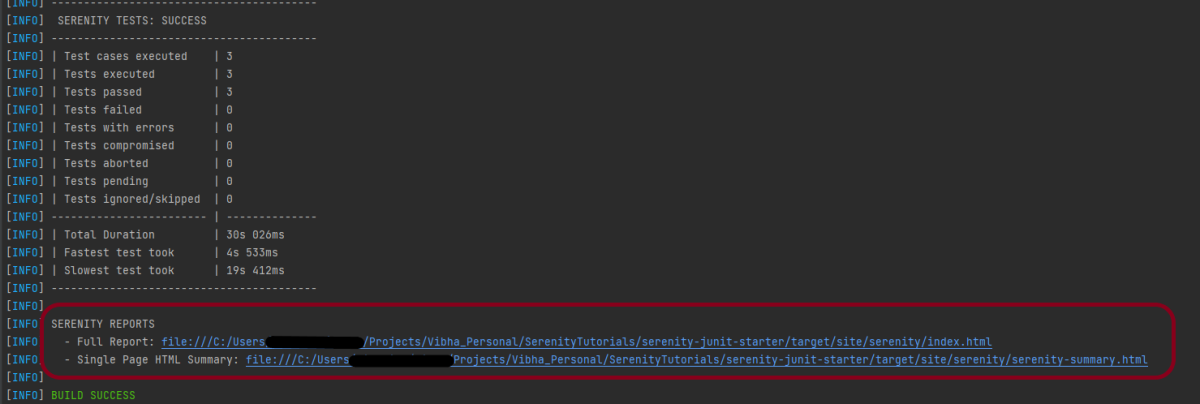
The output of the above test execution is

Step 8 – Serenity Report Generation

The path of Serenity’s reports is mentioned in the image. The reports are generated under /target/site/serenity/.

Index.html

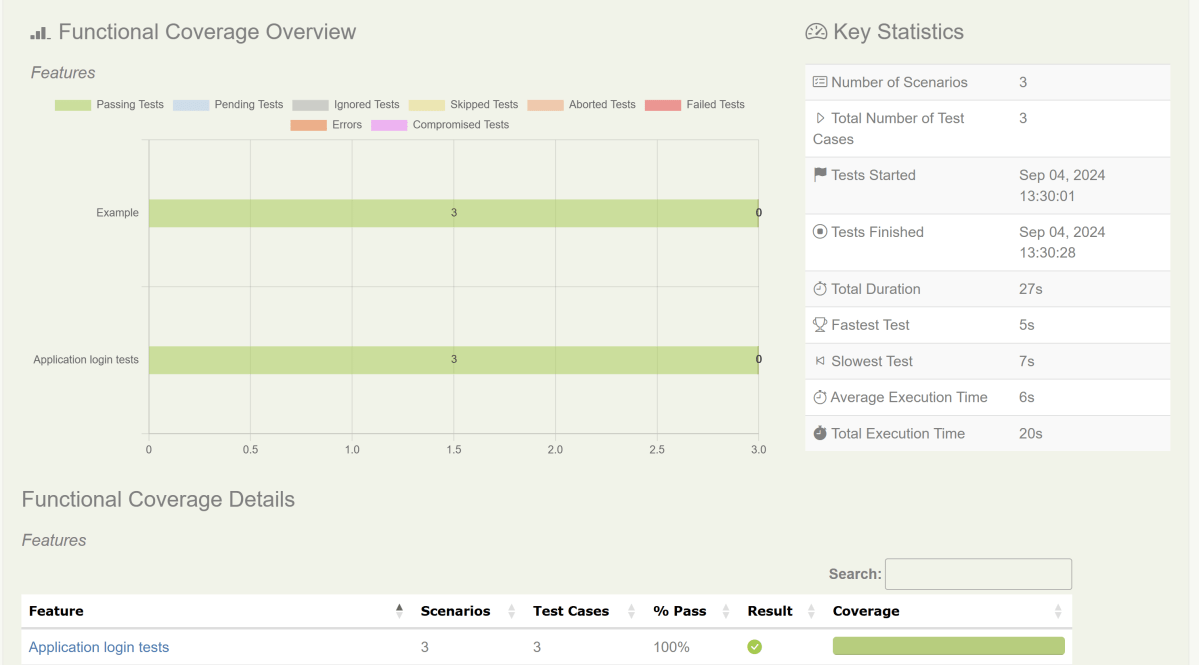
The detailed steps of the tests can also be viewed in the Serenity Report. It shows the execution time of all the steps in a Test.

Serenity-Summary.html

We are done! Congratulations on making it through this tutorial and hope you found it useful! Happy Learning!!

Additional Tutorials:

 Serenity BDD with Cucumber for Web Application
Serenity BDD with Cucumber for SpringBoot Application
Serenity BDD with Cucumber and Rest Assured
Testing of SpringBoot REST Application using Rest Assured for GET Method
Serenity Report for Web Application with Cucumber6 and Junit
How to manage screenshots in Serenity Report

Testing of Web Application using Serenity with JUnit4

HOME

In the previous tutorial, I explained Serenity BDD with Cucumber for Web Application. In this tutorial, I will explain the Integration of Serenity with JUnit4. This tutorial gives an idea of how to set up a new project where we like to use Serenity as BDD Framework and JUnit as a Testing framework.

Prerequisite

  1. Java 17 installed
  2. Maven installed
  3. Eclipse or IntelliJ installed

Dependency List:

  1. Java 17
  2. Maven – 3.9.9
  3. Serenity – 4.0.30
  4. JUnit – 4.13.2
  5. Maven Surefire Plugin – 3.2.3
  6. Maven Failsafe Plugin – 3.2.3
  7. Maven Compiler Plugin – 3.12.1

Project Structure

This project consists of various classes – ApplicationLoginTests (This is the Test Class which is going to contain all the tests). NavigationActions is the Action class that is used to open the webpage or application. StepLoginPage, StepDashboardPage, and StepForgotPasswordPage are the Page Object classes that contain multiple functionalities of that page and that help to keep the code clean.

Step 1 – Update the Properties section

 <properties>
    <project.build.sourceEncoding>UTF-8</project.build.sourceEncoding>
    <serenity.version>4.0.30</serenity.version>
    <junit.version>4.13.2</junit.version>
    <maven.compiler.plugin.version>3.12.1</maven.compiler.plugin.version>
    <maven.surefire.plugin.version>3.2.3</maven.surefire.plugin.version>
    <maven.failsafe.plugin.version>3.2.3</maven.failsafe.plugin.version>
    <maven.compiler.source.version>17</maven.compiler.source.version>
    <maven.compiler.target.version>17</maven.compiler.target.version>
    <tags></tags>
    <parallel.tests></parallel.tests>
    <webdriver.base.url></webdriver.base.url>
  </properties>

Step 2 – Add dependencies to POM.xml

<dependencies>
   <dependency>
            <groupId>net.serenity-bdd</groupId>
            <artifactId>serenity-core</artifactId>
            <version>${serenity.version}</version>
            <scope>test</scope>
        </dependency>
        <dependency>
            <groupId>net.serenity-bdd</groupId>
            <artifactId>serenity-junit</artifactId>
            <version>${serenity.version}</version>
            <scope>test</scope>
        </dependency>
      
        <dependency>
            <groupId>net.serenity-bdd</groupId>
            <artifactId>serenity-screenplay</artifactId>
            <version>${serenity.version}</version>
            <scope>test</scope>
        </dependency>
      
        <dependency>
            <groupId>net.serenity-bdd</groupId>
            <artifactId>serenity-screenplay-webdriver</artifactId>
            <version>${serenity.version}</version>
            <scope>test</scope>
        </dependency>

        <dependency>
            <groupId>junit</groupId>
            <artifactId>junit</artifactId>
            <version>${junit.version}</version>
            <scope>test</scope>
        </dependency>      
</dependencies>

Step 3 – Update the Build Section of pom.xml

<build>
        <plugins>
            <plugin>
                <groupId>org.apache.maven.plugins</groupId>
                <artifactId>maven-surefire-plugin</artifactId>
                <version>${maven.surefire.plugin.version}</version>
                <configuration>
                    <skip>true</skip>
                </configuration>
            </plugin>
            <plugin>
                <artifactId>maven-failsafe-plugin</artifactId>
                <version>${maven.failsafe.plugin.version}</version>
                <configuration>
                    <includes>
                        <include>**/*.java</include>
                    </includes>
                    <parallel>methods</parallel>
                    <useUnlimitedThreads>true</useUnlimitedThreads>
                </configuration>
                <executions>
                    <execution>
                        <goals>
                            <goal>integration-test</goal>
                            <goal>verify</goal>
                        </goals>
                    </execution>
                </executions>
            </plugin>
            <plugin>
                <groupId>org.apache.maven.plugins</groupId>
                <artifactId>maven-compiler-plugin</artifactId>
                <version>${maven.compiler.plugin.version}</version>
                <configuration>
                    <source>${maven.compiler.source}</source>
                    <target>${maven.compiler.target}</target>
                </configuration>
            </plugin>
           <plugin>
               <groupId>net.serenity-bdd.maven.plugins</groupId>
               <artifactId>serenity-maven-plugin</artifactId>
               <version>${serenity.version}</version>
               <dependencies> 
                  <dependency>
                       <groupId>net.serenity-bdd</groupId>
                       <artifactId>serenity-single-page-report</artifactId>
                       <version>${serenity.version}</version>
                  </dependency>                
               </dependencies>
               <configuration>
                   <tags>${tags}</tags>
                   <reports>single-page-html</reports> 
               </configuration>
               <executions>
                  <execution>
                      <id>serenity-reports</id>
                      <phase>post-integration-test</phase>
                      <goals>
                          <goal>aggregate</goal>
                      </goals>
                   </execution>
               </executions>
           </plugin>
        </plugins>
    </build>
</project>

Step 4 – Create the Test Class

package org.example.tests;

import net.serenitybdd.annotations.Pending;
import net.serenitybdd.annotations.Steps;
import net.serenitybdd.annotations.Title;
import net.serenitybdd.core.Serenity;
import net.serenitybdd.junit.runners.SerenityRunner;
import org.example.steps.StepDashBoardPage;
import org.example.steps.StepForgotPasswordPage;
import org.example.steps.StepLoginPage;
import org.junit.Test;
import org.junit.runner.RunWith;

import static org.junit.Assert.assertTrue;

@RunWith(SerenityRunner.class)
public class ApplicationLoginTests {

    @Steps
    NavigateActions navigate;

    @Steps
    StepLoginPage loginPage;

    @Steps
    StepDashBoardPage dashboardPage;

    @Steps
    StepForgotPasswordPage forgetPasswordPage;


    @Test
    @Title("Login to application with invalid credential generates error message")
    public void invalidCredentials() {

        // Given
        navigate.toTheHomePage();

        // When
        loginPage.inputUserName("Admin");
        loginPage.inputPassword("admin");
        loginPage.clickLogin();

        // Then
        Serenity.reportThat("Passing invalid credentials generates error message",
                () -> assertTrue(loginPage.errorMessage().equalsIgnoreCase("Invalid Credentials")));

    }

    @Test
    @Title("Login to application with valid credentials navigates to DashBoard page")
    public void successfulLogin() {

        navigate.toTheHomePage();
        // loginPage.open();

        // When
        loginPage.inputUserName("Admin");
        loginPage.inputPassword("admin123");
        loginPage.clickLogin();

        // Then
        Serenity.reportThat("Passing valid credentials navigates to DashBoard page",
                () -> assertTrue(dashboardPage.getHeading().equalsIgnoreCase("DashBoard")));
    }


    @Test
    @Pending
    @Title("Verify Forgot your password link")
    public void clickForgetPasswordLink() {

        // Given
        navigate.toTheHomePage();

        // When
        loginPage.clickForgetPasswordLink();

        // Then
        Serenity.reportThat("Open Forget Password Page after clicking forget password link",
                () -> assertTrue(forgetPasswordPage.getHeadingForgetPasswordPage().equalsIgnoreCase("Reset Password")));

    }

}
  1. The tests run using the Serenity test runner – @RunWith(SerenityRunner.class).
  2. The @Steps annotation marks a Serenity step library.
  3. Create the test following the Given/When/Then pattern and using step methods from the step library.
  4. The @Title annotation lets you provide your own title for this test in the test reports.

Step 5 – Create the Action class

Create NavigateActions class under src/test/java. This class is used to open a web browser with the URL specified. This class is extended from UIInteractionSteps.

openPageNamed() method opens an environment-specific page defined in the serenity.conf file under the pages section. The value of loginForm is derived from serenity.config:

package org.example.tests;

import net.serenitybdd.annotations.Step;
import net.serenitybdd.core.steps.UIInteractionSteps;

public class NavigateActions extends UIInteractionSteps {

    @Step
    public void toTheHomePage() {
        // openUrl("https://opensource-demo.orangehrmlive.com/");

        openPageNamed("loginForm");
    }
}

serenity.conf (partial config file)

pages{
  loginForm = "https://opensource-demo.orangehrmlive.com/"
  }

Step 6 – Create the Page Object Classes

StepLoginPage

package org.example.steps;

import net.serenitybdd.annotations.Step;
import net.serenitybdd.core.pages.PageObject;
import net.serenitybdd.core.pages.WebElementFacade;
import org.openqa.selenium.support.FindBy;

public class StepLoginPage extends PageObject {

    @FindBy(name = "username")
    WebElementFacade username;

    @FindBy(name = "password")
    WebElementFacade password;

    @FindBy(xpath = "//*[@class='oxd-form']/div[3]/button")
    WebElementFacade submitButton;

    @FindBy(xpath = "//*[@class='orangehrm-login-error']/div/div/p")
    WebElementFacade errorMessage;

    @FindBy(xpath = "//*[@class='orangehrm-login-forgot']/p")
    WebElementFacade linkText;

    @Step("Enter Username")
    public void inputUserName(String userName) {
        username.sendKeys(userName);
    }

    @Step("Enter Password")
    public void inputPassword(String passWord) {
        password.sendKeys(passWord);
    }

    @Step("Click Submit Button")
    public void clickLogin() {
        submitButton.click();
    }

    @Step("Error Message on unsuccessful login")
    public String errorMessage() {
        String actualErrorMessage = errorMessage.getText();
        return actualErrorMessage;
    }

    @Step("Click Forget Password Link")
    public void clickForgetPasswordLink() {
        linkText.click();

        System.out.println("Clicked on Forgot Password Link");
    }

}

StepDashBoardPage

package org.example.steps;

import net.serenitybdd.annotations.Step;
import net.serenitybdd.core.pages.PageObject;
import net.serenitybdd.core.pages.WebElementFacade;
import org.openqa.selenium.support.FindBy;

public class StepDashBoardPage extends PageObject {

    @FindBy(xpath = "//*[@class='oxd-topbar-header-breadcrumb']/h6")
    WebElementFacade dashboardPageTitle;

    @Step("Heading of DashBoard Page")
    public String getHeading() {
        return dashboardPageTitle.getText();


    }
}

StepForgetPasswordPage

package org.example.steps;

import net.serenitybdd.annotations.Step;
import net.serenitybdd.core.pages.PageObject;
import net.serenitybdd.core.pages.WebElementFacade;
import org.openqa.selenium.support.FindBy;

public class StepForgotPasswordPage extends PageObject {

    @FindBy(xpath = "//*[@class='oxd-form']/h6")
    WebElementFacade forgetLink;


    @Step("Verify Forget Password Page ")
    public String getHeadingForgetPasswordPage() {

        return forgetLink.getText();
    }
}

Keep in mind to use @FindBy annotation from:

import org.openqa.selenium.support.FindBy;

PageObject class is imported from:

import net.thucydides.core.pages.PageObject;

The JUnit Serenity integration provides some special support for Serenity Page Objects. In particular, Serenity will automatically instantiate any PageObject fields in the JUnit test. When a field of type StepLoginPage is declared in the test, Serenity instantiates it for you. The page is automatically instantiated and ready to be used.

@Managed                                                                
WebDriver driver;

@Managed declares a WebDriver instance that will be managed by Serenity. The WebDriver instance will be initialized automatically.

The driver parameter lets you define what WebDriver driver you want to run these tests in. Possible values include Firefox, chrome, iexplorer, phantomjs, appium, safari, edge, and htmlunit.  The default browser in Serenity is Firefox. There are multiple ways to configure webDriver. One of the ways is to mention with @Managed as shown below:

@Managed(driver="chrome")

Step 7 – Create the serenity.conf file

Serenity.conf file is used to specify various features like the type of webdriver used, various test environments, run test in headless mode, and many more options. Serenity.conf can also contain settings like start size, disable sandbox, disable gpu, and others that need to be added to chrome.switches setting. Create serenity.conf file under src/test/resources.

headless.mode = false
pages{
   loginForm ="https://opensource-demo.orangehrmlive.com/"
   }

webdriver {
  driver = chrome
  capabilities {
    browserName = "chrome"
    acceptInsecureCerts = true
    "goog:chromeOptions" {
      args = ["remote-allow-origins=*","test-type", "no-sandbox", "ignore-certificate-errors", "--window-size=1920,1080",
        "incognito", "disable-infobars", "disable-gpu", "disable-default-apps", "disable-popup-blocking",
        "disable-dev-shm-usage", "disable-extensions", "disable-web-security", "disable-translate", "disable-logging"]
    }
  }
}

Step 8 – Create a serenity.properties file

serenity.project.name = Serenity and Junit4 Demo

Step 9 – Run the tests through the command

Open the command line and go to the location where the pom.xml of the project is present and type the below command.

mvn clean verify

Below is the execution status.

There are 2 types of reports are generated – Index.html and Serenity-Summary.html.

Index.html

 We can see the value of the @Title annotation, ‘Login to the application with valid credentials navigates to DashBoard page’, added as the heading. The value of @Step annotation, ‘Enter Username’, and ‘Enter Password’ is added to the Report as various steps.

This report contains a screenshot of each step also.

Emailable Report (Serenity-Summary.html)

These reports are present under /target/site/serenity.

Skipping the tests

In Serenity, you use the @Pending annotation, either for a test or for a @Step-annotated method, to indicate that the scenario is still being implemented and that the results are not available yet. These tests appear as ‘Pending’ (shown in blue) in the test reports.

    @Test
	@Pending
	@Title("Verify Forgot your password link")
	public void clickForgetPasswordLink() {

		// Given
		loginPage.open();

		// When
		loginPage.clickForgetPasswordLink();

		// Then
		Assert.assertTrue(forgetpasswordPage.ForgetPasswordPage());
	}

Tests marked with @Ignore will appear as ‘Ignored’ (from JUnit) and appears as grey in the test reports.

We are done! Congratulations on making it through this tutorial and hope you found it useful! Happy Learning!!

Parallel Testing in Cucumber with TestNG

Last Updated On

HOME

In this tutorial, I will explain Parallel Testing using Cucumber with TestNG.

Cucumber-JVM allows parallel execution across multiple threads since version 4.0.0. There are several options to incorporate this built-in feature in a Cucumber project. You can do so by using JUnit, TestNG, or CLI.

Cucumber can be executed in parallel using TestNG and Maven test execution plugins by setting the data provider parallel option to true.

In TestNG, the scenarios and rows in a scenario outline are executed in multiple threads. One can use either Maven Surefire or Failsafe plugin for executing the runners. In this tutorial, I’m using the Maven Surefire plugin.

Table of Contents:

  1. Prerequisite
  2. Dependency List
  3. Detailed Step Description
    1. Create a Maven project
    2. Update Properties section in Maven pom.xml
    3. Add Cucumber, Selenium, and TestNG dependencies to the project
    4. Add Surefire plugin configuration to the build section of the POM
    5. Create 2 feature files in src/test/resources – LoginPage.feature and ForgotPasswordPage.feature
    6. Create Page Object Model classes of both feature files
    7. Create the Step Definition classes for both feature files or Glue Code
    8. Create the Hook Class and Dependency Injection class (TestSetUp) and BaseTest class
    9. Create a Cucumber TestNG Runner class
    10. Report Generation
    11. Execute the test from Command Line
    12. Execute the tests from TestNG Runner
    13. Test Execution Result

Prerequisite

  1. Java is installed
  2. Maven is installed
  3. TestNG is installed
  4. Eclipse or IntelliJ Java IDE installed

Dependency List

  1. Selenium – 4.19.1
  2. Java 17
  3. Cucumber Java – 7.16.1
  4. Cucumber TestNG – 7.16.1
  5. Maven – 3.9.5
  6. TestNG – 7.10.1
  7. Maven Surefire Plugin – 3.2.5
  8. Maven Compiler Plugin – 3.13.1

Detailed Step Description

Step 1 – Create a Maven project

Create a Maven project in your favorite IDE using the cucumber archetype. To know more about this, click here.

Step 2 – Update Properties section in Maven pom.xml

<properties>
        <project.build.sourceEncoding>UTF-8</project.build.sourceEncoding>
        <selenium.version>4.19.1</selenium.version>
        <cucumber.version>7.16.1</cucumber.version>
        <testng.version>7.10.1</testng.version>
        <maven.compiler.plugin.version>3.13.0</maven.compiler.plugin.version>
        <maven.surefire.plugin.version>3.2.5</maven.surefire.plugin.version>
        <maven.compiler.source>17</maven.compiler.source>
        <maven.compiler.target>17</maven.compiler.target>
    </properties>

Step 3 – Add Cucumber, Selenium, and TestNG dependencies to the project

Add below mentioned Cucumber-Java and Cucumber-TestNG and Selenium-java dependencies to the project.

<dependencies>

        <!--Cucumber Dependencies -->
        <dependency>
            <groupId>io.cucumber</groupId>
            <artifactId>cucumber-java</artifactId>
            <version>${cucumber.version}</version>
        </dependency>

        <dependency>
            <groupId>io.cucumber</groupId>
            <artifactId>cucumber-testng</artifactId>
            <version>${cucumber.version}</version>
            <scope>test</scope>
        </dependency>

        <!-- Selenium Dependency -->
        <dependency>
            <groupId>org.seleniumhq.selenium</groupId>
            <artifactId>selenium-java</artifactId>
            <version>${selenium.version}</version>
        </dependency>

        <!-- TestNG Dependency -->
        <dependency>
            <groupId>org.testng</groupId>
            <artifactId>testng</artifactId>
            <version>${testng.version}</version>
            <scope>test</scope>
        </dependency>

        <!-- Dependency Injection-->
        <dependency>
            <groupId>io.cucumber</groupId>
            <artifactId>cucumber-picocontainer</artifactId>
            <version>${cucumber.version}</version>
            <scope>test</scope>
        </dependency>

    </dependencies>
  

Step 4 – Add Surefire plugin configuration to the build section of the POM

 <plugin>
            <groupId>org.apache.maven.plugins</groupId>
            <artifactId>maven-surefire-plugin</artifactId>
            <version>${maven.surefire.plugin.version}</version>
            <configuration>
                <parallel>methods</parallel>
                <useUnlimitedThreads>true</useUnlimitedThreads>
            </configuration>
  </plugin>

The complete POM.xml is shown below:

<?xml version="1.0" encoding="UTF-8"?>
<project xmlns="http://maven.apache.org/POM/4.0.0"
         xmlns:xsi="http://www.w3.org/2001/XMLSchema-instance"
         xsi:schemaLocation="http://maven.apache.org/POM/4.0.0 http://maven.apache.org/xsd/maven-4.0.0.xsd">
    <modelVersion>4.0.0</modelVersion>

    <groupId>org.example</groupId>
    <artifactId>ParallelTests_TestNG_Demo</artifactId>
    <version>1.0-SNAPSHOT</version>

    <properties>
        <project.build.sourceEncoding>UTF-8</project.build.sourceEncoding>
        <selenium.version>4.8.0</selenium.version>
        <cucumber.version>7.11.1</cucumber.version>
        <testng.version>7.7.1</testng.version>
        <webdrivermanager.version>5.3.2</webdrivermanager.version>
        <maven.compiler.plugin.version>3.10.1</maven.compiler.plugin.version>
        <maven.surefire.plugin.version>3.0.0-M7</maven.surefire.plugin.version>
        <maven.compiler.source>11</maven.compiler.source>
        <maven.compiler.target>11</maven.compiler.target>
    </properties>

    <dependencies>

        <!--Cucumber Dependencies -->
        <dependency>
            <groupId>io.cucumber</groupId>
            <artifactId>cucumber-java</artifactId>
            <version>${cucumber.version}</version>
        </dependency>

        <dependency>
            <groupId>io.cucumber</groupId>
            <artifactId>cucumber-testng</artifactId>
            <version>${cucumber.version}</version>
            <scope>test</scope>
        </dependency>

        <!-- Selenium Dependency -->
        <dependency>
            <groupId>org.seleniumhq.selenium</groupId>
            <artifactId>selenium-java</artifactId>
            <version>${selenium.version}</version>
        </dependency>

        <!-- TestNG Dependency -->
        <dependency>
            <groupId>org.testng</groupId>
            <artifactId>testng</artifactId>
            <version>${testng.version}</version>
            <scope>test</scope>
        </dependency>

        <!-- Dependency Injection-->
        <dependency>
            <groupId>io.cucumber</groupId>
            <artifactId>cucumber-picocontainer</artifactId>
            <version>${cucumber.version}</version>
            <scope>test</scope>
        </dependency>

        <!-- WebDriver Manager Dependency -->
        <dependency>
            <groupId>io.github.bonigarcia</groupId>
            <artifactId>webdrivermanager</artifactId>
            <version>${webdrivermanager.version}</version>
        </dependency>

    </dependencies>
    <build>
        <plugins>

            <plugin>
                <groupId>org.apache.maven.plugins</groupId>
                <artifactId>maven-compiler-plugin</artifactId>
                <version>${maven.compiler.plugin.version}</version>
                <configuration>
                    <source>${maven.compiler.source}</source>
                    <target>${maven.compiler.target}</target>
                </configuration>
            </plugin>

            <plugin>
                <groupId>org.apache.maven.plugins</groupId>
                <artifactId>maven-surefire-plugin</artifactId>
                <version>${maven.surefire.plugin.version}</version>
                <configuration>
                    <parallel>methods</parallel>
                    <useUnlimitedThreads>true</useUnlimitedThreads>
                </configuration>
            </plugin>
        </plugins>
    </build>

</project>

Step 5 – Create 2 feature files in src/test/resources – LoginPage.feature and ForgotPasswordPage.feature

Feature File is an entry point to the Cucumber tests.

The first keyword in the Feature file is the Feature keyword, followed by: and short text that describes the feature.

To know more about the Feature file, please refer to this tutorial.

Below are the sample feature files.

LoginPage.feature

Feature: Login to HRM Application

  Background:
    Given User is on Home page

  @ValidCredentials
  Scenario: Login with valid credentials - Feature 1, Scenario -1

    When User enters username as "Admin" and password as "admin123"
    Then User should be able to login successfully

  @InvalidCredentials
  Scenario Outline: Login with invalid credentials - Feature 1, Scenario -2

    When User enters username as "<username>" and password as "<password>"
    Then User should be able to see error message "<errorMessage>"

    Examples:
      | username    | password   | errorMessage                      |
      | Admin        | admin12$$  | Invalid credentials               |
      | admin$$     | admin123   | Invalid credentials               |
      | abc123       | xyz$$      | Invalid credentials               |

ForgotPasswordPage.feature

Feature: Forgot Password Page

  Background:
    Given User is on Home page

  @BackFunctionality
  Scenario: Validate the cancel functionality - Feature 2, Scenario - 1

    When User clicks on Forgot your password? link
    Then User should be able to navigate to Reset Password page
    And User clicks on Cancel button to go back to Login Page

  @ResetFunctionality
  Scenario: Validate the Reset Password functionality - Feature 2, Scenario - 2

    When User clicks on Forgot your password? link
    Then User should be able to navigate to Reset Password page
    And User clicks on Reset Password button and provide username as "abc1234"
    And Verify the message "Reset Password link sent successfully"

Step 6 – Create Page Object Model classes of both feature files

Page Object Model class contains all the locators and the actions performed on these locators for the particular class to improve the readability and maintainability of the code.

Below are the Page Object Model classes for these feature files.

LoginPage

import org.openqa.selenium.By;
import org.openqa.selenium.WebDriver;

public class LoginPage {

    public WebDriver driver;

    By userName = By.name("username");
    By passWord = By.name("password");
    By login = By.xpath("//*[@id='app']/div[1]/div/div[1]/div/div[2]/div[2]/form/div[3]/button");
    By errorMessage = By.xpath("//*[@class='orangehrm-login-error']/div[1]/div[1]/p");
    By forgotPasswordLink = By.xpath("//*[@id='app']/div[1]/div/div[1]/div/div[2]/div[2]/form/div[4]/p");
    By loginPageTitle = By.xpath("//*[@id='app']/div[1]/div/div[1]/div/div[2]/h5");

    public LoginPage(WebDriver driver) {
        this.driver = driver;
    }

    public String getErrorMessage() {
        return driver.findElement(errorMessage).getText();
    }

    public void login(String strUserName, String strPassword) {

        // Fill user name
        driver.findElement(userName).sendKeys(strUserName);

        // Fill password
        driver.findElement(passWord).sendKeys(strPassword);

        // Click Login button
        driver.findElement(login).click();

    }

    // Click on Forgot Password link
    public void clickOnForgotPasswordLink() {
        driver.findElement(forgotPasswordLink).click();
    }

    //Get Login Page Title
    public String getLoginPageTitle() {
        return driver.findElement(loginPageTitle).getText();
    }
}

HomePage

import org.openqa.selenium.By;
import org.openqa.selenium.WebDriver;

public class HomePage {

    public WebDriver driver;

    public HomePage(WebDriver driver) {
        this.driver = driver;
    }

    By homePageUserName = By.xpath("//*[@class='oxd-topbar-header-breadcrumb']/h6");

    public String getHomePageText() {
        return driver.findElement(homePageUserName).getText();
    }
}

ForgotPasswordPage

import org.openqa.selenium.By;
import org.openqa.selenium.WebDriver;

public class ForgotPasswordPage {

    WebDriver driver;

     By forgotPasswordPageTitle = By.xpath("//*[@id='app']/div[1]/div[1]/div/form/h6");
     By cancelBtn = By.xpath("//*[@id='app']/div[1]/div[1]/div/form/div[2]/button[1]");
     By resetPasswordBtn = By.xpath("//*[@id='app']/div[1]/div[1]/div/form/div[2]/button[2]");
     By userName = By.name("username");
     By resetMessage = By.xpath("//*[@id='app']/div[1]/div[1]/div/h6");

    public ForgotPasswordPage(WebDriver driver) {
        this.driver = driver;
    }

    // Get the Title of ForgotPage
    public String getForgotPageText() {
        return driver.findElement(forgotPasswordPageTitle).getText();
    }

    // Click Cancel Button
    public void clickOnCancelBtn() {
         driver.findElement(cancelBtn).click();
    }

    // Click ResetPassword Button
    public void clickOnRestPasswordBtn() {
        driver.findElement(resetPasswordBtn).click();
    }

    // Type username in TextBox
    public void TypeOnUsernameTextBox(String username) {
        driver.findElement(userName).sendKeys(username);
    }

    // Get Message
    public String getRestMessage() {
        return driver.findElement(resetMessage).getText();
    }
}

PageObjectManager – This class creates the object of all the above-mentioned Page Object Model classes. This an optional class. If you want you can create the objects in StepDefinition class also.

public class PageObjectManager {

    public LoginPage loginPage;
    public HomePage homePage;
    public ForgotPasswordPage forgotPasswordPage;
    public WebDriver driver;


    public PageObjectManager(WebDriver driver)
    {
        this.driver = driver;
    }

    public LoginPage getLoginPage()
    {

        loginPage= new LoginPage(driver);
        return loginPage;
    }

    public HomePage getHomePage()
    {
        homePage = new HomePage(driver);
        return homePage;
    }

    public ForgotPasswordPage getForgotPasswordPage()
    {
        forgotPasswordPage = new ForgotPasswordPage(driver);
        return forgotPasswordPage;
    }
}


Step 7 – Create the Step Definition classes for both feature files or Glue Code

Below is the Step Definition for LoginPage.feature.

import io.cucumber.java.en.Given;
import io.cucumber.java.en.Then;
import io.cucumber.java.en.When;
import pageObjects.HomePage;
import pageObjects.LoginPage;
import pageObjects.PageObjectManager;
import utils.TestSetUp;
import org.testng.Assert;

public class LoginPageDefinitions {

    TestSetUp setUp;
    public PageObjectManager pageObjectManager;
    public LoginPage loginPage;
    public HomePage homePage;


    public LoginPageDefinitions(TestSetUp setUp) {
        this.setUp = setUp;
        this.loginPage = setUp.pageObjectManager.getLoginPage();
        this.homePage= setUp.pageObjectManager.getHomePage();
    }

    @Given("User is on Home page")
    public void loginTest() throws IOException {
        setUp.baseTest.WebDriverManager().get("https://opensource-demo.orangehrmlive.com/");

    }

    @When("User enters username as {string} and password as {string}")
    public void goToHomePage(String userName, String passWord) {

        // login to application
        loginPage.login(userName, passWord);

        // go the next page

    }

    @Then("User should be able to login successfully")
    public void verifyLogin() {

        // Verify home page
        Assert.assertTrue(homePage.getHomePageText().contains("Dashboard"));

    }

    @Then("User should be able to see error message {string}")
    public void verifyErrorMessage(String expectedErrorMessage) {

        // Verify home page
        Assert.assertEquals(loginPage.getErrorMessage(),expectedErrorMessage);

    }

}

Below is the Step Definition for ForgotPasswordPage.feature.

import io.cucumber.java.en.Then;
import io.cucumber.java.en.When;
import pageObjects.ForgotPasswordPage;
import pageObjects.LoginPage;
import pageObjects.PageObjectManager;
import utils.TestSetUp;
import org.testng.Assert;

public class ForgotPasswordPageDefinitions{

    TestSetUp setUp;
    PageObjectManager pageObjectManager;
    public LoginPage loginPage;
    public  ForgotPasswordPage forgotPasswordPage;

    public ForgotPageDefinitions(TestSetUp setUp) {
        this.setUp = setUp;
        this.loginPage = setUp.pageObjectManager.getLoginPage();
        this.forgotPasswordPage = setUp.pageObjectManager.getForgotPasswordPage();
    }

    @When("User clicks on Forgot your password? link")
    public void forgotPasswordLink() {

        loginPage.clickOnForgotPasswordLink();

    }

    @Then("User should be able to navigate to Reset Password page")
    public void verifyForgotPasswordPage() {

        Assert.assertEquals(forgotPasswordPage.getForgotPageText(),"Reset Password");

    }

    @Then("User clicks on Cancel button to go back to Login Page")
    public void verifyCancelBtn() {

        forgotPasswordPage.clickOnCancelBtn();
        Assert.assertEquals(loginPage.getLoginPageTitle(),"Login");

    }

    @Then("User clicks on Reset Password button and provide username as {string}")
    public void verifyResetPasswordBtn(String username) {

        forgotPasswordPage.TypeOnUsernameTextBox(username);
        forgotPasswordPage.clickOnRestPasswordBtn();

    }

    @Then("Verify the message {string}")
    public void verifyMessage(String message) {

        Assert.assertEquals(forgotPasswordPage.getRestMessage(),message);

    }
}

Step 8 – Create the Hook Class and Dependency Injection class (TestSetUp) and BaseTest class

Below is the code for the ApplicationHook Class.

import io.cucumber.java.After;
import utils.TestSetUp;

public class ApplicationHooks {

 public TestSetUp setUp;

    public ApplicationHooks(TestSetUp setUp) {
        this.setUp = setUp;
    }

    @After
    public void tearDown( ) throws IOException {
        setUp.baseTest.WebDriverManager().quit();
    }
}

Below is the code for the Dependency Injection class. In Cucumber, if we want to share the state between multiple-step definition files, we will need to use dependency injection (DI). 

import org.openqa.selenium.WebDriver;
import org.openqa.selenium.WebElement;
import pageObjects.PageObjectManager;

public class TestSetUp {

    public WebElement errorMessage;
    public WebElement homePageUserName;
    public PageObjectManager pageObjectManager;
    public BaseTest baseTest;

    public TestSetUp()  {

        baseTest = new BaseTest();
        pageObjectManager = new PageObjectManager(baseTest.WebDriverManager());

    }
}

BaseTest class is used to initialize the WebDriver.

import io.github.bonigarcia.wdm.WebDriverManager;
import org.openqa.selenium.WebDriver;
import org.openqa.selenium.chrome.ChromeDriver;
import java.time.Duration;

public class BaseTest {

    public WebDriver driver;
    public final static int TIMEOUT = 10;

    public WebDriver WebDriverManager ()  {

   
        if (driver == null) {
        
            ChromeOptions options = new ChromeOptions();
            driver = new ChromeDriver(options);
            driver.manage().timeouts().implicitlyWait(Duration.ofSeconds(TIMEOUT));
            driver.manage().window().maximize();
            driver.get(url);

        }
        return driver;
    }
}

Step 9 – Create a Cucumber TestNG Runner class

Add a cucumber runner by extending the AbstractTestNGCucumberTests class and overriding the scenarios method. Set the parallel option value to true for the DataProvider annotation.

import io.cucumber.testng.AbstractTestNGCucumberTests;
import io.cucumber.testng.CucumberOptions;
import org.testng.annotations.DataProvider;

@CucumberOptions(tags = "", features = "src/test/resources/features", glue = "org.example.definitions")
public class CucumberRunnerTests  extends AbstractTestNGCucumberTests {

   @Override
    @DataProvider(parallel = true)
    public Object[][] scenarios() {
        return super.scenarios();
    }

}

Step 10 – Report Generation

Add cucumber.properties under src/test/resources and add the below instruction in the file.

cucumber.publish.enabled=true

Step 11 – Execute the test from Command Line

Use the below-mentioned command in the command prompt to run the tests.

mvn clean test

The output of the above program is

Step 12 – Execute the tests from TestNG Runner

Go to the Runner class and right-click Run As TestNG Test. The tests will run as TestNG tests. (Eclipse)

In the case of IntelliJ, right-click and select Run “CucumberRunnerTests”.

Step 13 – Test Execution Result

All the tests are started at the same time, so they share different threads. The way tests are executed is different in them. With non-parallel tests, all the scenarios of the same feature are executed together, and then the scenarios of another feature file. Whereas in parallel tests, all the tests are started at the same time, so there won’t be any specific order.

All the scenarios have started simultaneously.

The Cucumber Report is shown below:

There are chances that we don’t want to run all the scenarios simultaneously, in this case, we need to add the below-mentioned configuration in the pom.xml. The value =2 means that 2 scenarios will be executed simultaneously.

  <configuration>
                    <properties>
                        <property>
                            <name>dataproviderthreadcount</name>
                            <value>2</value>
                        </property>
                    </properties>
 </configuration>

The default thread count of the dataprovider in parallel mode is 10.

Congratulations on making it through this tutorial and hope you found it useful! Happy Learning!! Cheers!!

There is another tutorial that shows Parallel Testing in Cucumber with JUnit.

The complete source code can be found here – GitHub

Setup Basic REST Assured Maven Project In Eclipse IDE

HOME

In the previous tutorial, I provided the Introduction of Rest Assured. In this tutorial, I will explain how to set up a basic Rest Assured Maven project in Eclipse IDE. Before starting, let us recap about Rest Assured.

What is Rest Assured?

REST Assured is a Java DSL for simplifying testing of REST-based services built on top of HTTP Builder. It supports POST, GET, PUT, DELETE, OPTIONS, PATCH, and HEAD requests. It can be used to validate and verify the response of these requests.

The Rest Assured library also provides the ability to validate the HTTP Responses received from the server. This makes Rest-Assured a very flexible library that can be used for testing.REST Assured can be used to test XML as well as JSON-based web services. REST Assured can be integrated with JUnit and TestNG frameworks for writing test cases for our application.

What is Maven?

Apache Maven is a software project management and comprehension tool. Based on the concept of a project object model (POM), Maven can manage a project’s build, reporting and documentation from a central piece of information.

Step 1- Download and Install Java

Rest-Assured needs Java to be installed on the system to run the tests. Click here to learn How to install Java.

Step 2 – Download and setup Eclipse IDE on the system

The Eclipse IDE (integrated development environment) provides strong support for Java developers. Click here to learn How to install Eclipse.

Step 3 – Setup Maven

To build a test framework, we need to add several dependencies to the project. Click here to learn How to install Maven.

Step 4 – Create a new Maven Project

Go to File -> New Project-> Maven-> Maven project ->Next

Step 4.1 – Select “Create a simple project”. Click on the Next Button.

Step 4.2 – Provide Group Id and Artifact Id and click on the finish button.

Group Id – com.example
Artifact Id – restassured_demo

Step 4.3Below is the structure of the Maven project in Eclipse.

Step 4.4 – This is the structure of POM.xml created for the project.

Step 5 – Add Rest Assured, and JUnit dependencies to the project

 <dependencies>
    <!-- REST Assured dependency -->
    <dependency>
        <groupId>io.rest-assured</groupId>
        <artifactId>rest-assured</artifactId>
        <version>5.5.1</version>
        <scope>test</scope>
    </dependency>

    <!-- JUnit dependency -->
    <dependency>
        <groupId>junit</groupId>
        <artifactId>junit</artifactId>
        <version>4.13.2</version>
        <scope>test</scope>
    </dependency>
</dependencies>

 <plugin>
        <groupId>org.apache.maven.plugins</groupId>
        <artifactId>maven-compiler-plugin</artifactId>
        <version>3.14.0</version>
        <configuration>
          <source>17</source>
          <target>17</target>
        </configuration>
      </plugin>

<project xmlns="http://maven.apache.org/POM/4.0.0" xmlns:xsi="http://www.w3.org/2001/XMLSchema-instance" xsi:schemaLocation="http://maven.apache.org/POM/4.0.0 https://maven.apache.org/xsd/maven-4.0.0.xsd">
  <modelVersion>4.0.0</modelVersion>
  <groupId>com.example</groupId>
  <artifactId>restassured_demo</artifactId>
  <version>0.0.1-SNAPSHOT</version>
  
 <dependencies>
    <!-- REST Assured dependency -->
    <dependency>
        <groupId>io.rest-assured</groupId>
        <artifactId>rest-assured</artifactId>
        <version>5.5.1</version>
        <scope>test</scope>
    </dependency>

    <!-- JUnit dependency -->
    <dependency>
        <groupId>junit</groupId>
        <artifactId>junit</artifactId>
        <version>4.13.2</version>
        <scope>test</scope>
    </dependency>
</dependencies>

 <build>
    <plugins>
      <plugin>
        <groupId>org.apache.maven.plugins</groupId>
        <artifactId>maven-compiler-plugin</artifactId>
        <version>3.14.0</version>
        <configuration>
          <source>17</source>
          <target>17</target>
        </configuration>
      </plugin>
    </plugins>
  </build>
</project>

Step 7 – Update Maven Project

Right-click on your project in the Eclipse Project Explorer. Choose `Maven` -> `Update Project…` and confirm to download the specified dependencies.

Below are the Rest Assured, and junit jar files present under Maven Dependencies.

package com.example.tests;

import org.junit.Test;

import static org.hamcrest.Matchers.equalTo;
import static io.restassured.RestAssured.given;

public class APITests {

	String BaseURL = "https://reqres.in/api/users";

	@Test
	public void getUser() {

		// Given
		given()

				// When
				.when().get(BaseURL + "/2")

				// Then
				.then().statusCode(200).statusLine("HTTP/1.1 200 OK")

				// To verify user of id 2
				.body("data.id", equalTo(2)).body("data.email", equalTo("janet.weaver@reqres.in"))
				.body("data.first_name", equalTo("Janet")).body("data.last_name", equalTo("Weaver"));
	}

}

Point to Remember

Integration of Allure Report with Rest Assured and JUnit4

HOME

In the previous tutorial, I explained the Allure Report with Cucumber, Selenium and JUnit4. In this tutorial, I will explain how to Integrate Allure Report with Rest Assured and JUnit4.

The below example covers the implementation of Allure Report for Rest API using Rest Assured, JUnit4, Java, and Maven.

Prerequisite

  1. Java 11 or above installed
  2. Maven installed
  3. Eclipse or IntelliJ installed
  4. Allure installed

Dependency List:

  1. Java 17
  2. Maven – 3.9.6
  3. Allure Maven – 2.12.0
  4. Rest Assured – 5.3.4
  5. Allure Rest Assured – 2.25.0
  6. Allure JUnit4 – 2.25.0
  7. Aspectj – 1.9.21
  8. JUnit – 4.13.2

Implementation Steps

Step 1 – Update Properties section in Maven pom.xml

<properties>
        <rest-assured.version>5.4.0</rest-assured.version>
        <junit.version>4.13.2</junit.version>
        <json.version>20231013</json.version>
        <hamcrest.version>1.3</hamcrest.version>
        <allure.maven.version>2.12.0</allure.maven.version>
        <allure.junit.version>2.25.0</allure.junit.version>
        <allure.rest.assured.version>2.25.0</allure.rest.assured.version>
        <maven.compiler.plugin.version>3.12.1</maven.compiler.plugin.version>
        <maven.surefire.plugin.version>3.2.3</maven.surefire.plugin.version>
        <maven.compiler.source>17</maven.compiler.source>
        <maven.compiler.target>17</maven.compiler.target>
        <aspectj.version>1.9.21</aspectj.version>
</properties>

Step 2 – Add the Allure-Rest Assured dependency

<!--Allure Reporting Dependency-->   
<dependency>
    <groupId>io.qameta.allure</groupId>
    <artifactId>allure-rest-assured</artifactId>
    <version>${allure.rest-assured.version}</version>
</dependency>

Add other dependencies like Rest Assured and Allure-JUnit4 dependencies in POM.xml

<dependencies>

        <!-- Rest-Assured Dependency -->
        <dependency>
            <groupId>io.rest-assured</groupId>
            <artifactId>rest-assured</artifactId>
            <version>${rest-assured.version}</version>
            <scope>test</scope>
        </dependency>

        <!-- JUnit4 Dependency -->
        <dependency>
            <groupId>junit</groupId>
            <artifactId>junit</artifactId>
            <version>${junit.version}</version>
            <scope>test</scope>
        </dependency>

        <!-- JSON Dependency -->
        <dependency>
            <groupId>org.json</groupId>
            <artifactId>json</artifactId>
            <version>${json.version}</version>
        </dependency>

        <!-- Allure JUnit Dependency -->
        <dependency>
            <groupId>io.qameta.allure</groupId>
            <artifactId>allure-junit4</artifactId>
            <version>${allure.junit.version}</version>
        </dependency>

        <!-- Allure Rest-assured Dependency-->
        <dependency>
            <groupId>io.qameta.allure</groupId>
            <artifactId>allure-rest-assured</artifactId>
            <version>${allure.rest.assured.version}</version>
        </dependency>

    </dependencies>

Step 3 – Update the Build Section of pom.xml in Allure Report Project

<build>
        <plugins>

            <plugin>
                <groupId>org.apache.maven.plugins</groupId>
                <artifactId>maven-compiler-plugin</artifactId>
                <version>${maven.compiler.plugin.version}</version>
                <configuration>
                    <source>${maven.compiler.source}</source>
                    <target>${maven.compiler.target}</target>
                </configuration>
            </plugin>

            <plugin>
                <groupId>org.apache.maven.plugins</groupId>
                <artifactId>maven-surefire-plugin</artifactId>
                <version>${maven.surefire.plugin.version}</version>
                <configuration>
                    <testFailureIgnore>true</testFailureIgnore>
                    <argLine>
                        -javaagent:"${settings.localRepository}/org/aspectj/aspectjweaver/${aspectj.version}/aspectjweaver-${aspectj.version}.jar"
                    </argLine>
                    <properties>
                        <property>
                            <name>listener</name>
                            <value>io.qameta.allure.junit4.AllureJunit4</value>
                        </property>
                    </properties>
                </configuration>
                <dependencies>
                    <dependency>
                        <groupId>org.aspectj</groupId>
                        <artifactId>aspectjweaver</artifactId>
                        <version>${aspectj.version}</version>
                    </dependency>
                </dependencies>
            </plugin>

            <plugin>
                <groupId>io.qameta.allure</groupId>
                <artifactId>allure-maven</artifactId>
                <version>${allure.maven.version}</version>
                <configuration>
                    <reportVersion>${allure.maven.version}</reportVersion>
                </configuration>
            </plugin>
        </plugins>
    </build>
</project>

Step 4 – Create a Test Code for the testing of REST API under src/test/java

Rest Assured and Allure Report are two popular tools for testing. Rest Assured is used for API testing and Allure Report is used for creating detailed reports about tests. To see our request and response in more detail using these tools, we need to add a line to our Rest Assured tests. This will provide the request and response details in the report.

.filter(new AllureRestAssured())

package org.example;

import io.qameta.allure.*;
import io.qameta.allure.restassured.AllureRestAssured;
import io.restassured.http.ContentType;
import org.json.JSONObject;
import org.junit.Test;

import static io.restassured.RestAssured.given;
import static org.hamcrest.core.IsEqual.equalTo;

@Epic("REST API Regression Testing using JUnit4")
@Feature("Verify CRUID Operations on Employee module")
public class APITests {

    String BaseURL = "https://dummy.restapiexample.com/api";


    @Test
    @Story("GET Request")
    @Severity(SeverityLevel.NORMAL)
    @Description("Test Description : Verify the details of employee of id-2")
    public void getUser() {

        // GIVEN
        given()
                .filter(new AllureRestAssured())

                // WHEN
                .when()
                .get(BaseURL + "/v1/employee/2")

                // THEN
                .then()
                .statusCode(200)
                .statusLine("HTTP/1.1 200 OK")
                // To verify booking id at index 2
                .body("data.employee_name", equalTo("Garrett Winters!"))
                .body("message", equalTo("Successfully! Record has been fetched."));

    }

    @Test
    @Story("POST Request")
    @Severity(SeverityLevel.NORMAL)
    @Description("Test Description : Verify the creation of a new employee")
    public void createUser() {

        JSONObject data = new JSONObject();

        data.put("employee_name", "APITest");
        data.put("employee_salary", "99999");
        data.put("employee_age", "30");

        // GIVEN
        given()
                .filter(new AllureRestAssured())
                .contentType(ContentType.JSON)
                .body(data.toString())

                // WHEN
                .when()
                .post(BaseURL + "/v1/create")

                // THEN
                .then()
                .statusCode(200)
                .body("data.employee_name", equalTo("APITest"))
                .body("message", equalTo("Successfully! Record has been added."));

    }
}

Step 5 – Run the Test and Generate Allure Report

To run the tests, use the below command

mvn clean test

The output of the above program is

This will create allure-results folder with all the test reports. These files will be used to generate Allure Report.

To create Allure Report, use the below command

allure serve

This will generate the beautiful Allure Test Report as shown below.

Allure Report Dashboard

Categories in Allure Report

The categories tab gives you a way to create custom defects classifications to apply for test results. There are two categories of defects – Product Defects (failed tests) and Test Defects (broken tests).

Suites in Allure Report

On the Suites tab a standard structural representation of executed tests, grouped by suites and classes can be found.

View test history

Each time you run the report from the command line with the mvn clean test command, a new result JSON file will get added to the allure-results folder. Allure can use those files to include a historical view of your tests. Let’s give that a try.

To get started, run mvn clean test a few times and watch how the number of files in the allure-reports folder grows.

Now go back to view your report. Select Suites from the left nav, select one of your tests and click Retries in the right pane. You should see the history of test runs for that test:

Graphs in Allure Report

Graphs allow you to see different statistics collected from the test data: status breakdown or severity and duration diagrams.

Timeline in Allure Report

Timeline tab visualizes retrospective of tests execution, allure adaptors collect precise timings of tests, and here on this tab, they are arranged accordingly to their sequential or parallel timing structure.

Behaviors of Allure Report

This tab groups test results according to Epic, Feature, and Story tags.

The below image shows the request body sent and the status code of the response, its body, and header provided by API.

Packages in Allure Report

The packages tab represents a tree-like layout of test results, grouped by different packages.

We are done! Congratulations on making it through this tutorial and hope you found it useful! Happy Learning!!

Integration of REST Assured with JUnit4

HOME

In this tutorial, I’ll create a Test Framework for the testing of REST API using REST Assured and JUnit4 as the test framework.

What is Rest Assured?

Rest Assured enables you to test REST APIs using java libraries and integrates well with Maven/Gradle. REST Assured is a Java library that provides a domain-specific language (DSL) for writing powerful, maintainable tests for RESTful APIs.

What is JUnit?

JUnit is a simple framework to write repeatable tests. It is an instance of the xUnit architecture for unit testing frameworks. JUnit 4 is one of the most popular unit testing frameworks which has a significant role in the test-driven development process.

Dependency List:-

  1. REST Assured – 5.4.0
  2. Java 17
  3. JUnit – 4.13.2
  4. Maven – 3.9.6

Detailed Step Description

Step 1- Download and Install Java

Java needs to be present on the system to run the tests. Click here to know How to install Java. To know if Java is installed or not on your machine, type this command in the command line. This command will show the version of Java installed on your machine.

java -version

Step 2 – Download and setup Eclipse IDE on the system

The Eclipse IDE (integrated development environment) provides strong support for Java developers, which is needed to write Java code. Click here to know How to install Eclipse.

Step 3 – Setup Maven

To build a test framework, we need to add a number of dependencies to the project. It is a very tedious and cumbersome process to add each dependency manually. So, to overcome this problem, we use a build management tool. Maven is a build management tool that is used to define project structure, dependencies, build, and test management. Click here to know How to install Maven.

To know if Maven is already installed or not on your machine, type this command in the command line. This command will show the version of Maven installed on your machine.

mvn -version

Step 4 – Create a new Maven Project

Click here to know How to create a Maven project

Below is the Maven project structure. Here,

Group Id – com.example
Artifact Id – RestAssured_JUnit4_Demo
Version – 0.0.1-SNAPSHOT
Package – com. example.RestAssured_JUnit4_Demo

Step 5 – Add REST Assured and JUnit4 dependencies to the project

Add the below-mentioned dependencies to the project.

<project xmlns="http://maven.apache.org/POM/4.0.0" xmlns:xsi="http://www.w3.org/2001/XMLSchema-instance"
  xsi:schemaLocation="http://maven.apache.org/POM/4.0.0 http://maven.apache.org/xsd/maven-4.0.0.xsd">
  <modelVersion>4.0.0</modelVersion>

  <groupId>org.example</groupId>
  <artifactId>RestAssured_JUnit4_Demo</artifactId>
  <version>1.0-SNAPSHOT</version>
  <packaging>jar</packaging>

  <name>RestAssured_JUnit4_Demo</name>
  <url>http://maven.apache.org</url>

  <properties>
    <rest-assured.version>5.4.0</rest-assured.version>
    <junit.version>4.13.2</junit.version>
    <json.version>20231013</json.version>
    <hamcrest.version>1.3</hamcrest.version>
    <maven.site.plugin.version>4.0.0-M13</maven.site.plugin.version>
    <maven.compiler.plugin.version>3.12.1</maven.compiler.plugin.version>
    <maven.surefire.plugin.version>3.2.3</maven.surefire.plugin.version>
    <maven.surefire.report.plugin.version>3.2.5</maven.surefire.report.plugin.version>
    <maven.compiler.source>17</maven.compiler.source>
    <maven.compiler.target>17</maven.compiler.target>
  </properties>

  <dependencies>

    <!-- Rest-Assured Dependency -->
    <dependency>
      <groupId>io.rest-assured</groupId>
      <artifactId>rest-assured</artifactId>
      <version>${rest-assured.version}</version>
      <scope>test</scope>
    </dependency>

    <!-- JUnit4 Dependency -->
    <dependency>
      <groupId>junit</groupId>
      <artifactId>junit</artifactId>
      <version>${junit.version}</version>
      <scope>test</scope>
    </dependency>

    <!-- JSON Dependency -->
    <dependency>
      <groupId>org.json</groupId>
      <artifactId>json</artifactId>
      <version>${json.version}</version>
    </dependency>

    <!-- Hamcrest Dependency -->
    <dependency>
      <groupId>org.hamcrest</groupId>
      <artifactId>hamcrest-all</artifactId>
      <version>${hamcrest.version}</version>
      <scope>test</scope>
    </dependency>

  </dependencies>

  <build>
    <plugins>

      <plugin>
        <groupId>org.apache.maven.plugins</groupId>
        <artifactId>maven-site-plugin</artifactId>
        <version>${maven.site.plugin.version}</version>
      </plugin>

      <plugin>
        <groupId>org.apache.maven.plugins</groupId>
        <artifactId>maven-surefire-plugin</artifactId>
        <version>${maven.surefire.plugin.version}</version>
        <configuration>
          <testFailureIgnore>true</testFailureIgnore>
        </configuration>
      </plugin>

      <plugin>
        <groupId>org.apache.maven.plugins</groupId>
        <artifactId>maven-compiler-plugin</artifactId>
        <version>${maven.compiler.plugin.version}</version>
        <configuration>
          <source>${maven.compiler.source}</source>
          <target>${maven.compiler.target}</target>
        </configuration>
      </plugin>
    </plugins>
  </build>

  <reporting>
    <plugins>
      <plugin>
        <groupId>org.apache.maven.plugins</groupId>
        <artifactId>maven-surefire-report-plugin</artifactId>
        <version>${maven.surefire.report.plugin.version}</version>
      </plugin>
    </plugins>
  </reporting>
</project>

Step 6 – Create the TEST file

The tests should be written in src/test/java directory. To know how to create a JSON Request body using JSONObject, please refer to this tutorial.

import io.restassured.http.ContentType;
import org.json.JSONObject;
import org.junit.Test;
import static org.hamcrest.Matchers.equalTo;
import static io.restassured.RestAssured.given;

public class APITests {

    String BaseURL = "https://dummy.restapiexample.com/api";


    @Test
    public void createUser() {

        JSONObject data = new JSONObject();

        data.put("employee_name", "NewUser1");
        data.put("employee_salary", "1000");
        data.put("employee_age", "35");

        // GIVEN
        given()
                .contentType(ContentType.JSON)
                .body(data.toString())

                // WHEN
                .when()
                .post(BaseURL + "/v1/create")

                // THEN
                .then()
                .statusCode(200)
                .body("data.employee_name", equalTo("NewUser1"))
                .body("message", equalTo("Successfully! Record has been added."));

    }

}

Step 7 – Test Execution through JUnit Test

Go to the Runner class and right-click Run As JUnit Test. The tests will run as JUnit tests. (Eclipse)

Below is the image to run the tests in IntelliJ.

This is how the execution console will look like.

Step 8 – Run the tests from the command line

Maven Site Plugin creates a folder – site under the target directory, and the Maven Surefire Report plugin generates the JUnit Reports in the site folder. We need to run the tests through the command line to generate the JUnit Report.

mvn clean test site

The output of the above program is

Step 9 – Report Generation

After the test execution, refresh the project, and a new folder with the name site in the target folder will be generated. This folder contains the reports generated by JUnit. The structure of the folder site looks as shown below.

Step 10 – View the Report

Right-click on the summary.html report and select Open In -> Browser ->Chrome.

Summary Report

Below is the summary Report.

Surefire Report

Below is an example of a Surefire Report. This report contains a summary of the test execution.

We are done! Congratulations on making it through this tutorial and hope you found it useful! Happy Learning!!