Java is a general-purpose programming language that is a concurrent, class-based, and object-oriented language. Java follows the concept of “write once and run anywhere (WORA).” This means that compiled Java code can be run on all different platforms that support Java. There’s no need for recompilation.
The below example covers the implementation of Allure Reports with Cucumber, Selenium, TestNG, Java, and Maven. Before starting, make sure to install Allure on your machine. Refer to this tutorial to install allure – What is Allure Report?.
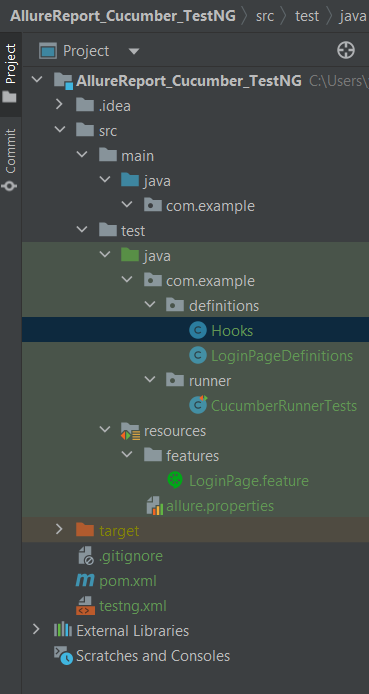
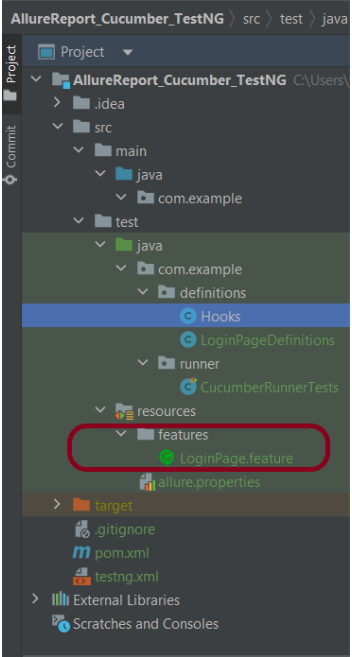
Create a folder – features within src/test/resources to create test scenarios in the Feature file.
Feature file should be saved as an extension of .feature. Add the test scenarios in this feature file. I have added sample test scenarios. In this feature file. The test scenarios are written in Gherkinslanguage.
Feature: Login to HRM Application

  Background:
    Given User is on HRMLogin page "https://opensource-demo.orangehrmlive.com/"

  @ValidCredentials
  Scenario: Login with valid credentials

    When User enters username as "Admin" and password as "admin123"
    Then User should be able to login successfully and new page open

  @InvalidCredentials
  Scenario Outline: Login with invalid credentials

    When User enters username as "<username>" and password as "<password>"
    Then User should be able to see error message "<errorMessage>"

    Examples:
      | username   | password  | errorMessage                      |
      | Admin      | admin12$$ | Invalid credentials               |
      | admin$$    | admin123  | Invalid credentials               |
      | abc123     | xyz$$     | Invalid credentials               |
      | 234        | xyz$$     | Invalid credentials!              |
Step 5 – Create the Step Definition class or Glue Code
The stepdefinition class is created in src/test/java directory.
Below is the code for the Hooks.
package com.example.definitions;

import io.cucumber.java.After;
import io.cucumber.java.Before;
import io.cucumber.java.Scenario;
import org.openqa.selenium.OutputType;
import org.openqa.selenium.TakesScreenshot;
import org.openqa.selenium.WebDriver;
import org.openqa.selenium.chrome.ChromeDriver;
import org.openqa.selenium.chrome.ChromeOptions;

import java.time.Duration;

public class Hooks {
    protected static WebDriver driver;
    public final static int TIMEOUT = 5;

    @Before
    public void setUp() {

        ChromeOptions options = new ChromeOptions();
        options.addArguments("--start-maximized");
        driver = new ChromeDriver(options);
        driver.manage().timeouts().implicitlyWait(Duration.ofSeconds(TIMEOUT));

    }

    @After
    public void tearDown(Scenario scenario) {
        try {
            String screenshotName = scenario.getName();
            if (scenario.isFailed()) {
                TakesScreenshot ts = (TakesScreenshot) driver;
                byte[] screenshot = ts.getScreenshotAs(OutputType.BYTES);
                scenario.attach(screenshot, "img/png", screenshotName);
            }
        } catch (Exception e) {
            e.printStackTrace();
        }
        driver.quit();
    }

}
LoginPageDefinition
package com.example.definitions;


import io.cucumber.java.en.Given;
import io.cucumber.java.en.Then;
import io.cucumber.java.en.When;

import org.openqa.selenium.By;
import org.testng.Assert;

public class LoginPageDefinitions {

   Hooks hooks;


    @Given("User is on HRMLogin page {string}")
    public void loginTest(String url) {

        hooks.driver.get(url);

    }

    @When("User enters username as {string} and password as {string}")
    public void goToHomePage(String userName, String passWord) {

        // login to application
        hooks.driver.findElement(By.name("username")).sendKeys(userName);
        hooks.driver.findElement(By.name("password")).sendKeys(passWord);
        hooks.driver.findElement(By.xpath("//*[@class='oxd-form']/div[3]/button")).submit();

        // go the next page
    }

    @Then("User should be able to login successfully and new page open")
    public void verifyLogin() {

        String homePageHeading = hooks.driver.findElement(By.xpath("//*[@class='oxd-topbar-header-breadcrumb']/h6")).getText();

        //Verify new page - HomePage
        Assert.assertEquals(homePageHeading,"Dashboard");

    }

    @Then("User should be able to see error message {string}")
    public void verifyErrorMessage(String expectedErrorMessage) {

        String actualErrorMessage = hooks.driver.findElement(By.xpath("//*[@class='orangehrm-login-error']/div[1]/div[1]/p")).getText();

        // Verify Error Message
        Assert.assertEquals(actualErrorMessage, expectedErrorMessage);

    }

}
Step 6 – Create a TestNG Cucumber Runner class
We need to create a class called Runner class to run the tests. This class will use the TestNG annotation @Test, which tells TestNG what is the test runner class.
package com.example.runner;

import org.testng.annotations.Test;
import io.cucumber.testng.AbstractTestNGCucumberTests;
import io.cucumber.testng.CucumberOptions;


@Test
@CucumberOptions(tags = "", features = {"src/test/resources/features"}, glue = {"com.example.definitions"},
        plugin = {"pretty","io.qameta.allure.cucumber7jvm.AllureCucumber7Jvm"})

public class CucumberRunnerTests extends AbstractTestNGCucumberTests{

}
Note:- @Test annotation marks this class as part of the test. So, if we will remove this annotation, the Allure Report executesCucumberRunnerTests as a separate test suite, so there will be duplicate results.
Step 7 – Create testng.xml for the project
<?xml version = "1.0"encoding = "UTF-8"?>
<!DOCTYPE suite SYSTEM "http://testng.org/testng-1.0.dtd">
<suite name = "Suite1">
    <test name = "Test Demo">
        <classes>
            <class name = "com.example.runner.CucumberRunnerTests"/>
        </classes>
    </test>
</suite>
Step 8 – Run the Test and Generate Allure Report
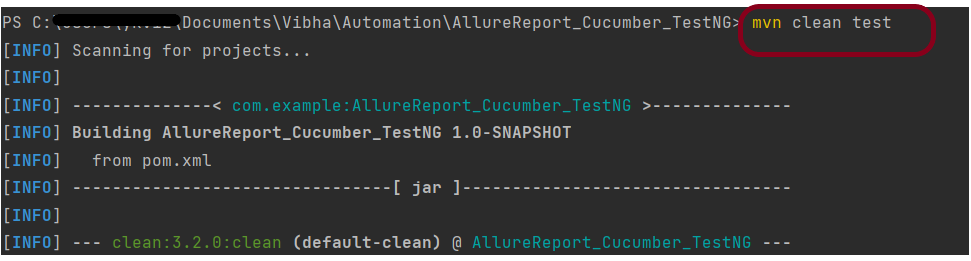
To run the tests, use the below command
mvn clean test
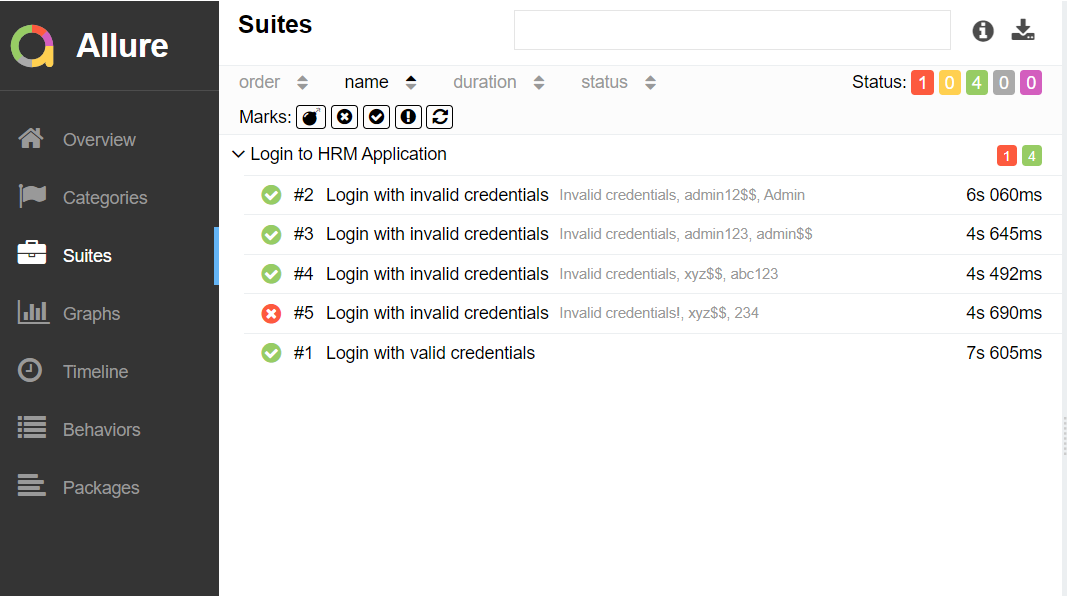
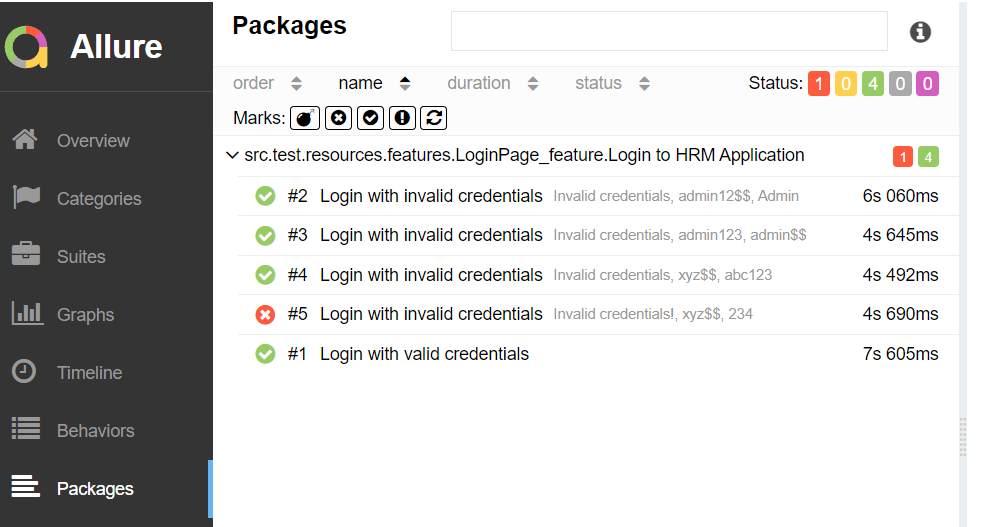
In the below image, we can see that one test failed and four passed out of five tests.
This will create the allure-results folder with all the test reports within target folder. These files will be used to generate Allure Report.
Use the below command to generate the Allure Report
allure serve
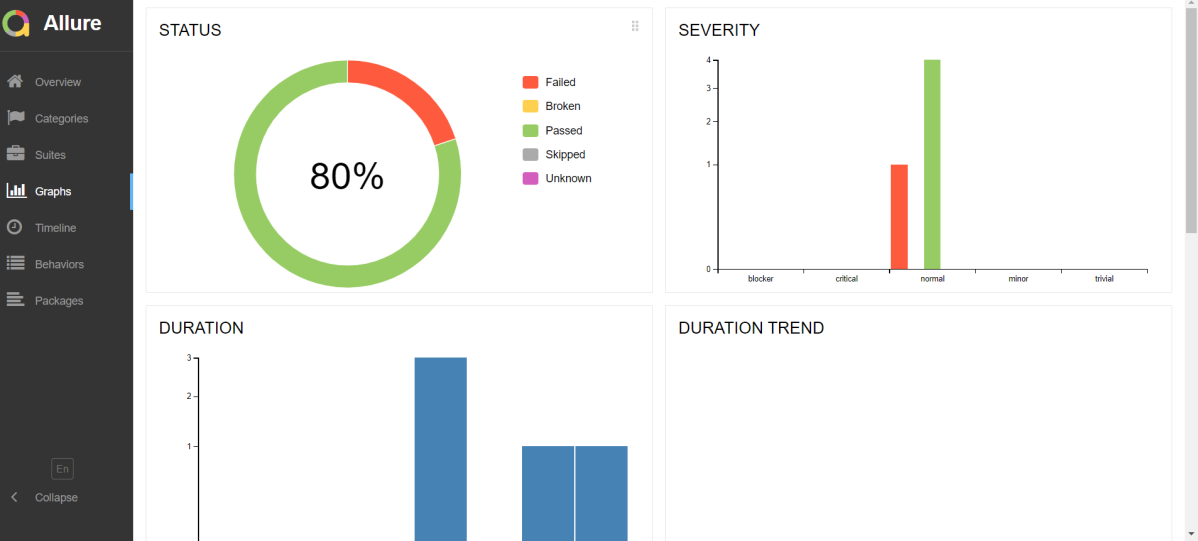
This will generate the beautiful Allure Test Report as shown below.
Allure Report Dashboard
Categories in Allure Report
The categories tab gives you a way to create custom defect classifications to apply for test results. There are two categories of defects – Product Defects (failed tests) and Test Defects (broken tests).
Suites in Allure Report
On the Suites tab a standard structural representation of executed tests, grouped by suites and classes can be found. Here, we have 2 suits – Feature and Surefire test. Surefire tests are executed from CucumberRunnerTests.
Graphs in Allure Report
Graphs allow you to see different statistics collected from the test data: status breakdown or severity and duration diagrams.
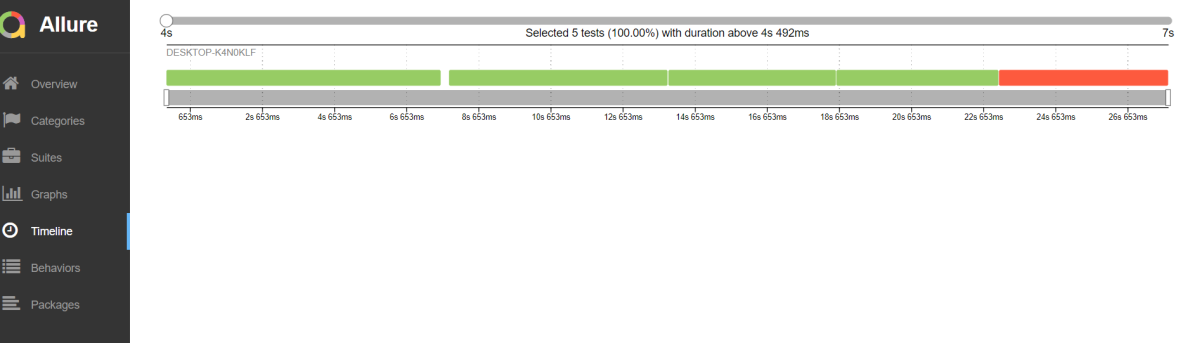
Timeline in Allure Report
The timeline tab visualizes retrospective test execution, allure adaptors collect precise timings of tests, and here on this tab, they are arranged accordingly to their sequential or parallel timing structure.
Behaviours of Allure Report
This tab groups test results according to Epic, Feature, and Story tags.
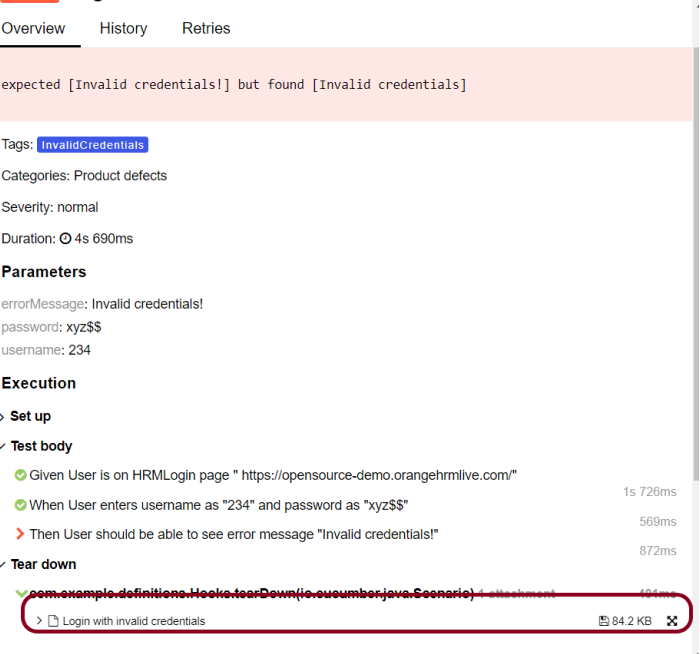
Screenshot attached to the failed test case
Packages in Allure Report
The packages tab represents a tree-like layout of test results, grouped by different packages.
When we don’t use @Test in CucumberRunnerTests.java, then as mentioned above the Allure report will have duplicate details.
Congratulations!! We have integrated an allure report with Cucumber, Selenium, and TestNG. I hope this tutorial is useful to you.
Static method is a method that belongs to the class, not to the instance of the class.
It can be access without creating the object of the class.
Static method can only access static variables, static methods of same class or another class.
Method Overriding – Static methods cannot be overridden because of early binding
Memory Allocation – In static method, memory allocation happens only once, because the static keyword fixed a particular memory for that method in ram. So when the method calls every time in a program, each time that particular memory is used.
Below is an example that shows how the static methods can be use without creating an object of the class.
package com.example.definitions;

public class staticMyClass {

    static void MyStatic_Method() { // Static Method
        System.out.println("Static method can be accessed without creating object");
    }

    public void MyPublic_Method() { // Public Method
        System.out.println("Public  method can be accessed only by creating object");
    }

    public static void main(String[] args) {
        MyStatic_Method(); // Calling Static Method

    }
}
The output of the above program is
Non Static Method
Non Static can be public, private, protected or default. They do not have static or non-static keyword before their method name.
It can be access by creating the object of the class.
Non Static method can access static variables, static methods of same class or another class as well as non-static variables and methods.
Method Overriding – Non Static methods can be overridden because of runtime binding
Memory Allocation – In non-static method, memory allocation happens when the method invokes and the memory is allocated every time when the method is called. So more memory is used here as compared to static method.
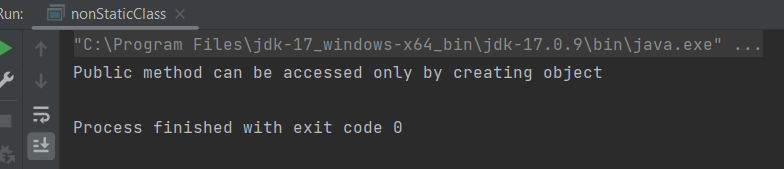
public class nonStaticClass {

    static void MyStatic_Method() { // Static Method
        System.out.println("Static method can be accessed without creating object");
    }

    public void MyPublic_Method() { // Public Method
        System.out.println("Public method can be accessed only by creating object");
    }

    public static void main(String[] args) {

        nonStaticClass stat = new nonStaticClass();
        stat.MyPublic_Method();   // Calling Non Static Method


    }
}
The traditional way to use any browser in Selenium tests is to download browser binaries, and we need to set the path of these files in our script like below or its location should be added to the classpath.
The process of manually downloading and managing these drivers for each of the operating systems is very painful. We also have to check when new versions of the binaries are released / new browser versions are released. We should check the compatibility for all the executables and add them.
Note: – Selenium 4.6 and above has inbuilt tool to handle drivers. If you are using Selenium version less than 4.6, then you can use WebDriverManager.
How to download all the driver executables automatically?
The automatic download of the drivers can be done by WebDriverManager. WebDriverManager is a library that allows controlling web browsers programmatically. It provides a cross-browser API that can be used to drive web browsers (e.g., Chrome, Edge, or Firefox, among others) using different programming languages (e.g., Java, JavaScript, Python, C#, or Ruby). The primary use of Selenium WebDriver is implementing automated tests for web applications.
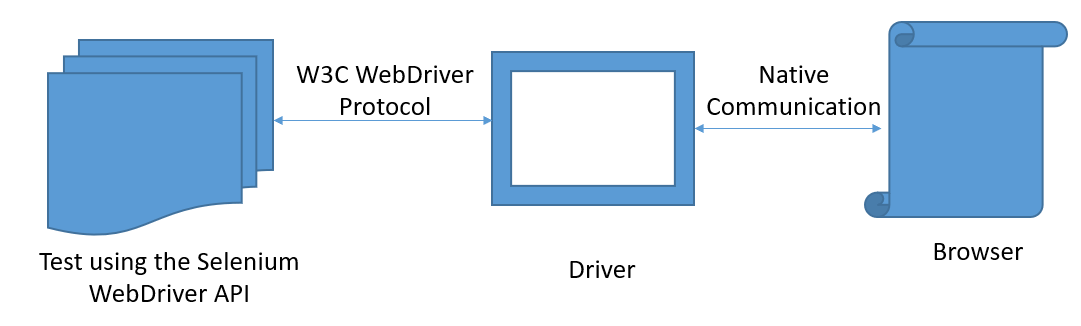
The communication between the WebDriver API and the driver binary is done using a standard protocol called W3C WebDriver (formerly the so-called JSON Wire Protocol). Then, the communication between the driver and the browser is done using the native capabilities of each browser.
How To add WebDriverManager to a Selenium project manually?
Download the latest version of WebDriverManager from here.
It will download a zip file. Now extract the jar/zip file. It will show various .jar under the folder, as shown below:
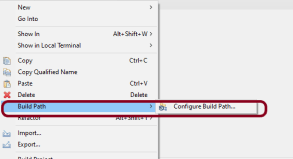
Once we extract the zip file, we have to reference these jar files in our project. For this, navigate to project properties and click Build Path-> Configure Build Path in Eclipse
Click “Add External Jars” as per the steps highlighted below to include all the WebDriverManager jars extracted.
After clicking on the “Add External JARs“, all the selected extracted JARs are added to the project.
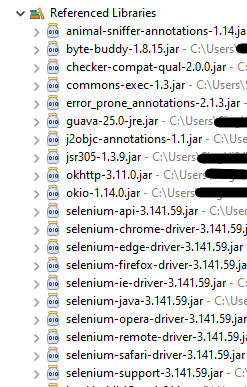
When this finishes, the project references show these referenced jars in the project explorer as highlighted below, and they are ready to be consumed in the Selenium test scripts.
Chrome
The below code snippet shows a quick usage of WebDriverManager with Chrome:
import org.openqa.selenium.WebDriver;
import org.openqa.selenium.chrome.ChromeDriver;
import org.openqa.selenium.chrome.ChromeOptions;

import io.github.bonigarcia.wdm.WebDriverManager;

public class Demo {

	public static void main(String[] args) {

		WebDriverManager.chromedriver().setup();

		// Create an object of Chrome Options class
		ChromeOptions chromeOptions = new ChromeOptions();

		// Create an object of WebDriver class and pass the Chrome Options object as
		// an argument
		WebDriver driver = new ChromeDriver(chromeOptions);

		System.out.println("Executing Chrome Driver");

		driver.get("https://www.bing.com/");
		System.out.println("Title of Page :" + driver.getTitle());
		System.out.println("Page URL : " + driver.getCurrentUrl());

		// Close the driver
		driver.close();

	}
}
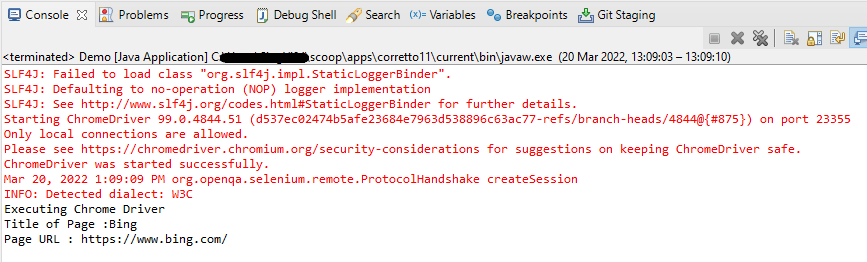
The output of the above program is
FireFox Driver
The below code snippet shows a quick usage of WebDriverManager with FireFox:
import org.openqa.selenium.WebDriver;
import org.openqa.selenium.firefox.FirefoxDriver;
import org.openqa.selenium.firefox.FirefoxOptions;

import io.github.bonigarcia.wdm.WebDriverManager;

public class FireFoxDemo {

	public static void main(String[] args) {

		WebDriverManager.firefoxdriver().setup();

		// Create an object of Firefox Options class
		FirefoxOptions firefoxOptions = new FirefoxOptions();

	    // Create an object of WebDriver class and pass the Firefox Options object
		// as an argument
		WebDriver driver = new FirefoxDriver(firefoxOptions);

		System.out.println("Executing Firefox Driver");

		driver.get("https://www.bing.com/");
		System.out.println("Title of Page :" + driver.getTitle());
		System.out.println("Page URL : " + driver.getCurrentUrl());

		// Close the driver
		driver.close();

	}
}
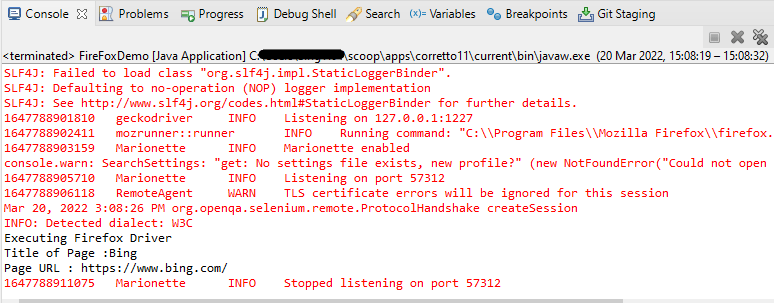
The output of the above program is
Microsoft Edge
The below code snippet shows a quick usage of WebDriverManager with Microsoft Edge:
import org.openqa.selenium.WebDriver;
import org.openqa.selenium.edge.EdgeDriver;
import org.openqa.selenium.edge.EdgeOptions;
import io.github.bonigarcia.wdm.WebDriverManager;

public class EdgeDemo {

	public static void main(String[] args) {

		WebDriverManager.edgedriver().setup();

		// Create an object of Edge Options class
		EdgeOptions edgeOptions = new EdgeOptions();

		// Create an object of WebDriver class and pass the Edge Options object
		// as an argument
		WebDriver driver = new EdgeDriver(edgeOptions);

		System.out.println("Executing Microsoft Edge Driver");

		driver.get("https://www.bing.com/");
		System.out.println("Title of Page :" + driver.getTitle());
		System.out.println("Page URL : " + driver.getCurrentUrl());

		// Close the driver
		driver.close();

	}
}
How to instantiate a specific browser version using WebDriverManager?
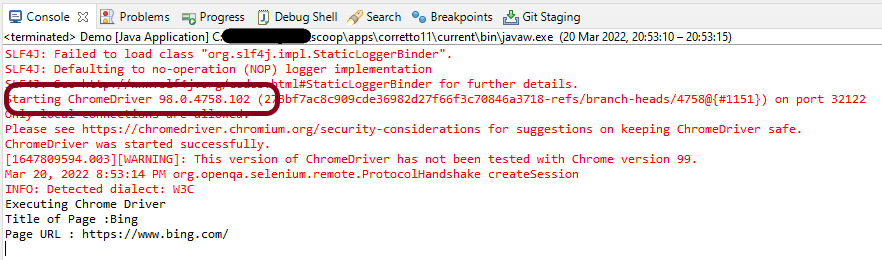
WebDriverManagerprovides the ability to download a specific version of the browser. For example, the latest chromedriver version is 100.0.4896.20 (released on 2022-03-04). But if we want an earlier version, say, Chromedriver version 98.0.4758.102, we have to add the following code.
import org.openqa.selenium.WebDriver;
import org.openqa.selenium.chrome.ChromeDriver;
import org.openqa.selenium.chrome.ChromeOptions;
import io.github.bonigarcia.wdm.WebDriverManager;

public class Demo {

	public static void main(String[] args) {

		WebDriverManager.chromedriver().driverVersion("98.0.4758.102").setup();

		// Create an object of Chrome Options class
		ChromeOptions chromeOptions = new ChromeOptions();

		// Create an object of WebDriver class and pass the Chrome Options object as
		// an argument
		WebDriver driver = new ChromeDriver(chromeOptions);

		System.out.println("Executing Chrome Driver");

		driver.get("https://www.bing.com/");
		System.out.println("Title of Page :" + driver.getTitle());
		System.out.println("Page URL : " + driver.getCurrentUrl());

		// Close the driver
		driver.close();

	}
}
The output of the above program is
As we can see from the above screenshot, as a result of executing the above program, the Chromedriver started successfully. We can see the details of starting the chrome driver instance in the first line of output. Here we have set the Chrome version to “98.0.4758.102″.
Congratulations!! We have learned to download drivers automatically.
In the previous tutorial, I have explained theData Driven Tests in Serenity where test data are defined in Tests. In this tutorial, I will explain the Data Driven tests in Serenity where we will get the test data from CSV file.
Serenity lets us perform data-driven testing using test data in a CSV file. We store our test data in a CSV file (by default with columns separated by commas), with the first column acting as a header.
We need to create a test class containing properties that match the columns in the test data, as you did for the data-driven test in the previous example. The test class will typically contain one or more tests that use these properties as parameters to the test step or Page Object methods.
Here, we need to keep in mind that as the tests are parameterized , we need to use the Parameterized test runner to perform data-driven tests.
@UseTestDataFrom annotation is used to indicate where to find the CSV file (this can either be a file on the classpath or a relative or absolute file path – putting the data set on the class path (e.g. in src/test/resources) makes the tests more portable).
ParameterizedTestsUsingCSV Class contains the SerenityParameterizedRunner as well as provides the path of the test data file using @UseTestDataFrom, and the Tests.
The Serenity Parameterized Runner creates a new instance of this class for each row of data in the CSV file, assigning the properties with corresponding values in the test data. As you can see, I have mentioned 3 variables in the CSV file – userName, passWord, and errorMessage. I have declared the same private variables in the Test Class too – username, password, and errorMessage that match the columns in the test data file. Keep this in mind, that the column name should be the same in test data file and Test.
The heading of parameters present in the Serenity Report (Index.html) like Username, Password, and Error Message are generated by @TestData(columnNames).
The description of the Test Step in the Serenity Report is modified by using @Qualifier. It is used to mark a method as a qualifier in an instantiated data-driven test case.
The test class needs to have a WebDriver instance with a @Managed annotation for Serenity to manage it in the background. That is all that is required, we do not need to manage the driver anymore. Each test class will need this driver variable declaration.
The Test Class uses Step Class (StepLoginPage) and Action Class (NavigateActions) to perform the Tests. StepLoginPage contains test steps that represent the level of abstraction between the code that interacts with the application. NavigateAction page is used to open an environment-specific page defined in the serenity.config file under the pages section.
This test can be executed by JUnit as well as from the command line
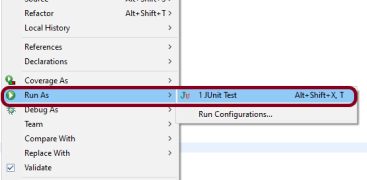
JUnit – Right-click on the Test, select Run As, and then select JUnit Test in Eclipse.
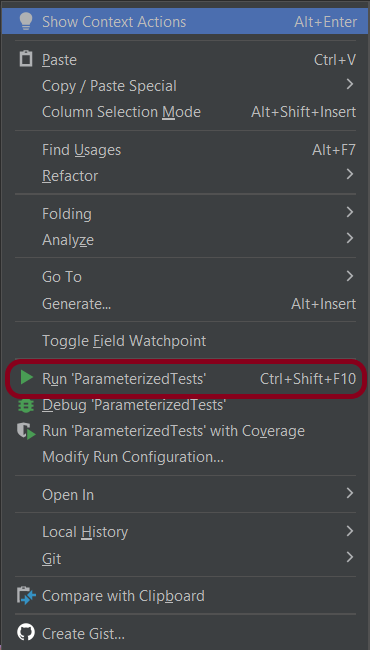
If you are using IntelliJ, then right-click and select Run “ParameterizedTests”
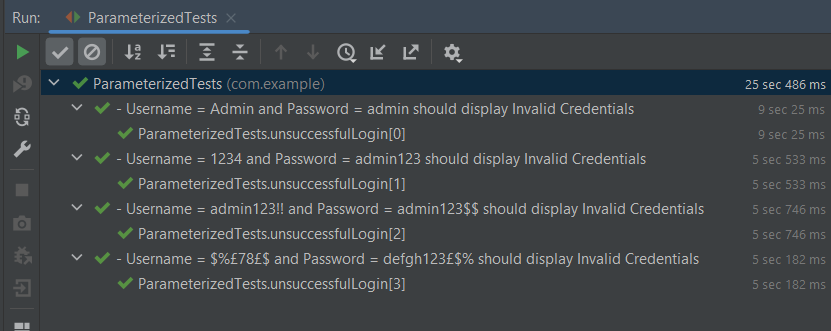
The Test execution status can be seen as shown below:
To run the tests using the command line, use the below command
mvn clean verify
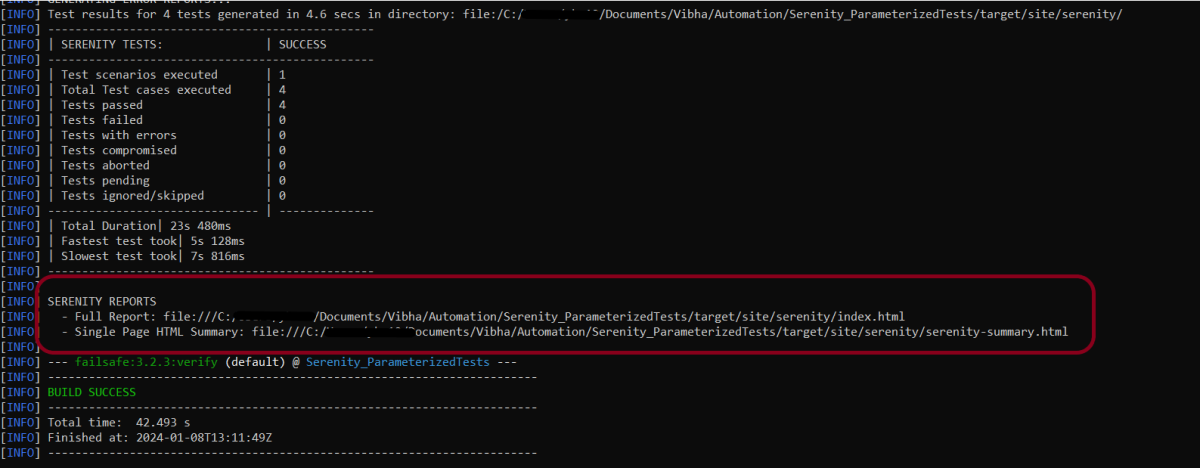
This will execute the tests and will generate the Test Execution Report as shown below.
The reports are generated as shown in the below image.
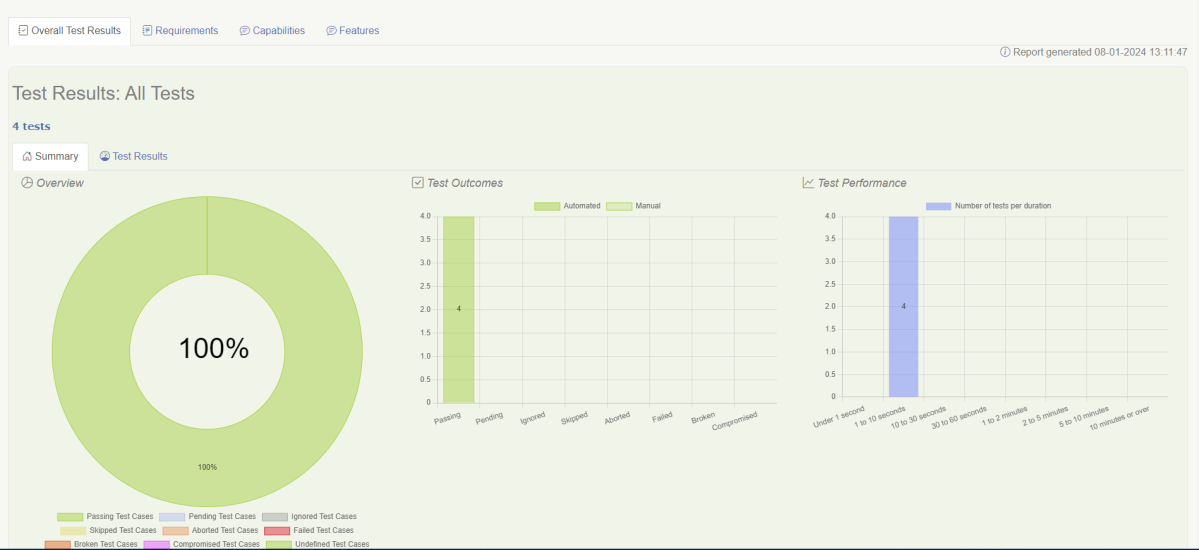
Serenity generates very descriptive and beautiful reports – Index.html and Serenity Summary Report.
Index.html
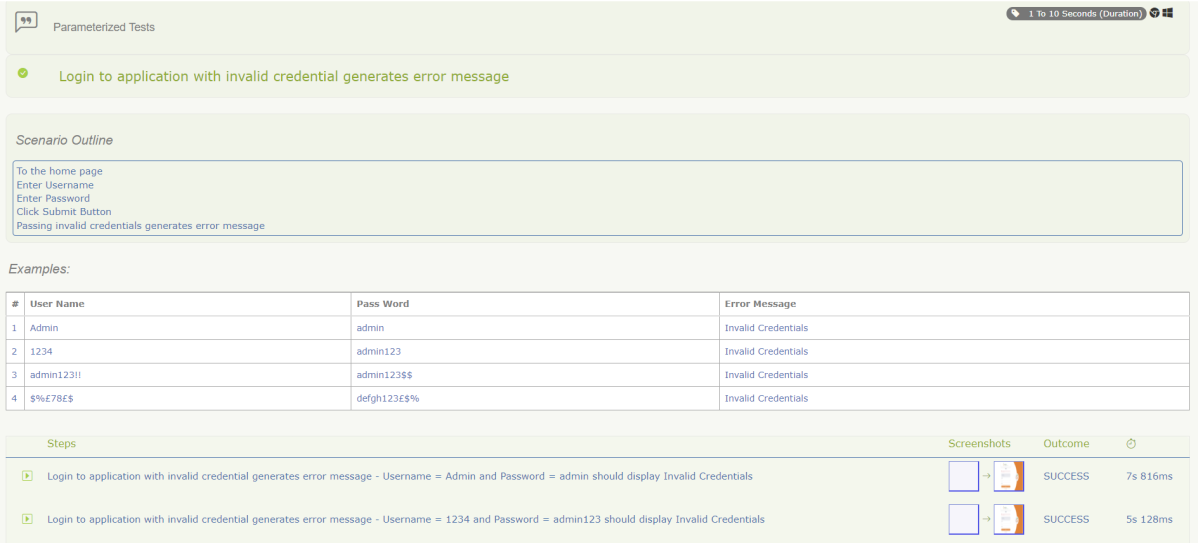
This page provides the detail about the Test, its corresponding test data, the status of each test scenario with screenshots, and the execution time of each test.
This is the expanded view of all the test steps of a test with their screenshots. This also shows the execution time of each step in the test.
Serenity Summary Report
This report is a single-page, self-contained HTML summary report, containing an overview of the test results, and a configurable breakdown of the status of different areas of the application.
We are done! Congratulations on making it through this tutorial and hope you found it useful! Happy Learning!!
To have a successful and effective implementation of a test framework, it is always advisable that the test framework supports test execution in multiple ways. The most commonly used ways to execute tests in Cucumber Framework are by running the tests using JUnit and TestNG.
To execute tests using JUnit, we need to create a JUnit Test Runner. Whereas, we need a Maven project to execute Cucumber tests from Command-Line.
Feature: Login to HRM Application

  Background:
    Given User is on HRMLogin page "https://opensource-demo.orangehrmlive.com/"

  @ValidCredentials
  Scenario: Login with valid credentials

    When User enters username as "Admin" and password as "admin123"
    Then User should be able to login successfully

  @InvalidCredentials
  Scenario Outline: Login with invalid credentials

    When User enters username as "<username>" and password as "<password>"
    Then User should be able to see error message "<errorMessage>"

    Examples:
      | username   | password  | errorMessage                      |
      | Admin      | admin12$$ | Invalid credentials               |
      | admin$$    | admin123  | Invalid credentials               |
      | abc123     | xyz$$     | Invalid credentials               |
HomePage.feature
Feature: Login to Home

  Background:
    Given User is on HRMLogin page "https://opensource-demo.orangehrmlive.com/"

  @ValidCredentialsHome
  Scenario: Login with valid credentials to got to home page

    When User enters username as "Admin" and password as "admin123"
    Then User should be able to login successfully and new Home page opens
Run Test from Command Line
1. Running all the tests
1. Open the command prompt and change the directory to the project location where pom.xml is present.
2. All feature files should be in src/test/resources and create the Cucumber Runner class as CucumberRunnerTest. Note:- The Runner class name should end with Test to execute the tests from Command Line Run the following command in the command prompt:
mvn clean test
mvn clean test runs Cucumber Features using Cucumber’s JUnit Runner. The @RunWith (Cucumber.class)annotation on the TestRunner class tells JUnit to start Cucumber. Cucumber runs time parses the command-line options to know what feature to run, where the Glue Code lives, what plugins to use, and so on.
3. The below screenshot shows that CucumberRunnerTest class is triggered.
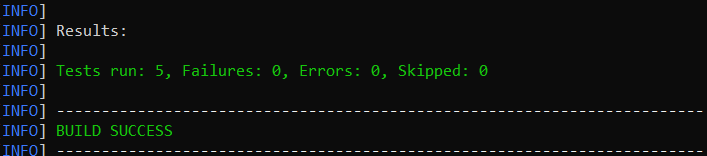
4. The below screenshot shows the build success output.
Cucumber provides several options that can be passed to on the command line.
2. Running Scenarios using Tags
If you are using Maven and want to run a subset of scenarios tagged with @ValidCredentials.
mvn clean test -Dcucumber.filter.tags="@ValidCredentials"
The output of the above program is
3. Running a Feature file
Suppose you want to run a single Feature File from the command line, then use the below syntax
mvn clean test -Dcucumber.features="src/test/resources/features/HomePage.feature"
The output of the above program is
4. Creating Cucumber Report from Command Line
If we want to generate a different report, then we can use the following command and see the HTML report generate at the location mentioned:
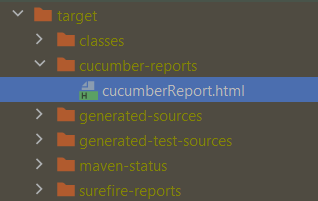
mvn clean test -Dcucumber.plugin="html:target/cucumber-reports/cucumberReport.html"
The output of the above program is
5. Passing multiple Parameters
If we want to pass more than one parameter, then we can use the following command
mvn clean test -Dcucumber.features="src/test/resources/features/LoginPage.feature" -Dcucumber.filter.tags="@ValidCredentials"
The output of the above program is
6. Running a Scenario without a tag
If we want to run a single Scenario from the command line and no tag is assigned to that scenario, this is how we specify
mvn clean test -Dcucumber.features="src/test/resources/features/LoginPage.feature:7"
The output of the above program is
That’s it! Congratulations on making it through this tutorial and hope you found it useful! Happy Learning!!
GitHub serves as a collaborative platform that supports version control, code collaboration, automated testing, and issue tracking, all of which are crucial elements in the software testing process. It promotes transparency, collaboration, and efficiency in the development and testing workflows.
CI/CD pipelines have contributed to the success of the DevOps cycle in all software development projects. This is a holistic process that bridges development and operations. Continuous integration helps development teams deploy code efficiently, and continuous delivery automates code deployment.
Implementation Steps
Step 1 – Create GitHub Actions and Workflows
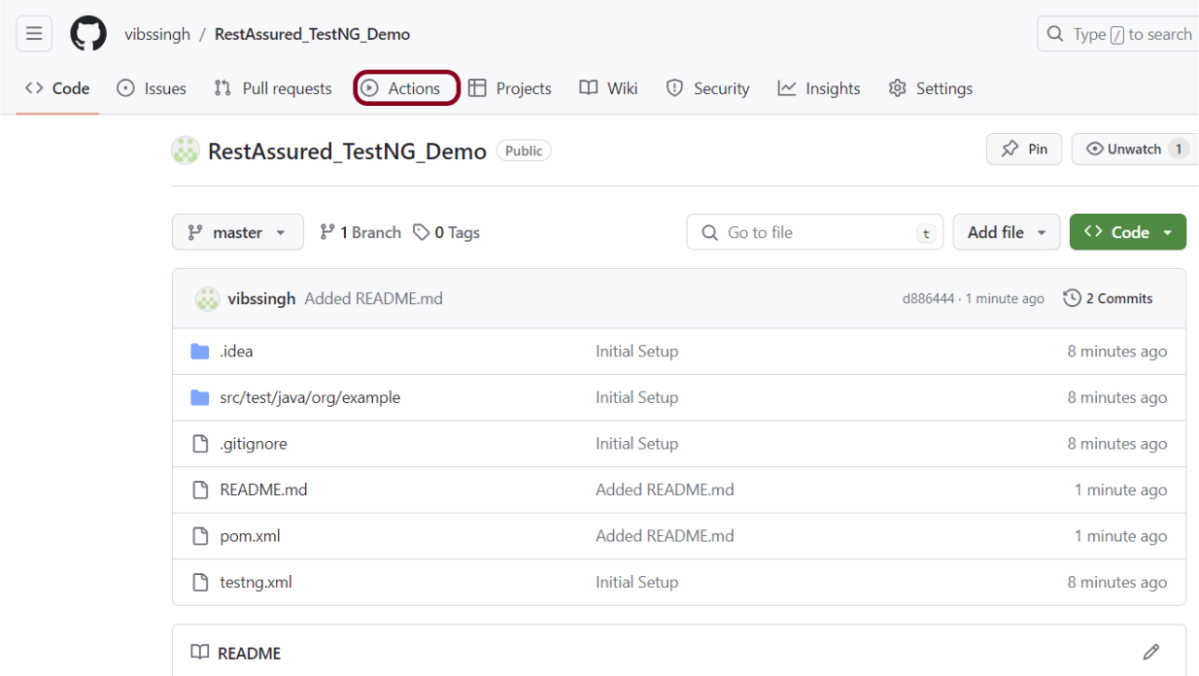
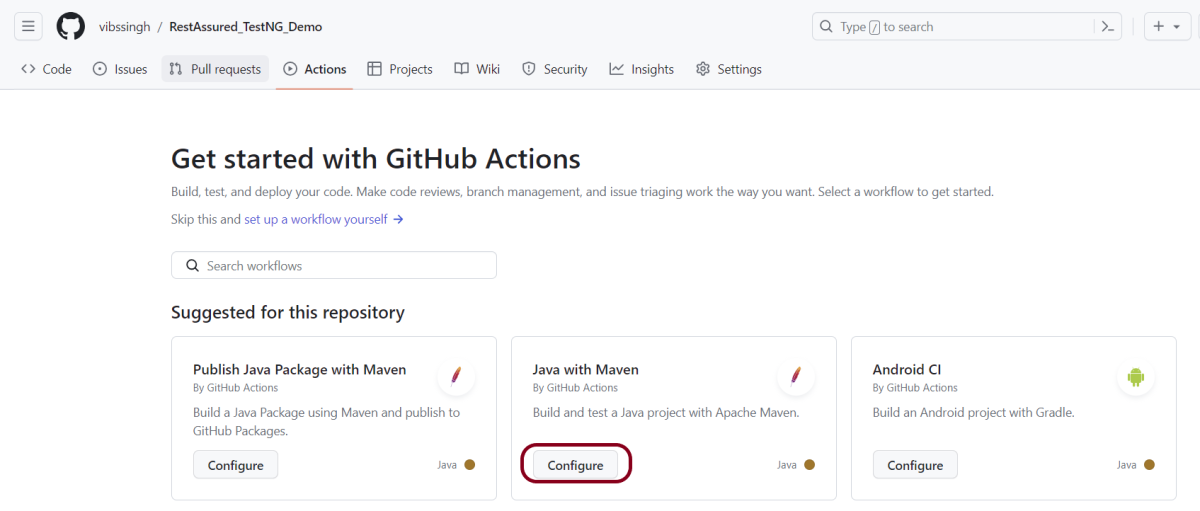
I have a repository available in GitHub – RestAssured_TestNG_Demo as shown in the below image. Go to the “Actions” tab. Click on the “Actions” tab.
Step 2 – Select the type of Actions
You will see that GitHub recommends Actions depending on the project. In our case, it is recommending actions suitable for a Java project. I have selected the “Java with Maven” option as my project is built in Maven.
Step 3 – Generation of Sample pipeline
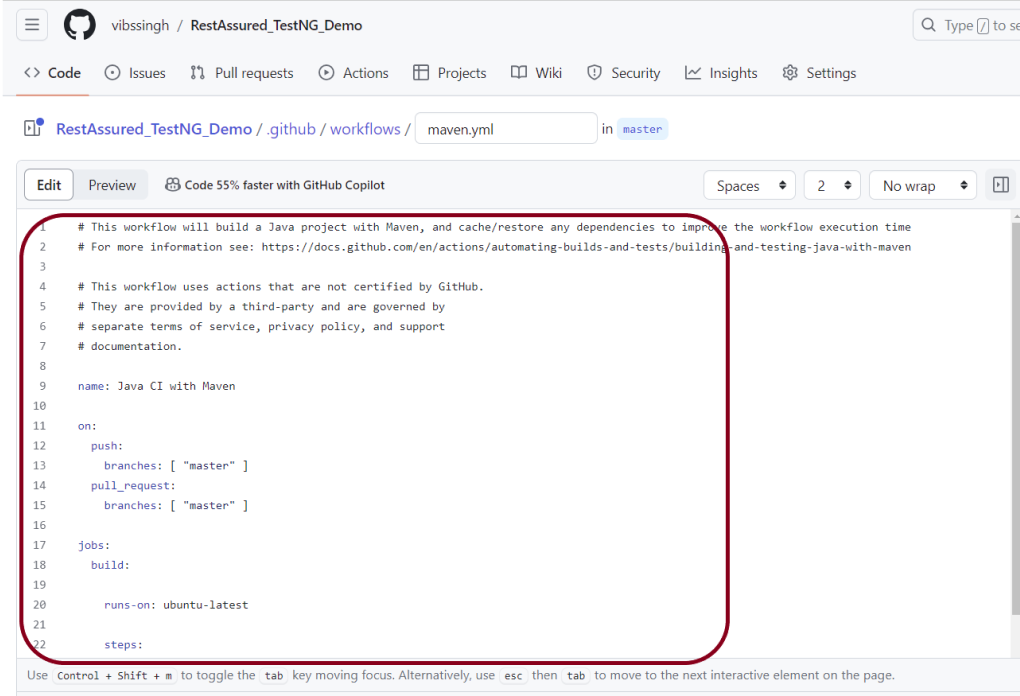
If you choose an existing option, it will automatically generate a .yaml for the project as shown below.
We will replace the current workflow with the following yml file as shown below:
name: Rest API Tests using Rest Assured with TestNG

on:
  push:
    branches: [ "main" ]
  pull_request:
    branches: [ "main" ]

jobs:
  build:

    runs-on: ubuntu-latest

    steps:
    - uses: actions/checkout@v4
    - name: Set up JDK 17
      uses: actions/setup-java@v4
      with:
        java-version: '17'
        distribution: 'temurin'
        cache: maven

    - name: Test Execution
      run: mvn clean test

    - name: Test Report Generation
      uses: actions/upload-artifact@v4
      if: success() || failure()
      with:
          name: TestNG Report                 # Name of the folder
          path: target/surefire-reports/      # Path to test results
Step 4 – Commit the changes
After the changes, hit the “Start Commit” button.
This will give the option to add a description for the commit. It will also enable the user to commit either to the main branch or commit to any other branch that exists in the project. Click on the “Commit new file” button to set up the workflow file.
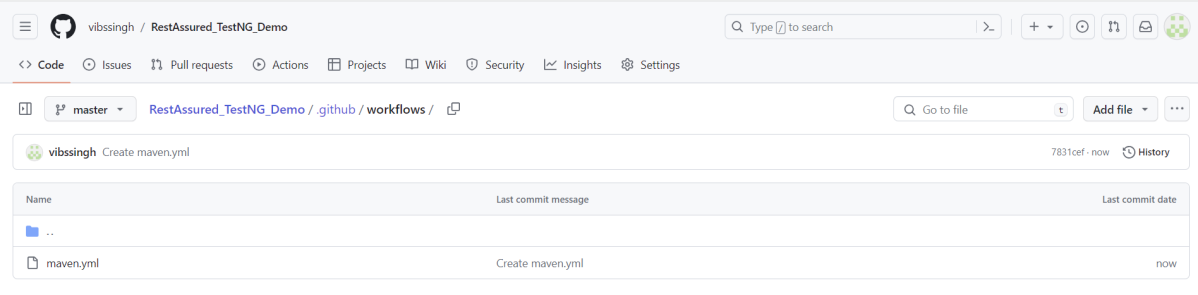
It will create a maven.yml file as shown below in the project.
Step 5 – Verify that the workflow is running
Next, head over to the “Actions” tab, and you will see your YAML workflow file present under the tab. The yellow sign represents that the job is in the queue.
In Progress – When the job starts building and running, you will see the status change from “Queued” to “in progress”.
Passed – If the build is successful, you will see a green tick mark.
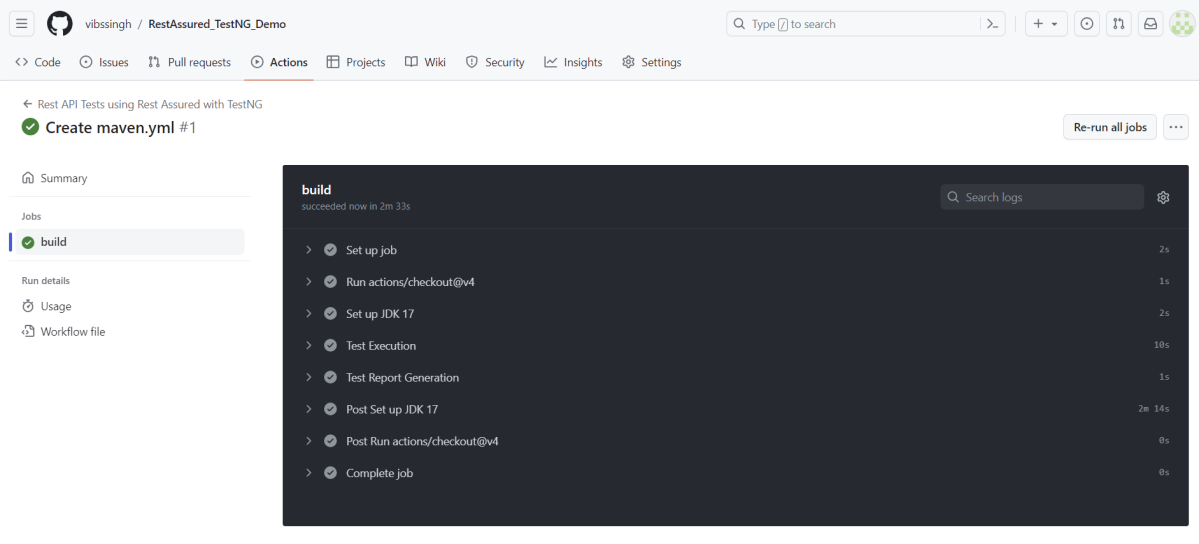
Below is the execution log.
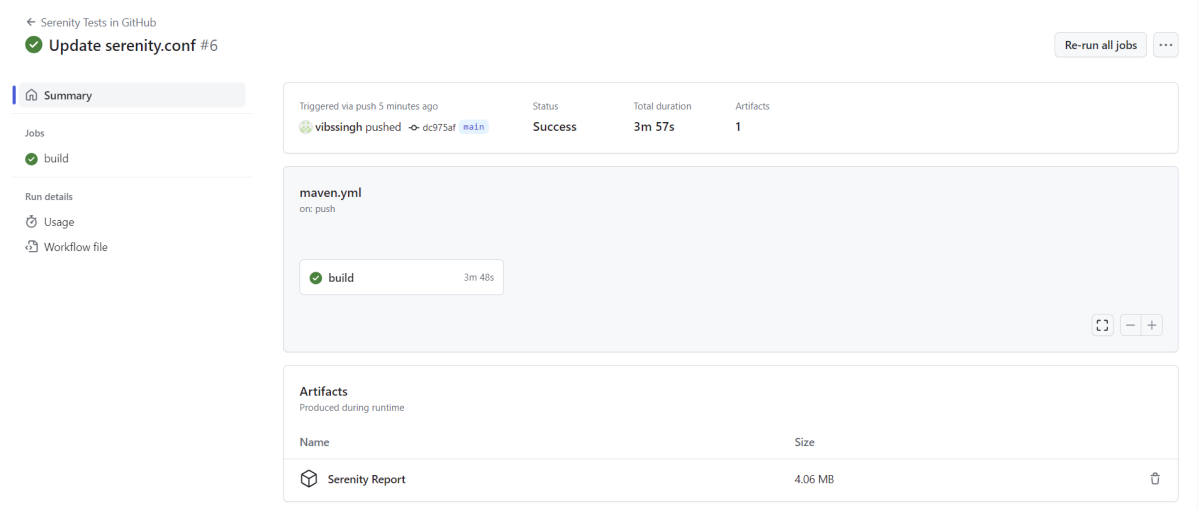
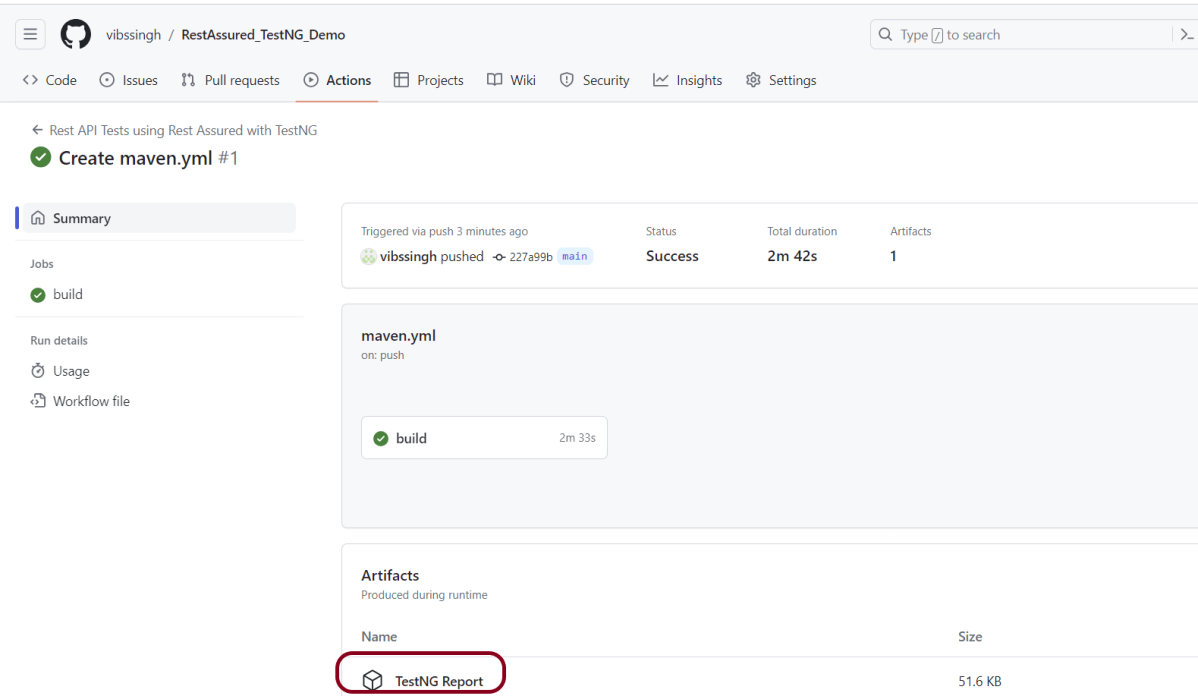
Click on the workflow and the below screen is displayed. It shows the status of the run of the workflow, the total time taken to run the workflow, and the name of the .yml file.
Below shows all the steps of the workflow.
Step 6 – Published TestNG Report on GitHub
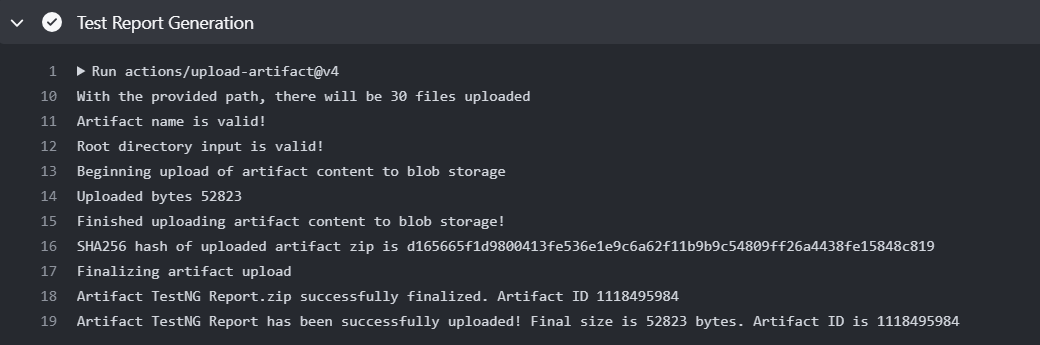
From the logs of the Workflow, you can see that the Test Report step was executed successfully.
Once the pipeline run, a TestNG Report folder will be generated as shown in the below image:
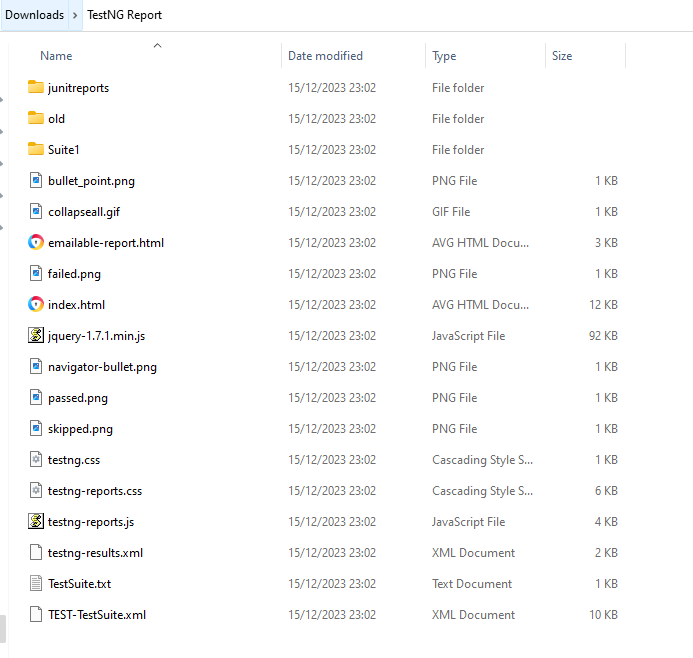
When we click on the folder TestNG Report, a zipped file will be downloaded, and we can extract it to see all the files contained within it.
In REST API development, blacklisting headers refers to explicitly disallowing or filtering out certain headers from being used or processed.
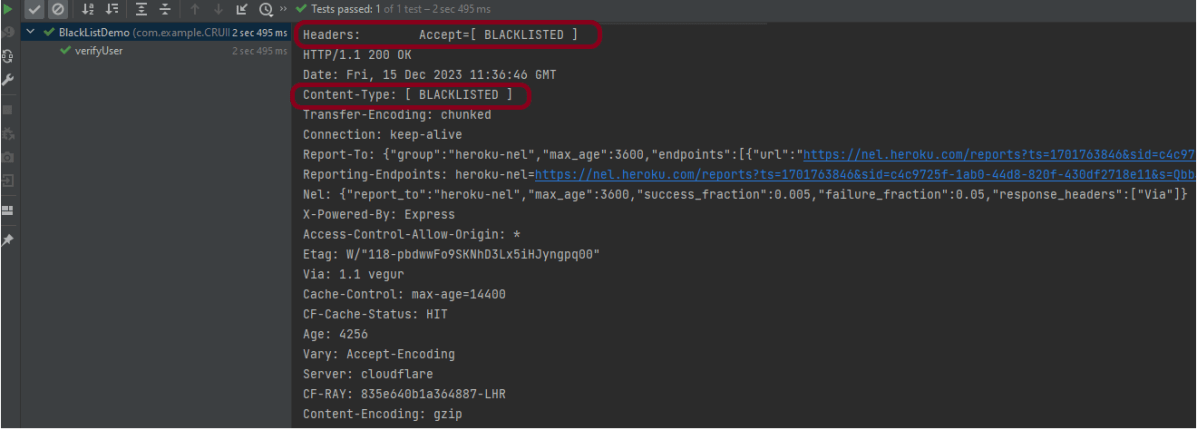
Starting from REST Assured version 4.2.0, a new feature has been introduced that allows you to blacklist specific headers in order to prevent them from appearing in request or response logs. Instead of displaying the actual header value, it will be replaced with “[ BLACKLISTED ]”. This feature can be enabled on a per-header basis using LogConfig.
Here is an example of how you can enable this feature for a specific header using LogConfig:
In the below code snippet, the “Accept” header will be blacklisted. Once this configuration is set, any requests or responses containing this header will have its value replaced with “[ BLACKLISTED ]” in the logs.
Blacklist single header
blacklistHeader – It blacklists one or more headers. If these headers show up during logging, they will be replaced with ‘BLACKLISTED ‘. The purpose of a blacklist is to prevent sensitive information to be included in the log.
import io.restassured.RestAssured;
import io.restassured.config.LogConfig;
import org.junit.Test;
import java.util.ArrayList;
import java.util.List;
import static io.restassured.RestAssured.given;
import static org.hamcrest.CoreMatchers.equalTo;

public class BlackListDemo {

    @Test
    public void verifyUser() {

        // Given
        given()

                .config(RestAssured.config().logConfig(LogConfig.logConfig().blacklistHeader("Accept")))
                .log().headers()

                // When
                .when()
                .get("https://reqres.in/api/users/2")

                // Then
                .then()
                .statusCode(200).statusLine("HTTP/1.1 200 OK")
                .body("data.email", equalTo("janet.weaver@reqres.in"))
                .body("data.first_name", equalTo("Janet"))
                .body("data.last_name", equalTo("Weaver")).log().all();
    }
The output of the above program is
Blacklist multiple headers
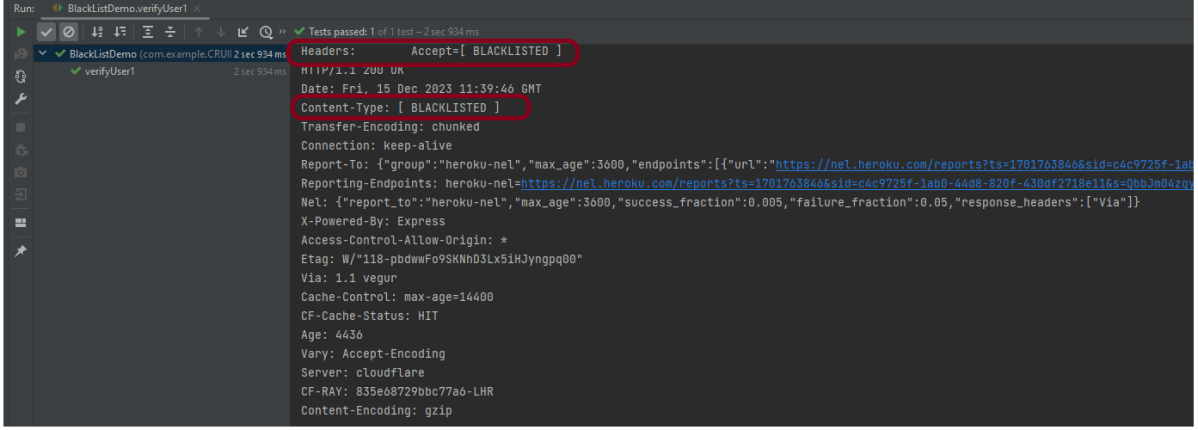
In the below example, we want to blacklist “Accept” as well as “Content-Type”. This can be achieved by the below-mentioned example:
import io.restassured.RestAssured;
import io.restassured.config.LogConfig;
import org.junit.Test;
import java.util.ArrayList;
import java.util.List;
import static io.restassured.RestAssured.given;
import static org.hamcrest.CoreMatchers.equalTo;

public class BlackListDemo {

    @Test
    public void verifyUser() {

        // Given
        given()

              .config(RestAssured.config().logConfig(LogConfig.logConfig().blacklistHeader("Accept","Content-Type")))
                .log().headers()

                // When
                .when()
                .get("https://reqres.in/api/users/2")

                // Then
                .then()
                .statusCode(200).statusLine("HTTP/1.1 200 OK")
                .body("data.email", equalTo("janet.weaver@reqres.in"))
                .body("data.first_name", equalTo("Janet"))
                .body("data.last_name", equalTo("Weaver")).log().all();
    }
The output of the above program is
BlackList Request and Response using collection
import io.restassured.RestAssured;
import io.restassured.config.LogConfig;
import org.junit.Test;
import java.util.ArrayList;
import java.util.List;
import static io.restassured.RestAssured.given;
import static org.hamcrest.CoreMatchers.equalTo;

public class BlackListDemo {

    @Test
    public void verifyUser1() {

        List headers = new ArrayList<String>();
        headers.add("Accept");
        headers.add("Content-Type");

        // Given
        given()
                .config(RestAssured.config().logConfig(LogConfig.logConfig().blacklistHeader(headers.toArray(new String[0]))))
                .log().headers()

                // When
                .when()
                .get("https://reqres.in/api/users/2")

                // Then
                .then()
                .statusCode(200).statusLine("HTTP/1.1 200 OK")

                // To verify booking id at index 3
                .body("data.email", equalTo("janet.weaver@reqres.in"))
                .body("data.first_name", equalTo("Janet"))
                .body("data.last_name", equalTo("Weaver")).log().all();
    }

}
The output of the above program is
Congratulations on making it through this tutorial and hope you found it useful! Happy Learning!!
There are two modes, strict and non-strict in JSONAssert. In most cases, you will probably want to set strict to false, since that will make the tests less brittle. Strict tests require all the elements requested to be returned, and only those elements (ie, the tests are non-extensible). Arrays of elements must be returned to the same order as expected.
In Lenient mode, extensibility will be allowed, and no strict ordering will be checked. Let’s see example programs for comparing JSON Arrays.
Comparing two Exact same JSON Arrays – LENIENT Mode
import org.json.JSONArray;
import org.junit.Test;
import org.skyscreamer.jsonassert.JSONAssert;
import org.skyscreamer.jsonassert.JSONCompareMode;

public class JsonArrayAssertDemo {

    @Test
    public void sameArray() {

        // same no of elements, values and in same order
        String jsonArray1 = "[\"Vibha\",\"Abha\",\"Nysha\"]";
        String jsonArray2 = "[\"Vibha\",\"Abha\",\"Nysha\"]";

        JSONAssert.assertEquals(jsonArray1, jsonArray2, JSONCompareMode.LENIENT);
   }
}
The output of the above program is
Comparing two JSON Arrays with the same fields but different in order – Lenient
    @Test
    public void sameArrayDifferentOrder() {

        // Same no of elements but different order
        String jsonArray1 = "[\"Vibha\",\"Abha\",\"Nysha\"]";
        String jsonArray2 = "[\"Nysha\",\"Vibha\",\"Abha\"]";

        JSONAssert.assertEquals(jsonArray1, jsonArray2, JSONCompareMode.LENIENT);
    }
The output of the above program is
LENIENT mode does not care about the order of the fields in the JSON.
Comparing two JSON Arrays with the same fields but different in order – Strict
    @Test
    public void sameArrayDifferentOrder_Strict() {

        // same no of elements, values and in same order
        String jsonArray1 = "[\"Vibha\",\"Abha\",\"Nysha\"]";
        String jsonArray2 = "[\"Nysha\",\"Vibha\",\"Abha\"]";

        JSONAssert.assertEquals(jsonArray1, jsonArray2, JSONCompareMode.STRICT);
    }
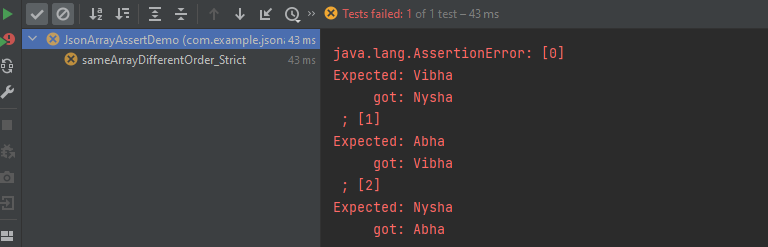
The output of the above program is
STRICT mode cares about the order of the fields in the JSON Array.
Comparing two JSON Arrays with the same fields but different values
    @Test
    public void sameArrayDifferentValue() {

        // Same no of elements but different values
        String jsonArray1 = "[\"Vibha Singh\",\"Abha\",\"Nysha\"]";
        String jsonArray2 = "[\"Vibha\",\"Abha\",\"Nysha\"]";

        JSONAssert.assertEquals(jsonArray1, jsonArray2, JSONCompareMode.LENIENT);
    }
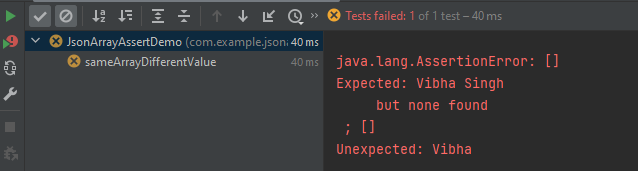
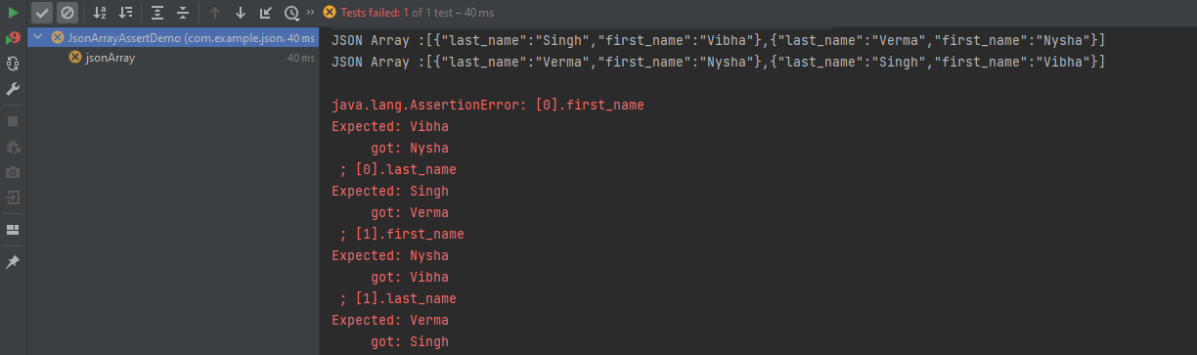
The output of the above program is
In this scenario assertEquals() will fail as a value is not matching.
Comparing two JSON Arrays with the case sensitivity
   @Test
    public void sameArrayCaseSensitive() {

        // case sensitive
        String jsonArray1 = "[\"VIbha\",\"Abha\",\"Nysha\"]";
        String jsonArray2 = "[\"Vibha\",\"Abha\",\"Nysha\"]";

        JSONAssert.assertEquals(jsonArray1, jsonArray2, JSONCompareMode.LENIENT);
    }
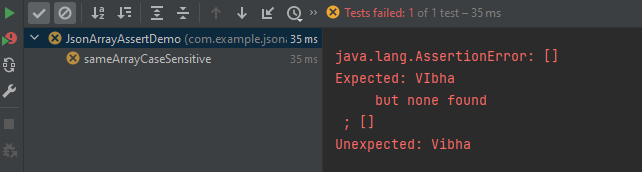
The output of the above program is
Comparing two JSON Arrays with the same fields but different datatype of values
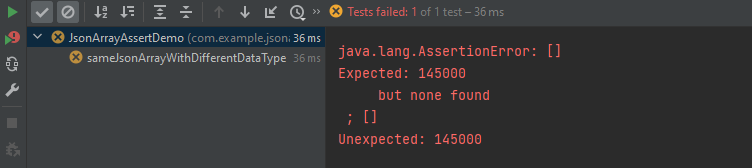
Here, both the JSON Arrays have the same structure, but we have added one more attribute to the second one. In this case, the assertion fails as it counts the number of items in the arrays.
Comparing two JSON Arrays with the addition – STRICT mode
The compare mode can also be defined by using an overloaded method that takes boolean instead of JSONCompareMode where LENIENT = false and STRICT = true.
There are two modes, strict and non-strict in JSONAssert. In most cases, you will probably want to set strict to false, since that will make the tests less brittle. Strict tests require all the elements requested to be returned, and only those elements (ie, the tests are non-extensible). Arrays of elements must be returned to the same order as expected.
In Lenient mode extensibility will be allowed and no strict ordering will be checked. Let’s see example programs for comparing JSONs.
Comparing two Exact same JSON Objects – LENIENT Mode
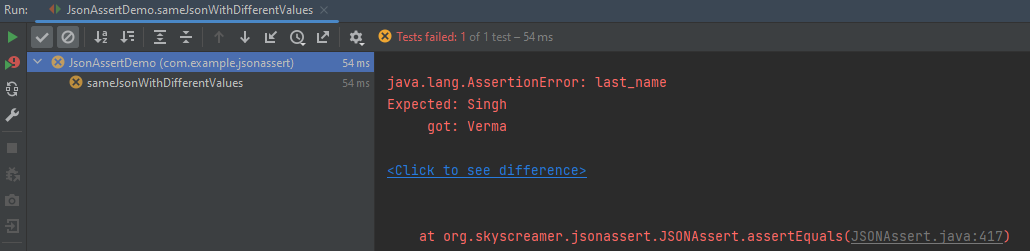
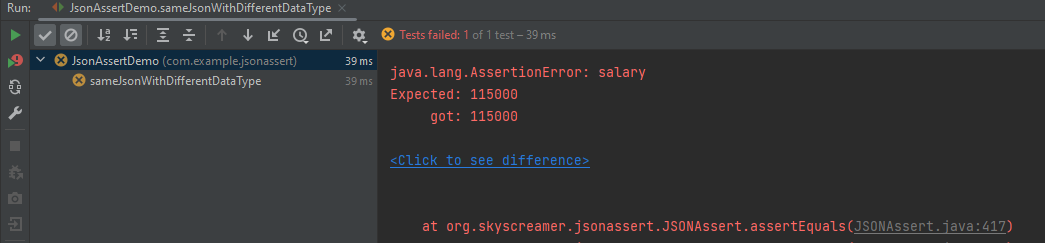
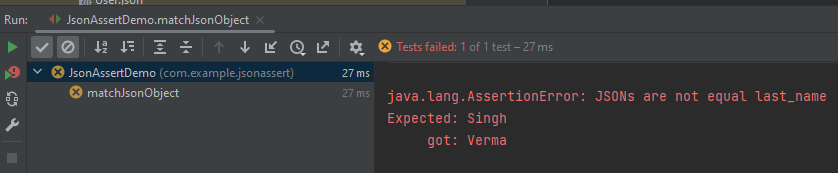
Here, both the JSONs have the same structure, but we have added one more attribute to the second one. In this case, the assertion matches the first string with the second one and it looks the same. So, the test passes.
Let us reverse the assertion now. We are comparing the jsonObject2 which has 3 attributes with jsonObject1 which has 2 attributes. So, salary is not present in jsonObject1. In this case, the test fails.
The compare mode can also be defined by using an overloaded method that takes boolean instead of JSONCompareMode where LENIENT = false and STRICT = true.