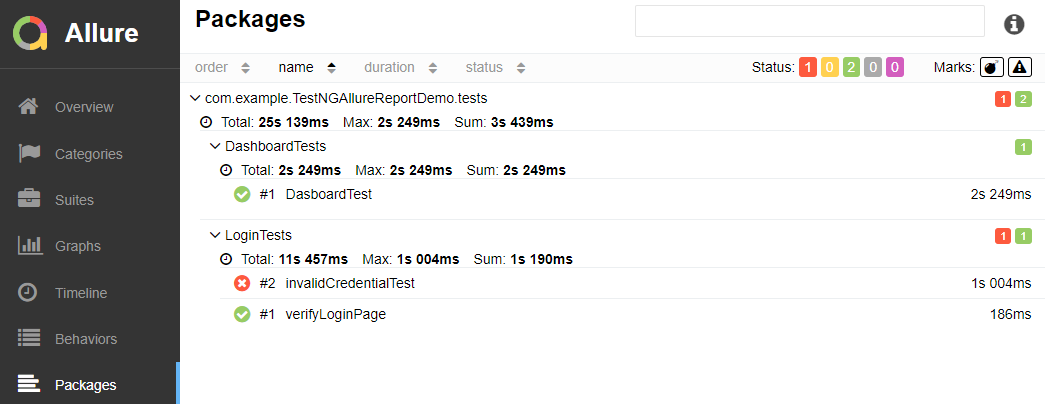
Gradle – Allure Report for Selenium and TestNG

HOME

The previous tutorial explained the generation of Allure Report for Selenium and TestNG in a Maven Project. This tutorial explains the generation of Allure Report for Selenium and TestNG in a Gradle project.

Pre-Requisite:

  1. Java 8 or higher installed
  2. Gradle installed
  3. Eclipse or IntelliJ installed

This framework consists of:

  1. Selenium – 4.3
  2. Java 11
  3. TestNG – 7.6.1
  4. Gradle – 7.5.1
  5. Allure Maven Plugin – 2.11.0
  6. Allure TestNG – 2.19.1

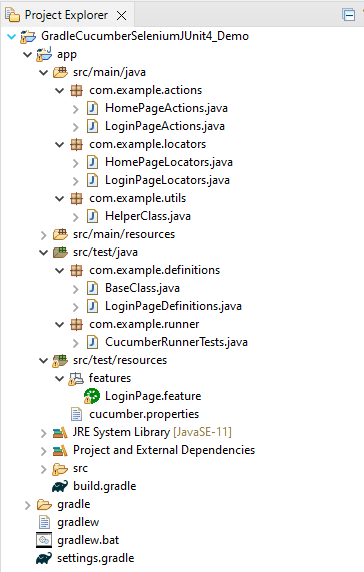
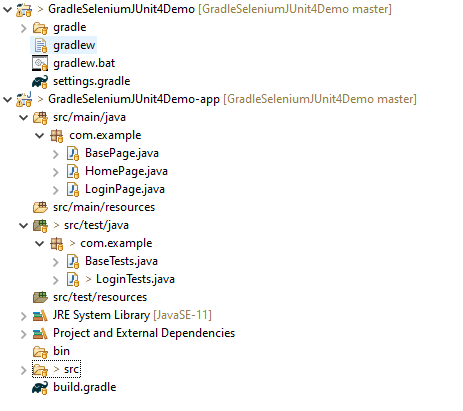
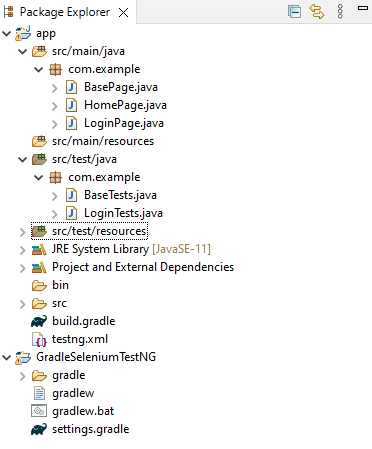
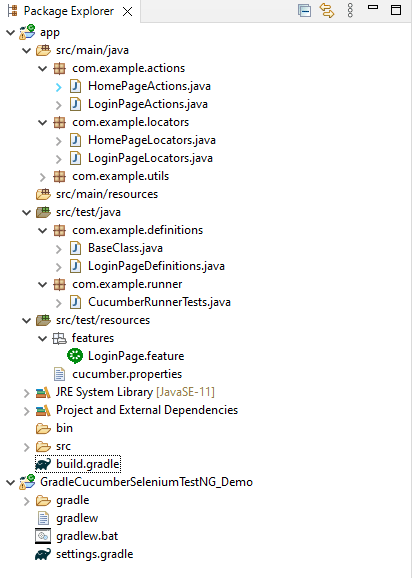
Project Structure

To create a Gradle project from the command line, please refer to this tutorial – How to create a Java Gradle project using Command Line.

Implementation Steps

  1. Add Selenium, TestNG, and Allure-TestNG dependencies in build.gradle
  2. Create Pages and Test Code for the pages
  3. Create testng.xml
  4. Execute the Tests
  5. Generate Allure Report

Step 1 – Add Selenium, TestNG, and Allure-TestNG dependencies in the build.gradle

plugins {
    // Apply the application plugin to add support for building a CLI application in Java.
    id 'application'
    id 'io.qameta.allure' version '2.11.0'
}

repositories {
    // Use Maven Central for resolving dependencies.
    mavenCentral()
}

java {
    sourceCompatibility = 11
    targetCompatibility = 11
}

dependencies {

    
    // Use TestNG framework, also requires calling test.useTestNG() below
    testImplementation 'org.testng:testng:7.6.1'

    // This dependency is used by the application.
    implementation 'com.google.guava:guava:31.0.1-jre'
    implementation 'org.seleniumhq.selenium:selenium-java:4.4.0'
    implementation 'io.github.bonigarcia:webdrivermanager:5.3.0'
    implementation 'io.qameta.allure:allure-testng:2.19.0'
}

application {
    // Define the main class for the application.
    mainClass = 'com.example.App'
}

tasks.named('test') {
    // Use TestNG for unit tests.
    useTestNG() {
    
    useDefaultListeners = true
    suites "./testng.xml"
 
   }
   
    testLogging {
        events "PASSED", "FAILED", "SKIPPED"
        exceptionFormat = 'full'
    }
}

Step 2 – Create Pages and Test Code for the pages

Below is the sample project which uses Selenium and TestNG which is used to generate an Allure Report.

We have used the PageFactory model to build the tests. I have created a package named pages and created the page classes in that folder. Page class contains the locators of each web element present on that particular page along with the methods of performing actions using these web elements.

This is the BaseClass that contains the PageFactory.initElements. The initElements is a static method of PageFactory class that is used to initialize all the web elements located by @FindBy annotation. 

import org.openqa.selenium.WebDriver;
import org.openqa.selenium.support.PageFactory;

public class BasePage {	

	  public WebDriver driver;

	  public BasePage(WebDriver driver) {
		  this.driver = driver;
		  PageFactory.initElements(driver,this);
	}

}

Below is the code for LoginPage and HomePage

LoginPage

import org.openqa.selenium.WebDriver;
import org.openqa.selenium.WebElement;
import org.openqa.selenium.support.FindBy;

public class LoginPage extends BasePage{
	
	 public LoginPage(WebDriver driver) {
		 super(driver);
		
    }
	
	@FindBy(name = "username")
    public WebElement userName;
 
    @FindBy(name = "password")
    public WebElement password;
    
    @FindBy(xpath = "//*[@id='app']/div[1]/div/div[1]/div/div[2]/div[2]/form/div[1]/div/span")
    public WebElement missingUsernameErrorMessage;
    
    @FindBy(xpath = "//*[@id='app']/div[1]/div/div[1]/div/div[2]/div[2]/form/div[1]/div/span")
    public WebElement missingPasswordErrorMessage;
 
    @FindBy(xpath = "//*[@id='app']/div[1]/div/div[1]/div/div[2]/div[2]/form/div[3]/button")
    public WebElement login;
 
    @FindBy(xpath = "//*[@id='app']/div[1]/div/div[1]/div/div[2]/div[2]/div/div[1]/div[1]/p")
    public  WebElement errorMessage;
          
   // Get the error message when password is blank
    public String getMissingPasswordText() {
        return missingPasswordErrorMessage.getText();
    }
      
    // Get the Error Message
    public String getErrorMessage() {
        return errorMessage.getText();
    }
    
    public void login(String strUserName, String strPassword) {
 
    	userName.sendKeys(strUserName);
    	password.sendKeys(strPassword);
    	login.click();
    }

}

HomePage

import org.openqa.selenium.WebDriver;
import org.openqa.selenium.WebElement;
import org.openqa.selenium.support.FindBy;

public class HomePage extends BasePage {

	public HomePage(WebDriver driver) {
		super(driver);

	}

	 @FindBy(xpath = "//*[@id='app']/div[1]/div[2]/div[2]/div/div[1]/div[1]/div[1]/h5")
	  public  WebElement homePageUserName;

	  // Get the User name from Home Page
	    public String getHomePageText() {
	       return homePageUserName.getText();
   }

}

Here, we have BaseTests Class also which contains the common methods needed by other test pages.

import java.time.Duration;
import org.openqa.selenium.WebDriver;
import org.openqa.selenium.chrome.ChromeDriver;
import org.testng.annotations.AfterMethod;
import org.testng.annotations.BeforeMethod;
import io.github.bonigarcia.wdm.WebDriverManager;
import io.qameta.allure.Step;

public class BaseTests {
	
	public WebDriver driver;
	public final static int TIMEOUT = 30;
    
	@BeforeMethod
    @Step("Start the application")
    public void setup() {
    	WebDriverManager.chromedriver().setup();
	    driver = new ChromeDriver();
	    driver.manage().window().maximize();
	    driver.get("https://opensource-demo.orangehrmlive.com/");	    
	    driver.manage().timeouts().implicitlyWait(Duration.ofSeconds(TIMEOUT));

    }
 
    @Step("Stop the application")
    @AfterMethod
    public void tearDown() {
        driver.quit();
    }
    
}

LoginTests

import org.testng.Assert;
import org.testng.annotations.Test;
import io.qameta.allure.Description;
import io.qameta.allure.Severity;
import io.qameta.allure.SeverityLevel;

public class LoginTests extends BaseTests{
	 
	@Severity(SeverityLevel.NORMAL)
    @Test(description = "This test validates error message when credentials are incorrect", priority = 0)
	@Description("Test Description : Login Test with invalid credentials")
    public void invalidCredentials() {
   
	    LoginPage objLoginPage = new LoginPage(driver);
    	objLoginPage.login("Admin", "admin123$$");
    	 
    	// Verify Error Message
    	 Assert.assertEquals(objLoginPage.getErrorMessage(),"Invalid credentials");
    
    }
    
	@Severity(SeverityLevel.BLOCKER)
    @Test(description = "This test validates login to the application", priority = 1)
	@Description("Test Description : Login Test with valid credentials")
    public void gotoHomePage() {
   
	    LoginPage objLoginPage = new LoginPage(driver);
    	objLoginPage.login("Admin", "admin123");
    	 
    	HomePage objHomePage = new HomePage(driver);
    	
    	// Verify Home Page
    	 Assert.assertEquals(objHomePage.getHomePageText(),"Employee Information");
    
    }
    
	@Severity(SeverityLevel.NORMAL)
    @Test(description = "This test will fail", priority = 2)
	@Description("Test Description : Login Test with missing username")
    public void missingUsername() {
   
	    LoginPage objLoginPage = new LoginPage(driver);
    	objLoginPage.login("", "admin123");
    	    	
    	// Verify Error Message
   	        	 Assert.assertEquals(objLoginPage.getMissingUsernameText(),"Invalid credentials");
    
    }
	
	@Severity(SeverityLevel.NORMAL)
    @Test(description = "This test will skip", priority = 3, enabled = false)
	@Description("Test Description : Login Test with missing password")
    public void missingPassword() {
   
	    LoginPage objLoginPage = new LoginPage(driver);
    	objLoginPage.login("admin", "");
    	    	
    	// Verify Error Message
   	     Assert.assertEquals(objLoginPage.getErrorMessage(),"Invalid credentials");
    
    }
     
}

Step 3 – Create testng.xml

Right-click on the project and select TestNG -> Convert to TestNG.

<?xml version="1.0" encoding="UTF-8"?>
<!DOCTYPE suite SYSTEM "https://testng.org/testng-1.0.dtd">
<suite name="Suite">
  <test name="Gradle - Selenium with TestNG Tests">
    <classes>
      <class name="com.example.LoginTests"/>
    </classes>
  </test> <!-- Test -->
</suite> <!-- Suite -->

Step 4 – Execute the Tests

Note:- As you can see my project has two parts – the app and GradleSeleniumTestNG.

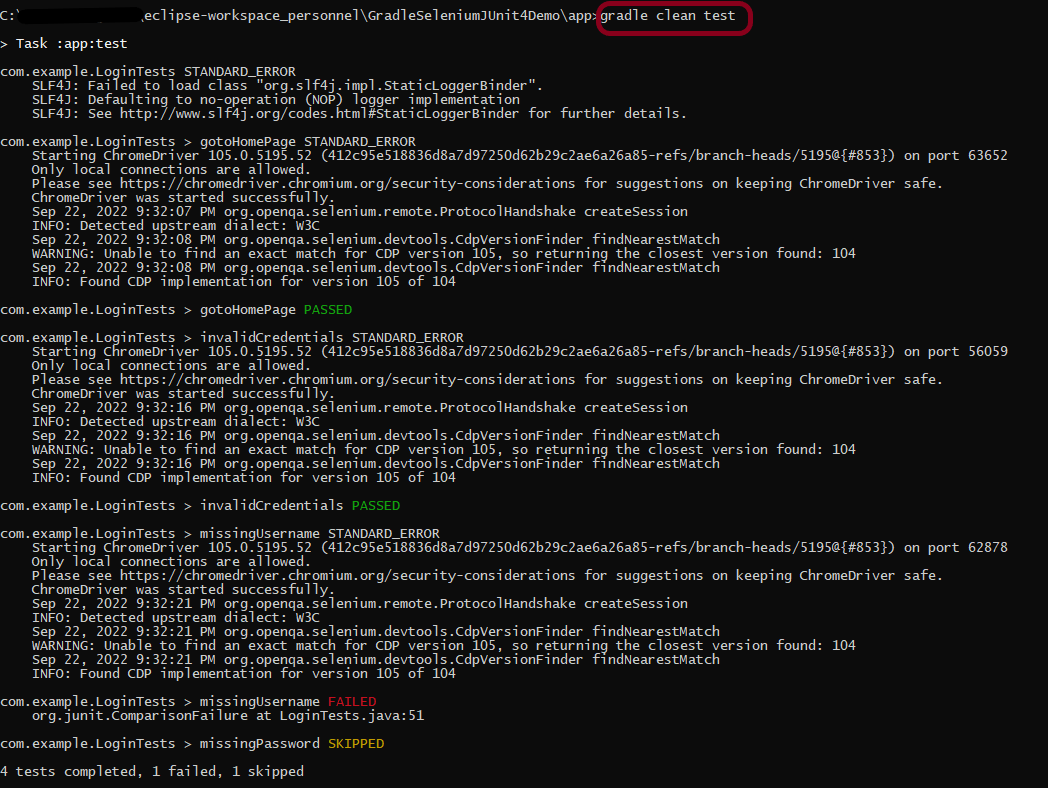
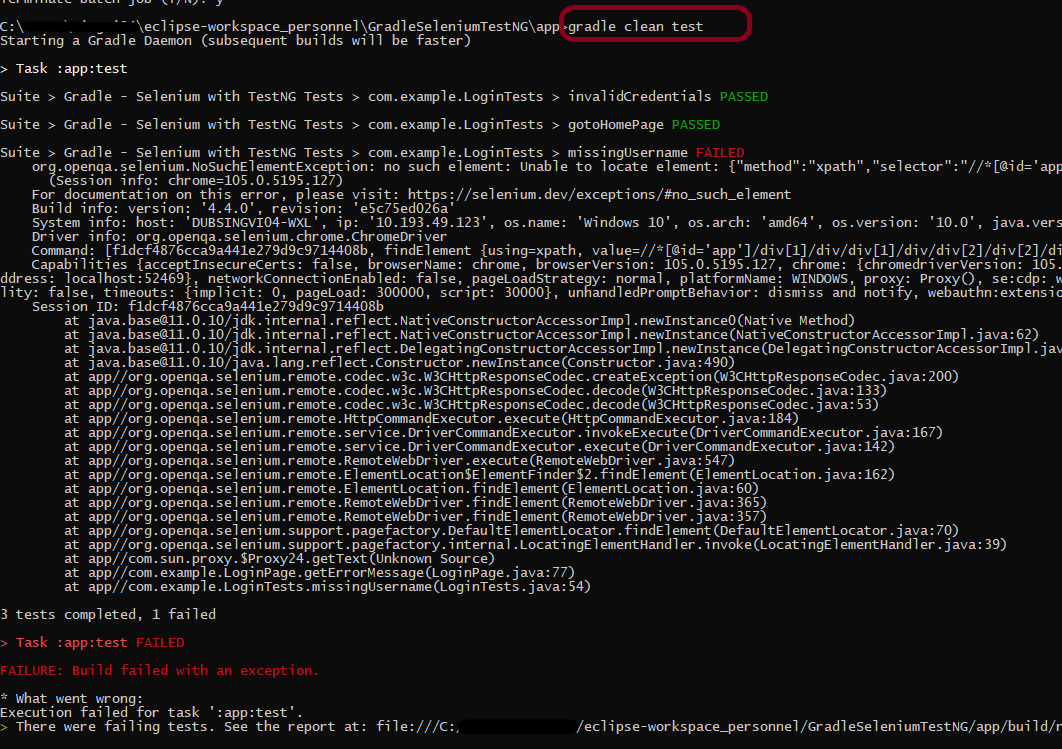
Go to the app project and run the tests, using the below command

gradle clean test

The output of the test execution is

Step 5 – Generate the Allure Report

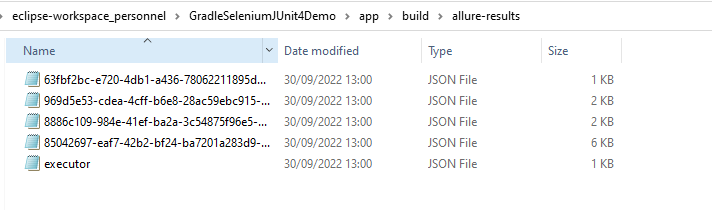
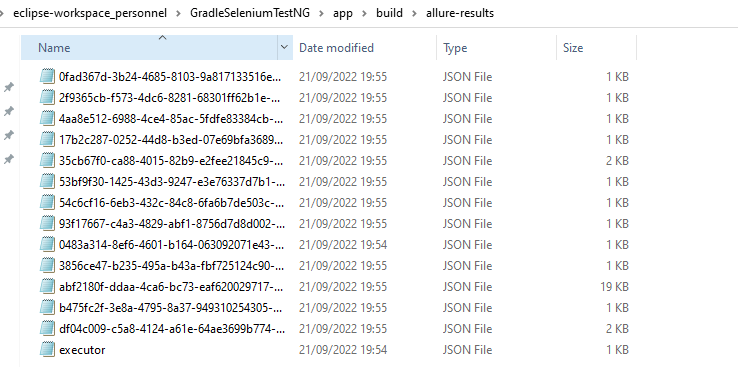
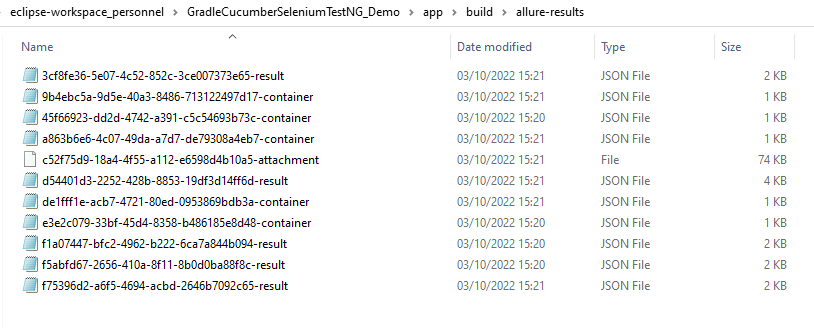
Once the test execution is finished, a folder named allure-results will be generated in the build folder.

To generate Allure Report, use the below command

allure serve build/allure-results

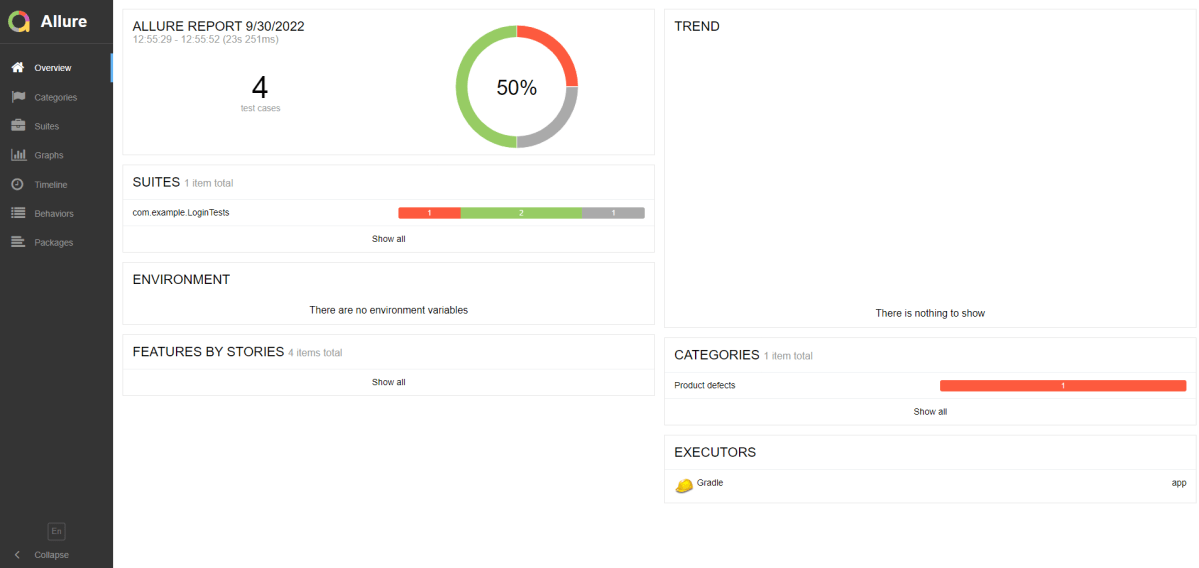
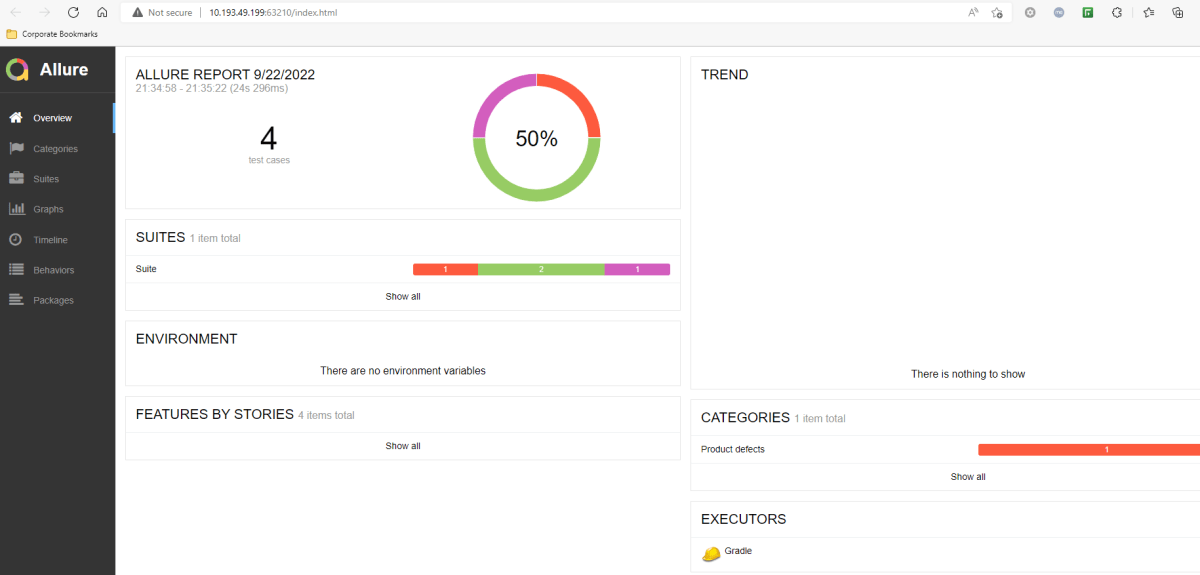
This will generate the beautiful Allure Test Report as shown below.

Allure Report Dashboard

The overview page hosts several default widgets representing the basic characteristics of your project and test environment.

  1. Statistics – overall report statistics.
  2. Launches – if this report represents several test launches, statistics per launch will be shown here.
  3. Behaviors – information on results aggregated according to stories and features.
  4. Executors – information on test executors that were used to run the tests.
  5. History Trend – if tests accumulated some historical data, its trend will be calculated and shown on the graph.
  6. Environment – information on the test environment.
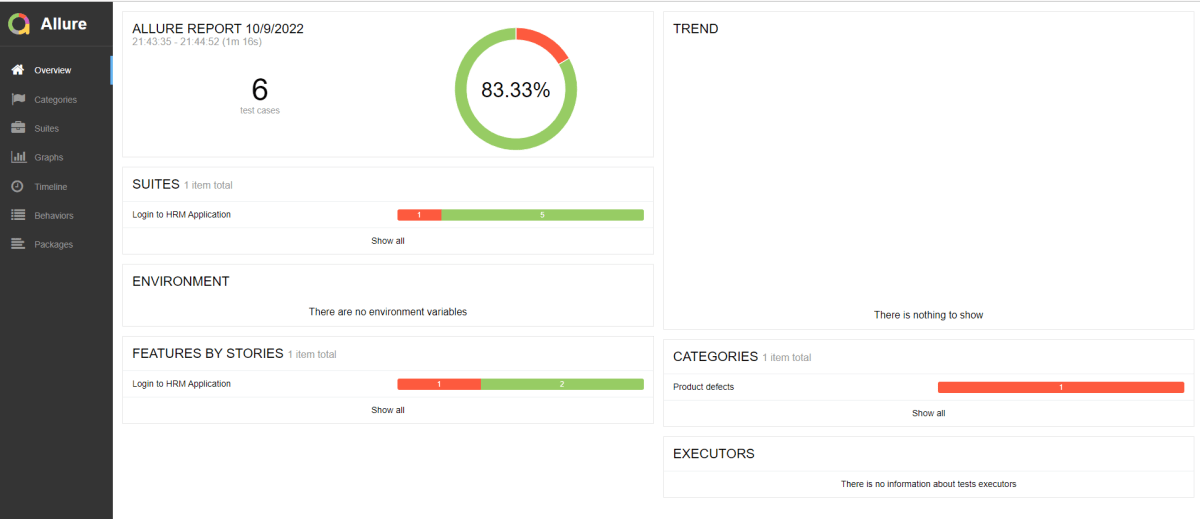
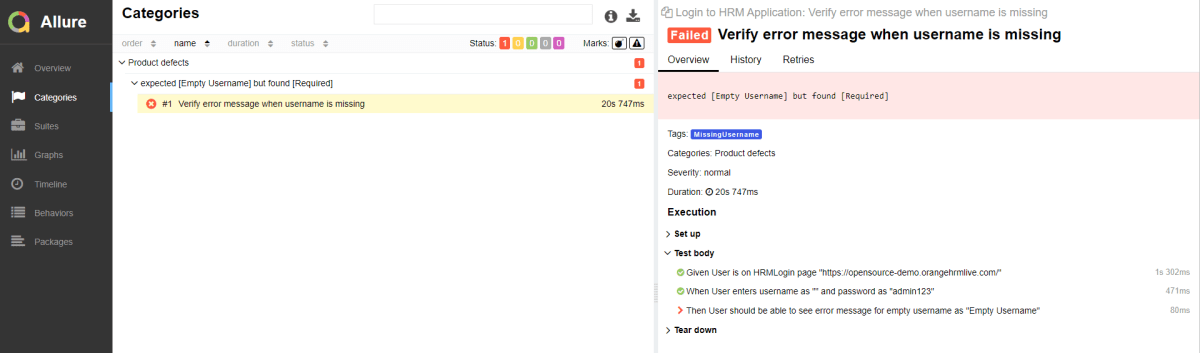
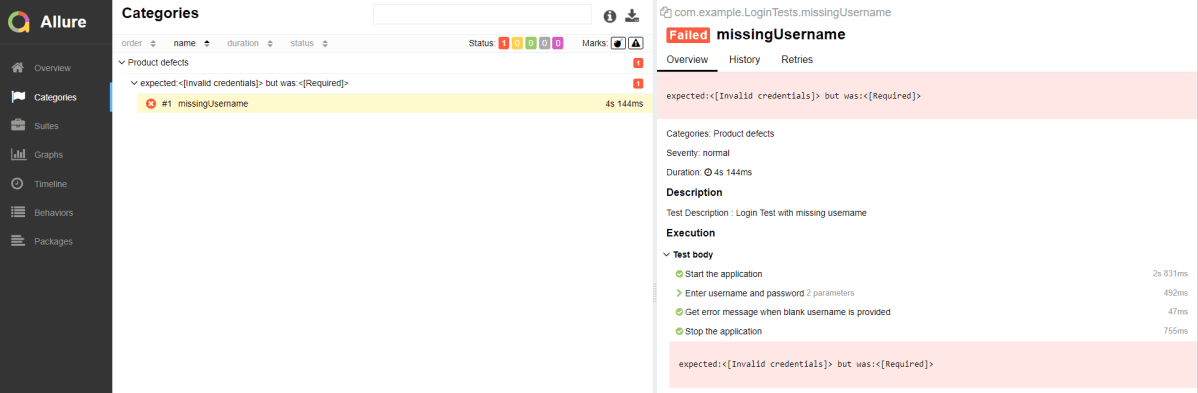
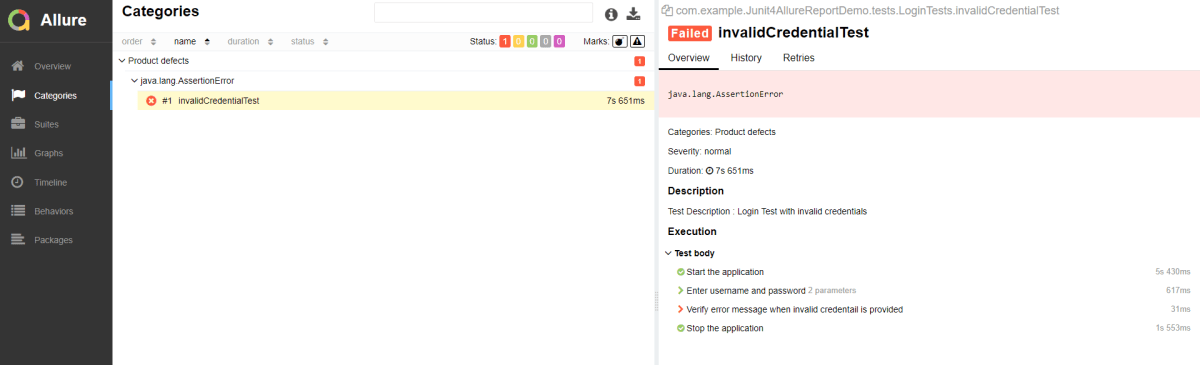
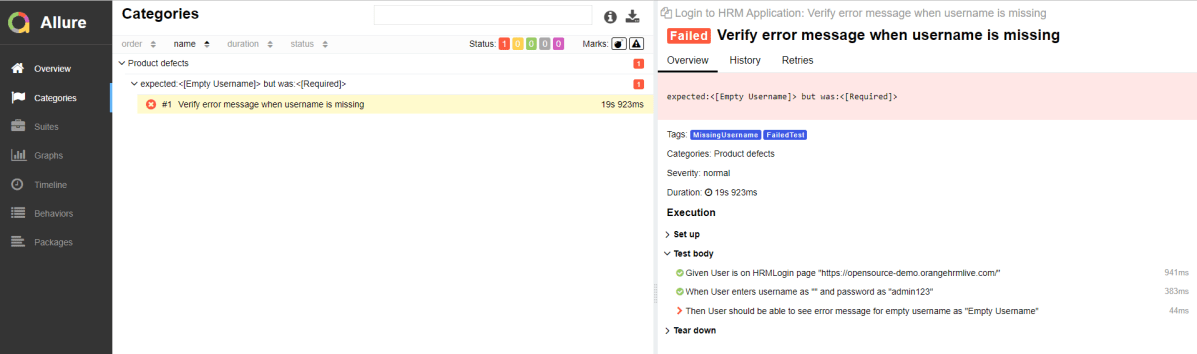
Categories in Allure Report

The categories tab gives you a way to create custom defects classifications to apply for test results. There are two categories of defects – Product Defects (failed tests) and Test Defects (broken tests).
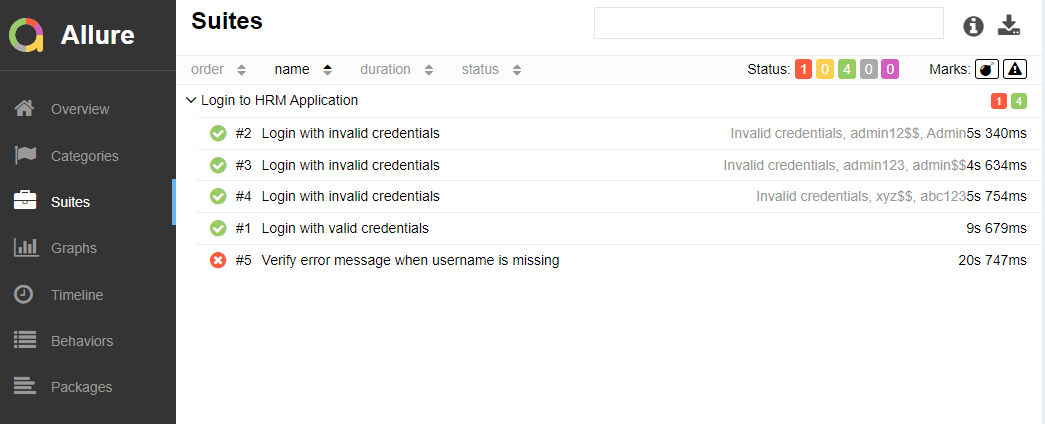
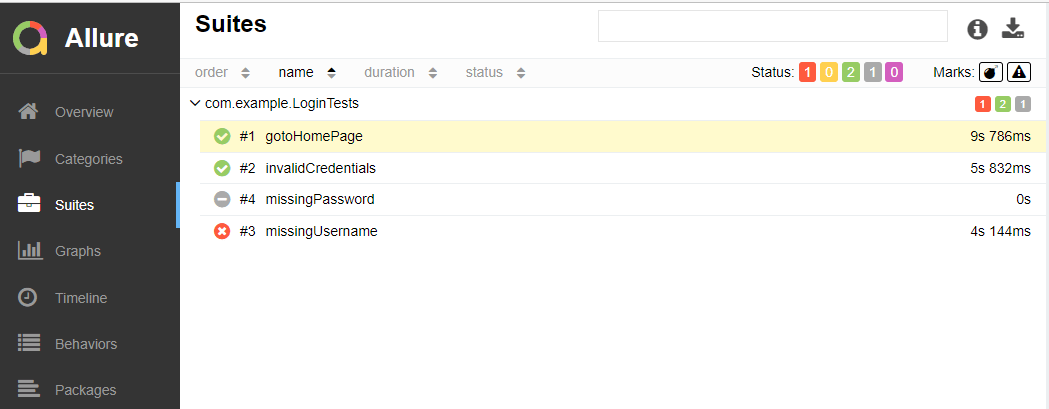
Suites in Allure Report

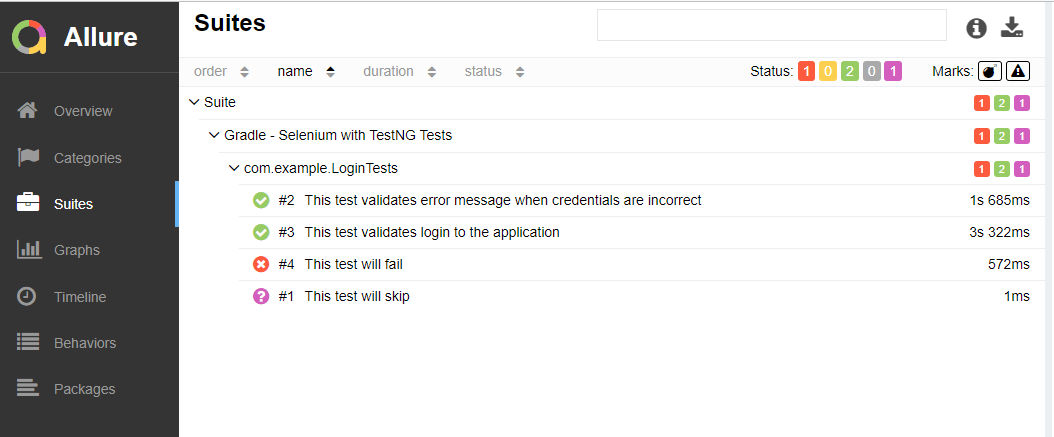
On the Suites tab a standard structural representation of executed tests, grouped by suites and classes can be found.
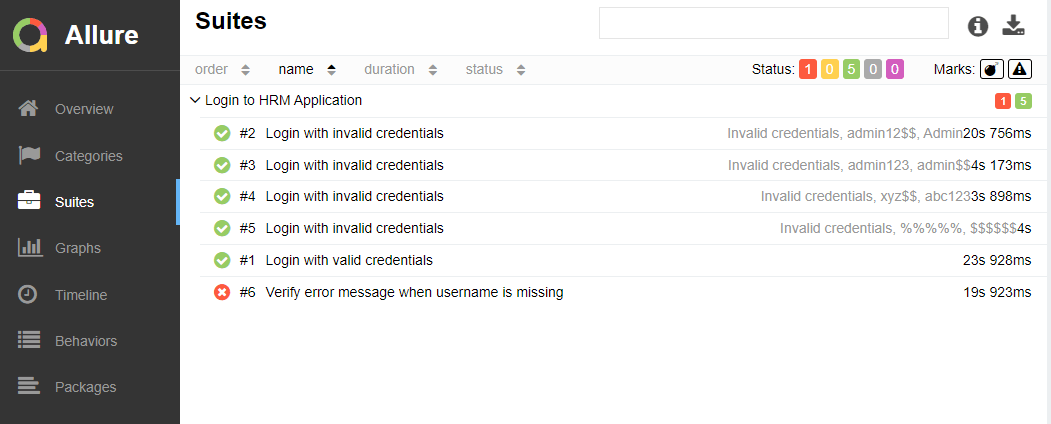
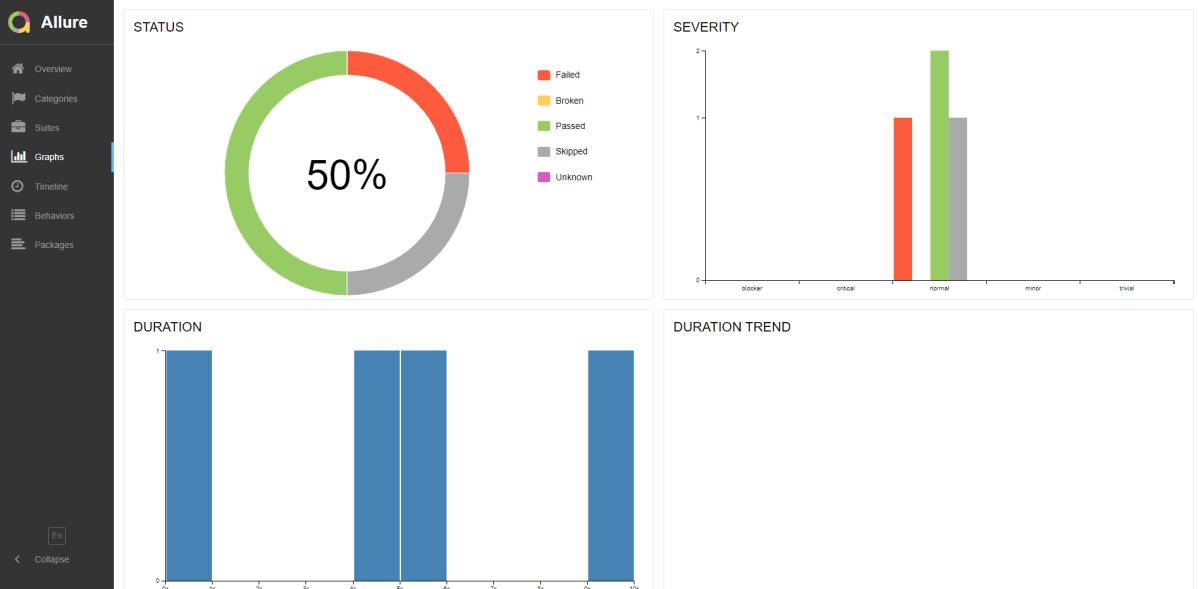
Here, I have used TestNG, so to skip the tests have used enabled. But, in the Allure Report, it is marked as unknown (pink color).

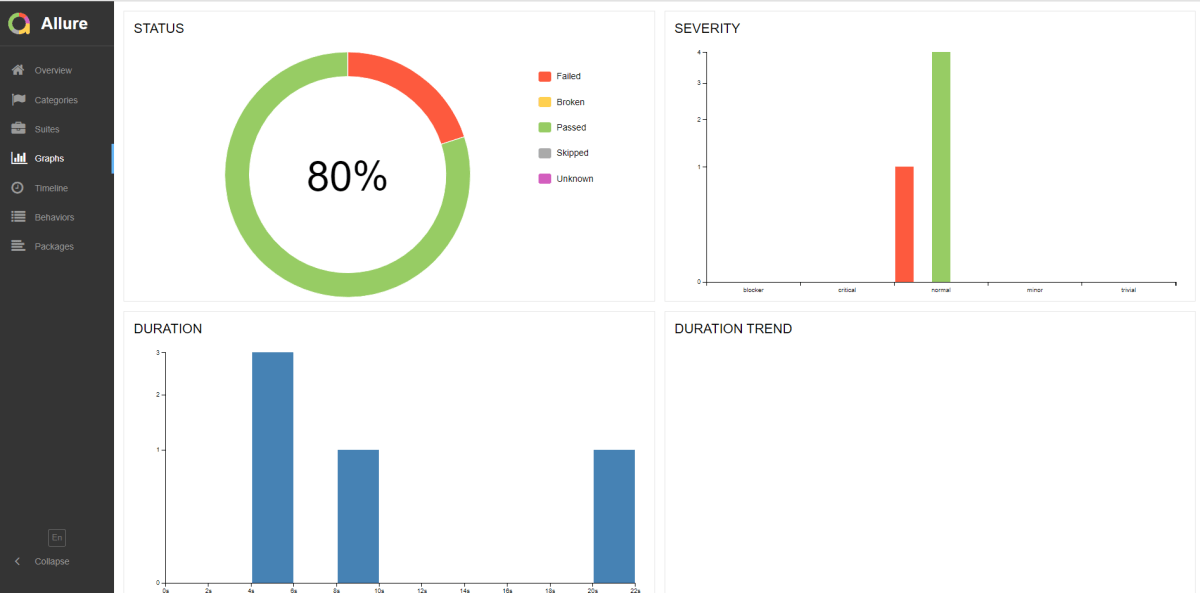
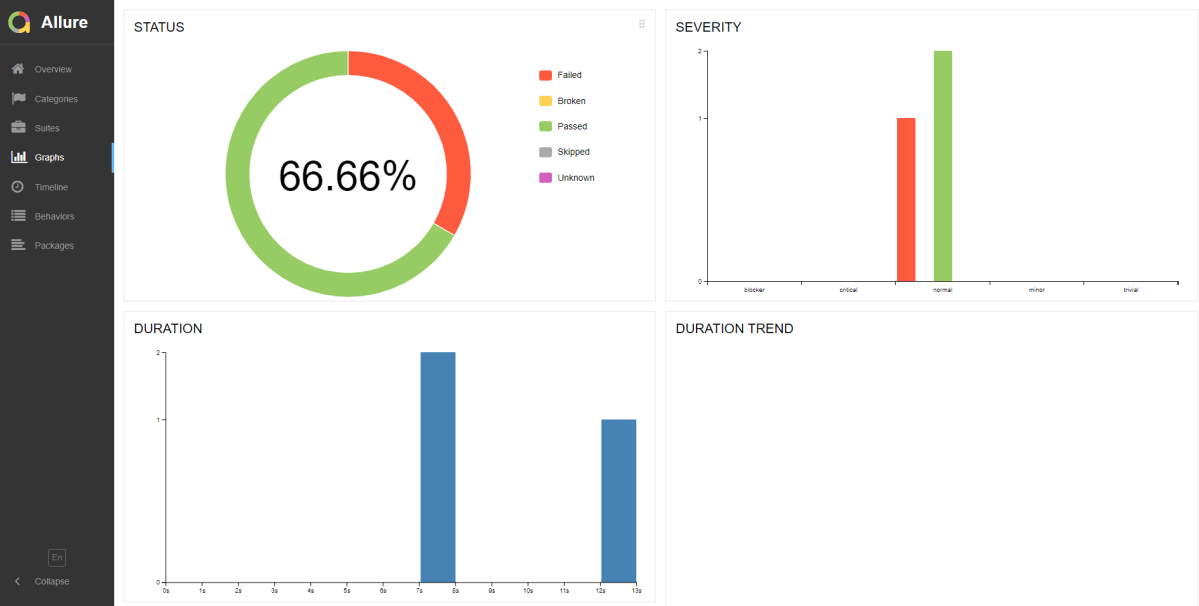
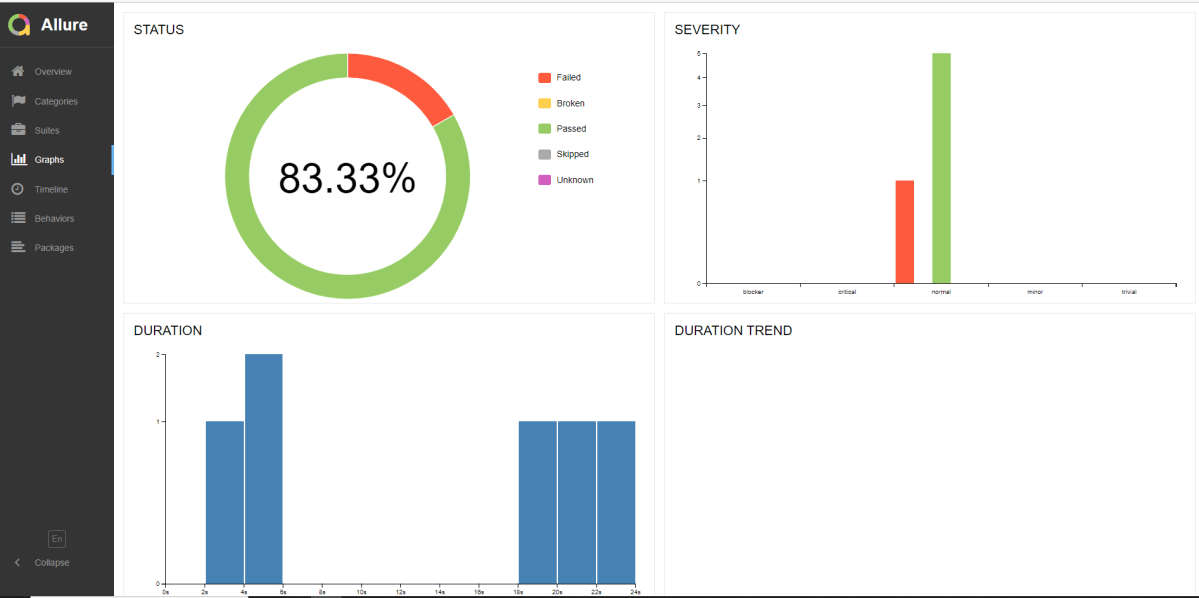
Graphs in Allure Report

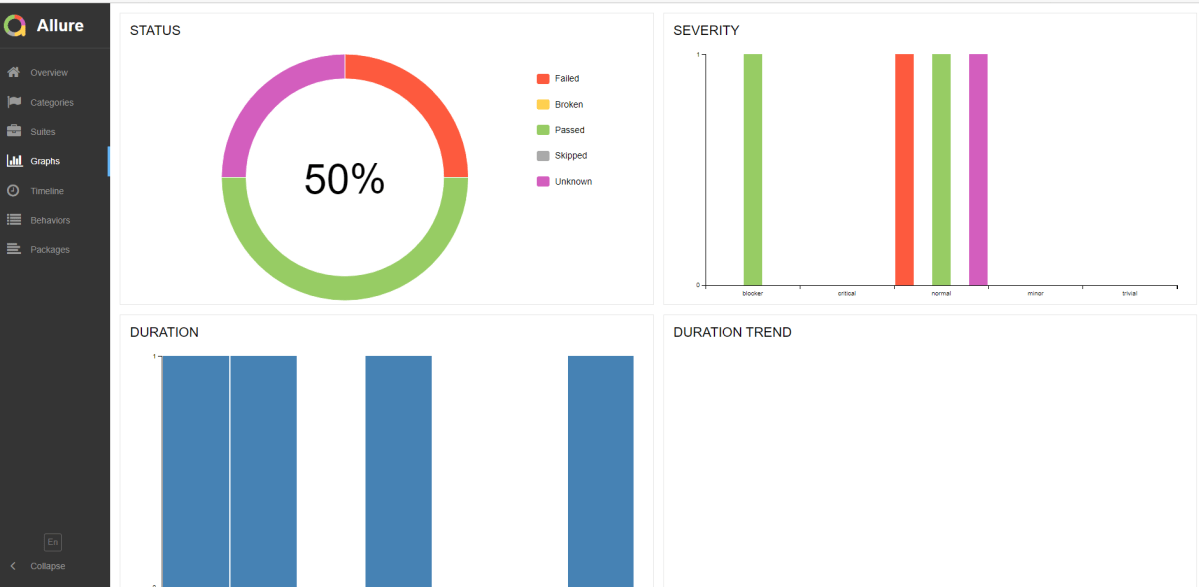
Graphs allow you to see different statistics collected from the test data: status breakdown or severity and duration diagrams.
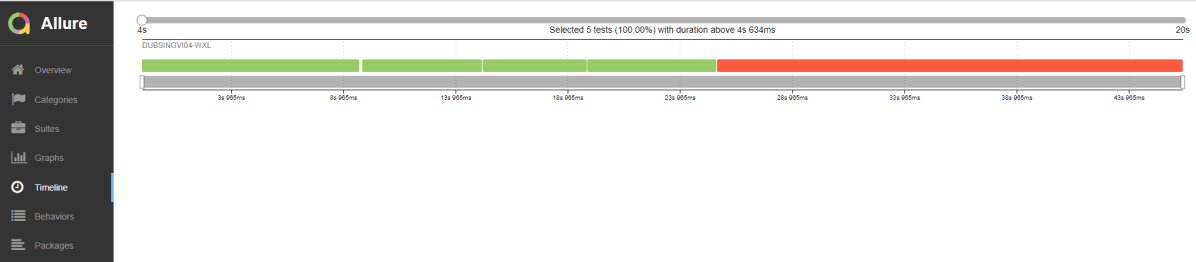
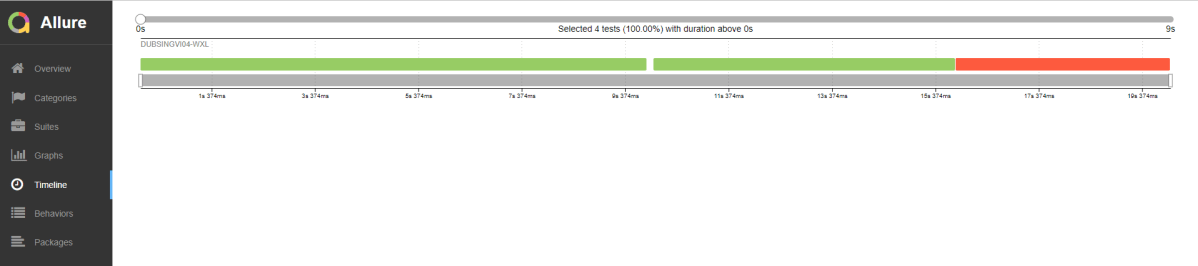
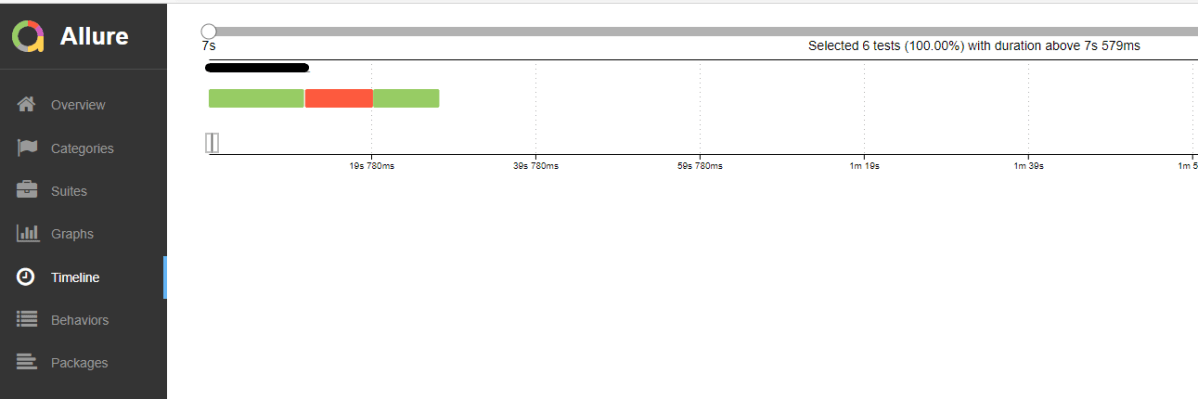
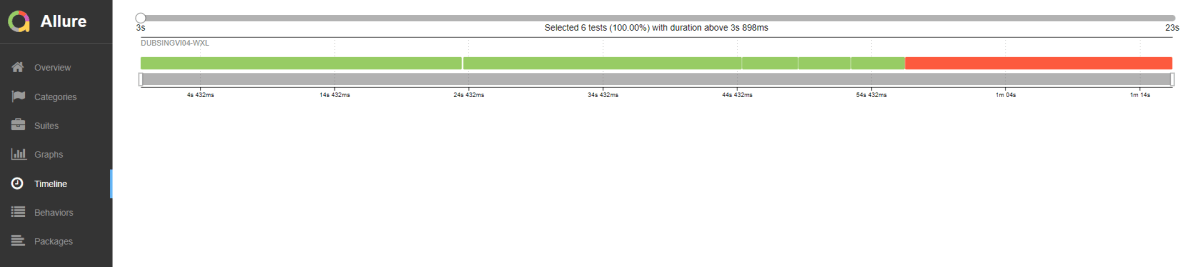
Timeline in Allure Report

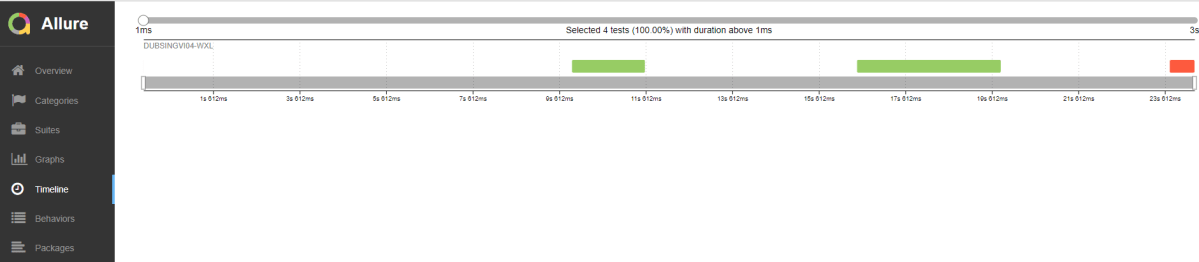
The timeline tab visualizes retrospective test execution, allure adaptors collect precise timings of tests, and here on this tab, they are arranged accordingly to their sequential or parallel timing structure.
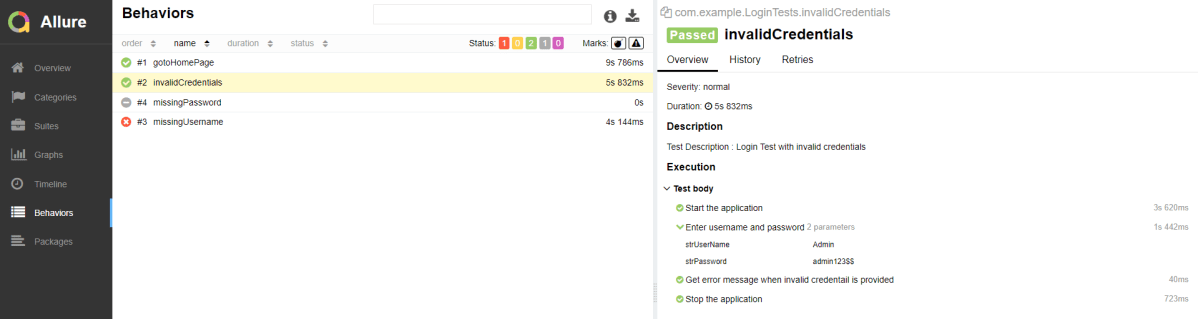
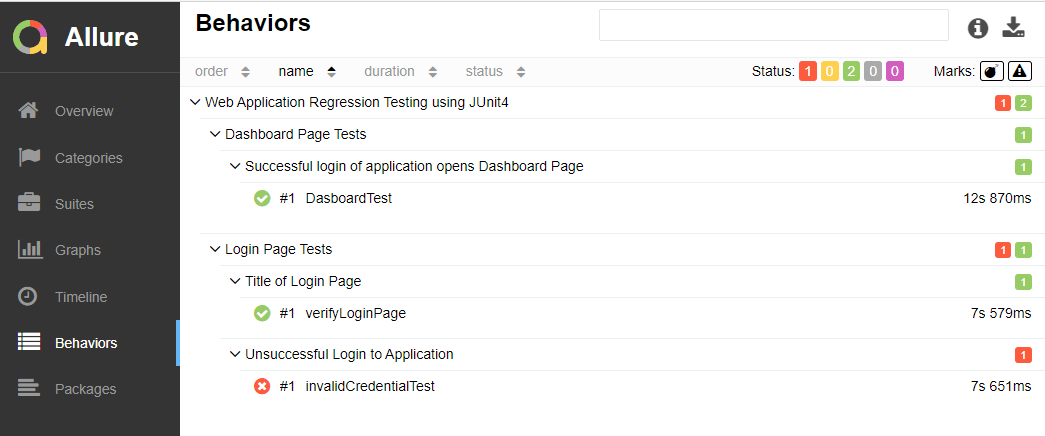
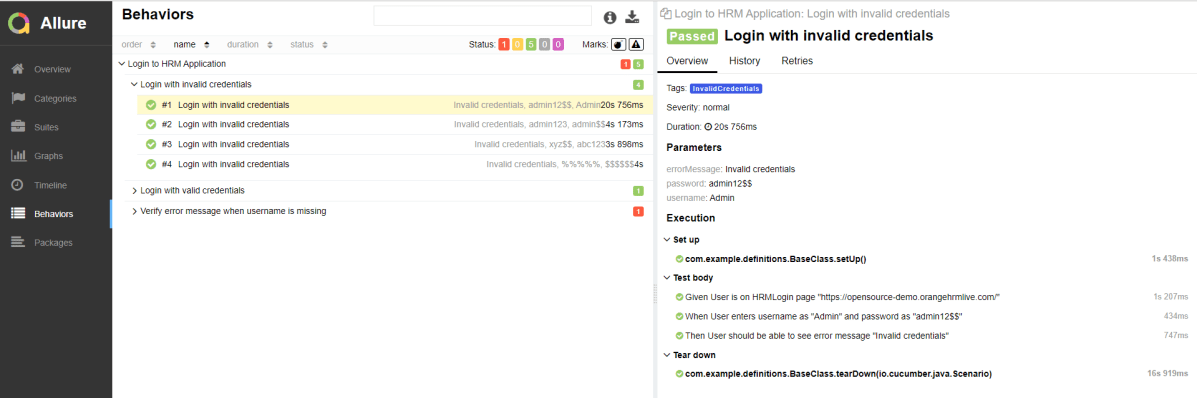
Behaviors of Allure Report

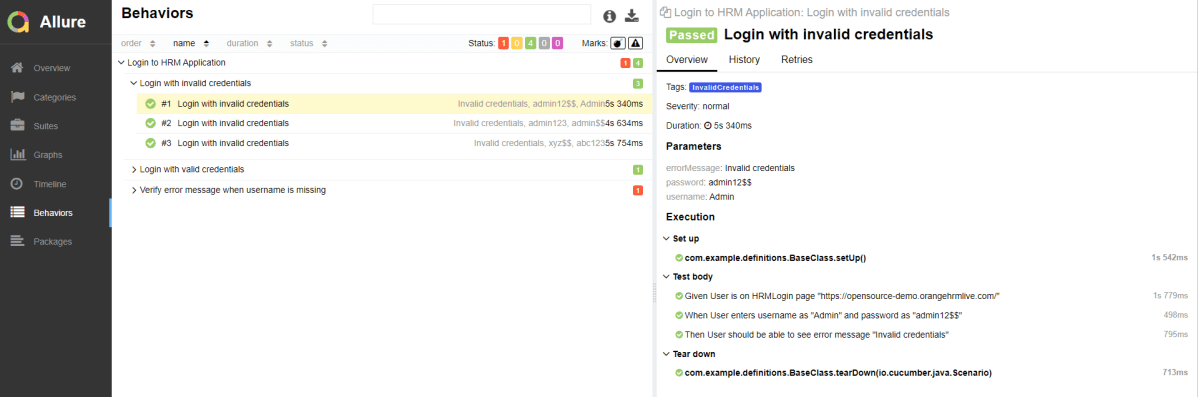
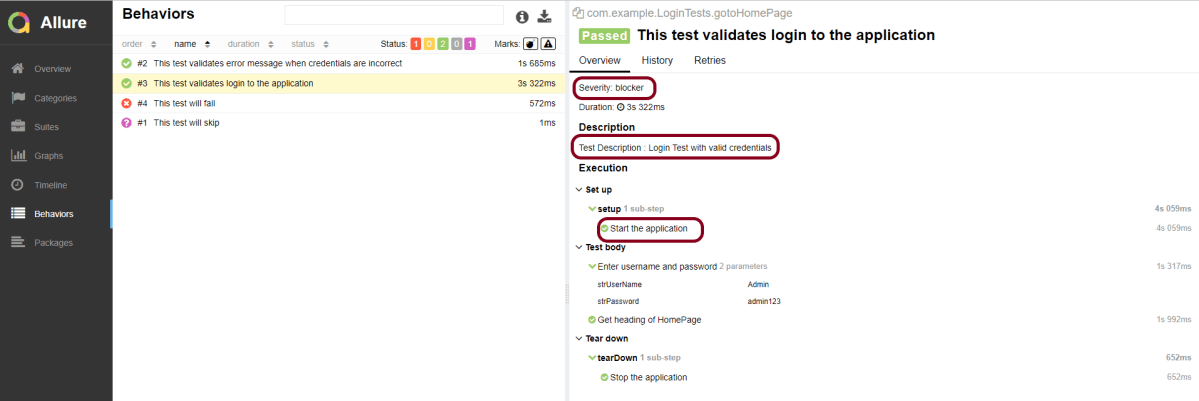
This tab groups test results according to Epic, Feature, Story, Test Severity, Test Description, Test Steps, and so on.
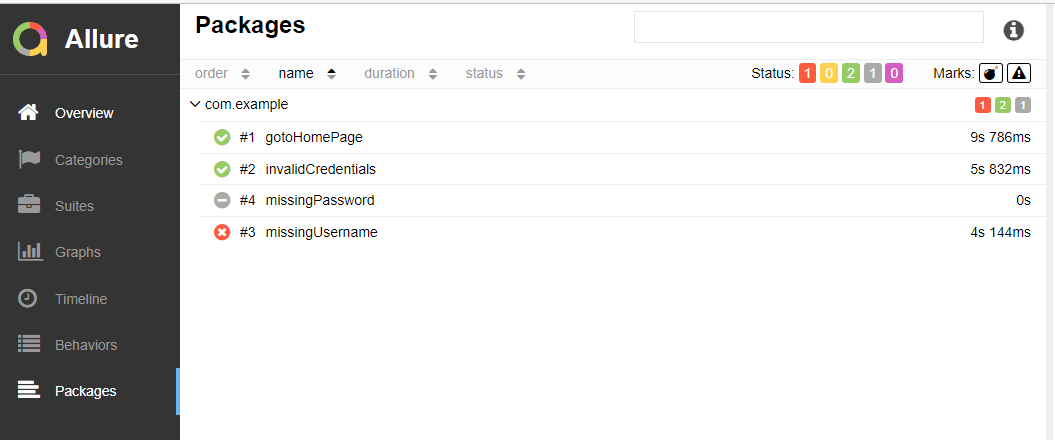
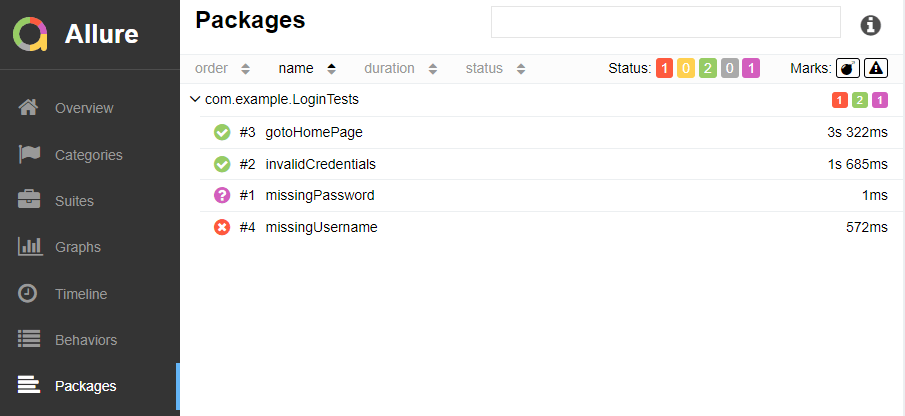
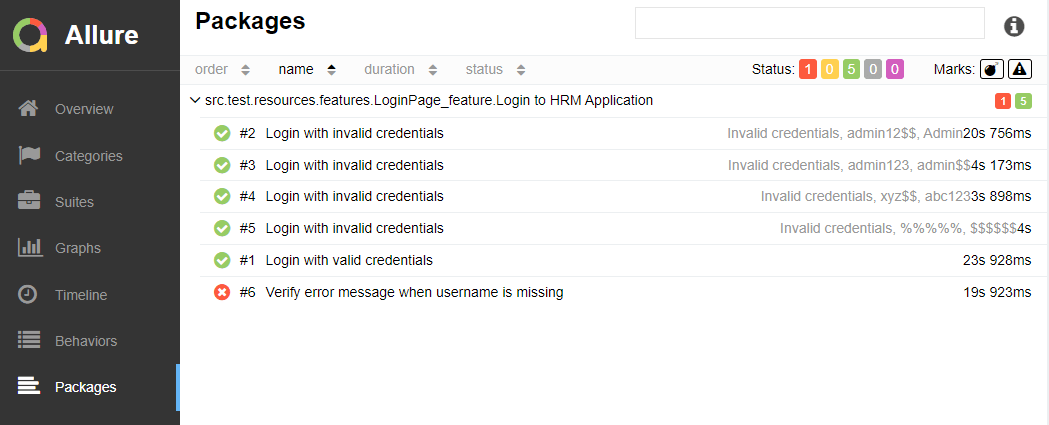
Packages in Allure Report

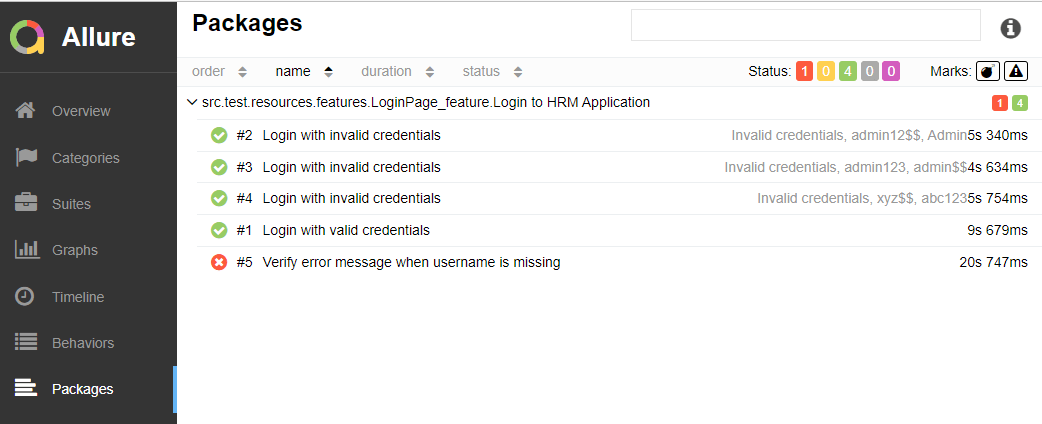
The packages tab represents a tree-like layout of test results, grouped by different packages.
Congratulations on making it through this tutorial and hope you found it useful! Happy Learning!! Cheers!!
Allure Report with Selenium and JUnit5

HOME

In the previous tutorial, I explained the Integration of the Allure Report with Selenium and JUnit4. In this tutorial, I will explain how to Integrate Allure Report with Selenium and JUnit5.

Prerequisite

  1. Java 11 is installed
  2. Maven is installed
  3. Eclipse or IntelliJ is installed
  4. Allure is installed

Dependency List:

  1. Selenium – 3.141.59
  2. Java 11
  3. JUnit – 4.13.2
  4. Maven – 3.8.1
  5. Allure Report – 2.14.0
  6. Allure JUnit4 – 2.14.0

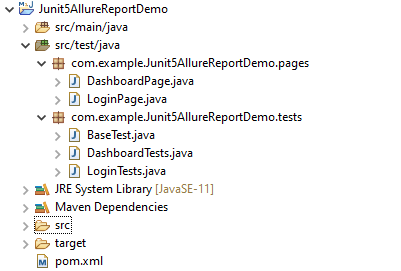
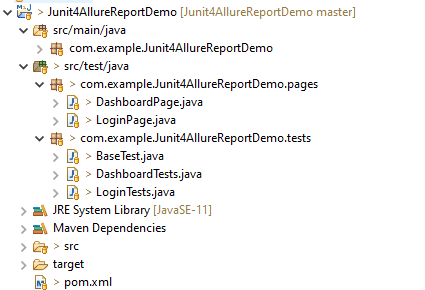
Structure of Project

Step 1 – Update Properties section in Maven pom.xml

 <properties>
    <project.build.sourceEncoding>UTF-8</project.build.sourceEncoding>
    <java.version>11</java.version>
    <selenium.version>3.141.59</selenium.version> 
    <junit.jupiter.version>5.8.0-M1</junit.jupiter.version>
    <junit.platform.version>1.8.0-M1</junit.platform.version>
    <allure.maven.version>2.10.0</allure.maven.version>
    <allure.junit5.version>2.14.0</allure.junit5.version>
    <maven.surefire.plugin.version>3.0.0-M3</maven.surefire.plugin.version>
    <maven.compiler.plugin.version>3.8.1</maven.compiler.plugin.version>
    <aspectj.version>1.9.6</aspectj.version>
    <maven.compiler.source>11</maven.compiler.source>
    <maven.compiler.target>11</maven.compiler.target>
  </properties>

Step 2 – Add Selenium, JUnit5, and Allure-JUnit5 dependencies in POM.xml

<dependencies>
  
      <!--Selenium Dependency-->
      <dependency>
          <groupId>org.seleniumhq.selenium</groupId>
          <artifactId>selenium-java</artifactId>
          <version>${selenium.version}</version>
       </dependency>
  
     <!--JUNIT 5 Dependencies-->
        <dependency>
            <groupId>org.junit.jupiter</groupId>
            <artifactId>junit-jupiter-api</artifactId>
            <version>${junit.jupiter.version}</version>
        </dependency>
        
        <dependency>
            <groupId>org.junit.jupiter</groupId>
            <artifactId>junit-jupiter-engine</artifactId>
            <version>${junit.jupiter.version}</version>
        </dependency>
        
        <dependency>
            <groupId>org.junit.platform</groupId>
            <artifactId>junit-platform-engine</artifactId>
            <version>${junit.platform.version}</version>
        </dependency>
        
        <dependency>
            <groupId>org.junit.platform</groupId>
            <artifactId>junit-platform-launcher</artifactId>
            <version>${junit.platform.version}</version>
        </dependency>
        
        <dependency>
            <groupId>org.junit.platform</groupId>
            <artifactId>junit-platform-runner</artifactId>
            <version>${junit.platform.version}</version>
        </dependency>
        
        <!--Allure Reporting Dependencies-->
        <dependency>
            <groupId>io.qameta.allure</groupId>
            <artifactId>allure-junit5</artifactId>
            <version>${allure.junit5.version}</version>
        </dependency>
        
  </dependencies>

Step 3 – Update the Build Section of pom.xml in Allure Report Project

<build>
        <plugins>
        <plugin>
               
                <artifactId>maven-surefire-plugin</artifactId>
                <version>${maven.surefire.plugin.version}</version>
                <configuration>
                <testFailureIgnore>false</testFailureIgnore>
                        <argLine>
                            -javaagent:"${settings.localRepository}/org/aspectj/aspectjweaver/${aspectj.version}/aspectjweaver-${aspectj.version}.jar"
                        </argLine>
                    <systemProperties>
                        <property>
                            <name>junit.jupiter.extensions.autodetection.enabled</name>
                            <value>true</value>
                        </property>
                    </systemProperties>
                </configuration>
                
                <dependencies>
                   
                    <dependency>
                        <groupId>org.aspectj</groupId>
                        <artifactId>aspectjweaver</artifactId>
                        <version>${aspectj.version}</version>
                    </dependency>
                </dependencies>
                
            </plugin>
            <plugin>
                <groupId>io.qameta.allure</groupId>
                <artifactId>allure-maven</artifactId>
                <version>${allure.maven.version}</version>
                <configuration>
                    <reportVersion>2.4.1</reportVersion>
                </configuration>
            </plugin>
      </plugins>
  </build>

Step 4 – Create Pages and Test Code for the pages

Below is the sample project which uses Selenium and JUnit4 which is used to generate an Allure Report.

We have 2 pages. Below is the code for Login Page which contains all the web elements and methods related to that web elements.

Note:- This is a sample code. There could be the probability that XPath would have changed. So, the tests won’t run as expected and please keep this in mind.

public class LoginPage {

	WebDriver driver;

	By userName = By.name("txtUsername");

	By password = By.name("txtPassword");

	By titleText = By.id("logInPanelHeading");

	By login = By.id("btnLogin");

	By errorMessage = By.id("spanMessage");

	public LoginPage(WebDriver driver) {
		this.driver = driver;
	}

	// Set user name in textbox
	public void setUserName(String strUserName) {
		driver.findElement(userName).sendKeys(strUserName);
	}

	// Set password in password textbox
	public void setPassword(String strPassword) {
		driver.findElement(password).sendKeys(strPassword);
	}

	// Click on login button
	public void clickLogin() {
		driver.findElement(login).click();
	}

	@Step("Verify title of Login Page")
	public void verifyPageTitle() {
		String loginPageTitle = driver.findElement(titleText).getText();
		assertTrue(loginPageTitle.contains("LOGIN Panel"));
	}

	/* Failed Test */
	@Step("Verify error message when invalid credentail is provided")
	public void verifyErrorMessage() {
		String invalidCredentialErrorMessage = driver.findElement(errorMessage).getText();
		assertTrue(invalidCredentialErrorMessage.contains("Incorrect Credentials"));
	}

	@Step("Enter username and password")
	public void login(String strUserName, String strPasword) {

		// Fill user name
		this.setUserName(strUserName);

		// Fill password
		this.setPassword(strPasword);

		// Click Login button
		this.clickLogin();

	}
}

assertTrue() is imported from the below JUnit package for assertion.

import static org.junit.jupiter.api.Assertions.assertTrue;

DashboardPage.java

public class DashboardPage {

	WebDriver driver;

	By dashboardPageTitle = By.id("welcome");

	By assignLeaveOption = By.cssSelector(
			"#dashboard-quick-launch-panel-menu_holder > table > tbody > tr > td:nth-child(1) > div > a > span");

	By leaveListOption = By.cssSelector(
			"#dashboard-quick-launch-panel-menu_holder > table > tbody > tr > td:nth-child(2) > div > a > span");

	By timesheetsOption = By.cssSelector(
			"#dashboard-quick-launch-panel-menu_holder > table > tbody > tr > td:nth-child(3) > div > a > span");

	By applyLeaveOption = By.cssSelector(
			"#dashboard-quick-launch-panel-menu_holder > table > tbody > tr > td:nth-child(4) > div > a > span");

	public DashboardPage(WebDriver driver) {
		this.driver = driver;

	}

	@Step("Verify title of Dashboard page")
	public void verifyDashboardPageTitle() {
		String DashboardPageTitle = driver.findElement(dashboardPageTitle).getText();
		assertTrue(DashboardPageTitle.contains("Welcome"));
	}

	@Step("Verify Assign Leave Quick Launch Options on Dashboard page")
	public void verifyAssignLeaveOption() {
		String QuickLaunchOptions = driver.findElement(assignLeaveOption).getText();
		assertTrue(QuickLaunchOptions.contains("Assign Leave"));
	}

	@Step("Verify Leave List Quick Launch Options on Dashboard page")
	public void verifyLeaveListOption() {
		String LeaveListQuickLaunchOption = driver.findElement(leaveListOption).getText();
		assertTrue(LeaveListQuickLaunchOption.contains("Leave List"));
	}

	@Step("Verify Assign Leave Quick Launch Options on Dashboard page")
	public void verifytimesheetsOption() {
		String timesheetsOptionQuickLaunchOption = driver.findElement(timesheetsOption).getText();
		assertTrue(timesheetsOptionQuickLaunchOption.contains("Timesheets"));
	}

	@Step("Verify Leave List Quick Launch Options on Dashboard page")
	public void verifyApplyLeaveOption() {
		String applyLeaveQuickLaunchOptions = driver.findElement(applyLeaveOption).getText();
		assertTrue(applyLeaveQuickLaunchOptions.contains("Apply Leave"));
	}

}


Test Classes related to various Pages

BaseTest.java

public class BaseTest {

	public static WebDriver driver;
	LoginPage objLogin;
	DashboardPage objDashboardPage;

	@Step("Start the application")
	@BeforeEach
	public void setup() {
		System.setProperty("webdriver.gecko.driver",
				"C:\\Users\\Vibha\\Software\\geckodriver-v0.26.0-win64\\geckodriver.exe");
		driver = new FirefoxDriver();
		driver.manage().window().maximize();
		driver.manage().timeouts().implicitlyWait(10, TimeUnit.SECONDS);
		driver.get("https://opensource-demo.orangehrmlive.com/");
	}

	@Step("Stop the application")
	@AfterEach
	public void close() {
		driver.close();
	}
}

@BeforeEach is used to signal that the annotated method should be executed before each @Test, @RepeatedTest, @ParameterizedTest, @TestFactory, and @TestTemplate method in the current test class. It is imported from:-

import org.junit.jupiter.api.BeforeEach;

@AfterEach is used to signal that the annotated method should be executed after each @Test, @RepeatedTest, @ParameterizedTest, @TestFactory, and @TestTemplate method in the current test class. It is imported from:-

import org.junit.jupiter.api.AfterEach;

LoginTests.java

@Epic("Web Application Regression Testing using JUnit5")
@Feature("Login Page Tests")
public class LoginTests extends BaseTest {

	LoginPage objLogin;
	DashboardPage objDashboardPage;

	@Severity(SeverityLevel.NORMAL)
	@Test
	@Description("Test Description : Verify the title of Login Page")
	@Story("Title of Login Page")
	public void verifyLoginPage() {

		// Create Login Page object
		objLogin = new LoginPage(driver);

		// Verify login page text
		objLogin.verifyPageTitle();
	}

	@Severity(SeverityLevel.BLOCKER)
	@Test
	@Description("Test Description : Login Test with invalid credentials")
	@Story("Unsuccessful Login to Application")
	public void invalidCredentialTest() {

		// Create Login Page object
		objLogin = new LoginPage(driver);
		objLogin.login("test", "test123");

		// Verify login page text
		objLogin.verifyErrorMessage();

	}

}

DashboardTests.java

package com.example.Junit5AllureReportDemo.tests;

import org.junit.jupiter.api.Test;

import com.example.Junit5AllureReportDemo.pages.DashboardPage;
import com.example.Junit5AllureReportDemo.pages.LoginPage;

import io.qameta.allure.Description;
import io.qameta.allure.Epic;
import io.qameta.allure.Feature;
import io.qameta.allure.Severity;
import io.qameta.allure.SeverityLevel;
import io.qameta.allure.Story;

@Epic("Web Application Regression Testing using JUnit5")
@Feature("Dashboard Page Tests")
public class DashboardTests extends BaseTest {

	LoginPage objLogin;
	DashboardPage objDashboardPage;

	@Severity(SeverityLevel.BLOCKER)
	@Test
	@Description("Test Description : Verify title of Dashboard page")
	@Story("Title of Dashboard Page")
	public void dashboardTitleTest() {

		objLogin = new LoginPage(driver);

		// login to application
		objLogin.login("Admin", "admin123");

		// go the dashboard page
		objDashboardPage = new DashboardPage(driver);

		objDashboardPage.verifyDashboardPageTitle();

	}

	@Severity(SeverityLevel.BLOCKER)
	@Test
	@Description("Test Description : Verify Assign Leave Option in Quick Link Menu")
	@Story("Validation of Assign Leave Option")
	public void assignLeaveOptionTest() {

		objLogin = new LoginPage(driver);

		// login to application
		objLogin.login("Admin", "admin123");

		// go the dashboard page
		objDashboardPage = new DashboardPage(driver);

		objDashboardPage.verifyAssignLeaveOption();

	}

	@Severity(SeverityLevel.BLOCKER)
	@Test
	@Description("Test Description : Verify Apply Leave Option in Quick Link Menu")
	@Story("Validation of Apply Leave Option")
	public void applyLeaveOptionTest() {

		objLogin = new LoginPage(driver);

		// login to application
		objLogin.login("Admin", "admin123");

		// go the dashboard page
		objDashboardPage = new DashboardPage(driver);

		objDashboardPage.verifyApplyLeaveOption();

	}

	@Severity(SeverityLevel.BLOCKER)
	@Test
	@Description("Test Description : Verify Leave List Option in Quick Link Menu")
	@Story("Validation of Leave List Option")
	public void leaveListOptionTest() {

		objLogin = new LoginPage(driver);

		// login to application
		objLogin.login("Admin", "admin123");

		// go the dashboard page
		objDashboardPage = new DashboardPage(driver);

		objDashboardPage.verifyLeaveListOption();

	}

	@Severity(SeverityLevel.BLOCKER)
	@Test
	@Description("Test Description : Verify Timesheets Option in Quick Link Menu")
	@Story("Validation of Timesheets Option")
	public void timesheetsOptionTest() {

		objLogin = new LoginPage(driver);

		// login to application
		objLogin.login("Admin", "admin123");

		// go the dashboard page
		objDashboardPage = new DashboardPage(driver);

		objDashboardPage.verifyTimesheetsOption();

	}

}

Step 5 – Run the Test and Generate Allure Report

To run the tests, use the below command

mvn clean test

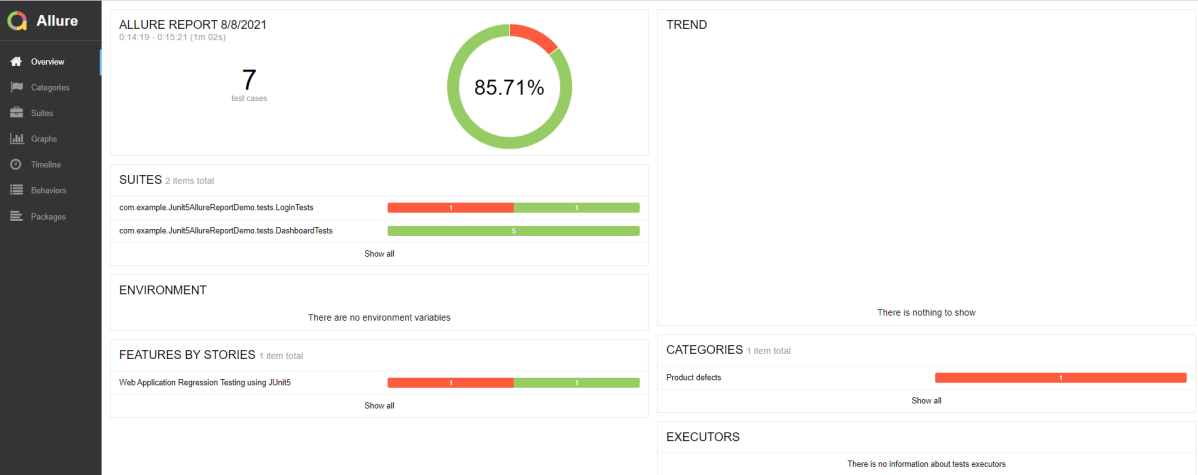
In the below image, we can see that one test failed and six passed out of seven tests.

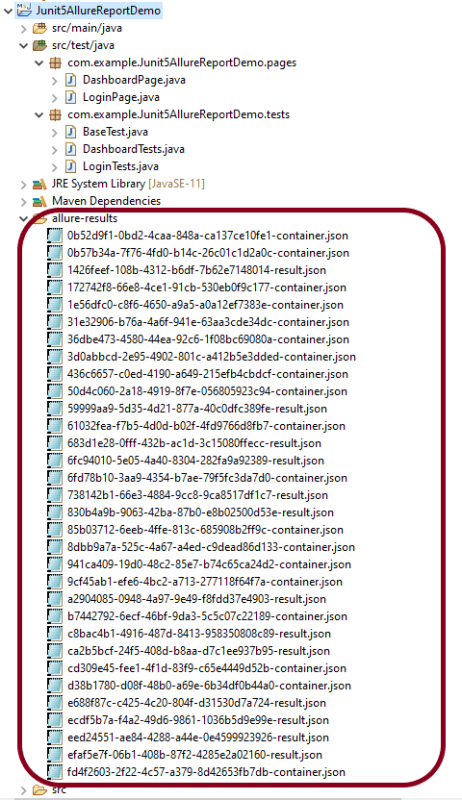
This will create the allure-results folder with all the test reports. These files will be used to generate Allure Report.

To create Allure Report, use the below command

allure serve

This will generate the beautiful Allure Test Report as shown below.

Allure Report Dashboard

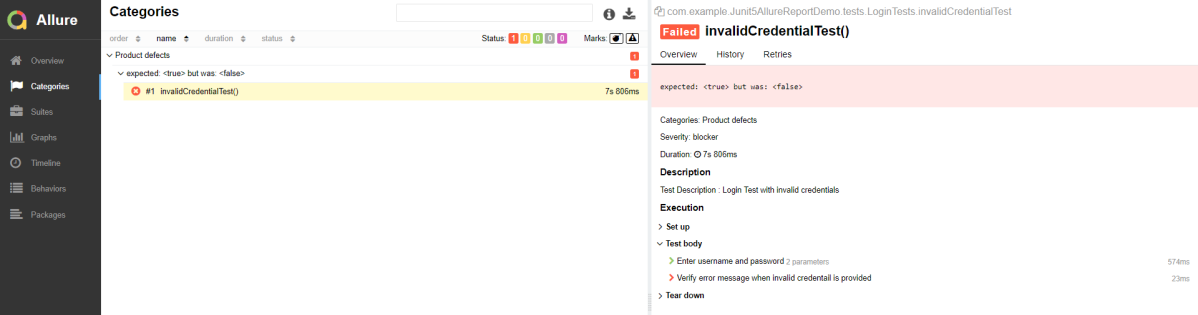
Categories in Allure Report

The categories tab gives you a way to create custom defect classifications to apply for test results. There are two categories of defects – Product Defects (failed tests) and Test Defects (broken tests).

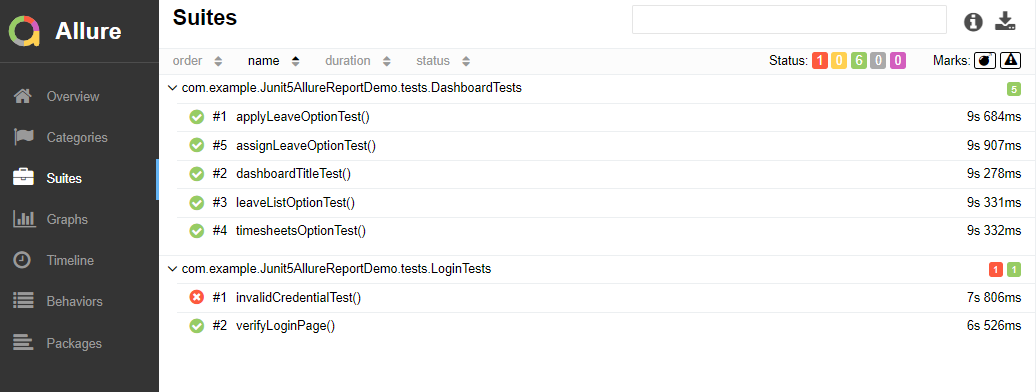
Suites in Allure Report

On the Suites tab a standard structural representation of executed tests, grouped by suites and classes can be found.

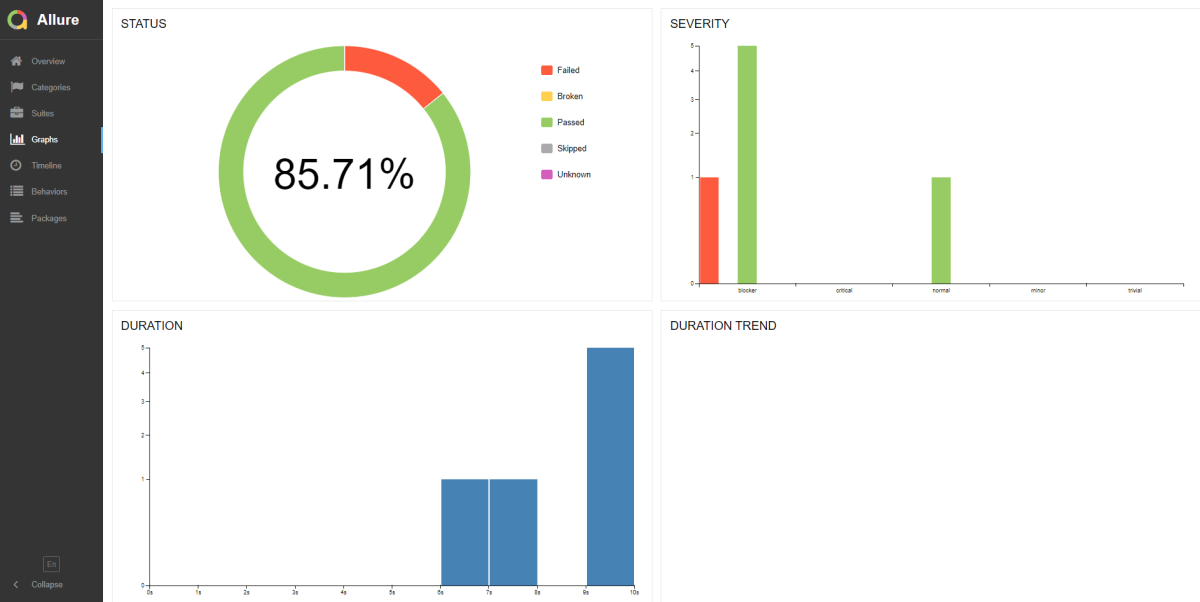
Graphs in Allure Report

Graphs allow you to see different statistics collected from the test data: status breakdown or severity and duration diagrams.

Timeline in Allure Report

Timeline tab visualizes retrospective of tests execution, allure adaptors collect precise timings of tests, and here on this tab they are arranged accordingly to their sequential or parallel timing structure.

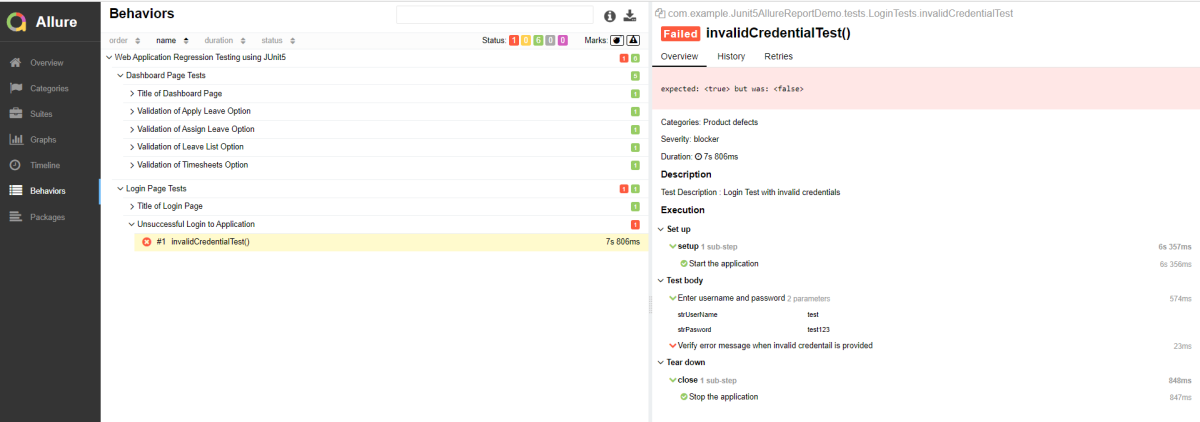
Behaviors of Allure Report

This tab groups test results according to Epic, Feature, and Story tags.

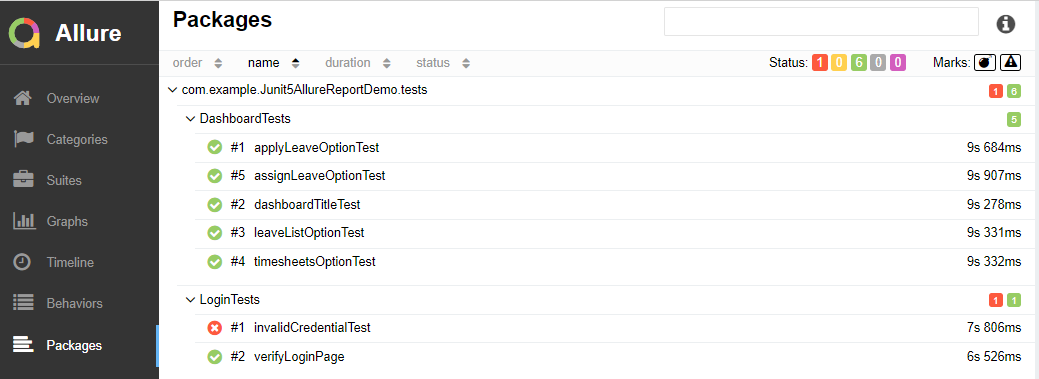
Packages in Allure Report

Packages tab represents a tree-like layout of test results, grouped by different packages.

We are done! Congratulations on making it through this tutorial and hope you found it useful! Happy Learning!!

Integration of Allure Report with Selenium and JUnit4

HOME

In the previous tutorial, I have explained the Integration of the Allure Report with Selenium and TestNG. In this tutorial, I will explain how to Integrate Allure Report with Selenium and JUnit4.

What is Allure Framework?

Allure is an open-source framework designed to create interactive and comprehensive test report by Yandex QA Team.

Below example covers the implementation of Allure Reports in Selenium using JUnit4, Java and Maven.

Pre-Requisite

  1. Java 11 installed
  2. Maven installed
  3. Eclipse or IntelliJ installed

This framework consists of:

  1. Selenium – 3.141.59
  2. Java 11
  3. JUnit – 4.13.2
  4. Maven – 3.8.1
  5. Allure Report – 2.14.0
  6. Allure JUnit4 – 2.14.0

Implementation Steps

  1. Update Properties section in Maven pom.xml
  2. Add Selenium, JUnit4 and Allure-JUnit4 dependencies in POM.xml
  3. Update Build Section of pom.xml in Allure Report Project.
  4. Create Pages and Test Code for the pages
  5. Run the Test and Generate Allure Report

Structure of Project

Step 1 – Update Properties section in Maven pom.xml

 <properties>
    <project.build.sourceEncoding>UTF-8</project.build.sourceEncoding>
    <selenium.version>3.141.59</selenium.version>
    <junit.version>4.13.2</junit.version>
    <allure.junit4.version>2.14.0</allure.junit4.version>
    <maven.compiler.plugin.version>3.5.1</maven.compiler.plugin.version>
    <maven.compiler.source>11</maven.compiler.source>
    <maven.compiler.target>11</maven.compiler.target>
    <aspectj.version>1.9.6</aspectj.version>
    <maven-surefire-plugin-version>3.0.0-M5</maven-surefire-plugin-version>
  </properties>

Step 2 – Add Selenium, JUnit4 and Allure-JUnit4 dependencies in POM.xml

<dependencies>
   <dependency>
      <groupId>org.seleniumhq.selenium</groupId>
      <artifactId>selenium-java</artifactId>
      <version>${selenium.version}</version>
    </dependency>
    
    <dependency>
      <groupId>junit</groupId>
      <artifactId>junit</artifactId>
      <version>${junit.version}</version>
      <scope>test</scope>
    </dependency>
    
     <dependency>
        <groupId>io.qameta.allure</groupId>
        <artifactId>allure-junit4</artifactId>
        <version>${allure.junit4.version}</version>
        <scope>test</scope>
    </dependency>   
  </dependencies>

Step 3 – Update Build Section of pom.xml in Allure Report Project

<build>
       
       <plugins>
   <!-- Compiler plug-in -->
  
           <plugin>
                <groupId>org.apache.maven.plugins</groupId>
                <artifactId>maven-compiler-plugin</artifactId>
                <version>${maven.compiler.plugin.version}</version>
                <configuration>
                    <source>${maven.compiler.source}</source> <!--For JAVA 8 use 1.8-->
                    <target>${maven.compiler.target}</target> <!--For JAVA 8 use 1.8-->
                </configuration>
            </plugin>
            
     <!-- Added Surefire Plugin configuration to execute tests -->       
          <plugin>
            <groupId>org.apache.maven.plugins</groupId>
            <artifactId>maven-surefire-plugin</artifactId>
            <version>${maven-surefire-plugin-version}</version>
            <configuration>
                <testFailureIgnore>false</testFailureIgnore>
                <argLine>
                    -javaagent:"${settings.localRepository}/org/aspectj/aspectjweaver/${aspectj.version}/aspectjweaver-${aspectj.version}.jar"
                </argLine>
                <properties>
                    <property>
                        <name>listener</name>
                        <value>io.qameta.allure.junit4.AllureJunit4</value>
                    </property>
                </properties>
            </configuration>
            <dependencies>
                <dependency>
                    <groupId>org.aspectj</groupId>
                    <artifactId>aspectjweaver</artifactId>
                    <version>${aspectj.version}</version>
                </dependency>
            </dependencies>
        </plugin>
      </plugins>
  </build>

Step 4 – Create Pages and Test Code for the pages

Below is the sample project which uses Selenium and JUnit4 which is used to generate an Allure Report.

We have 2 pages. Below is the code for Login Page which contains all the web elements and methods related to that web elements.

public class LoginPage {

	WebDriver driver;

	By userName = By.name("txtUsername");

	By password = By.name("txtPassword");

	By titleText = By.id("logInPanelHeading");

	By login = By.id("btnLogin");

	By errorMessage = By.id("spanMessage");

	public LoginPage(WebDriver driver) {
		this.driver = driver;
	}

	// Set user name in textbox
	public void setUserName(String strUserName) {
		driver.findElement(userName).sendKeys(strUserName);
	}

	// Set password in password textbox
	public void setPassword(String strPassword) {
		driver.findElement(password).sendKeys(strPassword);
	}

	// Click on login button
	public void clickLogin() {
		driver.findElement(login).click();
	}

	@Step("Verify title of Login Page")
	public void verifyPageTitle() {
		String loginPageTitle = driver.findElement(titleText).getText();
		Assert.assertTrue(loginPageTitle.contains("LOGIN Panel"));
	}

	/* Failed Test */
	@Step("Verify error message when invalid credentail is provided")
	public void verifyErrorMessage() {
		String invalidCredentialErrorMessage = driver.findElement(errorMessage).getText();
		Assert.assertTrue(invalidCredentialErrorMessage.contains("Incorrect Credentials"));
	}

	@Step("Enter username and password")
	public void login(String strUserName, String strPasword) {

		// Fill user name
		this.setUserName(strUserName);

		// Fill password
		this.setPassword(strPasword);

		// Click Login button
		this.clickLogin();

	}
}

DashboardPage.java

public class DashboardPage {

	WebDriver driver;

	By dashboardPageTitle = By.id("welcome");

	By options = By.cssSelector(
			"#dashboard-quick-launch-panel-menu_holder > table > tbody > tr > td:nth-child(1) > div > a > span");

	public DashboardPage(WebDriver driver) {
		this.driver = driver;

	}

	@Step("Verify title of Dashboard page")
	public void verifyDashboardPageTitle() {
		String DashboardPageTitle = driver.findElement(dashboardPageTitle).getText();
		Assert.assertTrue(DashboardPageTitle.contains("Welcome"));
	}

	@Step("Verify Quick Launch Options on Dashboard page")
	public void verifyQuickLaunchOptions() {
		String QuickLaunchOptions = driver.findElement(options).getText();
		Assert.assertTrue(QuickLaunchOptions.contains("Assign Leave"));
	}

}

Test Classes related to various Pages

BaseTest.java

public class BaseTest {

	public static WebDriver driver;
	LoginPage objLogin;
	DashboardPage objDashboardPage;

	@Step("Start the application")
	@Before
	public void setup() {
		System.setProperty("webdriver.gecko.driver",
				"C:\\Users\\Vibha\\Software\\geckodriver-v0.26.0-win64\\geckodriver.exe");
		driver = new FirefoxDriver();
		driver.manage().window().maximize();
		driver.manage().timeouts().implicitlyWait(10, TimeUnit.SECONDS);
		driver.get("https://opensource-demo.orangehrmlive.com/");
	}

	@Step("Stop the application")
	@After
	public void close() {
		driver.close();
	}
}

LoginTests.java

@Epic("Web Application Regression Testing using JUnit4")
@Feature("Login Page Tests")
@Listeners(TestExecutionListener.class)
public class LoginTests extends BaseTest {

	LoginPage objLogin;
	DashboardPage objDashboardPage;

	@Severity(SeverityLevel.NORMAL)
	@Test(priority = 0, description = "Verify Login Page")
	@Description("Test Description : Verify the title of Login Page")
	@Story("Title of Login Page")
	public void verifyLoginPage() {

		// Create Login Page object
		objLogin = new LoginPage(driver);

		// Verify login page text
		objLogin.verifyPageTitle();
	}

	@Severity(SeverityLevel.BLOCKER)
	@Test(priority = 1, description = "Login with invalid username and password")
	@Description("Test Description : Login Test with invalid credentials")
	@Story("Unsuccessful Login to Application")
	public void invalidCredentialTest() {

		// Create Login Page object
		objLogin = new LoginPage(driver);
		objLogin.login("test", "test123");

		// Verify login page text
		objLogin.verifyErrorMessage();

	}

}

DashboardTests.java

@Epic("Web Application Regression Testing using JUnit4")
@Feature("Dashboard Page Tests")
public class DashboardTests extends BaseTest {

	LoginPage objLogin;
	DashboardPage objDashboardPage;

	@Severity(SeverityLevel.BLOCKER)
	@Test
	@Description("Test Description : After successful login to application opens Dashboard page")
	@Story("Successful login of application opens Dashboard Page")

	public void DasboardTest() {

		objLogin = new LoginPage(driver);

		// login to application
		objLogin.login("Admin", "admin123");

		// go the dashboard page
		objDashboardPage = new DashboardPage(driver);

		// Verify dashboard page
		objDashboardPage.verifyQuickLaunchOptions();

	}

}

Step 5 – Run the Test and Generate Allure Report

To run the tests, use the below command

mvn clean test

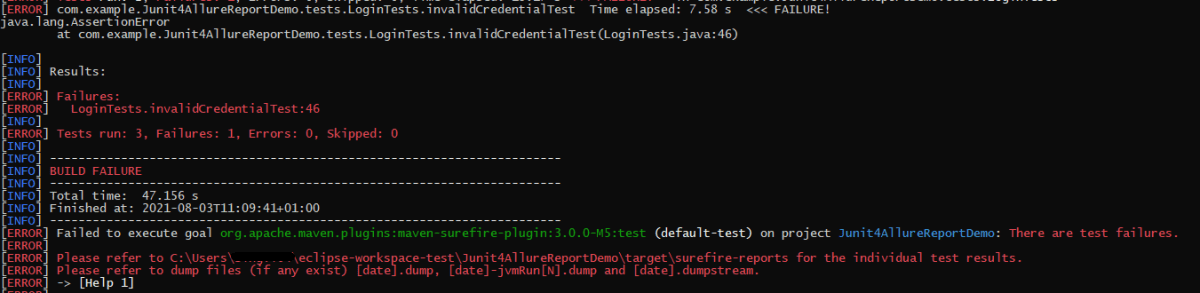
In the below image, we can see that one test is failed and two passed out of three tests.

This will create allure-results folder with all the test report. These files will be use to generate Allure Report.

To create Allure Report, use the below command

allure serve

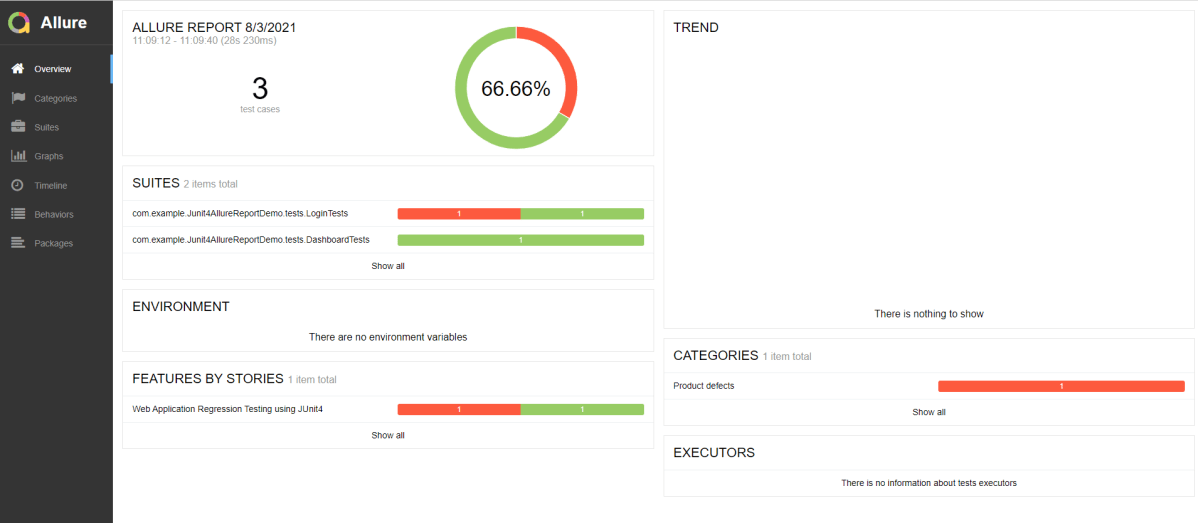
This will generate the beautiful Allure Test Report as shown below.

Allure Report Dashboard

Overview page hosts several default widgets representing basic characteristics of your project and test environment.

  1. Statistics – overall report statistics.
  2. Launches – if this report represents several test launches, statistics per launch will be shown here.
  3. Behaviors – information on results aggregated according to stories and features.
  4. Executors – information on test executors that were used to run the tests.
  5. History Trend – if tests accumulated some historical data, it’s trend will be calculated and shown on the graph.
  6. Environment – information on test environment.

Categories in Allure Report

Categories tab gives you the way to create custom defects classification to apply for test results. There are two categories of defects – Product Defects (failed tests) and Test Defects (broken tests).

Suites in Allure Report

On the Suites tab a standard structural representation of executed tests, grouped by suites and classes can be found.

Graphs in Allure Report

Graphs allow you to see different statistics collected from the test data: statuses breakdown or severity and duration diagrams.

Timeline in Allure Report

Timeline tab visualizes retrospective of tests execution, allure adaptors collect precise timings of tests, and here on this tab they are arranged accordingly to their sequential or parallel timing structure.

Behaviors of Allure Report

This tab groups test results according to Epic, Feature and Story tags.

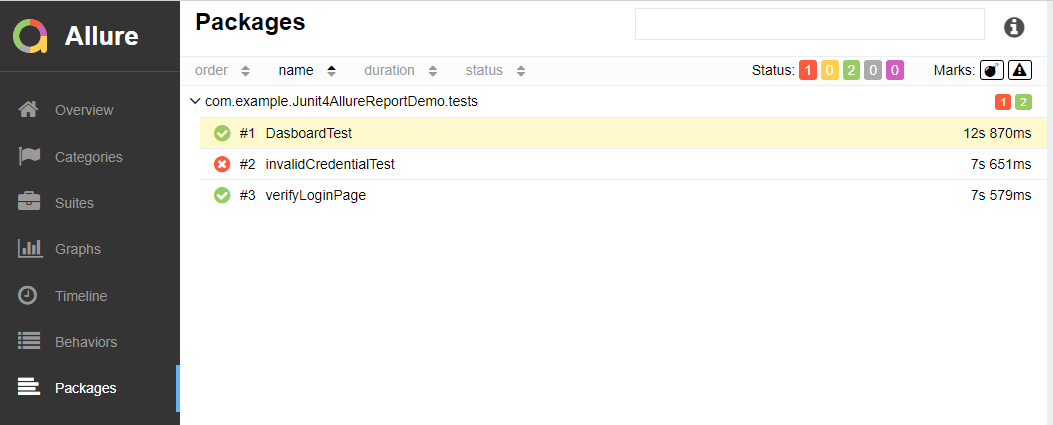
Packages in Allure Report

Packages tab represents a tree-like layout of test results, grouped by different packages.

Integration of Allure Report with Selenium and TestNG

HOME

In this tutorial, I will explain how to integrate Allure Report (one of the very famous Reports) with Selenium and TestNG.

What is Allure Framework?

Allure is an open-source framework designed to create interactive and comprehensive test reports by Yandex QA Team.

The below example covers the implementation of Allure Reports in Selenium using TestNG, Java, and Maven.

Prerequisite:

  1. Java 11 installed
  2. Maven installed
  3. Eclipse or IntelliJ installed
  4. Environment variables JAVA_HOME, MAVEN_HOME and ALLURE_HOME are correctly configured

Dependency List

  1. Selenium – 3.141.59
  2. Java 11
  3. TestNG – 7.4.0
  4. Maven – 3.8.1
  5. Allure Report – 2.14.0
  6. Allure TestNG – 2.14.0

Implementation Steps

  1. Update the Properties section in Maven pom.xml
  2. Add Selenium, TestNG, and Allure TestNG dependencies in POM.xml
  3. Update Build Section of pom.xml in Allure Report Project.
  4. Create Pages and Test Code for the pages
  5. Create testng.xml for the project
  6. Run the Test and Generate Allure Report

Step 1 – Update the Properties section

<properties>
    <project.build.sourceEncoding>UTF-8</project.build.sourceEncoding>
    <selenium.version>3.141.59</selenium.version>
    <testng.version>7.4.0</testng.version>
    <allure.testng.version>2.14.0</allure.testng.version>
    <maven.compiler.plugin.version>3.5.1</maven.compiler.plugin.version>
    <maven.compiler.source>11</maven.compiler.source>
    <maven.compiler.target>11</maven.compiler.target>
    <aspectj.version>1.9.6</aspectj.version>
    <maven.surefire.plugin.version>3.0.0-M5</maven.surefire.plugin.version>
  </properties>

Step 2 – Add Selenium, TestNG, and Allure TestNG dependencies in POM.xml

<dependencies>
    
     <!-- https://mvnrepository.com/artifact/org.seleniumhq.selenium/selenium-java -->
    <dependency>
      <groupId>org.seleniumhq.selenium</groupId>
      <artifactId>selenium-java</artifactId>
      <version>${selenium.version}</version>
    </dependency>
    
    <!-- https://mvnrepository.com/artifact/org.testng/testng -->
    <dependency>
      <groupId>org.testng</groupId>
      <artifactId>testng</artifactId>
      <version>${testng.version}</version>
      <scope>test</scope>
    </dependency>
    
    <!-- https://mvnrepository.com/artifact/io.qameta.allure/allure-testng -->
    <dependency>
        <groupId>io.qameta.allure</groupId>
        <artifactId>allure-testng</artifactId>
        <version>${allure.testng.version}</version>
        <scope>test</scope>
    </dependency>
  </dependencies>

Step 3 – Update the Build Section of pom.xml in the Allure Report Project

<build>
       
       <plugins>
   <!-- Compiler plug-in -->
  
           <plugin>
                <groupId>org.apache.maven.plugins</groupId>
                <artifactId>maven-compiler-plugin</artifactId>
                <version>${maven.compiler.plugin.version}</version>
                <configuration>
                    <source>${maven.compiler.source}</source> <!--For JAVA 8 use 1.8-->
                    <target>${maven.compiler.target}</target> <!--For JAVA 8 use 1.8-->
                </configuration>
            </plugin>
            
     <!-- Added Surefire Plugin configuration to execute tests -->       
          <plugin>
              <groupId>org.apache.maven.plugins</groupId>
              <artifactId>maven-surefire-plugin</artifactId>
              <version>${maven.surefire.plugin.version}</version>
              <configuration>
                    <suiteXmlFiles>
                        <suiteXmlFile>TestNG.xml</suiteXmlFile>
                    </suiteXmlFiles>
                 <argLine>
                    -javaagent:"${settings.localRepository}/org/aspectj/aspectjweaver/${aspectj.version}/aspectjweaver-${aspectj.version}.jar"
                 </argLine>
             </configuration>          
             <dependencies>
            
            <!-- https://mvnrepository.com/artifact/org.aspectj/aspectjweaver -->
                <dependency>
                    <groupId>org.aspectj</groupId>
                    <artifactId>aspectjweaver</artifactId>
                    <version>${aspectj.version}</version>
                </dependency>
            </dependencies>
        </plugin>
      </plugins>
  </build>

Step 4 – Create Pages and Test Code for the pages

Below is the sample project which uses Selenium and TestNG which is used to generate an Allure Report.

We have 2 pages. Below is the code for Login Page which contains all the web elements and methods related to that web elements.

LoginPage.java

public class LoginPage {

	WebDriver driver;

	By userName = By.name("txtUsername");

	By password = By.name("txtPassword");

	By titleText = By.id("logInPanelHeading");

	By login = By.id("btnLogin");

	By errorMessage = By.id("spanMessage");

	public LoginPage(WebDriver driver) {
		this.driver = driver;
	}

	// Set user name in textbox
	public void setUserName(String strUserName) {
		driver.findElement(userName).sendKeys(strUserName);
	}

	// Set password in password textbox
	public void setPassword(String strPassword) {
		driver.findElement(password).sendKeys(strPassword);
	}

	// Click on login button
	public void clickLogin() {
		driver.findElement(login).click();
	}

	@Step("Verify title of Login Page")
	public void verifyPageTitle() {
		String loginPageTitle = driver.findElement(titleText).getText();
		Assert.assertTrue(loginPageTitle.contains("LOGIN Panel"));
	}

    /* Failed Test */
	@Step("Verify error message when invalid credentail is provided")
	public void verifyErrorMessage() {
		String invalidCredentialErrorMessage = driver.findElement(errorMessage).getText();
		Assert.assertTrue(invalidCredentialErrorMessage.contains("Incorrect Credentials"));
	}

	@Step("Enter username and password")
	public void login(String strUserName, String strPasword) {

		// Fill user name
		this.setUserName(strUserName);

		// Fill password
		this.setPassword(strPasword);

		// Click Login button
		this.clickLogin();

	}
}

Dashboard.java

public class DashboardPage {

	WebDriver driver;

	By dashboardPageTitle = By.id("welcome");

	By options = By.cssSelector(
			"#dashboard-quick-launch-panel-menu_holder > table > tbody > tr > td:nth-child(1) > div > a > span");

	public DashboardPage(WebDriver driver) {
		this.driver = driver;

	}

	@Step("Verify title of Dashboard page")
	public void verifyDashboardPageTitle() {
		String DashboardPageTitle = driver.findElement(dashboardPageTitle).getText();
		Assert.assertTrue(DashboardPageTitle.contains("Welcome"));
	}

	@Step("Verify Quick Launch Options on Dashboard page")
	public void verifyQuickLaunchOptions() {
		String QuickLaunchOptions = driver.findElement(options).getText();
		Assert.assertTrue(QuickLaunchOptions.contains("Assign Leave"));
	}

}

Below are the Test classes for Login Page and Dashboard Page. Here, we have BaseTest Class also which contains the common methods needed by other test pages.

BaseTest.java

public class BaseTest {

	public static WebDriver driver;
	LoginPage objLogin;
	DashboardPage objDashboardPage;

	@Step("Start the application")
	@BeforeMethod
	public void setup() {
		System.setProperty("webdriver.gecko.driver",
				"C:\\Users\\Vibha\\Software\\geckodriver-v0.26.0-win64\\geckodriver.exe");
		driver = new FirefoxDriver();
		driver.manage().window().maximize();
		driver.manage().timeouts().implicitlyWait(10, TimeUnit.SECONDS);
		driver.get("https://opensource-demo.orangehrmlive.com/");
	}

	@Step("Stop the application")
	@AfterMethod
	public void close() {
		driver.close();
	}
}

LoginTests.java

@Epic("Web Application Regression Testing")
@Feature("Login Page Tests")
@Listeners(TestExecutionListener.class)
public class LoginTests extends BaseTest {

	LoginPage objLogin;
	DashboardPage objDashboardPage;

	@Severity(SeverityLevel.NORMAL)
	@Test(priority = 0, description = "Verify Login Page")
	@Description("Test Description : Verify the title of Login Page")
	@Story("Title of Login Page")
	public void verifyLoginPage() {

		// Create Login Page object
		objLogin = new LoginPage(driver);

		// Verify login page text
		objLogin.verifyPageTitle();
	}

   /* Failed Test */
	@Severity(SeverityLevel.BLOCKER)
	@Test(priority = 1, description = "Login with invalid username and password")
	@Description("Test Description : Login Test with invalid credentials")
	@Story("Unsuccessful Login to Application")
	public void invalidCredentialTest() {

		// Create Login Page object
		objLogin = new LoginPage(driver);
		objLogin.login("test", "test123");

		// Verify login page text
		objLogin.verifyErrorMessage();

	}

}

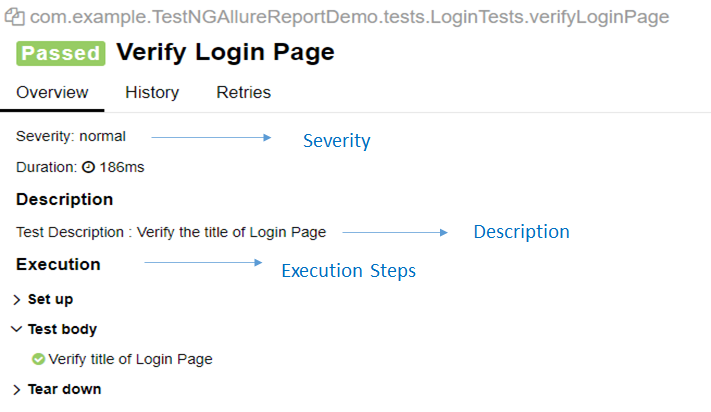
We can order tests by severity by using @Severity annotation. Click here to know more about other Allure annotations.

DashboardTests.java

@Epic("Web Application Regression Testing")
@Feature("Dashboard Page Tests")
@Listeners(TestExecutionListener.class)
public class DashboardTests extends BaseTest {

	LoginPage objLogin;
	DashboardPage objDashboardPage;

	@Severity(SeverityLevel.BLOCKER)
	@Test(priority = 0, description = "Verify Dashboard Page")
	@Description("Test Description : After successful login to application opens Dashboard page")
	@Story("Successful login of application opens Dashboard Page")

	public void DasboardTest() {

		objLogin = new LoginPage(driver);

		// login to application
		objLogin.login("Admin", "admin123");

		// go the dashboard page
		objDashboardPage = new DashboardPage(driver);

		// Verify dashboard page
		objDashboardPage.verifyQuickLaunchOptions();

	}

}

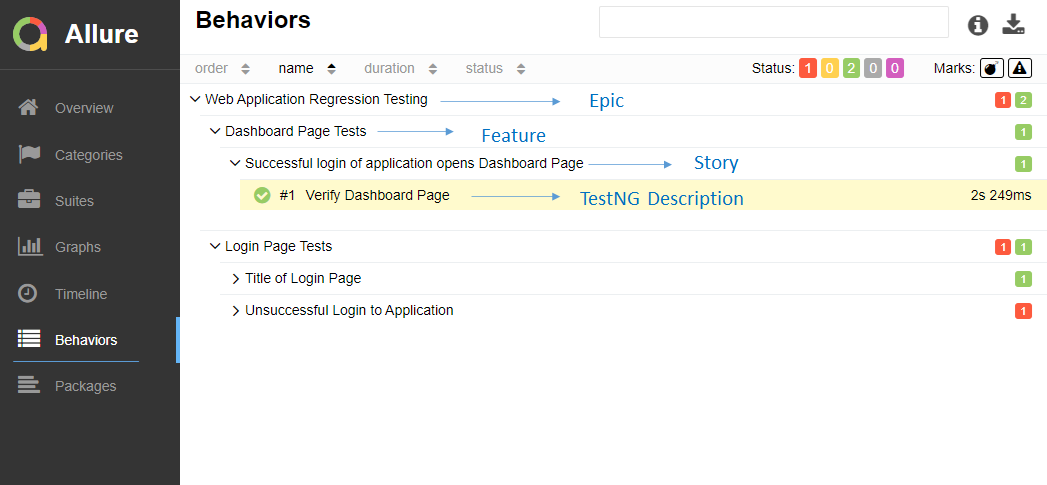
We can group tests with @Epic@Feature, and @Stories annotations. Click here to know more about other Allure annotations.

TestExecutionListener.class

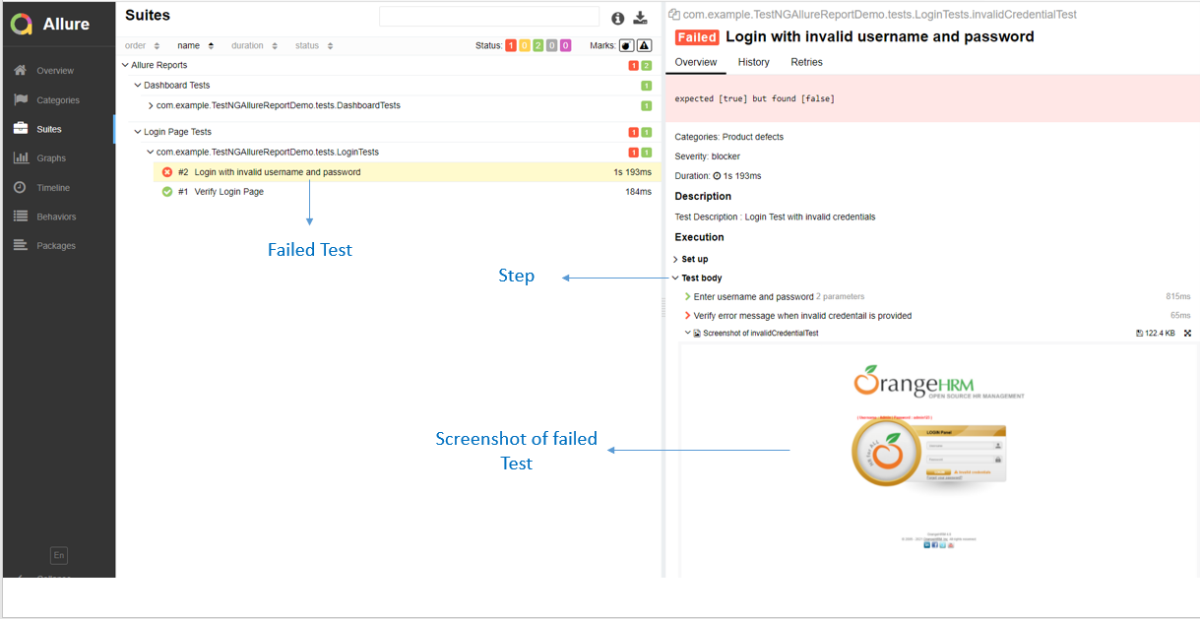
We can add attachments to our reports by using @Attachment annotation. It can return String, byte [], etc.  I need to add @Listeners({ TestExecutionListener.class }) declaration at the top of the test classes. Click here to know more about other Allure annotations.

public class TestExecutionListener implements ITestListener {

	@Attachment(value = "Screenshot of {0}", type = "image/png")
	public byte[] saveScreenshot(String name, WebDriver driver) {
		return (byte[]) ((TakesScreenshot) driver).getScreenshotAs(OutputType.BYTES);
	}

	@Override
	public void onTestFailure(ITestResult result) {
		saveScreenshot(result.getName(), BaseTest.driver);
	}

}

Step 5 – Create testng.xml for the project

TestNG.xml

<?xml version="1.0" encoding="UTF-8"?>
<!DOCTYPE suite SYSTEM "https://testng.org/testng-1.0.dtd">
<suite name = "Allure Reports">
  <test name = "Login Page Tests">
    <classes>
          <class name = "com.example.TestNGAllureReportDemo.tests.LoginTests"/>
         
          </classes>
          </test> 
    <test name =" Dashboard Tests">   
    <classes> 
          <class name = "com.example.TestNGAllureReportDemo.tests.DashboardTests"/>
          </classes>
    </test>

</suite>

Step 6 – Run the Test and Generate Allure Report

To run the tests, use the below command

mvn clean test

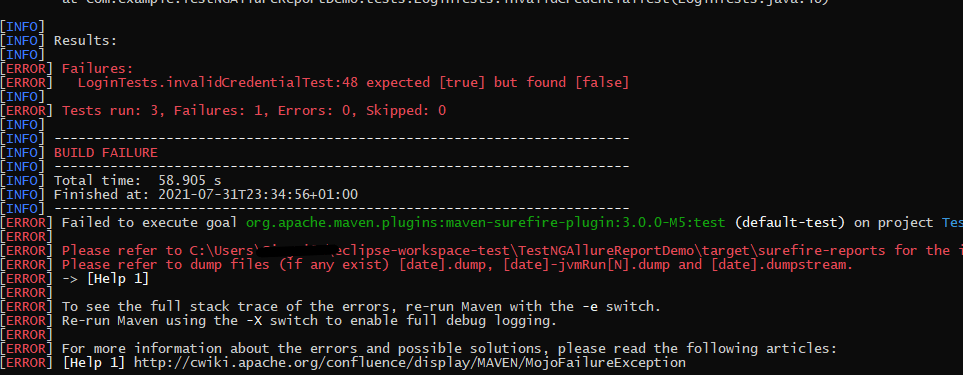
In the below image, we can see that one test failed and two passed out of three tests.

To create an Allure Report, use the below command

allure serve

This will generate the beautiful Allure Test Report as shown below.

Allure Report Dashboard

The overview page hosts several default widgets representing the basic characteristics of your project and test environment.

  1. Statistics – overall report statistics.
  2. Launches – if this report represents several test launches, statistics per launch will be shown here.
  3. Behaviors – information on results aggregated according to stories and features.
  4. Executors – information on test executors that were used to run the tests.
  5. History Trend – if tests accumulated some historical data, it’s a trend that will be calculated and shown on the graph.
  6. Environment – information on the test environment.

Categories in Allure Report

The categories tab gives you a way to create custom defects classifications to apply for test results. There are two categories of defects – Product Defects (failed tests) and Test Defects (broken tests).

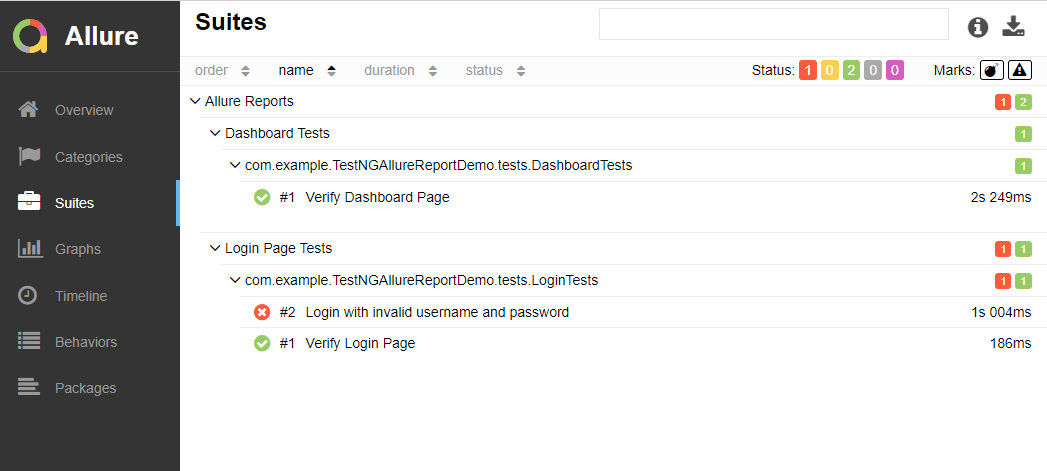
Suites in Allure Report

On the Suites tab a standard structural representation of executed tests, grouped by suites and classes can be found.

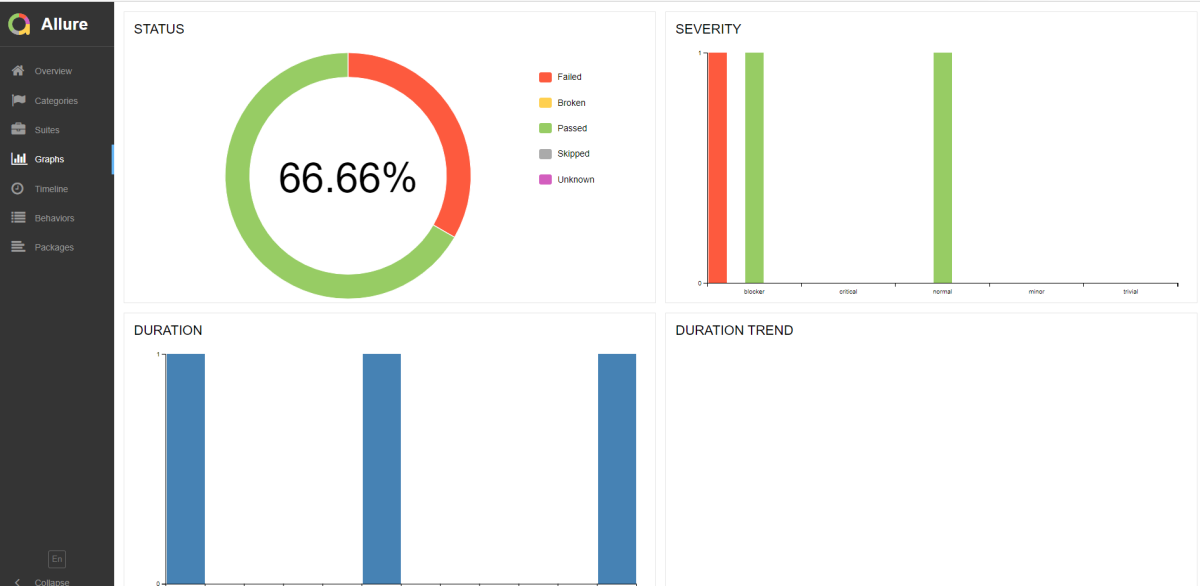
Graphs in Allure Report

Graphs allow you to see different statistics collected from the test data: status breakdown or severity and duration diagrams.

Timeline in Allure Report

The timeline tab visualizes retrospective of tests execution, allure adaptors collect precise timings of tests, and here on this tab, they are arranged accordingly to their sequential or parallel timing structure.

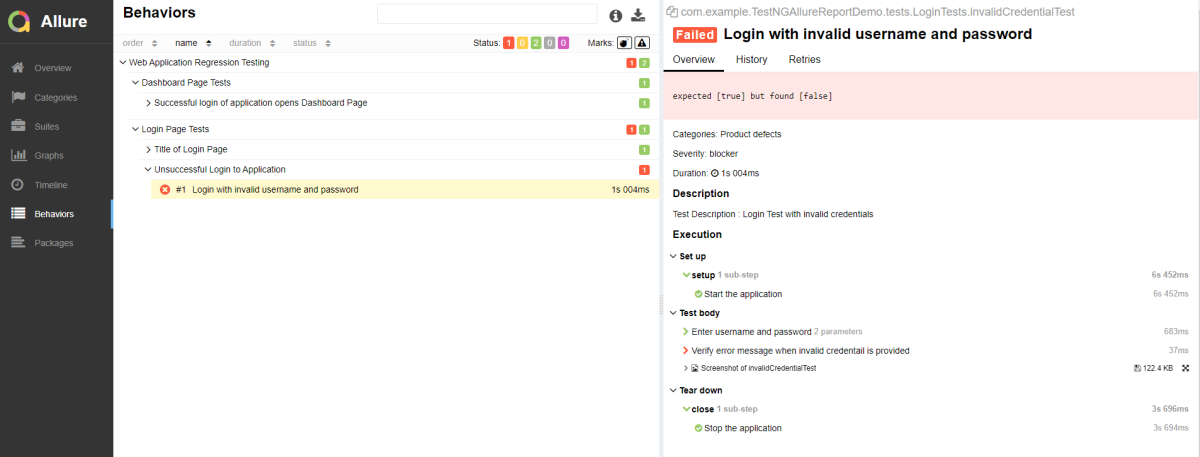
Behaviors of Allure Report

This tab groups test results according to Epic, Feature, and Story tags.

Packages in Allure Report

The packages tab represents a tree-like layout of test results, grouped by different packages.

If you click on the (highlighted tab), it will show the test execution report in the below format.

Congratulations on making it through this tutorial and hope you found it useful! Happy Learning!! Cheers!!
Additional tutorials on Allure Reports: