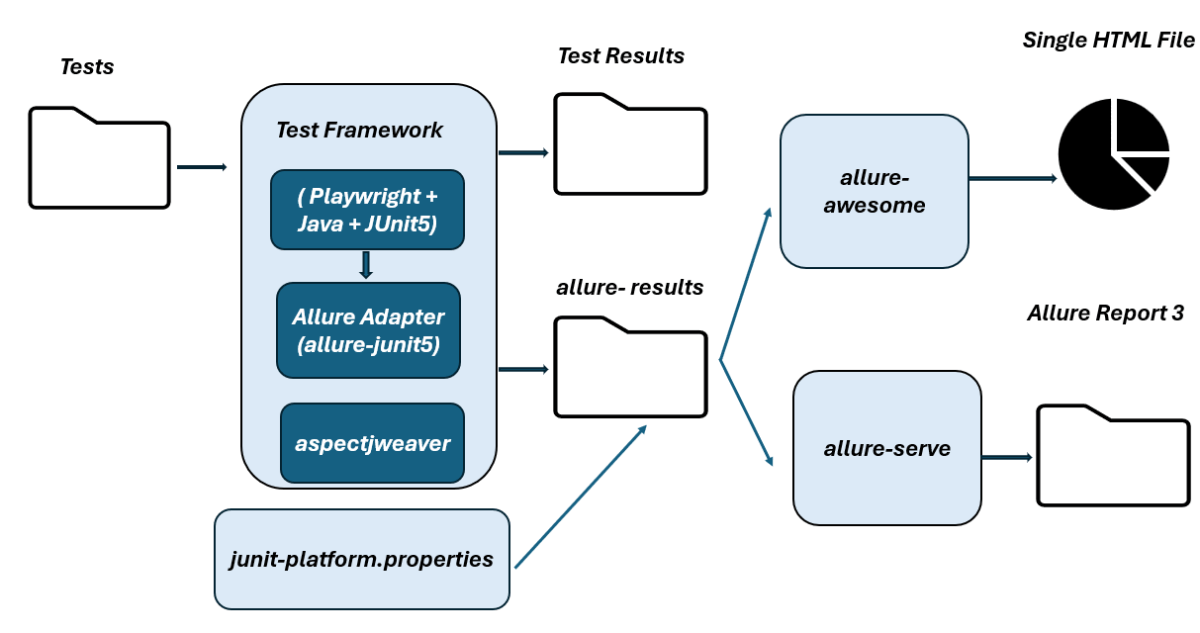
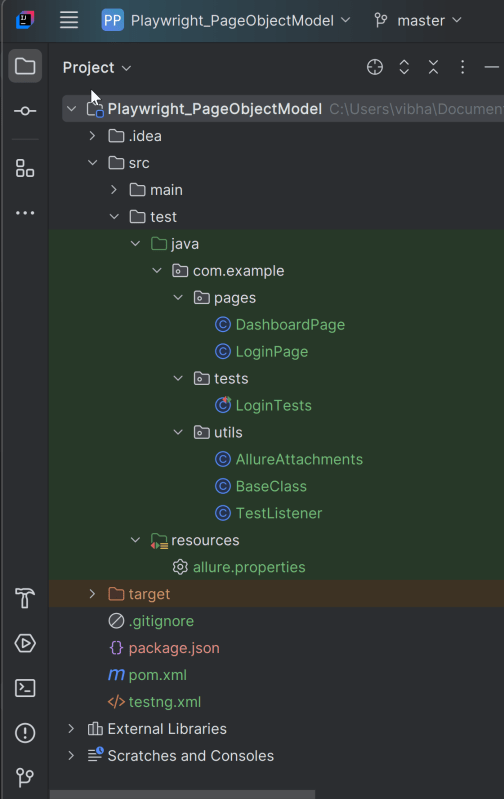
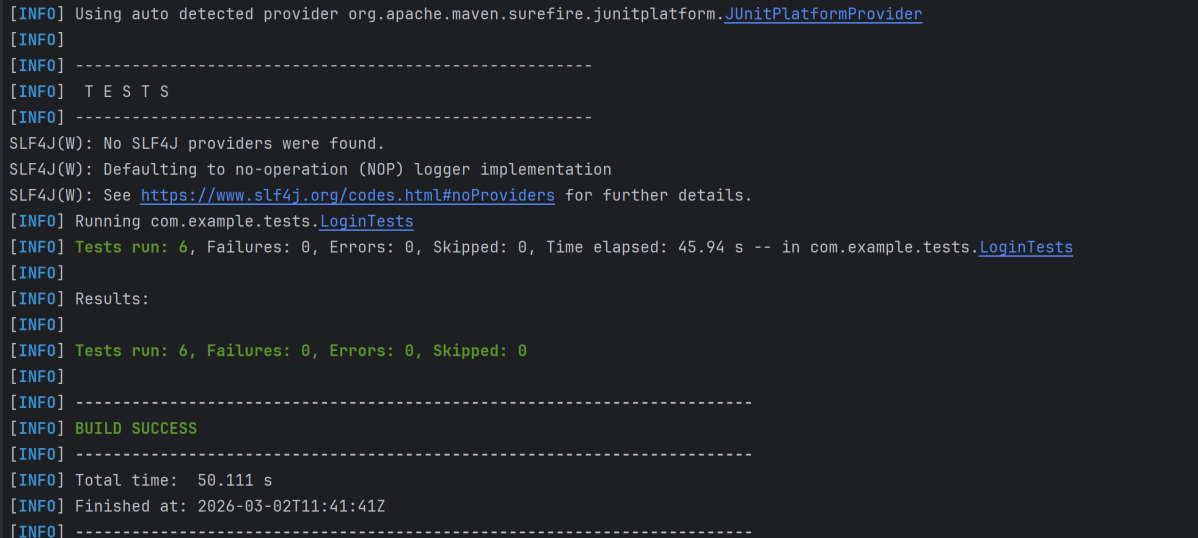
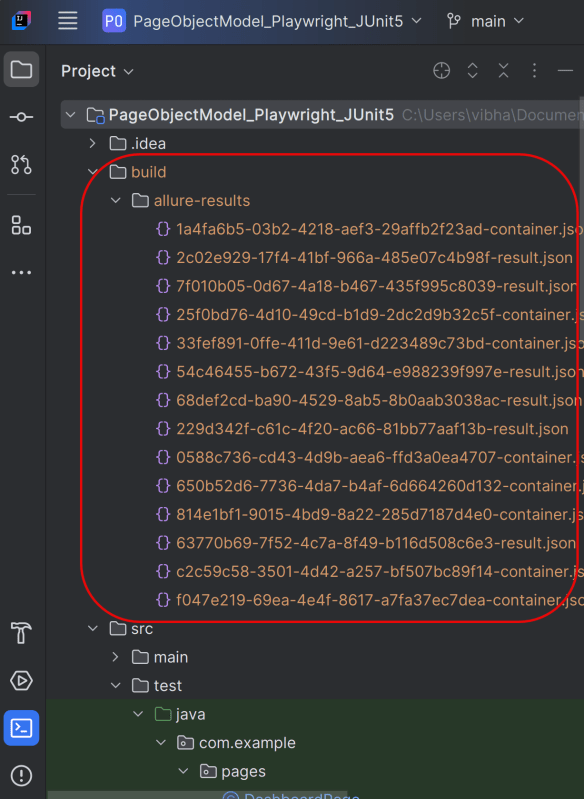
Welcome to the SQL Quiz! This blog post features 25 multiple-choice questions that explore JOINS concept of SQL.
1. Which SQL JOIN returns only the rows that have matching values in both tables?
a) LEFT JOIN b) RIGHT JOIN c) INNER JOIN d) FULL OUTER JOIN
Answer 1
c) INNER JOIN
INNER JOIN matches records in both tables based on the join condition.
2. What does the following SQL query return?
SELECT products.product_name, orders.order_date
FROM products
INNER JOIN orders ON products.product_id = orders.product_id;
a) Only products that have been ordered b) All products, ordered and non-ordered c) All orders, regardless of the products d) None of the above
Answer 2
a) Only products that have been ordered
The INNER JOIN retrieves only products that have corresponding order records.
3. If you want all rows from the left table and only the matching rows from the right table, which join will you use?
a) INNER JOIN b) RIGHT JOIN c) LEFT JOIN d) FULL JOIN
Answer 3
c) LEFT JOIN
LEFT JOIN keeps all rows from the left table and adds NULLs for non-matching right table rows.
4. Which join type would you use to include all students and their respective grades, whether or not the grades are recorded?
SELECT students.student_name, grades.grade
FROM students
__________ JOIN grades ON students.student_id = grades.student_id;
a) INNER JOIN b) RIGHT JOIN c) LEFT JOIN d) FULL JOIN
Answer 4
c) LEFT JOIN
A LEFT JOIN includes all students and their grades, with NULL for students without recorded grades.
5. Which JOIN includes all records from both tables, filling NULLs where there are no matches?
a) INNER JOIN b) CROSS JOIN c) FULL OUTER JOIN d) SELF JOIN
Answer 5
c) FULL OUTER JOIN
FULL OUTER JOIN returns all rows from both tables with NULLs where no match exists.
6. What result does the following query produce?
SELECT a.name, b.address
FROM customers a
FULL OUTER JOIN orders b ON a.customer_id = b.customer_id;
a) Only matching customers and orders b) All customers and orders with matches and non-matches c) Customers without orders d) Orders without customers
Answer 6
b) All customers and orders with matches and non-matches
A FULL OUTER JOIN returns all records when there is a match in either table A or table B.
7. What does a CROSS JOIN do?
a) Matches only the common records b) Returns Cartesian product of two tables c) Returns only distinct records d) Works only on primary keys
Answer 7
b) Returns Cartesian product of two tables
CROSS JOIN multiplies all rows from one table with all rows of another.
8. What does the following SQL query do?
SELECT e.employee_id, e.name, d.department_name
FROM employees e
CROSS JOIN departments d;
a) Joins each employee with all departments b) Returns only matched employees and departments c) Lists employees without departments d) Lists departments without employees
Answer 8
a) Joins each employee with all departments
A CROSS JOIN creates a Cartesian product of both tables.
9. Which JOIN is used to join a table with itself?
a) CROSS JOIN b) SELF JOIN c) FULL OUTER JOIN d) NATURAL JOIN
Answer 9
b) SELF JOIN
SELF JOIN is useful for hierarchical or recursive relationships.
10. What is a primary use case for a self join in SQL?
a) To join two unrelated databases b) To compare rows within the same table c) To join tables with similar schemas d) To execute subqueries
Answer 10
b) To compare rows within the same table
SELECT a.employee_id, a.name, b.manager_id
FROM employees a
JOIN employees b ON a.manager_id = b.employee_id;
In the provided query, the employees table is joined with itself to find employees and their respective managers by matching employee IDs with manager IDs.
11. In a self join scenario, how would you distinguish between the different roles of the table being joined to itself?
Choose one option
a) Use different database instances b) Use table aliases c) Create a temporary table d) Use a different SQL dialect
Answer 11
b) Use table aliases
SELECT e1.name AS Employee, e2.name AS Manager
FROM employees e1
JOIN employees e2 ON e1.manager_id = e2.employee_id;
In a self join, table aliases are employed to differentiate between the roles of the same table. Here, `e1` represents employees, and `e2` represents managers, allowing us to fetch the employee names along with their corresponding managers.
12. To avoid a Cartesian product, always include a valid join condition in a WHERE clause.
Choose one option
a) True b) False
Answer 12
a) True
If we don’t use WHERE clause in a join, it will do a cartesian product.
13. Which type of JOIN is used to select all records from the right table and the matched records from the left table?
Choose one option
a) OUTER JOIN b) SELF JOIN c) RIGHT JOIN d) NATURAL JOIN
Answer 13
c) RIGHT JOIN
A RIGHT JOIN returns all records from the right table and the matched records from the left table. Unmatched left table records receive NULLs.
14. Given the tables employees and departments, which query will list all department names even if they have no employees?
Choose one option
a) LEFT JOIN b) SELF JOIN c) RIGHT JOIN d) INNER JOIN
Answer 14
c) RIGHT JOIN
SELECT departments.department_name, employees.name
FROM departments
RIGHT JOIN employees ON departments.id = employees.department_id;
The RIGHT JOIN returns all department names, including those with no associated employees.
15. Can multiple JOIN operations be used in a single SQL query?
Choose one option
a) True b) False
Answer 15
a) True
Multiple JOIN operations can be utilized in a single query to combine data from more than two tables.
16. In a SQL JOIN, what does the ON keyword do?
Choose one option
a) Specifies the columns for joining b) Specifies the conditions for joining c) Specifies the number of rows to return d) Specifies the order of columns
Answer 16
b) Specifies the conditions for joining
The ON keyword specifies conditions that determine which rows are retrieved in the join operation.
17. To combine data from multiple tables where relationships exist, which SQL feature should be used besides JOINs?
Choose one option
a) Subqueries b) Cursors c) Triggers d) Indexes
Answer 17
a) Subqueries
Subqueries can be used to combine data or perform operations that retrieve data from multiple tables based on conditions.
18. What is a NATURAL JOIN based on?
a) Explicit conditions b) Common columns automatically determined c) Primary keys d) Foreign keys
Answer 18
b) Common columns automatically determined
A NATURAL JOIN automatically joins tables based on columns with matching names and compatible data types.
19. Below two tables (A & B) are given.
What will be the result of inner join between these tables?
a) 1,3,4 b) 1,2,3,4,5,6,7,8,9,10,12 c) 1,2,3,4,5,6,7 d) 1,3,4,8,9,10,12
Answer 19
a) 1,3,4
20. What will be the result of FULL OUTER JOIN between these tables?
Choose one option
a) 1,3,4 b) 1,2,3,4,5,6,7,8,9,10,12 c) 1,2,3,4,5,6,7 d) 1,3,4,8,9,10,12
Answer 20
b) 1,2,3,4,5,6,7,8,9,10,12
21. Select the correct query/queries for cross join:
a) Select * FROM Table1 T1 CROSS JOIN Table1 T2;
b) Select * FROM Table1 T1 ALL CROSS JOIN Table1 T2;
c) Select * FROM Table1 T1,Table1 T2;
d) Select * FROM Table1 T1 CROSS Table1 T2;
Answer 21
a) Select * FROM Table1 T1 CROSS JOIN Table1 T2;
22. Which clause can be used with a JOIN to filter records?
a) WHERE b) HAVING c) GROUP BY d) ORDER BY
Answer 22
a) WHERE
The WHERE clause can be used to filter records after the JOIN operation, whereas HAVING is typically used with GROUP BY.
23. How can SQL JOINs be optimized for better performance?
a) Using indexes on join columns b) Avoiding WHERE clauses c) Using more complex joins d) Increasing database storage
Answer 23
a) Using indexes on join columns
Optimizing SQL JOIN performance generally involves using indexes on the columns involved in the join conditions.
24. Consider the tables `students` and `enrollments`, both having the column `student_id`. What will the following SQL statement do?
SELECT * FROM students NATURAL JOIN enrollments;
a) Join using all columns that are common between the two tables b) Require user to specify a join condition c) Join using columns named `student_id` d) Join with duplicate column names represented multiple times
Answer 24
c) Join using columns named `student_id`
The NATURAL JOIN will operate on all columns with the same name, joining on `student_id` as it’s the common column between `students` and `enrollments`.
25. What is a potential disadvantage of using NATURAL JOIN?
a) It is only available in a few SQL dialects b) Can join tables that have no related columns c) Lacks explicit control over join conditions d) Always results in Cartesian product of the tables
Answer 25
c) Lacks explicit control over join conditions
NATURAL JOIN does not allow you to specify which common columns to use for joining, which can lead to unforeseen results if multiple columns share the same name across tables.
We would love to hear from you! Please leave your comments and share your scores in the section below
Playwright is integrated with Java, Cucumber, and TestNG. This integration creates a robust and scalable test automation framework for modern web applications. It is a BDD-driven framework.
Page Object Model (POM) is a design pattern used in test automation. It enhances test maintenance and reduces code duplication. In this pattern, web pages are represented as classes. The various elements on the page are defined as variables in the class. All possible user interactions can then be implemented as methods in the class.
What is Cucumber?
Cucumber is Behavior Driven Development (BDD). It is a methodology that integrates non-technical stakeholders, testers, and developers into the same conversation. This is achieved by using clearly defined specifications.
In behavior-driven development with Cucumber, test cases are written in Gherkin syntax. They use a Given-When-Then structure. This structure closely mirrors user stories and business rules.
Benefits of Using Cucumber with Playwright
1. Readable, business-friendly tests: Cucumber’s Gherkin syntax (Given–When–Then) makes test scenarios easy to understand for non-technical stakeholders, bridging the gap between QA, developers, and business teams.
2. Better Test Maintainability: With standardized step definitions and modularized test architecture, scaling up your test suite is effortless. Altering the suite won’t harm the entire framework.
3. Clear reporting and traceability: Cucumber’s reports map test results directly to feature files. They map directly to scenarios. This makes it easier to track coverage and failures against requirements.
4. Cross-browser and cross-platform coverage: When combined with Playwright, Cucumber scenarios can be executed across Chromium, Firefox, and WebKit without changing feature files
5. Scales well in CI/CD pipelines: The combination supports parallel execution. It offers tagging and selective test runs. This makes it suitable for continuous testing in CI environments.
What is TestNG?
TestNG is a testing framework widely used with Selenium for building structured, maintainable, and efficient automated tests. Combining TestNG listeners with Playwright gives testers greater control over test monitoring, logging, and custom actions based on test outcomes. In TestNG you can initialize Playwright and Browser in @BeforeClass method and destroy them in @AfterClass.
System requirements
The following prerequisites are required to be installed on the machine to begin with a smooth setup and installation.
Java 11 or higher
IntelliJ IDE or any other IDE to create a project
Maven
Browsers on which tests need to be run, like Chrome, Firefox, etc.
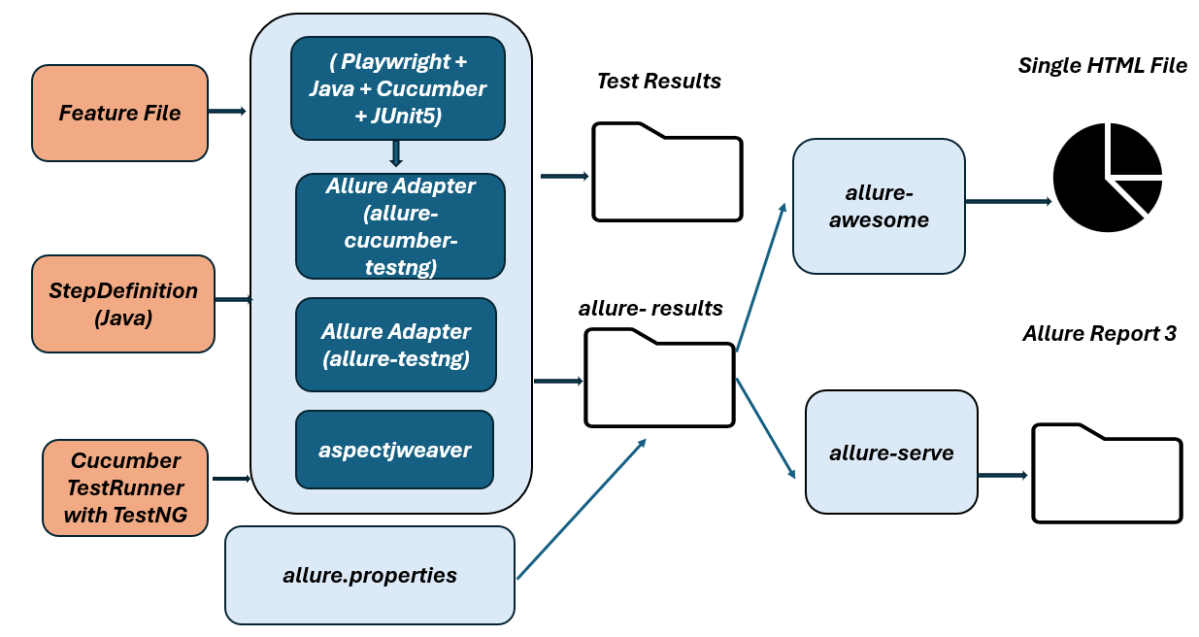
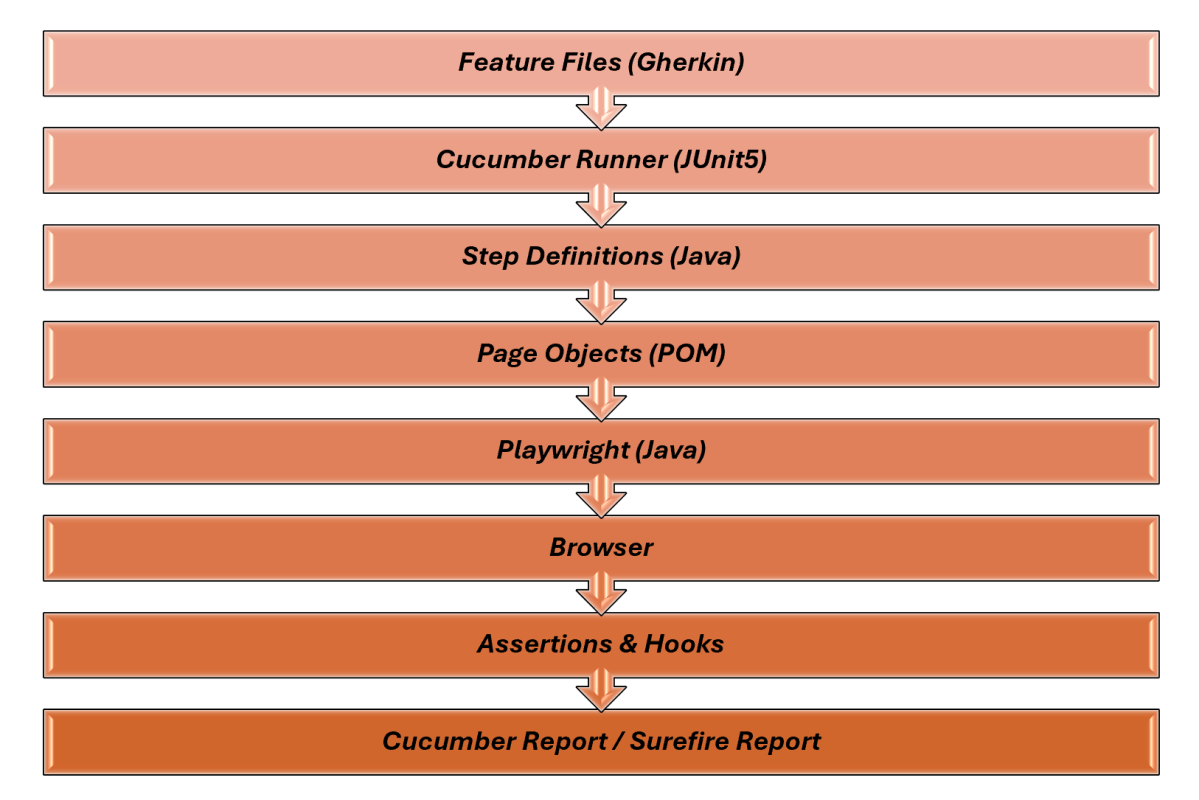
High-Level Architecture
Setting Up Cucumber BDD Framework with Playwright and TestNG
1. Create a new Maven Project
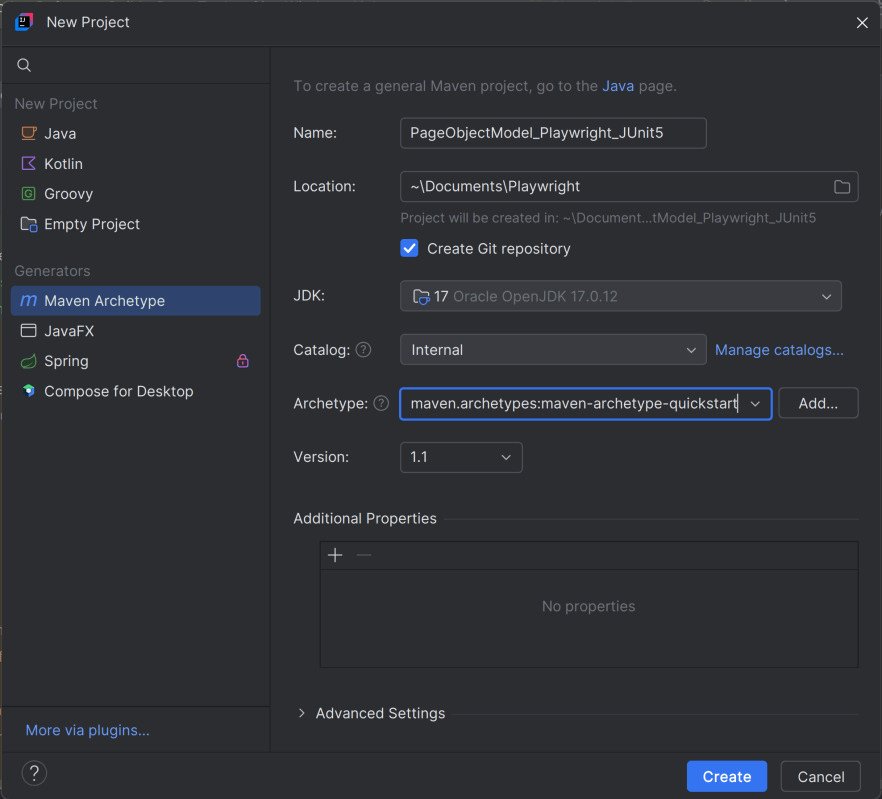
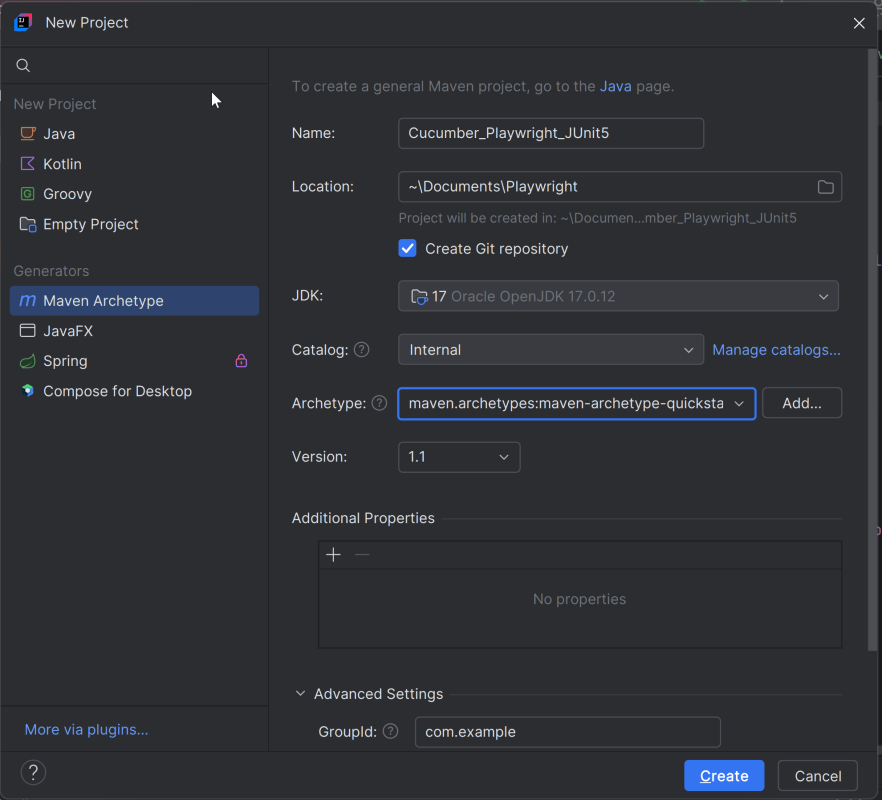
The first step in setup is to create a new Maven project. I will be using IntelliJ in this tutorial. The following steps need to be followed to create a new Maven project :
Open IntelliJ, Navigate to File >> New >> Project
In the New Project window, enter the following details:
Name of the Project – Cucumber_Playwright_TestNG
Location/path where the project needs to be saved – Documents/Playwright (my location)
Select JDK version — I am using JDK 17
Archetype — Search for “quickstart” and select maven-archetype-quickstartfrom the results
Click on the Create button to create the project.
This will create a project as shown in IntelliJ.
2. Set Up the Environment
2.1 Add the Cucumber, Playwright Java, and TestNG dependencies
Add the Cucumber, Playwright Java, and TestNG dependencies to the pom.xml. The latest dependency can be found here.
The compiler plugin is used to compile the source code of a Maven project. This plugin has two goals, which are already bound to specific phases of the default lifecycle:
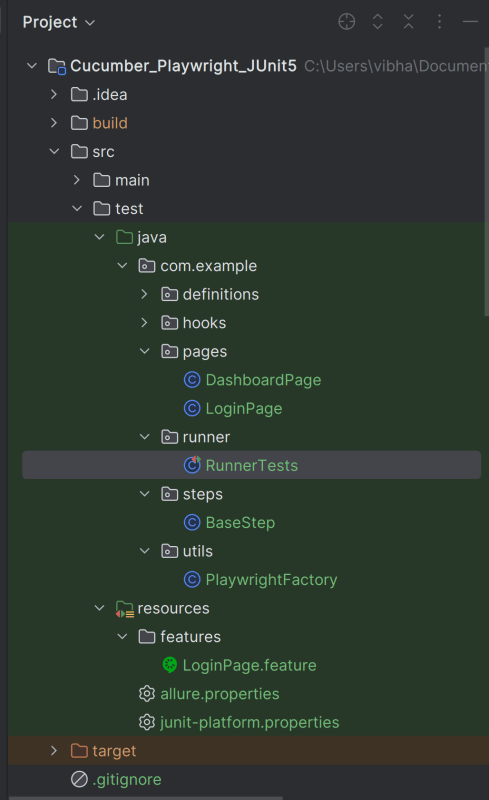
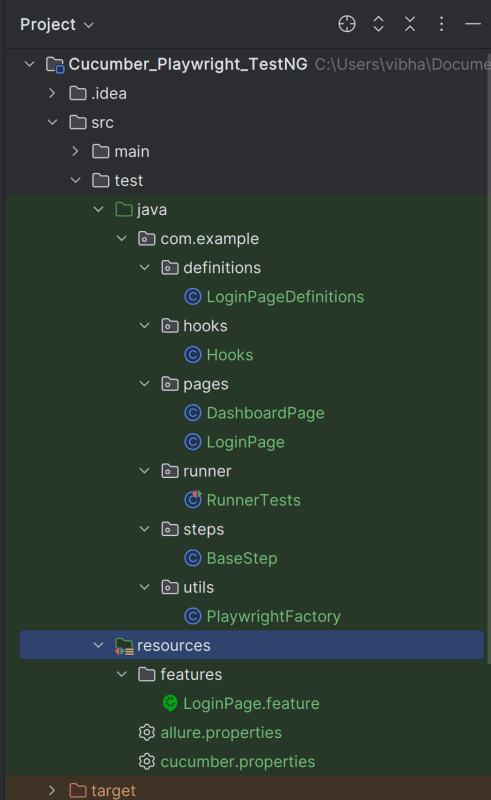
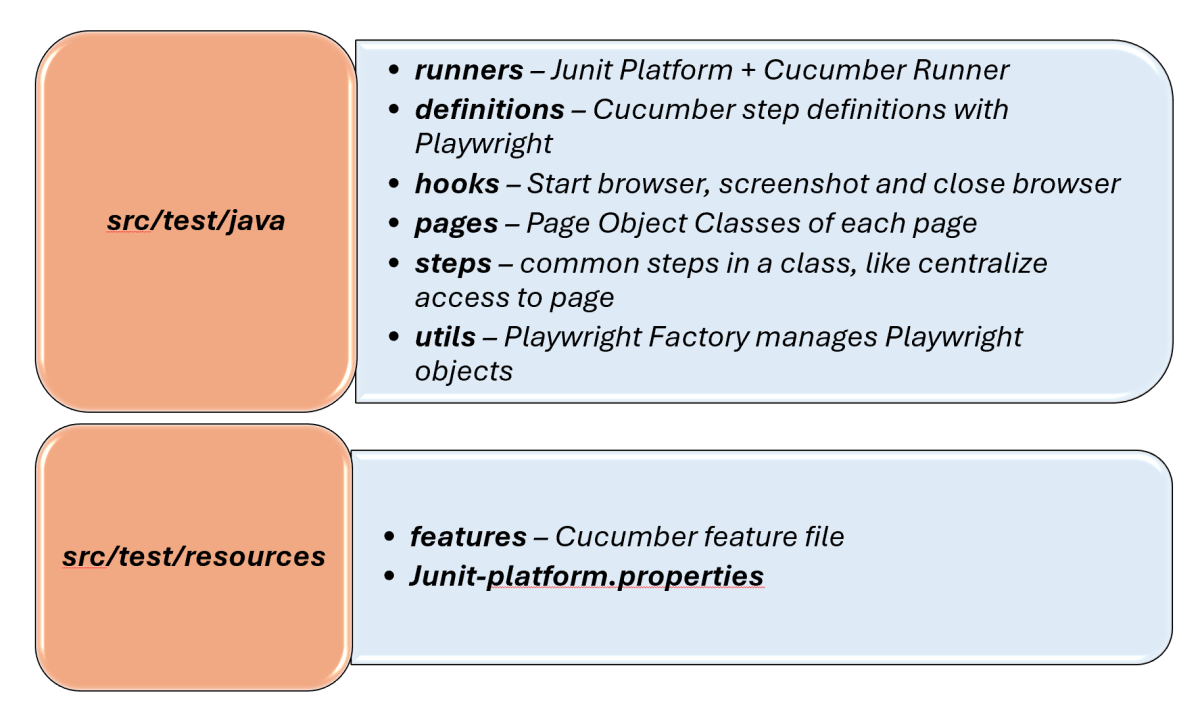
Creating a well-organized project structure is crucial for maintaining a scalable and efficient automation framework.
1. Maven Configuration (pom.xml): This file manages project dependencies, plugins, and other configurations.
2. Features (src/test/resources/…/features): Contains Gherkin feature files written in plain English.
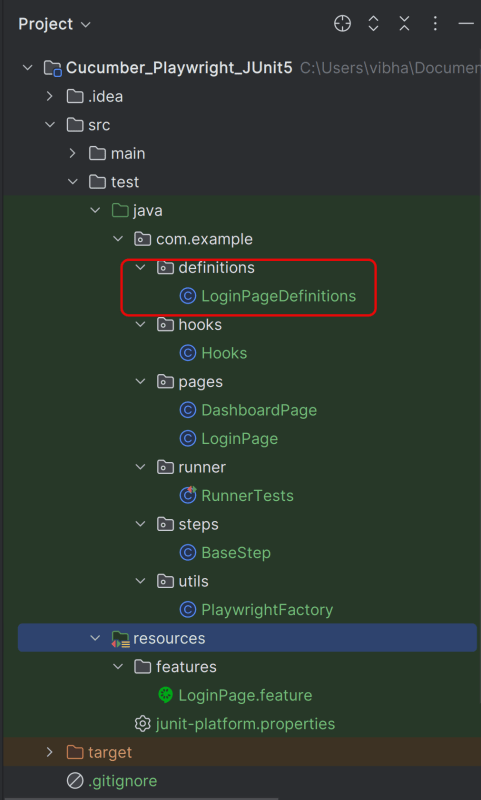
3. StepDefinition (src/test/java/.../tests/): Here, you write your actual test cases, utilizing the page classes. Cucumber stepsare implemented.
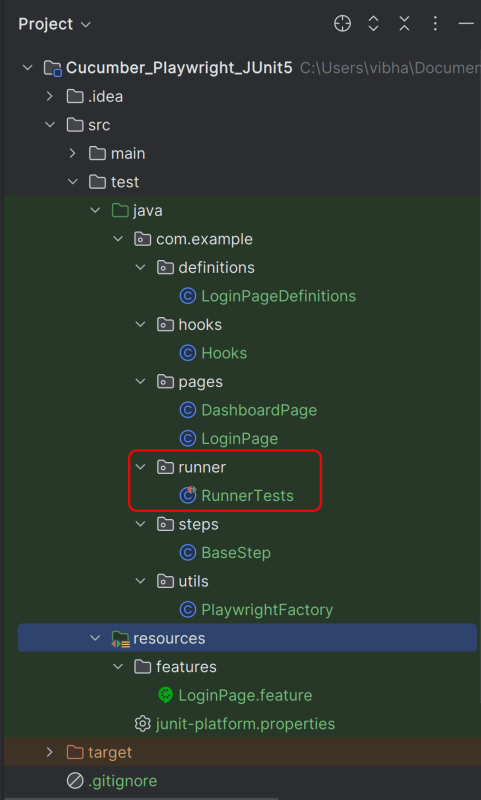
4. Runner (src/main/java/…runner/): It connects Cucumber feature files with TestNGand triggers execution.
5. Hooks (src/test/java/…/hooks): Hooks manage test lifecycle events like Launch browser before scenario, Close browser after scenario, Capture screenshots on failure
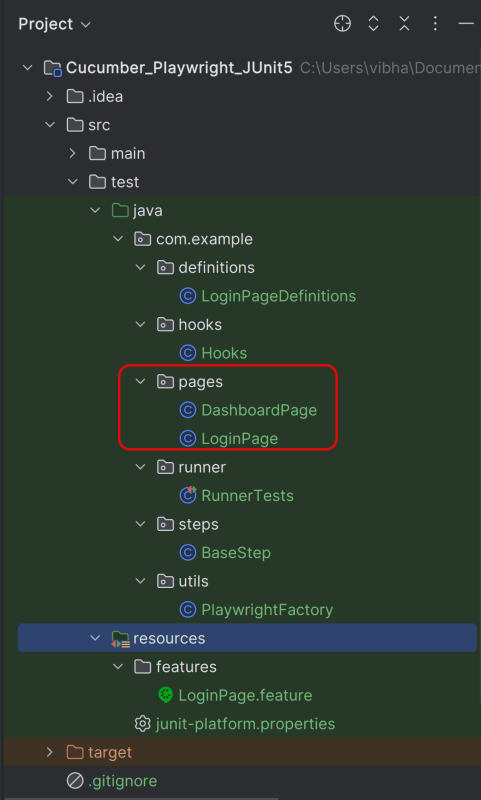
6. Page Classes (src/main/java/.../pages/): Each web page in your application should have a corresponding page class. This class encapsulates all the functionalities of the web page, following the Page Object Model.
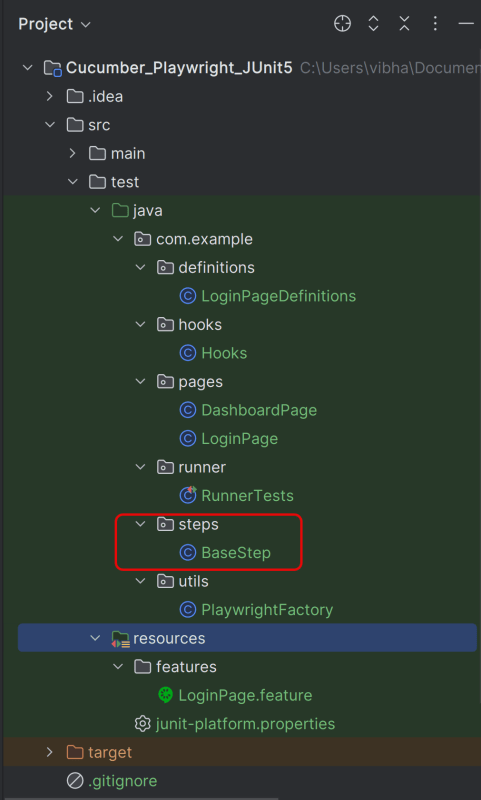
7. Steps (src/test/java/…/steps): It is an extra abstraction layer between step definitions and pages. It contains code which is common across scenarios.
8. Utility Classes (src/main/java/.../utils/): These classes can include various utilities like configuration readers, browser factory, helper methods for common tasks, etc.
9. Test Data Files (src/test/resources/testdata/): Externalizes test data to avoid hardcoding. This includes items like usernames and passwords. These are stored in external files for easy management.
10. cucumber.properties: It contains global configuration for Cucumber.
11. testng.xml: This file is the central configuration file that defines how the test suite should be executed.
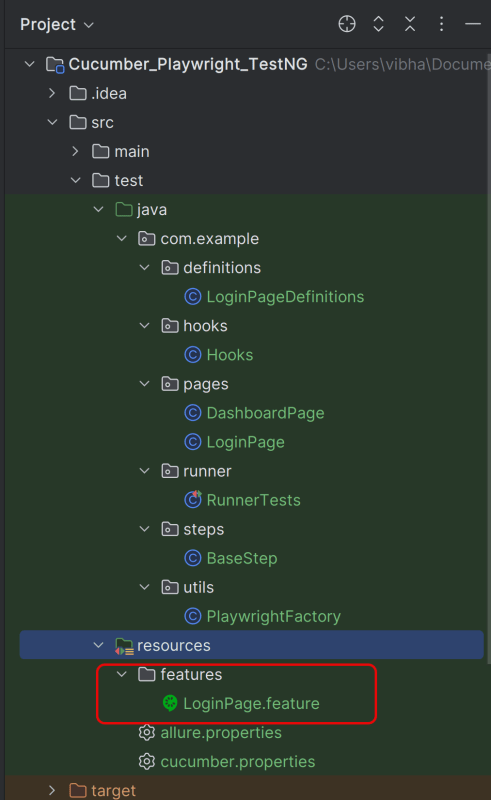
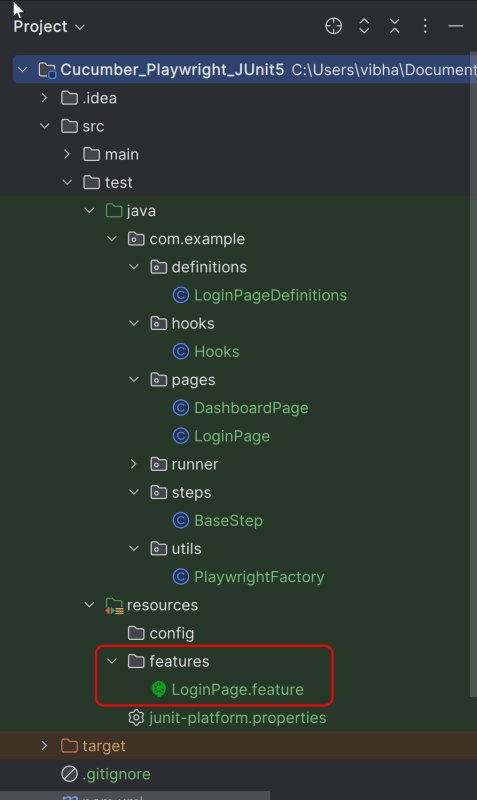
4. Create a feature file under src/test/resources
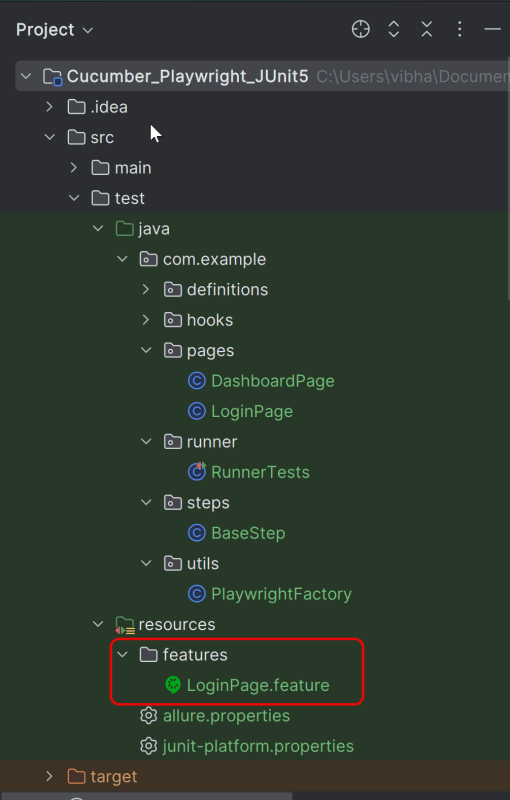
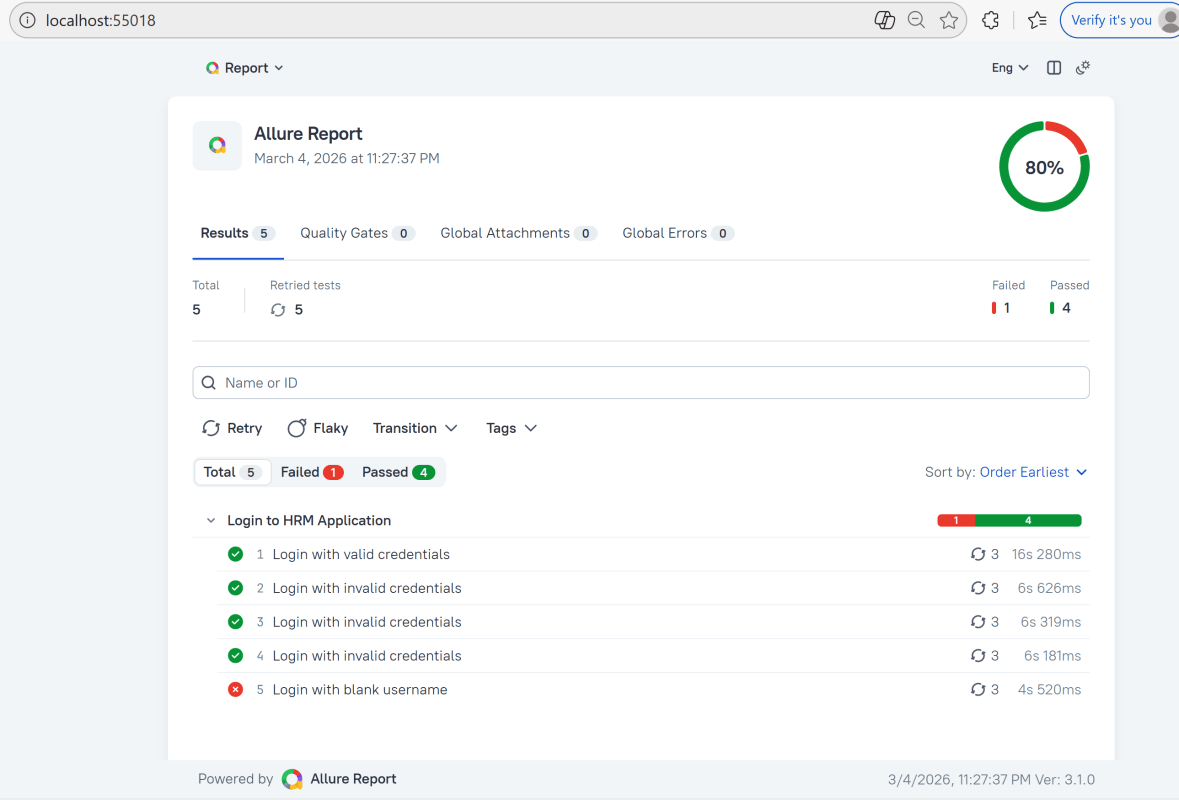
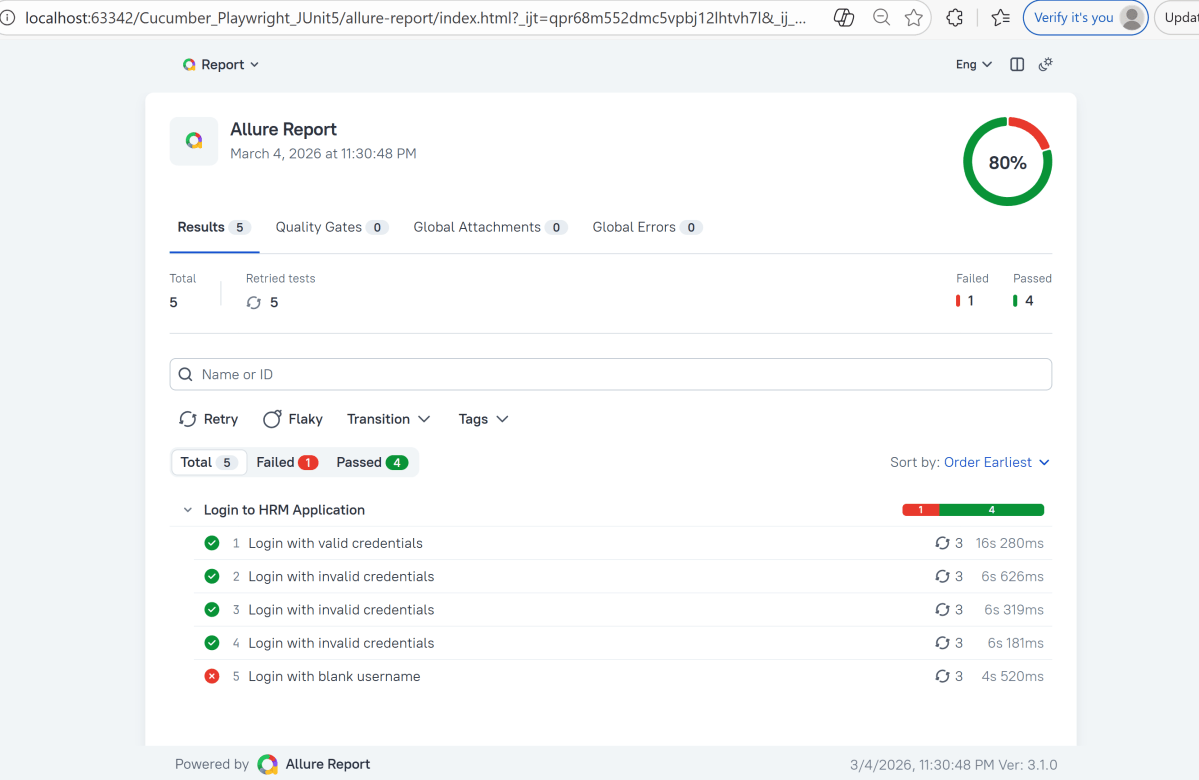
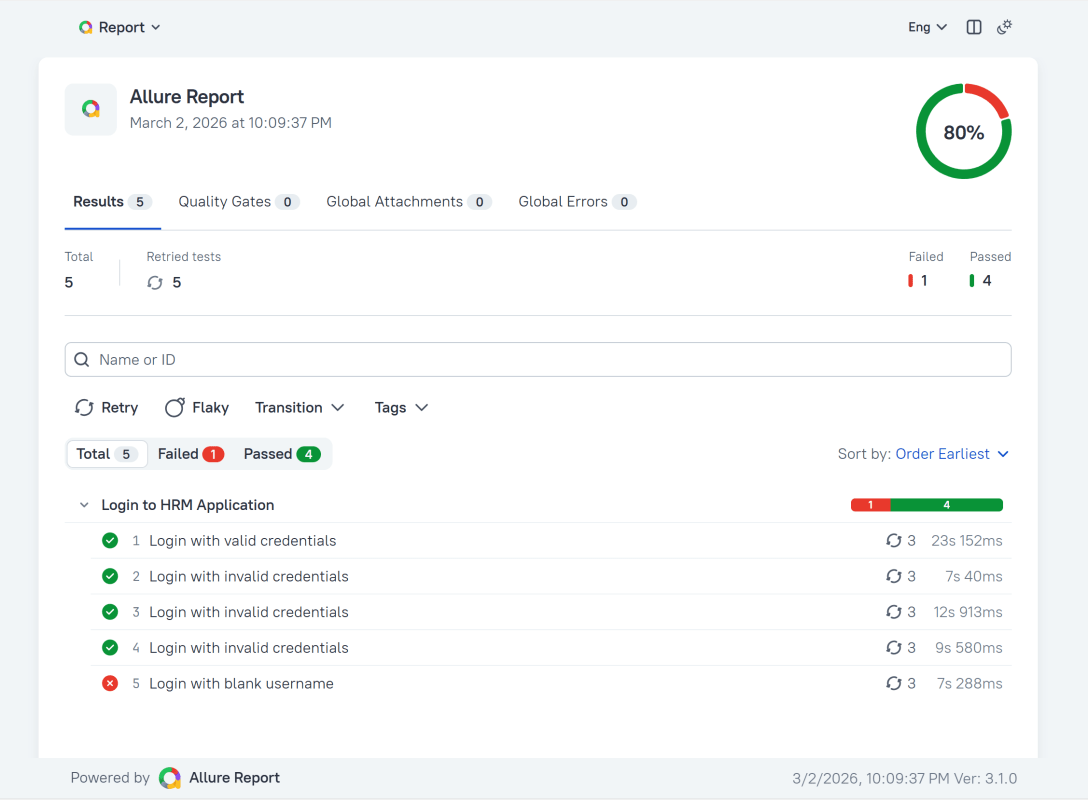
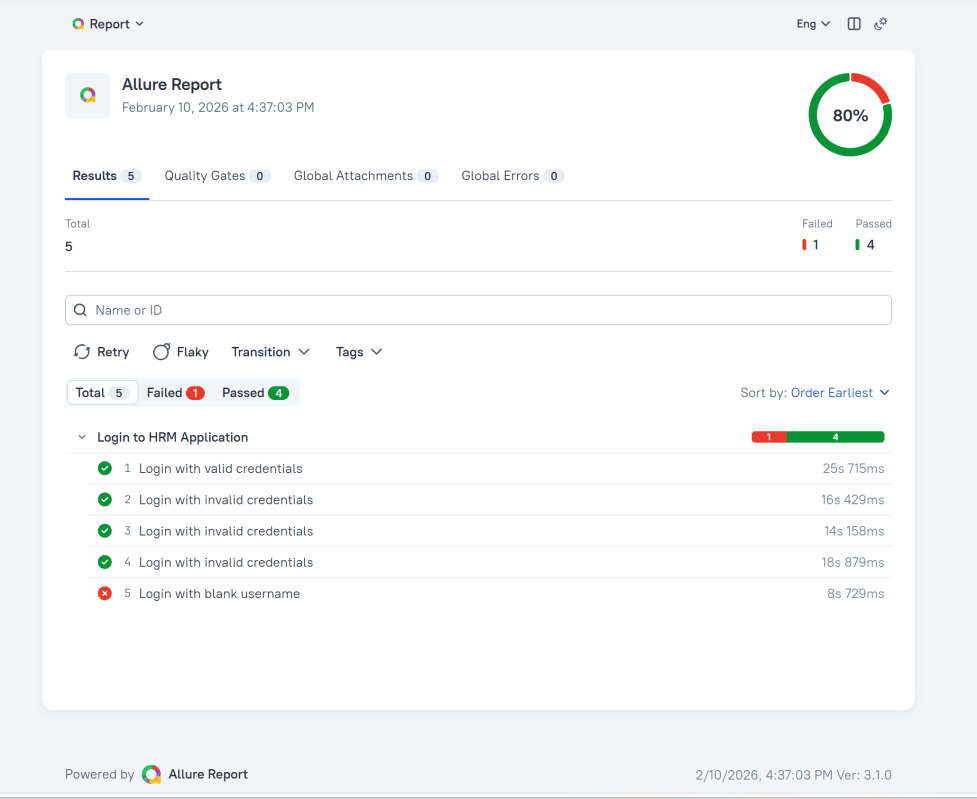
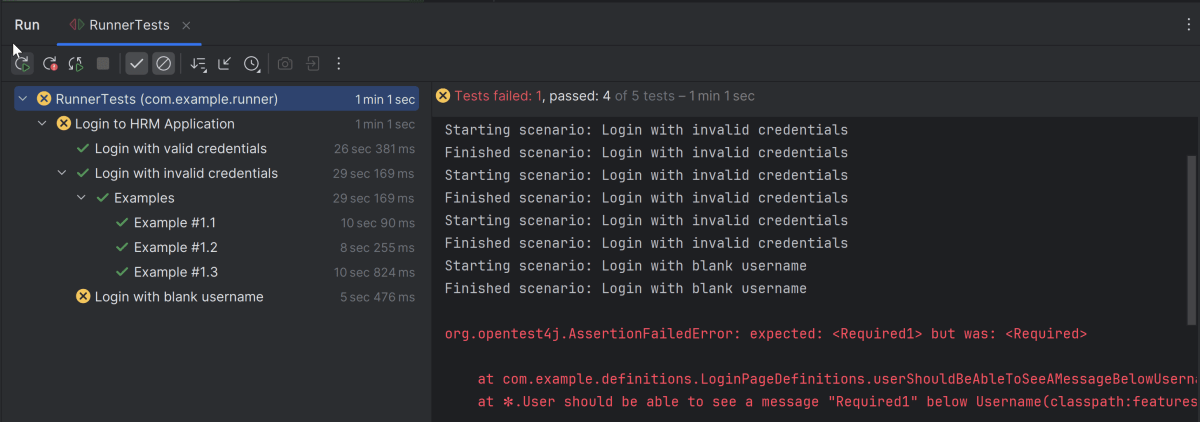
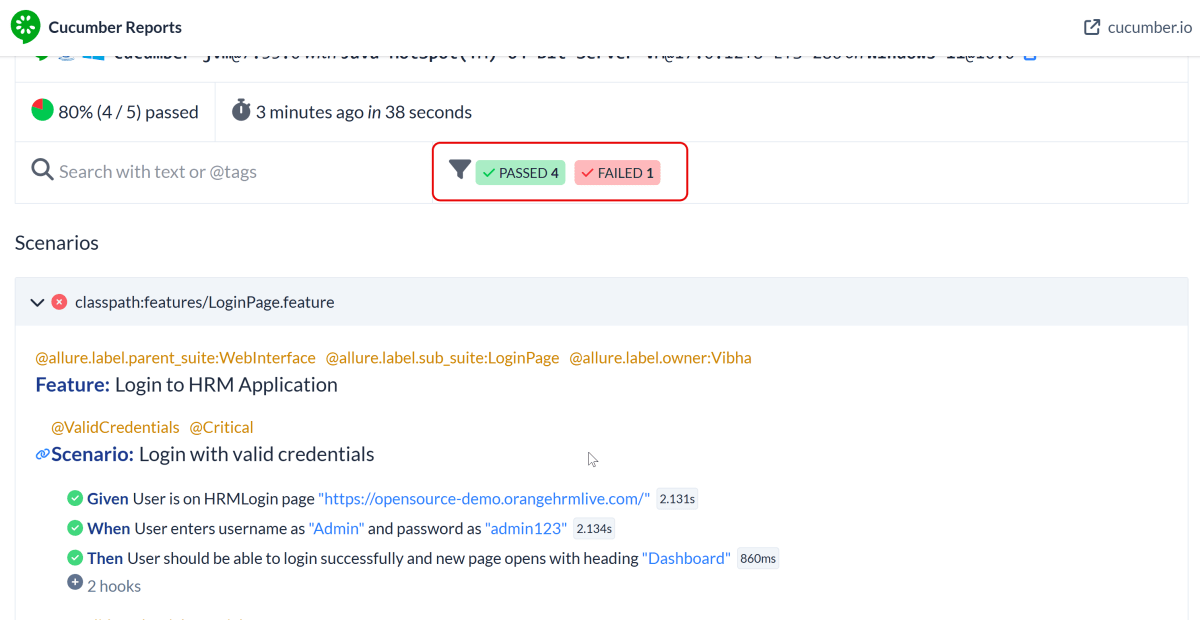
It is recommended to create a features folder in the src/test/resources directory. Create all the feature files in this features folder. Feature file should be saved as an extension of .feature. The test scenarios in the Feature file are written in Gherkins language. Add the test scenarios in this feature file. I have added sample test scenarios. Out of 5 tests, 4 will pass and 1 will fail.
Feature: Login to HRM Application
Background:
Given User is on HRMLogin page "https://opensource-demo.orangehrmlive.com/"
@ValidCredentials
Scenario: Login with valid credentials
When User enters username as "Admin" and password as "admin123"
Then User should be able to login successfully and new page opens with heading "Dashboard"
@InvalidCredentials
Scenario Outline: Login with invalid credentials
When User enters username as "<username>" and password as "<password>"
Then User should be able to see error message "<errorMessage>"
Examples:
| username | password | errorMessage |
| Admin | admin12$$ | Invalid credentials |
| admin$$ | admin123 | Invalid credentials |
| abc123 | xyz$$ | Invalid credentials |
@MissingUsername
Scenario: Login with blank username
When User enters username as " " and password as "admin123"
Then User should be able to see a message "Required1" below Username
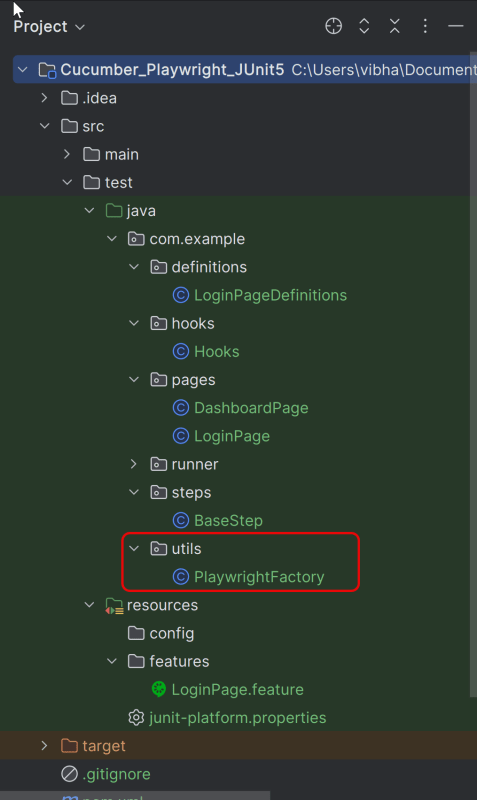
5. Create the utility package in src/test/java
Create a Playwright Factory that contains the methods to start the browser and close the browser.
package com.example.utils;
import com.microsoft.playwright.*;
public class PlaywrightFactory {
private static Playwright playwright;
private static Browser browser;
private static BrowserContext context;
private static Page page;
public static void initBrowser() {
playwright = Playwright.create();
browser = playwright.chromium().launch(new BrowserType.LaunchOptions().setHeadless(false));
context = browser.newContext();
page = context.newPage();
}
public static Page getPage() {
return page;
}
public static void closeBrowser() {
if (page != null) page.close();
if (context != null) context.close();
if (browser != null) browser.close();
if (playwright != null) playwright.close();
}
}
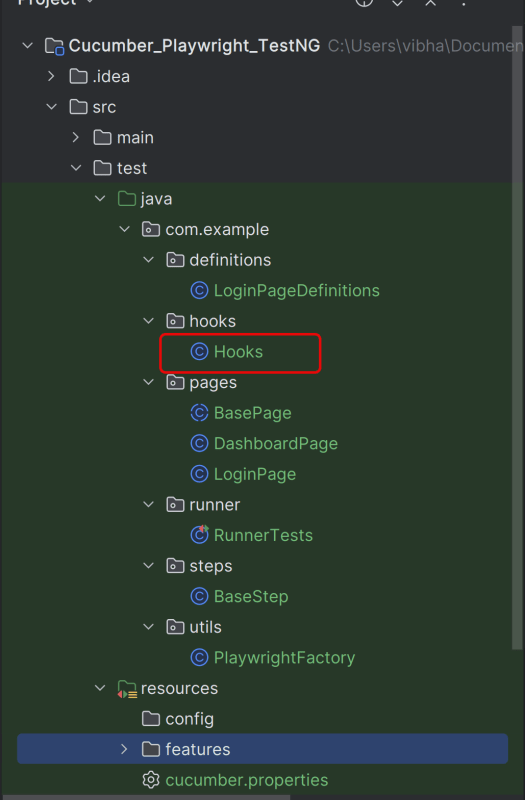
6. Create the hooks package in src/test/java
Create a Hook class that contain the code that runs before or after each scenario. Here, it is responsible for
Each web page in your application should have a corresponding page class. This class encapsulates all the functionalities of the web page, following the Page Object Model.
LoginPage
package com.example.pages;
import com.microsoft.playwright.*;
public class LoginPage {
private Page page;
// Locators
private final Locator usernameLocator;
private final Locator passwordLocator;
private final Locator submitLocator;
private final Locator invalidCredentialsLocator;
private final Locator missingUsernameLocator;
public LoginPage(Page page) {
this.page = page;
this.usernameLocator = page.locator("input[name='username']");
this.passwordLocator = page.locator("input[name='password']");
this.submitLocator = page.locator("button[type='submit']");
this.invalidCredentialsLocator = page.locator("//p[contains(@class, \"oxd-text oxd-text--p oxd-alert-content-text\")]");
this.missingUsernameLocator = page.locator("//span[contains(@class, 'oxd-text oxd-text--span oxd-input-field-error-message oxd-input-group__message')]");
}
public void login(String user, String pass){
usernameLocator.fill(user);
passwordLocator.fill(pass);
submitLocator.click();
}
public void getUrl(String url){
page.navigate(url);
}
public String getMissingUsernameErrorMessage() {
return missingUsernameLocator.textContent();
}
public String getErrorMessage () {
return invalidCredentialsLocator.textContent();
}
}
DashboardPage
package com.example.pages;
import com.microsoft.playwright.Locator;
import com.microsoft.playwright.Page;
public class DashboardPage {
private Page page;
private final Locator headingLocator;
public DashboardPage(Page page){
this.page = page;
this.headingLocator = page.locator("//h6[contains(@class, \"oxd-topbar-header-breadcrumb-module\")]");
}
public String getDashboardPageHeading() {
return headingLocator.textContent();
}
}
8. Create the step package in src/test/java
package com.example.steps;
import com.example.utils.PlaywrightFactory;
import com.microsoft.playwright.Page;
public class BaseStep {
protected Page getPage() {
Page page = PlaywrightFactory.getPage();
if (page == null) {
throw new RuntimeException(
"Page is NULL. Ensure @Before hook ran and glue includes hooks package."
);
}
return page;
}
}
9. Create the step definition class in src/test/java
Create the step definition class corresponding to the feature file to test the scenarios in the src/test/java directory. The StepDefinition files should be created in this definitionsdirectory within the folder called definitions.
Below is the step definition of the LoginPage feature file.
package com.example.definitions;
import com.example.steps.BaseStep;
import com.example.pages.DashboardPage;
import com.example.pages.LoginPage;
import io.cucumber.java.en.Given;
import io.cucumber.java.en.Then;
import io.cucumber.java.en.When;
import org.testng.Assert;
public class LoginPageDefinitions extends BaseStep {
private LoginPage loginPage;
private DashboardPage dashboardPage;
@Given("User is on HRMLogin page {string}")
public void userIsOnHRMLoginPage(String baseUrl) {
loginPage = new LoginPage(getPage());
loginPage.getUrl(baseUrl);
}
@When("User enters username as {string} and password as {string}")
public void userEntersUsernameAsAndPasswordAs(String username, String password) {
loginPage.login(username, password);
}
@Then("User should be able to see error message {string}")
public void userShouldBeAbleToSeeErrorMessage(String expectedErrorMessage) {
Assert.assertEquals(loginPage.getErrorMessage(), expectedErrorMessage);
}
@Then("User should be able to see a message {string} below Username")
public void userShouldBeAbleToSeeAMessageBelowUsername(String expectedErrorMessage) {
Assert.assertEquals(loginPage.getMissingUsernameErrorMessage(), expectedErrorMessage);
}
@Then("User should be able to login successfully and new page opens with heading {string}")
public void userShouldBeAbleToLoginSuccessfullyAndNewPageOpen(String expectedHeading) {
dashboardPage = new DashboardPage(getPage());
Assert.assertEquals(dashboardPage.getDashboardPageHeading(), expectedHeading);
}
}
10. Create a TestNG Cucumber Runner class in src/test/java
We need to create a class called Runner class to run the tests. This class will use the TestNG annotation @RunWith(), which tells TestNG what is the test runner class. TestRunner should be created under src/test/java within the folder called runner.
AbstractTestNGCucumberTestsis a class provided by the Cucumber framework when we are integrating Cucumber with the TestNG test framework. This abstract class helps facilitate the execution of Cucumber tests using TestNG.
We need to specify the values of browser in the TestNG XML file that will pass to the test case file.
Let’s create a testng.xml file to run the test using TestNG.
Right click on the project, New >> File
<?xml version="1.0" encoding="UTF-8"?>
<!DOCTYPE suite SYSTEM "http://testng.org/testng-1.0.dtd">
<suite name="Playwright test suite" thread-count="3">
<test name="Chromium Tests">
<classes>
<class name="com.example.runner.RunnerTests"/>
</classes>
</test>
</suite>
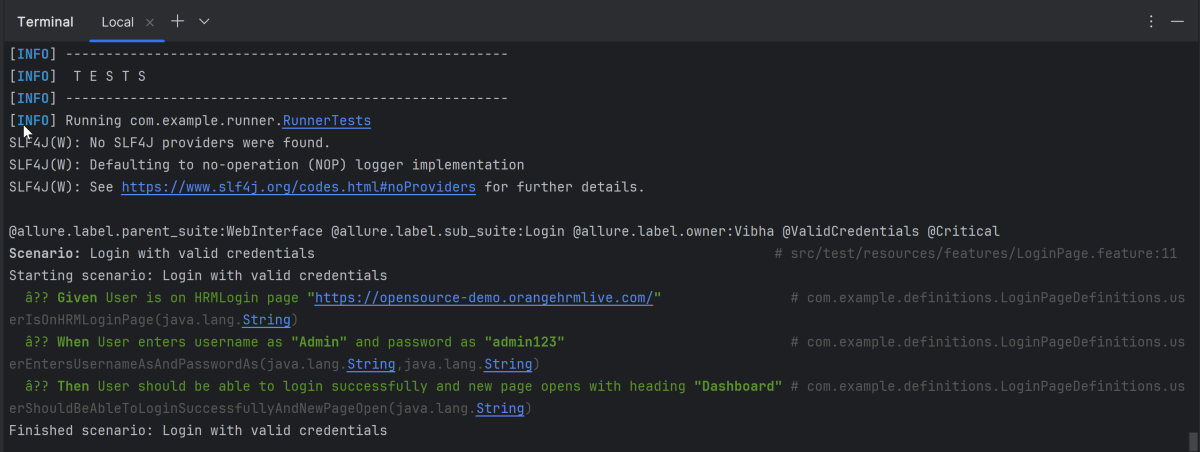
12. Run the test through Runner Class
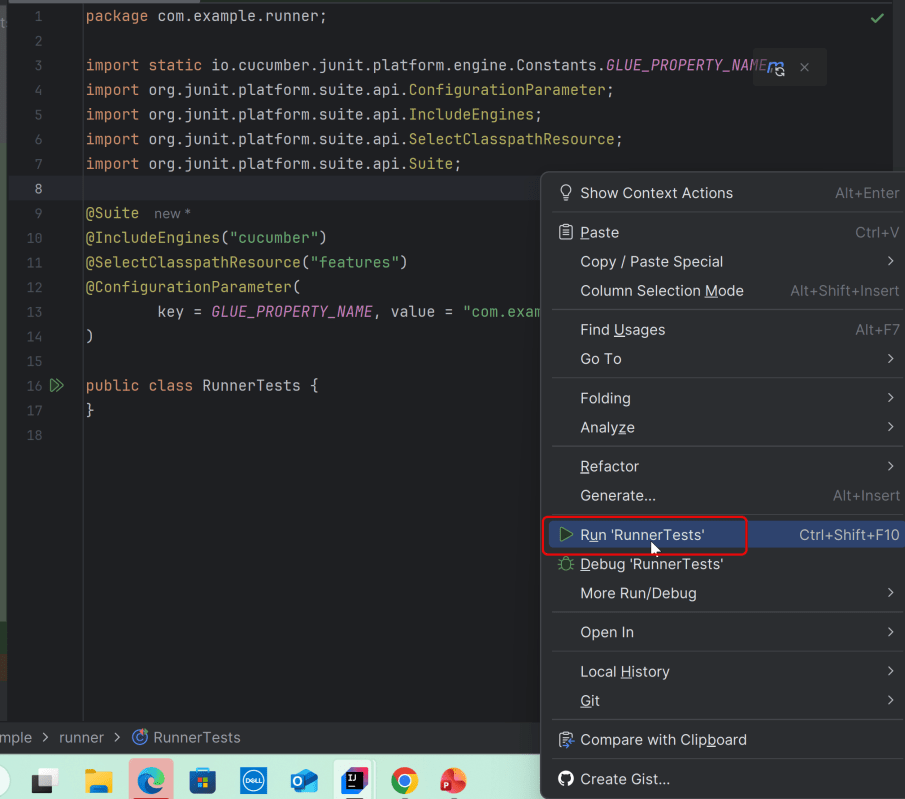
Go to the Runner class and right-click and select Run ‘RunnerTests’. The tests will run as TestNG tests (in IntelliJ).
Below is the test execution result.
13. Run the tests from TestNG.xml
Execute the tests by right-clicking on testng.xml and select Run ‘…testng.xml’
This will run the tests in chromium as mentioned in the .xml file.
The output of the above program is
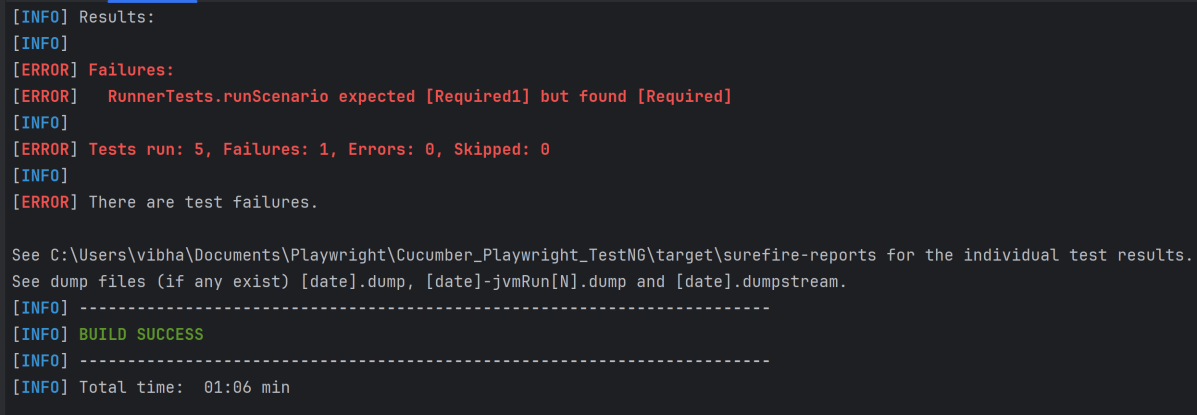
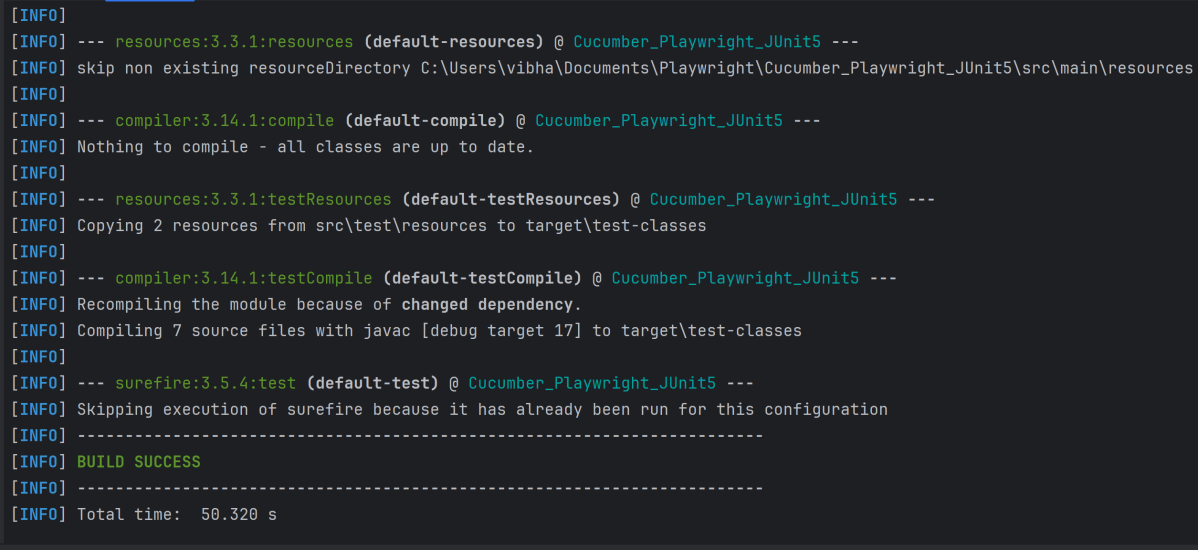
14. Run the tests from the Command Line
Run the below command in the command prompt to run the tests and to get the test execution report.
mvn clean test
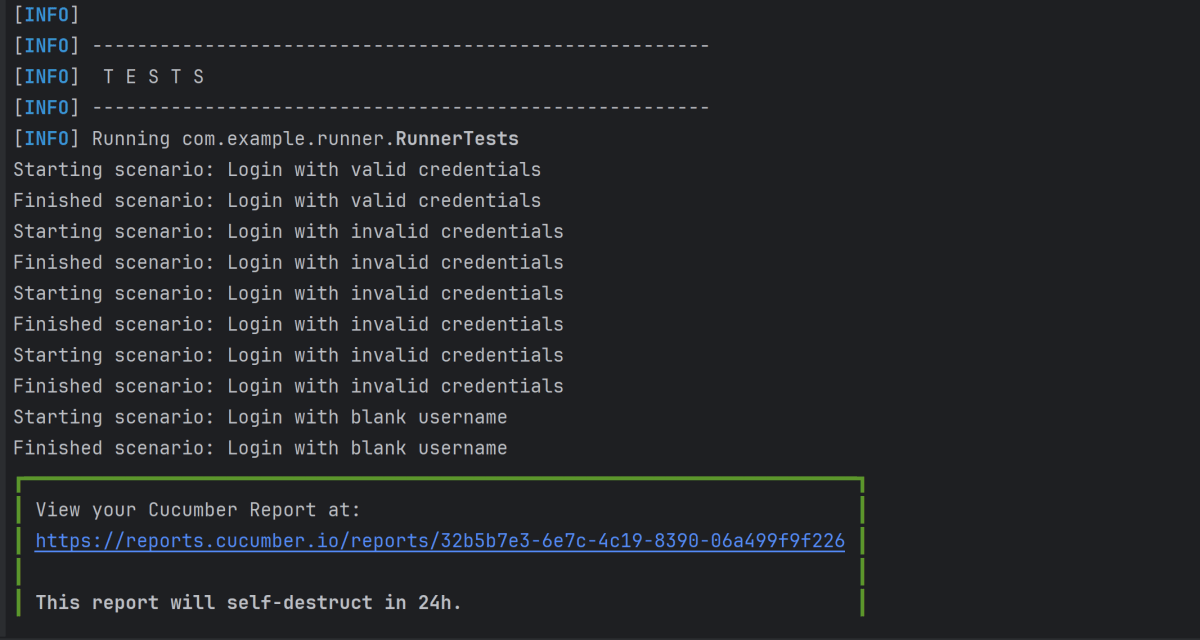
The execution screen looks like something as shown below.
15. Cucumber Report Generation
Add cucumber.properties under src/test/resources and add the below instructions in the file.
cucumber.publish.enabled=true
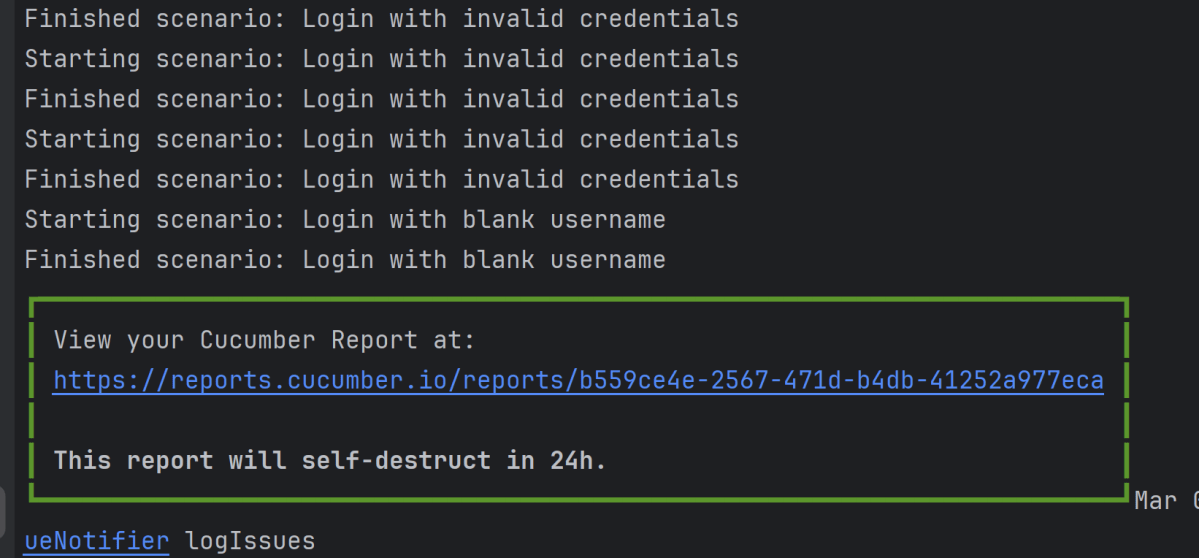
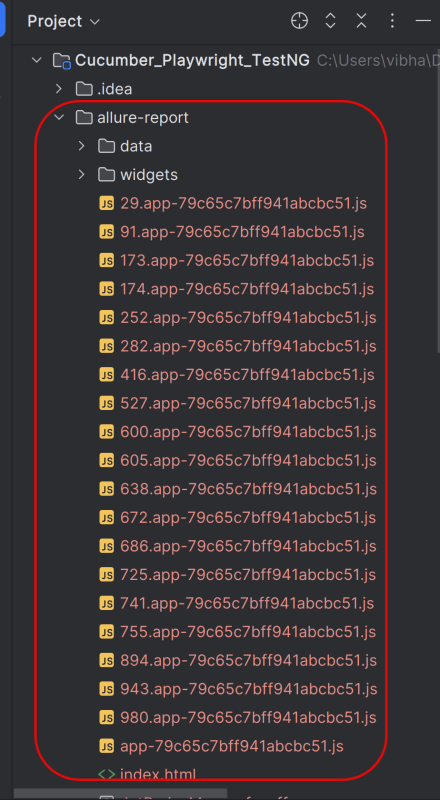
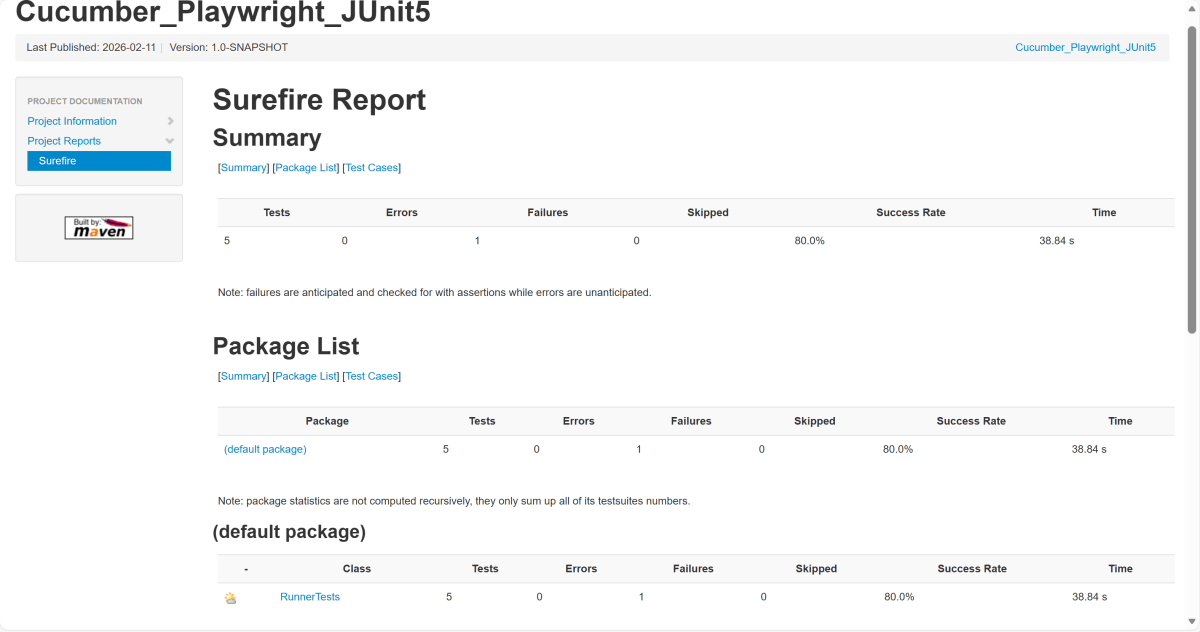
Below is the image of the Cucumber Report generated using the Cucumber Service.
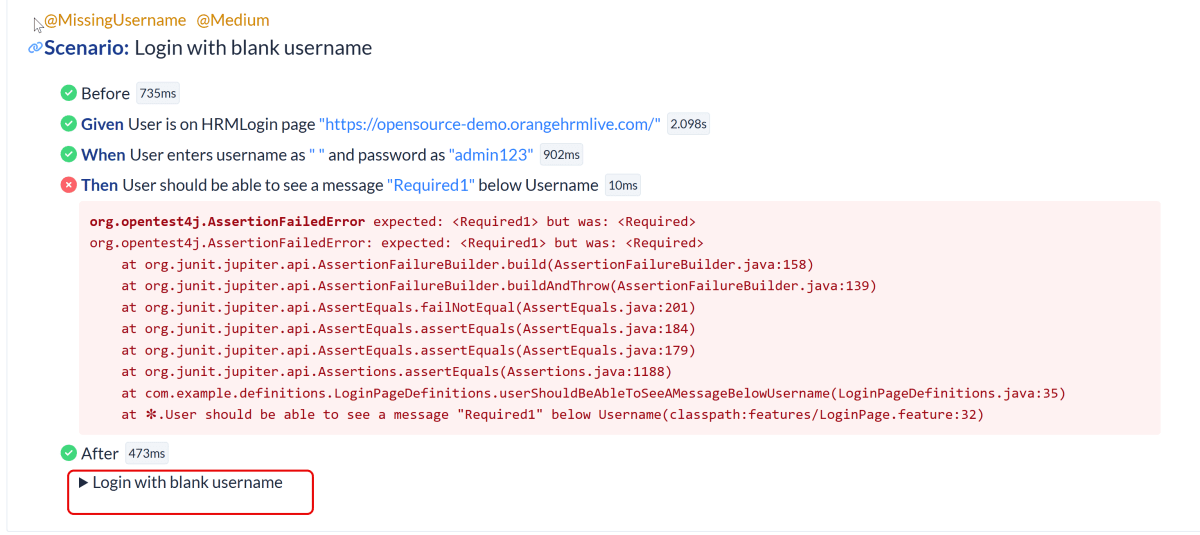
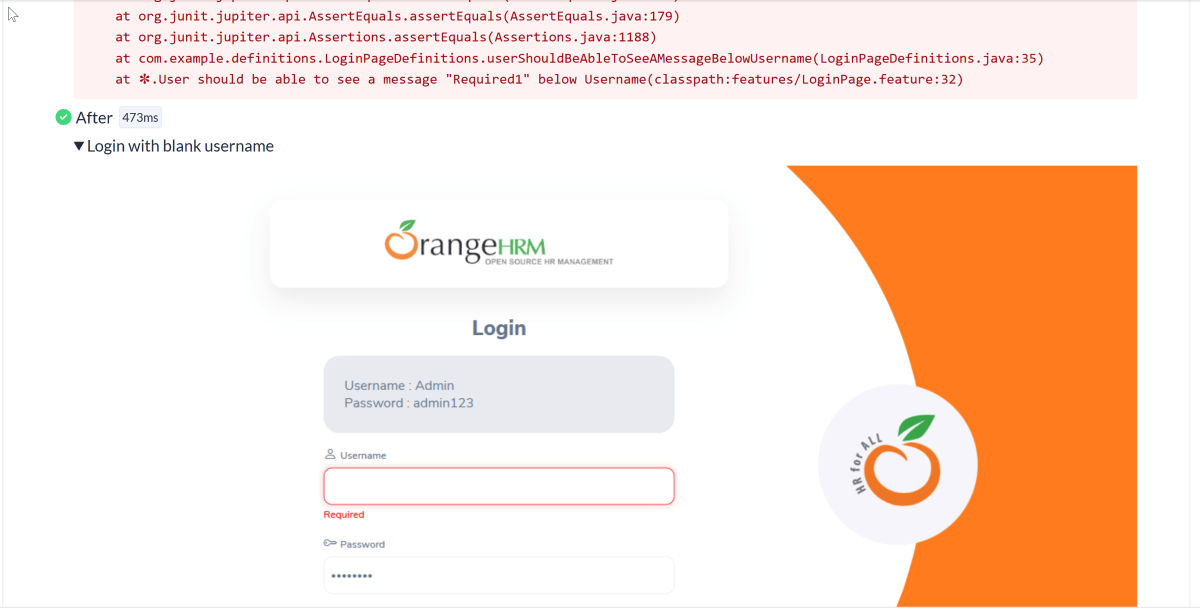
The screenshot of the failed test is also attached in the Cucumber Report.
Click on the highlighted part. It contains the screenshot.
16. TestNG Report Generation
TestNG generates various types of reports under test-output folder like emailable-report.html, index.html, testng-results.xml.
We are interested in the emailable-report.html report. Open emailable-report.html, as this is an HTML report, and open it with the browser. The below image shows emailable-report.html.
TestNG also produces an “index.html” report, and it resides under the test-output folder. The below image shows the index.html report. This is the latest theme of the report.
Recap of Key Points:
Playwright and Java: We explored the powerful combination of Playwright with Java. We highlighted the benefits of this duo in automated testing.
Build: Maven manage the dependencies and execution.
Cucumber (BDD Framework):It enables Behavior-Driven Development (BDD).
Feature: It uses Gherkin feature file to create the scenarios.
StepDefinition: StepDefinition file contains the test code related to the feature file. When Cucumber executes a Gherkin step in a scenario, it will look for a matching step definition to execute.
Test Runner: It acts as a bridge between the feature and StepDefinition file.
TestNG: It controls the test execution lifecycle. It integrates with Cucumber via TestNG runner.
Hooks: Hooks manage browser setup, teardown, and failure handling
Large test suites can be structured to optimize ease of authoring and maintenance. Page object models are one such approach to structure the test suite. In this tutorial blog, we will learn to create and set up the project using Page Object Model in Playwright Java and JUnit5.
Page Object Model (POM) is a design pattern used in test automation. It enhances test maintenance and reduces code duplication. In this pattern, web pages are represented as classes. The various elements on the page are defined as variables in the class. All possible user interactions can then be implemented as methods in the class.
Why is Page Object Model Important?
1. Improved Test Maintenance: POM allows for easy updates to test scripts when the UI changes. The test logic is separated from the page definitions. This way, only the page objects need to be updated rather than all test scripts.
2. Maintainability: In this model, separate classes are created for different pages of a web application like login page, the home page, employee detail page, change password page, etc. So, if there is any change in any element of a website then we only need to make changes in one class, and not in all classes.
3. Reusability of Code: Shared page objects can be reused across multiple test cases, reducing redundancy. This ensures consistent interactions with web elements and actions, making the test code more efficient and easier to manage.
4. Facilitates Collaboration: A well-structured POM increases collaboration among teams. Each contributor can work on different parts of the application without interfering with one another. This approach helps in managing multiple test scenarios simultaneously.
5. Ease of Debugging: With POM, finding and fixing bugs becomes more straightforward since each page action is located in a specific place. Developers can easily pinpoint the location of a problem without sifting through complex test logic.
What is Playwright?
Page Object Model (POM) is a design pattern used in test automation. It enhances test maintenance and reduces code duplication. In this pattern, web pages are represented as classes. The various elements on the page are defined as variables in the class. All possible user interactions can then be implemented as methods in the class.
What is JUnit5?
JUnit5 is a test execution engine. It is used as testing framework for Java applications. It provides an easy-to-use platform for writing and executing tests. JUnit 5 is composed of three main modules: JUnit Platform, JUnit Jupiter and JUnit Vintage
System requirements
The following prerequisites are required to be installed on the machine to begin with a smooth setup and installation.
Java 11 or higher
IntelliJ IDE or any other IDE to create a project
Maven
Browsers on which tests need to be run, like Chrome, Firefox, etc.
Implementation Steps
1. Create a new Maven Project
The first step in setup is to create a new Maven project. I will be using IntelliJ in this tutorial. The following steps need to be followed to create a new Maven project :
Open IntelliJ, Navigate to File >> New >> Project
2. In the New Project window, enter the following details:
Name of the Project – PageObjectModel_Playwright_JUnit5
Location/path where the project needs to be saved – Documents/Playwright (my location)
Select JDK version — I am using JDK 17
Archetype — Search for “quickstart” and select maven-archetype-quickstart from the results
Click on the Create button to create the project.
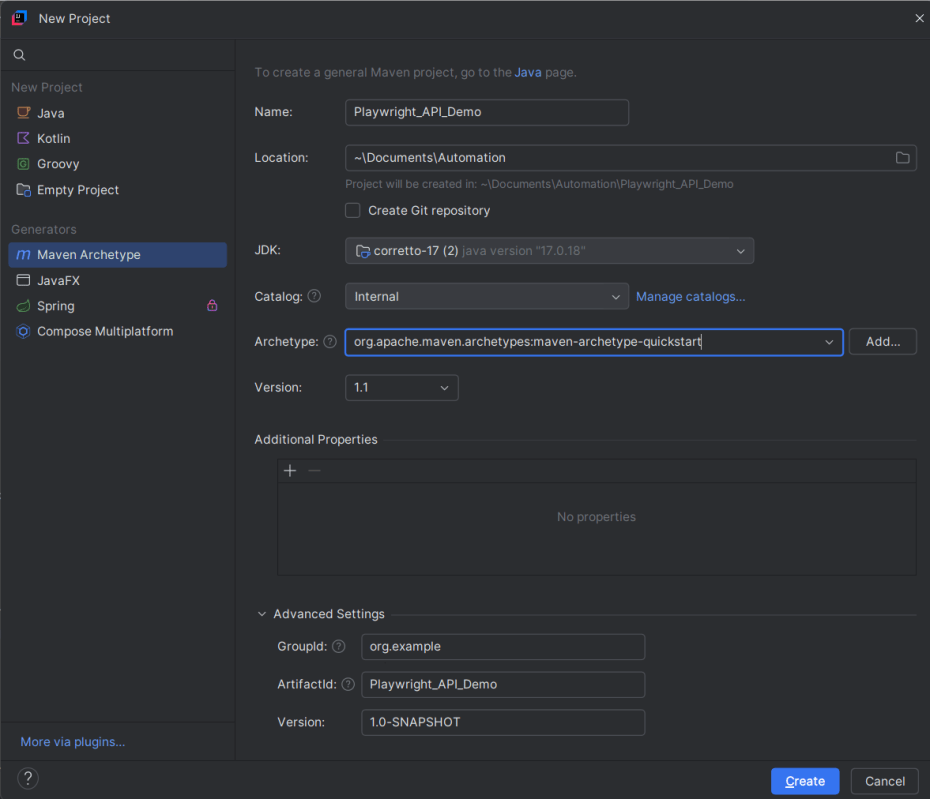
This will create a project as shown below in the IntelliJ.
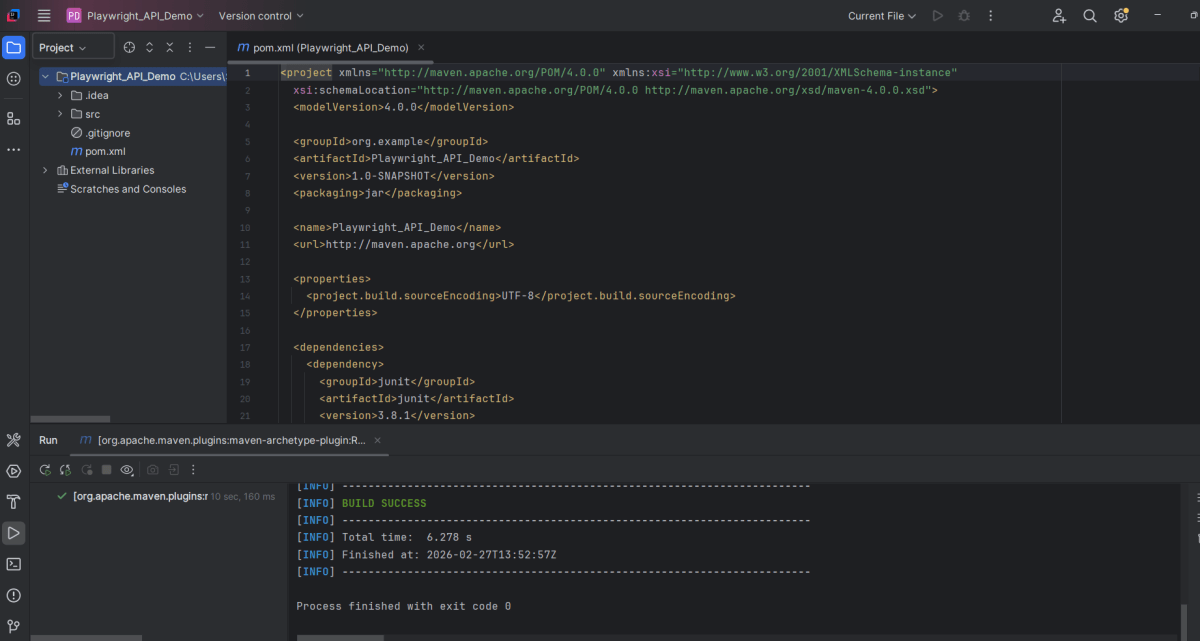
2. Setup Playwright with Java and JUnit5
Add the Playwright and JUnit5 dependencies to the pom.xml. The latest dependency can be found from here.
After adding the dependency, refresh the project. We will see that the Playwright jar files are downloaded in External Libraries.
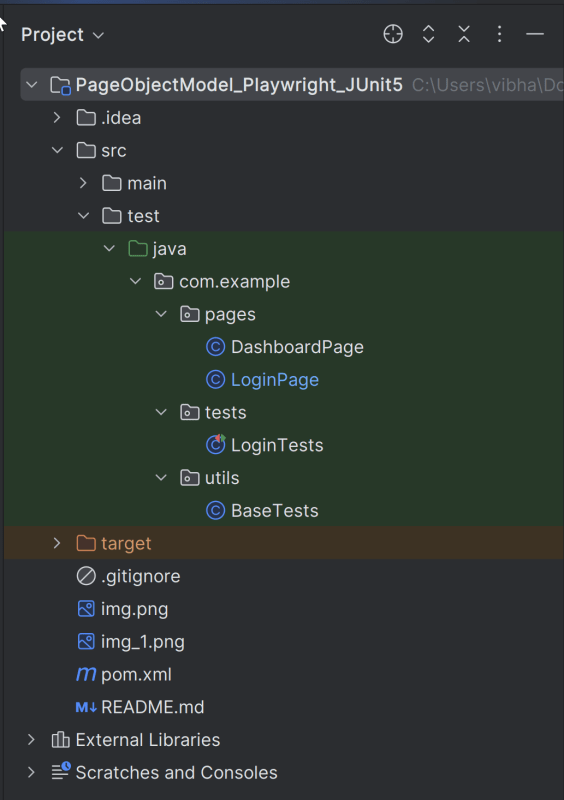
3. Project Structure for Maintainability
Creating a well-organized project structure is crucial for maintaining a scalable and efficient automation framework.
Page Classes (src/main/java/.../pages/): Each web page in your application should have a corresponding page class. This class encapsulates all the functionalities of the web page, following the Page Object Model.
Utility Classes (src/main/java/.../utils/): These classes can include various utilities like configuration readers, helper methods for common tasks, etc.
Test Classes (src/test/java/.../tests/): Here, you write your actual test cases, utilizing the page classes.
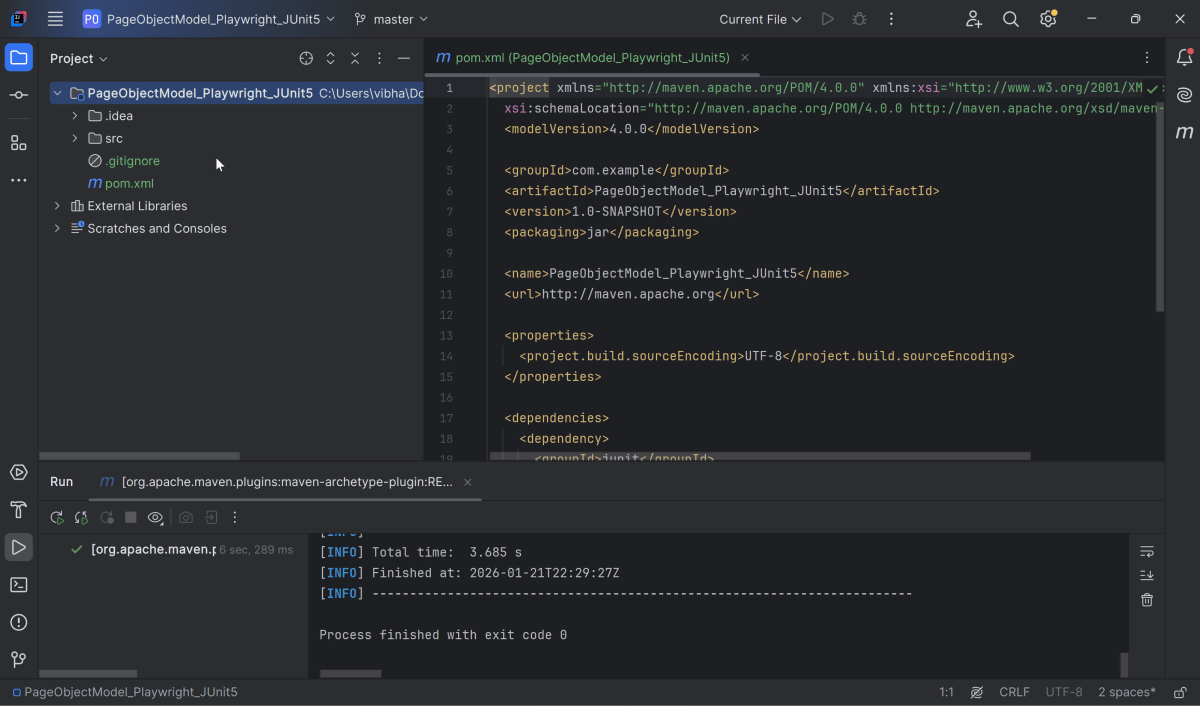
Test Data Files (src/test/resources/testdata/): Keep your test data, like usernames and passwords, in external files for easy management and to avoid hardcoding.
Maven Configuration (pom.xml): This file manages project dependencies, plugins, and other configurations.
4. Creating Page Object Classes
Page classes serve as an interface to a web page’s UI elements. Each page class corresponds to a page in your application, encapsulating the actions that can be performed on that page.
Identify the UI Elements: Determine all the elements on the web page that your test will interact with, such as text boxes, buttons, and links.
Define Selectors:Store the selectors for these elements in your page class. It’s a best practice to externalize these selectors, but for simplicity, we’ll define them directly in the class.
Implement Actions:Create methods for each action that can be performed on the page, like entering text, clicking buttons, etc.
Creating LoginPage Class
import com.microsoft.playwright.Page;
public class LoginPage {
private Page page;
//Locators
private final String usernameLocator = "input[name='username']";
private final String passwordLocator = "input[name='password']";
private final String submitButton = "button[type='submit']";
private final String errorMessage = "//p[contains(@class, 'oxd-text oxd-text--p oxd-alert-content-text')]";
//Constructor
public LoginPage(Page page){
this.page = page;
}
public void login(String username, String password) {
page.fill(usernameLocator,username);
page.fill(passwordLocator,password);
page.click(submitButton);
}
public String getErrorMessage(){
return page.textContent(errorMessage);
}
}
Creating DashboardPage Class
package org.example.pages;
import com.microsoft.playwright.Page;
public class DashboardPage {
private Page page;
//Locators
private final String dashboardHeading = "//h6[contains(@class, 'oxd-topbar-header-breadcrumb-module')]";
//Constructor
public DashboardPage(Page page) {
this.page = page;
}
// Methods
public String getHeading() {
return page.textContent(dashboardHeading);
}
}
5. Write the Test Scripts
Create a Test files under src/test/java. Use these page classes in your test scripts to perform end-to-end scenarios. This will keep your tests clean and focused on logic rather than details about the UI elements.
A typical test class includes:
Setup Method: Initializes the Playwright browser and other prerequisites before each test.
Test Methods: Individual test cases, each representing a different scenario.
Teardown Method: Closes the browser and performs any cleanup after each test.
Creating BaseTests
This class contains the common variables and methods used throughout the project, like setup and teardown methods.
package org.example.utils;
package com.example.utils;
import com.microsoft.playwright.*;
import org.junit.jupiter.api.*;
// Subclasses will inherit PER_CLASS behavior.
@TestInstance(TestInstance.Lifecycle.PER_CLASS)
public class BaseTests {
// Shared between all tests in the class.
static Playwright playwright;
static Browser browser;
// New instance for each test method.
BrowserContext context;
protected Page page;
@BeforeAll
public static void launchBrowser() {
playwright = Playwright.create();
browser = playwright.chromium().launch(new BrowserType.LaunchOptions().setHeadless(false));
}
@AfterAll
public static void closeBrowser() {
playwright.close();
}
@BeforeEach
public void createContextAndPage() {
context = browser.newContext();
page = context.newPage();
page.navigate("https://opensource-demo.orangehrmlive.com/web/index.php/auth/login");
}
@AfterEach
public void closeContext() {
context.close();
}
}
Explanation
In JUnit you can initialize Playwright and Browser in @BeforeAll method and destroy them in @AfterAll. Use @TestInstance(TestInstance.Lifecycle.PER_CLASS) annotation to make JUnit create one instance of a class for all test methods within that class (by default each JUnit will create a new instance of the class for each test method). Store Playwright and Browser objects in instance fields. They will be shared between tests. Each instance of the class will use its own copy of Playwright.
1. Playwright playwright:
Initialized to manage the browser automation session, allowing interactions with different browsers.
2. Browser browser:
Declared to store the browser instance that will be shared across test methods within the class.
Playwright playwright;
Browser browser = null;
3. BrowserContext context:
Created anew for each test method to simulate independent browser sessions. This ensures that the browser state doesn’t carry over between tests.
4. Page page:
Represents a single tab or window in a browser used for performing actions and assertions.
BrowserContext context;
Page page;
5. @BeforeAll launchBrowser():
This method is annotated with @BeforeAll, indicating it runs once before any test methods in the current class. The browser is launched in non-headless mode (setHeadless(false)), meaning an actual browser window is opened.
This method runs before each test method in the class, as indicated by the @BeforeEach annotation. It creates a new BrowserContext and a Page, ensuring each test runs in a clean, isolated state. The method also navigates to a login page (“https://opensource-demo.orangehrmlive.com/web/index.php/auth/login”), setting up the initial state for each test.
Runs after each test method, annotated with @AfterMethod. Closes the BrowserContext, effectively closing the browser tab and cleaning up resources.
@AfterAll
public static void closeBrowser() {
playwright.close();
}
8. @AfterEach closeContext()
Runs once after all test methods in the current class have executed, as indicated by the @AfterEach annotation. Closes the Playwright instance, freeing up all resources used for automation.
@AfterEach
public void closeContext() {
context.close();
}
Creating a Login Page Test Class:
We will be automating the following test scenario using Playwright Java and run them in Chromium
Verify the invalid username generates error message “Invalid credentials”
package com.example.tests;
import com.example.pages.DashboardPage;
import com.example.pages.LoginPage;
import com.example.utils.BaseTests;
import org.junit.jupiter.api.Assertions;
import org.junit.jupiter.api.Test;
public class LoginTests extends BaseTests {
@Test
public void unsuccessfulLogin() {
LoginPage loginPage = new LoginPage(page);
loginPage.login("abc","abc");
String actualErrorMessage = loginPage.getErrorMessage();
Assertions.assertEquals("Invalid credentials", actualErrorMessage, "");
}
@Test
public void successfulLogin() {
LoginPage loginPage = new LoginPage(page);
loginPage.login("Admin","admin123");
DashboardPage dashboardPage = new DashboardPage(page);
String actualHeading = dashboardPage.getDashboardPageHeading();
Assertions.assertEquals("Dashboard",actualHeading, "Unable to login to the application");
}
}
Explanation
1. successfulLogin
This method enters correct credentials and login to the application.
2. unsuccessfulLogin
This method enter the invalid username and password and click on the Submit button. Then, it assert that the error message generated by the application is equal to “Invalid credentials”.
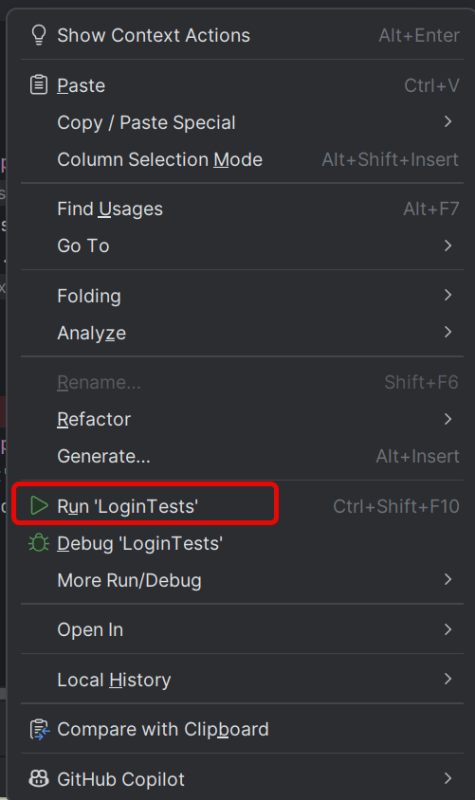
7. Test Execution through IntelliJ
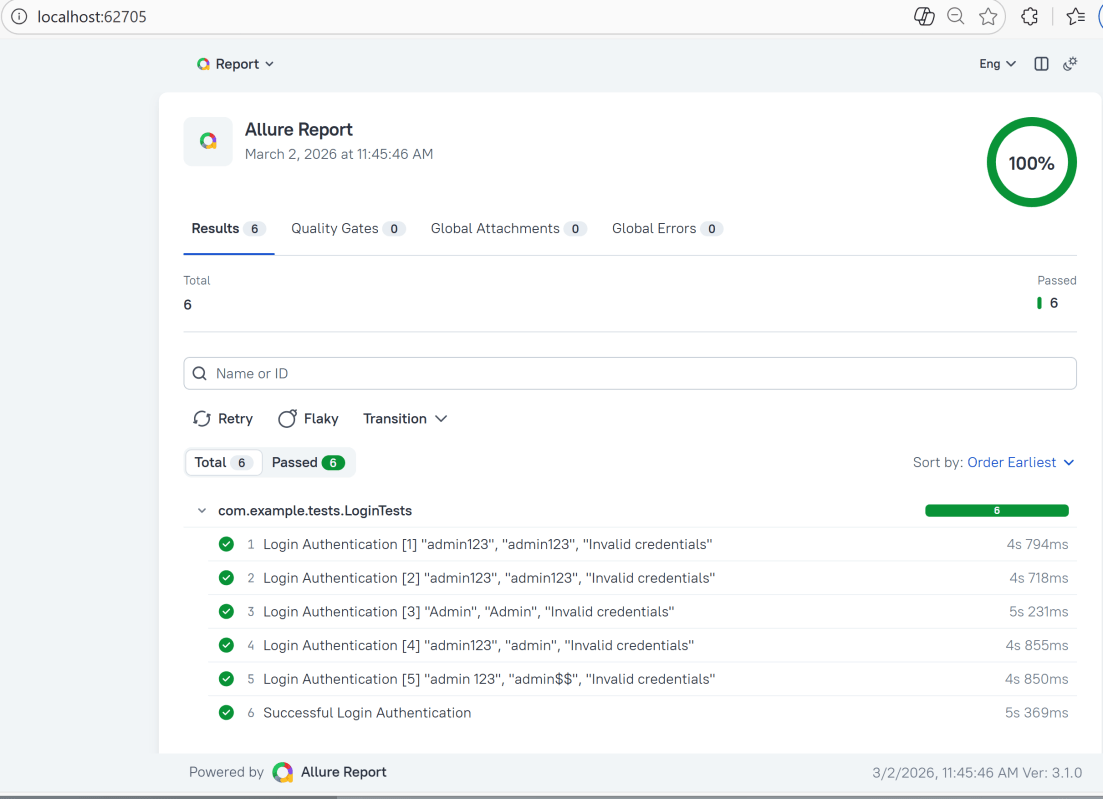
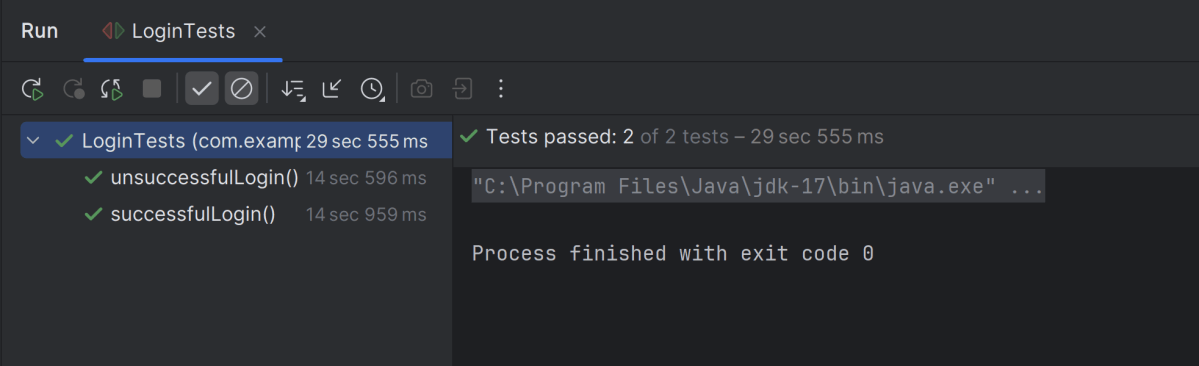
Go to the Test class and right-click and select Run ‘LoginTests’. The tests will run as JUnit5 tests (in IntelliJ).
Below is the test execution result.
8. Run the tests using the command line
Use the below command to run the tests using the command line.
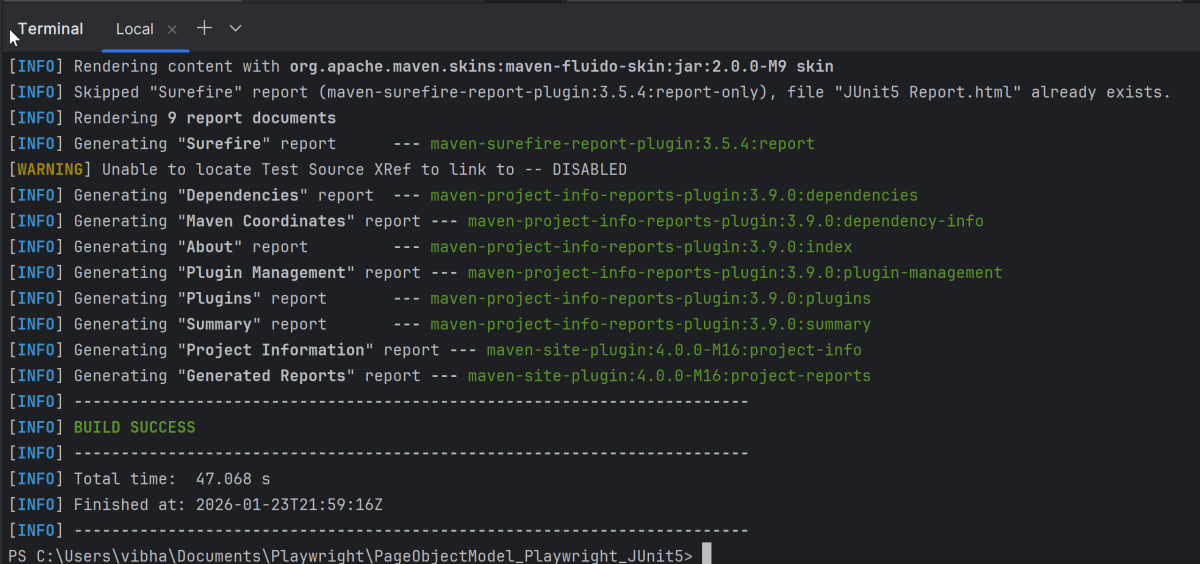
mvn clean test site
This will run the tests in chromium as mentioned in the .xml file.
Chromium
The output of the above program is
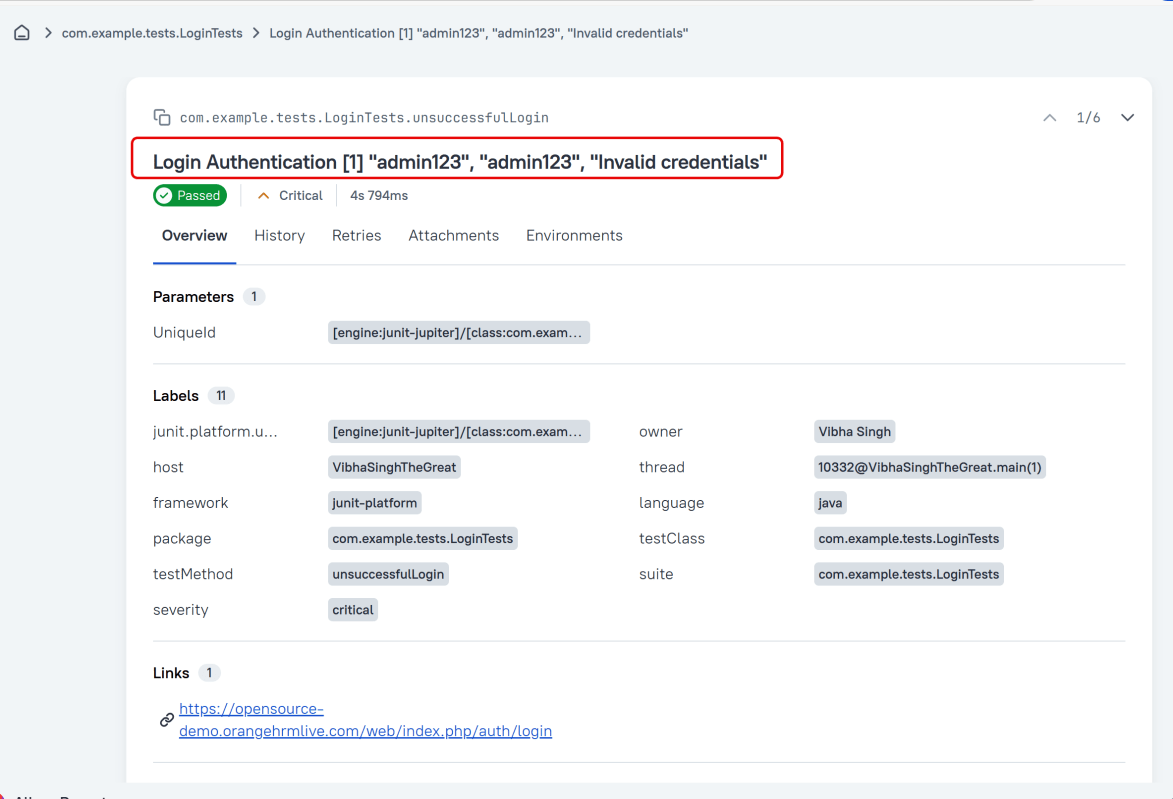
9. JUnit5 Report Generation
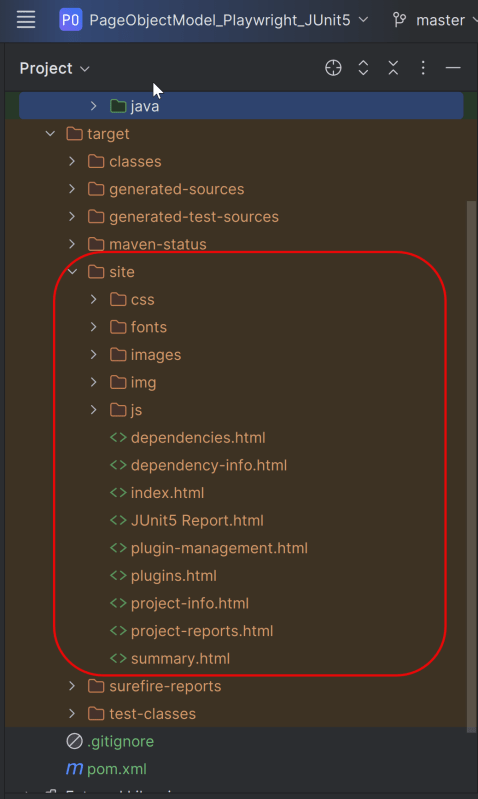
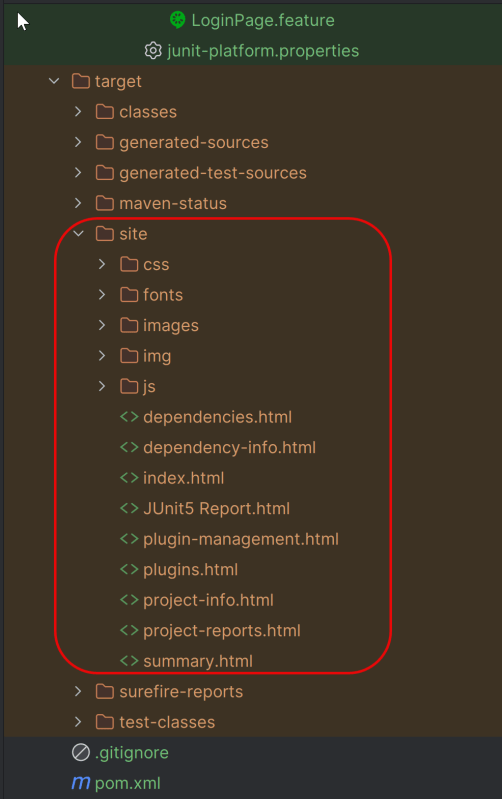
Maven Site Plugin creates a folder – site under the target directory.
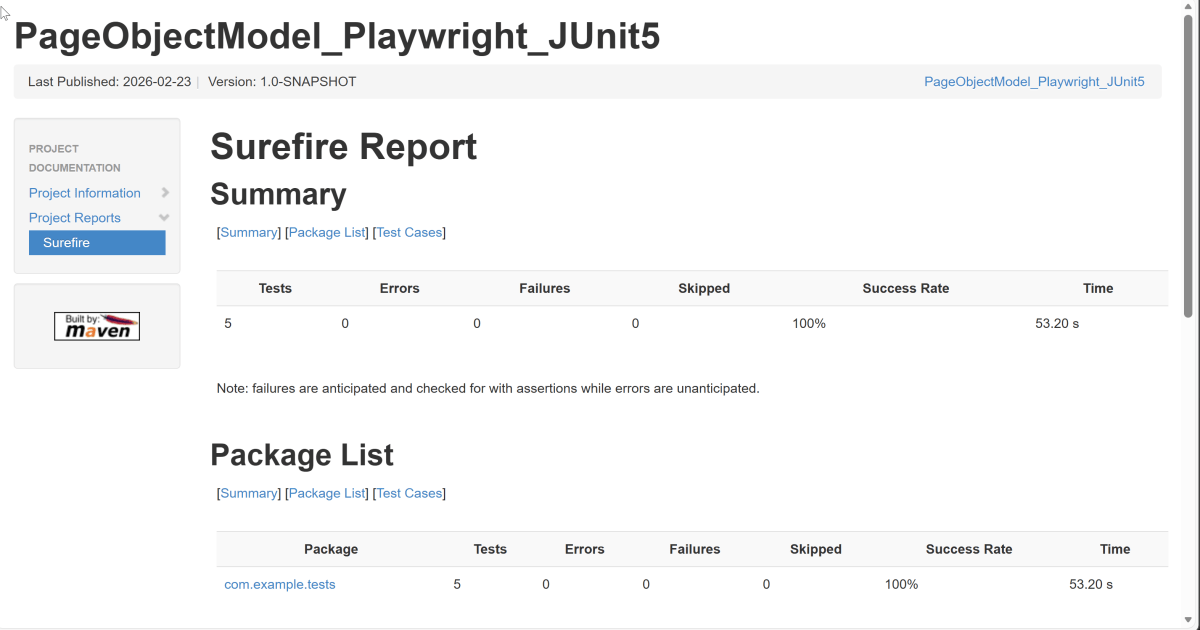
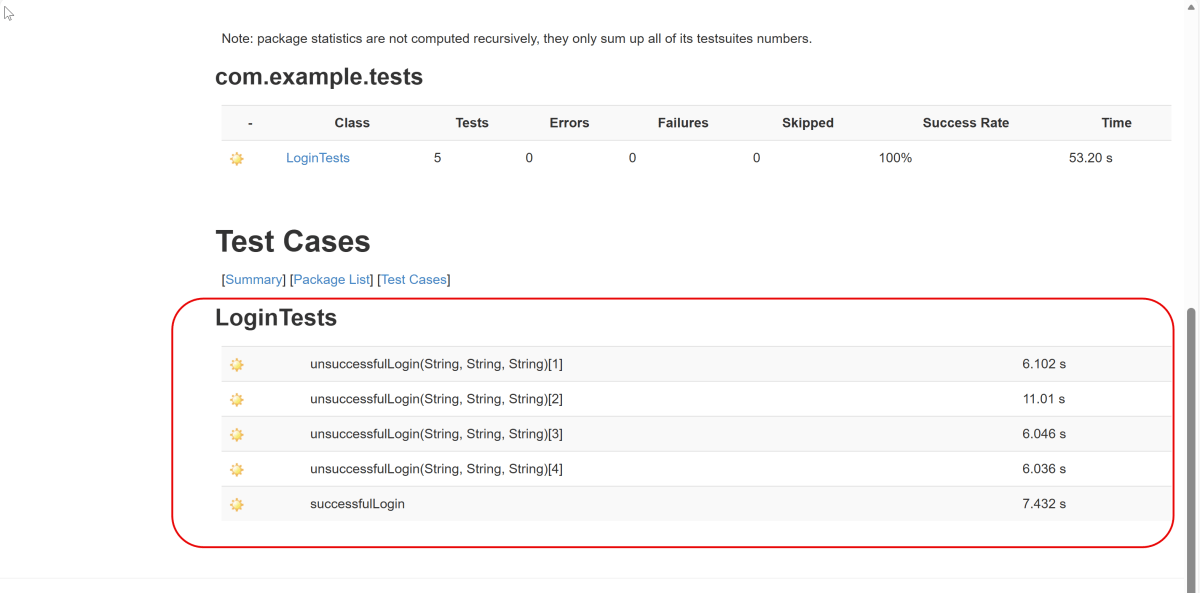
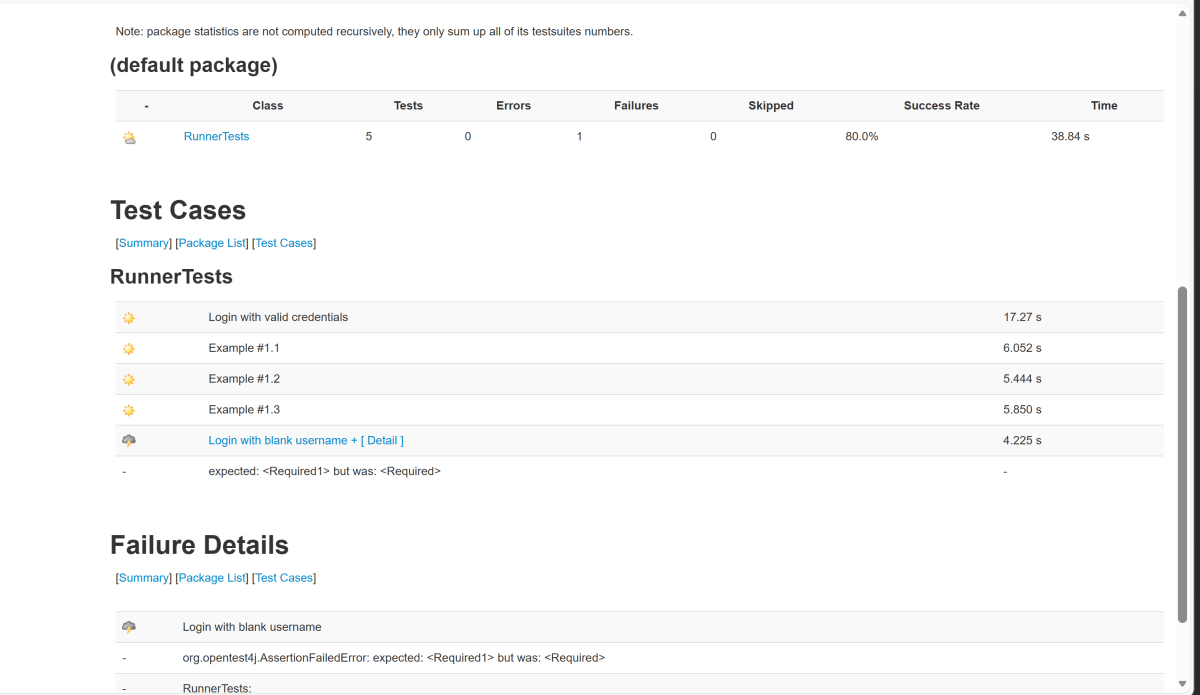
Right-click on the Junit5 Report.html and open it in the browser.
Recap of Key Points:
Playwright and Java: We explored the powerful combination of Playwright with Java, highlighting the benefits of this duo in automated testing.
Project Structure: An optimal project layout was discussed, emphasizing maintainability and organization.
Page Object Model (POM): The implementation of POM was outlined, showcasing its importance in creating scalable and maintainable test scripts.
Page Classes:We explored the creation of page classes. They are a core component of POM. We provided examples to illustrate their structure. The examples also showed their functionality.
Test Classes:The structure and best practices for writing test classes were covered. This ensures clarity. It also enhances efficiency in your tests.
Welcome to the SpringBoot Quiz! This article delves into the essential concepts and features of Spring Boot. It covers annotations, configuration properties, and metrics. The article also discusses caching mechanisms and shares best practices for building robust applications.
1. Which of the following is true about Spring Boot?
a) Spring Boot is a separate framework and not a part of the Spring ecosystem b) Spring Boot requires manual configuration for every aspect of the application c) Spring Boot simplifies the development of Spring applications by providing an opinionated approach and auto-configuration d) Spring Boot is only suitable for small-scale applications with limited functionality
Answer 1
c) Spring Boot simplifies the development of Spring applications by providing an opinionated approach and auto-configuration
Spring Boot simplifies the development of new Spring applications through convention over configuration and automatic setup. Spring Boot eliminates the need for manual configuration. It provides sensible defaults. It also offers automatic configuration based on classpath scanning and dependency management.
2. What is the purpose of the @ConfigurationProperties annotation?
@ConfigurationProperties(prefix = "app")
public class AppConfig {
private String name;
private String version;
// Getters and setters
}
a) It defines a bean with a specific name. b) It maps properties to a class. c) It creates a REST controller. d) It handles exceptions.
Answer 2
b) It maps properties to a class.
The @ConfigurationProperties annotation is used to bind external properties (e.g., those defined in application.properties or application.yml) to fields in a Java class. In the example provided, properties with keys like “app.name” and “app.version” would be mapped to the fields `name` and `version` in the `AppConfig` class.
3. Which of the following statements is true about the @Autowired annotation in Spring Boot?
a) @Autowired is used to inject dependencies into Spring Boot applications b) @Autowired is only applicable for injecting dependencies of type String c) @Autowired is optional and not required for dependency injection in Spring Boot d) @Autowired is mandatory in Spring Boot and can only be used in service classes
Answer 3
a) @Autowired is used to inject dependencies into Spring Boot applications
Autowired is used to inject dependencies into Spring Boot applications. With Autowired annotation, dependencies can be automatically injected into the dependent class by Springs dependency injection mechanism.
4. What does the @Autowired annotation do in the following code?
@Service
public class ArticleService {
@Autowired
private ArticleRepository articleRepository;
}
a) It creates a new instance of ArticleRepository. b) It injects an existing instance of ArticleRepository c) It defines a REST endpoint d) It marks the class as a Spring component
Answer 4
b) It injects an existing instance of ArticleRepository
The @Autowired annotation is used to inject an existing instance of the ArticleRepositoryinto the ArticleService
5. Which annotation is used to automatically configure a Spring Boot application for RESTful services?
a) @RestController b) @Service c) @Repository d) @Component
Answer 5
a) @RestController
The @RestController annotation is used to define a controller that handles RESTful web service requests.
6. Which of the following code snippets demonstrates the correct configuration of a Spring Boot REST Controller?
a)
@RestController
public class MyController {
@GetMapping("/hello")
public String hello() {
return "Hello, World!";
}
}
b)
@Controller
@RequestMapping("/api")
public class MyController {
@GetMapping("/hello")
public String hello() {
return "Hello, World!";
}
}
c)
@RestController
@RequestMapping("/api")
public class MyController {
@RequestMapping("/hello")
public String hello() {
return "Hello, World!";
}
}
d)
@Controller
public class MyController {
@RequestMapping(value = "/hello", method = RequestMethod.GET)
@ResponseBody
public String hello() {
return "Hello, World!";
}
}
Answer 6
Option a) has the correct configuration for a Spring Boot REST Controller utilizing the simplified annotations that Spring provides
Options b) and d) use @Controller which would require @ResponseBody for RESTful outputs if not using @RestController. Option c) incorrectly utilizes @RequestMapping instead of @GetMapping for the GET request.
7. Which of the following code snippets demonstrates the correct configuration of a Spring Boot application class?
a)
@Configuration
public class MyApp {
public static void main(String[] args) {
SpringApplication.run(MyApp.class, args);
}
}
b)
@SpringBootApplication
public class MyApp {
public static void main(String[] args) {
SpringApplication.run(MyApp.class, args);
}
}
c)
@RestController
public class MyApp {
public static void main(String[] args) {
SpringApplication.run(MyApp.class, args);
}
}
d)
@Component
public class MyApp {
public static void main(String[] args) {
SpringApplication.run(MyApp.class, args);
}
}
Answer 7
Option b) demonstrates the correct configuration of a Spring Boot application class. The @SpringBootApplication annotation is used to mark the class as the main application class in Spring Boot.
8. What is the purpose of the @Cacheable annotation?
@Cacheable("articles")
public Article getArticleById(Long id) {
return articleRepository.findById(id).orElse(null);
}
a) It stores the result in the database b) It caches the method’s result c) It logs the method’s execution time d) It defines a scheduled task
Answer 8
b) It caches the method’s result
The @Cacheable annotation caches the result of the method call, so subsequent calls with the same parameters can return the cached result.
9. In the context of Spring Boot, what does @SpringBootTest annotation do?
a) It is used to run unit tests only b) It loads the complete application context for integration tests c) It defines a REST endpoint for testing d) It initializes application properties
Answer 9
b) It loads the complete application context for integration tests
The @SpringBootTest annotation is used to create an application context for integration tests, allowing the entire application to be tested as a whole
10. What type of object is returned by a Spring Boot REST endpoint when using ResponseEntity?
a) A plain Java object b) A JSON string c) An HTTP response with status and body d) A configuration property
Answer 10
c) An HTTP response with status and body
The ResponseEntity class represents an HTTP response, including status code, headers, and body
11. How do you specify an endpoint that accepts JSON data in a POST request?
@PostMapping("/articles")
public ResponseEntity<Article> createArticle(@RequestBody Article article) {
// Save article logic
return ResponseEntity.status(HttpStatus.CREATED).body(savedArticle);
}
Choose one option
a) The endpoint only accepts URL-encoded data b) The method uses @RequestBody to map the request body to an Article object c) The endpoint does not return any response d) The method automatically handles validation
Answer 11
b) The method uses @RequestBody to map the request body to an Article object
The @RequestBody annotation binds the JSON data from the request body to the Article object
12. How do you disable a specific auto-configuration class in Spring Boot?
Choose one option
a) Set auto-configuration.enabled: false for the class b) Use the @DisableAutoConfiguration annotation c) Manually exclude the class from the application context d) Use the exclude attribute of @SpringBootApplication annotation
Answer 12
d) Use the exclude attribute of @SpringBootApplication annotation
The exclude attribute allows specifying auto-configuration classes to be excluded from the auto-configuration process.
13. What does the @PathVariable annotation do in a Spring Boot REST controller?
Choose one option
a) Maps the URL path to a specific request method b) Extracts values from the URL path placeholder c) Links to external web resources d) Automatically authenticates the request
Answer 13
b) Extracts values from the URL path placeholder
The @PathVariable annotation can be used to extract values from the URI template so that the method can use those values
14. How do you specify active profiles in a Spring Boot application?
Choose one option
a) By editing the maven settings.xml b) By specifying profiles in application.properties as spring.profiles.active c) By setting the profile configuration in web.xml d) Spring Boot does not support active profiles
Answer 14
b) By specifying profiles in application.properties as spring.profiles.active
Active profiles can be specified with the spring.profiles.active property, allowing for environment-specific configurations.
15. Which of the following code snippets demonstrates the correct configuration of Spring Boot Security for securing a REST API?
Option c) demonstrates the correct configuration of Spring Boot Security for securing a REST API. The code snippet uses the @Configuration annotation to mark the class as a Spring configuration. The @EnableWebSecurity annotation enables Spring Security features. The configure(HttpSecurity http) method is overridden to define the security rules. In this case, /api/** endpoint is restricted to authenticated users only while allowing public access to all other endpoints. The .httpBasic() method configures basic authentication for the REST API.
16. What is the result of the following code snippet?
@Bean
@ConditionalOnProperty(name = "app.feature.enabled", havingValue = "true")
public MyFeature myFeature() {
return new MyFeature();
}
Choose one option
a) The bean is always created b) The bean is created only if the property is set to true c) The bean is not created at all d) The property must be set to false for the bean to be created
Answer 16
b) The bean is created only if the property is set to true
The @ConditionalOnProperty annotation creates the bean only if the specified property is set to true.
17. In Spring Boot, what does the spring.jpa.hibernate.ddl-auto property control?
Choose one option
a) The caching mechanism b) The logging level of Hibernate c) The automatic schema generation strategy d) The transaction management settings
Answer 17
c) The automatic schema generation strategy
The spring.jpa.hibernate.ddl-auto property controls how Hibernate handles schema generation, such as create, update, or none.
18. Which of the following statements is true about Spring Database integration?
a) Spring provides a built-in database management system for relational databases b) Spring only supports integration with SQL Server and Oracle databases c) Spring provides support for accessing and interacting with databases through JDBC and Object-Relational Mapping (ORM) frameworks d) Spring Database integration is limited to NoSQL databases only
Answer 18
c) Spring provides support for accessing and interacting with databases through JDBC and Object-Relational Mapping (ORM) frameworks
Spring Framework, along with Spring Boot, offers comprehensive support for database access, including integration with JDBC and various ORM frameworks like Hibernate and JPA. This support extends across a wide range of relational and non-relational databases, facilitating easy configuration, transaction management, and data access within applications.
19. Which of the following is true about Spring Security?
a) Spring Security is a framework that provides authentication and authorization support for Spring-based applications b) Spring Security is only applicable for securing web applications and does not support other types of applications c) Spring Security is a stand-alone framework and cannot be integrated with other Spring modules d) Spring Security does not provide any out-of-the-box support for implementing multi-factor authentication
Answer 19
a) Spring Security is a framework that provides authentication and authorization support for Spring-based applications
It allows developers to easily secure their applications against common security vulnerabilities. It also has support for various authentication mechanisms, such as form-based, HTTP Basic, and OAuth.
20. How can you define a scheduled task in a Spring Boot application?
@Scheduled(fixedRate = 2000)
public void reportCurrentTime() {
System.out.println("Current time: " + new Date());
}
Choose one option
a) It runs every 2 seconds b) It is triggered by an event c) It executes only once d) It runs at application startup only
Answer 20
a) It runs every 2 seconds
21. Which of the following layers is not part of a typical Spring Boot application?
a) DAO layer b) Logger layer c) Service layer d) Controller layer
Answer 21
b) Logger layer
Common layers in a Spring Boot application include the DAO, Service, and Controller layers; logging is a cross-cutting concern, not a separate layer.
22. What is the default package used in a Spring Boot project if none is specified?
a) main.java b) default.package c) org.springframework.boot d) The root package specified in the @SpringBootApplication class
Answer 22
d) The root package specified in the @SpringBootApplication class
The @SpringBootApplication annotation triggers auto-configuration only within its package and sub-packages, so it acts as the root package if not specified.
23. How can you disable the default web server in a Spring Boot application in build process?
a) Set server.enabled: false in application.properties b) Set server.port: 0 in application.properties c) Use the @DisableWebServer annotation d) Use a command-line argument to set the server port to 0
Answer 23
b) Set server.port: 0 in application.properties
Setting the server port to 0 effectively disables the embedded web server.
24. How can you switch from using the default Tomcat server to Jetty in a Spring Boot application?
a) Modify server.xml b) Change the server property in application.properties c) Exclude Tomcat and include Jetty dependencies in pom.xml d) Use @EnableJetty annotation
Answer 24
c) Exclude Tomcat and include Jetty dependencies in pom.xml
Tomcat is included by default, so you must exclude it and add Jetty’s dependencies to switch the server.
25. What is Actuator in Spring Boot?
a) A tool to monitor and manage applications b) A GUI design tool c) A security framework d) A configuration tool
Answer 25
a) A tool to monitor and manage applications
Spring Boot Actuator provides various endpoints for monitoring and managing the application, such as health checks and metrics.
We would love to hear from you! Please leave your comments and share your scores in the section below
Large test suites can be structured to optimize ease of authoring and maintenance. Page object models are one such approach to structure the test suite. In this tutorial blog, we will learn to create and set up the project using Page Object Model in Playwright Java and TestNG.
Page Object Model (POM) is a design pattern used in test automation that enhances test maintenance and reduces code duplication where web pages are represented as classes, and the various elements on the page are defined as variables in the class and all possible user interactions can then be implemented as methods in the class.
Why is Page Object Model Important?
1. Improved Test Maintenance: POM allows for easy updates to test scripts when the UI changes. By separating the test logic from the page definitions, only the page objects need to be updated rather than all test scripts.
2. Maintainability: In this model, separate classes are created for different pages of a web application like login page, the home page, employee detail page, change password page, etc. So, if there is any change in any element of a website then we only need to make changes in one class, and not in all classes.
3. Reusability of Code: Shared page objects can be reused across multiple test cases, reducing redundancy. This ensures consistent interactions with web elements and actions, making the test code more efficient and easier to manage.
4. Facilitates Collaboration: A well-structured POM increases collaboration among teams, as each contributor can work on different parts of the application without interfering with one another. This approach helps in managing multiple test scenarios simultaneously.
5. Ease of Debugging: With POM, finding and fixing bugs becomes more straightforward since each page action is located in a specific place. Developers can easily pinpoint the location of a problem without sifting through complex test logic.
System requirements
The following prerequisites are required to be installed on the machine to begin with a smooth setup and installation.
Java 11 or higher
IntelliJ IDE or any other IDE to create a project
Maven
Browsers on which tests need to be run, like Chrome, Firefox, etc.
Implementation Steps
1. Create a new Maven Project
The first step in setup is to create a new Maven project. I will be using IntelliJ in this tutorial. The following steps need to be followed to create a new Maven project :
Open IntelliJ, Navigate to File >> New >> Project
2. In the New Project window, enter the following details:
Name of the Project – Playwright_TestNG_Demo
Location/path where the project needs to be saved – Documents/Playwright (my location)
Select JDK version — I am using JDK 17
Archetype — Search for “quickstart” and select maven-archetype-quickstart from the results
Click on the Create button to create the project.
This will create a project as shown below in the IntelliJ.
2. Set Up the Environment
Add the Playwright and TestNG dependencies to the pom.xml. The latest dependency can be found here.
After adding the dependency, refresh the project. We will see that the Playwright jar files are downloaded in External Libraries.
3. Project Structure for Maintainability
Creating a well-organized project structure is crucial for maintaining a scalable and efficient automation framework.
1. Page Classes (src/main/java/.../pages/): Each web page in your application should have a corresponding page class. This class encapsulates all the functionalities of the web page, following the Page Object Model.
2. Utility Classes (src/main/java/.../utils/): These classes can include various utilities like configuration readers, helper methods for common tasks, etc.
3. Test Classes (src/test/java/.../tests/): Here, you write your actual test cases, utilizing the page classes.
4. Test Data Files (src/test/resources/testdata/): Keep your test data in external files. This ensures easy management. It also helps to avoid hardcoding usernames and passwords.
5. Maven Configuration (pom.xml): This file manages project dependencies, plugins, and other configurations.
6. testng.xml: This file is the central configuration file that defines how the test suite should be executed.
4. Creating Page Object Classes
Page classes serve as an interface to a web page’s UI elements. Each page class corresponds to a page in your application, encapsulating the actions that can be performed on that page.
Identify the UI Elements: Determine all the elements on the web page that your test will interact with, such as text boxes, buttons, and links.
Define Selectors: Store the selectors for these elements in your page class. It’s a best practice to externalize these selectors, but for simplicity, we’ll define them directly in the class.
Implement Actions:Create methods for each action that can be performed on the page, like entering text, clicking buttons, etc.
Creating LoginPage Class
import com.microsoft.playwright.Page;
public class LoginPage {
private Page page;
//Locators
private final String usernameLocator = "input[name='username']";
private final String passwordLocator = "input[name='password']";
private final String submitButton = "button[type='submit']";
private final String errorMessage = "//p[contains(@class, 'oxd-text oxd-text--p oxd-alert-content-text')]";
//Constructor
public LoginPage(Page page){
this.page = page;
}
public void login(String username, String password) {
page.fill(usernameLocator,username);
page.fill(passwordLocator,password);
page.click(submitButton);
}
public String getErrorMessage(){
return page.textContent(errorMessage);
}
}
Creating DashboardPage Class
package org.example.pages;
import com.microsoft.playwright.Page;
public class DashboardPage {
private Page page;
//Locators
private final String dashboardHeading = "//h6[contains(@class, 'oxd-topbar-header-breadcrumb-module')]";
//Constructor
public DashboardPage(Page page) {
this.page = page;
}
// Methods
public String getHeading() {
return page.textContent(dashboardHeading);
}
}
5. Write the Test Scripts
Create a Test files under src/test/java. Use these page classes in your test scripts to perform end-to-end scenarios. This will keep your tests clean and focused on logic rather than details about the UI elements.
A typical test class includes:
Setup Method: Initializes the Playwright browser and other prerequisites before each test.
Test Methods: Individual test cases, each representing a different scenario.
Teardown Method:Closes the browser and performs any cleanup after each test.
We will be automating the following test scenario using Playwright Java and run them in Chromium.
Verify the invalid username generates error message “Invalid credentials”
Creating BaseClass
This class contains the common variables and methods used throughout the project, like setup and teardown methods.
package org.example.utils;
import com.microsoft.playwright.*;
import org.testng.annotations.AfterClass;
import org.testng.annotations.AfterMethod;
import org.testng.annotations.BeforeClass;
import org.testng.annotations.BeforeMethod;
public class BaseTests {
// Shared between all tests in this class.
protected Playwright playwright;
protected Browser browser;
// New instance for each test method.
protected BrowserContext context;
protected Page page;
@BeforeClass
public void launchBrowser() {
playwright = Playwright.create();
browser = playwright.chromium().launch(new BrowserType.LaunchOptions().setHeadless(false));
}
@BeforeMethod
public void createContextAndPage() {
context = browser.newContext();
page = context.newPage();
page.navigate("https://opensource-demo.orangehrmlive.com/web/index.php/auth/login");
}
@AfterMethod
public void closeContext() {
context.close();
}
@AfterClass
public void closeBrowser() {
playwright.close();
}
}
Explanation
1. Playwright playwright:
Initialized to manage the browser automation session, allowing interactions with different browsers.
2. Browser browser:
Declared to store the browser instance that will be shared across test methods within the class.
Playwright playwright;
Browser browser = null;
3. BrowserContext context:
Created anew for each test method to simulate independent browser sessions. This ensures that the browser state doesn’t carry over between tests.
4. Page page:
Represents a single tab or window in a browser used for performing actions and assertions.
BrowserContext context;
Page page;
5. @BeforeClass:
This method is annotated with @BeforeClass, indicating it runs once before any test methods in the current class. The browser is launched in non-headless mode (setHeadless(false)), meaning an actual browser window is opened.
This method runs before each test method in the class, as indicated by the @BeforeMethod annotation. It creates a new BrowserContext and a Page, ensuring each test runs in a clean, isolated state. The method also navigates to a login page (“https://opensource-demo.orangehrmlive.com/web/index.php/auth/login”), setting up the initial state for each test.
Runs once after all test methods in the current class have executed, as indicated by the @AfterClass annotation. Closes the Playwright instance, freeing up all resources used for automation.
package org.example.tests;
import org.example.pages.DashboardPage;
import org.example.pages.LoginPage;
import org.example.utils.BaseTests;
import org.testng.Assert;
import org.testng.annotations.Test;
public class LoginTests extends BaseTests {
@Test
public void loginToApplication(){
LoginPage loginPage = new LoginPage(page);
loginPage.login("Admin","admin123");
DashboardPage dashboardPage = new DashboardPage(page);
String actualHeading = dashboardPage.getHeading();
Assert.assertEquals(actualHeading,"Dashboard", "Unable to login to the application");
}
@Test
public void invalidCredentials() {
LoginPage loginPage = new LoginPage(page);
loginPage.login("Playwright","test");
Assert.assertEquals(loginPage.getErrorMessage(), "Invalid credentials" ,"Incorrect Error Message is displayed");
}
}
Explanation
1. loginToApplication
This method enters correct credentials and login to the application.
2. verifyInvalidCredentials
This method enter the invalid username and password and click on the Submit button. Then, it assert that the error message generated by the application is equal to “Invalid credentials”.
6. Create testng.xml
We need to specify the values of browser in the TestNG XML file that will pass to the test case file. Let’s create a testng.xml file to run the test using TestNG.
Right click on the project, New >> File
Below is the sample testng.xml file.
<?xml version="1.0" encoding="UTF-8"?>
<!DOCTYPE suite SYSTEM "http://testng.org/testng-1.0.dtd">
<suite name="Page Object Model Playwright test suite">
<test name="Chrome Test">
<parameter name="browser" value="chromium" />
<classes>
<class name="org.example.tests.LoginTests"/>
</classes>
</test>
</suite>
7. Test Execution through IntelliJ
Go to the Test class and right-click and select Run ‘LoginTests’. The tests will run as TestNG tests (in IntelliJ).
Below is the test execution result.
8. Run the tests from TestNG.xml
Execute the tests by right-clicking on testng.xml and select Run ‘…testng.xml’
This will run the tests in chromium as mentioned in the .xml file.
The output of the above program is
9. TestNG Report Generation
TestNG generates various types of reports under test-output folder like emailable-report.html, index.html, testng-results.xml.
We are interested in the “emailable-report.html” report. Open “emailable-report.html“, as this is an HTML report, and open it with the browser. The below image shows emailable-report.html.
TestNG also produces an “index.html” report, and it resides under the test-output folder. The below image shows the index.html report. This is the latest theme of the report.
Recap of Key Points:
Playwright and Java:We explored the powerful combination of Playwright with Java. We highlighted the benefits of this duo in automated testing.
Project Structure:An optimal project layout was discussed, emphasizing maintainability and organization.
Page Object Model (POM): The implementation of POM was outlined, showcasing its importance in creating scalable and maintainable test scripts.
Page Classes:We explored how to create page classes, which are a core component of POM. We also provided examples to illustrate their structure. These examples demonstrate their functionality.
Test Classes:We covered the structure and best practices for writing effective test classes. This ensures clarity and efficiency in your tests.
The following prerequisites are required to be installed on the machine to begin with a smooth setup and installation.
Java 8 or higher
IntelliJ IDE or any other IDE to create a project
Maven
Browsers on which tests need to be run, like Chrome, Firefox, etc.
Implementation Steps
1. Create a new Maven Project
The first step in setup is to create a new Maven project. I will be using IntelliJ in this tutorial. The following steps need to be followed to create a new Maven project :
Open IntelliJ, Navigate to File >> New >> Project
2. In the New Project window, enter the following details:
Name of the Project – Playwright_TestNG_Demo
Location/path where the project needs to be saved – Documents/Playwright (my location)
Select JDK version — I am using JDK 17
Archetype — Search for “quickstart” and select maven-archetype-quickstart from the results
Click on the Create button to create the project.
This will create a project as shown below in the IntelliJ.
2. Update the Dependencies
Add the Playwright and TestNG dependencies to the pom.xml. The latest dependency can be found from here.
After adding the dependency, refresh the project. We will see that the Playwright and testng jar files are downloaded in External Libraries.
3. Create testng.xml
Let’s create a testng.xml file to run the test using TestNG.
Right click on the project, New >> File
It will help us execute the other tests by adding the test method name to the methods block in the file.
<?xml version="1.0" encoding="UTF-8"?>
<!DOCTYPE suite SYSTEM "http://testng.org/testng-1.0.dtd">
<suite name="Playwright test suite">
<test name="Integration of Playwright Java with TestNG">
<classes>
<class name="com.example.TestNG_Demo_Tests">
</class>
</classes>
</test>
</suite>
4. Write the tests
Create a Test file under src/test/java called – TestNG_Demo_Tests.
We will be automating the following test scenario using Playwright Java.
Initialized to manage the browser automation session, allowing interactions with different browsers.
2. Browser browser
Declared to store the browser instance that will be shared across test methods within the class.
Playwright playwright;
Browser browser = null;
3. BrowserContext context
Created anew for each test method to simulate independent browser sessions. This ensures that the browser state doesn’t carry over between tests.
4. Page page
Represents a single tab or window in a browser used for performing actions and assertions.
BrowserContext context;
Page page;
5. @BeforeClass
This method is annotated with @BeforeClass, indicating it runs once before any test methods in the current class.
The browser is launched in Chromium and non-headless mode (setHeadless(false)), meaning an actual browser window is opened.
6. @BeforeMethod createContextAndPage()
This method runs before each test method in the class, as indicated by the@BeforeMethod annotation. It creates a new BrowserContextand a Page, ensuring each test runs in a clean, isolated state. The method also navigates to a login page (“https://opensource-demo.orangehrmlive.com/web/index.php/auth/login”), setting up the initial state for each test.
Runs once after all test methods in the current class have executed, as indicated by the @AfterClass annotation. Closes the Playwright instance, freeing up all resources used for automation.
Go to the Test class and right-click and select Run ‘TestNG_Demo_Tests’. The tests will run as TestNG tests (in IntelliJ).
By default, the tests are run in headless mode, so the browser UI is not loaded.
Below is the test execution result.
6. Run the tests from TestNG.xml
Execute the tests by right-clicking on testng.xml and select Run ‘…\testng.xml’
Below is the test execution result.
7. TestNG Report Generation
TestNG generates various types of reports under test-output folder like emailable-report.html, index.html, testng-results.xml.
We are interested in the “emailable-report.html” report. Open “emailable-report.html“, as this is an HTML report, and open it with the browser. The below image shows emailable-report.html.
TestNG also produces an “index.html” report, and it resides under the test-output folder. The below image shows the index.html report. This is the latest theme of the report.
We know that Playwright runs the tests in non-headed mode. This means we can’t see the test opening the web page and performing various actions on it. But, we can run the tests in headed mode. This is useful for debugging or observing the actions taken by the test.
System requirements
The following prerequisites are required to be installed on the machine to begin with a smooth setup and installation.
Java 8 or higher
IntelliJ IDE or any other IDE to create a project
Maven
Browsers on which tests need to be run, like Chrome, Firefox, etc.
To run the tests in headed mode, use the below command:-
Below method is used to initialize a new Playwright instance. It is placed inside a try-with-resources block. This ensures that resources are closed automatically after use.
(Playwright playwright = Playwright.create())
2. Launch Web Browser in Visible mode
A new Chromium browser instance is launched in visible mode. The BrowserType.LaunchOptions class contains various settings that define how the browser should be started. The setHeadless(false) call is a method on the LaunchOptionsobject. Setting headlessto falsecauses the browser to launch in visible mode. This allows us to see the browser window as the automation runs.
The script pauses execution for 2000 milliseconds (or 2 seconds) using `page.waitForTimeout(2000)`, allowing time for the page to fully load. This is often used in testing to manage asynchronous loading of elements.
page.waitForTimeout(2000);
6. Print the title
The title of the page is retrieved and printed to the console using page.title().
System.out.println("Title :" + page.title());
7. Assert the page title
Below line asserts that the page has the title matching the regular expression “OrangeHRM”. The use of Pattern.compile() allows for matching with a regular expression, which can be beneficial for flexible title checking.
The try-with-resources structure ensures the browser and Playwright instance close automatically after the test completes.
The test execution in Playwright is very fast. Therefore, I have used the waitForTimeout() method to slow down the execution for 2 seconds. This allows for taking a print screen of the page. It opens the website as shown below.
Sending a JSON file as a payload from an external source using Playwright requires you to read the file from the local filesystem. You then include its contents in the HTTP request. In this tutorial, I will explain to pass a JSON file as a payload to the request. This is needed when the payload is static or there is minimal change in the request payload.
Node.js version 18 or higher and npm (comes with Node.js)
Windows 10+, macOS 12+, or Ubuntu 20.04+
Visual Studio for Code is already installed.
Playwright is already installed
Below is the sample JSON payload used in the request.
Here’s how you can handle them in Playwright:
1. Setup Your Playwright Testing Environment:
Verify that the Playwright installed in your project. If you haven’t yet installed it, you can use:
npm install playwright
2. Update playwright.config.ts
Playwright Test comes with a few built-in reporters for different needs and ability to provide custom reporters. We will add detail in playwright.config.ts to generate the html report, once the test execution is finished.
First, ensure your JSON file is well-structured and readable.
import { test, expect } from '@playwright/test';
const fs = require('fs');
test('Send JSON file as payload', async ({ request }) => {
try {
// Read and parse JSON file directly into a JavaScript object
const jsonPayload = JSON.parse(fs.readFileSync('tests/payloads/jsonpayload.json', 'utf8'));
console.log('JSON data parsed successfully:', jsonPayload);
// Perform a POST request
const postResponse = await request.post('https://jsonplaceholder.typicode.com/users', {
headers: {
'Content-Type': 'application/json'
},
data: JSON.stringify(jsonPayload)
});
// Check the response status code - expecting 201 if the resource creation is successful
expect(postResponse.status()).toBe(201);
// Parse the response data
const postResponseBody = await postResponse.json();
console.log('RESPONSE:', postResponseBody);
// Validate the response properties - adapt as needed
expect(postResponseBody).toHaveProperty('title', 'Architect');
expect(postResponseBody).toHaveProperty('body', 'DW-BI');
expect(postResponseBody).toHaveProperty('userId', 5);
} catch (error) {
if (error instanceof Error) {
console.error('Error message:', error.message);
} else {
console.error('An unknown error occurred:', error);
}
}
});
Explanation:
1. Imports
This line imports the testand expectfunctions from Playwright’s testing library. These functions provide a structure for writing tests and asserting conditions within them.
import { test, expect } from '@playwright/test';
2. Test Definition
This defines an asynchronous test case named “Send JSON file as payload”. The test receives a request object as a parameter, which is used to perform HTTP requests.
test('Send JSON file as payload', async ({ request })
3. Read the JSON File
First, you need to read the JSON file into your script. This is typically done using the `fs` module in Node.js.
const fs = require('fs');
4. Read and Parse JSON File
The script attempts to read a JSON file located at ‘tests/payloads/jsonpayload.json’ using fs.readFileSync.
The JSON content is parsed into a JavaScript object using JSON.parse.
// Read and parse JSON file directly into a JavaScript object
const jsonPayload = JSON.parse(fs.readFileSync('tests/payloads/jsonpayload.json', 'utf8'));
console.log('JSON data parsed successfully:', jsonPayload);
5. Performing a POST Request
Sends a POST request to the specified URL. The headers include ‘Content-Type’: ‘application/json’, denoting the request body data format. The request body is the stringified version of the JSON payload.
// Perform a POST request
const postResponse = await request.post('https://jsonplaceholder.typicode.com/users', {
headers: {
'Content-Type': 'application/json'
},
data: JSON.stringify(jsonPayload)
});
6. Checking the Response Status Code
Retrieve HTTP status code for response validation.
expect(postResponse.status()).toBe(201);
7. Parsing the Response Data
Parse response data into JSON format
// Parse the response data
const postResponseBody = await postResponse.json();
8. Logging the Response
This outputs the response body to the console, allowing you to see the returned JSON data.
console.log(postResponseBody);
9. Perform assertions on the response
The assertions verify that the response contains expected data. expect assertions validate certain properties in the response
The property `title` should be ‘Architect’.
The property `body` should be ‘DW-BI’.
The property `userId` should be 5.
// Validate the response properties - adapt as needed
expect(postResponseBody).toHaveProperty('title', 'Architect');
expect(postResponseBody).toHaveProperty('body', 'DW-BI');
expect(postResponseBody).toHaveProperty('userId', 5);
10. Error Handling
There’s a `try-catch` block capturing errors during file reading, request making, and response handling. The `catch` block checks if the error is an instance of `Error` to log its message.
4. Execute the tests through Test Explorer View
Go to the funnel shape icon called “Testing” or “Test Explorer View”. You can run the tests from the test Explorer view too now. You can run all of the tests in all of the test specs in this directory.
You can also come in and run all of the tests in a particular specification file. Alternatively, run individual tests within a specification file. Here, I want to run the tests of api_json_payload_tests.spec.ts file.
The output of the above program is
5. Execute the tests through Command Line
You can also run the tests through the command line. Go to the terminal and use the below command:-
npx playwright test api_json_payload.spec.ts
This command runs all the tests present in this file.
6. Evaluate Test Results
Analyze console outputs and assertions to validate the response data, ensuring that your API endpoints are functioning as designed.
Playwright generates a test report after the execution of the tests. This test report can be viewed by using the below command:
npx playwright show-report
The output of the above command is
The Index.html report is shown below:
Summary:
File Paths: The file paths are correctly specified relative to the execution directory or use absolute paths. Content-Type Headers: The `Content-Type` header should match the format of the data being sent (`application/json` for JSON). Network Configuration: The target endpoint should support POST requests and accept data in the given formats.
Query parameters are a way to pass information to an API flexibly and simply. They are added to the end of the API endpoint URL as a series of key-value pairs. To append query params to the end of a URL, a ‘?’ Is added followed immediately by a query parameter.
Handling HTTP query parameters in Playwright typically involves setting up your request with the desired parameters before navigating to a URL. Playwright provides methods to easily construct and use URLs with query parameters.
Verify that the Playwright installed in your project. If you haven’t yet installed it, you can use:
npm install playwright
2. Update playwright.config.ts
Playwright Test comes with a few built-in reporters for different needs and ability to provide custom reporters. We will add detail in playwright.config.ts to generate the html report, once the test execution is finished.
You can construct a URL using Node.js’s `URL` API, where you append your query parameters to a base URL.
// Define a type for the expected structure of a comment
type Comment = {
postId: number;
id: number;
name: string;
email: string;
body: string;
};
import { test, expect } from '@playwright/test';
test('API Testing - Query Params with Playwright', async ({ request }) => {
const queryParams = new URLSearchParams({ postId: '1' });
// Perform a GET request
const response = await request.get(`https://jsonplaceholder.typicode.com/comments?${queryParams.toString()}`);
// Check the response status code
expect(response.status()).toBe(200);
// Parse the response data
const responseBody = await response.json();
console.log(responseBody);
// Assertions based on expected response
const postIds = responseBody.map((item: Comment) => item.postId);
console.log(postIds);
// Assert that every postId in the response is '1'
expect([...new Set(postIds)]).toEqual([1]);
// Extract IDs from the response body
const ids = responseBody.map((item: Comment) => item.id);
console.log(ids);
// Expected IDs to assert against
const expectedIds = [1, 2, 3, 4, 5];
// Assert that the IDs are as expected
expect(ids).toEqual(expectedIds);
});
Explanation:
1. Type Definition
A TypeScript type Comment is defined to specify the structure of the expected response object. This includes properties like postId, id, name, email, and body.
This line imports the testand expectfunctions from Playwright’s testing library. These functions provide a structure for writing tests and asserting conditions within them.
import { test, expect } from '@playwright/test';
3. Test Definition
This defines an asynchronous test case named “Query Params with Playwright”. The test receives a `request` object as a parameter, which is used to perform HTTP requests.
Retrieve HTTP status code for response validation.
expect(response.status()).toBe(200);
7. Parsing the Response Data
Parse response data into JSON format
const responseBody = await response.json();
8. Logging the Response
This outputs the response body to the console, allowing you to see the returned JSON data.
console.log(responseBody);
9. Perform assertions on the response
The assertions verify that the response contains expected data.
The code extracts and logs postIds from each item in the `responseBody`.
An assertion ensures all postId‘s in the response are 1, corresponding to the query parameter used
Similarly, idsare extracted, logged, and compared against a predefined list of expected IDs [1, 2, 3, 4, 5].
An assertion checks that the `ids` match the expected IDs. This ensures that the response is consistent with the anticipated results when querying with postId=1
// Assertions based on expected response
const postIds = responseBody.map((item: Comment) => item.postId);
console.log(postIds);
// Assert that every postId in the response is '1'
expect([...new Set(postIds)]).toEqual([1]);
// Extract IDs from the response body
const ids = responseBody.map((item: Comment) => item.id);
console.log(ids);
// Expected IDs to assert against
const expectedIds = [1, 2, 3, 4, 5];
// Assert that the IDs are as expected
expect(ids).toEqual(expectedIds);
4. Execute the tests through Test Explorer View
Go to the funnel shape icon called “Testing” or “Test Explorer View”. You can run the tests from the test Explorer view too now. You can run all of the tests in all of the test specs in this directory.
You can also come in and run all of the tests in a particular specification file. Alternatively, run individual tests within a specification file. Here, I want to run the tests of api_queryparam_tests.spec.ts file.
The output of the above program is
5. Execute the tests through Command Line
You can also run the tests through the command line. Go to the terminal and use the below command:-
npx playwright test api_queryparam_tests.spec.ts
This command runs all the tests present in this file.
6. Evaluate Test Results
Analyze console outputs and assertions to validate the response data, ensuring that your API endpoints are functioning as designed.
Playwright generates a test report after the execution of the tests. This test report can be viewed by using the below command:
npx playwright show-report
The output of the above command is
Below is an example of Index.html Report generated by Playwright.
A DELETE request is an HTTP method used in web development to remove a specific resource from a server. Upon a successful deletion, the server will respond with a status code like 200 OK or 204 No Content.
System Requirement
Node.js version 18 or higher and npm (comes with Node.js)
Windows 10+, macOS 12+, or Ubuntu 20.04+
Visual Studio for Code is already installed.
Playwright is already installed
3.1 Setup Your Playwright Testing Environment:
Verify that the Playwright installed in your project. If you haven’t yet installed it, you can use:
npm install playwright
3.2 Update playwright.config.ts
Playwright Test comes with a few built-in reporters for different needs and ability to provide custom reporters. We will add detail in playwright.config.ts to generate the html report, once the test execution is finished.
Here’s an example script demonstrating API testing for DELETE operation using Playwright:
import { test, expect } from '@playwright/test';
test('API Testing - DELETE with Playwright', async ({ request }) => {
// Perform a DELETE request
const response = await request.delete('https://jsonplaceholder.typicode.com/posts/1');
// Check the response status code
expect(response.status()).toBe(200);
// Parse the response data
const responseBody = await response.json();
console.log(responseBody);
});
Explanation:
1. Imports
This line imports the test and expect functions from Playwright’s testing library. These functions provide a structure for writing tests and asserting conditions within them.
import { test, expect } from '@playwright/test';
2. Test Definition
This defines an asynchronous test case named “API Testing – DELETE with Playwright”. The test receives a requestobject as a parameter, which is used to perform HTTP requests.
Retrieve HTTP status code for response validation.
expect(response.status()).toBe(200);
5. Parsing the Response Data
Parse response data into JSON format
const responseBody = await response.json();
6. Logging the Response
This outputs the response body to the console, allowing you to see the returned JSON data.
console.log(responseBody);
3.4 Execute the tests through Test Explorer View
Go to the funnel shape icon called “Testing” or “Test Explorer View”. You can run the tests from the test Explorer view too now. You can run all of the tests in all of the test specs in this directory.
You can also come in and run all of the tests in a particular specification file. Alternatively, run individual tests within a specification file. Here, I want to run the tests of api_delete_tests.spec.ts file.
The output of the above program is
3.5 Execute the tests through Command Line
You can also run the tests through the command line. Go to the terminal and use the below command:-
npx playwright test api_delete_tests.spec.ts
This command runs all the tests present in this file.
3.6 Evaluate Test Results
Analyze console outputs and assertions to validate the response data, ensuring that your API endpoints are functioning as designed.
Playwright generates a test report after the execution of the tests. This test report can be viewed by using the below command: