Visual Studio Code (VS Code) is a free, lightweight, and open-source code editor developed by Microsoft. It supports multiple operating systems, including Windows, macOS, and Linux.
Installation Steps:
Download Visual Studio Code
Step 1: Visit the Official Website of the Visual Studio Code using any web browser like Google Chrome, Microsoft Edge, etc.
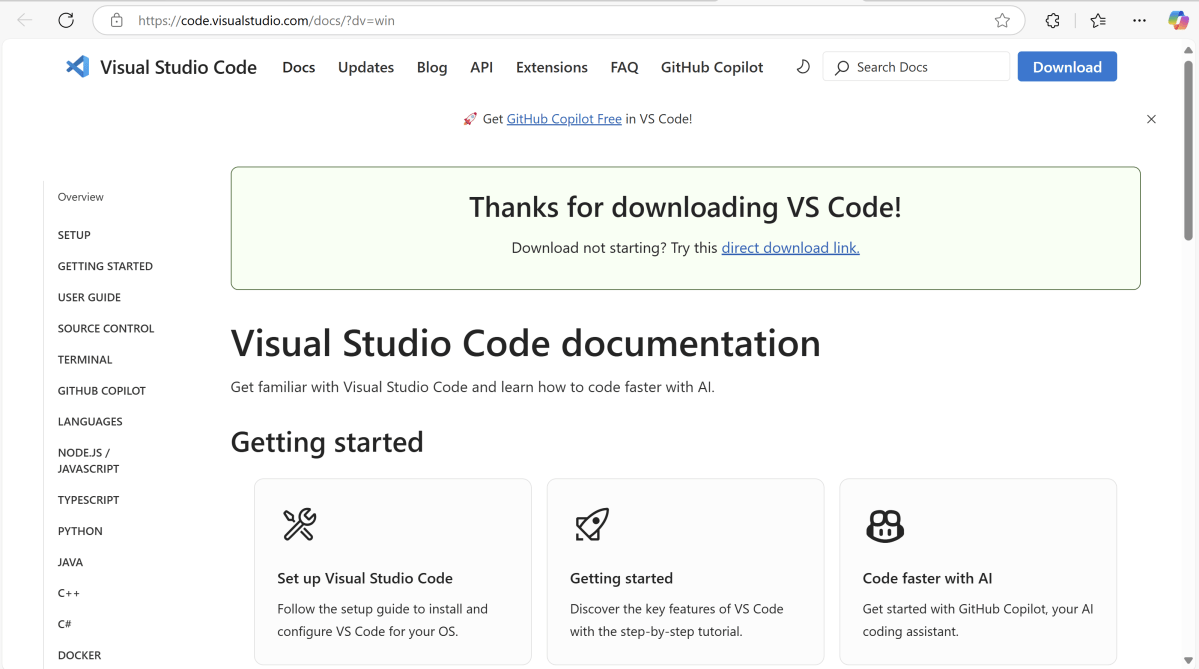
This website download the Visual Studio Code Application.
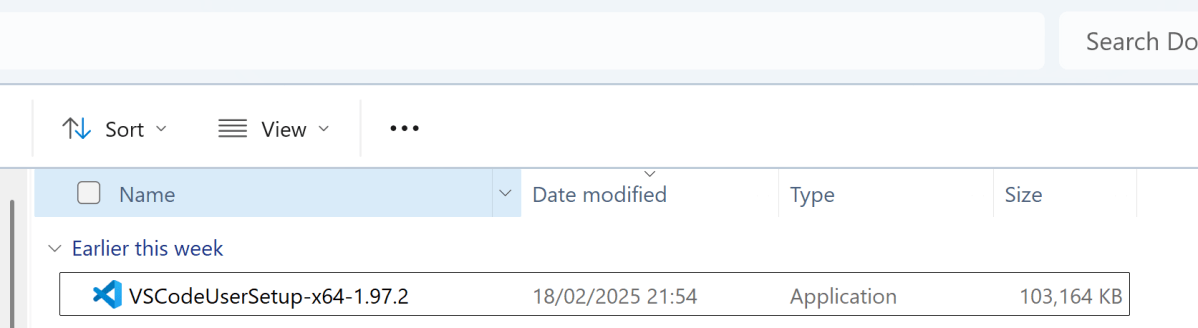
Step 2: When the download finishes, then the Visual Studio Code Icon appears in the downloads folder.
Run Installer
Step 3: Locate the downloaded installer file (it’s usually saved in the “Downloads” folder). Click on the Installer icon to start the installation process of the Visual Studio Code.
Setup Installation
Step 4: After the Installer opens, it will ask you to accept the terms and conditions of the Visual Studio Code. Click on “I accept the agreement” and then click the “Next” button.
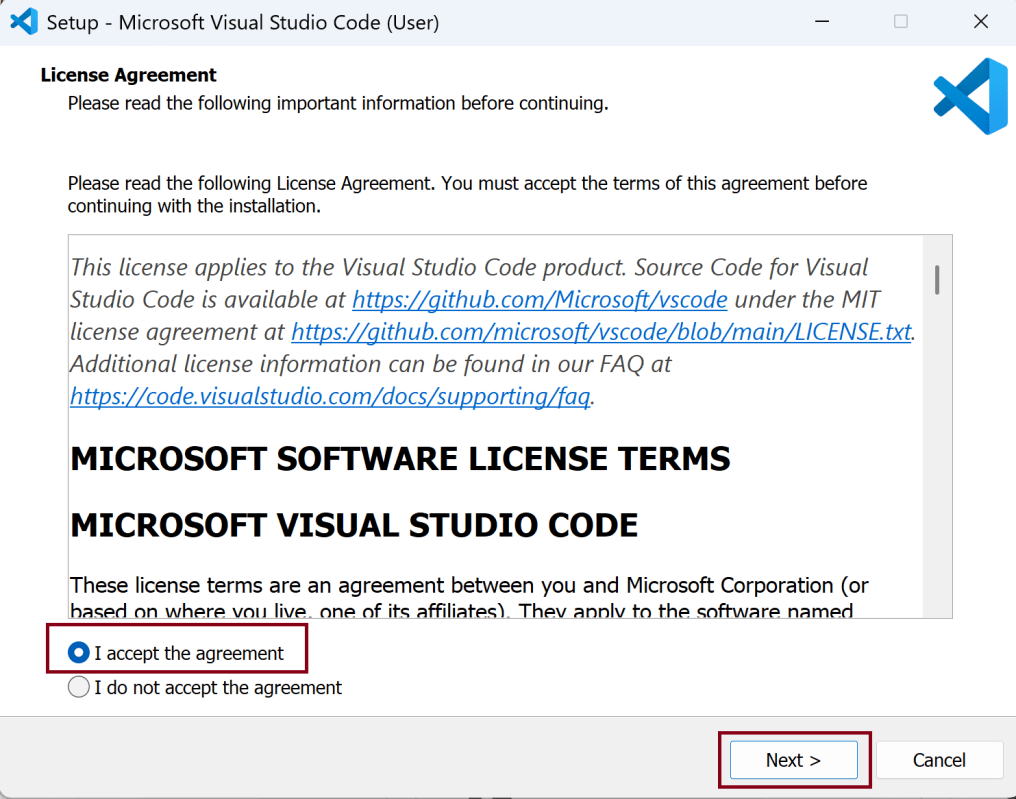
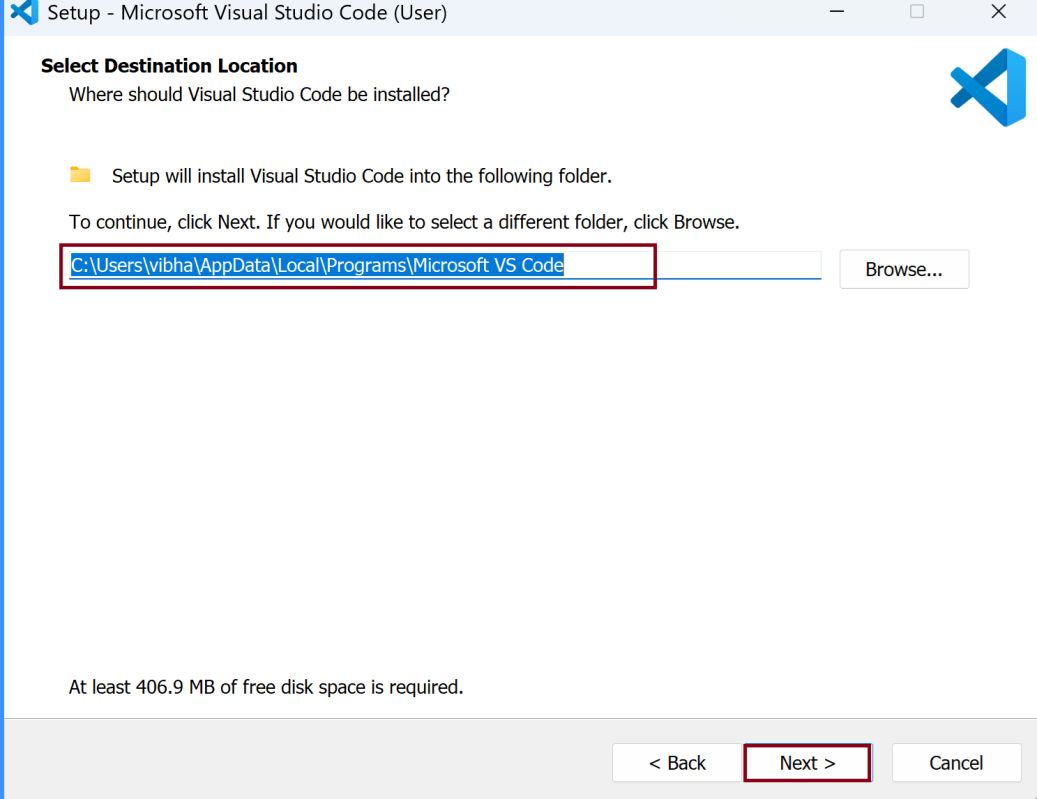
Step 5: Choose the location data for running the Visual Studio Code. It will then ask you to browse the location. Then click on the “Next” button.
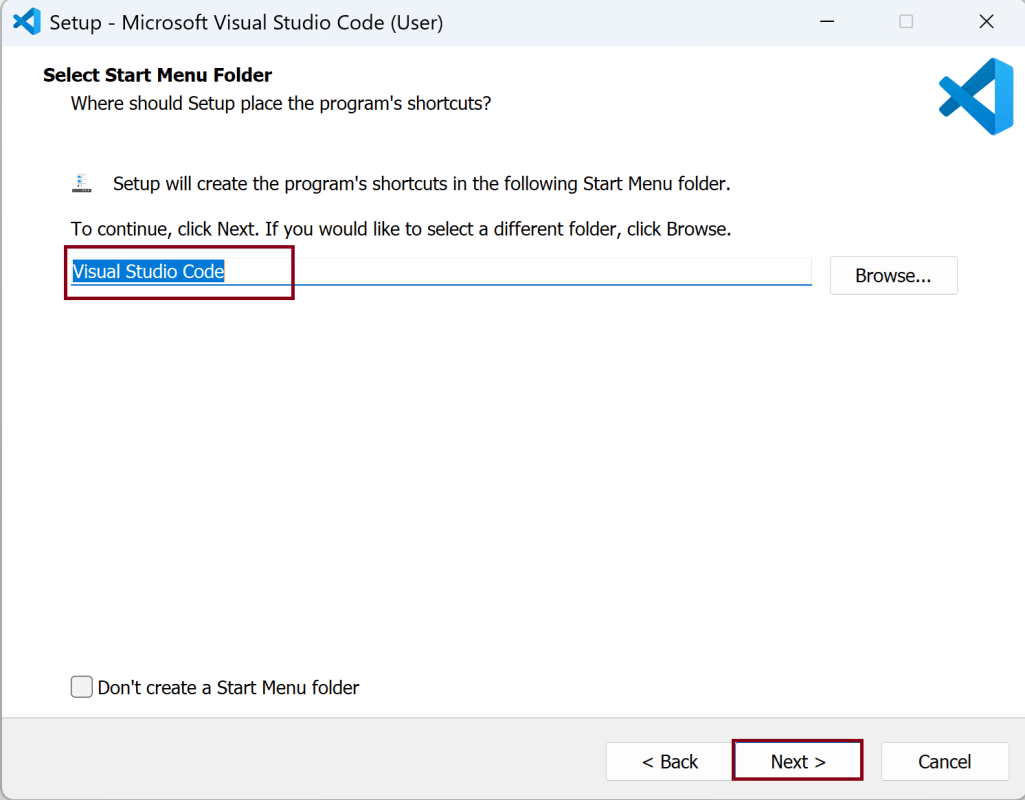
Step 6: Assign a program name to the VisualStudio Code to appear in the Start Menu folder.
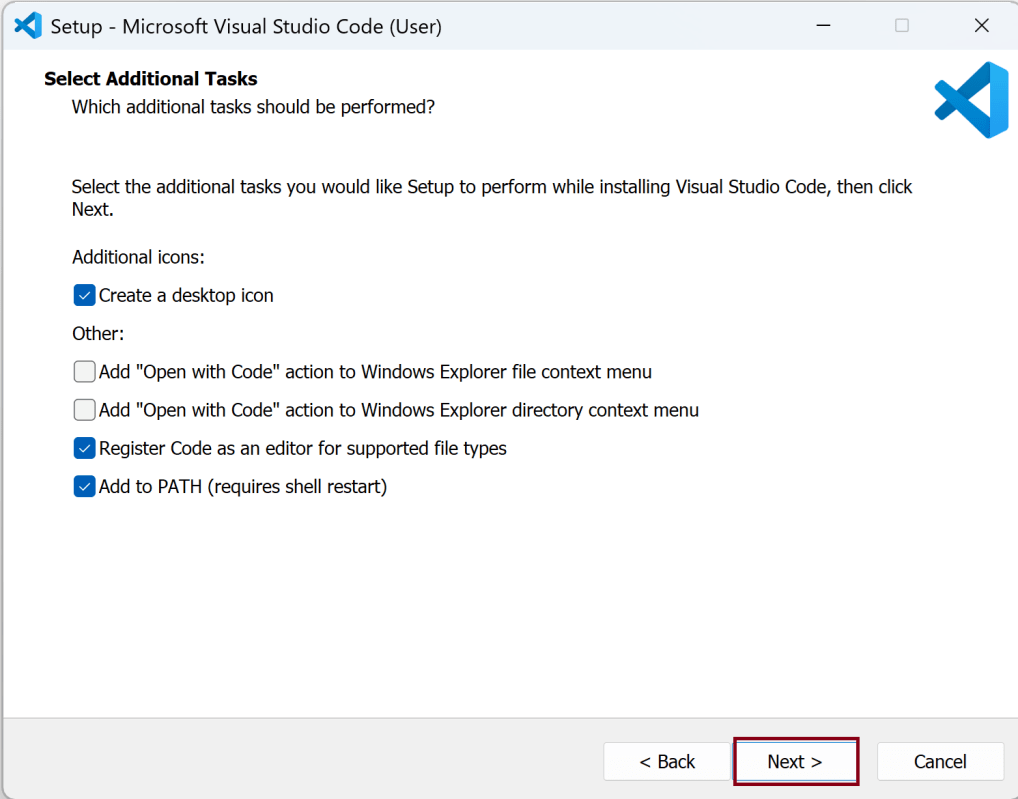
Step 7: Select the additional tasks as per your requirement. I have selected to Create a desktop icon. register code as an editor and app to PATH.
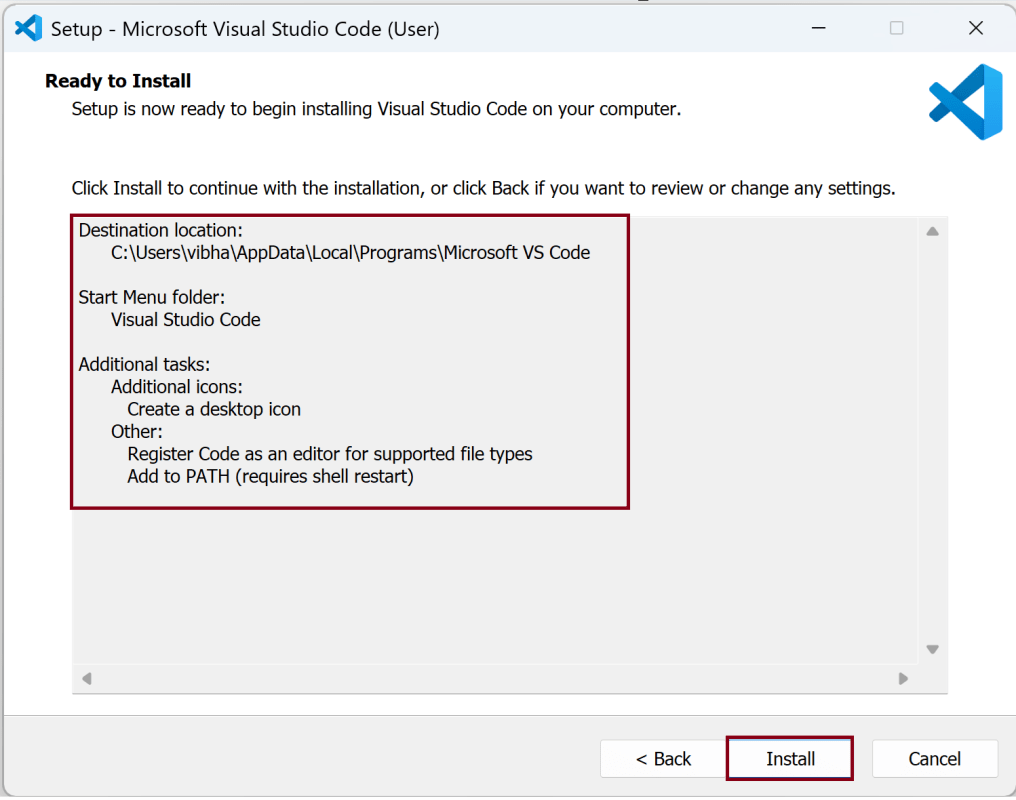
Step 8: The program will ask to begin the installation setup. Click on the “Install” button.
Install Visual Studio Code
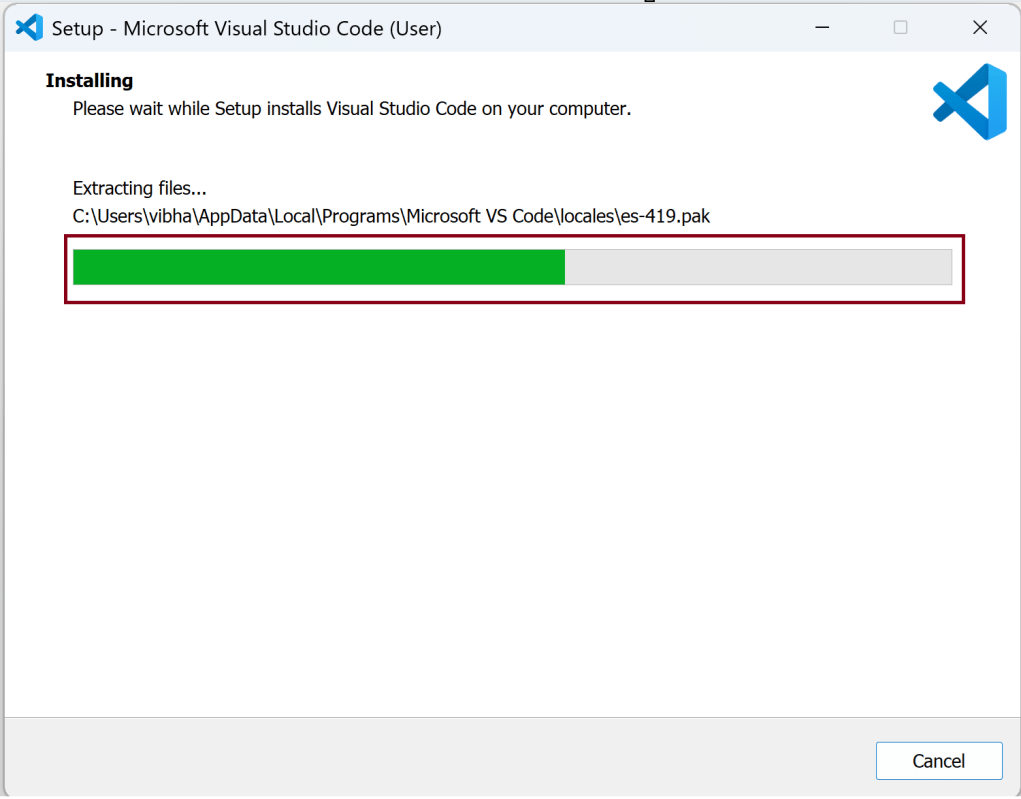
Step 9: Click “Install” to begin the installation. After clicking on Install, it will take about 1 minute to install the Visual Studio Code on your device.
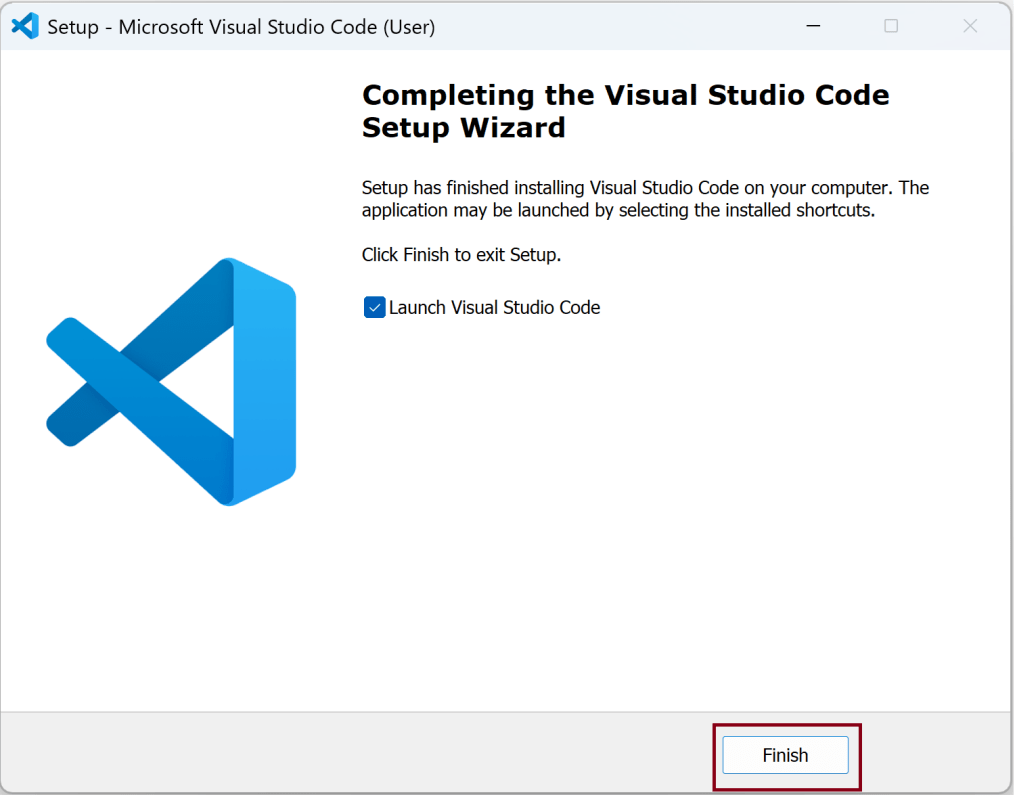
Step 10: Once installation is complete, you’ll be given the option to launch Visual Studio Code immediately. Click “Finish” to complete the setup.
Launch Visual Studio Code
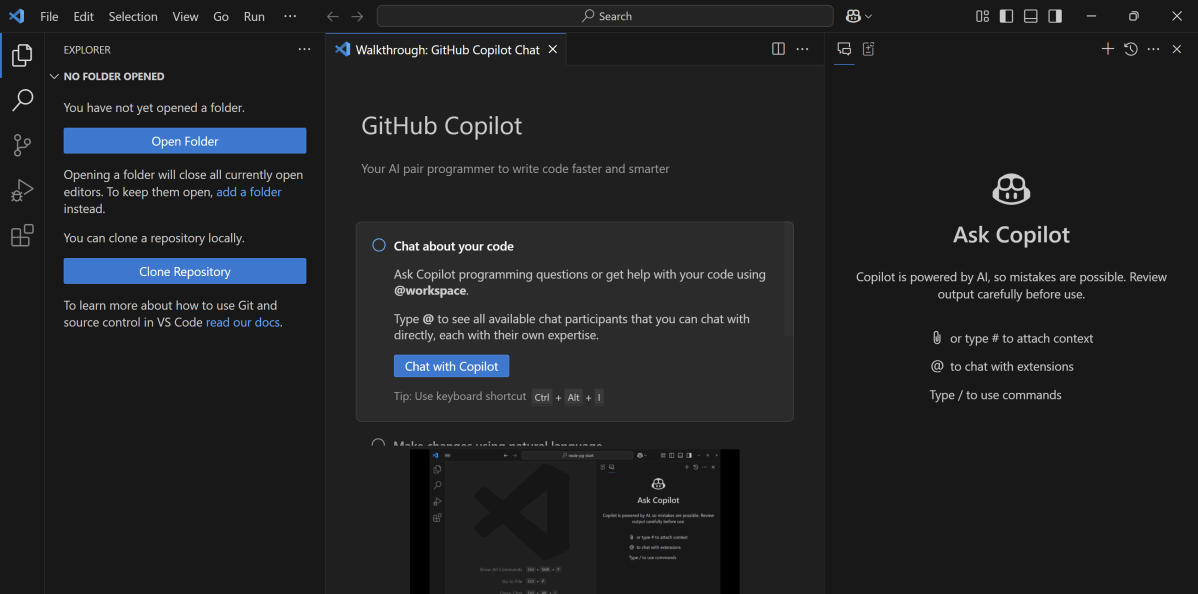
Step 11: After the previous step, the Visual Studio Code window opens successfully. Now you can create a new file in the Visual Studio Code window and choose a language of yours to begin your programming journey
That’s it! Congratulations on making it through this tutorial and hope you found it useful! Happy Learning!!

