How to install Maven Plugin in Jenkins

HOME

In this tutorial, we are going to learn how we can install the Maven plugin and create a Maven project in Jenkins.

Implementation Steps

Step 1: Create a project for running the tests using Selenium WebDriver and TestNG
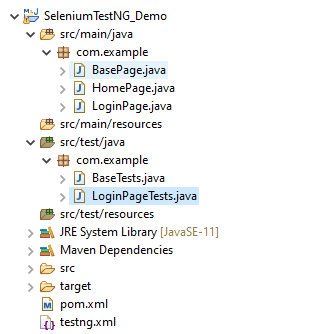
Step 2: Create the Test Code

You can refer to this tutorial to get the test code – Integration Of Jenkins With Selenium WebDriver.

Step 3: Start the Jenkins server

Open the browser and navigate to the localhost and the port in which Jenkins is running.

http://localhost:8080/

Step 4: Log in to Jenkins UI

Provide username and password and click on Sign in.

Step 5: Download and Install Maven Plugin

Click on the Manage Jenkins.

Choose Manage Plugins.

Step 6: Add the Maven Integration plugin

On the Plugins Page, go to the Available option

  1. Select the Maven Integration Plugin
  2. Click on Install without restartThe plugin will take a few moments to finish downloading depending on your internet connection, and will be installed automatically.
  3. You can also select the option Download now and Install after the restart button. In which plugin is installed after the restart
  4. You will be shown a “No updates available” message if you already have the Maven plugin installed.

The plugin “Maven Integration” has been installed successfully.
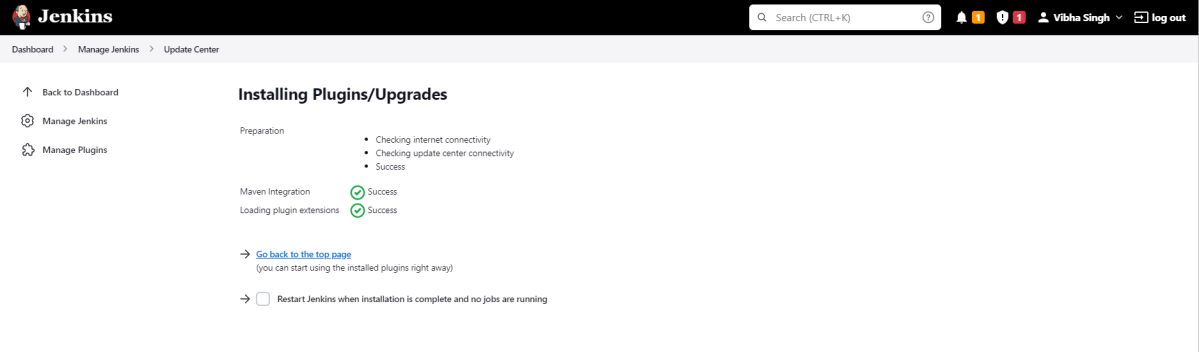
Step 7: Restart Jenkins

Click on the checkbox “Restart Jenkins when installation is complete when no jobs are running“.

The Jenkins is being restarted, It is about to restart.

Again, log in to Jenkins UI.

Step 8: Create a new project using the Maven project plugin

  1. Give the Name of the project – SeleniumTestNG_MavenDemo.
  2. Click on the Maven project. 
  3. Click on the OK button.

In the General section, enter the project description in the Description box.

Step 9: Build Management

Go to the Build section of the new job.

  • In the Root POM textbox, enter the full path to pom.xml
  • In the Goals and options section, enter “clean test

Click on the Apply and Save buttons.

We have created a new Maven project SeleniumTestNG_MavenDemo” with the configuration to run the Selenium with TestNG Tests

 Step 10: Execute the tests

Click on the Build Now link. Maven will build the project. It will then have TestNG execute the test cases.

To see the current status of the execution, click on the “console output“.

Congratulations on making it through this tutorial and hope you found it useful! Happy Learning!! Cheers!!

Additional Tutorials

How to install Plugins from Jenkins CLI?
Integrate Gradle project with Jenkins
How to generate TestNG Report in Jenkins
How to create Jenkins pipeline for Selenium tests
 Integration of GitHub with Jenkins

Integration of Allure Report with Jenkins

Last Updated On

HOME

In this tutorial, we are going to learn how we can integrate Allure Report with Jenkins. This tutorial is using a Maven project.

Before proceeding, I strongly advise you to read this tutorial to learn How to Setup Allure Report with Selenium TestNG.

Table of Contents

  1. Implementation Steps
    1. Download Allure Jenkins Plugin
    2. Configure Allure
    3. Create a new Maven Jenkins job
      1. Create a new project using the Maven project plugin
      2. Build Management
      3. Select a custom workspace
      4. Select “Allure Reports” from “Post Build Actions”
      5. Execute the tests
      6. View the Allure Report

Implementation Steps

  1. Download the Allure Jenkins Plugin
  2. Configure Allure
  3. Create a new Maven Jenkins job

Download Allure Jenkins Plugin

To generate Allure Report in Jenkins, we need to download Allure Plugin. Please refer to this tutorial to install the plugin – How to install Plugins in Jenkins

Configure Allure

Go back to the Manage Jenkins link as shown below:

When we click on the “Manage Jenkins” link, we are redirected to the Manage Jenkins page, where we can see various types of options, including the “Global Tool Configuration” option.

We need to set the Allure Commandline in Jenkins as shown below.

Click on the Allure Command line installations button. By default, Install Automatically will be checked, so since we are going to use the Allure installed on our local machine, Install automatically will install the latest version of Allure.

Provide the Name as ALLURE_HOME because that is what is currently installed on my machine, and also provide the path of Allure in the ALLURE_HOME textbox.

Create a new Maven Jenkins job

Step 1: Create a new project using the Maven project plugin

  1. Give the Name of the projectAllureReportWithSelenium_Demo
  2. Click on the Maven project. 
  3. Click on the OK button.

In the General section, enter the project description in the Description box – This is demo of Allure Report in Jenkins.

Select Source Code Management as None if the project is locally present on the machine.

Step 2: Build Management

Go to the Build section of the new job.

  1. In the Root POM textbox, enter pom.xml
  2. In the Goals and options section, enter “clean test

Click on the Advanced button.

Step 3: Select a custom workspace

Mention the full path of the project in the directory.

Step 4: Select “Allure Reports” from “Post Build Actions”

Scroll down to ‘Post Build Actions’ and click on the ‘Add Post Build Actions’ drop-down list. Select “Allure Report“. 

Enter the Result Path as “allure-results” and click on the “Save” button.

Click on the Apply and Save buttons.

We have created a new Maven project AllureReportWithSelenium_Demo” with the configuration to run the Selenium with TestNG Tests and also to generate Allure Report after execution using Jenkins.

Step 5: Execute the tests

Let’s execute it now by clicking on the “Build Now” button. 

Right-click on Build Number (here in my case it is #1).

Click on Console Output to see the result.

Step 6: View the Allure Report

Once the execution is completed, we could see a link to view the ‘Allure Report’.

Click on the Allure Report. It displays the summary of the tests.

There is another way to create Allure Report in Jenkins, which is by using the Jenkins pipeline. To know more about this, please refer to this tutorial – How to create Jenkins pipeline for Allure Report.

Congratulations on making it through this tutorial and hope you found it useful! Happy Learning!! Cheers!!

Additional Tutorials

Integration Of Jenkins With Selenium WebDriver
How to install Maven Plugin in Jenkins
Integrate Gradle project with Jenkins
Jenkins GitLab Integration
How to generate HTML Reports in Jenkins
Integration of Cucumber Report with TestNG in Jenkins
Serenity with Jenkins