JUnit – Multiple Choice Questions and Answers – MCQ1

HOME


How to run parameterized Selenium test using JUnit5

HOME

The previous tutorial has shown the various parameterized tests in JUnit5. This tutorial shows how to run a Selenium test multiple times with a different set of data. This helps to reduce the duplication of code. This is a very common scenario in any testing. Imagine, we want to test the requirement for a login page that uses a username and password to log in to the application. Username and password must satisfy some conditions like username can be only alphabets and no numeric and special characters. There could be multiple sets of data that can be used to test this requirement.

Prerequisite:

  1. Selenium – 4.21.0
  2. Maven – 3.9.6
  3. Java 17
  4. JUnit Jupiter Engine – 5.11.0-M2
  5. JUnit Jupiter API – 5.11.0-M2

JUnit5 provides a lot of ways to parameterize a test – @ValueSource, @EnumSource, @MethodSource, @CsvSource, @CsvFileSource, and @ArgumentsSource.

Let us see an example where the test is not parameterized. In the below example, we want to verify the different error messages generated by passing incorrect values to username and password.

This is the base class – Login which contains the test method that uses a different set of test data.

package com.example.parameterized;

import org.openqa.selenium.WebDriver;
import org.openqa.selenium.WebElement;
import org.openqa.selenium.support.FindBy;
import org.openqa.selenium.support.PageFactory;

public class LoginPage {

    WebDriver driver ;

    @FindBy(name="username")
    WebElement username;

    @FindBy(name="password")
    WebElement password;

    @FindBy(xpath="//*[@class='oxd-form']/div[3]/button")
    WebElement loginButton;

    @FindBy(xpath="//*[@class='orangehrm-login-error']/div[1]/div[1]/p")
    WebElement actualErrorMessage;


    public LoginPage(WebDriver driver) {

        this.driver = driver;

        // This initElements method will create all WebElements
        PageFactory.initElements(driver, this);
    }

    public void setUserName(String strUserName) {
        username.sendKeys(strUserName);
    }

    // Set password in password textbox
    public void setPassword(String strPassword) {
        password.sendKeys(strPassword);
    }

    // Click on login button
    public void clickLogin() {
        loginButton.click();
    }

    // Get the error message
    public String getErrorMessage() {
        return actualErrorMessage.getText();
    }

    public void login(String strUserName, String strPasword) {

        // Fill user name
        this.setUserName(strUserName);

        // Fill password
        this.setPassword(strPasword);

        // Click Login button
        this.clickLogin();
    }

}

The below example shows 4 tests using a common test with 4 different sets of data.

import org.junit.jupiter.api.AfterEach;
import org.junit.jupiter.api.BeforeEach;
import org.junit.jupiter.api.Test;
import org.openqa.selenium.WebDriver;
import org.openqa.selenium.chrome.ChromeDriver;
import org.openqa.selenium.chrome.ChromeOptions;

import java.time.Duration;

import static org.junit.jupiter.api.Assertions.assertEquals;

public class NonParameterizedLoginTest {

    WebDriver driver;
    LoginPage login;

    @BeforeEach
    void setUp() {

        ChromeOptions chromeOptions = new ChromeOptions();
        driver = new ChromeDriver(chromeOptions);
        driver.manage().window().maximize();
        driver.get("https://opensource-demo.orangehrmlive.com/");
        driver.manage().timeouts().implicitlyWait(Duration.ofSeconds(5));

    }

    @Test
    void invalidCredentials1() {

        login = new LoginPage(driver);
        login.login("Admin","Admin");
        String actualErrorMessage = login.getErrorMessage();
        assertEquals("Invalid credentials", actualErrorMessage);

    }

    @Test
    void invalidCredentials2() {

        login = new LoginPage(driver);
        login.login("admin","Admin");
        String actualErrorMessage = login.getErrorMessage();
        assertEquals("Invalid credentials", actualErrorMessage);

    }

    @Test
    void invalidCredentials3() {

        login = new LoginPage(driver);
        login.login("Admin","123");
        String actualErrorMessage = login.getErrorMessage();
        assertEquals("Invalid credentials", actualErrorMessage);

    }

    @Test
    void invalidCredentials4() {

        login = new LoginPage(driver);
        login.login("admin123","3456admin");
        String actualErrorMessage = login.getErrorMessage();
        assertEquals("Invalid credentials", actualErrorMessage);

    }

    @AfterEach
    void tearDown() {
        if (driver != null) {
            driver.close();
        }
    }

}

We can see that the same method is called multiple times. This is a duplication of code. The output of the above program is

Now, we will parametrize the same test. To do so, we need to add a dependency to the POM.xml.

<project xmlns="http://maven.apache.org/POM/4.0.0" xmlns:xsi="http://www.w3.org/2001/XMLSchema-instance"
  xsi:schemaLocation="http://maven.apache.org/POM/4.0.0 http://maven.apache.org/xsd/maven-4.0.0.xsd">
  <modelVersion>4.0.0</modelVersion>

  <groupId>com.example</groupId>
  <artifactId>JUnit5_Examples</artifactId>
  <version>1.0-SNAPSHOT</version>
  <packaging>jar</packaging>

  <name>JUnit5_Examples</name>
  <url>http://maven.apache.org</url>

  <properties>
    <project.build.sourceEncoding>UTF-8</project.build.sourceEncoding>
    <selenium.version>4.21.0</selenium.version>
    <junit.jupiter.engine.version>5.11.0-M2</junit.jupiter.engine.version>
    <junit.jupiter.api.version>5.11.0-M2</junit.jupiter.api.version>
    <junit.jupiter.params.version>5.11.0-M2</junit.jupiter.params.version>
    <maven.compiler.plugin.version>3.13.0</maven.compiler.plugin.version>
    <maven.compiler.source.version>17</maven.compiler.source.version>
    <maven.compiler.target.version>17</maven.compiler.target.version>
    <maven.surefire.plugin.version>3.2.5</maven.surefire.plugin.version>
    <maven.compiler.source>17</maven.compiler.source>
    <maven.compiler.target>17</maven.compiler.target>
  </properties>

  <dependencies>

    <dependency>
      <groupId>org.seleniumhq.selenium</groupId>
      <artifactId>selenium-java</artifactId>
      <version>${selenium.version}</version>
    </dependency>

    <dependency>
      <groupId>org.junit.jupiter</groupId>
      <artifactId>junit-jupiter-engine</artifactId>
      <version>${junit.jupiter.engine.version}</version>
      <scope>test</scope>
    </dependency>

    <dependency>
      <groupId>org.junit.jupiter</groupId>
      <artifactId>junit-jupiter-api</artifactId>
      <version>${junit.jupiter.api.version}</version>
      <scope>test</scope>
    </dependency>

    <dependency>
      <groupId>org.seleniumhq.selenium</groupId>
      <artifactId>selenium-java</artifactId>
      <version>${selenium.version}</version>
    </dependency>

    <dependency>
      <groupId>org.junit.jupiter</groupId>
      <artifactId>junit-jupiter-params</artifactId>
      <version>${junit.jupiter.params.version}</version>
      <scope>test</scope>
    </dependency>

  </dependencies>

  <build>
    <plugins>

      <plugin>
        <groupId>org.apache.maven.plugins</groupId>
        <artifactId>maven-surefire-plugin</artifactId>
        <version>${maven.surefire.plugin.version}</version>

        <dependencies>
          <dependency>
            <groupId>org.junit.jupiter</groupId>
            <artifactId>junit-jupiter-engine</artifactId>
            <version>${junit.jupiter.engine.version}</version>
          </dependency>
        </dependencies>
      </plugin>
    </plugins>
  </build>

</project>

There are multiple ways to parameterize the test. To start with:

  1. Replace @Test annotation with @ParameterizedTest annotation provided by the JUnit5 framework.
  2. Add parameters to the loginTest() method. In this example, we will add a username and a password parameter.
  3. Add the parameters source. In this example, we will use the @CsvFileSource annotation.

To know all the different types of parameterization methods, please refer to this tutorial. This tutorial will show the 2 most common ways to parameterize tests in JUnit5.

1.@CsvSource

@CsvSource allows us to express argument lists as comma-separated values (i.e., CSV String literals). Each string provided via the value attribute in @CsvSource represents a CSV record and results in one invocation of the parameterized test. An empty, quoted value (”) results in an empty String. This can be seen in the below example.

import org.junit.jupiter.api.AfterEach;
import org.junit.jupiter.api.BeforeEach;
import org.junit.jupiter.params.ParameterizedTest;
import org.junit.jupiter.params.provider.CsvSource;
import org.openqa.selenium.WebDriver;
import org.openqa.selenium.chrome.ChromeDriver;
import org.openqa.selenium.chrome.ChromeOptions;

import java.time.Duration;

import static org.junit.jupiter.api.Assertions.assertEquals;

public class ParameterizedSourceTest {

    WebDriver driver;

    LoginPage loginPage;

    @BeforeEach
    void setUp() {

        ChromeOptions chromeOptions = new ChromeOptions();
        driver = new ChromeDriver(chromeOptions);
        driver.manage().window().maximize();
        driver.get("https://opensource-demo.orangehrmlive.com/");
        driver.manage().timeouts().implicitlyWait(Duration.ofSeconds(6));

    }

    @ParameterizedTest
    @CsvSource({
            "admin123,admin123,Invalid credentials",
            "admin,admin12,Invalid credentials",
            "Admin,1234,Invalid credentials",
            "12345,%^$£56,Invalid credentials"
    })

    void invalidCredentials1(String username, String password, String errorMessage) {

        loginPage = new LoginPage(driver);
        loginPage.login(username,password);
        String actualErrorMessage = loginPage.getErrorMessage();
        assertEquals(errorMessage, actualErrorMessage);

    }

    @AfterEach
    void tearDown() {
        driver.close();
    }
}

The output of the above program is

2. @CsvFileSource

@CsvFileSource lets us use comma-separated value (CSV) files from the classpath or the local file system.

We can see in the below example, that we have skipped the first line from the credentials.csv file as it is the heading of the file. invalidCredentials() method got 4 different set of the test data from CSV file using parameterization. JUnit5 ignores the headers via the numLinesToSkip attribute.

In this example, will retrieve the data from CSV. This CSV file is placed under src/test/resources. Below is the example of the credentials.csv file.

In @CsvFileSource, an empty, quoted value (“”) results in an empty String in JUnit5.

package com.example.parameterized;

import org.junit.jupiter.api.AfterEach;
import org.junit.jupiter.api.BeforeEach;
import org.junit.jupiter.params.ParameterizedTest;
import org.junit.jupiter.params.provider.CsvFileSource;
import org.junit.jupiter.params.provider.CsvSource;
import org.openqa.selenium.WebDriver;
import org.openqa.selenium.chrome.ChromeDriver;
import org.openqa.selenium.chrome.ChromeOptions;

import java.time.Duration;

import static org.junit.jupiter.api.Assertions.assertEquals;

public class ParameterizedFileTest {

    WebDriver driver;

    LoginPage loginPage;

    @BeforeEach
    void setUp() {

        ChromeOptions chromeOptions = new ChromeOptions();
        driver = new ChromeDriver(chromeOptions);
        driver.manage().window().maximize();
        driver.get("https://opensource-demo.orangehrmlive.com/");
        driver.manage().timeouts().implicitlyWait(Duration.ofSeconds(6));

    }

    @ParameterizedTest
    @CsvFileSource(files = "src/test/resources/credentials.csv", numLinesToSkip = 1)
    void invalidCredentials1(String username, String password, String errorMessage) {

        loginPage = new LoginPage(driver);
        loginPage.login(username,password);
        String actualErrorMessage = loginPage.getErrorMessage();
        assertEquals(errorMessage, actualErrorMessage);

    }

    @AfterEach
    void tearDown() {
        driver.close();
    }
}

The result of the above program is

Congratulations!! We have seen how Selenium tests are parameterized in JUnit5. Happy Learning.

How to Retry Test in JUnit5 – @RepeatedTest

HOME

In JUnit5, JUnit Jupiter provides the ability to repeat a test a specified number of times by annotating a method with @RepeatedTest. We can specify the repetition frequency as a parameter to the @RepeatedTest annotation.

When do we use the Repeated Test?

Imagine, we are testing an online shopping website. In the process of placing an order, we need to pay for the product. But the payment gateway is a third-party service, and we cannot control the connectivity between our website and the payment gateway. We know that clicking on the ‘Payment’ link sometime shows “Exception: Page cannot be displayed”. This is an intermittent issue. So, we don’t want to fail the test if this payment link does not work. We can configure it to click this payment link multiple times, before marking the test case failed. Here comes the Repeated Test in the picture.

A few points to keep in mind for @RepeatedTest are as follows:

  1. The methods annotated with @RepeatedTest cannot be static, otherwise, the test cannot be found.
  2. The methods annotated with @RepeatedTest cannot be private, otherwise, the test cannot be found.
  3. The return type of the method annotated with @RepeatedTest must be void only, otherwise, the test cannot be found.

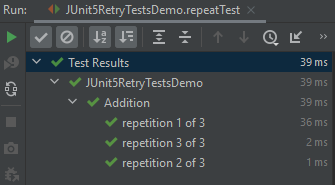
The below example will run the test 5 times.

 @DisplayName("Addition")
 @RepeatedTest(3)
 void repeatTest(){
    int a = 4;
    int b = 6;
    assertEquals(10, a+b,"Incorrect sum of numbers");
 }

The output of the above test:

Each invocation of a repeated test behaves like the execution of a regular @Test method, with full support for the same lifecycle callbacks and extensions.

It means that @BeforeEach and @AfterEach annotated lifecycle methods will be invoked for each invocation of the test.

@BeforeEach annotation is used to signal that the annotated method should be executed before each invocation of the @Test@RepeatedTest@ParameterizedTest, or @TestFactory method in the current class. This is the replacement of the @Before Method in JUnit4.

TestInfo is used to inject information about the current test or container into @Test, @RepeatedTest, @ParameterizedTest, @TestFactory, @BeforeEach, @AfterEach, @BeforeAll, and @AfterAll methods.
If a method parameter is of type TestInfo, JUnit will supply an instance of TestInfo corresponding to the current test or container as the value for the parameter.

RepetitionInfo is used to inject information about the current repetition of a repeated test into the @RepeatedTest, @BeforeEach, and @AfterEach methods.
If a method parameter is of type RepetitionInfo, JUnit will supply an instance of RepetitionInfo corresponding to the current repeated test as the value for the parameter.

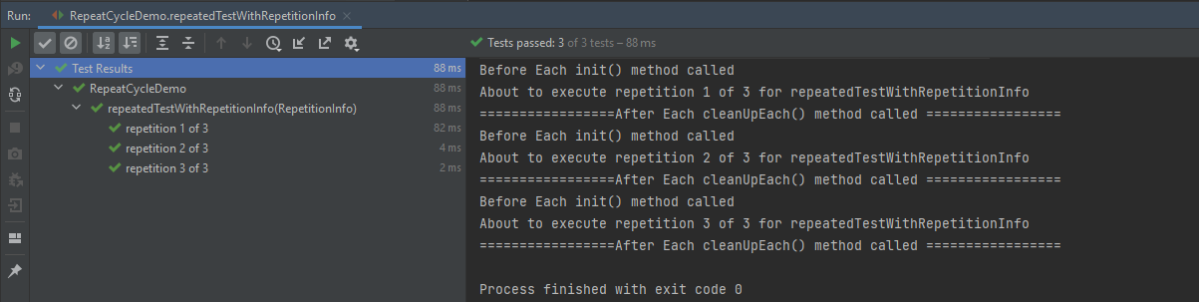
In the below example, @BeforeEach will get executed before each repetition of each repeated test. By having the TestInfo and RepetitionInfo injected into the method, we see that it’s possible to obtain information about the currently executing repeated test.

import org.junit.jupiter.api.*;
import static org.junit.jupiter.api.Assertions.*;

public class RepeatCycleDemo {

    @BeforeEach
    void init(TestInfo testInfo, RepetitionInfo repetitionInfo) {
      System.out.println("Before Each init() method called");
      int currentRepetition = repetitionInfo.getCurrentRepetition();
      int totalRepetitions = repetitionInfo.getTotalRepetitions();
      String methodName = testInfo.getTestMethod().get().getName();
      System.out.println(String.format("About to execute repetition %d of %d for %s", currentRepetition, totalRepetitions, methodName));
     }

    @RepeatedTest(3)
    void repeatedTestWithRepetitionInfo(RepetitionInfo repetitionInfo) {
      int a = 4;
      int b = 6;
      assertEquals(10, a+b, repetitionInfo.getTotalRepetitions());
    }

    @AfterEach
    public void cleanUpEach(){
      System.out.println("=================After Each cleanUpEach() method called =================");
    }
}

The output of the above test:

Custom Display Name

In addition to specifying the number of repetitions, a custom display name can be configured for each repetition via the name attribute of the @RepeatedTest annotation.

The display name can be a pattern composed of a combination of static text and dynamic placeholders. The following placeholders are currently supported.

  1. {displayName}: display name of the @RepeatedTest method
  2. {currentRepetition}: the current repetition count
  3. {totalRepetitions}: the total number of repetitions

    @BeforeEach
    void init(TestInfo testInfo, RepetitionInfo repetitionInfo) {
        System.out.println("Before Each init() method called");
        int currentRepetition = repetitionInfo.getCurrentRepetition();
        int totalRepetitions = repetitionInfo.getTotalRepetitions();
        String methodName = testInfo.getTestMethod().get().getName();
        System.out.println(String.format("About to execute repetition %d of %d for %s", //
                currentRepetition, totalRepetitions, methodName));
    }

   //Custom Display  
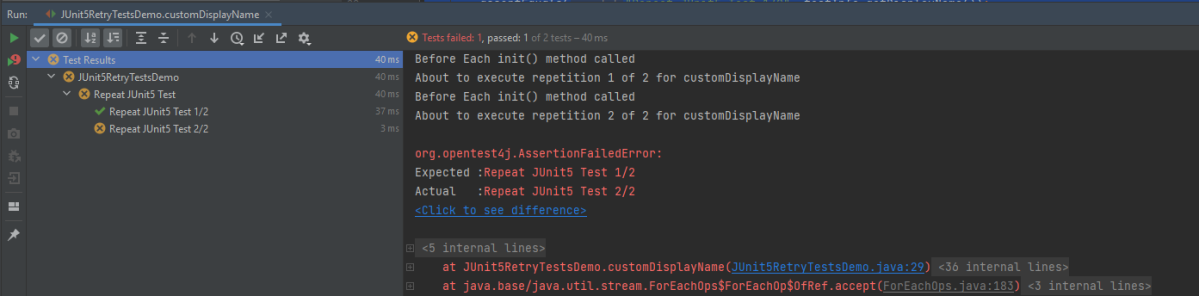
    @RepeatedTest(value = 2, name = "{displayName} {currentRepetition}/{totalRepetitions}")
    @DisplayName("Repeat JUnit5 Test")
    void customDisplayName(TestInfo testInfo) {
        assertEquals("Repeat JUnit5 Test 1/2", testInfo.getDisplayName());
    }

The output of the above test:

The default display name for a given repetition is generated based on the following pattern: “repetition {currentRepetition} of {totalRepetitions}”. Thus, the display names for individual repetitions of the previous repeatedTest() example would be repetition 1 of 10, and repetition 2 of 10.

We can use one of two predefined formats for displaying the name – LONG_DISPLAY_NAME and SHORT_DISPLAY_NAME. The latter is the default format if none is specified.

  1. RepeatedTest.LONG_DISPLAY_NAME – {displayName} :: repetition {currentRepetition} of {totalRepetitions}
  2. RepeatedTest.SHORT_DISPLAY_NAME – repetition {currentRepetition} of {totalRepetitions}

Below is an example of SHORT_DISPLAY_NAME

    @RepeatedTest(value = 3, name = RepeatedTest.SHORT_DISPLAY_NAME)
    @DisplayName("Multiplication")
    void customDisplayNameWithShortPattern() {
        assertEquals(8, 6*5);
 }

In this case, the name is displayed as Multiplication repetition 1 of 3, repetition 2 of 3, and soon.

The output of the above test:

Below is an example of LONG_DISPLAY_NAME

  @RepeatedTest(value = 3, name = RepeatedTest.LONG_DISPLAY_NAME)
    @DisplayName("Addition")
    void customDisplayNameWithLongPattern(TestInfo testInfo) {
        System.out.println("Display Name :"+ testInfo.getDisplayName());
        System.out.println("Test Class Name :"+ testInfo.getTestClass());
        System.out.println("Test Method :"+ testInfo.getTestMethod());
        assertEquals(8, 3+7);
    }

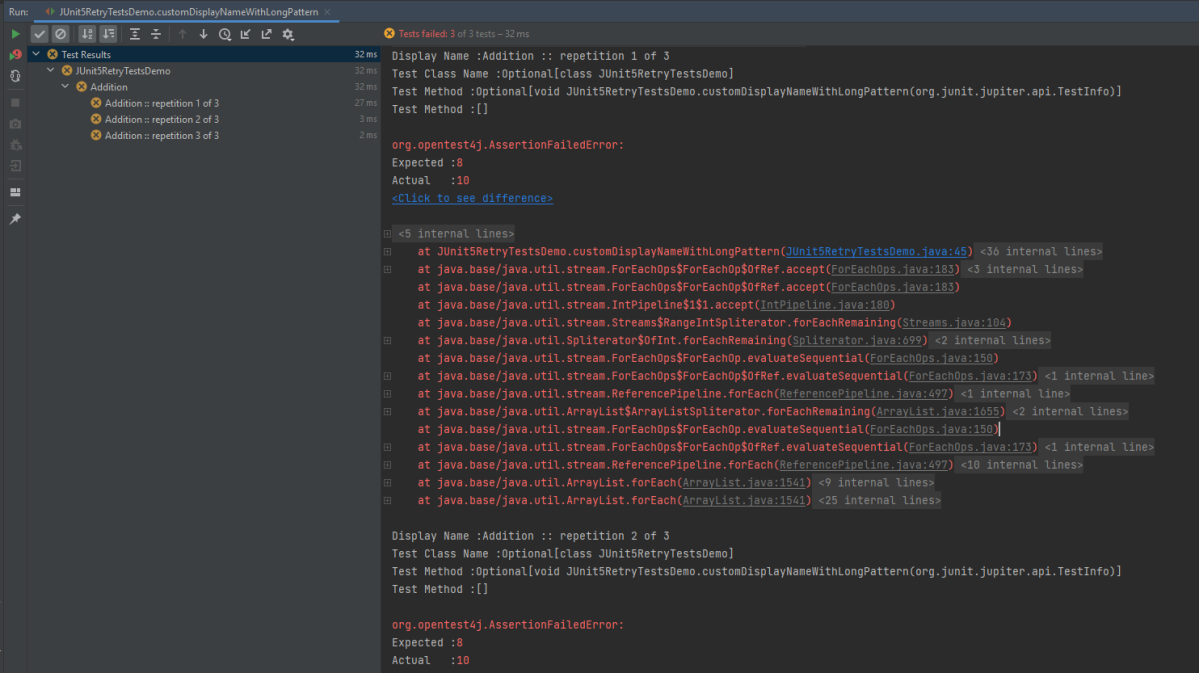
The output of the above test:

As we can see in the example, we have used @DisplayName(“Addition”), but as it is name = RepeatedTest.LONG_DISPLAY_NAME, so the name of the tests are now Addition :: repetition 1 of 3, Addition :: repetition 2 of 3 and soon.

Congratulations. We are able to execute the tests multiple times by using the @RepeatedTest annotation. Happy Learning!!

How to disable tests in JUnit5 – @Disabled

HOME

JUnit5 also provides the support to exclude/disable the tests. The @Disabled annotation in JUnit5 is used to exclude the test methods from the test suite. This annotation can be applied over a test class as well as over individual test methods. This annotation accepts only one optional parameter where we can mention the reason to skip the tests. @Disabled annotation can be used without providing any reason but its always good to provide a reason why this particular test case has been disabled, or issue tracker id for better understanding.

1.Disable Test Methods

In the below example, I have annotated 2 test methods out of 5 test methods as @Disabled with a parameter which specify the reason for disabling the test that means these 2 test methods should not be executed.

import org.junit.jupiter.api.AfterEach;
import org.junit.jupiter.api.BeforeEach;
import org.junit.jupiter.api.Disabled;
import org.junit.jupiter.api.Test;
import org.openqa.selenium.By;
import org.openqa.selenium.WebDriver;
import org.openqa.selenium.chrome.ChromeDriver;
import org.openqa.selenium.chrome.ChromeOptions;
import static org.junit.jupiter.api.Assertions.assertEquals;
import static org.junit.jupiter.api.Assertions.assertTrue;

public class DisabledTestsDemo {

    WebDriver driver;

    @BeforeEach
    public void setUp() {

        ChromeOptions chromeOptions = new ChromeOptions();
        chromeOptions.addArguments("--start-maximized");
        driver = new ChromeDriver(chromeOptions);
        driver.get("https://duckduckgo.com/");

    }

    @Disabled("This test is blocked till bug 1290 is fixed")
    @Test
    void verifyBrowserText() {
        boolean displayed = driver.findElement(By.xpath("//section[@class='homepage-cta-section_ctaSection__o_ioD']/h2")).isDisplayed();
        assertTrue(displayed);

    }

    @Test
    void verifyPageTitle() {

        String pageTitle = driver.getTitle();
        assertEquals("DuckDuckGo — Privacy, simplified.", pageTitle);

    }

    @Test
    void verifyDownloadBrowserButton() {

        boolean downloadBrowserBtn = driver.findElement(By.xpath("//*[@id=\"features\"]/div[1]/section[1]/div/div[1]/div[1]/div[2]/div[1]/a/span")).isDisplayed();
        assertTrue(downloadBrowserBtn);
    }

    @Test
    void displaySearchBox() {

        boolean searchBoxDisplayed = driver.findElement(By.xpath("//*[@id=\"searchbox_input\"]")).isEnabled();
        assertTrue(searchBoxDisplayed);
    }

    @Disabled("This test is not applicable for Sprint 14")
    @Test
    void verifyDefaultSearchButtonText() {

        String defaultSearchBtnText = driver.findElement(By.xpath("//*[@id=\"features\"]/div[1]/section[1]/div/div[1]/div[1]/div[2]/div[1]/h2")).getText();
        assertEquals("Free. Fast. Private. Get our browser on all your devices.",(defaultSearchBtnText));
    }

    @AfterEach
    public void tearDown() {
        driver.close();
    }
}

The output of the above test shows, the 2 tests that are annotated with @Disabled are not executed.

2. Disable Test Class

When we annotate a class as @Disabled, then all the test methods present within that test class will not be executed.

In the below example, there are 2 test classes – Demo and DisabledTestsDemo. Demo class contains 1 test method whereas DisabledTestsDemo contains 5 test methods. I have annotated DisabledTestsDemo class as @Disabled which means all 5 tests present within it will not be executed.

In the below example, there is a base class that contains the initialization of webDriver as well as closing of the same.

import org.junit.jupiter.api.AfterEach;
import org.junit.jupiter.api.BeforeEach;
import org.openqa.selenium.WebDriver;
import org.openqa.selenium.chrome.ChromeDriver;
import org.openqa.selenium.chrome.ChromeOptions;

public class Base {

    static WebDriver driver=null;

    @BeforeEach
    public void setUp() {

        ChromeOptions chromeOptions = new ChromeOptions();
        chromeOptions.addArguments("--start-maximized");
        driver = new ChromeDriver(chromeOptions);
        driver.get("https://duckduckgo.com/");

    }

    @AfterEach
    public void tearDown() {
        driver.close();
    }
}

Class 1 – Demo

import org.junit.jupiter.api.Test;
import static org.junit.jupiter.api.Assertions.assertEquals;

public class NonDisabledClass extends Base {

    @Test
    void verifyPageTitle() {

        String pageTitle = driver.getTitle();
        assertEquals("DuckDuckGo — Privacy, simplified.", pageTitle);

    }
}

Class 2 – DisabledTestsDemo

import org.junit.jupiter.api.Disabled;
import org.junit.jupiter.api.Test;
import org.openqa.selenium.By;
import static org.junit.jupiter.api.Assertions.assertEquals;
import static org.junit.jupiter.api.Assertions.assertTrue;

@Disabled
public class DisabledClassDemo extends Base {

    @Test
    void verifyBrowserText() {
        boolean displayed = driver.findElement(By.xpath("//section[@class='homepage-cta-section_ctaSection__o_ioD']/h2")).isDisplayed();
        assertTrue(displayed);

    }

    @Test
    void verifyDownloadBrowserButton() {

        boolean downloadBrowserBtn = driver.findElement(By.xpath("//*[@id=\"features\"]/div[1]/section[1]/div/div[1]/div[1]/div[2]/div[1]/a/span")).isDisplayed();
        assertTrue(downloadBrowserBtn);
    }

    @Test
    void displaySearchBox() {

        boolean searchBoxDisplayed = driver.findElement(By.xpath("//*[@id=\"searchbox_input\"]")).isEnabled();
        assertTrue(searchBoxDisplayed);
    }

    @Test
    void verifyDefaultSearchButtonText() {

        String defaultSearchBtnText = driver.findElement(By.xpath("//*[@id=\"features\"]/div[1]/section[1]/div/div[1]/div[1]/div[2]/div[1]/h2")).getText();
        assertEquals("Free. Fast. Private. Get our browser on all your devices.",(defaultSearchBtnText));
    }
}

The output of the above test shows, all the test methods present in the class that is annotated with @Disabled are not executed.

Congratulations. We are able to understand the usage of @Disabled annotation in JUnit5. Happy Learning!!

Multiple Choice Questions

HOME

  1. Programming Languages
    1. Java
  2. Test Automation Frameworks
    1. Selenium
    2. Advance Selenium
    3. Robot Framework
    4. JUnit4
    5. TestNG
  3. API Testing
    1. Rest API
    2. Pytest Framework
  4. DevOps & Continuous Integration/Continuous Deployment (CI/CD)
    1. DevOps
    2. Jenkins
  5. Version Control Systems
    1. Git
    2. GitHub
  6. Containerization
    1. Docker
  7. Database
    1. SQL
  8. Types of Testing
    1. Security Testing
    2. Performance Testing
    3. ETL Testing

Jenkins Multiple Choice Questions – MCQ1
Jenkins Multiple Choice Questions – MCQ2

GitHub Multiple Choice Questions – MCQ1

Docker – Basic Level – Multiple Choice Questions and Answers – MCQ1
Docker – Advance Level – Multiple Choice Questions and Answers – MCQ1

Cucumber Tutorial – JUnit Test Runner Class

HOME

In the previous tutorial, we showed you What is Feature File in Cucumber is. This tutorial will show you how to run this feature file. 

Once the Feature file is created, we need to create a class called Runner class to run the tests. This class will use the JUnit annotation @RunWith(), which tells JUnit what is the test runner class.

We cannot run a Feature file on its own in a cucumber-based framework. We need to create a Java class, which will run the Feature File. It is the starting point for JUnit to start executing the tests. TestRunner class is created under src/test/java. In this tutorial, Cucumber uses the JUnit framework to run the tests. Apart from JUnit, we can also use the TestNG Test Runner class to run the cucumber tests. 

JUnit Test Runner Class

First, we need to add the below dependencies to the POM.xml (in the case of the Maven project).

<dependencies>
  
  <dependency>
    <groupId>io.cucumber</groupId>
    <artifactId>cucumber-java</artifactId>
    <version>7.16.1</version>
  </dependency>

  <dependency>
    <groupId>io.cucumber</groupId>
    <artifactId>cucumber-junit</artifactId>
    <version>7.16.1</version>
    <scope>test</scope>
  </dependency>
    
  <dependency>
      <groupId>junit</groupId>
      <artifactId>junit</artifactId>
      <version>4.13.2</version>
      <scope>test</scope>
  </dependency>
    
</dependencies>

Create a new runner class file called CucumberRunnerTest

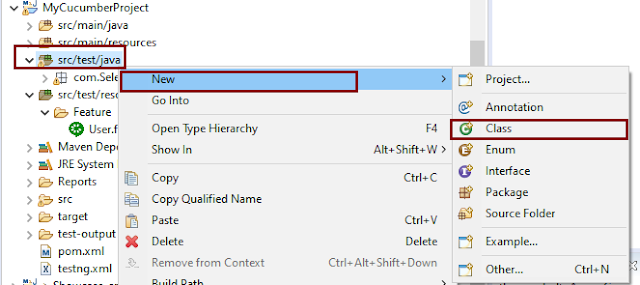
Select and Right-Click on the package outline. Click on the New→Class.

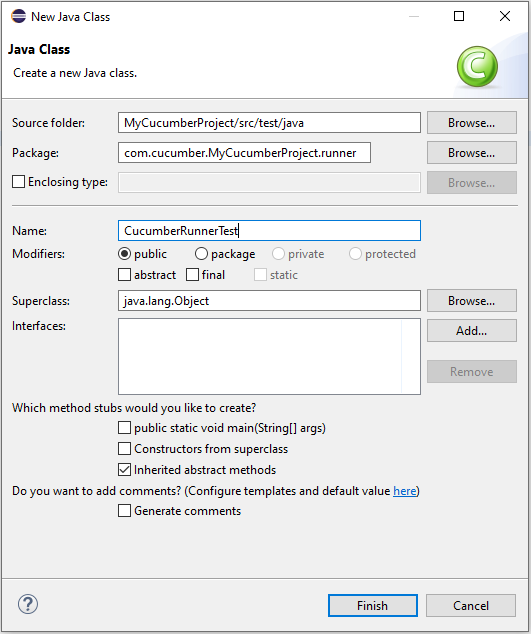
Provide the Java class a name, such as CucumberRunnerTest, and click the Finish button.

Import Statements

1) @RunWith annotation tells JUnit that tests should run using the Cucumber class.

import org.junit.runner.RunWith;

2) Cucumber.class is imported from:

import io.cucumber.junit.Cucumber;

3) @CucumberOptions annotation tells Cucumber where to look for feature files, what reporting system to use, and some other things also. But as of now, in the above test, we have just told it for the Feature file folder. It is imported from:

import io.cucumber.junit.CucumberOptions;

The CucumberRunnerTest class looks like shown below:

import org.junit.runner.RunWith;
import io.cucumber.junit.Cucumber;
import io.cucumber.junit.CucumberOptions;

@RunWith(Cucumber.class)
@CucumberOptions(plugin = "pretty", features = "src/test/resources/Features/MyHoliday.feature", tags = "@BookOneWayFlight")

public class CucumberRunnerTest {

}

The first parameter, called features, provides the location of the feature file. Similarly, the second parameter, called tags, provides the tag name (scenario) which needs to run. Apart from these, we can use plugins, and glue, in the CucumberOptions.

The feature file is placed under src/test/resources, so it is added as the path for the Feature file.

Run the Cucumber Test

As we know, the Feature file is already created in the previous tutorial. TestRunner class is created to run the Cucumber Tests.

Right Click on CucumberRunnerTest class and Click Run As  > JUnit Test Application

The output of the Test Execution looks as shown below image.
This output shows that the Feature file is created, and Test Runner is able to run the Feature File. But this error shows that we should implement these methods so that the Steps mentioned in the Feature file can be traced to Java methods, which can be executed while executing the feature file. Don’t worry about this error. We will see how to create step definitions in the next tutorial.

Congratulations on making it through this tutorial and hope you found it useful! Happy Learning!! Cheers!!

Integration of Cucumber with Selenium and JUnit4

HOME

As we know, Cucumber is a BDD Tool and Selenium Webdriver is used for the automation of web applications. Imagine we need to build a test framework that can be used by businesses to understand the test scenarios and as well can test the web application. This can be achieved by integrating Cucumber with Selenium.

In this tutorial, I’ll create a BDD Framework for the testing of web applications using Selenium Webdriver.

Table of Contents

Dependency List:

  1. Cucumber – 7.14.0
  2. Java 17
  3. JUnit – 4.13.2
  4. Maven – 3.9.5
  5. Selenium – 4.15.0

Implementation Steps

The above steps are explained in detail.

Step 1- Download and Install Java

Cucumber and Selenium need Java to be installed on the system to run the tests. Click here to know How to install Java.

Step 2 – Download and setup Eclipse IDE on the system

The Eclipse IDE (integrated development environment) provides strong support for Java developers. The Eclipse IDE for Java Developers distribution is designed to support standard Java development. It includes support for the Maven and Gradle build system and support for the Git version control system. Click here to know How to install Eclipse.

Step 3 – Setup Maven

To build a test framework, we need to add a number of dependencies to the project. It is a very tedious and cumbersome process to add each dependency manually. So, to overcome this problem, we use a build management tool. Maven is a build management tool that is used to define project structure, dependencies, build, and test management. Click here to know How to install Maven.

Step 4 – Install Cucumber Eclipse Plugin (Only for Eclipse)

The cucumber plugin is an Eclipse plugin that allows eclipse to understand the Gherkin syntax. When we are working with cucumber we will write the feature files that contain Feature, Scenario, Given, When, Then, And, But, Tags, Scenario Outline, and Examples. By default, eclipse doesn’t understand these keywords so it doesn’t show any syntax highlighter. Cucumber Eclipse Plugin highlights the keywords present in Feature File. Refer to this tutorial to get more detail – How to setup Cucumber with Eclipse.

Step 5 – Create a new Maven Project

Click here to know How to create a Maven project

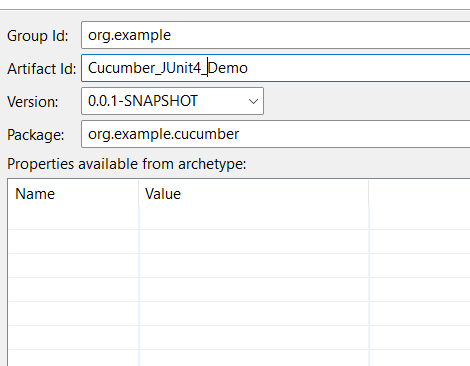
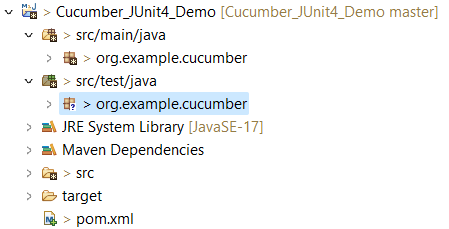
Below is the Maven project structure. Here,

Group Id – org.example
Artifact Id – Cucumber_JUnit4_Demo
Version – 0.0.1-SNAPSHOT
Package – cucumber

Maven Dependency (pom.xml) looks like something shown below for a new Maven project.
Step 6 – Create source folder src/test/resources

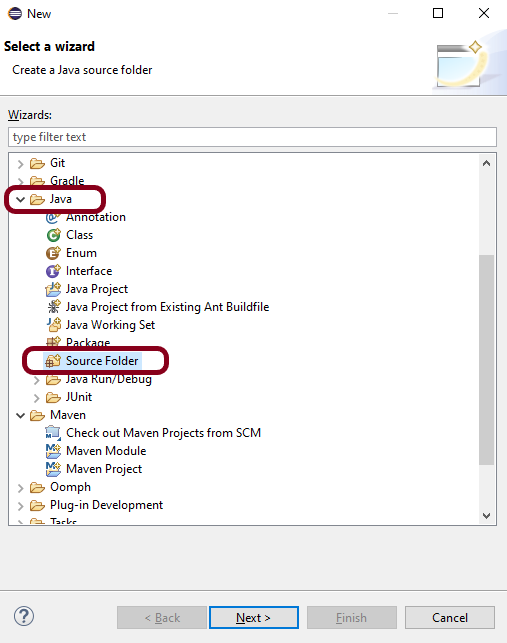
When a new Maven Project is created, it has 2 folders – src/main/java and src/test/java. To create test scenarios, we need a new source folder called – src/test/resources. To create this folder, Right-click on your Maven project ->select New ->Java, and then Source Folder. The Feature file is created in the src/test/resources source folder.

Mention the source folder name as src/test/resources and click the Next button. This will create a source folder under your new Maven project, as shown in the below image.
Step 7 – Add Selenium and Cucumber dependencies to the project

Add the below-mentioned Selenium and Cucumber dependencies to the project.

<properties>
    <project.build.sourceEncoding>UTF-8</project.build.sourceEncoding>
    <cucumber.version>7.14.0</cucumber.version>
    <selenium.version>4.15.0</selenium.version>
    <junit.version>4.13.2</junit.version>
    <maven.compiler.plugin.version>3.11.0</maven.compiler.plugin.version>
    <maven.surefire.plugin.version>3.2.1</maven.surefire.plugin.version>
    <maven.compiler.source.version>17</maven.compiler.source.version>
    <maven.compiler.target.version>17</maven.compiler.target.version>
  </properties>

  <dependencies>

    <dependency>
      <groupId>io.cucumber</groupId>
      <artifactId>cucumber-java</artifactId>
      <version>${cucumber.version}</version>
    </dependency>

    <dependency>
      <groupId>io.cucumber</groupId>
      <artifactId>cucumber-junit</artifactId>
      <version>${cucumber.version}</version>
      <scope>test</scope>
    </dependency>

    <!-- Selenium -->
    <dependency>
      <groupId>org.seleniumhq.selenium</groupId>
      <artifactId>selenium-java</artifactId>
      <version>${selenium.version}</version>
    </dependency>

    <!-- JUnit4 -->
    <dependency>
      <groupId>junit</groupId>
      <artifactId>junit</artifactId>
      <version>${junit.version}</version>
      <scope>test</scope>
    </dependency>
  </dependencies>

Step 8 – Add Maven Compiler Plugin

The compiler plugin is used to compile the source code of a Maven project. This plugin has two goals, which are already bound to specific phases of the default lifecycle:

  • compile – compile main source files
  • testCompile – compile test source files
<build>
    <plugins>
      <plugin>
        <groupId>org.apache.maven.plugins</groupId>
        <artifactId>maven-compiler-plugin</artifactId>
        <version>${maven.compiler.plugin.version}</version>
        <configuration>
          <source>${maven.compiler.source.version}</source>
          <target>${maven.compiler.target.version}</target>
        </configuration>
      </plugin>
      <plugin>
        <groupId>org.apache.maven.plugins</groupId>
        <artifactId>maven-surefire-plugin</artifactId>
        <version>${maven.surefire.plugin.version}</version>
      </plugin>
    </plugins>
  </build>
</project>

The complete pom.xml will look like the below image
<project xmlns="http://maven.apache.org/POM/4.0.0" xmlns:xsi="http://www.w3.org/2001/XMLSchema-instance"
  xsi:schemaLocation="http://maven.apache.org/POM/4.0.0 http://maven.apache.org/xsd/maven-4.0.0.xsd">
  <modelVersion>4.0.0</modelVersion>

  <groupId>org.example</groupId>
  <artifactId>Cucumber_JUnit4_Demo</artifactId>
  <version>1.0-SNAPSHOT</version>
  <packaging>jar</packaging>

  <name>Cucumber_JUnit4_Demo</name>
  <url>http://maven.apache.org</url>

  <properties>
    <project.build.sourceEncoding>UTF-8</project.build.sourceEncoding>
    <cucumber.version>7.14.0</cucumber.version>
    <selenium.version>4.15.0</selenium.version>
    <junit.version>4.13.2</junit.version>
    <maven.compiler.plugin.version>3.11.0</maven.compiler.plugin.version>
    <maven.surefire.plugin.version>3.2.1</maven.surefire.plugin.version>
    <maven.compiler.source.version>17</maven.compiler.source.version>
    <maven.compiler.target.version>17</maven.compiler.target.version>
  </properties>

  <dependencies>

    <dependency>
      <groupId>io.cucumber</groupId>
      <artifactId>cucumber-java</artifactId>
      <version>${cucumber.version}</version>
    </dependency>

    <dependency>
      <groupId>io.cucumber</groupId>
      <artifactId>cucumber-junit</artifactId>
      <version>${cucumber.version}</version>
      <scope>test</scope>
    </dependency>

    <!-- Selenium -->
    <dependency>
      <groupId>org.seleniumhq.selenium</groupId>
      <artifactId>selenium-java</artifactId>
      <version>${selenium.version}</version>
    </dependency>

    <!-- JUnit4 -->
    <dependency>
      <groupId>junit</groupId>
      <artifactId>junit</artifactId>
      <version>${junit.version}</version>
      <scope>test</scope>
    </dependency>
  </dependencies>

  <build>
    <plugins>
      <plugin>
        <groupId>org.apache.maven.plugins</groupId>
        <artifactId>maven-compiler-plugin</artifactId>
        <version>${maven.compiler.plugin.version}</version>
        <configuration>
          <source>${maven.compiler.source.version}</source>
          <target>${maven.compiler.target.version}</target>
        </configuration>
      </plugin>
      <plugin>
        <groupId>org.apache.maven.plugins</groupId>
        <artifactId>maven-surefire-plugin</artifactId>
        <version>${maven.surefire.plugin.version}</version>
      </plugin>
    </plugins>
  </build>
</project>

Step 9 – Create a feature file (LoginPage.feature)

Feature file should be saved as an extension of .feature. Add the test scenarios in this feature file. I have added sample test scenarios. In this feature file, I have created a scenario for successful login and another one for a failed login. The test scenarios are written in the Gherkins language. A feature file contains all the test scenarios and is placed in src/test/resources/features.

Feature: Login to HRM Application 

   @ValidCredentials
   Scenario: Login with valid credentials
    
    Given User is on Home page
    When User enters username as "Admin"
    And User enters password as "admin123"
    Then User should be able to login sucessfully
    
   @InValidCredentials
   Scenario: Login with invalid credentials
    
    Given User is on Home page
    When User enters username as "username"
    And User enters password as "password"
    Then Login will be unsuccessfull with error message "Invalid credentials"

Step 10 – Create the step definition class

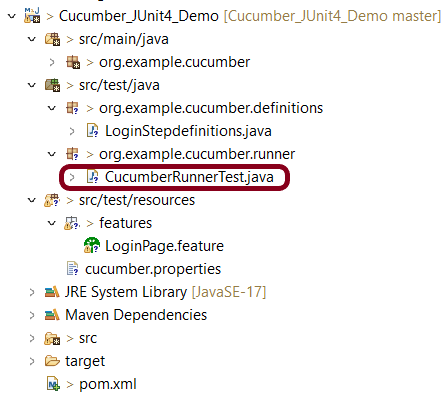
The StepDefinition class is created in src/test/java. The StepDefinition class contains the test code corresponding to the steps of Test Scenario in the Feature File.

It is recommended to create a package with a name such as org.example.cucumber.stepdefinitions in src/test/java and create the step definition java file corresponding to the feature files in that package

package org.example.definitions;

import java.time.Duration;

import org.junit.Assert;
import org.openqa.selenium.By;
import org.openqa.selenium.WebDriver;
import org.openqa.selenium.chrome.ChromeDriver;
import org.openqa.selenium.chrome.ChromeOptions;

import io.cucumber.java.After;
import io.cucumber.java.Before;
import io.cucumber.java.en.Given;
import io.cucumber.java.en.Then;
import io.cucumber.java.en.When;

public class LoginStepdefinitions {

	WebDriver driver;
	
	@Before
    public void setUp() {

        ChromeOptions options = new ChromeOptions();
        options.addArguments("--start-maximized");
        driver = new ChromeDriver(options);
        driver.manage().timeouts().implicitlyWait(Duration.ofSeconds(5));

    }
	 
    @Given("User is on Home page")
    public void userOnHomePage() {
    	
        driver.get("https://opensource-demo.orangehrmlive.com/");
    }
 
    @When("User enters username as {string}")
    public void entersUsername(String userName)  {
 
        System.out.println("Username Entered");
        driver.findElement(By.name("username")).sendKeys(userName);
       
 
    }
 
    @When("User enters password as {string}")
    public void entersPassword(String passWord)  {
 
        System.out.println("Password Entered");
        driver.findElement(By.name("password")).sendKeys(passWord);
        driver.findElement(By.xpath("//*[@class='oxd-form']/div[3]/button")).submit();
    }
 
    @Then("User should be able to login sucessfully")
    public void sucessfullLogin()  {
 
    	 String homePageHeading = driver.findElement(By.xpath("//*[@class='oxd-topbar-header-breadcrumb']/h6")).getText();

         //Verify new page - HomePage
         Assert.assertEquals("Dashboard",homePageHeading);   
 
    }
 
    @Then("Login will be unsuccessfull with error message {string}")
    public void unsucessfullLogin(String expectedErrorMessage)  {
 
    	 String actualErrorMessage = driver.findElement(By.xpath("//*[@class='orangehrm-login-error']/div[1]/div[1]/p")).getText();

         // Verify Error Message
         Assert.assertEquals( expectedErrorMessage, actualErrorMessage);
 
    }
    
    @After
    public void teardown() {

        driver.quit();
    }
  
}

Step 11 – Create a Cucumber Runner class under src/test/java

It is recommended to create a package with a name such as org.example.cucumber.runner in src/test/java and create the CucumberRunnerTest (Runner) java file corresponding to that package.

We need to create a class called Runner class to run the tests. This class will use the JUnit annotation @RunWith(), which tells JUnit what is the test runner class.

package org.example.cucumber.runner;

import org.junit.runner.RunWith;

import io.cucumber.junit.Cucumber;
import io.cucumber.junit.CucumberOptions;

@RunWith(Cucumber.class)
@CucumberOptions(features = {
        "src/test/resources/features/LoginPage.feature" }, glue = "org.example.cucumber.definitions")
 
public class CucumberRunnerTest {

}

Step 12 – Test Execution through JUnit

Go to Runner class and right-click Run As JUnit. The tests will run as JUnit tests.

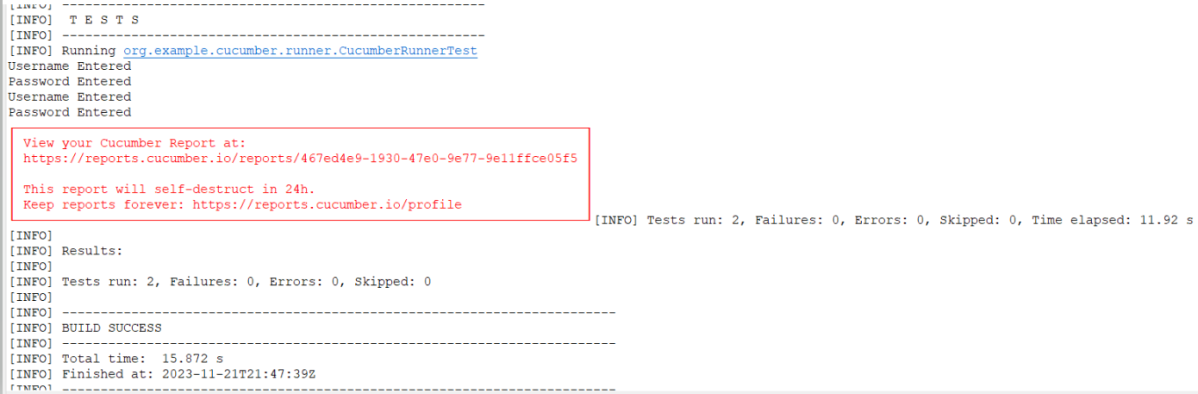
Step 13 – Run the tests from Command Line

Run the below command in the command prompt to run the tests and to get the test execution report.
mvn clean test

Step 14 – Cucumber Report Generation

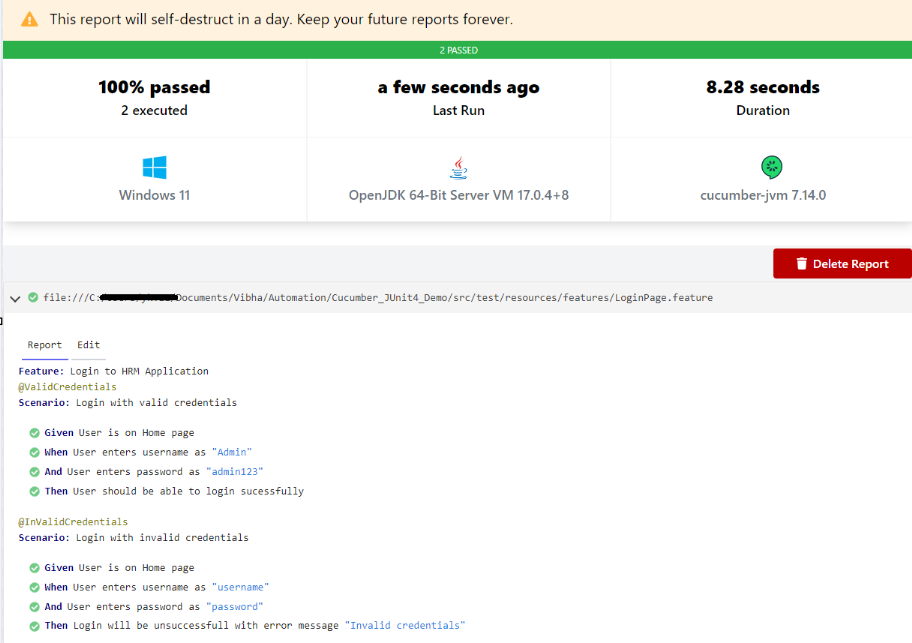
To get Cucumber Test Reports, add cucumber.properties under src/test/resources and add the below instruction in the file
cucumber.publish.enabled=true

Below is the image of the Cucumber Report generated using the Cucumber Service
That’s it! Congratulations on making it through this tutorial and hope you found it useful! Happy Learning!!

Difference between JUnit4 and JUnit5

HOME

In this article, we’ll see an overview of the differences between the two versions of the library.

1. Architecture

JUnit 4 has everything bundled into a single jar file whereas JUnit 5 is composed of 3 sub-projects i.e. JUnit Platform, JUnit Jupiter, and JUnit Vintage.

JUnit4

<dependency>
    <groupId>junit</groupId>
    <artifactId>junit</artifactId>
    <version>4.13.2</version>
    <scope>test</scope>
</dependency>

JUnit Platform: It defines the TestEngine API for developing new testing frameworks that run on the platform.
JUnit Jupiter: It has all new JUnit annotations and TestEngine implementation to run tests written with these annotations.
JUnit Vintage: To support running JUnit 3 and JUnit 4 written tests on the JUnit 5 platform.

<dependency>
    <groupId>org.junit.jupiter</groupId>
    <artifactId>junit-jupiter-engine</artifactId>
    <version>5.9.0-M1</version>
    <scope>test</scope>
</dependency>
 
<dependency>
    <groupId>org.junit.jupiter</groupId>
    <artifactId>junit-jupiter-api</artifactId>
    <version>5.9.0-M1</version>
    <scope>test</scope>
</dependency>

<dependency>
    <groupId>org.junit.vintage</groupId>
    <artifactId>junit-vintage-engine</artifactId>
    <version>5.9.0-M1</version>
    <scope>test</scope>
</dependency>

2. JDK Version

JUnit 4 requires Java 5 (or higher) whereas JUnit 5 requires Java 8 (or higher).

3. Imports

JUnit 5 uses the org.JUnit package for its annotations and classes whereas JUnit 5 uses the new org.JUnit.jupiter package for its annotations and classes. For example, org.JUnit.Test becomes org.JUnit.jupiter.api.Test.
@Before annotation of JUnit4 is renamed to @BeforeEach in JUnit5
@After annotation of JUnit4 is renamed to @AfterEach in JUnit5
@BeforeClass annotation of JUnit4 is renamed to @BeforeAll in JUnit5
@AfterClass annotation of JUnit4 is renamed to @AfterAll in JUnit5

4. Assertions

JUnit 5 assertions are now in org.JUnit.jupiter.api.Assertions whereas JUnit4 assertions are in org.JUnit.Assert. Most of the common assertions, like assertEquals() and assertNotNull() look the same as before, but there are a few key differences:

  • The error message is now the last argument, for example, assertEquals(“my message”, 1, 2) would be assertEquals(1, 2, “my message”)
  • Most assertions now accept a lambda that constructs the error message, which is only called when the assertion fails.
    @Test
    void nullNegative() {
        String str = "Summer";

        Assertions.assertNull(str, () -> "The string should be null");
    }

The output of the above program is

  • assertTimeout() and assertTimeoutPreemptively() have replaced the @Timeout annotation (note that there is a @Timeout annotation in JUnit 5, but it works differently than JUnit 4).
  • There are several new assertions in JUnit5- assertAll(), assertIterableEquals(), assertLinesMatch(), assertThrows() and assertDoesNotThrow(). To know more about assertions in JUnit5, please refer to this tutorial – JUnit5 Assertions Example

5. Assumptions

In Junit 4, org.junit.Assume contains methods for stating assumptions about the conditions in which a test is meaningful. It has the following five methods:

  • assumeFalse()
  • assumeNoException()
  • assumeNotNull()
  • assumeThat()
  • assumeTrue()

JUnit5 has the following three methods:

  • assumeFalse()
  • assumingThat​()
  • assumeTrue()

Below is an example of assumeThat() annotation in JUnit5.

    @Test
    void assumingThatTest() {
        System.setProperty("ENV", "UAT");
        assumingThat(
                "UAT".equals(System.getProperty("ENV")),
                () -> {
                    // Since the condition is true, this assertion will get executed
                    System.out.println("Assuming that executable executed");
                    assertEquals((num1+num2),num4,"The product of "+ num1 +" and "+ num2 +" is not equal to "+num4);
                });
        
        System.out.println("Loop outside");
        assertEquals((num5-num2),num6,"The difference of "+ num5 +" and "+num2+" is not equal to " + num6);
    }

The output of the above program is

6. Conditional Test Execution

In JUnit4, @Ignore is used to skip the execution of a test whereas @Disabled or one of the other built-in execution conditions is used to skip the execution of the test in JUnit5. To know more about skipping the tests in JUnit5, please refer to this tutorial – How to disable tests in JUnit5 – @Disabled.

Below is an example of @Disabled in JUnit5.

import io.github.bonigarcia.wdm.WebDriverManager;
import org.junit.jupiter.api.*;
import org.openqa.selenium.By;
import org.openqa.selenium.WebDriver;
import org.openqa.selenium.WebElement;
import org.openqa.selenium.chrome.ChromeDriver;
import org.openqa.selenium.chrome.ChromeOptions;
import static org.junit.jupiter.api.Assertions.*;
 
class DisabledTestsDemo {
 
    WebDriver driver;
 
    @BeforeEach
    public void setUp() {
         
        WebDriverManager.chromedriver().setup();
        ChromeOptions chromeOptions = new ChromeOptions();
        driver = new ChromeDriver(chromeOptions);
        driver.manage().window().fullscreen();
        driver.get("http://automationpractice.com/index.php");
 
    }
 
    @Disabled("This test is not applicable for Sprint 14")
    @Test
    void verifyPopularLink() {
 
        boolean displayed = driver.findElement(By.xpath("//*[@id='home-page-tabs']/li[1]/a")).isDisplayed();
        assertTrue(displayed);
    }
 
    @Test
    void verifyContactNumber() {
 
        String contactDetail = driver.findElement(By.xpath("//span[@class='shop-phone']/strong")).getText();
        assertEquals("0123-456-789", contactDetail);
    }
 
    @Disabled("This test is blocked till bug 1290 is fixed")
    @Test
    void verifyWomenLink() {
 
        boolean enabled = driver.findElement(By.xpath("//*[@id='block_top_menu']/ul/li[1]/a")).isEnabled();
        assertTrue(enabled);
    }
 
    @AfterEach
    public void tearDown() {
        driver.close();
    }
}

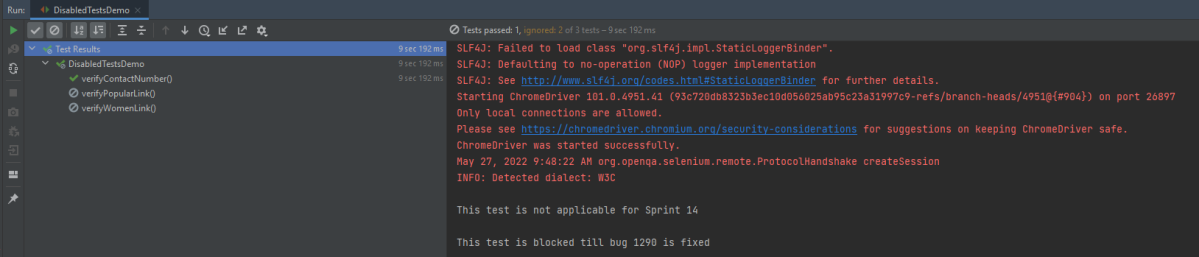
The output of the above program is

JUnit 5 provides the ExecutionCondition extension API to enable or disable a test or container (test class) conditionally. This is like using @Disabled on a test but it can define custom conditions. There are multiple built-in conditions, such as:

  • @EnabledOnOs and @DisabledOnOs: Enables a test only on specified operating systems.
  • @EnabledOnJre and @DisabledOnJre: Specifies the test should be enabled or disabled for specific versions of Java.
  • @EnabledIfSystemProperty: Enables a test based on the value of a JVM system property.
  • @EnabledIf: Uses scripted logic to enable a test if scripted conditions are met.

7. Extending JUnit

@RunWith no longer exists; superseded by @ExtendWith in JUnit5.

In JUnit 4, customizing the framework generally meant using a @RunWith annotation to specify a custom runner. Using multiple runners was problematic, and usually required chaining or using a @Rule. This has been simplified and improved in JUnit 5 using extensions.

import net.serenitybdd.core.Serenity;
import net.serenitybdd.junit5.SerenityJUnit5Extension;
import net.thucydides.core.annotations.Managed;
import net.thucydides.core.annotations.Steps;
import net.thucydides.core.annotations.Title;
import org.junit.jupiter.api.Test;
import org.junit.jupiter.api.extension.ExtendWith;
import org.openqa.selenium.WebDriver;
import static org.assertj.core.api.Assertions.assertThat;
 
 @ExtendWith(SerenityJUnit5Extension.class)
 class ApplicationLoginJUnit5Tests {
 
        @Managed
        WebDriver driver;
 
        @Steps
        NavigateAction navigateAction;
 
        @Steps
        StepLoginPage loginPage;
 
        @Test
        @Title("Login to application with valid credentials navigates to DashBoard page")
 
         void successfulLogin() {
 
            navigateAction.toTheHomePage();
 
            // When
            loginPage.inputUserName("Admin");
            loginPage.inputPassword("admin123");
            loginPage.clickLogin();
 
            // Then
            Serenity.reportThat("Passing valid credentials navigates to DashBoard page",
                    () -> assertThat(dashboardPage.getHeading()).isEqualToIgnoringCase("DashBoard"));
        }
    }

8. Non-public Test Methods are Allowed

JUnit 5 test classes and test methods are not required to be public. We can now make them package protected.
JUnit internally uses reflection to find test classes and test methods. Reflection can discover them even if they have limited visibility, so there is no need for them to be public.

9. Repeat Tests

JUnit Jupiter provides the ability to repeat a test a specified number of times by annotating a method with @RepeatedTest and specifying the total number of repetitions desired. To know more about RepestedTest, please refer to this tutorial – How to Retry Test in JUnit5 – @RepeatedTest

Below is the example of @RepeatedTest in JUnit5.

    @RepeatedTest(3)
    void repeatedTestWithRepetitionInfo1(RepetitionInfo repetitionInfo) {
        assertEquals(3, repetitionInfo.getTotalRepetitions());
    }

The output of the above program is

10. Parameterized Tests

Test parameterization existed in JUnit 4 with built-in libraries like JUnit4Parameterized or third-party libraries like JUnitParams. In JUnit 5, parameterized tests are completely built-in and adopt some of the best features from JUnit4Parameterized and JUnitParams. To know more about the parameterized tests in JUnit5, please refer to this tutorial – How to parameterized Tests in JUnit5.

Below is an example of parameterized Test in JUnit5.

public class CSVParameterizedTest {

    @ParameterizedTest
    @CsvSource({
            "java,      4",
            "javascript,   7",
            "python,    6",
            "HTML,    4",
    })


    void test(String str, int length) {
        assertEquals(length, str.length());
    }
}

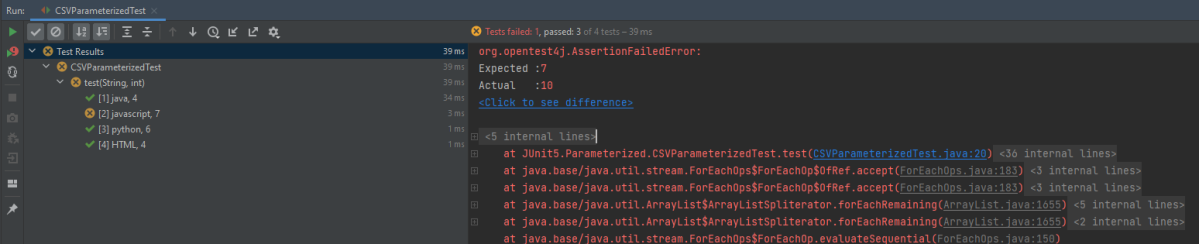
The output of the above program is

Congratulations. We have gone through the differences between JUnit4 and JUnit5. Happy Learning!!

Allure Report with Cucumber, Selenium and JUnit4

HOME

In the previous tutorial, I have explained the Integration of the Allure Report with Selenium and JUnit4. In this tutorial, I will explain how to Integrate Allure Report with Cucumber7 and JUnit4.

Below example covers the implementation of Allure Reports in Selenium using JUnit4, Java and Maven.

  1. Prerequisite
  2. Dependency List
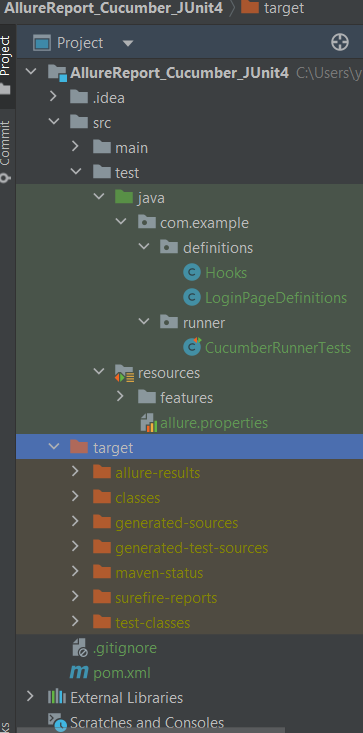
  3. Project Structure
  4. Implementation Steps
    1. Update Properties section in Maven pom.xml
    2. Add dependencies to POM.xml
    3. Update Build Section of pom.xml in Allure Report Project
    4. Create Feature file in src/test/resources
    5. Create the Step Definition class or Glue Code
    6. Create a Cucumber Runner class
    7. Create allure.properties in src/test/resources
    8. Run the Test and Generate Allure Report
    9. Generate Allure Report

Prerequisite

  1. Java 11 or above installed
  2. Maven installed
  3. Eclipse or IntelliJ installed
  4. Allure installed and configured

Dependency List:

  1. Selenium – 4.16.1
  2. Java 17
  3. Cucumber – 7.15.0
  4. Maven – 3.9.5
  5. Allure BOM – 2.25.0
  6. Aspectj – 1.9.21
  7. Allure Maven – 2.12.0
  8. JUnit – 4.13.2

Implementation Steps

Step 1 – Update Properties section in Maven pom.xml

<properties>
    <project.build.sourceEncoding>UTF-8</project.build.sourceEncoding>
    <cucumber.version>7.15.0</cucumber.version>
    <selenium.version>4.16.1</selenium.version>
    <junit.version>4.13.2</junit.version>
    <maven.compiler.plugin.version>3.12.1</maven.compiler.plugin.version>
    <maven.surefire.plugin.version>3.2.3</maven.surefire.plugin.version>
    <maven.compiler.source.version>17</maven.compiler.source.version>
    <maven.compiler.target.version>17</maven.compiler.target.version>
    <allure.junit4.version>2.25.0</allure.junit4.version>
    <aspectj.version>1.9.21</aspectj.version>
    <allure.version>2.25.0</allure.version>
    <allure.maven>2.12.0</allure.maven>
 </properties>

Step 2 – Add dependencies to POM.xml

 <dependencies>
     
     <!--Cucumber Dependencies-->     
    <dependency>
      <groupId>io.cucumber</groupId>
      <artifactId>cucumber-java</artifactId>
      <version>${cucumber.version}</version>
    </dependency>
    
    <dependency>
      <groupId>io.cucumber</groupId>
      <artifactId>cucumber-junit</artifactId>
      <version>${cucumber.version}</version>
       <scope>test</scope>
    </dependency>
 
   <!--Selenium Dependency-->
    <dependency>
      <groupId>org.seleniumhq.selenium</groupId>
      <artifactId>selenium-java</artifactId>
      <version>${selenium.version}</version>
    </dependency>   

   <!--Hamcrest Dependency-->
    <dependency>
      <groupId>org.hamcrest</groupId>
      <artifactId>hamcrest</artifactId>
      <version>2.2</version>
      <scope>test</scope>
    </dependency>
    
   <!--Allure Cucumber Dependency-->     
      <dependency>
        <groupId>io.qameta.allure</groupId>
        <artifactId>allure-cucumber5-jvm</artifactId>
        <version>${allure.cucumber5.version}</version>
    </dependency>
    
     <!--Allure Reporting Dependency-->     
    <dependency>
        <groupId>io.qameta.allure</groupId>
        <artifactId>allure-junit4</artifactId>
        <version>${allure.junit4.version}</version>
        <scope>test</scope>
    </dependency>

  </dependencies>

Step 3 – Update Build Section of pom.xml in Allure Report Project

<build>
        <plugins>
            <plugin>
                <groupId>org.apache.maven.plugins</groupId>
                <artifactId>maven-compiler-plugin</artifactId>
                <version>${maven.compiler.plugin.version}</version>
                <configuration>
                    <source>${maven.compiler.source.version}</source>
                    <target>${maven.compiler.target.version}</target>
                </configuration>
            </plugin>
            <plugin>
                <groupId>org.apache.maven.plugins</groupId>
                <artifactId>maven-surefire-plugin</artifactId>
                <version>${maven.surefire.plugin.version}</version>
                <configuration>
                    <argLine>
                        -javaagent:"${settings.localRepository}/org/aspectj/aspectjweaver/${aspectj.version}/aspectjweaver-${aspectj.version}.jar"
                    </argLine>
                </configuration>
                <dependencies>
                    <dependency>
                        <groupId>org.aspectj</groupId>
                        <artifactId>aspectjweaver</artifactId>
                        <version>${aspectj.version}</version>
                        <scope>runtime</scope>
                    </dependency>
                </dependencies>
            </plugin>
            <plugin>
                <groupId>io.qameta.allure</groupId>
                <artifactId>allure-maven</artifactId>
                <version>${allure.maven}</version>
                <configuration>
                    <reportVersion>${allure.maven}</reportVersion>
                </configuration>
            </plugin>
        </plugins>
    </build>

<project xmlns="http://maven.apache.org/POM/4.0.0" xmlns:xsi="http://www.w3.org/2001/XMLSchema-instance"
         xsi:schemaLocation="http://maven.apache.org/POM/4.0.0 http://maven.apache.org/xsd/maven-4.0.0.xsd">
    <modelVersion>4.0.0</modelVersion>

    <groupId>com.example</groupId>
    <artifactId>AllureReport_Cucumber_JUnit4</artifactId>
    <version>1.0-SNAPSHOT</version>
    <packaging>jar</packaging>

    <name>AllureReport_Cucumber_JUnit4</name>
    <url>http://maven.apache.org</url>

    <properties>
        <project.build.sourceEncoding>UTF-8</project.build.sourceEncoding>
        <cucumber.version>7.15.0</cucumber.version>
        <selenium.version>4.16.1</selenium.version>
        <junit.version>4.13.2</junit.version>
        <maven.compiler.plugin.version>3.12.1</maven.compiler.plugin.version>
        <maven.surefire.plugin.version>3.2.3</maven.surefire.plugin.version>
        <maven.compiler.source.version>17</maven.compiler.source.version>
        <maven.compiler.target.version>17</maven.compiler.target.version>
        <allure.junit4.version>2.25.0</allure.junit4.version>
        <aspectj.version>1.9.21</aspectj.version>
        <allure.version>2.25.0</allure.version>
        <allure.maven>2.12.0</allure.maven>
    </properties>

    <!-- Add allure-bom to dependency management to ensure correct versions of all the dependencies are used -->
    <dependencyManagement>
        <dependencies>
            <dependency>
                <groupId>io.qameta.allure</groupId>
                <artifactId>allure-bom</artifactId>
                <version>${allure.version}</version>
                <type>pom</type>
                <scope>import</scope>
            </dependency>
        </dependencies>
    </dependencyManagement>


    <dependencies>

        <dependency>
            <groupId>io.cucumber</groupId>
            <artifactId>cucumber-java</artifactId>
            <version>${cucumber.version}</version>
        </dependency>

        <dependency>
            <groupId>io.cucumber</groupId>
            <artifactId>cucumber-junit</artifactId>
            <version>${cucumber.version}</version>
            <scope>test</scope>
        </dependency>

        <!-- Selenium -->
        <dependency>
            <groupId>org.seleniumhq.selenium</groupId>
            <artifactId>selenium-java</artifactId>
            <version>${selenium.version}</version>
        </dependency>

        <!-- JUnit4 -->
        <dependency>
            <groupId>junit</groupId>
            <artifactId>junit</artifactId>
            <version>${junit.version}</version>
            <scope>test</scope>
        </dependency>

        <!--Allure Cucumber Dependency-->
        <dependency>
            <groupId>io.qameta.allure</groupId>
            <artifactId>allure-cucumber7-jvm</artifactId>
            <scope>test</scope>
        </dependency>

        <!--Allure Reporting Dependency-->
        <dependency>
            <groupId>io.qameta.allure</groupId>
            <artifactId>allure-junit4</artifactId>
            <scope>test</scope>
        </dependency>

    </dependencies>

    <build>
        <plugins>
            <plugin>
                <groupId>org.apache.maven.plugins</groupId>
                <artifactId>maven-compiler-plugin</artifactId>
                <version>${maven.compiler.plugin.version}</version>
                <configuration>
                    <source>${maven.compiler.source.version}</source>
                    <target>${maven.compiler.target.version}</target>
                </configuration>
            </plugin>
            <plugin>
                <groupId>org.apache.maven.plugins</groupId>
                <artifactId>maven-surefire-plugin</artifactId>
                <version>${maven.surefire.plugin.version}</version>
                <configuration>
                    <argLine>
                        -javaagent:"${settings.localRepository}/org/aspectj/aspectjweaver/${aspectj.version}/aspectjweaver-${aspectj.version}.jar"
                    </argLine>
                </configuration>
                <dependencies>
                    <dependency>
                        <groupId>org.aspectj</groupId>
                        <artifactId>aspectjweaver</artifactId>
                        <version>${aspectj.version}</version>
                        <scope>runtime</scope>
                    </dependency>
                </dependencies>
            </plugin>
            <plugin>
                <groupId>io.qameta.allure</groupId>
                <artifactId>allure-maven</artifactId>
                <version>${allure.maven}</version>
                <configuration>
                    <reportVersion>${allure.maven}</reportVersion>
                </configuration>
            </plugin>
        </plugins>
    </build>
</project>

Step 4 – Create Feature file in src/test/resources

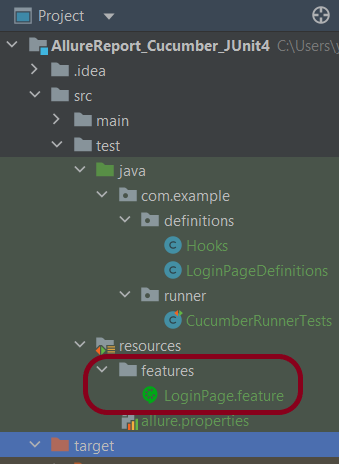
Create source folder – src/test/resources and features folder within src/test/resources to create test scenarios in Feature file. Feature file should be saved as an extension of .feature. Add the test scenarios in this feature file. I have added sample test scenarios. In this feature file, I have created a scenario for successful login and one Scenario Outline for failed login. The test scenarios are written in Gherkins language.

Feature: Login to HRM Application

  Background:
    Given User is on HRMLogin page "https://opensource-demo.orangehrmlive.com/"

  @ValidCredentials
  Scenario: Login with valid credentials

    When User enters username as "Admin" and password as "admin123"
    Then User should be able to login successfully and new page open

  @InvalidCredentials
  Scenario Outline: Login with invalid credentials

    When User enters username as "<username>" and password as "<password>"
    Then User should be able to see error message "<errorMessage>"

    Examples:
      | username   | password    | errorMessage                      |
      | Admin        | admin12$$ | Invalid credentials               |
      | admin$$     | admin123   | Invalid credentials               |
      | abc123       | xyz$$          | Invalid credentials               |
      | 234             | xyz$$         | Invalid credentials!              |

Step 5 – Create the Step Definition class or Glue Code

package com.example.definitions;

import io.cucumber.java.en.Given;
import io.cucumber.java.en.Then;
import io.cucumber.java.en.When;
import org.junit.Assert;
import org.openqa.selenium.By;

public class LoginPageDefinitions {

   Hooks hooks;

    @Given("User is on HRMLogin page {string}")
    public void loginTest(String url) {

        hooks.driver.get(url);

    }

    @When("User enters username as {string} and password as {string}")
    public void goToHomePage(String userName, String passWord) {

        // login to application
        hooks.driver.findElement(By.name("username")).sendKeys(userName);
        hooks.driver.findElement(By.name("password")).sendKeys(passWord);
        hooks.driver.findElement(By.xpath("//*[@class='oxd-form']/div[3]/button")).submit();

        // go the next page
    }

    @Then("User should be able to login successfully and new page open")
    public void verifyLogin() {

        String homePageHeading = hooks.driver.findElement(By.xpath("//*[@class='oxd-topbar-header-breadcrumb']/h6")).getText();

        //Verify new page - HomePage
        Assert.assertEquals("Dashboard",homePageHeading);

    }

    @Then("User should be able to see error message {string}")
    public void verifyErrorMessage(String expectedErrorMessage) {

        String actualErrorMessage = hooks.driver.findElement(By.xpath("//*[@class='orangehrm-login-error']/div[1]/div[1]/p")).getText();

        // Verify Error Message
        Assert.assertEquals(expectedErrorMessage,actualErrorMessage);

    }

}

Hook.java

package com.example.definitions;

import io.cucumber.java.After;
import io.cucumber.java.Before;
import io.cucumber.java.Scenario;
import org.openqa.selenium.OutputType;
import org.openqa.selenium.TakesScreenshot;
import org.openqa.selenium.WebDriver;
import org.openqa.selenium.chrome.ChromeDriver;
import org.openqa.selenium.chrome.ChromeOptions;

import java.time.Duration;

public class Hooks {
    protected static WebDriver driver;
    public final static int TIMEOUT = 5;

    @Before
    public void setUp() {

        ChromeOptions options = new ChromeOptions();
        options.addArguments("--start-maximized");
        driver = new ChromeDriver(options);
        driver.manage().timeouts().implicitlyWait(Duration.ofSeconds(TIMEOUT));

    }

    @After
    public void tearDown(Scenario scenario) {
        try {
            String screenshotName = scenario.getName();
            if (scenario.isFailed()) {
                TakesScreenshot ts = (TakesScreenshot) driver;
                byte[] screenshot = ts.getScreenshotAs(OutputType.BYTES);
                scenario.attach(screenshot, "img/png", screenshotName);
            }
        } catch (Exception e) {
            e.printStackTrace();
        }
        driver.quit();
    }
}

Step 6 – Create a Cucumber Runner class

We need to create a class called Runner class to run the tests. This class will use the JUnit annotation @RunWith(), which tells JUnit what is the test runner class.

package com.example.runner;

import org.junit.runner.RunWith;
import io.cucumber.junit.Cucumber;
import io.cucumber.junit.CucumberOptions;

@RunWith(Cucumber.class)
@CucumberOptions(tags = "", features = {"src/test/resources/features"}, glue = {"com.example.definitions"},
        plugin = {"pretty","io.qameta.allure.cucumber7jvm.AllureCucumber7Jvm"})

public class CucumberRunnerTests  {

}

allure.results.directory=target/allure-results

Step 8 – Run the Test and Generate Allure Report

To run the tests, use the below command

mvn clean test

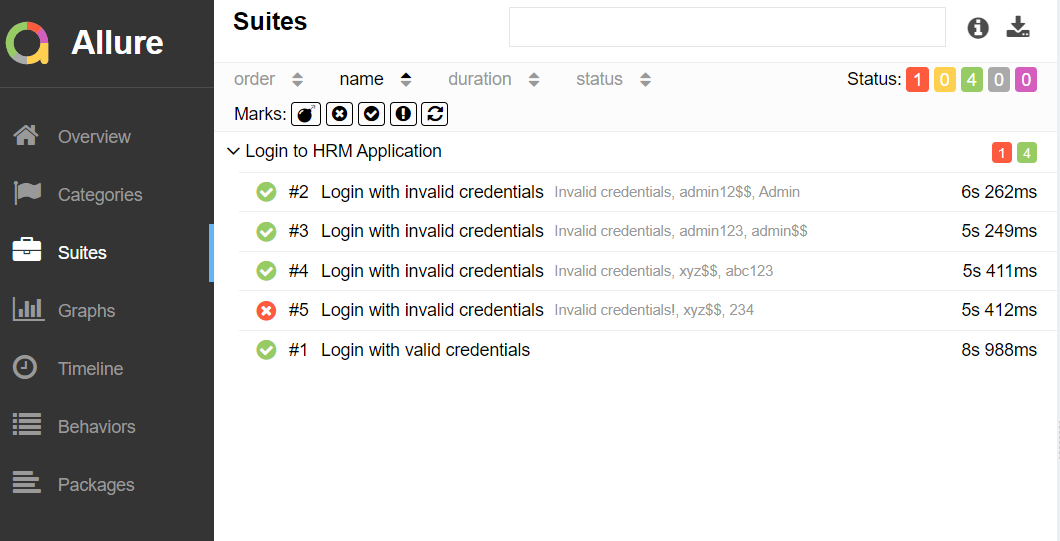
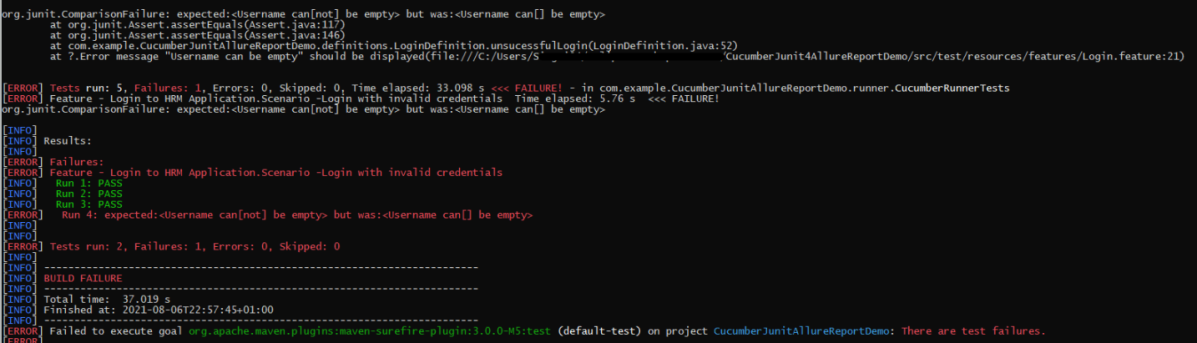
In the below image, we can see that one test is failed and four passed out of five tests.

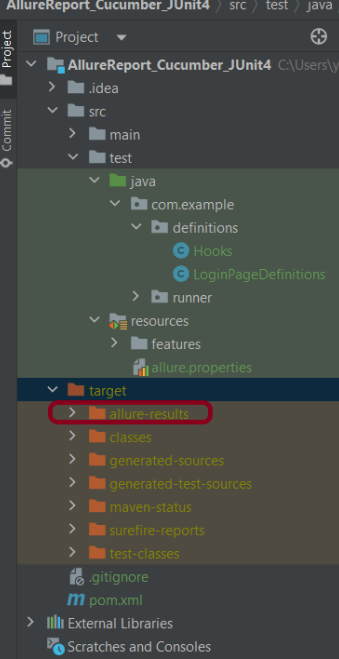
This will create allure-results folder with all the test report. These files will be use to generate Allure Report.

Change current directory to target directory and then use the below command to generate the Allure Report

allure serve

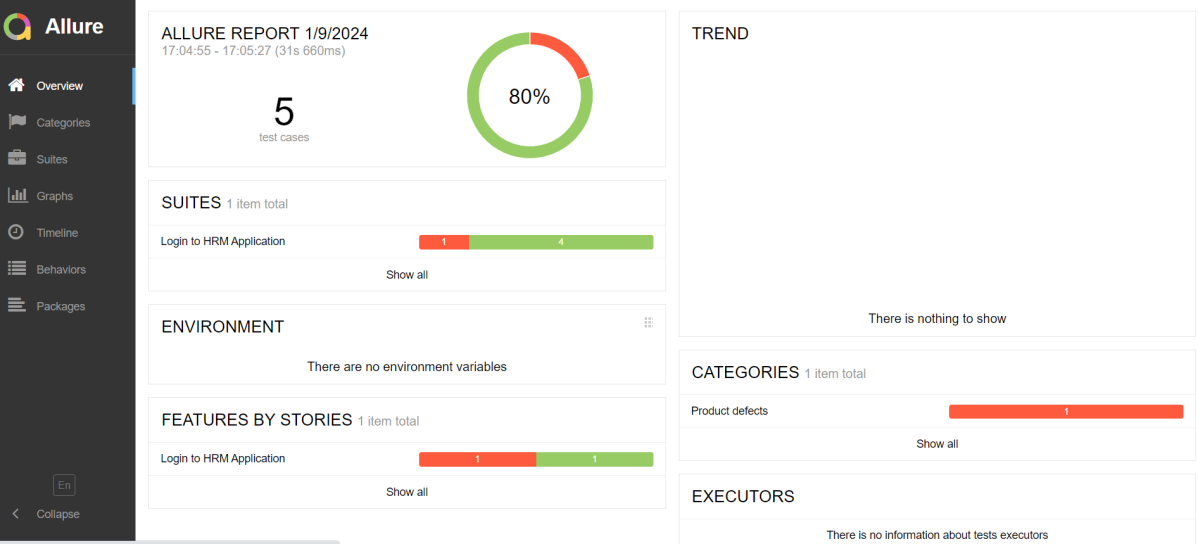
This will generate the beautiful Allure Test Report as shown below.

Allure Report Dashboard

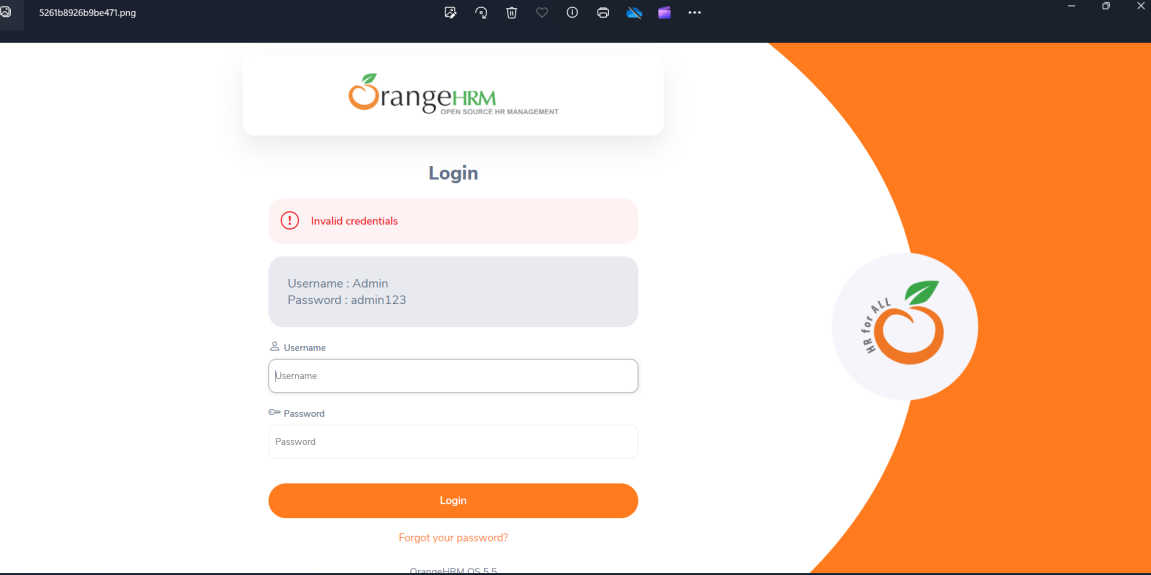
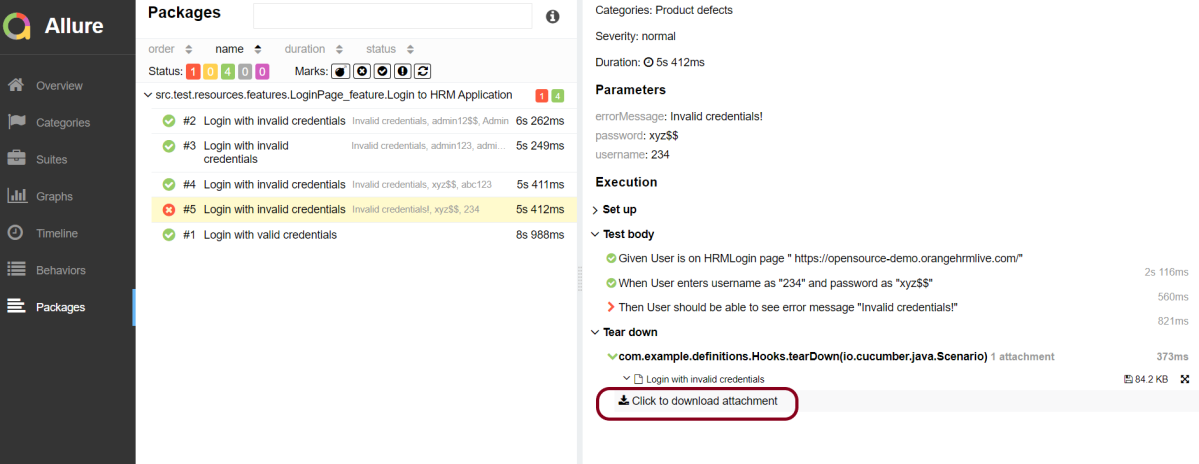
It shows detail of all the test steps and the screenshot of the failed test step also as shown below.

Categories in Allure Report

Categories tab gives you the way to create custom defects classification to apply for test results. There are two categories of defects – Product Defects (failed tests) and Test Defects (broken tests).

Suites in Allure Report

On the Suites tab a standard structural representation of executed tests, grouped by suites and classes can be found.

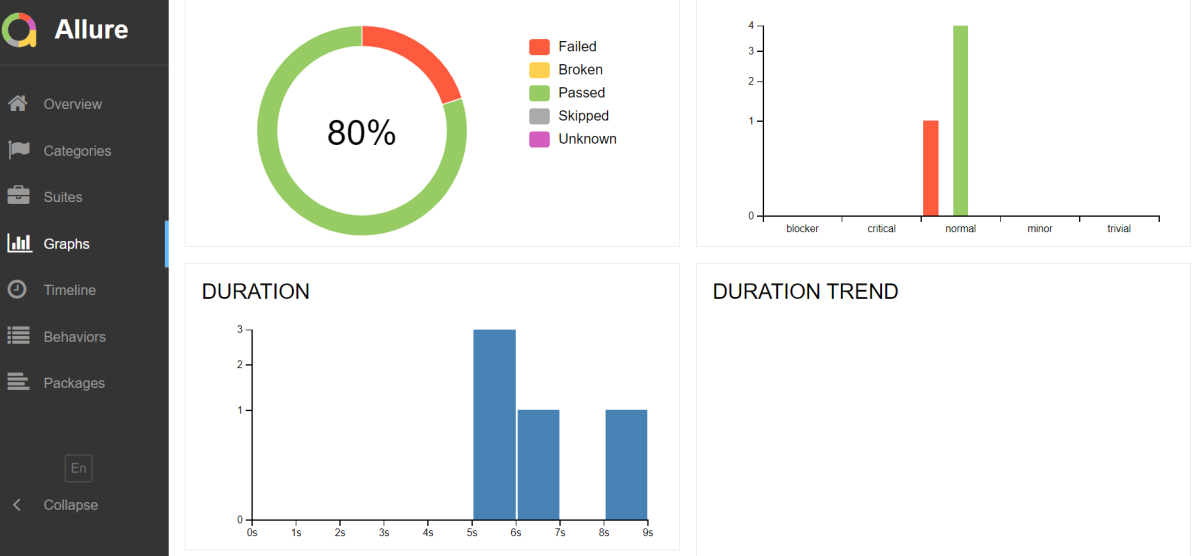
Graphs in Allure Report

Graphs allow you to see different statistics collected from the test data: statuses breakdown or severity and duration diagrams.

Timeline in Allure Report

Timeline tab visualizes retrospective of tests execution, allure adaptors collect precise timings of tests, and here on this tab they are arranged accordingly to their sequential or parallel timing structure.

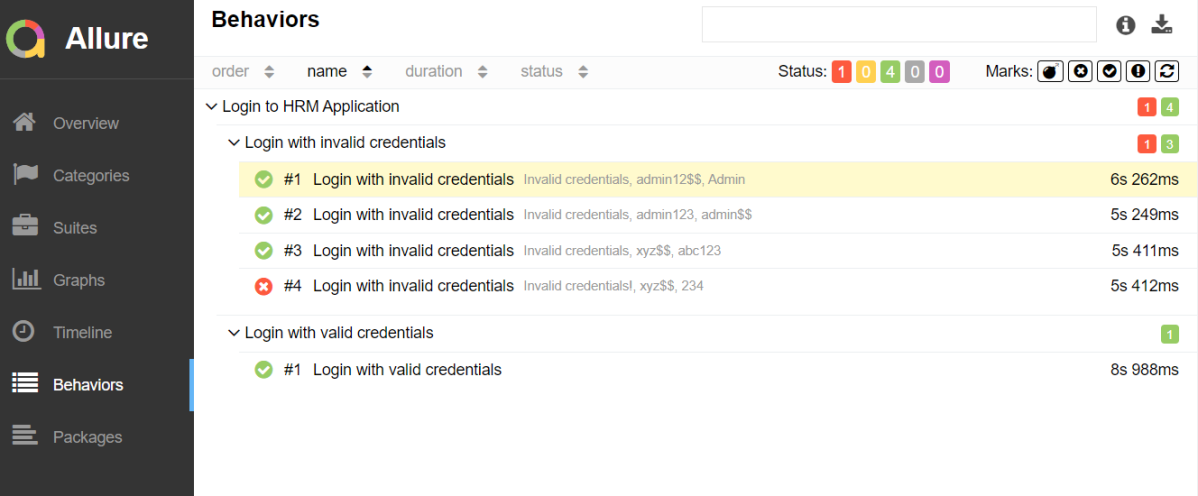
Behaviors of Allure Report

This tab groups test results according to Epic, Feature and Story tags.

Packages in Allure Report

Packages tab represents a tree-like layout of test results, grouped by different packages.

Extent Reports Version 5 for Cucumber7 and JUnit5

HOME

The previous tutorial explained the steps to generate ExtentReports Version for Cucumber7 with TestNG. This tutorial explains the steps needed to be followed to generate an ExtentReports Version5 for Cucumber 7 with JUnit5.

Prerequisite:

  • Java 17
  • Maven or Gradle
  • JAVA IDE (like Eclipse, IntelliJ, or so on)
  • Cucumber Eclipse plugin (in case using Eclipse)

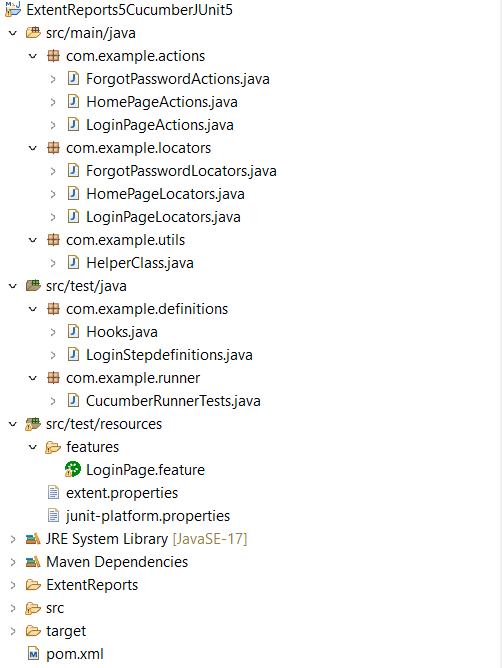
Project Structure

There is a tutorial that explains the steps to integrate Cucumber 7 with JUnit5. Please refer to this tutorial – Integration of Cucumber7 with Selenium and JUnit5.

Now, let us add the extra steps needed to generate the ExtentRport Version5.

New Features in ExtentReports Version 5

Report Attachments 

To add attachments, like screen images, two settings need to be added to the extent.properties. Firstly property, named screenshot.dir, is the directory where the attachments are stored. Secondly is screenshot.rel.path, which is the relative path from the report file to the screenshot directory.

extent.reporter.spark.out=Reports/Spark.html
 
screenshot.dir=/Screenshots/
screenshot.rel.path=../Screenshots/

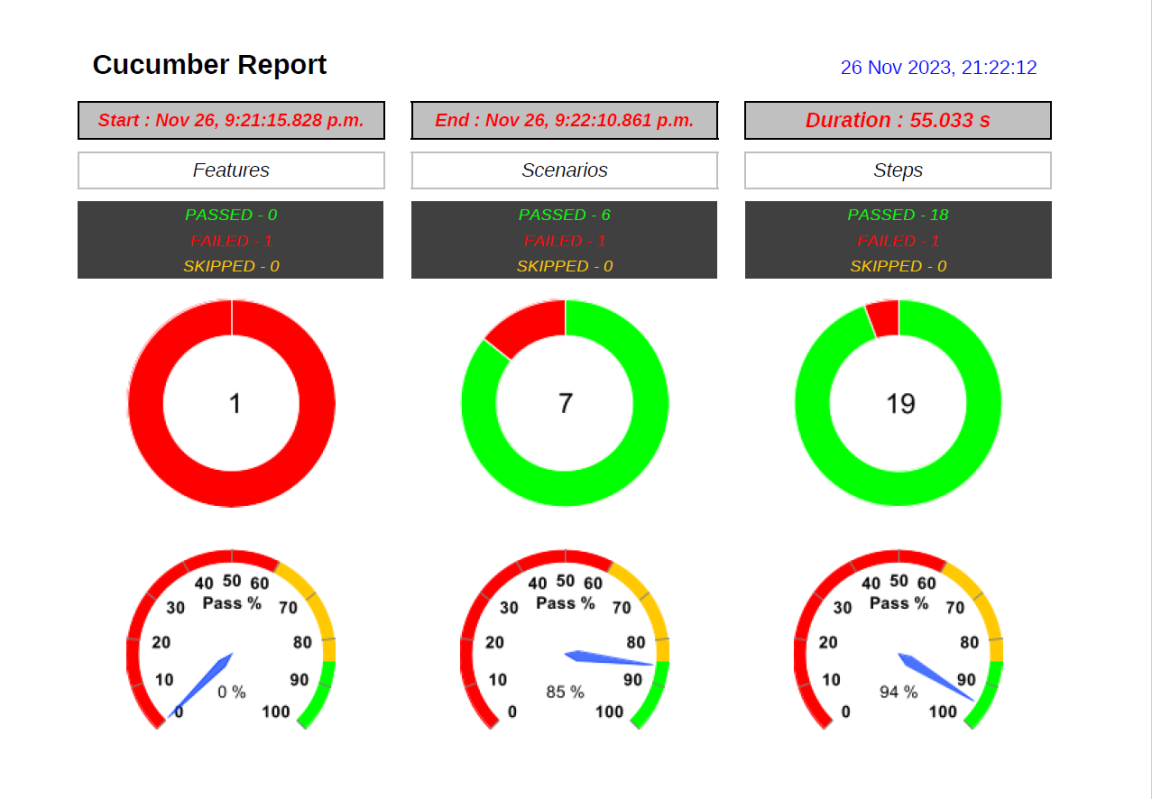
Extent PDF Reporter

The PDF reporter summarizes the test run results in a dashboard and other sections with the feature, scenario, and, step details. The PDF report needs to be enabled in the extent.properties file.

#PDF Report
extent.reporter.pdf.start=true
extent.reporter.pdf.out=PdfReport/ExtentPdf.pdf 

Ported HTML Reporter

The original HTML Extent Reporter was deprecated in 4.1.3 and removed in 5.0.0. The HTML report available in the adapter is based on the same code base and is similar in appearance. The major changes are in the Freemarker template code which has been modified to work with the Extent Reports version 5. The HTML report needs to be enabled in the extent.properties file.

#HTML Report
extent.reporter.html.start=true
extent.reporter.html.out=HtmlReport/ExtentHtml.html

Customized Report Folder Name

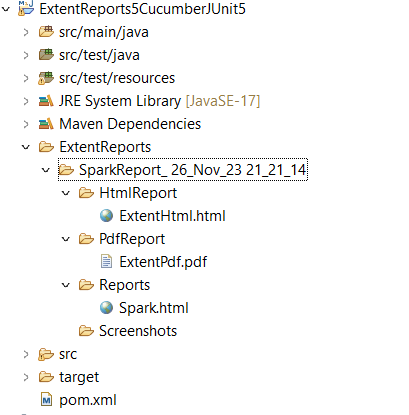
To enable the report folder name with date and\or time details, two settings need to be added to the extent.properties. These are basefolder.name and basefolder.datetimepattern. These will be merged to create the base folder name, inside which the reports will be generated.

#FolderName
basefolder.name=ExtentReports/SparkReport_
basefolder.datetimepattern=d_MMM_YY HH_mm_ss

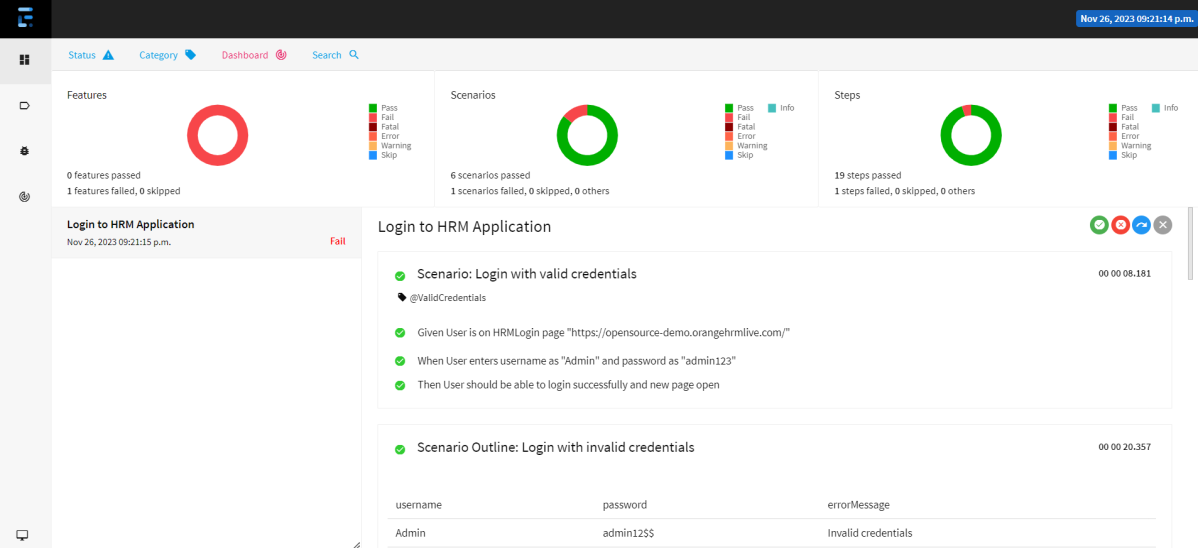
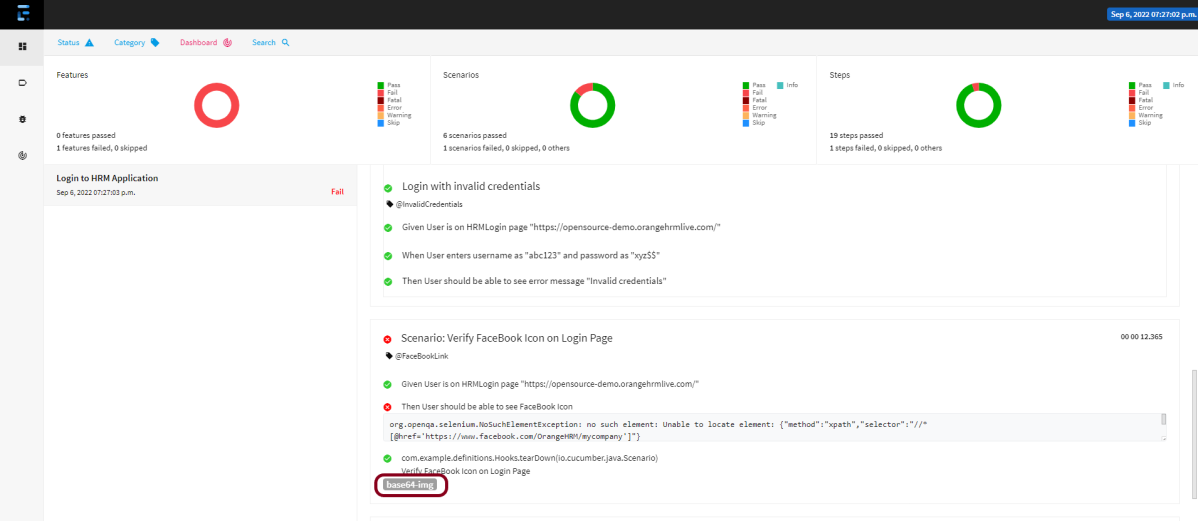
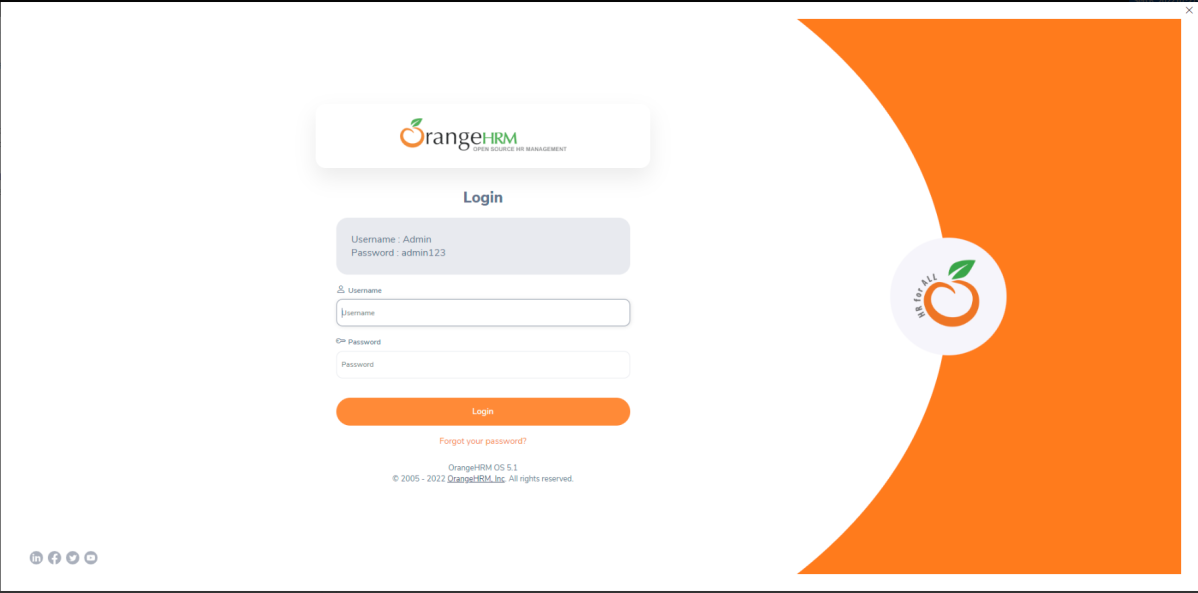
Attach Image as Base64 String

This feature can be used to attach images to the Spark report by setting the src attribute of the img tag to a Base64 encoded string of the image. When this feature is used, no physical file is created. There is no need to modify any step definition code to use this. To enable this, use the below settings in extent.properties, which is false by default.

extent.reporter.spark.base64imagesrc=true

Environment or System Info Properties

 It is now possible to add environment or system info properties in the extent.properties or pass them in the maven command line. 

#System Info
systeminfo.os=windows
systeminfo.version=10

Step 1 – Add Maven dependencies to the POM

Add ExtentReport dependency

<dependency>
    <groupId>com.aventstack</groupId>
    <artifactId>extentreports</artifactId>
    <version>5.1.1</version>
</dependency>

Add tech grasshopper maven dependency for Cucumber.

<dependency>
    <groupId>tech.grasshopper</groupId>
    <artifactId>extentreports-cucumber7-adapter</artifactId>
    <version>1.14.0</version>
</dependency>

The complete POM.xml will look like as shown below with other Selenium and JUnit5 dependencies.

<?xml version="1.0" encoding="UTF-8"?>

<project xmlns="http://maven.apache.org/POM/4.0.0" xmlns:xsi="http://www.w3.org/2001/XMLSchema-instance"
  xsi:schemaLocation="http://maven.apache.org/POM/4.0.0 http://maven.apache.org/xsd/maven-4.0.0.xsd">
  <modelVersion>4.0.0</modelVersion>

  <groupId>com.example</groupId>
  <artifactId>ExtentReports5CucumberJUnit5</artifactId>
  <version>0.0.1-SNAPSHOT</version>

  <name>ExtentReports5CucumberJUnit5</name>
  <!-- FIXME change it to the project's website -->
  <url>http://www.example.com</url>

 <properties>
        <project.build.sourceEncoding>UTF-8</project.build.sourceEncoding>
        <cucumber.version>7.14.0</cucumber.version>
        <selenium.version>4.15.0</selenium.version>
        <junit.jupiter.version>5.10.1</junit.jupiter.version>
        <extentreports.cucumber7.adapter.version>1.14.0</extentreports.cucumber7.adapter.version>
        <extentreports.version>5.1.1</extentreports.version>
        <maven.compiler.plugin.version>3.11.0</maven.compiler.plugin.version>
        <maven.surefire.plugin.version>3.2.1</maven.surefire.plugin.version>
        <maven.compiler.source.version>17</maven.compiler.source.version>
        <maven.compiler.target.version>17</maven.compiler.target.version>
    </properties>
 
    <dependencyManagement>
        <dependencies>
            <dependency>
                <groupId>io.cucumber</groupId>
                <artifactId>cucumber-bom</artifactId>
                <version>${cucumber.version}</version>
                <type>pom</type>
                <scope>import</scope>
            </dependency>
            <dependency>
                <groupId>org.junit</groupId>
                <artifactId>junit-bom</artifactId>
                <version>${junit.jupiter.version}</version>
                <type>pom</type>
                <scope>import</scope>
            </dependency>
        </dependencies>
    </dependencyManagement>
 
    <dependencies>
 
        <dependency>
            <groupId>io.cucumber</groupId>
            <artifactId>cucumber-java</artifactId>
            <scope>test</scope>
        </dependency>
 
        <dependency>
            <groupId>io.cucumber</groupId>
            <artifactId>cucumber-junit-platform-engine</artifactId>
            <scope>test</scope>
        </dependency>
 
        <!-- JUnit Platform -->
        <dependency>
            <groupId>org.junit.platform</groupId>
            <artifactId>junit-platform-suite</artifactId>
            <scope>test</scope>
        </dependency>
 
        <dependency>
            <groupId>org.junit.jupiter</groupId>
            <artifactId>junit-jupiter-engine</artifactId>
            <scope>test</scope>
        </dependency>
 
        <!-- Selenium -->
        <dependency>
            <groupId>org.seleniumhq.selenium</groupId>
            <artifactId>selenium-java</artifactId>
            <version>${selenium.version}</version>
        </dependency>
        
          <!-- Cucumber ExtentReport Adapter -->
        <dependency>
            <groupId>tech.grasshopper</groupId>
            <artifactId>extentreports-cucumber7-adapter</artifactId>
            <version>${extentreports.cucumber7.adapter.version}</version>
        </dependency>
 
        <!-- Extent Report -->
        <dependency>
            <groupId>com.aventstack</groupId>
            <artifactId>extentreports</artifactId>
            <version>${extentreports.version}</version>
        </dependency>
 
    </dependencies>
 
    <build>
        <plugins>
            <plugin>
                <groupId>org.apache.maven.plugins</groupId>
                <artifactId>maven-compiler-plugin</artifactId>
                <version>${maven.compiler.plugin.version}</version>
                <configuration>
                    <source>${maven.compiler.source.version}</source>
                    <target>${maven.compiler.target.version}</target>
                </configuration>
            </plugin>
            <plugin>
                <groupId>org.apache.maven.plugins</groupId>
                <artifactId>maven-surefire-plugin</artifactId>
                <version>${maven.surefire.plugin.version}</version>
                <dependencies>
                    <dependency>
                        <groupId>org.junit.jupiter</groupId>
                        <artifactId>junit-jupiter-engine</artifactId>
                        <version>${junit.jupiter.version}</version>
                    </dependency>
                </dependencies>
            </plugin>
 
        </plugins>
    </build>
</project>

Step 2 – Create extent.properties file in src/test/resources

We need to create the extent.properties file in the src/test/resources folder for the grasshopper extent report adapter to recognize it. Using a property file for reporting is quite helpful if you want to define several different properties.

#Extent Report
extent.reporter.spark.start=true
extent.reporter.spark.out=Reports/Spark.html
 
#PDF Report
extent.reporter.pdf.start=true
extent.reporter.pdf.out=PdfReport/ExtentPdf.pdf
 
#HTML Report
extent.reporter.html.start=true
extent.reporter.html.out=HtmlReport/ExtentHtml.html
 
#FolderName
basefolder.name=ExtentReports/SparkReport_
basefolder.datetimepattern=d_MMM_YY HH_mm_ss
 
#Screenshot
screenshot.dir=/Screenshots/
screenshot.rel.path=../Screenshots/
 
#Base64
extent.reporter.spark.base64imagesrc=true
 
#System Info
systeminfo.os=windows
systeminfo.version=10

Step 3 – Create a Cucumber Test Runner class in src/test/java

Add the extent report cucumber adapter to the runner class.

import static io.cucumber.junit.platform.engine.Constants.GLUE_PROPERTY_NAME;
import static io.cucumber.junit.platform.engine.Constants.PLUGIN_PROPERTY_NAME;
import org.junit.platform.suite.api.ConfigurationParameter;
import org.junit.platform.suite.api.IncludeEngines;
import org.junit.platform.suite.api.SelectClasspathResource;
import org.junit.platform.suite.api.Suite;

@Suite
@IncludeEngines("cucumber")
@SelectClasspathResource("features")
@SelectClasspathResource("com.example")
@ConfigurationParameter(key = PLUGIN_PROPERTY_NAME, value = "com.aventstack.extentreports.cucumber.adapter.ExtentCucumberAdapter:") 
@ConfigurationParameter(key = GLUE_PROPERTY_NAME, value = "com.example")
 
public class CucumberRunnerTests  {
 
}

Step 4 – Execute the code

To execute the code, run the tests from the command line by using the below command

mvn clean test

Step 5 – View ExtentReport

Refresh the project and will see a new folder – SparkReport_ which further contains 4 folders – HtmlReport, PdfReport, Reports, and Screenshots.

The ExtentReport will be present in the Reports folder with the name Spark.html. PDF Report is present in the PdfReport folder and HTML Report is present in the HtmlReport folder. We can see that the Screenshots folder is empty because we have used the base64imagesrc feature which resulted in no physical screenshots. The screenshots are embedded in the reports.

Right-click and open the ExtentHtml.html report with Web Browser. The report also has a summary section that displays the summary of the execution. The summary includes the overview of the pass/fail using a pictogram, start time, end time, and pass/fail details of features as shown in the image below.

ExtentHtml

This is the image of the Dashboard of the ExtentReport.

The failed test has a screenshot embedded in it. Double-click on base64 image and it will open the screenshot in full screen.

PDF Report

Spark Report

Right-click and open the Spark.html report with Web Browser.

We are done! Congratulations on making it through this tutorial and hope you found it useful! Happy Learning!!