A proxy server acts as an intermediary for requests between a client and a server. In simple terms, the traffic flows through the proxy server on its way to the address you requested and back.
A proxy server for automation scripts with Selenium could be helpful for:
Capture network traffic
Mock backend calls made by the website
Access the required website under complex network topologies or strict corporate restrictions/policies.
1. Setting up Proxy using Selenium
Create an instance of Proxy and set the proxy configuration:
     // Set the proxy server details
        String proxyAddress = "proxy.example";
        int proxyPort = 8080;

        // Create a Proxy object and set the HTTP proxy details
        Proxy proxy = new Proxy();
        proxy.setHttpProxy(proxyAddress + ":" + proxyPort);
Replace “your_proxy_address” with the actual proxy address and “port” with the appropriate port number.
setHttpProxy – Specify which proxy to use for HTTP connections
2. Configure Chrome options with the Proxy object
Create an instance of ChromeOptionsand set the proxy:
ChromeOptions options = new ChromeOptions();
options.setProxy(proxy);
Launch Chrome WebDriver with the configured options:
WebDriver driver = new ChromeDriver(options);
The complete program is mentioned below:
import org.openqa.selenium.Proxy;
import org.openqa.selenium.WebDriver;
import org.openqa.selenium.chrome.ChromeDriver;
import org.openqa.selenium.chrome.ChromeOptions;

public class ProxyDemo {

    public static void main(String[] args) {

        // Set the proxy server details
        String proxyAddress = "localhost";
        int proxyPort = 8080;

        // Create a Proxy object and set the HTTP proxy details
        Proxy proxy = new Proxy();
        proxy.setHttpProxy(proxyAddress + ":" + proxyPort);

        // Configure Chrome options with the Proxy object
        ChromeOptions options = new ChromeOptions();
        options.setProxy(proxy);
        options.addArguments("start-maximized");

        // Instantiate ChromeDriver with the configured options
        WebDriver driver = new ChromeDriver(options);


        // Perform your browsing actions using the driver
        driver.get("https://www.google.com");
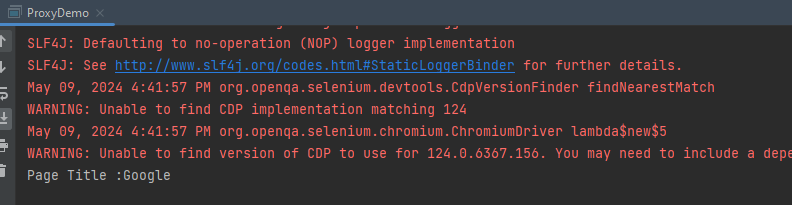
        System.out.println("Page Title :" + driver.getTitle());

        // Close the browser session
        driver.quit();
    }
}
The ArrayList class is a resizable array, which can be found in the java.util package. ArrayList objects are created in the same fashion as other object classes. The primary difference with ArrayLists is that the element type of the ArrayList must be specified using arrows (<>).
Java ArrayList contains()
The contains() method checks if the specified element is present in the arraylist.
contains() Return Value
returns true if the specified element is present in the arraylist.
returns false if the specified element is not present in the arraylist.
Let us create 2 ArrayLists.
import java.util.ArrayList;
import java.util.Arrays;

public class Compare_ArrayList {

    public static void main(String[] args) {

        ArrayList<String> list1 = new ArrayList<String>();

        list1.add("Java");
        list1.add("Python");
        list1.add("PHP");
        list1.add("JavaScript");
        list1.add("Ruby");

        ArrayList<String> list2 = new ArrayList<>(Arrays.asList("Python", "Ruby"));

        System.out.println("ArrayList1:" + list1);
        System.out.println("ArrayList2:" + list2);

        System.out.println("Check PHP is present in arrayList1 :" + list1.contains("PHP"));
        System.out.println("Check Cobol is present in arrayList1 :" + list1.contains("Cobol"));
        System.out.println("Compare 2 arrayList using contains: " + list1.contains(list2));

        }
}
The output of the above program is
When we are comparing 2 ArrayList, then both the ArrayList should contain the same elements in the same sequence.
In the below example, the sequence of the elements is different, so the method returns false.
import java.util.ArrayList;
import java.util.Arrays;

public class Compare_ArrayList {

    public static void main(String[] args) {

        ArrayList<String> list1 = new ArrayList<String>();

        list1.add("Java");
        list1.add("Python");
        list1.add("PHP");
        list1.add("JavaScript");
        list1.add("Ruby");

        ArrayList<String> list3 = new ArrayList<>(Arrays.asList("Python", "Java", "Ruby", "PHP", "JavaScript"));

        System.out.println("ArrayList1:" + list1);
        System.out.println("ArrayList2:" + list2);
        System.out.println("Compare 2 arrayList using contains with different sequence: " + list1.contains(list3));
        }
}
The output of the above program is
That’s it! Congratulations on making it through this tutorial and hope you found it useful! Happy Learning!!
Step 4 – Create the Test Class sunder src/test/java folder
ApplicationLoginJUnit5Tests.java
import com.example.steps.StepDashboardPage;
import com.example.steps.StepForgetPasswordPage;
import com.example.steps.StepLoginPage;
import net.serenitybdd.annotations.Steps;
import net.serenitybdd.annotations.Title;
import net.serenitybdd.core.Serenity;
import net.serenitybdd.junit5.SerenityJUnit5Extension;
import org.junit.jupiter.api.Test;
import org.junit.jupiter.api.extension.ExtendWith;

import static org.assertj.core.api.Assertions.assertThat;

@ExtendWith(SerenityJUnit5Extension.class)
public class ApplicationLoginTests {

    @Steps
    NavigateActions navigate;

    @Steps
    StepLoginPage loginPage;

    @Steps
    StepDashboardPage dashboardPage;

    @Steps
    StepForgetPasswordPage forgetPasswordPage;

    @Test
    @Title("Login to application with valid credentials navigates to DashBoard page")

    public void successfulLogin() {

        navigate.toTheHomePage();

        // When
        loginPage.inputUserName("Admin");
        loginPage.inputPassword("admin123");
        loginPage.clickLogin();

        // Then
        Serenity.reportThat("Passing valid credentials navigates to DashBoard page",
                () -> assertThat(dashboardPage.getHeading()).isEqualToIgnoringCase("Dashboard"));
    }

    @Test
    @Title("Login to application with invalid credential generates error message")
    void unsuccessfulLogin() {

        navigate.toTheHomePage();

        // When
        loginPage.inputUserName("Admin");
        loginPage.inputPassword("admin1232");
        loginPage.clickLogin();

        // Then
        Serenity.reportThat("Passing invalid credentials generates error message",
                () -> assertThat(loginPage.loginPageErrorMessage()).isEqualToIgnoringCase("Invalid credentials"));
    }

    @Test
    @Title("Verify Forgot your password link")
    void clickForgetPasswordLink() {

        // Given
        navigate.toTheHomePage();

        // When
        loginPage.clickForgetPasswordLink();

        // Then
        Serenity.reportThat("Open Forget Password Page after clicking forget password link",
                () -> assertThat(forgetPasswordPage.getHeadingForgetPasswordPage())
                        .isEqualToIgnoringCase("Reset Password"));
    }
}
To run a JUnit5 test with Serenity BDD, simply add the annotation@net.serenitybdd.junit5.SerenityTest (instead of @org.junit.runner.RunWith(net.serenitybdd.junit.runners.SerenityRunner.class) for JUnit4.
@ExtendWith(SerenityJUnit5Extension.class)
@Testis imported from package:-
import org.junit.jupiter.api.Test;
StepDashboardPage
import net.serenitybdd.annotations.Step;

import net.serenitybdd.core.pages.PageObject;
import net.serenitybdd.core.pages.WebElementFacade;
import org.openqa.selenium.support.FindBy;

public class StepDashboardPage extends PageObject {

    @FindBy(xpath = "//*[@class='oxd-topbar-header-breadcrumb']/h6")
    WebElementFacade dashboardPageTitle;

    @Step("Heading of DashBoard Page")
    public String getHeading() {
        return dashboardPageTitle.getText();
    }
}
The WebElementFacade class contains a convenient fluent API for dealing with web elements, providing some commonly-used extra features that are not provided out-of-the-box by the WebDriver API. WebElementFacades are largely interchangeable with WebElements: you just declare a variable of type WebElementFacade instead of type WebElement
The @Steps annotation marks a Serenity step library. Create the test following the Given/When/Then pattern and using step methods from the step library. The @Title annotation lets you provide your own title for this test in the test reports. Serenity @Title is considered for the Serenity report. Consistently with Junit4, the @Title annotation does not influence the name in the Junit report.
The JUnit Serenity integration provides some special support for Serenity Page Objects. In particular, Serenity will automatically instantiate any PageObjectfields in your JUnit test.
Junit5 @Disabled annotation can be used on test and step methods(same as @Ignore in JUnit4).
NavigateAction
import net.serenitybdd.annotations.Step;
import net.serenitybdd.core.steps.UIInteractionSteps;

public class NavigateAction extends UIInteractionSteps {

    @Step
    public void toTheHomePage() {
        openPageNamed("loginForm");

    }
}
Step 5 – Create serenity.conf file under src/test/resources
serenity.conf file is used to specify various features like the type of web driver used, various test environments, run tests in headless mode, and many more options.
In this tutorial, we will see how can we retrieve the child nodes from an XML in Java.
What is XML?
XML stands for eXtensible Markup Language. It is a markup language much like HTML and was designed to store and transport data. XML was designed to be both human- and machine-readable. It is a flexible way to create information formats and share both the format and the data on the World Wide Web, intranets, and elsewhere.
Let’s see a simple XML.
<?xml version = "1.0"?>
<department>
    <employee id = "10001">
        <firstname>Tom</firstname>
        <lastname>Mathew</lastname>
        <salary>25000</salary>
        <age>21</age>
    </employee>

    <employee id = "20001">
        <firstname>Katherine</firstname>
        <lastname>Jason</lastname>
        <salary>15000</salary>
        <age>20</age>
    </employee>

    <employee id = "30001">
        <firstname>David</firstname>
        <lastname>Mathew</lastname>
        <salary>35000</salary>
        <age>25</age>
    </employee>

    <employee id = "40001">
        <firstname>Berry</firstname>
        <lastname>Brian</lastname>
        <salary>50000</salary>
        <age>30</age>
    </employee>
</department>
1.A File object inputFile is created, representing the XML file located at “src/test/resources/testData/test.xml”.
2. A DocumentBuilderFactory instance is created. This is a factory API that enables applications to obtain a parser that produces DOM object trees from XML documents.
4. The XML document is parsed using the DocumentBuilder instance, resulting in a Document object that represents the entire XML document.
Document doc = dBuilder.parse(inputFile);
5. The normalize method is called on the Document object to ensure that the document’s DOM tree is fully normalized, which means that it is structurally correct according to the XML specification
doc.getDocumentElement().normalize();
6. It retrieves a NodeList of all employee elements in the document and prints out the number of such elements.
7. A for loop is used to iterate over each employee node in the NodeList. For each employee node, its name and the values of its id, firstname, lastname, salary, and age child elements are printed out.
for (int temp = 0; temp < nodeList.getLength(); temp++) {
Node node = nodeList.item(temp);
System.out.println("\nCurrent Element :" + node.getNodeName());
if (node.getNodeType() == Node.ELEMENT_NODE) {
Element eElement = (Element) node;
//returns specific attribute
System.out.println("Employee Id : " + eElement.getAttribute("id"));
//returns a list of subelements of specified name
System.out.println("First Name: " + eElement.getElementsByTagName("firstname").item(0).getTextContent());
System.out.println("Last Name: " + eElement.getElementsByTagName("lastname").item(0).getTextContent());
System.out.println("Salary: " + eElement.getElementsByTagName("salary").item(0).getTextContent());
System.out.println("Age: " + eElement.getElementsByTagName("age").item(0).getTextContent());
}
8. If any exceptions occur during the parsing process (such as ParserConfigurationException, SAXException, or IOException), they are caught, and their stack traces are printed out.
The complete program is mentioned below:
import org.w3c.dom.Document;
import org.w3c.dom.Element;
import org.w3c.dom.Node;
import org.w3c.dom.NodeList;
import org.xml.sax.SAXException;
import javax.xml.parsers.DocumentBuilder;
import javax.xml.parsers.DocumentBuilderFactory;
import javax.xml.parsers.ParserConfigurationException;
import java.io.File;
import java.io.IOException;
public class XMLParser {
public static void main(String[] args) {
try {
//Create a DocumentBuilder
File inputFile = new File("src/test/resources/testData/test.xml");
System.out.println("Request :" + inputFile);
DocumentBuilderFactory dbFactory = DocumentBuilderFactory.newInstance();
DocumentBuilder dBuilder = dbFactory.newDocumentBuilder();
Document doc = dBuilder.parse(inputFile);
doc.getDocumentElement().normalize();
//Extract the root element
System.out.println("Root element :" + doc.getDocumentElement().getNodeName());
NodeList nodeList = doc.getElementsByTagName("employee");
System.out.println("Node Length :" + nodeList.getLength());
for (int temp = 0; temp < nodeList.getLength(); temp++) {

        Node node = nodeList.item(temp);
        System.out.println("\nCurrent Element :" + node.getNodeName());

        if (node.getNodeType() == Node.ELEMENT_NODE) {
            Element eElement = (Element) node;

             //returns specific attribute
              System.out.println("Employee Id : " + eElement.getAttribute("id"));

            //returns a list of subelements of specified name
             System.out.println("First Name: " + eElement.getElementsByTagName("firstname").item(0).getTextContent());
             System.out.println("Last Name: " + eElement.getElementsByTagName("lastname").item(0).getTextContent());
             System.out.println("Salary: " + eElement.getElementsByTagName("salary").item(0).getTextContent());
             System.out.println("Age: " + eElement.getElementsByTagName("age").item(0).getTextContent());

    }
}
} catch (ParserConfigurationException | SAXException | IOException e) {
e.printStackTrace();
}
}
}
The output of the above program is
Complex XML
<?xml version = "1.0"?>
<cars>
    <sportscar company = "Porsce">
        <carname type = "formula one">Porsche 718 Boxster</carname>
        <carname type = "sports car">Porsche 718 Cayman</carname>
        <carname type = "sports car">2024 Porsche Panamera</carname>
    </sportscar>

    <supercars company = "Lamborgini">
        <carname>Lamborghini Aventador</carname>
        <carname>Lamborghini Reventon</carname>
        <carname>Lamborghini Gallardo</carname>
    </supercars>

    <supercars company = "Audi">
        <carname>Audi R8</carname>
        <carname>Audi Q8</carname>
        <carname>Audi Q6 e-tron</carname>
    </supercars>
</cars>
The complete program is shown below:
package com.example.XML;

import org.w3c.dom.Document;
import org.w3c.dom.Element;
import org.w3c.dom.Node;
import org.w3c.dom.NodeList;
import org.xml.sax.SAXException;

import javax.xml.parsers.DocumentBuilder;
import javax.xml.parsers.DocumentBuilderFactory;
import javax.xml.parsers.ParserConfigurationException;
import java.io.File;
import java.io.IOException;

public class ComplexXMLParser {

    public static void main(String[] args) {

        try {

            //Create a DocumentBuilder
            File inputFile = new File("src/test/resources/testData/test4.xml");
            System.out.println("Request :" + inputFile);
            DocumentBuilderFactory dbFactory = DocumentBuilderFactory.newInstance();
            DocumentBuilder dBuilder = dbFactory.newDocumentBuilder();
            Document doc = dBuilder.parse(inputFile);
            doc.getDocumentElement().normalize();

            //Extract the root element
            System.out.println("Root element :" + doc.getDocumentElement().getNodeName());

            NodeList sportscarNodeList = doc.getElementsByTagName("sportscar");
           // System.out.println("Node Length :" + nodeList.getLength());

            for (int temp = 0; temp < sportscarNodeList.getLength(); temp++) {

                Node node = sportscarNodeList.item(temp);
                System.out.println("\nCurrent Element :" + node.getNodeName());

                if (node.getNodeType() == Node.ELEMENT_NODE) {
                    Element eElement = (Element) node;

                    //returns specific attribute
                    System.out.println("sportscar : " + eElement.getAttribute("company"));

                    NodeList sportcarNameList = eElement.getElementsByTagName("carname");

                    for (int count = 0; count < sportcarNameList.getLength(); count++) {
                        Node node1 = sportcarNameList.item(count);

                        if (node1.getNodeType() == node1.ELEMENT_NODE) {
                            Element car = (Element) node1;

                            System.out.print("\ncar type : " + car.getAttribute("type"));
                            System.out.print("\ncar name : " + car.getTextContent());

                        }
                    }
                }

            }

            System.out.println("\n====================================================");
            NodeList supercarsNodeList = doc.getElementsByTagName("supercars");
            // System.out.println("Node Length :" + nodeList.getLength());

            for (int temp = 0; temp < supercarsNodeList.getLength(); temp++) {

                Node node1 = supercarsNodeList.item(temp);
                System.out.println("\nCurrent Element :" + node1.getNodeName());

                if (node1.getNodeType() == Node.ELEMENT_NODE) {
                    Element eElement = (Element) node1;

                    //returns specific attribute
                    System.out.println("supercars : " + eElement.getAttribute("company"));

                    NodeList supercarsNameList = eElement.getElementsByTagName("carname");

                    for (int count = 0; count < supercarsNameList.getLength(); count++) {
                        Node node2 = supercarsNameList.item(count);

                        if (node1.getNodeType() == node2.ELEMENT_NODE) {
                            Element car = (Element) node2;

                            System.out.print("car name : " + car.getTextContent()+"\n");

                        }
                    }
                }

            }

        } catch (ParserConfigurationException | SAXException | IOException e) {
            e.printStackTrace();
        }
    }

}
The output of the above program is
We are done! Congratulations on making it through this tutorial and hope you found it useful! Happy Learning!!
In the previous tutorial, I explainedSerenity BDD with Cucumber for Web Application. In this tutorial, I will explain the Integration of Serenity with JUnit4. This tutorial gives an idea of how to set up a new project where we like to use Serenity as BDD Framework and JUnit as a Testing framework.
This project consists of various classes – ApplicationLoginTests (This is the Test Class which is going to contain all the tests). NavigationActions is the Action class that is used to open the webpage or application. StepLoginPage, StepDashboardPage, and StepForgotPasswordPage are the Page Object classes that contain multiple functionalities of that page and that help to keep the code clean.
Implementation Steps
Step 1 – Update the Properties section
Update the Properties section in Maven pom.xml, in case of Maven project.
The Test Class – ApplicationLoginTests is created under src/test/java directory.
package org.example.tests;

import net.serenitybdd.annotations.Pending;
import net.serenitybdd.annotations.Steps;
import net.serenitybdd.annotations.Title;
import net.serenitybdd.core.Serenity;
import net.serenitybdd.junit.runners.SerenityRunner;
import org.example.steps.StepDashBoardPage;
import org.example.steps.StepForgotPasswordPage;
import org.example.steps.StepLoginPage;
import org.junit.Test;
import org.junit.runner.RunWith;

import static org.junit.Assert.assertTrue;

@RunWith(SerenityRunner.class)
public class ApplicationLoginTests {

    @Steps
    NavigateActions navigate;

    @Steps
    StepLoginPage loginPage;

    @Steps
    StepDashBoardPage dashboardPage;

    @Steps
    StepForgotPasswordPage forgetPasswordPage;


    @Test
    @Title("Login to application with invalid credential generates error message")
    public void invalidCredentials() {

        // Given
        navigate.toTheHomePage();

        // When
        loginPage.inputUserName("Admin");
        loginPage.inputPassword("admin");
        loginPage.clickLogin();

        // Then
        Serenity.reportThat("Passing invalid credentials generates error message",
                () -> assertTrue(loginPage.errorMessage().equalsIgnoreCase("Invalid Credentials")));

    }

    @Test
    @Title("Login to application with valid credentials navigates to DashBoard page")
    public void successfulLogin() {

        navigate.toTheHomePage();
        // loginPage.open();

        // When
        loginPage.inputUserName("Admin");
        loginPage.inputPassword("admin123");
        loginPage.clickLogin();

        // Then
        Serenity.reportThat("Passing valid credentials navigates to DashBoard page",
                () -> assertTrue(dashboardPage.getHeading().equalsIgnoreCase("DashBoard")));
    }


    @Test
    @Pending
    @Title("Verify Forgot your password link")
    public void clickForgetPasswordLink() {

        // Given
        navigate.toTheHomePage();

        // When
        loginPage.clickForgetPasswordLink();

        // Then
        Serenity.reportThat("Open Forget Password Page after clicking forget password link",
                () -> assertTrue(forgetPasswordPage.getHeadingForgetPasswordPage().equalsIgnoreCase("Reset Password")));

    }

}
The tests run using the Serenity test runner – @RunWith(SerenityRunner.class).
The @Steps annotation marks a Serenity step library.
Create the test following the Given/When/Then pattern and using step methods from the step library.
The @Title annotation lets you provide your own title for this test in the test reports.
Step 5 – Create the Action class
Create NavigateActions class under src/test/java. This class is used to open a web browser with the URL specified. This class is extended from UIInteractionSteps.
openPageNamed() method opens an environment-specific page defined in the serenity.conf file under the pages section. The value of loginForm is derived from serenity.config:
package org.example.tests;

import net.serenitybdd.annotations.Step;
import net.serenitybdd.core.steps.UIInteractionSteps;

public class NavigateActions extends UIInteractionSteps {

    @Step
    public void toTheHomePage() {
        // openUrl("https://opensource-demo.orangehrmlive.com/");

        openPageNamed("loginForm");
    }
}
The JUnit Serenity integration provides some special support for Serenity Page Objects. In particular, Serenity will automatically instantiate any PageObject fields in the JUnit test. When a field of type StepLoginPage is declared in the test, Serenity instantiates it for you. The page is automatically instantiated and ready to be used.
@Managed
WebDriver driver;
@Managed declares a WebDriver instance that will be managed by Serenity. The WebDriver instance will be initialized automatically.
The driver parameter lets you define what WebDriver driver you want to run these tests in. Possible values include Firefox, chrome, iexplorer, phantomjs, appium, safari, edge, and htmlunit. The default browser in Serenity is Firefox. There are multiple ways to configure webDriver. One of the ways is to mention with @Managed as shown below:
@Managed(driver="chrome")
Step 7 – Create the serenity.conf file
Serenity.conf file is used to specify various features like the type of webdriver used, various test environments, run test in headless mode, and many more options. Serenity.conf can also contain settings like start size, disable sandbox, disable gpu, and others that need to be added to chrome.switches setting. Create serenity.conf file under src/test/resources.
The serenity.properties file is created at the root of the project.
serenity.project.name = Serenity and Junit4 Demo
Step 9 – Run the tests through the command
Open the command line and go to the location where the pom.xml of the project is present and type the below command.
mvn clean verify
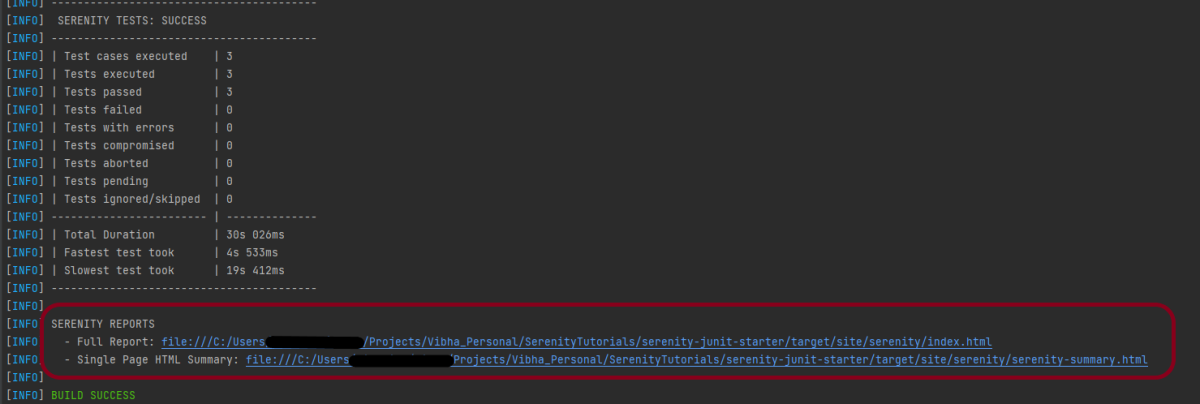
Below is the execution status.
Step 10 – View the Serenity Reports
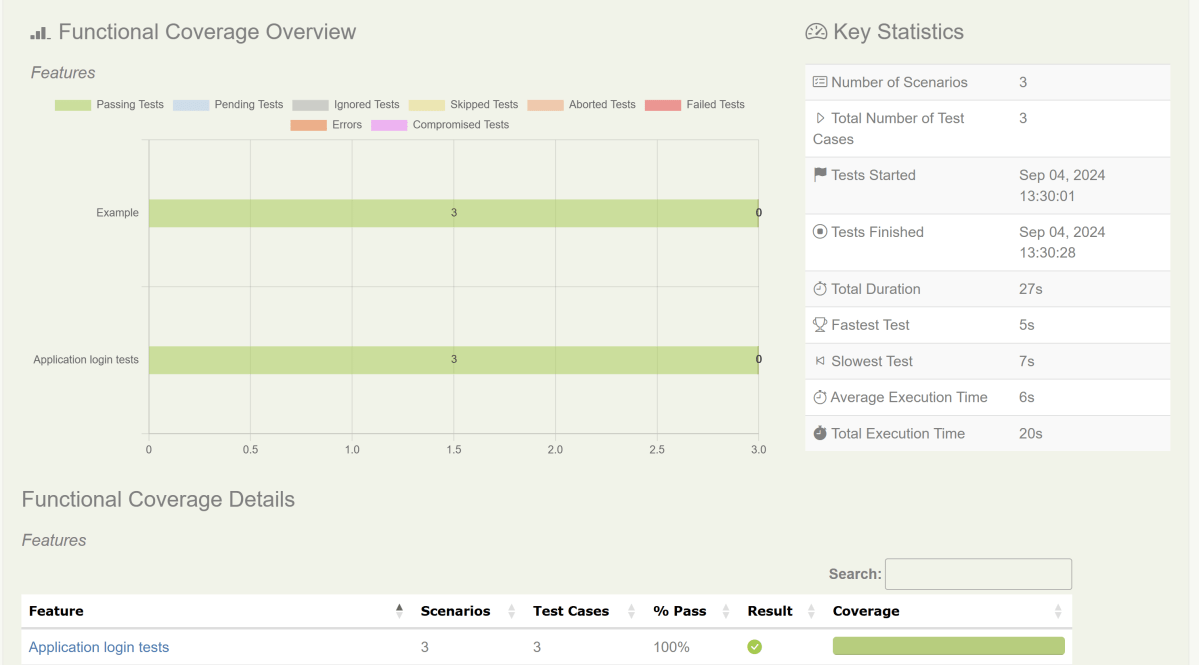
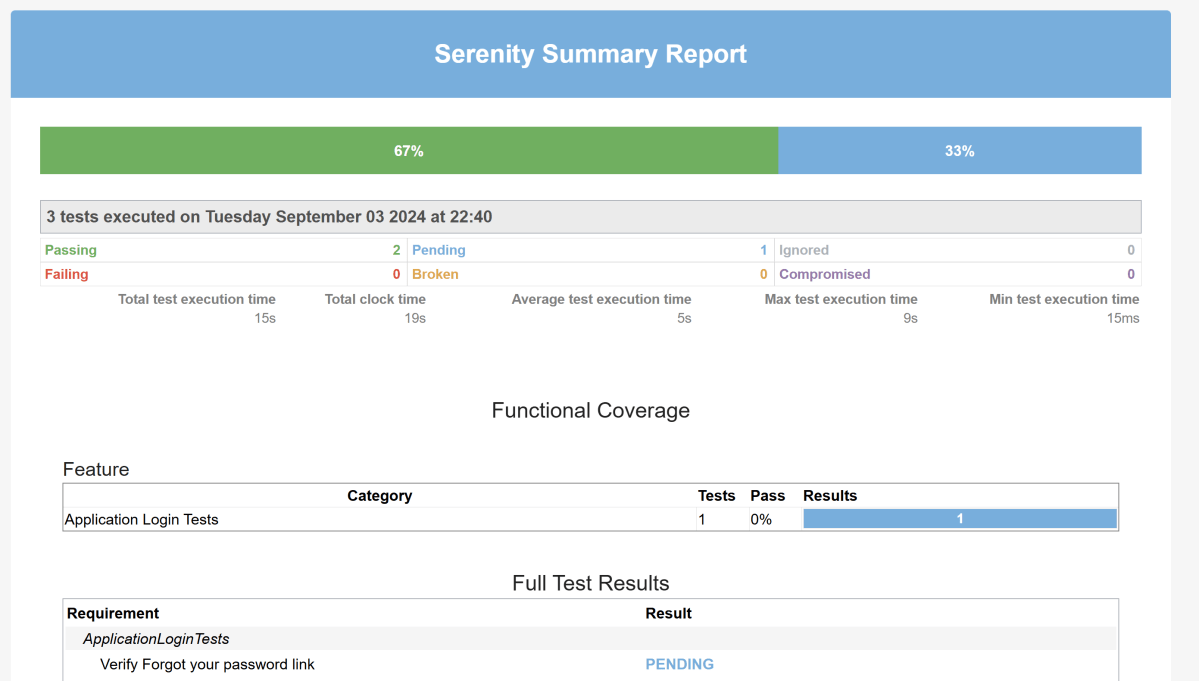
There are 2 types of reports are generated – Index.htmland Serenity-Summary.html.
Index.html
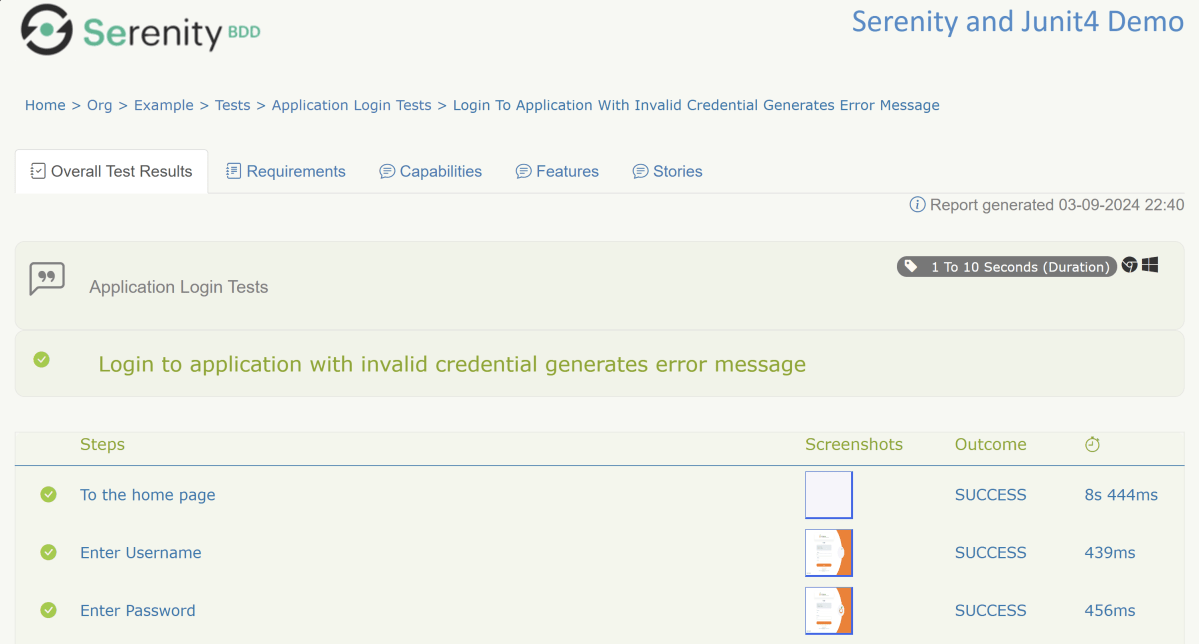
We can see the value of the @Title annotation, ‘Login to the application with valid credentials navigates to DashBoard page’, added as the heading. The value of @Step annotation, ‘Enter Username’, and ‘Enter Password’ is added to the Report as various steps.
This report contains a screenshot of each step also.
Emailable Report (Serenity-Summary.html)
These reports are present under /target/site/serenity.
Skipping the tests
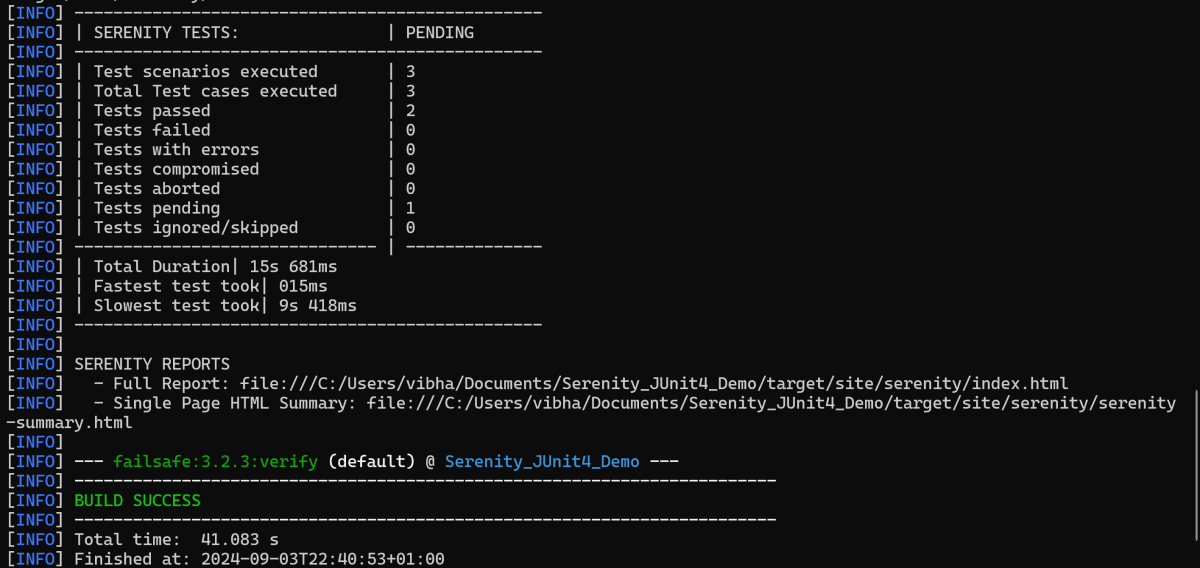
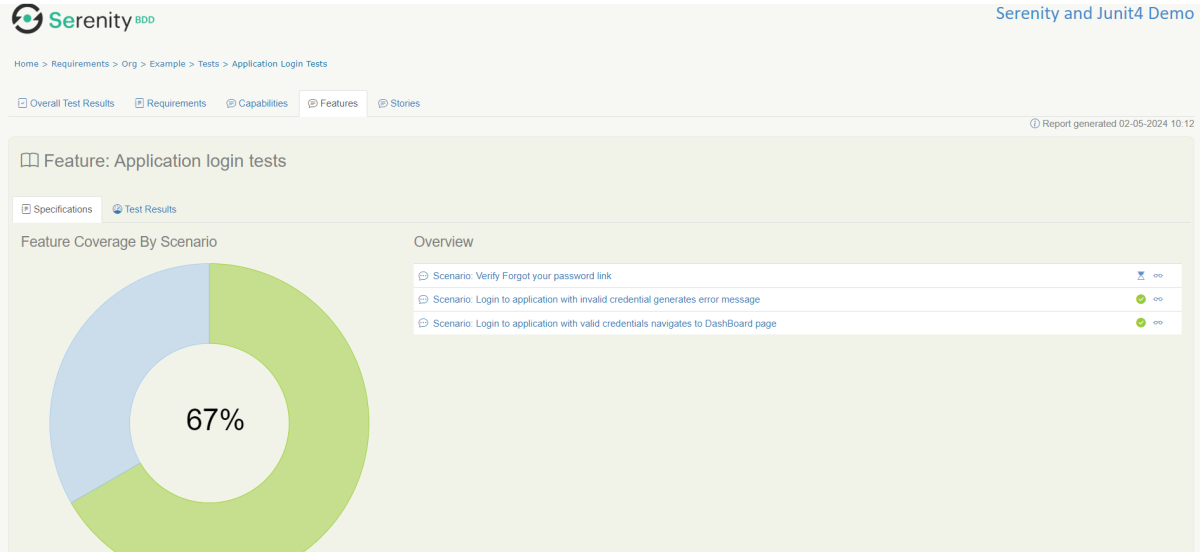
In Serenity, you use the @Pending annotation, either for a test or for a @Step-annotated method, to indicate that the scenario is still being implemented and that the results are not available yet. These tests appear as ‘Pending’ (shown in blue) in the test reports.
    @Test
	@Pending
	@Title("Verify Forgot your password link")
	public void clickForgetPasswordLink() {

		// Given
		loginPage.open();

		// When
		loginPage.clickForgetPasswordLink();

		// Then
		Assert.assertTrue(forgetpasswordPage.ForgetPasswordPage());
	}
The output of the above program is
Tests marked with@Ignorewill appear as ‘Ignored’ (from JUnit) and appears as grey in the test reports.
We are done! Congratulations on making it through this tutorial and hope you found it useful! Happy Learning!!
In this tutorial, we will see how can we retrieve the child nodes from an XML in Java.
What is XML?
XML stands for eXtensible Markup Language. It is a markup language much like HTML and was designed to store and transport data. XML was designed to be both human- and machine-readable. It is a flexible way to create information formats and share both the format and the data on the World Wide Web, intranets, and elsewhere.
1.A File object inputFile is created, representing the XML file located at “src/test/resources/testData/test.xml”.
2. A DocumentBuilderFactory instance is created. This is a factory API that enables applications to obtain a parser that produces DOM object trees from XML documents.
4. The XML document is parsed using the DocumentBuilder instance, resulting in a Document object that represents the entire XML document.
Document doc = dBuilder.parse(inputFile);
5. The normalize method is called on the Document object to ensure that the document’s DOM tree is fully normalized, which means that it is structurally correct according to the XML specification
doc.getDocumentElement().normalize();
6. It retrieves a NodeList of all employee elements in the document and prints out the number of such elements.
7. It iterates over each employee node in the NodeList. For each employee node, it prints out the node name and retrieves a NodeList of its child nodes.
for (int temp = 0; temp < nodeList.getLength(); temp++) {
Node node = nodeList.item(temp);
System.out.println("\nCurrent Element :" + node.getNodeName());
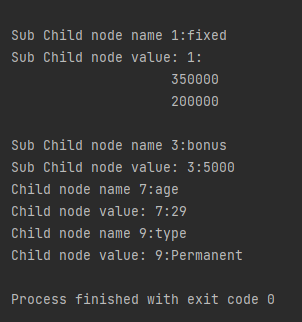
8. It then iterates over each child node of the employee node. If the child node is an element node (as opposed to other types of nodes like text nodes or comment nodes), it prints out the name and text content of the child node.
NodeList childNodes = node.getChildNodes();
for (int i = 0; i < childNodes.getLength(); i++) {
Node childNode = childNodes.item(i);
if (childNode.getNodeType() == Node.ELEMENT_NODE) {
System.out.println("Child node name " + i + ":" + childNode.getNodeName());
System.out.println("Child node value: " + i + ":" + childNode.getTextContent());
}
}
9. If any exceptions occur during the parsing process (such as ParserConfigurationException, SAXException, or IOException), they are caught, and their stack traces are printed out.
The complete program is mentioned below:
package com.example.XML;
import org.w3c.dom.Document;
import org.w3c.dom.Element;
import org.w3c.dom.Node;
import org.w3c.dom.NodeList;
import org.xml.sax.SAXException;
import javax.xml.parsers.DocumentBuilder;
import javax.xml.parsers.DocumentBuilderFactory;
import javax.xml.parsers.ParserConfigurationException;
import java.io.File;
import java.io.IOException;
public class ChildNodes {
public static void main(String[] args) {
try {
//Create a DocumentBuilder
File inputFile = new File("src/test/resources/testData/test1.xml");
DocumentBuilderFactory dbFactory = DocumentBuilderFactory.newInstance();
DocumentBuilder dBuilder = dbFactory.newDocumentBuilder();
Document doc = dBuilder.parse(inputFile);
doc.getDocumentElement().normalize();
//Extract the root element
System.out.println("Root element :" + doc.getDocumentElement().getNodeName());
NodeList nodeList = doc.getElementsByTagName("employee");
System.out.println("Node Length :" + nodeList.getLength());
for (int temp = 0; temp < nodeList.getLength(); temp++) {
                Node node = nodeList.item(temp);
                System.out.println("\nCurrent Element :" + node.getNodeName());
  NodeList childNodes = node.getChildNodes();
                for (int i = 0; i < childNodes.getLength(); i++) {
                    Node childNode = childNodes.item(i);
                    if (childNode.getNodeType() == Node.ELEMENT_NODE) {
                        System.out.println("Child node name " + i + ":" + childNode.getNodeName());
                        System.out.println("Child node value: " + i + ":" + childNode.getTextContent());

                    }
                }
}
} catch (ParserConfigurationException | SAXException | IOException e) {
e.printStackTrace();
}
}
}
In the previous tutorial, we showed youWhat is Feature File in Cucumber is. This tutorial will show you how to run this feature file.
Once the Feature file is created, we need to create a class called Runner class to run the tests. This class will use the JUnit annotation @RunWith(), which tells JUnit what is the test runner class.
We cannot run a Feature file on its own in a cucumber-based framework. We need to create a Java class, which will run the Feature File. It is the starting point for JUnit to start executing the tests. TestRunner class is created under src/test/java. In this tutorial, Cucumber uses the JUnit framework to run the tests. Apart from JUnit, we can also use the TestNG Test Runner class to run the cucumber tests.
JUnit Test Runner Class
First, we need to add the below dependencies to the POM.xml (in the case of the Maven project).
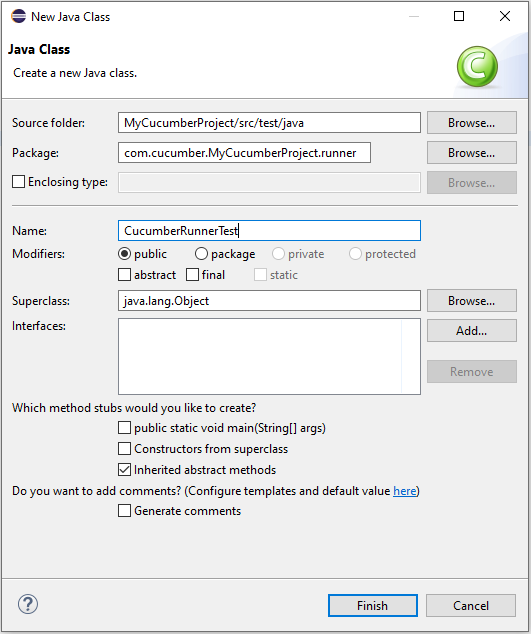
Create a new runner class file called CucumberRunnerTest.
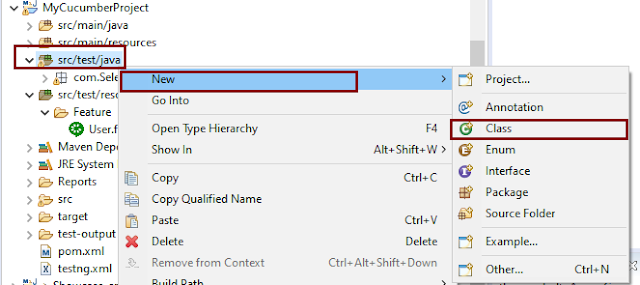
Select and Right-Click on the package outline. Click on the New→Class.
Provide the Java class a name, such as CucumberRunnerTest, and click the Finish button.
Import Statements
1) @RunWithannotation tells JUnit that tests should run using the Cucumber class.
import org.junit.runner.RunWith;
2) Cucumber.class is imported from:
import io.cucumber.junit.Cucumber;
3) @CucumberOptionsannotation tells Cucumber where to look for feature files, what reporting system to use, and some other things also. But as of now, in the above test, we have just told it for the Feature file folder. It is imported from:
import io.cucumber.junit.CucumberOptions;
The CucumberRunnerTest class looks like shown below:
import org.junit.runner.RunWith;
import io.cucumber.junit.Cucumber;
import io.cucumber.junit.CucumberOptions;

@RunWith(Cucumber.class)
@CucumberOptions(plugin = "pretty", features = "src/test/resources/Features/MyHoliday.feature", tags = "@BookOneWayFlight")

public class CucumberRunnerTest {

}
The first parameter, called features, provides the location of the feature file. Similarly, the second parameter, called tags, provides the tag name (scenario) which needs to run. Apart from these, we can use plugins, and glue, in the CucumberOptions.
The feature file is placed under src/test/resources, so it is added as the path for the Feature file.
Run the Cucumber Test
As we know, the Feature file is already created in the previous tutorial. TestRunner class is created to run the Cucumber Tests.
Right Click on CucumberRunnerTest class and Click Run As > JUnit Test Application
The output of the Test Execution looks as shown below image.
This output shows that the Feature file is created, and Test Runner is able to run the Feature File. But this error shows that we should implement these methods so that the Steps mentioned in the Feature file can be traced to Java methods, which can be executed while executing the feature file. Don’t worry about this error. We will see how to create step definitions in the next tutorial.
Congratulations on making it through this tutorial and hope you found it useful! Happy Learning!! Cheers!!
In this tutorial, I will explain Parallel Testing using Cucumber with TestNG.
Cucumber-JVM allows parallel execution across multiple threads since version 4.0.0. There are several options to incorporate this built-in feature in a Cucumber project. You can do so by using JUnit, TestNG, or CLI.
Cucumber can be executed in parallel using TestNG and Maven test execution plugins by setting the data providerparallel option to true.
In TestNG, the scenarios and rows in a scenario outline are executed in multiple threads. One can use either Maven Surefire or Failsafe plugin for executing the runners. In this tutorial, I’m using the Maven Surefire plugin.
Feature: Login to HRM Application

  Background:
    Given User is on Home page

  @ValidCredentials
  Scenario: Login with valid credentials - Feature 1, Scenario -1

    When User enters username as "Admin" and password as "admin123"
    Then User should be able to login successfully

  @InvalidCredentials
  Scenario Outline: Login with invalid credentials - Feature 1, Scenario -2

    When User enters username as "<username>" and password as "<password>"
    Then User should be able to see error message "<errorMessage>"

    Examples:
      | username    | password   | errorMessage                      |
      | Admin        | admin12$$  | Invalid credentials               |
      | admin$$     | admin123   | Invalid credentials               |
      | abc123       | xyz$$      | Invalid credentials               |
ForgotPasswordPage.feature
Feature: Forgot Password Page

  Background:
    Given User is on Home page

  @BackFunctionality
  Scenario: Validate the cancel functionality - Feature 2, Scenario - 1

    When User clicks on Forgot your password? link
    Then User should be able to navigate to Reset Password page
    And User clicks on Cancel button to go back to Login Page

  @ResetFunctionality
  Scenario: Validate the Reset Password functionality - Feature 2, Scenario - 2

    When User clicks on Forgot your password? link
    Then User should be able to navigate to Reset Password page
    And User clicks on Reset Password button and provide username as "abc1234"
    And Verify the message "Reset Password link sent successfully"
Step 6 – Create Page Object Model classes of both feature files
Page Object Model class contains all the locators and the actions performed on these locators for the particular class to improve the readability and maintainability of the code.
Below are the Page Object Model classes for these feature files.
LoginPage
import org.openqa.selenium.By;
import org.openqa.selenium.WebDriver;

public class LoginPage {

    public WebDriver driver;

    By userName = By.name("username");
    By passWord = By.name("password");
    By login = By.xpath("//*[@id='app']/div[1]/div/div[1]/div/div[2]/div[2]/form/div[3]/button");
    By errorMessage = By.xpath("//*[@class='orangehrm-login-error']/div[1]/div[1]/p");
    By forgotPasswordLink = By.xpath("//*[@id='app']/div[1]/div/div[1]/div/div[2]/div[2]/form/div[4]/p");
    By loginPageTitle = By.xpath("//*[@id='app']/div[1]/div/div[1]/div/div[2]/h5");

    public LoginPage(WebDriver driver) {
        this.driver = driver;
    }

    public String getErrorMessage() {
        return driver.findElement(errorMessage).getText();
    }

    public void login(String strUserName, String strPassword) {

        // Fill user name
        driver.findElement(userName).sendKeys(strUserName);

        // Fill password
        driver.findElement(passWord).sendKeys(strPassword);

        // Click Login button
        driver.findElement(login).click();

    }

    // Click on Forgot Password link
    public void clickOnForgotPasswordLink() {
        driver.findElement(forgotPasswordLink).click();
    }

    //Get Login Page Title
    public String getLoginPageTitle() {
        return driver.findElement(loginPageTitle).getText();
    }
}
HomePage
import org.openqa.selenium.By;
import org.openqa.selenium.WebDriver;

public class HomePage {

    public WebDriver driver;

    public HomePage(WebDriver driver) {
        this.driver = driver;
    }

    By homePageUserName = By.xpath("//*[@class='oxd-topbar-header-breadcrumb']/h6");

    public String getHomePageText() {
        return driver.findElement(homePageUserName).getText();
    }
}
ForgotPasswordPage
import org.openqa.selenium.By;
import org.openqa.selenium.WebDriver;

public class ForgotPasswordPage {

    WebDriver driver;

     By forgotPasswordPageTitle = By.xpath("//*[@id='app']/div[1]/div[1]/div/form/h6");
     By cancelBtn = By.xpath("//*[@id='app']/div[1]/div[1]/div/form/div[2]/button[1]");
     By resetPasswordBtn = By.xpath("//*[@id='app']/div[1]/div[1]/div/form/div[2]/button[2]");
     By userName = By.name("username");
     By resetMessage = By.xpath("//*[@id='app']/div[1]/div[1]/div/h6");

    public ForgotPasswordPage(WebDriver driver) {
        this.driver = driver;
    }

    // Get the Title of ForgotPage
    public String getForgotPageText() {
        return driver.findElement(forgotPasswordPageTitle).getText();
    }

    // Click Cancel Button
    public void clickOnCancelBtn() {
         driver.findElement(cancelBtn).click();
    }

    // Click ResetPassword Button
    public void clickOnRestPasswordBtn() {
        driver.findElement(resetPasswordBtn).click();
    }

    // Type username in TextBox
    public void TypeOnUsernameTextBox(String username) {
        driver.findElement(userName).sendKeys(username);
    }

    // Get Message
    public String getRestMessage() {
        return driver.findElement(resetMessage).getText();
    }
}
PageObjectManager – This class creates the object of all the above-mentioned Page Object Model classes. This an optional class. If you want you can create the objects in StepDefinition class also.
public class PageObjectManager {

    public LoginPage loginPage;
    public HomePage homePage;
    public ForgotPasswordPage forgotPasswordPage;
    public WebDriver driver;


    public PageObjectManager(WebDriver driver)
    {
        this.driver = driver;
    }

    public LoginPage getLoginPage()
    {

        loginPage= new LoginPage(driver);
        return loginPage;
    }

    public HomePage getHomePage()
    {
        homePage = new HomePage(driver);
        return homePage;
    }

    public ForgotPasswordPage getForgotPasswordPage()
    {
        forgotPasswordPage = new ForgotPasswordPage(driver);
        return forgotPasswordPage;
    }
}
Step 7 – Create the Step Definition classes for both feature files or Glue Code
Below is the Step Definition for LoginPage.feature.
import io.cucumber.java.en.Given;
import io.cucumber.java.en.Then;
import io.cucumber.java.en.When;
import pageObjects.HomePage;
import pageObjects.LoginPage;
import pageObjects.PageObjectManager;
import utils.TestSetUp;
import org.testng.Assert;

public class LoginPageDefinitions {

    TestSetUp setUp;
    public PageObjectManager pageObjectManager;
    public LoginPage loginPage;
    public HomePage homePage;


    public LoginPageDefinitions(TestSetUp setUp) {
        this.setUp = setUp;
        this.loginPage = setUp.pageObjectManager.getLoginPage();
        this.homePage= setUp.pageObjectManager.getHomePage();
    }

    @Given("User is on Home page")
    public void loginTest() throws IOException {
        setUp.baseTest.WebDriverManager().get("https://opensource-demo.orangehrmlive.com/");

    }

    @When("User enters username as {string} and password as {string}")
    public void goToHomePage(String userName, String passWord) {

        // login to application
        loginPage.login(userName, passWord);

        // go the next page

    }

    @Then("User should be able to login successfully")
    public void verifyLogin() {

        // Verify home page
        Assert.assertTrue(homePage.getHomePageText().contains("Dashboard"));

    }

    @Then("User should be able to see error message {string}")
    public void verifyErrorMessage(String expectedErrorMessage) {

        // Verify home page
        Assert.assertEquals(loginPage.getErrorMessage(),expectedErrorMessage);

    }

}
Below is the Step Definition for ForgotPasswordPage.feature.
import io.cucumber.java.en.Then;
import io.cucumber.java.en.When;
import pageObjects.ForgotPasswordPage;
import pageObjects.LoginPage;
import pageObjects.PageObjectManager;
import utils.TestSetUp;
import org.testng.Assert;

public class ForgotPasswordPageDefinitions{

    TestSetUp setUp;
    PageObjectManager pageObjectManager;
    public LoginPage loginPage;
    public  ForgotPasswordPage forgotPasswordPage;

    public ForgotPageDefinitions(TestSetUp setUp) {
        this.setUp = setUp;
        this.loginPage = setUp.pageObjectManager.getLoginPage();
        this.forgotPasswordPage = setUp.pageObjectManager.getForgotPasswordPage();
    }

    @When("User clicks on Forgot your password? link")
    public void forgotPasswordLink() {

        loginPage.clickOnForgotPasswordLink();

    }

    @Then("User should be able to navigate to Reset Password page")
    public void verifyForgotPasswordPage() {

        Assert.assertEquals(forgotPasswordPage.getForgotPageText(),"Reset Password");

    }

    @Then("User clicks on Cancel button to go back to Login Page")
    public void verifyCancelBtn() {

        forgotPasswordPage.clickOnCancelBtn();
        Assert.assertEquals(loginPage.getLoginPageTitle(),"Login");

    }

    @Then("User clicks on Reset Password button and provide username as {string}")
    public void verifyResetPasswordBtn(String username) {

        forgotPasswordPage.TypeOnUsernameTextBox(username);
        forgotPasswordPage.clickOnRestPasswordBtn();

    }

    @Then("Verify the message {string}")
    public void verifyMessage(String message) {

        Assert.assertEquals(forgotPasswordPage.getRestMessage(),message);

    }
}
Step 8 – Create the Hook Class and Dependency Injection class (TestSetUp) and BaseTest class
Below is the code for the ApplicationHook Class.
import io.cucumber.java.After;
import utils.TestSetUp;

public class ApplicationHooks {

 public TestSetUp setUp;

    public ApplicationHooks(TestSetUp setUp) {
        this.setUp = setUp;
    }

    @After
    public void tearDown( ) throws IOException {
        setUp.baseTest.WebDriverManager().quit();
    }
}
Below is the code for the Dependency Injection class. In Cucumber, if we want to share the state between multiple-step definition files, we will need to use dependency injection (DI).
import org.openqa.selenium.WebDriver;
import org.openqa.selenium.WebElement;
import pageObjects.PageObjectManager;

public class TestSetUp {

    public WebElement errorMessage;
    public WebElement homePageUserName;
    public PageObjectManager pageObjectManager;
    public BaseTest baseTest;

    public TestSetUp()  {

        baseTest = new BaseTest();
        pageObjectManager = new PageObjectManager(baseTest.WebDriverManager());

    }
}
BaseTest class is used to initialize the WebDriver.
import io.github.bonigarcia.wdm.WebDriverManager;
import org.openqa.selenium.WebDriver;
import org.openqa.selenium.chrome.ChromeDriver;
import java.time.Duration;

public class BaseTest {

    public WebDriver driver;
    public final static int TIMEOUT = 10;

    public WebDriver WebDriverManager ()  {


        if (driver == null) {

            ChromeOptions options = new ChromeOptions();
            driver = new ChromeDriver(options);
            driver.manage().timeouts().implicitlyWait(Duration.ofSeconds(TIMEOUT));
            driver.manage().window().maximize();
            driver.get(url);

        }
        return driver;
    }
}
Step 9 – Create a Cucumber TestNG Runner class
Add a cucumber runner by extending the AbstractTestNGCucumberTests class and overriding the scenarios method. Set the parallel option value to true for the DataProvider annotation.
import io.cucumber.testng.AbstractTestNGCucumberTests;
import io.cucumber.testng.CucumberOptions;
import org.testng.annotations.DataProvider;

@CucumberOptions(tags = "", features = "src/test/resources/features", glue = "org.example.definitions")
public class CucumberRunnerTests  extends AbstractTestNGCucumberTests {

   @Override
    @DataProvider(parallel = true)
    public Object[][] scenarios() {
        return super.scenarios();
    }

}
Step 10 – Report Generation
Add cucumber.properties under src/test/resources and add the below instruction in the file.
cucumber.publish.enabled=true
Step 11 – Execute the test from Command Line
Use the below-mentioned command in the command prompt to run the tests.
mvn clean test
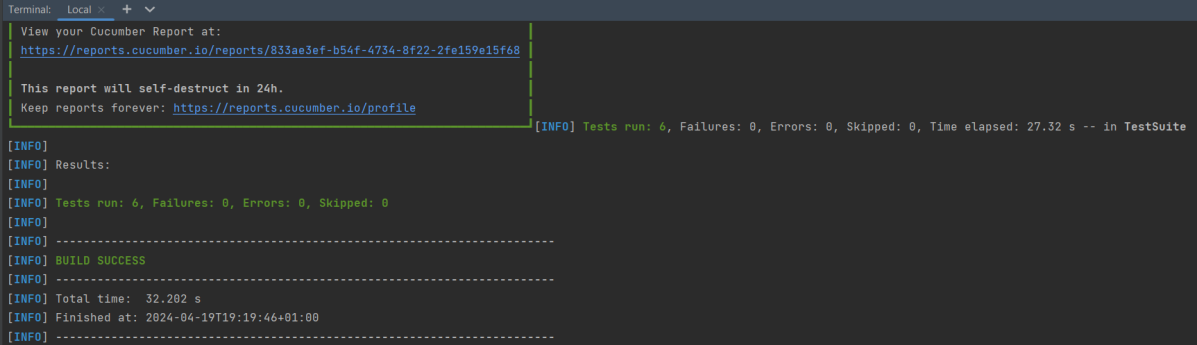
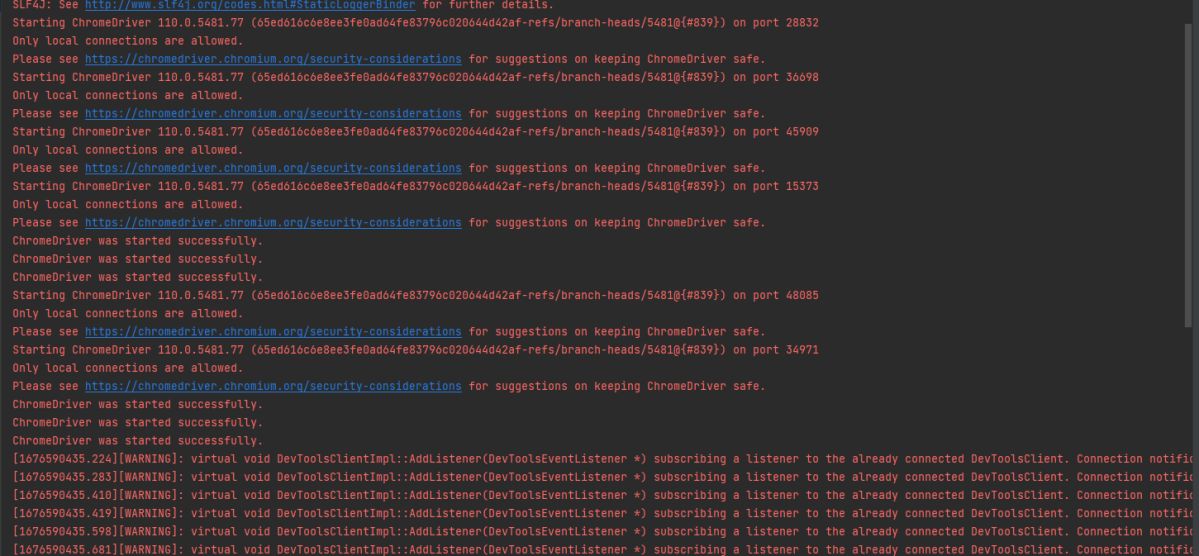
The output of the above program is
Step 12 – Execute the tests from TestNG Runner
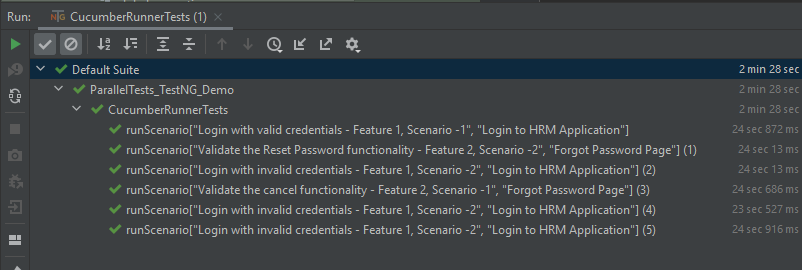
Go to the Runner class and right-click Run As TestNG Test. The tests will run as TestNG tests. (Eclipse)
In the case of IntelliJ, right-click and select Run “CucumberRunnerTests”.
Step 13 – Test Execution Result
All the tests are started at the same time, so they share different threads. The way tests are executed is different in them. With non-parallel tests, all the scenarios of the same feature are executed together, and then the scenarios of another feature file. Whereas in parallel tests, all the tests are started at the same time, so there won’t be any specific order.
All the scenarios have started simultaneously.
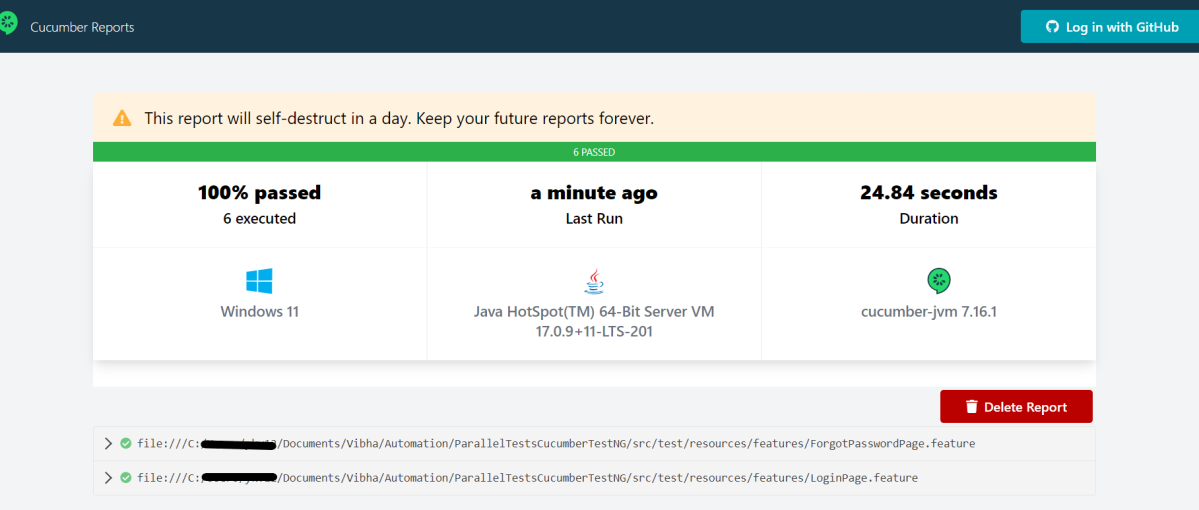
The Cucumber Report is shown below:
There are chances that we don’t want to run all the scenarios simultaneously, in this case, we need to add the below-mentioned configuration in the pom.xml. The value =2 means that 2 scenarios will be executed simultaneously.
In the previous tutorial, it is explained how to automate Checkbox in Selenium. In this tutorial, we will learn how to handle Drop Down & Multiple Select Operations. DropDown & Multiple Select Operations work together and almost the same way. The only difference between these two deselecting statements & multiple selections is not allowed on DropDown.
To identify DropDown or multi-select list on a web page, we can use any one of the options like id, name, xpath, css, etc.
To perform any operation on DropDown, we need to do 2 things:-
1) Selenium WebDrivers provides a class called “Select “class that is used to automate dropdown, and it is imported from the package:
org.openqa.selenium.support.ui.Select
2) Create a new Select object of class Select.
Select oSelect = new Select());
We can access all the methods residing inside the SELECT class by typing oSelect + dot.
Different Select Commands
Before we discuss various select commands, we should know how the HTML code of DropDown actually looks
1) selectByVisibleText
selectByVisibleText(String arg0): void – Choose the option given under any dropdowns and multiple selection boxes with selectByVisibleText method. It takes a parameter of String that is one of the Value of Select element and it returns nothing.
To select the text One
select.selectByVisibleText("One");
2) selectByIndex
selectByIndex(int arg0): void – It is almost the same as selectByVisibleText but the only difference here is that we provide the index number of the option here rather than the option text. It takes a parameter of int which is the index value of the Select element and it returns nothing.
To select the value 3 using index
select.selectByIndex(3);
3) selectByValue
selectByValue(String arg0): void – It selects the option of the value. It takes a parameter of String that is of the value of the Select element and it returns nothing.
To select the value of two
 Select mselect = new Select(driver.findElement(By.id("redirect")));
 mselect.selectByValue("two");
Let us explain this with the help of an example.
1) Launch a new Browser and open “https://www.selenium.dev/selenium/web/formPage.html“ 2) Print the list of options in the dropdown. 3) Select option ‘One’ (Use selectByVisibleText) 4) Select option ‘3’ (Use selectByIndex) 5) Select option ‘two’ (Use selectByValue) 6) Close the browser
The complete program looks like as shown below:
package org.example;

import org.openqa.selenium.By;
import org.openqa.selenium.WebDriver;
import org.openqa.selenium.WebElement;
import org.openqa.selenium.firefox.FirefoxDriver;
import org.openqa.selenium.firefox.FirefoxOptions;
import org.openqa.selenium.support.ui.Select;

import java.time.Duration;
import java.util.List;

public class DropDown_Demo {

    public static void main(String[] args)  {

        // Initiate Firefox browser
        FirefoxOptions firefoxOptions = new FirefoxOptions();
        WebDriver driver = new FirefoxDriver(firefoxOptions);

        // Implicit Wait
        driver.manage().window().maximize();
        driver.manage().timeouts().implicitlyWait(Duration.ofSeconds(5));

        // Pass application url
        driver.get("https://www.selenium.dev/selenium/web/formPage.html");

        //Get the list of options from dropdown
        Select select = new Select(driver.findElement(By.name("select-default")));
        List<WebElement> listElements = select.getOptions();
        System.out.println("List of options in dropdown:" );
        for(WebElement options: listElements)
            System.out.println(options.getText());

        // Select option 'Two' (Use selectByVisibleText)
        System.out.println("Select the Option by Text - One");
        select.selectByVisibleText("One");

        // Select option '3' (Use selectByIndex)
        System.out.println("Select the Option by Index 3 - Still learning how to count, apparently");
        select.selectByIndex(3);

        // Select option 'two' (Use selectByValue)
        System.out.println("Select the Option by selectByValue - two");
        Select mselect = new Select(driver.findElement(By.id("redirect")));
        mselect.selectByValue("two");

        // close the browser
        driver.close();
    }

}
The output of the above program is
Different DeSelect Methods
The way we select different values of DropDown and Multi Select, we can deselect the options similarly.
1) deselectAll
deselectAll( ): void – Clear all selected entries. This is only valid when the SELECT supports multiple selections.
Syntax:
oSelect.deselectAll;
2) deselectByIndex
deselectByIndex(int arg0): void –Deselect the option at the given index.
Syntax:
oSelect.deselectByIndex;
3) deselectByValue
deselectByValue(String arg0): void –Deselect all options that have a value matching the argument.
Syntax:
oSelect.deselectByValue;
4) deselectByVisibleText
deselectByVisibleText(String arg0): void – Deselect all options that display text matching the argument.
Syntax:
oSelect.deselectByVisibleText
Below is an example of how to operate on multi-selection options.
1) Launch a new Browser and open “https://www.selenium.dev/selenium/web/formPage.html“ 2) Print the list of options in the dropdown. 3) Select options ‘eggs’ and ‘sausages’. 4) Print and select all the options for the selected Multiple selection list. 5) Deselect option eggs. 6) Deselect all options 7) Close the browser
package org.example;

import org.openqa.selenium.By;
import org.openqa.selenium.WebDriver;
import org.openqa.selenium.WebElement;
import org.openqa.selenium.firefox.FirefoxDriver;
import org.openqa.selenium.firefox.FirefoxOptions;
import org.openqa.selenium.support.ui.Select;

import java.time.Duration;
import java.util.List;

public class MultiSelect_Demo {

    public static void main(String[] args) {

        // Initiate Firefox browser
        FirefoxOptions firefoxOptions = new FirefoxOptions();
        WebDriver driver = new FirefoxDriver(firefoxOptions);

        // Implicit Wait
        driver.manage().window().maximize();
        driver.manage().timeouts().implicitlyWait(Duration.ofSeconds(5));

        // Pass application url
        driver.get("https://www.selenium.dev/selenium/web/formPage.html");

        //Get the list of options from dropdown
        Select select = new Select(driver.findElement(By.name("multi")));
        List<WebElement> listElements = select.getOptions();
        System.out.println("List of options in dropdown:");
        for (WebElement options : listElements)
            System.out.println(options.getText());

        // Select option 'Ham' (Use selectByVisibleText)
        System.out.println("Select the Option by Text - Eggs");
        select.selectByVisibleText("Eggs");

        // Select option '2' (Use selectByIndex)
        System.out.println("Select the Option by Index 2 - Sausages");
        select.selectByIndex(2);

        System.out.println("*************************************");
        //Get the list of selected options
        System.out.println("The selected values in the dropdown options are -");
        List<WebElement> selectedOptions = select.getAllSelectedOptions();

        for(WebElement selectedOption: selectedOptions)
            System.out.println(selectedOption.getText());

        // Deselect the value "eggs" by Value
        System.out.println("*************************************");
        System.out.println("DeSelect option eggs by Value");
        select.deselectByValue("eggs");

        System.out.println("*************************************");
        System.out.println("The latest selected values in the dropdown options are -");
        List<WebElement> reselectedOptions = select.getAllSelectedOptions();

        for(WebElement selectedOption: reselectedOptions)
            System.out.println(selectedOption.getText());

        select.deselectAll();

        driver.quit();
    }
}
The output of the above program is
That’s it! Congratulations on making it through this tutorial and hope you found it useful! Happy Learning!!
When we launch a browser using Selenium WebDriver, by default it is not in its maximized state. In this post, we will see how to maximize and minimize a browser during automation.
Maximize the window
It is recommended to maximize the browser before performing any operation on the browser to make sure that the tests run in a consistent environment, with a known window size. This helps in avoiding issues that might arise due to varying browser window sizes. When the browser window isn’t maximized, certain web elements might be hidden or located outside the visible area. Maximizing the window makes sure these elements become visible and accessible for interaction during automated testing.
driver.manage().window().maximize();
Below is an example to maximize the window.
package org.example;

import org.openqa.selenium.WebDriver;
import org.openqa.selenium.chrome.ChromeDriver;

import java.time.Duration;

public class Maximize_Demo {

    public static void main(String args[])  {

        WebDriver driver = new ChromeDriver();
        driver.manage().window().maximize();
        driver.manage().timeouts().implicitlyWait(Duration.ofSeconds(4));
        driver.get("https://www.bing.com/");
        System.out.println("Page Title :" + driver.getTitle());
        driver.quit();
    }
}
The output of the above program is
Minimize the window
Minimizing the window enables us to carry out background tasks or operations on the machine without disrupting the test execution. This can be especially useful when we need to work on other tasks while the tests are in progress.
Minimizing the window can sometimes reveal behaviors or functionalities that are triggered when the browser window is not in focus or is minimized. This can be valuable for testing scenarios where the application’s behavior under such conditions needs to be verified.
Selenium 4 and above support the below code.
driver.manage().window().minimize();
Below is an example to minimize the window.
package org.example;

import org.openqa.selenium.WebDriver;
import org.openqa.selenium.chrome.ChromeDriver;

import java.time.Duration;

public class Minimize_Demo {

    public static void main(String args[]) {

        WebDriver driver = new ChromeDriver();
        driver.manage().window().minimize();
        driver.manage().timeouts().implicitlyWait(Duration.ofSeconds(4));
        driver.get("https://www.bing.com/");
        System.out.println("Page Title :" + driver.getTitle());
        driver.quit();
    }
}
The output of the above program is
That’s it! Congratulations on making it through this tutorial and hope you found it useful! Happy Learning!!













 QA Automation Expert