Cucumber Tutorial – JUnit Test Runner Class

HOME

In the previous tutorial, we showed you What is Feature File in Cucumber is. This tutorial will show you how to run this feature file. 

Once the Feature file is created, we need to create a class called Runner class to run the tests. This class will use the JUnit annotation @RunWith(), which tells JUnit what is the test runner class.

We cannot run a Feature file on its own in a cucumber-based framework. We need to create a Java class, which will run the Feature File. It is the starting point for JUnit to start executing the tests. TestRunner class is created under src/test/java. In this tutorial, Cucumber uses the JUnit framework to run the tests. Apart from JUnit, we can also use the TestNG Test Runner class to run the cucumber tests. 

JUnit Test Runner Class

First, we need to add the below dependencies to the POM.xml (in the case of the Maven project).

<dependencies>
  
  <dependency>
    <groupId>io.cucumber</groupId>
    <artifactId>cucumber-java</artifactId>
    <version>7.16.1</version>
  </dependency>

  <dependency>
    <groupId>io.cucumber</groupId>
    <artifactId>cucumber-junit</artifactId>
    <version>7.16.1</version>
    <scope>test</scope>
  </dependency>
    
  <dependency>
      <groupId>junit</groupId>
      <artifactId>junit</artifactId>
      <version>4.13.2</version>
      <scope>test</scope>
  </dependency>
    
</dependencies>

Create a new runner class file called CucumberRunnerTest

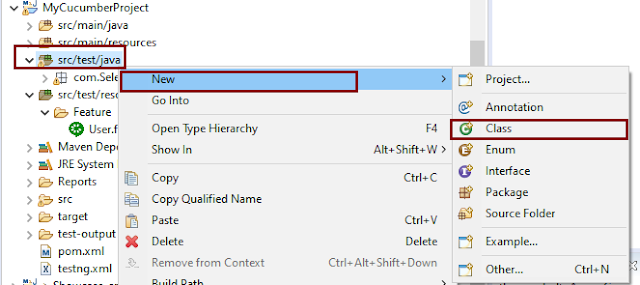
Select and Right-Click on the package outline. Click on the New→Class.
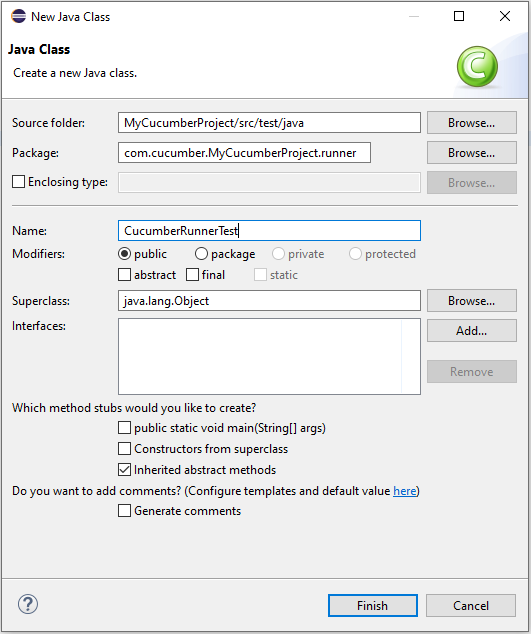
Provide the Java class a name, such as CucumberRunnerTest, and click the Finish button.
Import Statements

1) @RunWith annotation tells JUnit that tests should run using the Cucumber class.

import org.junit.runner.RunWith;

2) Cucumber.class is imported from:

import io.cucumber.junit.Cucumber;

3) @CucumberOptions annotation tells Cucumber where to look for feature files, what reporting system to use, and some other things also. But as of now, in the above test, we have just told it for the Feature file folder. It is imported from:

import io.cucumber.junit.CucumberOptions;

The CucumberRunnerTest class looks like shown below:

import org.junit.runner.RunWith;
import io.cucumber.junit.Cucumber;
import io.cucumber.junit.CucumberOptions;

@RunWith(Cucumber.class)
@CucumberOptions(plugin = "pretty", features = "src/test/resources/Features/MyHoliday.feature", tags = "@BookOneWayFlight")

public class CucumberRunnerTest {

}

The first parameter, called features, provides the location of the feature file. Similarly, the second parameter, called tags, provides the tag name (scenario) which needs to run. Apart from these, we can use plugins, and glue, in the CucumberOptions.

The feature file is placed under src/test/resources, so it is added as the path for the Feature file.

Run the Cucumber Test

As we know, the Feature file is already created in the previous tutorial. TestRunner class is created to run the Cucumber Tests.

Right Click on CucumberRunnerTest class and Click Run As  > JUnit Test Application

The output of the Test Execution looks as shown below image.

This output shows that the Feature file is created, and Test Runner is able to run the Feature File. But this error shows that we should implement these methods so that the Steps mentioned in the Feature file can be traced to Java methods, which can be executed while executing the feature file. Don’t worry about this error. We will see how to create step definitions in the next tutorial.

Congratulations on making it through this tutorial and hope you found it useful! Happy Learning!! Cheers!!
Cucumber Tutorial – How to setup Cucumber with Eclipse

HOME

In the previous tutorials, we discussed BDD (Behaviour Driven Development) and GherkinCucumber is one such open-source tool, which supports Behaviour Driven Development (BDD). In simple words, Cucumber can be defined as a testing framework, driven by plain English. It serves as documentation, automated tests, and development aid – all in one.

In this tutorial, we will set up Cucumber with Eclipse

Implementation Steps

1. Download and Install Java

Java is a robust programming language. Java is a general-purpose programming language that is concurrent; class-based and object-oriented language. Java follows the concept of “write once and run anywhere (WORA)” which means that compiled Java code can be run on all different platforms that support Java without the need for recompilation. Cucumber supports the Java platform for execution. Click here to know How to install Java.

2. Download and Start Eclipse

Eclipse is an Integrated Development Environment (IDE). It contains a base workspace and an extensible plug-in system for customizing the environment. To download Eclipse, please refer to this tutorial – How to install Eclipse.

3. Maven –  How to install Maven on Windows 

Apache Maven is a software project management and comprehension tool. It uses the concept of a project object model (POM), Maven can manage a project’s build, reporting, and documentation from a central piece of information. MAVEN helps us in creating the project structure and managing and downloading the dependencies. We need to define the required dependencies in pom.xml. To install Maven on Windows, please refer to this tutorial – How to install Maven.

4. Install Cucumber Eclipse Plugin

The Cucumber plugin is an Eclipse plugin that allows eclipse to understand the Gherkin syntax. Cucumber Eclipse Plugin highlights the keywords present in Feature File. To install Cucumber Eclipse Plugin, please refer to this tutorial – How to install Cucumber Eclipse Plugin

5. Configure Cucumber with Maven

Step 1 – Create a new Maven Project.

Click here to know the steps to create a new Maven project –  How to create a Maven project.

Step 2 – Open pom.xml of the project
       

Step 3 − Add dependency for selenium

This will indicate to Maven that Selenium jar files are to download from the central repository to the local repository.                                                                             

Open pom.xml in the edit mode, create dependencies tag (), inside the project tag.                   

 <!-- Selenium -->
 <dependency>
      <groupId>org.seleniumhq.selenium</groupId>
      <artifactId>selenium-java</artifactId>
      <version>4.15.0</version>
 </dependency>

Step 4 –  Add dependency for Cucumber-Java

This will indicate Maven, which Cucumber files are to be downloaded from the central repository to the local repository.  Create one more dependency tag.

<dependency>
    <groupId>io.cucumber</groupId>
    <artifactId>cucumber-java</artifactId>
    <version>7.14.0</version>
</dependency>

Step 5 – Add dependency for Cucumber-JUnit

This will indicate Maven, which Cucumber JUnit files are to download from the central repository to the local repository. Create one more dependency tag. 

<dependency>
    <groupId>io.cucumber</groupId>
    <artifactId>cucumber-junit</artifactId>
    <version>7.14.0</version>
    <scope>test</scope>
</dependency>

Step 6 –  Add dependency for JUnit

This will indicate Maven, which JUnit files are to be downloaded from the central repository to the local repository. Create one more dependency tag.

<dependency>
   <groupId>junit</groupId>
   <artifactId>junit</artifactId>
   <version>4.13.2</version>
   <scope>test</scope>
</dependency>

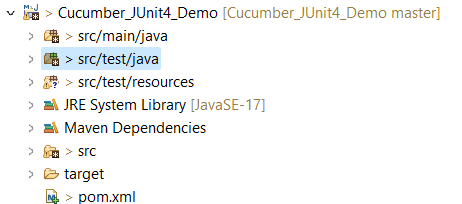
Below is the screenshot which shows that Maven Project called Cucumber_JUnit4_Demo.

After adding the above mention dependencies, pom.xml looks like the image below

<project xmlns="http://maven.apache.org/POM/4.0.0" xmlns:xsi="http://www.w3.org/2001/XMLSchema-instance"
  xsi:schemaLocation="http://maven.apache.org/POM/4.0.0 http://maven.apache.org/xsd/maven-4.0.0.xsd">
  <modelVersion>4.0.0</modelVersion>

  <groupId>org.example</groupId>
  <artifactId>Cucumber_JUnit4_Demo</artifactId>
  <version>1.0-SNAPSHOT</version>
  <packaging>jar</packaging>

  <name>Cucumber_JUnit4_Demo</name>
  <url>http://maven.apache.org</url>

  <properties>
    <project.build.sourceEncoding>UTF-8</project.build.sourceEncoding>
    <cucumber.version>7.14.0</cucumber.version>
    <selenium.version>4.15.0</selenium.version>
    <junit.version>4.13.2</junit.version>
  </properties>

  <dependencies>

    <dependency>
      <groupId>io.cucumber</groupId>
      <artifactId>cucumber-java</artifactId>
      <version>${cucumber.version}</version>
    </dependency>

    <dependency>
      <groupId>io.cucumber</groupId>
      <artifactId>cucumber-junit</artifactId>
      <version>${cucumber.version}</version>
      <scope>test</scope>
    </dependency>

    <!-- Selenium -->
    <dependency>
      <groupId>org.seleniumhq.selenium</groupId>
      <artifactId>selenium-java</artifactId>
      <version>${selenium.version}</version>
    </dependency>

    <!-- JUnit4 -->
    <dependency>
      <groupId>junit</groupId>
      <artifactId>junit</artifactId>
      <version>${junit.version}</version>
      <scope>test</scope>
    </dependency>
  </dependencies>

</project>

After adding the dependencies and then building the project, the below image shows the entire jar files added to the Maven Dependency.

Congratulations!! We are done with the setup of the Cucumber in Eclipse. Happy Learning.

Data Driven Testing using Scenario Outline in Cucumber

HOME

In the previous tutorial, I explained the various types of Reports available in Cucumber. In this tutorial, I will explain how we can do Data-Driven Testing in Cucumber. Cucumber inherently supports Data-Driven testing by the use of the Scenario Outline and Examples section.  Using these keywords, Cucumber allows for easy Data-Driven testing to be complete where no changes need to be made to the Java file (StepDefinition file).

Pre-Requisite

  1. Cucumber – 6.10.4
  2. Java – 11
  3. Selenium – 3.141.59
  4. Junit – 4.13.2 ( You can use TestNG also)
  5. Cucumber JUnit – 6.10.4 (If using TestNG, then replace this with Cucumber TestNG)

The project folder structure and code should be in the below state.

In case, the project uses Maven, we need to add the below dependencies to the project.

<?xml version="1.0" encoding="UTF-8"?>
<project xmlns="http://maven.apache.org/POM/4.0.0"
         xmlns:xsi="http://www.w3.org/2001/XMLSchema-instance"
         xsi:schemaLocation="http://maven.apache.org/POM/4.0.0 http://maven.apache.org/xsd/maven-4.0.0.xsd">
    <modelVersion>4.0.0</modelVersion>

    <groupId>org.example</groupId>
    <artifactId>CucumberDemo</artifactId>
    <version>1.0-SNAPSHOT</version>

    <properties>
        <cucumber.version>6.10.4</cucumber.version>
        <selenium.version>3.141.59</selenium.version>
        <junit.version>4.13.2</junit.version>
        <maven.compiler.source.version>11</maven.compiler.source.version>
        <maven.compiler.target.version>11</maven.compiler.target.version>
    </properties>


    <dependencies>
        <dependency>
            <groupId>io.cucumber</groupId>
            <artifactId>cucumber-java</artifactId>
            <version>${cucumber.version}</version>
        </dependency>

        <dependency>
            <groupId>org.seleniumhq.selenium</groupId>
            <artifactId>selenium-java</artifactId>
            <version>${selenium.version}</version>
        </dependency>

        <dependency>
            <groupId>junit</groupId>
            <artifactId>junit</artifactId>
            <version>${junit.version}</version>
            <scope>test</scope>
        </dependency>

        <dependency>
            <groupId>io.cucumber</groupId>
            <artifactId>cucumber-junit</artifactId>
            <version>${cucumber.version}</version>
            <scope>test</scope>
        </dependency>

        <dependency>
            <groupId>junit</groupId>
            <artifactId>junit</artifactId>
            <version>${junit.version}</version>
            <scope>test</scope>
        </dependency>

    </dependencies>

    <build>
        <plugins>


            <plugin>
                <groupId>org.apache.maven.plugins</groupId>
                <artifactId>maven-compiler-plugin</artifactId>
                <version>3.8.0</version>
                <configuration>
                    <source>${maven.compiler.source.version}</source>
                    <target>${maven.compiler.target.version}</target>
                    <encoding>UTF-8</encoding>
                </configuration>
            </plugin>
        </plugins>
    </build>


Below is an example of Scenarios with a different set of data (no Scenario Outline).

  @InvalidCredentials1
  Scenario: Login with invalid username and password

    Given User is on Home page
    When User enters username as "Admin1" and password as "admin1"
    Then User should be able to see an "Invalid credentials"

  @InvalidCredentials2
  Scenario: Login with blank username

    Given User is on Home page
    When User enters username as "" and password as "admin123"
    Then User should be able to see an "Username cannot be empty"

  @InvalidCredentials3
  Scenario: Login with invalid credentials

    Given User is on Home page
    When User enters username as "Admin" and password as ""
    Then User should be able to see an "Password cannot be empty"

The stepdefinition corresponding to the above feature file is

import io.cucumber.java.en.Given;
import io.cucumber.java.en.Then;
import io.cucumber.java.en.When;
import org.junit.Assert;
import org.openqa.selenium.By;
import org.openqa.selenium.WebDriver;
import org.openqa.selenium.chrome.ChromeDriver;

public class ScenarioOutlineDefinitions {

    WebDriver driver;

    @Given("User is on Home page")
    public void userOnHomePage() {

        System.setProperty("webdriver.chrome.driver",
                "C:\\Users\\Vibha\\Software\\chromedriver_win32\\chromedriver.exe");

        driver = new ChromeDriver();
        driver.manage().window().maximize();
        driver.get("https://opensource-demo.orangehrmlive.com/");
    }

    @When("User enters username as {string} and password as {string}")
    public void entersCredentials(String userName, String passWord) throws InterruptedException {

        System.out.println("Username Entered");
        driver.findElement(By.name("txtUsername")).sendKeys(userName);

        System.out.println("Password Entered");
        driver.findElement(By.name("txtPassword")).sendKeys(passWord);

        driver.findElement(By.id("btnLogin")).submit();

    }

    @Then("User should be able to see an {string}")
    public void verifyErrorMessage(String expectedErrorMessage) throws InterruptedException {

        String actualErrorMessage = driver.findElement(By.id("spanMessage")).getText();
        System.out.println("Error Message :" + actualErrorMessage);
        Assert.assertEquals(actualErrorMessage,expectedErrorMessage);

        //close the browser
        driver.quit();

    }
}

TestRunner Class

 Run the test by Right Click on TestRunner class and Click Run As  > JUnit Test Application.

import io.cucumber.junit.Cucumber;
import io.cucumber.junit.CucumberOptions;
import org.junit.runner.RunWith;

@RunWith(Cucumber.class)
@CucumberOptions(monochrome = true, plugin = "pretty", features = "src/test/resources/Features/ScenarioOutline.feature",
        glue = "definitions")

public class CucumberRunnerTest {
}

Below is the output of the above program:

Data Driven Testing using Scenario Outline

Scenario Outline – It is used to repeat the same tests by passing different values or arguments to Step Definition

Examples – All scenario outlines have to be followed with the Examples section. This contains the data that has to be passed on to the scenario in Feature File.

We can repeatedly do something like the above and check for each parameter that we want to test, but that will make tests hard to maintain with many repetitions. Instead, we can use a Scenario Outline to add different inputs or arguments to the same scenario. We can re-write it like this:

Feature:  Example of Scenario Outline

  @InvalidCredentials
  Scenario Outline: Login with invalid credentials

    Given User is on Home page
    When User enters username as "<username>" and password as "<password>"
    Then User should be able to see an "<errorMessage>"

    Examples:
      | username   | password | errorMessage             |
      | Admin1     | admin1   | Invalid credentials      |
      |            | admin123 | Username cannot be empty |
      | Admin      |          | Password cannot be empty |

Note:-  The table must have a header row corresponding to the variables in the Scenario Outline steps.

The Example’s section is a table where each argument variable represents a column in the table, separated by “|”. Each line below the header represents an individual run of the test case with the respective data. As a result, if there are 2 lines below the header in the Examples table, the script will run 2 times with its respective data.

When Cucumber starts to run this program, first, it will map parameters from the data table to placeholders like, and soon in the Feature File. The corresponding StepDefinition of Feature file is mentioned above. The steps can use delimited parameters that reference headers in the examples table. The cucumber will replace these parameters with values from the table before it tries to match the step against a step definition. There is no change in the StepDefinition as mentioned in the above example.

import io.cucumber.java.en.Given;
import io.cucumber.java.en.Then;
import io.cucumber.java.en.When;
import org.junit.Assert;
import org.openqa.selenium.By;
import org.openqa.selenium.WebDriver;
import org.openqa.selenium.chrome.ChromeDriver;

public class ScenarioOutlineDefinitions {

    WebDriver driver;

    @Given("User is on Home page")
    public void userOnHomePage() {

        System.setProperty("webdriver.chrome.driver",
                "C:\\Users\\Vibha\\Software\\chromedriver_win32\\chromedriver.exe");

        driver = new ChromeDriver();
        driver.manage().window().maximize();
        driver.get("https://opensource-demo.orangehrmlive.com/");
    }

    @When("User enters username as {string} and password as {string}")
    public void entersCredentials(String userName, String passWord) throws InterruptedException {

        System.out.println("Username Entered");
        driver.findElement(By.name("txtUsername")).sendKeys(userName);

        System.out.println("Password Entered");
        driver.findElement(By.name("txtPassword")).sendKeys(passWord);

        driver.findElement(By.id("btnLogin")).submit();

    }

    @Then("User should be able to see an {string}")
    public void verifyErrorMessage(String expectedErrorMessage) throws InterruptedException {

        String actualErrorMessage = driver.findElement(By.id("spanMessage")).getText();
        System.out.println("Error Message :" + actualErrorMessage);
        Assert.assertEquals(actualErrorMessage,expectedErrorMessage);

        //close the browser
        driver.quit();

    }
}

TestRunner Class

 There are no changes in TestRunner class also.

import io.cucumber.junit.Cucumber;
import io.cucumber.junit.CucumberOptions;
import org.junit.runner.RunWith;

@RunWith(Cucumber.class)
@CucumberOptions(monochrome = true, plugin = "pretty", features = "src/test/resources/Features/ScenarioOutline.feature",
        glue = "definitions")

public class CucumberRunnerTest {
}

Below is the output in Console:

Congratulations. We have seen an example of Scenario Outline. I hope this is helpful. Happy Learning!!

Cucumber Tutorial – Cucumber Reports

HOME

The previous tutorial is all about  JUnit Test Runner. In this tutorial, will show you how to generate reports in Cucumber. 

Cucumber with JUnit gives us the capability to generate reports in the form of HTML, XML, JSON & TXT. Cucumber frameworks generate very good and detailed reports, which can be share with all stakeholders. 

Let’s generate the Cucumber Report

Step 1 − Create a Maven project named MyCucumberProject in Eclipse.

Step 2 − Create a feature file named MyHoliday.feature under src/test/resources

Step 3 − Create a StepDefinition named MyHolidayDefinitions.java under src/test/java

Step 4 − Create a TestRunner class under src/test/resources

Step 5 − Run JUnit TestRunner class by right click Run As -> JUnit

Write the following code for Feature File

Feature: Book Flight and Hotel for Vacation

@BookOneWayFlight
Scenario: Book Flight for one way trip

  Given I live in Dublin with 2 adults and 2 kids
  And I want to book one way flight ticket from Dublin to London on 22nd Jan 2020
  When I search online
  Then TripAdvisor should provide me options of flights on 22nd Jan 2020
  And Cost of my flight should not be more than 50 Euro per person
  And Tickets should be refundable
 
@BookHotel
Scenario: Book Hotel for one the trip

  Given I need 1 room with 2 double beds
  And I want to book hotel from 22nd Jan 2020 to 25th Jan 2020
  When I search online
  Then TripAdvisor should provide me options of hotels for time period of 22nd Jan 2020 to 25th Jan 2020
  And Fare of my room should not be more than 200 Euro per night
  And Breakfast should be included in the room fare

Below is the full program, which shows the step definition of above mentioned feature 

import io.cucumber.java.en.And;
import io.cucumber.java.en.Given;
import io.cucumber.java.en.Then;
import io.cucumber.java.en.When;

public class MyHolidayDefinitions {

          @Given("^I live in Dublin with 2 adults and 2 kids$")
          public void needFlight() {
                   System.out.println("I live in Dublin with 2 adults and 2 kids");
          }

          @Given("^I need 1 room with 2 double beds$")
          public void needRoom() {
                   System.out.println("I need 1 room with 2 double beds");
          }

          @When("^I search online$")
          public void onlineSearch() {
                   System.out.println("I search online");
          }

          @Then("^TripAdvisor should provide me options of flights on 22nd Jan 2020$")
          public void searchFlightInTripAdvisor() {
                   System.out.println("TripAdvisor should provide me options of flights on 22nd Jan 2020");
          }

         @Then("^Cost of my flight should not be more than 50 Euro per person$")
          public void flightFare() {
                   System.out.println("Cost of my flight should not be more than 50 Euro per person");
          }

          @Then("^TripAdvisor should provide me options of hotels for time period of 22nd Jan 2020 to 25th Jan 2020")
          public void searchRoomInTripAdvisor() {
                   System.out.println(
                                      "TripAdvisor should provide me options of hotels for time period of 22nd Jan 2020 to 25th Jan 2020");
          }

          @And("^I want to book one way flight ticket from Dublin to London on 22nd Jan 2020$")
          public void ticketType() {
                   System.out.println("I want to book one way flight ticket from Dublin to London on 22nd Jan 2020");
          }

          @And("^I want to book hotel from 22nd Jan 2020 to 25th Jan 2020$")
          public void stayDuration() {
                   System.out.println("I want to book hotel from 22nd Jan 2020 to 25th Jan 2020");
          }

          @And("^Fare of my room should not be more than 200 Euro per night$")
          public void roomFare() {
                   System.out.println("Fare of my room should not be more than 200 Euro per night");
          }

          @And("^Breakfast should be included in the room fare$")
          public void includeBreakfast() {
                   System.out.println("Breakfast should be included in the room fare");
          }

          @And("^Tickets should be refundable$")
          public void refunableTicket() {
                   System.out.println("Tickets should be refundable");
          }
}

Cucumber HTML Reports

For HTML reports, add html:target/cucumber-reports to the @CucumberOptions plugin option.

import org.junit.runner.RunWith;

import io.cucumber.junit.Cucumber;
import io.cucumber.junit.CucumberOptions;

@RunWith(Cucumber.class)
@CucumberOptions(features = "src/test/resources/Feature/MyHoliday.feature", 
plugin = { "pretty","html:target/cucumber-reports" }, tags = { "" })

public class TestRunner {
}

We have specified the path of the Cucumber report, which we want it to generate it under the target folder. This will generate an HTML report at the location mentioned in the formatter

HTML Report Output

Cucumber Json Reports

For Json reports, add json:target/cucumber-reports/Cucumber.json to the @CucumberOptions plugin option.

import org.junit.runner.RunWith;

import io.cucumber.junit.Cucumber;
import io.cucumber.junit.CucumberOptions;

@RunWith(Cucumber.class)
@CucumberOptions(features = "src/test/resources/Feature/MyHoliday.feature", 
plugin = { "pretty","json:target/cucumber-reports/Cucumber.json" }, tags = { "" })

public class TestRunner {
}

JSON Report Output

Cucumber JUNIT XML Report

For JUNIT reports, add junit:targe/cucumber-reports/Cucumber.xml to the @CucumberOptions plugin option.

import org.junit.runner.RunWith;

import io.cucumber.junit.Cucumber;
import io.cucumber.junit.CucumberOptions;

@RunWith(Cucumber.class)
@CucumberOptions(features = "src/test/resources/Feature/MyHoliday.feature", 
plugin = { "pretty","junit:target/cucumber-reports/Cucumber.xml" }, tags = { "" })

public class TestRunner { 
}

Cucumber JUnit XML Report

Cucumber – What is Gherkin

HOME

Feature: Book flight ticket for one-way trip
Scenario:flight ticket for one-way trip from Dublin 

Given I live in Dublin 
And I want to book one way flight ticket from Dublin for 22nd Jan 20
When I search Online 
Then TripAdvisor should provide me options of flight for 22nd Jan 20 
And Cost of my flight should not be more than 50 
And Tickets should be refundable

What is Step Definition?

It is a Java method with an expression, which is used to link it to Gherkin steps. When Cucumber executes a Gherkin step, it will look for a matching step definition to execute.

Feature: Book flight ticket for one-way trip
Scenario: flight ticket for one-way trip from Dublin 
Given  I live in Dublin 
 
@Given ("I live in Dublin") 
public voidVacation()
          {
                   System.out.println("I live in Dublin");
          }

When Cucumber encounters a Gherkin step without a matching step definition, it will print a step definition snippet with a matching Cucumber Expression. We can use this as a starting point for a new step definition.

Scenario: Flight ticket for one-way trip from Dublin 
Given  I live in Dublin

Here, Cucumber didn’t get step definition for the above-mentioned Given step. So, it will provide a snippet as mentioned below:-

@Given ("I live in Dublin")
public void i_live_in_Dublin() {
          // Write code here that turns the phrase above into concrete actions
 
    throw new cucumber.api.PendingException();
}

We are done! Congratulations on making it through this tutorial and hope you found it useful! Happy Learning!!

Introduction of Cucumber Testing Tool (BDD Tool)


In this tutorial, we will discuss about Cucumber Testing Tool. However, before starting with Cucumber, we should know what Behavior Driven Development (BDD) is.

What is Behavioral Driven Development (BDD)?

BDD is a set of practices that helps to reduce the rework caused by misunderstanding or vague requirements, narrow the communication gaps between the development team, testing team, and customers and promote continuous communication among them. In BDD, tests are written in plain descriptive English (Gherkin) and they are more user-focused. As the tests are in plain English, so everyone like Business stakeholders, Business Analyst, QA Team, and Developers can contribute to testing. Cucumber is one such open-source tool, which supports Behavior Driven Development (BDD). In simple words, Cucumber can be defined as a testing framework, driven by plain English. It serves as documentation, automated tests, and development aid – all in one.

How Cucumber works? 

  • Cucumber reads the code written in plain English text (Language Gherkin) in the feature file.
  • It finds the exact match of each step in the step definition.
  • The piece of code to execute can be different software frameworks like Selenium, Ruby on Rails, etc. 
  • This has become the reason for Cucumber’s popularity over other frameworks, like JBehave, JDave, Easyb, etc.

Cucumber supports over a dozen different software platforms like − 

  • Ruby on Rails 
  • Selenium 
  • PicoContainer 
  • Spring Framework 
  • Waitr

Advantages of Cucumber Over other Tools 

  • Cucumber supports different languages like Java.net and Ruby. 
  • It acts as a bridge between the business and technical language. We can accomplish this by creating a test case in plain English text. 
  • It allows the test script to be written without knowledge of any code; it allows the involvement of non-programmers as well. 
  • It serves the purpose of an end-to-end test framework, unlike other tools. 
  • Due to simple test script architecture, Cucumber provides code re-usability.

Example of a Cucumber/BDD test: 

Feature: Book flight ticket for one-way trip
Scenario: Book flight ticket for one-way trip from Dublin to London 

Given I live in Dublin 
And I want to book one way flight ticket from Dublin to London for 23rd Oct 19
When I search Online 
Then TripAdvisor should provide me options of flight for 23rd Oct 19 
And Cost of my flight should not be more than 50 Euro per person 
And Tickets should be refundable

Any Business User or Stakeholder can understand the above-mentioned test case. They can provide their feedback, on if this is expected from the functionality or not or do we need to add other steps too.