
Cucumber is a BDD Tool, and Selenium WebDriver is used for the automation of web applications. Imagine we need to build a test framework. This framework can be used by businesses to understand the test scenarios. It can also test the web application. This can be achieved by integrating Cucumber with Selenium. I’m going to use TestNG as the Test Automation tool for assertions. In the previous tutorial, I used Cucumber with Page Object Model. To know more about this, please refer to this tutorial – Page Object Model with Selenium, Cucumber, and TestNG.
In this tutorial, I’ll create a BDD Framework for the testing of web applications. I will use Cucumber, Selenium WebDriver, Maven and TestNG.
Table of Contents:
- Dependency List
- Project Structure
- Implementation Steps
- Download and Install Java
- Download and setup Eclipse IDE on the system
- Setup Maven
- Install Cucumber Eclipse Plugin (Only for Eclipse IDE)
- Download and install TestNG plugin
- Create a new Maven Project
- Create source folder src/test/resources to create test scenarios in Feature file
- Add Selenium, TestNG, and Cucumber dependencies to the project
- Add Maven Compiler Plugin and SureFire Plugin
- Create a feature file under src/test/resources/features
- Create the step definition class in src/test/java
- Create a TestNG Cucumber Runner class in src/test/java
- Test Execution through TestNG
- Run the tests from TestNG.xml
- Run the tests from Command Line
- Cucumber Report Generation
- TestNG Report Generation
Dependency List:
- Cucumber Java- 7.15.0
- Cucumber TestNG – 7.15.0
- Java 17
- TestNG – 7.10.0
- Maven – 3.9.6
- Selenium – 4.16.1
- Maven Compiler Plugin- 3.12.1
- Maven Surefire Plugin – 3.2.3

Project Structure

Implementation Steps
Step 1- Download and Install Java
Cucumber and Selenium need Java to be installed on the system to run the tests. Click here to know How to install Java.
Step 2 – Download and setup Eclipse IDE on the system
The Eclipse IDE (integrated development environment) provides strong support for Java developers, which is needed to write Java code. Click here to know How to install Eclipse.
Step 3 – Setup Maven
To build a test framework, we need to add a number of dependencies to the project. It is a very tedious and cumbersome process to add each dependency manually. So, to overcome this problem, we use a build management tool. Maven is a build management tool that is used to define project structure, dependencies, build, and test management. Click here to know How to install Maven.
Step 4 – Install Cucumber Eclipse Plugin (Only for Eclipse IDE)
The Cucumber Eclipse plugin is a plugin that allows eclipse to understand the Gherkin syntax. The Cucumber Eclipse Plugin highlights the keywords present in Feature File. Click here to know more – How to install Cucumber Eclipse Plugin
Step 5 – Download and install TestNG plugin
TestNG plugin is needed to run the tests as TestNG tests as mentioned in step 13. Click here to know – How to download and install TestNG in Eclipse.
Step 6 – Create a new Maven Project
Click here to know How to create a Maven project
Below is the Maven project structure. Here,
Group Id – com.example
Artifact Id – Cucumber_TestNG_Demo
Version – 0.0.1-SNAPSHOT
Package – com. example. Cucumber_TestNG_Demo
Step 7 – Create source folder src/test/resources to create test scenarios in Feature file
When a new Maven Project is created, it has 2 folders – src/main/java and src/test/java as shown below image. To create test scenarios, we need a new source folder called – src/test/resources. To create this folder, right-click on your maven project ->select New ->Java, and then Source Folder.
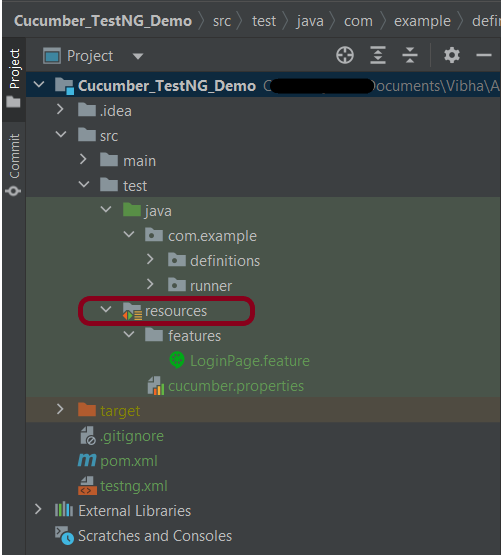
Step 8 – Add Selenium, TestNG, and Cucumber dependencies to the project
Add the below-mentioned Selenium, TestNG, and Cucumber dependencies to the project.
 <properties>
    <project.build.sourceEncoding>UTF-8</project.build.sourceEncoding>
    <cucumber.version>7.15.0</cucumber.version>
    <selenium.version>4.16.1</selenium.version>
    <testng.version>7.10.0</testng.version>
    <maven.compiler.plugin.version>3.12.1</maven.compiler.plugin.version>
    <maven.surefire.plugin.version>3.2.3</maven.surefire.plugin.version>
    <maven.compiler.source.version>17</maven.compiler.source.version>
    <maven.compiler.target.version>17</maven.compiler.target.version>
  </properties>

    <dependencies>

        <dependency>
            <groupId>io.cucumber</groupId>
            <artifactId>cucumber-java</artifactId>
            <version>${cucumber.version}</version>
        </dependency>

        <dependency>
            <groupId>io.cucumber</groupId>
            <artifactId>cucumber-testng</artifactId>
            <version>${cucumber.version}</version>
            <scope>test</scope>
        </dependency>

        <!-- Selenium -->
        <dependency>
            <groupId>org.seleniumhq.selenium</groupId>
            <artifactId>selenium-java</artifactId>
            <version>${selenium.version}</version>
        </dependency>

        <!-- TestNG -->
        <dependency>
            <groupId>org.testng</groupId>
            <artifactId>testng</artifactId>
            <version>${testng.version}</version>
            <scope>test</scope>
        </dependency>

    </dependencies>
Step 9 – Add Maven Compiler Plugin and SureFire Plugin
The compiler plugin is used to compile the source code of a Maven project. This plugin has two goals, which are already bound to specific phases of the default lifecycle:
- compile – compile main source files
- testCompile – compile test source files
<build>
        <plugins>
            <plugin>
                <groupId>org.apache.maven.plugins</groupId>
                <artifactId>maven-compiler-plugin</artifactId>
                <version>${maven.compiler.plugin.version}</version>
                <configuration>
                    <source>${maven.compiler.source.version}</source>
                    <target>${maven.compiler.target.version}</target>
                </configuration>
            </plugin>
            <plugin>
                <groupId>org.apache.maven.plugins</groupId>
                <artifactId>maven-surefire-plugin</artifactId>
                <version>${maven.surefire.plugin.version}</version>
                <configuration>
                    <suiteXmlFiles>
                        <suiteXmlFile>testng.xml</suiteXmlFile>
                    </suiteXmlFiles>
                </configuration>
            </plugin>
        </plugins>
    </build>
If you don’t add a compiler plugin to the POM.xml, the build will fail. This happens when you try to run the tests through Maven.
Then the build will fail with the below message.

The complete POM.xml is shown below.
<project xmlns="http://maven.apache.org/POM/4.0.0" xmlns:xsi="http://www.w3.org/2001/XMLSchema-instance"
  xsi:schemaLocation="http://maven.apache.org/POM/4.0.0 http://maven.apache.org/xsd/maven-4.0.0.xsd">
  <modelVersion>4.0.0</modelVersion>

  <groupId>com.example</groupId>
  <artifactId>Cucumber_TestNG_Demo</artifactId>
  <version>1.0-SNAPSHOT</version>
  <packaging>jar</packaging>

  <name>Cucumber_TestNG_Demo</name>
  <url>http://maven.apache.org</url>

  <properties>
    <project.build.sourceEncoding>UTF-8</project.build.sourceEncoding>
    <cucumber.version>7.15.0</cucumber.version>
    <selenium.version>4.16.1</selenium.version>
    <testng.version>7.10.0</testng.version>
    <maven.compiler.plugin.version>3.12.1</maven.compiler.plugin.version>
    <maven.surefire.plugin.version>3.2.3</maven.surefire.plugin.version>
    <maven.compiler.source.version>17</maven.compiler.source.version>
    <maven.compiler.target.version>17</maven.compiler.target.version>
  </properties>

  <dependencies>

    <dependency>
      <groupId>io.cucumber</groupId>
      <artifactId>cucumber-java</artifactId>
      <version>${cucumber.version}</version>
    </dependency>

    <dependency>
      <groupId>io.cucumber</groupId>
      <artifactId>cucumber-testng</artifactId>
      <version>${cucumber.version}</version>
      <scope>test</scope>
    </dependency>

    <!-- Selenium -->
    <dependency>
      <groupId>org.seleniumhq.selenium</groupId>
      <artifactId>selenium-java</artifactId>
      <version>${selenium.version}</version>
    </dependency>

    <!-- TestNG -->
    <dependency>
      <groupId>org.testng</groupId>
      <artifactId>testng</artifactId>
      <version>${testng.version}</version>
      <scope>test</scope>
    </dependency>

  </dependencies>
  <build>
    <plugins>
      <plugin>
        <groupId>org.apache.maven.plugins</groupId>
        <artifactId>maven-compiler-plugin</artifactId>
        <version>${maven.compiler.plugin.version}</version>
        <configuration>
          <source>${maven.compiler.source.version}</source>
          <target>${maven.compiler.target.version}</target>
        </configuration>
      </plugin>
      <plugin>
        <groupId>org.apache.maven.plugins</groupId>
        <artifactId>maven-surefire-plugin</artifactId>
        <version>${maven.surefire.plugin.version}</version>
        <configuration>
          <suiteXmlFiles>
            <suiteXmlFile>testng.xml</suiteXmlFile>
          </suiteXmlFiles>
        </configuration>
      </plugin>
    </plugins>
  </build>

</project>
Step 10 – Create a feature file under src/test/resources/features

It is recommended to create a features folder in the src/test/resources directory. Create all the feature files in this features folder. Feature file should be saved as an extension of .feature. The test scenarios in the Feature file are written in Gherkins language. Add the test scenarios in this feature file. I have added sample test scenarios.
Feature: Login to HRM Application

Background:
   Given User is on HRMLogin page "https://opensource-demo.orangehrmlive.com/"

   @ValidCredentials
   Scenario: Login with valid credentials

    When User enters username as "Admin" and password as "admin123"
    Then User should be able to login sucessfully and new page open

   @InvalidCredentials
   Scenario Outline: Login with invalid credentials

    When User enters username as "<username>" and password as "<password>"
    Then User should be able to see error message "<errorMessage>"

  Examples:
   | username   | password     | errorMessage                       |
   | Admin        | admin12$$   | Invalid credentials               |
   | admin$$     | admin123     | Invalid credentials               |
   | abc123        | xyz$$           | Invalid credentials               |
Step 11 – Create the step definition class in src/test/java
Create the step definition class corresponding to the feature file to test the scenarios in the src/test/java directory. The StepDefinition files should be created in this definitions directory within the folder called definitions.
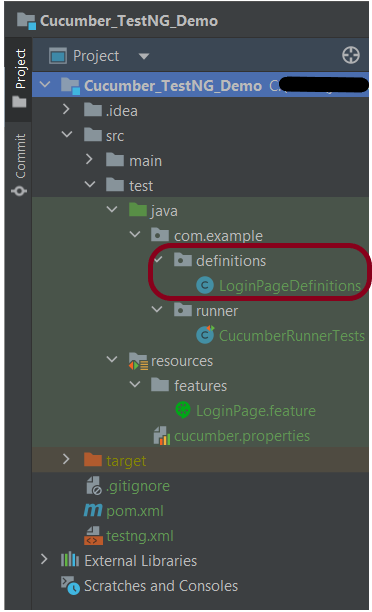
Below is the step definition of the LoginPage feature file.
package com.example.definitions;

import io.cucumber.java.After;
import io.cucumber.java.Before;
import io.cucumber.java.en.Given;
import io.cucumber.java.en.Then;
import io.cucumber.java.en.When;
import io.github.bonigarcia.wdm.WebDriverManager;
import org.openqa.selenium.By;
import org.openqa.selenium.WebDriver;
import org.openqa.selenium.chrome.ChromeDriver;
import org.openqa.selenium.chrome.ChromeOptions;
import org.testng.Assert;
import java.time.Duration;

public class LoginPageDefinitions {
    private static WebDriver driver;
    public final static int TIMEOUT = 5;

    @Before
    public void setUp() {

        ChromeOptions options = new ChromeOptions();
        options.addArguments("--start-maximized");
        driver = new ChromeDriver(options);
        driver.manage().timeouts().implicitlyWait(Duration.ofSeconds(TIMEOUT));

    }

    @Given("User is on HRMLogin page {string}")
    public void loginTest(String url) {

        driver.get(url);

    }

    @When("User enters username as {string} and password as {string}")
    public void goToHomePage(String userName, String passWord) {

        // login to application
        driver.findElement(By.name("username")).sendKeys(userName);
        driver.findElement(By.name("password")).sendKeys(passWord);
        driver.findElement(By.xpath("//*[@class='oxd-form']/div[3]/button")).submit();

    }

    @Then("User should be able to login successfully and new page open")
    public void verifyLogin() {

        String homePageHeading = driver.findElement(By.xpath("//*[@class='oxd-topbar-header-breadcrumb']/h6")).getText();

        //Verify new page - HomePage
        Assert.assertEquals(homePageHeading, "Dashboard");

    }

    @Then("User should be able to see error message {string}")
    public void verifyErrorMessage(String expectedErrorMessage) {

        String actualErrorMessage = driver.findElement(By.xpath("//*[@class='orangehrm-login-error']/div[1]/div[1]/p")).getText();

        // Verify Error Message
        Assert.assertEquals(actualErrorMessage, expectedErrorMessage);

    }

    @After
    public void teardown() {

        driver.quit();
    }

}
assertThat() and containsString are imported from package:-
import static org.hamcrest.MatcherAssert.assertThat;
import static org.hamcrest.Matchers.containsString;
Step 12 – Create a TestNG Cucumber Runner class in src/test/java
We need to create a class called Runner class to run the tests. This class will use the TestNG annotation @RunWith(), which tells TestNG what is the test runner class. TestRunner should be created under src/test/java within the folder called runner.

Below is the code for the Cucumber Runner Class.
import io.cucumber.testng.AbstractTestNGCucumberTests;
import io.cucumber.testng.CucumberOptions;

@CucumberOptions(tags = "", features = {"src/test/resources/features/LoginPage.feature"}, glue = {"com.example.definitions"},
                 plugin = {})

public class CucumberRunnerTests extends AbstractTestNGCucumberTests {

}
AbstractTestNGCucumberTests – Runs each cucumber scenario found in the features as a separate test.
Step 13 – Test Execution through TestNG
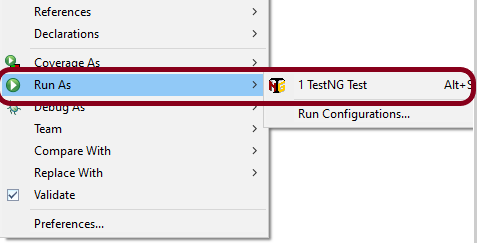
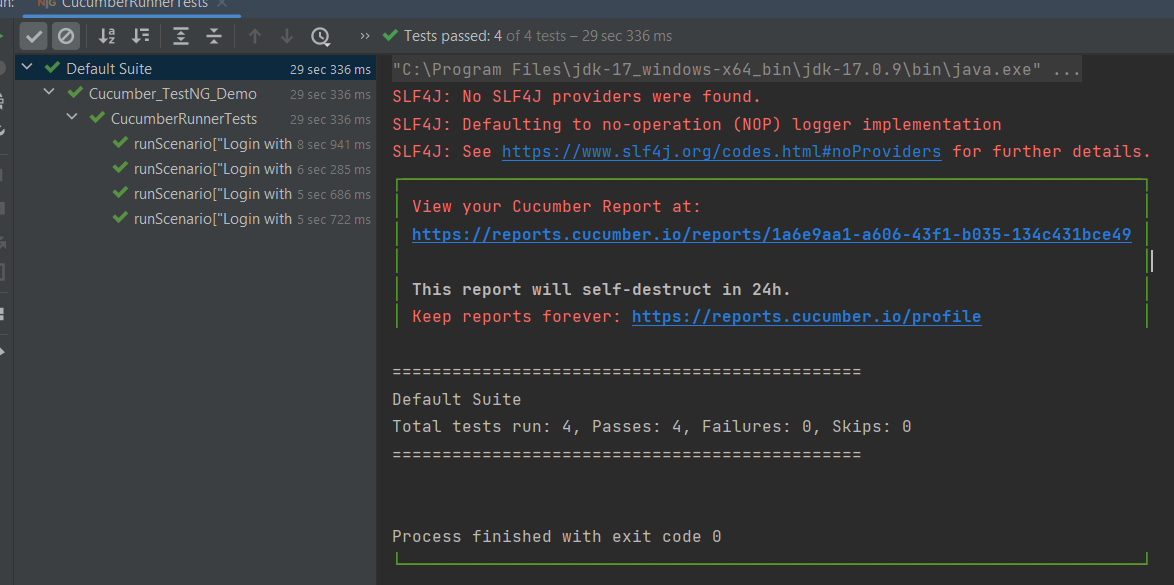
Go to the Runner class and right-click “Run As TestNG Test”. The tests will run as TestNG tests. This is for Eclipse.
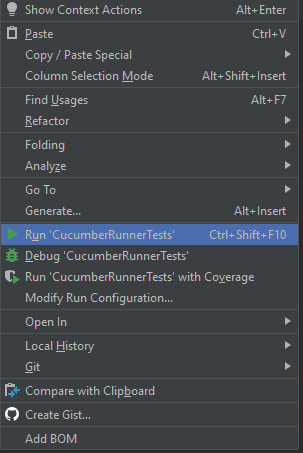
In case you are using IntelliJ, then select “Run CucumberRunner Tests“.
This is what the execution console will look like in Eclipse.
Step 14 – Run the tests from TestNG.xml
Create a TestNG.xml as shown below and run the tests as TestNG.

Below is an example of testng.xml.
<?xml version="1.0" encoding="UTF-8"?>
<!DOCTYPE suite SYSTEM "https://testng.org/testng-1.0.dtd">
<suite name="Suite">
  <test  name="Cucumber with TestNG Test">
    <classes>
      <class name="com.example.runner.CucumberRunnerTests"/>
    </classes>
  </test> <!-- Test -->
</suite> <!-- Suite -->
Step 15 – Run the tests from the Command Line
Run the below command in the command prompt to run the tests and to get the test execution report.
mvn clean test
The execution screen looks like something as shown below.

Step 16 – Cucumber Report Generation
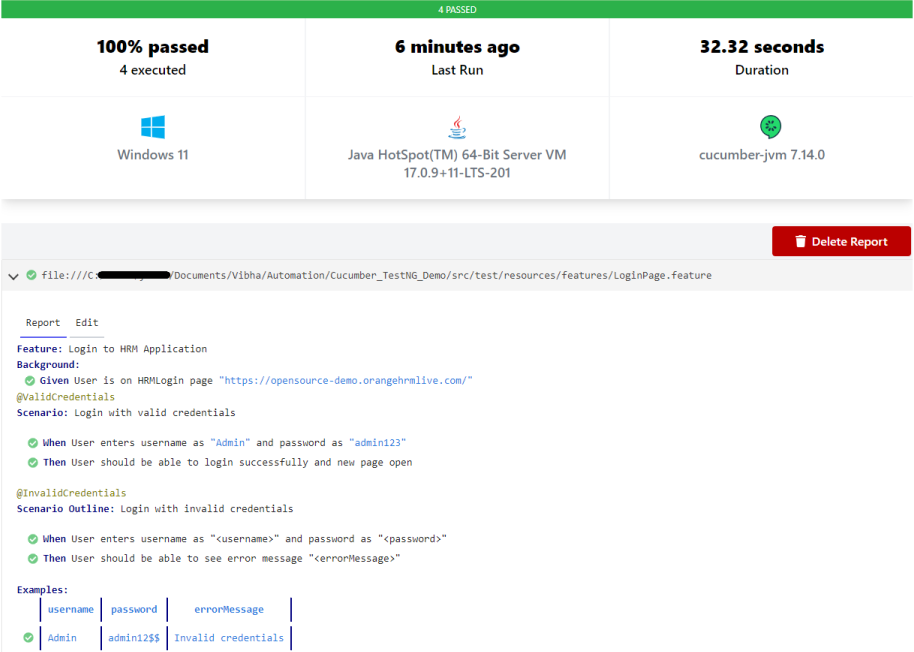
Add cucumber.properties under src/test/resources and add the below instructions in the file.
cucumber.publish.enabled=true
Below is the image of the Cucumber Report generated using the Cucumber Service.
Step 17 – TestNG Report Generation
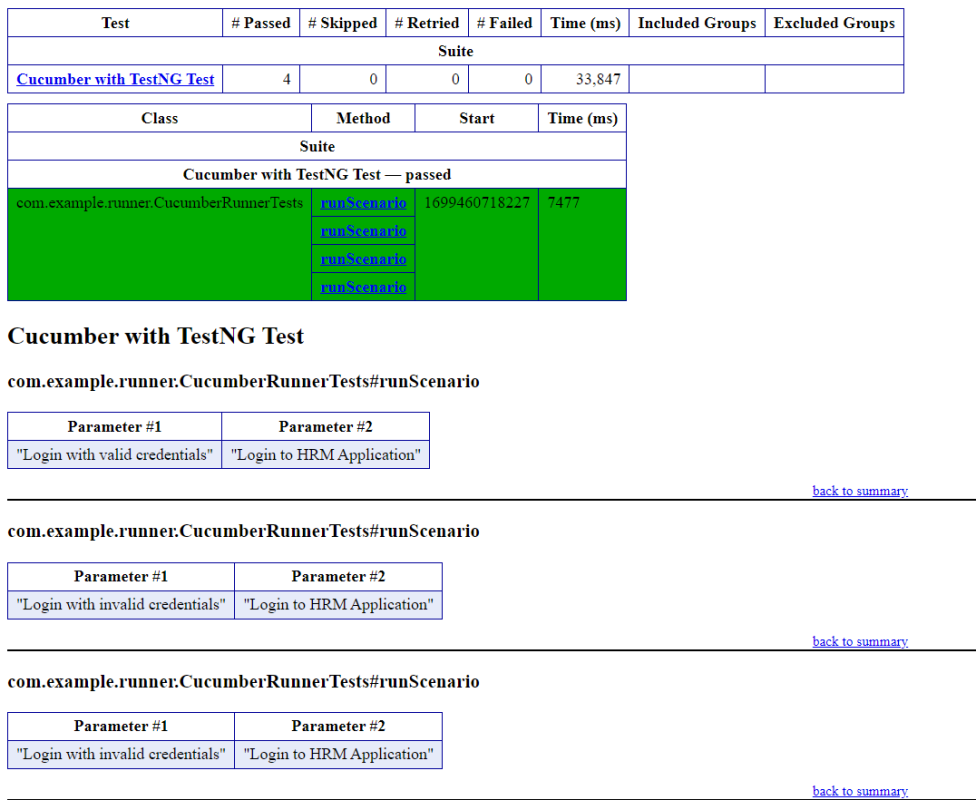
TestNG generates various types of reports under the test-output or target folder like emailable-report.html, index.html, testng-results.xml.

We are interested in the ‘emailable-report.html’ report. Open “emailable-report.html“, as this is an HTML report, and open it with the browser. The below image shows emailable-report.html.
emailable-report.html
Index.html
TestNG also produces “index.html” report, and it resides under the test-output folder. The below image shows the index.html report.

CI/CD Integration:
Integrating BDD tests with Continuous Integration and Continuous Deployment (CICD) pipelines helps automate the testing process. Tools like Jenkins, GitLab CI, or GitHub Actions can be configured easily. They run BDD tests automatically during the build process. Here’s how:
- Configure the CICD Pipeline: Set up the pipeline to build the project, run tests, and create reports.
- Run Tests: Ensure the pipeline runs your BDD tests using Maven or Gradle.
- Publish Reports: Configure the pipeline to show test results, so you can easily see if there are any issues.
Troubleshooting Tips:
1. Maven Dependencies Not Resolved: The dependencies for Cucumber, Selenium, or TestNG are not resolving in your project. Make sure your pom.xml is correctly configured and the Maven repository has the latest dependencies. Run mvn clean install to force update dependencies. Also, check if you have internet access and the correct settings in your Maven configuration.
2. TestNG XML File Setup: TestNG tests are not running as expected, or the test results are incorrect. Double-check your `testng.xml` configuration to ensure that the correct test classes, packages, or methods are included. Make sure annotations like `@Test` are correctly used in your test classes.
3. Cucumber Features Not Recognized: Cucumber feature files aren’t recognized by your test runner. Verify your `CucumberOptions` in the test runner class points to the correct `features` path and `glue` path for step definitions. Make sure your feature files have the correct `.feature` extension and contain valid Gherkin syntax.
The complete code can be found on GitHub.
If you like to use Cucumber with Page Object Model, please refer to this tutorial – Page Object Model with Selenium, Cucumber, and TestNG.
Congratulations on making it through this tutorial and hope you found it useful! Happy Learning!! Cheers!!
 QA Automation Expert