How to use Constant Timer in JMeter

Last Updated On

HOME

In this tutorial, we will discuss the Constant Timer in JMeter and its use in Load Testing.

Table of Contents

The sample request and response used in this tutorial is shown below:

Sample Request

{
    "name": "JMeter",
    "job": "Testing"
}

Sample Response

{
  "name":"JMeter",
  "job":"Testing",
  "id":"809",
  "createdAt":"2023-07-27T18:46:18.038Z"
}

Create a Test Plan in JMeter


Step 1 –  Add Thread Group

  • Select Test Plan on the tree
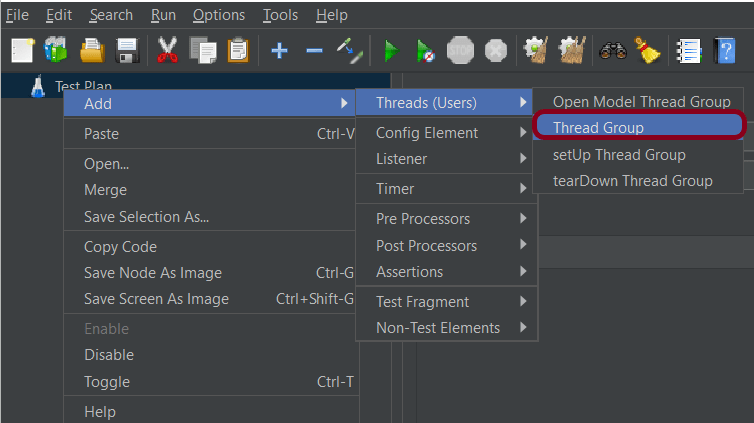
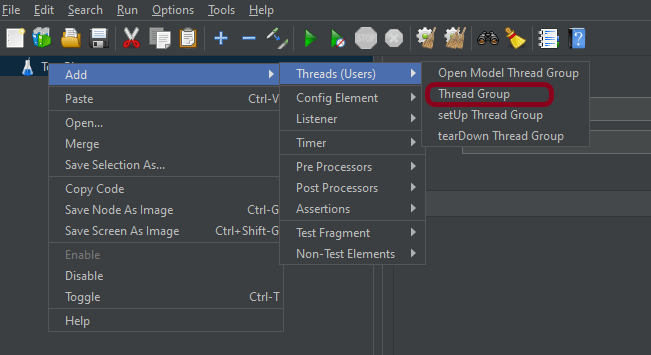
  • Add Thread Group                                                                                                                               To add Thread Group: Right-click on the “Test Plan” and add a new thread group: Add -> Threads (Users) -> Thread Group

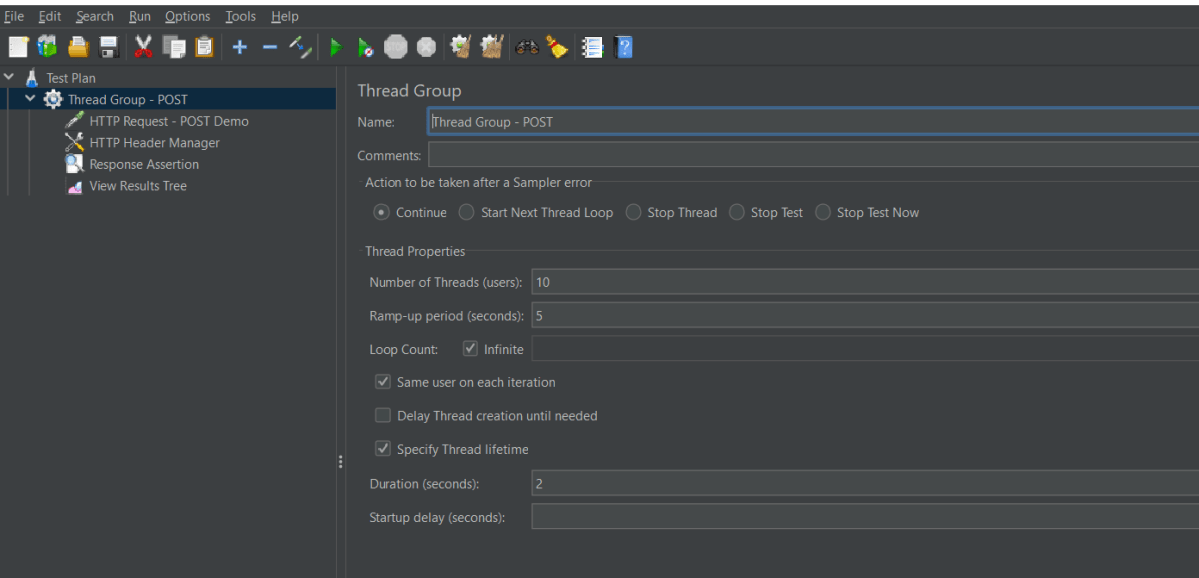
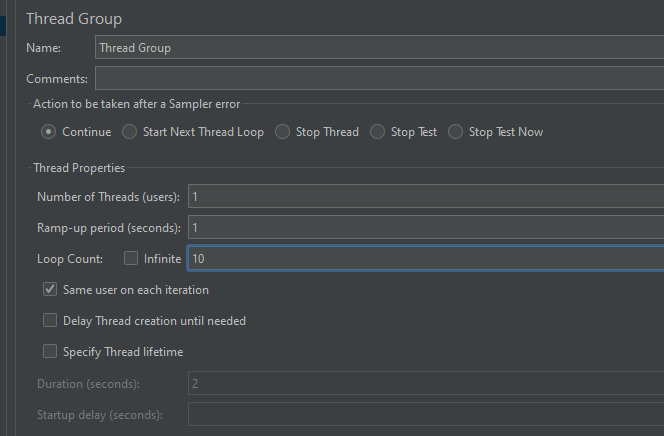
In the Thread Group control panel, enter Thread Properties as follows: We will take an example of row no 5

Number of Threads: 1 – Number of users connects to the target website
Loop Count: 10  – Number of times to execute testing
Ramp-Up Period: 1 – It tells JMeter how long to delay before starting the next user. For example, if we have 5 users and a 5 -second Ramp-Up period, then the delay between starting users would be 1 second (5 seconds /5 users).
Step 2 –  Add HTTP Request Sampler 

The JMeter element used here is HTTP Request Sampler. In HTTP Request Control Panel, the Path field indicates which URL request you want to send


Add HTTP Request Sampler
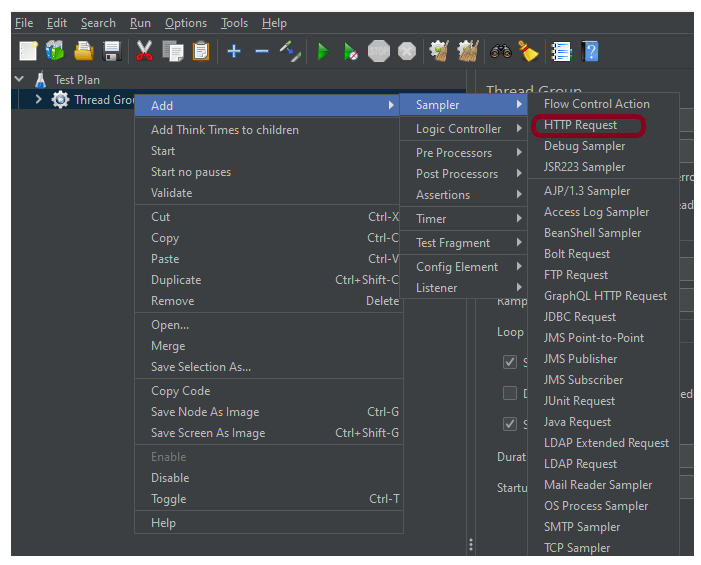
To add: Right-click on Thread Group and select: Add -> Sampler -> HTTP Request

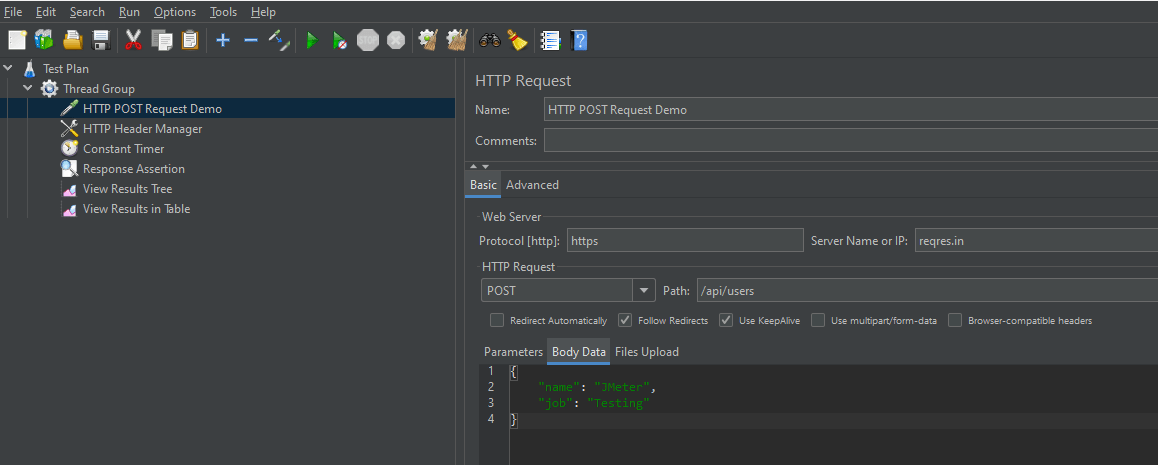
The below-mentioned are the values used in HTTP Request to perform the test

  • Name – HTTP POST Request Demo
  • Server Name or IP – reqres.in
  • Protocol – https
  • Method – POST
  • Path – /api/users

Step 3 – Add HTTP Head Manager

The Header Manager lets you add or override HTTP request headers like can add Accept-Encoding, Accept, Cache-Control

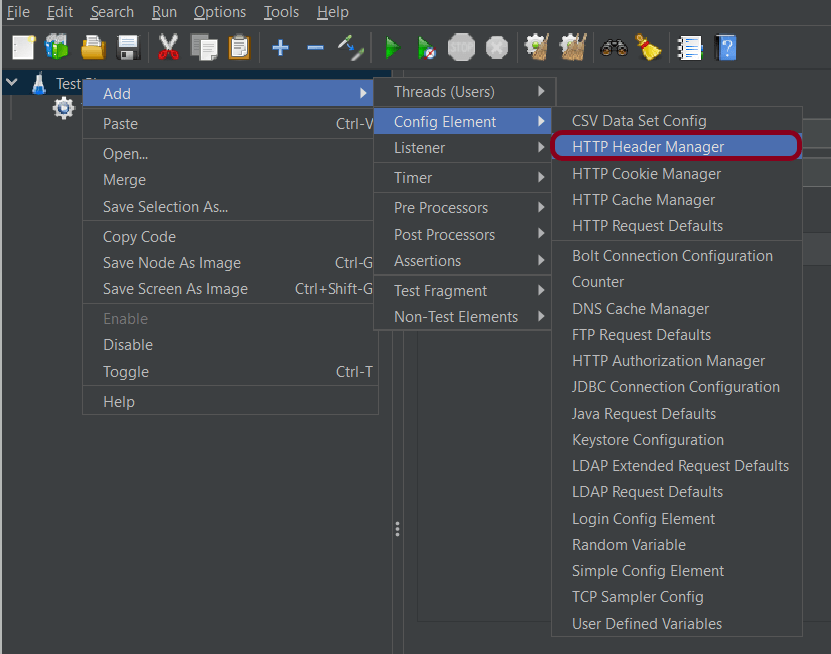
To add: Right-click on Thread Group and select: Add -> Config Element -> HTTP Read Manager

The below-mentioned are the values used in Http Request to perform the test
Content-type = application/json

Below is the image once HTTP Header Manager is added to the Test Plan.

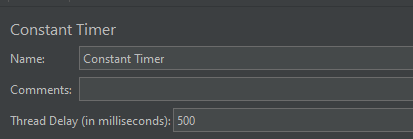
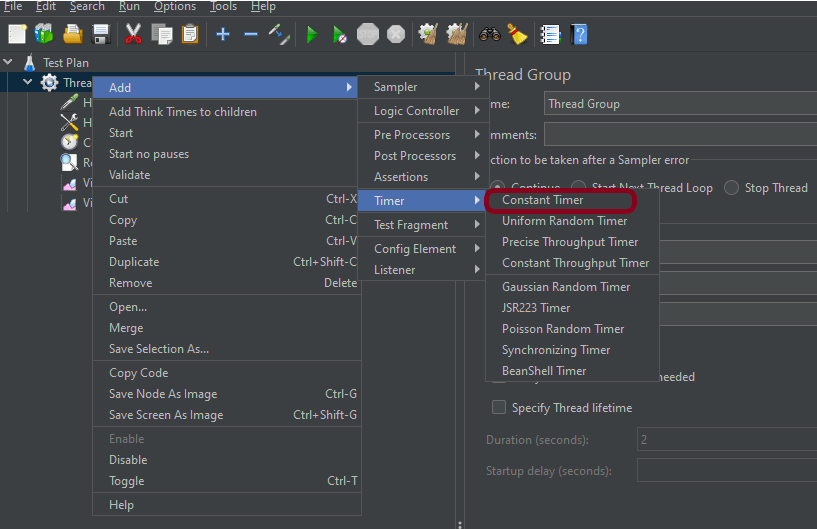
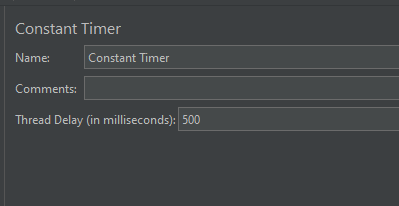
Step 4 – Add a Constant Timer

Step 6 – Adding Listeners to Test Plan

Listeners – They show the results of the test execution. They can show results in a different format such as a tree, table, graph, or log file
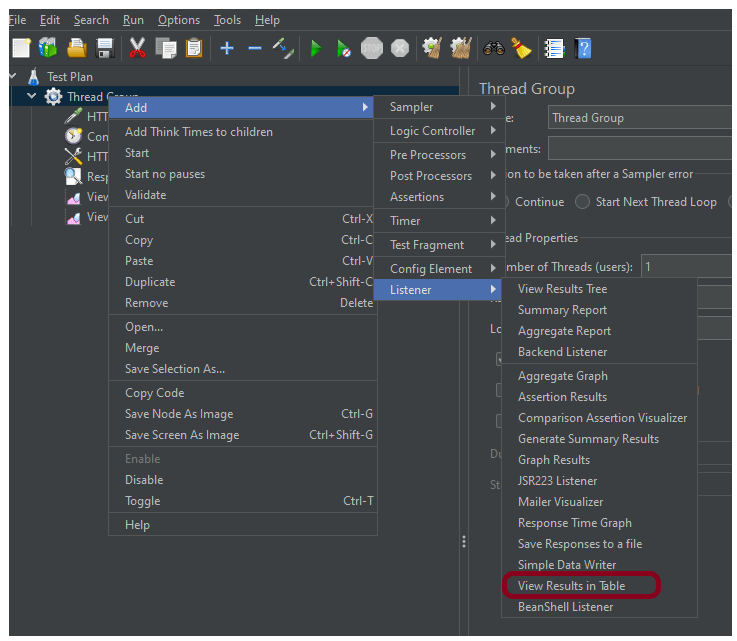
We are adding the View Result in Table

View Result in Table – The View Result in Table listener displays information about each sample in the form of a table. 
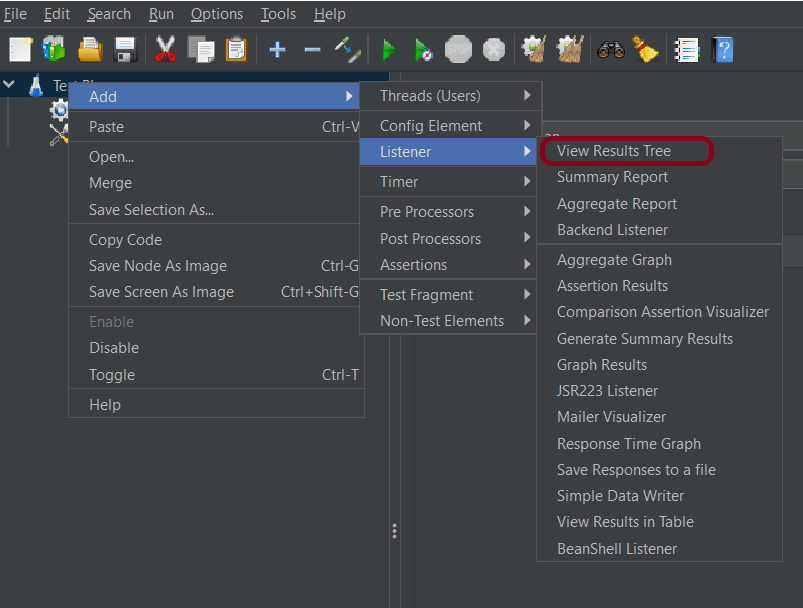
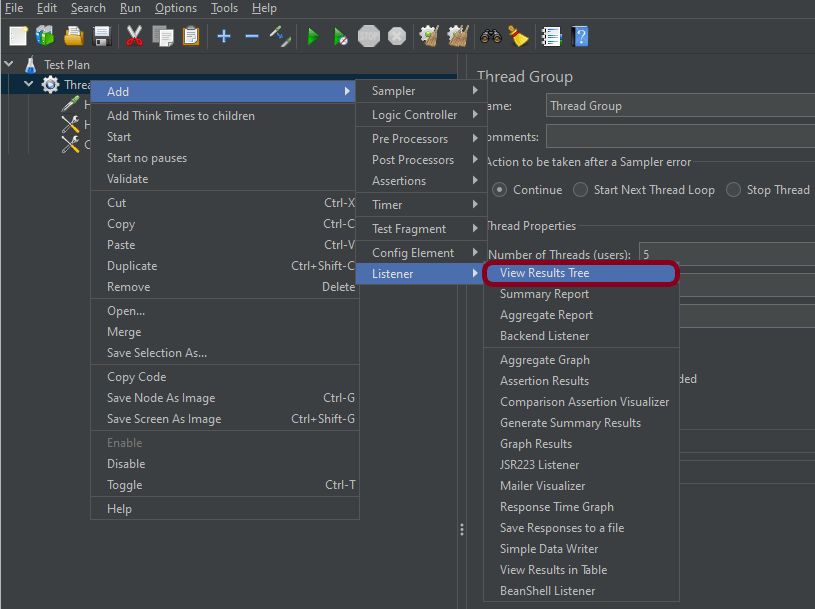
To add: Right-click on Test Plan, Add -> Listener -> View Result in Table
Note – Don’t use “View Results Tree” or “View Results in Table” listeners during the load test, use them only during the scripting phase to debug your scripts.

Step 7 – Save the Test Plan

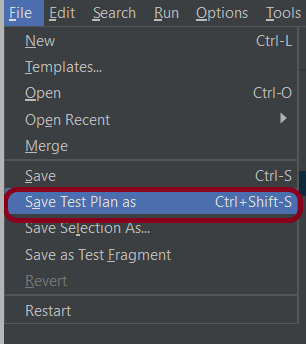
To Save: Click File Select -> Save Test Plan as ->Give the name of the Test Plan. It will be saved in .jmx format.

Step 8  – Run the Test Plan

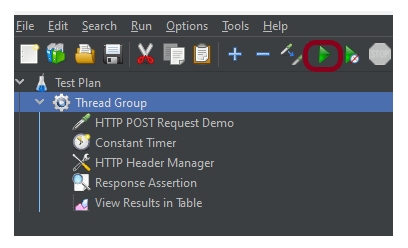
Click on the Green Triangle as shown at the top to run the test.
Step 9 – View the Execution Status

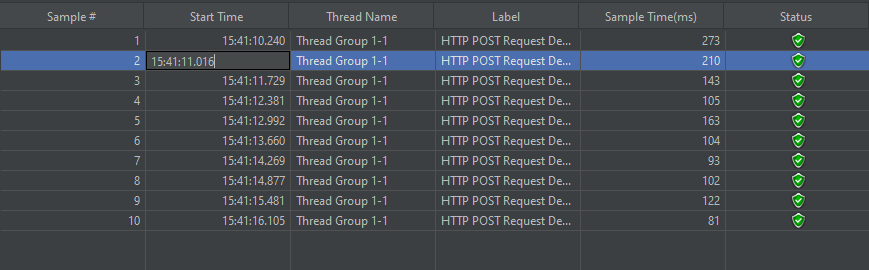
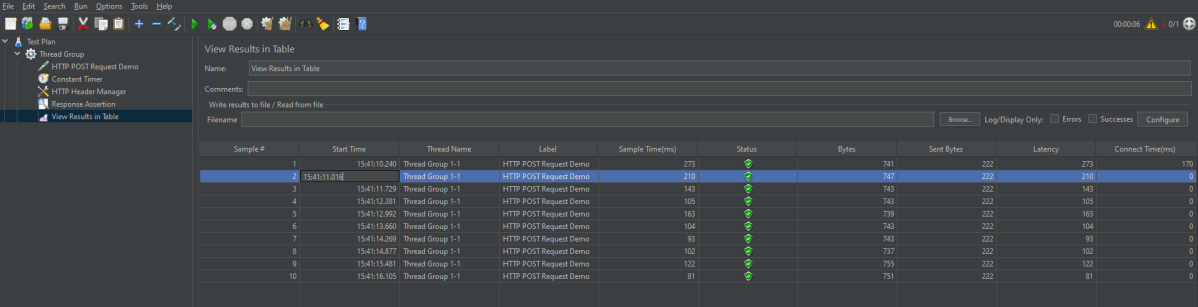
Click on View Result in Table to see the status of Run. A successful request will be of a Green colour in the Text Section.
Additional Tutorials

How to send POST requests in JMeter
JMeter Authorization with access token
How to generate JMeter HTML Report? 
Constant Throughput Timer in JMeter
How to generate JMeter HTML Report?

How to use Uniform Random Timer in JMeter

Last Updated On

HOME

In this tutorial, we will discuss the Uniform Random Timer in JMeter and its use in Load Testing.

Table of Contents

The sample request and response used in this tutorial is shown below:

Sample Request

{
    "name": "JMeter",
    "job": "Testing"
}

Sample Response

{
  "name":"Test",
  "job":"JMeter",
  "id":"955",
  "createdAt":"2023-07-27T15:46:18.038Z"
}

Create a Test Plan in JMeter


Step 1 –  Add Thread Group

  • Select Test Plan on the tree
  • Add Thread Group                                                                                                                               To add Thread Group: Right-click on the “Test Plan” and add a new thread group: Add -> Threads (Users) -> Thread Group

In the Thread Group control panel, enter Thread Properties as follows: We will take an example of row no 5

Number of Threads: 1 – Number of users connects to the target website
Loop Count: 10  – Number of times to execute testing
Ramp-Up Period: 1 – It tells JMeter how long to delay before starting the next user. For example, if we have 5 users and a 5 second Ramp-Up period, then the delay between starting users would be 1 second (5 seconds /5 users).

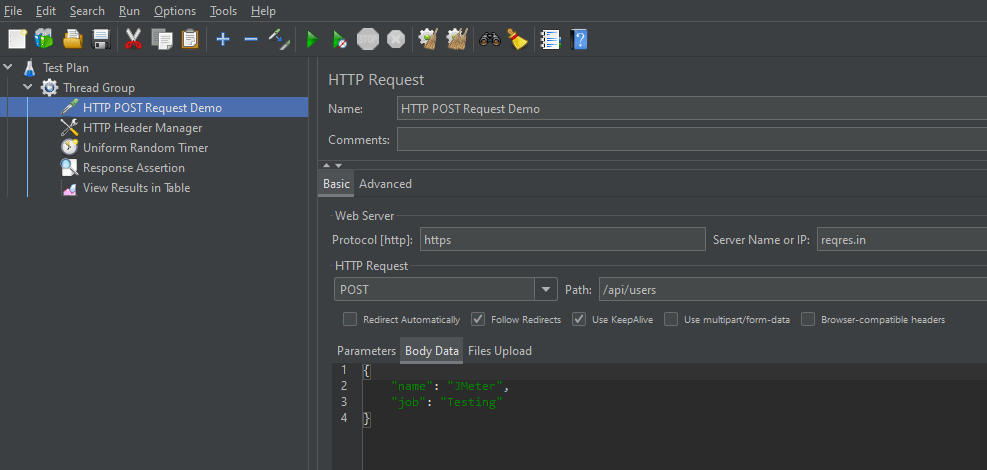
Step 2 –  Add HTTP Request Sampler 

The JMeter element used here is the HTTP Request Sampler. In the HTTP Request Control Panel, the Path field indicates which URL request you want to send


Add HTTP Request Sampler
To add: Right-click on Thread Group and select: Add -> Sampler -> HTTP Request

The below-mentioned are the values used in HTTP Request to perform the test

  • Name – Parameterized HTTP Request
  • Server Name or IP – reqres.in
  • Protocol – https
  • Method – POST
  • Path – /api/users

Step 3 – Add HTTP Head Manager

The Header Manager lets you add or override HTTP request headers like can add Accept-Encoding, Accept, Cache-Control

To add: Right-click on Thread Group and select: Add -> Config Element -> HTTP Read Manager

The below-mentioned are the values used in HTTP Request to perform the test
Content-type = application/json

Below is the image once HTTP Header Manager is added to the Test Plan.

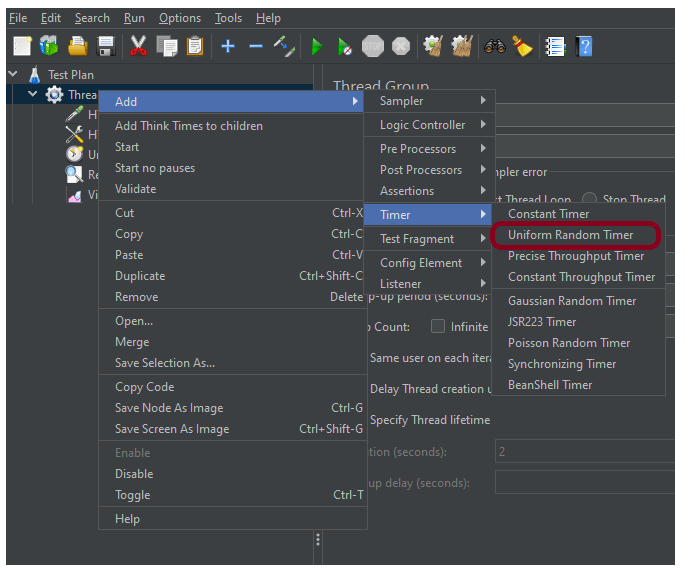
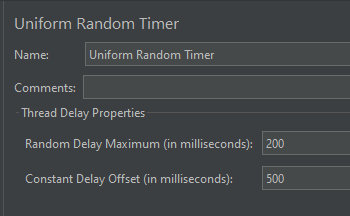
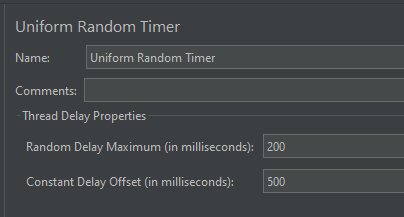
Step 4 – Add a Uniform Random Timer

Step 6 – Adding Listeners to the Test Plan

Listeners – They show the results of the test execution. They can show results in a different format such as a tree, table, graph, or log file
We are adding the View Result in Table

View Result in Table – The View Result in Table listener displays information about each sample in the form of a table. 
To add: Right-click on Test Plan, Add -> Listener -> View Result in Table

Note – Don’t use “View Results Tree” or “View Results in Table” listeners during the load test, use them only during the scripting phase to debug your scripts.

Step 7 – Save the Test Plan

To Save: Click File Select -> Save Test Plan as ->Give the name of the Test Plan. It will be saved in .jmx format.

Step 8  – Run the Test Plan

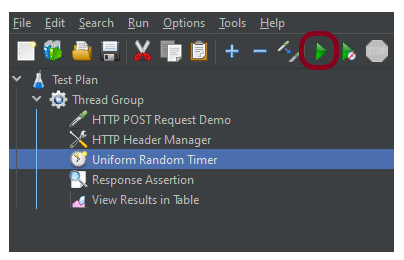
Click on the Green Triangle as shown at the top to run the test.

Step 9 – View the Execution Status

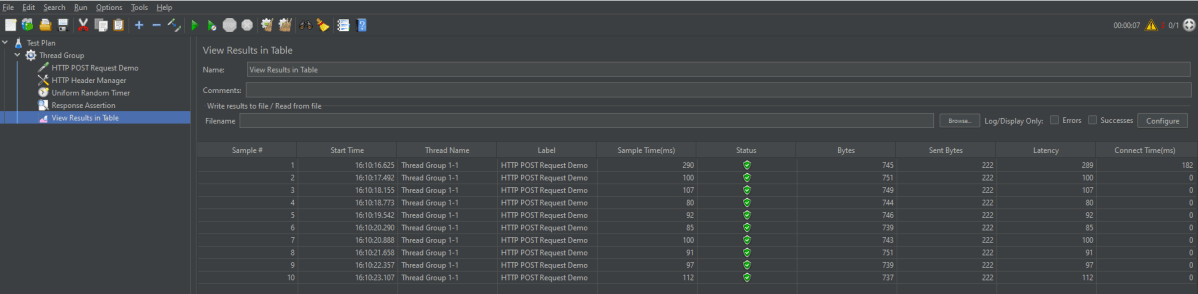
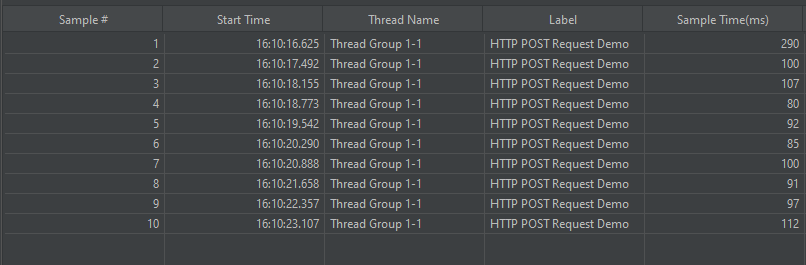
Click on View Result in Table to see the status of Run. A successful request will be of a Green colour in the Text Section.

We are done! Congratulations on making it through this tutorial and hope you found it useful! Happy Learning!!

Additional Tutorials
How to send POST requests in JMeter
JMeter Authorization with access token
How to generate JMeter HTML Report? 
Constant Throughput Timer in JMeter
How to generate JMeter HTML Report?

How to use the JMeter Maven Plugin

Last Modified Date

HOME

In this tutorial, we will integrate JMeter with Maven to support CI/CD.

Maven and jmeter-maven-plugin make it easy to integrate performance tests with CI/CD tools & technologies such as Jenkins/Jenkinsfiles or Azure/Azure pipelines and cloud build agents. It also helps to run your tests with different versions of JMeter.

Table of Contents

  1. What is JMeter Maven Plugin
  2. How to use the JMeter Maven Plugin
    1. Create a new Maven Project
    2. Compile the new project
    3. Add Maven Compiler Plugin
    4. Add JMeter Maven Plugin
    5. Create a new directory src/test/jmeter and place JMeter Script in it
    6. Run JMeter Test with JMeter Maven Plugin
  3. Create a Test Plan in JMeter
    1. Add Thread Group
    2. Adding JMeter elements
    3. Adding Listeners to Test Plan
    4. Save the Test Plan

What is JMeter Maven Plugin

This is a Maven 3 plugin that allows you to run JMeter tests as part of the build.

How to use the JMeter Maven Plugin

Step 1 – Create a new Maven Project

A new project will be created with pom.xml as shown below

pom.xml is our Maven project main file, which contains all the necessary information and dependencies bound to our project.

Step 2 – Compile the new project

Compile the project by using the below command

mvn clean compile

The compilation fails with the errors as shown below:

Step 3 – Add Maven Compiler Plugin

Add the Maven Compiler plugin in the build section of the pom.xml.

<build>
    <plugins>
      <plugin>
        <groupId>org.apache.maven.plugins</groupId>
        <artifactId>maven-compiler-plugin</artifactId>
        <version>3.11.0</version>
        <configuration>
          <source>11</source>
          <target>11</target>
        </configuration>
      </plugin>
    </plugins>
  </build>

Rerun compile command and this time the build is successful.

Step 4 – Add JMeter Maven Plugin

Add the JMeter Maven plugin to the build section of the pom.xml.

<plugin>
                <groupId>com.lazerycode.jmeter</groupId>
                <artifactId>jmeter-maven-plugin</artifactId>
                <version>3.6.0</version>
                <executions>
                    <!-- Generate JMeter configuration -->
                    <execution>
                        <id>configuration</id>
                        <goals>
                            <goal>configure</goal>
                        </goals>
                    </execution>
                    <!-- Run JMeter tests -->
                    <execution>
                        <id>jmeter-tests</id>
                        <goals>
                            <goal>jmeter</goal>
                        </goals>
                    </execution>
                    <!-- Fail build on errors in test -->
                    <execution>
                        <id>jmeter-check-results</id>
                        <goals>
                            <goal>results</goal>
                        </goals>
                    </execution>
                </executions>
                <configuration>
                    <generateReports>true</generateReports>
                </configuration>
            </plugin>

Step 5 – Create a new directory src/test/jmeter and place JMeter Script in it

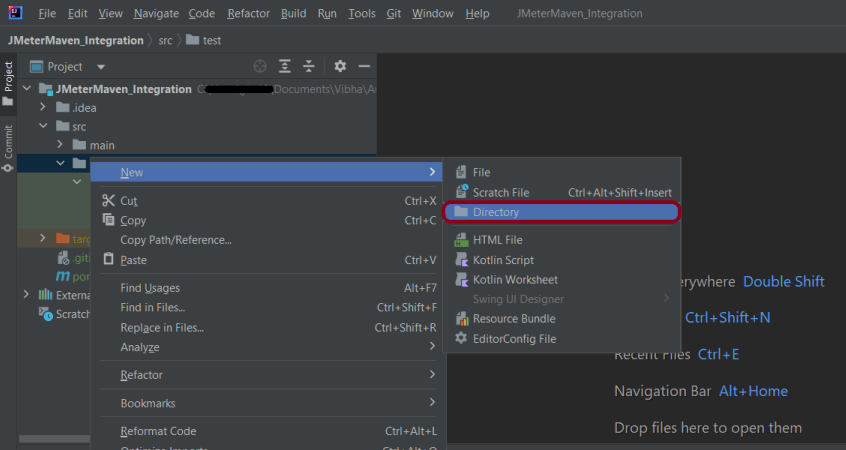
Create a new directory within src/test with the name jmeter.

Place the JMeter script(.jmx) file in src/test/jmeter. The steps to create a Test Plan in JMeter are mentioned at the end of the page.

Step 6 – Run JMeter Test with JMeter Maven Plugin

Go to your project directory and run the following command in the command line:

mvn clean verify

The test execution is displayed in the command line as shown below:

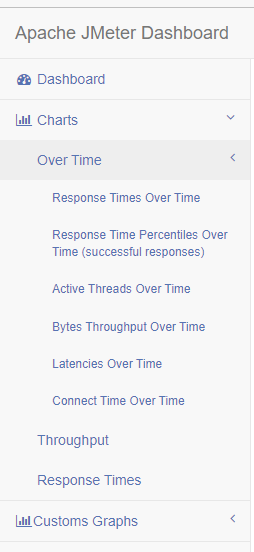
The test ran successfully! The results are located at /target/jmeter/reports. You will find an HTML report named “Index.html”:

This report provides the following metrics:

In the Dashboard of the report;

  • APDEX (Application Performance Index) table that computes for every transaction the APDEX based on configurable values for tolerated and satisfied thresholds
  • A request summary graph showing the Success and failed requests

A Statistics table providing in one table a summary of all metrics per transaction including 3 configurable percentiles:

An error table providing a summary of all errors and their proportion in the total requests

A Top 5 Errors by Sampler table providing for every Sampler (excluding Transaction Controller by default) the top 5 Errors:

You can see that there are a lot of other types of reports too. You should explore these reports.

Create a Test Plan in JMeter

Sample Request

{
    "name": "Test",
    "job": "JMeter"
}

Sample Response

{
  "name":"Test",
  "job":"JMeter",
  "id":"955",
  "createdAt":"2023-07-03T15:46:18.038Z"
}


Step 1 –  Add Thread Group

  • Select Test Plan on the tree
  • Add Thread Group                                                                                                                               To add Thread Group: Right-click on the “Test Plan” and add a new thread group: Add -> Threads (Users) -> Thread Group

In the Thread Group control panel, enter Thread Properties as follows: We will take an example of row no 5

Number of Threads: 5 – Number of users connects to the target website
Loop Count: Infinite  – Number of times to execute testing
Ramp-Up Period: 5 – It tells JMeter how long to delay before starting the next user. For example, if we have 5 users and a 5 -second Ramp-Up period, then the delay between starting users would be 1 second (5 seconds /5 users).

Duration – 2 sec

Step 2 –  Adding JMeter elements  

The JMeter element used here is HTTP Request Sampler. In HTTP Request Control Panel, the Path field indicates which URL request you want to send


2.1 Add HTTP Request Sampler
To add: Right-click on Thread Group and select: Add -> Sampler -> HTTP Request

The below-mentioned are the values used in HTTP Request to perform the test

  • Name – HTTP POST Request Demo
  • Server Name or IP – reqres.in
  • Port – Blank
  • Method – POST
  • Path – /api/users

2.2 Add HTTP Head Manager

The Header Manager lets you add or override HTTP request headers like can add Accept-Encoding, Accept, Cache-Control

To add: Right-click on Thread Group and select: Add -> Config Element -> HTTP Read Manager

The below-mentioned are the values used in Http Request to perform the test
Content-type = application/json

Step 3 – Adding Listeners to Test Plan

Listeners – They show the results of the test execution. They can show results in a different format such as a tree, table, graph, or log file
We are adding the View Result Tree listener

View Result Tree – View Result Tree shows the results of the user request in basic HTML format
To add: Right-click on Test Plan, Add -> Listener -> View Result Tree

Aggregate Report

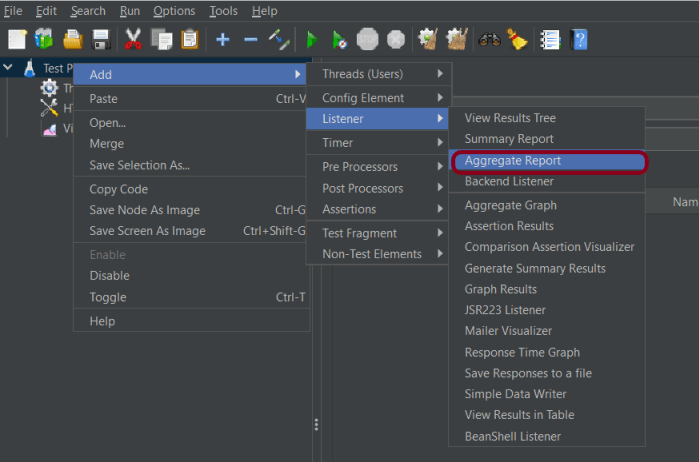
It is almost the same as Summary Report except Aggregate Report gives a few more parameters like, “Median”, “90% Line”, “95% Line” and “99% Line”.

 To add: Right Click on Thread Group > Add > Listener > Aggregate Report

Step 4 – Save the Test Plan

To Save: Click File Select -> Save Test Plan as ->Give the name of the Test Plan (POST_LoadDemo.jmx). It will be saved in .jmx format.

We are done! Congratulations on making it through this tutorial and hope you found it useful! Happy Learning!!

How to parameterize requests in JMeter

Last Updated On

HOME

Parameterization is a method that allows us to run a test plan several times with various sets of data. This aids in the development of a load test script that closely resembles real-world circumstances in which various users utilize different test data.
Assume we need to do a load test on a search engine such as Bing. The initial step will be to document the search circumstance. To conduct an effective load test, we cannot just playback the script for 500 users. We should mimic 500 distinct users searching for 500 different items. We may utilize parameterization for this, with a CSV file containing 500 distinct search phrases. Now instead of the static search item that we had recorded in our script, we can include the search items from the CSV file dynamically.

Table of Contents

  1. Create a Test Plan in JMeter
    1. Add Thread Group
    2. Add HTTP Request Sampler 
    3. Add HTTP Head Manager
    4. Add CSV Data Set Config
    5. Adding Listeners to Test Plan
    6. Save the Test Plan
    7. Run the Test Plan
    8. View the Execution Status

The sample request and response used in this tutorial is shown below:

Sample Request

{
    "name": "Test",
    "job": "JMeter"
}

Sample Response

{
  "name":"Test",
  "job":"JMeter",
  "id":"955",
  "createdAt":"2023-07-03T15:46:18.038Z"
}

Create a Test Plan in JMeter


Step 1 –  Add Thread Group

  • Select Test Plan on the tree
  • Add Thread Group                                                                                                                               To add Thread Group: Right-click on the “Test Plan” and add a new thread group: Add -> Threads (Users) -> Thread Group

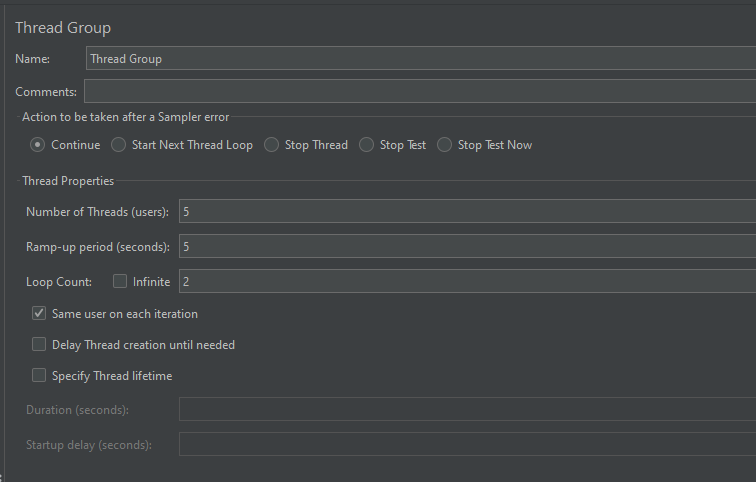
In the Thread Group control panel, enter Thread Properties as follows: We will take an example of row no 5

Number of Threads: 5 – Number of users connects to the target website
Loop Count: 2  – Number of times to execute testing
Ramp-Up Period: 5 – It tells JMeter how long to delay before starting the next user. For example, if we have 5 users and a 5 -second Ramp-Up period, then the delay between starting users would be 1 second (5 seconds /5 users).

Step 2 –  Add HTTP Request Sampler 

The JMeter element used here is HTTP Request Sampler. In HTTP Request Control Panel, the Path field indicates which URL request you want to send


Add HTTP Request Sampler
To add: Right-click on Thread Group and select: Add -> Sampler -> HTTP Request

The below-mentioned are the values used in HTTP Request to perform the test

  • Name – Parameterized HTTP Request
  • Server Name or IP – reqres.in
  • Port
  • Protocol – https
  • Method – POST
  • Path – /api/users

Here, we are parameterizing the test data for name and job attributes.

Step 3 – Add HTTP Head Manager

The Header Manager lets you add or override HTTP request headers like can add Accept-Encoding, Accept, Cache-Control

To add: Right-click on Thread Group and select: Add -> Config Element -> HTTP Read Manager

The below-mentioned are the values used in Http Request to perform the test
Content-type = application/json

Below is the image once HTTP Header Manager is added to the Test Plan.

Step 4 – Add CSV Data Set Config

The ‘CSV Data Set Config’ element is used to read lines from a file and split them into variables. It is well suited to handle large numbers of variables and is also useful for testing with random and unique values.

To add: Right-click on Thread Group and select: Add -> Config Element -> CSV Data Set Config

Fill in the data in the required fields.

Let’s have a look at how the CSV Data Set is configured:

  • Filename: the path to the CSV file containing the data,
  • File Encoding: can be UTF-8 for example. The character encoding affects how the file is read,
  • Variable Names: comma-delimited list of names, should be an equal number of names than columns in CSV file. Example: name, job.
  • Ignore First Linefalse by default, whenever to ignore the first line as a value (because it may contain the column names),
  • Delimiter, by default, can be set to anything else. Suggestion: stick with the default one,
  • Allow Quoted Datafalse by default, set to true if you have double quotes in CSV columns,
  • Recycle on EOFtrue by default, should JMeter restart from the beginning when the End Of File is reached,
  • Stop Thread on EOF: stops the current thread gathering the value if EOF is reached,
  • Sharing Mode: defines how values are distributed among concurrent threads.

Below is the CSV file that has the data for the name and job attributes of the request.

Step 5 – Adding Listeners to Test Plan

Listeners – They show the results of the test execution. They can show results in a different format such as a tree, table, graph, or log file
We are adding the View Result Tree listener

View Result Tree – View Result Tree shows the results of the user request in basic HTML format
To add: Right-click on Test Plan, Add -> Listener -> View Result Tree

Note – Don’t use “View Results Tree” or “View Results in Table” listeners during the load test, use them only during the scripting phase to debug your scripts.

Aggregate Report

It is almost the same as Summary Report except Aggregate Report gives a few more parameters like, “Median”, “90% Line”, “95% Line” and “99% Line”.

 To add: Right Click on Thread Group > Add > Listener > Aggregate Report

Step 6 – Save the Test Plan

To Save: Click File Select -> Save Test Plan as ->Give the name of the Test Plan. It will be saved in .jmx format.

Step 7  – Run the Test Plan

Click on the Green Triangle as shown at the top to run the test.

Step 8 – View the Execution Status

Click on View Result Tree to see the status of Run. A successful request will be of a Green colour in the Text Section.

We can see that Performance and Test2 are present in the CSV file. The script has to read the data from the file and passed it to the request.

Click on Response data and Response Header to view other information about Response.

Click on Aggregate Report Result to see the aggregated status of Run.

We are done! Congratulations on making it through this tutorial and hope you found it useful! Happy Learning!!

Additional Tutorials
How to send POST requests in JMeter
JMeter Authorization with access token
How to generate JMeter HTML Report? 
Constant Throughput Timer in JMeter
How to generate JMeter HTML Report?

Integration of JMeter with Jenkins

Last Updated On

HOME

Integrating JMeter with Jenkins is a powerful way to enhance CI/CD pipelines by automating performance testing. In this tutorial, we are going to learn how we can integrate JMeter with Jenkins.

Table of Contents

Why do we need to integrate JMeter with Jenkins?

A few of the main benefits of using JMeter with Jenkins are:

  • Unattended test execution for each system.
  • Build failure logs and recovery steps.
  • Secure and easy access to test reports of each build.
  • Automation of routine work.

Prerequisite

Implementation Steps

Step 1: Download the Performance Plugin

To generate a Performance Report in Jenkins, we need to download Performance Plugin. Please refer to this tutorial to install the plugin – How to install Plugins in Jenkins.

Step 2: Create a JMeter Script

It is advisable to have a JMeter Script built and tested that it is working locally. To know how to create a JMeter Script, please refer to this tutorial – How to send POST requests in JMeter.

Step 3: Create a new FreeStyle project

  1. Give the Name of the project – JMeter_Demo
  2. Click on the FreeStyle project. 
  3. Click on the OK button.

In the General section, enter the project description in the Description box.

Step 4: Source Code Management

Select Source Code Management as None if the project is locally present on the machine.

Step 5: Select Execute Windows batch command

In the Build Steps section, select Execute Windows batch command.

Use the below command to go to the path where the JMeter is placed in your system.

cd C:\Users\Vibha\Documents\Vibha\Automation\apache-jmeter-5.6\apache-jmeter-5.6\bin

jmeter -n -t C:\Users\Vibha\Documents\Vibha\Automation\apache-jmeter-5.6\apache-jmeter-5.6\bin\POST_Demo.jmx -l C:\Users\Vibha\Documents\Vibha\Automation\apache-jmeter-5.6\apache-jmeter-5.6\results\result1.jtl

In the above command, we are executing the JMeter Script – POST_Demo.jmx as well as generating a result1.jtl file in the folder results.

Step 6: Select “Publish Performance test result report” from “Post Build Actions”

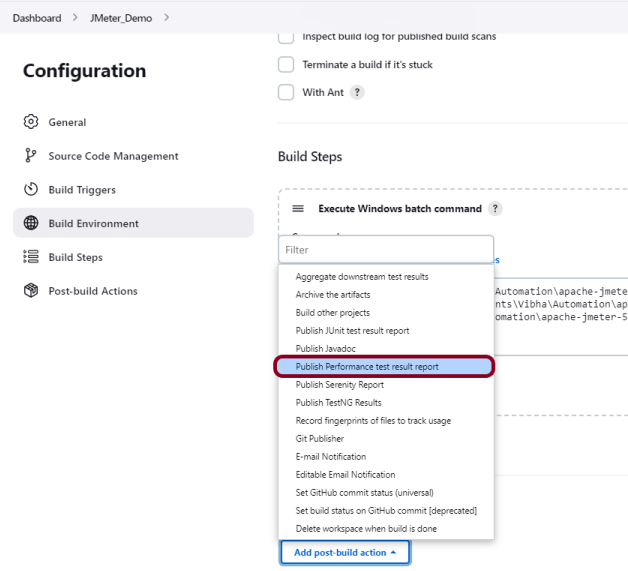
Scroll down to ‘Post Build Actions’ and click on the ‘Add Post Build Actions’ drop-down list. Select Publish Performance test result report.“. 

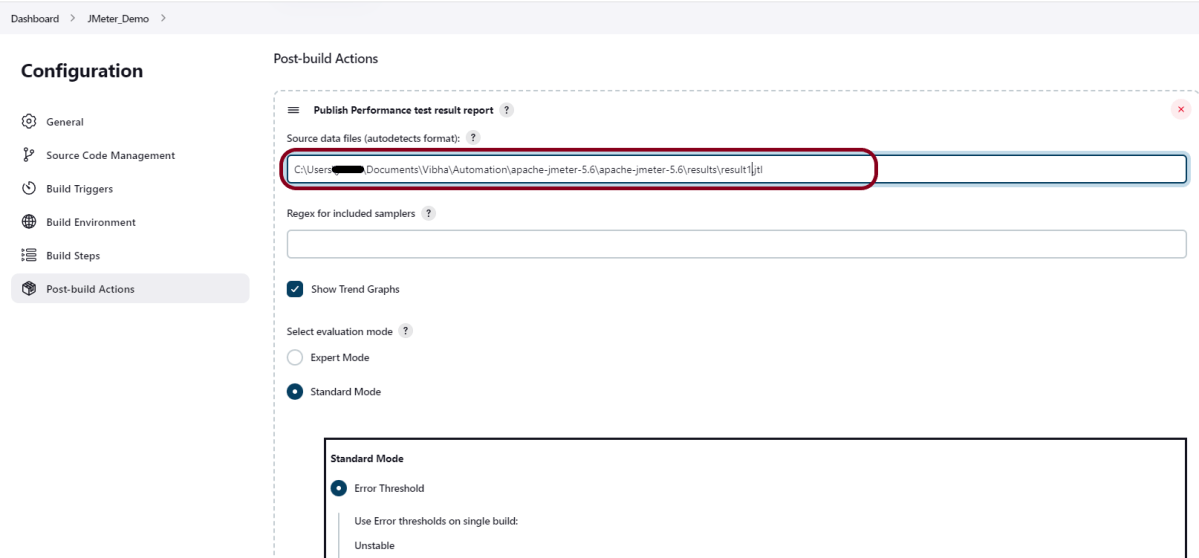
Enter the Source data files as the path in workspace where the report will be saved .

Click on the Apply and Save buttons.

We have created a new project JMeter_Demo” with the configuration to run the JMeter and also to generate JMeter Reports after execution using Jenkins.

Step 7: Execute the tests

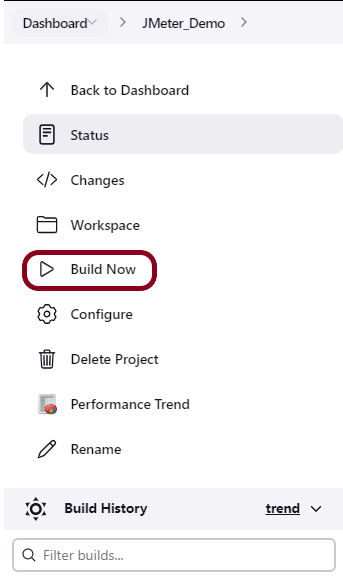
Let’s execute it now by clicking on the “Build Now” button. 

Right-click on Build Number (here in my case it is #1).

Click on Console Output to see the result.

Step 8: View the Performance Report

Once the execution is completed, we can see a link to view the ‘Performance Report’.

Click on the Performance Report. It displays the summary of the tests.

Congratulations on making it through this tutorial and hope you found it useful! Happy Learning!! Cheers!!

Additional Tutorials

Integration Of Jenkins With Selenium WebDriver
How to install Maven Plugin in Jenkins
Integrate Gradle project with Jenkins
Jenkins GitLab Integration
How to generate HTML Reports in Jenkins
Integration of Cucumber Report with TestNG in Jenkins
Serenity with Jenkins

How to create Web Test Plan for JMeter?

Last Updated On

HOME

In this tutorial, we will explain how to create a JMeter Test Plan for a Web Application.

Create a Web Test Plan in JMeter


Step 1 –  Add Thread Group

  • Select Test Plan on the tree
  • Add Thread Group                                                                                                                               Right-click on Test Plan> Add > Threads

In the Thread Group control panel, enter Thread Properties as follows: We will take an example of row no 5

Number of Threads: 5 – Number of users connects to the target website
Ramp-Up Period: 5 – It tells JMeter how long to delay before starting the next user. For example, if we have 5 users and a 5 -second Ramp-Up period, then the delay between starting users would be 1 second (5 seconds /5 users).

Loop Count: 2  – Number of times to execute testing

Step 2 –  Adding JMeter elements  

2.1 Add HTTP Request Defaults
Here, we need to enter the URL of the testing site.
Right-click on Thread Group> Add > Config Element > HTTP Request Defaults

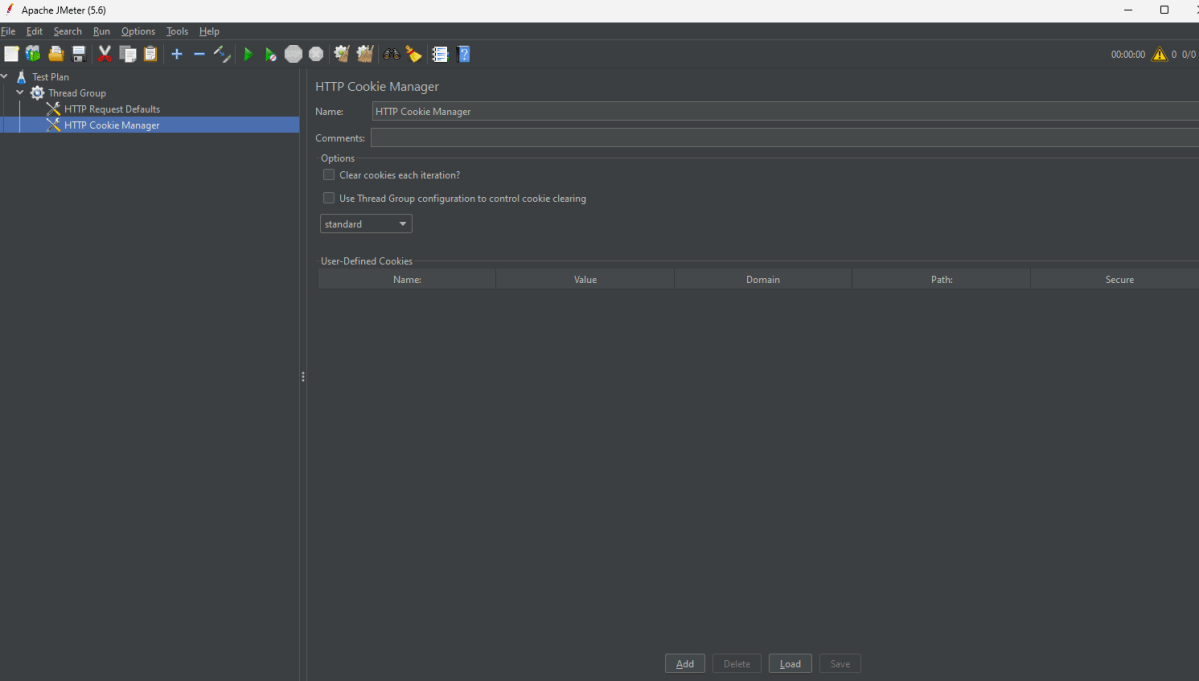
2.2 Add HTTP Cookie Manager

The cookie policy should be set to Compatibility.
Right-click on Thread Group > Add > Config Element > HTTP Cookie Manager

Below is the HTTP Cookie Manager added to the plan.

2.3 Add the Simple Controller

A simple controller is used as a container for the request. We add the login and home page under the simple Controller.
Right-click on Thread Group > Add > Logic Controller > Simple Controller


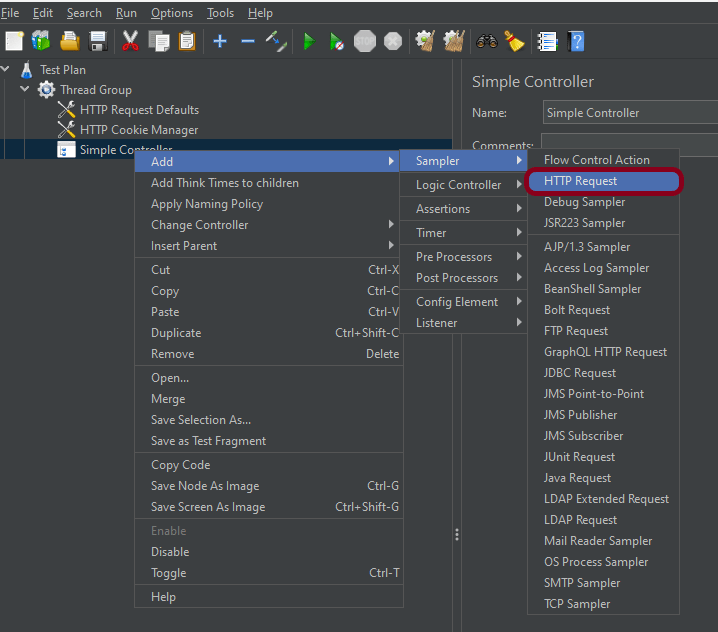
2.4 Add HTTP Request Sampler

It is used for HTTP page requests.
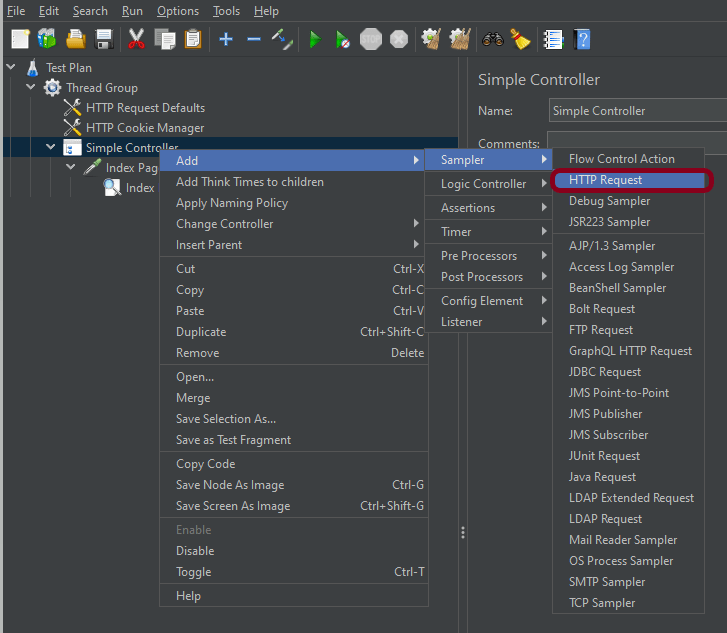
Right-click on Simple Controller> Add >Sampler> HTTP Request

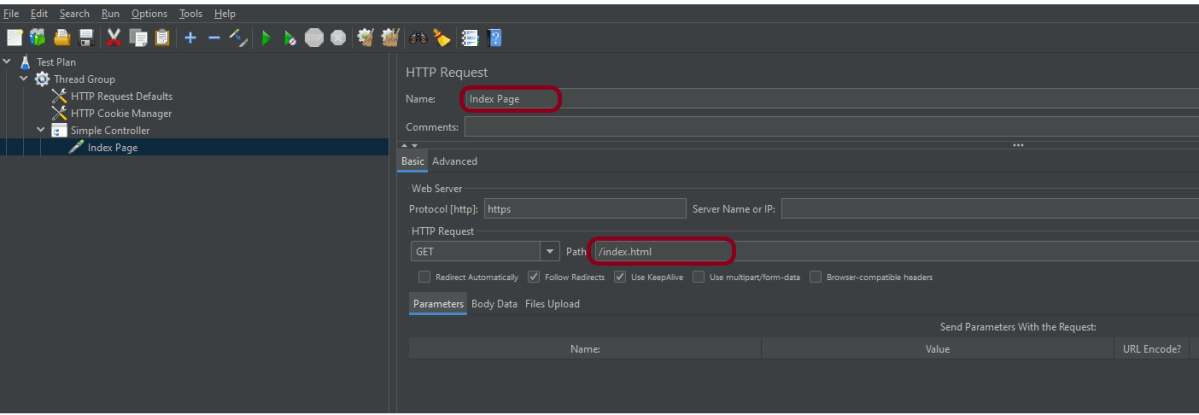
The below-mentioned are the values used in HTTP Request to perform the test

  • Name – Index Page
  • Server Name or IP – Blank
  • Port – Blank
  • Method – GET
  • Path – /index.html

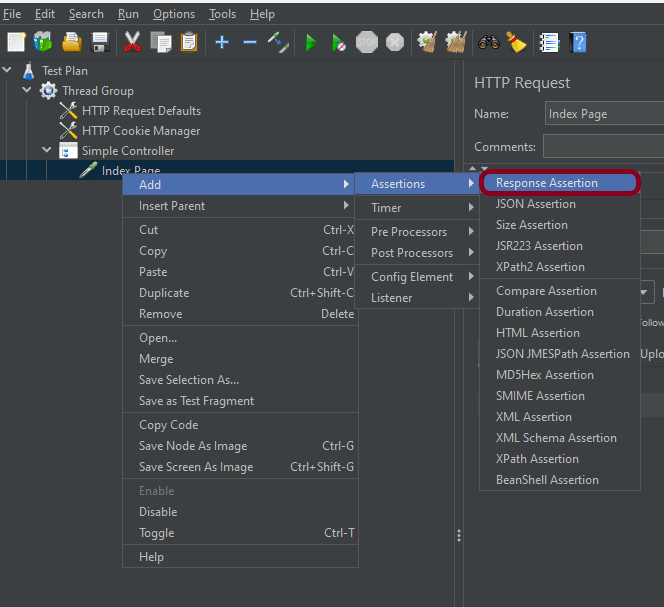
2.5 Add Response Assertion

Add the Assertion method to verify the Index page.
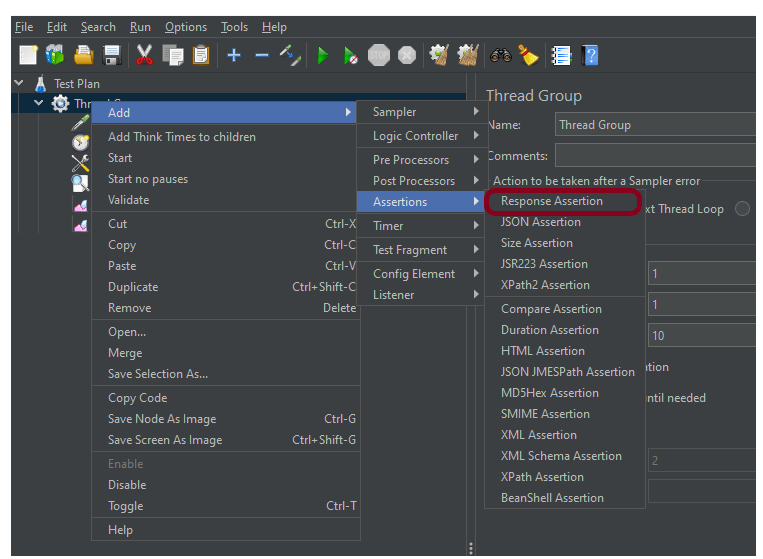
Right-click on Index Page (HTTP request) > Add > Assertions > Response Assertion

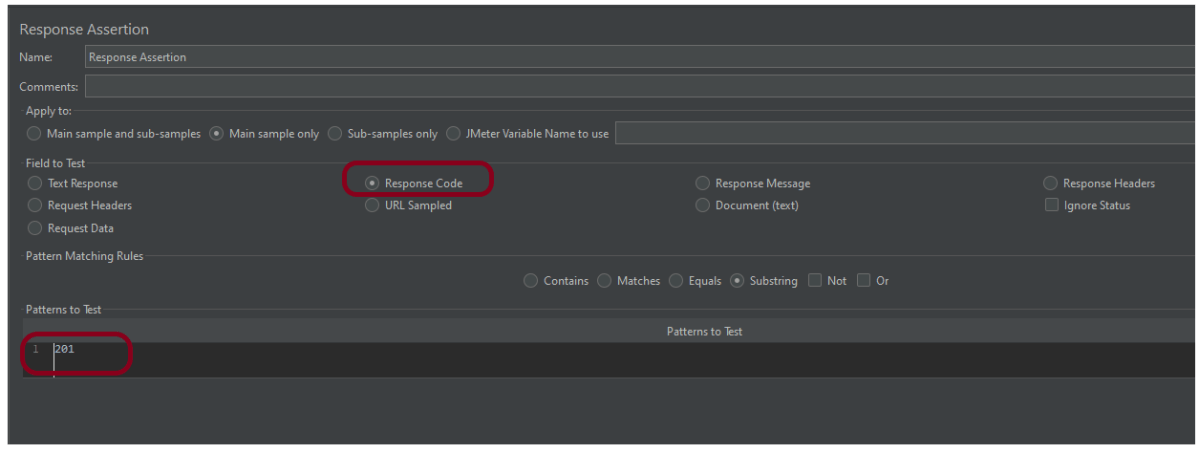
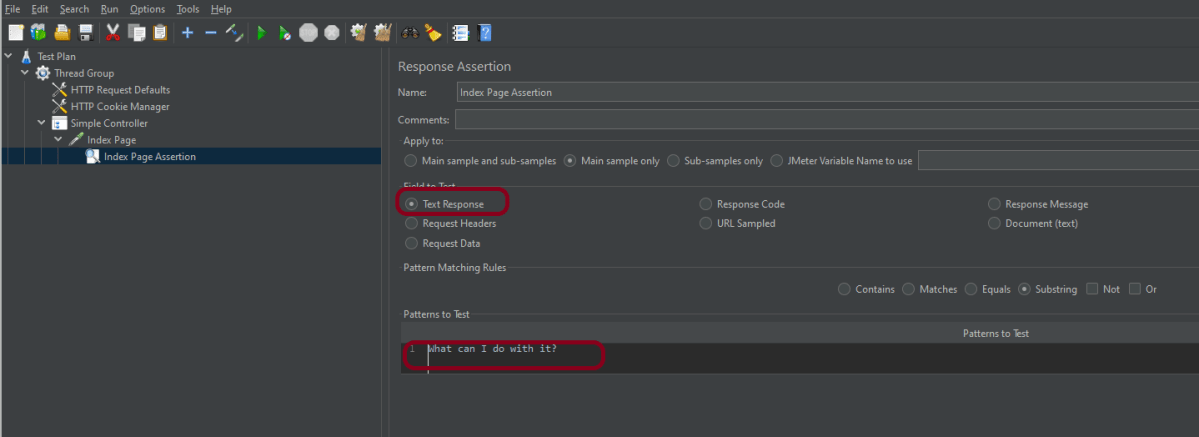
Add text to verify the Index Page

2.6 Add Second HTTP Request Sampler

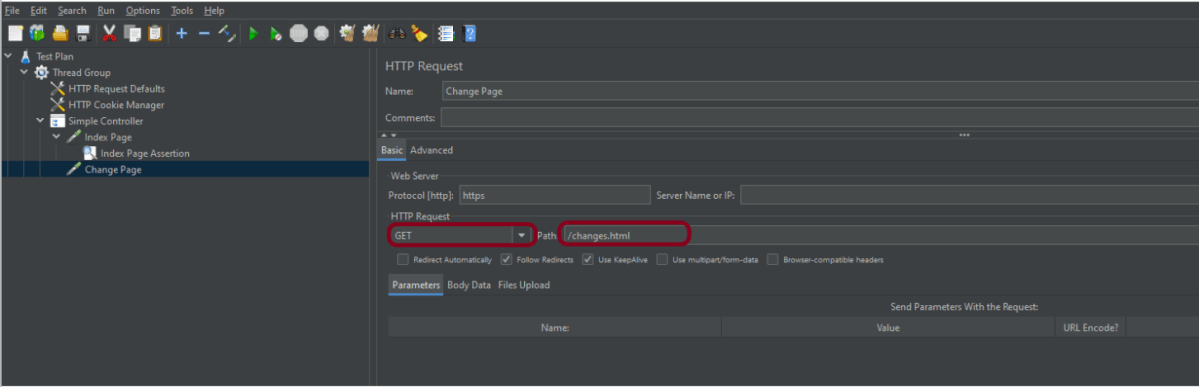
It is used for HTTP page requests for the Change page.
Right-click on Simple Controller> Add >Sampler> HTTP Request

The below-mentioned are the values used in HTTP Request to perform the test

  • Name – Change Page
  • Server Name or IP – Blank
  • Port – Blank
  • Method – GET
  • Path – /changes.html

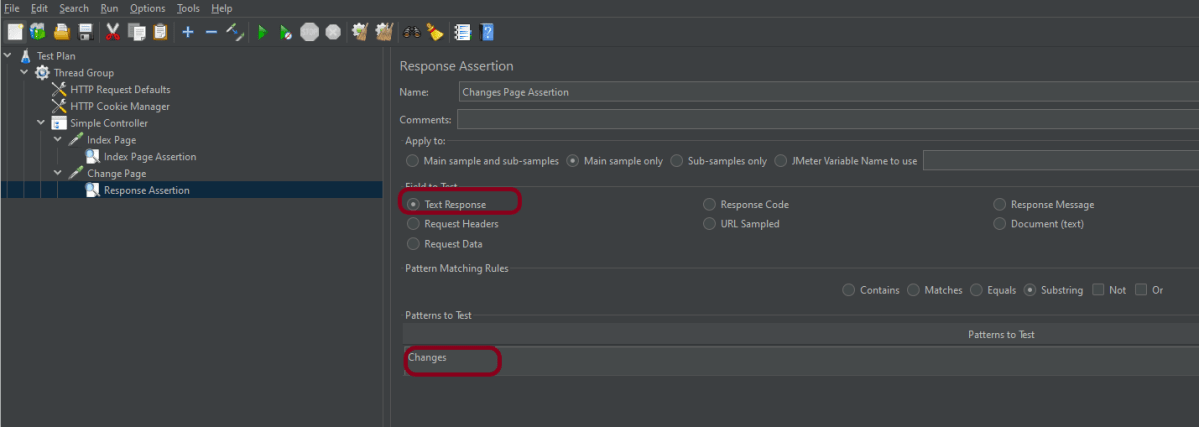
2.7 Add Second Response Assertion

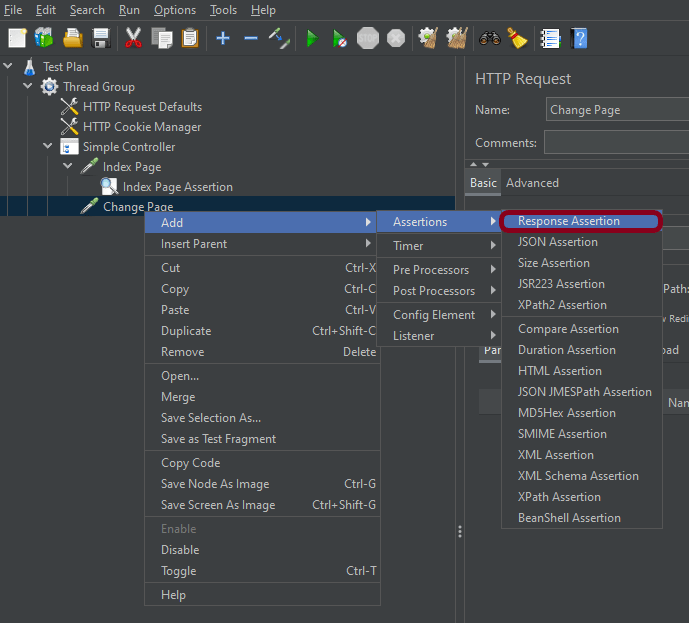
Add the Assertion method to verify the Change page.
Right-click on Index Page (HTTP request) > Add > Assertions > Response Assertion

Add text to verify the Changes Page

Step 3 – Adding Listeners to Test Plan

Listeners – They show the results of the test execution. They can show results in a different format such as a tree, table, graph, or log file
We are adding the View Result Tree listener

View Result Tree – View Result Tree shows the results of the user request in basic HTML format
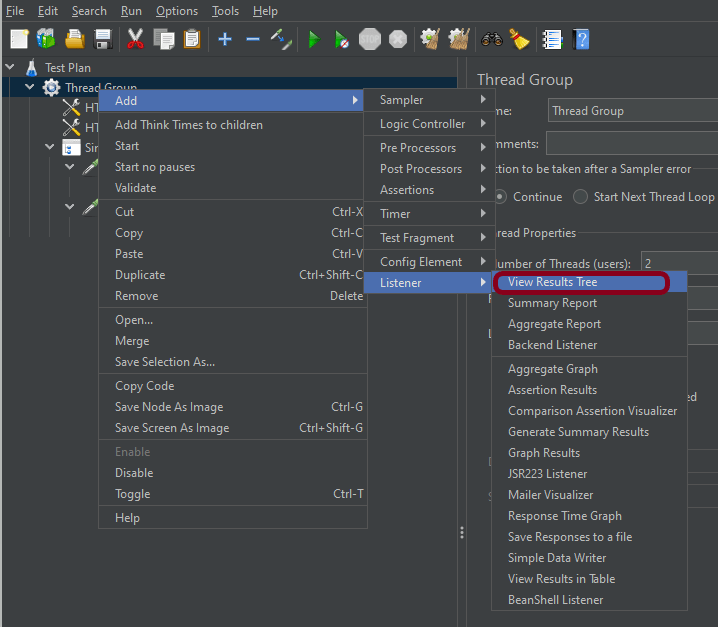
Right-click on Test Plan, Add -> Listener -> View Result Tree

Aggregate Report

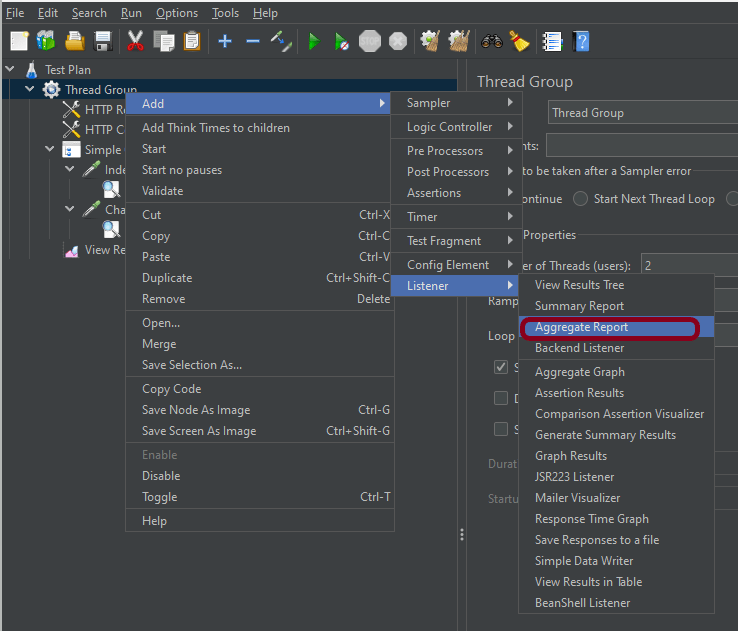
It is almost the same as Summary Report except Aggregate Report gives a few more parameters like, “Median”, “90% Line”, “95% Line” and “99% Line”.

 Right Click on Thread Group > Add > Listener > Aggregate Report

Step 4 – Save the Test Plan

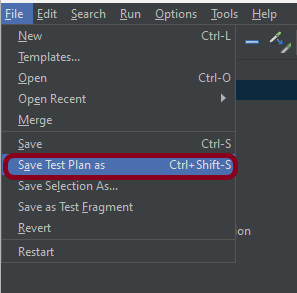
To Save: Click File Select -> Save Test Plan as ->Give the name of the Test Plan. It will be saved in .jmx format.

Step 5  – Run the Test Plan

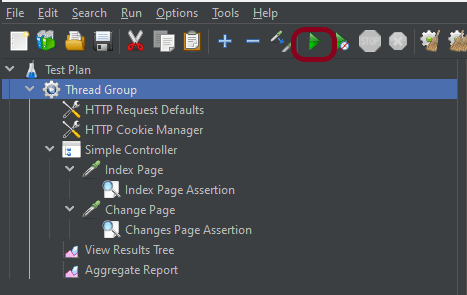
Click on the Green Triangle as shown at the top to run the test.

Step 6 – View the Execution Status

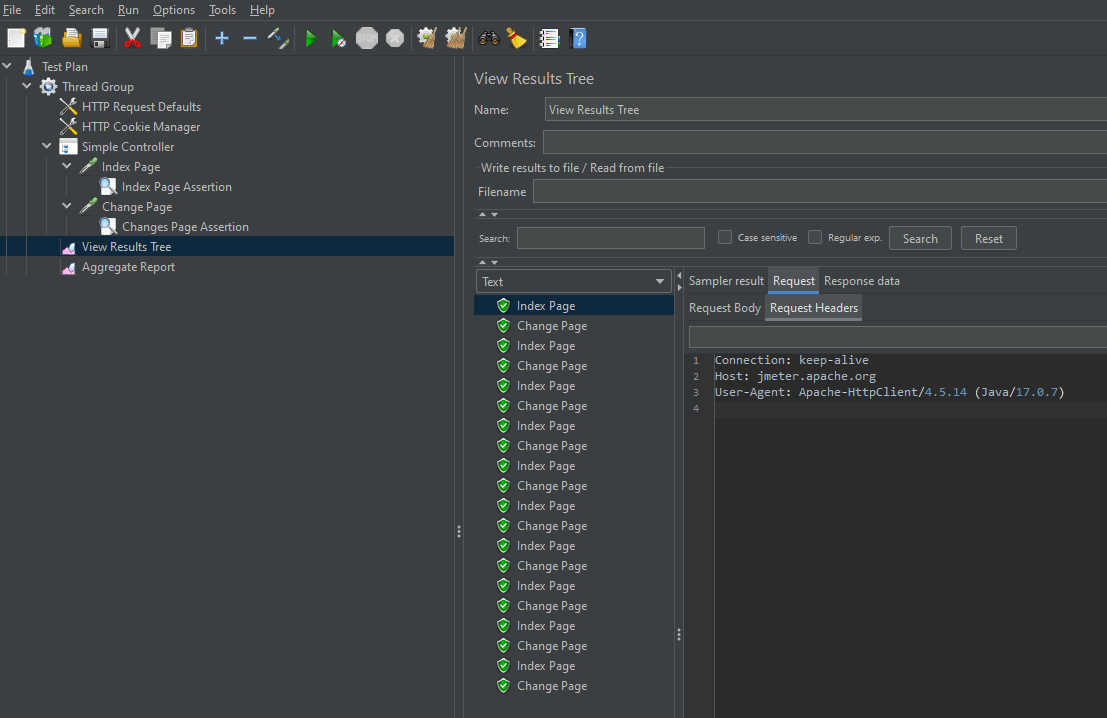
Click on View Result Tree to see the status of Run. A successful request will be of a Green in the Text Section.

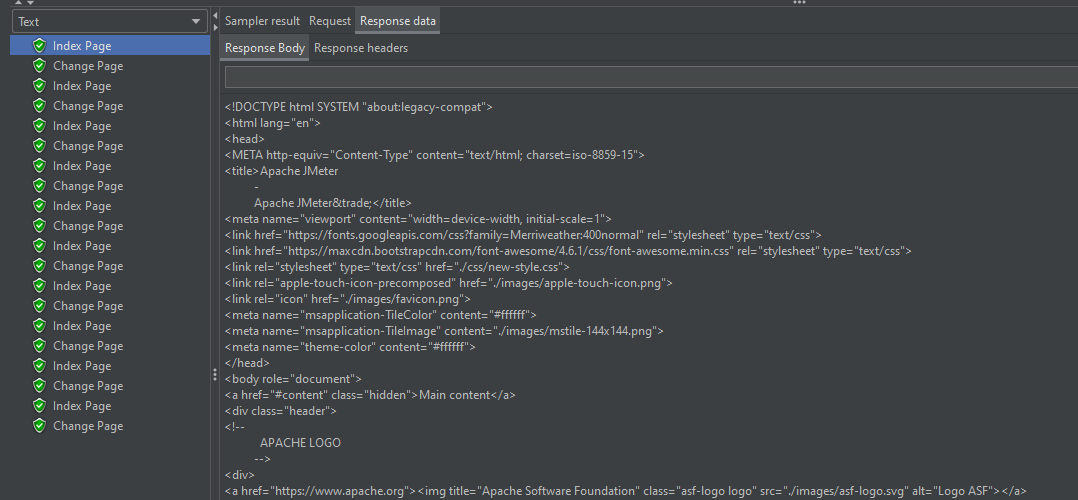
Click on Response data and Response Header to view other information about Response.

Click on Aggregate Report Result to see the aggregated status of Run.

We are done! Congratulations on making it through this tutorial and hope you found it useful! Happy Learning!!

How to generate JMeter HTML Report?

Last Modified Date

HOME

JMeter supports dashboard report generation to get graphs and statistics from a test plan. In this tutorial, we will explain how to generate JMeter HTML Report.

The dashboard generator is a modular extension of JMeter. Its default behaviour is to read and process samples from CSV files to generate HTML files containing graph views. It can generate the report at the end of a load test or on demand.

There are 2 ways to generate HTML Report

  1. Generation after load test
  2. Generation from an existing sample CSV log file

Create a Test Plan in JMeter

Sample Request

{
    "name": "Test",
    "job": "JMeter"
}

Sample Response

{
  "name":"Test",
  "job":"JMeter",
  "id":"955",
  "createdAt":"2023-07-03T15:46:18.038Z"
}


Step 1 –  Add Thread Group

  • Select Test Plan on the tree
  • Add Thread Group                                                                                                                               To add Thread Group: Right-click on the “Test Plan” and add a new thread group: Add -> Threads (Users) -> Thread Group

In the Thread Group control panel, enter Thread Properties as follows: We will take an example of row no 5

Number of Threads: 5 – Number of users connects to the target website
Loop Count: 5  – Number of times to execute testing
Ramp-Up Period: 5 – It tells JMeter how long to delay before starting the next user. For example, if we have 5 users and a 5 -second Ramp-Up period, then the delay between starting users would be 1 second (5 seconds /5 users).

Step 2 –  Adding JMeter elements  

The JMeter element used here is HTTP Request Sampler. In HTTP Request Control Panel, the Path field indicates which URL request you want to send


2.1 Add HTTP Request Sampler
To add: Right-click on Thread Group and select: Add -> Sampler -> HTTP Request

The below-mentioned are the values used in HTTP Request to perform the test

  • Name – HTTP POST Request Demo
  • Server Name or IP – reqres.in
  • Port – Blank
  • Method – POST
  • Path – /api/users

2.2 Add HTTP Head Manager

The Header Manager lets you add or override HTTP request headers like can add Accept-Encoding, Accept, Cache-Control

To add: Right-click on Thread Group and select: Add -> Config Element -> HTTP Read Manager

The below-mentioned are the values used in Http Request to perform the test
Content-type = application/json
accept – application/json

Step 3 – Adding Listeners to Test Plan

Listeners – They show the results of the test execution. They can show results in a different format such as a tree, table, graph, or log file
We are adding the View Result Tree listener

View Result Tree – View Result Tree shows the results of the user request in basic HTML format
To add: Right-click on Test Plan, Add -> Listener -> View Result Tree

Aggregate Report

It is almost the same as Summary Report except Aggregate Report gives a few more parameters like, “Median”, “90% Line”, “95% Line” and “99% Line”.

 To add: Right Click on Thread Group > Add > Listener > Aggregate Report

Step 4 – Save the Test Plan

To Save: Click File Select -> Save Test Plan as ->Give the name of the Test Plan. It will be saved in .jmx format.

The below image shows that the test is saved in Documents with the name POST_Load.jmx.

Report Generation after load test

Step 5  – Run the Test Plan from Command Line

Open the command prompt and go into JMeter’s bin folder.

cd C:\Users\Vibha\Documents\apache-jmeter-5.6\apache-jmeter-5.6\bin

Step 6 – View the Execution Status

Enter the following command:

jmeter -n -t <test JMX file> -l <test log file> -e -o <Path to output folder>

This is the command used in the script:

jmeter -n -t C:\Users\Vibha\Documents\apache-jmeter-5.6\apache-jmeter-5.6\POST_Load.jmx -l C:\Users\Vibha\Documents\JMeterResult\result1.csv -e -o C:\Users\Vibha\Documents\JMeterResult\Report

Below is the detail about the commands used in the execution.

-n: This specifies JMeter is to run in cli mode

-t: [name of JMX file that contains the Test Plan]

-l: [name of JTL file to log sample results to]

e: generate report dashboard after load test

-o: output folder where to generate the report dashboard after the load test. The folder must not exist or be empty

The test execution is displayed in the command line as shown below:

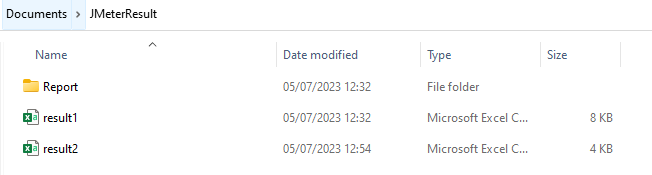
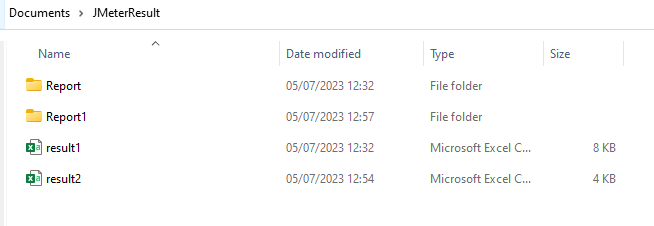
The result1.csv is saved as mentioned in the above command in the JMeterResult folder present in Documents:

Go to the Report Folder. You can find the generated HTML files in the given report path.

This report provides the following metrics:

In the Dashboard of the report;

  • APDEX (Application Performance Index) table that computes for every transaction the APDEX based on configurable values for tolerated and satisfied thresholds
  • A request summary graph showing the Success and failed requests

A Statistics table providing in one table a summary of all metrics per transaction including 3 configurable percentiles:

An error table providing a summary of all errors and their proportion in the total requests

A Top 5 Errors by Sampler table providing for every Sampler (excluding Transaction Controller by default) the top 5 Errors:

You can see that there are a lot of other types of reports too. You should explore these reports.

Generation from an existing sample CSV log file

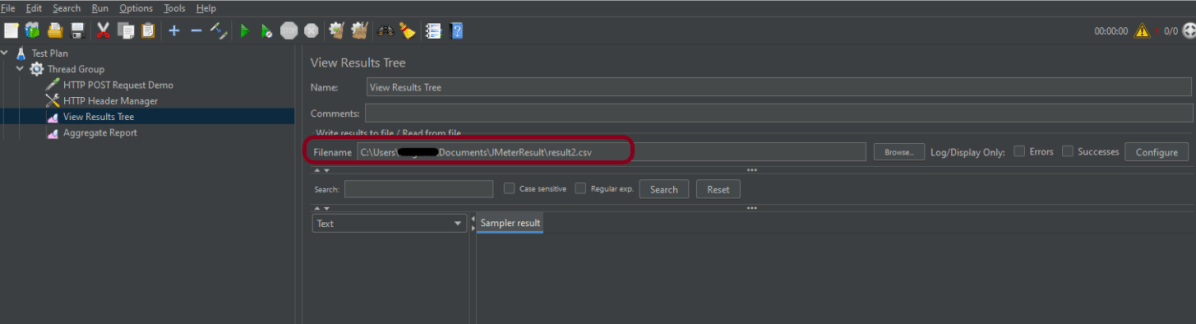
Imagine, we have run the tests from JMeter GUI. Mention the path where we want to save the result file in the Filename option of one of the listeners.

Run the tests, and we can see that the result is generated.

Now, let us create a Report.

jmeter -g C:\Users\Vibha\Documents\JMeterResult\Result2.csv -o C:\Users\Vibha\Documents\JMeterResult\Report1

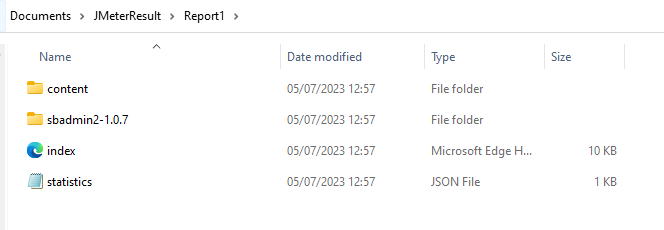
We can see that a new folder – Report1 is created.

Go inside the Report1 folder and see that the Index.html report is generated.

We are done! Congratulations on making it through this tutorial and hope you found it useful! Happy Learning!!

How to run JMeter tests from the command line


In this tutorial, we will explain how to run tests in JMeter in non-GUI mode (Command Line mode).

Why execute tests in non-GUI mode?

The JMeterGUI’s inability to handle huge loads and excessive resource consumption risks overloading the server, which would give you inaccurate test results information. Additionally, the less load you can generate throughout your tests, the more resource-intensive the server is.

Sample Request

{
    "name": "Test",
    "job": "JMeter"
}

Sample Response

{
  "name":"Test",
  "job":"JMeter",
  "id":"955",
  "createdAt":"2023-07-03T15:46:18.038Z"
}

Create a Test Plan in JMeter by following the below-mentioned steps


Step 1 –  Add Thread Group

  • Select Test Plan on the tree
  • Add Thread Group                                                                                                                               To add Thread Group: Right-click on the “Test Plan” and add a new thread group: Add -> Threads (Users) -> Thread Group

In the Thread Group control panel, enter Thread Properties as follows: We will take an example of row no 5

Number of Threads: 5 – Number of users connects to the target website
Loop Count: 5  – Number of times to execute testing
Ramp-Up Period: 5 – It tells JMeter how long to delay before starting the next user. For example, if we have 5 users and a 5 -second Ramp-Up period, then the delay between starting users would be 1 second (5 seconds /5 users).

Step 2 –  Adding JMeter elements  

The JMeter element used here is HTTP Request Sampler. In HTTP Request Control Panel, the Path field indicates which URL request you want to send


2.1 Add HTTP Request Sampler
To add: Right-click on Thread Group and select: Add -> Sampler -> HTTP Request

The below-mentioned are the values used in HTTP Request to perform the test

  • Name – HTTP POST Request Demo
  • Server Name or IP – reqres.in
  • Port – Blank
  • Method – POST
  • Path – /api/users

2.2 Add HTTP Head Manager

The Header Manager lets you add or override HTTP request headers like can add Accept-Encoding, Accept, Cache-Control

To add: Right-click on Thread Group and select: Add -> Config Element -> HTTP Read Manager

The below-mentioned are the values used in Http Request to perform the test
Content-type = application/json
accept – application/json

Step 3 – Adding Listeners to Test Plan

Listeners – They show the results of the test execution. They can show results in a different format such as a tree, table, graph, or log file
We are adding the View Result Tree listener

View Result Tree – View Result Tree shows the results of the user request in basic HTML format
To add: Right-click on Test Plan, Add -> Listener -> View Result Tree

Aggregate Report

It is almost the same as Summary Report except Aggregate Report gives a few more parameters like, “Median”, “90% Line”, “95% Line” and “99% Line”.

 To add: Right Click on Thread Group > Add > Listener > Aggregate Report

Step 4 – Save the Test Plan

To Save: Click File Select -> Save Test Plan as ->Give the name of the Test Plan. It will be saved in .jmx format.

The below image shows that the test is saved in Documents with the name POST_Load.jmx.

Step 5  – Run the Test Plan from Command Line

Open the command prompt and go into JMeter’s bin folder.

cd C:\Users\Vibha\Documents\apache-jmeter-5.6\apache-jmeter-5.6\bin

Step 6 – View the Execution Status

Enter the following command:

jmeter -n –t test.jmx -l testresults.jtl

This is the command used in the script:

jmeter -n -t C:\Users\Vibha\Documents\apache-jmeter-5.6\apache-jmeter-5.6\POST_Load.jmx -l C:\Users\Vibha\Documents\JMeterResult\result.jtl

Below is the detail about the commands used in the execution.

-n: This specifies JMeter is to run in cli mode

-t: [name of JMX file that contains the Test Plan]

-l: [name of JTL file to log sample results to]

The test execution is displayed in the command line as shown below:

The result.jtl is saved as mentioned in the above command in the JMeterResult folder present in Documents:

Let us open the result.jtl file.

It is very difficult to understand the result in this format. So, open JMeter in GUI mode.

Mention the location of the file in the Filename of the “View Results Tree” listener and hit enter. We can see the result now.

Click on Response data and Response Header to view other information about Response.

We are done! Congratulations on making it through this tutorial and hope you found it useful! Happy Learning!!

How to Download & Install Apache JMeter

HOME

In the previous tutorial, I explained Apache JMeter.  This tutorial explains how to download and install JMeter. 

JMeter is a 100% pure Java application, it requires Java installed on your machine.

I’m going to download JMeter Version 5.6 which needs Java 8 and above.

1) Install Java

Verify whether Java is installed on your machine or not.

Open a Command-Line console by clicking on the start menu then type cmd,  and type the below command.

java -version

If you don’t see the Java version, then you need to download and install the latest version of Java SE Development Kit. Download Java Platform (JDK) from here.

2) Download Apache JMeter

The latest version of JMeter is Apache JMeter 5.6 now. You can download it here. Choose the Binaries file (either zip or tgz) to download as shown in the figure below.

3) Install JMeter

We don’t need to install JMeter, just unzip the JMeter downloaded folder. Go to the path where JMeter was downloaded and unzip the folder.

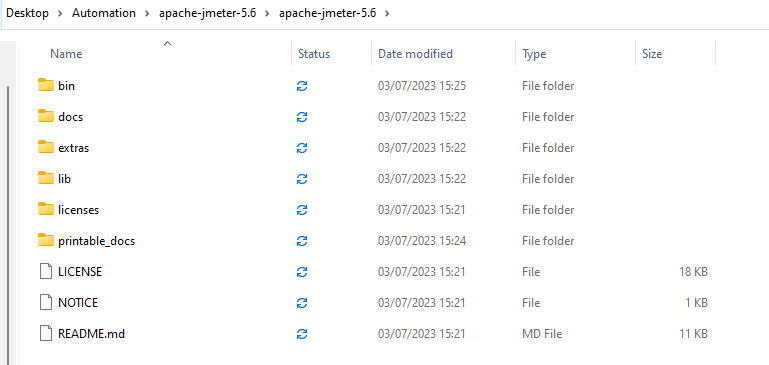
 You should see the following files within the apache-jmeter-XX folder:

  • bin: contains the executable files to launch JMeter, and configuration files to tweak JMeter settings,
  • docs: JMeter’s documentation in HTML format,
  • extras: some useful side tools like excel sheets to compute graphs from JTL result files,
  • lib: JMeter’s libraries, which are mostly Java JAR files,
  • printable_docs: documentation in printable format.

4) Launch JMeter

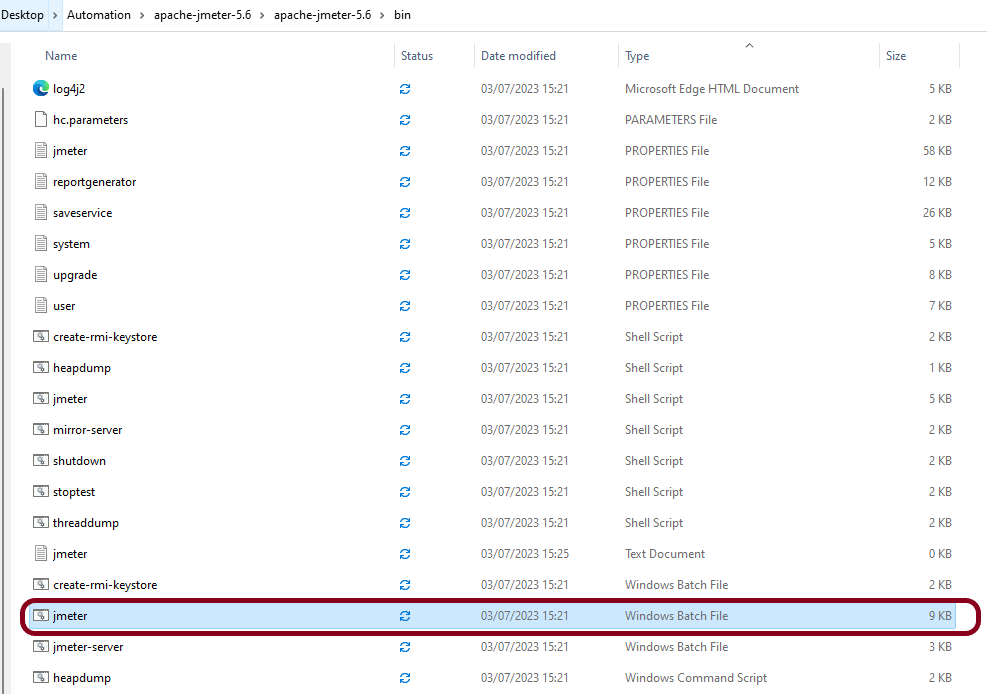
Double-click on jmeter-bat.

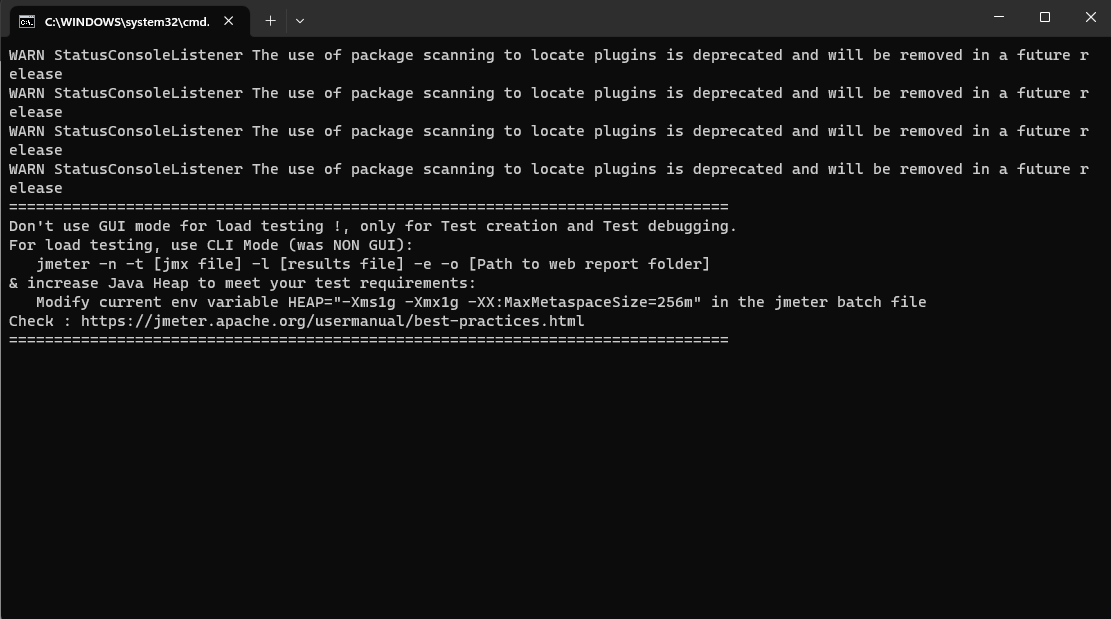
It will open a command terminal as shown below.

The following image shows the various components in the JMeter GUI

5) Upgrading JMeter

When a new JMeter version is available, the new JMeter version must be installed in a fresh new folder.

Please do not unzip a new JMeter version over a previous one.

Simply repeat the steps above to install a new version.

In the next tutorial, will send a GET Request.

We are done! Congratulations on making it through this tutorial and hope you found it useful! Happy Learning!!

Introduction of JMeter

HOME

What is Apache JMeter?

The Apache JMeter™ application is open-source software, a 100% pure Java application designed to load test functional behaviour and measure performance. JMeter is mainly used for testing Web applications or FTP applications but currently, it is applicable in functional testing, JDBC database connections, Web services, generic TCP connections, and OS native processes. You can perform various testing activities like Performance, Load, Stress, Regression, and Functional testing, in order to get accurate performance metrics against your web server.

JMeter is not a browser, it works at the protocol level. As far as web services and remote services are concerned, JMeter looks like a browser (or rather, multiple browsers); however, JMeter does not perform all the actions supported by browsers. In particular, JMeter does not execute the JavaScript found in HTML pages. Nor does it render the HTML pages as a browser does (it’s possible to view the response as HTML etc., but the timings are not included in any samples, and only one sample in one thread is ever displayed at a time). More detail about JMeter can be found here.

Apache JMeter features include:

  1. Open Source – JMeter is a 100% pure Java desktop application
  2. Platform independent -JMeter is written and developed using Java, so it can run on any environment/workstation that accepts a Java virtual machine, for example – Windows, Linux, Mac, etc.
  3. Supports cross platformJMeter has unlimited testing capabilities allowing you to work both with local and server-based instances. The only thing you need to get started is Java (JRE) installed on the host.
  4. Simulation – JMeter can simulate multiple users by using virtual users or unique users in order to generate a heavy load against the web application under test.
  5. Supports Concurrency – Full multi-threading framework allows concurrent sampling by many threads and simultaneous sampling of different functions by separate thread groups.
  6. Easy to Use – On Linux/Unix, JMeter can be invoked by clicking on JMeter shell script. On Windows, it can be invoked by starting the jmeter.bat file.
  7. Test Result Visualization – JMeter has a set of tools for collecting and displaying results, like table, graph, tree, and reports. The results can be saved in CSV, XML, HTML etc.
  8. Support various server types JMeter is highly extensible and capable to load the performance test in different server types: HTTP, HTTPS, SOAP, JDBC, LDAP, JMS, POP3
  9. Works great even without UI – Test cases are executable in the command line which allows for their full integration into CI tools’ cases.

JMeter Workflow

JMeter sends requests to a target server by simulating a group of users. Server process the requests. Subsequently, data is collected to calculate statistics and display performance metrics of the target server through various formats.                                                                         

Congratulations on making it through this tutorial and hope you found it useful! Happy Learning!! Cheers!!

Additional Tutorials

 How to send POST requests in JMeter
JMeter Authorization with access token
 How to run JMeter tests from the command line
Constant Throughput Timer in JMeter
How to generate Random Variables in JMeter