How to install Plugins in Jenkins

HOME

What is a Plugin in Jenkins?

Jenkins plugin is a package in a java-archive format that follows a specific structure during development. Every plugin contains all the necessary information, such as files, images, code, and other extras. That’s why we call the plugin “self-contained.” All Jenkins plugins have .hpi file extensions. All these plugins required in Jenkins can be found in the plugin repository and downloaded from here for a specific need.

Why are plugins required?

Every tool in the world tries to match some characteristics. One of the essential features on this list is “extensibility.” Apart from its core functionality, extensibility allows us to improve the tool’s functionality. In this context, Jenkins plugins perform the same function based on the needs of the user.

Jenkins defines a set of interfaces that Jenkins community developers implement and extend with custom code. So, community developers create plugins based on the required functionality, which we can then install in Jenkins to achieve that functionality.

Implementation Steps to Install a Plugin in Jenkins

Pre-Requisite:

Jenkins installed and started on the computer

Step 1: Start the Jenkins server and open the browser and navigate to the localhost

http://localhost:8080/

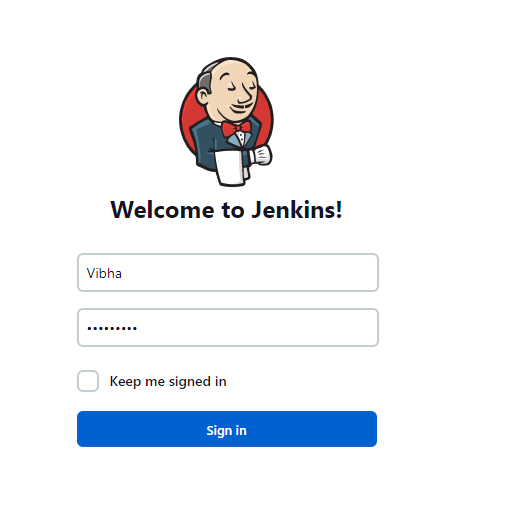
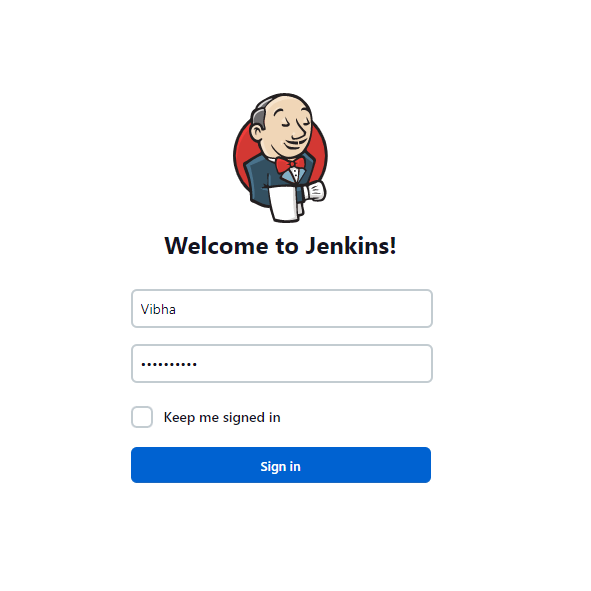
Step 2: Log in to Jenkins UI

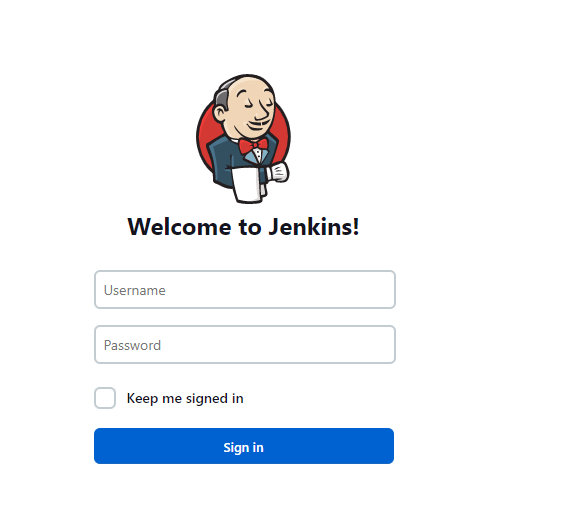
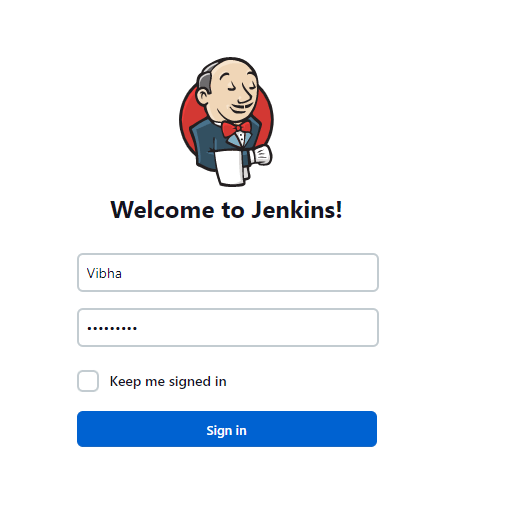
You need to provide a username and password and click on the Sign-in Button.
Step 3: Download and Install Plugin

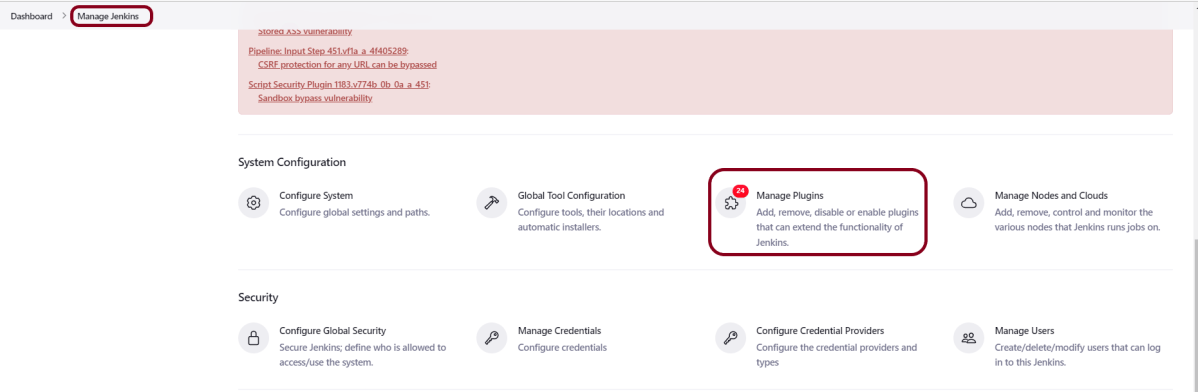
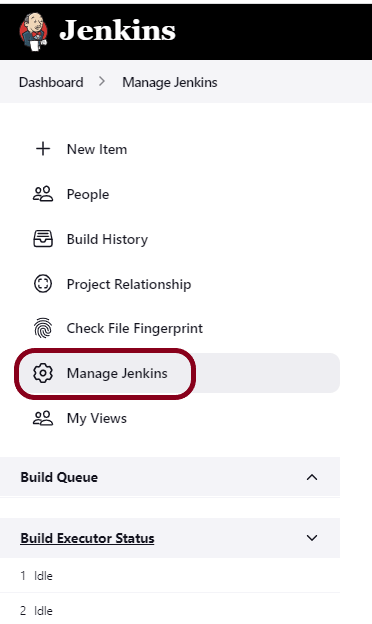
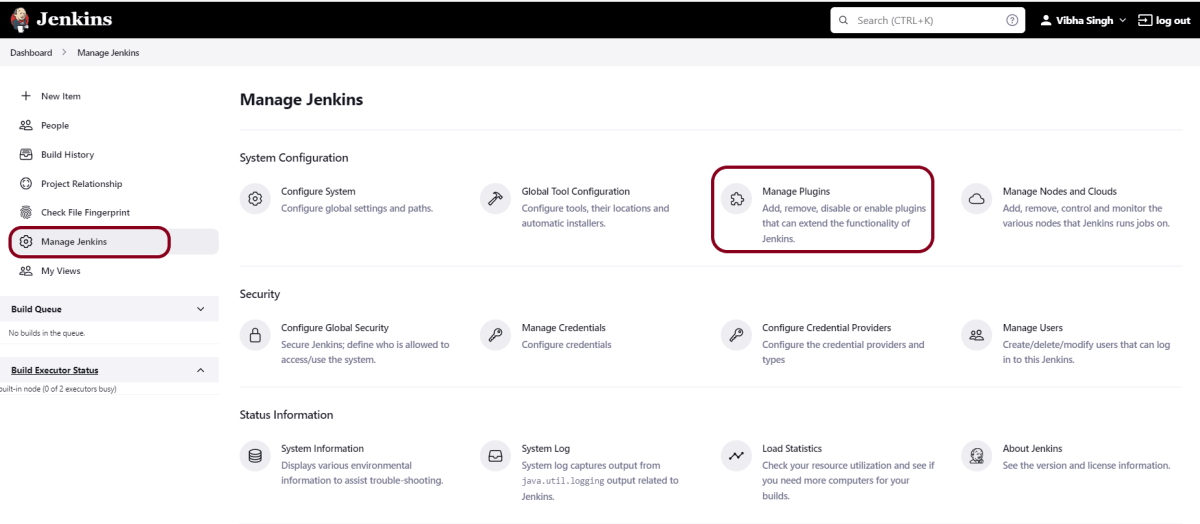
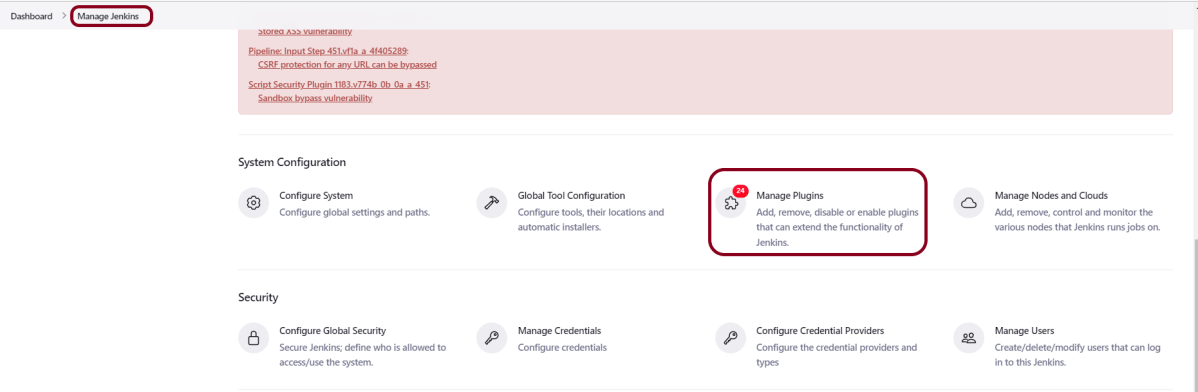
Click on the Manage Jenkins. As soon as we click on the Manage Jenkins link, we will redirect toward the Manage Jenkins page, and here we need to click on “Manage Plugins”  under the System Configuration section.
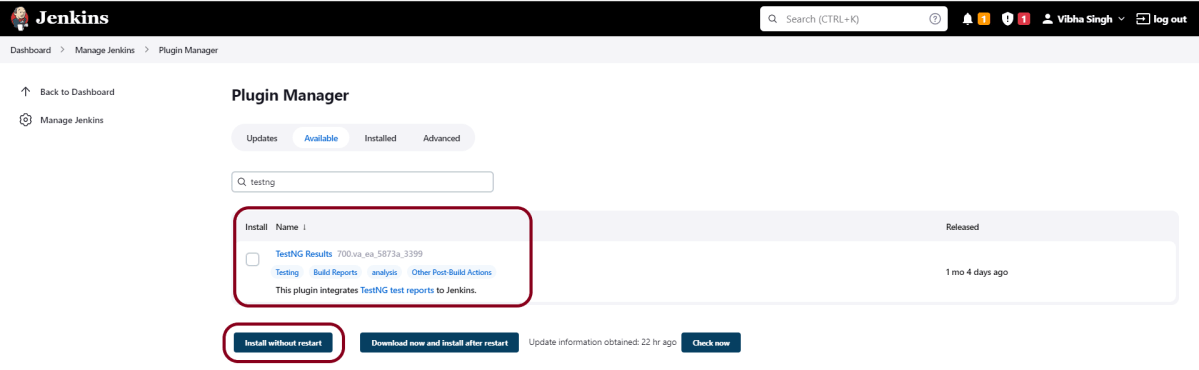
On the Plugins Page, go to the Available option. You can select any plugin, but for the demo purpose, I’m downloading TestNG Report Plugin.

  1. Select the “TestNG Report” Plugin
  2. Click on “Install without restart.” The plugin will take a few moments to finish downloading depending on your internet connection, and will be installed automatically.
  3. You can also select the option “Download now and Install after the restart” button. In which plugin is installed after the restart
  4. You will be shown a “No updates available” message if you already have the TestNG Report plugin installed.
As soon as the preceding steps are completed, we will be taken to the Plugin installation progress page, where we will see a successful message after the plugin has been successfully installed. During installation, any dependent plugins will begin to install alongside the required plugin.
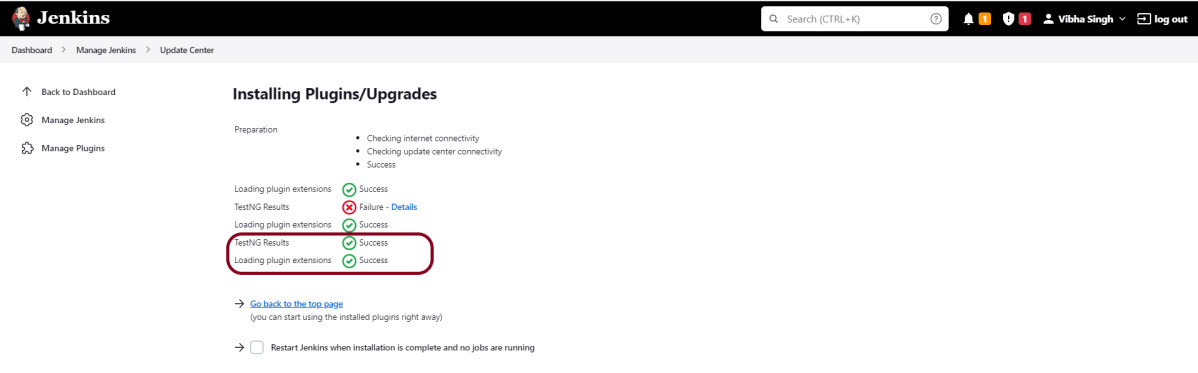
Sometimes, the installation fails because of a network issue. You can try to reinstall it, and it should be successful.

Step 4: Restart Jenkins

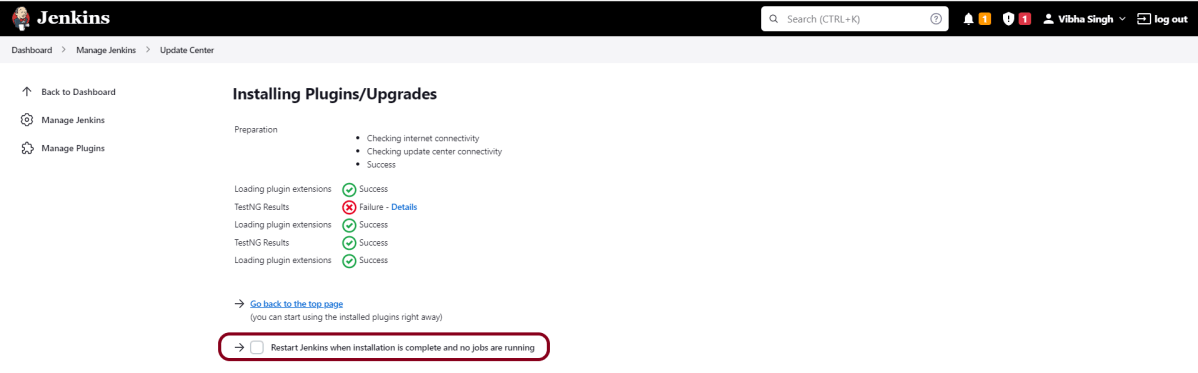
Click on the checkbox “Restart Jenkins when installation is complete when no jobs are running“.
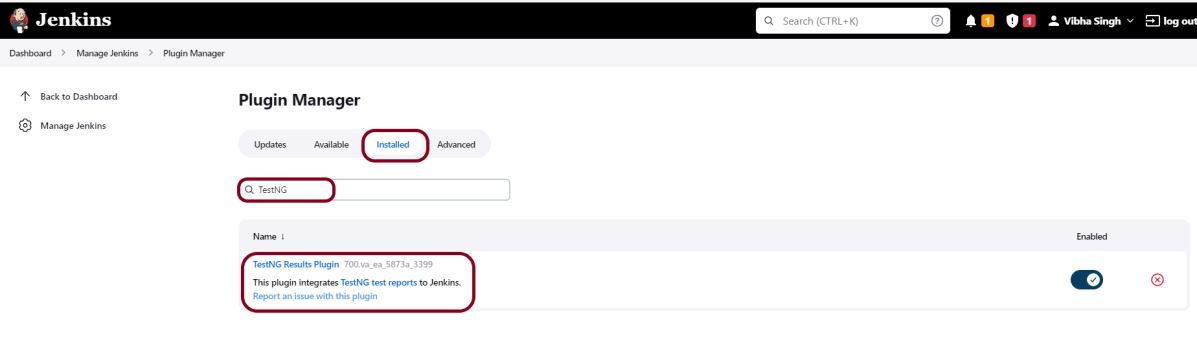
Step 5: Verify the plugin is installed

Once the plugins have been installed, go to Manage Jenkins on your Jenkins dashboard. You will see your plugins listed among the rest.
Congratulations on making it through this tutorial and hope you found it useful! Happy Learning!! Cheers!!
How to install the trends-related plugin in Jenkins?

HOME

The previous tutorial explained Build History Metrics in Jenkins. This tutorial explains the trend-related plugin in Jenkins.

How to install the trends-related plugin in Jenkins?

To see overall trends in Jenkins, there are plugins available to gather information from within the builds and Jenkins and display them in a graphical format. One example of such a plugin is the ‘global-build-stats plugin’. So let’s go through the steps for this.

To know more about global build stats, please refer to this documentation.

Pre-Requisite:

Jenkins installed and started on the computer

Implementation Steps

Step 1: Start the Jenkins server and open the browser and navigate to the localhost and the port in which Jenkins is running

http://localhost:8080/

Step 2: Log in to Jenkins UI

Provide a username and password and click on the Sign-in Button.

Step 3: Go to Manage Plugins

Click on the Manage Jenkins. Choose Manage Plugins.

Step 4: Add the global-build-stats plugin

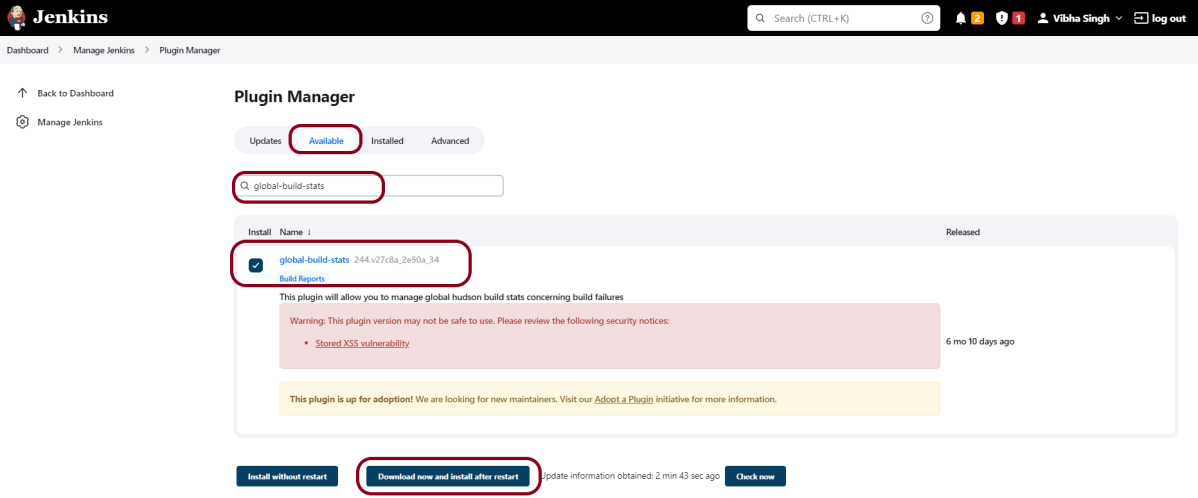
On the Plugins Page, go to the Available option.

  1. Select the “global-build-stats” Plugin
  2. Click on “Install without restart”. The plugin will take a few moments to finish downloading depending on your internet connection, and will be installed automatically.
  3. You can also select the option Download now and Install after the restart” button. In which plugin is installed after the restart
  4. You will be shown a “No updates available” message if you already have the TestNG Report plugin installed.

Click on the checkbox “Restart Jenkins when installation is complete when no jobs are running“.

Step 5: Verify the global-build-stats plugin

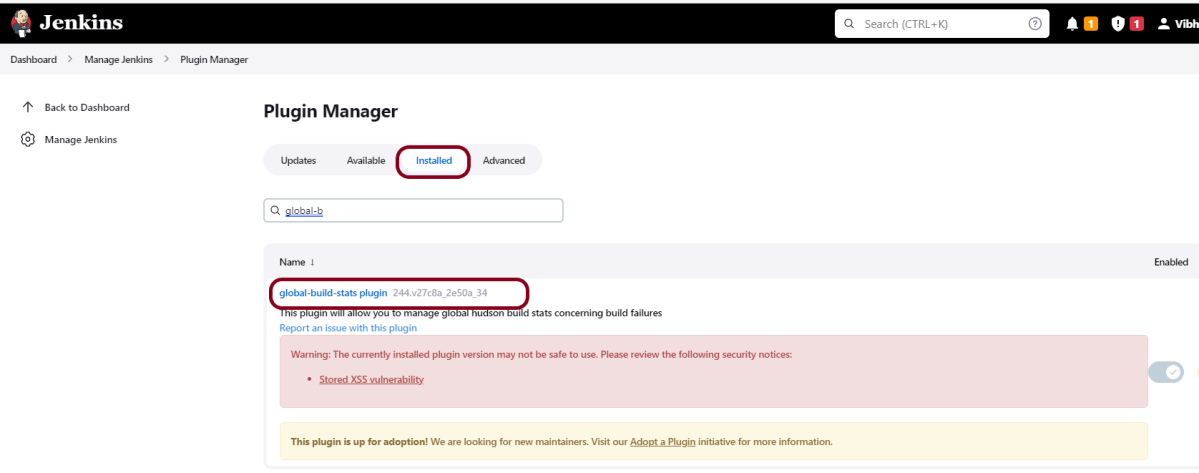
For verification of the successful installation of the plugin, we can go to the “installed”  tab, and we can see the presence of the build history metrics plugin.

Step 6 − Generate Global Build Stats metrics

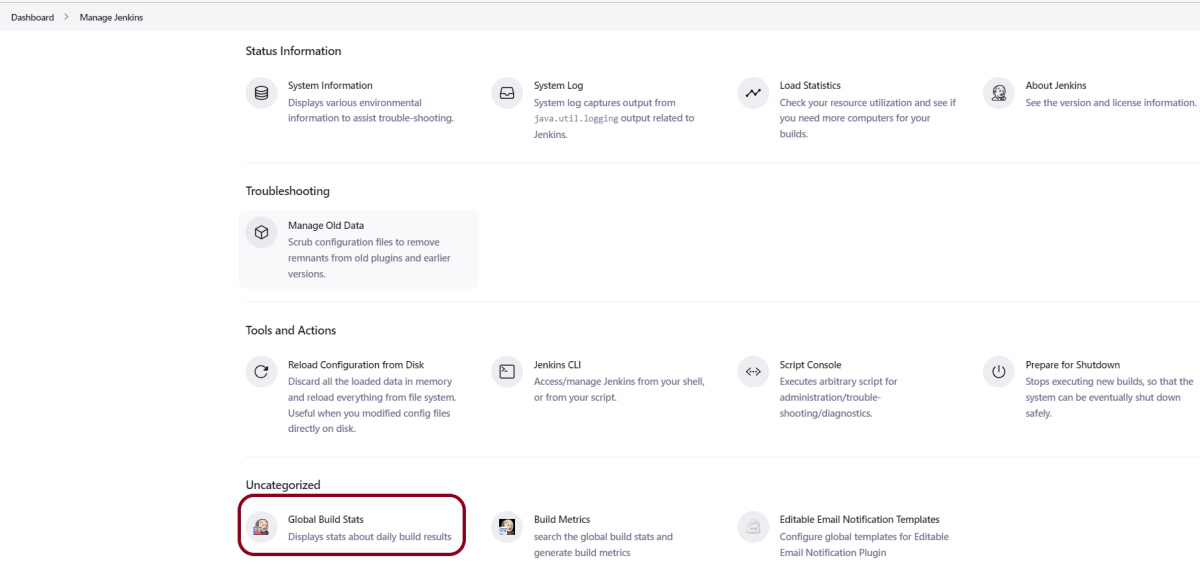
Go to the Jenkins dashboard and click on Manage Jenkins. In the Manage Jenkins screen, scroll down, and now you will now see an option called “Global Build Stats“. Click on this link.

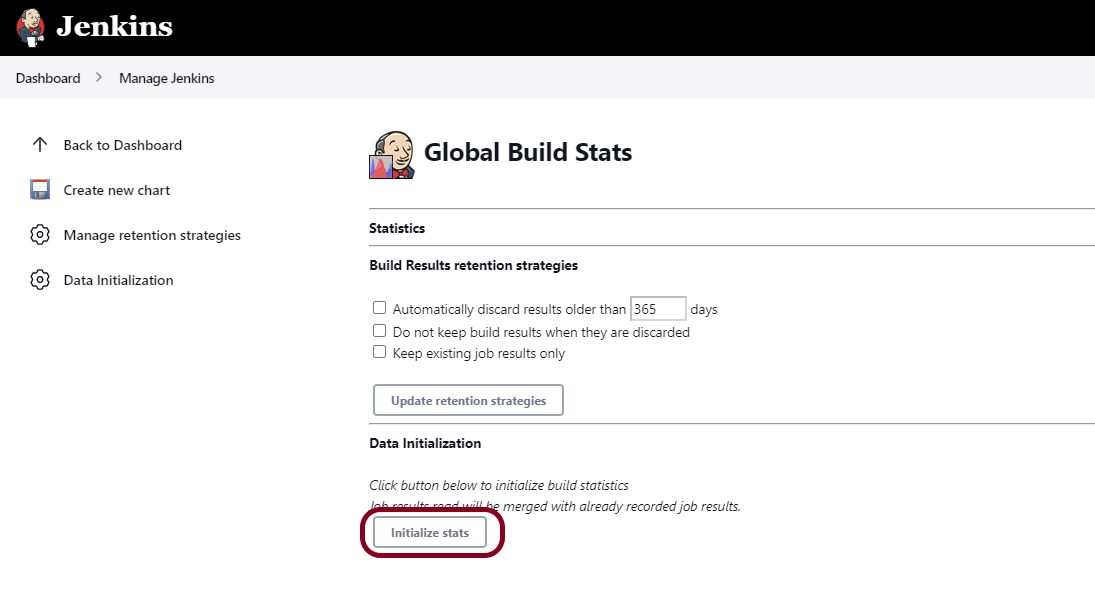
Click on the button “Initialize stats“. What this does is that it gathers all the existing records for builds that have already been carried out, and charts can be created based on these results.

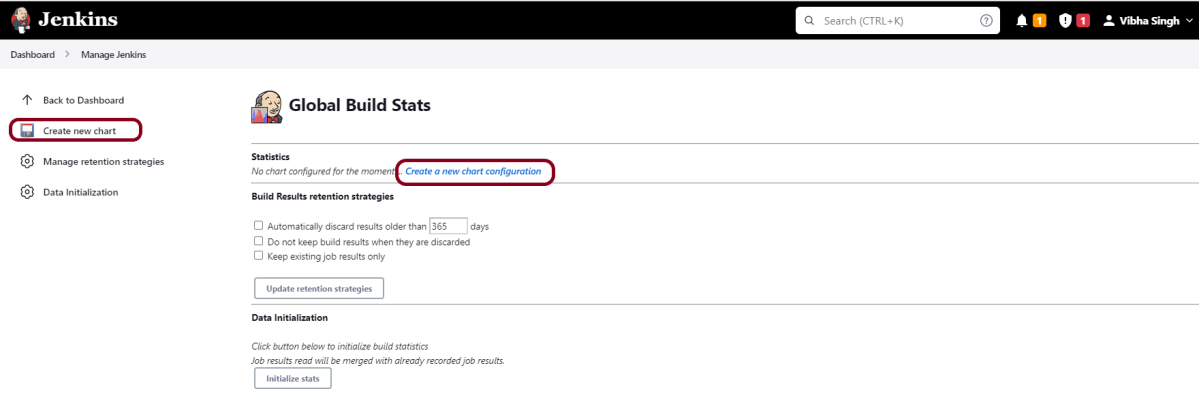
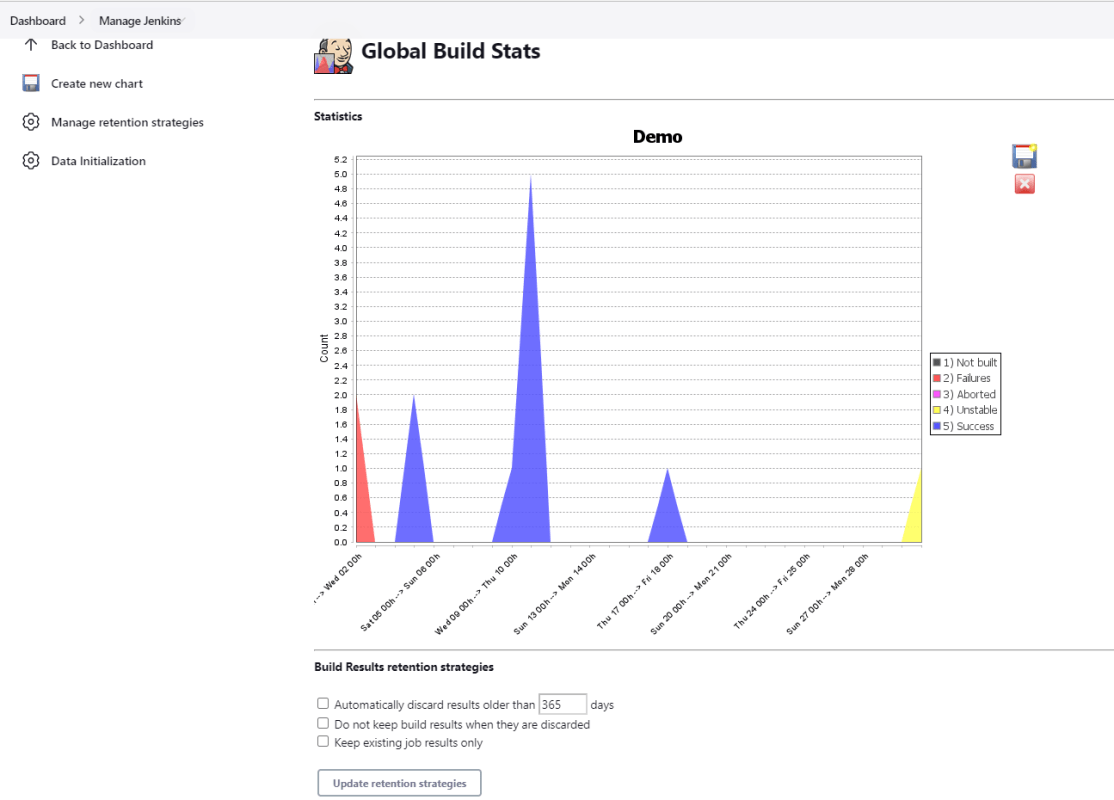
Once the data has been initialized, it’s time to create a new chart. Click on the “Create new chart” link.

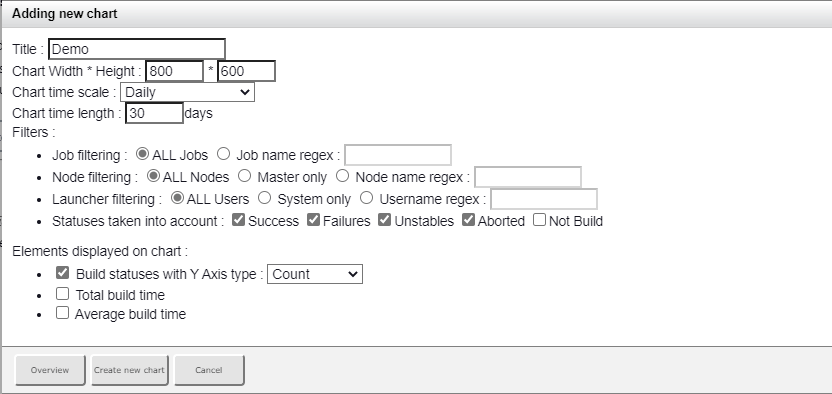
A pop-up will come to enter the relevant information for the new chart details. Enter the following mandatory information.

  • Title – Any title information, for this example is given as ‘Demo’
  • Chart Width – 800
  • Chart Height – 600
  • Chart time scale – Daily
  • Chart time length – 30 days

The rest of the information can remain as it is. Once the information is entered, click on Create New chart.

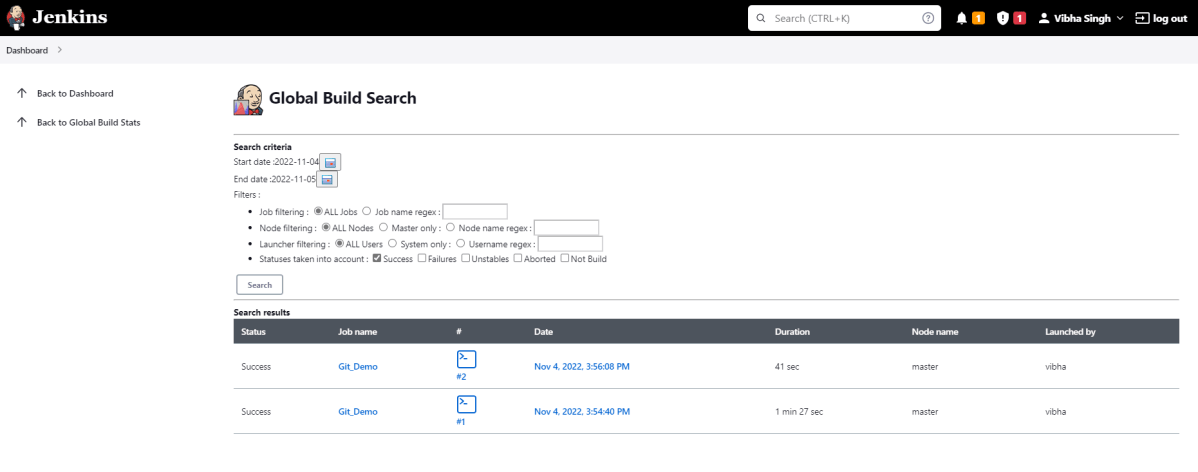
You will now see the chart which displays the trends of the builds over time.

If you click on any section within the chart, it will give you a drill-down of the details of the job and its builds.

Congratulations on making it through this tutorial and hope you found it useful! Happy Learning!! Cheers!!
Build History Metrics in Jenkins

HOME

Jenkins includes a number of plugins for displaying metrics for builds that take place over time. These metrics can help you understand your builds and how often they fail/pass over time. Consider the ‘Build History Metrics plugin‘ as an example.

What is Build History Plugin?

  • Mean Time To Failure (MTTF)
  • Mean Time To Recovery (MTTR)
  • Standard Deviation of Build Times

The calculated metrics are displayed in a table on each jobs page showing the metric for the last 7 days, last 30 days, and all time.

How to install the metric-related plugin in Jenkins?

Implementation Steps

Step 1: Start the Jenkins server and open the browser and navigate to the localhost and the port in which Jenkins is running

http://localhost:8080/

Step 2: Log in to Jenkins UI

Provide a username and password and click on the Sign-in Button.

Step 3: Download and Install Build History Metrics Plugin

Click on the Manage Jenkins. Choose Manage Plugins.

Step 4: Add the Build History Metrics Plugin

On the Plugins Page, go to the Available option.

  1. Select the Build History Metrics Plugin
  2. Click on Install without restart. The plugin will take a few moments to finish downloading depending on your internet connection, and will be installed automatically.
  3. You can also select the option Download now and Install after the restart button. In which plugin is installed after the restart
  4. You will be shown a “No updates available” message if you already have the TestNG Report plugin installed.

Step 5: Restart Jenkins

Click on the checkbox “Restart Jenkins when installation is complete when no jobs are running“.

 For verification of the successful installation of the plugin, we can go to the “installed”  tab, and we can see the presence of the build history metrics plugin.

How to view metrics in Jenkins?

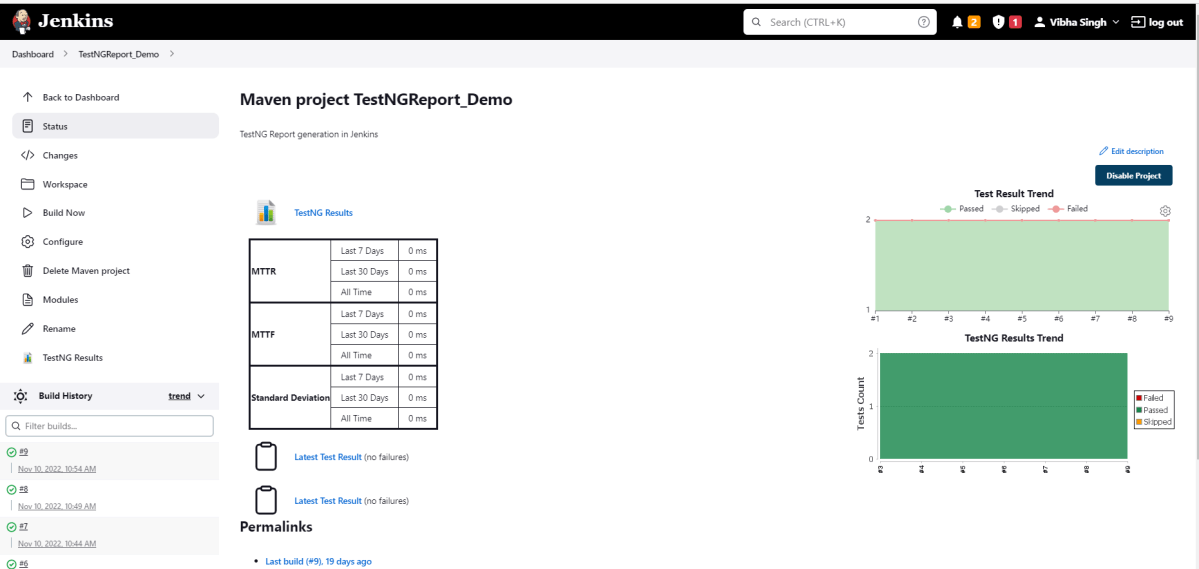
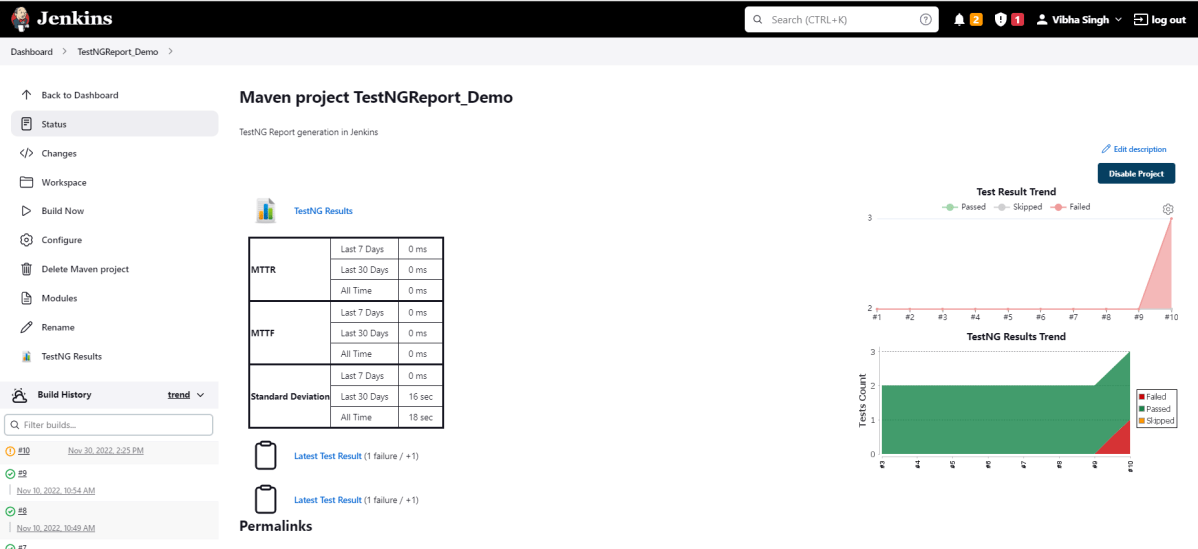
Step 1: Go to the Jenkins dashboard and click on any job. Here we can see the metrics like MTTR, MTTF, and Standard deviation in the tabular form highlighted below.

Note: If, after installing the plugin below, the tabular form does not display, then restart Jenkins.

Metrics are shown for the last 7 days, last 30 days, and all time.

Step 2: Run any job for which the build is showing as failed status, and then we can see the time for MTTR and MTTF as mentioned in the below image.

Congratulations on making it through this tutorial and hope you found it useful! Happy Learning!! Cheers!!
Jenkins GitLab Integration

HOME

The previous tutorial has explained how to install it onto a Windows 10 system and create a Maven or Gradle project in Jenkins. Jenkins and GitLab are two powerful tools on their own, but what about using them together? In this tutorial, learn about the benefits of a Jenkins GitLab integration and how to set up the integration on your own.

What is GitLab?

GitLab is a web-based Git repository that provides free open and private repositories, issue-following capabilities, and wikis. It is a complete DevOps platform that enables professionals to perform all the tasks in a project—from project planning and source code management to monitoring and security. Additionally, it allows teams to collaborate and build better software.

What is Jenkins?

Jenkins is a well-known open-source tool that aids in the implementation of Continuous Integration (CI) and Continuous Deployment/Continuous Delivery (CD) processes by automating parts of the software development pipeline such as building, testing, and deployment.

Jenkins Version Used – 2.361.2

In this version of Jenkins, Git Plugin is already installed. If the Git Plugin is not installed, then follow the below steps to add Git Plugin in Jenkins.

Step 1: Open your dashboard.

Click on the Manage Jenkins button on your Jenkins dashboard:

Step 2: Select Manage Plugins.

Click on the Manage Jenkins. Choose Manage Plugins.

Step 3:  Add Git Plugin

On the Plugins Page, go to the Available option.

  1. Select the GIT Plugin
  2. Click on Install without restart. The plugin will take a few moments to finish downloading depending on your internet connection, and will be installed automatically.
  3. You can also select the option Download now and Install after the restart button. In which plugin is installed after the restart
  4. You will be shown a “No updates available” message if you already have the Git plugin installed.

In my case, Git Plugin is already installed, so you can’t see it in the Available Plugin.

Step 4: Verify Git Plugin is installed

Once the plugins have been installed,
Go to Manage Jenkins on your Jenkins dashboard. You will see your plugins listed among the rest.

How to Integrate Jenkins With GitLab

Step 1: Create a new project using the Maven project plugin.

  1. Give the Name of the project.
  2. Click on the Maven project. 
  3. Click on the OK button.

In the General section, enter the project description in the Description box.

Click on create new jobs.

Enter the item name, select the job type, and click OK. We shall create a Maven project as an example.

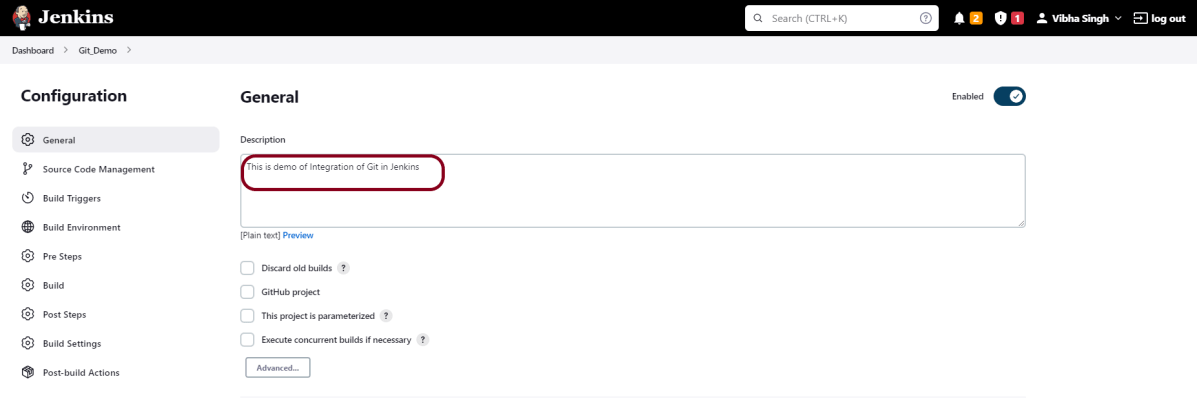
Step 2: Describe the project in the description section

In the General section, enter the project description in the Description box.

Step 3 – Source Code Management section

You will see a Git option under Source Code Management if your Git plugin has been installed in Jenkins.

Enter the Git repository URL to pull the code from GitHub. Enter the credentials to log in to GitLab.

I have already set up the credentials to log in to GitLab. Click on the Add button and select Jenkins.

Add the username and password used to log in to GitLab. Click on the “Add” button.

Note:- Please make sure that Git is installed on your local machine. To install Git on your local machine, go to this tutorial – How to install Git on Windows 10.

Step 4: Build Management

Go to the Build section of the new job.

  1. In the Root POM textbox, enter pom.xml
  2. In the Goals and options section, enter “clean test

Step 5: Select “Publish TestNG Results” from “Post Build Actions

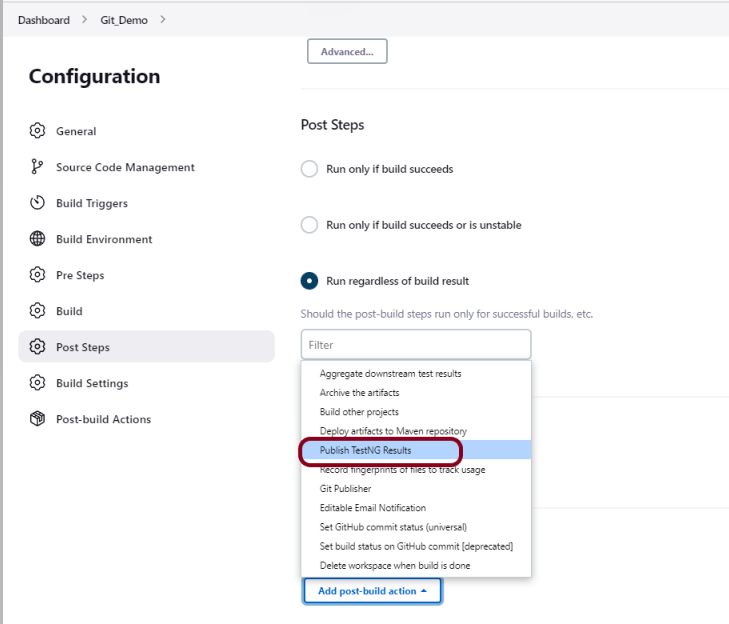
Scroll down to “Post Build Actions” and click on the “Add Post Build Actions” drop-down list. Select “Publish TestNG Results“. 

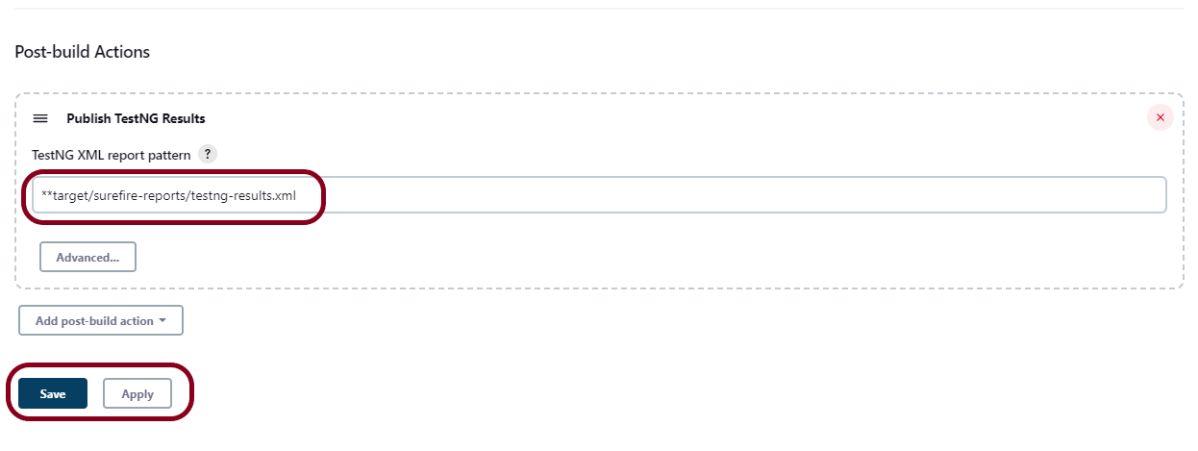
Enter TestNG XML Report Pattern as “**target/surefire-reports/testng-results.xml” and click on the “Save” button.

We have created a new project Git_Demo” with the configuration to run TestNG Tests and also to generate TestNG Reports after execution using Jenkins.

Step 6: Execute the tests

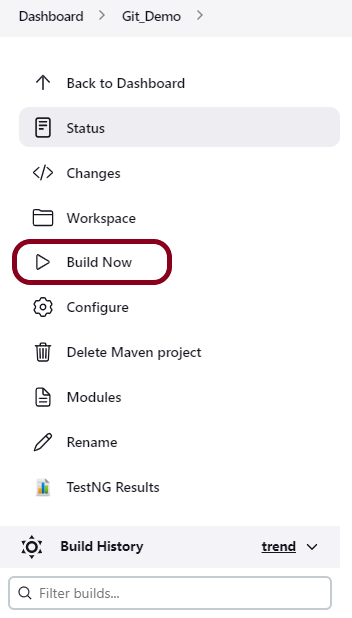
Let’s execute it now by clicking on the “Build Now” button. 

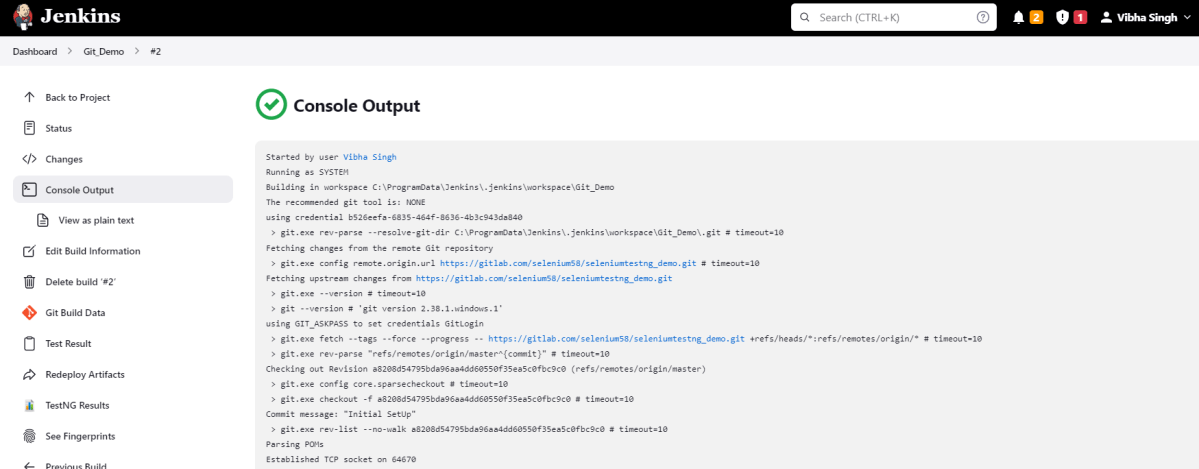
Right-click on Build Number (here in my case it is #2) and click on Console Output to see the result.

Step 7: View the TestNG Report

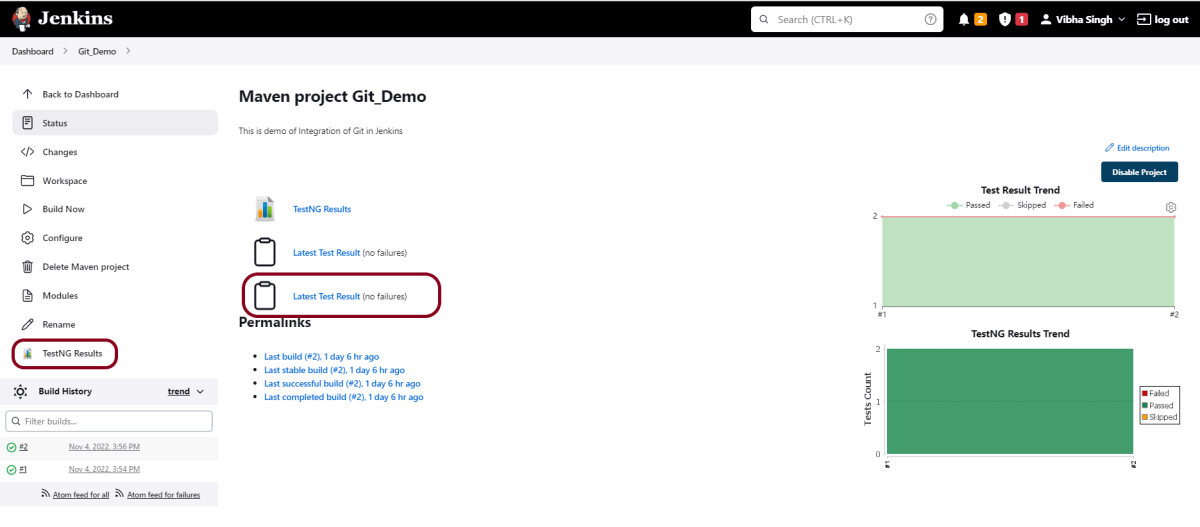
Once the execution is completed, we could see a link to view “TestNG Results“.

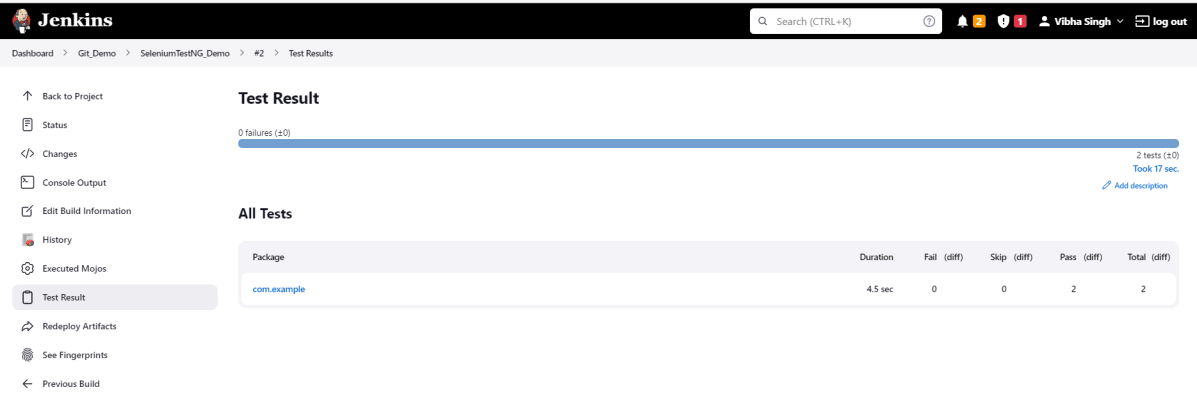
Click on the TestNG Results. It displays the summary of the tests.

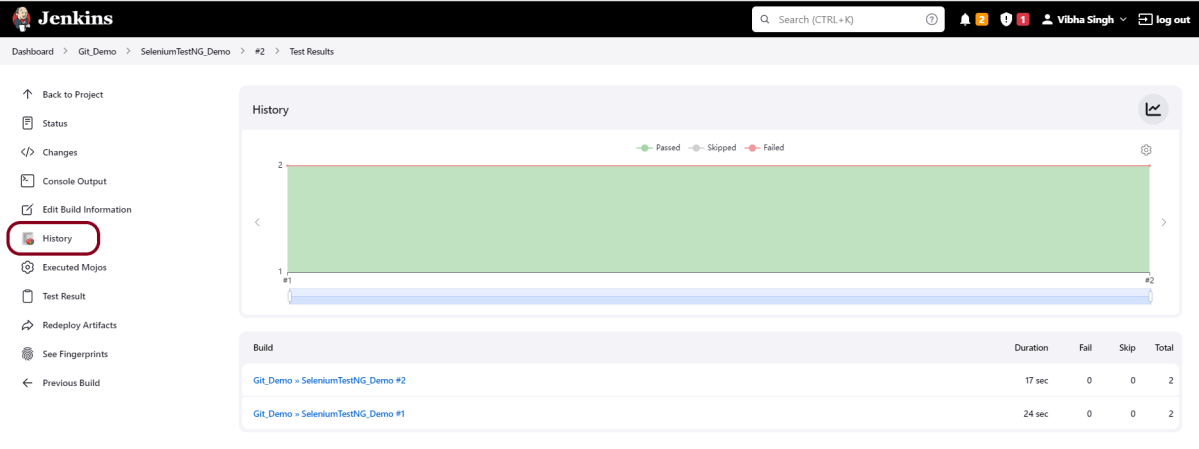
If you want to check the execution history, then click on the shown link.

This way, we could integrate Git in Jenkins.

Congratulations on making it through this tutorial and hope you found it useful! Happy Learning!! Cheers!!
Integrate Gradle project with Jenkins

HOME

In the previous tutorial, we have seen the Integration Of Jenkins With Selenium WebDriver. In this tutorial, we show you how to integrate the Gradle project with Jenkins. 

Prerequisite

  1. Jenkins installed and started on the computer
  2. Gradle is installed on the machine

Setup GRADLE_HOME in Jenkins

Step 1: Start the Jenkins server

http://localhost:8080/

Step 2: Log in to Jenkins UI

You need to provide a username and password and click on Sign in button.

Step 3: Select Manage Jenkins

Go to Jenkins Dashboard. After that, click on the Manage Jenkins link as shown below:

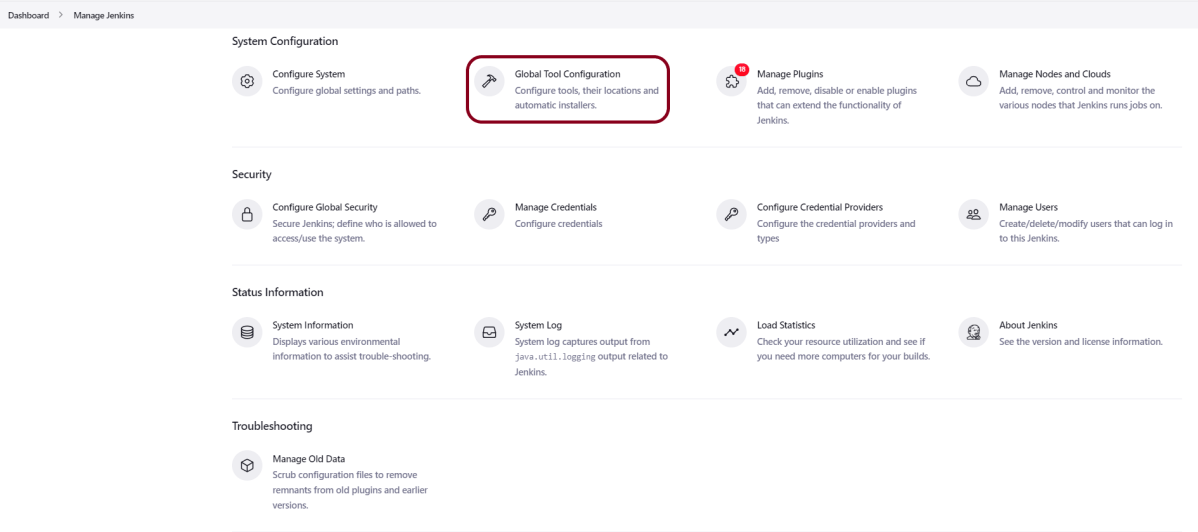
Step 4: Select the Global Tool Configuration option

When we click on the “Manage Jenkins” link, we are redirected to the Manage Jenkins page, where we can see various types of options, including the “Global Tool Configuration” option.

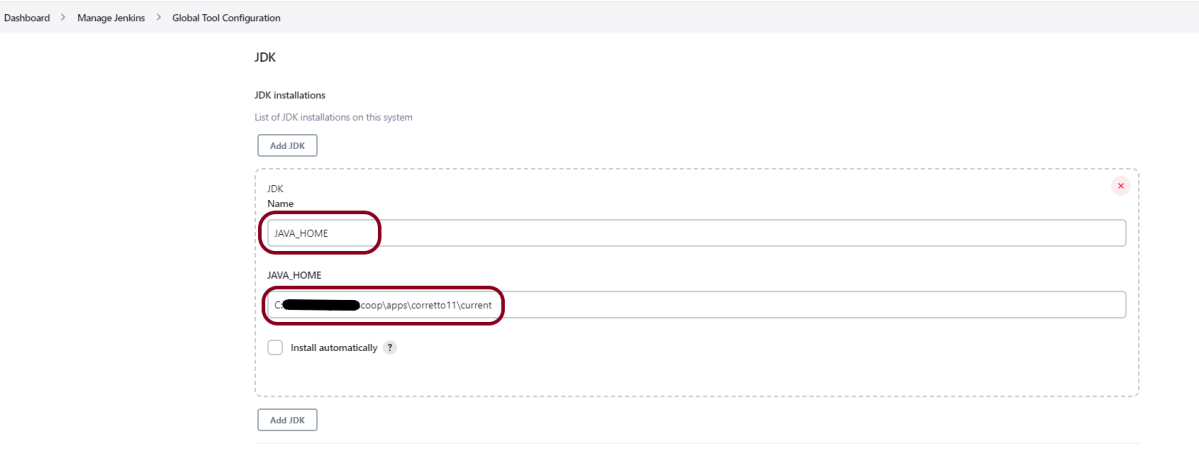
Step 5: Setup JDK Path

We need to set the JDK path in Jenkins as shown below. To know more about setting up Java in Jenkins, please refer to this tutorial – How to configure Java and Maven in Jenkins.

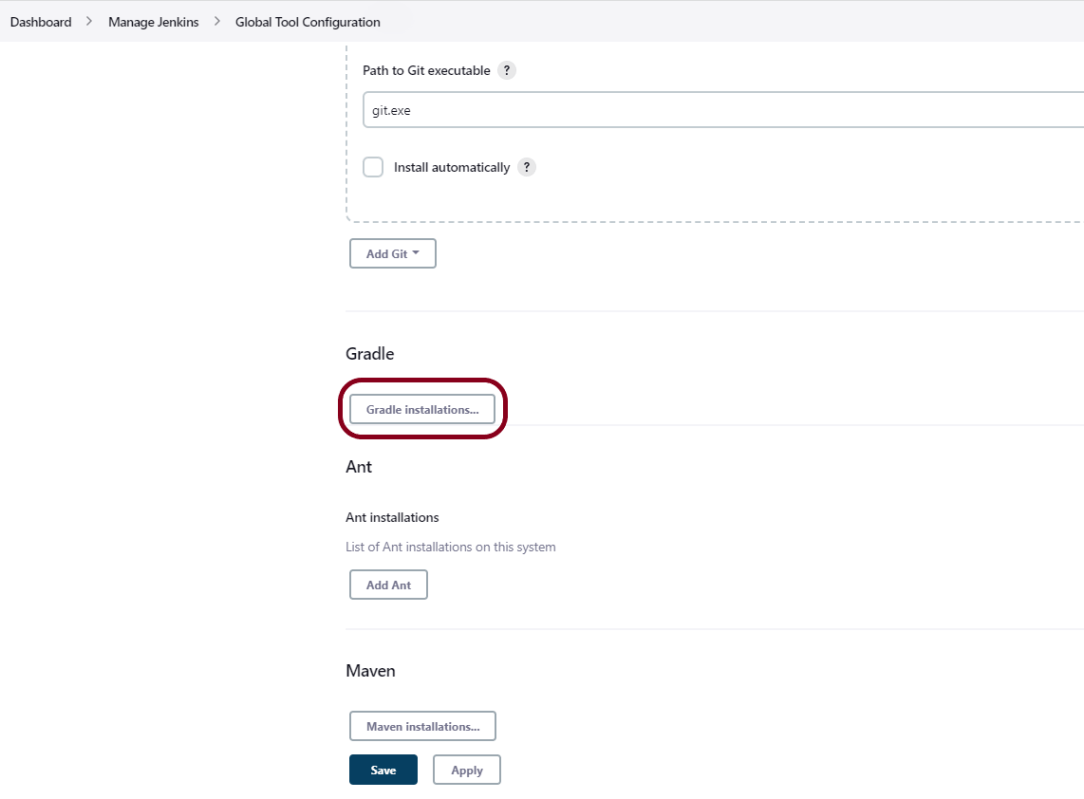
Step 6: Setup Gradle Path

We need to set the Gradle path in Jenkins as shown below.

Click on the Add Gradle Installations button. Kindly note that by default, “Install Automatically” will be checked, so since we are going to use the Gradle installed on our local machine, “Install automatically” will install the latest version of Gradle, and you will also need to provide credentials to download the relevant Maven.

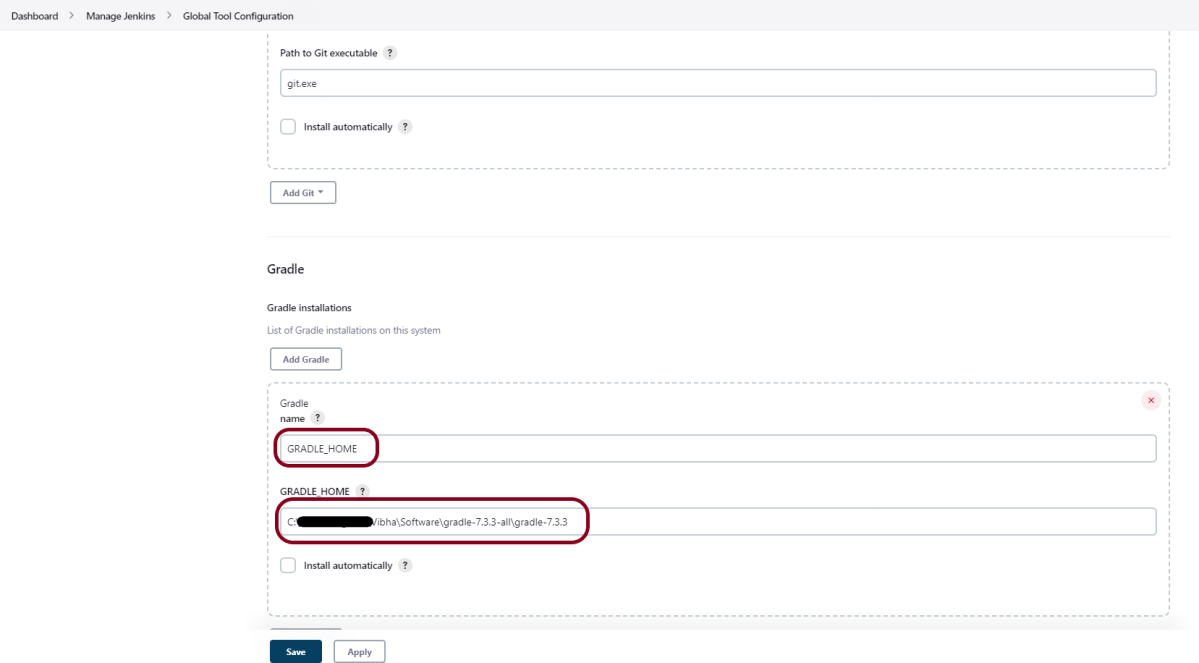
Provide the Gradle’s name as we gave as Gradle 7.3.3 because that is what is currently installed on my machine, and also provide the path of Gradle in the GRADLE_HOME textbox.

Click on the Apply and Save buttons.

Integrate Gradle Project with Jenkins

Step 1: Create a new project using the FreeStyle project plugin

  1. Give the Name of the project.
  2. Click on the Freestyle project. 
  3. Click on the OK button.

Step 2: Enter the project description in the Description box

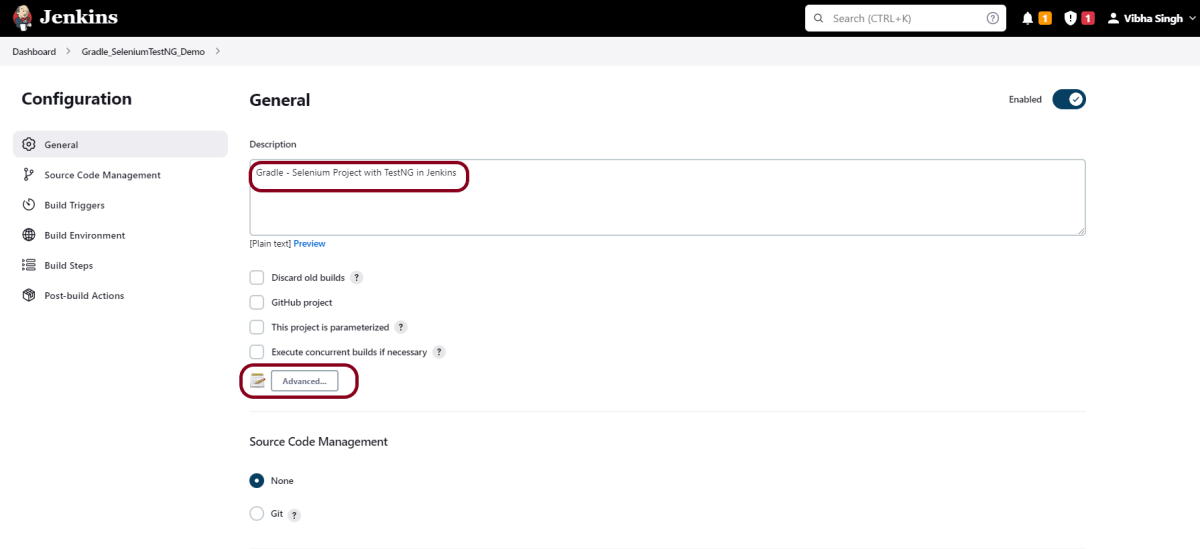
In the general section, describe the project in the description section.

Click on the Advanced button. Mention the full path of the project.

Step 3: Build Management

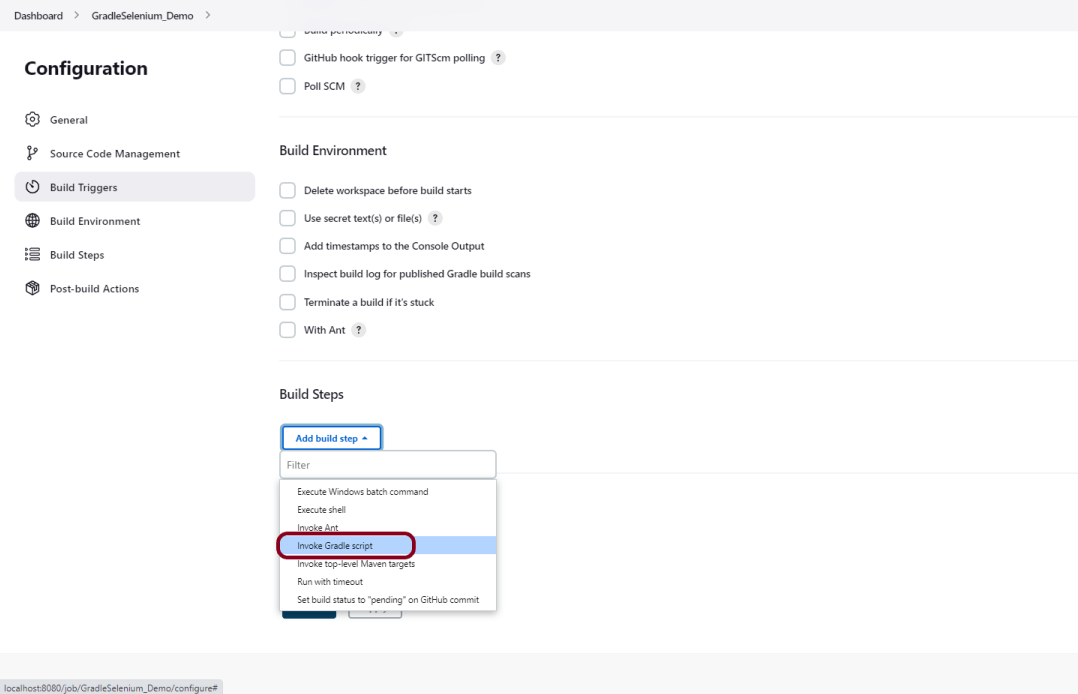
Go to the Build section of the new job and select the option – “Invoke Gradle Script“.

Provide the below-mentioned information:

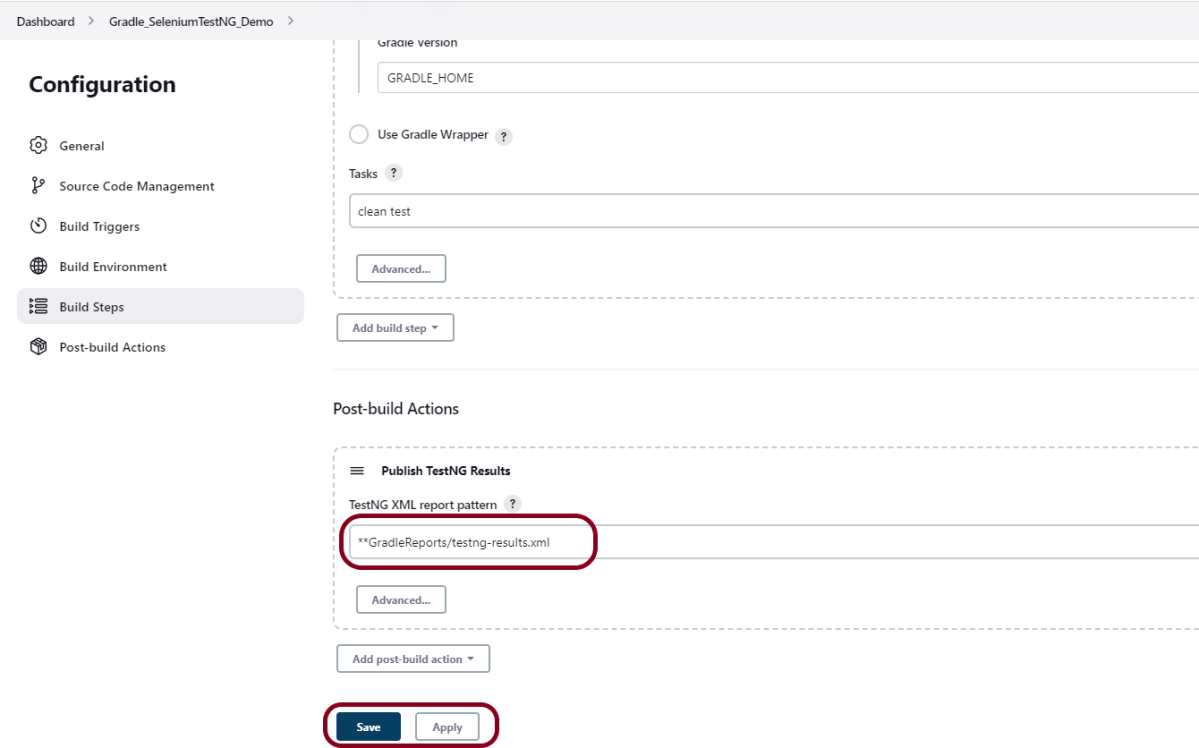
  1. In the Gradle version, enter – GRADLE_HOME.
  2. In the Tasks option section, enter “clean test

Step 4: Select “Publish TestNG Results” from “Post Build Actions”

Scroll down to “Post Build Actions” and click on the “Add Post Build Actions” drop-down list.

Select “Publish TestNG Results“.

To know, how to install TestNG plugin, please refer to this tutorial – How to generate TestNG Report in Jenkins.

Enter TestNG XML Report Pattern as “**GradleReports/testng-results.xml” and click on the Save button

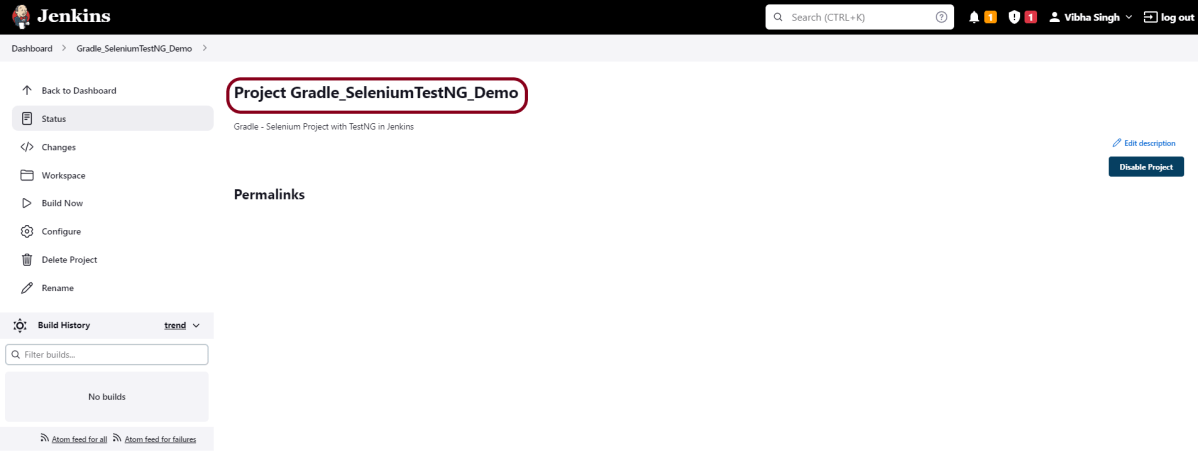
We have created a new project “Gradle_SeleniumTestNG_Demo” with the configuration to run TestNG Tests and also to generate TestNG Reports after execution using Jenkins.

Step 5: Execute the tests

Let’s execute it now by clicking on the “Build Now” button.


Right-click on Build Number (here in my case it is #2) and click on Console Output to see the result.

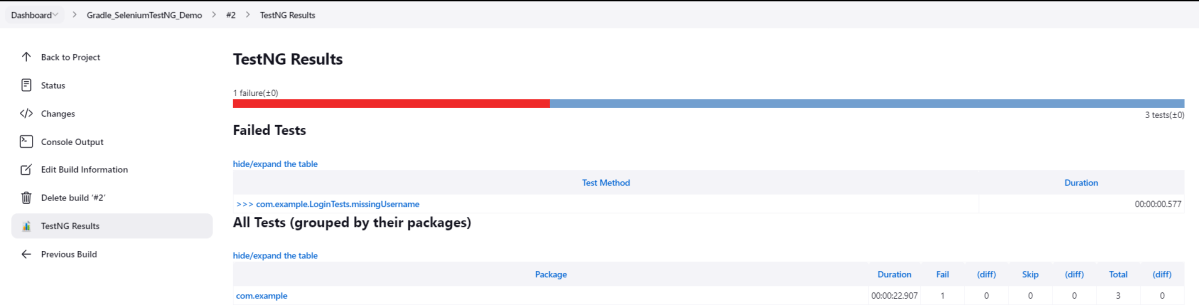
The below screen shows that the build failed because I failed one of the tests intentionally to show how the result looks with passed and failed tests.

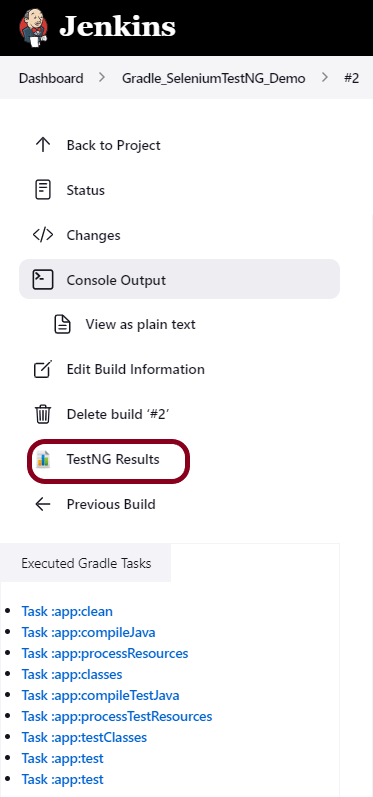
Once the execution is completed, we could see a link to view ‘TestNG Results’.

Click on the TestNG Results. It displays the summary of the tests.

This way, we could integrate the Gradle project with Jenkins.

Congratulations on making it through this tutorial and hope you found it useful! Happy Learning!! Cheers!!
How to generate TestNG Report in Jenkins

HOME

In the previous tutorial, we have seen the Integration Of Jenkins With Selenium WebDriver. In this tutorial, we show you how to generate TestNG Reports Using Jenkins.

Table of Contents

Prerequisite

Jenkins installed and started on the computer

Implementation Steps

Step 1: Start the Jenkins server

http://localhost:8080/

Step 2: Log in to Jenkins UI

Provide a username and password and click on the Sign-in Button.

Step 3: Download and Install TestNG Results Plugin

Click on the Manage Jenkins. Choose Manage Plugins.

Step 4: Add the TestNG Report plugin

On the Plugins Page, go to the Available option

  1. Select the TestNG Report Plugin
  2. Click on Install without restart. The plugin will take a few moments to finish downloading depending on your internet connection, and will be installed automatically.
  3. You can also select the option Download now and Install after the restart button. In which plugin is installed after the restart
  4. You will be shown a “No updates available” message if you already have the TestNG Report plugin installed.

The plugin “TestNG Report” has been installed successfully.

Sometimes, the installation fails because of a network issue. You can try to reinstall it, and it should be successful.

Step 5: Restart Jenkins

Click on the checkbox “Restart Jenkins when installation is complete when no jobs are running“.

The Jenkins will be restarted. Again, login to Jenkins UI.

Step 6: Create a new project using the Maven project plugin

  1. Give the Name of the project.
  2. Click on the Maven project. 
  3. Click on the OK button.

In the General section, enter the project description in the Description box.

Step 7: Build Management

Go to the Build section of the new job.

  1. In the Root POM textbox, enter the full path to pom.xml
  2. In the Goals and options section, enter “clean test

Click on the Advanced button.

Step 8: Select custom workspace

Mention the full path of the project in the directory.

Step 9: Select “Publish TestNG Results” from “Post Build Actions”

Scroll down to Post Build Actions’ and click on the ‘Add Post Build Actions’ drop-down list.

Select “Publish TestNG Results“. 

Enter the TestNG XML Report Pattern as “**target/surefire-reports/testng-results.xml” and click on the “Save” button.

We have created a new project TestNGReport_Demo” with the configuration to run TestNG Tests and also to generate TestNG Reports after execution using Jenkins.

Step 10: Execute the tests

Let’s execute it now by clicking on the “Build Now” button. 

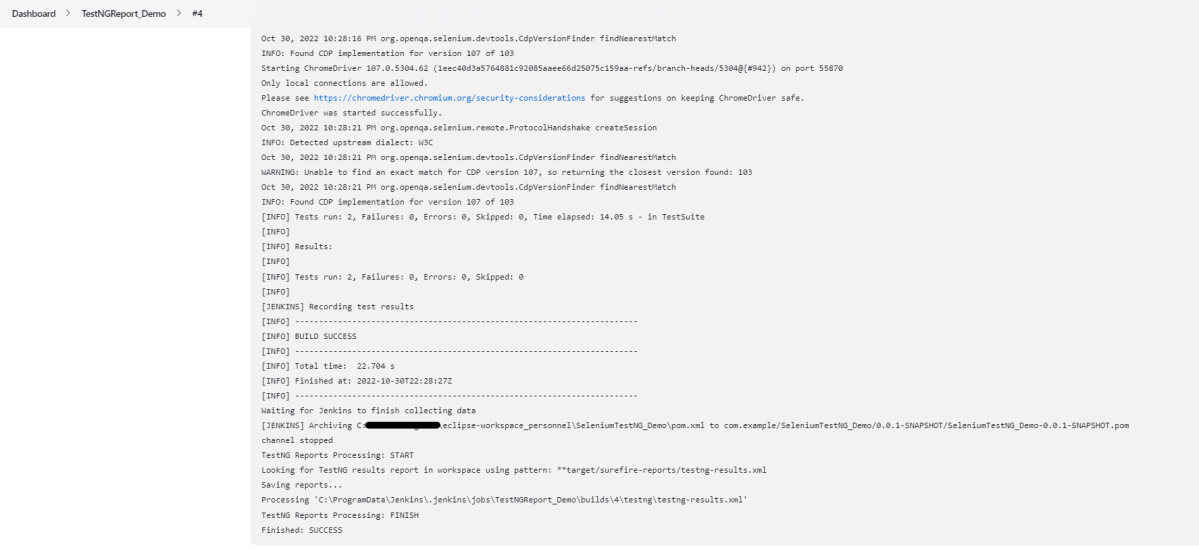
Right-click on Build Number (here in my case it is #4) and click on Console Output to see the result.

Once the execution is completed, we could see a link to view ‘TestNG Results’.

Step 11: View the TestNG Report

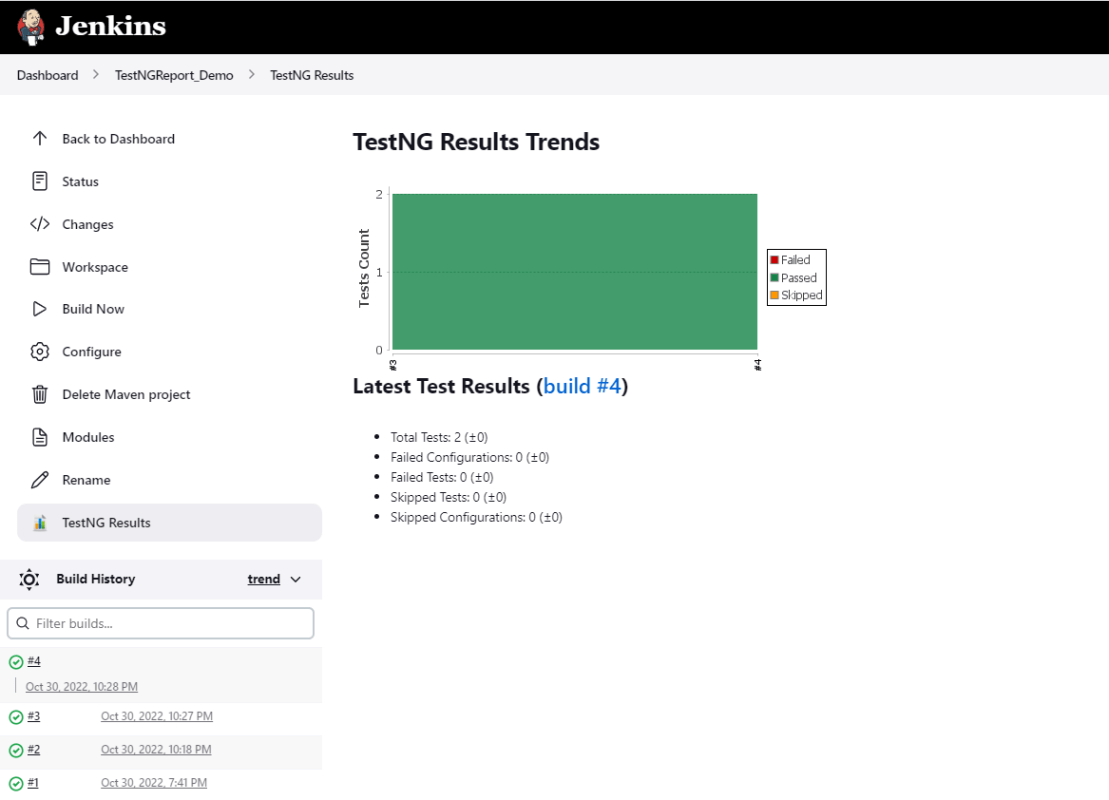
Click on the TestNG Results. It displays the summary of the tests.

This way, we could generate TestNG Reports using Jenkins.

Congratulations on making it through this tutorial and hope you found it useful! Happy Learning!! Cheers!!
Integration Of Jenkins With Selenium WebDriver

HOME

What is Jenkins?

Jenkins is a well-known open-source tool that aids in the implementation of Continuous Integration (CI) and Continuous Deployment/Continuous Delivery (CD) processes by automating parts of the software development pipeline such as building, testing, and deployment.

What is Selenium?

Selenium is an open-source automation tool that has been widely used for testing web applications.  It is basically a suite of software or a set of JAR files to automate web browsers across various browsers. Selenium is used by many companies, but a few to mention are Netflix, Google, HubSpot, Fitbit, and more.  Selenium supports multiple languages like Python, Pearl, Ruby, .Net, Java, C#, PHP. 

Selenium supports parallel test execution. That means we can open multiple browsers at the same time and execute the test cases. This decrease the execution time significantly. Selenium supports Cross browser test execution.

Jenkins Integration With Selenium 

It is recommended to go through these tutorials:-

Download and install Jenkins on Windows10

Configure JAVA_HOME and MAVEN_HOME

Implementation Steps

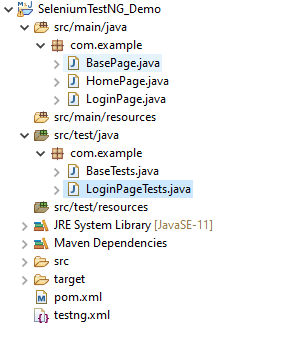
Step 1 – Create a project for running the tests using Selenium WebDriver and TestNG

Step 2 – Create the Test Code

Below is the sample POM.xml.

<project xmlns="http://maven.apache.org/POM/4.0.0" xmlns:xsi="http://www.w3.org/2001/XMLSchema-instance" xsi:schemaLocation="http://maven.apache.org/POM/4.0.0 https://maven.apache.org/xsd/maven-4.0.0.xsd">
	<modelVersion>4.0.0</modelVersion>
	<groupId>com.example</groupId>
	<artifactId>SeleniumTestNG_Demo</artifactId>
	<version>0.0.1-SNAPSHOT</version>

	<properties>
		<project.build.sourceEncoding>UTF-8</project.build.sourceEncoding>
		<selenium.version>4.3.0</selenium.version>
		<testng.version>7.6.0</testng.version>
		<webdrivermanager.version>5.2.1</webdrivermanager.version>
		<apache.common.version>2.4</apache.common.version>
		<maven.compiler.plugin.version>3.10.1</maven.compiler.plugin.version>
		<maven.compiler.source.version>11</maven.compiler.source.version>
		<maven.compiler.target.version>11</maven.compiler.target.version>
		<maven.surefire.plugin.version>3.0.0-M7</maven.surefire.plugin.version>

	</properties>

	<dependencies>

		<!-- Selenium -->
		<dependency>
			<groupId>org.seleniumhq.selenium</groupId>
			<artifactId>selenium-java</artifactId>
			<version>${selenium.version}</version>
		</dependency>

		<!-- TestNG -->
		<dependency>
			<groupId>org.testng</groupId>
			<artifactId>testng</artifactId>
			<version>${testng.version}</version>
			<scope>test</scope>
		</dependency>

		<!-- Web Driver Manager -->
		<dependency>
			<groupId>io.github.bonigarcia</groupId>
			<artifactId>webdrivermanager</artifactId>
			<version>${webdrivermanager.version}</version>
		</dependency>

		<dependency>
			<groupId>org.hamcrest</groupId>
			<artifactId>hamcrest</artifactId>
			<version>2.2</version>
			<scope>test</scope>
		</dependency>
			
		<!-- Allure Report -->	
		<dependency>
        <groupId>io.qameta.allure</groupId>
        <artifactId>allure-testng</artifactId>
        <version>${allure.testng.version}</version>
        <scope>test</scope>
    </dependency>

	</dependencies>

	<build>
		<plugins>
			<plugin>
				<groupId>org.apache.maven.plugins</groupId>
				<artifactId>maven-compiler-plugin</artifactId>
				<version>${maven.compiler.plugin.version}</version>
				<configuration>
					<source>${maven.compiler.source.version}</source> 
					<target>${maven.compiler.target.version}</target> 
				</configuration>
			</plugin>
			 <plugin>
              <groupId>org.apache.maven.plugins</groupId>
              <artifactId>maven-surefire-plugin</artifactId>
              <version>${maven.surefire.plugin.version}</version>
              <configuration>
                    <suiteXmlFiles>
                        <suiteXmlFile>testng.xml</suiteXmlFile>
                    </suiteXmlFiles>
             </configuration>          
        </plugin>
      </plugins>
  </build>
</project>

BasePage

package com.example;

import org.openqa.selenium.WebDriver;
import org.openqa.selenium.support.PageFactory;

public class BasePage {
	
	  public WebDriver driver;

	  public BasePage(WebDriver driver) {
		  this.driver = driver;
		  PageFactory.initElements(driver,this);
	}

}

HomePage

import org.openqa.selenium.WebDriver;
import org.openqa.selenium.WebElement;
import org.openqa.selenium.support.FindBy;

public class HomePage extends BasePage {

	public HomePage(WebDriver driver) {
		super(driver);

	}

	  @FindBy(xpath = "//*[@id='app']/div[1]/div[1]/header/div[1]/div[1]/span/h6")
	  public  WebElement homePageUserName;

	  public String getHomePageText() {
	       return homePageUserName.getText();
   }

}

LoginPage

import org.openqa.selenium.WebDriver;
import org.openqa.selenium.WebElement;
import org.openqa.selenium.support.FindBy;

public class LoginPage extends BasePage{
	
	 public LoginPage(WebDriver driver) {
		 super(driver);
		
    }
	
	@FindBy(name = "username")
    public WebElement userName;
 
    @FindBy(name = "password")
    public WebElement password;
 
    @FindBy(xpath = "//*[@id='app']/div[1]/div/div[1]/div/div[2]/div[2]/form/div[3]/button")
    public WebElement login;
 
    @FindBy(xpath = "//*[@id='app']/div[1]/div/div[1]/div/div[2]/div[2]/div/div[1]/div[1]/p")
    public  WebElement errorMessage;
   
    
    public void login(String strUserName, String strPassword) {
    	 
    	userName.sendKeys(strUserName);
    	password.sendKeys(strPassword);
    	login.click();
 
    }
  
   
    public String getErrorMessage() {
        return errorMessage.getText();
    }
    
}

BaseTests

import java.time.Duration;
import org.openqa.selenium.WebDriver;
import org.openqa.selenium.chrome.ChromeDriver;
import org.testng.annotations.AfterMethod;
import org.testng.annotations.BeforeMethod;
import io.github.bonigarcia.wdm.WebDriverManager;

public class BaseTests {
	
	public static WebDriver driver;
	public final static int TIMEOUT = 10;    
 
	@BeforeMethod
    public void setup() {
    	WebDriverManager.chromedriver().setup();
	    driver = new ChromeDriver();
	    driver.manage().window().maximize();
	    driver.get("https://opensource-demo.orangehrmlive.com/");	    
	    driver.manage().timeouts().implicitlyWait(Duration.ofSeconds(TIMEOUT));

    }
   
    @AfterMethod
    public void tearDown() {
        driver.quit();
    }
    
}

LoginPageTests

import org.testng.Assert;
import org.testng.annotations.Test;

public class LoginPageTests extends BaseTests{
	 

    @Test
    public void invalidCredentials() {
   
	    LoginPage objLoginPage = new LoginPage(driver);
    	objLoginPage.login("admin$$", "admin123");
    	 
    	// Verify Error Message
    	 Assert.assertEquals("Invalid credentials",objLoginPage.getErrorMessage());
    
    }
    

    @Test
    public void validLogin() {
   
	    LoginPage objLoginPage = new LoginPage(driver);
    	objLoginPage.login("Admin", "admin123");
    	 
    	HomePage objHomePage = new HomePage(driver);
    	
    	// Verify Home Page
    	Assert.assertEquals("Dashboard",objHomePage.getHomePageText());
    
    }
     
}

Step 3 – Start Jenkins

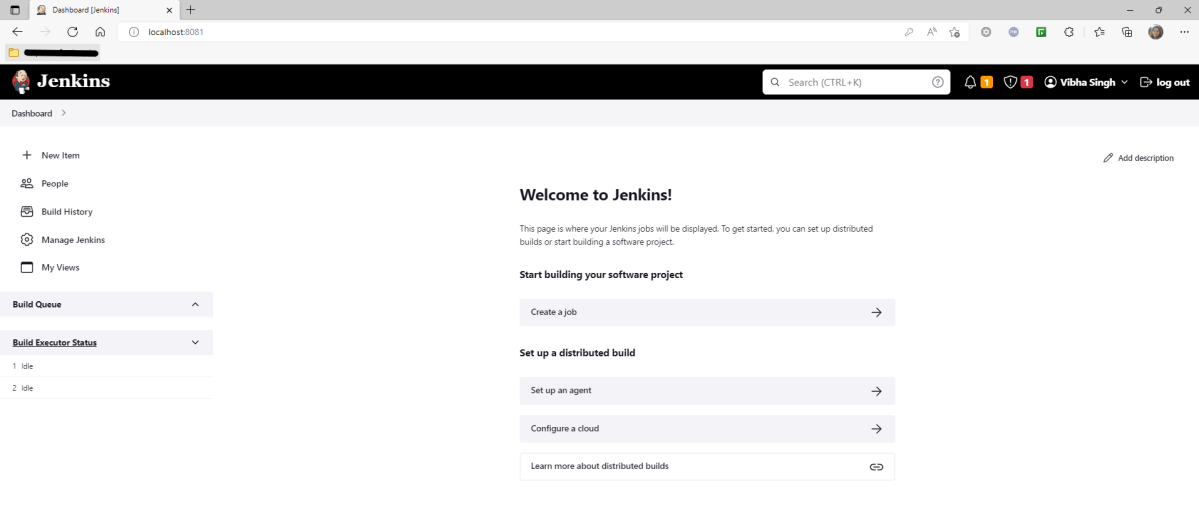
Open the Jenkins dashboard – http://localhost:8081/.  In the Jenkins dashboard, click New Item to create a new project.  

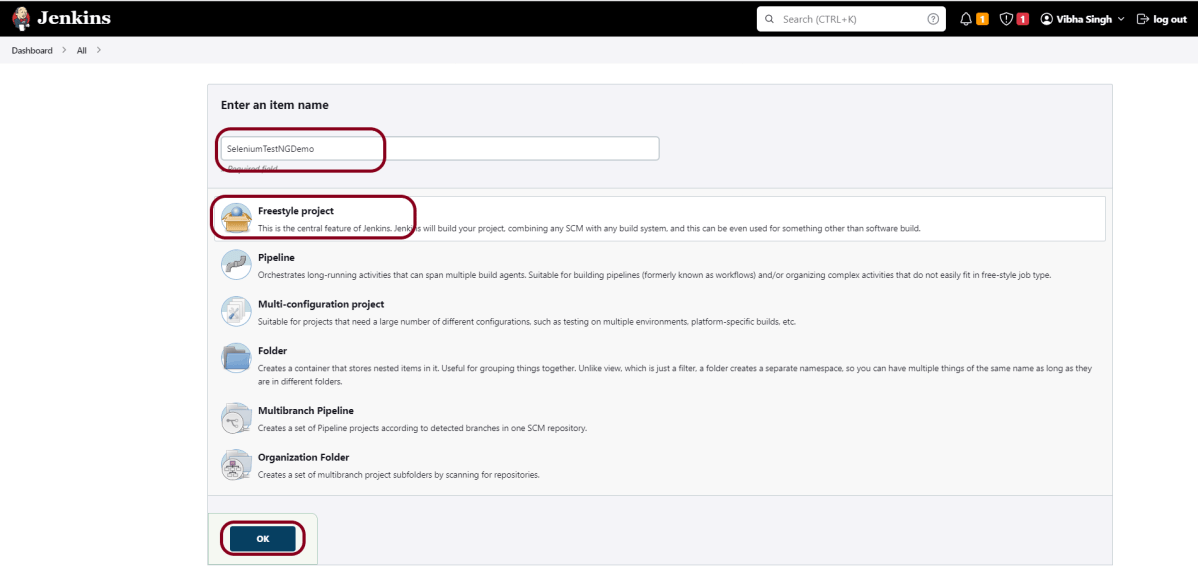
Step 4 – Create a FreeStyle project in Jenkins

Specify the name of the project and click the Freestyle Project option. Click the OK button.

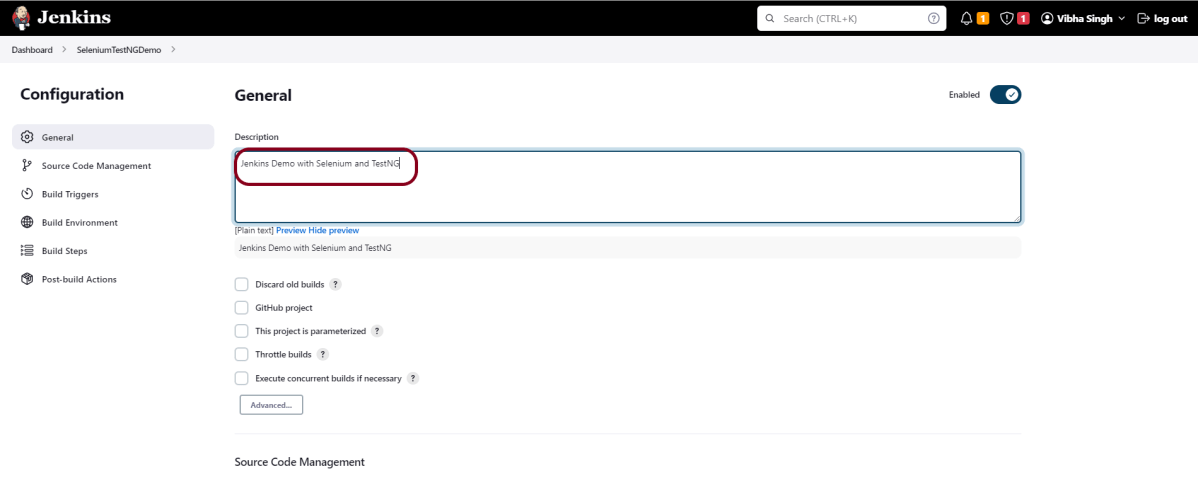
Step 5 – Mention the description

In the General section, enter the project description in the Description box.

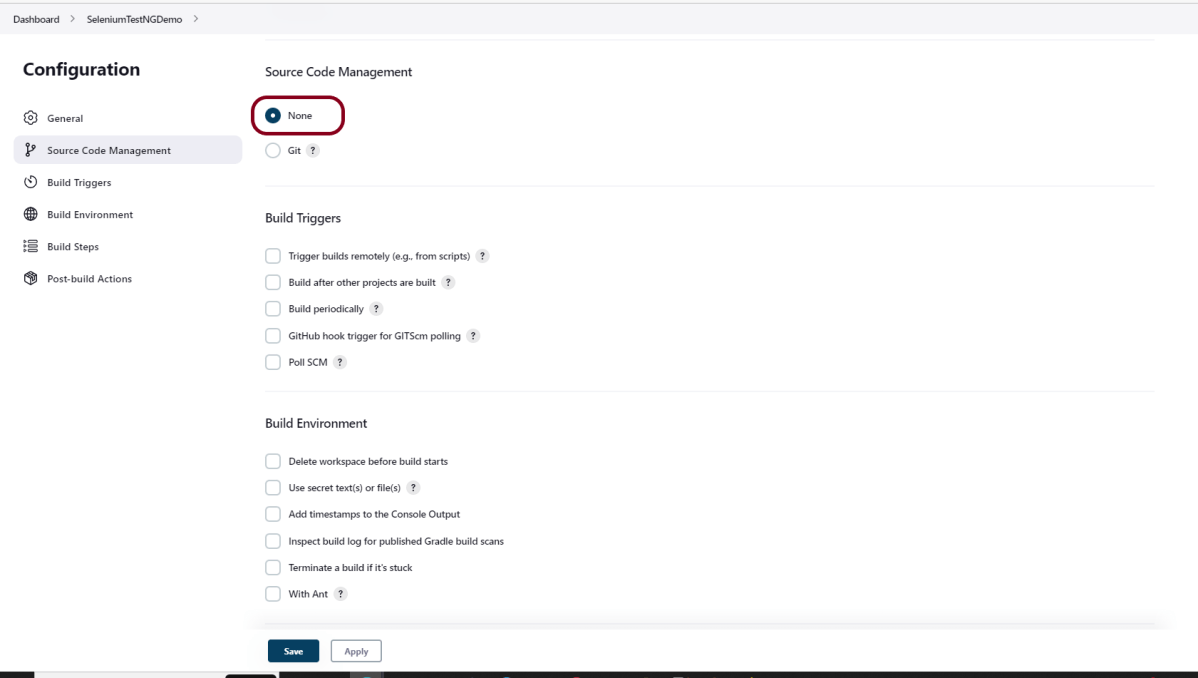
Step 6 – Source Management

In the Source Code Management section, select None.


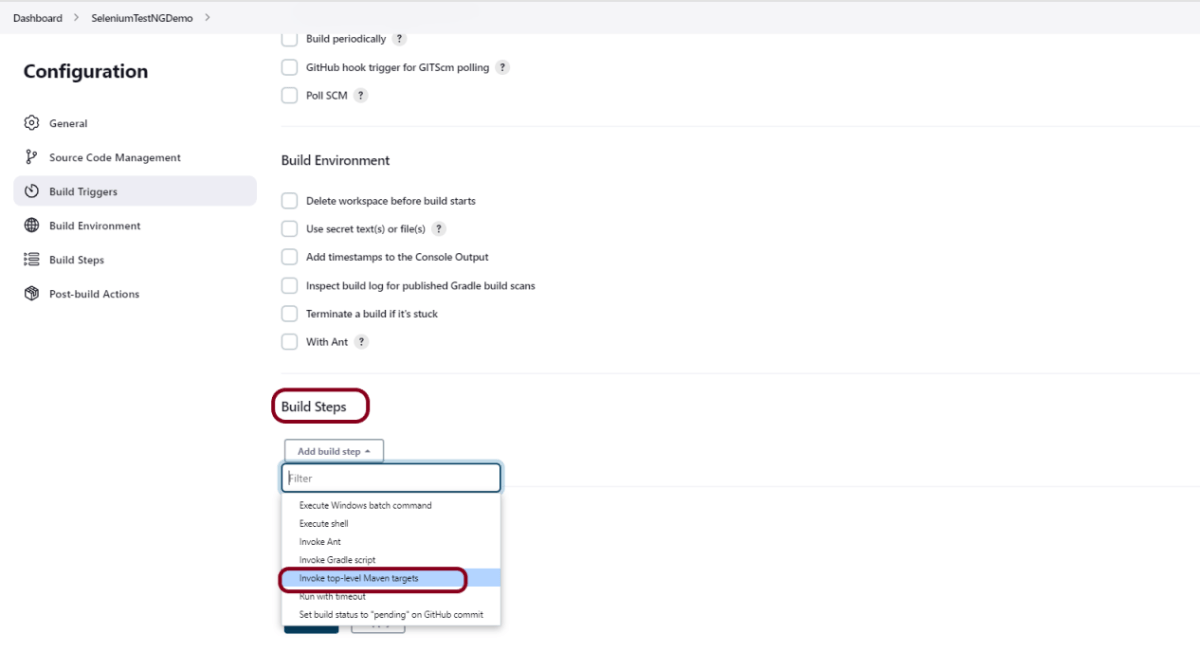
Step 7 – Select Invoke top-level Maven targets in build steps

In the Build Steps section, select Invoke top-level Maven targets.

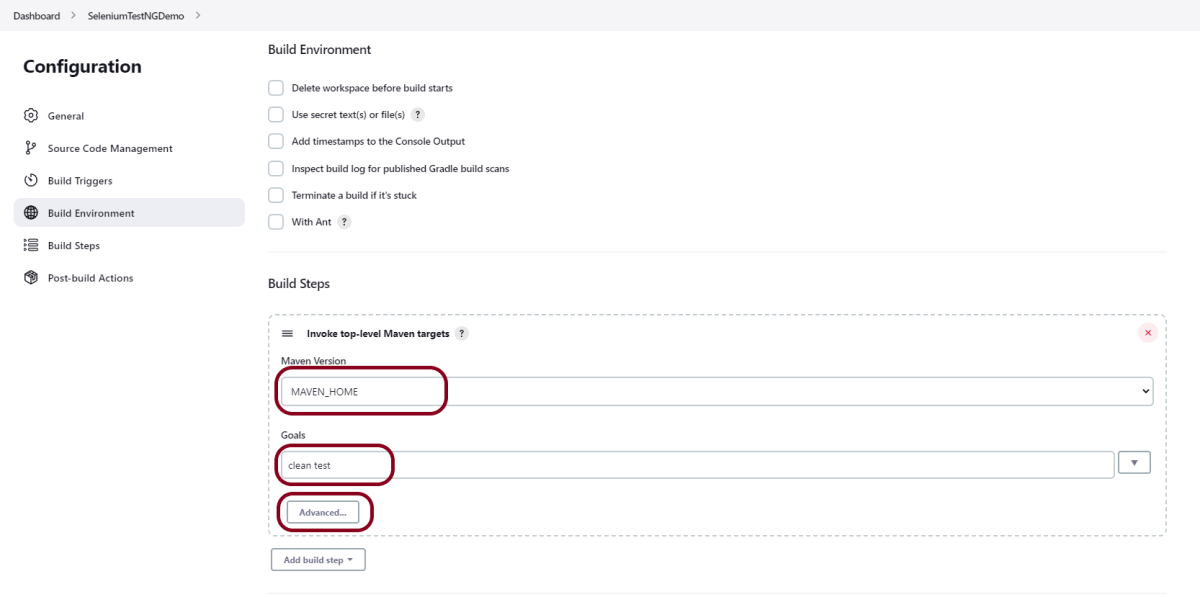
Step 8 – Provide the build steps

The Build Steps window will extend. Mention the below details:-

Maven Version – MAVEN_HOME

Goals – clean test

Click on the Advanced button.

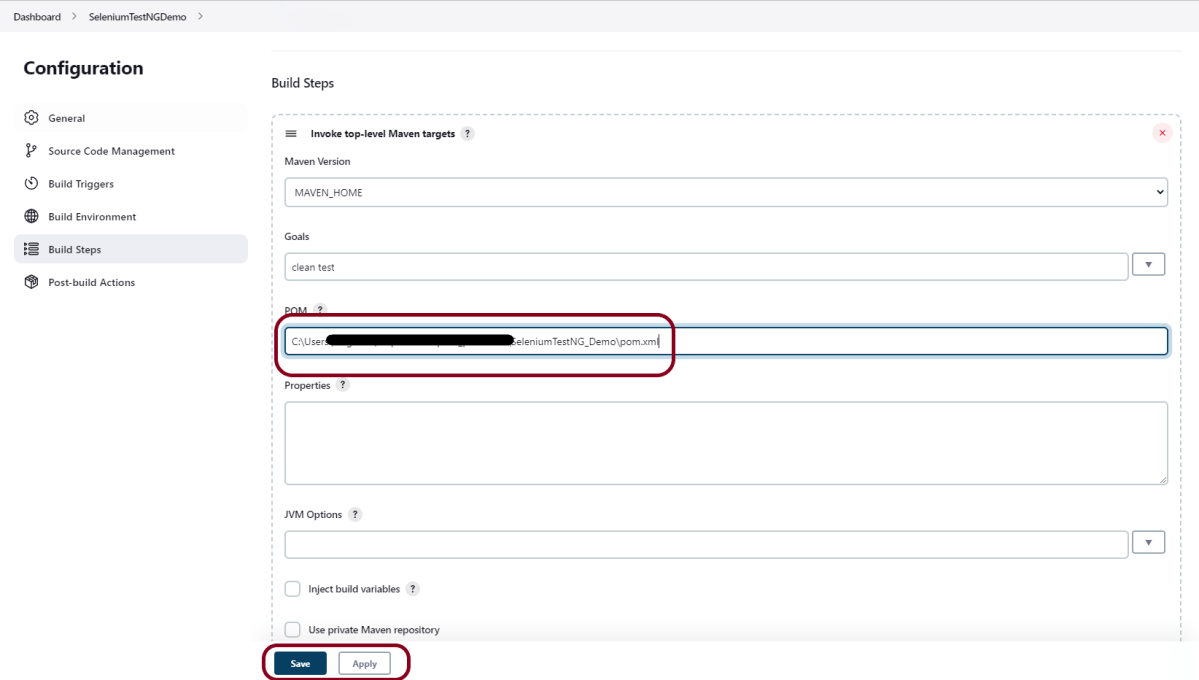
Step 9 – Mention the path of the project

Specify the full path to pom.xml in POM. Click on the Apply Button and then on the Save button.

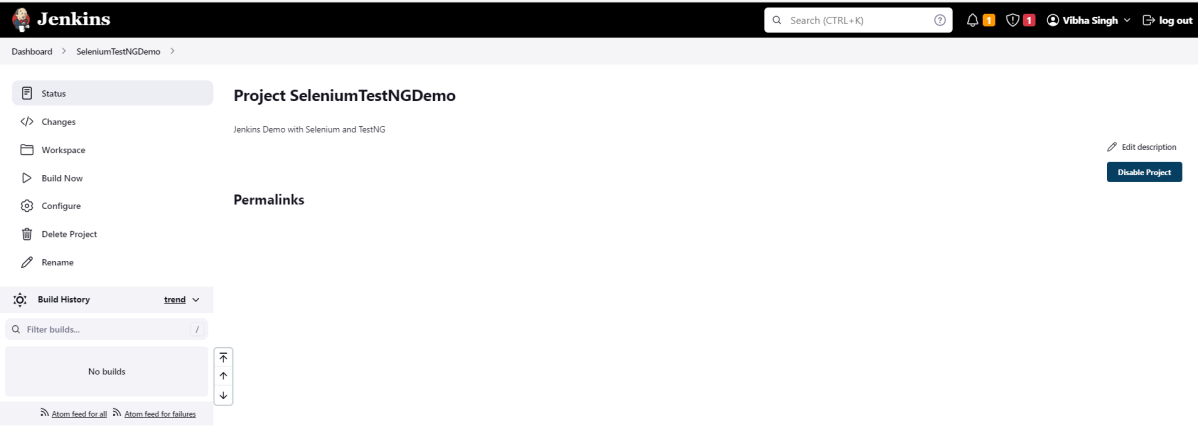
Step 10 – Verify the the project is created in Jenkins

The below screen shows that a new project with the name of SeleniumTestNGDemo is created.

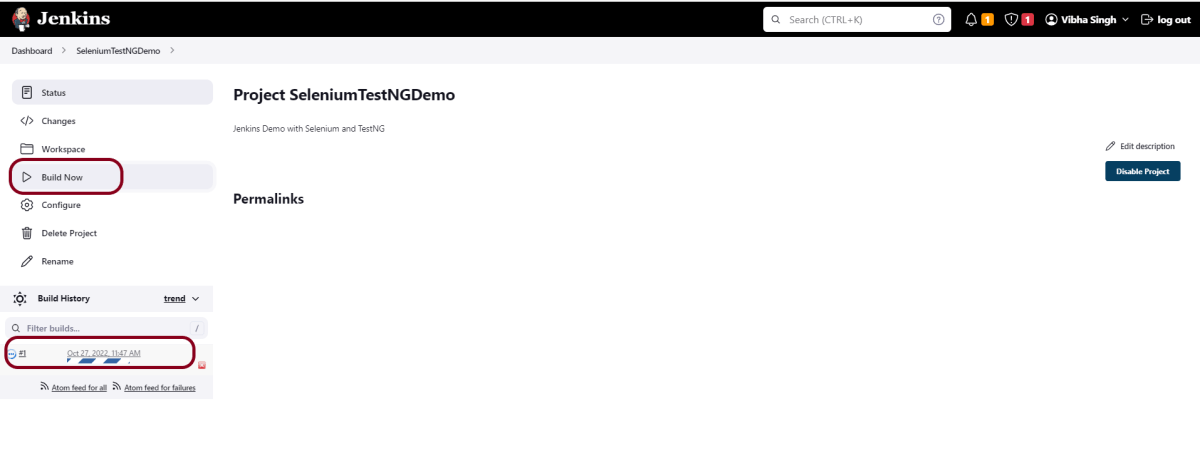
Step 11 – Execute the tests

Click on the Build Now option to run the tests.

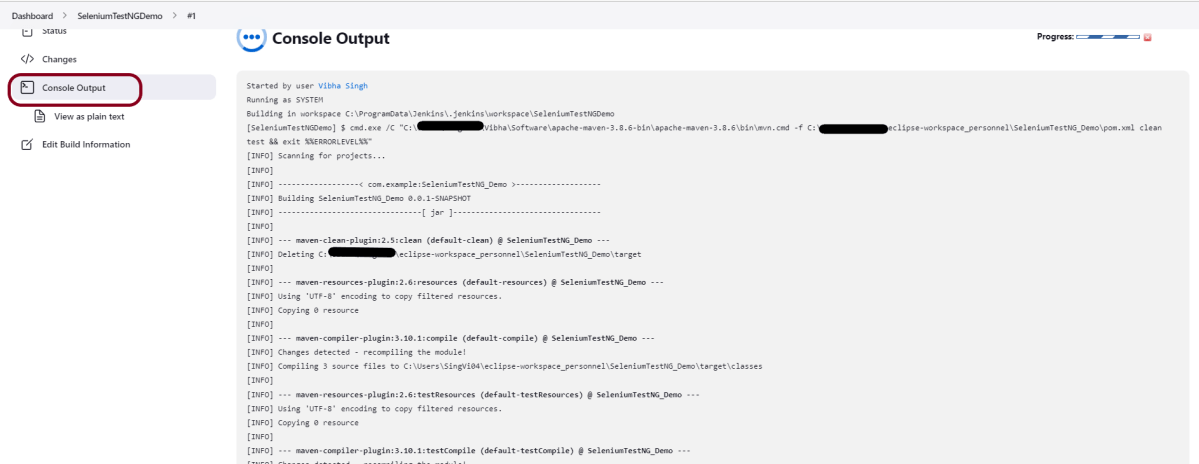
Step 12 – View the execution result

Click on the Console Output to see the test execution result.

Congratulations on making it through this tutorial and hope you found it useful! Happy Learning!! Cheers!!
Additional Tutorials on Jenkins

How to configure Java and Maven in Jenkins

HOME

In the previous tutorial, I explained the steps to download and configure Jenkins in Windows 10.

The introduction of the Global Tool Configuration section in Jenkins 2 is a wise decision. This section contains all the major configurations for external tools, their locations, and automatic installer tools.

Configuring Java

Open Jenkins and go to Jenkins Dashboard. After that, click on the Manage Jenkins link as shown below:

When we click on the “Manage Jenkins” link, we are redirected to the Manage Jenkins page, where we can see various types of options, including the “Global Tool Configuration” option.

 We need to set the JDK path in Jenkins as shown below.

Click on the Add JDK button. By default, “Install Automatically” will be checked, so since we are going to use the JDK installed in our local machine, “Install automatically” will install the latest version of JDK, and you will also need to provide credentials to download the relevant JDK.

Provide the JDK’s name as we gave as JDK 11 because that is what is currently installed on my machine and also provide the path of JDK in the JAVA_HOME textbox.

Configuring Maven

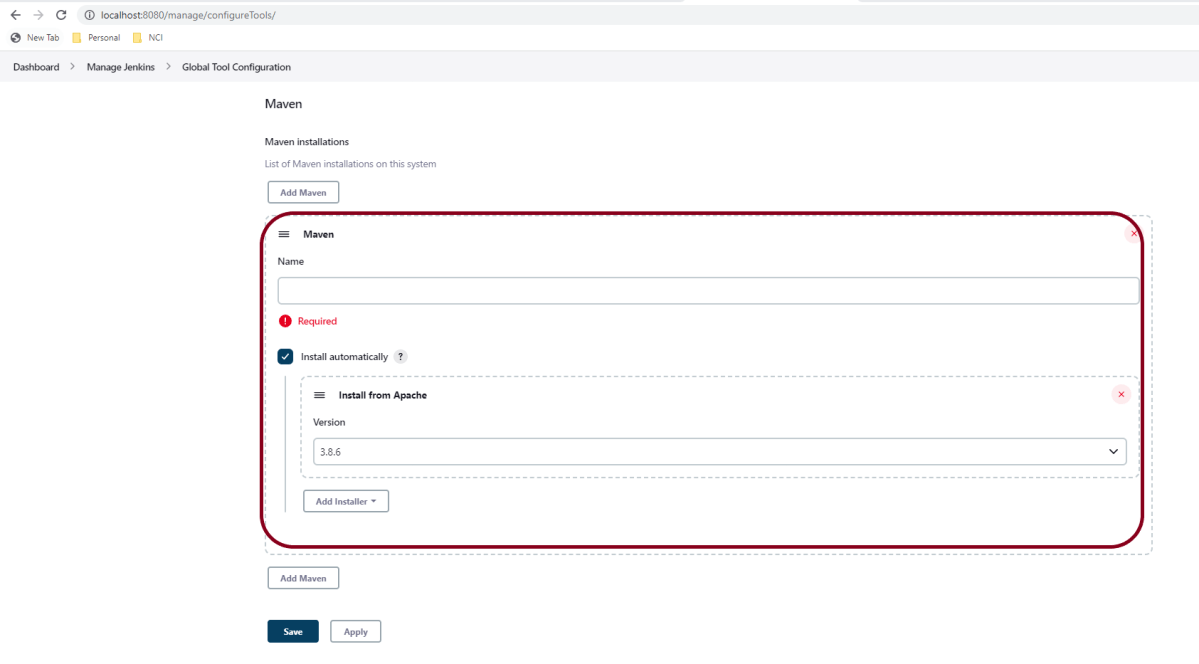
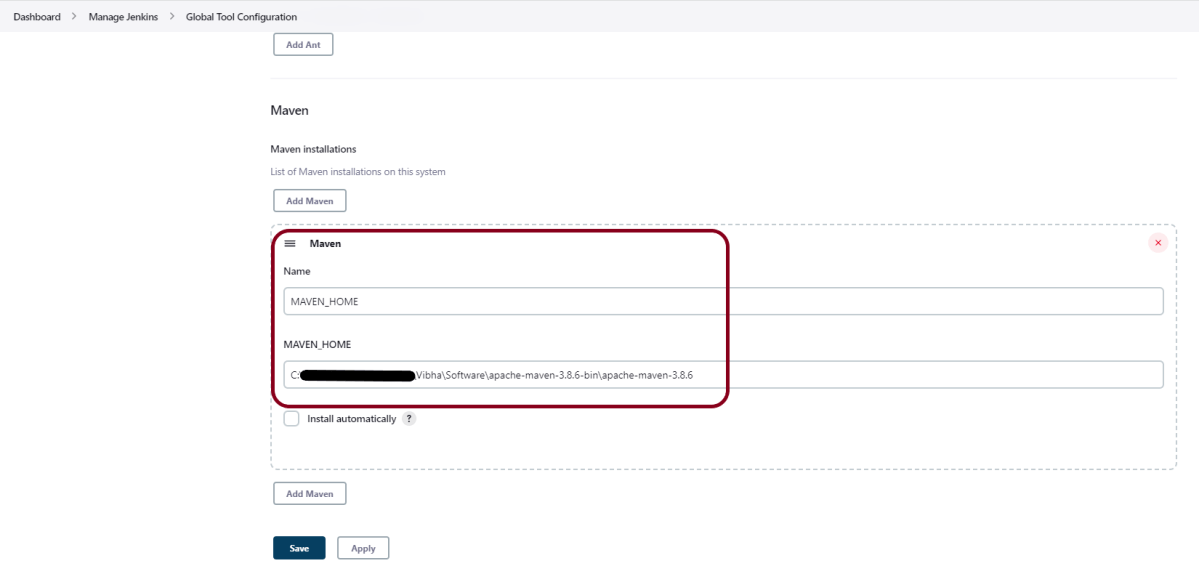
As mentioned above, go to Global Tool Configuration and scroll down to see the Maven option.

Click on the Add Maven” button. Kindly note that by default, “Install Automatically” will be checked, so since we are going to use the Maven installed on our local machine, “Install automatically” will install the latest version of Maven, and you will also need to provide credentials to download relevant Maven.

Provide the Maven’s name as we gave as Maven 3.8.6 because that is what is currently installed on my machine, and also provide the path of Maven in the MAVEN_HOME textbox.

Click on the Apply and Save buttons.

Congratulations!!. The above steps configured Java and Maven to Jenkins. Happy Learning

How to install Jenkins on Windows 10

HOME

What is Jenkins?

Jenkins is a well-known open-source tool that aids in the implementation of Continuous Integration (CI) and Continuous Deployment/Continuous Delivery (CD) processes by automating parts of the software development pipeline such as building, testing, and deployment.

It provides a centralized platform for automating the entire build pipeline, from code changes to automatic build creation, auto-execution of all layers of tests (Unit, Integration, and End to End), and finally, auto-deploying the successful build.

This allows developers to make more frequent changes while also giving end users more freedom by making new features available more frequently.

What are the prerequisites for the installation of Jenkins?

Hardware Requirements

  • 256 MB of RAM, although more than 2 GB is recommended
  • 10 GB of drive space (for Jenkins and your Docker image)

Software Requirement

  • Java 11 or Java 17
  • Docker (navigate to Get Docker site to access the Docker download that’s suitable for your platform)
  • Web Browser – Any of the browsers such as Google Chrome, Mozilla Firefox, Microsoft Internet Explorer, Microsoft Edge, Safari
  • Operating System – Jenkins supports almost all the modern operating systems such as Windows, macOS, Linux flavors such as Red Hat, Ubuntu, OpenSUSE, Gentoo, etc.

Installation Steps

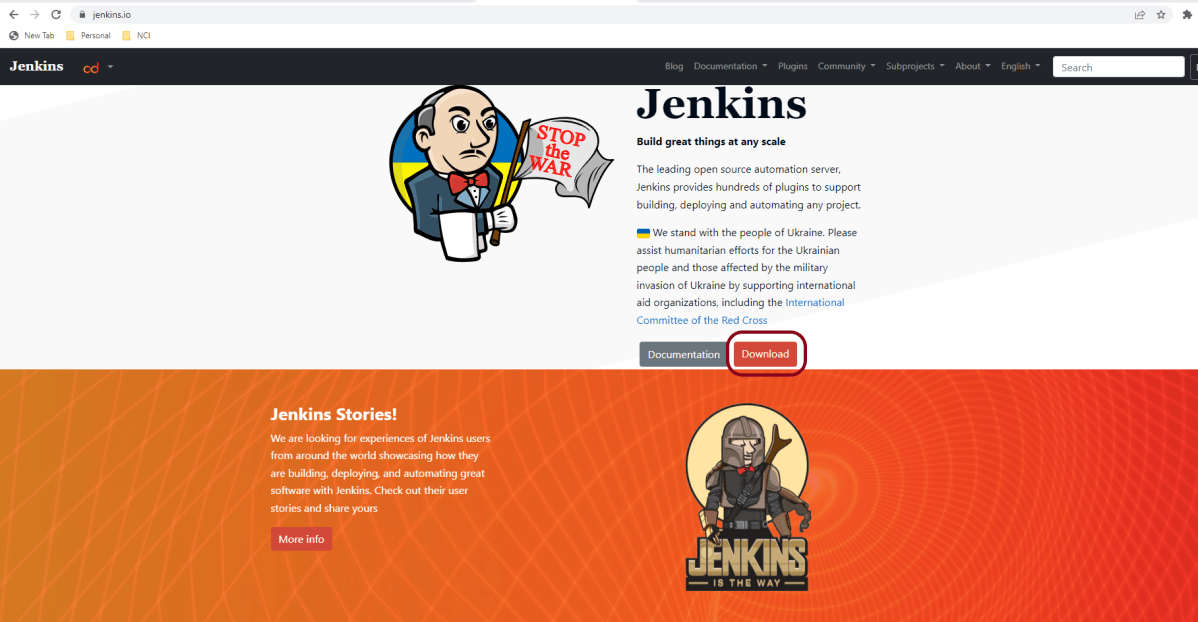
Step 1 – Firstly, go to the official Jenkins website and click on the Download button.

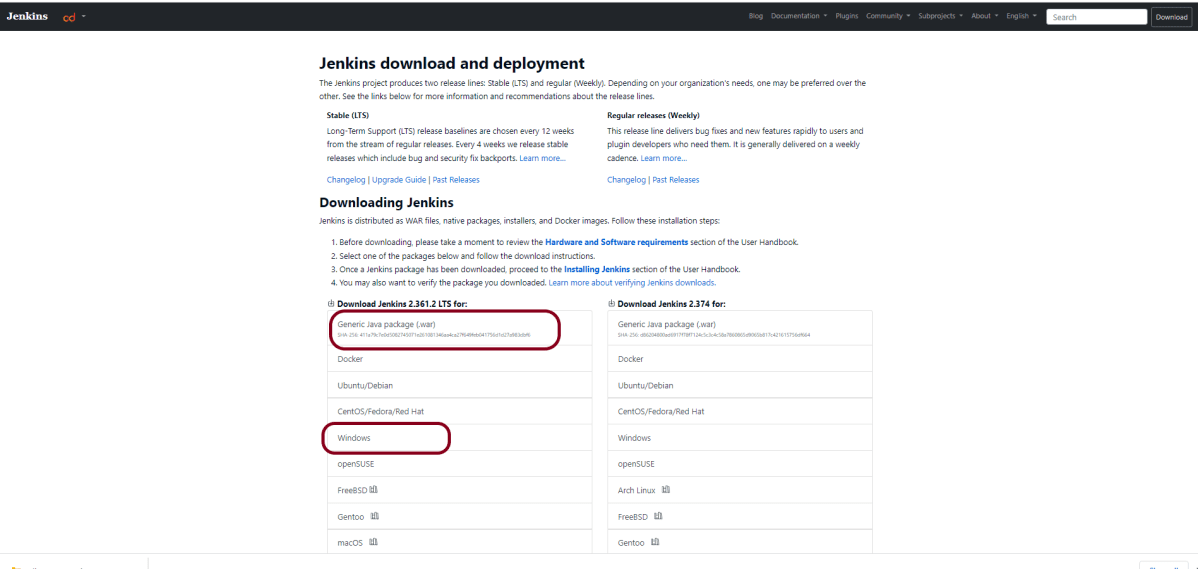
Step 2 –  After clicking on the Download button, we will be redirected to the download page.

As we can see, Jenkins produces two releases, one is a stable release, and the other one is the regular bug fixes, which comes every week for all the operating system. I prefer to use the stable version.

Click on the window, and it will download jenkins.msi.

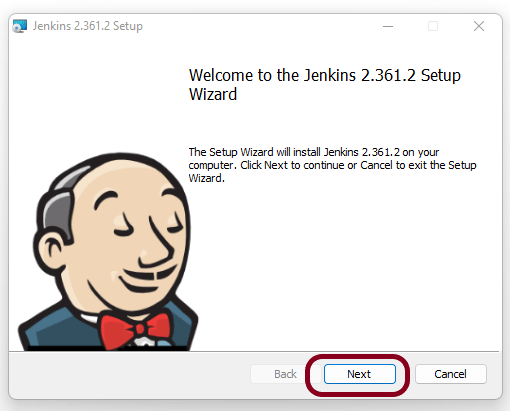
Step 3 – Double-click on jenkins.msi and a dialog box will appear

Step 4 – Choose the location where you want to have the Jenkins instance installed (default location is C:\Program Files\Jenkins), then click on the Next button.

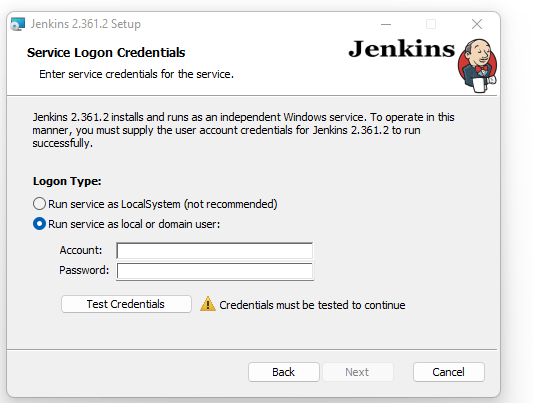
Step 5 – Enter the service logon credentials. It is recommended to select the second option “Run service as local or domain user” as it is more secure.

To run the Jenkins service using this option, you have to enter the domain username and password. Click on the “Test Credentials” button to test your domain credentials, and you will enable the “Next” button. Then, click on the “Next” button after it appears.

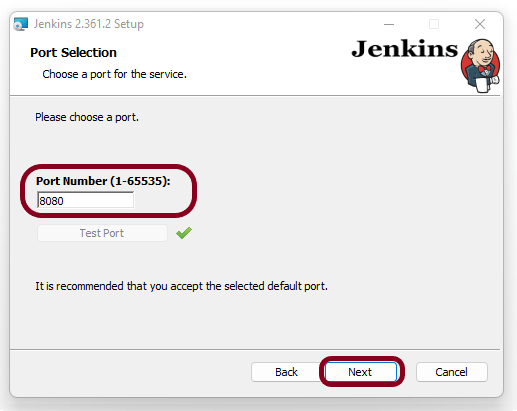
Step 6 – Enter the port on which Jenkins will be running. Click on the “Test Port” button to validate if it is free. 

Step 7 – Select the Java home directory, and then click on the “Next” button.

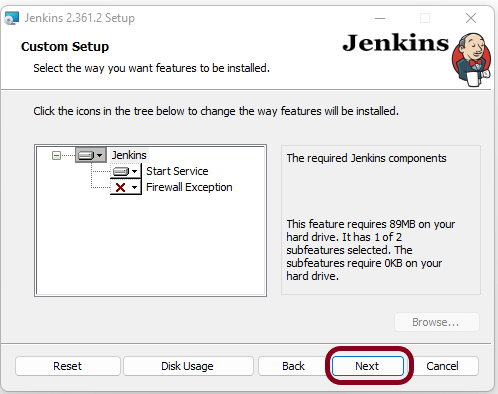
Step 8 – Select any other services that need to be installed with Jenkins and click on the “Next” button.

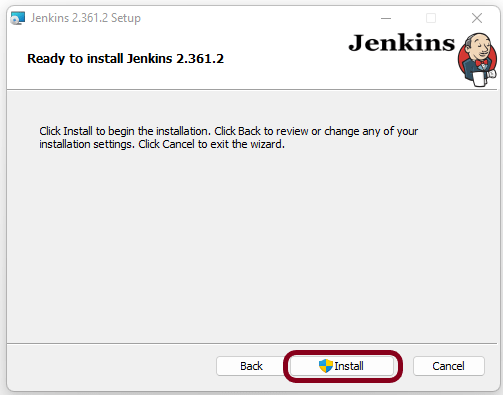
Step 9 – Click the “Install” button to start the installation process.

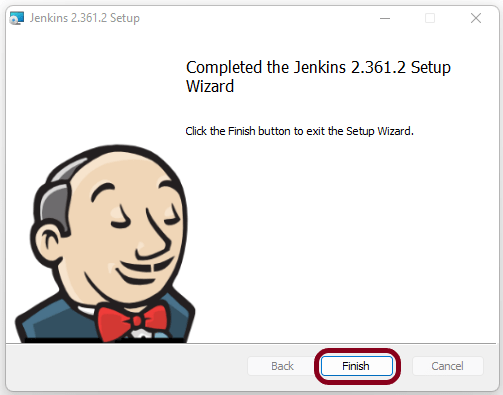
Step 10 – When done, click on “Finish” to complete the installation process. Now that the installation process is out of the way, you need to follow a few more quick steps before you start using Jenkins on Windows.

Unlock Jenkins For Windows

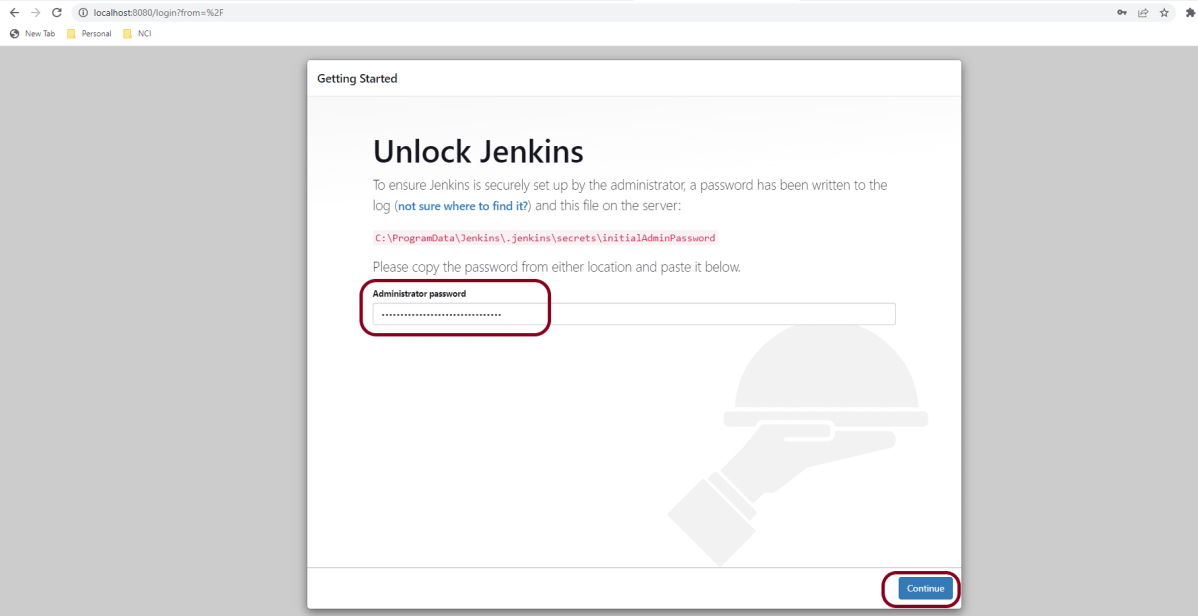
 Step 1 – You will automatically be redirected to a local Jenkins page, or you can paste the URL http://localhost:8080 in a browser.

Step 2 – Copy the content of the initialAdminPassword file and paste it into the Administrator password field. Then, click the Continue button.

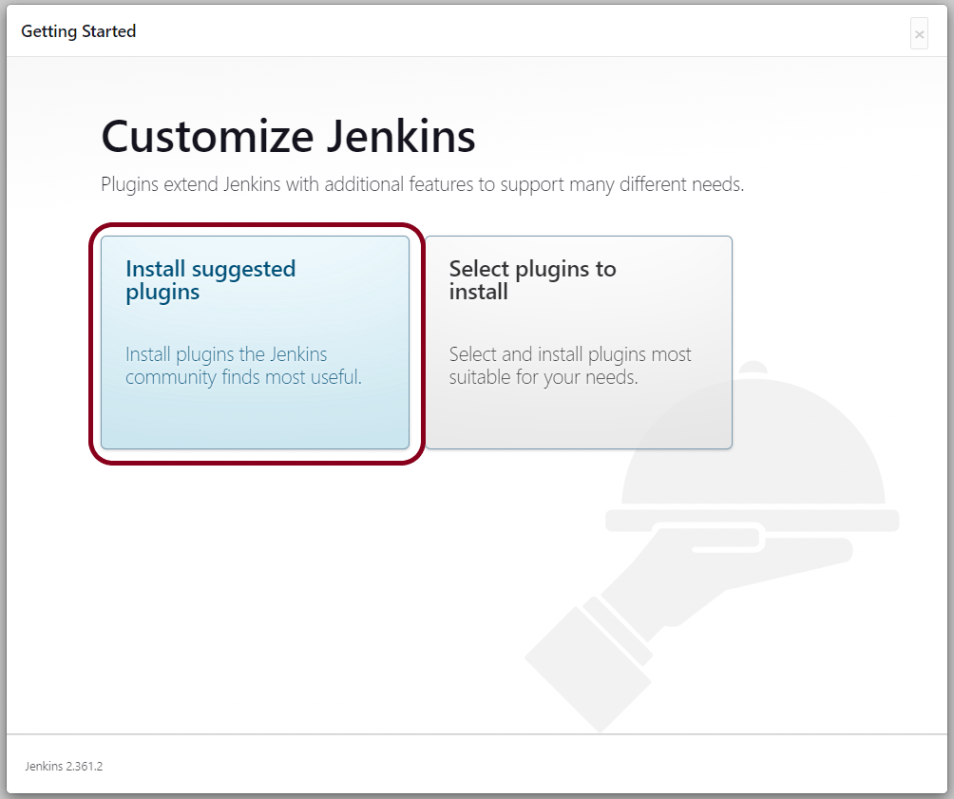
Step 3 – You can install either the suggested plugins or the selected plugins you choose based on your needs. To keep it simple, we will install the suggested plugins that the Jenkins community finds most useful.

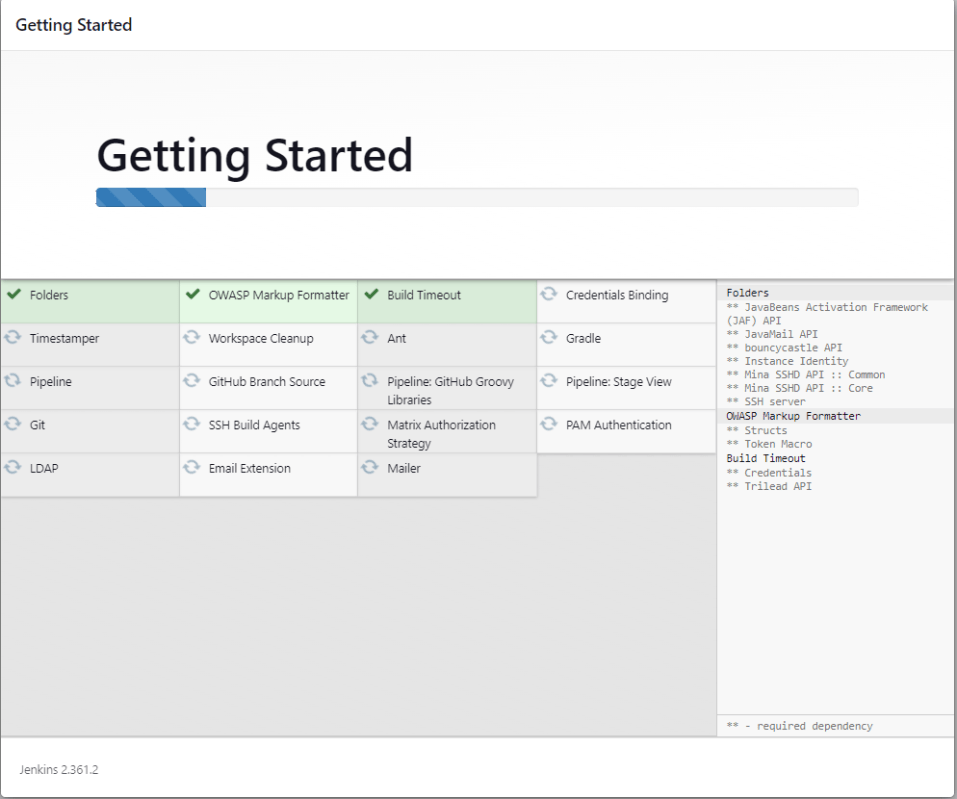
Step 4 – Wait until the plugins are completely installed.

Step 5 – The next thing that you should do is create an Admin user for Jenkins. Then, enter your details and click Save and Continue.

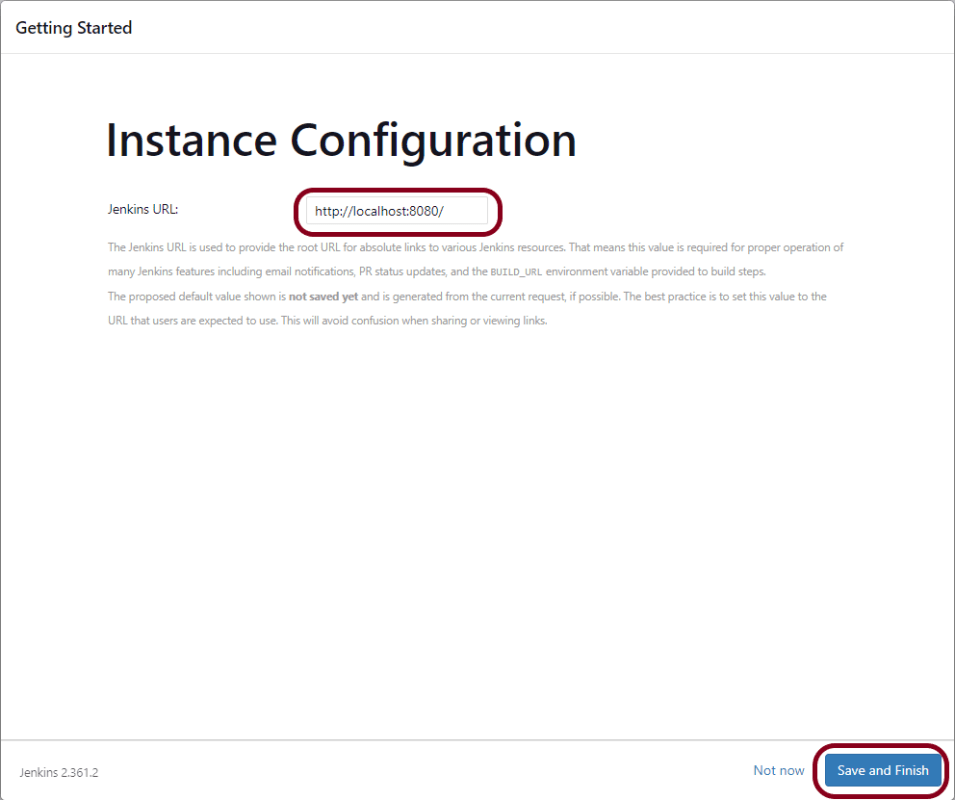
Step 6 – Click on Save and Finish to complete the Jenkins installation.

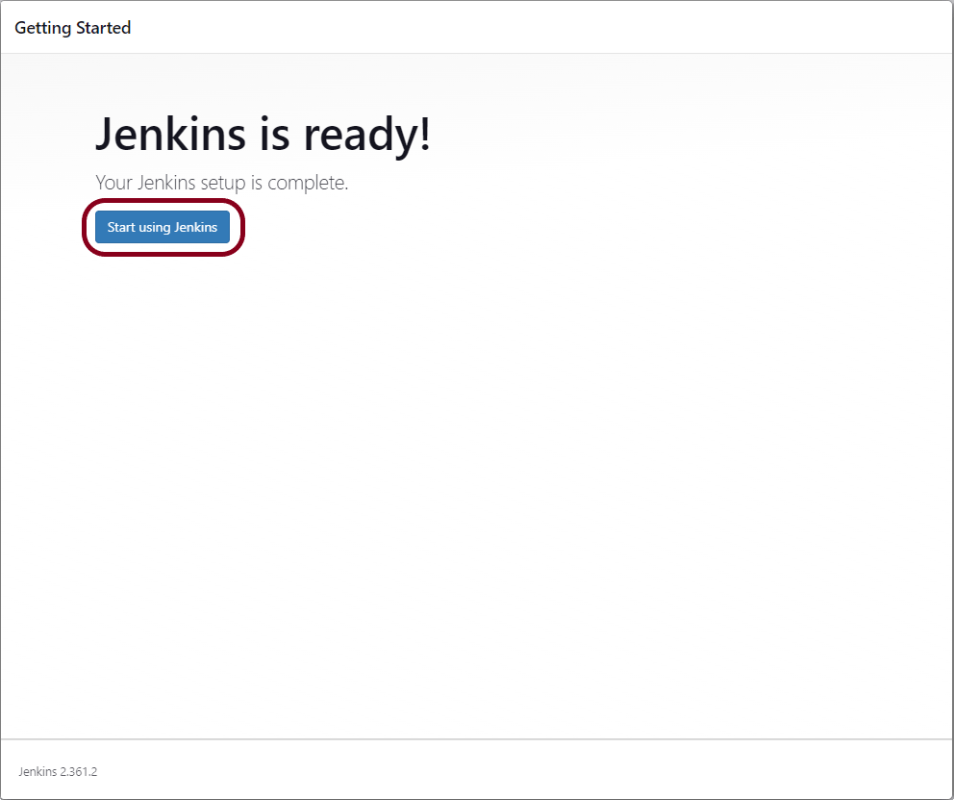
Step 7 – Now, click on the “Start using Jenkins” button to start Jenkins.

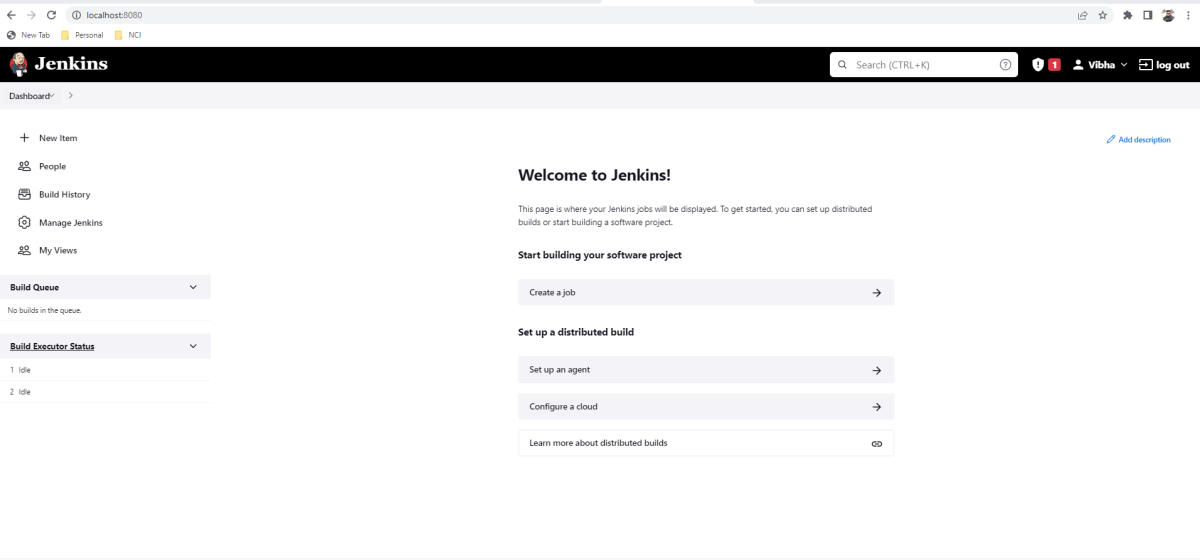
Step 8 – Finally, here is the default Jenkins page. Jenkins is now installed and running on Windows, and you are ready to start building your CI/CD pipeline.

Congratulations!! We have installed Jenkins on Windows 10 successfully.