How to get all options in a DropDown list in Selenium WebDriver


In this tutorial, we will get to know how we can get the option values of a dropdown using Webdriver. This can be done by using getOptions().

getOptions( ) : List – It shows all options belonging to the Select tag. It takes no parameter and returns List.

oSelect.getOptions();

Below is an example on how to use getOptions. We want to print all the options of Drop Down Month.

import java.util.List;
import java.util.concurrent.TimeUnit;
import org.openqa.selenium.By;
import org.openqa.selenium.WebElement;
import org.openqa.selenium.firefox.FirefoxDriver;
import org.openqa.selenium.support.ui.Select;

public class DropDown_Options {
      public static void main(String[] args) {
         System.setProperty(“webdriver.gecko.driver”,“C:\\Users\\vibha\\Downloads\\geckodriver-v0.24.0-win64\\geckodriver.exe”);
            FirefoxDriver driver = new FirefoxDriver();
                  
            driver.manage().timeouts().implicitlyWait(60, TimeUnit.SECONDS);
            driver.get("https://www.facebook.com/";);          
            
Select mselect = new Select(driver.findElement(By.id(“month”)));       
            
            // Print all the options for the selected drop down and select one option of your choice
            // Get the size of the Select element
            List mSize = mselect.getOptions();
            int OptionSize = mSize.size();                                   
           
            // Setting up the loop to print all the options
            for(int i =0; i < OptionSize ; i++)
          {
           
          // Storing the value of the option
           String Options = mselect.getOptions().get(i).getText();
           
          // Printing the stored value
           System.out.println(Options);
        }
   }
}

Output
Month
Jan
Feb
Mar
Apr
May
Jun
Jul
Aug
Sep
Oct
Nov
Dec

TestNG Framework – How to download and install TestNG in Eclipse

HOME

In the previous tutorial, we discussed what is TestNG and why it is important. This tutorial will discuss how can we download and install TestNG in Eclipse and how to use it.

Pre-Requisite 

1) Eclipse should be installed and configured. Please refer to Install and Configure to set up Eclipse on your system.

Install/Setup TestNG

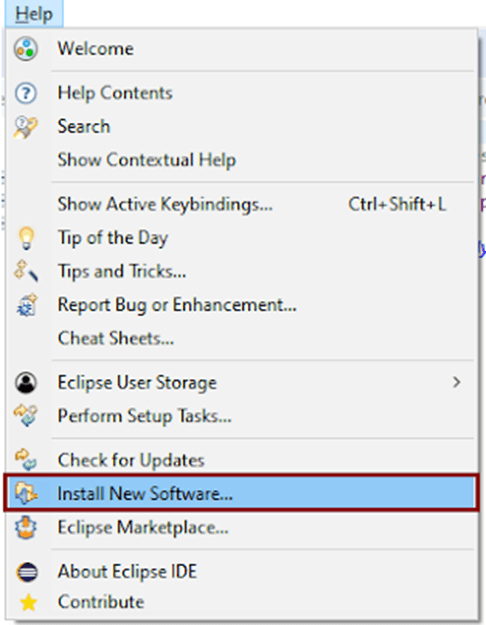
1) Launch Eclipse and go to the “Help” option present at the top and select –“Install New Software”.

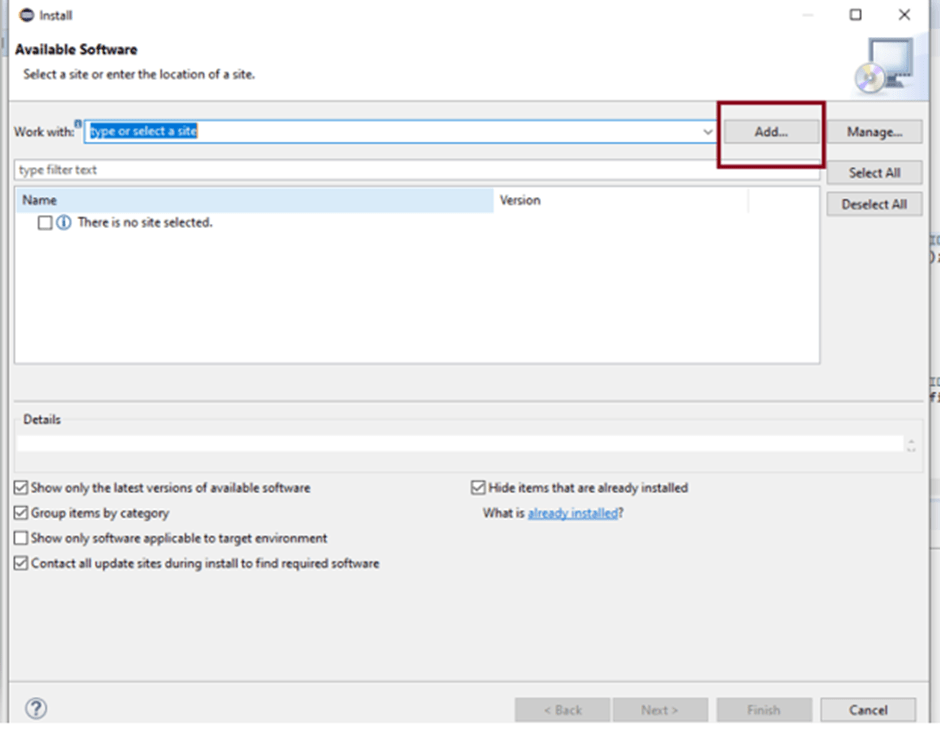
2) A dialog box will appear, click the Add button.

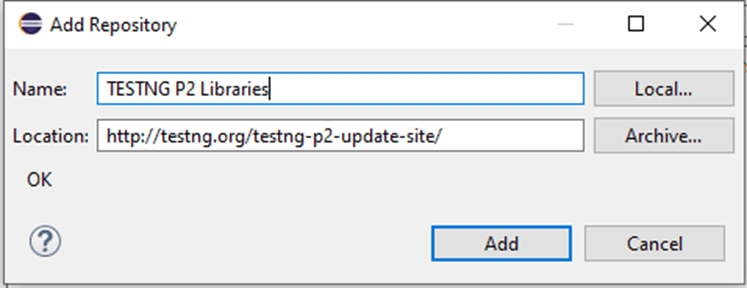
3) A new dialog box will appear. Mention the Name as TestNG and the location asTestNG P2 – https://testng.org/testng-p2-update-site&#8221; and click the Add button.

4) This time we will see TestNG is added to Install dialog box.

5) Accept the terms and conditions and then click the Finish button.

6) Once the installation is completed, you will get a message to Restart the Eclipse. Select Restart the Eclipse

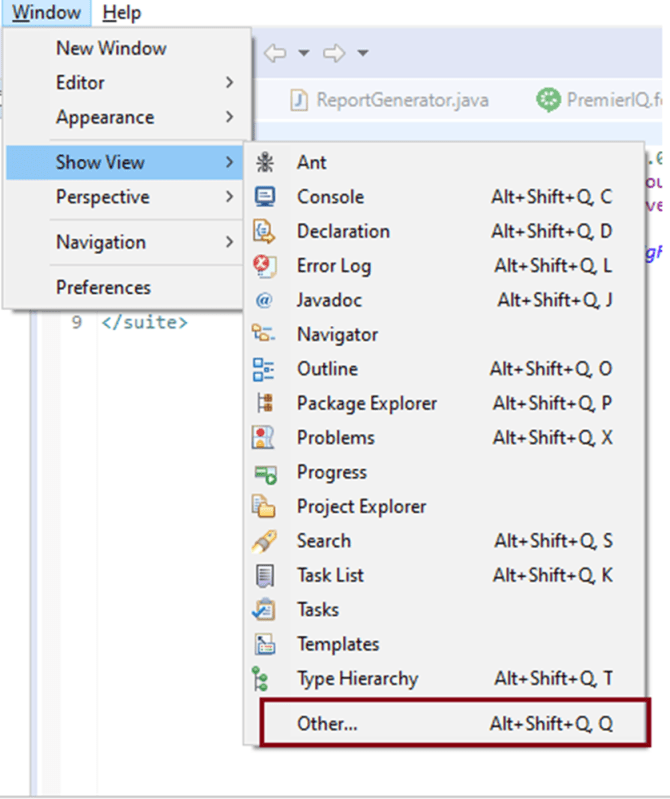
7) To verify if TestNG is installed successfully or not, go to Window, select Show View, and then Other.

8) Select Java and see, within the Java folder, you will see TestNG. This shows that TestNG is successfully installed on the machine.

Steps to follow to create a TestNG class

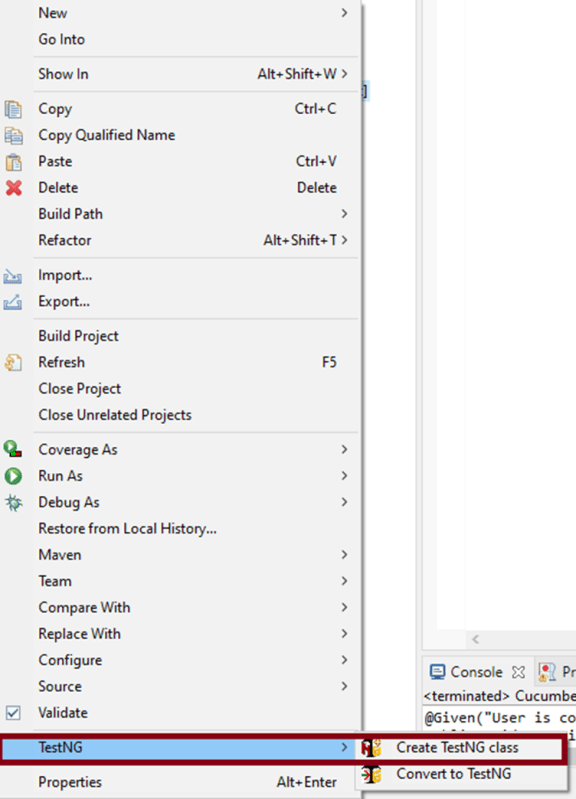
1) Create a new TestNG class. Right-click on the Folder where you want to create the TestNG class. Select TestNG and then Create the TestNG class as shown in the below image.

2) In the below image, we can see that the Source folder is the name of the folder we want to create the class, and we can mention the name of the class in the Class name. Under annotations, I have checked @BeforeTest and @AfterTest and click the Finish button.

3) We can see that the structure of the new TestNG class looks like as shown below.

4) In the below example, we want to navigate to an Amazon page and search for Hard Drive.

@BeforeTest : Launch Firefox and direct it to the Base URL

@Test : Search for HardDrive

@AfterTest : Close Firefox browser

import org.testng.annotations.Test;
import org.testng.annotations.BeforeTest;
import java.util.concurrent.TimeUnit;
import org.openqa.selenium.By;
import org.openqa.selenium.WebDriver;
import org.openqa.selenium.firefox.FirefoxDriver;
import org.testng.annotations.AfterTest;

public class TestNG_Demo {

   public WebDriver driver;

   @BeforeTest
    public void beforeTest() {
      
     System.setProperty("webdriver.gecko.driver","C:\\Users\\vibha\\Downloads\\geckodriver-v0.26.0-win64\\geckodriver.exe");
    driver = new FirefoxDriver();
    driver.manage().timeouts().implicitlyWait(60, TimeUnit.SECONDS);
    driver.manage().window().maximize();
    driver.get("https://www.amazon.com//");
 }

@Test
public void Validation() {
    driver.findElement(By.xpath("//*[@id='twotabsearchtextbox']")).sendKeys("hard drive");
    //XPath for search button
      driver.findElement(By.xpath("//*[@class='nav-input']")).click();
   }

@AfterTest
public void afterTest() {
    driver.quit();
  } 
}

5) To execute this program, we need to Right-click and select Run as – TestNG Test.

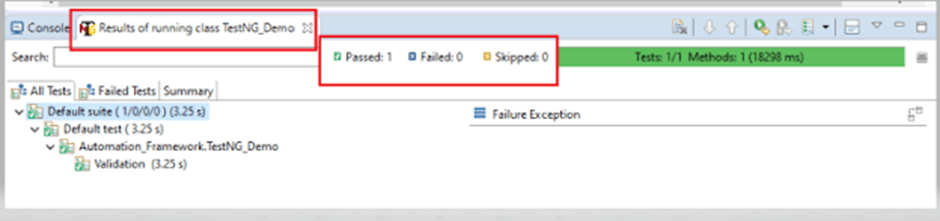
6) The result will look like something shown below. Here, we can see that Test Case Passed is 1, Failed 0, and Skipped 0.

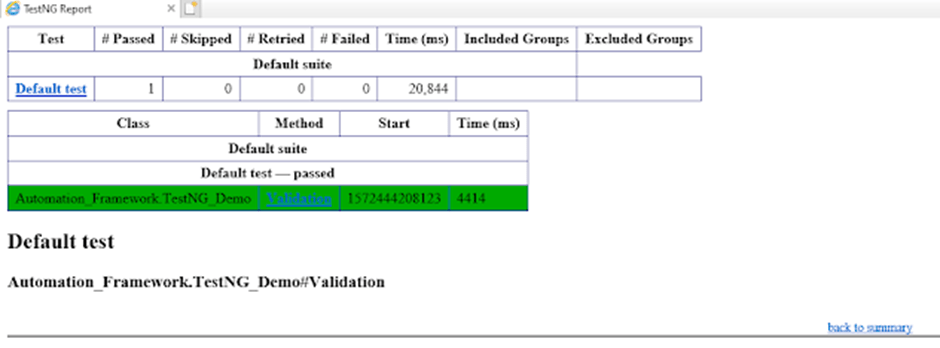
7) As we know that TestNG also produce HTML Reports. To access the report, go to the Eclipse folder, and you can see a folder with name test-output inside the Project where we have created TestNG class. Here, it is  C:\Users\vibha\Downloads\eclipse-workspace\Demo

We are done! Congratulations on making it through this tutorial and hope you found it useful! Happy Learning!!

TestNG Framework – Introduction to TestNG

HOME

Maven – How to import Maven Project into Eclipse


In the previous tutorial, we have seen how we can create a Java project from Command Line. In this tutorial, will see how we can import this project in Eclipse.

  1. We need to make sure if Eclipse Maven Integration(m2e) is present . Latest Eclipse IDE has bundled the m2e plugin.

2. If you are using older version of Eclipse. Then below are the steps to follow

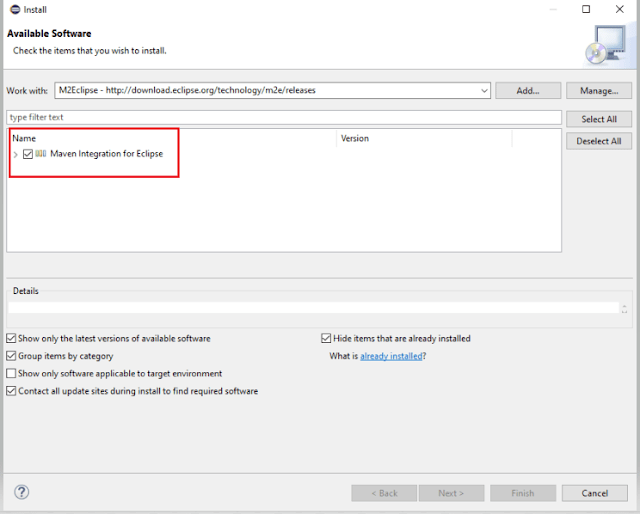
2.1 Open Eclipse IDE and select Help ->Install New Software

2.2 Click on Add button to add a new Repository

2.3 Fill the below mentioned information in the dialog box:-

Name – M2Eclipse

Location – http://download.eclipse.org/technology/m2e/releases

2.4. After the Pending finish, select all the Plugins and press Next.

2.5. Accept the terms of the license agreement and click Finish

2.6. At the end of the installation, you will be ask to restart your Eclipse. Click Yes to perform the restart.

2.7 To check if the installation is successful, go to Help ->About Eclipse

3. In Eclipse IDE, select File ->Import ->Maven ->Existing Maven Project. 

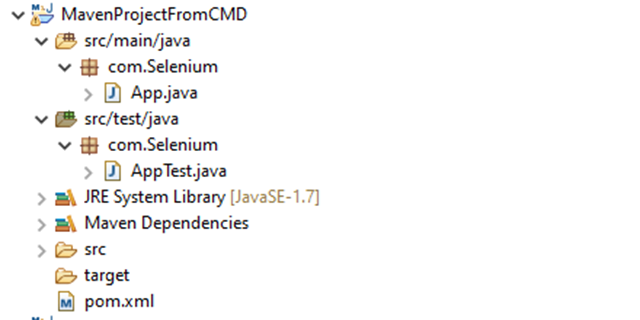
4. The m2e plugin will analyze the pom.xml and will configure the project and generate the Eclipse files automatically.

5. Below is the code of App.java. Run this code

package com.Selenium;
 
/**
 * Hello world!
 *
 */
public class App 
{
    public static void main( String[] args )
    {
        System.out.println( "Hello World!" );
    }
}

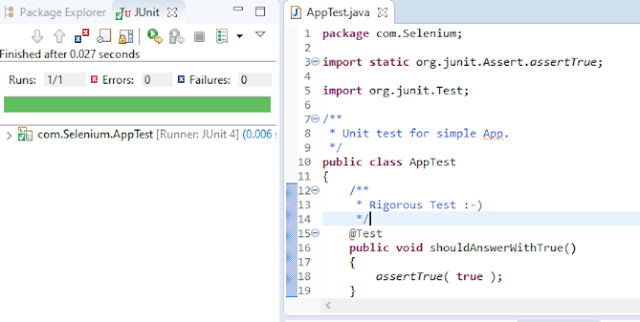
6. Below is the code of AppTest.java. Run this code

package com.Selenium;
 
import static org.junit.Assert.assertTrue;
import org.junit.Test;
 
/**
 * Unit test for simple App.
 */
public class AppTest 
{
    /**
     * Rigorous Test 🙂
     */
    @Test
    public void shouldAnswerWithTrue()
    {
        assertTrue( true );
    }
}

Note:- Apache Maven Eclipse Plugins like eclipse:eclipse, eclipse:clean, etc are retired. To know more about it, please refer the link

7. Structure of POM.xml

<?xml version="1.0"encoding="UTF-8"?>
 
<project xmlns="http://maven.apache.org/POM/4.0.0"xmlns:xsi="http://www.w3.org/2001/XMLSchema-instance"
  xsi:schemaLocation="http://maven.apache.org/POM/4.0.0 http://maven.apache.org/xsd/maven-4.0.0.xsd">
  <modelVersion>4.0.0</modelVersion>
 
  <groupId>com.Selenium</groupId>
  <artifactId>MavenProjectFromCMD</artifactId>
  <version>1.0-SNAPSHOT</version>
 
  <name>MavenProjectFromCMD</name>
  <!-- FIXME change it to the project's website -->
  <url>http://www.example.com</url>
 
  <properties>
    <project.build.sourceEncoding>UTF-8</project.build.sourceEncoding>
    <maven.compiler.source>1.7</maven.compiler.source>
    <maven.compiler.target>1.7</maven.compiler.target>
  </properties>
 
  <dependencies>
    <dependency>
      <groupId>junit</groupId>
      <artifactId>junit</artifactId>
      <version>4.11</version>
      <scope>test</scope>
    </dependency>
  </dependencies>
 
  <build>
    <pluginManagement><!-- lock down plugins versions to avoid using Mavendefaults (may be moved to parent pom) -->
      <plugins>
        <!-- clean lifecycle, see https://maven.apache.org/ref/current/maven-core/lifecycles.html#clean_Lifecycle -->
        <plugin>
          <artifactId>maven-clean-plugin</artifactId>
          <version>3.1.0</version>
        </plugin>

        <!-- default lifecycle, jar packaging: see https://maven.apache.org/ref/current/maven-core/default-bindings.html#Plugin_bindings_for_jar_packaging -->
        <plugin>
          <artifactId>maven-resources-plugin</artifactId>
          <version>3.0.2</version>
        </plugin>

        <plugin>
          <artifactId>maven-compiler-plugin</artifactId>
          <version>3.8.0</version>
        </plugin>

        <plugin>
          <artifactId>maven-surefire-plugin</artifactId>
          <version>2.22.1</version>
        </plugin>

        <plugin>
          <artifactId>maven-jar-plugin</artifactId>
          <version>3.0.2</version>
        </plugin>

        <plugin>
          <artifactId>maven-install-plugin</artifactId>
          <version>2.5.2</version>
        </plugin>

        <plugin>
          <artifactId>maven-deploy-plugin</artifactId>
          <version>2.8.2</version>
        </plugin>

        <!-- site lifecycle, see https://maven.apache.org/ref/current/maven-core/lifecycles.html#site_Lifecycle -->
        <plugin>
          <artifactId>maven-site-plugin</artifactId>
          <version>3.7.1</version>
        </plugin>

        <plugin>
          <artifactId>maven-project-info-reports-plugin</artifactId>
          <version>3.0.0</version>
        </plugin>
      </plugins>
    </pluginManagement>
  </build>
</project>

Maven – How to create a Java project using Command Line


     In the previous tutorial, we have discussed about How to install Maven on Windows. In this tutorial, we will see how to use Maven to manage a Java project – Create and update the dependencies.

   1) Change current folder to the folder where we want to create the Java project 

   In my case I have my Eclipse Workspace mentioned at the below mentioned path 

    cd C:\Users\vibha\eclipse-workspace\Selenium

  2) Create a Project from Maven Template

This tells Maven to generate a Java project from a Maven template.

mvn archetype:generate

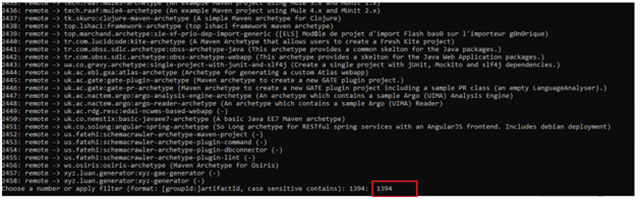
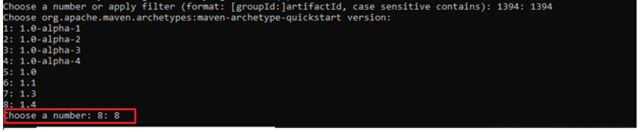
3) We need to mention the number as displayed on your screen in Command Prompt to proceed further. Like here, Choose a folder or apply has 1394, so I have also mentioned 1394 in command prompt.

4) We need to provide again  input in command prompt. This time program wants to know which version we want to use. I prefer to use the latest version. Here, it is 8, so I have selected version 8.

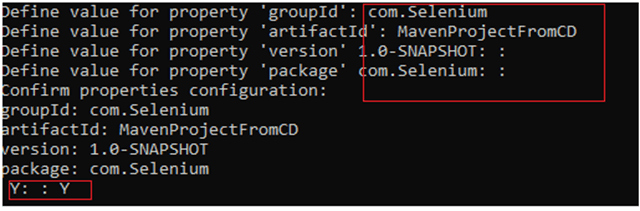
5) We need to provide 2 input here

A) Value of groupId – This serves as the group identifier of your Maven project, it should be in a form similar to Java packages, such as com.Selenium
B) Value of artifactId – This serves as the group-local identifier of my Maven project like MavenProjectFromCMD
C) Value of Version – The initial version of our project. The default is 1.0-SNAPSHOT
D) Value of package – The name of our root package. The default is groupId we have created earlier.
We will notice the INFO message about the properties. If the displayed settings are correct, then just enter Y in :: prompt.

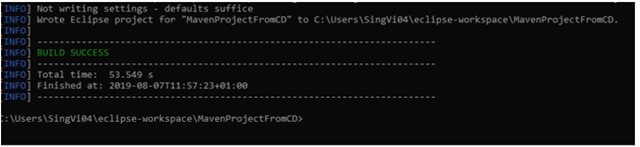
Successful Build – Below screenshot shows that the Maven Project built successfully.

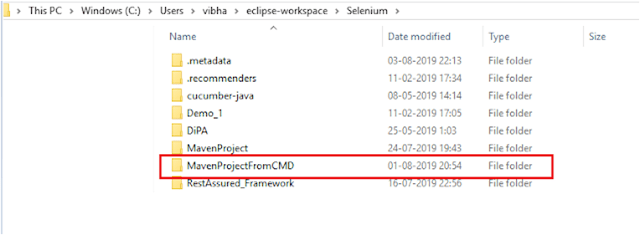
  6) Project Folder Creation – We can see a folder with the name of project – MavenProjectFromCMD in our Eclipse Workspace. In my case, it is                     

    C:\Users\vibha\eclipse-workspace\Selenium\MavenProjectFromCMD

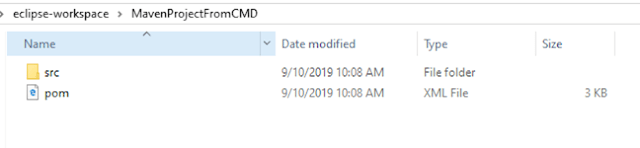
7) Contents of Project Folder – Open folder MavenProjectFromCMD to see the contents of the folder. It should have POM file and src

Cucumber – What is Gherkin

HOME

Feature: Book flight ticket for one-way trip
Scenario:flight ticket for one-way trip from Dublin 

Given I live in Dublin 
And I want to book one way flight ticket from Dublin for 22nd Jan 20
When I search Online 
Then TripAdvisor should provide me options of flight for 22nd Jan 20 
And Cost of my flight should not be more than 50 
And Tickets should be refundable

What is Step Definition?

It is a Java method with an expression, which is used to link it to Gherkin steps. When Cucumber executes a Gherkin step, it will look for a matching step definition to execute.

Feature: Book flight ticket for one-way trip
Scenario: flight ticket for one-way trip from Dublin 
Given  I live in Dublin 
 
@Given ("I live in Dublin") 
public voidVacation()
          {
                   System.out.println("I live in Dublin");
          }

When Cucumber encounters a Gherkin step without a matching step definition, it will print a step definition snippet with a matching Cucumber Expression. We can use this as a starting point for a new step definition.

Scenario: Flight ticket for one-way trip from Dublin 
Given  I live in Dublin

Here, Cucumber didn’t get step definition for the above-mentioned Given step. So, it will provide a snippet as mentioned below:-

@Given ("I live in Dublin")
public void i_live_in_Dublin() {
          // Write code here that turns the phrase above into concrete actions
 
    throw new cucumber.api.PendingException();
}

We are done! Congratulations on making it through this tutorial and hope you found it useful! Happy Learning!!

Introduction of Cucumber Testing Tool (BDD Tool)


In this tutorial, we will discuss about Cucumber Testing Tool. However, before starting with Cucumber, we should know what Behavior Driven Development (BDD) is.

What is Behavioral Driven Development (BDD)?

BDD is a set of practices that helps to reduce the rework caused by misunderstanding or vague requirements, narrow the communication gaps between the development team, testing team, and customers and promote continuous communication among them. In BDD, tests are written in plain descriptive English (Gherkin) and they are more user-focused. As the tests are in plain English, so everyone like Business stakeholders, Business Analyst, QA Team, and Developers can contribute to testing. Cucumber is one such open-source tool, which supports Behavior Driven Development (BDD). In simple words, Cucumber can be defined as a testing framework, driven by plain English. It serves as documentation, automated tests, and development aid – all in one.

How Cucumber works? 

  • Cucumber reads the code written in plain English text (Language Gherkin) in the feature file.
  • It finds the exact match of each step in the step definition.
  • The piece of code to execute can be different software frameworks like Selenium, Ruby on Rails, etc. 
  • This has become the reason for Cucumber’s popularity over other frameworks, like JBehave, JDave, Easyb, etc.

Cucumber supports over a dozen different software platforms like − 

  • Ruby on Rails 
  • Selenium 
  • PicoContainer 
  • Spring Framework 
  • Waitr

Advantages of Cucumber Over other Tools 

  • Cucumber supports different languages like Java.net and Ruby. 
  • It acts as a bridge between the business and technical language. We can accomplish this by creating a test case in plain English text. 
  • It allows the test script to be written without knowledge of any code; it allows the involvement of non-programmers as well. 
  • It serves the purpose of an end-to-end test framework, unlike other tools. 
  • Due to simple test script architecture, Cucumber provides code re-usability.

Example of a Cucumber/BDD test: 

Feature: Book flight ticket for one-way trip
Scenario: Book flight ticket for one-way trip from Dublin to London 

Given I live in Dublin 
And I want to book one way flight ticket from Dublin to London for 23rd Oct 19
When I search Online 
Then TripAdvisor should provide me options of flight for 23rd Oct 19 
And Cost of my flight should not be more than 50 Euro per person 
And Tickets should be refundable

Any Business User or Stakeholder can understand the above-mentioned test case. They can provide their feedback, on if this is expected from the functionality or not or do we need to add other steps too.

How to install Maven on Windows

HOME

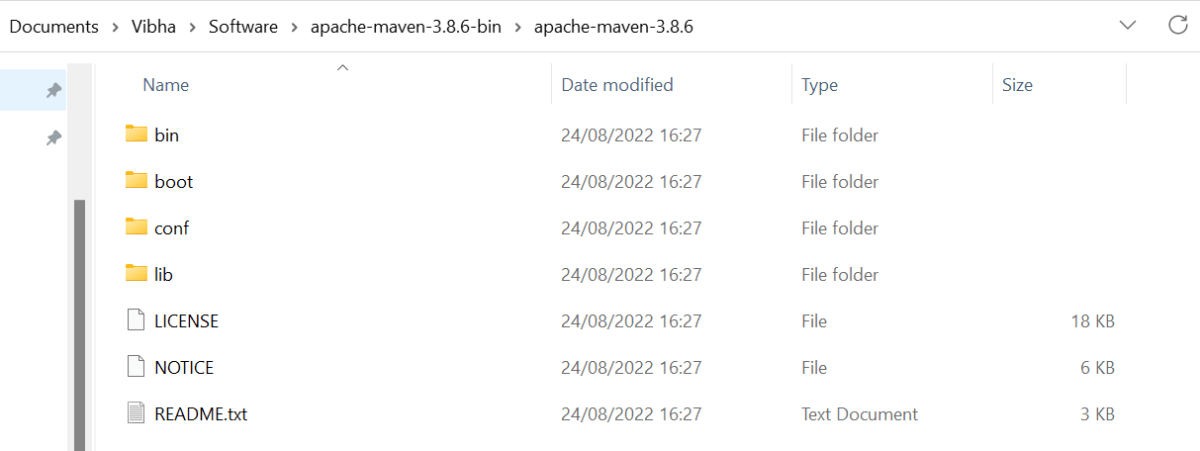
Step 2 – Unzip the downloaded folder and then it will have below-mentioned files. We do not need to install anything, just unzip the folder.

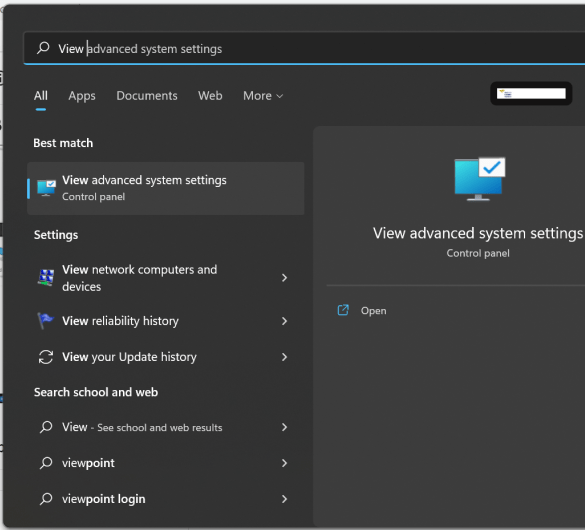
Step 3 – We need to configure MAVEN_HOME environment variable. Type – “View Adva” in the search option, and we will see the option – View Advanced system setting.

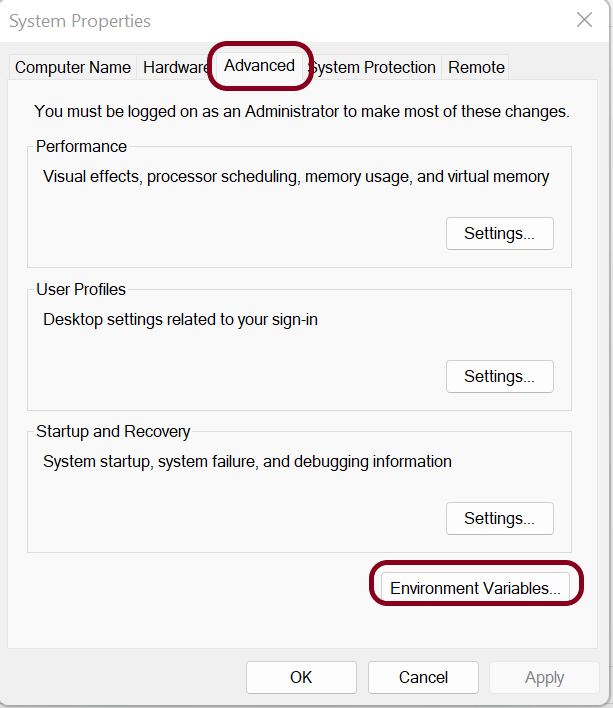
Step 4 – In the System Properties dialog, select the Advanced tab and click on the Environment Variables button.

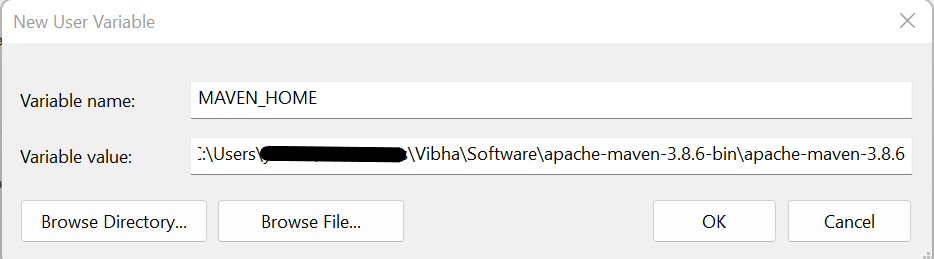
Step 5 – In the “Environment variables” dialog, under Users variables, Click on the New button and add a MAVEN_HOME variable.

Step 6 – A dialog box will appear, mentioning Variable Name – MAVEN_HOME and Variable value – mention the path where the Apache folder is placed.

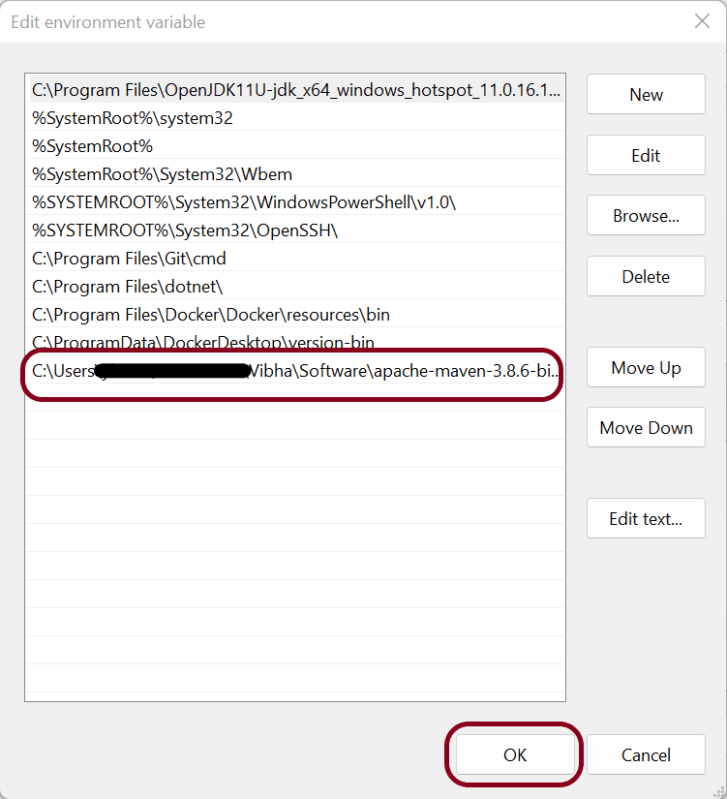
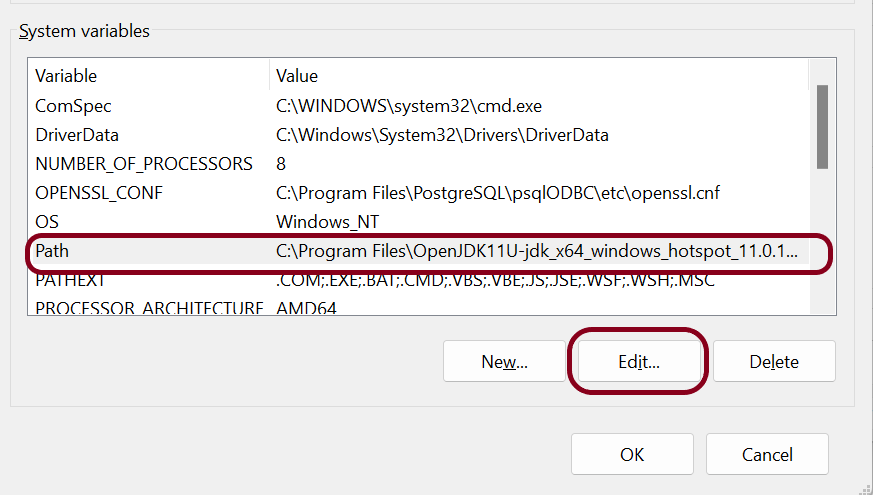
Step 7 – Add %MAVEN_HOME%\bin (full path till bin where Maven is placed on your machine) to Path present under System variables. Click the New Button present in System Variable and add MAVEN_HOME\bin.

Step 8 – Once the Path is updated with %MAVEN_HOME%\bin. This is what it will look like.

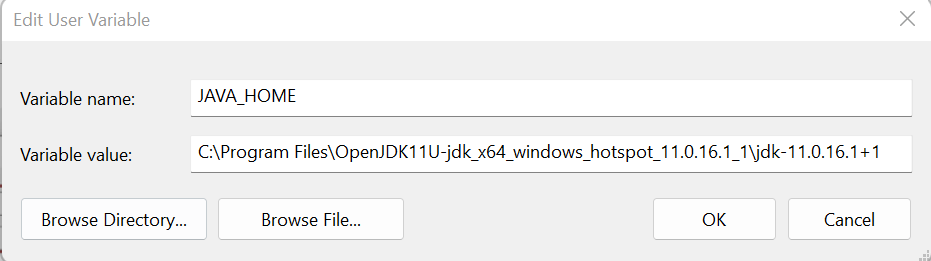
Step 9 – We have to make sure that JDK is installed and the JAVA_HOME environment variable is configured. If the JAVA_HOME variable is not configured, then add JAVA_HOME just like MAVEN_HOME in User Variable within Environment Variables.

How to verify if Maven is installed properly on your machine

Open the command prompt and type mvn -version, then the screen should look something like as shown below screen
This confirms that Maven is installed successfully and configured on your machine.  

Constructors in Java


A constructor initializes an object when it creates. It has the same name as its class and is syntactically similar to a method. However, constructors have no explicit return type.

Every time an object is created using the new() keyword, at least one constructor is called.

ConstructorDemo demo = new ConstructorDemo();

It calls a default constructor if there is no constructor available in the class. In such case, Java compiler provides a default constructor by default. Let me explain constructor with the help of a simple program. Here I have created a class ConstructorDemo, created its constructor and then create the object demo which will in turn will call the constructor too.

//Create a Class ConstructorDemo 
public class ConstructorDemo   
{ 
   int x;
 //Create a Constructor for class ConstructorDemo 
   ConstructorDemo()
   {
                   x=24;
   }
         public static void main(String[] args) {
            
                //Create an object of class Constructor and will call the constructor
                 ConstructorDemo demo = new ConstructorDemo();
                  System.out.println("Value of x: "+demo.x);
      }
} 

Output
Value of x:24

Things to remember for a Constructor:-

  • Constructor name must be the same as its class name
  • A Constructor must have no explicit return type
  • A Java constructor cannot be abstract, static, final, and synchronized

There are two types of constructors in Java: no-arg constructor, and parameterized constructor.

No Argument Constructor – Here, constructor does not have any argument.

public class DefaultConstructorStudent {
    String Name;
     DefaultConstructorStudent()
    {
            System.out.println("Display details of Student");
       }
      public static voidmain(String[] args) {
           DefaultConstructorStudent stud = newDefaultConstructorStudent();
     }
}

Output
Display details of Student

Parameterized Constructor – A constructor that has a specific number of parameters called a parameterized constructor.

In this example, I have a parameterized constructor with two parameters Name and RollNo. While creating the objects stud1 and stud2, I have passed two arguments so that this constructor gets invoked after creation of stud1 and stud2.

public class ParameterizedStudent {
    String Name;
    int RollNo;
ParameterizedStudent(String New_Name,int New_RollNo)

     {
          Name = New_Name;
          RollNo = New_RollNo;
     }
 
   void DisplayInformation()
   {
        System.out.println("Name: "+Name+", "+"Roll_No: "+RollNo);
   }
        public staticvoid main(String[] args) {
 
            ParameterizedStudent stud1 = newParameterizedStudent("TOM",001);
            ParameterizedStudent stud2 = newParameterizedStudent("MIKE",002);
            stud1.DisplayInformation();
            stud2.DisplayInformation();              
       }
}
 
Output 
Name: TOM, Roll_No: 1
Name: MIKE, Roll_No: 2

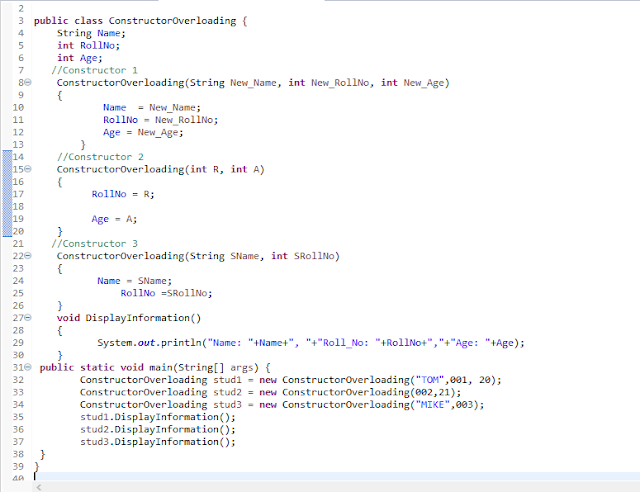
Constructor Overloading – This is same as method overloading. Here will have more than one constructor with different parameter lists. Constructors overloaded if they have either different number or parameters, different data type of parameters or different sequence of parameters.

public class ConstructorOverloading {
      String Name;  
      int RollNo;
      int Age;

      //Constructor 1 
      ConstructorOverloading(String New_Name, int New_RollNo, int New_Age)
      {
          Name  = New_Name;
          RollNo = New_RollNo;
          Age = New_Age;
      }

      //Constructor 2
       ConstructorOverloading(int R, int A)
       { 
           RollNo = R;
           Age = A;              
       }

      //Constructor 3 
       ConstructorOverloading(String SName, int SRollNo)
       {
           Name = SName;
           RollNo =SRollNo;
       }
       voidDisplayInformation()
       {
            System.out.println("Name: "+Name+", "+"Roll_No: "+RollNo+","+"Age: "+Age);
       }

      public static void main(String[] args) {
        ConstructorOverloading stud1 = newConstructorOverloading("TOM",001, 20);
        ConstructorOverloading stud2 = newConstructorOverloading(002,21);
        ConstructorOverloading stud3 = newConstructorOverloading("MIKE",003);
        stud1.DisplayInformation();
        stud2.DisplayInformation();
        stud3.DisplayInformation();
     }
}

Output
Name: TOM, Roll_No: 1,Age: 20
Name: null, Roll_No: 2,Age: 21
Name: MIKE, Roll_No: 3,Age: 0

How to automate selecting Checkbox and Radio Buttons in Selenium WebDriver


In this tutorial, we will see how to identify the form elements like CheckBox and Radio Button

Toggling a CheckBox or Radio Button on/off is also done using the click() method.

IsSelected – IsSelected method, let us know that the element selected or not. Assume there are two Radio Buttons/Check Boxes, one selected by default and you want to select the other one for your test. Then, we use IsSelected method. When there is a group of Radio Buttons/Check Boxes on the page then, most probably, their names are same, but values are different. Then we use the Webdriver findElements command to get the list of web elements.

Below is the working example of CheckBox.

import java.util.concurrent.TimeUnit;
import org.openqa.selenium.By;
import org.openqa.selenium.WebDriver;
import org.openqa.selenium.chrome.ChromeDriver;
 
public class Checkbox_Test {
     
      public static void main(String[] args) {
            System.setProperty("webdriver.chrome.driver","C:\\Users\\Vibha\\Desktop\\Drivers\\chromedriver_win32\\chromedriver.exe");

          WebDriver driver = new ChromeDriver();
          driver.manage().timeouts().implicitlyWait(60, TimeUnit.SECONDS);
          driver.get("https://www.seleniumeasy.com/test/basic-checkbox-demo.html");
 
           //Single option selection
           System.out.println("*******Single option selection *********");
           driver.findElement(By.id("isAgeSelected")).click();
           String Message = driver.findElement(By.id("txtAge")).getText();
           System.out.println("Message is :"+Message);    
 
       // close the web browser
        driver.close();   
    }
}

Output
*******Single option selection *********
Message is :Success - Check box is checked

How to click all options in the Checkbox

In the below image, there are 4 checkboxes. Initially, when checkboxes were not selected, the test mentioned on the button is – Check All and once all the options are checked, the text on button changes to – Uncheck All.
import java.util.List;
import java.util.concurrent.TimeUnit;
import org.openqa.selenium.By;
import org.openqa.selenium.WebDriver;
import org.openqa.selenium.WebElement;
import org.openqa.selenium.chrome.ChromeDriver;
 
public classCheckbox_Test {   
     
     public static voidmain(String[] args) throws Exception { 

 System.setProperty("webdriver.chrome.driver","C:\\Users\\Vibha\\Desktop\\Drivers\\chromedriver_win32\\chromedriver.exe");
          WebDriver driver = newChromeDriver();
          driver.manage().timeouts().implicitlyWait(60, TimeUnit.SECONDS);
          driver.get("https://www.seleniumeasy.com/test/basic-checkbox-demo.html");
 
          //Display the value of Button before clicking the options of checkbox
          String buttontext_beforeclick = driver.findElement(By.xpath(".//*[@id='check1']")).getAttribute("value");
          System.out.println("Text before click :"+buttontext_beforeclick);

          // Find the CheckBox by its classname
          List list = driver.findElements(By.xpath("//input[@type ='checkbox' and @class='cb1-element']") );            
             
          // Get the number of CheckBoxes available
          int CheckBox_Size = list.size();
          System.out.println("Number of Checkbox options :"+CheckBox_Size);             
            
          // Iterate the loop from first CheckBox to last Checkbox
          for(int i=0;i<CheckBox_Size;i++)
          {     
                list.get(i).click();               
           }
          String buttontext_afterclick = driver.findElement(By.xpath(".//*[@id='check1']")).getAttribute("value");
          System.out.println("Text after click :"+buttontext_afterclick); 
    driver.quit();      
     }
}

Output
Text before click :Check All
Number of Checkbox options :4
Text after click :Uncheck All

Similarly, below I have explained Radio Button.
import java.util.List;
import java.util.concurrent.TimeUnit;
import org.openqa.selenium.By;
import org.openqa.selenium.WebElement;
import org.openqa.selenium.firefox.FirefoxDriver;
 
 public class Radio_Test {

       public static void main(String[] args) {      
 
     System.setProperty("webdriver.gecko.driver","C:\\Users\\vibha\\Downloads\\geckodriver-v0.24.0-win64\\geckodriver.exe");

          FirefoxDriver driver = new FirefoxDriver();
          driver.manage().timeouts().implicitlyWait(60, TimeUnit.SECONDS);
          driver.get("https://www.seleniumeasy.com/test/basic-radiobutton-demo.html");

          List<WebElement> Radio_Options = driver.findElements(By.name("optradio"));    
  
          // Create a boolean variable which will hold the value (True/False)
          boolean radio_value = false;

          // This statement will return True, in case of first Radio button is selected
         radio_value = Radio_Options.get(0).isSelected();

         //Identify if Radio Button 1 is selected or not. If Button 1 is already selected, then select Button 2
         if(radio_value==true)
         {
              Radio_Options.get(1).click();
              System.out.println("Button Selected is :"+ Radio_Options.get(1).getAttribute("value"));  
         }
         else
         {
               Radio_Options.get(0).click();
               System.out.println("Button Selected is :"+ Radio_Options.get(0).getAttribute("value"));  
          }

          driver.findElement(By.id("buttoncheck")).click();
          String Button_Selected = driver.findElement(By.xpath("//*[@id='easycont']/div/div[2]/div[1]/div[2]/p[3]")).getText();
          System.out.println("Get Checked Value is :"+ Button_Selected); 
       
         //Group Radio Button Selection
         driver.findElement(By.xpath(".//input[@name='gender'and @value='Female']")).click();
         driver.findElement(By.xpath(".//input[@name='ageGroup' and @value='15 - 50']")).click();
         driver.findElement(By.xpath(".//*[@id='easycont']/div/div[2]/div[2]/div[2]/button")).click();
          String Group_Radio_Message = driver.findElement(By.xpath("//*[@id='easycont']/div/div[2]/div[2]/div[2]/p[2]")).getText();

          System.out.println("Get Values are :"+Group_Radio_Message);

         // close the web browser
        driver.close();
      }
}
 
Output
Button Selected is :Male
Get Checked Value is :Radio button 'Male' is checked
Get Values are :Sex : Female
Age group: 15 - 50