SpringBoot Integration Test

HOME

1. What is SpringBoot?

Spring Boot is an open-source micro framework, which provides Java developers with a platform to get started with an auto configurable production-grade Spring application. 

  • Comes with embedded HTTP servers like Tomcat or Jetty to test web applications.
  • Adds many plugins that developers can use to work with embedded and in-memory databases easily. Spring allows you to connect easily with database and queue services like Oracle, PostgreSQL, MySQL, MongoDB, Redis, Solr, ElasticSearch, Rabbit MQ and others.

2. Integration Testing of Spring Boot Application

Integration testing of SpringBoot application is all about running an application in ApplicationContext and run tests. Spring Framework does have a dedicated test module for integration testing. It known as spring-test. If we are using spring-boot, then we need to use spring-boot-starter-test, which will internally use spring-test and other dependent libraries.

With the @SpringBootTest annotation, Spring Boot provides a convenient way to start up an application context to be use in a test. In this tutorial, we will discuss when to use @SpringBootTest and how to use it. SpringBoot provides the @SpringBootTest annotation, which we can use to create an application context containing all the objects we need for the Integration Testing It, starts the embedded server, creates a web environment and then enables methods to do Integration testing.

2.1 WebEnvironment

By default, @SpringBootTest does not start the webEnvironment to refine further  how your tests run. It has several options:

1. MOCK(Default): Loads a web ApplicationContext and provides a mock web environment
2. RANDOM_PORT: Loads a WebServerApplicationContext and provides a real web environment. The embedded server is start and listen on a random port. This is the one should be used for the integration test
3. DEFINED_PORT: Loads a WebServerApplicationContext and provides a real web environment.
4. NONE: Loads an ApplicationContext by using SpringApplication but does not provide any web environment

2.2 Write integration tests with @SpringBootTest

Let’s add the Maven dependencies needed to test SpringBoot application

<dependency>
    <groupId>org.springframework.boot</groupId>
    <artifactId>spring-boot-starter-parent</artifactId>
    <version>2.2.1.RELEASE</version>
    <type>pom</type>
</dependency>
<dependency>
    <groupId>org.springframework.boot</groupId>
    <artifactId>spring-boot-starter-web</artifactId>
</dependency>
<dependency>
    <groupId>org.springframework.boot</groupId>
    <artifactId>spring-boot-starter-test</artifactId>
    <scope>test</scope>
</dependency>
<dependency>
    <groupId>org.springframework.security</groupId>
    <artifactId>spring-security-test</artifactId>
    <scope>test</scope>
</dependency>

2.3 What is RestController?

SpringBoot RestController annotation is use to create RESTful web services using Spring MVC. Spring RestController takes care of mapping request data to the request defined handles method. This is the Spring boot rest controller used for the testing purpose

 A convenience annotation that is itself annotated with @Controller and @ResponseBody

Get() method  returns Hello world if request sends “hello” word otherwise, response returns “Try saying ‘hello'”

import org.springframework.web.bind.annotation.GetMapping;
import org.springframework.web.bind.annotation.PathVariable;
import org.springframework.web.bind.annotation.RequestMapping;
import org.springframework.web.bind.annotation.RestController;

@RestController
@RequestMapping("helloworld")
public class TestController {

     @GetMapping("/{greeting}")
      public String get(@PathVariable String greeting) {

            String response;
            if(greeting.equals("hello")) {
                 response = "Hello World";
            }else{
                 response = "Try saying 'hello'";
            }
         return response;
     }
}
 2.4 Integration Test

Let’s create a Feature file with a scenario where we send request to SpringBoot Application  and get valid response.

Feature: Test SpringBoot Request

   @ReceiveCorrectResponse
   Scenario: Send a valid SpringBoot Request to get correct response
    Given I send a springboot request to the URL "/helloworld/hello"
    Then the springboot response will return "Hello World"

The test class mentioned below contains integration tests for the spring boot rest controller mentioned above. This test class:

  • uses @SpringBootTest annotation which loads the actual application context.
  • uses WebEnvironment.RANDOM_PORT to create run the application at some random server port.
  • @LocalServerPort gets the reference of port where the server has started. It helps in building the actual request URIs to mimic real client interactions.
  • io.restassured.RestAssured is a Java DSL for simplifying testing of REST based services built on top of HTTP Builder
@SpringBootTest(webEnvironment = WebEnvironment.RANDOM_PORT)
public class SpringIntegrationTest {

       private final static String BASE_URI = "http://localhost";

       @LocalServerPort
       private int port;

       String endpoint = "/helloworld/hello";
       private ValidatableResponse validatableResponse;

       private void configureRestAssured() {
              RestAssured.baseURI = BASE_URI;
              RestAssured.port = port;
              RestAssured.basePath = "/demo";         
       }
       protected RequestSpecification getAnonymousRequest() throws NoSuchAlgorithmException
     {
              configureRestAssured();
              return given();
       }

       @Given("^I send a springboot request to the URL \"([^\"]*)\"$")
       public void iSendARequest(String endpoint) throws Throwable 
      {
              validatableResponse = getAnonymousRequest().contentType(ContentType.JSON).when().get(endpoint).then();
       }

      @Then("^the springboot response will return \"([^\"]*)\"$")
      public void extractResponse(String message) 
    {        validatableResponse.assertThat().statusCode(HttpStatus.OK.value()).body(containsString(message));
       }     
}
2.5 Demo

Run the above tests within Eclipse. The test class start the whole application in embedded server and the execute the test

The next tutorial is about the Integration Testing of SpringBoot Application using Serenity BDD and Cucumber

How to send GET Request in JMeter

HOME

What is Apache JMeter?

The Apache JMeter™ application is open source software, a 100% pure Java application designed to load test functional behavior and measure performance. It was design for testing Web Applications but has since expanded to other test functions.
It can used to simulate a heavy load on a server, group of servers, network or object to test its strength or to analyze overall performance under different load types.

How to send GET HTTP Request in JMeter?

We can perform GET as well as POST operation in JMeter. In this tutorial, we will only explain how we can perform GET operation.

Create a Test Plan in JMeter

Step 1 – Add Thread Group

  • Select Test Plan on the tree
  • Add Thread Group                                                                                           
    • To add Thread Group: Right click on the “Test Plan” and add a new thread group: Add -> Threads (Users) -> Thread Group

In the Thread Group control panel, enter Thread Properties as follows: We will take an example of row no 5.

  • Number of Threads: 5 – Number of users connects to the target website
  • Loop Count: 5  – Number of time to execute testing
  • Ramp-Up Period: 5 – It tells JMeter how long to delay before starting the next user. For example, if we have 5 users and a 5 -second Ramp-Up period, then the delay between starting users would be 1 second (5 seconds /5 users).

Step 2 –  Adding JMeter elements

The JMeter element used here is HTTP Request Sampler. In HTTP Request Control Panel, the Path field indicates which URL request you want to send.

2.1 Add HTTP Request Sampler

To add: Right-click on Thread Group and select: Add -> Sampler -> HTTP Request.

Below mentioned are the values use in HTTP Request to perform the test

  • Name – HTTP Request 
  • Server Name or IP – localhost
  • Port – 8010
  • Method – GET
  • Path – /demo/helloworld/demo

OR

URL – https://reqres.in/api/users?page=2

  • Name – HTTP GET Request 
  • Protocol – https
  • Server Name or IP – reqres.in
  • Port –
  • Method – GET
  • Path – /api/users?page=2

Step 3 – Adding Listeners to Test Plan

Listeners – They shows the results of the test execution. They can show results in a different format such as a tree, table, graph or log file

We are adding  View Result Tree listener

View Result Tree – View Result Tree show results of the user request in basic HTML format

To add: Right click Test Plan, Add -> Listener -> View Result Tree

Complete Test Plan will look like as shown below

Step 4 – Save the Test Plan

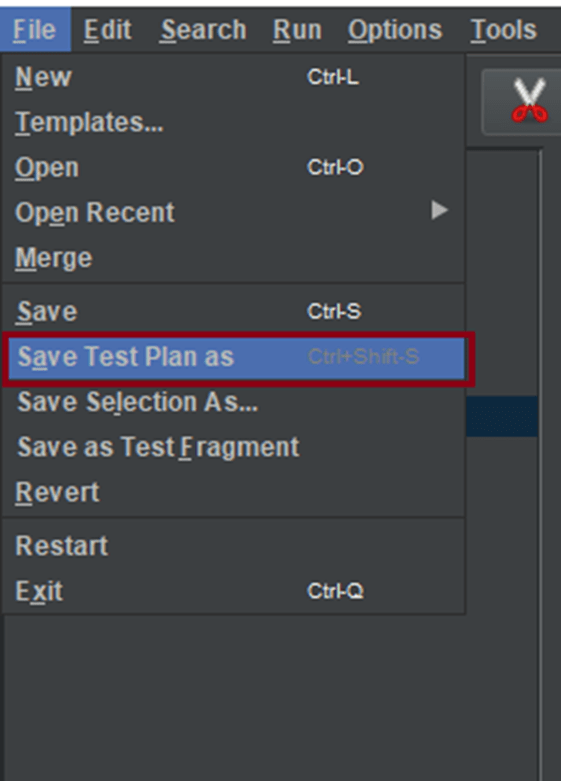
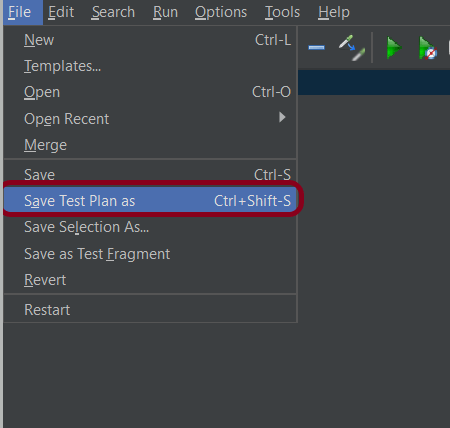
To Save: Click File Select -> Save Test Plan as ->Give name of the Test Plan. It will be save as .jmx format.

Sample .jmx File

Step 5  – Run the Test Plan

Click on Green Triangle as shown below to run the test.

Step 6 – View the Execution Status

Click on View Result Tree to see the status of Run. Successful request will be of Green color in the Text Section.

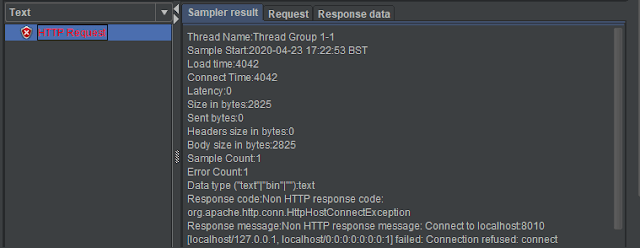
Sample of Failed Request. Failed request will be of Red color in View Result Tree under Text option. This screen sows the reason for the failure of the request like Connection refused here.

That’s it! Congratulations on making it through this tutorial and hope you found it useful! Happy Learning!!

runAsync and supplyAsync in ComputableFuture in Java8

This tutorial is to explain the functionality of ComputableFuture class introduced as Java 8 Concurrency API improvement.

ComputableFuture class implements the Future interface; means can be use for future implementation but with additional logic. 
Static methods runAsync and supplyAsync allow us to create a ComputableFuture instance out of Runnable and Supplier functional types accordingly.

runAsync  – Returns a new CompletableFuture that is asynchronously completed by a task running in the ForkJoinPool.commonPool() after it runs the given action. It returns the new CompletableFuture.

CompletableFuture<Void> java.util.concurrent.CompletableFuture.runAsync(Runnable runnable)

ComputableFuture.runAsync accepts Runnable functional interface and return a ComputableFuture which doesn’t have value

import java.util.concurrent.CompletableFuture;
import java.util.concurrent.ExecutionException;
import org.junit.Test; 
 
 public class runAsyncDemo {
     @Test
      public void runAsync() throws InterruptedException, ExecutionException {
           CompletableFuture future = CompletableFuture.runAsync(() -> System.out.println("runAsync method doesn not return any value"));
           System.out.println(future.get());
   }
}

Output
runAsync method does not return any value
null

How to use Java Lambda expression to create thread via Runnable function


Lambda expressions are introduced in Java 8. It represents one method interface called functional interface.
In this tutorial, we will see how to create a new Thread in Java using Lambda expression.

public class LambdaThreadDemo {
public static void main(String[] args) {
 
    // Implementing Runnable using old way
     Runnable runnable = new Runnable() {

     @Override
      public void run() {
            System.out.println("Old Thread name : "+ Thread.currentThread().getName());
         }
       };
    Thread thread1 = new Thread(runnable);
 
    // Implementing Runnable using Lambda Expression
     Runnable runnable_new = () -> { System.out.println("New Thread name : "+ Thread.currentThread().getName());
        };
     Thread thread_new = new Thread(runnable_new);
 
    // Start Threads
    thread1.start();
    thread_new.start();
   }
}

Output
Old Thread name : Thread-0
New Thread name : Thread-1

This Keyword in Java

HOME


This keyword refers to current object in a method or constructor. The most common use of this keyword is to eliminate the confusion between class variables and parameters of same name.

this can also be used to:

  • Invoke current class instance variable
  • Invoke current class method
  • Invoke current class constructor
  • Pass as an argument in the method call
  • Pass as an argument in the constructor call
  • Return the current class object

Invoke current class instance variable

Here, this keywords can be used to refer or invoke the current class instance variable. Suppose the class variables and parameters share the same name, then this ambiguity can be resolved by the use of this keyword.

public class Employee {
     String name;
     String EmpId;
     Employee(String name, String EmpId) {
           name = name;
           EmpId = EmpId;
      }
      void display() {
            System.out.println(name + " " + EmpId);
      }
      public static void main(String[] args) {
            Employee E1 = new Employee("Vibha", "IT0047");
            Employee E2 = new Employee("Abha", "IT0045");
            E1.display();
            E2.display();
     }
}

Output
null null 
null null

The solution to the problem where both class instance variables and parameters have same name can be resolved with the help of this keyword as shown below.

public class Employee {
     String name;
     String EmpId;
 
     Employee(String name, String EmpId) {
         this.name = name;
         this.EmpId = EmpId;
     }
 
      void display() {
          System.out.println(name + " " + EmpId);
      }
 
       public static void main(String[] args) {
             Employee E1 = new Employee("Vibha", "IT0047");
             Employee E2 = new Employee("Abha", "IT0045");
             E1.display();
             E2.display();
    }
}

Output
Vibha IT0047
Abha IT0045

Invoke current class method

The current class method invoked by using this keyword. Here, both display1() and this.display1() means the same.

public class ThisInvokeCurrentClassMethod {
 
    void display1() {
         System.out.println("This is display 1 method");
     }
 
     void display2() {
           System.out.println("This is display 2 method");
           display1();
           this.display1();
     }
 
     public static void main(String[] args) {
           ThisInvokeCurrentClassMethod obj1 = new ThisInvokeCurrentClassMethod();
           obj1.display2(); 
     }
}
 
Output
This is display 2 method
This is display 1 method

Invoke current class constructor

The current class constructor can be invoked by using this keyword. This is used to reuse the constructor.

public class ThisInvokeCurrentConstructor {
     ThisInvokeCurrentConstructor() {
           System.out.println("This is display method");
     }
 
     ThisInvokeCurrentConstructor(int x) {
         this();
         System.out.println("Value of X :" + x);
     }
 
     public static void main(String[] args) {
        ThisInvokeCurrentConstructor obj = new ThisInvokeCurrentConstructor(12);
    }
}
 
Output
This is display method
Value of X :12

TestNG – How to group Tests in Selenium using TestNG

HOME

<?xml version = "1.0"encoding = "UTF-8"?>
<!DOCTYPE suite SYSTEM "http://testng.org/testng-1.0.dtd">
<suite name = "Suite1">
  <test name = "Test Demo">
      <groups>
         <run>
              <include name = "e2etest"/>
          </run>
        </groups>
    <classes>
          <class name = "TestNGGroupDemo"/>
     </classes>  
   </test>
</suite>

In below example, we have shown the syntax of how to use groups in the XML file. @Test(groups = { “e2etest”, “integerationtest” }) .

Below is the sample code.

import org.testng.annotations.Test;

public class TestNGGroupDemo {

	@Test(alwaysRun = true, groups = { "e2etest", "integerationtest" })
	public void testPrintMessage() {
		System.out.println("This method is run by both e2e and integeration test");
	}

	@Test(alwaysRun = true, groups = { "e2etest" })
	public void testE2EMessage() {
		System.out.println("This method is run by e2e test");
	}

	@Test(alwaysRun = true, groups = { "integerationtest" })
	public void testingIntegrationMessage() {
		System.out.println("This method is run by integeration test");
	}

	@Test(alwaysRun = true, groups = { "acceptancetest" })
	public void testingAcceptanceMessage() {
		System.out.println("This method is run by Acceptance test");
	}

	@Test(alwaysRun = true, groups = { "e2etest", "acceptancetest" })
	public void testE2EAndAcceptanceMessage() {
		System.out.println("This method is run by both e2e and acceptance test");
	}

	@Test(alwaysRun = true, groups = { "e2etest", "integerationtest", "acceptancetest" })
	public void testE2EAndAcceptanceAndIntegrationMessage() {
		System.out.println("This method is run by e2e, integration and acceptance test");
	}

}

Output
[RemoteTestNG] detected TestNG version 7.4.0
This method is run by e2e, integration and acceptance test
This method is run by both e2e and acceptance test
This method is run by e2e test
This method is run by both e2e and integeration test

===============================================
Suite
Total tests run: 4, Passes: 4, Failures: 0, Skips: 0
===============================================

The output of the above program is

The result will look like something shown below. Here, we can see that Test Case Passed is 4, Failed 0 and Skipped 0.

To view the report, go to the Eclipse folder and you can see a folder with name test-output inside the Project where we have created TestNG class. Here, it is  C:\Users\vibha\eclipse-workspace\Demo\test-output

Groups of Groups

Groups can also include other groups. These groups are called “MetaGroups”. TestNG provides the flexibility of providing groups inside another group and running them according to your needs.
Let’s create a group inside a group in our XML file.

Here, I have created a created a new group with the name ‘SuperGroup‘ and included our group “acceptancetest” into it. Then we called the newly created group (SuperGroup) for execution by including it in the run tag. The output will be like this:

<?xml version="1.0" encoding="UTF-8"?>
<!DOCTYPE suite SYSTEM "https://testng.org/testng-1.0.dtd">
<suite name="Suite">
   <test name = "Test Demo">
       <groups>
        	<define name = "SuperGroup">
   			   <include name = "acceptancetest"></include>
   		</define>
          <run>
              <include name = "SuperGroup"/>
          </run>
        </groups>
    <classes>
      <class name="TestNGGroupDemo"/>
    </classes>
  </test> <!-- Test -->
</suite> <!-- Suite -->

Lets, add another group “e2etest” to SuperGroup. In this case, we will see all the tests marked with “e2etest” and “acceptancetest“.

<?xml version="1.0" encoding="UTF-8"?>
<!DOCTYPE suite SYSTEM "https://testng.org/testng-1.0.dtd">
<suite name="Suite">
   <test name = "Test Demo">
       <groups>
        	<define name = "SuperGroup">
   			   <include name = "acceptancetest"></include>
   			    <include name = "e2etest"></include>
   		</define>
          <run>
              <include name = "SuperGroup"/>
          </run>
        </groups>
    <classes>
      <class name="TestNGGroupDemo"/>
    </classes>
  </test> <!-- Test -->
</suite> <!-- Suite -->

We are done! Congratulations on making it through this tutorial and hope you found it useful! Happy Learning!!

How to disable Selenium Test Cases using TestNG Feature – @Ignore

HOME

The previous tutorial discussed prioritizing the Test Cases using TestNG. In this tutorial, we will see how we can disable the Test Cases using TestNG. 

Imagine there are 100 test cases in a Regression Test Suite. We need to execute 99 test cases in a release and do want not to execute any particular test case. But we do not want to delete that test case from the Test Suite also. In this case, TestNG has a feature that allows skipping a particular test case by setting the parameters to.

@Enabled Annotation

@Test(enabled = false)

To use two or more parameters in a single annotation, separate them with a comma:

@Test(priority = 3, enabled = false)

To Run the TestNG program, Right-click on the program, and select Run As TestNG Test.

Below is an example to implement the above-mentioned scenario.

import org.testng.annotations.Test;
 
public class TestNGDisableDemo {
 
    @Test(priority = 3)
     public static void FirstTest() {
           System.out.println("This is Test Case 1, but after priority Test Case 3");
     }
 
     @Test(priority = 4)
     public static void SecondTest() {
          System.out.println("This is Test Case 2, but after priority Test Case 4");
     }
 
     @Test(enabled = false)
     public static void ThirdTest() {
           System.out.println("This is Test Case 3, but now skipped");
     }
 
     @Test(priority = 1)
     public static void FourthTest() {
            System.out.println("This is Test Case 4, but after priority Test Case 1");
     }
}


The output of the above program is

@Ignore Annotation

There is another way of skipping the tests by using the @Ignore annotation.

TestNG lets you ignore all the @Test methods :

  • In a class (or)
  • In a particular package (or)
  • In a package and all of its child packages

Ignore a Test

Below is an example where we have skipped the execution of a particular test.

import org.testng.annotations.Ignore;
import org.testng.annotations.Test;

public class IgnoreDemo{
	
	@Test
	public void FirstTest() {
	
		System.out.println("This is Test Case 1");
    
	}
	
	@Test
	public void SecondTest() {
	
		System.out.println("This is Test Case 2");
    
	}
	
	@Ignore
	@Test
	public void ThirdTest() {
	
		System.out.println("This is Test Case 3");
    
	}
	
	@Test
	public void FourthTest() {
	
		System.out.println("This is Test Case 4");
    
	}

}

In the above example, we have assigned @Ignore to the third test. So, this test should be skipped while the execution.

The output of the above program is

Ignore a Class

To understand this concept, we need to create 2 test classes – IgnoreDemo and IgnoreDemo2. Imagine we want to ignore all the tests in the class, so we can use @Ignore at the class level.

IgnoreDemo

import org.testng.annotations.Ignore;
import org.testng.annotations.Test;

@Ignore
public class PriorityDemo {
	
	@Test
	public void FirstTest() {
	
		System.out.println("This is Test Case 1");
    
	}
	
	@Test
	public void SecondTest() {
	
		System.out.println("This is Test Case 2");
    
	}
	

	@Test
	public void ThirdTest() {
	
		System.out.println("This is Test Case 3");
    
	}
	
	@Test
	public void FourthTest() {
	
		System.out.println("This is Test Case 4");
    
	}

}

IgnoreDemo2

package com.example;

import org.testng.annotations.Ignore;
import org.testng.annotations.Test;


public class PriorityDemo2 {
	
	@Test
	public void FirstTest() {
	
		System.out.println("This is Test Case 1 of Class 2");
    
	}
	
	@Test
	public void SecondTest() {
	
		System.out.println("This is Test Case 2 of Class 2");
    
	}
	

	@Test
	public void ThirdTest() {
	
		System.out.println("This is Test Case 3 of Class 2");
    
	}
	
	@Test
	public void FourthTest() {
	
		System.out.println("This is Test Case 4 of Class 2");
    
	}

}

To run both the classes together, we need to create a testng.xml. The easiest way is to select both the classes and Right-Click and select TestNG -> Convert to TestNG.

testng.xml

<?xml version="1.0" encoding="UTF-8"?>
<!DOCTYPE suite SYSTEM "https://testng.org/testng-1.0.dtd">
<suite name="Suite">
  <test thread-count="5" name="Test">
    <classes>
      <class name="com.example.PriorityDemo2"/>
      <class name="com.example.PriorityDemo"/>
    </classes>
  </test> <!-- Test -->
</suite> <!-- Suite -->

Right-click on the testng.xml and select Run As -> TestNG Suite.

As we have assigned the @Ignore annotation at the class level of PriorityDemo class, it will ignore all the 4 tests present in that particular class.

The output of the above program is

We are done. Congratulations on making it through this tutorial and hope you found it useful!

Difference between getText() and getAttribute() method in Selenium WebDriver

In this tutorial, we will discuss GetText() method as well as the getAttribute() method in Selenium WebDriver. These methods are used extensively in automating a web application. Before going through these methods, we should know what HTML attributes are.

What are HTML attributes?

Attributes are the additional information provided by developers in HTML tags. Attributes are normally defined using “name-pair” values. Let us see, here div is the tag, and corresponding attribute with the property name is id, and the property value is nav-xshop.
<div id= “nav-xshop”>


What is getAttribute() method?

The getAttribute() method is declared in the WebElement interface, and it returns the value of the web element’s attribute as a string. It fetches the value of an attribute, in HTML code whatever is present in the left side of ‘=’ is an attribute, and the value on the right side is an attribute value.

  • getAttibute() returns ‘null’ if there is no such attributes
  • getAttribute() method will return either “true” or null for attributes whose value is Boolean.

Where to use getAttribute() method?

Consider a scenario of movie ticket booking. The colour of booked and available seats in the movie theatre is different. So the same seat will have the supposed white colour for the available seat and blue for the booked seat. So, the colour attribute of the seat changes from white to blue for the same seat, which can be identified by the getAttribute() method. The snippet below shows the HTML code of the search box of the Amazon Home page

Below is an example of how the getAttribute() method can be used.

import org.openqa.selenium.By;
import org.openqa.selenium.WebDriver;
import org.openqa.selenium.WebElement;
import org.openqa.selenium.chrome.ChromeDriver;
 
public class GetAttributeDemo {
      public static void main(String[] args) {
 
            System.setProperty("webdriver.chrome.driver",
                                                "C:\\Users\\Vibha\\Desktop\\Drivers\\chromedriver_win32\\chromedriver.exe");
 
             WebDriver driver = new ChromeDriver();
 
             driver.get("https://www.amazon.com/");
             driver.manage().window().maximize();
 
             WebElement AmazonSearchBox = driver.findElement(By.name("field-keywords"));
             System.out.println("Name of the Email Textbox is:- " + AmazonSearchBox.getAttribute("name"));
 
             System.out.println("Class of the Email Textbox is:- " + AmazonSearchBox.getAttribute("class"));
 
             System.out.println("Value of the Email Textbox is:- " + AmazonSearchBox.getAttribute("tabindex"));
 
             System.out.println("Type of the Email Textbox is:- " + AmazonSearchBox.getAttribute("type"));
 
             System.out.println("Id of the Email Textbox is:- " + AmazonSearchBox.getAttribute("id"));
 
             // getAttibute() returns 'null' if there no such attribute
 
             System.out.println("Value of nonExistingAttribute is:- " + AmazonSearchBox.getAttribute("test"));
 
            driver.close();
       }
 
}

Output
Name of the Email Textbox is:- field-keywords
Class of the Email Textbox is:- nav-input
Value of the Email Textbox is:- 19
Type of the Email Textbox is:- text
Id of the Email Textbox is:- twotabsearchtextbox
Value of nonExistingAttribute is:- null

What is getText() method?

getText() is a method that gets us the visible (i.e. not hidden by CSS) innerText of this element, including sub-elements, without any leading or trailing white space.

Inner text is the text between the opening tags and closing tags.

This is an example of getText().

In the above example, the text  “This is the example of getText” between opening and closing tags of h1 are called inner text.

The snippet below shows the HTML code of the search box of the Amazon Home page

Below is an example of how the getText() method can be used.

import java.util.concurrent.TimeUnit;

import org.openqa.selenium.By;
import org.openqa.selenium.WebDriver;
import org.openqa.selenium.chrome.ChromeDriver;
 
public class GetTextDemo {
 
      public static void main(String[] args) {
           System.setProperty("webdriver.chrome.driver",
                                                "C:\\Users\\Vibha\\Desktop\\Drivers\\chromedriver_win32\\chromedriver.exe");
 
            WebDriver driver = new ChromeDriver();
 
            driver.get("https://www.facebook.com/");
            driver.manage().window().maximize();
            driver.manage().timeouts().implicitlyWait(30, TimeUnit.SECONDS);
 
            String FacebookText = driver
                                    .findElement(By.xpath("//*[@id='content']/div/div/div/div/div[2]/div/div[1]/div[1]/span")).getText();
            System.out.println("Text on Facebook Site:- " + FacebookText);
         driver.close();
      }
 
}

Output
Text on Facebook Site:- Create an account

Execute JavaScript with executeAsyncScript() Method in Selenium

HOME

In the previous blog, we have discussed about executeScript() method in JavaScript. JavascriptExecutor interface comprises of executeAsyncScript() method that is called an additional final argument “arguments[arguments.lenght-1];”which is a callback function to signal that async execution has finished. We have to call from JavaScript, to tell Webdriver, that our Asynchronous execution has finished. If we do not do that, then executeAsyncScpriptwill timeout and throw a timeout exception.

Before executing AsyncScript method, we have to make sure to set the script timeout. Its default is 0. If we do not set a script timeout, our executeAsyncScript will immediately timeout and it won’t work.

Below is the program which shows how to use executeAsyncScript() method

  1. First  will get the start time before waiting 5 seconds by using executeAsyncScript() method.
  2. Then, will use executeAsyncScript() to wait 5 seconds.
  3. Then, will get the current time
  4. Will subtract (current time – start time) = passed time and print the value
import org.openqa.selenium.JavascriptExecutor;
import org.openqa.selenium.WebDriver;
import org.openqa.selenium.chrome.ChromeDriver;
 
public classExecuteAsycSleepBrowserDemo {
        public static void main(String[] args) { 
    

System.setProperty("webdriver.chrome.driver","C:\\Users\\Vibha\\Desktop\\Drivers\\chromedriver_win32\\chromedriver.exe");
        WebDriver driver = newChromeDriver();
                                        
        //Create the JavascriptExecutor interface object by Type casting              
        JavascriptExecutor js = (JavascriptExecutor)driver;              
        driver.get("https://www.google.com/");                              
        driver.manage().window().maximize();
                        
        //Declare and set start time
        long startTime = System.currentTimeMillis();
                 
        //Call executeAsyncScript() method                       js.executeAsyncScript("window.setTimeout(arguments[arguments.length - 1], 5000);"); 
                 
        //Get the difference (currentTime - startTime) it should be greater than 5000
        System.out.println("Passed time: " + (System.currentTimeMillis() - startTime));
                        
          if ( (System.currentTimeMillis() - startTime) > 5000)
             {
                 System.out.println("Time difference must be greater than 5000 milliseconds");
             }
          driver.quit();      
      }

Output
Passed time: 5040
Time difference must be greater than 5000 milliseconds

Execute JavaScript with executeScript() Method in Selenium

HOME

In the previous tutorial, we have discussed about JavaScript. There are some conditions where we cannot handle some problems with WebDriver only, web controls don’t react well against selenium commands. In this kind of situations, we use Javascript. JavaScriptExecutor comes separately and also comes under the WebDriver but both do the same thing. Within the WebDriver, it is named as ExecuteScript.

JavaScriptExecutor is an interface that provides a mechanism to execute Javascript through selenium driver. It provides “executescript” & “executeAsyncScript” methods, to run JavaScript in the context of the currently selected frame or window.

ExecuteScript Method – This method executes JavaScript in the context of the currently selected frame or window in Selenium. The script used in this method runs in the body of an anonymous function (a function without a name). We can also pass complicated arguments to it. 

Execute the below selenium script. In this example,

  • Launch the site
  • Fetch the domain name of the site.
  • Fetch the URL of the site
  • Fetch the title name of the sit
  • Then navigate to a different page – google.com
  • Display Alert popup                                                                        
package SeleniumTutorial;
import org.openqa.selenium.JavascriptExecutor;
 
import org.openqa.selenium.WebDriver;
 
import org.openqa.selenium.chrome.ChromeDriver;
 
public classJavaScript_Demo {
        public static voidmain(String[] args) {
                        System.setProperty("webdriver.chrome.driver","C:\\Users\\SingVi04\\Desktop\\Drivers\\chromedriver_win32\\chromedriver.exe");
 
        WebDriver driver= new ChromeDriver();
                                        
        //Create the JavascriptExecutor interface object by Type casting                
        JavascriptExecutor js = (JavascriptExecutor)driver;             
 
        driver.get("https://configureselenium.blogspot.com/");
 
        driver.manage().window().maximize();
  
 
       //Fetching the Domain Name of the site. Tostring() change object to name.                
        String DomainName = js.executeScript("return document.domain;").toString();                 
        System.out.println("Domain name of the site = "+DomainName);                                        
                        
        //Fetching the URL of the site. Tostring() change object to name          
        String url = js.executeScript("return document.URL;").toString();                
        System.out.println("URL of the site = "+url);                                      
                        
        //Method document.title fetch the Title name of the site. Tostring() change object to name          
       String TitleName = js.executeScript("return document.title;").toString();                        
       System.out.println("Title of the page = "+TitleName);                                  
                
        //Navigate to new Page i.e to generate access page. (launch new url)             
        js.executeScript("window.location = 'https://www.google.com/'");
        String NewTitleName = js.executeScript("return document.title;").toString();                      
        System.out.println("Title of the new page = "+NewTitleName);    
 
        //Alert
        js.executeScript("alert('Hello Everyone!');");
        driver.switchTo().alert().accept();
      
        driver.quit();
    }           
 }