The previous tutorial explained the generation of Allure Report with Cucumber5, Selenium and JUnit4 in a Maven project. In this tutorial, I will explain the steps to create an Allure Report with Cucumber7, Selenium, and JUnit5 in a Maven project.
Table of Contents
Prerequisite:
- Java 11 or above installed
- Eclipse or IntelliJ IDE installed
- Maven Installed
- Environment variables JAVA_HOME and ALLURE_HOME are correctly configured
In this tutorial, I’ll create an Allure Report for the testing of web applications using Cucumber7, and Selenium 4 with JUnit5.
Dependency List
- Cucumber Java – 7.6.0
- Cucumber JUnit Platform Engine – 7.6.0
- Java 11
- Maven – 3.8.1
- Selenium – 4.3.0
- Allure JUnit5 – 2.21.0
- AspectJ Weaver – 1.9.7
Implementation Steps
- Add Cucumber, Selenium, JUnit5, and Allure-JUnit5 dependencies in pom.xml
- Create Pages and Test Code for the pages
- Execute the Tests
- Generate the Allure Report
Project Structure

Step 1 – Add dependencies in pom.xml
The Cucumber, Selenium, JUnit5, WebDriverMananger, and Allure-JUnit5 dependencies are added to the pom.xml.
<project xmlns="http://maven.apache.org/POM/4.0.0" xmlns:xsi="http://www.w3.org/2001/XMLSchema-instance"
xsi:schemaLocation="http://maven.apache.org/POM/4.0.0 https://maven.apache.org/xsd/maven-4.0.0.xsd">
    <modelVersion>4.0.0</modelVersion>

    <groupId>com.example</groupId>
    <artifactId>Cucumber7Junit5</artifactId>
    <version>1.0.0-SNAPSHOT</version>
    <packaging>jar</packaging>

    <properties>
        <project.build.sourceEncoding>UTF-8</project.build.sourceEncoding>
        <cucumber.version>7.6.0</cucumber.version>
        <selenium.version>4.3.0</selenium.version>
        <webdrivermanager.version>5.2.1</webdrivermanager.version>
        <junit.jupiter.version>5.9.0</junit.jupiter.version>
        <apache.common.version>2.4</apache.common.version>
        <projectlombok.version>1.18.24</projectlombok.version>
        <maven.compiler.plugin.version>3.10.1</maven.compiler.plugin.version>
        <maven.surefire.plugin.version>3.0.0-M7</maven.surefire.plugin.version>
        <maven.compiler.source.version>11</maven.compiler.source.version>
        <maven.compiler.target.version>11</maven.compiler.target.version>
		<allure.junit5.version>2.21.0</allure.junit5.version>
		<allure.version>2.19.0</allure.version>
		<allure.maven.version>2.11.2</allure.maven.version>
		<aspectj.version>1.9.9.1</aspectj.version>
    </properties>

    <dependencyManagement>
        <dependencies>
            <dependency>
                <groupId>io.cucumber</groupId>
                <artifactId>cucumber-bom</artifactId>
                <version>${cucumber.version}</version>
                <type>pom</type>
                <scope>import</scope>
            </dependency>
            <dependency>
                <groupId>org.junit</groupId>
                <artifactId>junit-bom</artifactId>
                <version>${junit.jupiter.version}</version>
                <type>pom</type>
                <scope>import</scope>
            </dependency>
        </dependencies>
    </dependencyManagement>

    <dependencies>

        <dependency>
            <groupId>io.cucumber</groupId>
            <artifactId>cucumber-java</artifactId>
            <scope>test</scope>
        </dependency>

        <dependency>
            <groupId>io.cucumber</groupId>
            <artifactId>cucumber-junit-platform-engine</artifactId>
            <scope>test</scope>
        </dependency>

        <!-- JUnit Platform -->
        <dependency>
            <groupId>org.junit.platform</groupId>
            <artifactId>junit-platform-suite</artifactId>
            <scope>test</scope>
        </dependency>

        <dependency>
            <groupId>org.junit.jupiter</groupId>
            <artifactId>junit-jupiter-engine</artifactId>
            <scope>test</scope>
        </dependency>

        <!-- Selenium -->
        <dependency>
            <groupId>org.seleniumhq.selenium</groupId>
            <artifactId>selenium-java</artifactId>
            <version>${selenium.version}</version>
        </dependency>

        <!-- Web Driver Manager -->
        <dependency>
            <groupId>io.github.bonigarcia</groupId>
            <artifactId>webdrivermanager</artifactId>
            <version>${webdrivermanager.version}</version>
        </dependency>

        <!-- Apache Common -->
        <dependency>
            <groupId>org.apache.directory.studio</groupId>
            <artifactId>org.apache.commons.io</artifactId>
            <version>${apache.common.version}</version>
        </dependency>

 <!--Allure Reporting Dependency-->
		<dependency>
			<groupId>io.qameta.allure</groupId>
			<artifactId>allure-junit5</artifactId>
			<version>${allure.junit5.version}</version>
			<scope>test</scope>
		</dependency>

        <dependency>
            <groupId>org.projectlombok</groupId>
            <artifactId>lombok</artifactId>
            <version>${projectlombok.version}</version>
            <scope>provided</scope>
        </dependency>

    </dependencies>

    <build>
        <plugins>
            <plugin>
                <groupId>org.apache.maven.plugins</groupId>
                <artifactId>maven-compiler-plugin</artifactId>
                <version>${maven.compiler.plugin.version}</version>
                <configuration>
                    <source>${maven.compiler.source.version}</source>
                    <target>${maven.compiler.target.version}</target>
                </configuration>
            </plugin>

           <plugin>

				<artifactId>maven-surefire-plugin</artifactId>
				<version>${maven.surefire.plugin.version}</version>
				<configuration>
					<properties>
						<property>
							<name>listener</name>
							<value>io.qameta.allure.junit5.AllureJunit5</value>
						</property>
					</properties>
					<argLine>
                            -javaagent:"${settings.localRepository}/org/aspectj/aspectjweaver/${aspectj.version}/aspectjweaver-${aspectj.version}.jar"
                            -Dcucumber.options="--plugin io.qameta.allure.cucumber7jvm.AllureCucumber7Jvm"
                        </argLine>
					<systemProperties>
						<property>
							<name>allure.results.directory</name>
							<value>${project.build.directory}/allure-results</value>
						</property>
						<property>
							<name>junit.jupiter.extensions.autodetection.enabled</name>
							<value>true</value>
						</property>
					</systemProperties>
				</configuration>
				<dependencies>
					<dependency>
						<groupId>org.aspectj</groupId>
						<artifactId>aspectjweaver</artifactId>
						<version>${aspectj.version}</version>
					</dependency>
					<dependency>
						<groupId>io.cucumber</groupId>
						<artifactId>cucumber-junit-platform-engine</artifactId>
						<version>${cucumber.version}</version>
					</dependency>
				</dependencies>
			</plugin>

            <plugin>
				<groupId>io.qameta.allure</groupId>
				<artifactId>allure-maven</artifactId>
				<version>${allure.maven.version}</version>
				<configuration>
					<reportVersion>2.4.1</reportVersion>
				</configuration>
			</plugin>
		</plugins>
	</build>
</project>
Step 2 – Create Step Definition, feature file, and Test Runner Classes
Create Locator and Action classes and Step Definition corresponding to the feature file and Test Runner Class
There is another tutorial that explains the project structure as well as the feature file and corresponding Step Definitions, please refer to this tutorial – Integration of Cucumber7 with Selenium and JUnit5.
Step 3 – Execute the Tests
Use the below command to run the tests
mvn clean test
The output of the above program is

Step 4 – Generate the Allure Report
Once the test execution is finished, a folder named allure-results will be generated in the target folder.

To generate the Allure Report, first, go to the target folder.
cd target
Now, use the below command to generate the Allure Report
allure serve
This will generate the beautiful Allure Test Report as shown below.

Allure Report Dashboard
The overview page hosts several default widgets representing the basic characteristics of your project and test environment.
- Statistics – overall report statistics.
- Launches – if this report represents several test launches, statistics per launch will be shown here.
- Behaviours – information on results aggregated according to stories and features.
- Executors – information on test executors that were used to run the tests.
- History Trend – if tests accumulate some historical data, its trend will be calculated and shown on the graph.
- Environment – information on the test environment.
Categories in Allure Report
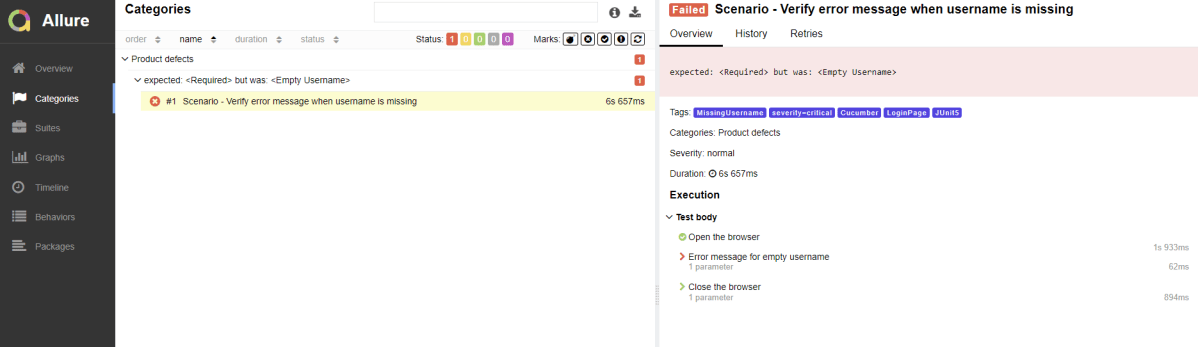
The categories tab gives you a way to create custom defect classifications to apply for test results. There are two categories of defects – Product Defects (failed tests) and Test Defects (broken tests).
Suites in Allure Report
On the Suites tab a standard structural representation of executed tests, grouped by suites and classes can be found.

Graphs in Allure Report
Graphs allow you to see different statistics collected from the test data: status breakdown or severity and duration diagrams.

Timeline in Allure Report
The timeline tab visualizes retrospective test execution, allure adaptors collect precise timings of tests, and here on this tab, they are arranged accordingly to their sequential or parallel timing structure.

Behaviors of Allure Report
This tab groups test results according to Epic, Feature, Story, Test Severity, Test Description, Test Steps, and so on.

Packages in Allure Report
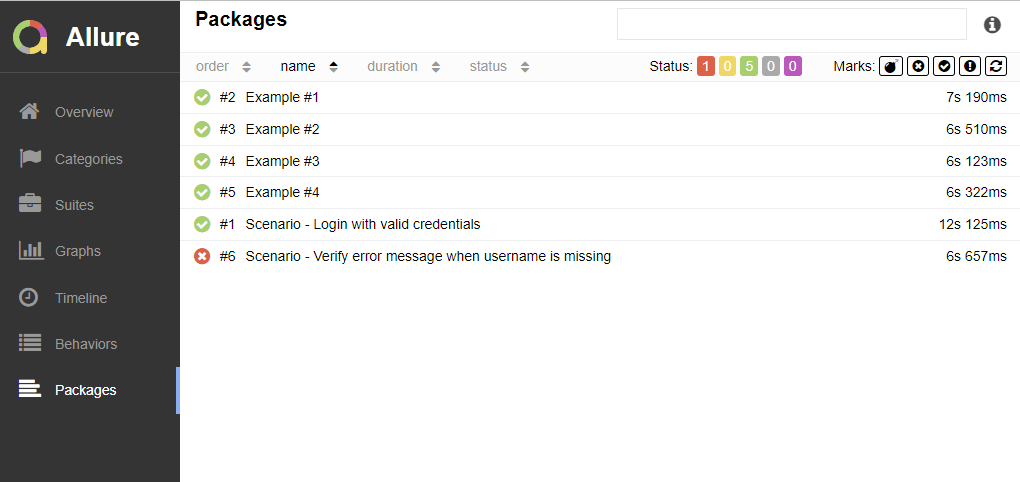
The packages tab represents a tree-like layout of test results, grouped by different packages.
Congratulations on making it through this tutorial and hope you found it useful! Happy Learning!! Cheers!!
 QA Automation Expert
Hi guys. Awesome content. Thanks for posting it.
there is only one thing that is not clear to me. How you avoid the duplicate records in Allure with junit5 and cucumbet7? you have examples with testng and junit4, but just for this case I cannot find it.
Thanks in advance
LikeLike
Thank you for providing the feedback. It is my mistake, I have copied incorrect reference to the post. I have updated the post. If you want to see the framework for Cucumber with JUnit5, please refer to this post – https://qaautomation.expert/2022/08/29/integration-of-cucumber7-with-junit5/.
LikeLike
Thanks for the quick response.
I’m looking for a solution similar to the one you used with TestNG and the @Test annotation (needed to avoid allure duplicating the tests).
With Junit5 and cucumber7 and allure and you runner configuration allure duplicates the results.
Have you experienced this as well?
My runner:
package hrm.runner;
import org.junit.platform.suite.api.ConfigurationParameter;
import org.junit.platform.suite.api.IncludeEngines;
import org.junit.platform.suite.api.SelectClasspathResource;
import org.junit.platform.suite.api.Suite;
import static io.cucumber.junit.platform.engine.Constants.PLUGIN_PROPERTY_NAME;
@Suite
@IncludeEngines(“cucumber”)
@SelectClasspathResource(“hrm/login”)
@ConfigurationParameter(key = PLUGIN_PROPERTY_NAME, value = “pretty, json:target/cucumber.json, io.qameta.allure.cucumber7jvm.AllureCucumber7Jvm”)
public class RunHrmLoginTest {
}
LikeLike