How to run Selenium 3 on Docker

HOME

What is Docker and Container?

Docker is an open platform for developing, shipping, and running applications.
Docker provides the ability to package and run an application in a loosely isolated environment called a container. A container is a runnable instance of an image. You can create, start, stop, move, or delete a container using the Docker API or CLI. You can connect a container to one or more networks, attach storage to it, or even create a new image based on its current state.

By default, a container is relatively well isolated from other containers and its host machine
It contains multiple components such as Docker Daemon, Docker Clients, Docker Registry, and Docker Compose. It works on a client-server architecture. The Docker client communicates with the Docker Daemon handles the complex part of building, running, and distributing the Docker containers.

Docker Desktop is an easy-to-install application for your Mac or Windows environment that enables you to build and share containerized applications and microservices. Docker Desktop includes the Docker daemon (dockerd), the Docker client (docker), Docker Compose, Docker Content Trust, Kubernetes, and Credential Helper.

Why use Selenium with Docker for web application testing

When Selenium is used with Docker, there is no need to install the necessary browsers and browser drivers on the host machine. Overall, it is significantly quicker to get started with Selenium web automation testing using pre-made Docker containers. A range of Docker images (with Selenium) on the Docker Hub can be used by running a few commands on the terminal. Some of these images on the Docker Hub were developed and maintained by Selenium HQ.

One of the most common uses of Docker containers in selenium testing is cross-browser testing. Setting up test setups with all of the Browser-OS combinations gets difficult. These can be set up on the go and taken down once the tests are completed using Docker containers.

Another use of Docker containers in Selenium testing is parallel testing. Because there are so many sorts of tests to conduct, doing them sequentially takes a long time. As a result, parallelizing the testing saves time and provides faster feedback. Parallel testing, on the other hand, necessitates a significant amount of infrastructure setup. This would have a direct bearing on the price. Multiple containers can be launched on a single server using docker containers, making the most of the underlying hardware while also allowing for concurrent testing

Let’s discuss how to set up docker and run Selenium tests on it.

Setting up Window Docker

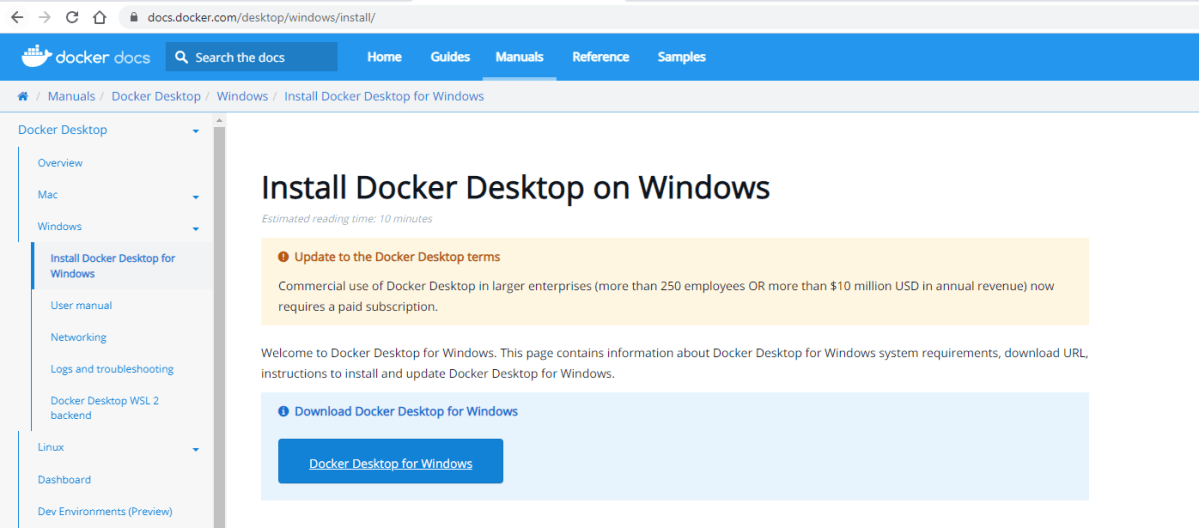
Step 1 – Download the Docker Installer

Docker provides an installer for Windows which can be downloaded from the official docker website.
Step 2 – Install Docker

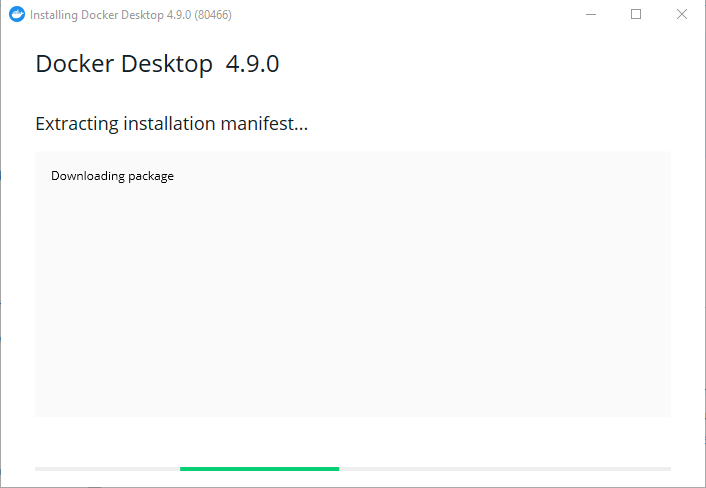
Launch the installer by double-clicking on it. Select the Enable Hyper-V Windows Features option on the configuration page.
If the user account and admin accounts are different, the user account must be added to the docker-users group as shown below:
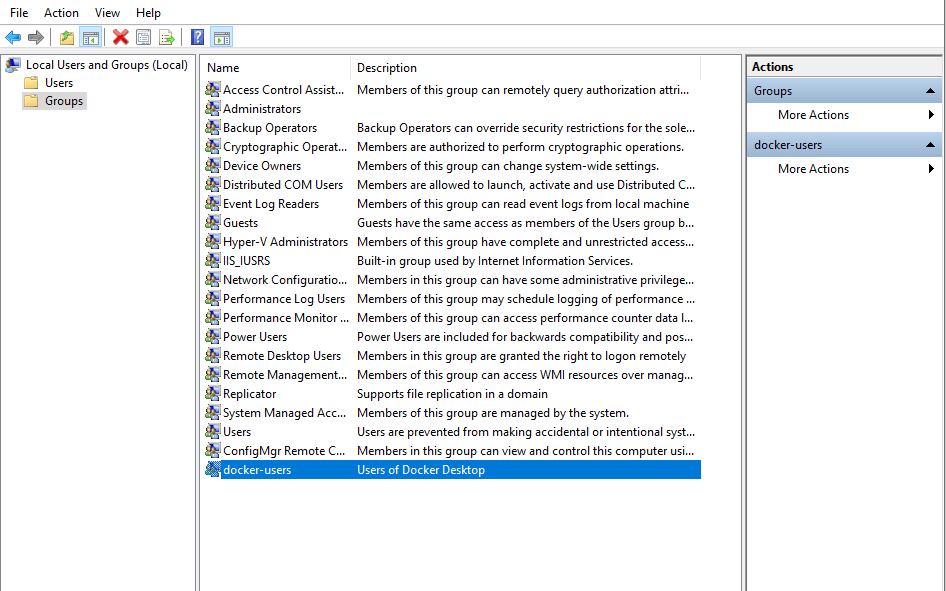
To do that, you will need to run Computer Management as an administrator and navigate to Local Users and Groups > Groups > docker-users. Then right-click to add the user to the group. You will need to log and log back in for the changes to take effect.

Step 3 – Start Docker Desktop

After the installation process is complete, the tool does not start automatically. To start the Docker tool, search for the tool, and select Docker Desktop in your desktop search results or Docker Desktop can be started from the start menu.
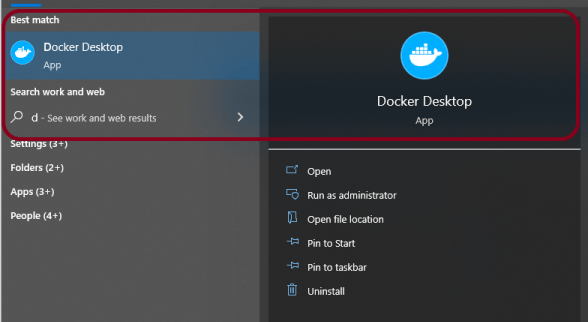
Docker is free for small businesses, personal usage, education, and non-commercial purposes.
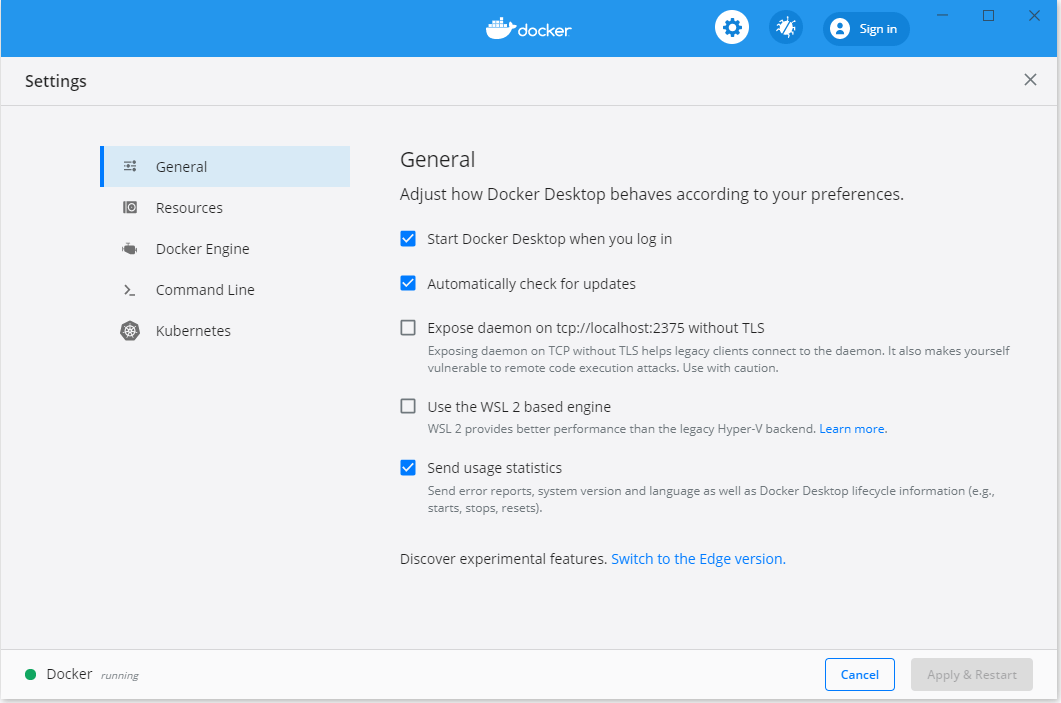
Step 4 – Verify the installation of Desktop Docker

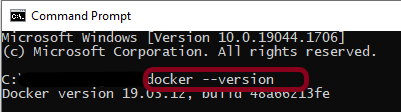
To see if Docker is correctly configured, run the following line in Command Prompt. The version of Docker installed on the system is provided.

docker --version
Running Selenium Tests in Docker

The Docker Desktop can execute a few docker images after it is installed. You can either build a Docker image from the scratch or start with a pre-configured base image from the Docker hub and add to it.

The selenium/standalone-firefox image hosted by selenium on DockerHub is used in this tutorial.

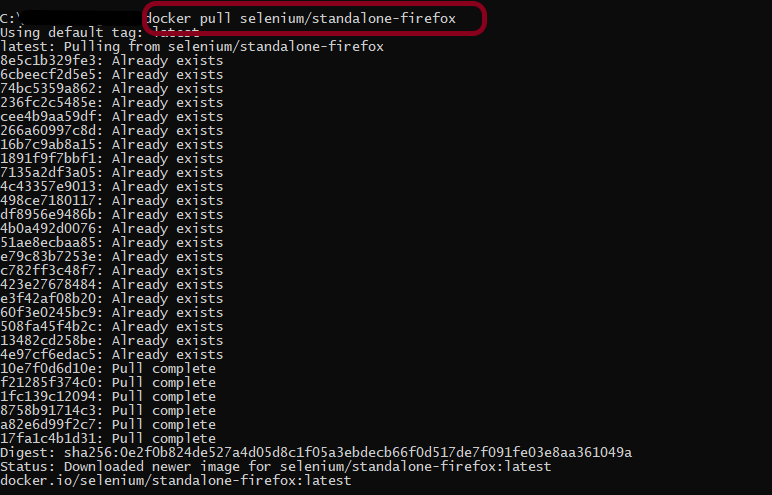
Step 1 – Pull the docker image

Run the following command to download a copy of the image onto the system.

docker pull selenium/standalone-firefox
Step 2 – Running the Selenium Webdriver Docker container

Upon pulling the selenium/standalone-firefox image onto the system, start the container by running the following command:

docker run -d -p 4444:4444 -v /dev/shm:/dev/shm selenium/standalone-firefox

The above command starts a container from the image specified in detached mode (background mode). It also maps Port 4444 on the container to Port 4444 on your local browser.

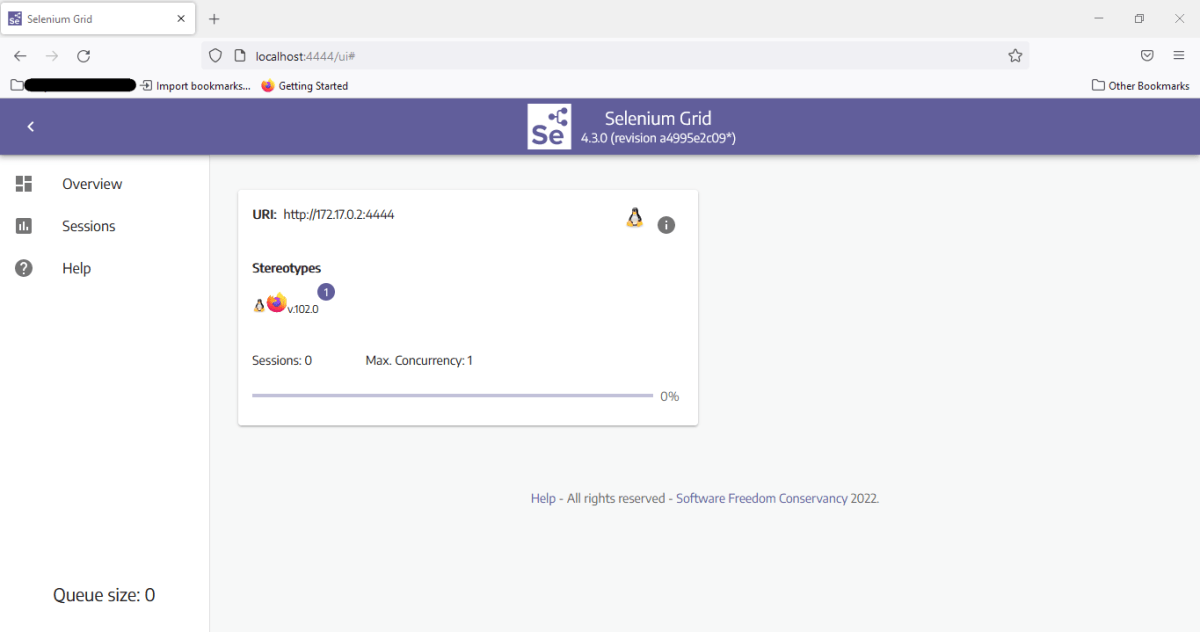
Open the browser and navigate to http://localhost:4444/. It reflects Selenium Grid UI, as shown below.
Step 3 – Add the dependencies to the POM.xml

<?xml version="1.0" encoding="UTF-8"?>

<project xmlns="http://maven.apache.org/POM/4.0.0" xmlns:xsi="http://www.w3.org/2001/XMLSchema-instance"
  xsi:schemaLocation="http://maven.apache.org/POM/4.0.0 https://maven.apache.org/xsd/maven-4.0.0.xsd">
  <modelVersion>4.0.0</modelVersion>

  <groupId>org.example</groupId>
  <artifactId>SeleniumDockerDemo</artifactId>
  <version>0.0.1-SNAPSHOT</version>

  <name>SeleniumDockerDemo</name>
  <url>http://www.example.com</url>

  <properties>
    <project.build.sourceEncoding>UTF-8</project.build.sourceEncoding>
    <maven.compiler.source>11</maven.compiler.source>
    <maven.compiler.target>11</maven.compiler.target>
  </properties>

<dependencies>
 
  <dependency>
     <groupId>org.seleniumhq.selenium</groupId>
     <artifactId>selenium-java</artifactId>
     <version>3.141.59</version>
  </dependency>

  <dependency>
     <groupId>io.github.bonigarcia</groupId>
     <artifactId>webdrivermanager</artifactId>
     <version>5.1.0</version>
   </dependency>
  
    <dependency>
      <groupId>junit</groupId>
      <artifactId>junit</artifactId>
      <version>4.13.2</version>
      <scope>test</scope>
    </dependency>
   
</dependencies>

Step 4 – Create a sample test

I have created a base class where the WebDriver is initialized and at the end is closed.

import io.github.bonigarcia.wdm.WebDriverManager;
import org.junit.After;
import org.junit.Before;
import org.openqa.selenium.WebDriver;
import org.openqa.selenium.firefox.FirefoxOptions;
import org.openqa.selenium.remote.RemoteWebDriver;
import java.net.MalformedURLException;
import java.net.URL;

public class BaseTest {
    protected static ThreadLocal<RemoteWebDriver> driver = new ThreadLocal<>();
    public static String remote_url_firefox = "http://localhost:4444/wd/hub";


    @Before
    public void setDriver() throws MalformedURLException {

        WebDriverManager.firefoxdriver().setup();
        FirefoxOptions options = new FirefoxOptions();
        options.addArguments("window-size=1920,1200");
        driver.set(new RemoteWebDriver(new URL(remote_url_firefox), options));
        driver.get().get("https://opensource-demo.orangehrmlive.com/");

    }

    public WebDriver getDriver() {
        return driver.get();
    }

    @After
    public  void closeBrowser() {
        driver.get().quit();
        driver.remove();
    }
}

The below class contains the various tests. The tests are related to verifying the login to the application, verifying the title of the current page, verifying the error message generated on providing the invalid credentials, verifying the LinkedIn link, and verifying the heading of forgot password page.

import org.junit.Test;
import org.openqa.selenium.By;
import static org.junit.Assert.assertEquals;
import static org.junit.Assert.assertTrue;

public class LoginPageTest extends BaseTest{

    @Test
    public void validCredentials() {

        getDriver().findElement(By.name("txtUsername")).sendKeys("Admin");
        getDriver().findElement(By.name("txtPassword")).sendKeys("admin123");
        getDriver().findElement(By.id("btnLogin")).click();
        String newPageText = getDriver().findElement(By.xpath("//*[@id='content']/div/div[1]/h1")).getText();
        System.out.println("newPageText :" + newPageText);
        assertEquals(newPageText,"Dashboard");

    }

    @Test
    public void invalidCredentials() {

        getDriver().findElement(By.name("txtUsername")).sendKeys("1234");
        getDriver().findElement(By.name("txtPassword")).sendKeys("12342");
        getDriver().findElement(By.id("btnLogin")).click();
        String actualErrorMessage = getDriver().findElement(By.id("spanMessage")).getText();
        System.out.println("Actual ErrorMessage :" + actualErrorMessage);
        assertEquals(actualErrorMessage,"Invalid credentials");

    }

    @Test
    public void loginPageHeading() {

        String loginText = getDriver().findElement(By.id("logInPanelHeading")).getText();
        System.out.println("Actual loginText :" + loginText);
        assertEquals(loginText,"LOGIN Panel");

    }

    @Test
    public void forgotPasswordPageHeading() {

        getDriver().findElement(By.xpath("//*[@id='forgotPasswordLink']/a")).click();
        String forgetPasswordTitle= getDriver().findElement(By.xpath(" //*[@id='content']/div[1]/div[2]/h1")).getText();
        System.out.println("Actual Page Title of Forgot Password Page :" + forgetPasswordTitle);
        assertEquals(forgetPasswordTitle,"Forgot Your Password?");
    }

    @Test
    public void verifyLinkedIn() {

        Boolean linkedInIcon = getDriver().findElement(By.xpath("//*[@id='social-icons']/a[1]/img")).isEnabled();
        System.out.println("Actual linkedIn Text :" + linkedInIcon);
        assertTrue(linkedInIcon);

    }

}

Step 5 – Executing the test case

To run it from the command prompt, open a command prompt and run the following command:

mvn clean test

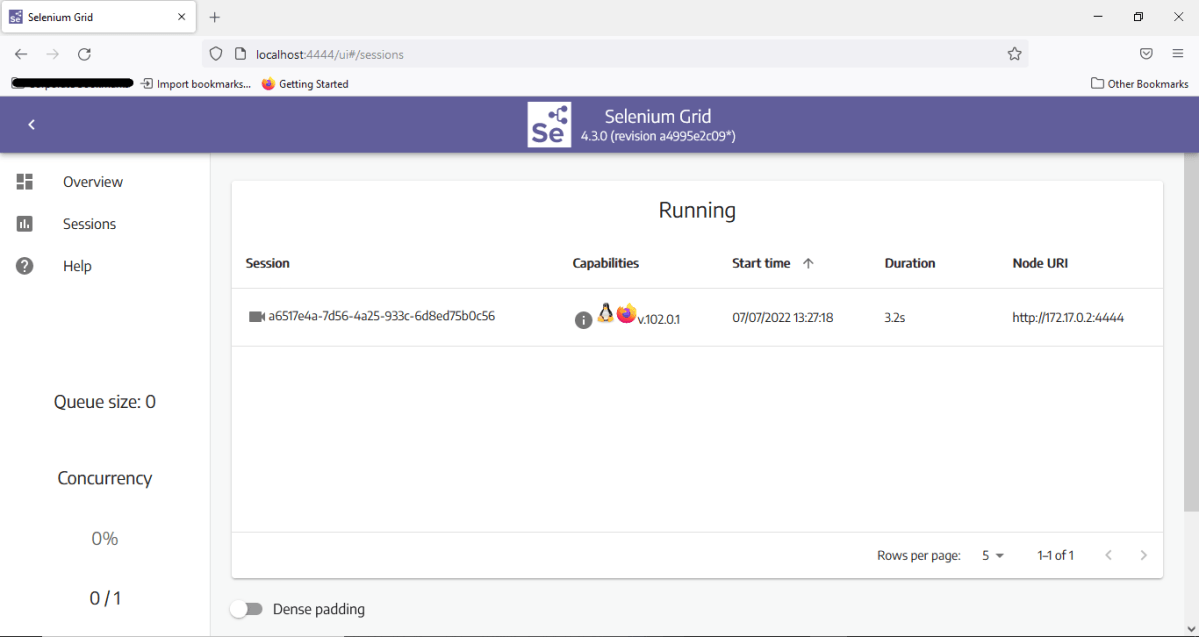
Navigate to the sessions tab on the Selenium Grid UI upon running the command. It would reflect an active session.
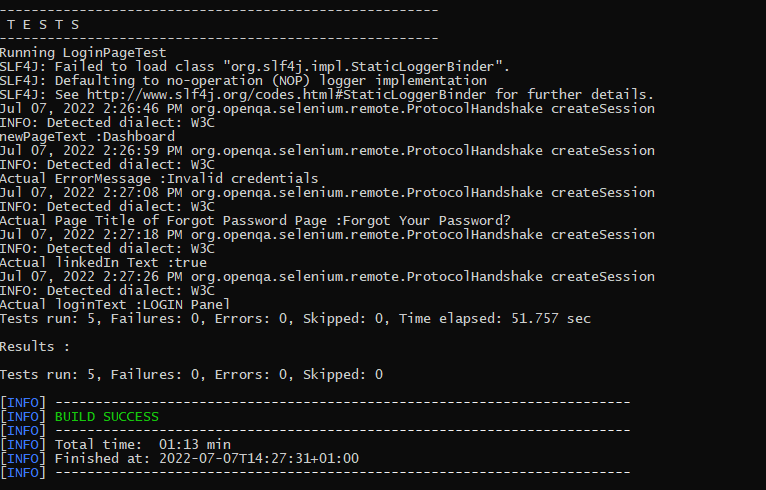
The logs can be viewed in the command prompt as shown below:
The same test can be run using Chrome browser too. To run the tests using Chrome browser, we need to make 2 changes.

1 Firstly, download selenium/standalone-chrome image hosted by selenium on DockerHub.

Use the below command to pull the image in Docker

docker pull selenium/standalone-chrome

Start the container by running the following command:

docker run -d -p 4444:4444 -v /dev/shm:/dev/shm selenium/standalone-chrome

2. Secondly make the changes in the test code.

WebDriverManager.chromedriver().setup();
ChromeOptions options = new ChromeOptions();

Congratulations!!. The above steps allow running Selenium tests in Docker seamlessly. Happy Learning
New Features in Selenium 4

Last Updated On

HOME

Selenium is moved from version 3 to version 4 which is quite a huge step. What does this change mean? It means that a few of the old features of Selenium 3 are depreciated in Selenium 4 as well some new features are added to it also. I’m trying to explain a few of the latest updates done in Selenium 4.

Table of Contents

  1. Enhanced Selenium Grid
  2. Simplification to open a new Windows browser and Tabs
  3. Relative Locators
  4. TakeElementScreenshot
  5. New additions to the Actions Class
  6. Deprecation of Desired Capabilities
  7. Chrome Dev Tools

Selenium 3 – This is the latest version of Selenium3 available.

<dependency>
    <groupId>org.seleniumhq.selenium</groupId>
    <artifactId>selenium-java</artifactId>
    <version>3.141.59</version>
</dependency>

Selenium 4 – This is the latest version of Selenium 4 Libraries that are present in the Maven Central Repository.

<dependency>
    <groupId>org.seleniumhq.selenium</groupId>
    <artifactId>selenium-java</artifactId>
    <version>4.2.1</version>
</dependency>

1. Enhanced Selenium Grid

Managing Selenium Grid is now smooth and easy as there will no longer be any need to set up and start hubs and nodes separately. The grid can be deployed in 3 modes:

Standalone – Standalone is the union of all components, and to the user’s eyes, they are executed as one. A fully functional Grid of one is available after starting it in the Standalone mode. By default, the server will be listening on http://localhost:4444, and that’s the URL you should point your RemoteWebDriver tests. The server will detect the available drivers that it can use from the System PATH.

Hub and Node – It enables the classic Hub & Node(s) setup. These roles are suitable for small and middle-sized Grids

Distributed – On Distributed mode, each component needs to be started on its own. This setup is more suitable for large Grids.

Grid will now support IPv6 addresses and one can communicate with the Grid using the HTTPS protocol. In Grid 4, the configuration files used for spinning up the grid instances can be written in TOML (Tom’s Obvious, Minimal Language) which will make it easier for humans to understand.
The new Selenium Grid comes with Docker support. It also supports advanced tools like AWS, Azure, and much more, useful in the DevOps process. Now Grid has a more user-friendly UI and contains relevant information related to the session, running, capacity, etc.

2. Simplification to open a new Windows browser and Tabs

There are a number of scenarios where you would want to open a new browser (or tab) and perform a certain set of actions in the newly opened window/tab. In Selenium 3, you have to create a new Web Driver object and then switch to the new window (or tab) using its unique WindowHandle to perform subsequent actions in that window (or tab).

Selenium 4 provides a new API new Window that lets you create a new window (or tab) and automatically switch to it. Since the new window or tab is created in the same session, it avoids creating a new WebDriver object. For switching to the new tab, pass WindowType.TAB to newWindow() method and for creating a new window, pass WindowType.WINDOW to newWindow() method.

public class NewWindowDemo {

	public static void main(String[] args) {
		System.setProperty("webdriver.chrome.driver",
				"C:\\Users\\Vibha\\Software\\chromedriver_win32_93.0.4577.15\\chromedriver.exe");
		WebDriver driver = new ChromeDriver();
		driver.manage().window().maximize();

		driver.get("https://www.bing.com/");
		System.out.println("New Page - Bing is opened");

		// Opens a new window and switches to new window
		driver.switchTo().newWindow(WindowType.WINDOW);

		// Opens duckduckgo homepage in the new opened window
		driver.navigate().to("https://www.duckduckgo.com/");

		System.out.println("New Page - DuckDuckGo is opened");

		driver.quit();
	}
}

Open a new Tab in Selenium 4

public class NewTabDemo {

	public static void main(String[] args) {

		System.setProperty("webdriver.chrome.driver",
				"C:\\Users\\Vibha\\Software\\chromedriver_win32_93.0.4577.15\\chromedriver.exe");
		
		WebDriver driver = new ChromeDriver();
		driver.manage().window().maximize();

		driver.get("https://www.bing.com/");
		System.out.println("New Page - Bing is opened");

		// Opens a new window and switches to new window
		driver.switchTo().newWindow(WindowType.TAB);

		// Opens duckduckgo homepage in the new opened window
		driver.navigate().to("https://www.duckduckgo.com/");

		System.out.println("New Tab is opened with DuckDuckGo");
		driver.quit();
	}
}

3. Relative Locators

Selenium 4 brings Relative Locators which are previously called as Friendly Locators. This functionality was added to help you locate elements that are nearby other elements. The Available Relative Locators are:

above
below
toLeftOf
toRightOf
near

findElement method now accepts a new method withTagName() which returns a RelativeLocator.

import static org.openqa.selenium.support.locators.RelativeLocator.with;

a) above() – Returns the WebElement, which appears above the specified element.

WebElement passwordField_above = driver.findElement(By.id("txtPassword"));
		WebElement emailAddressField_above = driver.findElement(with(By.tagName("input")).above(passwordField_above));

b) below() – Returns the WebElement, which appears below the specified element.

WebElement emailAddress_below = driver.findElement(By.id("txtUsername"));
WebElement passwordField_below = driver.findElement(with(By.tagName("input")).below(emailAddress_below));

c) toRightOf() – Target web element which is presented to the right of a specified element.

WebElement submitButton= driver.findElement(By.id("submit"));
WebElement cancelButton= driver.findElement(with(By.tagName("button"))
                                            .toLeftOf(submitButton));

d) toRightOf() – Returns the WebElement, which appears to the right of the specified element.

WebElement cancelButton= driver.findElement(By.id("cancel"));
WebElement submitButton= driver.findElement(with(By.tagName("button")).toRightOf(cancelButton));

e) near() – Returns the WebElement, which is at most 50px away from the specified element.

WebElement emailAddressLabel= driver.findElement(By.id("lbl-email"));
WebElement emailAddressField = driver.findElement(with(By.tagName("input")).near(emailAddressLabel));

4. TakeElementScreenshot

In Selenium 3, there was a provision to capture a screenshot of the entire web page. Selenium 4 onwards, there is a new option to capture screenshots of a particular WebElement. Hence, there is no need to use third-party tools like Shutterbug, Ashot, etc. (like in Selenium 3) for capturing a screenshot of WebElement.

The newly introduced method in Selenium 4 captures the screenshot of an element for the current browsing context. The screenshot returned by the WebDriver endpoint is encoded in the Base64 format.

This is how you can capture WebElement Screenshot in Selenium 4 (for Java):

import io.github.bonigarcia.wdm.WebDriverManager;
import org.apache.commons.io.FileUtils;
import org.openqa.selenium.By;
import org.openqa.selenium.OutputType;
import org.openqa.selenium.TakesScreenshot;
import org.openqa.selenium.WebDriver;
import org.openqa.selenium.WebElement;
import org.openqa.selenium.chrome.ChromeDriver;
import org.openqa.selenium.firefox.FirefoxDriver;

public class ScreenshotDemo {

	public static void main(String[] args) {
		WebDriverManager.chromedriver().setup();
		WebDriver driver = new ChromeDriver();
		driver.manage().window().maximize();
		driver.get("https://www.selenium.dev/");

		try {

			WebElement logo = driver.findElement(By.xpath("//*[@id='td-cover-block-0']/div/div/div/div/h1"));
			File source = ((TakesScreenshot) logo).getScreenshotAs(OutputType.FILE);
			FileUtils.copyFile(source, new File("./Screenshots/logo" + System.currentTimeMillis() + ".png"));
		} catch (Exception e) {
			System.out.println(e.getMessage());
		}

		System.out.println("The Screenshot is taken and saved under Screenshots folder");
		driver.quit();
	}

}

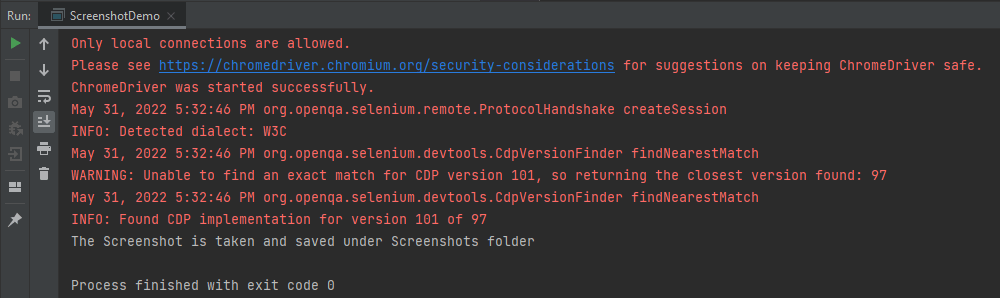
The output of the above program is

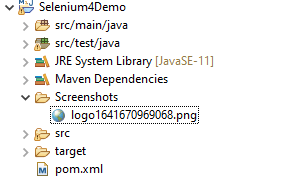
The picture will be saved in the Screenshots folder as shown below:

Below is the image of the screenshots.

5. New additions to the Actions Class

Actions Class in Selenium provides several methods for performing a single action or a series of actions on the WebElements present in the DOM. Mouse actions (e.g., click, double click, etc.) and Keyboard actions (e.g., keyUp, keyDown, sendKeys) are the two broad categories of Actions.
For demonstration, we will post the examples demonstrated in the Action class in the Selenium blog from Selenium 3 to Selenium 4.

With Selenium 4, new methods are added to the Actions class, which replaces the classes under the org.openqa.selenium.interactions package.

  • click(WebElement) is the new method added to the Actions class and it serves as the replacement of moveToElement(onElement).click() method.

Like the method in the versions before Selenium 4, click(WebElement) is used for clicking a web element.

  • doubleClick(WebElement)

This method is added to replace moveToElement(element).doubleClick(). It will perform a double-click on an element.

import io.github.bonigarcia.wdm.WebDriverManager;
import org.openqa.selenium.Alert;
import org.openqa.selenium.By;
import org.openqa.selenium.WebDriver;
import org.openqa.selenium.WebElement;
import org.openqa.selenium.chrome.ChromeDriver;
import org.openqa.selenium.interactions.Actions;

public class DoubleClick {
    public static void main(String[] args) {

        WebDriverManager.chromedriver().setup();
        WebDriver driver = new ChromeDriver();

        // Navigate to Url
        driver.get("https://demo.guru99.com/test/simple_context_menu.html");

        // Store 'doubleClickButton' button web element
        WebElement doubleClickButton = driver.findElement(By.xpath("//*[@id='authentication']/button"));
        Actions actionProvider = new Actions(driver);

        // Perform double-click action on the element
        actionProvider.doubleClick(doubleClickButton).build().perform();
        Alert alert = driver.switchTo().alert();
        System.out.println("Alert Text\n" +alert.getText());
        alert.accept();
        
        driver.close();
    }
}

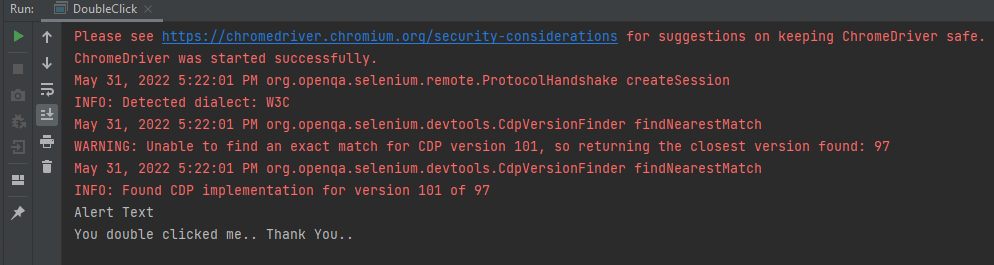
The output of the above program is

  • clickAndHold(WebElement)

This method will replace the moveToElement(onElement).clickAndHold(). It is used to click on an element without releasing the click.

  • contextClick(WebElement)

This method will replace moveToElement(onElement).contextClick(). It will perform the right-click operation.

  • release()

This method (user for releasing the pressed mouse button) was initially a part of org.openqa.selenium.interactions.ButtonReleaseAction class. Now with the updated version of Selenium, it has been moved to the Actions class.

import io.github.bonigarcia.wdm.WebDriverManager;
import org.openqa.selenium.By;
import org.openqa.selenium.WebDriver;
import org.openqa.selenium.WebElement;
import org.openqa.selenium.chrome.ChromeDriver;
import org.openqa.selenium.interactions.Actions;

public class clickAndHold {
    public static void main(String[] args) {

        WebDriverManager.chromedriver().setup();
        WebDriver driver = new ChromeDriver();

        // Navigate to Url
        driver.get("https://crossbrowsertesting.github.io/drag-and-drop.html");
        driver.manage().window().maximize();

        // Find element xpath which we need to drag
        WebElement from = driver.findElement(By.id("draggable"));

        // Find element xpath where we need to drop
        WebElement to = driver.findElement(By.id("droppable"));

        Actions actionProvider = new Actions(driver);

        // Perform click-and-hold action on the element
        actionProvider.clickAndHold(from).build().perform();

       // Move to drop Webelement
        actionProvider.clickAndHold(to).build().perform();

        //Release drop element
        actionProvider.release(to).build().perform();
    }
}

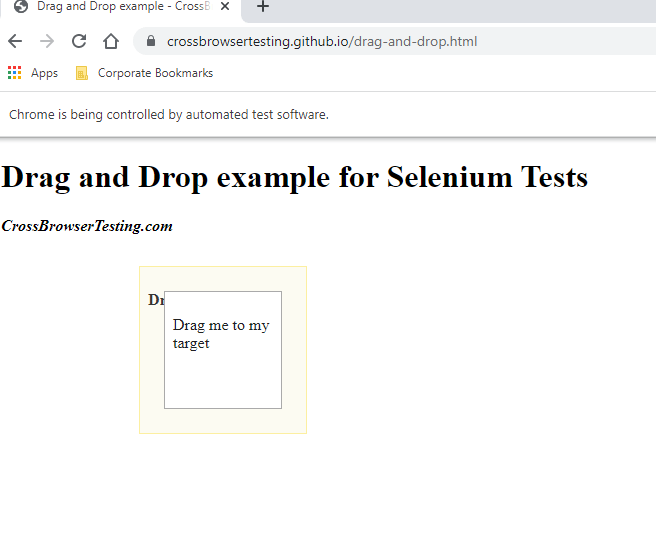
The output of the above program is

6. Deprecation of Desired Capabilities

In Selenium 3, desired Capabilities were primarily used in the test scripts to define the test environment (browser name, version, operating system) for execution on the Selenium Grid.

In Selenium 4, capabilities objects are replaced with Options. This means testers now need to create an Options object, set test requirements, and pass the object to the Driver constructor.

Listed below are the Options objects to be used going forward for defining browser-specific capabilities:

Firefox – FirefoxOptions
Chrome – ChromeOptions
Internet Explorer (IE) – InternetExplorerOptions
Microsoft Edge – EdgeOptions
Safari – SafariOptions

Below is an example of Options

import org.openqa.selenium.WebDriver;
import org.openqa.selenium.chrome.ChromeDriver;
import org.openqa.selenium.chrome.ChromeOptions;
import io.github.bonigarcia.wdm.WebDriverManager;

public class ChromeOptionsHeadless {

	public static void main(String[] args) {

		WebDriverManager.chromedriver().setup();

		ChromeOptions chromeOptions = new ChromeOptions();
		chromeOptions.setBrowserVersion("100");
		chromeOptions.setPlatformName("Windows 10");

		WebDriver driver = new ChromeDriver(chromeOptions);

		driver.get("https://duckduckgo.com/");
		System.out.println("Title of Page :" + driver.getTitle());

		// Close the driver
		driver.close();

	}
}

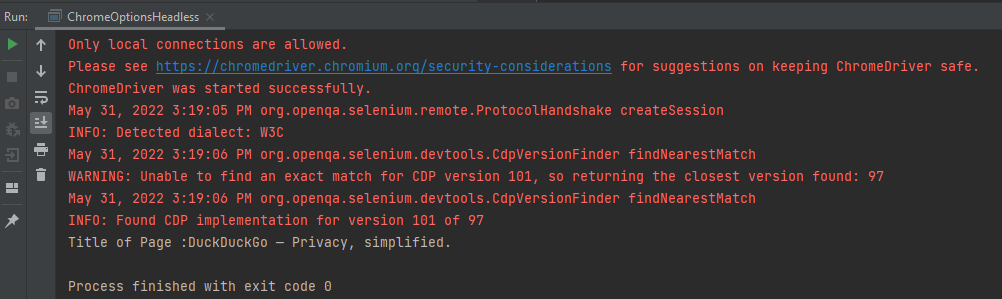
The output of the above program is

Similarly, we can create the action class for other browsers like Firefox.

FirefoxOptions options = new FirefoxOptions();
 
// Create an object of WebDriver class and pass the Firefox Options object as an argument
WebDriver driver = new FirefoxDriver(options);

7. Chrome Dev Tools

In the new version of Selenium, they have made some internal changes in the API. Earlier in Selenium 3, the Chrome driver extends directly to the Remote Web Driver class. But now in Selenium 4, the Chrome driver class extends to Chromium Driver. Chromium Driver class has some predefined methods to access the dev tool.

Note: Chromium Driver extends the Remote Web driver class.

By using the API, we can perform the following operations:

  • Enable Network Offline
  • Enable Network Online
  • Get Console Logs
  • Load Insure Web Site

Data Driven Tests in Serenity with JUnit

HOME

In the previous tutorial, I have explained the Testing of Web Application using Serenity with JUnit4. In this tutorial, I will explain Data Driven Tests in Serenity with JUnit4. Serenity provides features to support Data Driven tests. Refer this tutorial to know how to setup a Serenity project with JUnit4.

There is a parameterized Test Runner to perform data driven tests in JUnit4.

@RunWith(SerenityParameterizedRunner.class)

This runner is very similar to the JUnit Parameterized test runner. Here, @TestData annotation is used to provide test data to the test, and you can use all of the other Serenity annotations like (@Managed, @Steps, @Title and so on). This test runner will also generate proper serenity reports for the executed tests.

Below is an example of data-driven serenity test. In this test, I have created a Test Class (ParameterizationTests) and Step Class (StepLoginPage) and Action Class (NavigateActions). I am passing a set of incorrect credentials to the Login page and will verify the error message.

Here is the code for ParameterizationTests.

@RunWith(SerenityParameterizedRunner.class)
public class ParameterizationTests {

    private final String userName;
    private final String passWord;
    private final String errorMessage;

    @Managed(options = "--headless")
    WebDriver driver;

    @Steps
    NavigateActions navigate;

    @Steps
    StepLoginPage loginPage;

    public ParameterizationTests(String userName, String passWord, String errorMessage) {
        super();
        this.userName = userName;
        this.passWord = passWord;
        this.errorMessage = errorMessage;
    }

    @TestData(columnNames = "Username, Password, ErrorMessage")
    public static Collection<Object[]> testData() {
        return Arrays.asList(new Object[][] { { "Admin12", "", "Password cannot be empty" },
                { "", "abc12", "Username cannot be empty" }, { "_Admin1", "admin123_", "Invalid credentials" },
                { " ", " ", "Username cannot be empty" } });
    }

    @Qualifier
     public String qualifier(){return " - " + " Username = " + userName + " and " + " Password = " + passWord + " should display " + errorMessage;}
    @Test
    @Title("Login to application with invalid credential generates error message")
    public void unsuccessfulLogin() {

        // Given
        navigate.toTheHomePage();

        // When
        loginPage.inputUserName(userName);
        loginPage.inputPassword(passWord);
        loginPage.clickLogin();

        // Then
        Serenity.reportThat("Passing invalid credentials generates error message",
                () -> assertThat(loginPage.loginPageErrorMessage()).isEqualToIgnoringCase(errorMessage));
    }

}

@TestData is the annotation for a method which provides parameters to be injected into the test class constructor by Parameterized. testData() method returns an array list of objects as shown above.

The test data is injected into member variables – userName and passWord. These values are represented as instance variables in the test class, and instantiated via the constructor. These member variables are used in the test.

@Managed is annotated as a WebDriver field that is managed by the Test Runner. The Serenity Test Runner will instantiate this WebDriver before the tests start, and close it once they have all finished.

Here is the code for the StepLoginPage.

public class StepLoginPage extends PageObject {

    @FindBy(name = "txtUsername")
    WebElementFacade username;

    @FindBy(name = "txtPassword")
    WebElementFacade txtPassword;

    @FindBy(name = "Submit")
    WebElementFacade submitButton;

    @FindBy(id = "spanMessage")
    WebElementFacade errorMessage;

    @FindBy(xpath = "//*[@id='forgotPasswordLink']/a")
    WebElementFacade forgotPasswordLinkText;

    @Step("Enter Username")
    public void inputUserName(String userName) {
        $("[name='txtUsername']").sendKeys((userName));
    }

    @Step("Enter Password")
    public void inputPassword(String passWord) {
        txtPassword.sendKeys((passWord));
    }

    @Step("Click Submit Button")
    public void clickLogin() {
        submitButton.click();
    }

    @Step("Error Message on unsuccessful login")
    public String loginPageErrorMessage() {
        return errorMessage.getText();
    }

    @Step("Click Forget Password Link")
    public void clickForgetPasswordLink() {
        forgotPasswordLinkText.click();
    }
}

NavigateActions

public class NavigateActions extends UIInteractionSteps {

    @Step
    public void toTheHomePage() {
        openPageNamed("loginForm");
    }
}

There are two ways to run the tests.

  1. Run the tests as JUnit Tests. Right click on the test and select Run As ->JUnit Test.

2. Run the tests through command line using below command.

mvn clean verify

This will run the tests as well as generate the test execution reports – Index.html and serenity-emailable.html.

So, the tests are run and the reports are generated at the shown path.

Index.html

The heading of parameters present in the Serenity Report (Index.html) like Username, Password and Error Message are generated by @TestData as shown below:

@TestData(columnNames = "Username, Password, ErrorMessage")

The description of Test Step in the Serenity Report is modified by using @Qualifier.

It is used to mark a method as a qualifier in an instantiated data-driven test case.

  @Qualifier
    public String qualifier(){return " - " + " Username = " + userName + " and " + " Password = " + passWord + " should display " + errorMessage;}

Serenity-Summary.html

It is a single-page, self-contained HTML summary report, containing an overview of the test results, and a configurable breakdown of the status of different areas of the application.

We are done! Congratulations on making it through this tutorial and hope you found it useful! Happy Learning!!

Allure Report with Selenium and JUnit5

HOME

In the previous tutorial, I explained the Integration of the Allure Report with Selenium and JUnit4. In this tutorial, I will explain how to Integrate Allure Report with Selenium and JUnit5.

Prerequisite

  1. Java 11 is installed
  2. Maven is installed
  3. Eclipse or IntelliJ is installed
  4. Allure is installed

Dependency List:

  1. Selenium – 3.141.59
  2. Java 11
  3. JUnit – 4.13.2
  4. Maven – 3.8.1
  5. Allure Report – 2.14.0
  6. Allure JUnit4 – 2.14.0

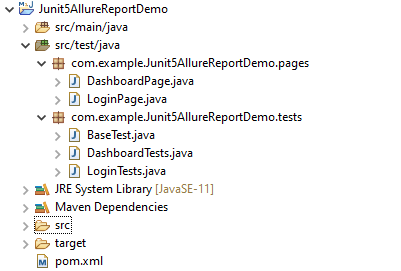
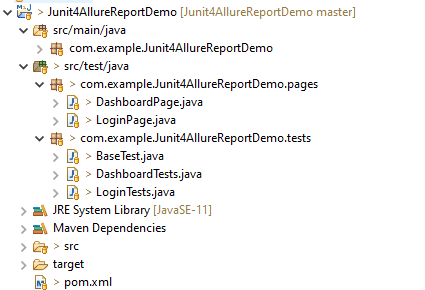
Structure of Project

Step 1 – Update Properties section in Maven pom.xml

 <properties>
    <project.build.sourceEncoding>UTF-8</project.build.sourceEncoding>
    <java.version>11</java.version>
    <selenium.version>3.141.59</selenium.version> 
    <junit.jupiter.version>5.8.0-M1</junit.jupiter.version>
    <junit.platform.version>1.8.0-M1</junit.platform.version>
    <allure.maven.version>2.10.0</allure.maven.version>
    <allure.junit5.version>2.14.0</allure.junit5.version>
    <maven.surefire.plugin.version>3.0.0-M3</maven.surefire.plugin.version>
    <maven.compiler.plugin.version>3.8.1</maven.compiler.plugin.version>
    <aspectj.version>1.9.6</aspectj.version>
    <maven.compiler.source>11</maven.compiler.source>
    <maven.compiler.target>11</maven.compiler.target>
  </properties>

Step 2 – Add Selenium, JUnit5, and Allure-JUnit5 dependencies in POM.xml

<dependencies>
  
      <!--Selenium Dependency-->
      <dependency>
          <groupId>org.seleniumhq.selenium</groupId>
          <artifactId>selenium-java</artifactId>
          <version>${selenium.version}</version>
       </dependency>
  
     <!--JUNIT 5 Dependencies-->
        <dependency>
            <groupId>org.junit.jupiter</groupId>
            <artifactId>junit-jupiter-api</artifactId>
            <version>${junit.jupiter.version}</version>
        </dependency>
        
        <dependency>
            <groupId>org.junit.jupiter</groupId>
            <artifactId>junit-jupiter-engine</artifactId>
            <version>${junit.jupiter.version}</version>
        </dependency>
        
        <dependency>
            <groupId>org.junit.platform</groupId>
            <artifactId>junit-platform-engine</artifactId>
            <version>${junit.platform.version}</version>
        </dependency>
        
        <dependency>
            <groupId>org.junit.platform</groupId>
            <artifactId>junit-platform-launcher</artifactId>
            <version>${junit.platform.version}</version>
        </dependency>
        
        <dependency>
            <groupId>org.junit.platform</groupId>
            <artifactId>junit-platform-runner</artifactId>
            <version>${junit.platform.version}</version>
        </dependency>
        
        <!--Allure Reporting Dependencies-->
        <dependency>
            <groupId>io.qameta.allure</groupId>
            <artifactId>allure-junit5</artifactId>
            <version>${allure.junit5.version}</version>
        </dependency>
        
  </dependencies>

Step 3 – Update the Build Section of pom.xml in Allure Report Project

<build>
        <plugins>
        <plugin>
               
                <artifactId>maven-surefire-plugin</artifactId>
                <version>${maven.surefire.plugin.version}</version>
                <configuration>
                <testFailureIgnore>false</testFailureIgnore>
                        <argLine>
                            -javaagent:"${settings.localRepository}/org/aspectj/aspectjweaver/${aspectj.version}/aspectjweaver-${aspectj.version}.jar"
                        </argLine>
                    <systemProperties>
                        <property>
                            <name>junit.jupiter.extensions.autodetection.enabled</name>
                            <value>true</value>
                        </property>
                    </systemProperties>
                </configuration>
                
                <dependencies>
                   
                    <dependency>
                        <groupId>org.aspectj</groupId>
                        <artifactId>aspectjweaver</artifactId>
                        <version>${aspectj.version}</version>
                    </dependency>
                </dependencies>
                
            </plugin>
            <plugin>
                <groupId>io.qameta.allure</groupId>
                <artifactId>allure-maven</artifactId>
                <version>${allure.maven.version}</version>
                <configuration>
                    <reportVersion>2.4.1</reportVersion>
                </configuration>
            </plugin>
      </plugins>
  </build>

Step 4 – Create Pages and Test Code for the pages

Below is the sample project which uses Selenium and JUnit4 which is used to generate an Allure Report.

We have 2 pages. Below is the code for Login Page which contains all the web elements and methods related to that web elements.

Note:- This is a sample code. There could be the probability that XPath would have changed. So, the tests won’t run as expected and please keep this in mind.

public class LoginPage {

	WebDriver driver;

	By userName = By.name("txtUsername");

	By password = By.name("txtPassword");

	By titleText = By.id("logInPanelHeading");

	By login = By.id("btnLogin");

	By errorMessage = By.id("spanMessage");

	public LoginPage(WebDriver driver) {
		this.driver = driver;
	}

	// Set user name in textbox
	public void setUserName(String strUserName) {
		driver.findElement(userName).sendKeys(strUserName);
	}

	// Set password in password textbox
	public void setPassword(String strPassword) {
		driver.findElement(password).sendKeys(strPassword);
	}

	// Click on login button
	public void clickLogin() {
		driver.findElement(login).click();
	}

	@Step("Verify title of Login Page")
	public void verifyPageTitle() {
		String loginPageTitle = driver.findElement(titleText).getText();
		assertTrue(loginPageTitle.contains("LOGIN Panel"));
	}

	/* Failed Test */
	@Step("Verify error message when invalid credentail is provided")
	public void verifyErrorMessage() {
		String invalidCredentialErrorMessage = driver.findElement(errorMessage).getText();
		assertTrue(invalidCredentialErrorMessage.contains("Incorrect Credentials"));
	}

	@Step("Enter username and password")
	public void login(String strUserName, String strPasword) {

		// Fill user name
		this.setUserName(strUserName);

		// Fill password
		this.setPassword(strPasword);

		// Click Login button
		this.clickLogin();

	}
}

assertTrue() is imported from the below JUnit package for assertion.

import static org.junit.jupiter.api.Assertions.assertTrue;

DashboardPage.java

public class DashboardPage {

	WebDriver driver;

	By dashboardPageTitle = By.id("welcome");

	By assignLeaveOption = By.cssSelector(
			"#dashboard-quick-launch-panel-menu_holder > table > tbody > tr > td:nth-child(1) > div > a > span");

	By leaveListOption = By.cssSelector(
			"#dashboard-quick-launch-panel-menu_holder > table > tbody > tr > td:nth-child(2) > div > a > span");

	By timesheetsOption = By.cssSelector(
			"#dashboard-quick-launch-panel-menu_holder > table > tbody > tr > td:nth-child(3) > div > a > span");

	By applyLeaveOption = By.cssSelector(
			"#dashboard-quick-launch-panel-menu_holder > table > tbody > tr > td:nth-child(4) > div > a > span");

	public DashboardPage(WebDriver driver) {
		this.driver = driver;

	}

	@Step("Verify title of Dashboard page")
	public void verifyDashboardPageTitle() {
		String DashboardPageTitle = driver.findElement(dashboardPageTitle).getText();
		assertTrue(DashboardPageTitle.contains("Welcome"));
	}

	@Step("Verify Assign Leave Quick Launch Options on Dashboard page")
	public void verifyAssignLeaveOption() {
		String QuickLaunchOptions = driver.findElement(assignLeaveOption).getText();
		assertTrue(QuickLaunchOptions.contains("Assign Leave"));
	}

	@Step("Verify Leave List Quick Launch Options on Dashboard page")
	public void verifyLeaveListOption() {
		String LeaveListQuickLaunchOption = driver.findElement(leaveListOption).getText();
		assertTrue(LeaveListQuickLaunchOption.contains("Leave List"));
	}

	@Step("Verify Assign Leave Quick Launch Options on Dashboard page")
	public void verifytimesheetsOption() {
		String timesheetsOptionQuickLaunchOption = driver.findElement(timesheetsOption).getText();
		assertTrue(timesheetsOptionQuickLaunchOption.contains("Timesheets"));
	}

	@Step("Verify Leave List Quick Launch Options on Dashboard page")
	public void verifyApplyLeaveOption() {
		String applyLeaveQuickLaunchOptions = driver.findElement(applyLeaveOption).getText();
		assertTrue(applyLeaveQuickLaunchOptions.contains("Apply Leave"));
	}

}


Test Classes related to various Pages

BaseTest.java

public class BaseTest {

	public static WebDriver driver;
	LoginPage objLogin;
	DashboardPage objDashboardPage;

	@Step("Start the application")
	@BeforeEach
	public void setup() {
		System.setProperty("webdriver.gecko.driver",
				"C:\\Users\\Vibha\\Software\\geckodriver-v0.26.0-win64\\geckodriver.exe");
		driver = new FirefoxDriver();
		driver.manage().window().maximize();
		driver.manage().timeouts().implicitlyWait(10, TimeUnit.SECONDS);
		driver.get("https://opensource-demo.orangehrmlive.com/");
	}

	@Step("Stop the application")
	@AfterEach
	public void close() {
		driver.close();
	}
}

@BeforeEach is used to signal that the annotated method should be executed before each @Test, @RepeatedTest, @ParameterizedTest, @TestFactory, and @TestTemplate method in the current test class. It is imported from:-

import org.junit.jupiter.api.BeforeEach;

@AfterEach is used to signal that the annotated method should be executed after each @Test, @RepeatedTest, @ParameterizedTest, @TestFactory, and @TestTemplate method in the current test class. It is imported from:-

import org.junit.jupiter.api.AfterEach;

LoginTests.java

@Epic("Web Application Regression Testing using JUnit5")
@Feature("Login Page Tests")
public class LoginTests extends BaseTest {

	LoginPage objLogin;
	DashboardPage objDashboardPage;

	@Severity(SeverityLevel.NORMAL)
	@Test
	@Description("Test Description : Verify the title of Login Page")
	@Story("Title of Login Page")
	public void verifyLoginPage() {

		// Create Login Page object
		objLogin = new LoginPage(driver);

		// Verify login page text
		objLogin.verifyPageTitle();
	}

	@Severity(SeverityLevel.BLOCKER)
	@Test
	@Description("Test Description : Login Test with invalid credentials")
	@Story("Unsuccessful Login to Application")
	public void invalidCredentialTest() {

		// Create Login Page object
		objLogin = new LoginPage(driver);
		objLogin.login("test", "test123");

		// Verify login page text
		objLogin.verifyErrorMessage();

	}

}

DashboardTests.java

package com.example.Junit5AllureReportDemo.tests;

import org.junit.jupiter.api.Test;

import com.example.Junit5AllureReportDemo.pages.DashboardPage;
import com.example.Junit5AllureReportDemo.pages.LoginPage;

import io.qameta.allure.Description;
import io.qameta.allure.Epic;
import io.qameta.allure.Feature;
import io.qameta.allure.Severity;
import io.qameta.allure.SeverityLevel;
import io.qameta.allure.Story;

@Epic("Web Application Regression Testing using JUnit5")
@Feature("Dashboard Page Tests")
public class DashboardTests extends BaseTest {

	LoginPage objLogin;
	DashboardPage objDashboardPage;

	@Severity(SeverityLevel.BLOCKER)
	@Test
	@Description("Test Description : Verify title of Dashboard page")
	@Story("Title of Dashboard Page")
	public void dashboardTitleTest() {

		objLogin = new LoginPage(driver);

		// login to application
		objLogin.login("Admin", "admin123");

		// go the dashboard page
		objDashboardPage = new DashboardPage(driver);

		objDashboardPage.verifyDashboardPageTitle();

	}

	@Severity(SeverityLevel.BLOCKER)
	@Test
	@Description("Test Description : Verify Assign Leave Option in Quick Link Menu")
	@Story("Validation of Assign Leave Option")
	public void assignLeaveOptionTest() {

		objLogin = new LoginPage(driver);

		// login to application
		objLogin.login("Admin", "admin123");

		// go the dashboard page
		objDashboardPage = new DashboardPage(driver);

		objDashboardPage.verifyAssignLeaveOption();

	}

	@Severity(SeverityLevel.BLOCKER)
	@Test
	@Description("Test Description : Verify Apply Leave Option in Quick Link Menu")
	@Story("Validation of Apply Leave Option")
	public void applyLeaveOptionTest() {

		objLogin = new LoginPage(driver);

		// login to application
		objLogin.login("Admin", "admin123");

		// go the dashboard page
		objDashboardPage = new DashboardPage(driver);

		objDashboardPage.verifyApplyLeaveOption();

	}

	@Severity(SeverityLevel.BLOCKER)
	@Test
	@Description("Test Description : Verify Leave List Option in Quick Link Menu")
	@Story("Validation of Leave List Option")
	public void leaveListOptionTest() {

		objLogin = new LoginPage(driver);

		// login to application
		objLogin.login("Admin", "admin123");

		// go the dashboard page
		objDashboardPage = new DashboardPage(driver);

		objDashboardPage.verifyLeaveListOption();

	}

	@Severity(SeverityLevel.BLOCKER)
	@Test
	@Description("Test Description : Verify Timesheets Option in Quick Link Menu")
	@Story("Validation of Timesheets Option")
	public void timesheetsOptionTest() {

		objLogin = new LoginPage(driver);

		// login to application
		objLogin.login("Admin", "admin123");

		// go the dashboard page
		objDashboardPage = new DashboardPage(driver);

		objDashboardPage.verifyTimesheetsOption();

	}

}

Step 5 – Run the Test and Generate Allure Report

To run the tests, use the below command

mvn clean test

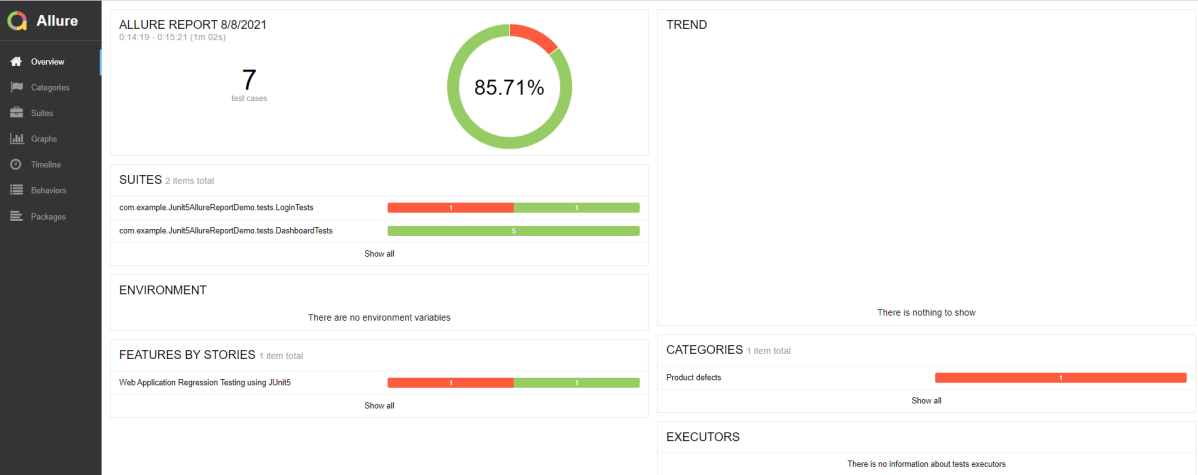
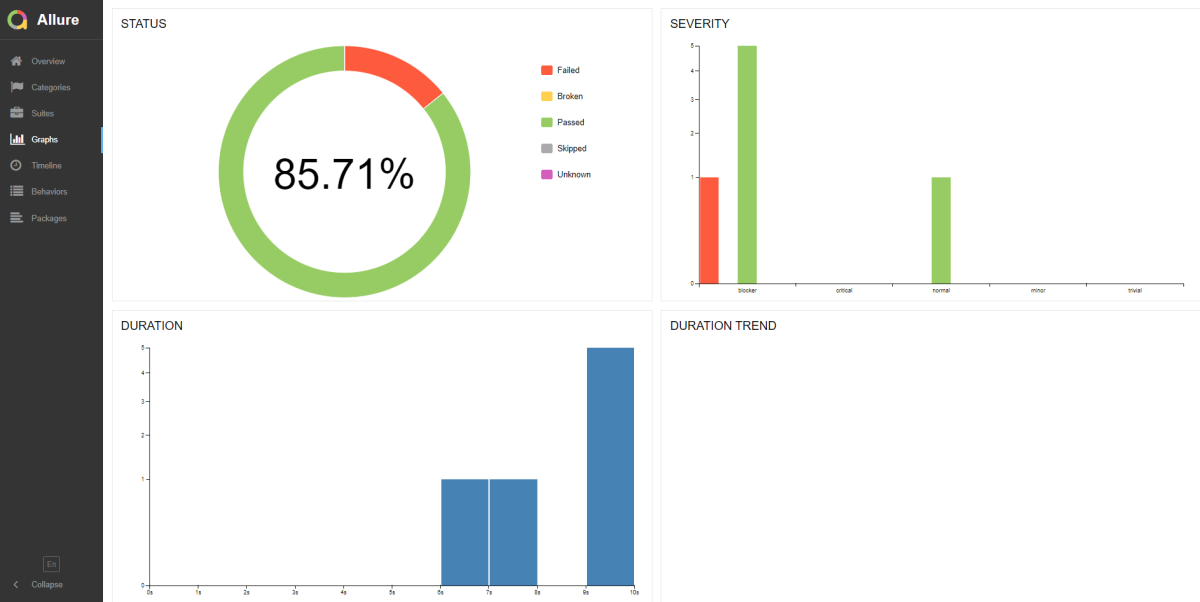
In the below image, we can see that one test failed and six passed out of seven tests.

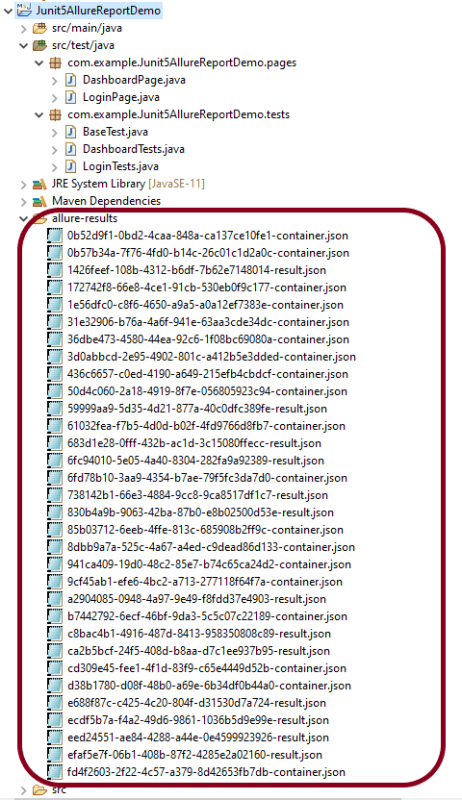
This will create the allure-results folder with all the test reports. These files will be used to generate Allure Report.

To create Allure Report, use the below command

allure serve

This will generate the beautiful Allure Test Report as shown below.

Allure Report Dashboard

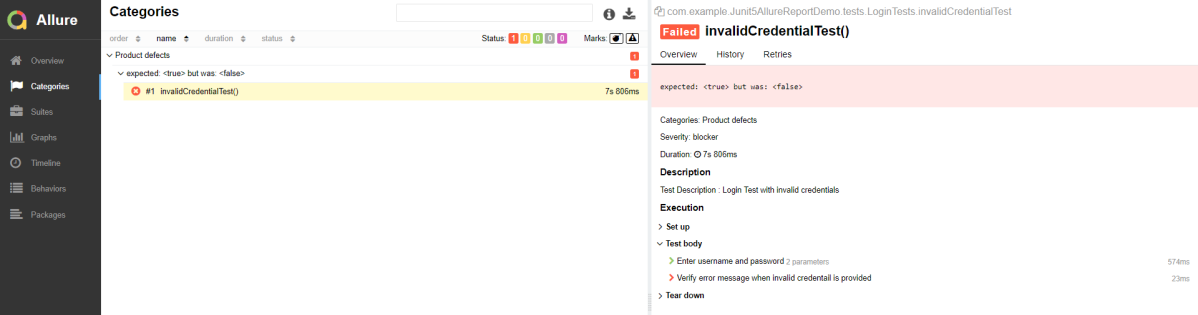
Categories in Allure Report

The categories tab gives you a way to create custom defect classifications to apply for test results. There are two categories of defects – Product Defects (failed tests) and Test Defects (broken tests).

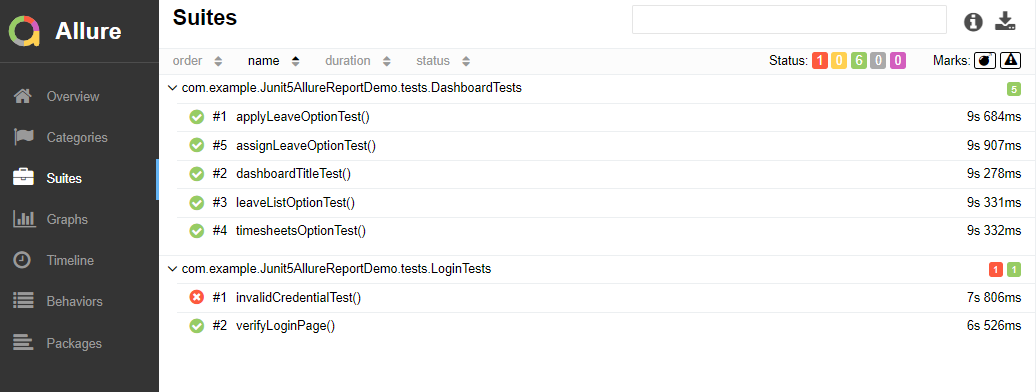
Suites in Allure Report

On the Suites tab a standard structural representation of executed tests, grouped by suites and classes can be found.

Graphs in Allure Report

Graphs allow you to see different statistics collected from the test data: status breakdown or severity and duration diagrams.

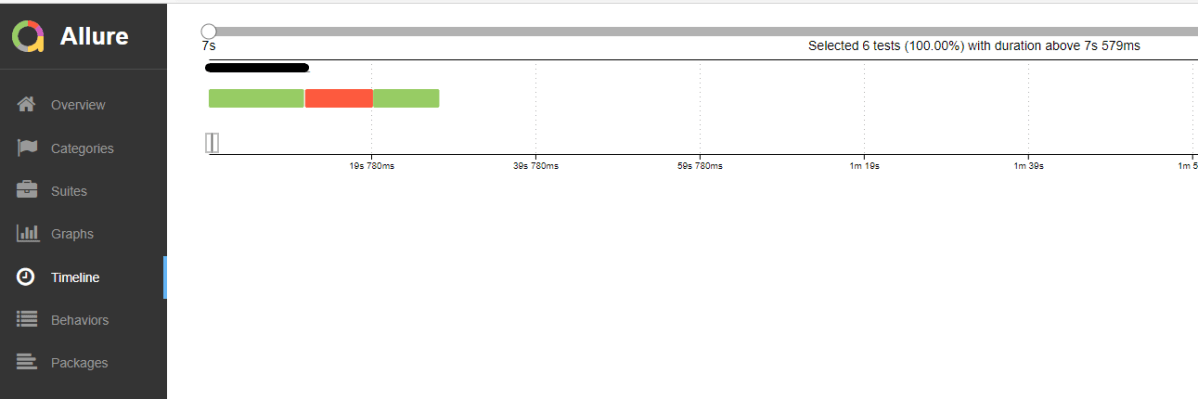
Timeline in Allure Report

Timeline tab visualizes retrospective of tests execution, allure adaptors collect precise timings of tests, and here on this tab they are arranged accordingly to their sequential or parallel timing structure.

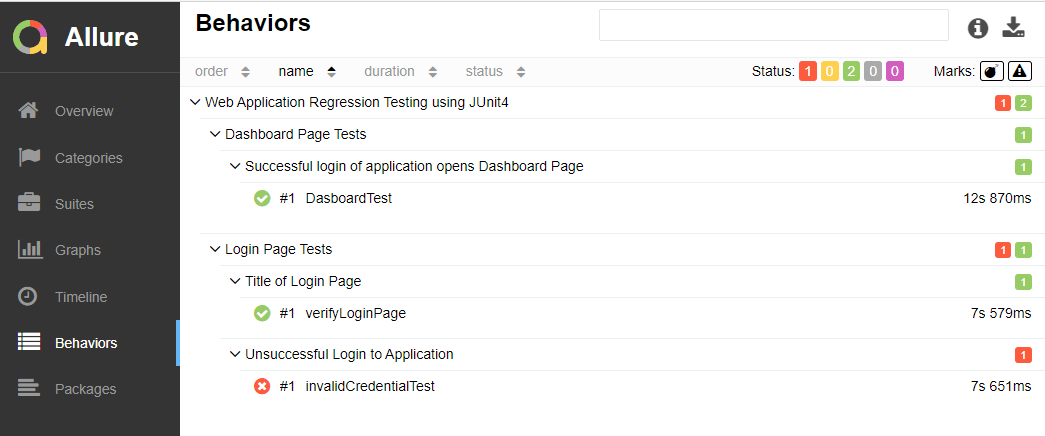
Behaviors of Allure Report

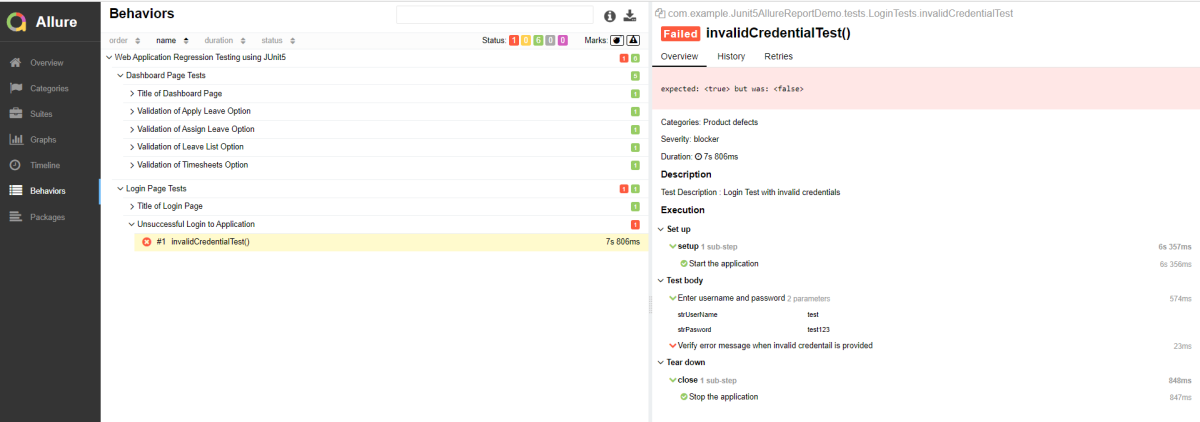
This tab groups test results according to Epic, Feature, and Story tags.

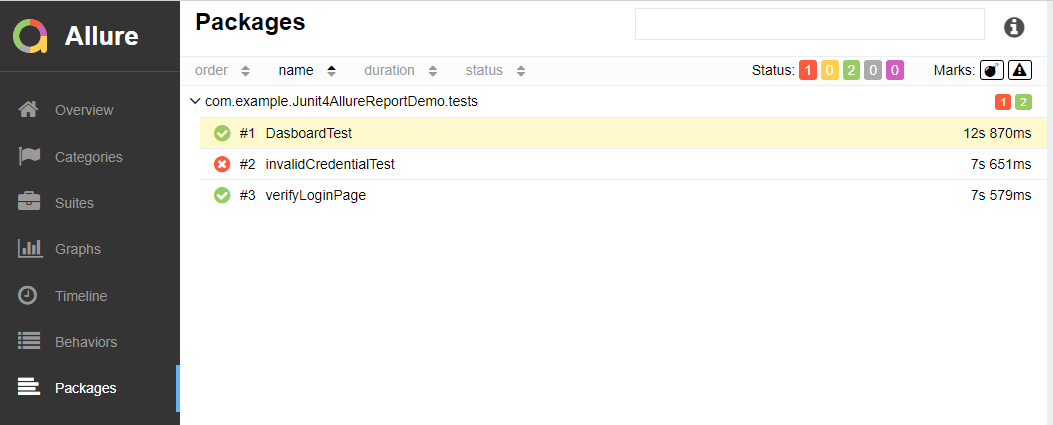
Packages in Allure Report

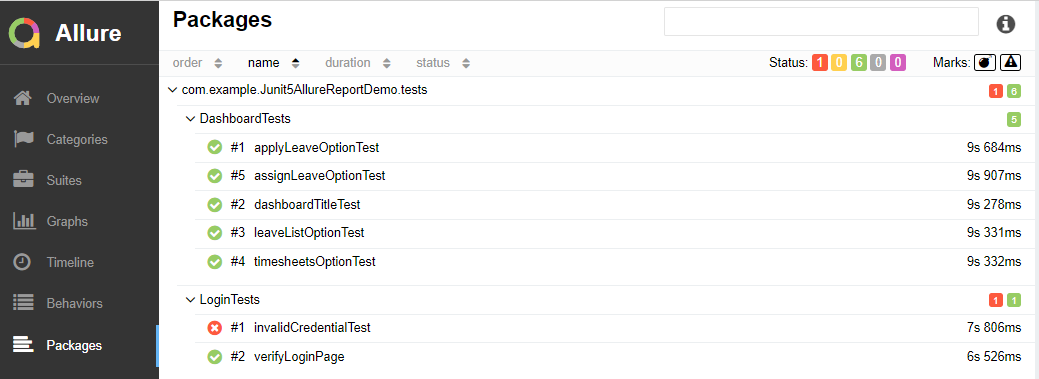
Packages tab represents a tree-like layout of test results, grouped by different packages.

We are done! Congratulations on making it through this tutorial and hope you found it useful! Happy Learning!!

Integration of Allure Report with Selenium and JUnit4

HOME

In the previous tutorial, I have explained the Integration of the Allure Report with Selenium and TestNG. In this tutorial, I will explain how to Integrate Allure Report with Selenium and JUnit4.

What is Allure Framework?

Allure is an open-source framework designed to create interactive and comprehensive test report by Yandex QA Team.

Below example covers the implementation of Allure Reports in Selenium using JUnit4, Java and Maven.

Pre-Requisite

  1. Java 11 installed
  2. Maven installed
  3. Eclipse or IntelliJ installed

This framework consists of:

  1. Selenium – 3.141.59
  2. Java 11
  3. JUnit – 4.13.2
  4. Maven – 3.8.1
  5. Allure Report – 2.14.0
  6. Allure JUnit4 – 2.14.0

Implementation Steps

  1. Update Properties section in Maven pom.xml
  2. Add Selenium, JUnit4 and Allure-JUnit4 dependencies in POM.xml
  3. Update Build Section of pom.xml in Allure Report Project.
  4. Create Pages and Test Code for the pages
  5. Run the Test and Generate Allure Report

Structure of Project

Step 1 – Update Properties section in Maven pom.xml

 <properties>
    <project.build.sourceEncoding>UTF-8</project.build.sourceEncoding>
    <selenium.version>3.141.59</selenium.version>
    <junit.version>4.13.2</junit.version>
    <allure.junit4.version>2.14.0</allure.junit4.version>
    <maven.compiler.plugin.version>3.5.1</maven.compiler.plugin.version>
    <maven.compiler.source>11</maven.compiler.source>
    <maven.compiler.target>11</maven.compiler.target>
    <aspectj.version>1.9.6</aspectj.version>
    <maven-surefire-plugin-version>3.0.0-M5</maven-surefire-plugin-version>
  </properties>

Step 2 – Add Selenium, JUnit4 and Allure-JUnit4 dependencies in POM.xml

<dependencies>
   <dependency>
      <groupId>org.seleniumhq.selenium</groupId>
      <artifactId>selenium-java</artifactId>
      <version>${selenium.version}</version>
    </dependency>
    
    <dependency>
      <groupId>junit</groupId>
      <artifactId>junit</artifactId>
      <version>${junit.version}</version>
      <scope>test</scope>
    </dependency>
    
     <dependency>
        <groupId>io.qameta.allure</groupId>
        <artifactId>allure-junit4</artifactId>
        <version>${allure.junit4.version}</version>
        <scope>test</scope>
    </dependency>   
  </dependencies>

Step 3 – Update Build Section of pom.xml in Allure Report Project

<build>
       
       <plugins>
   <!-- Compiler plug-in -->
  
           <plugin>
                <groupId>org.apache.maven.plugins</groupId>
                <artifactId>maven-compiler-plugin</artifactId>
                <version>${maven.compiler.plugin.version}</version>
                <configuration>
                    <source>${maven.compiler.source}</source> <!--For JAVA 8 use 1.8-->
                    <target>${maven.compiler.target}</target> <!--For JAVA 8 use 1.8-->
                </configuration>
            </plugin>
            
     <!-- Added Surefire Plugin configuration to execute tests -->       
          <plugin>
            <groupId>org.apache.maven.plugins</groupId>
            <artifactId>maven-surefire-plugin</artifactId>
            <version>${maven-surefire-plugin-version}</version>
            <configuration>
                <testFailureIgnore>false</testFailureIgnore>
                <argLine>
                    -javaagent:"${settings.localRepository}/org/aspectj/aspectjweaver/${aspectj.version}/aspectjweaver-${aspectj.version}.jar"
                </argLine>
                <properties>
                    <property>
                        <name>listener</name>
                        <value>io.qameta.allure.junit4.AllureJunit4</value>
                    </property>
                </properties>
            </configuration>
            <dependencies>
                <dependency>
                    <groupId>org.aspectj</groupId>
                    <artifactId>aspectjweaver</artifactId>
                    <version>${aspectj.version}</version>
                </dependency>
            </dependencies>
        </plugin>
      </plugins>
  </build>

Step 4 – Create Pages and Test Code for the pages

Below is the sample project which uses Selenium and JUnit4 which is used to generate an Allure Report.

We have 2 pages. Below is the code for Login Page which contains all the web elements and methods related to that web elements.

public class LoginPage {

	WebDriver driver;

	By userName = By.name("txtUsername");

	By password = By.name("txtPassword");

	By titleText = By.id("logInPanelHeading");

	By login = By.id("btnLogin");

	By errorMessage = By.id("spanMessage");

	public LoginPage(WebDriver driver) {
		this.driver = driver;
	}

	// Set user name in textbox
	public void setUserName(String strUserName) {
		driver.findElement(userName).sendKeys(strUserName);
	}

	// Set password in password textbox
	public void setPassword(String strPassword) {
		driver.findElement(password).sendKeys(strPassword);
	}

	// Click on login button
	public void clickLogin() {
		driver.findElement(login).click();
	}

	@Step("Verify title of Login Page")
	public void verifyPageTitle() {
		String loginPageTitle = driver.findElement(titleText).getText();
		Assert.assertTrue(loginPageTitle.contains("LOGIN Panel"));
	}

	/* Failed Test */
	@Step("Verify error message when invalid credentail is provided")
	public void verifyErrorMessage() {
		String invalidCredentialErrorMessage = driver.findElement(errorMessage).getText();
		Assert.assertTrue(invalidCredentialErrorMessage.contains("Incorrect Credentials"));
	}

	@Step("Enter username and password")
	public void login(String strUserName, String strPasword) {

		// Fill user name
		this.setUserName(strUserName);

		// Fill password
		this.setPassword(strPasword);

		// Click Login button
		this.clickLogin();

	}
}

DashboardPage.java

public class DashboardPage {

	WebDriver driver;

	By dashboardPageTitle = By.id("welcome");

	By options = By.cssSelector(
			"#dashboard-quick-launch-panel-menu_holder > table > tbody > tr > td:nth-child(1) > div > a > span");

	public DashboardPage(WebDriver driver) {
		this.driver = driver;

	}

	@Step("Verify title of Dashboard page")
	public void verifyDashboardPageTitle() {
		String DashboardPageTitle = driver.findElement(dashboardPageTitle).getText();
		Assert.assertTrue(DashboardPageTitle.contains("Welcome"));
	}

	@Step("Verify Quick Launch Options on Dashboard page")
	public void verifyQuickLaunchOptions() {
		String QuickLaunchOptions = driver.findElement(options).getText();
		Assert.assertTrue(QuickLaunchOptions.contains("Assign Leave"));
	}

}

Test Classes related to various Pages

BaseTest.java

public class BaseTest {

	public static WebDriver driver;
	LoginPage objLogin;
	DashboardPage objDashboardPage;

	@Step("Start the application")
	@Before
	public void setup() {
		System.setProperty("webdriver.gecko.driver",
				"C:\\Users\\Vibha\\Software\\geckodriver-v0.26.0-win64\\geckodriver.exe");
		driver = new FirefoxDriver();
		driver.manage().window().maximize();
		driver.manage().timeouts().implicitlyWait(10, TimeUnit.SECONDS);
		driver.get("https://opensource-demo.orangehrmlive.com/");
	}

	@Step("Stop the application")
	@After
	public void close() {
		driver.close();
	}
}

LoginTests.java

@Epic("Web Application Regression Testing using JUnit4")
@Feature("Login Page Tests")
@Listeners(TestExecutionListener.class)
public class LoginTests extends BaseTest {

	LoginPage objLogin;
	DashboardPage objDashboardPage;

	@Severity(SeverityLevel.NORMAL)
	@Test(priority = 0, description = "Verify Login Page")
	@Description("Test Description : Verify the title of Login Page")
	@Story("Title of Login Page")
	public void verifyLoginPage() {

		// Create Login Page object
		objLogin = new LoginPage(driver);

		// Verify login page text
		objLogin.verifyPageTitle();
	}

	@Severity(SeverityLevel.BLOCKER)
	@Test(priority = 1, description = "Login with invalid username and password")
	@Description("Test Description : Login Test with invalid credentials")
	@Story("Unsuccessful Login to Application")
	public void invalidCredentialTest() {

		// Create Login Page object
		objLogin = new LoginPage(driver);
		objLogin.login("test", "test123");

		// Verify login page text
		objLogin.verifyErrorMessage();

	}

}

DashboardTests.java

@Epic("Web Application Regression Testing using JUnit4")
@Feature("Dashboard Page Tests")
public class DashboardTests extends BaseTest {

	LoginPage objLogin;
	DashboardPage objDashboardPage;

	@Severity(SeverityLevel.BLOCKER)
	@Test
	@Description("Test Description : After successful login to application opens Dashboard page")
	@Story("Successful login of application opens Dashboard Page")

	public void DasboardTest() {

		objLogin = new LoginPage(driver);

		// login to application
		objLogin.login("Admin", "admin123");

		// go the dashboard page
		objDashboardPage = new DashboardPage(driver);

		// Verify dashboard page
		objDashboardPage.verifyQuickLaunchOptions();

	}

}

Step 5 – Run the Test and Generate Allure Report

To run the tests, use the below command

mvn clean test

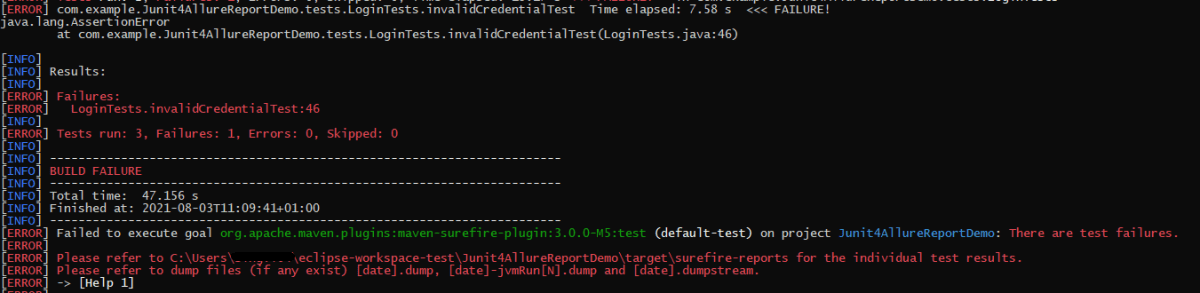
In the below image, we can see that one test is failed and two passed out of three tests.

This will create allure-results folder with all the test report. These files will be use to generate Allure Report.

To create Allure Report, use the below command

allure serve

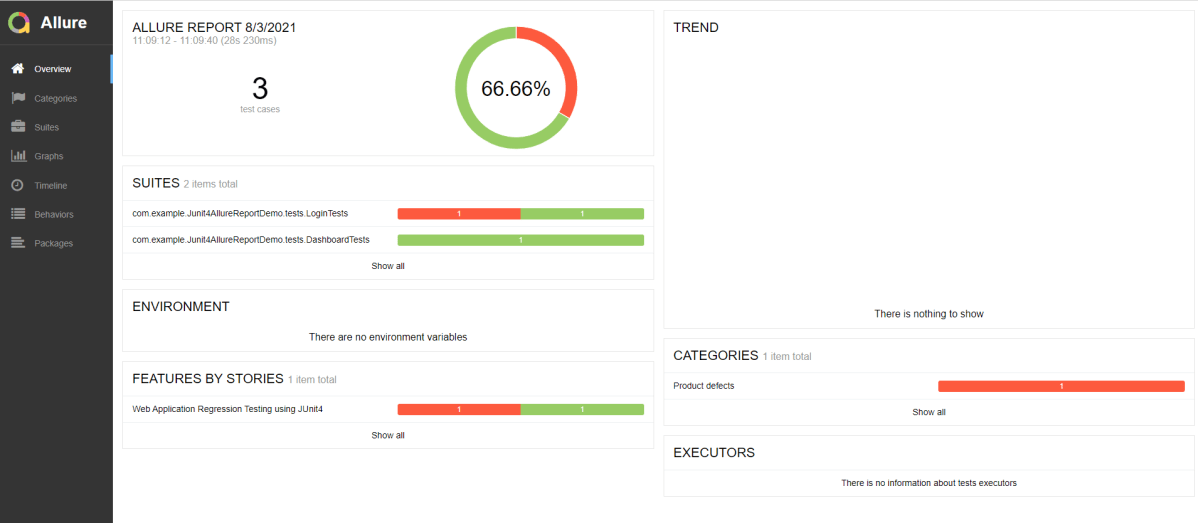
This will generate the beautiful Allure Test Report as shown below.

Allure Report Dashboard

Overview page hosts several default widgets representing basic characteristics of your project and test environment.

  1. Statistics – overall report statistics.
  2. Launches – if this report represents several test launches, statistics per launch will be shown here.
  3. Behaviors – information on results aggregated according to stories and features.
  4. Executors – information on test executors that were used to run the tests.
  5. History Trend – if tests accumulated some historical data, it’s trend will be calculated and shown on the graph.
  6. Environment – information on test environment.

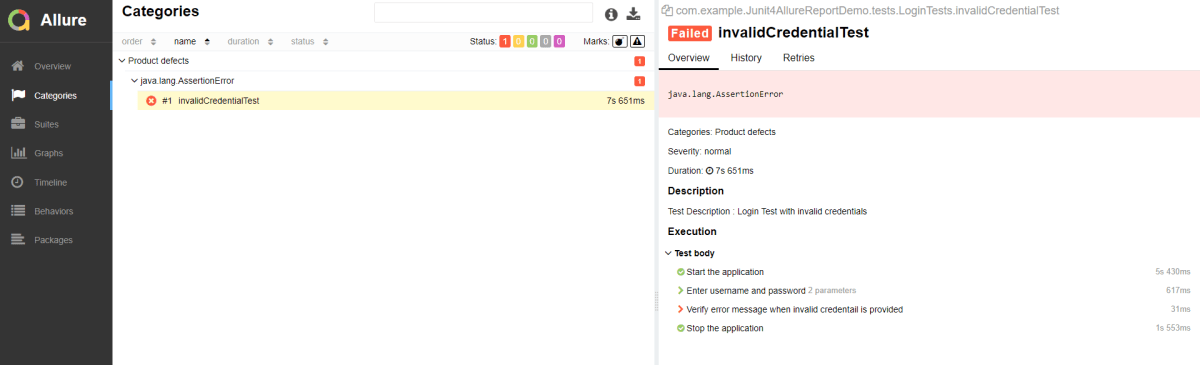
Categories in Allure Report

Categories tab gives you the way to create custom defects classification to apply for test results. There are two categories of defects – Product Defects (failed tests) and Test Defects (broken tests).

Suites in Allure Report

On the Suites tab a standard structural representation of executed tests, grouped by suites and classes can be found.

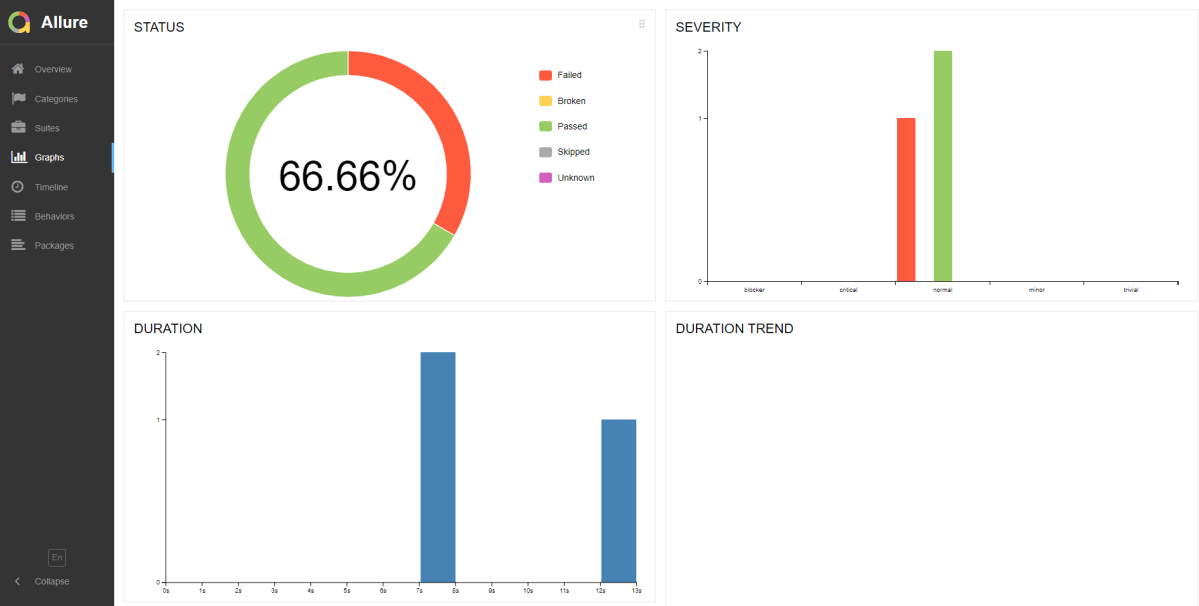
Graphs in Allure Report

Graphs allow you to see different statistics collected from the test data: statuses breakdown or severity and duration diagrams.

Timeline in Allure Report

Timeline tab visualizes retrospective of tests execution, allure adaptors collect precise timings of tests, and here on this tab they are arranged accordingly to their sequential or parallel timing structure.

Behaviors of Allure Report

This tab groups test results according to Epic, Feature and Story tags.

Packages in Allure Report

Packages tab represents a tree-like layout of test results, grouped by different packages.

Parallel Testing in Cucumber with JUnit4

Last Updated On

HOME

In this tutorial, I will explain Parallel Testing using Cucumber with JUnit4.

Cucumber-JVM allows parallel execution across multiple threads since version 4.0.0. There are several options to incorporate this built-in feature in a Cucumber project. You can do so by using JUnit, TestNG, or CLI.

Cucumber can be executed in parallel using JUnit and Maven test execution plugins.

In JUnit, the feature files are run in parallel rather than in scenarios, which means all the scenarios in a feature file will be executed by the same thread. You can use either Maven Surefire or Failsafe plugin to execute the runner. In this tutorial, I’m using the Maven Surefire plugin.

Table of Contents

  1. Dependency List
  2. Detailed Step Description
    1. Create a Maven project
    2. Update the Properties section in Maven pom.xml
    3. Add Cucumber and JUnit dependencies to the project
    4. Add Surefire plugin configuration to the build section of the POM
    5. Create a feature folder in src/test/resources
    6. Create the Page Object Model classes of LoginPage and ForgotPasswordPage feature files
    7. Create the Hook Class and Dependency Injection class (TestSetUp) and BaseTest class
    8. Create a Test Runner to run the tests
    9. Cucumber Report Generation
    10. Execute the tests from the command line
    11. Difference between Parallel tests and Non-Parallel Tests

Dependency List:-

  1. Cucumber Java – 7.11.1
  2. Cucumber JUnit – 7.11.1
  3. Java 11
  4. JUnit– 4.13.2
  5. Maven – 3.8.1
  6. Selenium – 34.8.0
  7. Maven Surefire Plugin – 3.0.0-M7
  8. Maven Compiler Plugin – 3.10.1

Detailed Step Description

Step 1 – Create a Maven project

Create a Maven project in your favorite IDE using the cucumber-archetype or by adding Cucumber dependencies to the POM as detailed here and Junit dependencies here. To know more about How to set up a Cucumber Maven project with Eclipse, please refer to this tutorial – Cucumber Tutorial – How to setup Cucumber with Eclipse.

Below is the structure of the project.

Step 2 – Update the Properties section in Maven pom.xml

   <properties>
        <project.build.sourceEncoding>UTF-8</project.build.sourceEncoding>
        <selenium.version>4.8.0</selenium.version>
        <cucumber.version>7.11.1</cucumber.version>
        <junit.version>4.13.2</junit.version>
        <webdrivermanager.version>5.3.2</webdrivermanager.version>
        <extent.version>5.0.9</extent.version>
        <extent.cucumber.adapter.version>1.10.1</extent.cucumber.adapter.version>
        <maven.compiler.plugin.version>3.10.1</maven.compiler.plugin.version>
        <maven.surefire.plugin.version>3.0.0-M7</maven.surefire.plugin.version>
        <maven.compiler.source>11</maven.compiler.source>
        <maven.compiler.target>11</maven.compiler.target>
    </properties>

Step 3 – Add Cucumber and JUnit dependencies to the project

Add below mentioned Cucumber-Java and Cucumber-JUnit dependencies to the project.

  <dependencies>

        <!--Cucumber Dependencies -->
        <dependency>
            <groupId>io.cucumber</groupId>
            <artifactId>cucumber-java</artifactId>
            <version>${cucumber.version}</version>
        </dependency>

        <dependency>
            <groupId>io.cucumber</groupId>
            <artifactId>cucumber-junit</artifactId>
            <version>${cucumber.version}</version>
            <scope>test</scope>
        </dependency>

        <!-- Selenium Dependency -->
        <dependency>
            <groupId>org.seleniumhq.selenium</groupId>
            <artifactId>selenium-java</artifactId>
            <version>${selenium.version}</version>
        </dependency>

        <!-- JUnit4 Dependency -->
        <dependency>
            <groupId>junit</groupId>
            <artifactId>junit</artifactId>
            <version>${junit.version}</version>
            <scope>test</scope>
        </dependency>


        <!-- Dependency Injection-->
        <dependency>
            <groupId>io.cucumber</groupId>
            <artifactId>cucumber-picocontainer</artifactId>
            <version>${cucumber.version}</version>
            <scope>test</scope>
        </dependency>

        <!-- WebDriver Manager Dependency -->
        <dependency>
            <groupId>io.github.bonigarcia</groupId>
            <artifactId>webdrivermanager</artifactId>
            <version>${webdrivermanager.version}</version>
        </dependency>

    </dependencies>
  

Step 4 – Add Surefire plugin configuration to the build section of the POM

 <plugin>
    <groupId>org.apache.maven.plugins</groupId>
    <artifactId>maven-surefire-plugin</artifactId>
    <version>${maven.surefire.plugin.version}</version>
   <configuration>
        <parallel>methods</parallel>
        <useUnlimitedThreads>true</useUnlimitedThreads>
        <testFailureIgnore>true</testFailureIgnore>
	</configuration>
</plugin> 

To set the thread count to a specific number instead of useUnlimitedThreads use the below setting.

<configuration>
    <parallel>methods</parallel>
    <threadCount>4</threadCount>
</configuration>

The thread count in the above setting is 4 threads per core.

The complete POM.xml is shown below:

<?xml version="1.0" encoding="UTF-8"?>
<project xmlns="http://maven.apache.org/POM/4.0.0"
         xmlns:xsi="http://www.w3.org/2001/XMLSchema-instance"
         xsi:schemaLocation="http://maven.apache.org/POM/4.0.0 http://maven.apache.org/xsd/maven-4.0.0.xsd">
    <modelVersion>4.0.0</modelVersion>

    <groupId>org.example</groupId>
    <artifactId>ParallelTests_Cucumber_JUnit4_Demo</artifactId>
    <version>1.0-SNAPSHOT</version>

    <properties>
        <project.build.sourceEncoding>UTF-8</project.build.sourceEncoding>
        <selenium.version>4.8.0</selenium.version>
        <cucumber.version>7.11.1</cucumber.version>
        <junit.version>4.13.2</junit.version>
        <webdrivermanager.version>5.3.2</webdrivermanager.version>
        <extent.version>5.0.9</extent.version>
        <extent.cucumber.adapter.version>1.10.1</extent.cucumber.adapter.version>
        <maven.compiler.plugin.version>3.10.1</maven.compiler.plugin.version>
        <maven.surefire.plugin.version>3.0.0-M7</maven.surefire.plugin.version>
        <maven.compiler.source>11</maven.compiler.source>
        <maven.compiler.target>11</maven.compiler.target>
    </properties>

    <dependencies>

        <!--Cucumber Dependencies -->
        <dependency>
            <groupId>io.cucumber</groupId>
            <artifactId>cucumber-java</artifactId>
            <version>${cucumber.version}</version>
        </dependency>

        <dependency>
            <groupId>io.cucumber</groupId>
            <artifactId>cucumber-junit</artifactId>
            <version>${cucumber.version}</version>
            <scope>test</scope>
        </dependency>

        <!-- Selenium Dependency -->
        <dependency>
            <groupId>org.seleniumhq.selenium</groupId>
            <artifactId>selenium-java</artifactId>
            <version>${selenium.version}</version>
        </dependency>

        <!-- JUnit4 Dependency -->
        <dependency>
            <groupId>junit</groupId>
            <artifactId>junit</artifactId>
            <version>${junit.version}</version>
            <scope>test</scope>
        </dependency>


        <!-- Dependency Injection-->
        <dependency>
            <groupId>io.cucumber</groupId>
            <artifactId>cucumber-picocontainer</artifactId>
            <version>${cucumber.version}</version>
            <scope>test</scope>
        </dependency>

        <!-- WebDriver Manager Dependency -->
        <dependency>
            <groupId>io.github.bonigarcia</groupId>
            <artifactId>webdrivermanager</artifactId>
            <version>${webdrivermanager.version}</version>
        </dependency>

    </dependencies>
    <build>
        <plugins>

            <plugin>
                <groupId>org.apache.maven.plugins</groupId>
                <artifactId>maven-compiler-plugin</artifactId>
                <version>${maven.compiler.plugin.version}</version>
                <configuration>
                    <source>${maven.compiler.source}</source>
                    <target>${maven.compiler.target}</target>
                </configuration>
            </plugin>

            <plugin>
                <groupId>org.apache.maven.plugins</groupId>
                <artifactId>maven-surefire-plugin</artifactId>
                <version>${maven.surefire.plugin.version}</version>
                <configuration>
                    <parallel>methods</parallel>
                    <useUnlimitedThreads>true</useUnlimitedThreads>
                </configuration>
            </plugin>
        </plugins>
    </build>

</project>

Step 5 – Create a feature folder in src/test/resources

Add 2 feature files – LoginPage.feature and ForgotPasswordPage.feature in the features folder present in src/test/resources.

LoginPage.feature

Feature: Login to HRM Application

  Background:
    Given User is on Home page

  @ValidCredentials
  Scenario: Login with valid credentials - Feature 1, Scenario - 1

    When User enters username as "Admin" and password as "admin123"
    Then User should be able to login successfully

  @InvalidCredentials
  Scenario Outline: Login with invalid credentials - Feature 1, Scenario - 2

    When User enters username as "<username>" and password as "<password>"
    Then User should be able to see error message "<errorMessage>"

    Examples:
      | username    | password   | errorMessage                      |
      | Admin       | admin12$$  | Invalid credentials               |
      | admin$$     | admin123   | Invalid credentials               |
      | abc123      | xyz$$      | Invalid credentials               |
      |             | xyz$$      | Invalid credentials               |

ForgotPasswordPage.feature

Feature: Forgot Password Page

  Background:
    Given User is on Home page

  @BackFunctionality
  Scenario: Validate the cancel functionality - Feature 2, Scenario - 1

    When User clicks on Forgot your password? link
    Then User should be able to navigate to Reset Password page
    And User clicks on Cancel button to go back to Login Page

  @ResetFunctionality
  Scenario: Validate the Reset Password functionality - Feature 2, Scenario - 2

    When User clicks on Forgot your password? link
    Then User should be able to navigate to Reset Password page
    And User clicks on Reset Password button and provide username as "abc1234"
    And Verify the message "Reset Password link sent successfully"

Step 6 – Create the Page Object Model classes of LoginPage and ForgotPasswordPage feature files

Page Object Model class contains all the locators and the actions performed on these locators for the particular class to improve the readability and maintainability of the code.

Below are the Page Object Model classes for these feature files.

LoginPage

import org.openqa.selenium.By;
import org.openqa.selenium.WebDriver;
 
public class LoginPage {
 
    public WebDriver driver;
     
    By userName = By.name("username");
    By passWord = By.name("password");
    By login = By.xpath("//*[@id='app']/div[1]/div/div[1]/div/div[2]/div[2]/form/div[3]/button");
    By errorMessage = By.xpath("//*[@id='app']/div[1]/div/div[1]/div/div[2]/div[2]/div/div[1]/div[1]/p");
    By forgotPasswordLink = By.xpath("//*[@id='app']/div[1]/div/div[1]/div/div[2]/div[2]/form/div[4]/p");
    By loginPageTitle = By.xpath("//*[@id='app']/div[1]/div/div[1]/div/div[2]/h5");
     
    public LoginPage(WebDriver driver) {
        this.driver = driver;
    }
     
    public String getErrorMessage() {
        return driver.findElement(errorMessage).getText();
    }
 
    public void login(String strUserName, String strPassword) {
 
        // Fill user name
        driver.findElement(userName).sendKeys(strUserName);
 
        // Fill password
        driver.findElement(passWord).sendKeys(strPassword);
 
        // Click Login button
        driver.findElement(login).click();
 
    }
 
    // Click on Forgot Password link
    public void clickOnForgotPasswordLink() {
        driver.findElement(forgotPasswordLink).click();
    }
 
    //Get Login Page Title
    public String getLoginPageTitle() {
        return driver.findElement(loginPageTitle).getText();
    }
}

HomePage

import org.openqa.selenium.By;
import org.openqa.selenium.WebDriver;
 
public class HomePage {
 
    public WebDriver driver;
 
    public HomePage(WebDriver driver) {
        this.driver = driver;
    }
 
    By homePageUserName = By.xpath("//*[@id='app']/div[1]/div[1]/header/div[1]/div[1]/span/h6");
 
    public String getHomePageText() {
        return driver.findElement(homePageUserName).getText();
    }
}

ForgotPasswordPage

import org.openqa.selenium.By;
import org.openqa.selenium.WebDriver;
 
public class ForgotPasswordPage {
 
    WebDriver driver;
 
     By forgotPasswordPageTitle = By.xpath("//*[@id='app']/div[1]/div[1]/div/form/h6");
     By cancelBtn = By.xpath("//*[@id='app']/div[1]/div[1]/div/form/div[2]/button[1]");
     By resetPasswordBtn = By.xpath("//*[@id='app']/div[1]/div[1]/div/form/div[2]/button[2]");
     By userName = By.name("username");
     By resetMessage = By.xpath("//*[@id='app']/div[1]/div[1]/div/h6");
 
    public ForgotPasswordPage(WebDriver driver) {
        this.driver = driver;
    }
 
    // Get the Title of ForgotPage
    public String getForgotPageText() {
        return driver.findElement(forgotPasswordPageTitle).getText();
    }
 
    // Click Cancel Button
    public void clickOnCancelBtn() {
         driver.findElement(cancelBtn).click();
    }
 
    // Click ResetPassword Button
    public void clickOnRestPasswordBtn() {
        driver.findElement(resetPasswordBtn).click();
    }
 
    // Type username in TextBox
    public void TypeOnUsernameTextBox(String username) {
        driver.findElement(userName).sendKeys(username);
    }
 
    // Get Message
    public String getRestMessage() {
        return driver.findElement(resetMessage).getText();
    }
}

PageObjectManager – This class creates the object of all the above-mentioned Page Object Model classes. This an optional class. If you want you can create the objects in StepDefinition class also.

public class PageObjectManager {
 
    public LoginPage loginPage;
    public HomePage homePage;
    public ForgotPasswordPage forgotPasswordPage;
    public WebDriver driver;
 
 
    public PageObjectManager(WebDriver driver)
    {
        this.driver = driver;
    }
 
    public LoginPage getLoginPage()
    {
 
        loginPage= new LoginPage(driver);
        return loginPage;
    }
 
    public HomePage getHomePage()
    {
        homePage = new HomePage(driver);
        return homePage;
    }
 
    public ForgotPasswordPage getForgotPasswordPage()
    {
        forgotPasswordPage = new ForgotPasswordPage(driver);
        return forgotPasswordPage;
    }
}

Step 7 – Create the Step Definition classes for both feature files or Glue Code

Below is the Step Definition for LoginPage.feature.

import org.example.pageObjects.HomePage;
import org.example.pageObjects.LoginPage;
import org.example.pageObjects.PageObjectManager;
import org.example.utils.TestSetUp;
import io.cucumber.java.en.Given;
import io.cucumber.java.en.Then;
import io.cucumber.java.en.When;
import org.junit.Assert;

public class LoginPageDefinitions {

    TestSetUp setUp;
    public PageObjectManager pageObjectManager;
    public LoginPage loginPage;
    public HomePage homePage;


    public LoginPageDefinitions(TestSetUp setUp)  {
        this.setUp = setUp;
        this.loginPage = setUp.pageObjectManager.getLoginPage();
        this.homePage= setUp.pageObjectManager.getHomePage();
    }

    @Given("User is on Home page")
    public void loginTest()  {
        setUp.baseTest.WebDriverManager().get("https://opensource-demo.orangehrmlive.com/");

    }

    @When("User enters username as {string} and password as {string}")
    public void goToHomePage(String userName, String passWord) {

        // login to application
        loginPage.login(userName, passWord);

        // go the next page

    }

    @Then("User should be able to login successfully")
    public void verifyLogin() {

        // Verify home page
        Assert.assertTrue(homePage.getHomePageText().contains("Dashboard"));

    }

    @Then("User should be able to see error message {string}")
    public void verifyErrorMessage(String expectedErrorMessage) {

        // Verify home page
        Assert.assertEquals(loginPage.getErrorMessage(),expectedErrorMessage);

    }

}

Below is the Step Definition for ForgotPasswordPage.feature.

import io.cucumber.java.en.Then;
import io.cucumber.java.en.When;
import org.example.pageObjects.ForgotPasswordPage;
import org.example.pageObjects.LoginPage;
import org.example.pageObjects.PageObjectManager;
import org.example.utils.TestSetUp;
import org.junit.Assert;


public class ForgotPasswordPageDefinitions {

    TestSetUp setUp;
    PageObjectManager pageObjectManager;
    public LoginPage loginPage;
    public  ForgotPasswordPage forgotPasswordPage;

    public ForgotPasswordPageDefinitions(TestSetUp setUp) {
        this.setUp = setUp;
        this.loginPage = setUp.pageObjectManager.getLoginPage();
        this.forgotPasswordPage = setUp.pageObjectManager.getForgotPasswordPage();
    }

    @When("User clicks on Forgot your password? link")
    public void forgotPasswordLink() {

        loginPage.clickOnForgotPasswordLink();

    }

    @Then("User should be able to navigate to Reset Password page")
    public void verifyForgotPasswordPage() {

        Assert.assertEquals(forgotPasswordPage.getForgotPageText(),"Reset Password");

    }

    @Then("User clicks on Cancel button to go back to Login Page")
    public void verifyCancelBtn() {

        forgotPasswordPage.clickOnCancelBtn();
        Assert.assertEquals(loginPage.getLoginPageTitle(),"Login");

    }

    @Then("User clicks on Reset Password button and provide username as {string}")
    public void verifyResetPasswordBtn(String username) {

        forgotPasswordPage.TypeOnUsernameTextBox(username);
        forgotPasswordPage.clickOnRestPasswordBtn();

    }

    @Then("Verify the message {string}")
    public void verifyMessage(String message) {

        //  ForgotPasswordPage forgotPasswordPage = setUp.pageObjectManager.getForgotPasswordPage();
        Assert.assertEquals(forgotPasswordPage.getRestMessage(),message);

    }
}

Step 8 – Create the Hook Class and Dependency Injection class (TestSetUp) and BaseTest class

Below is the code for the ApplicationHook Class.

import io.cucumber.java.After;
import io.cucumber.java.AfterStep;
import io.cucumber.java.Scenario;
import org.example.utils.TestSetUp;
import org.openqa.selenium.OutputType;
import org.openqa.selenium.TakesScreenshot;
import org.openqa.selenium.WebDriver;

public class ApplicationHooks {

 public TestSetUp setUp;

    public ApplicationHooks(TestSetUp setUp) {
        this.setUp = setUp;
    }

    @After
    public void tearDown( )  {
        setUp.baseTest.WebDriverManager().quit();
    }

    @AfterStep
    public void addScreenshot(Scenario scenario) {

        WebDriver driver =  setUp.baseTest.WebDriverManager();
        if(scenario.isFailed()) {
            final byte[] screenshot = ((TakesScreenshot) driver).getScreenshotAs(OutputType.BYTES);
            scenario.attach(screenshot, "image/png", "image");
        }

    }

}

Below is the code for the Dependency Injection class. In Cucumber, if we want to share the state between multiple-step definition files, we will need to use dependency injection (DI). 

import org.openqa.selenium.WebDriver;
import org.openqa.selenium.WebElement;
import pageObjects.PageObjectManager;
 
public class TestSetUp {
 
    public WebElement errorMessage;
    public WebElement homePageUserName;
    public PageObjectManager pageObjectManager;
    public BaseTest baseTest;
 
    public TestSetUp()  {
 
        baseTest = new BaseTest();
        pageObjectManager = new PageObjectManager(baseTest.WebDriverManager());
 
    }
}

BaseTest class is used to initialize the WebDriver.

import io.github.bonigarcia.wdm.WebDriverManager;
import org.openqa.selenium.WebDriver;
import org.openqa.selenium.chrome.ChromeDriver;
import java.time.Duration;
 
public class BaseTest {
 
    public WebDriver driver;
    public final static int TIMEOUT = 10;
 
    public WebDriver WebDriverManager ()  {
 
    
        if (driver == null) {
         
            WebDriverManager.chromedriver().setup();
            driver = new ChromeDriver();
            driver.manage().timeouts().implicitlyWait(Duration.ofSeconds(TIMEOUT));
            driver.manage().window().maximize();
            driver.get(url);
 
        }
        return driver;
    }
}

Step 9 – Create a Test Runner to run the tests

import io.cucumber.junit.Cucumber;
import io.cucumber.junit.CucumberOptions;
import org.junit.runner.RunWith;

@RunWith(Cucumber.class)
@CucumberOptions(tags = "", features = "src/test/resources/features", glue = "org.example.definitions")

public class CucumberRunnerTests  {

}

Step 10 – Cucumber Report Generation

To get Cucumber Test Reports, add cucumber.properties in src/test/resources and add the below instruction in the file.

cucumber.publish.enabled=true

Step 11 – Execute the tests from the command line

mvn clean test

Below is the execution screen. There are two feature files.

When we invoke the test through Maven, the surefire plugin executes the Feature files parallelly. Here, LoginPage has 5 scenarios and ForgotPasswordPage has 2 scenarios. So, initially when the execution will start 1 scenario from both the tests will be executed parallelly and then again one test from each feature will execute. Later, we will be left with 4 scenarios in the LoginPage feature file, so the scenario will run sequentially of the LoginPage feature file.

All the tests of a particular feature file are executed together as feature files are run in parallel, not scenarios.

Step 12 – Difference between Parallel tests and Non-Parallel Tests

Parallel Tests

Below is the Cucumber Report generated for parallel tests.

When the tests are run as JUnit tests from CucumberRunnerTests, then the tests are executed sequentially.

We are done! Congratulations on making it through this tutorial and hope you found it useful! Happy Learning!!

In the next tutorial, I explained Parallel Testing in Cucumber with TestNG.

Page Object Model with Page Factory in Selenium

HOME

What Is Page Object Model (POM)?

Page Object model is an object design pattern in Selenium, where web pages are represented as classes, and the various elements on the page are defined as variables in the class and all possible user interactions can then be implemented as methods in the class.

The benefit is that if there is any change in the UI for the page, the tests themselves don’t need to change, only the code within the page object needs to change. Subsequently all changes to support that new UI are located in one place.

Advantages:

1. Readable There is a clean separation between test code and page specific code such as locators and methods.

2. Maintainability  – In this model, separate classes are created for different pages of a web application like login page, the home page, employee detail page, change password page, etc. So, if there is any change in any element of a website then we only need to make changes in one class, and not in all classes.

3. Reusable If multiple test scripts use the same web elements, then we need not write code to handle the web element in every test script. Placing it in a separate page class makes it reusable by making it accessible by any test script.

4. Easy project Structure – Its project structure is quite easy and understandable.

5. PageFactory – It can use PageFactory in the page object model in order to initialize the web element and store elements in the cache.

In case there are lots of web elements on a page, then the object repository class for a page can be separated from the class that includes methods for the corresponding page.

Example: If the New Customer page has many input fields. In that case, there can be 2 different classes. One class called NewCustomerObjects.java that forms the object repository for the UI elements on the register accounts page.

A separate class file NewCustomerMethods.java extending or inheriting NewCustomerObjects that includes all the methods performing different actions on the page could be created.

Consider the below script to login to an application and navigate to home page.

This is a small script. Therefore, script maintenance and readability looks very easy.

Imagine there are 50 different tests present in this script. In that case, the readability of the script decreases as well as maintenance become very difficult.

Scenario

  1. Launch the Firefox browser.
  2. The demo website opens in the browser.
  3. Verify the Login Page
  4. Enter username and Password and login to the demo site.
  5. Verify the home page.
  6. Close the browser.
package PageObjectModel;

import java.util.concurrent.TimeUnit;
import org.openqa.selenium.By;
import org.openqa.selenium.WebDriver;
import org.openqa.selenium.firefox.FirefoxDriver;
import org.testng.Assert;
import org.testng.annotations.AfterTest;
import org.testng.annotations.BeforeTest;
import org.testng.annotations.Test;

public class NonPOMExample {

     WebDriver driver;

     @BeforeTest
     public void setup() {

           ChromeOptions options = new ChromeOptions();
           driver = new ChromeDriver(options);
           driver.manage().window().maximize();
           driver.manage().timeouts().implicitlyWait(10, TimeUnit.SECONDS);
           driver.get("https://opensource-demo.orangehrmlive.com/");
     }

     @Test(priority = 0)
     public void Login() {
           String pageTitle = driver.findElement(By.id("logInPanelHeading")).getText();
           Assert.assertTrue(pageTitle.contains("LOGIN Panel"));
     }

     @Test(priority = 1)
     public void HomePage() {

           driver.findElement(By.name("txtUsername")).sendKeys("Admin");
           driver.findElement(By.name("txtPassword")).sendKeys("admin123");
           driver.findElement(By.id("btnLogin")).submit();
           String homePageText = driver.findElement(By.id("welcome")).getText();
           Assert.assertTrue(homePageText.contains("Welcome"));
     }

     @AfterTest
     public void close() {
           driver.close();
     } 
}

What Is Pagefactory?

PageFactory is a way of implementing the “Page Object Model”. Here, we follow the principle of separation of Page Object Repository and Test Methods. It is an inbuilt concept of Page Object Model which is very optimized.

1. The annotation @FindBy is used in Pagefactory to identify an element while POM without Pagefactory uses the driver.findElement() method to locate an element.

2. The second statement for Pagefactory after @FindBy is assigning an <element name> of type WebElement class that works exactly similar to the assignment of an element name of type WebElement class as a return type of the method driver.findElement() that is used in usual POM (userName in this example).

Non POM

driver.findElement(By.name("txtUsername"));

POM

@FindBy(name = "txtUsername")
WebElement userName;

3. Below is a code snippet of non PageFactory Mode to set Firefox driver path. A WebDriver instance is created with the name driver and the FirefoxDriver is assigned to the ‘driver’.  The same driver object is then used to launch the demo website, locate the webelements and to perform various operations

Basically, here the driver instance is created initially and every web element is freshly initialized each time when there is a call to that web element using driver.findElement() or driver.findElements().

ChromeOptions options = new ChromeOptions();
driver = new ChromeDriver(options);
driver.manage().window().maximize();
driver.manage().timeouts().implicitlyWait(10, TimeUnit.SECONDS);
driver.get("https://opensource-demo.orangehrmlive.com/");

But with POM with PageFactory approach, all the elements are initialized with initElements() without explicitly initializing each web element.

The initElements is a static method of PageFactory class which is used to initialize all the web elements located by @FindBy annotation. Thus, instantiating the Page classes easily. It is used to initialize the WebElements declared, using driver instance from the main class. In other words, WebElements are created using the driver instance. Only after the WebElements are initialized, they can be used in the methods to perform actions.

public Login(WebDriver driver) {
           this.driver = driver;
           // This initElements method will create all WebElements
           PageFactory.initElements(driver, this);
     }

Implementation Steps

Step 1 – Create a Maven Project

Click here to know How to create a Maven project.

Step 2 – Add dependencies to the pom.xml

<project xmlns="http://maven.apache.org/POM/4.0.0" xmlns:xsi="http://www.w3.org/2001/XMLSchema-instance"
  xsi:schemaLocation="http://maven.apache.org/POM/4.0.0 http://maven.apache.org/xsd/maven-4.0.0.xsd">
  <modelVersion>4.0.0</modelVersion>

  <groupId>com.example</groupId>
  <artifactId>PageObjectModel</artifactId>
  <version>1.0-SNAPSHOT</version>
  <packaging>jar</packaging>

  <name>PageObjectModel</name>
  <url>http://maven.apache.org</url>

  <properties>
    <project.build.sourceEncoding>UTF-8</project.build.sourceEncoding>
    <selenium.version>4.21.0</selenium.version>
    <testng.version>7.10.2</testng.version>
    <maven.surefire.plugin.version>3.2.5</maven.surefire.plugin.version>
    <maven.compiler.plugin.version>3.13.0</maven.compiler.plugin.version>
    <maven.compiler.source>17</maven.compiler.source>
    <maven.compiler.target>17</maven.compiler.target>
  </properties>

  <dependencies>
    <dependency>
      <groupId>org.seleniumhq.selenium</groupId>
      <artifactId>selenium-java</artifactId>
      <version>${selenium.version}</version>
    </dependency>

    <dependency>
      <groupId>org.testng</groupId>
      <artifactId>testng</artifactId>
      <version>${testng.version}</version>
    </dependency>
  </dependencies>

  <build>
    <plugins>
      <plugin>
        <groupId>org.apache.maven.plugins</groupId>
        <artifactId>maven-compiler-plugin</artifactId>
        <version>${maven.compiler.plugin.version}</version>
        <configuration>
          <source>${maven.compiler.source}</source>
          <target>${maven.compiler.target}</target>
        </configuration>
      </plugin>
      <plugin>
        <groupId>org.apache.maven.plugins</groupId>
        <artifactId>maven-surefire-plugin</artifactId>
        <version>${maven.surefire.plugin.version}</version>
        <configuration>
          <suiteXmlFiles>
            <suiteXmlFile>testng.xml</suiteXmlFile>
          </suiteXmlFiles>
        </configuration>
      </plugin>
    </plugins>
  </build>
</project>

Step 3 – Create a Java Class for each page

In this example, we will access 2 web pages, “Login” and “Home” pages.

Hence, we will create 2 Java classes in Page Layer  –  Login.java and HomePage.java

3.1. Define WebElements as variables using Annotation @FindBy:

We would be interacting with:

  • Message on Login Page, Username, Password, Login button field on the Login Page.
  • Successful message on the Home Page

For Example: If we are going to identify the Username using attribute name, then its variable declaration is

 @FindBy(name = "txtUsername")
 WebElement userName;

3.2 Create methods for actions performed on WebElements.

Below actions are performed on WebElements in Login Page:

  • Get Text on Login Page
  • Type action on the Username field.
  • Type action in the Password field.
  • Click action on the Login Button

Note: A constructor has to be created in each of the class in the Page Layer, in order to get the driver instance from the Main class in Test Layer and also to initialize WebElements(Page Objects) declared in the page class using PageFactory.InitElement().

package com.example.pages;

import org.openqa.selenium.WebDriver;
import org.openqa.selenium.support.PageFactory;

public class BasePage {
    public WebDriver driver;

    public BasePage(WebDriver driver) {
        this.driver = driver;
        PageFactory.initElements(driver,this);
    }

}

Login Page

package com.example.pages;

import org.openqa.selenium.WebDriver;
import org.openqa.selenium.WebElement;
import org.openqa.selenium.support.FindBy;

public class LoginPage extends BasePage{

    public LoginPage(WebDriver driver) {
        super(driver);

    }

    @FindBy(name = "username")
    public WebElement userName;

    @FindBy(name = "password")
    public WebElement password;

    @FindBy(xpath = "//*[@class='oxd-form']/div[3]/button")
    public WebElement login;

    @FindBy(xpath = "//*[@id='app']/div[1]/div/div[1]/div/div[2]/div[2]/div/div[1]/div[1]/p")
    public  WebElement errorMessage;


    public void login(String strUserName, String strPassword) {

        userName.sendKeys(strUserName);
        password.sendKeys(strPassword);
        login.click();

    }

    public String getErrorMessage() {
        return errorMessage.getText();
    }


}

HomePage. java

package com.example.pages;

import org.openqa.selenium.WebDriver;
import org.openqa.selenium.WebElement;
import org.openqa.selenium.support.FindBy;

public class HomePage extends BasePage {

    public HomePage(WebDriver driver) {
        super(driver);

    }

    @FindBy(xpath = "//*[@id='app']/div[1]/div[1]/header/div[1]/div[1]/span/h6")
    public  WebElement homePageUserName;

    public String getHomePageText() {
        return homePageUserName.getText();
    }

}

Step 4 –  Create test class for the tests of these pages

package com.example.tests;

import org.openqa.selenium.WebDriver;
import org.openqa.selenium.chrome.ChromeDriver;
import org.openqa.selenium.chrome.ChromeOptions;
import org.testng.annotations.AfterMethod;
import org.testng.annotations.BeforeMethod;

import java.time.Duration;

public class BaseTests {

    public static WebDriver driver;
    public final static int TIMEOUT = 10;

    @BeforeMethod
    public void setup() {

        ChromeOptions options = new ChromeOptions();
        options.addArguments("--remote-allow-origins=*");
        options.addArguments("--no-sandbox");
        options.addArguments("--disable-dev-shm-usage");
        options.addArguments("--headless");
        driver = new ChromeDriver(options);
        driver.manage().window().maximize();
        driver.get("https://opensource-demo.orangehrmlive.com/");
        driver.manage().timeouts().implicitlyWait(Duration.ofSeconds(TIMEOUT));

    }

    @AfterMethod
    public void tearDown() {
        driver.quit();
    }

}

LoginPageTests.java

package com.example.tests;

import com.example.pages.HomePage;
import com.example.pages.LoginPage;
import org.testng.Assert;
import org.testng.annotations.Test;

public class LoginPageTests extends BaseTests{

    String actualResponse;

    @Test
    public void invalidCredentials()  {

        LoginPage objLoginPage = new LoginPage(driver);
        objLoginPage.login("admin", "admin");
        actualResponse = objLoginPage.getErrorMessage();
        Assert.assertEquals(actualResponse,"Invalid credentials");
    }

    @Test
    public void validCredentials() {

        LoginPage objLoginPage = new LoginPage(driver);
        objLoginPage.login("Admin", "admin123");
        HomePage objHomePage = new HomePage(driver);
        actualResponse = objHomePage.getHomePageText();
        Assert.assertEquals(actualResponse,"Dashboard");

    }

}

Step 5 – Execute the tests

To run the test, right click and select as Run As and then select TestNG Test (Eclipse).

Step 6 – Create TestNG.xml

You can add TestNG.xml and run the tests from there also.

<?xml version = "1.0"encoding = "UTF-8"?>
<!DOCTYPE suite SYSTEM "http://testng.org/testng-1.0.dtd">
<suite name = "PageObjectModel">
    <test name = "PageObjectModel Tests">
        <classes>
            <class name ="com.example.tests.LoginPageTests"/>
        </classes>
    </test>
</suite>

Step 7 – Run the tests from TestNG.xml

Right click on TestNG.xml and select Run As TestNG Suite.

The execution status looks like as shown below.

Step 8 -TestNG Report Generation

Once the execution is finished, refresh the project. It will create a test-output folder containing various reports generated by TestNG. Below is the screenshot of the report folder.

Index.html

emailable-report.html

mvn clean test

How to Upload a File using Selenium Webdriver

HOME

 ChromeOptions options = new ChromeOptions();
WebDriver driver = new ChromeDriver(options);
driver.manage().window().maximize();
driver.get("https://demoqa.com/upload-download");
 WebElement upload = driver.findElement(By.id("uploadFile"));

 //Upload the file
upload.sendKeys("C:\\Users\\Vibha\\Documents\\SeleniumTest.txt");

public class Upload_Demo {

    public static void main(String[] args) {

        ChromeOptions options = new ChromeOptions();
        WebDriver driver = new ChromeDriver(options);
        driver.manage().window().maximize();
        driver.get("https://demoqa.com/upload-download");

        // Locating upload button
        WebElement upload = driver.findElement(By.id("uploadFile"));

        //Upload the file
        upload.sendKeys("C:\\Users\\Vibha\\Documents\\SeleniumTest.txt");

        String Message = driver.findElement(By.id("uploadedFilePath")).getText();
        System.out.println("Message is :" + Message);

        // close the browser
        driver.close();
    }
}

The web page after uploading the file looks something like as shown below

Screenshot of Failed Test Cases in Selenium WebDriver

HOME

In the previous tutorials, I have explained how we can take screenshots in Selenium using FileUtils or FileHandler. In this tutorial, I will explain how to capture screenshots of Failed Test Cases in Selenium.

We are going to use TestNG to capture screenshot of failed test cases.

We will be using below mentioned features of TestNG

1) ITestResult – This  Interface will provide us the result of test case execution. @AfterMethod method can declare a parameter of type ITestResult, which will reflect the result of the test method that was just run.

2) @AfterMethod – The annotated method will be run after each test method. Any @AfterMethod can declare a parameter of type java.lang.reflect.Method. This parameter will receive the test method that will be called once this after the method as run.

3) result.getName() – will return name of test case so that screenshot name will be same as test case name

4) @BeforeTest – The annotated method will be run before any test method belonging to the classes inside the tag is run.

5) @AfterTest – The annotated method will be run after all the test methods belonging to the classes inside the tag have run.

We are executing 2 test cases. One of the Test Case will pass and another will fail. This program will only capture the screenshot of failed test case, not the passed one as we have used condition

if (ITestResult.FAILURE == result.getStatus())

Let see this as a program. 

import java.io.File;
import org.apache.commons.io.FileUtils;
import org.openqa.selenium.By;
import org.openqa.selenium.OutputType;
import org.openqa.selenium.TakesScreenshot;
import org.openqa.selenium.WebDriver;
import org.openqa.selenium.firefox.FirefoxDriver;
import org.testng.Assert;
import org.testng.ITestResult;
import org.testng.annotations.AfterMethod;
import org.testng.annotations.AfterTest;
import org.testng.annotations.BeforeTest;
import org.testng.annotations.Test;
 
public class ScreenshotFailedCases {
    static WebDriver driver;
 
    @BeforeTest
    public static void init() {
        System.setProperty("webdriver.gecko.driver", "src\\test\\resources\\webdrivers\\window\\geckodriver.exe");
 
        // Initiate Firefox browser
        driver = new FirefoxDriver();
 
        // Maximize the browser
        driver.manage().window().maximize();
 
        // Pass application url
        driver.get("https://duckduckgo.com/");
        System.out.println("BeforeTest");
    }
 
    @Test
    public void captureCorrectScreenMethod() throws Exception {
        String Text = driver.findElement(By.xpath("//*[@id='logo_homepage_link']")).getText();
        // Verify the text on the landing page
        Assert.assertTrue(Text.contains("About DuckDuckGo"));
    }
 
    @Test
    public void captureIncorrectScreenMethod() throws Exception {
                        
		// Fail test by using incorrect XPath to find the search box
        driver.findElement(By.xpath("//*[@name='qe']")).sendKeys("agile");
    }
 
    @AfterTest
    public static void exit() {
                        
		// Close the WebPage
        driver.quit();
    }
 
    // AfterMethod annotation - This method executes after every test execution
    @AfterMethod
    public void screenShot(ITestResult result) {
 
        // ITestResult.FAILURE is equals to result.getStatus then it enter into
        // if condition
                        
	if (ITestResult.FAILURE == result.getStatus()) {
            try {
                    
		         // To create reference of TakesScreenshot
                 TakesScreenshot screenshot = (TakesScreenshot) driver;
 
                 // Call method to capture screenshot
                 File src = screenshot.getScreenshotAs(OutputType.FILE);
 
                 // Copy files to specific location result.getName() will 
                 // return  name of test case so that screenshot name will be same as test case name
                    
		   FileUtils.copyFile(src, new File("./Screenshots/" + result.getName() + System.currentTimeMillis() + ".png"));
                    System.out.println("Successfully captured a screenshot");
                } catch (Exception e) {
                    System.out.println("Exception while taking screenshot " + e.getMessage());
           }
        }
    }
}

A folder with name Screenshots is created and the screenshot is placed in that folder as you can see the image below

Execution Status as shown below

TestNG Report – Go to test-output folder and open emailable-report.html

How to use FileHandler Class to take Screenshot in Selenium WebDriver

 HOME

In the previous post, I have explained how to capture screenshots in Selenium using FileUtils. In this post, will see another way of capturing the screenshots in Selenium.

FileHandler is new Class in Selenium which help us to store screenshots, create directory and so on. You can get full documentation of FileHandler here

Step 1- Import the new package which is

import org.openqa.selenium.io.FileHandler;

Step 2 – To capture a screenshot in Selenium, we can make use of an interface, called TakesScreenshot. This method indicates the driver, that it can capture a screenshot and store it in different ways

TakesScreenshot ts = (TakesScreenshot) driver;

Step 3 – In order to capture screenshot and store it in a particular location, there is a method called “getScreenshotAs“, where OutputType defines the output type for a screenshot.

File source = ts.getScreenshotAs(OutputType.FILE);

Step 4- Call copy method of FileHandler Class which is static method and will ask two argument First is src and another is destination. Code will look like 

FileHandler.copy(source, new File("/Screenshots/SeleniumScreenshot" + System.currentTimeMillis() + ".png"));

Let’s see this in a Selenium program:-

import java.io.File;
 
import java.io.IOException; 
import org.openqa.selenium.OutputType;
import org.openqa.selenium.TakesScreenshot;
import org.openqa.selenium.WebDriver;
import org.openqa.selenium.firefox.FirefoxDriver;
import org.openqa.selenium.io.FileHandler;
 
public class ScreenshotExample {
      public static void main(String[] args) throws IOException {

            System.setProperty("webdriver.gecko.driver", "src\\test\\resources\\webdrivers\\window\\geckodriver.exe");
            WebDriver driver = new FirefoxDriver();

            // Maximize the window
            driver.manage().window().maximize();
            driver.get("https://configureselenium.blogspot.com/");

            // Convert web driver object to TakeScreenshot
            TakesScreenshot ts = (TakesScreenshot) driver;

            // Call getScreenshotAs method to create image file
            File source = ts.getScreenshotAs(OutputType.FILE);

            // Copy file at destination
            FileHandler.copy(source, new File("./Screenshots/SeleniumScreenshot" + System.currentTimeMillis() + ".png"));
            System.out.println("the Screenshot is taken");

            // close the current browser
            driver.quit();
      } 
 
}

A folder with name “Screenshots” created and the screenshot placed in that folder as you can see the image below

The Screenshot looks like something as shown below