How to get all the values from a Dynamic Table in Selenium WebDriver


import org.openqa.selenium.By;
import org.openqa.selenium.WebDriver;
import org.openqa.selenium.chrome.ChromeDriver;

import java.util.List;
import java.util.concurrent.TimeUnit;

public class TableDemo {

    public static void main(String[] args) {

        System.setProperty("webdriver.chrome.driver","C:\\Users\\Vibha\\Automation\\Chrome\\chromedriver\\chromedriver.exe");

        WebDriver driver = new ChromeDriver();
        driver.get("https://www.techlistic.com/p/demo-selenium-practice.html");

        driver.manage().window().maximize();
         driver.manage().timeouts().implicitlyWait(15, TimeUnit.SECONDS);

        // To find no of columns
        List ColumnList = driver.findElements(By.xpath("//*[@id='customers']/tbody/tr/th"));
        System.out.println("No of Columns are :"+ColumnList.size());

        //To find no of Rows, first row is heading
        List RowList = driver.findElements(By.xpath("//*[@id='customers']/tbody/tr"));
        System.out.println("No of Rows are :"+RowList.size());
        driver.close();
    }

}


1. findElements command returns a list of ALL the elements matching the specified locator.
2. The count of columns is found using XPath – (“//*[@id=’customers’]/tbody/tr/th”)
3. The count of rows is found using XPath – (“//*[@id=’customers’]/tbody/tr”)

How to get all the values from a Dynamic Table

In the above table, there are 3 columns and 7 rows, and we want to get the data from each cell. First row is heading, so we want to find the data of 6 rows only.

    import org.openqa.selenium.By;
    import org.openqa.selenium.WebDriver;
    import org.openqa.selenium.chrome.ChromeDriver;
    import java.util.concurrent.TimeUnit;
    
    public class DynamicTable_DataExtract {
    
        public static void main(String[] args) {
    
            System.setProperty("webdriver.chrome.driver","C:\\Users\\Vibha\\Automation\\Chrome\\chromedriver\\chromedriver.exe");
    
            WebDriver driver = new ChromeDriver();
            driver.get("https://www.techlistic.com/p/demo-selenium-practice.html");
    
            driver.manage().window().maximize();
            driver.manage().timeouts().implicitlyWait(15, TimeUnit.SECONDS);
    
            //Get number of rows In table.
            int Row_Count = driver.findElements(By.xpath("//*[@id='customers']/tbody/tr")).size();
            System.out.println("No of Rows are :"+Row_Count);
    
            //Get number of columns In table.
            int Column_Count = driver.findElements(By.xpath("//*[@id='customers']/tbody/tr/th")).size();
            System.out.println("No of Columns are :"+Column_Count);
    
            //divided xpath In three parts to pass Row_count and Col_count values.
            String first_part = "//*[@id='customers']/tbody/tr[";
            String second_part = "]/td[";
            String third_part = "]";
    
    
            //Used for loop for number of rows.
            for (int i=2; i<=Row_Count; i++){
    
                //Used for loop for number of columns.
                for(int j=1; j<=Column_Count; j++){
    
                    //Prepared final xpath of specific cell as per values of i and j.
                    String final_xpath = first_part+i+second_part+j+third_part;
    
                    //Will retrieve value from located cell and print It.
                    String Table_data = driver.findElement(By.xpath(final_xpath)).getText();
                    System.out.print(Table_data +" ");
                }
    
                System.out.println("");
                System.out.println("---------------------------------");
            }
    
           driver.close();
        }
    }
    

    How to handle Dynamic Web Tables using Selenium WebDriver


    In this blog we will discuss about automating dynamic web tables using Selenium WebDriver. Table is also a type of Web Element like checkbox, Radio Button, etc.

    Table is a kind of web element, which is displayed, with the help of  tag in conjunction with the <tr> tag defines the row of the table and <th> tag tag for headings which defines heading of the table.

    There are 2 types of HTML table

    1. Static Table – Where number of rows and columns are fixed.
    2. Dynamic Table – Where number of rows and columns are not fixed.

    Below table is a Dynamic table. Based on input Assignee filter, the number of rows get altered. 

    How to locate Web Table Elements

    1) Open Chrome browser and go to – https://www.seleniumeasy.com/test/table-search-filter-demo.html

    2) Take a note that “Element” tab is the one which displays all the HTML properties belonging to the current web page. Navigate to the “Element” tab if it is not opened by default on the launch.

    3) In the screenshot, we can see the HTML code of Task web element of the table. Right click on this text and select Copy and then again click where will see options like – Copy Selector, Copy XPath, Copy full XPath.

    Copy XPath
    //*[@id="task-table"]/thead/tr/th[2]
    
    Copy full XPath
    /html/body/div[2]/div/div[2]/div[1]/div/table/thead/tr/th[2]
    
    Copy Selector
    #task-table > thead > tr > th:nth-child(2)


    How to find full XPath of Web Table

    If we divide this xpath  – /html/body/div[2]/div/div[2]/div[1]/div/table/thead/tr/th[2] into three different parts it will be like this

    ·         Part 1 – Location of the table in the webpage /html/body/div[2]/div/div[2]/div[1]/div />

    ·         Part 2 – Table body (data) starts from here

    ·         Part 3 – It says table row 1 and table head 2

    In the below image, we can see that the highlighted tags are used to create absolute XPath – html/body/div[2]/div/div[2]/div[1]/div/table/thead/tr/th[2]

    If we want to create a relative XPath, then the below image shows that find a unique identifier like id=’task-table’ and then create Relative XPath

    //*[@id="task-table"]/thead/tr/th[2]
    

    Below is an example, which will show how to fetch a particular cell data in Dynamic Web Table. We want to fetch the data from row 5 and column 3 and row 6  column 2. We have used Relative XPath as well as absolute XPath to fetch the data.

    import org.openqa.selenium.By;
    import org.openqa.selenium.WebDriver;
    import org.openqa.selenium.chrome.ChromeDriver;
    public class DynamicTable_RowData {
            public static void main(String[] args) {
     System.setProperty("webdriver.chrome.driver","C:\\Users\\Vibha\\Desktop\\Drivers\\chromedriver_win32\\chromedriver.exe");
    
            WebDriver driver = new ChromeDriver();      
            driver.manage().window().maximize();
            driver.get("https://www.seleniumeasy.com/test/table-search-filter-demo.html");           
            
    String CellData1 = driver.findElement(By.xpath("//*[@id='task-table']/tbody/tr[5]/td[3]")).getText();
            System.out.println("Data in 5th row and 3rd column :"+CellData1);
    
               String CellData2 = driver.findElement(By.xpath("/html/body/div[2]/div/div[2]/div[1]/div/table/tbody/tr[6]/td[2]")).getText();
            System.out.println("Data in 6th row and 2nd column :"+CellData2);
            driver.close();
            }
    }
    
    Output
    Data in 5th row and 3rd column :Holden Charles
    Data in 6th row and 2nd column :Browser Issues
    

    How to Locate Elements in Chrome, Firefox and IE Browsers for creating Selenium Scripts

    HOME

    In my previous tutorials, we have discussed about various types of locators available in Selenium WebDriver, which are used to identify various web elements on a web page. Some of the locators widely used are Id, ClassName, Name, LinkText, PartialLinkText, XPath, CSS Selector and so on. In this blog, will study the mechanism to locate web elements on Google Chrome, Firefox and Internet Explorer.

    Google Chrome

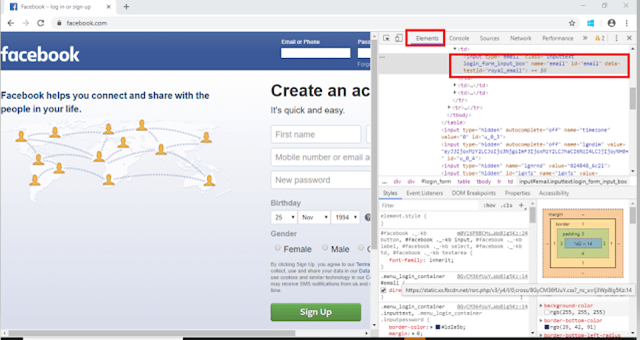
    1. First step is to launch the Chrome Browser with desired URL. Here, we have launched Chrome browser and accessed Facebook page. I want to find the locator of Email or Phone textbox, so I will click on that textbox, right click, and click on “Inspect”.

    2. Take a note that “Element” tab highlighted in the screenshot. Thus, element tab is the one, which displays all the HTML properties belonging to the current web page. Navigate to the “Element” tab if it is not open by default on the launch.

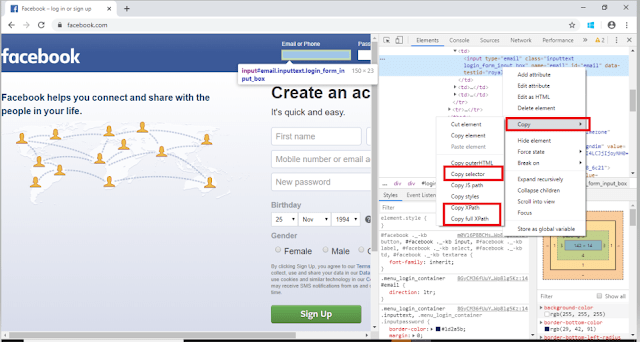
    3.  In the screenshot, we can see the HTML code of Email or Phone Textbox. Right click on this text and then again click on Copy where will see options like – Copy Selector, Copy XPath, Copy full XPath

    Copy Selector will tell the CSS Selector path of the WebElement

    #email
    

    Copy XPath will tell the Xpath of the WebElement

    //*[@id="email"]
    

    Copy full XPath will tell the absolute path of the WebElement

    /html/body/div[1]/div[2]/div/div/div/div/div[2]/form/table/tbody/tr[2]/td[1]/input
    

    Firstly, we should instantiate a Chrome/Chromium session by doing the following:

    import org.openqa.selenium.WebDriver;
    import org.openqa.selenium.chrome.ChromeDriver;
             
    WebDriver driver = new ChromeDriver();
    

    Set the path to the chromedriver

    executableSystem.setProperty("webdriver.chrome.driver","C:\\Users\\Vibha\\Desktop\\Automation\\Drivers\\chromedriver_win32\\chromedriver.exe");
    

    The chromedriver is implement as a WebDriver remote server that instructs the browser what to do by exposing Chrome’s internal automation proxy interface.

    Firefox

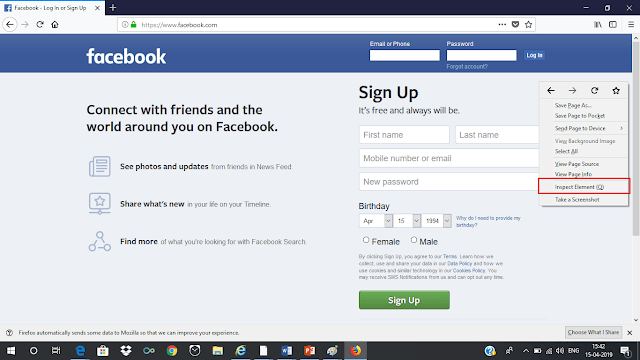
    1.   First step is to launch the Firefox Browser with desired URL, ie Facebook. I want to find the locator of Email or Phone textbox, so I will click on that textbox and right click and click on “Inspect Element (Q)”.

    2.  Take a note that “Inspector” tab is highlight in the screenshot. Thus, element tab is the one, which displays all the HTML properties belonging to the current web page. Navigate to the “Inspector” tab if it is not open by default on the launch.  

    3. In the screenshot, we can see the HTML code of Email or Phone Textbox. Right click on this text and then again click on Copy where will see options like – Copy CSS Selector, Copy XPath, Copy CSS Path

    Copy CSS Path will tell the CSS path of the WebElement

    html#facebook body.fbIndex.UIPage_LoggedOut._-kb._605a.b_c3pyn-ahh.gecko.win.x1.Locale_en_GB.cores-gte4._19_u.hasAXNavMenubar div#u_0_e._li div#pagelet_bluebar div#blueBarDOMInspector div._53jh div.loggedout_menubar_container div.clearfix.loggedout_menubar div.menu_login_container.rfloat._ohf form#login_form table tbody tr td input#email.inputtext.login_form_input_box
    

    Copy Selector will tell the CSS Selector path of the WebElement

    #email
    

    Copy XPath will tell the Xpath of the WebElement

    //*[@id="email"]
    
    System.setProperty("webdriver.gecko.driver","C:\\Users\\Vibha\\Desktop\\Drivers\\geckodriver-v0.26.0-win64\\geckodriver.exe");
    WebDriver driver = new FirefoxDriver();
    

    Internet Explorer

          1.   First step is to launch the Firefox Browser with desired URL. Here, we have launched Firefox browser and accessed Facebook page. I want to find the locator of Email or Phone textbox, so I will click on that textbox, right click, and click on “Inspect Element”.

          2.   Take a note that “DOM Explorer” tab is highlight in the screenshot. Thus, element tab is the one, which displays all the HTML properties belonging to the current web page. Navigate to the “DOM Explorer” tab if it is not open by default on the launch.

    System.setProperty("webdriver.ie.driver","C:\\Users\\SingVi04\\Desktop\\Automation\\Drivers\\IEDriverServer_x64_3.150.1\\IEDriverServer.exe"); 
    WebDriver driver = new InternetExplorerDriver();


    How to create first Selenium WebDriver Script using Java

    We assume here that Selenium WebDriver is download and installed with Eclipse. If not, please refer this link

    In this tutorial, we will see how to create a simple Selenium WebDriver script using JAVA. The most important thing is that JAVA, Eclipse and Selenium WebDriver are already install in the machine. If not, then please refer the link – How to Download & Install Selenium WebDriver.

    To create our first Selenium WebDriver Script, we have to create a Java Project, Package and Class in Eclipse.

    1. Create a Java Project “AutomationSuite” – Click File ->New ->Other ->Project ->Java Project. Click Next.

    • Provide Package Name – here I have provided AutomationSuite 
    • JRE – Use an execution environment JRE: JavaSE-1.8 (This is the version of Java on your machine)
    • Project Layout – Create separate folders for source and class files

    ii. Create a package “SeleniumTutorial” – Right click Java Project (AutomationSuite) ->Click File ->New ->Package

    iii. Create a Java Class “FirstProgram” – Right click Java Package (SeleniumTutorial) ->Click File ->New ->Class

    • Name: Name of the class (FirstProgram)
    • Modifiers – Public
    • Which method stubs would you like to create – public static void main(String[] args) and click Finish

    Above displayed image explains the structure of Project in Eclipse.

    Add Selenium Jar files to the Java Project


    1.  Right click on AutomationSuite and click on Properties.

    2.  Click on Java Build Path. Select Libraries. Click on – Add External JARs

    3.  Go to the path where Selenium WebDriver JAR folder was downloaded and select 2 JAR files – client-combined-3.141.59 and client-combined-3.141.59-sources and click on Open button.

    4. Similarly, go to Lib folder of Selenium file and select the entire JAR present there

    5. To verify that the JAR’s are added or not, click on Referenced Libraries and will see all these JARs are present here. For more details, refer the link

    Scenario:


    To open appropriate URL and verify the title of the home page
    Steps:
    i. Open Chrome browser
    ii. Go to the specified URL – http://www.google.com
    iii. Verify the title and print the output of the title
    iv. Close the Chrome browser

    import java.util.concurrent.TimeUnit;
    import org.openqa.selenium.chrome.ChromeDriver;
     
    public class FirstProgram {
           
         public static void main(String[] args) {
                   
     System.setProperty("webdriver.chrome.driver","C:\\Users\\vibha\\Downloads\\Drivers\\chromedriver_win32\\chromedriver.exe"");
    
             WebDriver driver = new ChromeDriver();
             driver.manage().timeouts().implicitlyWait(40, TimeUnit.SECONDS);
             driver.get("https://www.google.com/");
             String PageTiltle = driver.getTitle();
             System.out.println("Page Title :"+PageTiltle);
             driver.close();
         }
    }
    

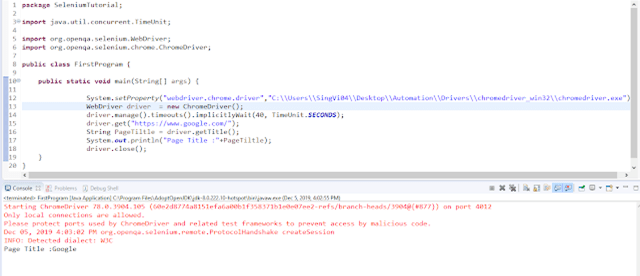
    To run this program, go to Run->Run or Green Icon shown below

    Maven – How to import Maven Project into Eclipse


    In the previous tutorial, we have seen how we can create a Java project from Command Line. In this tutorial, will see how we can import this project in Eclipse.

    1. We need to make sure if Eclipse Maven Integration(m2e) is present . Latest Eclipse IDE has bundled the m2e plugin.

    2. If you are using older version of Eclipse. Then below are the steps to follow

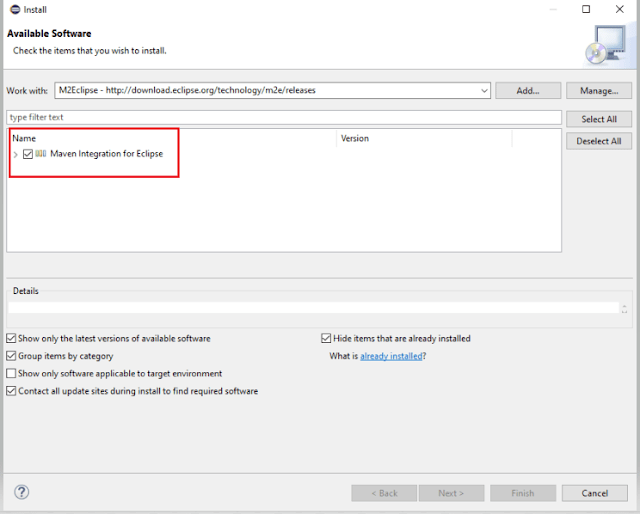
    2.1 Open Eclipse IDE and select Help ->Install New Software

    2.2 Click on Add button to add a new Repository

    2.3 Fill the below mentioned information in the dialog box:-

    Name – M2Eclipse

    Location – http://download.eclipse.org/technology/m2e/releases

    2.4. After the Pending finish, select all the Plugins and press Next.

    2.5. Accept the terms of the license agreement and click Finish

    2.6. At the end of the installation, you will be ask to restart your Eclipse. Click Yes to perform the restart.

    2.7 To check if the installation is successful, go to Help ->About Eclipse

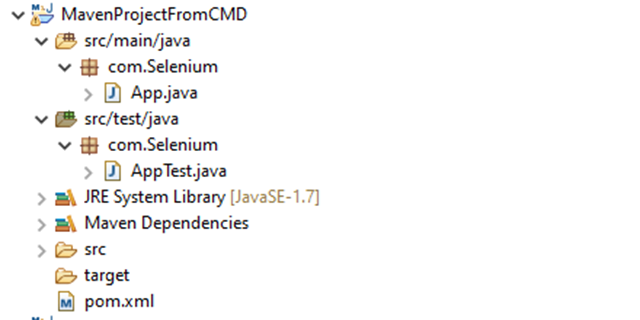
    3. In Eclipse IDE, select File ->Import ->Maven ->Existing Maven Project. 

    4. The m2e plugin will analyze the pom.xml and will configure the project and generate the Eclipse files automatically.

    5. Below is the code of App.java. Run this code

    package com.Selenium;
     
    /**
     * Hello world!
     *
     */
    public class App 
    {
        public static void main( String[] args )
        {
            System.out.println( "Hello World!" );
        }
    }
    

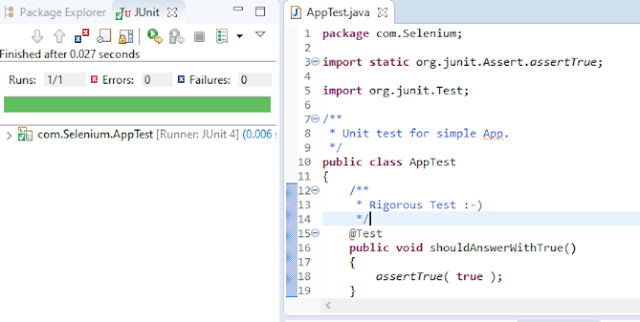
    6. Below is the code of AppTest.java. Run this code

    package com.Selenium;
     
    import static org.junit.Assert.assertTrue;
    import org.junit.Test;
     
    /**
     * Unit test for simple App.
     */
    public class AppTest 
    {
        /**
         * Rigorous Test 🙂
         */
        @Test
        public void shouldAnswerWithTrue()
        {
            assertTrue( true );
        }
    }
    

    Note:- Apache Maven Eclipse Plugins like eclipse:eclipse, eclipse:clean, etc are retired. To know more about it, please refer the link

    7. Structure of POM.xml

    <?xml version="1.0"encoding="UTF-8"?>
     
    <project xmlns="http://maven.apache.org/POM/4.0.0"xmlns:xsi="http://www.w3.org/2001/XMLSchema-instance"
      xsi:schemaLocation="http://maven.apache.org/POM/4.0.0 http://maven.apache.org/xsd/maven-4.0.0.xsd">
      <modelVersion>4.0.0</modelVersion>
     
      <groupId>com.Selenium</groupId>
      <artifactId>MavenProjectFromCMD</artifactId>
      <version>1.0-SNAPSHOT</version>
     
      <name>MavenProjectFromCMD</name>
      <!-- FIXME change it to the project's website -->
      <url>http://www.example.com</url>
     
      <properties>
        <project.build.sourceEncoding>UTF-8</project.build.sourceEncoding>
        <maven.compiler.source>1.7</maven.compiler.source>
        <maven.compiler.target>1.7</maven.compiler.target>
      </properties>
     
      <dependencies>
        <dependency>
          <groupId>junit</groupId>
          <artifactId>junit</artifactId>
          <version>4.11</version>
          <scope>test</scope>
        </dependency>
      </dependencies>
     
      <build>
        <pluginManagement><!-- lock down plugins versions to avoid using Mavendefaults (may be moved to parent pom) -->
          <plugins>
            <!-- clean lifecycle, see https://maven.apache.org/ref/current/maven-core/lifecycles.html#clean_Lifecycle -->
            <plugin>
              <artifactId>maven-clean-plugin</artifactId>
              <version>3.1.0</version>
            </plugin>
    
            <!-- default lifecycle, jar packaging: see https://maven.apache.org/ref/current/maven-core/default-bindings.html#Plugin_bindings_for_jar_packaging -->
            <plugin>
              <artifactId>maven-resources-plugin</artifactId>
              <version>3.0.2</version>
            </plugin>
    
            <plugin>
              <artifactId>maven-compiler-plugin</artifactId>
              <version>3.8.0</version>
            </plugin>
    
            <plugin>
              <artifactId>maven-surefire-plugin</artifactId>
              <version>2.22.1</version>
            </plugin>
    
            <plugin>
              <artifactId>maven-jar-plugin</artifactId>
              <version>3.0.2</version>
            </plugin>
    
            <plugin>
              <artifactId>maven-install-plugin</artifactId>
              <version>2.5.2</version>
            </plugin>
    
            <plugin>
              <artifactId>maven-deploy-plugin</artifactId>
              <version>2.8.2</version>
            </plugin>
    
            <!-- site lifecycle, see https://maven.apache.org/ref/current/maven-core/lifecycles.html#site_Lifecycle -->
            <plugin>
              <artifactId>maven-site-plugin</artifactId>
              <version>3.7.1</version>
            </plugin>
    
            <plugin>
              <artifactId>maven-project-info-reports-plugin</artifactId>
              <version>3.0.0</version>
            </plugin>
          </plugins>
        </pluginManagement>
      </build>
    </project>
    

    Maven – How to create a Java project using Command Line


         In the previous tutorial, we have discussed about How to install Maven on Windows. In this tutorial, we will see how to use Maven to manage a Java project – Create and update the dependencies.

       1) Change current folder to the folder where we want to create the Java project 

       In my case I have my Eclipse Workspace mentioned at the below mentioned path 

        cd C:\Users\vibha\eclipse-workspace\Selenium

      2) Create a Project from Maven Template

    This tells Maven to generate a Java project from a Maven template.

    mvn archetype:generate
    

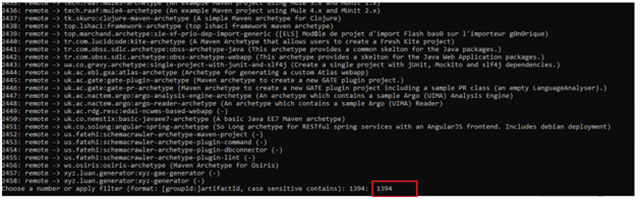
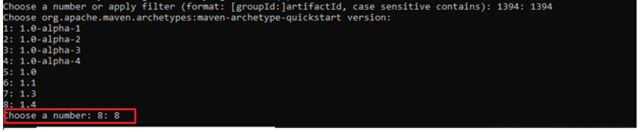
    3) We need to mention the number as displayed on your screen in Command Prompt to proceed further. Like here, Choose a folder or apply has 1394, so I have also mentioned 1394 in command prompt.

    4) We need to provide again  input in command prompt. This time program wants to know which version we want to use. I prefer to use the latest version. Here, it is 8, so I have selected version 8.

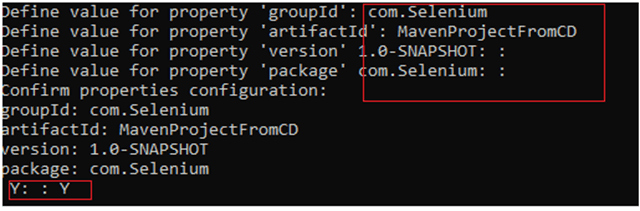
    5) We need to provide 2 input here

    A) Value of groupId – This serves as the group identifier of your Maven project, it should be in a form similar to Java packages, such as com.Selenium
    B) Value of artifactId – This serves as the group-local identifier of my Maven project like MavenProjectFromCMD
    C) Value of Version – The initial version of our project. The default is 1.0-SNAPSHOT
    D) Value of package – The name of our root package. The default is groupId we have created earlier.
    We will notice the INFO message about the properties. If the displayed settings are correct, then just enter Y in :: prompt.

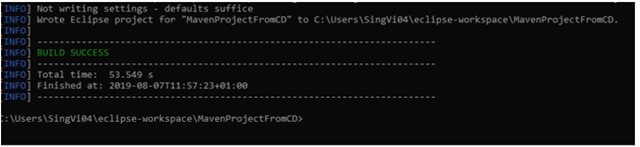
    Successful Build – Below screenshot shows that the Maven Project built successfully.

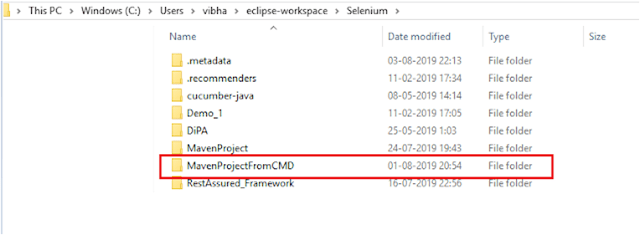
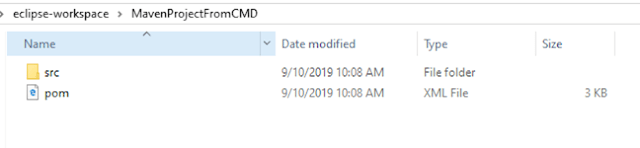
      6) Project Folder Creation – We can see a folder with the name of project – MavenProjectFromCMD in our Eclipse Workspace. In my case, it is                     

        C:\Users\vibha\eclipse-workspace\Selenium\MavenProjectFromCMD

    7) Contents of Project Folder – Open folder MavenProjectFromCMD to see the contents of the folder. It should have POM file and src

    How to automate selecting Checkbox and Radio Buttons in Selenium WebDriver


    In this tutorial, we will see how to identify the form elements like CheckBox and Radio Button

    Toggling a CheckBox or Radio Button on/off is also done using the click() method.

    IsSelected – IsSelected method, let us know that the element selected or not. Assume there are two Radio Buttons/Check Boxes, one selected by default and you want to select the other one for your test. Then, we use IsSelected method. When there is a group of Radio Buttons/Check Boxes on the page then, most probably, their names are same, but values are different. Then we use the Webdriver findElements command to get the list of web elements.

    Below is the working example of CheckBox.

    import java.util.concurrent.TimeUnit;
    import org.openqa.selenium.By;
    import org.openqa.selenium.WebDriver;
    import org.openqa.selenium.chrome.ChromeDriver;
     
    public class Checkbox_Test {
         
          public static void main(String[] args) {
                System.setProperty("webdriver.chrome.driver","C:\\Users\\Vibha\\Desktop\\Drivers\\chromedriver_win32\\chromedriver.exe");
    
              WebDriver driver = new ChromeDriver();
              driver.manage().timeouts().implicitlyWait(60, TimeUnit.SECONDS);
              driver.get("https://www.seleniumeasy.com/test/basic-checkbox-demo.html");
     
               //Single option selection
               System.out.println("*******Single option selection *********");
               driver.findElement(By.id("isAgeSelected")).click();
               String Message = driver.findElement(By.id("txtAge")).getText();
               System.out.println("Message is :"+Message);    
     
           // close the web browser
            driver.close();   
        }
    }
    
    Output
    *******Single option selection *********
    Message is :Success - Check box is checked
    

    How to click all options in the Checkbox

    In the below image, there are 4 checkboxes. Initially, when checkboxes were not selected, the test mentioned on the button is – Check All and once all the options are checked, the text on button changes to – Uncheck All.

    import java.util.List;
    import java.util.concurrent.TimeUnit;
    import org.openqa.selenium.By;
    import org.openqa.selenium.WebDriver;
    import org.openqa.selenium.WebElement;
    import org.openqa.selenium.chrome.ChromeDriver;
     
    public classCheckbox_Test {   
         
         public static voidmain(String[] args) throws Exception { 
    
     System.setProperty("webdriver.chrome.driver","C:\\Users\\Vibha\\Desktop\\Drivers\\chromedriver_win32\\chromedriver.exe");
              WebDriver driver = newChromeDriver();
              driver.manage().timeouts().implicitlyWait(60, TimeUnit.SECONDS);
              driver.get("https://www.seleniumeasy.com/test/basic-checkbox-demo.html");
     
              //Display the value of Button before clicking the options of checkbox
              String buttontext_beforeclick = driver.findElement(By.xpath(".//*[@id='check1']")).getAttribute("value");
              System.out.println("Text before click :"+buttontext_beforeclick);
    
              // Find the CheckBox by its classname
              List list = driver.findElements(By.xpath("//input[@type ='checkbox' and @class='cb1-element']") );            
                 
              // Get the number of CheckBoxes available
              int CheckBox_Size = list.size();
              System.out.println("Number of Checkbox options :"+CheckBox_Size);             
                
              // Iterate the loop from first CheckBox to last Checkbox
              for(int i=0;i<CheckBox_Size;i++)
              {     
                    list.get(i).click();               
               }
              String buttontext_afterclick = driver.findElement(By.xpath(".//*[@id='check1']")).getAttribute("value");
              System.out.println("Text after click :"+buttontext_afterclick); 
        driver.quit();      
         }
    }
    
    Output
    Text before click :Check All
    Number of Checkbox options :4
    Text after click :Uncheck All
    

    Similarly, below I have explained Radio Button.

    import java.util.List;
    import java.util.concurrent.TimeUnit;
    import org.openqa.selenium.By;
    import org.openqa.selenium.WebElement;
    import org.openqa.selenium.firefox.FirefoxDriver;
     
     public class Radio_Test {
    
           public static void main(String[] args) {      
     
         System.setProperty("webdriver.gecko.driver","C:\\Users\\vibha\\Downloads\\geckodriver-v0.24.0-win64\\geckodriver.exe");
    
              FirefoxDriver driver = new FirefoxDriver();
              driver.manage().timeouts().implicitlyWait(60, TimeUnit.SECONDS);
              driver.get("https://www.seleniumeasy.com/test/basic-radiobutton-demo.html");
    
              List<WebElement> Radio_Options = driver.findElements(By.name("optradio"));    
      
              // Create a boolean variable which will hold the value (True/False)
              boolean radio_value = false;
    
              // This statement will return True, in case of first Radio button is selected
             radio_value = Radio_Options.get(0).isSelected();
    
             //Identify if Radio Button 1 is selected or not. If Button 1 is already selected, then select Button 2
             if(radio_value==true)
             {
                  Radio_Options.get(1).click();
                  System.out.println("Button Selected is :"+ Radio_Options.get(1).getAttribute("value"));  
             }
             else
             {
                   Radio_Options.get(0).click();
                   System.out.println("Button Selected is :"+ Radio_Options.get(0).getAttribute("value"));  
              }
    
              driver.findElement(By.id("buttoncheck")).click();
              String Button_Selected = driver.findElement(By.xpath("//*[@id='easycont']/div/div[2]/div[1]/div[2]/p[3]")).getText();
              System.out.println("Get Checked Value is :"+ Button_Selected); 
           
             //Group Radio Button Selection
             driver.findElement(By.xpath(".//input[@name='gender'and @value='Female']")).click();
             driver.findElement(By.xpath(".//input[@name='ageGroup' and @value='15 - 50']")).click();
             driver.findElement(By.xpath(".//*[@id='easycont']/div/div[2]/div[2]/div[2]/button")).click();
              String Group_Radio_Message = driver.findElement(By.xpath("//*[@id='easycont']/div/div[2]/div[2]/div[2]/p[2]")).getText();
    
              System.out.println("Get Values are :"+Group_Radio_Message);
    
             // close the web browser
            driver.close();
          }
    }
     
    Output
    Button Selected is :Male
    Get Checked Value is :Radio button 'Male' is checked
    Get Values are :Sex : Female
    Age group: 15 - 50
    

    Difference between FindElement and FindElements in Selenium WebDriver


    Identifying the web elements in a page is required to interact with the web page. Selenium WebDriver give us FindElement and FindElements methods to locate elements on the webpage. There are multiple ways to identify uniquely a web element within the web page such as ID, Name, Class Name, LinkText, PartialLinkText, TagName, and XPath.

    FindElement Command

    This method locates the first web element on the current web page matching the criteria mentioned as parameters.  

    If the web element is not found, it will throw an exception – NoSuchElementException.

    Syntax:

    findElement(By arg0):WebElement - WebDriver
    

    Command:

    driver.findElement(By.xpath("Xpath location"));
    

    How to use FindElement in Selenium

    The following application is used for demo purposes:

    https://www.facebook.com/

    Scenario – Valid

    •      Open the web page
    •      Close the child window and move to facebook main page
    •      Enter the emailId and password and click on Log In Button
    import java.util.concurrent.TimeUnit; 
    import org.openqa.selenium.By; 
    import org.openqa.selenium.WebDriver; 
    import org.openqa.selenium.firefox.FirefoxDriver;
    public class FindElement_Example { 
            
             public static voidmain(String[] args){
               System.setProperty("webdriver.gecko.driver","C:\\Users\\vibha\\Downloads\\geckodriver-v0.24.0-win64\\geckodriver.exe");
    
             // Create a new instance of the Firefox driver
              WebDriver driver = new FirefoxDriver();
              
            // Set implicit wait of 60 sec for managing waits in selenium webdriver
             driver.manage().timeouts().implicitlyWait(60, TimeUnit.SECONDS);
                           
            // Launch a new web page and load Facebook
             driver.get("https://www.facebook.com/");
             Thread.sleep(1000); 
                
            //switch from main window to child window
            for (String handle1 : driver.getWindowHandles()) {
                   driver.switchTo().window(handle1);
             }
             driver.findElement(By.id("u_0_k")).click();
    
             // Enter the values in Email and Password Textboxes
             driver.findElement(By.name("email")).sendKeys("abc@gmail.com");
             driver.findElement(By.id("pass")).sendKeys("abcd1234!"); 
                   
             // Click on Log In Button
             driver.findElement(By.id("u_0_b")).click();
             driver.close();
        }
    }
    

    Scenario – Error

    •      Open the web page
    •      Close the child window and move to facebook main page
    •      Use incorrect locator to find emailId
    •      Execution halts and then stopped with NoSuchElementException
    import java.util.concurrent.TimeUnit;
    import org.openqa.selenium.By;
    import org.openqa.selenium.WebDriver;
    import org.openqa.selenium.firefox.FirefoxDriver;
    
    public class FindElement_Example {
            
             public static void main(String[] args){
               System.setProperty("webdriver.gecko.driver","C:\\Users\\vibha\\Downloads\\geckodriver-v0.24.0-win64\\geckodriver.exe");
        
             // Create a new instance of the Firefox driver
              WebDriver driver = new FirefoxDriver();
                            
             // Set implicit wait of 60 sec for managing waits in selenium webdriver
             driver.manage().timeouts().implicitlyWait(60, TimeUnit.SECONDS);
    
             // Launch a new web page and load Facebook
             driver.get("https://www.facebook.com/");
             Thread.sleep(1000);    
             
             //switch from main window to child window
             for (String handle1 : driver.getWindowHandles()) {
                     driver.switchTo().window(handle1);
              }
              driver.findElement(By.id("u_0_k")).click();
    
             // Enter the values in Email and Password Textboxes
              driver.findElement(By.name("email")).sendKeys("abc@gmail.com");
              driver.findElement(By.id("pass")).sendKeys("abcd1234!"); 
                   
              // Click on Log In Button
              driver.findElement(By.id("u_0_b")).click();
              driver.close();
          }
    }


    FindElements Command

    • This method locates all the web elements on the current web page matching the criteria mentioned as parameter.  
    • If not found any WebElement on current page as per given element locator mechanism, it will return empty list.                                                                                    

    Syntax

    findElements (By arg0):List
    

    Below is the example of findElements

    import java.util.List;
    import java.util.concurrent.TimeUnit;
    import org.openqa.selenium.By;
    import org.openqa.selenium.WebDriver;
    import org.openqa.selenium.WebElement;
    import org.openqa.selenium.firefox.FirefoxDriver;
    
    public class FindElements_Example {
           public static void main(String[] args) {
            System.setProperty("webdriver.gecko.driver","C:\\Users\\vibha\\Downloads\\geckodriver-v0.24.0-win64\\geckodriver.exe");
                // Create a new instance of the Firefox driver
                 WebDriver driver = new FirefoxDriver();
    
                 // Set implicit wait of 60 sec for managing waits in selenium webdriver
                 driver.manage().timeouts().implicitlyWait(60, TimeUnit.SECONDS);
    
                 // Launch a new web page and load Facebook
                 driver.get("https://www.facebook.com/");
                 Thread.sleep(1000);
    
                 // switch from main window to child window
                 for (String handle1 : driver.getWindowHandles()) {
                        driver.switchTo().window(handle1);
                 }
                 driver.findElement(By.id("u_0_k")).click();
                 driver.findElement(By.xpath("//*[@id='u_0_2']")).click();
    
                 // Find all elements and store into list
                  List Link_List = driver.findElements(By.id("month"));
                  for (WebElement link : Link_List)
    
                  // Print all the elements from the list
                  System.out.println(link.getText());
                   driver.close();
            }
    }
    
    Output
    Month
    Jan
    Feb
    Mar
    Apr
    May
    Jun
    Jul
    Aug
    Sep
    Oct
    Nov
    Dec
    

    Differences between findElement() and findElements() method:

    ·         Return type of findElement() is a WebElement (single) while Return type of findElements() is a List (multiple).

    ·         findElement() method will throw noSuchElementException if web element is not found in WebPage while findElements() will return an empty list and do not throw any.

    We are done! Congratulations on making it through this tutorial and hope you found it useful! Happy Learning!!

    Dynamic XPath in Selenium WebDriver

    HOME

    //: select the current node.
    tagname: name of the tag of a particular node.
    @: to select attribute.
    Attribute: name of the attribute of the node.
    Value: value of the attribute

    1) Basic XPath

    XPath’s expression selects nodes based on ID, class, etc. from an XML web page.

    Go to http://www.facebook.com and inspect the Email or Phone textbox. How to inspect a web element on the web page is explained in the previous blog. Some of the basic examples of XPath is displayed below:

    By.xpath("//input[@name='email']")
    By.xpath("//input[@id=’email’]")
    By.xpath("//input[@type='email']")
    By.xpath("//input[@class=’inputtext’]")
    By.xpath("//*[@class=’inputtext’]")
    By.xpath("//input[@class=’inputtext’][@type='email']")
    

    In the last example, we have created XPath using multiple attributes for the single HTML tag.

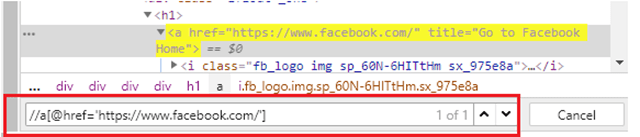
    Syntax

    By.xpath("//a[@href='https://www.facebook.com/']")
    

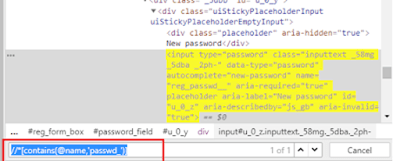
    2) Contains

    It is used if the value of any web element changes dynamically. Using this expression, you can find the element with partial text.

    Syntax

    By.xpath("//*[contains(@name,'passwd_')]")
    

    3) OR & AND

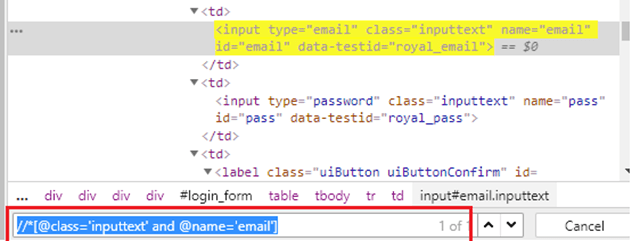
    OR & AND expression uses 2 conditions to identify a web element.

    In the case of OR, if any of the conditions is true, then the element will be located. Whereas in the case of AND, both the conditions should be true to locate the element.

    Syntax

    By.xpath("//*[@class='inputtext' or @name='email']")
    

    Here, if you observe, class – ‘inputtext’ is same for 2 web elements, so with OR condition it will locate 2 web elements.

    Syntax

    By.xpath("//*[@class='inputtext' and @name='email']")
    

    4) Start-with function 

    This function finds the web elements whose value changes dynamically. In the expression, we will use that value of the web element which doesn’t change. Let’s see a small example of using the start-with() function.

    Syntax

    By.xpath("//*[starts-with(@id,'yui_3_18_0_3_1555510217471_')]")
    

    5) Text() 

    This expression is used with the text function to locate an element with exact text. Let me show you how to use the Text() method. 

    Syntax

    By.xpath("//*[text(),"Create an account"]")
    

    6) Last()

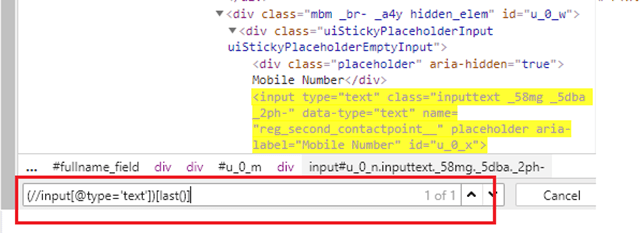
    Select the last element (of the mentioned type) out of all input elements present.

    Syntax

    By.xpath("//input[@type='text'])[last()]")
    

    There are 5 web elements with input type -text. But with this expression, it has selected the last one.

    7) Position()

    Selects the element out of all input elements present depending on the position number provided

    Syntax

    By.xpath("//input[@type='text'])[2]")
    

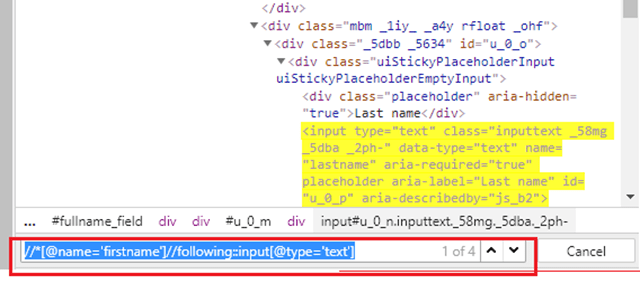
    8) Following

    By using this, we could select everything on the web page after the closing tag of the current node.

    The xpath of firstname is as follows:-

    By.xpath("//*[@name='firstname']")
    

    To identify the input field of type text after the FirstName field, we need to use the below XPath.

    By.xpath("//*[@name='firstname']//following::input[@type='text']")
    

    To identify just the input field after the FirstName field, we need to use the below XPath.

    By.xpath("//*[@name=’firstname’]//following::input[1]")
    

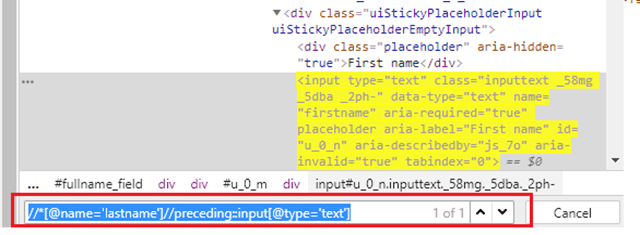
    9) Preceding

    Selects all nodes that appear before the current node in the document, except ancestors, attribute nodes, and namespace nodes.

    The XPath of the LastName field is as follows

    By.xpath("//*[@name='lastname']")
    

    To identify the web element before lastname field is as follows

    By.xpath("//*[@name='lastname']//preceding::input[1]")
    

    To identify the input field of type text before the LastName field, we need to use below XPath

    By.xpath("[@name='lastname']//preceding::input[@type='text']")
    

    Now, let’s write a small program to show the use of XPath. In this program, 

    • Firefox is used as the browser. 
    • The path of the Mozilla Firefox driver is set by using System.SetProperty. Mozilla Firefox driver is called gecko, so do not get confused. 
    • driver.get is used to navigate to amazon site. The search box of the webpage is located using XPath – (“//*[@id=’twotabsearchtextbox’]”))
    • sendkeys() is used to search for value hard drive. 
    • Search Button is clicked by using XPath – (“//*[@class=’nav-input’]”))
    import java.util.concurrent.TimeUnit; 
    import org.openqa.selenium.By;
    import org.openqa.selenium.WebDriver;
    import org.openqa.selenium.firefox.FirefoxDriver;
     
    public class Selenium_Site { 
          public static void main(String[] args) {
                  System.setProperty("webdriver.gecko.driver","C:\\Users\\vibha\\Downloads\\geckodriver-v0.24.0-win64\\geckodriver.exe");
                WebDriver driver = new FirefoxDriver();
                driver.manage().timeouts().implicitlyWait(60, TimeUnit.SECONDS);
                driver.get("https://www.amazon.com//");
                driver.manage().window().maximize();
    
                //XPath for Search box
                driver.findElement(By.xpath("//*[@id='twotabsearchtextbox']")).sendKeys("hard drive");
    
                //XPath for search button
                driver.findElement(By.xpath("//*[@class='nav-input']")).click();
         }
    }
    

    Selenium Introduction

    HOME

      WebDriver talks to a browser through a driver. Communication is two-way: WebDriver passes commands to the browser through the driver and receives information back via the same route. The driver is specific to the browser, such as ChromeDriver for Google’s Chrome/Chromium, GeckoDriver for Mozilla’s Firefox, etc. The driver runs on the same system as the browser.