Apache JMeter is a popular open-source performance testing tool. It is a 100% pure Java application designed to load test functional behaviour and measure performance. It was originally designed for testing Web Applications but has since expanded to other test functions.
We can create a JSON Object using a Map in Java. A JSON Object is a key-value pair and can be easily created using a Java Map. A Map in Java also represents a collection of key-value pairs.
To create a request body using JSON Object using HashMap, we need to add a Maven dependency.
I have created a simple Java map and filled it with the values that represent JSON properties.
import io.restassured.RestAssured;
import io.restassured.http.ContentType;
import org.junit.Test;
import java.util.HashMap;
import java.util.Map;
import static org.hamcrest.Matchers.equalTo;

public class Json_Demo {

    @Test
    public void passBodyAsMap() {
        Map<String, String> map = new HashMap<String, String>();
        map.put("employee_name", "MapTest");
        map.put("employee_salary", "99999");
        map.put("employee_age", "30");
        map.put("profile_image", "test.png");
        RestAssured.given()
                .contentType(ContentType.JSON)
                .body(map)
                .log().all()

                .when()
                .post("https://dummy.restapiexample.com/api/v1/create")

                .then()
                .assertThat().statusCode(200)
                .body("data.employee_name", equalTo("MapTest"))
                .body("data.employee_age", equalTo("30"))
                .body("data.employee_salary", equalTo("99999"))
                .body("message", equalTo("Successfully! Record has been added.")).log().all();
    }
}
The request body as well as the response body will look as shown below:-
Above one is a simple JSON Request Body. Let us take an example of a Complex Request Body or nested Request Body as shown below.
Let us create a Java program to understand this:
import io.restassured.RestAssured;
import io.restassured.http.ContentType;
import org.junit.Test;
import java.util.HashMap;
import java.util.Map;
import static org.hamcrest.Matchers.equalTo;

public class Json_Demo {

    @Test
    public void passBodyAsMultipleMap() {

        // First JSON Object using Hash Map
        Map<String, Object> data = new HashMap<String, Object>();
        data.put("employee_name", "MapTest");
        data.put("profile_image", "test.png");

        // Second JSON Object using Hash Map
        Map<String, String> msg = new HashMap<String, String>();
        msg.put("updated_message", "Details of New Resource");
        msg.put("employee_age", "30");
        data.put("details", msg);
        data.put("employee_salary", "99999");
        RestAssured.given().contentType(ContentType.JSON).body(data).log().all()
                // WHEN
                .when().post("https://dummy.restapiexample.com/api/v1/create")
                // THEN
                .then().assertThat().statusCode(200).body("data.employee_name", equalTo("MapTest"))
                .body("data.details.updated_message", equalTo("Details of New Resource"))
                .body("data.details.employee_age", equalTo("30")).body("data.employee_salary", equalTo("99999"))
                .body("message", equalTo("Successfully! Record has been added.")).log().all();
    }
}
The request body as well as the response body will look as shown below image. The first part is the body of the request and the second part is the response provided by the API.
Congratulations on making it through this tutorial and hope you found it useful! Happy Learning!!
In the last tutorial, I explained How to test GET Request using Rest Assured. In this tutorial, I will automate a POST Request using Rest Assured. I will verify the status code, line of Status, and content of the Response. To set up a basic Rest Assured Maven Project, click here and Gradle project, click here.
Add the below-mentioned dependencies to the pom.xml. The latest dependency can be downloaded from here.
An HTTP POST method is used to create a new resource in the collection of resources. The request body is passed as a JSON/XML or in a different format. If a resource is created successfully by the endpoint or server, it returns a status code 201(Created). It also provides a Location header with a link to the newly-created resource with the 201 HTTP status. It may return 200 (OK) and 204 (No Content) status code as well, based on how the API is developed.
POST is neither safe nor idempotent. It is therefore recommended for non-idempotent resource requests. Making two identical POST requests will most result in two resources containing the same information.
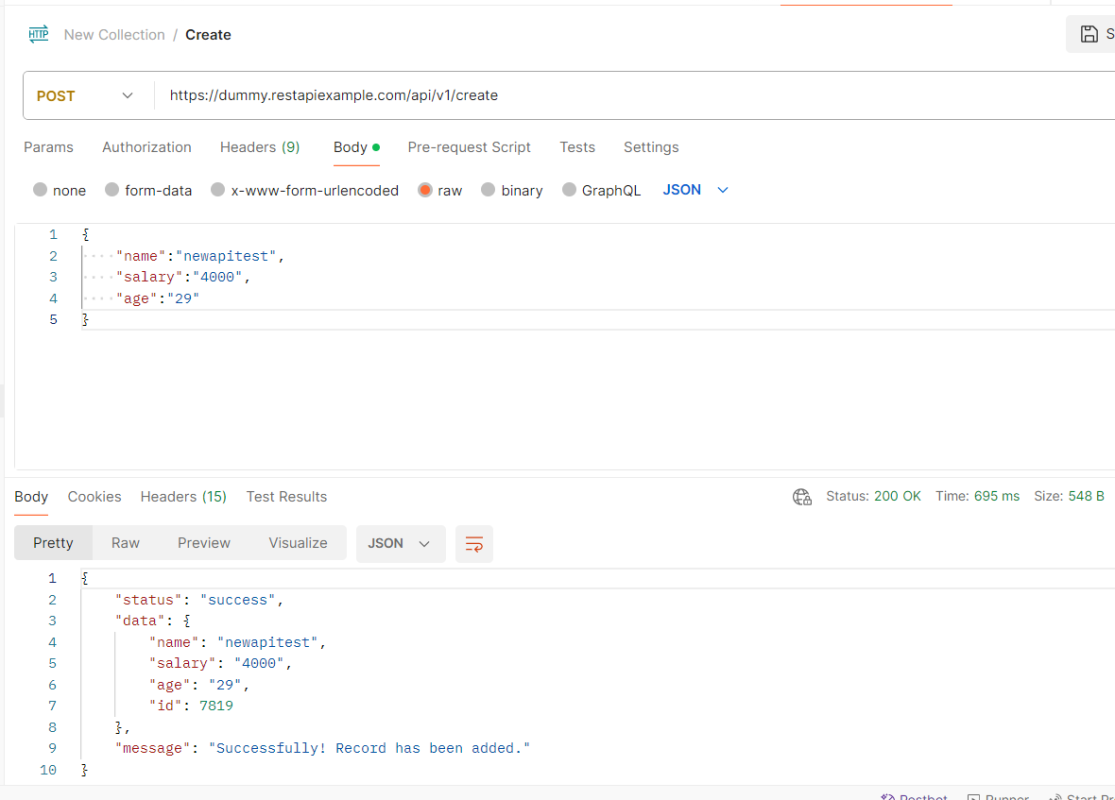
Below is an example of a Request performing POST operation in Postman.
Below are the steps to test a POST Request using Rest Assured:
Step 1 – Specify the base URL to the RESTful web service using the RestAssuredclass.
Step 2 – Every Request in the Rest-Assured library is represented by an interface called RequestSpecification. This interface allows modifying the request, like adding headers or adding authentication details. Use the RestAssuredclass to generate a RequestSpecification.
contentTypeis imported from restassured.http package:
import io.restassured.http.ContentType;
Step 4 – Pass Request Body as String.
requestSpecification.body(jsonString);
Step 5 – Send the POST request to the server. Then receive the response of the request made by REST Assured. This response contains every detail returned by hitting request i.e. response body, response headers, status code, status lines, cookies, etc. The response is imported from package:
import io.restassured.response.Response;
Step 6 – To validate a response like status code or value, we need to get the reference of type ValidatableResponse.
ValidatableResponse is an interface. A validatable response to a request made by, REST Assured. ValidatableResponse is imported from package:
PrettyPrint() – It prints the response body if possible and returns it as a string. Pretty printing is possible for content-types JSON, XML, and HTML.
Below is the example of testing a POST request in Non-BDD format. I have used ValidatableResponse for the assertion of status. It is also used for the status line and body of the Response.
import io.restassured.RestAssured;
import io.restassured.http.ContentType;
import io.restassured.response.Response;
import io.restassured.response.ValidatableResponse;
import io.restassured.specification.RequestSpecification;
import org.junit.Test;
import static org.hamcrest.CoreMatchers.equalTo;

public class POST_NonBDDDemo {

    RequestSpecification requestSpecification;
    Response response;
    ValidatableResponse validatableResponse;

    @Test
    public void verifyStatusCode() {

        String jsonString = "{\"name\":\"newapitest\",\"salary\":\"4000\",\"age\":\"29\"}";

        RestAssured.baseURI = "https://dummy.restapiexample.com/api/v1/create";

        // Create a request specification
        requestSpecification = RestAssured.given();

        // Setting content type to specify format in which request payload will be sent.
        requestSpecification.contentType(ContentType.JSON);

        // Adding body as string
        requestSpecification.body(jsonString);

        // Calling POST method
        response = requestSpecification.post();

        // Let's print response body.
        String responseString = response.prettyPrint();

        /*
         * To perform validation on response, we need to get ValidatableResponse type of
         * response
         */
        validatableResponse = response.then();

        // Check status code
        validatableResponse.statusCode(200);

        // It will check if status line is as expected
        validatableResponse.statusLine("HTTP/1.1 200 OK");

        // Check response body - name attribute
        validatableResponse.body("data.name", equalTo("newapitest"));

        // Check response body - message attribute
        validatableResponse.body("message", equalTo("Successfully! Record has been added."));

    }
}
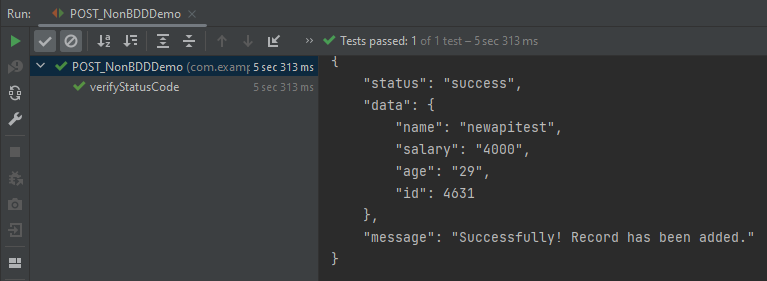
The below image shows the test result of the above test.
Test implemented in BDD Format
1. equalTois used for assertion, and is imported from a static hamcrest package:
import static org.hamcrest.Matchers.equalTo;
2. givenis a static import from package:
import static io.restassured.RestAssured.given;
Below is an example of a BDD Test.
import io.restassured.http.ContentType;
import io.restassured.response.ValidatableResponse;
import org.junit.Test;
import static io.restassured.RestAssured.given;
import static org.hamcrest.CoreMatchers.equalTo;

public class POST_BDDDemo {

    ValidatableResponse validatableResponse;

    @Test
    public void createUser() {

        String json = "{\"name\":\"apitest\",\"salary\":\"5000\",\"age\":\"30\"}";

        // GIVEN
        validatableResponse = given()
                .baseUri("https://dummy.restapiexample.com/api")
                .contentType(ContentType.JSON)
                .body(json)

                // WHEN
                .when()
                .post("/v1/create")

                // THEN
                .then()
                .assertThat().statusCode(200).body("data.name", equalTo("apitest"))
                .body("message", equalTo("Successfully! Record has been added."));

        System.out.println("Response :" + validatableResponse.extract().asPrettyString());
    }

}
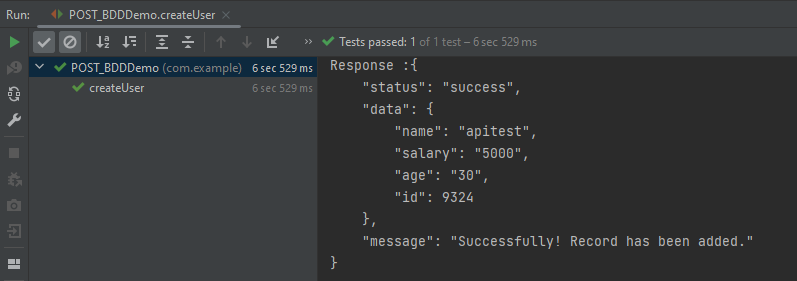
The below image shows the test result of the above test.
Explanation:
1. This string represents the JSON payload that will be sent in the body of the POST request. It includes fields like name, salary, and age.
POST requests are used to send data to the API server to create or update a resource. The data sent to the server is stored in the request body of the HTTP request. HTTP POST request provides additional data from the client to the server message body.
We will use the following URL for this Postman tutorial.
To create the first POST request in Postman, follow the following steps:
Create a Collection
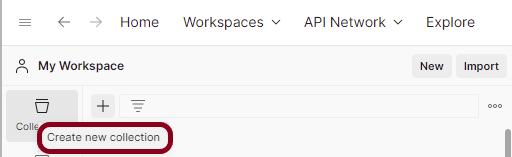
Step 1: Create a Collection, click on Collections, and then click on the “+” plus button.
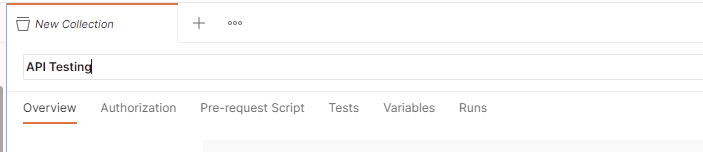
Step 2: Provide a name to the collection – “API Testing”.
Add a request to the Collection
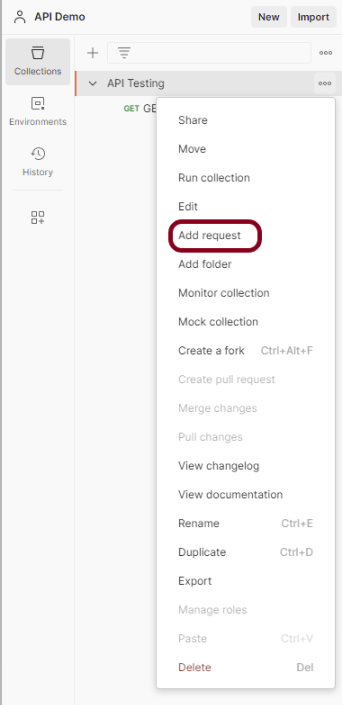
Step 3: To create a new request, click on “Add a request” if it is a new Collection. Otherwise, click on the 3 dots and select “Add request”.
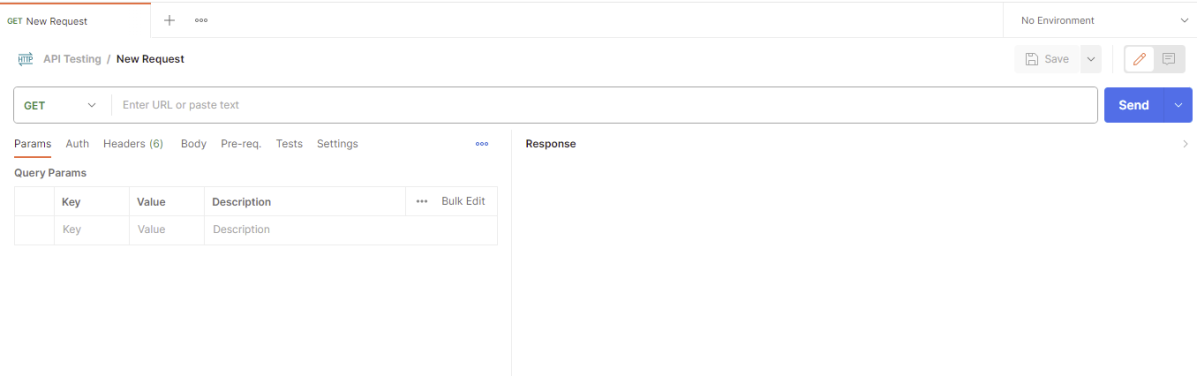
Step 4: Once you create a new request, then you will get the following window:
Enter the details of request
Step 5: Enter the “name” in the request. Here, the name is “CreateUser”.
Step 6:Enter the “URL” in the address bar.
Step 7:Now, select the “POST” request from the list of request methods.
Step 8 – Add a Request body to the Post request
For this, select the Body tab.
Now in the Body tab, select raw and select JSON as the format type from the drop-down menu, as shown in the image below. This is done because we need to send the request in the appropriate format that the server expects. Copy and paste the request body example mentioned at the beginning of the tutorial to the postman request Body.
Step 9: Press the “Send” button.
Verify the Response
Step 10: Once you press the send button, you will get the response from the server. Make sure you have a proper internet connection; otherwise, you will not get a response.
Status
You can check the status code. Here, we got the status code 200, which means we got a successful response to the request. In the case of new resource creation, the status code should be 201. But as this is a dummy API, we are getting a status code of 200.
Body
In the Body tab of the response box, we have multiple options to see the response in a different format.
Format Type
Each request has a defined response to it as defined by the Content-Type header. That response can be in any format. Such as in the above example, we have JSON code file.
Below are the various format type present in Postman.
XML
HTML
Text
Headers
Headers are the extra information that is transferred to the server or the client. In Postman, headers will show like key-value pairs under the headers tab. Click on the Headers link as shown in the below image:
We are done! Congratulations on making it through this tutorial and hope you found it useful! Happy Learning!!
In the last tutorial, I explained How to test POST Request using Rest Assured where the request body is in String Format. In this tutorial, I will create a request body using JSON Object in Rest Assured. This request body can be used for POST or PUT operations.
In the previous post, you must have observed that I had hard-coded the JSON request body in a string format. It is not a good practice if you have a dynamic payload or want to create a payload at run time or parameterized one. It is always recommended to create a payload in a way that is easy to maintain. You should manage, update, and retrieve value from it easily. This can be achieved by JSONObjector JSONArray.
A JSONObjectis an unordered collection of key and value pairs, resembling Java’s native Map implementations. JSON stores data as a key-value pair. The key is the left side and the value is the right side, and a semicolon is used to separate both. One key-value pair is separated from another key-value pair using a comma (,).
The internal form is an object having the get and opt methods for accessing the values by name and put methods for adding or replacing values by name. The values can be any of these types:Boolean, JSONArray, JSONObject, Number, String, or JSONObject.NULL object.
To create a request body using JSON Object, we need to add a Maven dependency.
JSONObjectexposes an API similar to Java’s Map interface. Below is an example of creating a request from a JSON Object. Here, Id is the auto-generated attribute. We are using the put() method and supply the key and value as an argument. I am using a logger just to print the JSON body in the Console.
import io.restassured.RestAssured;
import io.restassured.http.ContentType;
import org.json.JSONObject;
import org.junit.Test;
import static org.hamcrest.Matchers.equalTo;

public class Json_Demo {

    @Test
    public void passBodyAsJsonObject() {

        JSONObject data = new JSONObject();

        data.put("employee_name", "MapTest");
        data.put("profile_image", "test.png");
        data.put("employee_age", "30");
        data.put("employee_salary", "11111");

        RestAssured
                .given()
                .contentType(ContentType.JSON)
                .body(data.toString())
                .log().all()

                .when()
                .post("https://dummy.restapiexample.com/api/v1/create")

                .then()
                .assertThat().statusCode(200)
                .body("data.employee_name", equalTo("MapTest"))
                .body("data.employee_age", equalTo("30"))
                .body("data.employee_salary", equalTo("11111"))
                .body("data.profile_image", equalTo("test.png"))
                .body("message", equalTo("Successfully! Record has been added."))
                .log().all();

    }
}
The request body will look as shown below:-
The texts produced by the toString() methods strictly conform to the JSON syntax rules.
.body(data.toString())
The above one is a simple JSON Request Body. Let’s take an example of a Complex Request Body or nested Request Body.
We need to create two JSONObject here. One will hold overall key-value pairs, and another JSONObject will hold only employee_details key-value pairs.
Below is an example that shows how to create a complex JSON request body using JSONObject.
@Test
public void passBodyAsJsonObjectDemo() {

   //First JSONObject
	JSONObject data = new JSONObject();

	data.put("profile_image", "test.png");

    //Second JSONObject
	JSONObject detail = new JSONObject();

	detail.put("updated_message", "Details of New Resource");
	detail.put("employee_age", "30");

	data.put("employee_details", detail);

	data.put("employee_name", "MapTest");
	data.put("employee_salary", "11111");

	RestAssured
        .given()
               .contentType(ContentType.JSON)
               .body(data.toString())
               .log().all()

		.when()
              .post("http://dummy.restapiexample.com/api/v1/create")

		.then()
               .assertThat().statusCode(200)
               .body("data.employee_name", equalTo("MapTest"))
			   .body("data.employee_details.employee_age", equalTo("30"))
			   .body("data.employee_details.updated_message", equalTo("Details of New Resource"))
			   .body("data.employee_salary", equalTo("11111")).body("data.profile_image", equalTo("test.png"))
				.body("message", equalTo("Successfully! Record has been added."))
                .log().all();
	}
}
The request body will look as shown below:-
We are done. Congratulations on making it through this tutorial and hope you found it useful! Happy Learning!!





 QA Automation Expert