Manual Tests in Serenity with JUnit5

HOME

In this tutorial, I will explain about Manual Tests in Serenity JUnit5.

You can annotate @Test not @Steps as @Manual.

In contrast to Junit4 a test method annotated with @Manual will actually be executed. This allows to further specify the example using @Step methods and show them the report.

Below is an example where tests are annotated with @Manual with description.

@SerenityTest
public class LoginTests {

	@Managed
	WebDriver driver;

	@Steps
	StepLoginPage loginPage;

	@Steps
	StepDashboardPage dashPage;

	@Steps
	StepForgetPasswordPage forgetpasswordPage;

	@Test
	@Title("Login to application should be successful")
	public void sucessfulLogin() {

		// Given
		loginPage.open();

		// When
		loginPage.inputUserName("Admin");
		loginPage.inputPassword("admin123");
		loginPage.clickLogin();

		// Then
		dashPage.loginVerify();
	}

	@Test
	@Title("Login to application should be unsuccessful with error message")
	public void unsucessfulLogin() throws InterruptedException {

		// Given
		loginPage.open();

		// When
		loginPage.inputUserName("abc");
		loginPage.inputPassword("abc12");
		loginPage.clickLogin();

		// Then
		String actualErrorMessage = loginPage.errorMessage();
		assertEquals("Invalid credentials", actualErrorMessage);
	}

	@Test
	@Manual
	void manualDefault() {
		loginPage.manualStep();
	}

	@Test
	@Manual(result = TestResult.SUCCESS)
	void manualSuccess() {
		loginPage.manualStep();
	}

	@Test
	@Manual(result = TestResult.COMPROMISED)
	void manualCompromised() {
		loginPage.manualStep();
	}

	@Test
	@Manual(result = TestResult.ERROR)
	void manualError() {
		loginPage.manualStep();
	}

	@Test
	@Manual(result = TestResult.ERROR, reason = "A reason for the error")
	void manualErrorWithReason() {
		loginPage.manualStep();
	}

	@Test
	@Manual(result = TestResult.FAILURE)
	void manualFailure() {
		loginPage.manualStep();
	}

	@Test
	@Manual(result = TestResult.IGNORED)
	void manualIgnored() {
		loginPage.manualStep();
	}

	@Test
	@Manual(result = TestResult.PENDING)
	void manualPending() {
		loginPage.manualStep();
	}

	@Test
	@Manual(result = TestResult.SKIPPED)
	void manualSkipped() {
		loginPage.manualStep();
	}

	@Test
	@Manual(result = TestResult.UNDEFINED)
	void manualUndefined() {
		loginPage.manualStep();
	}

	@Test
	@Manual(result = TestResult.UNSUCCESSFUL)
	void manualUnsuccessful() {
		loginPage.manualStep();
	}

}

StepLoginPage.java

public class StepLoginPage extends PageObject {

	@FindBy(name = "txtUsername")
	WebElementFacade username;

	@FindBy(name = "txtPassword")
	WebElementFacade password;

	@FindBy(name = "Submit")
	WebElementFacade submitButton;

	@FindBy(id = "spanMessage")
	WebElementFacade errorMessage;

	@FindBy(id = "forgotPasswordLink")
	WebElementFacade linkText;

	@Step("Enter Username")
	public void inputUserName(String userName) {
		username.sendKeys((userName));
	}

	@Step("Enter Password")
	public void inputPassword(String passWord) {
		password.sendKeys((passWord));
	}

	@Step("Click Submit Button")
	public void clickLogin() {
		submitButton.click();
	}

	@Step("Error Message on unsuccessful login")
	public String errorMessage() {
		String actualErrorMessage = errorMessage.getText();
		System.out.println("Actual Error Message :" + actualErrorMessage);
		return actualErrorMessage;
	}

	@Step("Manual Test Step")
	public void manualStep() {

		System.out.println("Verify various status of manual step");

	}

}

StepDashboardPage.java

public class StepDashboardPage extends PageObject {

	@FindBy(id = "welcome")
	WebElementFacade dashboardText;

	@Step("Successful login")
	public void loginVerify() {
		String dashboardTitle = dashboardText.getText();
		assertThat(dashboardTitle, containsString("Welcome"));
	}
}

Execute these tests by using the below command in commandline.

mvn clean verify

There are two automated tests and rest all are Manual tests. We have Manual Test marked as Default, SUCCESS, COMPROMISED, ERROR, FAILURE, IGNORED, PENDING, SKIPPED, UNDEFINED and UNSUCCESSFUL.

The execution status looks like as shown below.
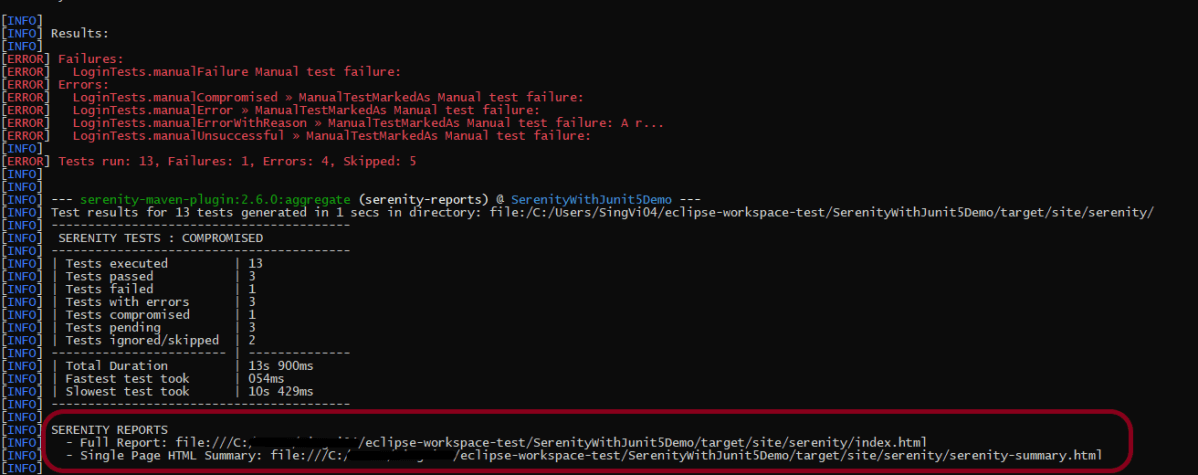
The reports are generated under /target/site/serenity. There are 2 types of Reports are generated – index.html and serenity-summary.html. To know how to generate Serenity Reports, please refer tutorials for index.html and serenity-summary.html.

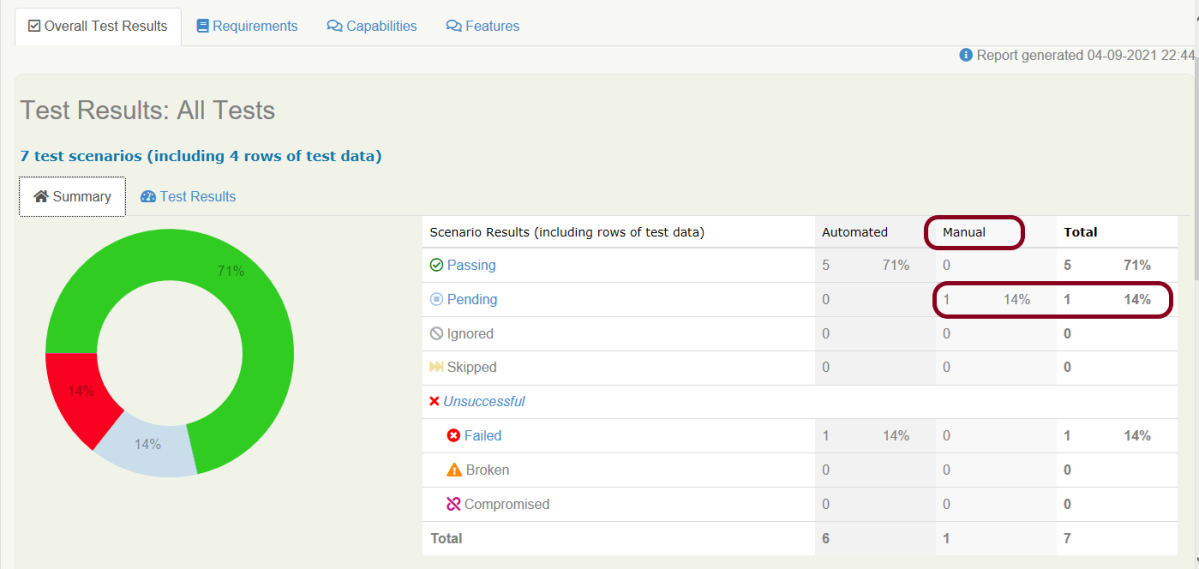
By default, @manual scenarios are marked as pending in the Serenity reports.
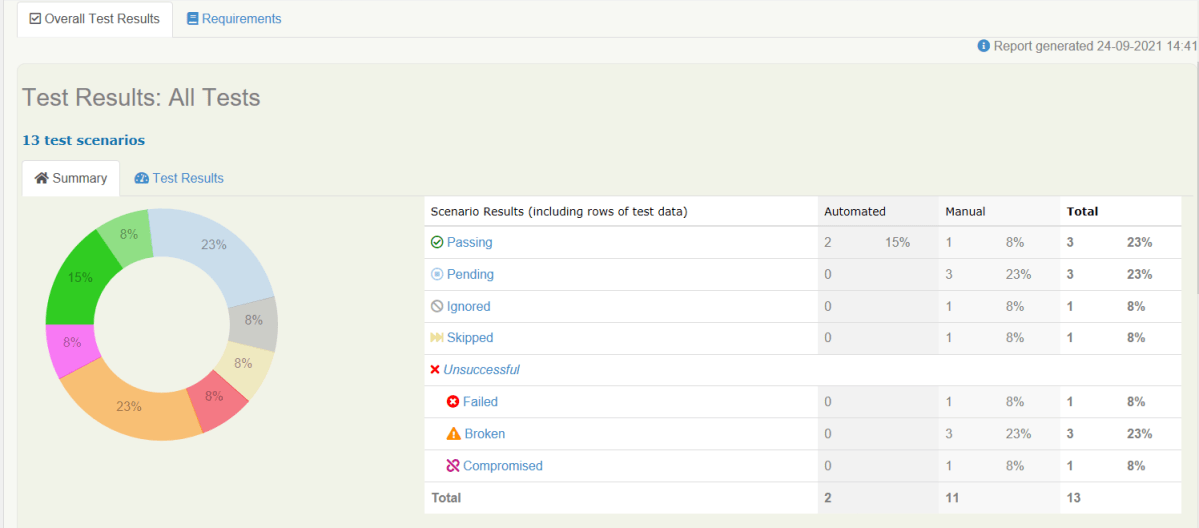
All scenarios highlighted by blue color are Pending ones whereas pink color are Broken ones.
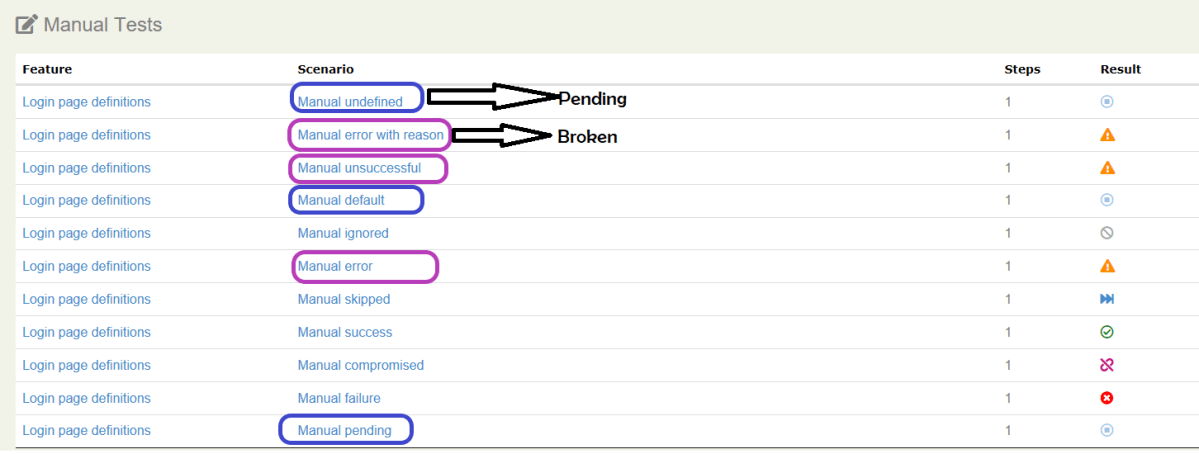
Serenity-Summary.html

We are done! Congratulations on making it through this tutorial and hope you found it useful! Happy Learning!!
How to attach Test Evidence to Manual Tests in Serenity Report

HOME

In the previous tutorial, I explained how to mention Manual Test Cases in Serenity Report. In this tutorial, I will explain how to attach test evidence to manual tests. Before this tutorial, I suggest you to refer the tutorial which explain How to generate Serenity Report.

It is always advisable to attach screenshots or other files to our manual test reports as additional evidence, specially for failed scenarios. The @manual-test-evidence tag allows you to do just this. You can either include a link to an external site, as shown here:

@manual
@manual-result:failed
@manual-last-tested:sprint-1
@manual-test-evidence:https://database/demo.png

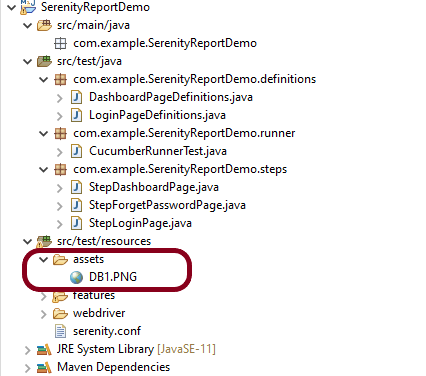
Mentioning the path of evidence in the test is not a very good way to attach test evidence to the manual tests. An alternative approach and favorable one is to place the image in the src/test/resources/assets folder and include a relative link to this file (starting with “assets/“):

    @manual
    @manual-result:failed
    @manual-last-tested:sprint-1
    @manual-test-evidence:assets/DB1.PNG
    Scenario: Verify different credentials are provided to Admin, Dev and QA to access Master Database
   
    Given User is connected to Master Database
    Then Different credentials are provided to Admin, Business, Dev and QA to access Master Database

Test Evidence is only displayed if the @manual-last-tested annotation is defined in serenity.properties.

serenity.project.name = Serenity and Cucumber Report Demo
current.target.version = sprint-1

Execute the test suite by using the below command

mvn clean verify

As we the the Serenity Reports (index.html and serenity-summary.html) are generated under target/site/serenity.

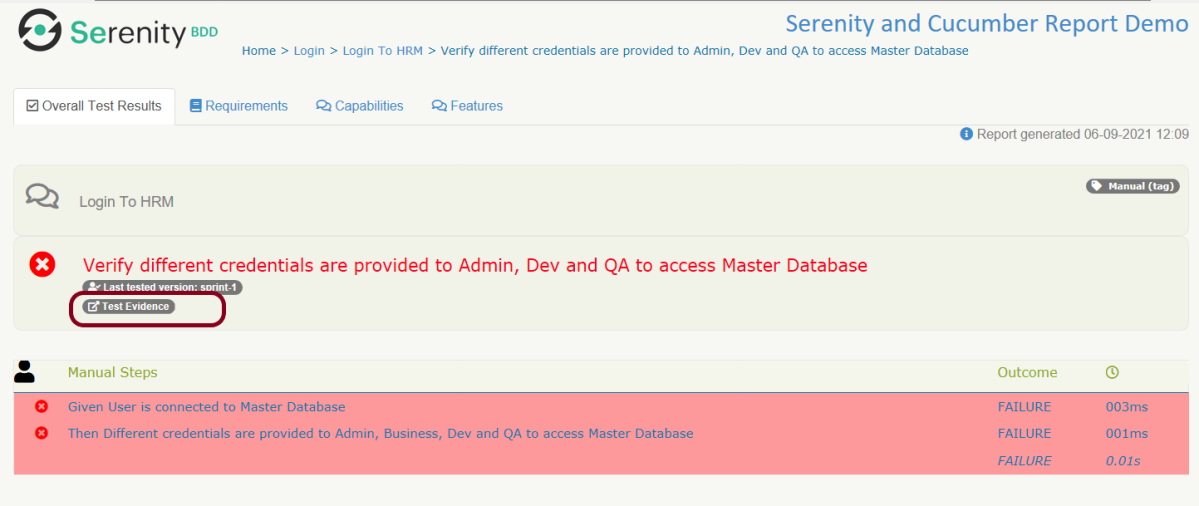
Below is the sample index.html report which has test evidence attached to the manual test.

You can see that there is a new tag with name – Test Evidence. This is the screenshot I have placed under assets folder.

Click on the link and a new page with the screesnhot placed under assets folder opens.

Congratulations. You are able to attach the test evidence to manual tests in Serenity Report. Hope you enjoyed this tutorial. Cheers!!

How to report Manual Tests in Serenity Report

HOME

Cucumber is primarily and traditionally used for automating executable specifications. But with Serenity BDD, you can add special tags to indicate that a scenario represents a manual test case.

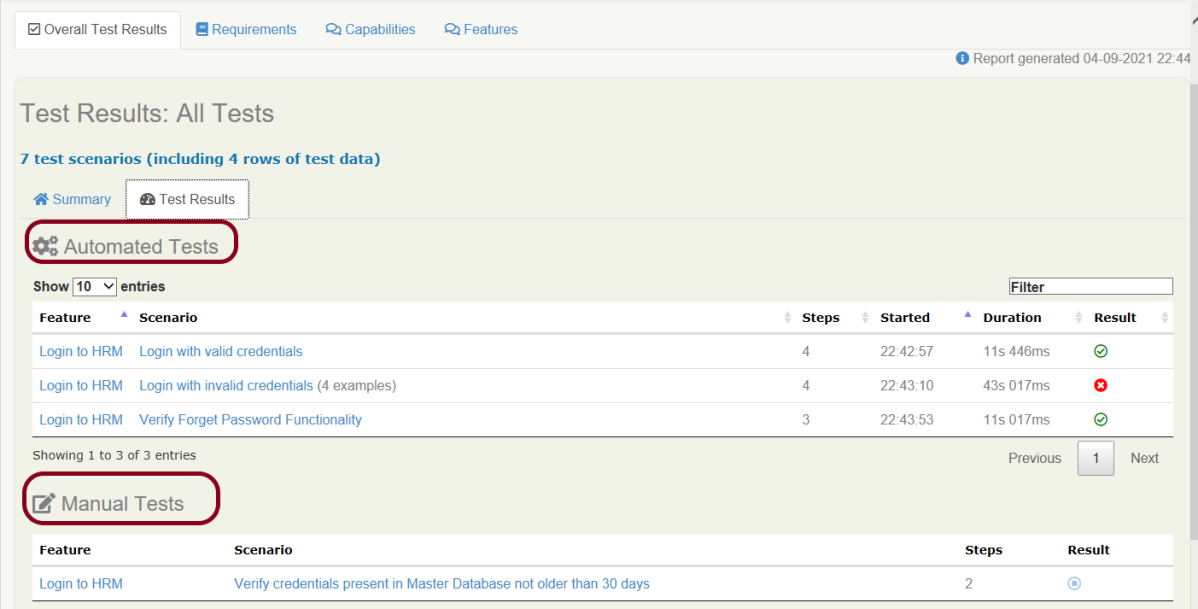
You can flag any Cucumber scenario as manual simply by using the @manual tag. In the below example, I have tagged a scenario as “@manual”. The last scenario is tagged as “manual”. By default, @manual scenarios are marked as pending in the Serenity reports.

Feature: Login to HRM  

   @ValidCredentials
   Scenario: Login with valid credentials
   
    Given User is on Home page
    When User enters username as "Admin"
    And User enters password as "admin123"
    Then User should be able to login successfully
    
    @InValidCredentials    
    Scenario Outline: Login with invalid credentials
   
    Given User is on Home page
    When User enters username as '<username>'
    And User enters password as '<password>'
    Then User should be able to see error message '<errorMessage>'
      
   Examples:
    |username  |password  |errorMessage                    |
    |admin     |admin     |Invalid credentials             |
    |          |admin123  |Username cannot be empty        | 
    |Admin     |          |Password cannot be empty        |
    |          |          |Username can be empty        |
 
   @ForgetPassword  
   Scenario: Verify Forget Password Functionality
   
    Given User is on Home page
    When User clicks on Forgot your password link
    Then User should be able to see new page which contains Reset Password button
   
   @manual
   Scenario: Verify credentials present in Master Database not older than 30 days
   
    Given User is connected to Master Database
    Then Username "Admin" and password "admin123" are present in Master Database not older than 30 days

Execute the test suite using below command

mvn clean verify

The scenario marked with @manual tag will now appear as a Manual test case in the Serenity report (Index.html). To know how to create Serenity Report, click here.

We can indicate a different result by adding the @manual-result tag as shown here:

A passing test: @manual-result:passed
A failing test: @manual-result:failed
A compromised test: @manual-result:compromised

If we want to record the result of a manual test, we should include both the @manual and the @manual-result tags.

   @manual
   @manual-result:passed
   Scenario: Verify credentials present in Master Database not older than 30 days
   
   Given User is connected to Master Database
   Then Username "Admin" and password "admin123" are present in Master Database not older than 30 days
    
   @manual
   @manual-result:failed
   Scenario: Verify different credentials are provided to Admin, Dev and QA to access Master Database
   
   Given User is connected to Master Database
   Then Different credentials are provided to Admin, Business, Dev and QA to access Master Database

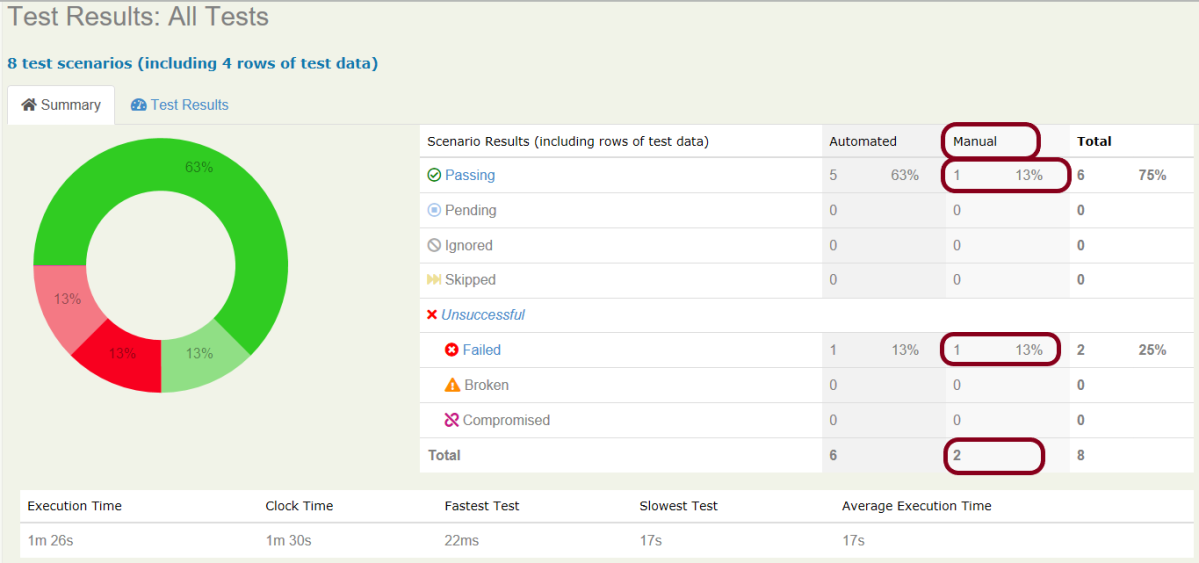
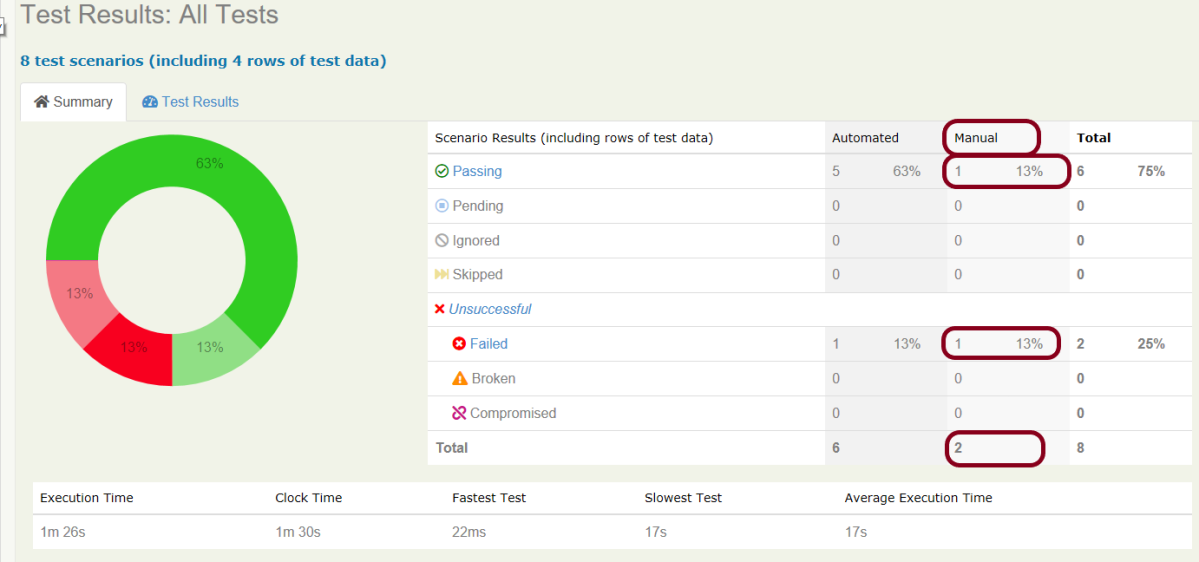
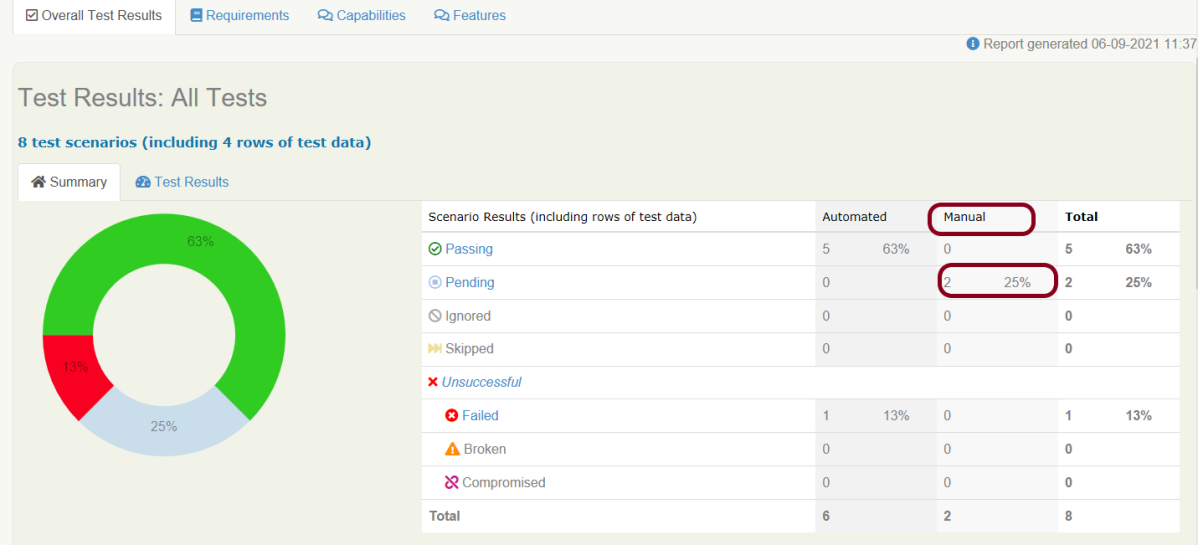
This image shows that there are 2 manual tests. I have marked one manual test as passed and another one as failed which is clearly shown in this image.

How to update Manul Test Results

In the below example, we are considering that the team is working on Sprint-1. We have executed the manual tests and marked the status in the feature file as shown below.

  @manual
  @manual-result:passed
  @manual-last-tested:sprint-1
  Scenario: Verify credentials present in Master Database not older than 30 days
   
  Given User is connected to Master Database
  Then Username "Admin" and password "admin123" are present in Master Database not older than 30 days
    
  @manual
  @manual-result:failed
  @manual-last-tested:sprint-1
  Scenario: Verify different credentials are provided to Admin, Dev and QA to access Master Database
   
  Given User is connected to Master Database
  Then Different credentials are provided to Admin, Business, Dev and QA to access Master Database

In the Serenity properties , the team also records the current version (or sprint number):

serenity.project.name = Serenity and Cucumber Report Demo
current.target.version = sprint-1

Now, execute the feature file. This is how the report look like.

Now, we are in next sprint. Update the value of current.target.version in serenity.properties file.

serenity.project.name = Serenity and Cucumber Report Demo
current.target.version = sprint-2

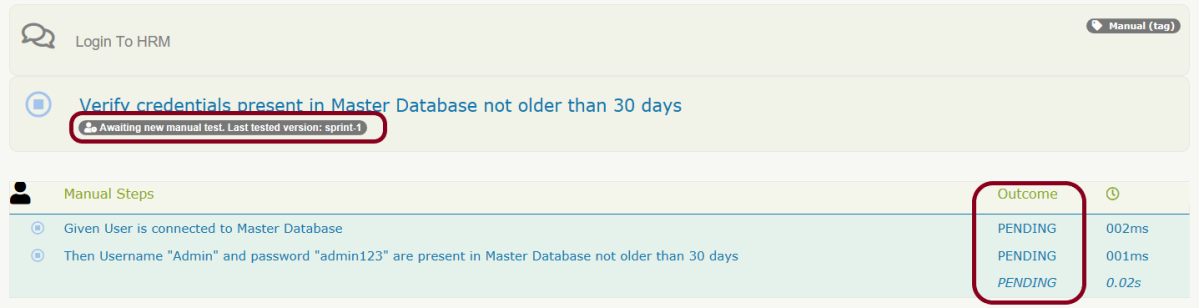
Now, when the manual scenario is processed, it will be marked as pending, with a note indicating that a new manual test is required:

Both the maual tests which were marked as pass and fail are now pending tests as shown in the image.

We are done! Congratulations on making it through this tutorial and hope you found it useful! Happy Learning!!