How to Download & Install Java JDK 11 in Windows

HOME

The Java Development Kit(JDK) allows you to code and run Java programs. The JDK is essentially a toolkit that provides the necessary components to write, compile, and run Java programs. It includes the Java Runtime Environment (JRE), compilers, and various tools such as debuggers and documentation generators. In this tutorial, we show you how to install Java 11 on Windows and set up the environment variable JAVA_HOME

Download Java

1. Refer to the link to download JDK11. Here, I have a 64-bit system and windows operating system, so I selected –  jdk-11.0.16.1_windows-x64_bin.exe

2. Click on the name – jdk-11.0.816.1_windows-x64_bin.exe, and a dialog box as shown below will appear.

3.  If you do not have an Oracle account, then go to the AdoptOpenJDK link . AdoptOpenJDK uses infrastructure, build and test scripts to produce prebuilt binaries from OpenJDK™ class libraries and a choice of either OpenJDK or the Eclipse OpenJ9 VM. All AdoptOpenJDK binaries and scripts are open sources licensed and available free.

Select appropriate version and JVM.

Here, I have selected Version – OpenJDK 11 and JVM as HotSpot. Click on the blue download button. It will take you to the new location.

4.  Select the appropriate Operating System, Architecture, Package Type & Version. I have selected OS as Windows, Architecture as x64, Package Type as JDK, and Version as 11. Select the .zip extension and download the exe.

5. Once the file is downloaded, Right-click and extract the files to the desired location. I have placed it in C: driver under Program Files.

How to set Java JDK 11 Path in Windows 10?

1.  Type – “View Advance” in the search option and we will see the option – View Advanced system setting. 

2. In System Properties dialog, select Advanced tab and click on the Environment Variables button.

3. In “Environment variables” dialog, system variables. Click on the New button. Add a JAVA_HOME variable and specify the variable value. Mention the path where the Java folder is located.

4. Update System Path. In the “Environment Variables” window, go to “System variables.” Select Path and click Edit. Add the path of Java with bin.

To verify, if JAVA is installed properly or not, open command prompt and type

java - version

To verify, if JAVA_HOME is configured properly or not, open command prompt and type

echo %JAVA_HOME%

runAsync and supplyAsync in ComputableFuture in Java8

This tutorial is to explain the functionality of ComputableFuture class introduced as Java 8 Concurrency API improvement.

ComputableFuture class implements the Future interface; means can be use for future implementation but with additional logic. 
Static methods runAsync and supplyAsync allow us to create a ComputableFuture instance out of Runnable and Supplier functional types accordingly.

runAsync  – Returns a new CompletableFuture that is asynchronously completed by a task running in the ForkJoinPool.commonPool() after it runs the given action. It returns the new CompletableFuture.

CompletableFuture<Void> java.util.concurrent.CompletableFuture.runAsync(Runnable runnable)

ComputableFuture.runAsync accepts Runnable functional interface and return a ComputableFuture which doesn’t have value

import java.util.concurrent.CompletableFuture;
import java.util.concurrent.ExecutionException;
import org.junit.Test; 
 
 public class runAsyncDemo {
     @Test
      public void runAsync() throws InterruptedException, ExecutionException {
           CompletableFuture future = CompletableFuture.runAsync(() -> System.out.println("runAsync method doesn not return any value"));
           System.out.println(future.get());
   }
}

Output
runAsync method does not return any value
null

How to use Java Lambda expression to create thread via Runnable function


Lambda expressions are introduced in Java 8. It represents one method interface called functional interface.
In this tutorial, we will see how to create a new Thread in Java using Lambda expression.

public class LambdaThreadDemo {
public static void main(String[] args) {
 
    // Implementing Runnable using old way
     Runnable runnable = new Runnable() {

     @Override
      public void run() {
            System.out.println("Old Thread name : "+ Thread.currentThread().getName());
         }
       };
    Thread thread1 = new Thread(runnable);
 
    // Implementing Runnable using Lambda Expression
     Runnable runnable_new = () -> { System.out.println("New Thread name : "+ Thread.currentThread().getName());
        };
     Thread thread_new = new Thread(runnable_new);
 
    // Start Threads
    thread1.start();
    thread_new.start();
   }
}

Output
Old Thread name : Thread-0
New Thread name : Thread-1

This Keyword in Java

HOME


This keyword refers to current object in a method or constructor. The most common use of this keyword is to eliminate the confusion between class variables and parameters of same name.

this can also be used to:

  • Invoke current class instance variable
  • Invoke current class method
  • Invoke current class constructor
  • Pass as an argument in the method call
  • Pass as an argument in the constructor call
  • Return the current class object

Invoke current class instance variable

Here, this keywords can be used to refer or invoke the current class instance variable. Suppose the class variables and parameters share the same name, then this ambiguity can be resolved by the use of this keyword.

public class Employee {
     String name;
     String EmpId;
     Employee(String name, String EmpId) {
           name = name;
           EmpId = EmpId;
      }
      void display() {
            System.out.println(name + " " + EmpId);
      }
      public static void main(String[] args) {
            Employee E1 = new Employee("Vibha", "IT0047");
            Employee E2 = new Employee("Abha", "IT0045");
            E1.display();
            E2.display();
     }
}

Output
null null 
null null

The solution to the problem where both class instance variables and parameters have same name can be resolved with the help of this keyword as shown below.

public class Employee {
     String name;
     String EmpId;
 
     Employee(String name, String EmpId) {
         this.name = name;
         this.EmpId = EmpId;
     }
 
      void display() {
          System.out.println(name + " " + EmpId);
      }
 
       public static void main(String[] args) {
             Employee E1 = new Employee("Vibha", "IT0047");
             Employee E2 = new Employee("Abha", "IT0045");
             E1.display();
             E2.display();
    }
}

Output
Vibha IT0047
Abha IT0045

Invoke current class method

The current class method invoked by using this keyword. Here, both display1() and this.display1() means the same.

public class ThisInvokeCurrentClassMethod {
 
    void display1() {
         System.out.println("This is display 1 method");
     }
 
     void display2() {
           System.out.println("This is display 2 method");
           display1();
           this.display1();
     }
 
     public static void main(String[] args) {
           ThisInvokeCurrentClassMethod obj1 = new ThisInvokeCurrentClassMethod();
           obj1.display2(); 
     }
}
 
Output
This is display 2 method
This is display 1 method

Invoke current class constructor

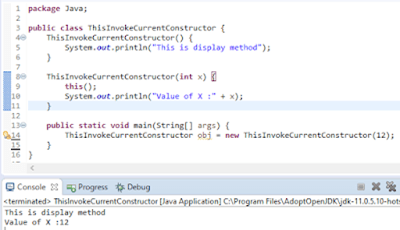
The current class constructor can be invoked by using this keyword. This is used to reuse the constructor.

public class ThisInvokeCurrentConstructor {
     ThisInvokeCurrentConstructor() {
           System.out.println("This is display method");
     }
 
     ThisInvokeCurrentConstructor(int x) {
         this();
         System.out.println("Value of X :" + x);
     }
 
     public static void main(String[] args) {
        ThisInvokeCurrentConstructor obj = new ThisInvokeCurrentConstructor(12);
    }
}
 
Output
This is display method
Value of X :12

How to create first Selenium WebDriver Script using Java

We assume here that Selenium WebDriver is download and installed with Eclipse. If not, please refer this link

In this tutorial, we will see how to create a simple Selenium WebDriver script using JAVA. The most important thing is that JAVA, Eclipse and Selenium WebDriver are already install in the machine. If not, then please refer the link – How to Download & Install Selenium WebDriver.

To create our first Selenium WebDriver Script, we have to create a Java Project, Package and Class in Eclipse.

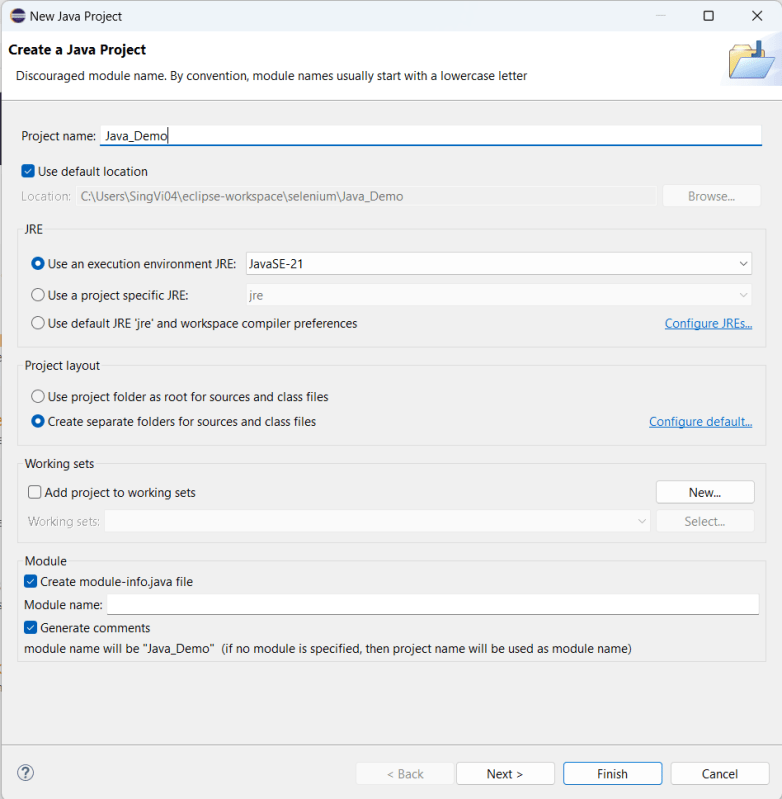
1. Create a Java Project “AutomationSuite” – Click File ->New ->Other ->Project ->Java Project. Click Next.

  • Provide Package Name – here I have provided AutomationSuite 
  • JRE – Use an execution environment JRE: JavaSE-1.8 (This is the version of Java on your machine)
  • Project Layout – Create separate folders for source and class files

ii. Create a package “SeleniumTutorial” – Right click Java Project (AutomationSuite) ->Click File ->New ->Package

iii. Create a Java Class “FirstProgram” – Right click Java Package (SeleniumTutorial) ->Click File ->New ->Class

  • Name: Name of the class (FirstProgram)
  • Modifiers – Public
  • Which method stubs would you like to create – public static void main(String[] args) and click Finish

Above displayed image explains the structure of Project in Eclipse.

Add Selenium Jar files to the Java Project


1.  Right click on AutomationSuite and click on Properties.

2.  Click on Java Build Path. Select Libraries. Click on – Add External JARs

3.  Go to the path where Selenium WebDriver JAR folder was downloaded and select 2 JAR files – client-combined-3.141.59 and client-combined-3.141.59-sources and click on Open button.

4. Similarly, go to Lib folder of Selenium file and select the entire JAR present there

5. To verify that the JAR’s are added or not, click on Referenced Libraries and will see all these JARs are present here. For more details, refer the link

Scenario:


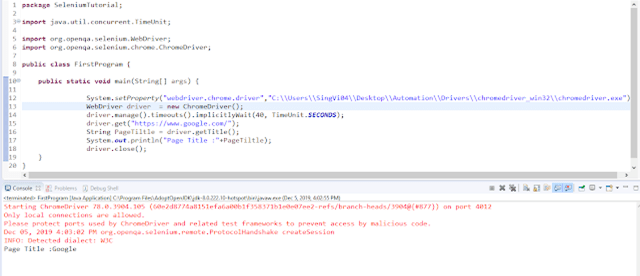
To open appropriate URL and verify the title of the home page
Steps:
i. Open Chrome browser
ii. Go to the specified URL – http://www.google.com
iii. Verify the title and print the output of the title
iv. Close the Chrome browser

import java.util.concurrent.TimeUnit;
import org.openqa.selenium.chrome.ChromeDriver;
 
public class FirstProgram {
       
     public static void main(String[] args) {
               
 System.setProperty("webdriver.chrome.driver","C:\\Users\\vibha\\Downloads\\Drivers\\chromedriver_win32\\chromedriver.exe"");

         WebDriver driver = new ChromeDriver();
         driver.manage().timeouts().implicitlyWait(40, TimeUnit.SECONDS);
         driver.get("https://www.google.com/");
         String PageTiltle = driver.getTitle();
         System.out.println("Page Title :"+PageTiltle);
         driver.close();
     }
}

To run this program, go to Run->Run or Green Icon shown below

Constructors in Java


A constructor initializes an object when it creates. It has the same name as its class and is syntactically similar to a method. However, constructors have no explicit return type.

Every time an object is created using the new() keyword, at least one constructor is called.

ConstructorDemo demo = new ConstructorDemo();

It calls a default constructor if there is no constructor available in the class. In such case, Java compiler provides a default constructor by default. Let me explain constructor with the help of a simple program. Here I have created a class ConstructorDemo, created its constructor and then create the object demo which will in turn will call the constructor too.

//Create a Class ConstructorDemo 
public class ConstructorDemo   
{ 
   int x;
 //Create a Constructor for class ConstructorDemo 
   ConstructorDemo()
   {
                   x=24;
   }
         public static void main(String[] args) {
            
                //Create an object of class Constructor and will call the constructor
                 ConstructorDemo demo = new ConstructorDemo();
                  System.out.println("Value of x: "+demo.x);
      }
} 

Output
Value of x:24

Things to remember for a Constructor:-

  • Constructor name must be the same as its class name
  • A Constructor must have no explicit return type
  • A Java constructor cannot be abstract, static, final, and synchronized

There are two types of constructors in Java: no-arg constructor, and parameterized constructor.

No Argument Constructor – Here, constructor does not have any argument.

public class DefaultConstructorStudent {
    String Name;
     DefaultConstructorStudent()
    {
            System.out.println("Display details of Student");
       }
      public static voidmain(String[] args) {
           DefaultConstructorStudent stud = newDefaultConstructorStudent();
     }
}

Output
Display details of Student

Parameterized Constructor – A constructor that has a specific number of parameters called a parameterized constructor.

In this example, I have a parameterized constructor with two parameters Name and RollNo. While creating the objects stud1 and stud2, I have passed two arguments so that this constructor gets invoked after creation of stud1 and stud2.

public class ParameterizedStudent {
    String Name;
    int RollNo;
ParameterizedStudent(String New_Name,int New_RollNo)

     {
          Name = New_Name;
          RollNo = New_RollNo;
     }
 
   void DisplayInformation()
   {
        System.out.println("Name: "+Name+", "+"Roll_No: "+RollNo);
   }
        public staticvoid main(String[] args) {
 
            ParameterizedStudent stud1 = newParameterizedStudent("TOM",001);
            ParameterizedStudent stud2 = newParameterizedStudent("MIKE",002);
            stud1.DisplayInformation();
            stud2.DisplayInformation();              
       }
}
 
Output 
Name: TOM, Roll_No: 1
Name: MIKE, Roll_No: 2

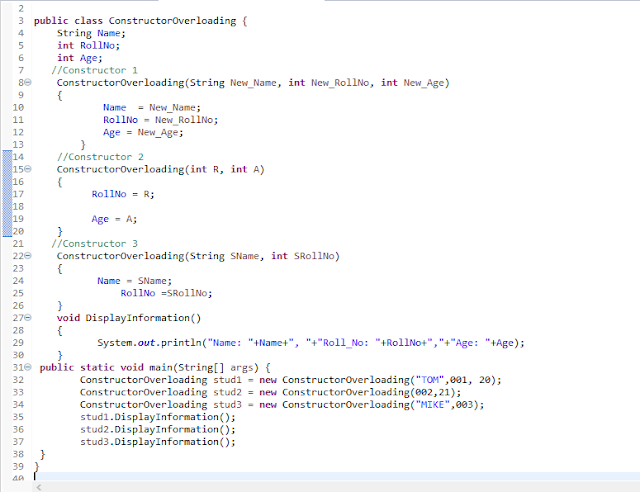
Constructor Overloading – This is same as method overloading. Here will have more than one constructor with different parameter lists. Constructors overloaded if they have either different number or parameters, different data type of parameters or different sequence of parameters.

public class ConstructorOverloading {
      String Name;  
      int RollNo;
      int Age;

      //Constructor 1 
      ConstructorOverloading(String New_Name, int New_RollNo, int New_Age)
      {
          Name  = New_Name;
          RollNo = New_RollNo;
          Age = New_Age;
      }

      //Constructor 2
       ConstructorOverloading(int R, int A)
       { 
           RollNo = R;
           Age = A;              
       }

      //Constructor 3 
       ConstructorOverloading(String SName, int SRollNo)
       {
           Name = SName;
           RollNo =SRollNo;
       }
       voidDisplayInformation()
       {
            System.out.println("Name: "+Name+", "+"Roll_No: "+RollNo+","+"Age: "+Age);
       }

      public static void main(String[] args) {
        ConstructorOverloading stud1 = newConstructorOverloading("TOM",001, 20);
        ConstructorOverloading stud2 = newConstructorOverloading(002,21);
        ConstructorOverloading stud3 = newConstructorOverloading("MIKE",003);
        stud1.DisplayInformation();
        stud2.DisplayInformation();
        stud3.DisplayInformation();
     }
}

Output
Name: TOM, Roll_No: 1,Age: 20
Name: null, Roll_No: 2,Age: 21
Name: MIKE, Roll_No: 3,Age: 0

Methods in Java

HOME

modifier returnType nameOfMethod (Parameter List) {
   // method body  }

Here,

  • modifier − It defines the access type of the method like public, protected, default, private
  • returnType − Method may return a value or not. Void does not return any value.
  • nameOfMethod − This is the method name. The method signature consists of the method name and the parameter list.
  • Parameter List − The list of parameters, it is the type, order, and number of parameters of a method. These are optional, method may contain zero parameters.
  • method body − The method body defines what the method does with the statements.
public static int methodName(int a, int b) {
      // body
   }

public class Method_Example {

    public static void main(String[] args) {

        //Standard Library Method
        System.out.println("Square root of 9 is : " + Math.sqrt(9));

        //User defined Method
        MyMethod();
    }

    public static void MyMethod()
    {
        System.out.println("My User defined Method");
    }
}

Java Methods with Arguments and Return Value

A Java method can have zero or more parameters, and they may return a value.

public class Min_Method {

    public static void main(String[] args) {
        int a = 10;
        int b = 5;
        int c = minMethod(a,b);
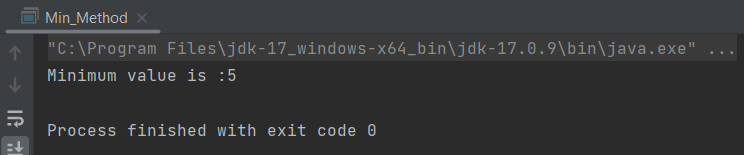
                System.out.println("Minimum value is :" + c);
    }

    //Define function min_function
    public static int minMethod(int x, int y)
    {
        int min;
        if (x>y)
            min =y;
        else
            min = x;
        //return value
        return min;
    }
}

Void Keyword

The void keyword allows us to create methods that do not return a value. When a method’s return type is void, it means that the method performs some operation or task but does not produce any result that needs to be returned to the caller.

public class Min_Method {

    public static void main(String[] args) {

        int a = 10;
        int b = 5;

        //Call function
        minMethod(a,b);
    }

    //Define function min_function
    public static void minMethod(int x, int y)
    {
        int min;
        if(x>y)
            min =y;
        else
            min = x;
        System.out.println("Minimum value is :" + min);
    }
}

Method Overloading

When a class has two or more methods by the same name but different parameters, it known as method overloading. To know more about method overloading, click here.

public class Overloading_Example {
    
        public static void main(String[] args) {

            int a= 10;
            int b = 24;
            double c = 12.0;
            double d = 13.0;
            min_function(a, b);
            min_function(c,d);
        }

        public static void min_function(int x, int y)
        {
            int min;
            if(x>y)
                min = y;
            else
                min = x;

            System.out.println("Minimum value for integer is :"+ min);
        }

        public static void min_function(double m, double n)
        {
            double min;
            if(m>n)
                min=n;
            else
                min=m;
            System.out.println("Minimum value for integer is :"+ min);
        }
    }

What is main method in Java?

The main()method is the entry point into the application. The signature of the method is always: public static void main(String[] args).

Loop Control Statements in Java – For, While, Do While, Enhanched For Loop

HOME

Syntax

for(Variable Initialization; Boolean_Expression Test; Increment/Decrement){
   //Statements
    }
 
    for (int i = 0; i < 5; i++) {
    System.out.println(i);
    }

Example

   public class For_loop {
     public static void main(String[] args) {
       for(int i=0;i<5;i++)
    {
       System.out.println("Value of i is: "+i);
    }
   System.out.println("-----------------------------------------------------");
       for (int j=5;j>0;j--)
       {
              System.out.println("Value of j is: "+j);
        }
     }
   }
 
Output
Value of i is: 0
Value of i is: 1
Value of i is: 2
Value of i is: 3
Value of i is: 4
--------------------------------------------------------
Value of j is: 5
Value of j is: 4
Value of j is: 3
Value of j is: 2
Value of j is: 1
  •    Statement 1 sets a variable before the loop starts (int i = 0).
  •    Statement 2 defines the condition for the loop to run (i must be less than 5). If the condition is true, the loop will start over again, if it is false, the loop will end.
  •    Statement 3 increases a value (i++) each time the code block in the loop has been executed.

2) While Loop

 The Java while loop is used to iterate a part of the program several times. If the number of iteration is not fixed, it is recommended to use while loop.

Syntax

   while(Boolean_Expression Test)
    {
        //Statements
    }

Example

  public class While_Loop {
    public static void main(String[] args) {
       int i=0;
       while (i<15)
       {
            i=i+3;
            System.out.println("Value of i is :"+i);
         }
  System.out.println("--------------------------------------------"); 
  // In this case, value of j will be 0 and it will run infinite times. 
    int j=0;
    while(j<15)
    System.out.println("Value of j is :"+j);
    {
       j=j+3;
    }
  }
 }

Output
Value of i is :3
Value of i is :6
Value of i is :9
Value of i is :12
Value of i is :15
--------------------------------------------
Value of j is :0
Value of j is :0

3) What is the difference between for and while loop?

While loop is used in situations where we do not know how many times loop needs to be executed beforehand.
For loop is used where we already know about the number of times loop needs to be executed. Typically for a index used in iteration.

4)  Do While Loop

A do while loop is exactly similar to while loop and the only difference between two is that the do while loop executes the statement at least one time. As it start with do keyword and the boolean expression appears at the end of the loop.

Syntax

   do{
         //Statements
       }while(Boolean_Expression Test);

Example

public class Do_While_Loop {
       public static void main(String[] args) {  
         int i=0;
          do 
          {
             i=i+3
             System.out.println("Value of i is :"+i);
           }
           while (i<15);
           System.out.println("-------------------------------------------");
           //Condition is already satisfied, still 1 round of execution
           int j=10;
           do
          {
            j=j+2;
            System.out.println("Value of i is :"+j);
           }
       while (j<10);
       }
   } 
   
Output
Value of i is :3
Value of i is :6
Value of i is :9
Value of i is :12
Value of i is :15
-----------------------------------------------------
Value of i is :12

5) What is the difference between While Loop or do- while loop?

1) while loop first check the condition then enter the body whereas do-while first enter the body and then check the condition.
2) while is a entry controlled loop whereas do-while is an exit controlled loop.
3) In while, condition comes before the body whereas in do-while, condition comes after the body.

6) Enhanced for loop in Java

 It is used to traverse array or collection in java. It is easier to use than simple for loop because we don’t need to increment value and use subscript notation.

It works on elements basis, not index. It returns element one by one in the defined variable.

Syntax

for (data_type variable: array_name)

Example

public class Enhanced_Loop {
       public static void main(String[] args) {

          // Array of String storing days of the week
           String days[] = { "Mon", "Tue", "Wed", "Thr", "Fri", "Sat", "Sun"};
           
           // Enhanced for loop, this will automatically iterate on the array list 
           for (String dayName : days) 
          {
             System.out.println("Days ==> "+ dayName);
           }
             System.out.println("");
             
             // Normal for loop
           for (int i=0; i < days.length; i++) {
               System.out.println("Days ==> "+ days[i]);
           }
       }
   }

Output
Days ==> Mon
Days ==> Tue
Days ==> Wed
Days ==> Thr
Days ==> Fri
Days ==> Sat
Days ==> Sun 
 
Days ==> Mon
Days ==> Tue
Days ==> Wed
Days ==> Thr
Days ==> Fri
Days ==> Sat
Days ==> Sun

Decision Making in Java – If, If Else, Switch, Break, Continue

HOME
  

Decision making in Java is same as real life decision making. I remember during my childhood, my father had told me once that if I get 1st rank in class will get a bicycle, else if 2nd will get a walk man, else if 3rd video game else nothing. This is an ideal example of if-else scenario. If a particular condition is true, then execute the specified block of code. In programming language too, we execute certain lines of code if the condition is satisfied. In programming language too, we follow the similar concept, such as

• Block of code to be executed, if a specified condition is true
• Use else to specify a block of code to be executed, if the same condition is false
• Use else if to specify a new condition to test, if the first condition is false
• Use switch to specify many alternative blocks of code to be executed

The if condition 

if (condition) {
    // block of code to be executed if the condition is true
public class Java_Demo {
    public static void main(String[] args) {
        int x=50;
        int y=10;
       
	    if(x>y)
       {
            System.out.println("x is greater than y");
       }
    }
}

Output
x is greater than y

 If we do not provide the curly braces ‘{‘ and ‘}’ after if(condition ) then by default if statement will consider the immediate one statement to be inside its block. For example,

if(condition)
     statement1;
     statement2;

  // Here if the condition is true, if block will consider only statement1 to be inside its block.

     Use the else statement to specify a block of code to be executed if the condition is false.

The else Statement

if (condition) {
    // block of code to be executed if the condition is true
   } else { 
    // block of code to be executed if the condition is false
   } 
 public class Java_Demo {
     public static void main(String[] args) {
         int x=5;
         int y=10;
         if(x>y)
            {
                System.out.println("x is greater than y");
            }
          else
            {
                System.out.println("y is greater than x");
            }
        }
    }

Output
y is greater than x

The else if Statement Use the else if statement to specify a new condition if first condition is false.

If (condition1) {
     // block of code to be executed if condition1 is true
   } else if (condition2) {
    // block of code to be executed if the condition1 is false and condition2 is true
   } else {
    // block of code to be executed if the condition1 is false and condition2 is  false
   }
public class Java_Demo {

	public static void main(String[] args) {
		int x = 10;
		int y = 10;
		if (x > y) {
			System.out.println("x is greater than y");
		} else if (y > x) {
			System.out.println("y is greater than x");
		} else {
			System.out.println("x is equal to y");
		}
	}
}

Output
x is equal to y

Switch Statement

  • The switch expression is evaluate once.
  • The value of the expression is compare with the values of each case.
  • If there is a match, the associated block of code is execute.
  • The break and default keywords are optional

    Use the switch statement to select one of many code blocks to execute. It is use to replace multilevel if-else-if statement. 
However, the switch statement can be use only if the conditions based on the same constant value.

  switch(expression) {
       case x:
      // code block
       break;
       case y:
     // code block
       break;
      default:
      // code block
   }

 The default statement is use as the last statement in a switch block; it does not need a break.

 When Java reaches a break keyword, it breaks out of the switch block.

public class Switch_Statement {
    public static void main(String[] args) {
		int month_no = 3;
		switch (month_no) {
		case 1:
			System.out.println("January");
			break;
		case 2:
			System.out.println("February");
			break;
		case 3:
			System.out.println("March");
			break;
		case 4:
			System.out.println("April");
			break;
		case 5:
			System.out.println("May");
			break;
		case 6:
			System.out.println("June");
			break;
		default:
			System.out.println("Rest of months");
		}
	}
}

Output
March

Default Keyword

The default keyword specifies that specific code will run if there is no case match.

public class Default_Demo {

	public static void main(String[] args) {
		int month_no = 9;
		switch (month_no) {
		case 1:
			System.out.println("January");
			break;
		case 2:
			System.out.println("February");
			break;
		case 3:
			System.out.println("March");
			break;
		case 4:
			System.out.println("April");
			break;
		case 5:
			System.out.println("May");
			break;
		case 6:
			System.out.println("June");
			break;
		default:
			System.out.println("Rest of months");
		}
	}
}

Output
Rest of months

Break Statement

 It terminates the loop by skipping the execution of any remaining code
public static void main(String[] args) {
    for(int i=0;i<5;i++)
      {
         if(i==2)
         break;
         System.out.println("Value of i is: "+i);
       }
         System.out.println("Loop finishes");
     }
   }

Output
Value of i is: 0
Value of i is: 1
Loop finishes

Continue Statement


It continue running the loop, just skip a particular iteration of the loop.

public class Continue_Demo {
   public static void main(String[] args) {
        for(int i=0;i<5;i++)
         {
             if(i==2)
             continue;
             System.out.println("Value of i is: "+i);
           }
         System.out.println("Loop finishes");
     }
  }

Output
Value of i is: 0
Value of i is: 1
Value of i is: 3
Value of i is: 4
Loop finishes

Arrays in Java

HOME

 1256661589473369

ArrayDataType[] ArrayName;
String[] days;

Creating an Array

 You can create array by using new operator.

arrayRefVar = new dataType[arraySize];

Declaring an array variable, creating an array, and assigning the reference of the array to the variable can be combine in one statement, as shown below:

 dataType[] arrayRefVar = new dataType[arraySize];

Alternatively, you can create arrays as follows:

dataType[] arrayRefVar = {value0, value1, ..., valuek}; 

The array elements are access through the index.

Array indices are 0-based; that is, they start from 0 to arrayRefVar.length-1.

Assigning values to an Array

How to initialize an array during declaration.

ArrayType [] ArrayName = New ArrayType [Size of an Array];

String[] Days = new String[6];
Days[0] = "Monday";
Days[1]="Tuesday";
Days[2]="Wednesday";
Days[3]="Thursday";
Days[4]="Friday";
Days[5]="Saturday";
Days[6]="Sunday";

Another way

String[] Days =  {"Monday","Tuesday","Wednesday","Thursday","Friday","Saturday","Sunday"}

public class Array_Example {

    public static void main(String[] args) {

        String[] Days= {"Monday","Tuesday","Wednesday","Thursday","Friday","Saturday","Sunday"};

        //Length of Array
        int len=Days.length;

        //Access first element
        System.out.println("First element in Array: "+Days[0]);

        //Last element
        System.out.println("First element in Array: "+Days[len-1]);

        //Print values
        for(int i=0;i<len-1;i++)
        {
            System.out.println("Value stored at position "+i+" is "+Days[i]);
        }
    }
}

Passing an Array to a Method

Array can be passed easily to a method as parameters, just as if we pass integers and strings to methods.

Below is an example of passing array to a method. 

public class Array_Example {

    public static void main(String[] args) {

        String[] Days= {"Winter","Spring","Summer","Autumn"};

        //Pass array as method
        print_arrays(Days);
    }

    public static void print_arrays(String[]array) {
        int len=array.length;
        System.out.println("Length of array :" + len);

        //Print values
        for(int i=0;i<=len-1;i++)
        {
            System.out.println("Value stored at position "+i+" is "+array[i]);
        }
    }
}


Multi Dimensional Arrays

It is also possible to create an array of arrays known as multidimensional array. For example,

    int[][] a = new int[3][4];

    int[][] a = {  {1, 2, 3},{4, 5, 6, 9},{7}};  

 Column1Column 2Column 3Column 4
Row 11         a[0][0]2     a[0][1]3        a[0][2]  a[0][3]
Row 24                a[1][0]5     a[1][1]6      a[1][2]9     a[1][3]
Row 37                a[2][0] a[2][1]  a[2][2] a[2][3]
public class Multidimensional_Array {

    public static void main(String[] args) {

        int a[][] = {{1,2,3},
                {4,5,6,9},
                {7}};

        //print length of columns
        System.out.println("Length of Row 1 is :"+a[0].length);
        System.out.println("Length of Row 2 is :"+a[1].length);
        System.out.println("Length of Row 3 is :"+a[2].length);
        System.out.println("----------------------");

        //Print all elements of array
        for (int i=0;i<a.length;i++)
        {
            for (int j=0;j<a[i].length;j++)
            {
                System.out.println("Value of row " + i + " and column " + j + " is " + a[i][j]);
            }
        }
    }
}

What is the difference between array and string?

  • Arrays can have any data type of any length while strings are usually ASCII characters that are terminated with a null character ‘\0’.
  • An array of characters is mutable, in other words, you can replace a character in an array of characters by overwriting the memory location for that character.
  • A String is not mutable, in other words, to “replace” a character in a String, you must build a new String with the desired character in place (copying the non-changing parts from the old String).                
  • All string literals are stored in the String constant pool. They remain in the pool until they became eligible for the garbage collection, while a Character array is stored in heap memory.                                               
  • Character array is preferred over string for storing passwords in java. As string is immutable, it makes string vulnerable for storing passwords, as we cannot get rid of passwords after use until garbage collector collects it.