How to Retry failed tests in TestNG – IRetryAnalyzer

HOME

TestNG is a well thought Test Framework. It provides a lot of different features which makes the life of a tester a little easy. It happens sometimes that a test execution fails, but the failure is not a product bug, but there can be different reasons for the failure such as the environment is down, third party web service is down, or the browser becomes unresponsive. Imagine a scenario where we need to run a test suite consisting of 100 tests and a few tests failed as a result of a known intermittent environment issue. We know that these tests can pass if rerun a couple of times. So, in this case, the retry functionality of TestNG comes to the rescue. This is one of the best and most frequently used functionality.

In this tutorial let us study how we can implement retry on failed tests in TestNG. In order to achieve this, we have to first understand the org.testng.IRetryAnalyzer interface.

To start with, please add the below dependencies to the Maven Project.

<dependencies>
  
      <dependency>
          <groupId>org.seleniumhq.selenium</groupId>
          <artifactId>selenium-java</artifactId>
          <version>3.141.59</version>
      </dependency>
      
      <dependency>
          <groupId>io.github.bonigarcia</groupId>
          <artifactId>webdrivermanager</artifactId>
          <version>5.1.0</version>
       </dependency>

      <dependency>
           <groupId>org.testng</groupId>
           <artifactId>testng</artifactId>
           <version>7.5</version>
           <scope>test</scope>
      </dependency>

  </dependencies>

IRetryAnalyzer – It is an interface to implement to be able to have a chance to retry a failed test. The definition of this interface is

public interface IRetryAnalyzer {

  /**
   * Returns true if the test method has to be retried, false otherwise.
   *
   * @param result The result of the test method that just ran.
   * @return true if the test method has to be retried, false otherwise.
   */
  boolean retry(ITestResult result);
}

This method implementation returns true if you want to re-execute your failed test and false if you don’t want to re-execute your test.

When you bind a retry analyzer to a test, TestNG automatically invokes the retry analyzer to determine if TestNG can retry a test case again in an attempt to see if the test that just fails now passes. Here is how you use a retry analyzer:

  1. Bind this implementation to the @Test annotation for e.g., @Test(retryAnalyzer = Retry.class)
  2. Build an implementation of the interface org.testng.IRetryAnalyzer

1. Add IRetryAnalyzer to the @Test Annotation

First of all, you need to create a class that implements the IRetryAnalyzer like the below example:

import org.testng.IRetryAnalyzer;
import org.testng.ITestResult;

public class Retry implements IRetryAnalyzer {
	
	int retryCount = 0;
	int maxRetryCount = 2;

	public boolean retry(ITestResult result) {
 
	if(!result.isSuccess()) {                         //Check if test is failed
		
		if(retryCount<maxRetryCount) {                //Check if the maximum number of test execution is reached
			System.out.println("Retrying Test : Re-running " + result.getName() +
 " for " + (retryCount+1) + " time(s)."); //Print the number of Retry attempts
			
			retryCount++;                             //Increase the maxRetryCount by 1
			
			result.setStatus(ITestResult.FAILURE);    //Mark test as failed
         return true;                                 //Rerun the failed test
		} else {
			result.setStatus(ITestResult.FAILURE);    //TestNG marks last run as failed, if last run is max retry
		} 
	  }else {
			result.setStatus(ITestResult.SUCCESS);    //TestNG parks test as passed when the test test passes
			
	  }
	
return false;
	}
}

This example shows that failed test case will run 3 times till it passes. In case it fails the third time, test execution will stop and TestNG will mark this case as failed. We can change the number of tries by changing the value of maxRetryCount.

Using retryAnalyzer attribute in the @Test annotation

The next step is to associate your test cases with IRetryAnalyzer. In order to do this, you need to use the method below.

@Test(retryAnalyzer = Retry.class)
public void verifyLoginPage() {
}

Let us see the complete implementation with the help of the below example.

import java.util.concurrent.TimeUnit;
import org.openqa.selenium.By;
import org.openqa.selenium.WebDriver;
import org.openqa.selenium.chrome.ChromeDriver;
import org.openqa.selenium.chrome.ChromeOptions;
import org.testng.Assert;
import org.testng.annotations.AfterTest;
import org.testng.annotations.BeforeTest;
import org.testng.annotations.Test;
import io.github.bonigarcia.wdm.WebDriverManager;

public class RetryFailedTests {
	
	WebDriver driver;
	 
    @BeforeTest
    public void setUp() {
    	 
    	WebDriverManager.chromedriver().setup();
    	 
        ChromeOptions chromeOptions = new ChromeOptions();
  
        driver = new ChromeDriver(chromeOptions);
        driver.get("https://opensource-demo.orangehrmlive.com/");
 
        driver.manage().window().maximize();
        driver.manage().timeouts().implicitlyWait(30, TimeUnit.SECONDS);
    }
 
    @Test(retryAnalyzer = Retry.class)
    public void verifyLoginPage() {
 
        String expectedTitle = driver.findElement(By.xpath("//*[@id='logInPanelHeading']")).getText();
 
        System.out.println("Title :" + expectedTitle);
        Assert.assertTrue(expectedTitle.equalsIgnoreCase("LOGIN Panel !!"));
    }
 
    @Test(retryAnalyzer = Retry.class)
    public void verifyHomePage() {
 
        System.out.println("Username Entered");
        driver.findElement(By.name("txtUsername")).sendKeys("Admin");
 
        System.out.println("Password Entered");
        driver.findElement(By.name("txtPassword")).sendKeys("admin123");
 
        driver.findElement(By.id("btnLogin")).submit();
 
        String newPageText = driver.findElement(By.id("welcome")).getText();
        System.out.println("newPageText :" + newPageText);
        Assert.assertTrue(newPageText.contains("Welcome"));
    }
 
    @AfterTest
    public void teardown() {
 
        driver.quit();
    }
 
}

In the above example, test – verifyLoginPage() will be retried a maximum of 3 times, if the test fails. To run the tests, Right-click on the class and select Run As ->TestNG Suite.

The output of the above program is

2. Implement Interface ITestAnnotationTransformer to retry failed tests

In this case, you would need to implement ITestAnnotationTransformer interface. The implementation of this interface is

public interface IAnnotationTransformer extends ITestNGListener {

  /**
   * This method will be invoked by TestNG to give you a chance to modify a TestNG annotation read
   * from your test classes. You can change the values you need by calling any of the setters on the
   * ITest interface.
   *
   * <p>Note that only one of the three parameters testClass, testConstructor and testMethod will be
   * non-null.
   *
   * @param annotation The annotation that was read from your test class.
   * @param testClass If the annotation was found on a class, this parameter represents this class
   *     (null otherwise).
   * @param testConstructor If the annotation was found on a constructor, this parameter represents
   *     this constructor (null otherwise).
   * @param testMethod If the annotation was found on a method, this parameter represents this
   *     method (null otherwise).
   */
  default void transform(
      ITestAnnotation annotation, Class testClass, Constructor testConstructor, Method testMethod) {
    // not implemented
  }

The transform method is called for every test during the test run. We can use this listener for our retry analyzer as shown below:

import java.lang.reflect.Constructor;
import java.lang.reflect.Method;
import org.testng.IAnnotationTransformer;
import org.testng.annotations.ITestAnnotation;

public class RetryListener implements IAnnotationTransformer{

	public void transform(ITestAnnotation arg0, Class arg1, Constructor arg2,Method arg3) {
		
			arg0.setRetryAnalyzer(Retry.class);
		}

	}

Now let us create a class that contains all the tests.

import java.util.concurrent.TimeUnit;
import org.openqa.selenium.By;
import org.openqa.selenium.WebDriver;
import org.openqa.selenium.chrome.ChromeDriver;
import org.openqa.selenium.chrome.ChromeOptions;
import org.testng.Assert;
import org.testng.annotations.AfterTest;
import org.testng.annotations.BeforeTest;
import org.testng.annotations.Test;
import io.github.bonigarcia.wdm.WebDriverManager;

public class RetryTests {
	
	WebDriver driver;
	 
    @BeforeTest
    public void setUp() {
    	 
    	 WebDriverManager.chromedriver().setup();
    	 
         ChromeOptions chromeOptions = new ChromeOptions();
  
         driver = new ChromeDriver(chromeOptions);
         driver.get("https://opensource-demo.orangehrmlive.com/");
 
         driver.manage().window().maximize();
         driver.manage().timeouts().implicitlyWait(30, TimeUnit.SECONDS);
    }
 
    @Test(description = "This test validates title of login functionality")
    public void verifyLoginPage() {
 
        String expectedTitle = driver.findElement(By.xpath("//*[@id='logInPanelHeading']")).getText();
 
        System.out.println("Title :" + expectedTitle);
        Assert.assertTrue(expectedTitle.equalsIgnoreCase("LOGIN Panel !!"));
    }
 
    @Test(description = "This test validates  successful login to Home page")
    public void verifyHomePage() {
 
        System.out.println("Username Entered");
        driver.findElement(By.name("txtUsername")).sendKeys("Admin");
 
        System.out.println("Password Entered");
        driver.findElement(By.name("txtPassword")).sendKeys("admin123");
 
        driver.findElement(By.id("btnLogin")).submit();
 
        String newPageText = driver.findElement(By.id("welcome")).getText();
        System.out.println("newPageText :" + newPageText);
        Assert.assertTrue(newPageText.contains("Welcome"));
    }
 
    @AfterTest
    public void teardown() {
 
        driver.quit();
    }
 
}

Once we have the implementation of IAnnotationTransformer, we just need to add it as a listener in the testng.xml. Like this:

<?xml version="1.0" encoding="UTF-8"?>
<!DOCTYPE suite SYSTEM "https://testng.org/testng-1.0.dtd">
<suite name="Suite">

<listeners>
<listener class-name="com.example.retrydemo.RetryListener"></listener>

</listeners>

  <test name="Test">
    <classes>
      <class name="com.example.retrydemo.RetryTests"/>
    </classes>
  </test> <!-- Test -->
</suite> <!-- Suite -->

Now let us run the tests. Right-click on testng.xml and select Run As -> TestNG Suite.

The output of the above program is

This is pretty much it on this topic. Congratulations on making it through this tutorial and hope you found it useful! Happy Learning!! Cheers!!
Integration Testing of Springboot with Cucumber and TestNG

HOME

In this tutorial, I am going to build an automation framework to test the Springboot application with Cucumber, Rest Assured, and TestNG.

What is Springboot?

Spring Boot is an open-source micro-framework maintained by a company called Pivotal. It provides Java developers with a platform to get started with an auto-configurable production-grade Spring application. With it, developers can get started quickly without losing time on preparing and configuring their Spring application.

What is Cucumber?

Cucumber is a software tool that supports behavior-driven development (BDD). Cucumber can be defined as a testing framework, driven by plain English. It serves as documentation, automated tests, and development aid – all in one.

This framework consists of:

  1. Springboot – 2.5.2
  2. Cucumber – 7.3.4
  3. Java 11
  4. TestNG – 7.3.4
  5. Maven – 3.8.1
  6. RestAssured – 5.1.1

Steps to setup Cucumber Test Automation Framework for API Testing using Rest-Assured

  1. Add SpringbootTest, Rest-AssuredJUnit, and Cucumber dependencies to the project
  2. Create a source folder src/test/resources and create a feature file under src/test/resources
  3. Create the Step Definition class or Glue Code for the Test Scenario under the src/test/java directory
  4. Create a Cucumber Runner class under the src/test/java directory
  5. Run the tests from Cucumber Test Runner
  6. Run the tests from Command Line
  7. Run the tests from TestNG
  8. Generation of TestNG Reports
  9. Cucumber Report Generation

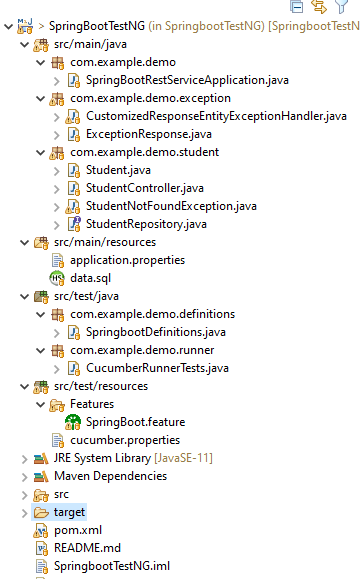
Below is the structure of a SpringBoot application project

We need the below files to create a SpringBoot Application.

SpringBootRestServiceApplication.java

The Spring Boot Application class is generated with Spring Initializer. This class acts as the launching point for the application.

import org.springframework.boot.SpringApplication;
import org.springframework.boot.autoconfigure.SpringBootApplication;

@SpringBootApplication
public class SpringBootRestServiceApplication {

    public static void main(String[] args) {

        SpringApplication.run(SpringBootRestServiceApplication.class, args);
    }
}

Student.java

This is JPA Entity for Student class

import javax.persistence.Entity;
import javax.persistence.GeneratedValue;
import javax.persistence.Id;
import javax.validation.constraints.NotBlank;
import javax.validation.constraints.NotNull;
import javax.validation.constraints.Size;

@Entity
public class Student {
    @Id
    @GeneratedValue
    private Long id;

    @NotNull
    @Size(min = 4, message = "Name should have atleast 4 characters")
    private String name;

    @NotBlank(message = "passportNumber is mandatory")
    private String passportNumber;

    public Student() {
        super();
    }

    public Student(Long id, String name, String passportNumber) {
        super();
        this.id = id;
        this.name = name;
        this.passportNumber = passportNumber;
    }

    public Long getId() {
        return id;
    }

    public void setId(Long id) {
        this.id = id;
    }

    public String getName() {
        return name;
    }

    public void setName(String name) {
        this.name = name;
    }

    public String getPassportNumber() {
        return passportNumber;
    }

    public void setPassportNumber(String passportNumber) {
        this.passportNumber = passportNumber;
    }
}

StudentRepository.java 

This is JPA Repository for Student. This is created using Spring Data JpaRepository.

import org.springframework.data.jpa.repository.JpaRepository;
import org.springframework.stereotype.Repository;

@Repository
public interface StudentRepository extends JpaRepository<Student, Long>{

}

StudentController.java

Spring Rest Controller exposes all services on the student resource.

import static org.springframework.hateoas.server.mvc.WebMvcLinkBuilder.linkTo;
import static org.springframework.hateoas.server.mvc.WebMvcLinkBuilder.methodOn;
import java.net.URI;
import java.util.List;
import java.util.Optional;
import javax.validation.Valid;
import org.springframework.beans.factory.annotation.Autowired;
import org.springframework.hateoas.EntityModel;
import org.springframework.hateoas.server.mvc.WebMvcLinkBuilder;
import org.springframework.http.ResponseEntity;
import org.springframework.web.bind.annotation.GetMapping;
import org.springframework.web.bind.annotation.PathVariable;
import org.springframework.web.bind.annotation.PostMapping;
import org.springframework.web.bind.annotation.RequestBody;
import org.springframework.web.bind.annotation.RestController;
import org.springframework.web.servlet.support.ServletUriComponentsBuilder;

@RestController
public class StudentController {

    @Autowired
    private StudentRepository studentRepository;

    @GetMapping("/students")
    public List<Student> retrieveAllStudents() {
        return studentRepository.findAll();
    }

    @GetMapping("/students/{id}")
    public EntityModel<Student> retrieveStudent(@PathVariable long id) {
        Optional<Student> student = studentRepository.findById(id);

        if (!student.isPresent())
            throw new StudentNotFoundException("id-" + id);

        EntityModel<Student> resource = EntityModel.of(student.get());

        WebMvcLinkBuilder linkTo = linkTo(methodOn(this.getClass()).retrieveAllStudents());

        resource.add(linkTo.withRel("all-students"));

        return resource;
    }

    @PostMapping("/students")
    public ResponseEntity<Object> createStudent(@Valid @RequestBody Student student) {
        Student savedStudent = studentRepository.save(student);

        URI location = ServletUriComponentsBuilder.fromCurrentRequest().path("/{id}")
                .buildAndExpand(savedStudent.getId()).toUri();

        return ResponseEntity.created(location).build();

    }
}

application.properties

Spring Boot automatically loads the application.properties whenever it starts up. You can de-reference values from the property file in the java code through the environment.

spring.jpa.defer-datasource-initialization=true

data.sql 

Data is loaded from data.sql into the Student table. Spring Boot would execute this script after the tables are created from the entities.

insert into student values(10001,'Annie', 'E1234567');
insert into student values(20001,'John', 'A1234568');
insert into student values(30001,'David','C1232268');
insert into student values(40001,'Amy','D213458');

Test Automation Framework Implementation

Step 1 – Add SpringbootTest, Cucumber, Rest-Assured, and TestNG dependencies to the project (Maven project)

 <properties>
        <project.build.sourceEncoding>UTF-8</project.build.sourceEncoding>
        <rest-assured.version>5.1.1</rest-assured.version>
        <cucumber.version>7.3.4</cucumber.version>
    </properties>

<dependencies>
        
        <dependency>
            <groupId>org.springframework.boot</groupId>
            <artifactId>spring-boot-starter-test</artifactId>
            <scope>test</scope>
        </dependency>

        <dependency>
            <groupId>io.rest-assured</groupId>
            <artifactId>rest-assured</artifactId>
            <version>${rest-assured.version}</version>
            <scope>test</scope>
        </dependency>

        <dependency>
            <groupId>io.cucumber</groupId>
            <artifactId>cucumber-java</artifactId>
            <version>${cucumber.version}</version>
        </dependency>

        <dependency>
            <groupId>io.cucumber</groupId>
            <artifactId>cucumber-testng</artifactId>
            <version>${cucumber.version}</version>
            <scope>test</scope>
        </dependency>

        <dependency>
            <groupId>io.cucumber</groupId>
            <artifactId>cucumber-spring</artifactId>
            <version>${cucumber.version}</version>
            <scope>test</scope>
        </dependency>

</dependencies>

Step 2 – Create a source folder src/test/resources and create a feature file under src/test/resources

By default, the Maven project has an src/test/java directory only. Create a new Source Folder under src/test with the name of resources. Create a folder name as Features within the src/test/resources directory.

Create a feature file to test the Springboot application. Below is a sample feature file.

Feature: Verify springboot application using Cucumber and TestNG

  @ReceiveUserDetails
  Scenario Outline: Send a valid Request to get user details
    Given I send a request to the URL "/students" to get user details
    Then The response will return status 200 
    And The response contains id <studentID> and names "<studentNames>" and passport_no "<studentPassportNo>"

    Examples:
      |studentID    |studentNames  |studentPassportNo|
      |10001        |Annie         |E1234567         |
      |20001        |John          |A1234568         |
      |30001        |David         |C1232268         |
      |40001        |Amy           |D213458          |
      
   
  @CreateUser
  Scenario: Send a valid Request to create a user 
    Given I send a request to the URL "/students" to create a user with name "Annie" and passportNo "E1234567"
    Then The response will return status 201
    And Resend the request to the URL "/students" and the response returned contains name "Annie" and passport_no "E1234567"

Step 3 – Create the Step Definition class or Glue Code for the Test Scenario under src/test/java

The corresponding step definition file of the above feature file is shown below.

import static io.restassured.RestAssured.given;
import static org.hamcrest.Matchers.containsString;
import static org.hamcrest.Matchers.equalTo;
import static org.hamcrest.Matchers.hasItem;
import org.json.JSONObject;
import org.springframework.boot.test.context.SpringBootTest;
import org.springframework.boot.web.server.LocalServerPort;
import io.cucumber.java.en.Given;
import io.cucumber.java.en.Then;
import io.cucumber.spring.CucumberContextConfiguration;
import io.restassured.RestAssured;
import io.restassured.http.ContentType;
import io.restassured.response.ValidatableResponse;
import io.restassured.specification.RequestSpecification;

@CucumberContextConfiguration
@SpringBootTest(webEnvironment = SpringBootTest.WebEnvironment.RANDOM_PORT)
public class SpringbootDefinitions {

	private final static String BASE_URI = "http://localhost";

	@LocalServerPort
	private int port;

	private ValidatableResponse validatableResponse, validatableResponse1;

	private void configureRestAssured() {
		RestAssured.baseURI = BASE_URI;
		RestAssured.port = port;
	}

	protected RequestSpecification requestSpecification() {
		configureRestAssured();
		return given();
	}

	@Given("I send a request to the URL {string} to get user details")
	public void getStudentDetails(String endpoint) throws Throwable {
		validatableResponse = requestSpecification().contentType(ContentType.JSON).when().get(endpoint).then();
		System.out.println("RESPONSE :" + validatableResponse.extract().asString());
	}

	@Given("I send a request to the URL {string} to create a user with name {string} and passportNo {string}")
	public void createStudent(String endpoint, String studentName, String studentPassportNumber) throws Throwable {

		JSONObject student = new JSONObject();
		student.put("name", studentName);
		student.put("passportNumber", studentPassportNumber);

		validatableResponse = requestSpecification().contentType(ContentType.JSON).body(student.toString()).when()
				.post(endpoint).then();
		System.out.println("RESPONSE :" + validatableResponse.extract().asString());
	}

	@Then("The response will return status {int}")
	public void verifyStatusCodeResponse(int status) {
		validatableResponse.assertThat().statusCode(equalTo(status));

	}

	@Then("The response contains id {int} and names {string} and passport_no {string}")
	public void verifyResponse(int id, String studentName, String passportNo) {
		validatableResponse.assertThat().body("id", hasItem(id)).body(containsString(studentName))
				.body(containsString(passportNo));

	}

	@Then("Resend the request to the URL {string} and the response returned contains name {string} and passport_no {string}")
	public void verifyNewStudent(String endpoint, String studentName, String passportNo) {

		validatableResponse1 = requestSpecification().contentType(ContentType.JSON).when().get(endpoint).then();
		System.out.println("RESPONSE :" + validatableResponse1.extract().asString());
		validatableResponse1.assertThat().body(containsString(studentName)).body(containsString(passportNo));

	}
}

To make Cucumber aware of your test configuration you can annotate a configuration class on your glue path with @CucumberContextConfiguration and with one of the following annotations: @ContextConfiguration, @ContextHierarchy, or @BootstrapWith.It is imported from:

import io.cucumber.spring.CucumberContextConfiguration;

As we are using SpringBoot, we are annotating the configuration class with @SpringBootTest. It is imported from:

import org.springframework.boot.test.context.SpringBootTest;

By default, @SpringBootTest does not start the webEnvironment to refine further how your tests run. It has several options: MOCK(default), RANDOM_PORT, DEFINED_PORT, NONE.

RANDOM_PORT loads a WebServerApplicationContext and provides a real web environment. The embedded server is started and listens on a random port. LocalServerPort is imported from the package:

import org.springframework.boot.web.server.LocalServerPort;

Step 4 – Create a Cucumber TestNG Runner class under src/test/java

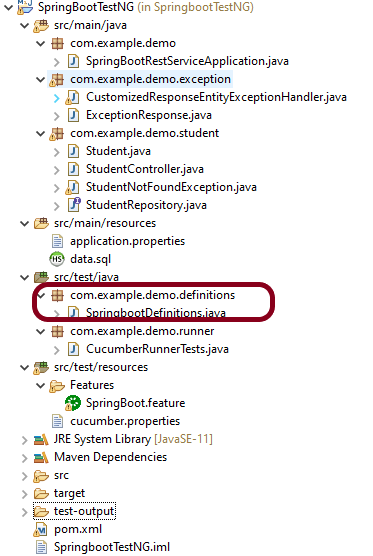
A runner will help us to run the feature file and acts as an interlink between the feature file and StepDefinition Class. The TestRunner should be created within the directory src/test/java.

import io.cucumber.testng.AbstractTestNGCucumberTests;
import io.cucumber.testng.CucumberOptions;

@CucumberOptions(features = {"src/test/resources/Features"}, glue = {"com.example.demo.definitions"})
public class CucumberRunnerTests extends AbstractTestNGCucumberTests {

}

The @CucumberOptions annotation is responsible for pointing to the right feature package, configuring the plugin for a better reporting of tests in the console output, and specifying the package where extra glue classes may be found. We use it to load configuration and classes that are shared between tests.

Step 5 – Run the tests from Cucumber Test Runner

You can execute the test script by right-clicking on TestRunner class -> Run As TestNG in Eclipse.

In case you are using IntelliJ, select Run CucumberRunnerTests.

SpringBootTest creates an application context containing all the objects we need for the Integration Testing It, starts the embedded server, creates a web environment, and then enables methods to do Integration testing.

Step 6 – Run the tests from Command Line

Use the below command to run the tests through the command line.

mvn clean test

Step 7 – Run the tests from TestNG

Create a testng.xml in the project as shown below:

<?xml version="1.0" encoding="UTF-8"?>
<!DOCTYPE suite SYSTEM "https://testng.org/testng-1.0.dtd">
<suite name = "Suite1">
  <test name = "SpringBoot Cucumber TestNG Demo">
    <classes>
          <class name = "com.example.demo.runner.CucumberRunnerTests"/>
     </classes>  
   </test>
</suite>

Step 8 – Generation of TestNG Reports

TestNG generates various types of reports under the test-output folder like emailable-report.html, index.html, testng-results.xml.

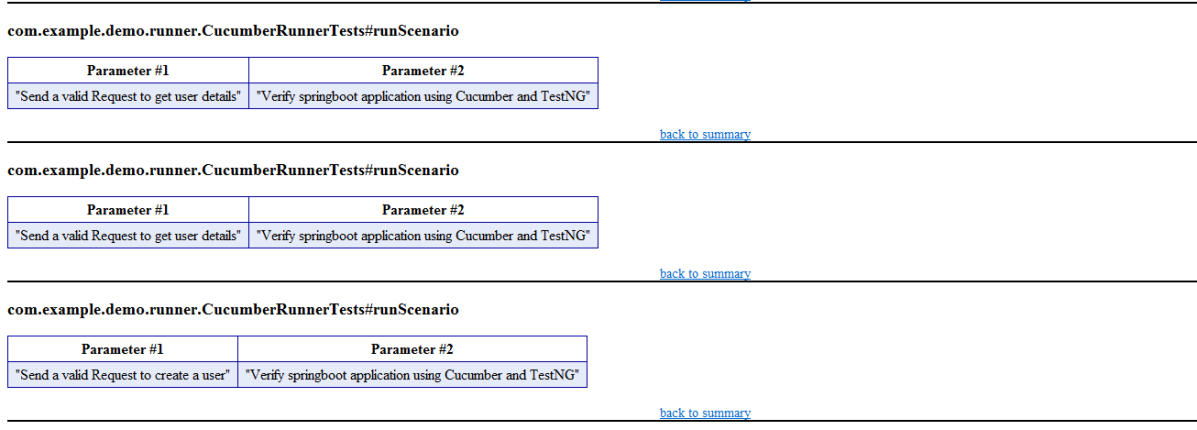
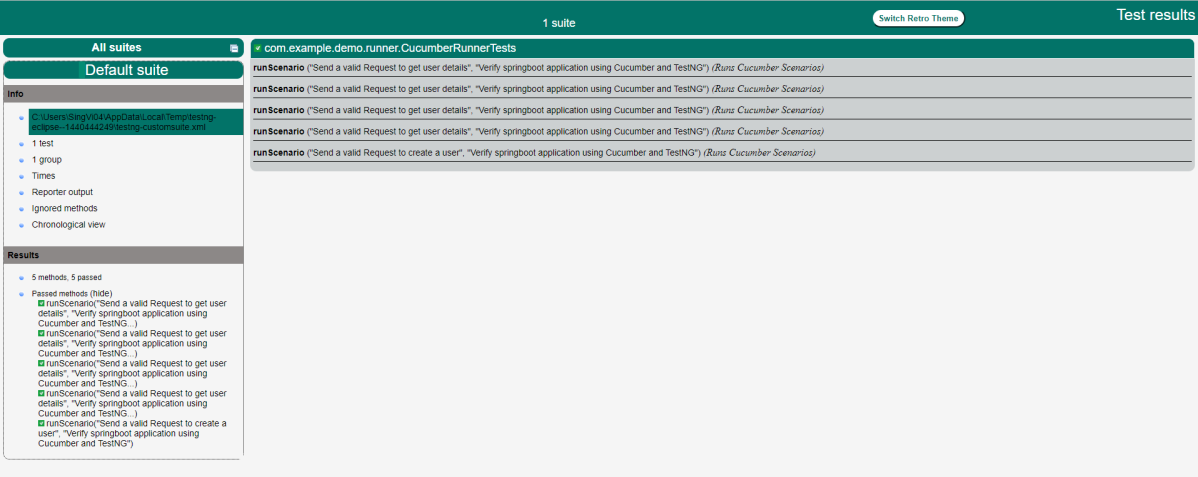
We are interested in the “emailable-report.html” report. Open “emailable-report.html”, as this is an HTML report, and open it with the browser. The below image shows emailable-report.html.

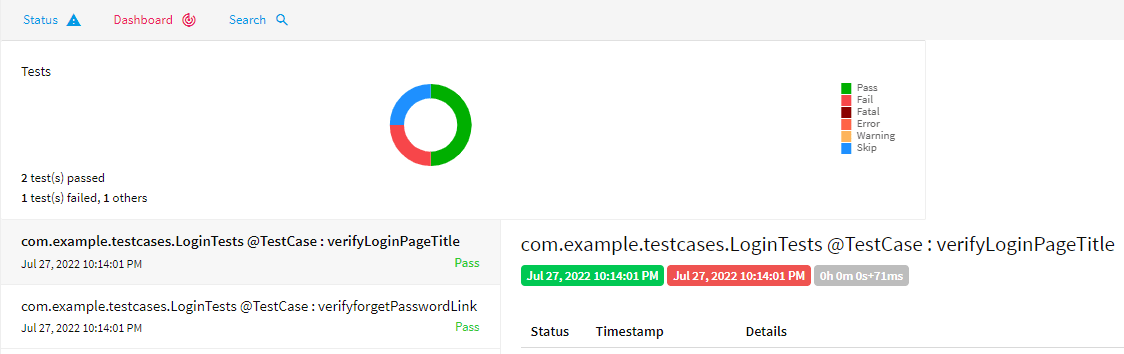
TestNG also produce “index.html” report, and it resides under test-output folder. The below image shows index.html report.

Step 9 – Cucumber Report Generation

Add cucumber.properties under src/test/resources and add the below instruction in the file.

cucumber.publish.enabled=true

The link to the Cucumber Report is present in the execution status.

Below is the image of the Cucumber Report generated using the Cucumber Service.

Complete Source Code:
Refer to GitHub for the source code.

Congratulations!! We are able to build a test framework to test the SpringBoot application using Cucumber, Rest Assured, and TestNG.

Step Definition in Cucumber

HOME

The previous tutorial explained the Feature File in Cucumber. This tutorial explains the step definition of the Cucumber.

To start with, please add the below dependencies to the POM.xml, in the case of the Maven project.

<dependencies>
  
   <dependency>
      <groupId>io.cucumber</groupId>
      <artifactId>cucumber-java</artifactId>
      <version>7.18.1</version>
   </dependency>

   <dependency>
      <groupId>io.cucumber</groupId>
      <artifactId>cucumber-junit</artifactId>
      <version>7.18.1</version>
      <scope>test</scope>
    </dependency>
       
   <dependency>
       <groupId>junit</groupId>
       <artifactId>junit</artifactId>
       <version>4.13.2</version>
       <scope>test</scope>
   </dependency>
    
</dependencies>

For the Gradle project, add the below dependencies to build.gradle

implementation 'io.cucumber:cucumber-java:718.1'
testImplementation 'io.cucumber:cucumber-junit:7.18.1'
testImplementation 'junit:junit:4.13.2'

What is a Step Definition?

A Step Definition is a Java method with an expression that links it to one or more Gherkin steps. When Cucumber executes a Gherkin step in a scenario, it will look for a matching step definition to execute.

Cucumber finds the Step Definition file with the help of the Glue code in Cucumber Options.

By storing state in instance variables, a step definition can transfer state to a subsequent step definition.

Step definitions are not associated with a specific feature file or scenario. The name of a step definition’s file, class, or package has no bearing on which Gherkin steps it will match. The formulation of the step definition is the only thing that matters, which means the step definition should only match Gherkin’s steps.

Imagine, we want to test a web application. One of the first steps is Login to the website and then check the various functionalities on the website. We can create a Gherkin step like “I login to the website” and the corresponding step definition of this Gherkin Step. This Gherkin step can be used in multiple feature files, and we don’t need to create the step definition of this Gherkin step for each feature file.

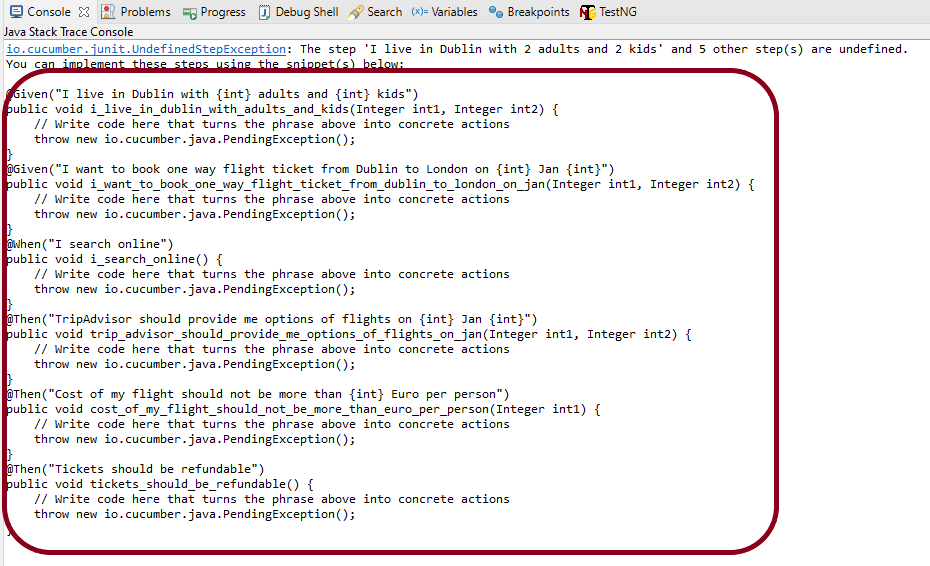
In the previous tutorial, we have seen that when the Feature file is executed without the Step Definition file, the runner shows the missing steps with the snippet in the console.

When a Cucumber encounters a Gherkin step without a matching step definition, it will print a step definition snippet with a matching Cucumber Expression. You can use this as a starting point for new step definitions.

It is very easy to implement all the steps, all you need to do is copy the complete text marked in the above box and paste it into the MyHolidayDefinitions class.

@Given, @When, and @Then are imported from packages:-

import io.cucumber.java.en.Given;
import io.cucumber.java.en.Then;
import io.cucumber.java.en.When;

Feature File

Feature: Book flight ticket 

@BookOneWayFlight
Scenario: Book Flight for one way trip

Given I live in Dublin with 2 adults and 2 kids
And I want to book one way flight ticket from Dublin to London on 22 Jan 2020
When I search online
Then TripAdvisor should provide me options of flights on 22 Jan 2020
And Cost of my flight should not be more than 50 Euro per person
And Tickets should be refundable

Let me create the step definition for the above Feature file

import io.cucumber.java.en.Given;
import io.cucumber.java.en.Then;
import io.cucumber.java.en.When;

public class MyHolidayDefinitions {

	@Given("I live in Dublin with {int} adults and {int} kids")
	public void liveInDublin(Integer int1, Integer int2) {

		System.out.println("I live in Dublin with 2 adults and 2 kids");
	}

	@Given("I want to book one way flight ticket from Dublin to London on {int} Jan {int}")
	public void bookFlightTicket(Integer int1, Integer int2) {

		System.out.println("I want to book one way flight ticket from Dublin to London on 22 Jan 2020");
	}

	@When("I search online")
	public void searchOnline() {

		System.out.println("I search online");
	}

	@Then("TripAdvisor should provide me options of flights on {int} Jan {int}")
	public void tripAdvisor(Integer int1, Integer int2) {

		System.out.println("TripAdvisor should provide me options of flights on 22 Jan 2020");
	}

	@Then("Cost of my flight should not be more than {int} Euro per person")
	public void costOfFlightLimit(Integer int1) {

		System.out.println("Cost of my flight should not be more than 50 Euro per person");
	}

	@Then("Tickets should be refundable")
	public void refundableTickets() {

		System.out.println("Tickets should be refundable");
	}

}

To run the scenarios present in the Feature File, we need TestRunner class. To learn more about the TestRunner class, please refer to this tutorial – Cucumber Tutorial – JUnit Test Runner Class

import org.junit.runner.RunWith;
import io.cucumber.junit.Cucumber;
import io.cucumber.junit.CucumberOptions;

@RunWith(Cucumber.class)
@CucumberOptions(features = "src/test/resources/Features/MyHoliday.feature", 
tags = "@BookOneWayFlight", glue = "com.cucumber.MyCucumberProject.definitions")

public class CucumberRunnerTest {

}

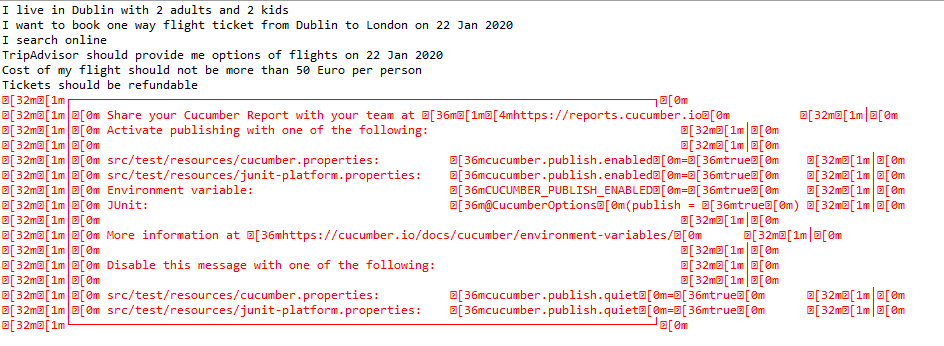
The output of the above program is

Congratulations. We have created the setup definition for the feature file successfully and are able to run it.

Refer to the next tutorials to know the integration of Cucumber with Selenium – Integration of Cucumber with Selenium and JUnit and JUnit4 and Integration of Cucumber with Selenium and TestNG

Happy Learning!!
New Features in Selenium 4

Last Updated On

HOME

Selenium is moved from version 3 to version 4 which is quite a huge step. What does this change mean? It means that a few of the old features of Selenium 3 are depreciated in Selenium 4 as well some new features are added to it also. I’m trying to explain a few of the latest updates done in Selenium 4.

Table of Contents

  1. Enhanced Selenium Grid
  2. Simplification to open a new Windows browser and Tabs
  3. Relative Locators
  4. TakeElementScreenshot
  5. New additions to the Actions Class
  6. Deprecation of Desired Capabilities
  7. Chrome Dev Tools

Selenium 3 – This is the latest version of Selenium3 available.

<dependency>
    <groupId>org.seleniumhq.selenium</groupId>
    <artifactId>selenium-java</artifactId>
    <version>3.141.59</version>
</dependency>

Selenium 4 – This is the latest version of Selenium 4 Libraries that are present in the Maven Central Repository.

<dependency>
    <groupId>org.seleniumhq.selenium</groupId>
    <artifactId>selenium-java</artifactId>
    <version>4.2.1</version>
</dependency>

1. Enhanced Selenium Grid

Managing Selenium Grid is now smooth and easy as there will no longer be any need to set up and start hubs and nodes separately. The grid can be deployed in 3 modes:

Standalone – Standalone is the union of all components, and to the user’s eyes, they are executed as one. A fully functional Grid of one is available after starting it in the Standalone mode. By default, the server will be listening on http://localhost:4444, and that’s the URL you should point your RemoteWebDriver tests. The server will detect the available drivers that it can use from the System PATH.

Hub and Node – It enables the classic Hub & Node(s) setup. These roles are suitable for small and middle-sized Grids

Distributed – On Distributed mode, each component needs to be started on its own. This setup is more suitable for large Grids.

Grid will now support IPv6 addresses and one can communicate with the Grid using the HTTPS protocol. In Grid 4, the configuration files used for spinning up the grid instances can be written in TOML (Tom’s Obvious, Minimal Language) which will make it easier for humans to understand.

The new Selenium Grid comes with Docker support. It also supports advanced tools like AWS, Azure, and much more, useful in the DevOps process. Now Grid has a more user-friendly UI and contains relevant information related to the session, running, capacity, etc.

2. Simplification to open a new Windows browser and Tabs

There are a number of scenarios where you would want to open a new browser (or tab) and perform a certain set of actions in the newly opened window/tab. In Selenium 3, you have to create a new Web Driver object and then switch to the new window (or tab) using its unique WindowHandle to perform subsequent actions in that window (or tab).

Selenium 4 provides a new API new Window that lets you create a new window (or tab) and automatically switch to it. Since the new window or tab is created in the same session, it avoids creating a new WebDriver object. For switching to the new tab, pass WindowType.TAB to newWindow() method and for creating a new window, pass WindowType.WINDOW to newWindow() method.

public class NewWindowDemo {

	public static void main(String[] args) {
		System.setProperty("webdriver.chrome.driver",
				"C:\\Users\\Vibha\\Software\\chromedriver_win32_93.0.4577.15\\chromedriver.exe");
		WebDriver driver = new ChromeDriver();
		driver.manage().window().maximize();

		driver.get("https://www.bing.com/");
		System.out.println("New Page - Bing is opened");

		// Opens a new window and switches to new window
		driver.switchTo().newWindow(WindowType.WINDOW);

		// Opens duckduckgo homepage in the new opened window
		driver.navigate().to("https://www.duckduckgo.com/");

		System.out.println("New Page - DuckDuckGo is opened");

		driver.quit();
	}
}

Open a new Tab in Selenium 4

public class NewTabDemo {

	public static void main(String[] args) {

		System.setProperty("webdriver.chrome.driver",
				"C:\\Users\\Vibha\\Software\\chromedriver_win32_93.0.4577.15\\chromedriver.exe");
		
		WebDriver driver = new ChromeDriver();
		driver.manage().window().maximize();

		driver.get("https://www.bing.com/");
		System.out.println("New Page - Bing is opened");

		// Opens a new window and switches to new window
		driver.switchTo().newWindow(WindowType.TAB);

		// Opens duckduckgo homepage in the new opened window
		driver.navigate().to("https://www.duckduckgo.com/");

		System.out.println("New Tab is opened with DuckDuckGo");
		driver.quit();
	}
}

3. Relative Locators

Selenium 4 brings Relative Locators which are previously called as Friendly Locators. This functionality was added to help you locate elements that are nearby other elements. The Available Relative Locators are:

above
below
toLeftOf
toRightOf
near

findElement method now accepts a new method withTagName() which returns a RelativeLocator.

import static org.openqa.selenium.support.locators.RelativeLocator.with;

a) above() – Returns the WebElement, which appears above the specified element.

WebElement passwordField_above = driver.findElement(By.id("txtPassword"));
		WebElement emailAddressField_above = driver.findElement(with(By.tagName("input")).above(passwordField_above));

b) below() – Returns the WebElement, which appears below the specified element.

WebElement emailAddress_below = driver.findElement(By.id("txtUsername"));
WebElement passwordField_below = driver.findElement(with(By.tagName("input")).below(emailAddress_below));

c) toRightOf() – Target web element which is presented to the right of a specified element.

WebElement submitButton= driver.findElement(By.id("submit"));
WebElement cancelButton= driver.findElement(with(By.tagName("button"))
                                            .toLeftOf(submitButton));

d) toRightOf() – Returns the WebElement, which appears to the right of the specified element.

WebElement cancelButton= driver.findElement(By.id("cancel"));
WebElement submitButton= driver.findElement(with(By.tagName("button")).toRightOf(cancelButton));

e) near() – Returns the WebElement, which is at most 50px away from the specified element.

WebElement emailAddressLabel= driver.findElement(By.id("lbl-email"));
WebElement emailAddressField = driver.findElement(with(By.tagName("input")).near(emailAddressLabel));

4. TakeElementScreenshot

In Selenium 3, there was a provision to capture a screenshot of the entire web page. Selenium 4 onwards, there is a new option to capture screenshots of a particular WebElement. Hence, there is no need to use third-party tools like Shutterbug, Ashot, etc. (like in Selenium 3) for capturing a screenshot of WebElement.

The newly introduced method in Selenium 4 captures the screenshot of an element for the current browsing context. The screenshot returned by the WebDriver endpoint is encoded in the Base64 format.

This is how you can capture WebElement Screenshot in Selenium 4 (for Java):

import io.github.bonigarcia.wdm.WebDriverManager;
import org.apache.commons.io.FileUtils;
import org.openqa.selenium.By;
import org.openqa.selenium.OutputType;
import org.openqa.selenium.TakesScreenshot;
import org.openqa.selenium.WebDriver;
import org.openqa.selenium.WebElement;
import org.openqa.selenium.chrome.ChromeDriver;
import org.openqa.selenium.firefox.FirefoxDriver;

public class ScreenshotDemo {

	public static void main(String[] args) {
		WebDriverManager.chromedriver().setup();
		WebDriver driver = new ChromeDriver();
		driver.manage().window().maximize();
		driver.get("https://www.selenium.dev/");

		try {

			WebElement logo = driver.findElement(By.xpath("//*[@id='td-cover-block-0']/div/div/div/div/h1"));
			File source = ((TakesScreenshot) logo).getScreenshotAs(OutputType.FILE);
			FileUtils.copyFile(source, new File("./Screenshots/logo" + System.currentTimeMillis() + ".png"));
		} catch (Exception e) {
			System.out.println(e.getMessage());
		}

		System.out.println("The Screenshot is taken and saved under Screenshots folder");
		driver.quit();
	}

}

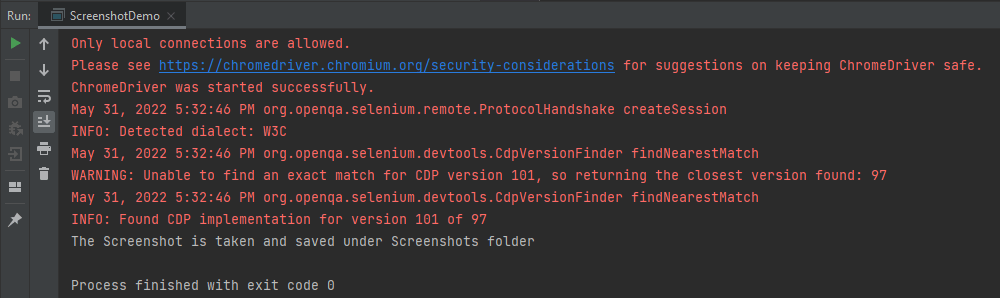
The output of the above program is

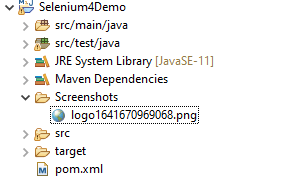
The picture will be saved in the Screenshots folder as shown below:

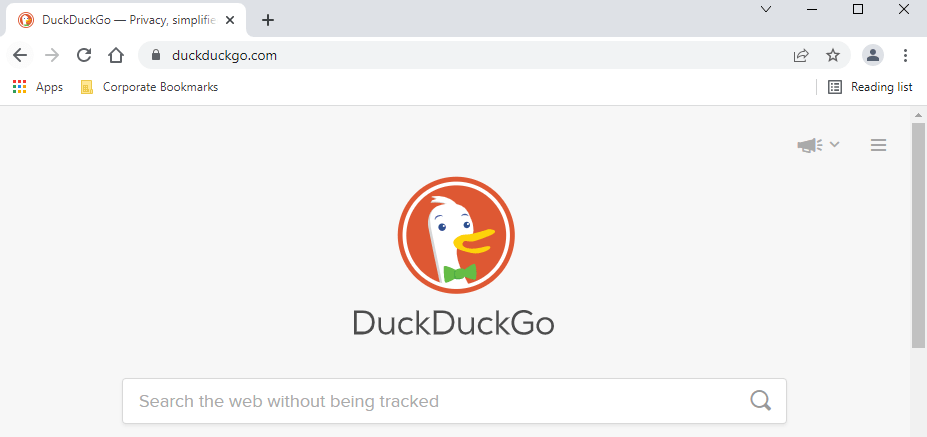
Below is the image of the screenshots.

5. New additions to the Actions Class

Actions Class in Selenium provides several methods for performing a single action or a series of actions on the WebElements present in the DOM. Mouse actions (e.g., click, double click, etc.) and Keyboard actions (e.g., keyUp, keyDown, sendKeys) are the two broad categories of Actions.
For demonstration, we will post the examples demonstrated in the Action class in the Selenium blog from Selenium 3 to Selenium 4.

With Selenium 4, new methods are added to the Actions class, which replaces the classes under the org.openqa.selenium.interactions package.

  • click(WebElement) is the new method added to the Actions class and it serves as the replacement of moveToElement(onElement).click() method.

Like the method in the versions before Selenium 4, click(WebElement) is used for clicking a web element.

  • doubleClick(WebElement)

This method is added to replace moveToElement(element).doubleClick(). It will perform a double-click on an element.

import io.github.bonigarcia.wdm.WebDriverManager;
import org.openqa.selenium.Alert;
import org.openqa.selenium.By;
import org.openqa.selenium.WebDriver;
import org.openqa.selenium.WebElement;
import org.openqa.selenium.chrome.ChromeDriver;
import org.openqa.selenium.interactions.Actions;

public class DoubleClick {
    public static void main(String[] args) {

        WebDriverManager.chromedriver().setup();
        WebDriver driver = new ChromeDriver();

        // Navigate to Url
        driver.get("https://demo.guru99.com/test/simple_context_menu.html");

        // Store 'doubleClickButton' button web element
        WebElement doubleClickButton = driver.findElement(By.xpath("//*[@id='authentication']/button"));
        Actions actionProvider = new Actions(driver);

        // Perform double-click action on the element
        actionProvider.doubleClick(doubleClickButton).build().perform();
        Alert alert = driver.switchTo().alert();
        System.out.println("Alert Text\n" +alert.getText());
        alert.accept();
        
        driver.close();
    }
}

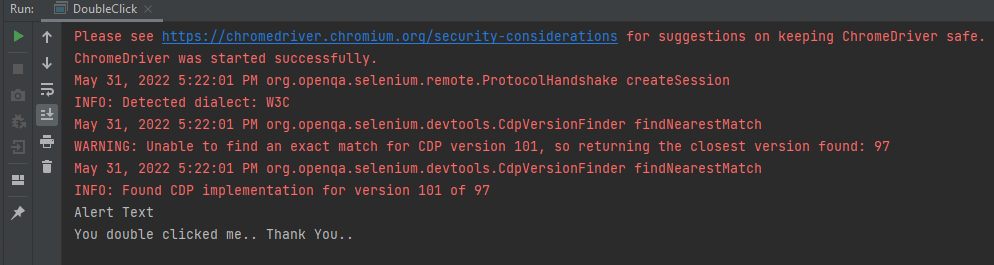
The output of the above program is

  • clickAndHold(WebElement)

This method will replace the moveToElement(onElement).clickAndHold(). It is used to click on an element without releasing the click.

  • contextClick(WebElement)

This method will replace moveToElement(onElement).contextClick(). It will perform the right-click operation.

  • release()

This method (user for releasing the pressed mouse button) was initially a part of org.openqa.selenium.interactions.ButtonReleaseAction class. Now with the updated version of Selenium, it has been moved to the Actions class.

import io.github.bonigarcia.wdm.WebDriverManager;
import org.openqa.selenium.By;
import org.openqa.selenium.WebDriver;
import org.openqa.selenium.WebElement;
import org.openqa.selenium.chrome.ChromeDriver;
import org.openqa.selenium.interactions.Actions;

public class clickAndHold {
    public static void main(String[] args) {

        WebDriverManager.chromedriver().setup();
        WebDriver driver = new ChromeDriver();

        // Navigate to Url
        driver.get("https://crossbrowsertesting.github.io/drag-and-drop.html");
        driver.manage().window().maximize();

        // Find element xpath which we need to drag
        WebElement from = driver.findElement(By.id("draggable"));

        // Find element xpath where we need to drop
        WebElement to = driver.findElement(By.id("droppable"));

        Actions actionProvider = new Actions(driver);

        // Perform click-and-hold action on the element
        actionProvider.clickAndHold(from).build().perform();

       // Move to drop Webelement
        actionProvider.clickAndHold(to).build().perform();

        //Release drop element
        actionProvider.release(to).build().perform();
    }
}

The output of the above program is

6. Deprecation of Desired Capabilities

In Selenium 3, desired Capabilities were primarily used in the test scripts to define the test environment (browser name, version, operating system) for execution on the Selenium Grid.

In Selenium 4, capabilities objects are replaced with Options. This means testers now need to create an Options object, set test requirements, and pass the object to the Driver constructor.

Listed below are the Options objects to be used going forward for defining browser-specific capabilities:

Firefox – FirefoxOptions
Chrome – ChromeOptions
Internet Explorer (IE) – InternetExplorerOptions
Microsoft Edge – EdgeOptions
Safari – SafariOptions

Below is an example of Options

import org.openqa.selenium.WebDriver;
import org.openqa.selenium.chrome.ChromeDriver;
import org.openqa.selenium.chrome.ChromeOptions;
import io.github.bonigarcia.wdm.WebDriverManager;

public class ChromeOptionsHeadless {

	public static void main(String[] args) {

		WebDriverManager.chromedriver().setup();

		ChromeOptions chromeOptions = new ChromeOptions();
		chromeOptions.setBrowserVersion("100");
		chromeOptions.setPlatformName("Windows 10");

		WebDriver driver = new ChromeDriver(chromeOptions);

		driver.get("https://duckduckgo.com/");
		System.out.println("Title of Page :" + driver.getTitle());

		// Close the driver
		driver.close();

	}
}

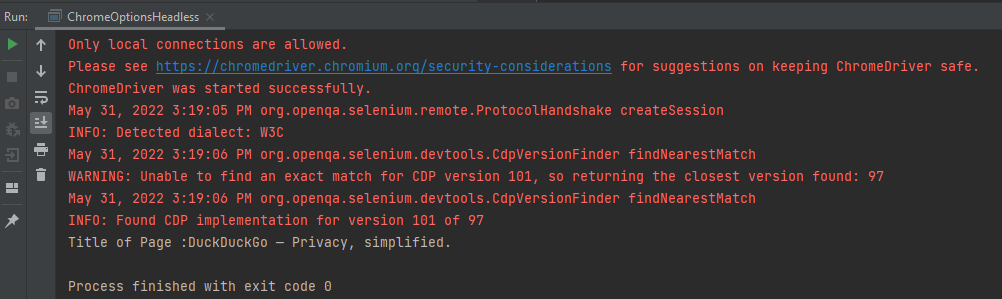
The output of the above program is

Similarly, we can create the action class for other browsers like Firefox.

FirefoxOptions options = new FirefoxOptions();
 
// Create an object of WebDriver class and pass the Firefox Options object as an argument
WebDriver driver = new FirefoxDriver(options);

7. Chrome Dev Tools

In the new version of Selenium, they have made some internal changes in the API. Earlier in Selenium 3, the Chrome driver extends directly to the Remote Web Driver class. But now in Selenium 4, the Chrome driver class extends to Chromium Driver. Chromium Driver class has some predefined methods to access the dev tool.

Note: Chromium Driver extends the Remote Web driver class.

By using the API, we can perform the following operations:

  • Enable Network Offline
  • Enable Network Online
  • Get Console Logs
  • Load Insure Web Site

How to disable infobar warning for Chrome tests in Selenium

Last Updated On

HOME

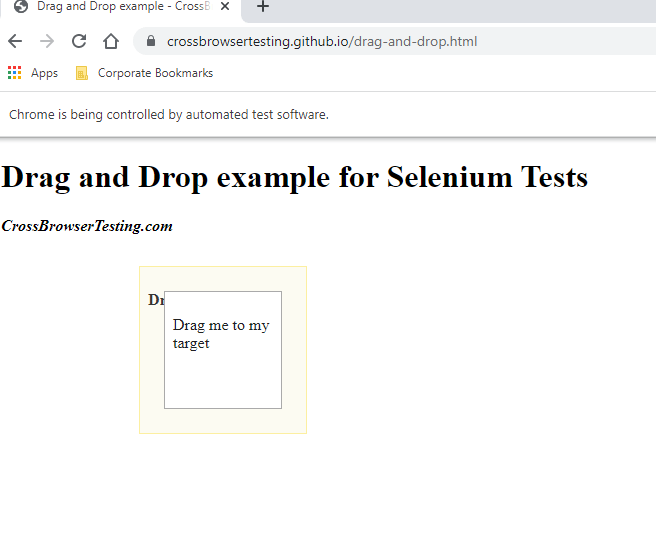
This tutorial explains the steps to disable infobar warning generated by Selenium for running tests in Chrome. Selenium tests run on Chrome shows a warning message – Chrome is being controlled by automated test software as shown in the below image.

We want to run the Selenium tests on Chrome, but without the above-shown warning message. This can be achieved by using excludeSwitches.

chromeOptions.setExperimentalOption("excludeSwitches", Arrays.asList("enable-automation"));

The complete program is shown below:

import java.util.Arrays;

import org.openqa.selenium.WebDriver;
import org.openqa.selenium.chrome.ChromeDriver;
import org.openqa.selenium.chrome.ChromeOptions;

import io.github.bonigarcia.wdm.WebDriverManager;

public class ChromeDisableInfobars {

	public static void main(String[] args) {

		WebDriverManager.chromedriver().setup();

		// Create an object of Chrome Options class
		ChromeOptions chromeOptions = new ChromeOptions();

		// prevents Chrome from displaying the notification 'Chrome is being controlled
		// by automated software'
        options.addArguments("--disable-infobars");
		chromeOptions.setExperimentalOption("excludeSwitches", Arrays.asList("enable-automation"));

		// Create an object of WebDriver class and pass the Chrome Options object as an
		// argument
		WebDriver driver = new ChromeDriver(chromeOptions);

		driver.get("https://duckduckgo.com/");

		System.out.println("Title of Page :" + driver.getTitle());

		// close the browser
		driver.quit();

	}
}

The output of the above program is

We are done. Congratulations!! Happy Learning.

How to embed Custom Data in Serenity Report

HOME

Serenity Reports are living documentation that contains meaningful reports for each Test. It illustrated narrative reports that document and describe what your application does and how it works.

This report can be organized by using features, stories, steps, scenarios/tests. Serenity Report shows the count of passed, failed, compromised, skipped, pending, broken, ignored, pending, and manual test cases count and percentage. Serenity shows Over All Test Results, Requirements, Test Specifications & Test Results. It shows the details and overall time taken by each test step of a test case. It shows the details and overall timing taken by each on all test case execution.

All the above features of Serenity Report make it a great Report. But sometimes, we want to embed data from a JSON or XML file in the Serenity Report.

Let me explain this with the help of an example. Data-Driven tests are created in Serenity. We have test data mentioned in a .csv file and the test is reading the data from this file. When the report is generated, it does not show what all data are used by the Test. To overcome this situation, Serenity provides a feature that uses recordReportData()., and this can be used like this:

Path credentialsFile = Paths.get("src/test/resources/testdata/credentials.csv"); 
Serenity.recordReportData().withTitle(" User Credentials with Error Message")
                                             .fromFile(credentialsFile);

If you have the contents of the report as a String, you can pass the String directly like this:

String testData = "...";
Serenity.recordReportData().withTitle("User")
                           .andContent(testData);

Let me explain this with the help of an example. Here, I have created a Data-Driven Test which is using .csv file as an input file.

@RunWith(SerenityParameterizedRunner.class)
@UseTestDataFrom(value = "testdata/credentials.csv")
public class ParameterizedTestsUsingCSV {

    private String userName;
    private String passWord;
    private String errorMessage;

    @Managed(options = "--headless")
    WebDriver driver;

    @Steps
    NavigateActions navigate;

    @Steps
    StepLoginPage loginPage;


    @TestData(columnNames = "Username, Password, ErrorMessage")
    @Test
    @Title("Login to application with invalid credential generates error message")
    public void unsuccessfulLogin() throws IOException {

        // Given
        navigate.toTheHomePage();

        // When
        loginPage.inputUserName(userName);
        loginPage.inputPassword(passWord);
        loginPage.clickLogin();

        // Then
        Serenity.reportThat("Passing invalid credentials generates error message",
                () -> assertThat(loginPage.loginPageErrorMessage()).isEqualToIgnoringCase(errorMessage));

        Path credentialsFile = Paths.get("src/test/resources/testdata/credentials.csv");
        Serenity.recordReportData().withTitle(" User Credentials with Error Message").fromFile(credentialsFile);
    }

}

Here, I have used recordReportData().withTitle() to provide a name to the button created, and the data is retrieved using fromFile().

To locate the path of the file (credentials.csv), we have used – Path and Paths which are imported from:

import java.nio.file.Path;
import java.nio.file.Paths;

To get the complete detail about this code, refer to this tutorial Data Driven Tests using CSV file in Serenity.

To generate a Serenity Report, use the command like this:

mvn clean verify

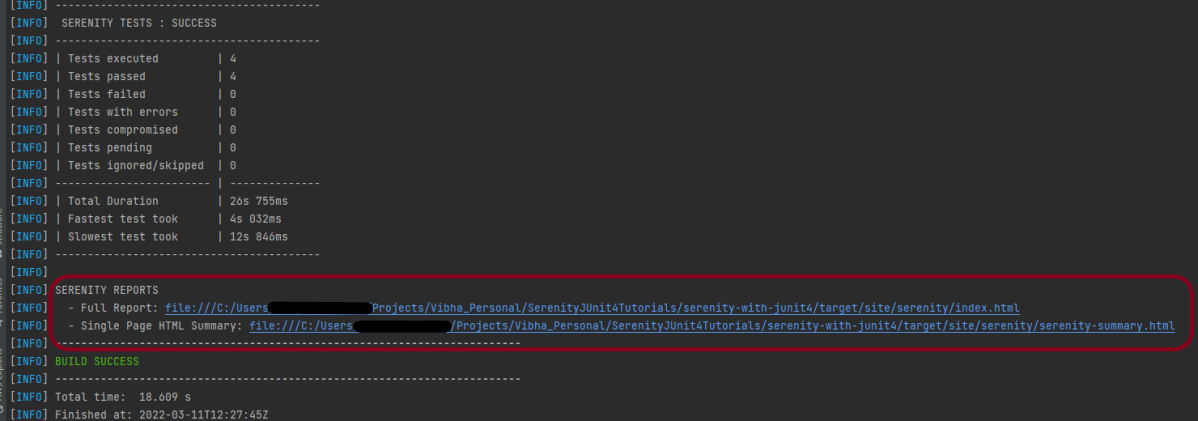
The output of the above program is

The Serenity Reports are generated under target/site/serenity/Index.html.

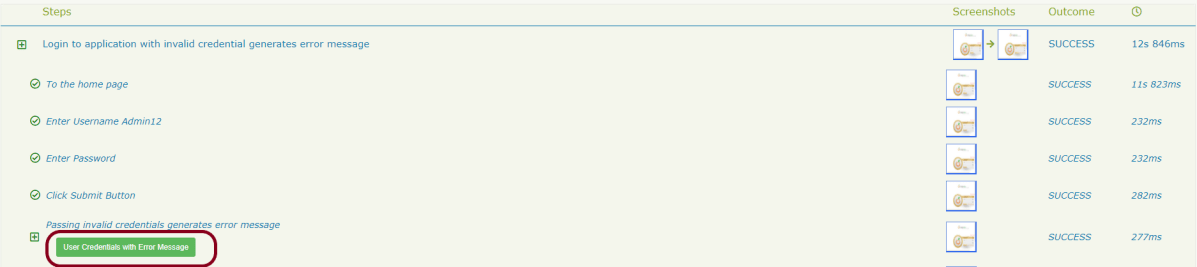
Go to the Detailed Step Description part in Serenity Report. A button with the label “User Credentials with Error Message” will appear next to the step where you called this method:

If you click on this button, you will see your data:

Keep in mind that this feature of Serenity is available from 1.9.16 onwards only.

Congratulation!! We have learned a wonderful feature present in Serenity.

XML Unmarshalling – Convert XML to Java objects using JAXB Version 3

HOME

The previous tutorial explain the Marshalling of Java Object to XML using JAXB Version 3.

There are tutorials about marshalling and unmarshalling XML using JAXB Version 2.

Marshalling – How to convert Java Objects to XML using JAXB

UnMarshalling- How to convert XML to Java Objects using JAXB

As of Java 11, JAXB is not part of the JRE anymore, and you need to configure the relevant libraries via your dependency management system, for example, either Maven or Gradle.

Configure the Java compiler level to be at least 11 and add the JAXB Version 3 dependencies to your pom file.

<!-- JAXB API v3.0.1 -->
<dependency>
    <groupId>jakarta.xml.bind</groupId>
    <artifactId>jakarta.xml.bind-api</artifactId>
    <version>3.0.1</version>
</dependency>

<!-- JAXB v3.0.2 reference implementation (curiously with com.sun coordinates) -->
<dependency>
    <groupId>com.sun.xml.bind</groupId>
    <artifactId>jaxb-impl</artifactId>
    <version>3.0.2</version>
    <scope>runtime</scope>
</dependency>

To know about the difference between JAXB Version 2 and JAXB Version3, refer this tutorial.

Sample XML Structure

<?xml version="1.0" encoding="UTF-8" standalone="yes"?>
<EmployeeDetail>
    <firstName>Terry</firstName>
    <lastName>Mathew</lastName>
    <age>30</age>
    <salary>75000.0</salary>
    <designation>Manager</designation>
    <contactNumber>+919999988822</contactNumber>
    <emailId>abc@test.com</emailId>
    <gender>female</gender>
    <maritalStatus>married</maritalStatus>
</EmployeeDetail>

Now, let us create the Java Objects (POJO) of above XML.

import jakarta.xml.bind.annotation.XmlAccessType;
import jakarta.xml.bind.annotation.XmlAccessorType;
import jakarta.xml.bind.annotation.XmlRootElement;

@XmlRootElement(name = "EmployeeDetail")
@XmlAccessorType(XmlAccessType.FIELD)
public class Employee {

	private String firstName;
	private String lastName;
	private int age;
	private double salary;
	private String designation;
	private String contactNumber;
	private String emailId;
	private String gender;
	private String maritalStatus;

	public Employee() {
		super();

	}

	// Getter and setter methods
	public String getFirstName() {
		return firstName;
	}

	public void setFirstName(String firstName) {
		this.firstName = firstName;
	}

	public String getLastName() {
		return lastName;
	}

	public void setLastName(String lastName) {
		this.lastName = lastName;
	}

	public int getAge() {
		return age;
	}

	public void setAge(int age) {
		this.age = age;
	}

	public double getSalary() {
		return salary;
	}

	public void setSalary(double salary) {
		this.salary = salary;
	}

	public String getDesignation() {
		return designation;
	}

	public void setDesignation(String designation) {
		this.designation = designation;
	}

	public String getContactNumber() {
		return contactNumber;
	}

	public void setContactNumber(String contactNumber) {
		this.contactNumber = contactNumber;
	}

	public String getEmailId() {
		return emailId;
	}

	public void setEmailId(String emailId) {
		this.emailId = emailId;
	}

	public String getGender() {
		return gender;
	}

	public void setGender(String gender) {
		this.gender = gender;
	}

	public String getMaritalStatus() {
		return maritalStatus;
	}

	public void setMaritalStatus(String maritalStatus) {
		this.maritalStatus = maritalStatus;
	}

    @Override
	public String toString() {
		return "Employee [FirstName=" + firstName + ", LastName=" + lastName + ", Age=" + age + ", Salary=" + salary
				+ ", Designation=" + designation + ", ContactNumber=" + contactNumber + ", EmailId=" + emailId
				+ ", Gender=" + gender + ", MaritalStatus=" + maritalStatus + "]";
	}
}

Let’s create a simple program using the JAXBContext which provides an abstraction for managing the XML/Java binding information necessary to implement the JAXB binding framework operations and unmarshal.

import java.io.File;

import org.junit.Test;

import jakarta.xml.bind.JAXBContext;
import jakarta.xml.bind.JAXBException;
import jakarta.xml.bind.Unmarshaller;

public class JAXBDeserialization {

	@Test
	public void JAXBUnmarshalTest() {

		try {

			String userDir = System.getProperty("user.dir");
			File file = new File(userDir + "\\src\\test\\resources\\JAXB_XML.xml");

			JAXBContext jaxbContext = JAXBContext.newInstance(Employee.class);

			Unmarshaller jaxbUnmarshaller = jaxbContext.createUnmarshaller();
			Employee employee = (Employee) jaxbUnmarshaller.unmarshal(file);
			System.out.println(employee);

		} catch (JAXBException e) {
			e.printStackTrace();
		}

	}

When we run the code above, we may check the console output to verify that we have successfully converted XML data into a Java object:

This response is the result of the toString() method in POJO Class.

There is another way to get the values of each node of XML.

   @Test
	public void JAXBUnmarshalTest1() {

		try {

			String userDir = System.getProperty("user.dir");
			File file = new File(userDir + "\\src\\test\\resources\\JAXB_XML.xml");

			JAXBContext jaxbContext = JAXBContext.newInstance(Employee.class);

			Unmarshaller jaxbUnmarshaller = jaxbContext.createUnmarshaller();
			Employee employee = (Employee) jaxbUnmarshaller.unmarshal(file);

			System.out.println("FirstName: " + employee.getFirstName());
			System.out.println("LastName: " + employee.getLastName());
			System.out.println("Age: " + employee.getAge());
			System.out.println("Salary: " + employee.getSalary());
			System.out.println("Contact Number: " + employee.getContactNumber());
			System.out.println("Designation: " + employee.getDesignation());
			System.out.println("Gender: " + employee.getGender());
			System.out.println("EmailId: " + employee.getEmailId());
			System.out.println("MaritalStatus: " + employee.getMaritalStatus());

		} catch (JAXBException e) {
			e.printStackTrace();
		}

	}

When we run the code above, we may check the console output to verify that we have successfully converted XML data into a Java object:

The Unmarshaller class governs the process of deserializing XML data into newly created Java content trees, optionally validating the XML data as it is unmarshalled. It provides overloading of unmarshal methods for many input kinds.

We are done! Congratulations on making it through this tutorial and hope you found it useful! Happy Learning!!
XML Marshalling – Convert Java objects to XML using JAXB Version 3

HOME

The previous tutorials have explained marshalling and unmarshalling of XML using JAXB Version 2.

As of Java 11, JAXB is not part of the JRE anymore, and you need to configure the relevant libraries via your dependency management system, for example, either Maven or Gradle.

Configure the Java compiler level to be at least 11 and add the JAXB Version 3 dependencies to your pom file.

<!-- JAXB API v3.0.1 -->
<dependency>
    <groupId>jakarta.xml.bind</groupId>
    <artifactId>jakarta.xml.bind-api</artifactId>
    <version>3.0.1</version>
</dependency>

<!-- JAXB v3.0.2 reference implementation (curiously with com.sun coordinates) -->
<dependency>
    <groupId>com.sun.xml.bind</groupId>
    <artifactId>jaxb-impl</artifactId>
    <version>3.0.2</version>
    <scope>runtime</scope>
</dependency>
Difference between javax.xml.* and jakarta.xml.*

Eclipse foundation rebrand the Java EE javax.xml.* to Jakarta EE jakarta.xml.*.

Below are some JAXB APIs in versions 2 and 3.

//@Since 3.0.0, rebrand to Jakarta.xml

import jakarta.xml.bind.annotation.XmlAccessType;
import jakarta.xml.bind.annotation.XmlAccessorType;
import jakarta.xml.bind.annotation.XmlRootElement;
import jakarta.xml.bind.annotation.XmlElement;
import jakarta.xml.bind.annotation.XmlTransient;
import jakarta.xml.bind.annotation.XmlType;

import jakarta.xml.bind.JAXBContext;
import jakarta.xml.bind.JAXBException;
import jakarta.xml.bind.Marshaller;
import jakarta.xml.bind.PropertyException;
import jakarta.xml.bind.Unmarshaller;

//JAXB Version 2.0

import javax.xml.bind.annotation.XmlAccessType;
import javax.xml.bind.annotation.XmlAccessorType;
import javax.xml.bind.annotation.XmlElement;
import javax.xml.bind.annotation.XmlRootElement;
import javax.xml.bind.annotation.XmlTransient;
import javax.xml.bind.annotation.XmlType;

import javax.xml.bind.JAXBContext;
import javax.xml.bind.JAXBException;
import javax.xml.bind.Marshaller;
import javax.xml.bind.PropertyException;
import javax.xml.bind.Unmarshaller;
Sample XML Structure
<?xml version="1.0" encoding="UTF-8" standalone="yes"?>
<EmployeeDetail>
    <firstName>Terry</firstName>
    <lastName>Mathew</lastName>
    <age>30</age>
    <salary>75000.0</salary>
    <designation>Manager</designation>
    <contactNumber>+919999988822</contactNumber>
    <emailId>abc@test.com</emailId>
    <gender>female</gender>
    <maritalStatus>married</maritalStatus>
</EmployeeDetail>

Now, let us create the Java Objects (POJO) of the above XML.

import jakarta.xml.bind.annotation.XmlAccessType;
import jakarta.xml.bind.annotation.XmlAccessorType;
import jakarta.xml.bind.annotation.XmlRootElement;

@XmlRootElement(name = "EmployeeDetail")
@XmlAccessorType(XmlAccessType.FIELD)
public class Employee {

	private String firstName;
	private String lastName;
	private int age;
	private double salary;
	private String designation;
	private String contactNumber;
	private String emailId;
	private String gender;
	private String maritalStatus;

	public Employee() {
		super();

	}

	// Getter and setter methods
	public String getFirstName() {
		return firstName;
	}

	public void setFirstName(String firstName) {
		this.firstName = firstName;
	}

	public String getLastName() {
		return lastName;
	}

	public void setLastName(String lastName) {
		this.lastName = lastName;
	}

	public int getAge() {
		return age;
	}

	public void setAge(int age) {
		this.age = age;
	}

	public double getSalary() {
		return salary;
	}

	public void setSalary(double salary) {
		this.salary = salary;
	}

	public String getDesignation() {
		return designation;
	}

	public void setDesignation(String designation) {
		this.designation = designation;
	}

	public String getContactNumber() {
		return contactNumber;
	}

	public void setContactNumber(String contactNumber) {
		this.contactNumber = contactNumber;
	}

	public String getEmailId() {
		return emailId;
	}

	public void setEmailId(String emailId) {
		this.emailId = emailId;
	}

	public String getGender() {
		return gender;
	}

	public void setGender(String gender) {
		this.gender = gender;
	}

	public String getMaritalStatus() {
		return maritalStatus;
	}

	public void setMaritalStatus(String maritalStatus) {
		this.maritalStatus = maritalStatus;
	}

    @Override
	public String toString() {
		return "Employee [FirstName=" + firstName + ", LastName=" + lastName + ", Age=" + age + ", Salary=" + salary
				+ ", Designation=" + designation + ", ContactNumber=" + contactNumber + ", EmailId=" + emailId
				+ ", Gender=" + gender + ", MaritalStatus=" + maritalStatus + "]";
	}
}

Let’s create a simple program using the JAXBContext which provides an abstraction for managing the XML/Java binding information necessary to implement the JAXB binding framework operations.

import java.io.StringWriter;

import org.junit.Test;

import jakarta.xml.bind.JAXBContext;
import jakarta.xml.bind.JAXBException;
import jakarta.xml.bind.Marshaller;
import jakarta.xml.bind.PropertyException;

public class JAXBSerialization {

	@Test
	public void serializationTest1() {

		try {

			Employee employee = new Employee();

			employee.setFirstName("Terry");
			employee.setLastName("Mathew");
			employee.setAge(30);
			employee.setSalary(75000);
			employee.setDesignation("Manager");
			employee.setContactNumber("+919999988822");
			employee.setEmailId("abc@test.com");
			employee.setMaritalStatus("married");
			employee.setGender("female");

			// Create JAXB Context
			JAXBContext context = JAXBContext.newInstance(Employee.class);

			// Create Marshaller
			Marshaller jaxbMarshaller = context.createMarshaller();

			// Required formatting
			jaxbMarshaller.setProperty(Marshaller.JAXB_FORMATTED_OUTPUT, Boolean.TRUE);

			// Print XML String to Console
			StringWriter sw = new StringWriter();

			// Write XML to StringWriter
			jaxbMarshaller.marshal(employee, sw);

			// Verify XML Content
			String xmlContent = sw.toString();
			System.out.println(xmlContent);

		} catch (PropertyException e) {
			e.printStackTrace();

		} catch (JAXBException e) {

		}
	}

}

When we run the code above, we may check the console output to verify that we have successfully converted the Java object into XML:

The Marshaller class is responsible for governing the process of serializing Java content trees back into XML data.

I hope this has helped you to understand the use of JAXB Version 3.

We are done! Congratulations on making it through this tutorial and hope you found it useful! Happy Learning!!

@XmlElementWrapper Annotation for XML – JAXB

HOME

The previous tutorials explain how to use JAXB(Java Architecture for XML Binding) to parse XML documents to Java objects and vice versa. This is also called Marshalling and Unmarshalling.

This tutorial explains @XmlElementWrapper Annotation.

Configure the Java compiler level to be at least 11 and add the JAXB dependencies to the pom file.

<?xml version="1.0" encoding="UTF-8"?>

<project xmlns="http://maven.apache.org/POM/4.0.0" xmlns:xsi="http://www.w3.org/2001/XMLSchema-instance"
  xsi:schemaLocation="http://maven.apache.org/POM/4.0.0 https://maven.apache.org/xsd/maven-4.0.0.xsd">
  <modelVersion>4.0.0</modelVersion>

  <groupId>org.example</groupId>
  <artifactId>JAXBDemo</artifactId>
  <version>0.0.1-SNAPSHOT</version>

  <name>JAXBDemo</name>
  <url>http://www.example.com</url>

  <properties>  

    <project.build.sourceEncoding>UTF-8</project.build.sourceEncoding>
    <maven.compiler.source>11</maven.compiler.source>
    <maven.compiler.target>11</maven.compiler.target>
  </properties>

  <dependencies>
    <dependency>
      <groupId>junit</groupId>
      <artifactId>junit</artifactId>
      <version>4.13.2</version>
      <scope>test</scope>
  </dependency>
    
 <dependency>
    <groupId>com.sun.xml.bind</groupId>
    <artifactId>jaxb-impl</artifactId>
    <version>2.3.3</version>
   </dependency>
 </dependencies>
   
</project>

@XmlElementWrapper generates a wrapper element around XML representation. This is primarily intended to be used to produce a wrapper XML element around collections.

This annotation can be used with the following annotations –  XmlElementXmlElementsXmlElementRefXmlElementRefsXmlJavaTypeAdapter.

@XmlElementWrapper and @XmlElement (Wrapped collection)

Let us understand this with the help of an example shown below.

@XmlRootElement(name = "CustomerDetails")
@XmlAccessorType(XmlAccessType.FIELD)
public class Customer {

	private int id;

	private String name;
	private int yearOfBirth;
	private String emailId;
	private String streetAddress;

	private String postcode;

	@XmlElementWrapper(name = "emergencyContacts")
	@XmlElement(name = "Contact")
	private List<String> emergencyContacts;

	public Customer() {
		super();
	}

	public Customer(int id, String name, int yearOfBirth, String emailId, String streetAddress, String postcode,
			List<String> emergencyContacts) {
		super();
		this.id = id;
		this.name = name;
		this.yearOfBirth = yearOfBirth;
		this.emailId = emailId;
		this.streetAddress = streetAddress;
		this.postcode = postcode;
		this.emergencyContacts = emergencyContacts;
	}

	public int getId() {
		return id;
	}

	public void setId(int id) {
		this.id = id;
	}

	public String getName() {
		return name;
	}

	public void setName(String name) {
		this.name = name;
	}

	public int getYearOfBirth() {
		return yearOfBirth;
	}

	public void setYearOfBirth(int yearOfBirth) {
		this.yearOfBirth = yearOfBirth;
	}

	public String getEmailId() {
		return emailId;
	}

	public void setEmailId(String emailId) {
		this.emailId = emailId;
	}

	public String getStreetAddress() {
		return streetAddress;
	}

	public void setStreetAddress(String streetAddress) {
		this.streetAddress = streetAddress;
	}

	public String getPostcode() {
		return postcode;
	}

	public void setPostcode(String postcode) {
		this.postcode = postcode;
	}

	public List<String> getEmergencyContacts() {
		return emergencyContacts;
	}

	public void setEmergencyContacts(List<String> emergencyContacts) {
		this.emergencyContacts = emergencyContacts;
	}
}

Now, let us create a Test to convert these Java Objects to XML.

   @Test
	public void Test() {

		try {

			Customer cust = new Customer();
			cust.setId(1111);
			cust.setName("Tim");
			cust.setYearOfBirth(1988);
			cust.setEmailId("Test@test.com");
			cust.setStreetAddress("6, JaySmith, Dublin");
			cust.setPostcode("A12 YP22");

			cust.setEmergencyContacts(Arrays.asList("98675 12312", "88881 23415", "44123 67453"));

			// Create JAXB Context
			JAXBContext context = JAXBContext.newInstance(Customer.class);

			// Create Marshaller
			Marshaller jaxbMarshaller = context.createMarshaller();

			// Required formatting
			jaxbMarshaller.setProperty(Marshaller.JAXB_FORMATTED_OUTPUT, Boolean.TRUE);

			// Write XML to StringWriter
			StringWriter sw = new StringWriter();
			jaxbMarshaller.marshal(cust, sw);

			// Print XML Content
			String xmlContent = sw.toString();
			System.out.println(xmlContent);

		} catch (PropertyException e) {
			e.printStackTrace();

		} catch (JAXBException e) {

		}
	}

The output of the above program is

Here, contact is within emergencyContacts, because contact is @XmlElement.

Use Only @XmlElementWrapper

@XmlRootElement(name = "CustomerDetails")
@XmlAccessorType(XmlAccessType.FIELD)

public class Customer {

	private int id;

	private String name;
	private int yearOfBirth;
	private String emailId;
	private String streetAddress;

	private String postcode;

	@XmlElementWrapper(name = "emergencyContacts")
 //	@XmlElement(name = "Contact") //Commented this
	private List<String> emergencyContacts;

	public Customer() {
		super();
	}

	public Customer(int id, String name, int yearOfBirth, String emailId, String streetAddress, String postcode,
			List<String> emergencyContacts) {
		super();
		this.id = id;
		this.name = name;
		this.yearOfBirth = yearOfBirth;
		this.emailId = emailId;
		this.streetAddress = streetAddress;
		this.postcode = postcode;
		this.emergencyContacts = emergencyContacts;
	}

The output of the above program is

Here, there is no contact within emergencyContacts, it is because there is no @XmlElement for contact.

Do not use @XmlElementWrapper (Unwrapped collection)

@XmlRootElement(name = "CustomerDetails")
@XmlAccessorType(XmlAccessType.FIELD)

public class Customer {

	private int id;

	private String name;
	private int yearOfBirth;
	private String emailId;
	private String streetAddress;

	private String postcode;

 //@XmlElementWrapper(name = "emergencyContacts") Commented this
	@XmlElement(name = "Contact")
	private List<String> emergencyContacts;

	public Customer() {
		super();
	}

	public Customer(int id, String name, int yearOfBirth, String emailId, String streetAddress, String postcode,
			List<String> emergencyContacts) {
		super();
		this.id = id;
		this.name = name;
		this.yearOfBirth = yearOfBirth;
		this.emailId = emailId;
		this.streetAddress = streetAddress;
		this.postcode = postcode;
		this.emergencyContacts = emergencyContacts;
	}

The output of the above program is

Here, there is no @XmlElementWrapper. So, all the contact appear as attributes of XML.

I hope this has helped to understand the usage of @XmlElementWrapper.

We are done! Congratulations on making it through this tutorial and hope you found it useful! Happy Learning!!

Explicit Wait in Serenity

HOME

In the previous tutorial, I explained the Implicit Wait in Serenity. This tutorial will explain the Explicit Wait in Serenity.

What is Explicit Wait?

The explicit wait is used to wait for a specific web element on the web page for a specified amount of time. You can configure wait time element by element basis.

By default, the explicit wait is for 5 sec, with an interval of 10 ms.

Below is the example where I have created two classes – ExplicitWaitDemo and SynchronizationTests.

ExplicitWaitDemo

@DefaultUrl("http://the-internet.herokuapp.com/dynamic_loading/1")
public class ExplicitWaitDemo extends PageObject {

    //Incorrect XPath
	@FindBy(xpath = "//*[@id='start']/buttons")
	WebElementFacade startButton;

	@FindBy(xpath = "//*[@id='finish']/h4")
	WebElementFacade pageText;

	public void explicitWaitDemo1() throws InterruptedException {

		open();

		startButton.waitUntilClickable().click();

	}
}

SynchronizationTests

@RunWith(SerenityRunner.class)
public class SynchronizationTests {

	ExplicitWaitDemo ewaitDemo;

	@Managed
	WebDriver driver;

	@Test
	public void waitTest1() throws InterruptedException {

		ewaitDemo.explicitWaitDemo1();

	}

}

You can see that Serenity waited for 5 sec, with an interval of 100 ms.

When we need to wait for a web element for a specific amount of time, then the below-mentioned command can be added to serenity.conf.

webdriver {
      wait {
         for {
            timeout = 6000
          
        }  
   } 
}

The same can be added to serenity.properties as shown below.

webdriver.wait.for.timeout = 6000

Now, let us run the same above test. I have used the incorrect XPath for the button. So the test should fail after trying to locate the button for 6 secs.

You can print the explicit wait time by using the method – getWaitForTimeout().

In the below example, I have used the explicit wait as 6 sec and which is also returned by the method – getWaitForTimeout().

@DefaultUrl("http://the-internet.herokuapp.com/dynamic_loading/2")
public class ExplicitWaitDemo extends PageObject {

	@FindBy(xpath = "//*[@id='start']/button")
	WebElementFacade startButton;

	@FindBy(xpath = "//*[@id='finish']/h4")
	WebElementFacade pageText;

	public void explicitWaitDemo1() throws InterruptedException {

		open();

		startButton.click();

		System.out.println("Explicit Time defined for the test (in seconds):" + getWaitForTimeout().toSeconds());

	}
}

The output of the above program is

You can override the value of explicit wait mentioned in the serenity.properties or serenity.conf files. This can be done by using the method – withTimeoutOf(Duration duration).

@DefaultUrl("http://the-internet.herokuapp.com/dynamic_loading/1")
public class ExplicitWaitDemo extends PageObject {

    //Incorrect XPath
	@FindBy(xpath = "//*[@id='start']/buttons")
	WebElementFacade startButton;

	@FindBy(xpath = "//*[@id='finish']/h4")
	WebElementFacade pageText;

	public void explicitWaitDemo1() throws InterruptedException {

		open();

       //Override the value mentioned in serenity.conf for timeout from 6 sec to 8 sec
		startButton.withTimeoutOf(Duration.ofSeconds(8)).click();

	}
}

The output of the above program is

You can also wait for more arbitrary conditions, e.g.

@DefaultUrl("http://the-internet.herokuapp.com/dynamic_loading/2")
public class ExplicitWaitDemo extends PageObject {

	@FindBy(xpath = "//*[@id='start']/button")
	WebElementFacade startButton;

	@FindBy(xpath = "//*[@id='finish']/h4")
	WebElementFacade pageText;

	public void explicitWaitDemo1() throws InterruptedException {

		open();
        startButton.click();
		String expected = waitFor(pageText).getText();
		System.out.println("Value of Page :" + expected);
		Assert.assertEquals("Hello World!", expected);

	}
}

The output of the above program is

You can also specify the timeout for a field. For example, if you wanted to wait for up to 8 seconds for a button to become clickable before clicking on it, you could do the following:

startButton.withTimeoutOf(Duration.ofSeconds(8)).waitUntilClickable().click();

Finally, if a specific element of a PageObject needs to have a bit more time to load, you can use the timeoutInSeconds attribute in the Serenity @FindBy annotation, e.g.

import net.serenitybdd.core.annotations.findby.FindBy;
...
@FindBy(xpath = ("//*[@id='start']/button"), timeoutInSeconds="10"))
public WebElementFacade startButton;

To wait for a specific text on the web page, you can use waitForTextToAppear attribute

waitForTextToAppear("Example 1").waitFor(startButton).click();

There are many other methods that can be used with Explicit Wait.

We are done! Congratulations on making it through this tutorial and hope you found it useful! Happy Learning!!