JMeter Tutorials

HOME

Chapter 1 How to send GET Requests in JMeter
Chapter 2 How to send POST requests in JMeter
Chapter 3 JMeter Authorization with access token
Chapter 4 Step-by-Step Guide to Test SOAP Services with JMeter – NEW

How to Download & Install Apache JMeter

HOME

In the previous tutorial, I explained Apache JMeter.  This tutorial explains how to download and install JMeter. 

JMeter is a 100% pure Java application, it requires Java installed on your machine.

I’m going to download JMeter Version 5.6 which needs Java 8 and above.

1) Install Java

Verify whether Java is installed on your machine or not.

Open a Command-Line console by clicking on the start menu then type cmd,  and type the below command.

java -version

If you don’t see the Java version, then you need to download and install the latest version of Java SE Development Kit. Download Java Platform (JDK) from here.

2) Download Apache JMeter

The latest version of JMeter is Apache JMeter 5.6 now. You can download it here. Choose the Binaries file (either zip or tgz) to download as shown in the figure below.

3) Install JMeter

We don’t need to install JMeter, just unzip the JMeter downloaded folder. Go to the path where JMeter was downloaded and unzip the folder.

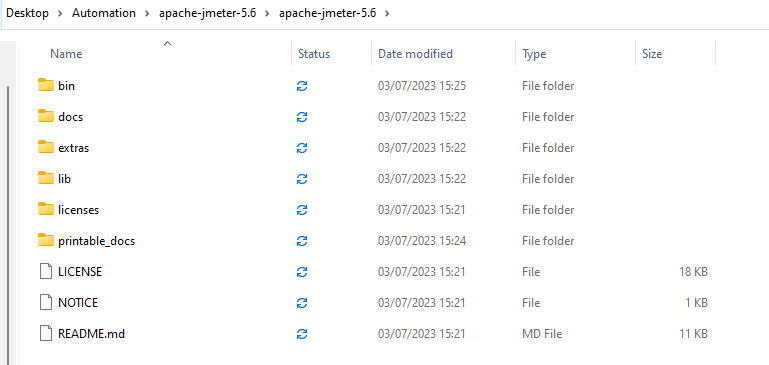
 You should see the following files within the apache-jmeter-XX folder:

  • bin: contains the executable files to launch JMeter, and configuration files to tweak JMeter settings,
  • docs: JMeter’s documentation in HTML format,
  • extras: some useful side tools like excel sheets to compute graphs from JTL result files,
  • lib: JMeter’s libraries, which are mostly Java JAR files,
  • printable_docs: documentation in printable format.

4) Launch JMeter

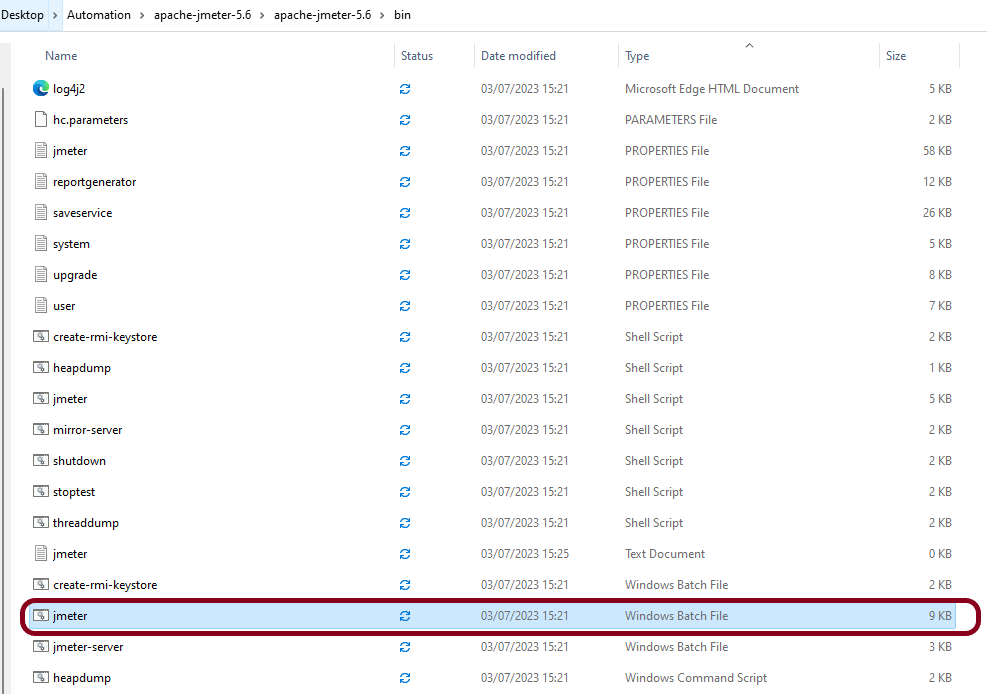
Double-click on jmeter-bat.

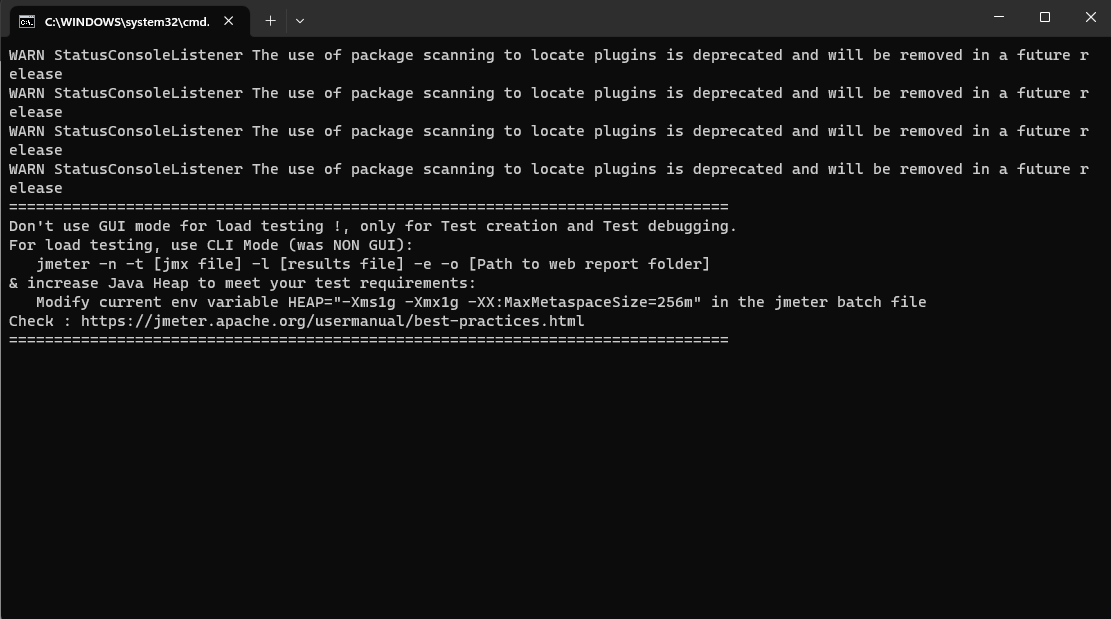
It will open a command terminal as shown below.

The following image shows the various components in the JMeter GUI

5) Upgrading JMeter

When a new JMeter version is available, the new JMeter version must be installed in a fresh new folder.

Please do not unzip a new JMeter version over a previous one.

Simply repeat the steps above to install a new version.

In the next tutorial, will send a GET Request.

We are done! Congratulations on making it through this tutorial and hope you found it useful! Happy Learning!!

Introduction of JMeter

HOME

What is Apache JMeter?

The Apache JMeter™ application is open-source software, a 100% pure Java application designed to load test functional behaviour and measure performance. JMeter is mainly used for testing Web applications or FTP applications but currently, it is applicable in functional testing, JDBC database connections, Web services, generic TCP connections, and OS native processes. You can perform various testing activities like Performance, Load, Stress, Regression, and Functional testing, in order to get accurate performance metrics against your web server.

JMeter is not a browser, it works at the protocol level. As far as web services and remote services are concerned, JMeter looks like a browser (or rather, multiple browsers); however, JMeter does not perform all the actions supported by browsers. In particular, JMeter does not execute the JavaScript found in HTML pages. Nor does it render the HTML pages as a browser does (it’s possible to view the response as HTML etc., but the timings are not included in any samples, and only one sample in one thread is ever displayed at a time). More detail about JMeter can be found here.

Apache JMeter features include:

  1. Open Source – JMeter is a 100% pure Java desktop application
  2. Platform independent -JMeter is written and developed using Java, so it can run on any environment/workstation that accepts a Java virtual machine, for example – Windows, Linux, Mac, etc.
  3. Supports cross platformJMeter has unlimited testing capabilities allowing you to work both with local and server-based instances. The only thing you need to get started is Java (JRE) installed on the host.
  4. Simulation – JMeter can simulate multiple users by using virtual users or unique users in order to generate a heavy load against the web application under test.
  5. Supports Concurrency – Full multi-threading framework allows concurrent sampling by many threads and simultaneous sampling of different functions by separate thread groups.
  6. Easy to Use – On Linux/Unix, JMeter can be invoked by clicking on JMeter shell script. On Windows, it can be invoked by starting the jmeter.bat file.
  7. Test Result Visualization – JMeter has a set of tools for collecting and displaying results, like table, graph, tree, and reports. The results can be saved in CSV, XML, HTML etc.
  8. Support various server types JMeter is highly extensible and capable to load the performance test in different server types: HTTP, HTTPS, SOAP, JDBC, LDAP, JMS, POP3
  9. Works great even without UI – Test cases are executable in the command line which allows for their full integration into CI tools’ cases.

JMeter Workflow

JMeter sends requests to a target server by simulating a group of users. Server process the requests. Subsequently, data is collected to calculate statistics and display performance metrics of the target server through various formats.                                                                         

Congratulations on making it through this tutorial and hope you found it useful! Happy Learning!! Cheers!!

Additional Tutorials

 How to send POST requests in JMeter
JMeter Authorization with access token
 How to run JMeter tests from the command line
Constant Throughput Timer in JMeter
How to generate Random Variables in JMeter