How to Save JMeter Test Results as CSV and XML Files

Last Updated On

HOME

Saving JMeter test results in multiple formats like CSV and XML is beneficial. It allows for detailed analysis and flexibility in processing. This flexibility is useful for reporting. Here’s a detailed guide on how to save or export the results of your Apache JMeter test script to a CSV or XML file.

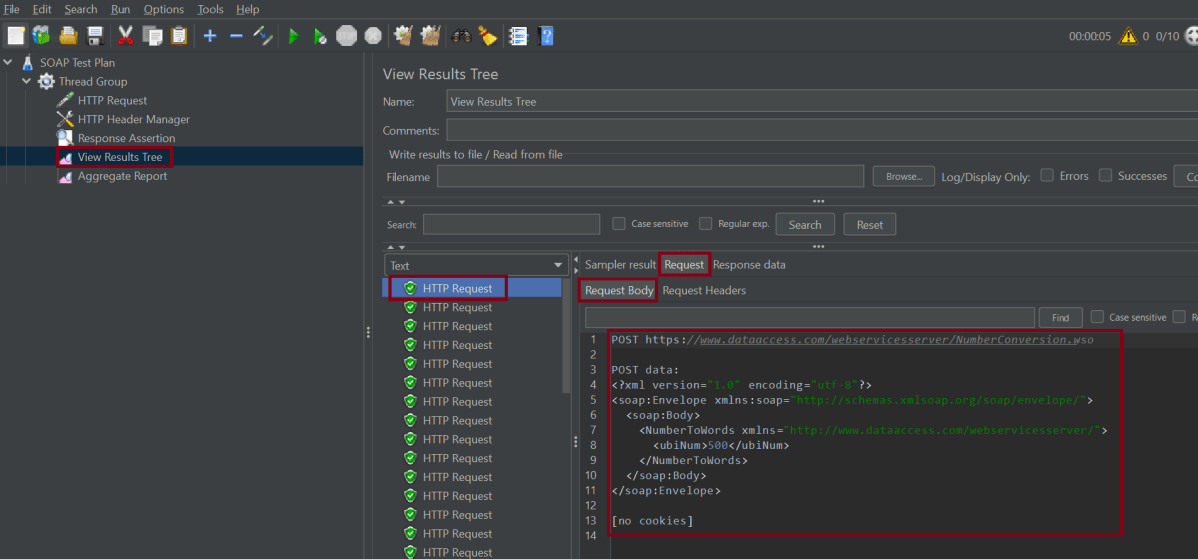
The sample request and response used in this tutorial are shown below:

Sample Request

<?xml version="1.0" encoding="utf-8"?>
<soap:Envelope xmlns:soap="http://schemas.xmlsoap.org/soap/envelope/">
  <soap:Body>
    <NumberToWords xmlns="http://www.dataaccess.com/webservicesserver/">
      <ubiNum>500</ubiNum>
    </NumberToWords>
  </soap:Body>
</soap:Envelope>

Sample Response

<?xml version="1.0" encoding="utf-8"?>
<soap:Envelope xmlns:soap="http://schemas.xmlsoap.org/soap/envelope/">
  <soap:Body>
    <m:NumberToWordsResponse xmlns:m="http://www.dataaccess.com/webservicesserver/">
      <m:NumberToWordsResult>five hundred </m:NumberToWordsResult>
    </m:NumberToWordsResponse>
  </soap:Body>
</soap:Envelope>

1. Create a Test Plan in JMeter


2. Add Thread Group

  • Select Test Plan on the tree
  • Add Thread Group                                                                                                                               
  • To add Thread Group: Right-click on the “Test Plan” and add a new thread group: Add -> Threads (Users) -> Thread Group

In the Thread Group control panel, enter Thread Properties as follows:

3.  Adding JMeter elements  

The JMeter element used here is HTTP Request Sampler. In the HTTP Request Control Panel, the Path field indicates which URL request you want to send

Add HTTP Request

The below-mentioned are the values used in HTTP Request to perform the test

  • Protocolhttps
  • Method POST
  • Path – /webservicesserver/NumberConversion.wso

Add HTTP Head Manager

SOAP requests require specific content-type headers. The Header Manager lets you add or override HTTP request headers like can add Accept-Encoding, Accept, Cache-Control

To add: Right-click on Thread Group and select: Add -> Config Element -> HTTP Read Manager

The below-mentioned are the values used in Http Request to perform the test
Content-type = text/xml

5. Adding Listeners to save result as CSV File

Listeners – They show the results of the test execution. They can show results in a different format such as a tree, table, graph, or log file

We are adding the Aggregate Report listener.

Aggregate Report

It is almost the same as Summary Report except Aggregate Report gives a few more parameters like, “Median”, “90% Line”, “95% Line” and “99% Line”.

 To add: Right Click on Thread Group > Add > Listener > Aggregate Report

Configure the filename in the Filename field of the Aggregate Report i.e.: [FULLPATH]/results.csv, where [FULLPATH] is the path on the disk to the directory where you want to save the Apache

6. Save the Test Plan

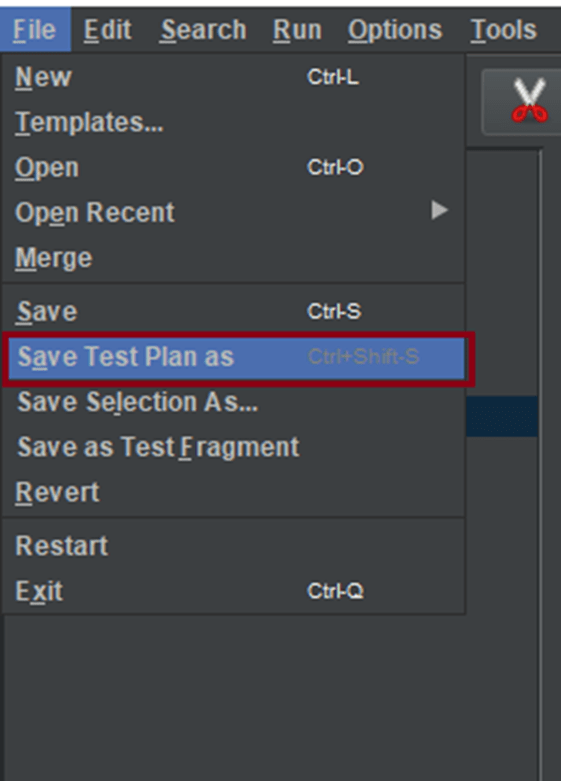
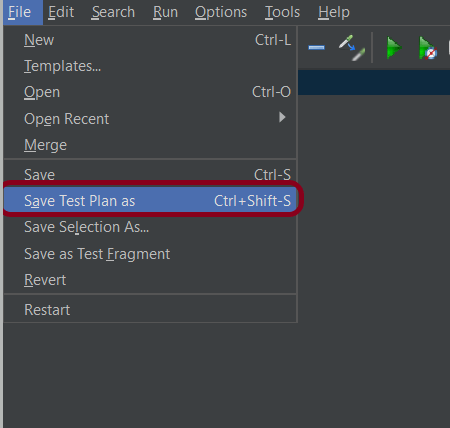
To Save: Click File and Select -> Save Test Plan as ->Give the name of the Test Plan. It will be saved in .jmx format.

7. Run the Test Plan

Click on the Green Triangle as shown at the top to run the test.

8. View the Execution Status

Click on View Result Tree to see the status of Run. A successful request will be of a Green color in the Text Section.

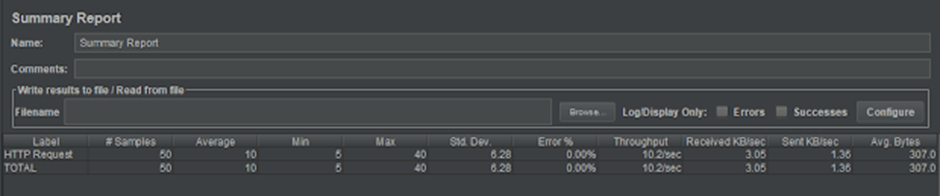
Click on Aggregate Report Result to see the aggregated status of Run.

A file with the Aggregate_Result.csv name will now be created at the path specified.

C:\Users\Vibha\Desktop\Automation\Performance_Testing\AggregateResult_${__time(yyyyMMdd-HHmmss)}.csv
C:\Users\Vibha\Desktop\Automation\Performance_Testing\ggregateResult_${__time(yyyyMMdd-HHmmss)}.xml

${__property(user.dir)}${__BeanShell(File.separator,)}PerformanceResult_${__time(yyyyMMdd-HHmmss)}.csv
${__property(user.dir)}${__BeanShell(File.separator,)}PerformanceResult_${__time(yyyyMMdd-HHmmss)}.xml

We are done! Congratulations on making it through this tutorial and hope you found it useful! Happy Learning!!

Additional Tutorials

How to send GET Requests in JMeter
JMeter Authorization with access token
How to generate JMeter HTML Report? 
Constant Throughput Timer in JMeter
How to generate Random Variables in JMeter

Step-by-Step Guide to Test SOAP Services with JMeter

Last Updated On

HOME


SOAP is a messaging protocol specification for exchanging structured information in the implementation of web services. Its purpose is to induce extensibility, neutrality, and independence. Testing SOAP (Simple Object Access Protocol) services using JMeter requires setting up a test plan. The test plan simulates requests. It also analyzes responses from the SOAP web service.

Here’s a detailed guide to help you test SOAP services using JMeter:

The sample request and response used in this tutorial are shown below:

Sample Request

<?xml version="1.0" encoding="utf-8"?>
<soap:Envelope xmlns:soap="http://schemas.xmlsoap.org/soap/envelope/">
  <soap:Body>
    <NumberToWords xmlns="http://www.dataaccess.com/webservicesserver/">
      <ubiNum>500</ubiNum>
    </NumberToWords>
  </soap:Body>
</soap:Envelope>

Sample Response

<?xml version="1.0" encoding="utf-8"?>
<soap:Envelope xmlns:soap="http://schemas.xmlsoap.org/soap/envelope/">
  <soap:Body>
    <m:NumberToWordsResponse xmlns:m="http://www.dataaccess.com/webservicesserver/">
      <m:NumberToWordsResult>five hundred </m:NumberToWordsResult>
    </m:NumberToWordsResponse>
  </soap:Body>
</soap:Envelope>

1. Create a Test Plan in JMeter


2. Add Thread Group

  • Select Test Plan on the tree
  • Add Thread Group                                                                                                                               
  • To add Thread Group: Right-click on the “Test Plan” and add a new thread group: Add -> Threads (Users) -> Thread Group

In the Thread Group control panel, enter Thread Properties as follows:

3.  Adding JMeter elements  

The JMeter element used here is HTTP Request Sampler. In the HTTP Request Control Panel, the Path field indicates which URL request you want to send

Add HTTP Request

The below-mentioned are the values used in HTTP Request to perform the test

  • Protocolhttps
  • Server Name or IPhttp://www.dataaccess.com
  • Method POST
  • Path – /webservicesserver/NumberConversion.wso

Add HTTP Head Manager

SOAP requests require specific content-type headers. The Header Manager lets you add or override HTTP request headers like can add Accept-Encoding, Accept, Cache-Control

To add: Right-click on Thread Group and select: Add -> Config Element -> HTTP Read Manager

The below-mentioned are the values used in Http Request to perform the test
Content-type = text/xml

5. Adding Listeners to Test Plan

Listeners – They show the results of the test execution. They can show results in a different format such as a tree, table, graph, or log file

We are adding the View Result Tree listener & Aggregate Report listener.

View Result Tree

View Result Tree shows the results of the user request in basic HTML format
To add: Right-click on Test Plan, Add -> Listener -> View Result Tree

Aggregate Report

It is almost the same as Summary Report except Aggregate Report gives a few more parameters like, “Median”, “90% Line”, “95% Line” and “99% Line”.

 To add: Right Click on Thread Group > Add > Listener > Aggregate Report

6. Save the Test Plan

To Save: Click File and Select -> Save Test Plan as ->Give the name of the Test Plan. It will be saved in .jmx format.

7. Run the Test Plan

Click on the Green Triangle as shown at the top to run the test.

8. View the Execution Status

Click on View Result Tree to see the status of Run. A successful request will be of a Green colour in the Text Section.

Click on Response data and Response Header to view other information about Response.

Click on Aggregate Report Result to see the aggregated status of Run.

We are done! Congratulations on making it through this tutorial and hope you found it useful! Happy Learning!!

Additional Tutorials

How to send GET Requests in JMeter
JMeter Authorization with access token
How to generate JMeter HTML Report? 
Constant Throughput Timer in JMeter
How to generate Random Variables in JMeter

How to send POST requests in JMeter

Last Updated On

HOME


We can perform GET as well as POST operations in JMeter. In this tutorial, we will only explain how we send POST HTTP requests in JMeter. In the previous tutorial, I explained how we can send GET request in JMeter.

Table of Contents

  1. Create a Test Plan in JMeter
    1. Add Thread Group
    2. Adding JMeter elements  
    3. Adding Listeners to Test Plan
    4. Save the Test Plan
    5. Run the Test Plan
    6. View the Execution Status

The sample request and response used in this tutorial are shown below:

Sample Request

{
    "name": "Test",
    "job": "JMeter"
}

Sample Response

{
  "name":"Test",
  "job":"JMeter",
  "id":"955",
  "createdAt":"2023-07-03T15:46:18.038Z"
}

Create a Test Plan in JMeter


Step 1 –  Add Thread Group

  • Select Test Plan on the tree
  • Add Thread Group                                                                                                                               To add Thread Group: Right-click on the “Test Plan” and add a new thread group: Add -> Threads (Users) -> Thread Group

In the Thread Group control panel, enter Thread Properties as follows: We will take an example of row no 5

Number of Threads: 5 – Number of users connects to the target website
Loop Count: 5  – Number of times to execute testing
Ramp-Up Period: 5 – It tells JMeter how long to delay before starting the next user. For example, if we have 5 users and a 5 -second Ramp-Up period, then the delay between starting users would be 1 second (5 seconds /5 users).

Step 2 –  Adding JMeter elements  

The JMeter element used here is HTTP Request Sampler. In the HTTP Request Control Panel, the Path field indicates which URL request you want to send


2.1 Add HTTP Request Sampler
To add: Right-click on Thread Group and select: Add -> Sampler -> HTTP Request

The below-mentioned are the values used in HTTP Request to perform the test

  • Name – HTTP POST Request Demo
  • Server Name or IP – reqres.in
  • Port
  • Method – POST
  • Path – /api/users

2.2 Add HTTP Head Manager

The Header Manager lets you add or override HTTP request headers like can add Accept-Encoding, Accept, Cache-Control

To add: Right-click on Thread Group and select: Add -> Config Element -> HTTP Read Manager

The below-mentioned are the values used in Http Request to perform the test
Content-type = application/json
accept – application/json

Step 3 – Adding Listeners to Test Plan

Listeners – They show the results of the test execution. They can show results in a different format such as a tree, table, graph, or log file
We are adding the View Result Tree listener

View Result Tree – View Result Tree shows the results of the user request in basic HTML format
To add: Right-click on Test Plan, Add -> Listener -> View Result Tree

Aggregate Report

It is almost the same as Summary Report except Aggregate Report gives a few more parameters like, “Median”, “90% Line”, “95% Line” and “99% Line”.

 To add: Right Click on Thread Group > Add > Listener > Aggregate Report

Step 4 – Save the Test Plan

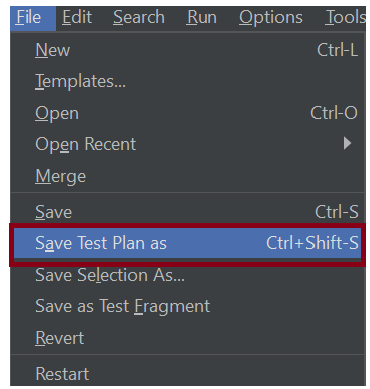
To Save: Click File Select -> Save Test Plan as ->Give the name of the Test Plan. It will be saved in .jmx format.
Step 5  – Run the Test Plan

Click on the Green Triangle as shown at the top to run the test.

Step 6 – View the Execution Status

Click on View Result Tree to see the status of Run. A successful request will be of a Green colour in the Text Section.

Click on Response data and Response Header to view other information about Response.

Click on Aggregate Report Result to see the aggregated status of Run.

We are done! Congratulations on making it through this tutorial and hope you found it useful! Happy Learning!!

Additional Tutorials

How to send GET Requests in JMeter
JMeter Authorization with access token
How to generate JMeter HTML Report? 
Constant Throughput Timer in JMeter
How to generate Random Variables in JMeter

JMeter Authorization with access token

Last Updated on

HOME

Authorization with a dynamic access token is used to pass dynamic response content to subsequent requests. This is used to validate API authorization.

In this post, we will discuss fetching an access token (dynamic response) with the help of JSON Extractor. We will also show how to pass it as a parameter in the subsequent request using BeanShell Assertion.

Table of Contents:

To achieve authorization with access token, we need to create 2 Thread Groups:

Thread Group 1 – To generate Access Token  
Thread Group 2 – To pass Access Token to Request 

Step 1 – Add Thread Group 1: Thread Group – Authorization Token Generation

1. Add Thread Group

We should provide the name of the Thread Group. In this case, this thread group is used to generate the token, so named Token Generation. We want to generate only 1 token, so the Number of Threads, Ramp-up period, and Loop Count are 1 only.

2. Add HTTP Request Sampler

In the HTTP Request Control Panel, the Path field indicates which URL request you want to send

 To add: Right-click on Thread Group and select: Add -> Sampler -> HTTP Request

Add valid credentials in the parameters section.

3. Add HTTP Header Manager 

The Header Manager lets you add or override HTTP request headers like can add Accept-Encoding, Accept, Cache-Control

To add: Right-click on Thread Group and select: Add -> Config Element -> HTTP Read Manager

Add Authorization as Headers in Header Manager 

4. Add JSON Extractor

To extract the authentication token from the request, we are going to use JMeter JSON Extractor. The process of extracting a variable from a response works as mentioned below:

First, the server sends back a response. Then a post-processor, like the JSON Extractor, executes. It extracts part of the response and puts it into a variable like ${token}.

To add: Right-click on Thread Group and select: Add -> Post Processors -> JSON Extractor

The JSON extractor requires us to follow a few steps, so we can process the JSON correctly.

1) Name – JSON Extractor
2) Apply to – we will use the defaulted Main Sample Only. The option is: The main sample only – the assertion only applies to the main sample
3) Name of created variables – BEARER
4) JSON Path Expressions – access_token

5. Add BeanShell Assertion 

An advanced assertion with full access to JMeter API. Java conditional logic can be used to set the assertion result.

To add: Right-click on Thread Group and select: Add -> Assertions -> BeanShell Assertions

Add the below-mentioned script in the Script section of BeanShell Assertion

${__setProperty(BEARER, ${BEARER})};

Step 2 – Add Thread Group 2: Thread Group – Main Request

1. Add Thread Group

Provide a name to this Thread Group. I have also provided the number of threads, ramp-up, and duration in the thread group as shown in the image

We can parameterize the values of the number of threads. We can also do this for the ramp-up period and duration. This is done using a JMeter property called ___P. You can ask why we are using the property function in JMeter. It is because this makes the JMeter script configurable. We can pass any value through the command line without making any changes in the script.

___P – This is a simplified property function that is intended for use with properties defined on the command line. 

If no default value is supplied, it is assumed to be 1. The value of 1 was chosen because it is valid for common test variables such as loops, thread count, ramp-up, etc.

${__P(group1.threads)} – return the value of group1.threads

${__P(THREADS,1)} – This THREADS value will be passed through command line. If no value is passed, by default, it will choose 1.

Similarly, ramp-up and duration are parameterized.

${__P(THREADS,1)}
${__P(RAMPUP,1)}
${__P(DURATION,1)}

2. Add HTTP Request Sampler

Below-mentioned are the values used in HTTP Request to perform the test

Add a valid request body in the Body Data section (if the request is POST).

3. Add HTTP Header Manager

We have previously extracted the token from the Token Generation request. Now, it’s time to reuse it in the header section of HTTP Header Manager.

Below are the values used in the HTTP Request to perform the test.

Authorization = Bearer ${__property(BEARER)}

Step 3 – Adding Listeners to the Test Plan

Listeners – They show the results of the test execution. They can show results in a different format such as a tree, table, graph, or log file

We have added listeners – View Result Tree 

View Result Tree – View Result Tree shows the results of the user request in basic HTML format

To add: Right-click Test Plan, Add -> Listener -> View Result Tree

Step 4 – Save the Test Plan

To Save: Click File Select -> Save Test Plan as ->Give the name of the Test Plan. It will be saved as .jmx format.

Step 5  – Run the Test Plan

Click on Green Triangle as shown at the top to run the test.

Step 6 – View the Execution Status

Click on View Result Tree to see the status of Run. A successful request will be of a Green colour in the Text Section

Here, we can see that the Token Generation request is successfully processed.

The below image shows that the Main Request is successfully executed too.

    Congratulation!! We can add an authorization token generated by a request add it to another request and process the request using JMeter. 

    How to download and install Apache JMeter
    How to send GET Requests in JMeter
    How to send POST requests in JMeter
    Install Apache JMeter in Ubuntu
    Constant Throughput Timer in JMeter

    How to run JMeter tests from the command line


    In this tutorial, we will explain how to run tests in JMeter in non-GUI mode (Command Line mode).

    Why execute tests in non-GUI mode?

    The JMeterGUI’s inability to handle huge loads and excessive resource consumption risks overloading the server, which would give you inaccurate test results information. Additionally, the less load you can generate throughout your tests, the more resource-intensive the server is.

    Sample Request

    {
        "name": "Test",
        "job": "JMeter"
    }
    

    Sample Response

    {
      "name":"Test",
      "job":"JMeter",
      "id":"955",
      "createdAt":"2023-07-03T15:46:18.038Z"
    }
    

    Create a Test Plan in JMeter by following the below-mentioned steps


    Step 1 –  Add Thread Group

    • Select Test Plan on the tree
    • Add Thread Group                                                                                                                               To add Thread Group: Right-click on the “Test Plan” and add a new thread group: Add -> Threads (Users) -> Thread Group

    In the Thread Group control panel, enter Thread Properties as follows: We will take an example of row no 5

    Number of Threads: 5 – Number of users connects to the target website
    Loop Count: 5  – Number of times to execute testing
    Ramp-Up Period: 5 – It tells JMeter how long to delay before starting the next user. For example, if we have 5 users and a 5 -second Ramp-Up period, then the delay between starting users would be 1 second (5 seconds /5 users).

    Step 2 –  Adding JMeter elements  

    The JMeter element used here is HTTP Request Sampler. In HTTP Request Control Panel, the Path field indicates which URL request you want to send


    2.1 Add HTTP Request Sampler
    To add: Right-click on Thread Group and select: Add -> Sampler -> HTTP Request

    The below-mentioned are the values used in HTTP Request to perform the test

    • Name – HTTP POST Request Demo
    • Server Name or IP – reqres.in
    • Port – Blank
    • Method – POST
    • Path – /api/users

    2.2 Add HTTP Head Manager

    The Header Manager lets you add or override HTTP request headers like can add Accept-Encoding, Accept, Cache-Control

    To add: Right-click on Thread Group and select: Add -> Config Element -> HTTP Read Manager

    The below-mentioned are the values used in Http Request to perform the test
    Content-type = application/json
    accept – application/json

    Step 3 – Adding Listeners to Test Plan

    Listeners – They show the results of the test execution. They can show results in a different format such as a tree, table, graph, or log file
    We are adding the View Result Tree listener

    View Result Tree – View Result Tree shows the results of the user request in basic HTML format
    To add: Right-click on Test Plan, Add -> Listener -> View Result Tree

    Aggregate Report

    It is almost the same as Summary Report except Aggregate Report gives a few more parameters like, “Median”, “90% Line”, “95% Line” and “99% Line”.

     To add: Right Click on Thread Group > Add > Listener > Aggregate Report

    Step 4 – Save the Test Plan

    To Save: Click File Select -> Save Test Plan as ->Give the name of the Test Plan. It will be saved in .jmx format.

    The below image shows that the test is saved in Documents with the name POST_Load.jmx.

    Step 5  – Run the Test Plan from Command Line

    Open the command prompt and go into JMeter’s bin folder.

    cd C:\Users\Vibha\Documents\apache-jmeter-5.6\apache-jmeter-5.6\bin
    

    Step 6 – View the Execution Status

    Enter the following command:

    jmeter -n –t test.jmx -l testresults.jtl
    

    This is the command used in the script:

    jmeter -n -t C:\Users\Vibha\Documents\apache-jmeter-5.6\apache-jmeter-5.6\POST_Load.jmx -l C:\Users\Vibha\Documents\JMeterResult\result.jtl
    

    Below is the detail about the commands used in the execution.

    -n: This specifies JMeter is to run in cli mode

    -t: [name of JMX file that contains the Test Plan]

    -l: [name of JTL file to log sample results to]

    The test execution is displayed in the command line as shown below:

    The result.jtl is saved as mentioned in the above command in the JMeterResult folder present in Documents:

    Let us open the result.jtl file.

    It is very difficult to understand the result in this format. So, open JMeter in GUI mode.

    Mention the location of the file in the Filename of the “View Results Tree” listener and hit enter. We can see the result now.

    Click on Response data and Response Header to view other information about Response.

    We are done! Congratulations on making it through this tutorial and hope you found it useful! Happy Learning!!

    Constant Throughput Timer in JMeter

    HOME

    What is Throughput?

    Throughput is calculated as requests/units of time. The time is calculated from the start of the first sample to the end of the last sample. This includes any intervals between samples, as it is supposed to represent the load on the server.

    The formula is: Throughput = (number of requests) / (total time)

    Suppose we want to run the load test with constant throughput in JMeter, then JMeter has a group of elements, which are called “Timers”.  And one of them has the obvious title – “Constant Throughput Timer”. That is what we need. 

    What is Constant Throughput Timer?

    This timer allows us to keep total throughput constant. Constant Throughput Timer is only capable of pausing JMeter threads in order to slow them down to reach the target throughput, so make sure you have enough threads in order to guarantee the desired amount of requests per second. Also, be aware that the Constant Throughput Timer is precise enough only on a minute level, so you need to properly calculate the ramp-up period and let your test run long enough. Of course, if the server is not able to handle such a load, the throughput will be lowered. Throughput may decrease if other timers contradict the Constant Throughput timer.

    Constant Throughput Timer will introduce random delays between requests in such a way that a load/stress of required throughput is sent to the application.

    Screenshot of Control Panel of Constant Throughput Timer

    Create a Test Plan in JMeter

    Step 1 –  Add Thread Group

    Select Test Plan on the tree

    Add Thread Group                     

    To add Thread Group: Right-click on the “Test Plan” and add a new thread group: Add -> Threads (Users) -> Thread Group

    In the Thread Group control panel, enter Thread Properties as follows: 

    Number of Threads: 1 – Number of users connects to the target website

    Loop Count: Infinite  – Number of times to execute testing

    Ramp-Up Period:

    Duration: 5 sec

    Step 2 –  Adding JMeter elements  

    The JMeter element used here is HTTP Request Sampler. In HTTP Request Control Panel, the Path field indicates which URL request you want to send

    Add HTTP Request Sampler

     To add: Right-click on Thread Group and select: Add -> Sampler -> HTTP Request

    Below-mentioned are the values used in HTTP Request to perform the test

    Name – HTTP Request 

    Server Name or IP – localhost

    Port– 8010

    Method– POST

    Path– /demo/helloworld

    Step 3 –  Add Constant Throughput Timer

    To add: Right-click on Thread Group and select: Add -> Timer-> Constant Throughput Timer

    Add Target Throughput: 600 (means 600 requests in 60 sec, so 10 requests per sec) Select Calculate Throughput based on – this thread only (More details about the option are present.

    Step 4 – Adding Listeners to Test Plan

    Listeners – They show the results of the test execution. They can show results in a different format such as a tree, table, graph, or log file

    We are adding the View Result Tree listener

    View Result Tree – View Result Tree shows the results of the user request in basic HTML format

    To add: Right-click Test Plan, Add -> Listener -> View Result Tree

    We are adding a Summary Report listener

    Summary Report – The summary report creates a table row for each differently named request in your test. This is similar to the Aggregate Report, except that it uses less memory.

    To add: Right-click Test Plan, Add -> Listener -> Summary Report

    Step 5 – Save the Test Plan

    To Save: Click File Select -> Save Test Plan as ->Give the name of the Test Plan. It will be saved as .jmx format.

    Step 6  – Run the Test Plan

    Click on Green Triangle as shown at the top to run the test.

    Step 7 – View the Execution Status

    Click on Summary Report to see the status of Run. As we can see in the summary report, 50 requests are executed as 10 requests per sec (10*5=50 requests).

    Congratulations on making it through this tutorial and hope you found it useful! Happy Learning!! Cheers!!

    How to send GET Request in JMeter

    HOME

    What is Apache JMeter?

    The Apache JMeter™ application is open source software, a 100% pure Java application designed to load test functional behavior and measure performance. It was design for testing Web Applications but has since expanded to other test functions.
    It can used to simulate a heavy load on a server, group of servers, network or object to test its strength or to analyze overall performance under different load types.

    How to send GET HTTP Request in JMeter?

    We can perform GET as well as POST operation in JMeter. In this tutorial, we will only explain how we can perform GET operation.

    Create a Test Plan in JMeter

    Step 1 – Add Thread Group

    • Select Test Plan on the tree
    • Add Thread Group                                                                                           
      • To add Thread Group: Right click on the “Test Plan” and add a new thread group: Add -> Threads (Users) -> Thread Group

    In the Thread Group control panel, enter Thread Properties as follows: We will take an example of row no 5.

    • Number of Threads: 5 – Number of users connects to the target website
    • Loop Count: 5  – Number of time to execute testing
    • Ramp-Up Period: 5 – It tells JMeter how long to delay before starting the next user. For example, if we have 5 users and a 5 -second Ramp-Up period, then the delay between starting users would be 1 second (5 seconds /5 users).

    Step 2 –  Adding JMeter elements

    The JMeter element used here is HTTP Request Sampler. In HTTP Request Control Panel, the Path field indicates which URL request you want to send.

    2.1 Add HTTP Request Sampler

    To add: Right-click on Thread Group and select: Add -> Sampler -> HTTP Request.

    Below mentioned are the values use in HTTP Request to perform the test

    • Name – HTTP Request 
    • Server Name or IP – localhost
    • Port – 8010
    • Method – GET
    • Path – /demo/helloworld/demo

    OR

    URL – https://reqres.in/api/users?page=2

    • Name – HTTP GET Request 
    • Protocol – https
    • Server Name or IP – reqres.in
    • Port –
    • Method – GET
    • Path – /api/users?page=2

    Step 3 – Adding Listeners to Test Plan

    Listeners – They shows the results of the test execution. They can show results in a different format such as a tree, table, graph or log file

    We are adding  View Result Tree listener

    View Result Tree – View Result Tree show results of the user request in basic HTML format

    To add: Right click Test Plan, Add -> Listener -> View Result Tree

    Complete Test Plan will look like as shown below

    Step 4 – Save the Test Plan

    To Save: Click File Select -> Save Test Plan as ->Give name of the Test Plan. It will be save as .jmx format.

    Sample .jmx File

    Step 5  – Run the Test Plan

    Click on Green Triangle as shown below to run the test.

    Step 6 – View the Execution Status

    Click on View Result Tree to see the status of Run. Successful request will be of Green color in the Text Section.

    Sample of Failed Request. Failed request will be of Red color in View Result Tree under Text option. This screen sows the reason for the failure of the request like Connection refused here.

    That’s it! Congratulations on making it through this tutorial and hope you found it useful! Happy Learning!!