In the previous tutorial, I have explained about How to create Gradle project in IntelliJ without Command Line. In this tutorial, I will explain how to create a Gradle Java project using Command Line.
Step 1 – Open Command Prompt. Change current folder to the folder where we want to create the Java project.
cd C:\Users\vibha\eclipse-workspace\Projects\Vibha_Personal\Gradle_Project
Step 2 – Create a Project from Gradle Template. Type the below command and press ENTER.
gradle init

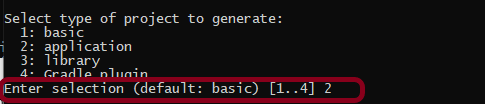
Step 3 – Select the type of project to generate. I’m selecting the application option as if I select basic, it won’t create a src directory. Type 2 and press ENTER.
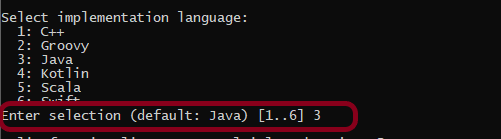
Step 4 – Select implementation language. This is a Java project, so TYPE 3 and press ENTER.
Step 5 – Select Split functionality across multiple subprojects. I have selected 1 as I want only 1 application. Type 1 and press ENTER.

Step 6 – Select build script DSL (Domain Specific Language) – As in Maven POM.xml (XML) is created to build a script file, here we can use Groovy or Kotlin to build the script file. Type 1 (Groovy) and press ENTER.

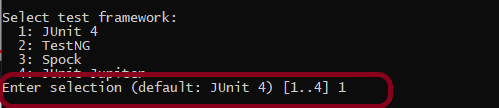
Step 7 – Select Test Framework – There are 4 different test frameworks. Depending on your requirement, select an option. I have selected 1 (JUnit 4) and press ENTER.
Step 8 – It needs the Project name and Source Package name. If I won’t provide the project name, it will take by default my current folder name which is Gradle_Project. Similarly, if I won’t provide the Source Package name, then it will provide the current project name as Source Package Name.
Project name – GradleDemoFromCMD
Source Package – com.example
Press ENTER. init script will run and create a Gradle project. You can see as the build is successfull.

Step 9 – Below is the project structure. As you can see, the name of the project is GradleDemoFromCMD, but that is not the name of the project folder here. But, when I’ll import this folder into Eclipse, the project name will be GradleDemoFromCMD.
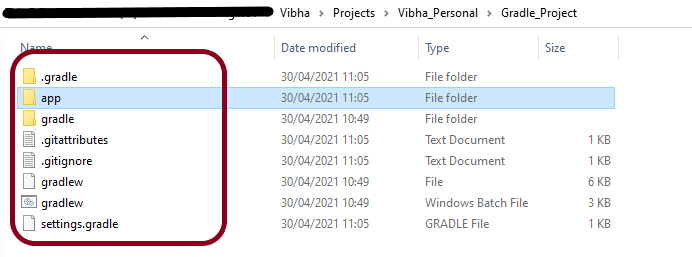
Step 10 – Open app folder. There should be src folder and build.gradle. Open build.gradle.

/*
 * This file was generated by the Gradle 'init' task.
 *
 * This generated file contains a sample Java application project to get you started.
 * For more details take a look at the 'Building Java & JVM projects' chapter in the Gradle
 * User Manual available at https://docs.gradle.org/7.0/userguide/building_java_projects.html
 */

plugins {
    // Apply the application plugin to add support for building a CLI application in Java.
    id 'application'
}

repositories {
    // Use Maven Central for resolving dependencies.
    mavenCentral()
}

dependencies {
    // Use JUnit test framework.
    testImplementation 'junit:junit:4.13.1'

    // This dependency is used by the application.
    implementation 'com.google.guava:guava:30.0-jre'
}

application {
    // Define the main class for the application.
    mainClass = 'com.example.App'
}
This build.gradle contains all the information which I have provided while creating the project.
That’s it! We have created a Gradle Project using Command Line.
Congratulations on making it through this tutorial and hope you found it useful! Happy Learning!! Cheers!!



 QA Automation Expert