In this article we will see how we can read a pdf file using seleniumjava.
Organizations frequently generate various types of PDF reports, such as mobile bills, electricity bills, financial reports, and revenue reports. Quality Assurance (QA) teams are then tasked with verifying the information contained in these reports. Typically, this process involves manually downloading the reports and reading the data they contain. To automate this process, the test framework must be capable of automatically downloading PDF reports and extracting the data without any human intervention.
Reading a PDF document in Selenium using Java requires some additional libraries because Selenium itself does not provide direct support for reading PDFs. The most commonly used library for reading PDFs in Java is Apache PDFBox.
Add the Selenium, commons and pdfbox dependencies to the project. To download the latest version of these dependencies, refer to the official Maven site – https://mvnrepository.com/.
Use Selenium WebDriver to navigate to the PDF URL and download it to a desired location.
 String downloadFilepath = System.getProperty("user.dir") + File.separator + "downloads";

        ChromeOptions options = new ChromeOptions();
        Map<String, Object> prefs = new HashMap<>();
        prefs.put("plugins.always_open_pdf_externally", true);
        prefs.put("download.default_directory", downloadFilepath);
        options.setExperimentalOption("prefs", prefs);

        WebDriver driver = new ChromeDriver(options);
        driver.manage().window().maximize();
        driver.get("https://freetestdata.com/document-files/pdf/");

        // Locate and click the download link or button if necessary
        WebElement downloadLink = driver.findElement(By.xpath("//*[@class=\"elementor-button-text\"]"));
        downloadLink.click();

        //Wait for download to complete
        File downloadedFile = new File(downloadFilepath + "/Free_Test_Data_100KB_PDF.pdf");
        WebDriverWait wait = new WebDriverWait(driver, Duration.ofSeconds(30));
        wait.until((ExpectedCondition<Boolean>) wd -> downloadedFile.exists());

        // Check if the file exists
        if (downloadedFile.exists()) {
            System.out.println("File is downloaded!");
        } else {
            System.out.println("File is not downloaded.");
        }
We are using the Apache PDFBox to read the downloaded PDF file and extract text.
Step 1 – Load PDF Document
File file = new File("Path of Document");
PDDocument doc = Loader.loadPDF(file);
Step 2 – Retrieve the text
PDFTextStripper class is used to retrieve text from a PDF document. We can instantiate this class as following
PDFTextStripper pdfStripper = new PDFTextStripper();
getText() method is used to read the text contents from the PDF document. In this method, we need to pass the document objectas a parameter.
String text = pdfStripper.getText(doc);
The complete program can be seen below:
import org.apache.pdfbox.Loader;
import org.apache.pdfbox.pdmodel.PDDocument;
import org.apache.pdfbox.text.PDFTextStripper;
import org.openqa.selenium.By;
import org.openqa.selenium.WebDriver;
import org.openqa.selenium.WebElement;
import org.openqa.selenium.chrome.ChromeDriver;
import org.openqa.selenium.chrome.ChromeOptions;
import org.openqa.selenium.support.ui.ExpectedCondition;
import org.openqa.selenium.support.ui.WebDriverWait;

import java.io.File;
import java.io.IOException;
import java.time.Duration;
import java.util.HashMap;
import java.util.Map;

public class ReadPDF_Chrome_Demo {

    public static void main(String[] args) throws InterruptedException {

        String downloadFilepath = System.getProperty("user.dir") + File.separator + "chrome_downloads";

        ChromeOptions options = new ChromeOptions();
        Map<String, Object> prefs = new HashMap<>();
        prefs.put("plugins.always_open_pdf_externally", true);
        prefs.put("download.default_directory", downloadFilepath);
        options.setExperimentalOption("prefs", prefs);

        WebDriver driver = new ChromeDriver(options);
        driver.manage().window().maximize();
        driver.get("https://freetestdata.com/document-files/pdf/");

        // Locate the download link/button and click and wait for the download to complete
        WebElement downloadLink = driver.findElement(By.xpath("//*[@class='elementor-button-text']"));
        downloadLink.click();

        //Wait for download to complete
        File downloadedFile = new File(downloadFilepath + "/Free_Test_Data_100KB_PDF.pdf");
        WebDriverWait wait = new WebDriverWait(driver, Duration.ofSeconds(30));
        wait.until((ExpectedCondition<Boolean>) wd -> downloadedFile.exists());

        // Check if the file exists
        if (downloadedFile.exists()) {
            System.out.println("File is downloaded!");
        } else {
            System.out.println("File is not downloaded.");
        }

        driver.quit();

        // Read the downloaded PDF using PDFBox
        PDDocument document = null;
        try {
            document = Loader.loadPDF(downloadedFile);
            PDFTextStripper pdfStripper = new PDFTextStripper();
            String text = pdfStripper.getText(document);
            document.close();

            // Print the PDF text content
            System.out.println("Text in PDF: ");
            System.out.println(text);
        } catch (IOException e) {
            System.err.println("An error occurred while loading or reading the PDF file: " + e.getMessage());
            e.printStackTrace();
        }

    }

}
The output of the above program is
Summary:
### Summary
1. Setup WebDriver:Configure the browser to handle automatic downloads. 2. Trigger Download: Navigate to the webpage and trigger the download. 3. Wait for Completion: Implement a waiting mechanism to ensure the download completes. 4. Verify Content: Use a library like Apache PDFBox to read the content of the downloaded PDF.
That’s it! Congratulations on making it through this tutorial and hope you found it useful! Happy Learning!!
In this article we will see how we can download a pdf file in chrome using selenium at a desired location in java.
When a PDF link on a website is clicked, the PDF file typically opens in Chrome’s default PDF viewer. While clicking on the PDF link itself is straightforward using Selenium, interacting with the PDF viewer afterward presents a challenge. This is because the PDF viewer is not part of the HTML DOM, and Selenium cannot interact with elements within it, such as the download button. As a result, we are unable to perform Selenium actions on controls within Chrome’s built-in PDF viewer.
To overcome this problem, we need to disable the default chrome pdf viewer plugin before launching the driver, and set the download directory where we need to download the file.
Implementation Steps
Step 1 – Download Path and Chrome Options Setup
Define the directory path where the PDF will be downloaded.
This line is setting a Chrome preference to always open PDF files using an external application (like Adobe Reader) instead of the Chrome PDF viewer. By setting this preference to true, Chrome will automatically download the PDF files rather than opening them in the built-in PDF viewer.
This line sets the default directory where downloaded files should be saved.
options.setExperimentalOption("prefs", prefs);
setExperimentalOptionis a method used to pass custom preferences to the ChromeDriver. This line applies the preferences you’ve set to the ChromeOptionsobject.
Step 3 – Initialize WebDriver and Open Webpage
WebDriver driver = new ChromeDriver(options);
driver.manage().window().maximize();
driver.get("https://freetestdata.com/document-files/pdf/");
Step 4 – Find and Click the Download Link
Locate the download link using XPath and click on it to start the download.
This is used to pause the execution for a specified amount of time (5 seconds here) to allow the file to download completely. It is not recommended to use Thread.sleep in production.
Thread.sleep(5000);
Step 6 – Verify the File Download
Check if the downloaded file exists in the specified download directory or not.
File downloadedFile = new File(downloadFilepath + "/Free_Test_Data_100KB_PDF.pdf");
if (downloadedFile.exists()) {
System.out.println("File is downloaded!");
} else {
System.out.println("File is not downloaded.");
}
Step 7 – Quit the WebDriver
driver.quit();
The complete program can be seen below:
import org.openqa.selenium.By;
import org.openqa.selenium.WebDriver;
import org.openqa.selenium.WebElement;
import org.openqa.selenium.chrome.ChromeDriver;
import org.openqa.selenium.chrome.ChromeOptions;
import java.io.File;
import java.util.HashMap;
import java.util.Map;
public class DownloadPDF_Chrome_Demo {
public static void main(String[] args) throws InterruptedException {
String downloadFilepath = System.getProperty("user.dir") + File.separator + "downloads";
ChromeOptions options = new ChromeOptions();
Map<String, Object> prefs = new HashMap<>();
prefs.put("plugins.always_open_pdf_externally", true);
prefs.put("download.default_directory", downloadFilepath);
options.setExperimentalOption("prefs", prefs);
WebDriver driver = new ChromeDriver(options);
driver.manage().window().maximize();
driver.get("https://freetestdata.com/document-files/pdf/");
// Locate and click the download link or button if necessary
WebElement downloadLink = driver.findElement(By.xpath("//*[@class=\"elementor-button-text\"]"));
downloadLink.click();
// Wait for the download to complete
Thread.sleep(5000);
// Check if the file exists
 File downloadedFile = new File(downloadFilepath + "/Free_Test_Data_100KB_PDF.pdf");
        if (downloadedFile.exists()) {
            System.out.println("File is downloaded!");
        } else {
            System.out.println("File is not downloaded.");
      }
driver.quit();
}
}
The output of the above program is
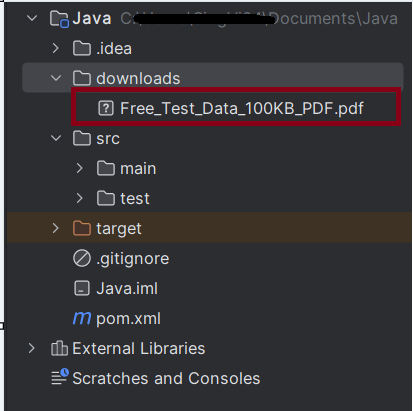
We can see that a downloads folder is created, and it has the downloaded pdf file – Free_Test_Data_100KB_PDF.pdf.
Summary:
Setup: Configures Chrome to automatically download PDFs and sets the download directory.
Download and Verify: Navigates to a specific URL, clicks the download link, waits for the download to complete, and verifies if the file exists in the specified directory.
Cleanup: Closes the browser session.
That’s it! Congratulations on making it through this tutorial and hope you found it useful! Happy Learning!!
Switching between frames in Selenium can be necessary when dealing with web pages that use iframes. The methods to switch between frames allow you to interact with elements within those frames
In this tutorial, we will learn handling iFrames using Selenium Webdriver. iFrame is a HTML document embedded inside an HTML document. iFrame is defined by an <iframe></iframe> tag in HTML. With this tag, you can identify an iFrame while inspecting the HTML tree as shown below:
Below is the page that contains Frames.
1) Switching by Name or ID
If the frame or iframe has an id or name attribute, we can switch the frames using name or ID. If the name or ID is not unique on the page, then the first one found will be switched to.
//switch To IFrame using name or id
driver.findElement(By.name("iframe1-name"));

//Switch to the frame
driver.switchTo().frame(iframe);
2) Switching by WebElement
We can find the frame using any selector and switch to it.
Switching between the frames can be done by Index also.
//switch To IFrame using index
driver.switchTo().frame(0);
4) Switching back to the default content:
To leave an iframe or frameset, switch back to the default content like:
//leave frame
driver.switchTo().defaultContent();
Let us explain frame switchching with an example:-
1) Launch new Browser and open https://demoqa.com/frames 2) Switch iFrame using any of locator strategy 3) Switch back to main content 4) Switch iFrame using index 5) Close the window
The program for the above scenario is shown below:
package com.example;

import org.openqa.selenium.By;
import org.openqa.selenium.WebDriver;
import org.openqa.selenium.WebElement;
import org.openqa.selenium.chrome.ChromeDriver;
import org.openqa.selenium.chrome.ChromeOptions;


public class iFrame_Demo {

    public static void main(String[] args) {

        ChromeOptions options = new ChromeOptions();
        WebDriver driver = new ChromeDriver(options);
        driver.manage().window().maximize();
        driver.get("https://demoqa.com/frames");

        //Switch iFrame using any of locator strategy
        WebElement iframeElement = driver.findElement(By.id("frame1"));
        driver.switchTo().frame(iframeElement);
        String Frame_1 = driver.findElement(By.id("sampleHeading")).getText();
        System.out.println("Switch by locator:" + Frame_1);

        //Switch back to the main window
        driver.switchTo().defaultContent();
        String mainPage = driver.findElement(By.xpath("//*[@id='framesWrapper']/h1")).getText();
        System.out.println("Back to Main page :" + mainPage);

        //Switch iFrame using index
         driver.switchTo().frame(1);
        String Frame_2 = driver.findElement(By.id("sampleHeading")).getText();
        System.out.println("Switch by Index :" + Frame_2);

        //quit the browser
        driver.quit();
    }
}
The output of the above program is
Note:-
1. Make sure to always switch back to the default content after performing actions within a frame. This is particularly important before interacting with elements that are outside of the frame.
2. If you want to switch between multiple frames, then switch to a frame and them switch back to main window and then switch to another frame.
Congratulations. We have learnt about window switching in Selenium. I hope you find this tutorial helpful. Happy Learning!!
In this tutorial, we will discuss the ToolTip and how to automate the ToolTip in Selenium.
What is ToolTip?
A ToolTip is a small, informational popup that appears when a user hovers over an element such as a button, image, or link. It provides additional context or information about the element. Tooltips are often implemented using the titleattribute in HTML or through JavaScript and CSS for custom tooltips.
Tool Tips are implemented in different ways–
The basic implementation is based on HTML’s “title”attribute. getAttribute(title) gets the value of the tooltip.
Another tool tip implementation is using Action Class.
This tutorial explains the steps to automate the Custome ToolTip where no title attribute is present.
Let’s understand how one can automate the process of verifying tooltip in Selenium.
To test tooltips in Selenium, you generally follow these steps:
1. Locate the Element with Tooltip: Identify the element that contains the tooltip. 2. Hover Over the Element: Use Actions class to simulate mouse hover event. 3. Capture the Tooltip Text: Retrieve the text from the tooltip element. 4. Validate the Text: Assert that the tooltip text matches the expected value.
Implementation Steps
Locate the Tooltip Element
Identify the element that contains the tooltip. Here, the element has been found using By.id().
Identify the element that contains the tooltip using Actionsclass to hover over the element.
Actions actions = new Actions(driver);
actions.moveToElement(elementWithTooltip).perform();
Retrieve Tooltip Text
Capturing the tooltip text typically found in the titleattribute. But in this case, there is no title in page source, so I have created an xpath using contains(text()) to find the tooltip text.
WebDriverWait wait = new WebDriverWait(driver, Duration.ofSeconds(5));
WebElement tooltip = wait.until(ExpectedConditions.visibilityOfElementLocated(By.xpath("//*[contains(text(),'You hovered over the Button')]")));
Validate the Text
Comparing the captured text with the expected tooltip text.
  if (expectedTooltipText.equals(actualTooltipText)) {
            System.out.println("Tooltip text is correct!");
        } else {
            System.out.println("Tooltip text is incorrect!");
 }
The complete program is shown below:
package com.example;

import org.openqa.selenium.By;
import org.openqa.selenium.WebDriver;
import org.openqa.selenium.WebElement;
import org.openqa.selenium.chrome.ChromeDriver;
import org.openqa.selenium.chrome.ChromeOptions;
import org.openqa.selenium.interactions.Actions;
import org.openqa.selenium.support.ui.ExpectedConditions;
import org.openqa.selenium.support.ui.WebDriverWait;

import java.time.Duration;

public class TooltipTest_Demo {

    static WebDriver driver;
    static String expectedTooltipText = "You hovered over the Button";
    static String actualTooltipText;

    public static void main(String[] args) {

        ChromeOptions options = new ChromeOptions();
        driver = new ChromeDriver(options);
        driver.manage().window().maximize();

        driver.get("https://demoqa.com/tool-tips");

        // Locate the element with the tooltip
        WebElement elementWithTooltip = driver.findElement(By.id("toolTipButton"));

        // Perform hover action using Actions class
        Actions actions = new Actions(driver);
        actions.moveToElement(elementWithTooltip).perform();

        // Wait for the tooltip to be visible
        WebDriverWait wait = new WebDriverWait(driver, Duration.ofSeconds(5));
        WebElement tooltip = wait.until(ExpectedConditions.visibilityOfElementLocated(By.xpath("//*[contains(text(),'You hovered over the Button')]")));

        // Check the tooltip text
        actualTooltipText = tooltip.getText();
        System.out.println("Actual Tooltip Text: " + actualTooltipText);

        if (expectedTooltipText.equals(actualTooltipText)) {
            System.out.println("Tooltip text is correct!");
        } else {
            System.out.println("Tooltip text is incorrect!");
        }

        driver.quit();
    }

}
The output of the above program is
We are using WebDriverWaitto wait for the hover text to appear.
Summary
Custom ToolTip can be automated using Action class.
moveToElement(element) of Actions class is used to mouse hover an element.
Build() method of Actions class builds the sequence of user actions into an Action object.
Perform() of Action class executes all the sequence of user actions at once.
A keyword-driven framework is a software testing framework that separates the test script logic from the test data through a set of keywords or actions.
1. Keywords: Keywords or actions represent the basic building blocks of the test script. Examples of keywords can include “click,” “sendKeys,” “verifyText,” etc. These keywords are defined in a central repository or spreadsheet, along with the associated test data and expected results.
2. Test Data: Test data is the input or parameters required to perform a specific keyword action. It can be stored in a separate data source such as an Excel spreadsheet or XML file. Test data includes information like usernames, passwords, URLs, input values, and expected outcomes.
3. Test Scripts: Test scripts are developed to execute the keywords. Each test script consists of a series of actions driven by the keywords. The test script fetches the keyword from the central repository and performs the associated action using the test data. It also captures and verifies the results against the expected outcome.
4. Central Repository: The central repository contains all the keywords, associated test data, and expected results. It acts as a bridge between test scripts and test data, allowing for easy maintenance and modification.
Project Structure
Here is the final snapshot of our project.
Dependency List
Selenium – 4.21.0
TestNG – 7.10.2
Apache POI – 5.2.5
Commons – 2.16.1
Maven Surefire – 3.2.5
Maven Compiler – 3.13.0
Java 17
Maven – 3.9.6
Implementation Steps
Step 1- Download and Install Java
Selenium needs Java to be installed on the system to run the tests. Click here to learn How to install Java.
Step 2 – Download and setup Eclipse IDE on the system
The Eclipse IDE (integrated development environment) provides strong support for Java developers, which is needed to write Java code. Click here to learn How to install Eclipse.
Step 3 – Setup Maven
To build a test framework, we need to add many dependencies to the project. It is a very tedious and cumbersome process to add each dependency manually. So, to overcome this problem, we use a build management tool. Maven is a build management tool that is used to define project structure, dependencies, build, and test management. Click here to learn How to install Maven.
Step 6 – Create a Java Keyword Class for each page
In this example, we will access 2 web pages, “Login” and “Home” pages.
Hence, we will create 2 Java classes for keywords – LoginPageKeywords.java and HomePageKeywords.java and a BasePage class to initialize the driver using PageFactory.
BasePage
package com.example.pages;

import org.openqa.selenium.WebDriver;
import org.openqa.selenium.support.PageFactory;

public class BasePage {
    public WebDriver driver;

    public BasePage(WebDriver driver) {
        this.driver = driver;
        PageFactory.initElements(driver,this);
    }

}
LoginPageKeywords
package com.example.keywords;

import com.example.utils.ExcelUtils;
import org.openqa.selenium.WebDriver;
import org.openqa.selenium.WebElement;
import org.openqa.selenium.support.FindBy;

public class LoginPageKeywords extends BasePage{

    public LoginPageKeywords(WebDriver driver) {
        super(driver);

    }

    @FindBy(name = "username")
    public WebElement userName;

    @FindBy(name = "password")
    public WebElement password;

    @FindBy(xpath = "//*[@class='oxd-form']/div[1]/div/span")
    public WebElement missingUsernameErrorMessage;

    @FindBy(xpath = "//*[@class='oxd-form']/div[2]/div/span")
    public WebElement missingPasswordErrorMessage;

    @FindBy(xpath = "//*[@class='oxd-form']/div[3]/button")
    public WebElement loginBtn;

    @FindBy(xpath = "//*[@id='app']/div[1]/div/div[1]/div/div[2]/div[2]/div/div[1]/div[1]/p")
    public  WebElement errorMessage;


    public void enterUsername(String strUserName) {
        userName.sendKeys(strUserName);
    }

    public void enterPassword(String strPassword) {
        password.sendKeys(strPassword);
    }

    public void login() {
        loginBtn.click();
    }

    public void login(String strUserName, String strPassword) {

        userName.sendKeys(strUserName);
        password.sendKeys(strPassword);
    }

    public String getMissingUsernameText() {
        return missingUsernameErrorMessage.getText();
    }

    public String getMissingPasswordText() {
        return missingPasswordErrorMessage.getText();
    }

    public String getErrorMessage() {
        return errorMessage.getText();
    }

    public LoginPageKeywords saveTestResults(int row, int column) {
        ExcelUtils.rowNumber = row ;
        ExcelUtils.columnNumber = column;
        return this;
    }

}
HomePageKeywords
package com.example.keywords;

import org.openqa.selenium.WebDriver;
import org.openqa.selenium.WebElement;
import org.openqa.selenium.support.FindBy;

public class HomePageKeywords extends BasePage {

    public HomePageKeywords(WebDriver driver) {
        super(driver);

    }

    @FindBy(xpath = "//*[@id='app']/div[1]/div[1]/header/div[1]/div[1]/span/h6")
    public  WebElement homePageUserName;

    public String verifyHomePage() {
        return homePageUserName.getText();
    }
}
Step 7 – Create an ExcelUtils Class
To manipulate Excel files and do Excel operations, we should create an Excel file and call it “ExcelUtils” under the utilspackage as shown below.
package com.example.utils;

import org.apache.poi.ss.usermodel.DataFormatter;
import org.apache.poi.xssf.usermodel.XSSFCell;
import org.apache.poi.xssf.usermodel.XSSFRow;
import org.apache.poi.xssf.usermodel.XSSFSheet;
import org.apache.poi.xssf.usermodel.XSSFWorkbook;

import java.io.FileInputStream;
import java.io.FileOutputStream;
import java.io.IOException;

public class ExcelUtils {


    public static String testDataExcelPath = null; //Location of Test data excel file
    private static XSSFWorkbook excelWorkBook; //Excel WorkBook
    private static XSSFSheet excelWorkSheet; //Excel Sheet
    private static XSSFCell cell; //Excel cell
    private static XSSFRow row; //Excel row
    public static int rowNumber; //Row Number
    public static int columnNumber; //Column Number
    public static FileInputStream ExcelFile;

    public static DataFormatter formatter;
    public static FileOutputStream fileOut;


    // This method has two parameters: "Test data excel file name" and "Excel sheet name"
    // It creates FileInputStream and set excel file and excel sheet to excelWBook and excelWSheet variables.
    public static void setExcelFileSheet(String sheetName) throws IOException {

        testDataExcelPath = Constants.currentDir + Constants.resourcePath;

        // Open the Excel file
        ExcelFile = new FileInputStream(testDataExcelPath + Constants.testDataExcelFileName);
        excelWorkBook = new XSSFWorkbook(ExcelFile);
        excelWorkSheet = excelWorkBook.getSheet(sheetName);

    }

    //This method reads the test data from the Excel cell.
    public static String getCellData(int rowNum, int colNum) {
        cell = excelWorkSheet.getRow(rowNum).getCell(colNum);
        formatter = new DataFormatter();
        return formatter.formatCellValue(cell);
    }

    //This method takes row number as a parameter and returns the data of given row number.
    public static XSSFRow getRowData(int rowNum) {
        row = excelWorkSheet.getRow(rowNum);
        return row;
    }

    //This method gets excel file, row and column number and set a value to the that cell.
    public static void setCellData(String value, int rowNum, int colNum) throws IOException {
        row = excelWorkSheet.getRow(rowNum);
        cell = row.getCell(colNum);
        if (cell == null) {
            cell = row.createCell(colNum);
            cell.setCellValue(value);
        } else {
            cell.setCellValue(value);
        }

        // Write to the workbook
        fileOut = new FileOutputStream(testDataExcelPath + Constants.testDataExcelFileName);
        excelWorkBook.write(fileOut);
        fileOut.flush();
        fileOut.close();
    }
}
In this file, I wrote all Excel operation methods.
setExcelFileSheet: This method has two parameters: “testdata.xlsx” and “LoginData”. It creates FileInputStream and sets Excel file and Excel sheet to excelWorkBook and excelWorkSheet variables.
getCellData: This method reads the test data from the Excel cell. We are passing row numbers and column numbers as parameters.
getRowData: This method takes the row number as a parameter and returns the data of the given row number.
setCellData: This method gets an Excel file, row, and column number andsets a value to that cell.
Step 8 – Create a Listener Class
We need to create a TestNG Listener class to check the status of each of the tests.
import com.example.tests.BaseTests;
import org.openqa.selenium.WebDriver;
import org.testng.ITestContext;
import org.testng.ITestListener;
import org.testng.ITestResult;
import java.io.IOException;

public class TestListener implements ITestListener {

    private static String getTestMethodName(ITestResult iTestResult) {
        return iTestResult.getMethod().getConstructorOrMethod().getName();
    }

    @Override
    public void onStart(ITestContext iTestContext) {
        System.out.println("I am in onStart method :" + iTestContext.getName());
    }

    @Override
    public void onFinish(ITestContext iTestContext) {
        System.out.println("I am in onFinish method :" + iTestContext.getName());
    }

    @Override
    public void onTestStart(ITestResult iTestResult) {
        System.out.println("I am in onTestStart method :" + getTestMethodName(iTestResult) + ": start");
    }

    @Override
    public void onTestSuccess(ITestResult iTestResult)  {
        System.out.println("I am in onTestSuccess method :" + getTestMethodName(iTestResult) + ": succeed");
        try {
            ExcelUtils.setCellData("PASSED", ExcelUtils.rowNumber, ExcelUtils.columnNumber);
        } catch (IOException e) {
            throw new RuntimeException(e);
        }
    }

    @Override
    public void onTestFailure(ITestResult iTestResult)  {
        System.out.println("I am in onTestFailure method :" + getTestMethodName(iTestResult) + " failed");
        try {
            ExcelUtils.setCellData("FAILED", ExcelUtils.rowNumber, ExcelUtils.columnNumber);
        } catch (IOException e) {
            throw new RuntimeException(e);
        }
    }

    @Override
    public void onTestSkipped(ITestResult iTestResult) {
        System.out.println("I am in onTestSkipped method :" + getTestMethodName(iTestResult) + ": skipped");
        try {
            ExcelUtils.setCellData("SKIPPED", ExcelUtils.rowNumber, ExcelUtils.columnNumber);
        } catch (IOException e) {
            throw new RuntimeException(e);
        }
    }

    @Override
    public void onTestFailedButWithinSuccessPercentage(ITestResult iTestResult) {
        System.out.println("Test failed but it is in defined success ratio " + getTestMethodName(iTestResult));
    }
}
Step 9 – Create a Constant Class
Create a new class file named “Constants” in the utils package in which the tester will define constants like URL, filePath, and excelData. The source code looks as below:
package com.example.utils;

public class Constants {

    public static final String testDataExcelFileName = "Test_Cases.xlsx"; //Global test data excel file
    public static final String currentDir = System.getProperty("user.dir");  //Main Directory of the project
    public static final String resourcePath = "\\src\\test\\resources\\";  //Main Directory of the project
    public static final String excelTestDataName = "LoginData";
}
Step 10 – Create a BaseTests Class
This BaseTests class contains the setup and tearDown methods to initialize the driver at the start of the test and exit the driver at the end of the test.
import org.openqa.selenium.WebDriver;
import org.openqa.selenium.chrome.ChromeDriver;
import org.openqa.selenium.chrome.ChromeOptions;
import org.testng.annotations.AfterMethod;
import org.testng.annotations.BeforeMethod;

import java.time.Duration;

public class BaseTests {

    public static WebDriver driver;
    public final static int TIMEOUT = 10;

    @BeforeMethod
    public void setup() {

        ChromeOptions options = new ChromeOptions();
        options.addArguments("--remote-allow-origins=*");
        options.addArguments("--no-sandbox");
        options.addArguments("--disable-dev-shm-usage");
        options.addArguments("--headless");
        driver = new ChromeDriver(options);
        driver.manage().window().maximize();
        driver.get("https://opensource-demo.orangehrmlive.com/");
        driver.manage().timeouts().implicitlyWait(Duration.ofSeconds(TIMEOUT));

    }

    @AfterMethod
    public void tearDown() {
        driver.quit();
    }

}
Step 11 – Create a Test Excel File
Create a test file – Test_Cases.xlsx and place it in src/test/resources. I have stored the following data in the file.
Sno – Numbering of the test cases
Name – Name of the test case
Step_ID – Number of each step of a test case
Description – Detail of each keyword
Keyword – Keyword defined for each step
InputData – This is an optional field. We need this field to provide the input data like username, password, error message, and other validations.
ExpectedResponse – This is the response we expect to get from the execution for the particular test.
ActualResponse – This is the response we get after the execution of the particular test
Status – This could be pass, fail, skip
Step 12 – Create the Tests in src/test/java
In the below LoginPageTests class, we have 2 different tests and the test result will be saved in Test_Cases.xlsx file for both the tests.
A Data Driven Framework is a software testing framework that separates the test script logic from the test data. The test data is stored separately in external files like csv, xlsx, or databases that allows easy maintenance of the framework. In data driven framework, the test scripts retrieves the input values and expected results from the external source and write the actual result to the same source like spreadsheets, XML files, CSV files or database.
Project Structure
Here is the final snapshot of our project.
Dependency List
Selenium – 4.21.0
TestNG – 7.10.2
Apache POI – 5.2.5
Commons – 2.16.1
Maven Surefire – 3.2.5
Maven Compiler – 3.13.0
Java 17
Maven – 3.9.6
Implementation Steps
Step 1- Download and Install Java
Selenium needs Java to be installed on the system to run the tests. Click here to learn How to install Java.
Step 2 – Download and setup Eclipse IDE on the system
The Eclipse IDE (integrated development environment) provides strong support for Java developers, which is needed to write Java code. Click here to learn How to install Eclipse.
Step 3 – Setup Maven
To build a test framework, we need to add a number of dependencies to the project. It is a very tedious and cumbersome process to add each dependency manually. So, to overcome this problem, we use a build management tool. Maven is a build management tool that is used to define project structure, dependencies, build, and test management. Click here to learn How to install Maven.
In this example, we will access 2 web pages, “Login” and “Home” pages.
Hence, we will create 2 Java classes in Page Layer – LoginPage.java and HomePage.java and a BasePage class to initialize the driver using PageFactory.
BasePage
package com.example.pages;

import org.openqa.selenium.WebDriver;
import org.openqa.selenium.support.PageFactory;

public class BasePage {
    public WebDriver driver;

    public BasePage(WebDriver driver) {
        this.driver = driver;
        PageFactory.initElements(driver,this);
    }

}
LoginPage
package com.example.pages;

import com.example.utils.ExcelUtils;
import org.openqa.selenium.WebDriver;
import org.openqa.selenium.WebElement;
import org.openqa.selenium.support.FindBy;
import org.openqa.selenium.support.PageFactory;

public class LoginPage extends BasePage{

    public LoginPage(WebDriver driver) {
        super(driver);

    }

    @FindBy(name = "username")
    public WebElement userName;

    @FindBy(name = "password")
    public WebElement password;

    @FindBy(xpath = "//*[@class='oxd-form']/div[1]/div/span")
    public WebElement missingUsernameErrorMessage;

    @FindBy(xpath = "//*[@class='oxd-form']/div[2]/div/span")
    public WebElement missingPasswordErrorMessage;

    @FindBy(xpath = "//*[@class='oxd-form']/div[3]/button")
    public WebElement login;

    @FindBy(xpath = "//*[@id='app']/div[1]/div/div[1]/div/div[2]/div[2]/div/div[1]/div[1]/p")
    public  WebElement errorMessage;


    public void login(String strUserName, String strPassword) {

        userName.sendKeys(strUserName);
        password.sendKeys(strPassword);
        login.click();

    }

    public String getMissingUsernameText() {
        return missingUsernameErrorMessage.getText();
    }

    public String getMissingPasswordText() {
        return missingPasswordErrorMessage.getText();
    }

    public String getErrorMessage() {
        return errorMessage.getText();
    }

    public LoginPage saveTestResults(int row, int column) {
        ExcelUtils.rowNumber = row ;
        ExcelUtils.columnNumber = column;
        return this;
    }

}
HomePage
import org.openqa.selenium.WebDriver;
import org.openqa.selenium.WebElement;
import org.openqa.selenium.support.FindBy;
import org.openqa.selenium.support.PageFactory;

public class HomePage extends BasePage {

    public HomePage(WebDriver driver) {
        super(driver);

    }

    @FindBy(xpath = "//*[@id='app']/div[1]/div[1]/header/div[1]/div[1]/span/h6")
    public  WebElement homePageUserName;

    public String getHomePageText() {
        return homePageUserName.getText();
    }

}
Step 7 – Create an ExcelUtils Class
In order to manipulate excel files and do excel operations, we should create an excel file and called it “ExcelUtils” under utils package as shown below.
package com.example.utils;

import org.apache.poi.ss.usermodel.DataFormatter;
import org.apache.poi.xssf.usermodel.XSSFCell;
import org.apache.poi.xssf.usermodel.XSSFRow;
import org.apache.poi.xssf.usermodel.XSSFSheet;
import org.apache.poi.xssf.usermodel.XSSFWorkbook;

import java.io.FileInputStream;
import java.io.FileNotFoundException;
import java.io.FileOutputStream;
import java.io.IOException;

public class ExcelUtils {

    public static final String testDataExcelFileName = "testdata.xlsx"; //Global test data excel file
    public static final String currentDir = System.getProperty("user.dir");  //Main Directory of the project
    public static final String resourcePath = "\\src\\test\\resources\\";  //Main Directory of the project
    public static String testDataExcelPath = null; //Location of Test data excel file
    private static XSSFWorkbook excelWorkBook; //Excel WorkBook
    private static XSSFSheet excelWorkSheet; //Excel Sheet
    private static XSSFCell cell; //Excel cell
    private static XSSFRow row; //Excel row
    public static int rowNumber; //Row Number
    public static int columnNumber; //Column Number
    public static FileInputStream ExcelFile;
    public static DataFormatter formatter;
    public static FileOutputStream fileOut;


    // This method has two parameters: "Test data excel file name" and "Excel sheet name"
    // It creates FileInputStream and set excel file and excel sheet to excelWBook and excelWSheet variables.
    public static void setExcelFileSheet(String sheetName) throws IOException {

        testDataExcelPath = currentDir + resourcePath;

        // Open the Excel file
        ExcelFile = new FileInputStream(testDataExcelPath + testDataExcelFileName);
        excelWorkBook = new XSSFWorkbook(ExcelFile);
        excelWorkSheet = excelWorkBook.getSheet(sheetName);

    }

    //This method reads the test data from the Excel cell.
    public static String getCellData(int rowNum, int colNum) {
        cell = excelWorkSheet.getRow(rowNum).getCell(colNum);
        formatter = new DataFormatter();
        return formatter.formatCellValue(cell);
    }

    //This method takes row number as a parameter and returns the data of given row number.
    public static XSSFRow getRowData(int rowNum) {
        row = excelWorkSheet.getRow(rowNum);
        return row;
    }

    //This method gets excel file, row and column number and set a value to the that cell.
    public static void setCellData(String value, int rowNum, int colNum) throws IOException {
        row = excelWorkSheet.getRow(rowNum);
        cell = row.getCell(colNum);
        if (cell == null) {
            cell = row.createCell(colNum);
            cell.setCellValue(value);
        } else {
            cell.setCellValue(value);
        }

        // Write to the workbook
        fileOut = new FileOutputStream(testDataExcelPath + testDataExcelFileName);
        excelWorkBook.write(fileOut);
        fileOut.flush();
        fileOut.close();
    }
}
In this file, I wrote all excel operation methods.
setExcelFileSheet: This method has two parameters: “testdata.xlsx” and “LoginData”. It creates FileInputStream and set excel file and excel sheet to excelWorkBook and excelWorkSheet variables.
getCellData: This method reads the test data from the Excel cell. We are passing row numbers and column numbers as parameters.
getRowData: This method takes row number as a parameter and returns the data of the given row number.
setCellData: This method gets an excel file, row, and column number and sets a value to that cell.
Step 8 – Create a Listener Class
We need to create a TestNG Listener class to check the status of each of the test.
import com.example.tests.BaseTests;
import org.openqa.selenium.WebDriver;
import org.testng.ITestContext;
import org.testng.ITestListener;
import org.testng.ITestResult;
import java.io.IOException;

public class TestListener implements ITestListener {

    private static String getTestMethodName(ITestResult iTestResult) {
        return iTestResult.getMethod().getConstructorOrMethod().getName();
    }

    @Override
    public void onStart(ITestContext iTestContext) {
        System.out.println("I am in onStart method :" + iTestContext.getName());
    }

    @Override
    public void onFinish(ITestContext iTestContext) {
        System.out.println("I am in onFinish method :" + iTestContext.getName());
    }

    @Override
    public void onTestStart(ITestResult iTestResult) {
        System.out.println("I am in onTestStart method :" + getTestMethodName(iTestResult) + ": start");
    }

    @Override
    public void onTestSuccess(ITestResult iTestResult)  {
        System.out.println("I am in onTestSuccess method :" + getTestMethodName(iTestResult) + ": succeed");
        try {
            ExcelUtils.setCellData("PASSED", ExcelUtils.rowNumber, ExcelUtils.columnNumber);
        } catch (IOException e) {
            throw new RuntimeException(e);
        }
    }

    @Override
    public void onTestFailure(ITestResult iTestResult)  {
        System.out.println("I am in onTestFailure method :" + getTestMethodName(iTestResult) + " failed");
        try {
            ExcelUtils.setCellData("FAILED", ExcelUtils.rowNumber, ExcelUtils.columnNumber);
        } catch (IOException e) {
            throw new RuntimeException(e);
        }
    }

    @Override
    public void onTestSkipped(ITestResult iTestResult) {
        System.out.println("I am in onTestSkipped method :" + getTestMethodName(iTestResult) + ": skipped");
        try {
            ExcelUtils.setCellData("SKIPPED", ExcelUtils.rowNumber, ExcelUtils.columnNumber);
        } catch (IOException e) {
            throw new RuntimeException(e);
        }
    }

    @Override
    public void onTestFailedButWithinSuccessPercentage(ITestResult iTestResult) {
        System.out.println("Test failed but it is in defined success ratio " + getTestMethodName(iTestResult));
    }
}
Step 9 – Create a BaseTests Class
This BaseTests class contains the setup and tearDown methods to initialize the driver at the start of the test and exit the driver at the end of the test.
import org.openqa.selenium.WebDriver;
import org.openqa.selenium.chrome.ChromeDriver;
import org.openqa.selenium.chrome.ChromeOptions;
import org.testng.annotations.AfterMethod;
import org.testng.annotations.BeforeMethod;

import java.time.Duration;

public class BaseTests {

    public static WebDriver driver;
    public final static int TIMEOUT = 10;

    @BeforeMethod
    public void setup() {

        ChromeOptions options = new ChromeOptions();
        options.addArguments("--remote-allow-origins=*");
        options.addArguments("--no-sandbox");
        options.addArguments("--disable-dev-shm-usage");
        options.addArguments("--headless");
        driver = new ChromeDriver(options);
        driver.manage().window().maximize();
        driver.get("https://opensource-demo.orangehrmlive.com/");
        driver.manage().timeouts().implicitlyWait(Duration.ofSeconds(TIMEOUT));

    }

    @AfterMethod
    public void tearDown() {
        driver.quit();
    }

}
Step 10 – Create a Test Excel File
Create a test file – testdata.xlsx and place it in src/test/resources. I have stored the following data in the file.
Test Case Name – Name of the test case
Username
Password
ExpectedResponse – This is the response we expect to get from the execution for the particular test.
ActualResponse – This is the response we get after the execution of the particular test
Status – This could be pass, fail, skip
Step 11 – Create the Tests in src/test/java
In the below LoginPageTests class, we have 4 different tests and we are failing test – validCredentials() to show that the test result will be saved in testdata.xlsx file for both passed and failed tests.
package com.example.tests;

import com.example.pages.HomePage;
import com.example.pages.LoginPage;
import com.example.utils.ExcelUtils;
import com.example.utils.TestListener;
import org.openqa.selenium.WebDriver;
import org.testng.Assert;
import org.testng.annotations.BeforeTest;
import org.testng.annotations.Listeners;
import org.testng.annotations.Test;
import java.io.IOException;

@Listeners({TestListener.class })
public class LoginPageTests extends BaseTests{

    String actualResponse;

    @BeforeTest
    public void setupTestData() throws IOException {

        System.out.println("Setup Test Data");
        ExcelUtils.setExcelFileSheet("LoginData");
    }

    @Test
    public void invalidCredentials() throws IOException {

        LoginPage objLoginPage = new LoginPage(driver);
        objLoginPage.login(ExcelUtils.getCellData(1,1), ExcelUtils.getCellData(1,2));
        actualResponse = objLoginPage.getErrorMessage();
        ExcelUtils.setCellData(actualResponse,1,4);
        objLoginPage.saveTestResults(1,5);
        Assert.assertEquals(actualResponse,ExcelUtils.getCellData(1,3));
    }

    @Test
    public void missingUsername() throws IOException {

        LoginPage objLoginPage = new LoginPage(driver);
        objLoginPage.login(ExcelUtils.getCellData(2,1), ExcelUtils.getCellData(2,2));
        actualResponse = objLoginPage.getMissingUsernameText();
        ExcelUtils.setCellData(actualResponse,2,4);
        objLoginPage.saveTestResults(2,5);
        Assert.assertEquals(actualResponse,ExcelUtils.getCellData(2,3));
    }

    @Test
    public void missingPassword() throws IOException {

        LoginPage objLoginPage = new LoginPage(driver);
        objLoginPage.login(ExcelUtils.getCellData(3,1), ExcelUtils.getCellData(3,2));
        actualResponse = objLoginPage.getMissingPasswordText();
        ExcelUtils.setCellData(actualResponse,3,4);
        objLoginPage.saveTestResults(3,5);
        Assert.assertEquals(actualResponse,ExcelUtils.getCellData(3,3));
    }

    //Fail this test
    @Test
    public void validCredentials() throws IOException {

        LoginPage objLoginPage = new LoginPage(driver);
        objLoginPage.login(ExcelUtils.getCellData(4,1), ExcelUtils.getCellData(4,2));
        HomePage objHomePage = new HomePage(driver);
        actualResponse = objHomePage.getHomePageText();
        ExcelUtils.setCellData(actualResponse,4,4);
        objLoginPage.saveTestResults(4,5);
        Assert.assertEquals(actualResponse,ExcelUtils.getCellData(4,3));
    }

}
Step 12 – Create testng.xml at the root of the project
<?xml version="1.0" encoding="UTF-8"?>
<!DOCTYPE suite SYSTEM "https://testng.org/testng-1.0.dtd">
<suite name="Data Driven Framework">
    <test name="Login Test">
        <classes>
            <class name="com.example.tests.LoginPageTests"/>
        </classes>
    </test> <!-- Test -->
</suite> <!-- Suite -->
Step 13 – Run the tests through testng.xml
Right-click on the testng.xml and select “Run ..\testng.xml”.
The output of the above execution is
As expected, 3 test are passed and 1 test is failed.
The testdata.xlsx file will be updated with the actual response and the test execution status as shown in the below image.
Note – Make sure to close the excel workbook before starting the test execution, otherwise the test execution will be in the hung state.
Step 14 – View TestNG Reports
If you are using IntelliJ, the HTML Reports do not generate automatically. Go to the Configuration -> Listeners -> select Use default Reporters.
The TestNG Reports will be generated in test-output folder.
We are concerned about 2 reports – index.html and emailable-report.html.
index.html
emailable-report.html
Summary:
The test scripts in Data Driven Framework can be reused with different sets of test data.
The Test data can be easily modified without modifying the actual code implementation.
This framework has used excel as an external source to store the test data and test results.
A proxy server acts as an intermediary for requests between a client and a server. In simple terms, the traffic flows through the proxy server on its way to the address you requested and back.
A proxy server for automation scripts with Selenium could be helpful for:
Capture network traffic
Mock backend calls made by the website
Access the required website under complex network topologies or strict corporate restrictions/policies.
1. Create an instance of FirefoxOptions
FirefoxOptions options = new FirefoxOptions();
2. Set the desired preferences or proxy configuration
Create an instance of ChromeOptionsand set the proxy:
Replace “proxyAddress” with your actual proxy address and “proxyPort“ with the appropriate port number.
network.proxy.type is a preference that determines the type of proxy being used. It is a configuration option that can be set to different values to specify the proxy type.
Launch Firefox WebDriver with the configured options:
driver = new FirefoxDriver(options);
The complete program is mentioned below:
package org.example;
import org.openqa.selenium.firefox.FirefoxDriver;
import org.openqa.selenium.firefox.FirefoxOptions;
public class FireFoxProxyDemo {
public static void main(String[] args) {
// Set the proxy server details
String proxyAddress = "localhost";
int proxyPort = 8080;
FirefoxDriver driver;
// Create an instance of `FirefoxOptions` and set the proxy configuration
FirefoxOptions options = new FirefoxOptions();
options.addPreference("network.proxy.type", 1);
options.addPreference("network.proxy.http", proxyAddress);
options.addPreference("network.proxy.http_port", proxyPort);
// Instantiate FireFox Driver with the configured options
driver = new FirefoxDriver(options);
// Perform your browsing actions using the driver
driver.get("https://www.google.com");
System.out.println("Page Title :" + driver.getTitle());
// Close the browser session
driver.quit();
}
}
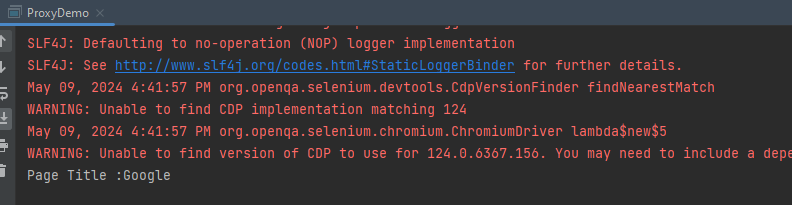
The output of the above program is
That’s it! Congratulations on making it through this tutorial and hope you found it useful! Happy Learning!!
A proxy server acts as an intermediary for requests between a client and a server. In simple terms, the traffic flows through the proxy server on its way to the address you requested and back.
A proxy server for automation scripts with Selenium could be helpful for:
Capture network traffic
Mock backend calls made by the website
Access the required website under complex network topologies or strict corporate restrictions/policies.
1. Setting up Proxy using Selenium
Create an instance of Proxy and set the proxy configuration:
     // Set the proxy server details
        String proxyAddress = "proxy.example";
        int proxyPort = 8080;

        // Create a Proxy object and set the HTTP proxy details
        Proxy proxy = new Proxy();
        proxy.setHttpProxy(proxyAddress + ":" + proxyPort);
Replace “your_proxy_address” with the actual proxy address and “port” with the appropriate port number.
setHttpProxy – Specify which proxy to use for HTTP connections
2. Configure Chrome options with the Proxy object
Create an instance of ChromeOptionsand set the proxy:
ChromeOptions options = new ChromeOptions();
options.setProxy(proxy);
Launch Chrome WebDriver with the configured options:
WebDriver driver = new ChromeDriver(options);
The complete program is mentioned below:
import org.openqa.selenium.Proxy;
import org.openqa.selenium.WebDriver;
import org.openqa.selenium.chrome.ChromeDriver;
import org.openqa.selenium.chrome.ChromeOptions;

public class ProxyDemo {

    public static void main(String[] args) {

        // Set the proxy server details
        String proxyAddress = "localhost";
        int proxyPort = 8080;

        // Create a Proxy object and set the HTTP proxy details
        Proxy proxy = new Proxy();
        proxy.setHttpProxy(proxyAddress + ":" + proxyPort);

        // Configure Chrome options with the Proxy object
        ChromeOptions options = new ChromeOptions();
        options.setProxy(proxy);
        options.addArguments("start-maximized");

        // Instantiate ChromeDriver with the configured options
        WebDriver driver = new ChromeDriver(options);


        // Perform your browsing actions using the driver
        driver.get("https://www.google.com");
        System.out.println("Page Title :" + driver.getTitle());

        // Close the browser session
        driver.quit();
    }
}
CSS Selectors are string patterns used to identify an element based on a combination of HTML tag, id, class, and attributes. Locating by CSS Selector is more complicated than the previous methods like by Id, class, XPath, but it is the most common locating strategy of advanced Selenium users because it can access even those elements that have no ID or name.
CSS is preferred way of locating element as it is faster than Xpath.
Here, id =”content” is the parent locator. It will go to first div as child or sub child, then again div as child or sub child, and third div as child or sub child. Then it will go to div class _4bl7 _m-_ which further go to div class _ihd _3ma mbs _6n _6s _6v.
Now, let’s write a small program to show the use of CSS Selectors. This program is it we have done for XPath , the only difference is the use of CSS Selectors to identify the web elements.
import org.openqa.selenium.By;
import org.openqa.selenium.WebDriver;
import org.openqa.selenium.chrome.ChromeDriver;
import org.openqa.selenium.chrome.ChromeOptions;
import java.time.Duration;

public class Selenium_Demo {

    protected static WebDriver driver;

    public static void main(String[] args) {

        ChromeOptions options = new ChromeOptions();
        options.addArguments("--start-maximized");
        driver = new ChromeDriver(options);
        driver.manage().timeouts().implicitlyWait(Duration.ofSeconds(2));
        driver.get("https://opensource-demo.orangehrmlive.com/");
        driver.manage().window().maximize();

        //CSS Selectors for TextBox
        driver.findElement(By.cssSelector("input.oxd-input[name='username'")).sendKeys("Admin");

        driver.findElement(By.cssSelector("input.oxd-input[name='password'")).sendKeys("admin123");

        driver.findElement(By.cssSelector("button[type='submit'")).click();

        driver.close();
    }
}
That’s it! Congratulations on making it through this tutorial and hope you found it useful! Happy Learning!!
This tutorial describes how to check the state of a WebElement in Selenium.
In this tutorial, we will learn the isDisplayed, isEnabled, isSelected method in Selenium, and how to check the state of a WebElement. There are many methods that are used to determine the visibility scope for the web elements – isSelected(), isEnabled(), and isDispalyed().
Many a time, a test fails when we click on an element or enter text in a field. This is because the element is displayed or exists in DOM, but it does not exist on the web page.
WebDriver facilitates the user with the following methods to check the visibility of the web elements. These web elements can be buttons, drop boxes, checkboxes, radio buttons, labels, etc.
isDisplayed()
isSelected()
isEnabled()
1) Boolean isSelected():This method determines if an element is selected or not. It returns true if the element is selected and false if it is not. It is widely used on checkboxes, radio buttons, and options in a select.
2) Boolean isDisplayed(): This method determines if an element is displayed or not. It returns true if the element is displayed and false if it is not. The advantage of this method is that it avoids parsing an element’s style attribute.
3) Boolean isEnabled(): This method determines if an element is enabled or not. It returns true if the element is enabled (All elements apart from disabled input elements) and false if otherwise.
Steps to follow to understand when an element isEnabled and isDisplayed.
If Search Box is enabled, then search for text – Selenium
Close the browser
The complete program is shown below:
package org.example;

import org.openqa.selenium.By;
import org.openqa.selenium.WebDriver;
import org.openqa.selenium.WebElement;
import org.openqa.selenium.firefox.FirefoxDriver;
import org.openqa.selenium.firefox.FirefoxOptions;

import java.util.concurrent.TimeUnit;

public class VerifyConditionsDemo {

    public static void main(String[] args) {

        // Initiate Firefox browser
        FirefoxOptions options = new FirefoxOptions();
        WebDriver driver = new FirefoxDriver(options);

        // Maximize the browser
        driver.manage().window().maximize();
        driver.manage().timeouts().implicitlyWait(5, TimeUnit.SECONDS);

        // launch the firefox browser and open the application url
        driver.get("https://duckduckgo.com/");

        // compare the expected title of the page with the actual title of the page and
        String expectedTitle = "DuckDuckGo — Privacy, simplified.";
        String actualTitle = driver.getTitle();
        if (expectedTitle.equals(actualTitle)) {
            System.out.println("Verification Pass- The correct title is displayed on the web page.");
        } else {
            System.out.println("Verification Failed - An incorrect title is displayed on the web page.");
        }

        // Verify that the “Search" Box is displayed
        WebElement searchBox = driver.findElement(By.className("searchbox_input__bEGm3"));
        if (searchBox.isDisplayed()) {
            System.out.println("Search Box is visible. Return: " + searchBox.isDisplayed());
        } else {
            System.out.println("Search Box is not visible. Return: " + searchBox.isDisplayed());
        }

        // Verify that the “Search” Box is enabled
        if (searchBox.isEnabled()) {
            System.out.println("Search Box is enabled. Return: " + searchBox.isEnabled());
            searchBox.sendKeys("Selenium");
        } else {
            System.out.println("Search Box is not enabled. Return: " + searchBox.isEnabled());
        }

        System.out.println("Successful Execution of Test.");

        // close the web browser
        driver.close();

    }
}
The output of the above program is
isSelected
Steps to follow to understand when an element is Selected or not
Verify if the first Radio Button (Yes) is selected or not
If the first radio button is not selected, then select Radio Button 1, else select button 2.
Print the value of the selected Radio Button
Close the browser
Below is the image of the options for the Radio Button.
The complete program is shown below:
package org.example;

import org.openqa.selenium.By;
import org.openqa.selenium.WebDriver;
import org.openqa.selenium.WebElement;
import org.openqa.selenium.firefox.FirefoxDriver;
import org.openqa.selenium.firefox.FirefoxOptions;

import java.util.List;
import java.util.concurrent.TimeUnit;

public class isSelectedDemo {

        public static void main(String[] args) {


            // Initiate Firefox browser
            FirefoxOptions firefoxOptions = new FirefoxOptions();
            WebDriver driver = new FirefoxDriver(firefoxOptions);

            // Maximize the browser
            driver.manage().window().maximize();
            driver.manage().timeouts().implicitlyWait(10, TimeUnit.SECONDS);

            driver.get("https://demoqa.com/radio-button");

            List<WebElement> Radio_Options = driver.findElements(By.cssSelector(".custom-radio"));
            for(WebElement options: Radio_Options)
                System.out.println("Options :"+ options.getText());

            // Create a boolean variable which will hold the value (True/False)
            boolean radio_value = false;

            // This statement will return True, in case of first Radio button is already selected
            radio_value = Radio_Options.get(0).isSelected();
            System.out.println("First Option is already selected :"+radio_value);

            // If button 1 is not selected, then select otherwise select button 2
            if (radio_value == false) {
                Radio_Options.get(0).click();
                System.out.println("Button Selected is :" + Radio_Options.get(0).getText());
            } else {
                Radio_Options.get(1).click();
                System.out.println("Button Selected is :" + Radio_Options.get(1).getText());
            }

            // close the web browser
            driver.close();
        }
    }
The output of the above program is
That’s it! Congratulations on making it through this tutorial and hope you found it useful! Happy Learning!! Cheers!!






 QA Automation Expert

