How to parse XML in Java

HOME

<?xml version = "1.0"?>
<department>
    <employee id = "10001">
        <firstname>Tom</firstname>
        <lastname>Mathew</lastname>
        <salary>25000</salary>
        <age>21</age>
    </employee>

    <employee id = "20001">
        <firstname>Katherine</firstname>
        <lastname>Jason</lastname>
        <salary>15000</salary>
        <age>20</age>
    </employee>

    <employee id = "30001">
        <firstname>David</firstname>
        <lastname>Mathew</lastname>
        <salary>35000</salary>
        <age>25</age>
    </employee>

    <employee id = "40001">
        <firstname>Berry</firstname>
        <lastname>Brian</lastname>
        <salary>50000</salary>
        <age>30</age>
    </employee>
</department>
DocumentBuilderFactory dbFactory = DocumentBuilderFactory.newInstance();
DocumentBuilder dBuilder = dbFactory.newDocumentBuilder();
Document doc = dBuilder.parse(inputFile);
doc.getDocumentElement().normalize();
NodeList nodeList = doc.getElementsByTagName("employee");
System.out.println("Node Length :" + nodeList.getLength());
for (int temp = 0; temp < nodeList.getLength(); temp++) {

        Node node = nodeList.item(temp);
        System.out.println("\nCurrent Element :" + node.getNodeName());

        if (node.getNodeType() == Node.ELEMENT_NODE) {
            Element eElement = (Element) node;

             //returns specific attribute
              System.out.println("Employee Id : " + eElement.getAttribute("id"));

            //returns a list of subelements of specified name
             System.out.println("First Name: " + eElement.getElementsByTagName("firstname").item(0).getTextContent());
             System.out.println("Last Name: " + eElement.getElementsByTagName("lastname").item(0).getTextContent());
             System.out.println("Salary: " + eElement.getElementsByTagName("salary").item(0).getTextContent());
             System.out.println("Age: " + eElement.getElementsByTagName("age").item(0).getTextContent());

    }

import org.w3c.dom.Document;
import org.w3c.dom.Element;
import org.w3c.dom.Node;
import org.w3c.dom.NodeList;
import org.xml.sax.SAXException;

import javax.xml.parsers.DocumentBuilder;
import javax.xml.parsers.DocumentBuilderFactory;
import javax.xml.parsers.ParserConfigurationException;
import java.io.File;
import java.io.IOException;

public class XMLParser {

    public static void main(String[] args) {

        try {

            //Create a DocumentBuilder
            File inputFile = new File("src/test/resources/testData/test.xml");
            System.out.println("Request :" + inputFile);
            DocumentBuilderFactory dbFactory = DocumentBuilderFactory.newInstance();
            DocumentBuilder dBuilder = dbFactory.newDocumentBuilder();
            Document doc = dBuilder.parse(inputFile);
            doc.getDocumentElement().normalize();

            //Extract the root element
            System.out.println("Root element :" + doc.getDocumentElement().getNodeName());

            NodeList nodeList = doc.getElementsByTagName("employee");
            System.out.println("Node Length :" + nodeList.getLength());

            for (int temp = 0; temp < nodeList.getLength(); temp++) {

                Node node = nodeList.item(temp);
                System.out.println("\nCurrent Element :" + node.getNodeName());

                if (node.getNodeType() == Node.ELEMENT_NODE) {
                    Element eElement = (Element) node;

                    //returns specific attribute
                    System.out.println("Employee Id : " + eElement.getAttribute("id"));

                    //returns a list of subelements of specified name
                    System.out.println("First Name: " + eElement.getElementsByTagName("firstname").item(0).getTextContent());
                    System.out.println("Last Name: " + eElement.getElementsByTagName("lastname").item(0).getTextContent());
                    System.out.println("Salary: " + eElement.getElementsByTagName("salary").item(0).getTextContent());
                    System.out.println("Age: " + eElement.getElementsByTagName("age").item(0).getTextContent());

                }
            }

        } catch (ParserConfigurationException | SAXException | IOException e) {
            e.printStackTrace();
        }
    }

}

<?xml version = "1.0"?>
<cars>
    <sportscar company = "Porsce">
        <carname type = "formula one">Porsche 718 Boxster</carname>
        <carname type = "sports car">Porsche 718 Cayman</carname>
        <carname type = "sports car">2024 Porsche Panamera</carname>
    </sportscar>

    <supercars company = "Lamborgini">
        <carname>Lamborghini Aventador</carname>
        <carname>Lamborghini Reventon</carname>
        <carname>Lamborghini Gallardo</carname>
    </supercars>

    <supercars company = "Audi">
        <carname>Audi R8</carname>
        <carname>Audi Q8</carname>
        <carname>Audi Q6 e-tron</carname>
    </supercars>
</cars>

package com.example.XML;

import org.w3c.dom.Document;
import org.w3c.dom.Element;
import org.w3c.dom.Node;
import org.w3c.dom.NodeList;
import org.xml.sax.SAXException;

import javax.xml.parsers.DocumentBuilder;
import javax.xml.parsers.DocumentBuilderFactory;
import javax.xml.parsers.ParserConfigurationException;
import java.io.File;
import java.io.IOException;

public class ComplexXMLParser {

    public static void main(String[] args) {

        try {

            //Create a DocumentBuilder
            File inputFile = new File("src/test/resources/testData/test4.xml");
            System.out.println("Request :" + inputFile);
            DocumentBuilderFactory dbFactory = DocumentBuilderFactory.newInstance();
            DocumentBuilder dBuilder = dbFactory.newDocumentBuilder();
            Document doc = dBuilder.parse(inputFile);
            doc.getDocumentElement().normalize();

            //Extract the root element
            System.out.println("Root element :" + doc.getDocumentElement().getNodeName());

            NodeList sportscarNodeList = doc.getElementsByTagName("sportscar");
           // System.out.println("Node Length :" + nodeList.getLength());

            for (int temp = 0; temp < sportscarNodeList.getLength(); temp++) {

                Node node = sportscarNodeList.item(temp);
                System.out.println("\nCurrent Element :" + node.getNodeName());

                if (node.getNodeType() == Node.ELEMENT_NODE) {
                    Element eElement = (Element) node;

                    //returns specific attribute
                    System.out.println("sportscar : " + eElement.getAttribute("company"));

                    NodeList sportcarNameList = eElement.getElementsByTagName("carname");

                    for (int count = 0; count < sportcarNameList.getLength(); count++) {
                        Node node1 = sportcarNameList.item(count);

                        if (node1.getNodeType() == node1.ELEMENT_NODE) {
                            Element car = (Element) node1;

                            System.out.print("\ncar type : " + car.getAttribute("type"));
                            System.out.print("\ncar name : " + car.getTextContent());

                        }
                    }
                }

            }

            System.out.println("\n====================================================");
            NodeList supercarsNodeList = doc.getElementsByTagName("supercars");
            // System.out.println("Node Length :" + nodeList.getLength());

            for (int temp = 0; temp < supercarsNodeList.getLength(); temp++) {

                Node node1 = supercarsNodeList.item(temp);
                System.out.println("\nCurrent Element :" + node1.getNodeName());

                if (node1.getNodeType() == Node.ELEMENT_NODE) {
                    Element eElement = (Element) node1;

                    //returns specific attribute
                    System.out.println("supercars : " + eElement.getAttribute("company"));

                    NodeList supercarsNameList = eElement.getElementsByTagName("carname");

                    for (int count = 0; count < supercarsNameList.getLength(); count++) {
                        Node node2 = supercarsNameList.item(count);

                        if (node1.getNodeType() == node2.ELEMENT_NODE) {
                            Element car = (Element) node2;

                            System.out.print("car name : " + car.getTextContent()+"\n");

                        }
                    }
                }

            }

        } catch (ParserConfigurationException | SAXException | IOException e) {
            e.printStackTrace();
        }
    }

}

How to retrieve XML Child Nodes in Java

HOME

<?xml version = "1.0"?>
<department>
    <employee>
        <firstname>Tom</firstname>
        <lastname>Mathew</lastname>
        <salary>25000</salary>
        <age>21</age>
    </employee>
</department>
DocumentBuilderFactory dbFactory = DocumentBuilderFactory.newInstance();
DocumentBuilder dBuilder = dbFactory.newDocumentBuilder();
Document doc = dBuilder.parse(inputFile);
doc.getDocumentElement().normalize();
NodeList nodeList = doc.getElementsByTagName("employee");
System.out.println("Node Length :" + nodeList.getLength());
for (int temp = 0; temp < nodeList.getLength(); temp++) {
                Node node = nodeList.item(temp);
                System.out.println("\nCurrent Element :" + node.getNodeName());
  NodeList childNodes = node.getChildNodes();
                for (int i = 0; i < childNodes.getLength(); i++) {
                    Node childNode = childNodes.item(i);
                    if (childNode.getNodeType() == Node.ELEMENT_NODE) {
                        System.out.println("Child node name " + i + ":" + childNode.getNodeName());
                        System.out.println("Child node value: " + i + ":" + childNode.getTextContent());

                    }
                }

package com.example.XML;

import org.w3c.dom.Document;
import org.w3c.dom.Element;
import org.w3c.dom.Node;
import org.w3c.dom.NodeList;
import org.xml.sax.SAXException;

import javax.xml.parsers.DocumentBuilder;
import javax.xml.parsers.DocumentBuilderFactory;
import javax.xml.parsers.ParserConfigurationException;
import java.io.File;
import java.io.IOException;

public class ChildNodes {

    public static void main(String[] args) {

        try {
            //Create a DocumentBuilder
            File inputFile = new File("src/test/resources/testData/test1.xml");
            DocumentBuilderFactory dbFactory = DocumentBuilderFactory.newInstance();
            DocumentBuilder dBuilder = dbFactory.newDocumentBuilder();
            Document doc = dBuilder.parse(inputFile);
            doc.getDocumentElement().normalize();

            //Extract the root element
            System.out.println("Root element :" + doc.getDocumentElement().getNodeName());

            NodeList nodeList = doc.getElementsByTagName("employee");
            System.out.println("Node Length :" + nodeList.getLength());

            for (int temp = 0; temp < nodeList.getLength(); temp++) {
                Node node = nodeList.item(temp);
                System.out.println("\nCurrent Element :" + node.getNodeName());

                NodeList childNodes = node.getChildNodes();
                for (int i = 0; i < childNodes.getLength(); i++) {
                    Node childNode = childNodes.item(i);
                    if (childNode.getNodeType() == Node.ELEMENT_NODE) {
                        System.out.println("Child node name " + i + ":" + childNode.getNodeName());
                        System.out.println("Child node value: " + i + ":" + childNode.getTextContent());

                    }
                }
            }
        } catch (ParserConfigurationException | SAXException | IOException e) {
            e.printStackTrace();
        }

    }
}

<?xml version = "1.0"?>
<department>
    <employee>
        <firstname>Tom</firstname>
        <lastname>Mathew</lastname>
        <salary>25000</salary>
        <age>21</age>
    </employee>

    <employee id = "429">
        <firstname>Erika</firstname>
        <lastname>David</lastname>
        <salary>
                <fixed>
                    <fixed1>350000</fixed1>
                    <fixed2>200000</fixed2>
                </fixed>
                <bonus>5000</bonus>
        </salary>
        <age>29</age>
        <type>Permanent</type>
    </employee>
</department>

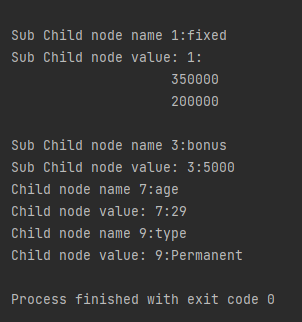
package com.example.XML;

import org.w3c.dom.Document;
import org.w3c.dom.Node;
import org.w3c.dom.NodeList;
import org.xml.sax.SAXException;

import javax.xml.parsers.DocumentBuilder;
import javax.xml.parsers.DocumentBuilderFactory;
import javax.xml.parsers.ParserConfigurationException;
import java.io.File;
import java.io.IOException;

public class ComplexChildNodes {

    public static void main(String[] args) {

        try {
            //Create a DocumentBuilder
            File inputFile = new File("src/test/resources/testData/test2.xml");
            DocumentBuilderFactory dbFactory = DocumentBuilderFactory.newInstance();
            DocumentBuilder dBuilder = dbFactory.newDocumentBuilder();
            Document doc = dBuilder.parse(inputFile);
            doc.getDocumentElement().normalize();

            //Extract the root element
            System.out.println("Root element :" + doc.getDocumentElement().getNodeName());

            NodeList nodeList = doc.getElementsByTagName("employee");
            System.out.println("Node Length :" + nodeList.getLength());

            for (int temp = 0; temp < nodeList.getLength(); temp++) {
                Node node = nodeList.item(temp);
                System.out.println("\nCurrent Element :" + node.getNodeName());

                NodeList childNodes = node.getChildNodes();
                for (int i = 0; i < childNodes.getLength(); i++) {
                    Node childNode = childNodes.item(i);

                    if (childNode.getNodeType() == Node.ELEMENT_NODE) {
                        System.out.println("Child node name " + i + ":" + childNode.getNodeName());
                        System.out.println("Child node value: " + i + ":" + childNode.getTextContent());

                        for (int j = 0; j < childNode.getChildNodes().getLength(); j++) {
                            Node subChildNode = childNode.getChildNodes().item(j);
                            if (subChildNode.getNodeType() == Node.ELEMENT_NODE) {
                                {
                                    System.out.println("Sub Child node name " + j + ":" + subChildNode.getNodeName());
                                    System.out.println("Sub Child node value: " + j + ":" + subChildNode.getTextContent());
                                }
                            }
                        }
                    }

                }
            }

        } catch (ParserConfigurationException | SAXException | IOException e) {
            e.printStackTrace();
        }

    }
}

Deserialization – How to create JSON Object to JAVA Object Using Gson API

HOME

In this tutorial, I will explain the conversion of JSON Object (payload) to JAVA Object. We will use Gson API for the same purpose.

Before going through this tutorial, spend some time understanding Serialization using Gson API.

We can parse the JSON or XML response into POJO classes. After parsing into POJO classes, we can easily get values from the response easily. This is called De-serialization. For this, we can use any JSON parser APIs. Here, we are going to use Gson API.

To start with, add the below dependency to the project.

<dependency>
    <groupId>com.google.code.gson</groupId>
    <artifactId>gson</artifactId>
    <version>2.8.9</version>
</dependency>

Sample JSON Payload

{
  "firstName" : "Vibha",
  "lastName" : "Singh",
  "age" : 30,
  "salary" : 75000.0,
  "designation" : "Manager",
  "contactNumber" : "+91999996712",
  "emailId" : "abc123@test.com"
}

Let us create a class called Employee with a field name exactly (case-sensitive) the same as node names in the above JSON string because with the default setting while parsing JSON object to Java object, it will look on getter setter methods of field names. 

public class Employee {

	// private variables or data members of POJO class
	private String firstName;
	private String lastName;
	private int age;
	private double salary;
	private String designation;
	private String contactNumber;
	private String emailId;

	// Getter and setter methods
	public String getFirstName() {
		return firstName;
	}

	public void setFirstName(String firstName) {
		this.firstName = firstName;
	}

	public String getLastName() {
		return lastName;
	}

	public void setLastName(String lastName) {
		this.lastName = lastName;
	}

	public int getAge() {
		return age;
	}

	public void setAge(int age) {
		this.age = age;
	}

	public double getSalary() {
		return salary;
	}

	public void setSalary(double salary) {
		this.salary = salary;
	}

	public String getDesignation() {
		return designation;
	}

	public void setDesignation(String designation) {
		this.designation = designation;
	}

	public String getContactNumber() {
		return contactNumber;
	}

	public void setContactNumber(String contactNumber) {
		this.contactNumber = contactNumber;
	}

	public String getEmailId() {
		return emailId;
	}

	public void setEmailId(String emailId) {
		this.emailId = emailId;
	}

}

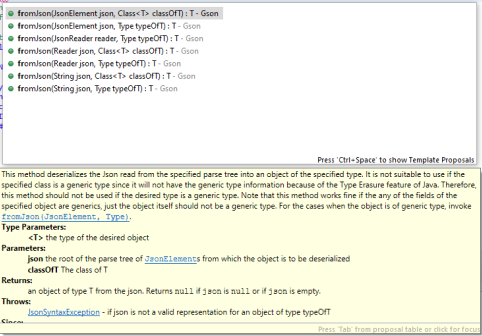
Gson class provides multiple overloaded fromJson() methods to achieve this. Below is a list of available methods:-

In the below test, I have mentioned the JSON Payload string in the test and used Gson API to deserialize the JSON payload to JAVA Object.

   @Test
	public void getDetailFromJson() {
		
		// De-serializing from JSON String
		String jsonString = "{\r\n" + "  \"firstName\": \"Tom\",\r\n" + "  \"lastName\": \"John\",\r\n"
				+ "  \"age\": 30,\r\n" + "  \"salary\": 50000.0,\r\n" + "  \"designation\": \"Lead\",\r\n"
				+ "  \"contactNumber\": \"+917642218922\",\r\n" + "  \"emailId\": \"abc@test.com\"\r\n" + "}";

		Gson gson = new Gson();
		// Pass JSON string and the POJO class
		Employee employee = gson.fromJson(jsonString, Employee.class);

		// Now use getter method to retrieve values
		System.out.println("Details of Employee is as below:-");
		System.out.println("First Name : " + employee.getFirstName());
		System.out.println("Last Name : " + employee.getLastName());
		System.out.println("Age : " + employee.getAge());
		System.out.println("Salary : " + employee.getSalary());
		System.out.println("designation : " + employee.getDesignation());
		System.out.println("contactNumber : " + employee.getContactNumber());
		System.out.println("emailId : " + employee.getEmailId());
		System.out.println("########################################################");

	}

The output of the above program is

We can get the JSON payload from a file present in a project under src/test/resources as shown in the below image.

public class EmployeeDeserializationGsonTest {

	@Test
	public void fromFile() throws FileNotFoundException {

		Gson gson = new Gson();
		// De-serializing from a json file
		String userDir = System.getProperty("user.dir");
		File inputJsonFile = new File(userDir + "\\src\\test\\resources\\EmployeePayloadUsingGson.json");
		FileReader fileReader = new FileReader(inputJsonFile);
		Employee employee1 = gson.fromJson(fileReader, Employee.class);

		// Now use getter method to retrieve values
		System.out.println("Details of Employee is as below:-");
		System.out.println("First Name : " + employee1.getFirstName());
		System.out.println("Last Name : " + employee1.getLastName());
		System.out.println("Age : " + employee1.getAge());
		System.out.println("Salary : " + employee1.getSalary());
		System.out.println("designation : " + employee1.getDesignation());
		System.out.println("contactNumber : " + employee1.getContactNumber());
		System.out.println("emailId : " + employee1.getEmailId());
		System.out.println("########################################################");
	}
}

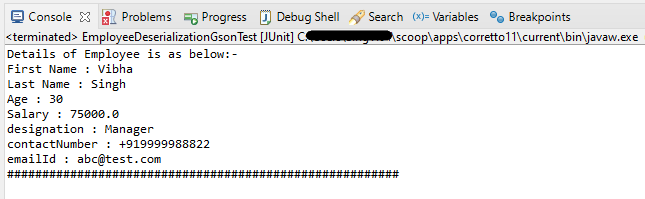
The output of the above program is

We are done! Congratulations on making it through this tutorial and hope you found it useful! Happy Learning!!

Setup Basic REST Assured Maven Project In Eclipse IDE

HOME

In the previous tutorial, I provided the Introduction of Rest Assured. In this tutorial, I will explain how to set up a basic Rest Assured Maven project in Eclipse IDE. Before starting, let us recap about Rest Assured.

What is Rest Assured?

REST Assured is a Java DSL for simplifying testing of REST-based services built on top of HTTP Builder. It supports POST, GET, PUT, DELETE, OPTIONS, PATCH, and HEAD requests. It can be used to validate and verify the response of these requests.

The Rest Assured library also provides the ability to validate the HTTP Responses received from the server. This makes Rest-Assured a very flexible library that can be used for testing.REST Assured can be used to test XML as well as JSON-based web services. REST Assured can be integrated with JUnit and TestNG frameworks for writing test cases for our application.

What is Maven?

Apache Maven is a software project management and comprehension tool. Based on the concept of a project object model (POM), Maven can manage a project’s build, reporting and documentation from a central piece of information.

Step 1- Download and Install Java

Rest-Assured needs Java to be installed on the system to run the tests. Click here to learn How to install Java.

Step 2 – Download and setup Eclipse IDE on the system

The Eclipse IDE (integrated development environment) provides strong support for Java developers. Click here to learn How to install Eclipse.

Step 3 – Setup Maven

To build a test framework, we need to add several dependencies to the project. Click here to learn How to install Maven.

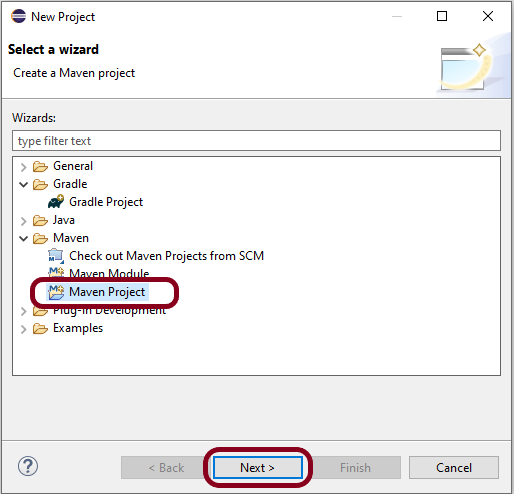
Step 4 – Create a new Maven Project

Go to File -> New Project-> Maven-> Maven project ->Next

Step 4.1 – Select “Create a simple project”. Click on the Next Button.

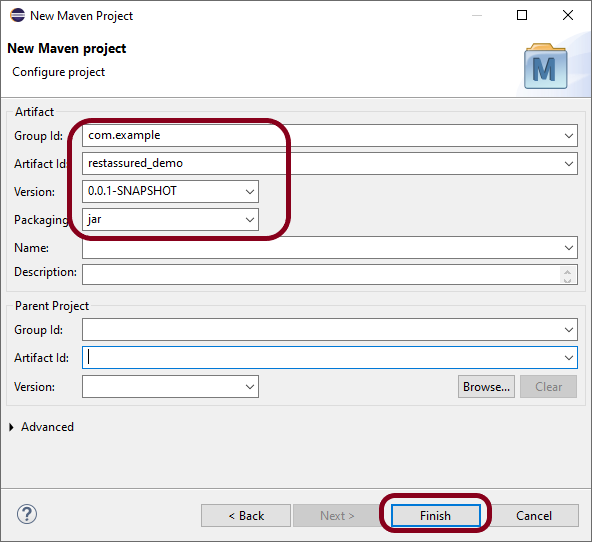
Step 4.2 – Provide Group Id and Artifact Id and click on the finish button.

Group Id – com.example
Artifact Id – restassured_demo

Step 4.3Below is the structure of the Maven project in Eclipse.

Step 4.4 – This is the structure of POM.xml created for the project.

Step 5 – Add Rest Assured, and JUnit dependencies to the project

 <dependencies>
    <!-- REST Assured dependency -->
    <dependency>
        <groupId>io.rest-assured</groupId>
        <artifactId>rest-assured</artifactId>
        <version>5.5.1</version>
        <scope>test</scope>
    </dependency>

    <!-- JUnit dependency -->
    <dependency>
        <groupId>junit</groupId>
        <artifactId>junit</artifactId>
        <version>4.13.2</version>
        <scope>test</scope>
    </dependency>
</dependencies>

 <plugin>
        <groupId>org.apache.maven.plugins</groupId>
        <artifactId>maven-compiler-plugin</artifactId>
        <version>3.14.0</version>
        <configuration>
          <source>17</source>
          <target>17</target>
        </configuration>
      </plugin>

<project xmlns="http://maven.apache.org/POM/4.0.0" xmlns:xsi="http://www.w3.org/2001/XMLSchema-instance" xsi:schemaLocation="http://maven.apache.org/POM/4.0.0 https://maven.apache.org/xsd/maven-4.0.0.xsd">
  <modelVersion>4.0.0</modelVersion>
  <groupId>com.example</groupId>
  <artifactId>restassured_demo</artifactId>
  <version>0.0.1-SNAPSHOT</version>
  
 <dependencies>
    <!-- REST Assured dependency -->
    <dependency>
        <groupId>io.rest-assured</groupId>
        <artifactId>rest-assured</artifactId>
        <version>5.5.1</version>
        <scope>test</scope>
    </dependency>

    <!-- JUnit dependency -->
    <dependency>
        <groupId>junit</groupId>
        <artifactId>junit</artifactId>
        <version>4.13.2</version>
        <scope>test</scope>
    </dependency>
</dependencies>

 <build>
    <plugins>
      <plugin>
        <groupId>org.apache.maven.plugins</groupId>
        <artifactId>maven-compiler-plugin</artifactId>
        <version>3.14.0</version>
        <configuration>
          <source>17</source>
          <target>17</target>
        </configuration>
      </plugin>
    </plugins>
  </build>
</project>

Step 7 – Update Maven Project

Right-click on your project in the Eclipse Project Explorer. Choose `Maven` -> `Update Project…` and confirm to download the specified dependencies.

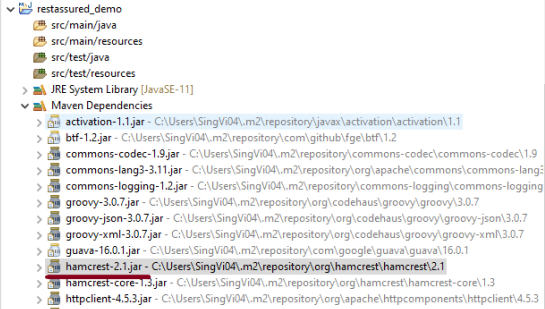
Below are the Rest Assured, and junit jar files present under Maven Dependencies.

package com.example.tests;

import org.junit.Test;

import static org.hamcrest.Matchers.equalTo;
import static io.restassured.RestAssured.given;

public class APITests {

	String BaseURL = "https://reqres.in/api/users";

	@Test
	public void getUser() {

		// Given
		given()

				// When
				.when().get(BaseURL + "/2")

				// Then
				.then().statusCode(200).statusLine("HTTP/1.1 200 OK")

				// To verify user of id 2
				.body("data.id", equalTo(2)).body("data.email", equalTo("janet.weaver@reqres.in"))
				.body("data.first_name", equalTo("Janet")).body("data.last_name", equalTo("Weaver"));
	}

}

Point to Remember

Serialization – How to create JSON Payload from Java Object – Jackson API

HOME

In this tutorial, I will explain the creation of JSON Object Payload with the help of POJO (Plain Old Java Object).

What is POJO?

POJO stands for Plain Old Java Object. It is a very simple object, and it has no bounds or we can say that it has no restrictions other than the Java language specification. Also, it does not require any classpath.

A big advantage of POJO is it increases the readability and reusability of our project code and developers find it easy when understanding the code. Also, POJO is easy to write and anyone can understand them easily.

Now let’s deep dive into some technical terms about the POJO. Below are a few points about the POJO are:

  1. A POJO should not have to extend prespecified classes.
  2. Secondly, a POJO should not have implemented any prespecified interface.
  3. Lastly, POJO should not contain prespecified annotations

A POJO class can follow some rules for better usability. These rules are:-

  1. Each variable should be declared as private just to restrict direct access.
  2. Each variable that needs to be accessed outside class may have a getter, a setter, or both methods. If the value of a field is stored after some calculations, then we must not have any setter method for that.
  3. It Should have a default public constructor.
  4. Can override toString(), hashcode, and equals() methods.

POJO classes are extensively used for creating JSON and XML payloads for API.

In the below example, let me create a simple JSON with some nodes which is actually a 1:1 mapping i.e. each key has a single value, and the type of values is mixed.

{
  "firstName" : "Vibha",
  "lastName" : "Singh",
  "age" : 30,
  "salary" : 75000.0,
  "designation" : "Manager",
  "contactNumber" : "+91999996712",
  "emailId" : "abc123@test.com"
}

Let us create variables in the POJO class now for the above JSON. Now, a class name Employee will be created with the private data members as mentioned in the above JSON. Since we have created all variables as private, then there should be a way to manipulate or retrieve these data. So we create the corresponding getter and setter methods for these data members.

It is very tedious to create getter and setter methods for all the data members for big JSON strings.  Every IDE gives you a shortcut to generate getter and setter methods.  Here, I am using Eclipse and creating these getter and setter methods.

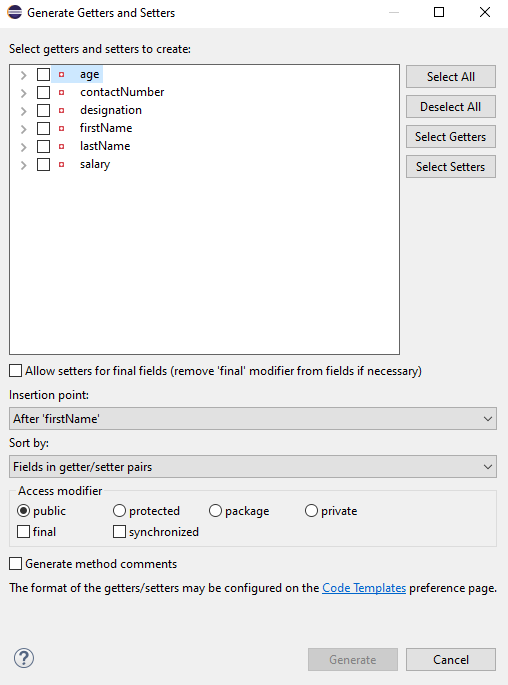
Select all the data members and Right-click on the page. Then select Source and then select Generate Getter and Setter methods.

This opens a new screen as shown below.

You can select the data member for which you want to create the getter and setter method. I want to create the getter and setter methods for all the data members, so click on Select All and then click on the Generate Button. This will generate the getter and setter methods for all the data members.

Below is the sample code of the Employee table, which contains the data members needed for Employee JSON and their corresponding getter and setter methods.

public class Employee {

	// private variables or data members of POJO class
	private String firstName;
	private String lastName;
	private int age;
	private double salary;
	private String designation;
	private String contactNumber;
	private String emailId;

	// Getter and setter methods
	public String getFirstName() {
		return firstName;
	}

	public void setFirstName(String firstName) {
		this.firstName = firstName;
	}

	public String getLastName() {
		return lastName;
	}

	public void setLastName(String lastName) {
		this.lastName = lastName;
	}

	public int getAge() {
		return age;
	}

	public void setAge(int age) {
		this.age = age;
	}

	public double getSalary() {
		return salary;
	}

	public void setSalary(double salary) {
		this.salary = salary;
	}

	public String getDesignation() {
		return designation;
	}

	public void setDesignation(String designation) {
		this.designation = designation;
	}
	
	public String getContactNumber() {
		return contactNumber;
	}

	public void setContactNumber(String contactNumber) {
		this.contactNumber = contactNumber;
	}

	public String getEmailId() {
		return emailId;
	}

	public void setEmailId(String emailId) {
		this.emailId = emailId;
	}

}

Using the above POJO class, you can create any number of custom Employee objects and each object can be converted into a JSON Object and Each JSON object can be parsed into Employee POJO.

We will create a JSON object from POJO and vice versa now, which is generally called serialization and deserialization using Jackson APIs.

Serialization – Serialization is a process where you convert an Instance of a Class (Object of a class) into a Byte Stream. Here, we are converting Employee class object to JSON representation or Object

Deserialization – It is the reverse of serializing. In this process, we will read the Serialized byte stream from the file and convert it back into the Class instance representation. Here, we are converting a JSON Object to an Employee class object.

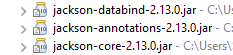
We are using Jackson API for Serialization and Deserialization. So, add the Jackson dependency to the project.

<dependency>
    <groupId>com.fasterxml.jackson.core</groupId>
    <artifactId>jackson-databind</artifactId>
    <version>2.13.0</version>
</dependency>

What is ObjectMapper ?

ObjectMapper provides functionality for reading and writing JSON, either to and from basic POJOs (Plain Old Java Objects), or to and from a general-purpose JSON Tree Model (JsonNode), as well as related functionality for performing conversions. It is also highly customizable to work both with different styles of JSON content and to support more advanced object concepts such as polymorphism and object identity.

Now, let us create a Test Class to show Serialization.

public class EmployeeTest {

	@Test
	public void serializationTest()  {

		Employee employee = new Employee();
		employee.setFirstName("Vibha");
		employee.setLastName("Singh");
		employee.setAge(30);
		employee.setSalary(75000);
		employee.setDesignation("Manager");

		// Converting a Java class object to a JSON payload as string
		ObjectMapper mapper = new ObjectMapper();
		String employeeJson = mapper.writeValueAsString(employee);
		String employeePrettyJson = mapper.writerWithDefaultPrettyPrinter().writeValueAsString(employee);
		System.out.println(employeeJson);
		System.out.println(employeePrettyJson);
   }
}try {
			String employeeJson = mapper.writeValueAsString(employee);
			System.out.println(employeeJson);
			String employeePrettyJson = mapper.writerWithDefaultPrettyPrinter().writeValueAsString(employee);
			System.out.println(employeePrettyJson);
		} catch (JsonProcessingException e) {
			e.printStackTrace();
		}	
	}

The output of the above program is

Here, ObjectMapper from fasterxml.jackson.databind is used for Serialization.

writeValueAsString() is a method that can be used to serialize any Java value as a String.

writerWithDefaultPrettyPrinter() is used to pretty-print the JSON output. It is a Factory method for constructing ObjectWriter that will serialize objects using the default pretty printer for indentation.

I hope this has helped to clear your doubts regarding POJO and how to create JSON objects using POJO.

We are done! Congratulations on making it through this tutorial and hope you found it useful! Happy Learning!!

Introduction to Rest Assured

HOME

In this tutorial, I’ll explain about API & Rest Assured.

What is API?

API stands for Application Programming Interface. It comprises a set of functions that can be accessed and executed by another software system.  Thus, it serves as an interface between different software systems and establishes their interaction and data exchange. APIs can be used in various contexts, including web development, mobile app development, and software integration. For example, web APIs allow websites to interact with external services, such as third-party payment services or storing the information in a database.

What is API Testing?

In the modern development world, many web applications are designed based on a three-tier architecture model. These are 

  1. Presentation Tier – User Interface (UI
  2. Logic Tier – Business logic is written in this tier. It is also called Business Tier. (API
  3. Data Tier – Here information and data are stored and retrieved from a Database. (DB) Ideally, these three layers (tiers) should not know anything about the platform, technology, and structure of each other.

 We can test UI with GUI testing tools, and we can test logic tier (API) with API testing tools. The logic tier comprises all the business logic, and it has more complexity than the other tiers the test executed on this tier is called API Testing. API Testing tests the logic tier directly and checks expected functionality, reliability, performance, and security.

What is Rest API?

REST is an architectural style that uses simple HTTP calls for inter-machine communication. REST does not contain an additional messaging layer and focuses on design rules for creating stateless services. A client can access the resource using the unique URI and a representation of the resource is returned. With each new resource representation, the client is said to transfer state. While accessing RESTful resources with HTTP protocol, the URL of the resource serves as the resource identifier, and GET, PUT, DELETE, POST and HEAD are the standard HTTP operations to be performed on that resource.

REST API Testing with Rest Assured

What is Rest Assured?

REST Assured is a Java DSL for simplifying the testing of REST-based services built on top of HTTP Builder. It supports POST, GET, PUT, DELETE, OPTIONS, PATCH, and HEAD requests and can be used to validate and verify the response of these requests.

Rest-Assured library also provides the ability to validate the HTTP Responses received from the server. For e.g. we can verify the Status code, Status message, Headers, and even the Body of the response. This makes Rest-Assured a very flexible library that can be used for testing.

REST Assured can be used to test XML as well as JSON-based web services. REST Assured can be integrated with JUnit and TestNG frameworks for writing test cases for our application.

HTTP Methods for REST API Automation Testing

REST API uses five HTTP methods to request a command:

GET: To retrieve the information at a particular URL.

PUT: To update the previous resource or create new information at a particular URL.

PATCH: For partial updates.

POST: It is used to develop a new entity. Moreover, it is also used to send information to the server, such as uploading a file, customer information, etc.

DELETE: To delete all current representations at a specific URL.

HTTP Status Codes

Status codes are the responses given by a server to a client’s request. They are classified into five categories:

  1. 1xx (100 – 199): The response is informational
  2. 2xx (200 – 299): Assures successful response
  3. 3xx (300 – 399): You are required to take further action to fulfill the request
  4. 4xx (400 – 499): There’s a bad syntax and the request cannot be completed
  5. 5xx (500 – 599): The server entirely fails to complete the request

Advantages of Rest Assured

  1. It is an Open source Tool i.e. free.
  2. It requires less coding compared to Apache Http Client.
  3. Easy parsing and validation of response in JSON and XML.
  4. The extraction of values and asserting is quite easy using inbuilt Hemcrest Matchers.
  5. It follows BDD keywords like given(), when(), then() which makes code readable and supports clean coding. This feature is available from version 2.0.
  6. It supports quick assertion for status code and response time.
  7. It supports assertion to Status Code, Response Time, Headers, cookies, Content-Type, etc.
  8. It has a powerful logging mechanism.
  9. It can be easily integrated with other Java libraries like TestNG, JUnit as Test Framework and Extent Report, and Allure Report for reporting purposes.
  10. It provides quite good support for different authentication mechanisms for APIs.
  11. It can be integrated with Selenium-Java to achieve End-to-end automation.
  12. It supports JSONPath and XmlPath which helps in parsing JSON and XML response. Rest Assured integrates both by default.
  13. It can be used to verify JSON Schema using JSON Schema Validation library and XML schema validation
  14. It can be integrated with Build Tools like Maven or Gradle and supports CI/CD also.
  15. It supports multi-part form data and Spring Mock Mvc, Spring Web Test Client, Scala and Kotlin.

How to pass authorization token in header in Rest assured?

HOME

 <dependencies>

       <!-- Rest Assured Dependency -->
      <dependency>
         <groupId>io.rest-assured</groupId>
        <artifactId>rest-assured</artifactId>
        <version>5.4.0</version>
        <scope>test</scope>
      </dependency>

        <!-- TestNG Dependency-->
      <dependency>
          <groupId>org.testng</groupId>
         <artifactId>testng</artifactId>
         <version>7.8.0</version>
         <scope>test</scope>
       </dependency>

</dependencies>

import io.restassured.http.ContentType;
import io.restassured.response.Response;
import org.testng.Assert;
import org.testng.annotations.Test;
import static io.restassured.RestAssured.given;

public class BasicAuth_Demo {


    @Test
    public void createUser() {
        Response response = given()
                .auth()
                .preemptive()
                .header("Authorization", "Token")
                .header("Accept", "application/json")
                .contentType(ContentType.JSON)
                .body(validRequest)
                .when()
                .post("http://localhost:8080/users")
                .then()
                .extract()
                .response();

        int statusCode = response.getStatusCode();

        Assert.assertEquals(statusCode,200);
    }
}

package org.example;

import io.restassured.http.ContentType;
import io.restassured.response.Response;
import org.junit.Before;
import org.junit.Test;

import static io.restassured.RestAssured.given;
import static org.hamcrest.MatcherAssert.assertThat;
import static org.hamcrest.Matchers.equalTo;

public class BasicAuth_Demo {

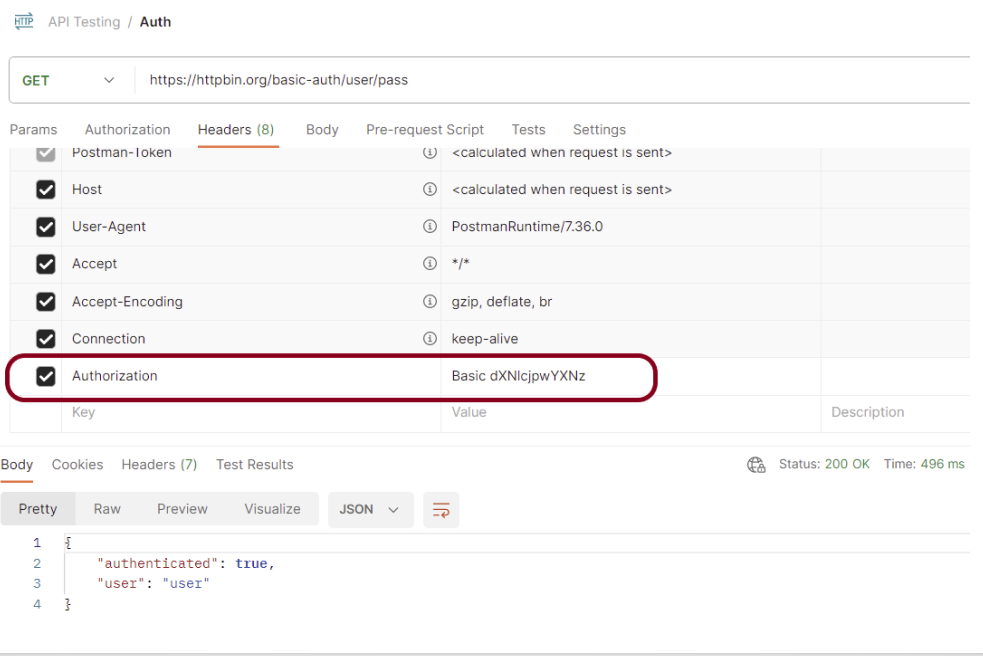
    private static final String BASE_URL = "https://httpbin.org/basic-auth/user/pass";
    private static final String TOKEN = "Basic dXNlcjpwYXNz";

    @Before
    public void setup() {
        given().baseUri(BASE_URL);
    }

    @Test
    public void validateToken() {

        Response response = given()
                .header("Accept", "application/json")
                .header("Authorization",TOKEN)
                .contentType(ContentType.JSON)
                .when()
                .get("https://httpbin.org/basic-auth/user/pass")
                .then()
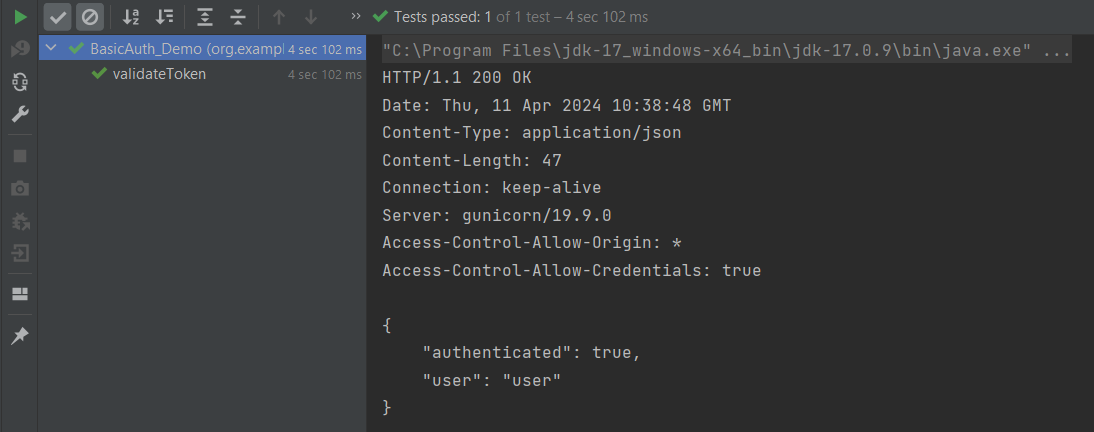
                .log().all()
                .extract()
                .response();

        assertThat(response.getStatusCode(),equalTo(200));

    }

}

How To Send A JSON/XML File As Payload To Request using Rest Assured

HOME

In this tutorial, I will explain to pass a JSON or XML file as a payload to the request. This is needed when the payload is static or there is minimal change in the request payload. This can be done by using the body() method, which accepts “File” as an argument. This is elaborated in Javadoc.

RequestSpecification body(File body)

This specifies file content that’ll be sent with the request. This only works for the POST, PATCH and PUT HTTP methods. Trying to do this for the other HTTP methods will cause an exception to be thrown.

<dependency>
    <groupId>io.rest-assured</groupId>
    <artifactId>rest-assured</artifactId>
    <version>5.5.1</version>
    <scope>test</scope>
</dependency>

Pass JSON file as payload

Step 1 – Create a .json file and write the payload in that. Keep the file in the “src/test/resources” folder.

Step 2 – Create a File in Java using the “File” and pass it to body() method.

import static io.restassured.RestAssured.given;
import static org.hamcrest.Matchers.equalTo;
import java.io.File;
import org.junit.Test;
import io.restassured.http.ContentType;

public class passJsonAsPayload {


    @Test
    public void createUser() {

        // Creating a File instance
        File jsonData = new File("src/test/resources/Payloads/jsondemo.json");

        // GIVEN
        given()
                .baseUri("https://reqres.in")
                .contentType(ContentType.JSON)
                .body(jsonData)

                // WHEN
                .when()
                .post("/api/users")

                // THEN
                .then()
                .assertThat()
                .statusCode(201)
                .body("name", equalTo("Json_Test"))
                .body("job", equalTo("Leader"))
                .log().all();

    }
}

The output of the above program is

Similarly, we can pass an XML as a payload to request. The file passed within the body() method should be of type .xml.

<?xml version="1.0" encoding="utf-8"?>
<soap:Envelope xmlns:soap="http://schemas.xmlsoap.org/soap/envelope/">
    <soap:Body>
        <NumberToWords xmlns="http://www.dataaccess.com/webservicesserver/">
            <ubiNum>500</ubiNum>
        </NumberToWords>
    </soap:Body>
</soap:Envelope>
@Test
    public void getNumber() {

        // Creating a File instance
        File xmlData = new File("src/test/resources/Payloads/xmlDemo.xml");

        // GIVEN
         RestAssured.given()
                .baseUri("https://www.dataaccess.com")
                .header("Content-Type", "text/xml")
                .body(xmlData)

                // WHEN
                .when()
                .post("/webservicesserver/NumberConversion.wso")

                // THEN
                .then()
                .assertThat()
                .statusCode(200)
                 .body("Envelope.Body.NumberToWordsResponse.NumberToWordsResult", equalToCompressingWhiteSpace("five hundred"))
                .log().all();

    }

Congrats. You have learned how to pass a JSON as a payload to the request. Happy Learning !!

Integration of REST Assured with JUnit4

HOME

In this tutorial, I’ll create a Test Framework for the testing of REST API using REST Assured and JUnit4 as the test framework.

What is Rest Assured?

Rest Assured enables you to test REST APIs using java libraries and integrates well with Maven/Gradle. REST Assured is a Java library that provides a domain-specific language (DSL) for writing powerful, maintainable tests for RESTful APIs.

What is JUnit?

JUnit is a simple framework to write repeatable tests. It is an instance of the xUnit architecture for unit testing frameworks. JUnit 4 is one of the most popular unit testing frameworks which has a significant role in the test-driven development process.

Dependency List:-

  1. REST Assured – 5.4.0
  2. Java 17
  3. JUnit – 4.13.2
  4. Maven – 3.9.6

Detailed Step Description

Step 1- Download and Install Java

Java needs to be present on the system to run the tests. Click here to know How to install Java. To know if Java is installed or not on your machine, type this command in the command line. This command will show the version of Java installed on your machine.

java -version

Step 2 – Download and setup Eclipse IDE on the system

The Eclipse IDE (integrated development environment) provides strong support for Java developers, which is needed to write Java code. Click here to know How to install Eclipse.

Step 3 – Setup Maven

To build a test framework, we need to add a number of dependencies to the project. It is a very tedious and cumbersome process to add each dependency manually. So, to overcome this problem, we use a build management tool. Maven is a build management tool that is used to define project structure, dependencies, build, and test management. Click here to know How to install Maven.

To know if Maven is already installed or not on your machine, type this command in the command line. This command will show the version of Maven installed on your machine.

mvn -version

Step 4 – Create a new Maven Project

Click here to know How to create a Maven project

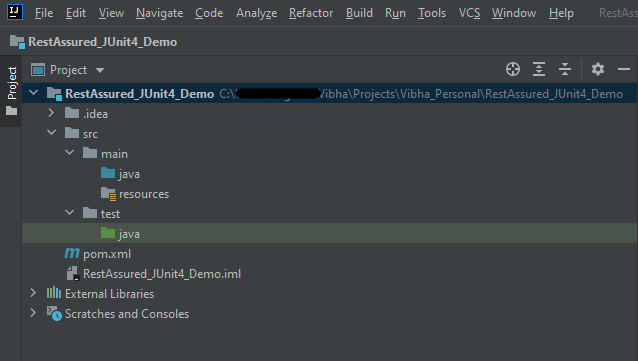
Below is the Maven project structure. Here,

Group Id – com.example
Artifact Id – RestAssured_JUnit4_Demo
Version – 0.0.1-SNAPSHOT
Package – com. example.RestAssured_JUnit4_Demo

Step 5 – Add REST Assured and JUnit4 dependencies to the project

Add the below-mentioned dependencies to the project.

<project xmlns="http://maven.apache.org/POM/4.0.0" xmlns:xsi="http://www.w3.org/2001/XMLSchema-instance"
  xsi:schemaLocation="http://maven.apache.org/POM/4.0.0 http://maven.apache.org/xsd/maven-4.0.0.xsd">
  <modelVersion>4.0.0</modelVersion>

  <groupId>org.example</groupId>
  <artifactId>RestAssured_JUnit4_Demo</artifactId>
  <version>1.0-SNAPSHOT</version>
  <packaging>jar</packaging>

  <name>RestAssured_JUnit4_Demo</name>
  <url>http://maven.apache.org</url>

  <properties>
    <rest-assured.version>5.4.0</rest-assured.version>
    <junit.version>4.13.2</junit.version>
    <json.version>20231013</json.version>
    <hamcrest.version>1.3</hamcrest.version>
    <maven.site.plugin.version>4.0.0-M13</maven.site.plugin.version>
    <maven.compiler.plugin.version>3.12.1</maven.compiler.plugin.version>
    <maven.surefire.plugin.version>3.2.3</maven.surefire.plugin.version>
    <maven.surefire.report.plugin.version>3.2.5</maven.surefire.report.plugin.version>
    <maven.compiler.source>17</maven.compiler.source>
    <maven.compiler.target>17</maven.compiler.target>
  </properties>

  <dependencies>

    <!-- Rest-Assured Dependency -->
    <dependency>
      <groupId>io.rest-assured</groupId>
      <artifactId>rest-assured</artifactId>
      <version>${rest-assured.version}</version>
      <scope>test</scope>
    </dependency>

    <!-- JUnit4 Dependency -->
    <dependency>
      <groupId>junit</groupId>
      <artifactId>junit</artifactId>
      <version>${junit.version}</version>
      <scope>test</scope>
    </dependency>

    <!-- JSON Dependency -->
    <dependency>
      <groupId>org.json</groupId>
      <artifactId>json</artifactId>
      <version>${json.version}</version>
    </dependency>

    <!-- Hamcrest Dependency -->
    <dependency>
      <groupId>org.hamcrest</groupId>
      <artifactId>hamcrest-all</artifactId>
      <version>${hamcrest.version}</version>
      <scope>test</scope>
    </dependency>

  </dependencies>

  <build>
    <plugins>

      <plugin>
        <groupId>org.apache.maven.plugins</groupId>
        <artifactId>maven-site-plugin</artifactId>
        <version>${maven.site.plugin.version}</version>
      </plugin>

      <plugin>
        <groupId>org.apache.maven.plugins</groupId>
        <artifactId>maven-surefire-plugin</artifactId>
        <version>${maven.surefire.plugin.version}</version>
        <configuration>
          <testFailureIgnore>true</testFailureIgnore>
        </configuration>
      </plugin>

      <plugin>
        <groupId>org.apache.maven.plugins</groupId>
        <artifactId>maven-compiler-plugin</artifactId>
        <version>${maven.compiler.plugin.version}</version>
        <configuration>
          <source>${maven.compiler.source}</source>
          <target>${maven.compiler.target}</target>
        </configuration>
      </plugin>
    </plugins>
  </build>

  <reporting>
    <plugins>
      <plugin>
        <groupId>org.apache.maven.plugins</groupId>
        <artifactId>maven-surefire-report-plugin</artifactId>
        <version>${maven.surefire.report.plugin.version}</version>
      </plugin>
    </plugins>
  </reporting>
</project>

Step 6 – Create the TEST file

The tests should be written in src/test/java directory. To know how to create a JSON Request body using JSONObject, please refer to this tutorial.

import io.restassured.http.ContentType;
import org.json.JSONObject;
import org.junit.Test;
import static org.hamcrest.Matchers.equalTo;
import static io.restassured.RestAssured.given;

public class APITests {

    String BaseURL = "https://dummy.restapiexample.com/api";


    @Test
    public void createUser() {

        JSONObject data = new JSONObject();

        data.put("employee_name", "NewUser1");
        data.put("employee_salary", "1000");
        data.put("employee_age", "35");

        // GIVEN
        given()
                .contentType(ContentType.JSON)
                .body(data.toString())

                // WHEN
                .when()
                .post(BaseURL + "/v1/create")

                // THEN
                .then()
                .statusCode(200)
                .body("data.employee_name", equalTo("NewUser1"))
                .body("message", equalTo("Successfully! Record has been added."));

    }

}

Step 7 – Test Execution through JUnit Test

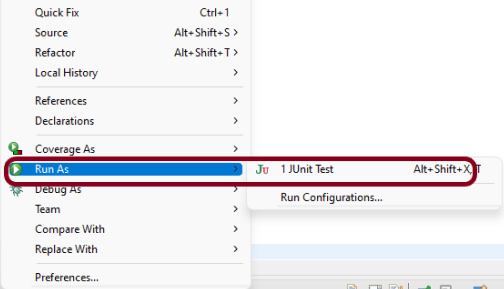
Go to the Runner class and right-click Run As JUnit Test. The tests will run as JUnit tests. (Eclipse)

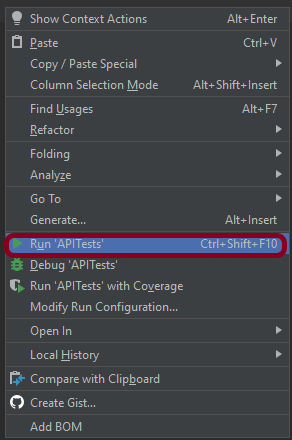
Below is the image to run the tests in IntelliJ.

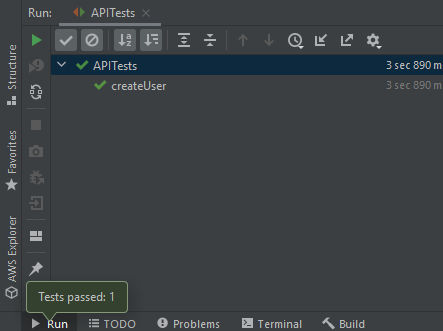
This is how the execution console will look like.

Step 8 – Run the tests from the command line

Maven Site Plugin creates a folder – site under the target directory, and the Maven Surefire Report plugin generates the JUnit Reports in the site folder. We need to run the tests through the command line to generate the JUnit Report.

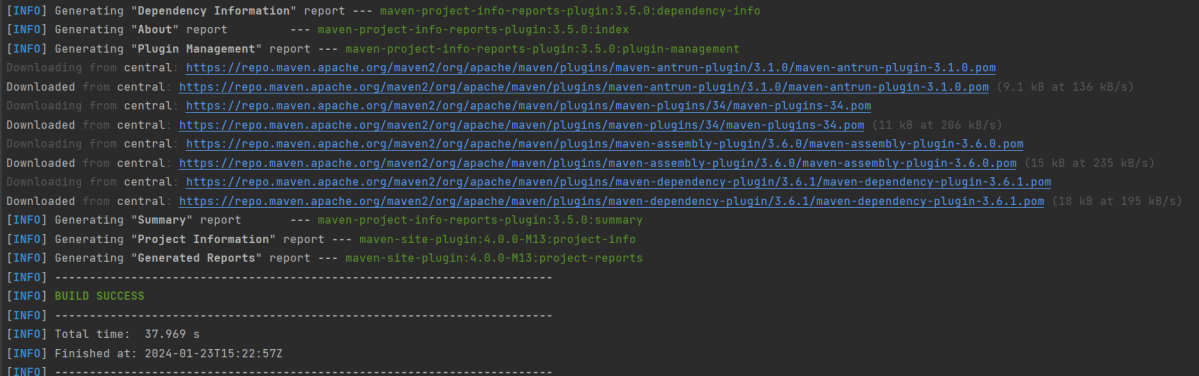
mvn clean test site

The output of the above program is

Step 9 – Report Generation

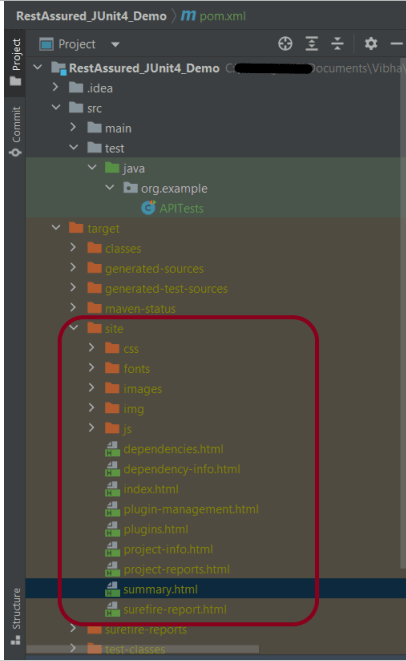
After the test execution, refresh the project, and a new folder with the name site in the target folder will be generated. This folder contains the reports generated by JUnit. The structure of the folder site looks as shown below.

Step 10 – View the Report

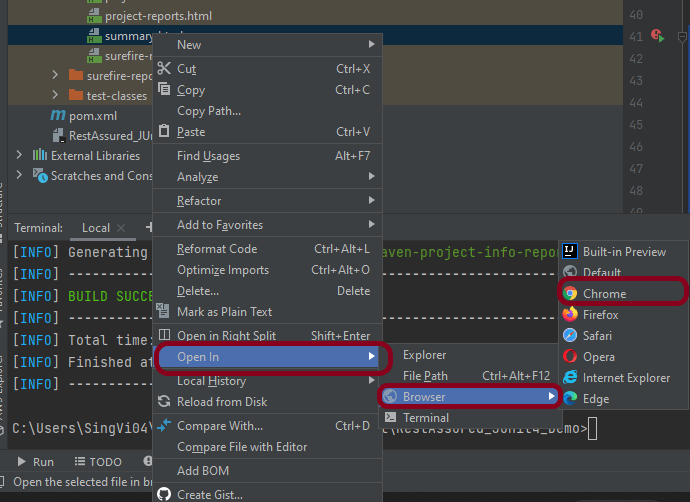
Right-click on the summary.html report and select Open In -> Browser ->Chrome.

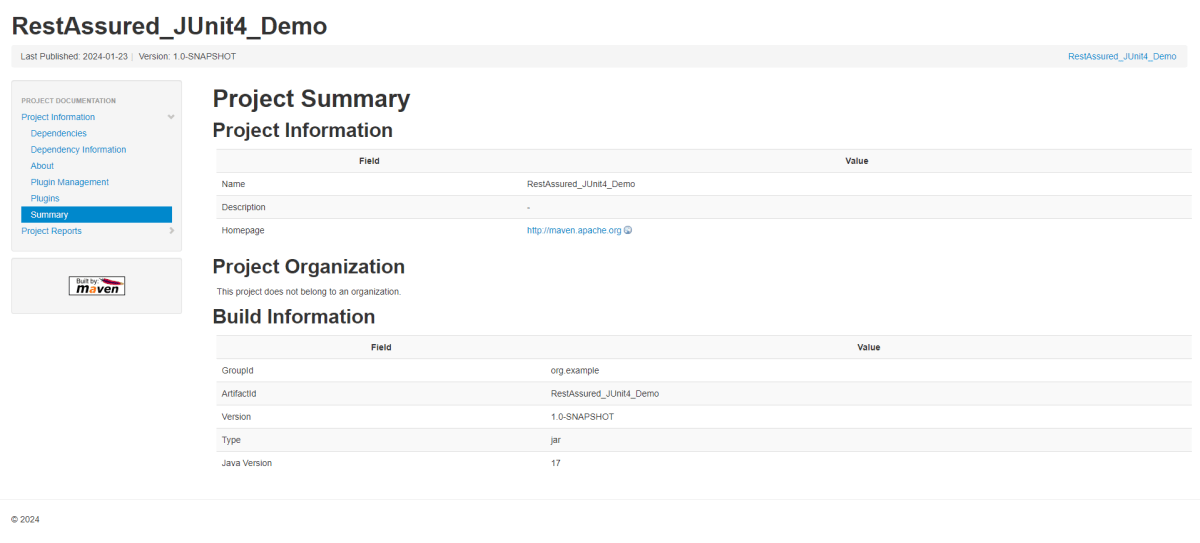
Summary Report

Below is the summary Report.

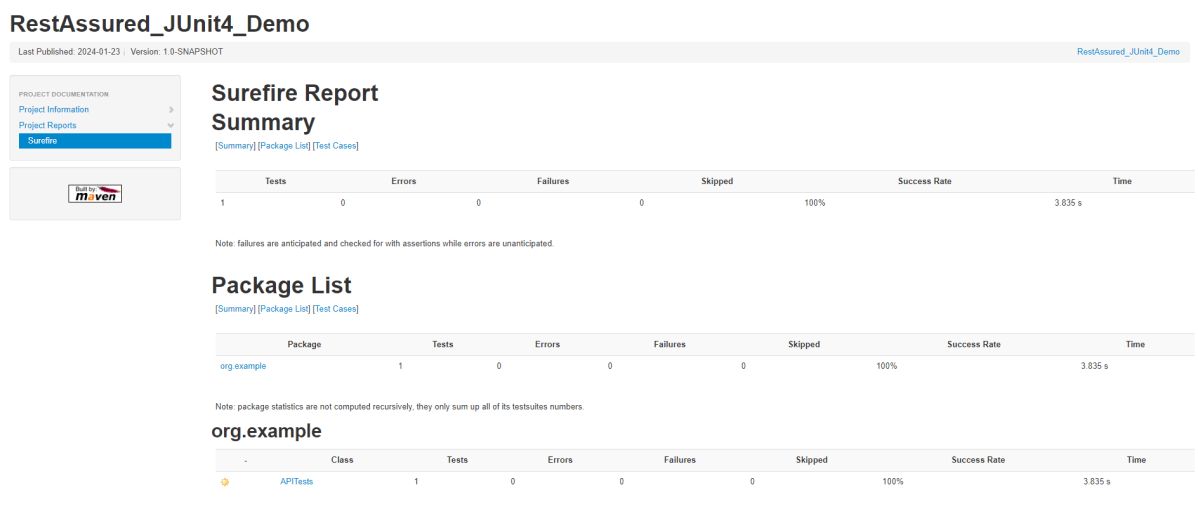
Surefire Report

Below is an example of a Surefire Report. This report contains a summary of the test execution.

We are done! Congratulations on making it through this tutorial and hope you found it useful! Happy Learning!!

How to blacklist headers in Rest Assured

HOME

 .config(RestAssured.config().logConfig(LogConfig.logConfig().blacklistHeader("Accept"))).log().headers()

import io.restassured.RestAssured;
import io.restassured.config.LogConfig;
import org.junit.Test;
import java.util.ArrayList;
import java.util.List;
import static io.restassured.RestAssured.given;
import static org.hamcrest.CoreMatchers.equalTo;

public class BlackListDemo {

    @Test
    public void verifyUser() {

        // Given
        given()
                
                .config(RestAssured.config().logConfig(LogConfig.logConfig().blacklistHeader("Accept")))
                .log().headers()

                // When
                .when()
                .get("https://reqres.in/api/users/2")

                // Then
                .then()
                .statusCode(200).statusLine("HTTP/1.1 200 OK")
                .body("data.email", equalTo("janet.weaver@reqres.in"))
                .body("data.first_name", equalTo("Janet"))
                .body("data.last_name", equalTo("Weaver")).log().all();
    }

import io.restassured.RestAssured;
import io.restassured.config.LogConfig;
import org.junit.Test;
import java.util.ArrayList;
import java.util.List;
import static io.restassured.RestAssured.given;
import static org.hamcrest.CoreMatchers.equalTo;

public class BlackListDemo {

    @Test
    public void verifyUser() {

        // Given
        given()

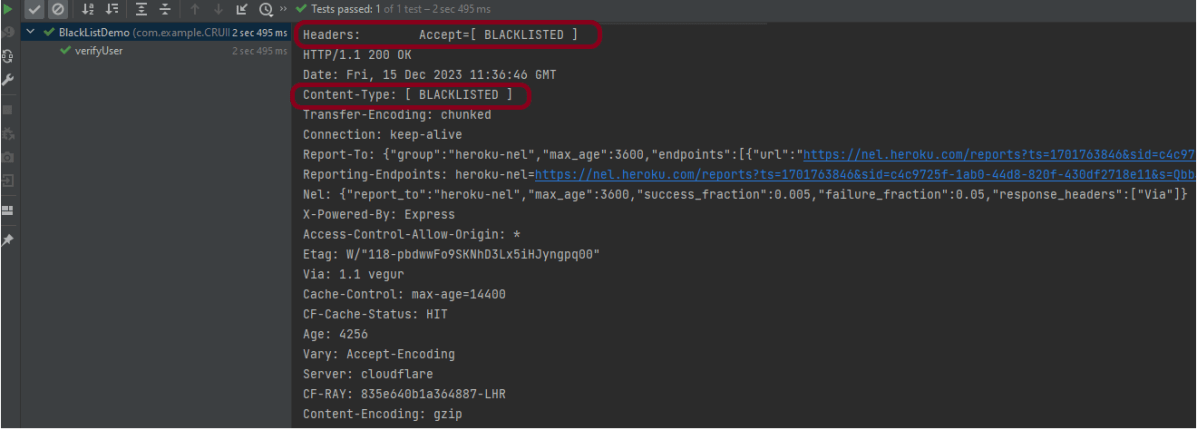
              .config(RestAssured.config().logConfig(LogConfig.logConfig().blacklistHeader("Accept","Content-Type")))
                .log().headers()

                // When
                .when()
                .get("https://reqres.in/api/users/2")

                // Then
                .then()
                .statusCode(200).statusLine("HTTP/1.1 200 OK")
                .body("data.email", equalTo("janet.weaver@reqres.in"))
                .body("data.first_name", equalTo("Janet"))
                .body("data.last_name", equalTo("Weaver")).log().all();
    }

import io.restassured.RestAssured;
import io.restassured.config.LogConfig;
import org.junit.Test;
import java.util.ArrayList;
import java.util.List;
import static io.restassured.RestAssured.given;
import static org.hamcrest.CoreMatchers.equalTo;

public class BlackListDemo {

    @Test
    public void verifyUser1() {

        List headers = new ArrayList<String>();
        headers.add("Accept");
        headers.add("Content-Type");

        // Given
        given()
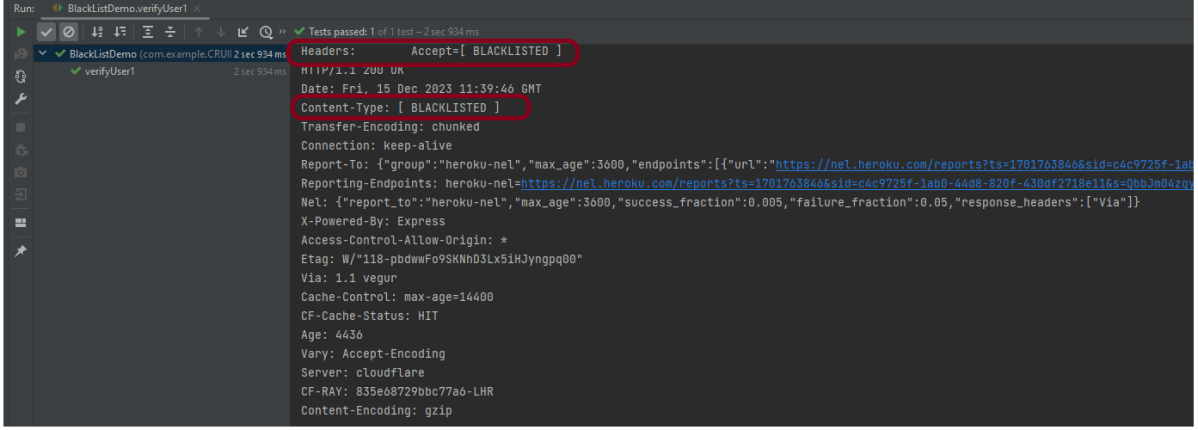
                .config(RestAssured.config().logConfig(LogConfig.logConfig().blacklistHeader(headers.toArray(new String[0]))))
                .log().headers()

                // When
                .when()
                .get("https://reqres.in/api/users/2")

                // Then
                .then()
                .statusCode(200).statusLine("HTTP/1.1 200 OK")

                // To verify booking id at index 3
                .body("data.email", equalTo("janet.weaver@reqres.in"))
                .body("data.first_name", equalTo("Janet"))
                .body("data.last_name", equalTo("Weaver")).log().all();
    }

}