WebDriver Browser Commands – get, getTitle, getCurrentUrl, getPageSource, getClass, close, quit in Selenium WebDriver

WebDriver is a tool for automating web application testing, and in particular, to verify that they work as expected. WebDriver is design to provide a simpler, more concise programming interface in addition to addressing some limitations in the Selenium-RC API. Selenium-WebDriver was develop to better support dynamic web pages where elements of a page may change without the page itself being reload. WebDriver’s goal is to supply a well-designed object-oriented API that provides improved support for modern advanced web-app testing problems. 

In this tutorial, we are discussing about below mentioned topics:-
1) How to access the methods of WebDriver?
2) Various Browser Commands

  • get()
  • getTitle()
  • getCurrentUrl()
  • getPageSource()
  • getClass()
  • close()
  • quit()

How to access the methods of WebDriver?

To access a method of WebDriver, you need to create a driver object from WebDriver and press. dot key. This will list all the methods. Here, you can see that I have used driver.get, so it will show all the methods starts with get.

Method Name – I have explained earlier about Method. A method is a block of code that is use to perform certain actions. Method runs when it is call. Method name is the name of method we are going to use. 

Parameter Data Type – It is pass as an argument to the method to perform certain operation. Here, string data type is use as an argument. 

Return Type – Methods can return values like getTitle() : String as string is here the return type. In the above example, return type is void means do not return anything.

Browser Commands

1) Get – This command loads a new web page in the current browser window and open the webpage mentioned as argument. It accepts string as parameter and void means returns nothing. 

Syntax

get(String arg0) : void    

Command

Command - driver.get(URL) 

2) Get Title – This command retrieves the title of current web page. It does not accept any parameter and returns a string value. 

Syntax

getTitle() : String   

Command

driver.getTitle()

3) Get Current URL – This command retrieves the URL of current web page. It does not accept any parameter and returns a string value.

Syntax

getCurrentUrl() : String  

Command

driver.getCurrentUrl(); 

4) Get Page Source – This command returns the page source of current web page. . It does not accept any parameter and returns a string value.

Syntax

getPageSource() : String  

Command

driver.getPageSource();

5) Get Class – The command is use to retrieve the Class object that represents the runtime class of this object.

Syntax

getClass() 

Command

driver.getClass(); 

6) Close – This command is use to close the current web browser, which is controlled by WebDriver. This command does not require any parameter and void means return nothing.

Syntax

close(): void 

Command

driver.close()

7) Quit – This command close all the browsers opened by webDriver. This command does not require any parameter and void means return nothing.

Syntax

quit(): void 

Command

driver.quit(); 

Now, let us write a small program to show the use of methods of WebDriver.  

  1. Launch a new Firefox browser
  2. Open facebook.com
  3. Get Page Title name and print
  4. Get Page URL and print on Eclipse Console
  5. Get Page Source (HTML Source code) and Page Source length and print Page length
  6. Get Runtime class name of the object
  7. Close the Browser
import java.util.concurrent.TimeUnit;
 
import org.openqa.selenium.WebDriver;
import org.openqa.selenium.firefox.FirefoxDriver;

public class Selenium_Browser_Commands {
    public static void main(String[] args) throws {
         System.setProperty("webdriver.gecko.driver",
                                              "C:\\Users\\Vibha\\Desktop\\SeleniumKT\\geckodriver-v0.27.0-win64\\geckodriver.exe");
 
             // Create a new instance of the Firefox driver 
             WebDriver driver = new FirefoxDriver();
             driver.manage().window().maximize();
 
            // Set implicit wait of 60 seconds
             driver.manage().timeouts().implicitlyWait(60, TimeUnit.SECONDS);
 
            // Launch a new web page and load Facebook using Get Command
             driver.get("https://www.facebook.com/");
 
             // Get the Title of web page
             String PageTitle = driver.getTitle();
             System.out.println("Title of page is :"+ PageTitle);
 
             // Get URL of current web page
             String PageURL = driver.getCurrentUrl();
             System.out.println("URL of current page is :" + PageURL);
 
             // Get Source code of current web page
             String PageSource = driver.getPageSource();
             int PageSource_Length = PageSource.length();
             System.out.println("Length of page source of current page is :" + PageSource_Length);
 
              // Get Runtime class of this object
              Class<? extends WebDriver> className = driver.getClass();
              System.out.println("className :" + className);
 
              // Close the current web page
              driver.close();
        } 
}

Output
Title of page is :Facebook – log in or sign up
URL of current page is :https://www.facebook.com/
Length of page source of current page is :293624
className :class org.openqa.selenium.firefox.FirefoxDriver

Dynamic XPath in Selenium WebDriver

HOME

//: select the current node.
tagname: name of the tag of a particular node.
@: to select attribute.
Attribute: name of the attribute of the node.
Value: value of the attribute

1) Basic XPath

XPath’s expression selects nodes based on ID, class, etc. from an XML web page.

Go to http://www.facebook.com and inspect the Email or Phone textbox. How to inspect a web element on the web page is explained in the previous blog. Some of the basic examples of XPath is displayed below:

By.xpath("//input[@name='email']")
By.xpath("//input[@id=’email’]")
By.xpath("//input[@type='email']")
By.xpath("//input[@class=’inputtext’]")
By.xpath("//*[@class=’inputtext’]")
By.xpath("//input[@class=’inputtext’][@type='email']")

In the last example, we have created XPath using multiple attributes for the single HTML tag.

Syntax

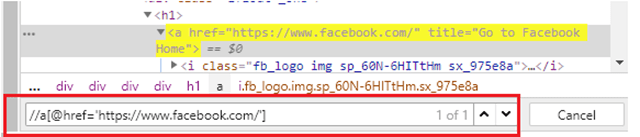
By.xpath("//a[@href='https://www.facebook.com/']")

2) Contains

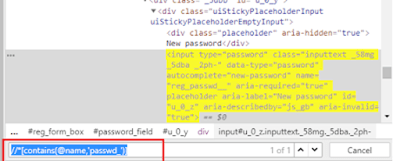
It is used if the value of any web element changes dynamically. Using this expression, you can find the element with partial text.

Syntax

By.xpath("//*[contains(@name,'passwd_')]")

3) OR & AND

OR & AND expression uses 2 conditions to identify a web element.

In the case of OR, if any of the conditions is true, then the element will be located. Whereas in the case of AND, both the conditions should be true to locate the element.

Syntax

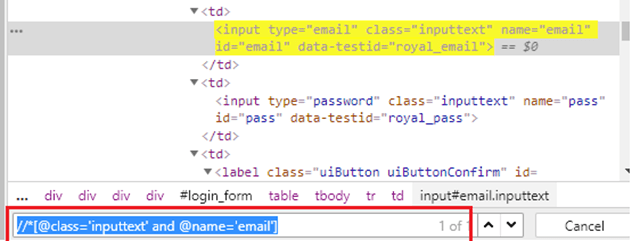
By.xpath("//*[@class='inputtext' or @name='email']")

Here, if you observe, class – ‘inputtext’ is same for 2 web elements, so with OR condition it will locate 2 web elements.

Syntax

By.xpath("//*[@class='inputtext' and @name='email']")

4) Start-with function 

This function finds the web elements whose value changes dynamically. In the expression, we will use that value of the web element which doesn’t change. Let’s see a small example of using the start-with() function.

Syntax

By.xpath("//*[starts-with(@id,'yui_3_18_0_3_1555510217471_')]")

5) Text() 

This expression is used with the text function to locate an element with exact text. Let me show you how to use the Text() method. 

Syntax

By.xpath("//*[text(),"Create an account"]")

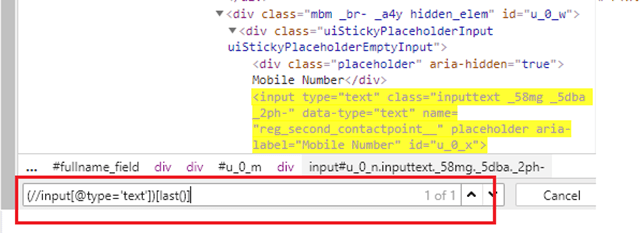
6) Last()

Select the last element (of the mentioned type) out of all input elements present.

Syntax

By.xpath("//input[@type='text'])[last()]")

There are 5 web elements with input type -text. But with this expression, it has selected the last one.

7) Position()

Selects the element out of all input elements present depending on the position number provided

Syntax

By.xpath("//input[@type='text'])[2]")

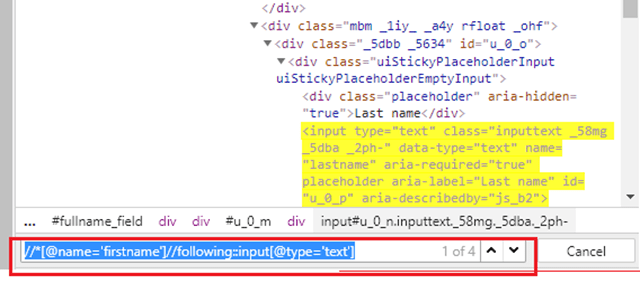
8) Following

By using this, we could select everything on the web page after the closing tag of the current node.

The xpath of firstname is as follows:-

By.xpath("//*[@name='firstname']")

To identify the input field of type text after the FirstName field, we need to use the below XPath.

By.xpath("//*[@name='firstname']//following::input[@type='text']")

To identify just the input field after the FirstName field, we need to use the below XPath.

By.xpath("//*[@name=’firstname’]//following::input[1]")

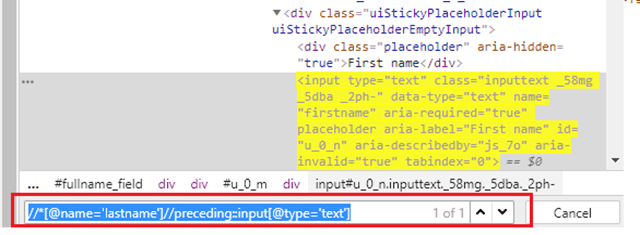
9) Preceding

Selects all nodes that appear before the current node in the document, except ancestors, attribute nodes, and namespace nodes.

The XPath of the LastName field is as follows

By.xpath("//*[@name='lastname']")

To identify the web element before lastname field is as follows

By.xpath("//*[@name='lastname']//preceding::input[1]")

To identify the input field of type text before the LastName field, we need to use below XPath

By.xpath("[@name='lastname']//preceding::input[@type='text']")

Now, let’s write a small program to show the use of XPath. In this program, 

  • Firefox is used as the browser. 
  • The path of the Mozilla Firefox driver is set by using System.SetProperty. Mozilla Firefox driver is called gecko, so do not get confused. 
  • driver.get is used to navigate to amazon site. The search box of the webpage is located using XPath – (“//*[@id=’twotabsearchtextbox’]”))
  • sendkeys() is used to search for value hard drive. 
  • Search Button is clicked by using XPath – (“//*[@class=’nav-input’]”))
import java.util.concurrent.TimeUnit; 
import org.openqa.selenium.By;
import org.openqa.selenium.WebDriver;
import org.openqa.selenium.firefox.FirefoxDriver;
 
public class Selenium_Site { 
      public static void main(String[] args) {
              System.setProperty("webdriver.gecko.driver","C:\\Users\\vibha\\Downloads\\geckodriver-v0.24.0-win64\\geckodriver.exe");
            WebDriver driver = new FirefoxDriver();
            driver.manage().timeouts().implicitlyWait(60, TimeUnit.SECONDS);
            driver.get("https://www.amazon.com//");
            driver.manage().window().maximize();

            //XPath for Search box
            driver.findElement(By.xpath("//*[@id='twotabsearchtextbox']")).sendKeys("hard drive");

            //XPath for search button
            driver.findElement(By.xpath("//*[@class='nav-input']")).click();
     }
}

Methods in Java

HOME

modifier returnType nameOfMethod (Parameter List) {
   // method body  }

Here,

  • modifier − It defines the access type of the method like public, protected, default, private
  • returnType − Method may return a value or not. Void does not return any value.
  • nameOfMethod − This is the method name. The method signature consists of the method name and the parameter list.
  • Parameter List − The list of parameters, it is the type, order, and number of parameters of a method. These are optional, method may contain zero parameters.
  • method body − The method body defines what the method does with the statements.
public static int methodName(int a, int b) {
      // body
   }

public class Method_Example {

    public static void main(String[] args) {

        //Standard Library Method
        System.out.println("Square root of 9 is : " + Math.sqrt(9));

        //User defined Method
        MyMethod();
    }

    public static void MyMethod()
    {
        System.out.println("My User defined Method");
    }
}

Java Methods with Arguments and Return Value

A Java method can have zero or more parameters, and they may return a value.

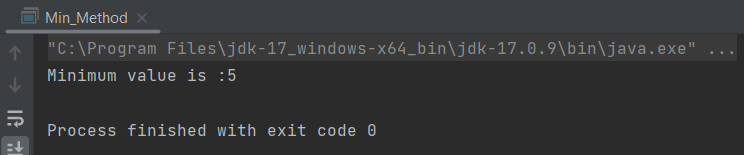
public class Min_Method {

    public static void main(String[] args) {
        int a = 10;
        int b = 5;
        int c = minMethod(a,b);
                System.out.println("Minimum value is :" + c);
    }

    //Define function min_function
    public static int minMethod(int x, int y)
    {
        int min;
        if (x>y)
            min =y;
        else
            min = x;
        //return value
        return min;
    }
}

Void Keyword

The void keyword allows us to create methods that do not return a value. When a method’s return type is void, it means that the method performs some operation or task but does not produce any result that needs to be returned to the caller.

public class Min_Method {

    public static void main(String[] args) {

        int a = 10;
        int b = 5;

        //Call function
        minMethod(a,b);
    }

    //Define function min_function
    public static void minMethod(int x, int y)
    {
        int min;
        if(x>y)
            min =y;
        else
            min = x;
        System.out.println("Minimum value is :" + min);
    }
}

Method Overloading

When a class has two or more methods by the same name but different parameters, it known as method overloading. To know more about method overloading, click here.

public class Overloading_Example {
    
        public static void main(String[] args) {

            int a= 10;
            int b = 24;
            double c = 12.0;
            double d = 13.0;
            min_function(a, b);
            min_function(c,d);
        }

        public static void min_function(int x, int y)
        {
            int min;
            if(x>y)
                min = y;
            else
                min = x;

            System.out.println("Minimum value for integer is :"+ min);
        }

        public static void min_function(double m, double n)
        {
            double min;
            if(m>n)
                min=n;
            else
                min=m;
            System.out.println("Minimum value for integer is :"+ min);
        }
    }

What is main method in Java?

The main()method is the entry point into the application. The signature of the method is always: public static void main(String[] args).

Loop Control Statements in Java – For, While, Do While, Enhanched For Loop

HOME

Syntax

for(Variable Initialization; Boolean_Expression Test; Increment/Decrement){
   //Statements
    }
 
    for (int i = 0; i < 5; i++) {
    System.out.println(i);
    }

Example

   public class For_loop {
     public static void main(String[] args) {
       for(int i=0;i<5;i++)
    {
       System.out.println("Value of i is: "+i);
    }
   System.out.println("-----------------------------------------------------");
       for (int j=5;j>0;j--)
       {
              System.out.println("Value of j is: "+j);
        }
     }
   }
 
Output
Value of i is: 0
Value of i is: 1
Value of i is: 2
Value of i is: 3
Value of i is: 4
--------------------------------------------------------
Value of j is: 5
Value of j is: 4
Value of j is: 3
Value of j is: 2
Value of j is: 1
  •    Statement 1 sets a variable before the loop starts (int i = 0).
  •    Statement 2 defines the condition for the loop to run (i must be less than 5). If the condition is true, the loop will start over again, if it is false, the loop will end.
  •    Statement 3 increases a value (i++) each time the code block in the loop has been executed.

2) While Loop

 The Java while loop is used to iterate a part of the program several times. If the number of iteration is not fixed, it is recommended to use while loop.

Syntax

   while(Boolean_Expression Test)
    {
        //Statements
    }

Example

  public class While_Loop {
    public static void main(String[] args) {
       int i=0;
       while (i<15)
       {
            i=i+3;
            System.out.println("Value of i is :"+i);
         }
  System.out.println("--------------------------------------------"); 
  // In this case, value of j will be 0 and it will run infinite times. 
    int j=0;
    while(j<15)
    System.out.println("Value of j is :"+j);
    {
       j=j+3;
    }
  }
 }

Output
Value of i is :3
Value of i is :6
Value of i is :9
Value of i is :12
Value of i is :15
--------------------------------------------
Value of j is :0
Value of j is :0

3) What is the difference between for and while loop?

While loop is used in situations where we do not know how many times loop needs to be executed beforehand.
For loop is used where we already know about the number of times loop needs to be executed. Typically for a index used in iteration.

4)  Do While Loop

A do while loop is exactly similar to while loop and the only difference between two is that the do while loop executes the statement at least one time. As it start with do keyword and the boolean expression appears at the end of the loop.

Syntax

   do{
         //Statements
       }while(Boolean_Expression Test);

Example

public class Do_While_Loop {
       public static void main(String[] args) {  
         int i=0;
          do 
          {
             i=i+3
             System.out.println("Value of i is :"+i);
           }
           while (i<15);
           System.out.println("-------------------------------------------");
           //Condition is already satisfied, still 1 round of execution
           int j=10;
           do
          {
            j=j+2;
            System.out.println("Value of i is :"+j);
           }
       while (j<10);
       }
   } 
   
Output
Value of i is :3
Value of i is :6
Value of i is :9
Value of i is :12
Value of i is :15
-----------------------------------------------------
Value of i is :12

5) What is the difference between While Loop or do- while loop?

1) while loop first check the condition then enter the body whereas do-while first enter the body and then check the condition.
2) while is a entry controlled loop whereas do-while is an exit controlled loop.
3) In while, condition comes before the body whereas in do-while, condition comes after the body.

6) Enhanced for loop in Java

 It is used to traverse array or collection in java. It is easier to use than simple for loop because we don’t need to increment value and use subscript notation.

It works on elements basis, not index. It returns element one by one in the defined variable.

Syntax

for (data_type variable: array_name)

Example

public class Enhanced_Loop {
       public static void main(String[] args) {

          // Array of String storing days of the week
           String days[] = { "Mon", "Tue", "Wed", "Thr", "Fri", "Sat", "Sun"};
           
           // Enhanced for loop, this will automatically iterate on the array list 
           for (String dayName : days) 
          {
             System.out.println("Days ==> "+ dayName);
           }
             System.out.println("");
             
             // Normal for loop
           for (int i=0; i < days.length; i++) {
               System.out.println("Days ==> "+ days[i]);
           }
       }
   }

Output
Days ==> Mon
Days ==> Tue
Days ==> Wed
Days ==> Thr
Days ==> Fri
Days ==> Sat
Days ==> Sun 
 
Days ==> Mon
Days ==> Tue
Days ==> Wed
Days ==> Thr
Days ==> Fri
Days ==> Sat
Days ==> Sun

Decision Making in Java – If, If Else, Switch, Break, Continue

HOME
  

Decision making in Java is same as real life decision making. I remember during my childhood, my father had told me once that if I get 1st rank in class will get a bicycle, else if 2nd will get a walk man, else if 3rd video game else nothing. This is an ideal example of if-else scenario. If a particular condition is true, then execute the specified block of code. In programming language too, we execute certain lines of code if the condition is satisfied. In programming language too, we follow the similar concept, such as

• Block of code to be executed, if a specified condition is true
• Use else to specify a block of code to be executed, if the same condition is false
• Use else if to specify a new condition to test, if the first condition is false
• Use switch to specify many alternative blocks of code to be executed

The if condition 

if (condition) {
    // block of code to be executed if the condition is true
public class Java_Demo {
    public static void main(String[] args) {
        int x=50;
        int y=10;
       
	    if(x>y)
       {
            System.out.println("x is greater than y");
       }
    }
}

Output
x is greater than y

 If we do not provide the curly braces ‘{‘ and ‘}’ after if(condition ) then by default if statement will consider the immediate one statement to be inside its block. For example,

if(condition)
     statement1;
     statement2;

  // Here if the condition is true, if block will consider only statement1 to be inside its block.

     Use the else statement to specify a block of code to be executed if the condition is false.

The else Statement

if (condition) {
    // block of code to be executed if the condition is true
   } else { 
    // block of code to be executed if the condition is false
   } 
 public class Java_Demo {
     public static void main(String[] args) {
         int x=5;
         int y=10;
         if(x>y)
            {
                System.out.println("x is greater than y");
            }
          else
            {
                System.out.println("y is greater than x");
            }
        }
    }

Output
y is greater than x

The else if Statement Use the else if statement to specify a new condition if first condition is false.

If (condition1) {
     // block of code to be executed if condition1 is true
   } else if (condition2) {
    // block of code to be executed if the condition1 is false and condition2 is true
   } else {
    // block of code to be executed if the condition1 is false and condition2 is  false
   }
public class Java_Demo {

	public static void main(String[] args) {
		int x = 10;
		int y = 10;
		if (x > y) {
			System.out.println("x is greater than y");
		} else if (y > x) {
			System.out.println("y is greater than x");
		} else {
			System.out.println("x is equal to y");
		}
	}
}

Output
x is equal to y

Switch Statement

  • The switch expression is evaluate once.
  • The value of the expression is compare with the values of each case.
  • If there is a match, the associated block of code is execute.
  • The break and default keywords are optional

    Use the switch statement to select one of many code blocks to execute. It is use to replace multilevel if-else-if statement. 
However, the switch statement can be use only if the conditions based on the same constant value.

  switch(expression) {
       case x:
      // code block
       break;
       case y:
     // code block
       break;
      default:
      // code block
   }

 The default statement is use as the last statement in a switch block; it does not need a break.

 When Java reaches a break keyword, it breaks out of the switch block.

public class Switch_Statement {
    public static void main(String[] args) {
		int month_no = 3;
		switch (month_no) {
		case 1:
			System.out.println("January");
			break;
		case 2:
			System.out.println("February");
			break;
		case 3:
			System.out.println("March");
			break;
		case 4:
			System.out.println("April");
			break;
		case 5:
			System.out.println("May");
			break;
		case 6:
			System.out.println("June");
			break;
		default:
			System.out.println("Rest of months");
		}
	}
}

Output
March

Default Keyword

The default keyword specifies that specific code will run if there is no case match.

public class Default_Demo {

	public static void main(String[] args) {
		int month_no = 9;
		switch (month_no) {
		case 1:
			System.out.println("January");
			break;
		case 2:
			System.out.println("February");
			break;
		case 3:
			System.out.println("March");
			break;
		case 4:
			System.out.println("April");
			break;
		case 5:
			System.out.println("May");
			break;
		case 6:
			System.out.println("June");
			break;
		default:
			System.out.println("Rest of months");
		}
	}
}

Output
Rest of months

Break Statement

 It terminates the loop by skipping the execution of any remaining code

public static void main(String[] args) {
    for(int i=0;i<5;i++)
      {
         if(i==2)
         break;
         System.out.println("Value of i is: "+i);
       }
         System.out.println("Loop finishes");
     }
   }

Output
Value of i is: 0
Value of i is: 1
Loop finishes

Continue Statement


It continue running the loop, just skip a particular iteration of the loop.

public class Continue_Demo {
   public static void main(String[] args) {
        for(int i=0;i<5;i++)
         {
             if(i==2)
             continue;
             System.out.println("Value of i is: "+i);
           }
         System.out.println("Loop finishes");
     }
  }

Output
Value of i is: 0
Value of i is: 1
Value of i is: 3
Value of i is: 4
Loop finishes

Arrays in Java

HOME

 1256661589473369

ArrayDataType[] ArrayName;
String[] days;

Creating an Array

 You can create array by using new operator.

arrayRefVar = new dataType[arraySize];

Declaring an array variable, creating an array, and assigning the reference of the array to the variable can be combine in one statement, as shown below:

 dataType[] arrayRefVar = new dataType[arraySize];

Alternatively, you can create arrays as follows:

dataType[] arrayRefVar = {value0, value1, ..., valuek}; 

The array elements are access through the index.

Array indices are 0-based; that is, they start from 0 to arrayRefVar.length-1.

Assigning values to an Array

How to initialize an array during declaration.

ArrayType [] ArrayName = New ArrayType [Size of an Array];

String[] Days = new String[6];
Days[0] = "Monday";
Days[1]="Tuesday";
Days[2]="Wednesday";
Days[3]="Thursday";
Days[4]="Friday";
Days[5]="Saturday";
Days[6]="Sunday";

Another way

String[] Days =  {"Monday","Tuesday","Wednesday","Thursday","Friday","Saturday","Sunday"}

public class Array_Example {

    public static void main(String[] args) {

        String[] Days= {"Monday","Tuesday","Wednesday","Thursday","Friday","Saturday","Sunday"};

        //Length of Array
        int len=Days.length;

        //Access first element
        System.out.println("First element in Array: "+Days[0]);

        //Last element
        System.out.println("First element in Array: "+Days[len-1]);

        //Print values
        for(int i=0;i<len-1;i++)
        {
            System.out.println("Value stored at position "+i+" is "+Days[i]);
        }
    }
}

Passing an Array to a Method

Array can be passed easily to a method as parameters, just as if we pass integers and strings to methods.

Below is an example of passing array to a method. 

public class Array_Example {

    public static void main(String[] args) {

        String[] Days= {"Winter","Spring","Summer","Autumn"};

        //Pass array as method
        print_arrays(Days);
    }

    public static void print_arrays(String[]array) {
        int len=array.length;
        System.out.println("Length of array :" + len);

        //Print values
        for(int i=0;i<=len-1;i++)
        {
            System.out.println("Value stored at position "+i+" is "+array[i]);
        }
    }
}


Multi Dimensional Arrays

It is also possible to create an array of arrays known as multidimensional array. For example,

    int[][] a = new int[3][4];

    int[][] a = {  {1, 2, 3},{4, 5, 6, 9},{7}};  

 Column1Column 2Column 3Column 4
Row 11         a[0][0]2     a[0][1]3        a[0][2]  a[0][3]
Row 24                a[1][0]5     a[1][1]6      a[1][2]9     a[1][3]
Row 37                a[2][0] a[2][1]  a[2][2] a[2][3]
public class Multidimensional_Array {

    public static void main(String[] args) {

        int a[][] = {{1,2,3},
                {4,5,6,9},
                {7}};

        //print length of columns
        System.out.println("Length of Row 1 is :"+a[0].length);
        System.out.println("Length of Row 2 is :"+a[1].length);
        System.out.println("Length of Row 3 is :"+a[2].length);
        System.out.println("----------------------");

        //Print all elements of array
        for (int i=0;i<a.length;i++)
        {
            for (int j=0;j<a[i].length;j++)
            {
                System.out.println("Value of row " + i + " and column " + j + " is " + a[i][j]);
            }
        }
    }
}

What is the difference between array and string?

  • Arrays can have any data type of any length while strings are usually ASCII characters that are terminated with a null character ‘\0’.
  • An array of characters is mutable, in other words, you can replace a character in an array of characters by overwriting the memory location for that character.
  • A String is not mutable, in other words, to “replace” a character in a String, you must build a new String with the desired character in place (copying the non-changing parts from the old String).                
  • All string literals are stored in the String constant pool. They remain in the pool until they became eligible for the garbage collection, while a Character array is stored in heap memory.                                               
  • Character array is preferred over string for storing passwords in java. As string is immutable, it makes string vulnerable for storing passwords, as we cannot get rid of passwords after use until garbage collector collects it.

Strings Manipulation in Java

HOME


public class String_Demo {
       public static void main(String[] args) { 

              //creating string by java string literal
              String str1 = "learn";
              char[] message = {'b','a','s','i','c'};

              //creating string by new keyword
              String str2 = new String(message);
              String str3 = new String("java");
              System.out.println(str1);
              System.out.println(str2);
              System.out.println(str3);
       }
   }
 
  Output
  learn
  basic
  java


Java String Manipulation

1.  length() 

returns the number of characters in the string. It counts every alphanumeric char, special char or even spaces.

   public class String_Demo {
       public static void main(String[] args)  {
              String message = "Learn Basic Java";
              int Str_Len= message.length();
              System.out.println("Length of String is : " + Str_Len);   
       }            
   }

  Output
   Length of String is : 16

2.  Concatenation

The + operator can be used between strings to add them together to make a new string. This is called concatenation. You can also use this method to concatenate two strings. Java uses the + operator for both addition and concatenation.

 Numbers are added. Strings are concatenated.

public class String_Demo {
       public static void main(String[] args) {
              String message_1 = "Learn Basic Java";
              String message_2 = "and Learn Selenium";
              String  Concat_message= message_1 +" "+ message_2;
              System.out.println("Concatenation Result is : " + Concat_message);
       }
  }

Output
Concatenation Result is : Learn Basic Java and Learn Selenium

3.  equals()

It compares two strings lexicographically, ignoring case differences.

 public class String_Demo {
       public static void main(String[] args) {
              String message_1 = "Learn Basic Java";
              String message_2 = "Learn Selenium";
              boolean CompareResult = message_1.equals(message_2);
              System.out.println("The result of String Comparison is : " + CompareResult);
         }
   }

  Output
  The result of String Comparison is : false

4.  equalsIgnoreCase()

It compares two strings lexicographically, ignoring case differences.

public class String_Demo {
	public static void main(String[] args) {
		String message_1 = "selenium";
		String message_2 = "SELENIUM";
		boolean comp_ignore_case = message_1.equalsIgnoreCase(message_2);
		System.out.println("The result of String Comparison after ignoring case difference is : " + comp_ignore_case);
	}
}


Output
The result of String Comparison after ignoring case difference is : true

5.  CharAt()

It returns the character located at the specified index.

public class String_Demo {
    public static void main(String[] args) {
           String message = "Learn Basic Java";
           char cIndex = message.charAt(6);
           System.out.println("The fifth character of Popular Topic 1 is : " + cIndex);
       }
}

 Output
 The fifth character of Popular Topic 1 is : B

6.  toLowerCase() 

It returns the string in lowercase letters.

     public class String_Demo {
    public static void main(String[] args) {
          String message = "Learn Basic Java";
          String lower_case= message.toLowerCase();
          System.out.println("The message in lower case is : " + lower_case);
     }
}

Output
The message in lower case is : learn basic java

7.  toUpperCase()  

It converts all the characters in the String to upper case.

public class String_Demo {
    public static void main(String[] args) {
           String message = "Learn Basic Java";
           String upper_case= message.toUpperCase();
           System.out.println("The message in upper case is : " + upper_case);
      }
 }
 
Output
The message in upper case is : LEARN BASIC JAVA

8.   trim() 

This method returns a copy of the string, with leading and trailing whitespace omitted.

public class String_Demo {
    public static void main(String[] args) {
           String message =" Java ";
            int len_1 = message.length();
            System.out.println("Length of message before trimming white spaces is : " + len_1);
            String message_2 = message.trim();
            int len_2 = message_2.length();
            System.out.println("Message after trimming white spaces is : " + message_2+" and length is "+len_2);
       }
  }

Output
 Length of message before trimming white spaces is : 6
 Message after trimming white spaces is : Java and length is 4

9.   replace() 

It replaces occurrences of a character with a specified new character.

public class String_Demo {
	public static void main(String[] args) {
           String str = "Java";
           System.out.println(str.replace('v','V'));
      }
}

Output 
JaVa

10.  split(String regex)

It splits this string against a given regular expression and returns a String array.

public class String_Demo {
	public static void main(String[] args) {
		String message = "Learn Basic Java";
		String[] aSplit = message.split("Basic");
		System.out.println("The first part of the array is : " + aSplit[0]);
		System.out.println("The last part of the array is : " + aSplit[1]);
	}
}
 
Output
The first part of the array is : Learn 
The last part of the array is :  Java

11.  startsWith(String prefix)  

Tests if the string starts with the specified prefix.  It returns true if the character sequence represented by the argument is a prefix of the character sequence represented by this string; false otherwise.

public class String_Demo {
	public static void main(String[] args) {
		String str = "Java";
		System.out.println("Result is " + str.startsWith("co"));
	}
}

Output
Result is false

12.  indexOf(String str)

It returns the index within this string of the first occurrence of the specified substring.

public class String_Demo {

	public static void main(String[] args) {
		
		String message = "This is an example of a test framework of Selenium";
		int firstIndex = message.indexOf("of");
		System.out.println("The start index is : " + firstIndex);
	}
}


Output
The start index is : 19

13.  lastIndexOf(String str)

It returns the index within this string of the last occurrence of the specified substring.

public class String_Demo {

	public static void main(String[] args) {
		
		String message = "This is an example of a test framework of Selenium";
		int lastIndex = message.lastIndexOf("of");
		System.out.println("The last index is : " + lastIndex);
	}
}

Output
The last index is : 39

14. substring()  

It returns a part of the string.

public class String_Demo {
	public static void main(String[] args) {
		String message = "Learn Basic Java";
		String sSubString = message.substring(5, 12);
		System.out.println("The sub string of Popular Topic 1 from index 5 to 11 is : " + sSubString);
	}
}

Output
The sub string of Popular Topic 1 from index 5 to 11 is :  Basic 

15. contains(CharSequense s)

It returns true if and only if this string contains the specified sequence of char values.

public class String_Demo {

	public static void main(String[] args) {

		String message = "This is an example of a test framework of Selenium";
		boolean containsExample = message.contains("example");
		System.out.println("The string conatins example : " + containsExample);
	}
}

Output
The string conatins example : true

Basics of Java – Data Types and Operators

HOME

  1. What is Java?
  2. What is a Data Type?
  3. What is a variable?
  4. What are Arithmetic Operators?
  5. What are Assignment Operators?
  6. What are Comparison Operators?
  7. What are Logical Operators?

What is a variable?

Variables are containers for storing data values. Variable is a value that can change. Variable is a reserved space or a memory location to store some sort of information. Information can be of any data type such as intstringboolean or float.

Java divides the operators into the following groups:

  • Arithmetic operators : +, -, *, /,%, ++. —
  • Assignment operators: =
  • Relational operators: >, <, , >=, <=, ==,!=
  • Logical operators: &&, ||, &, |, !
  • Bitwise operators: & | ^ >> >>>
  • Arithmetic Operators

What are Arithmetic Operators?

Arithmetic operators are used to perform common mathematical operations, such as:-

Below is an example which show how these operators can be used.

public class Arithmetic_Operators { 
   public static void main(String[] args) {

		int x = 45;
		int y = 10;
		int z;
		z = x + y;

		System.out.println("Addition of 2 numbers: " + z);

		z = x - y;
		System.out.println("Subtraction of 2 numbers: " + z);

		z = x * y;
		System.out.println("Multiplication of 2 numbers: " + z);

		z = x / y;
		System.out.println("Division of 1 number by another: " + z);

		z = x % y;
		System.out.println("Division Reminder: " + z);

		x++;
		System.out.println("Increment of x: " + x);

		y--;
		System.out.println("Decrement of y: " + y);
	}

}

 
Output
Addition of 2 numbers: 55
Subtraction of 2 numbers: 35
Multiplication of 2 numbers: 450
Division of 1 number by another: 4
Division Reminder: 5
Increment of x: 46
Decrement of y: 9

What are Assignment Operators?

Assignment operators are use to assign values to variables.

public class Assignment_Operator 
   public static void main(String[] args) {
		int x = 45;
		int y = 10;
		int z = 15;

		System.out.println("Value of x: " + x);

		x += 5;
		System.out.println("New value of x after addition: " + x);

		// This will use new value of x which is 50 to perform the operation
		x -= 10;
		System.out.println("New value of x after substraction: " + x);

		// This will use new value of x which is 40 to perform the operation
		x *= 2;
		System.out.println("New value of x after multiplication: " + x);

		// This will use new value of x which is 80 to perform the operation
		x /= 5;
		System.out.println("New value of x after division: " + x);

		// This will use new value of x which is 16 to perform the operation
		x %= 3;
		System.out.println("New value of x as division reminder: " + x);

		// Multiple Assignment
		System.out.println("Value of y and z: " + y + " and " + z);
		y = z = 100;
		System.out.println("New value of y and z: " + y + " and " + z);
	}
}
 
Output
Value of x: 45
New value of x after addition: 50
New value of x after substraction: 40
New value of x after multiplication: 80
New value of x after division: 16
New value of x as division reminder: 1
Value of y and z: 10 and 15
New value of y and z: 100 and 100

What are Comparison Operators?

Comparison operators are use to compare two values.

public class Relational_Operator {
    public static void main(String[] args) {      
        int x = 10;
		int y = 20;

		System.out.println("x is equal to y: " + (x == y));
		System.out.println("x is not equal to y: " + (x != y));
		System.out.println("x is greater than y: " + (x > y));
		System.out.println("x is less than y: " + (x < y));
		System.out.println("x is greater than or equal to y: " + (x >= y));
		System.out.println("x is less than or equal to y: " + (x <= y));
	}
}
 
Output
x is equal to y: false
x is not equal to y: true
x is greater than y: false
x is less than y: true
x is greater than or equal to y: false
x is less than or equal to y: true

What are Logical Operators?

Logical operators are use to determine the logic between variables or values.

public classLogical_Operators {
   public static void main(String[] args) {
        boolean value_1 = true;
		boolean value_2 = false;

		System.out.println("Check if both the boolean variables are true : " + (value_1 && value_2));

		System.out.println("Check if even one of the boolean varibale is true : " + (value_1 || value_2));

		System.out.println("Change the state of the Output_1 to false : " + (!value_1));
	}
}
 
 Output
 Check if both the boolean variables are true : false
 Check if even one of the boolean varibale is true : true
 Change the state of the Output_1 to false : false

Congratulations on making it through this tutorial and hope you found it useful! Happy Learning!!
Selenium Introduction

HOME

    WebDriver talks to a browser through a driver. Communication is two-way: WebDriver passes commands to the browser through the driver and receives information back via the same route. The driver is specific to the browser, such as ChromeDriver for Google’s Chrome/Chromium, GeckoDriver for Mozilla’s Firefox, etc. The driver runs on the same system as the browser. 

    How to Download and Install Selenium WebDriver on Windows

     
         In this tutorial, we will discuss how Selenium automation Tool can downloaded and installed on Window operating system
     

    How to Download and Configure Selenium WebDriver

    1. Java 11 is installed on the machine
    2. Install the Latest Version of Eclipse
    3. Install Selenium WebDriver
    4. Download Third Party Browser Drivers like Mozilla GeckoDriver

    1. Java 11 Installation in Windows 10 

    Verify that Java is installed on your machine or not. If not, then refer to this link to install Java 11 in Windows 10.

    2. Download and Install Eclipse IDE

    Eclipse IDE is a software that allows you to write your programs and test scripts in multiple programming languages (with Java being the most popular one). Verify that Eclipse is installed on your machine. If not, then follow this link to get the instructions to install Eclipse

    3.   Download Selenium WebDriver 

    Go to Selenium’s Official site – https://www.selenium.dev/downloads/. Scroll down to Selenium Client & WebDriver Language Bindings. We can see there are different languages of download links. We are using Selenium with Java, so will click on the Download link next to Java.

    2. Selenium WebDriver JARs download in zip format. 

    3.  Unzip the Selenium folder. It will have these files.

    4. Install/Configure Selenium Webdriver

    1.  Open Eclipse IDE. Click on WorkBench. Once Eclipse IDE opens, go to File -> New -> Java Project

     2.  Create a Java project with the name – Selenium. You can give any name and click on the “Finish” button.

    3.  A Java class is created with the name Selenium, and it looks like this:-

    5. Add Selenium JAR files to Eclipse IDE

    1. Right-click on Selenium and click on Properties

    2.  Click on Java Build Path. Select Libraries. Click on – Add External JARs. Add your all external jars such as selenium jars under the class path, not module path

    3.  Go to the path where the Selenium WebDriver JAR folder was downloaded and select these 2 JAR files and click on the Open button.

     4. Similarly, go to the Lib folder of the Selenium file and select the entire JAR present there.


    5. Java Build Path looks like as shown in the below image.

    6. Click on Referenced Libraries and will see all these JARs are present here.

     6. Download Third Party Browser Drivers

     Go to the Selenium Official site. Scroll down and go to Third Party Drivers, Bindings, and Plugins. We need to download the browser drivers which we want to use like Google Chrome Driver, Mozilla Firefox, and so on.