Selenium Multiple Choice Answers – MCQ3

HOME

Selenium Multiple Choice Questions – MCQ3


Selenium Multiple Choice Questions – MCQ3

HOME

Selenium Multiple Choice Questions – MCQ1

Selenium Multiple Choice Questions – MCQ2


Actions a=new Actions(driver);

Answer


Answer


Answer


Answer

Answer


Answer


Answer


Answer


Answer


Answer


Answer

==============================================================

Selenium Multiple Choice Questions – MCQ1
Selenium Multiple Choice Questions – MCQ2
Advance Selenium Multiple Choice Questions – MCQ1
Advance Selenium Multiple Choice Questions – MCQ2

Selenium Multiple Choice Questions – MCQ2

HOME


Answer


Answer


Answer


Answer


Answer


Answer


Answer


Answer


Answer


Answer


//li[@id='firstItem']//following::a

Answer


//li[@id='firstItem']//child::*

Answer


Answer


Answer


Answer


Answer


Answer


Answer


Answer


Answer


Answer


Answer


Answer


Answer

Selenium Multiple Choice Questions – MCQ1

HOME

Answer


Answer


Answer


Answer


WebDriver driver=new WebDriver();

Answer


Answer


Answer


Answer


Answer


Answer


Answer


Answer


Answer


Answer


Answer


Answer


1. WebElement element = driver.findElement(By.xpath("//[contains(text(), ' QAAutomation')]"));

2. WebElement element = driver.findElement(By.xpath("//[(text(), ' QAAutomation')]"));

3. WebElement element = driver.findElement(By.xpath("\*[contains(text(), ' QAAutomation')]"));

4. None

Answer


1. driver.navigate(“https://www.qaautomation.expert”);

2. driver.navigate.to(“https://www.qaautomation.expert”);

3. driver.navigate.url(“https://www.qaautomation.expert”);

4. None

Answer


i. navigate().to("url")
ii. open("url")
iii. goTo("url"
iv. get("url")

Answer


Answer


Answer


Answer


Answer


Answer


Answer

====================================================================

Selenium Multiple Choice Questions – MCQ2

Selenium Multiple Choice Questions – MCQ3

How to set Proxy in Chrome using Selenium

HOME

     // Set the proxy server details
        String proxyAddress = "proxy.example";
        int proxyPort = 8080;

        // Create a Proxy object and set the HTTP proxy details
        Proxy proxy = new Proxy();
        proxy.setHttpProxy(proxyAddress + ":" + proxyPort);

ChromeOptions options = new ChromeOptions();
options.setProxy(proxy);
WebDriver driver = new ChromeDriver(options);

import org.openqa.selenium.Proxy;
import org.openqa.selenium.WebDriver;
import org.openqa.selenium.chrome.ChromeDriver;
import org.openqa.selenium.chrome.ChromeOptions;

public class ProxyDemo {

    public static void main(String[] args) {

        // Set the proxy server details
        String proxyAddress = "localhost";
        int proxyPort = 8080;

        // Create a Proxy object and set the HTTP proxy details
        Proxy proxy = new Proxy();
        proxy.setHttpProxy(proxyAddress + ":" + proxyPort);

        // Configure Chrome options with the Proxy object
        ChromeOptions options = new ChromeOptions();
        options.setProxy(proxy);
        options.addArguments("start-maximized");

        // Instantiate ChromeDriver with the configured options
        WebDriver driver = new ChromeDriver(options);


        // Perform your browsing actions using the driver
        driver.get("https://www.google.com");
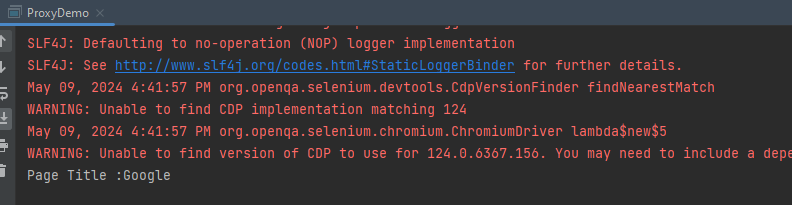
        System.out.println("Page Title :" + driver.getTitle());

        // Close the browser session
        driver.quit();
    }
}

How to compare ArrayLists – contains?

HOME

import java.util.ArrayList;
import java.util.Arrays;

public class Compare_ArrayList {

    public static void main(String[] args) {

        ArrayList<String> list1 = new ArrayList<String>();

        list1.add("Java");
        list1.add("Python");
        list1.add("PHP");
        list1.add("JavaScript");
        list1.add("Ruby");

        ArrayList<String> list2 = new ArrayList<>(Arrays.asList("Python", "Ruby"));

        System.out.println("ArrayList1:" + list1);
        System.out.println("ArrayList2:" + list2);

        System.out.println("Check PHP is present in arrayList1 :" + list1.contains("PHP"));
        System.out.println("Check Cobol is present in arrayList1 :" + list1.contains("Cobol"));
        System.out.println("Compare 2 arrayList using contains: " + list1.contains(list2));

        }
}

import java.util.ArrayList;
import java.util.Arrays;

public class Compare_ArrayList {

    public static void main(String[] args) {

        ArrayList<String> list1 = new ArrayList<String>();

        list1.add("Java");
        list1.add("Python");
        list1.add("PHP");
        list1.add("JavaScript");
        list1.add("Ruby");

        ArrayList<String> list3 = new ArrayList<>(Arrays.asList("Python", "Java", "Ruby", "PHP", "JavaScript"));

        System.out.println("ArrayList1:" + list1);
        System.out.println("ArrayList2:" + list2);
        System.out.println("Compare 2 arrayList using contains with different sequence: " + list1.contains(list3));
        }
}

Cucumber Interview Questions and Answers 2025

Last Updated On

HOME

1. What is BDD? Why do we use BDD?

BDD (behavior-driven development ) is an Agile software development process that encourages collaboration among developers, QA, and business participants in a software project.

Why do we use BDD
BDD increases and improves collaboration between various teams involved in the project to easily engage with the product development cycle. We use a simple English language called Gherkins to write test scenarios.


2. What is Cucumber? What are the advantages of Cucumber?

Cucumber is an open-source tool that supports Behavior Driven Development (BDD). It is written in Rugby Language. Cucumber reads executable specification written in plain English language (Gherkins) and validates that the software act as per the executable specifications.

Advantages of Cucumber

  • Cucumber supports different languages like Java.net and Ruby. 
  • It acts as a bridge between the business and technical language. We can accomplish this by creating a test case in plain English text. 
  • It allows the test script to be written without knowledge of any code; it allows the involvement of non-programmers as well. 
  • It serves the purpose of an end-to-end test framework, unlike other tools. 
  • Due to simple test script architecture, Cucumber provides code re-usability.

Please refer to this tutorial for more detailsIntroduction of Cucumber Testing Tool (BDD Tool)


3. What is the programming language used by Cucumber?

The cucumber tool provides support for multiple programming languages such as Java, .Net, Ruby, etc. It can also be integrated with multiple tools such as Selenium, Capybara, etc.

Please refer to this tutorial for more detailsIntroduction of Cucumber Testing Tool (BDD Tool)


4. What is Gherkin?

Gherkin is a set of grammar rules that makes plain text structured enough for Cucumber to understand. 

Gherkin serves multiple purposes:-

  • Unambiguous executable specification
  • Automated testing using Cucumber
  • Document how the system actually behaves

Please refer to this tutorial for more detailsCucumber – What is Gherkin.


5. What are the files required to execute a Cucumber test scenario?

Features
Step Definition
Test Runner


6. What is a Feature File?

A Feature File is a file in which we store features, descriptions of the features and scenarios to be tested. The first line of the feature file must start with the keyword ‘Feature’ followed by the description of the application under test. A feature file may include multiple scenarios within the same file. A feature file has the extension .feature. Below is an example of the Feature file.

Feature: Login to HRM Application 
 
   @ValidCredentials
   Scenario: Login with valid credentials
     
    Given User is on Home page
    When User enters username as "Admin"
    And User enters password as "admin123"
    Then User should be able to login sucessfully

Please refer to this tutorial for more details –  Cucumber – What is Feature File in Cucumber.


7. What are the various keywords that are used in Cucumber for writing a scenario?

Below mentioned are the keywords used for writing a scenario:

  1. Given – It is used to describe the initial context of the scenario.  When the Given step is executed, it will configure the system to a well-defined state, such as creating & configuring objects or adding data to a test database.
  2. When – It is used to describe an event or action. This can be a person interacting with the system or it can be an event triggered by another system.
  3. Then – It is used to describe the expected outcome of the scenario
  4. And/But – If we have several Given’s, When’s, or Then’s, then we can use And /But.

Please refer to this tutorial for more details – Cucumber – What is Feature File in Cucumber.


8. What is the purpose of the Step Definition file in Cucumber?

It is a Java method with an expression, which is used to link it to Gherkin steps. When Cucumber executes a Gherkin step, it will look for a matching step definition to execute. Step definitions can be written in many programming languages.

Feature: Book flight ticket for one-way trip
Scenario: flight ticket for one-way trip from Dublin 
Given  I live in Dublin 
  
@Given ("I live in Dublin") 
public voidVacation()
   {
        System.out.println("I live in Dublin");
   }

Please refer to this tutorial for more details – Step Definition in Cucumber


9. What is the use of the Background keyword in Cucumber?

Background keyword is used to group multiple given statements into a single group. This is generally used when the same set of given statements is repeated in each scenario in the feature file. For example, you need to pass the bearer token in every test. So, this can be done by defining the Given statement as background.

Please refer to this tutorial for more details – Background in Cucumber


10. What is the purpose of the Cucumber Options tag?

The cucumber Options tag is used to provide a link between the feature files and step definition files. Each step of the feature file is mapped to a corresponding method on the step definition file.

Below is the syntax of the Cucumber Options tag:

@CucumberOptions(features="src/test/resources/features/MyHoliday.feature",tags = { "@BookOneWayFlight"})

11. What is TestRunner class in Cucumber?

It is the starting point for JUnit to start executing the tests. TestRunner class is used to provide the link between the feature file and the step definition file.

Below is an example of TestRunner class.

import org.junit.runner.RunWith;
import io.cucumber.junit.Cucumber;
import io.cucumber.junit.CucumberOptions;
 
@RunWith(Cucumber.class)
@CucumberOptions(features = "src/test/resources/Feature/MyHoliday.feature", tags = { "@BookOneWayFlight"})
 
public classTestRunner { 
}

Please refer to this tutorial for more details – Cucumber – JUnit Test Runner Class.


12. What is a profile in cucumber?

You can create Cucumber profiles to run a set of features and step definitions. Use the following command to execute a cucumber profile.

Syntax:

cucumber features -p <profile_name>

Example:

cucumber features -p Integration

13. What are hooks in Cucumber?

Hooks are blocks of code that can run at various points in the Cucumber execution cycle

1- Before: executes before the feature file execution.
2- After: executes after the feature file execution.
3- BeforeStep: executes before each step execution.
4- AfterStep: executes after each step execution.

Below is an example of hooks.

public class CucumberHooksExampleDefinitions {
 
    WebDriver driver;
 
    @Before
    public void setup() {
 
        System.out.println("---------------------Before Executing----------------------");
        ChromeOptions chromeOptions = new ChromeOptions();
        chromeOptions.addArguments("--start-maximized");
        driver = new ChromeDriver(chromeOptions);
        driver.manage().timeouts().implicitlyWait(5, TimeUnit.SECONDS);
    }
 
    @BeforeStep
    public void beforeStepTest() {
        System.out.println("--------------BeforeStep Executing---------------");
    }
 
    @Given("User is on Home page")
    public void userOnHomePage() {
 
        System.out.println("Open Website");
        driver.get("https://opensource-demo.orangehrmlive.com/");
    }
 
    @When("User enters username as {string}")
    public void entersUsername(String userName) throws InterruptedException {
 
        System.out.println("Enter userName");
        driver.findElement(By.name("txtUsername")).sendKeys(userName);
 
    }
 
    @When("User enters password as {string}")
    public void entersPassword(String passWord) throws InterruptedException {
 
        System.out.println("Enter passWord");
        driver.findElement(By.name("txtPassword")).sendKeys(passWord);
 
        driver.findElement(By.id("btnLogin")).submit();
    }
 
    @Then("User should be able to login sucessfully")
    public void sucessfullLogin() throws InterruptedException {
 
        String newPageText = driver.findElement(By.id("welcome")).getText();
        System.out.println("newPageText:" + newPageText);
        assertThat(newPageText, containsString("Welcome"));
 
    }
 
    @AfterStep
    public void afterStepTest() {
        System.out.println("--------------------AfterStep Executing---------------------");
    }
 
    @After
    public void close() {
        driver.close();
        System.out.println("--------------------After Executing----------------------");
    }
}

Please refer to this tutorial for more details – Hooks in Cucumber


14. What are cucumber tags?

Tags are a great way to organize Features and Scenarios. Cucumber tags help in filtering the scenarios. We can tag the scenarios and then run them based on tags.

Below is an example of the tag.

Feature: Sample use of Tags in Cucumber
 
  @ValidCredentials
  Scenario: Login with valid credentials
    
   Given User is on Home page
   When User enters username as "Admin"
   And User enters password as "admin123"
   Then User should be able to login sucessfully

Here, @ValidCredentials is the Tag.

Please refer to this tutorial for more details – Tags in Cucumber.


15. What is the use of features property under the Cucumber Options tag?

Feature property under Cucumber option tag lets Cucumber know the location of Feature Files. As in the below example, the location of the feature file is under src/test/resources/features.

@CucumberOptions(features = "src/test/resources/Feature/MyHoliday.feature")

Please refer to this tutorial for more details – Cucumber – What is Feature File in Cucumber.


16. What is the use of glue property under the Cucumber Options tag?

The glue property lets Cucumber know the location of the Step Definition file. As in the below example, the location of the step definition is “com.cucumber.demo.definitions”.

@CucumberOptions(features = { "src/test/resources/features/MyHoliday.feature" }, glue = {"com.cucumber.demo.definitions" }

17. What is the Scenario Outline in the feature file?

Scenario outline is a way of parameterization of scenarios in Cucumber. It is used to repeat the same tests by passing different values or arguments to Step Definition. Scenario Outline must be followed by the keyword ‘Examples’, which specifies the set of values for each parameter.

Scenario Outline: Book Flight for one-way trip
   
  Given I live in Dublin with adults and kids
  And I want to book one way flight ticket from Dublin to London on 
  When I search online
  Then TripAdvisor should provide me options of flights on 
  And Cost of my flight should not be more than Euro per person
 And Tickets should be refundable
   
 Examples:
  |noOfAdults         |noOfKids         |travelDate    |flightFare    |
  |2                  |  2              |22-Jan-2020   |100           |
  |1                  |  0              |12-Mar-2020   |50            |

Please refer to this tutorial for more details – Data Driven Testing using Scenario Outline in Cucumber


18. What is the purpose of the Examples keyword in Cucumber?

Examples – All scenario outlines have to be followed by the Examples section. This contains the data that has to be passed on to the scenario in Feature File. Scenario Outline must be followed by the keyword ‘Examples’, which specifies the set of values for each parameter.

The example is shown in the previous example.

Please refer to this tutorial for more details – Data Driven Testing using Scenario Outline in Cucumber


19. Should any code be written within the TestRunner class?

No code should be written under the TestRunner class. It should include the tags @RunWith and @CucumberOptions.


20. What is the purpose of a cucumber dry-run?

We use to compile the cucumber feature files and step definitions. If there occur any compilation errors, then it shows them on the console.

@RunWith(Cucumber.class)
@CucumberOptions(dryRun=true)
public class RunCucumberTest {
}

21. List out some of the main differences between Jbehave and Cucumber?

1- Jbehave is Java-based and Cucumber is Ruby-based.
2- Jbehave is story-driven whereas the Cucumber is feature-driven.


22. What are the steps to generate a report in Cucumber?

We run the following command to produce HTML reports.

@RunWith(Cucumber.class)
@CucumberOptions(plugin = {"pretty", "html:target/cucumber"})
public class RunCucumberTest {
}

Cucumber Version 6.7.0 and above we can create a Cucumber Report by adding a cucumber.properties file in src/test/resources and mention the below instruction in it.

cucumber.publish.enabled=true

Please refer to this tutorial for more details – Cucumber Report Service


23. Does Cucumber comes with an assertion library?

No, Cucumber does not come with an assertion library. It uses assertion from unit testing tools like JUnit, TestNG, JavaScript, RSpec.


24. How to run a Cucumber test using tags in Command-Line?

mvn test -Dcucumber.filter.tags="@BookOneWayFlight"

mvn test -Dcucumber.options="@BookOneWayFlight"

Please refer to this tutorial for more detailsRun Cucumber Test from Command Line.


25. Can we use Selenium with Cucumber?

Yes, we can use Selenium with Cucumber to test a Web Application. Cucumber makes the tests readable for business also. To know more about the Integration of Selenium with Cucumber, refer to this tutorial – Integration of Cucumber with Selenium and JUnit


26. What is DataTable in Cucumber?

Data Tables in Cucumber are used to add multiple parameters in Step Definition in a tabular form rather than putting all the parameters in the Gherkin statement. This is much easier to read and multiple rows of data can be passed in the same step. Data tables from Gherkin can be accessed by using the DataTable object as the last parameter in a Step Definition. Below is an example of DataTable.

Feature: Login to HRM Application 
  
   @ValidCredentials
   Scenario: Login with valid credentials
      
    Given User is on HRMLogin page
    When User enters valid credentials
    |Admin|admin123|
    Then User should be able to login sucessfully and new page open

Please refer to this tutorial for more details – DataTables in Cucumber


27. What is the difference between Scenario Outline and DataTables in Cucumber?

Scenario Outline

  1. The Scenario Outline keyword is used to run the same Scenario multiple times, with different combinations of data.
  2. Cucumber automatically runs the complete test the number of times equal to the number of data in the Test Set.
  3. Example tables always have a header row, because the compiler needs to match the header columns to the placeholders in the Scenario Outline’s steps.
Scenario Outline: Book Flight for one-way trip
   
  Given I live in Dublin with adults and kids
  And I want to book one way flight ticket from Dublin to London on 
  When I search online
  Then TripAdvisor should provide me options of flights on 
  And Cost of my flight should not be more than Euro per person
 And Tickets should be refundable
   
 Examples:
  |noOfAdults         |noOfKids         |travelDate    |flightFare    |
  |2                  |  2              |22-Jan-2020   |100           |
  |1                  |  0              |12-Mar-2020   |50            |

DataTable

  1. No keyword is used to define the test data
  2. This works only for the single step, below which it is defined
  3. Data tables are passed wholesale to the step definitions, and it’s up to the user to interpret them. They don’t necessarily have a header row.
Feature: Login to HRM Application 
  
   @ValidCredentials
   Scenario: Login with valid credentials
      
    Given User is on HRMLogin page
    When User enters valid credentials
    |Admin|admin123|
    Then User should be able to login sucessfully and new page open

28. Can we run Cucumber tests parallelly?

Yes, we can run Cucumber tests parallelly. Cucumber-JVM allows parallel execution across multiple threads since version 4.0.0.

Cucumber Scenarios can be executed in parallel using the JUnit Platform

Cucumber can be executed in parallel using JUnit and Maven test execution plugins

Cucumber can be executed in parallel using TestNG and Maven test execution plugins.

Please refer to this tutorial for more details – Parallel Testing in Cucumber with TestNG.


29. Can we use Cucumber with Rest Assured?

Cucumber is not an API automation tool, but it works well with other API automation tools, like Rest Assured.

Please refer to this tutorial for more details – Rest API Test in Cucumber BDD.

This tutorial gives an idea of various questions that can be asked in an interview. Hope this helps you in the preparation of the Interview.
CSS Selectors in Selenium Webdriver

HOME

(By.cssSelector("input#email"))
(By.cssSelector("#email"))
  • HTML tag – HTML tag of the element being accessed
  • # – The hash sign is use to symbolize ID attribute. It is mandatory to use hash sign if ID attribute is use to create CSS Selector.
  • Value of ID attribute – It is the value of an ID attribute that access. A hash sign always precedes the value of ID.

If two or more web elements have the same HTML tag and attribute value, the first element marked in the page source will identify.

2) Located by Class

Syntax

(By.cssSelector("input.inputtext"))
  • HTML tag = HTML tag of the element being accessed
  • . = the dot sign should always be present when using CSS with class
  • class = class of the element being accessed

3) Located by Attribute

(By.cssSelector("input[type='email']"))
  • HTML tag = HTML tag of the element being accessed
  • [ and ] = square brackets within which a specific attribute and its corresponding value will be placed
  • attribute = attribute to be used, preferable unique to the element
  • value = corresponding value of the chosen attribute.

4) Located by  ID/Class and attribute

(By.cssSelector("input.inputtext[name='email']")
  • HTML tag = HTML tag of the element being accessed
  • . = the dot sign should always be present when using a CSS with class
  • class = class of the element being accessed
  • [ and ] = square brackets within which a specific attribute and its corresponding value will be placed
  • attribute = attribute to be used, preferable unique to the element
  • value = corresponding value of the chosen attribute.

5) Located by Sub String Matches

CSS in Selenium has an interesting feature of allowing partial string matches using ^$, and *.

a) Starts with (^): To select the element, we would use ^ which means ‘starts with’.

(By.cssSelector("input[name^='em']"))
  • ^– Symbolic notation to match a string using prefix.

Prefix – It is the string based on which match operation is performed. The likely string is expected to start with the specified string

b) Ends with ($): To select the element, we would use $ which means ‘ends with’.

Syntax

(By.cssSelector("input[name$='il']"))
  • $ – Symbolic notation to match a string using suffix.
  • The suffix – It is the string based on which match operation is perform. The likely string is expect to ends with the specified string.

c) Contains (*): To select the element, we would use * which means ‘sub-string’.

Syntax

(By.cssSelector("input[name*='rst']"))
 
(By.cssSelector("input:contains('rst')")

– This is used to match the sub-string

6) Locating child element

Here, id =”content” is the parent locator. It will go to first div as child or sub child, then again div as child or sub child, and third div as child or sub child. Then it will go to div class _4bl7 _m-_ which further go to div class _ihd _3ma mbs _6n _6s _6v.

Syntax

(By.cssSelector("#content>div>div>div>div._4bl7._m-_>div._ihd._3ma.mbs._6n._6s._6v"))

Locating nth Child:

To locate the element with text ‘Female’, we use nth type css.

Syntax

(By.cssSelector("#u_0_13 > span:nth-child(1) > label"))

To select the last child element, i.e. ‘Male’, we can use.

Syntax

(By.cssSelector("#u_0_13 > span:last-child> label"))

Now, let’s write a small program to show the use of CSS Selectors. This program is it we have done for XPath , the only difference is the use of CSS Selectors to identify the web elements.

import org.openqa.selenium.By;
import org.openqa.selenium.WebDriver;
import org.openqa.selenium.chrome.ChromeDriver;
import org.openqa.selenium.chrome.ChromeOptions;
import java.time.Duration;

public class Selenium_Demo {

    protected static WebDriver driver;

    public static void main(String[] args) {

        ChromeOptions options = new ChromeOptions();
        options.addArguments("--start-maximized");
        driver = new ChromeDriver(options);
        driver.manage().timeouts().implicitlyWait(Duration.ofSeconds(2));
        driver.get("https://opensource-demo.orangehrmlive.com/");
        driver.manage().window().maximize();

        //CSS Selectors for TextBox
        driver.findElement(By.cssSelector("input.oxd-input[name='username'")).sendKeys("Admin");

        driver.findElement(By.cssSelector("input.oxd-input[name='password'")).sendKeys("admin123");

        driver.findElement(By.cssSelector("button[type='submit'")).click();
        
        driver.close();
    }
}

Testing of Web Application using Serenity with JUnit5

Last Updated On

HOME

In the previous tutorial, I explained about the Testing of Web Application using Serenity with JUnit4. In this tutorial, I’ll explain the Integration of Serenity BDD with JUnit5.

Table Of Contents

  1. Prerequisite
  2. Dependency List
  3. Structure of Project
  4. Implementation Steps
    1. Update Properties section in Maven pom.xml
    2. Add Serenity and JUnit dependencies to POM.xml
    3. Update Build Section of pom.xml
    4. Create Test Class sunder src/test/java folder
    5. Create serenity.conf file under src/test/resources
    6. Create serenity.properties file at the root of the project
    7. Run the tests through the command line
    8. Serenity Report Generation

Prerequisite

  1. Java 17 installed
  2. Maven installed
  3. Eclipse or IntelliJ installed

Dependency List:

  1. Java 17
  2. Maven – 3.9.9
  3. Serenity – 4.0.30
  4. Serenity JUnit5 – 4.0.30
  5. JUnit5 – 5.11.0
  6. Maven Surefire Plugin – 3.5.0
  7. Maven Failsafe Plugin – 3.5.0
  8. Maven Compiler Plugin – 3.13.0

Structure of Project

Implementation Steps

Step 1 – Update Properties section in Maven pom.xml

<properties>
    <project.build.sourceEncoding>UTF-8</project.build.sourceEncoding>
    <serenity.version>4.0.30</serenity.version>
    <junit5.version>5.11.0</junit5.version>
    <maven.surefire.plugin.version>3.5.0</maven.surefire.plugin.version>
    <maven.failsafe.plugin.version>3.5.0</maven.failsafe.plugin.version>
    <maven.compiler.plugin.version>3.13.0</maven.compiler.plugin.version>
    <maven.compiler.source>17</maven.compiler.source>
    <maven.compiler.target>17</maven.compiler.target>
    <encoding>UTF-8</encoding>
    <tags></tags>
    <webdriver.base.url></webdriver.base.url>
</properties>

Step 2 – Add Serenity and JUnit dependencies to POM.xml

<dependencies>

    <dependency>
      <groupId>net.serenity-bdd</groupId>
      <artifactId>serenity-core</artifactId>
      <version>${serenity.version}</version>
      <scope>test</scope>
    </dependency>

    <dependency>
      <groupId>net.serenity-bdd</groupId>
      <artifactId>serenity-junit5</artifactId>
      <version>${serenity.version}</version>
      <scope>test</scope>
    </dependency>

    <!-- JUNIT 5 DEPENDENCY-->
    <dependency>
      <groupId>org.junit.jupiter</groupId>
      <artifactId>junit-jupiter-api</artifactId>
      <version>${junit5.version}</version>
      <scope>test</scope>
    </dependency>

    <dependency>
      <groupId>org.junit.jupiter</groupId>
      <artifactId>junit-jupiter-engine</artifactId>
      <version>${junit5.version}</version>
      <scope>test</scope>
    </dependency>

    <!-- Assertj -->
    <dependency>
      <groupId>org.assertj</groupId>
      <artifactId>assertj-core</artifactId>
      <version>${assertj.version}</version>
      <scope>test</scope>
    </dependency>
    
</dependencies>

Step 3 – Update Build Section of pom.xml

 <build>
    <plugins>
      <plugin>
        <groupId>org.apache.maven.plugins</groupId>
        <artifactId>maven-surefire-plugin</artifactId>
        <version>${maven.surefire.plugin.version}</version>
        <configuration>
          <skip>false</skip>
        </configuration>
      </plugin>
      <plugin>
        <artifactId>maven-failsafe-plugin</artifactId>
        <version>${maven.failsafe.plugin.version}</version>
        <configuration>
          <includes>
            <include>**/*Test.java</include>
            <include>**/Tests.java</include>
            <include>**/*TestSuite.java</include>
            <include>**/When*.java</include>
          </includes>
          <systemPropertyVariables>
            <webdriver.base.url>${webdriver.base.url}</webdriver.base.url>
            <junit.jupiter.extensions.autodetection.enabled>true</junit.jupiter.extensions.autodetection.enabled>
          </systemPropertyVariables>
        </configuration>
        <executions>
          <execution>
            <goals>
              <goal>integration-test</goal>
              <goal>verify</goal>
            </goals>
          </execution>
        </executions>
      </plugin>
      <plugin>
        <groupId>org.apache.maven.plugins</groupId>
        <artifactId>maven-compiler-plugin</artifactId>
        <version>${maven.compiler.plugin.version}</version>
        <configuration>
          <source>${maven.compiler.source}</source>
          <target>${maven.compiler.target}</target>
        </configuration>
      </plugin>
      <plugin>
        <groupId>net.serenity-bdd.maven.plugins</groupId>
        <artifactId>serenity-maven-plugin</artifactId>
        <version>${serenity.version}</version>
        <configuration>
          <tags>${tags}</tags>
          <reports>single-page-html</reports>
        </configuration>
        <executions>
          <execution>
            <id>serenity-reports</id>
            <phase>post-integration-test</phase>
            <goals>
              <goal>aggregate</goal>
            </goals>
          </execution>
        </executions>
        <dependencies>
          <dependency>
            <groupId>net.serenity-bdd</groupId>
            <artifactId>serenity-single-page-report</artifactId>
            <version>${serenity.version}</version>
          </dependency>
        </dependencies>
      </plugin>
    </plugins>
  </build>

Step 4 – Create the Test Class sunder src/test/java folder

ApplicationLoginJUnit5Tests.java

import com.example.steps.StepDashboardPage;
import com.example.steps.StepForgetPasswordPage;
import com.example.steps.StepLoginPage;
import net.serenitybdd.annotations.Steps;
import net.serenitybdd.annotations.Title;
import net.serenitybdd.core.Serenity;
import net.serenitybdd.junit5.SerenityJUnit5Extension;
import org.junit.jupiter.api.Test;
import org.junit.jupiter.api.extension.ExtendWith;

import static org.assertj.core.api.Assertions.assertThat;

@ExtendWith(SerenityJUnit5Extension.class)
public class ApplicationLoginTests {

    @Steps
    NavigateActions navigate;

    @Steps
    StepLoginPage loginPage;

    @Steps
    StepDashboardPage dashboardPage;

    @Steps
    StepForgetPasswordPage forgetPasswordPage;

    @Test
    @Title("Login to application with valid credentials navigates to DashBoard page")

    public void successfulLogin() {

        navigate.toTheHomePage();

        // When
        loginPage.inputUserName("Admin");
        loginPage.inputPassword("admin123");
        loginPage.clickLogin();

        // Then
        Serenity.reportThat("Passing valid credentials navigates to DashBoard page",
                () -> assertThat(dashboardPage.getHeading()).isEqualToIgnoringCase("Dashboard"));
    }

    @Test
    @Title("Login to application with invalid credential generates error message")
    void unsuccessfulLogin() {

        navigate.toTheHomePage();

        // When
        loginPage.inputUserName("Admin");
        loginPage.inputPassword("admin1232");
        loginPage.clickLogin();

        // Then
        Serenity.reportThat("Passing invalid credentials generates error message",
                () -> assertThat(loginPage.loginPageErrorMessage()).isEqualToIgnoringCase("Invalid credentials"));
    }

    @Test
    @Title("Verify Forgot your password link")
    void clickForgetPasswordLink() {

        // Given
        navigate.toTheHomePage();

        // When
        loginPage.clickForgetPasswordLink();

        // Then
        Serenity.reportThat("Open Forget Password Page after clicking forget password link",
                () -> assertThat(forgetPasswordPage.getHeadingForgetPasswordPage())
                        .isEqualToIgnoringCase("Reset Password"));
    }
}

To run a JUnit5 test with Serenity BDD, simply add the annotation @net.serenitybdd.junit5.SerenityTest (instead of @org.junit.runner.RunWith(net.serenitybdd.junit.runners.SerenityRunner.class) for JUnit4.

@ExtendWith(SerenityJUnit5Extension.class)

@Test is imported from package:-

import org.junit.jupiter.api.Test;

StepDashboardPage

import net.serenitybdd.annotations.Step;

import net.serenitybdd.core.pages.PageObject;
import net.serenitybdd.core.pages.WebElementFacade;
import org.openqa.selenium.support.FindBy;

public class StepDashboardPage extends PageObject {

    @FindBy(xpath = "//*[@class='oxd-topbar-header-breadcrumb']/h6")
    WebElementFacade dashboardPageTitle;

    @Step("Heading of DashBoard Page")
    public String getHeading() {
        return dashboardPageTitle.getText();
    }
}

StepForgetPasswordPage

import net.serenitybdd.annotations.Step;

import net.serenitybdd.core.pages.PageObject;
import net.serenitybdd.core.pages.WebElementFacade;
import org.openqa.selenium.support.FindBy;

public class StepForgetPasswordPage extends PageObject {

    @FindBy(xpath = "//*[@class='oxd-form']/h6")
    WebElementFacade forgetLink;

    @Step("Verify Forget Password Page ")
    public String getHeadingForgetPasswordPage() {
        return forgetLink.getText();
    }
}

StepLoginPage

package com.example.steps;

import net.serenitybdd.annotations.Step;

import net.serenitybdd.core.pages.PageObject;
import net.serenitybdd.core.pages.WebElementFacade;
import org.openqa.selenium.support.FindBy;

public class StepLoginPage extends PageObject {

    @FindBy(name = "username")
    WebElementFacade username;

    @FindBy(name = "password")
    WebElementFacade password;

    @FindBy(xpath = "//*[@class='oxd-form']/div[3]/button")
    WebElementFacade submitButton;

    @FindBy(xpath = "//*[@class='orangehrm-login-error']/div/div/p")
    WebElementFacade errorMessage;

    @FindBy(xpath = "//*[@class='orangehrm-login-forgot']/p")
    WebElementFacade forgotPasswordLinkText;

    @Step("Enter Username")
    public void inputUserName(String userName) {
        username.sendKeys(userName);
    }

    @Step("Enter Password")
    public void inputPassword(String passWord) {
        password.sendKeys(passWord);
    }

    @Step("Click Submit Button")
    public void clickLogin() {
        submitButton.click();
    }

    @Step("Error Message on unsuccessful login")
    public String loginPageErrorMessage() {
        return errorMessage.getText();
    }

    @Step("Click Forget Password Link")
    public void clickForgetPasswordLink() {
        forgotPasswordLinkText.click();
    }
}

The WebElementFacade class contains a convenient fluent API for dealing with web elements, providing some commonly-used extra features that are not provided out-of-the-box by the WebDriver API. WebElementFacades are largely interchangeable with WebElements: you just declare a variable of type WebElementFacade instead of type WebElement

The @Steps annotation marks a Serenity step library.
Create the test following the Given/When/Then pattern and using step methods from the step library.
The @Title annotation lets you provide your own title for this test in the test reports. Serenity @Title is considered for the Serenity report. Consistently with Junit4, the @Title annotation does not influence the name in the Junit report.

The JUnit Serenity integration provides some special support for Serenity Page Objects. In particular, Serenity will automatically instantiate any PageObject fields in your JUnit test.

Junit5 @Disabled annotation can be used on test and step methods(same as @Ignore in JUnit4).

import net.serenitybdd.annotations.Step;
import net.serenitybdd.core.steps.UIInteractionSteps;

public class NavigateAction extends UIInteractionSteps {

    @Step
    public void toTheHomePage() {
        openPageNamed("loginForm");
       
    }
}

Step 5 – Create serenity.conf file under src/test/resources

serenity.conf file is used to specify various features like the type of web driver used, various test environments, run tests in headless mode, and many more options.

pages{
   loginForm ="https://opensource-demo.orangehrmlive.com/"
   }

webdriver {
  driver = chrome
  capabilities {
    browserName = "chrome"
    acceptInsecureCerts = true
    "goog:chromeOptions" {
      args = ["remote-allow-origins=*","test-type", "no-sandbox", "ignore-certificate-errors", "--window-size=1920,1080",
        "incognito", "disable-infobars", "disable-gpu", "disable-default-apps", "disable-popup-blocking",
        "disable-dev-shm-usage", "disable-extensions", "disable-web-security", "disable-translate", "disable-logging"]
    }
  }
}

Step 6 – Create serenity.properties file at the root of the project

serenity.project.name = Serenity and JUnit5 Demo

Step 7 – Run the tests through the command line

Execute the tests through the command line by using the below command

mvn clean verify

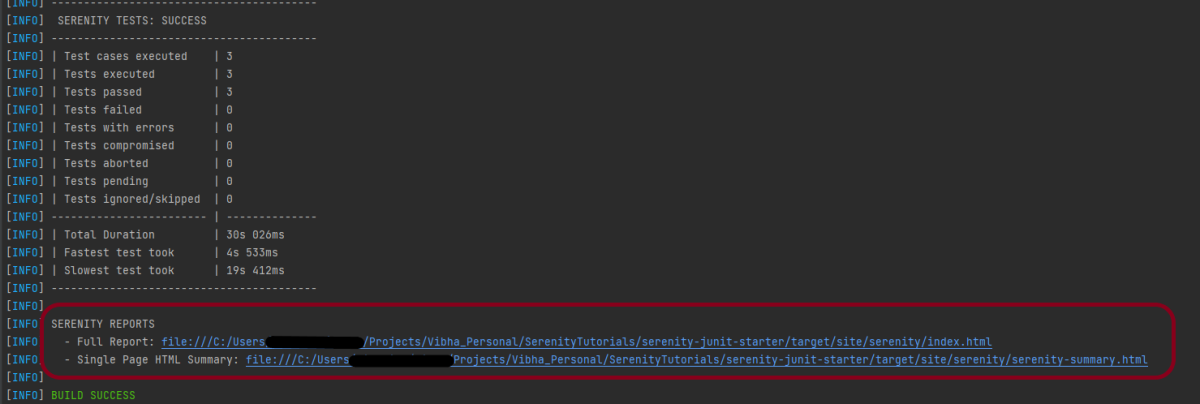
The output of the above test execution is

Step 8 – Serenity Report Generation

The path of Serenity’s reports is mentioned in the image. The reports are generated under /target/site/serenity/.

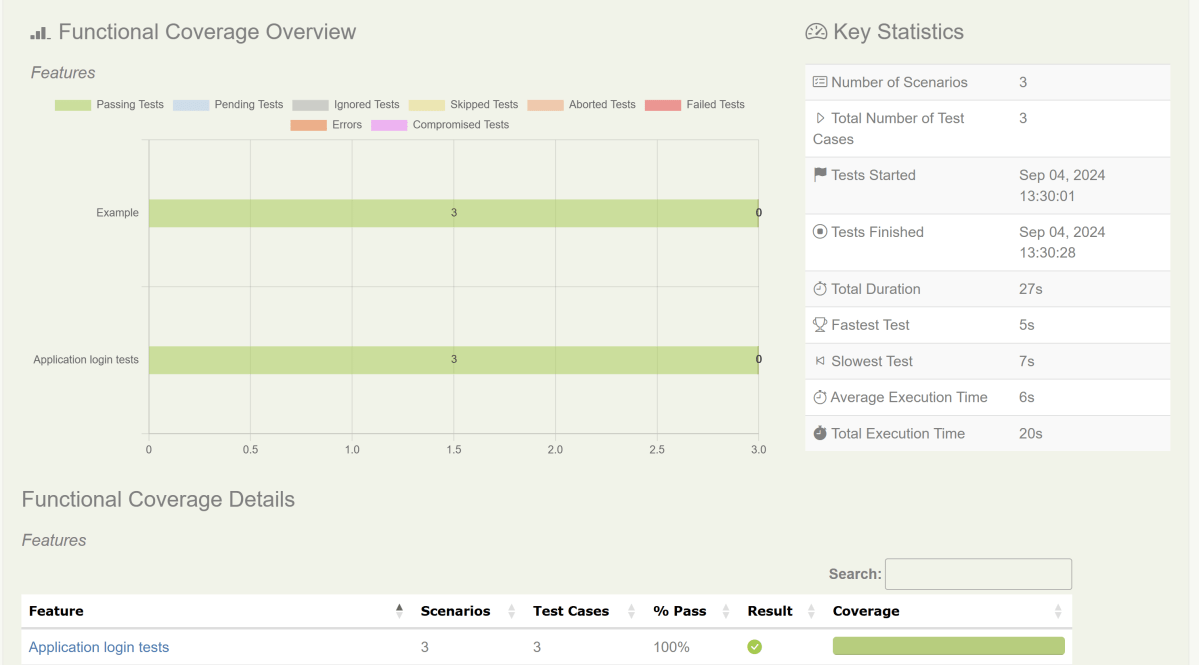
Index.html

The detailed steps of the tests can also be viewed in the Serenity Report. It shows the execution time of all the steps in a Test.

Serenity-Summary.html

We are done! Congratulations on making it through this tutorial and hope you found it useful! Happy Learning!!

Additional Tutorials:

 Serenity BDD with Cucumber for Web Application
Serenity BDD with Cucumber for SpringBoot Application
Serenity BDD with Cucumber and Rest Assured
Testing of SpringBoot REST Application using Rest Assured for GET Method
Serenity Report for Web Application with Cucumber6 and Junit
How to manage screenshots in Serenity Report

How to parse XML in Java

HOME

<?xml version = "1.0"?>
<department>
    <employee id = "10001">
        <firstname>Tom</firstname>
        <lastname>Mathew</lastname>
        <salary>25000</salary>
        <age>21</age>
    </employee>

    <employee id = "20001">
        <firstname>Katherine</firstname>
        <lastname>Jason</lastname>
        <salary>15000</salary>
        <age>20</age>
    </employee>

    <employee id = "30001">
        <firstname>David</firstname>
        <lastname>Mathew</lastname>
        <salary>35000</salary>
        <age>25</age>
    </employee>

    <employee id = "40001">
        <firstname>Berry</firstname>
        <lastname>Brian</lastname>
        <salary>50000</salary>
        <age>30</age>
    </employee>
</department>
DocumentBuilderFactory dbFactory = DocumentBuilderFactory.newInstance();
DocumentBuilder dBuilder = dbFactory.newDocumentBuilder();
Document doc = dBuilder.parse(inputFile);
doc.getDocumentElement().normalize();
NodeList nodeList = doc.getElementsByTagName("employee");
System.out.println("Node Length :" + nodeList.getLength());
for (int temp = 0; temp < nodeList.getLength(); temp++) {

        Node node = nodeList.item(temp);
        System.out.println("\nCurrent Element :" + node.getNodeName());

        if (node.getNodeType() == Node.ELEMENT_NODE) {
            Element eElement = (Element) node;

             //returns specific attribute
              System.out.println("Employee Id : " + eElement.getAttribute("id"));

            //returns a list of subelements of specified name
             System.out.println("First Name: " + eElement.getElementsByTagName("firstname").item(0).getTextContent());
             System.out.println("Last Name: " + eElement.getElementsByTagName("lastname").item(0).getTextContent());
             System.out.println("Salary: " + eElement.getElementsByTagName("salary").item(0).getTextContent());
             System.out.println("Age: " + eElement.getElementsByTagName("age").item(0).getTextContent());

    }

import org.w3c.dom.Document;
import org.w3c.dom.Element;
import org.w3c.dom.Node;
import org.w3c.dom.NodeList;
import org.xml.sax.SAXException;

import javax.xml.parsers.DocumentBuilder;
import javax.xml.parsers.DocumentBuilderFactory;
import javax.xml.parsers.ParserConfigurationException;
import java.io.File;
import java.io.IOException;

public class XMLParser {

    public static void main(String[] args) {

        try {

            //Create a DocumentBuilder
            File inputFile = new File("src/test/resources/testData/test.xml");
            System.out.println("Request :" + inputFile);
            DocumentBuilderFactory dbFactory = DocumentBuilderFactory.newInstance();
            DocumentBuilder dBuilder = dbFactory.newDocumentBuilder();
            Document doc = dBuilder.parse(inputFile);
            doc.getDocumentElement().normalize();

            //Extract the root element
            System.out.println("Root element :" + doc.getDocumentElement().getNodeName());

            NodeList nodeList = doc.getElementsByTagName("employee");
            System.out.println("Node Length :" + nodeList.getLength());

            for (int temp = 0; temp < nodeList.getLength(); temp++) {

                Node node = nodeList.item(temp);
                System.out.println("\nCurrent Element :" + node.getNodeName());

                if (node.getNodeType() == Node.ELEMENT_NODE) {
                    Element eElement = (Element) node;

                    //returns specific attribute
                    System.out.println("Employee Id : " + eElement.getAttribute("id"));

                    //returns a list of subelements of specified name
                    System.out.println("First Name: " + eElement.getElementsByTagName("firstname").item(0).getTextContent());
                    System.out.println("Last Name: " + eElement.getElementsByTagName("lastname").item(0).getTextContent());
                    System.out.println("Salary: " + eElement.getElementsByTagName("salary").item(0).getTextContent());
                    System.out.println("Age: " + eElement.getElementsByTagName("age").item(0).getTextContent());

                }
            }

        } catch (ParserConfigurationException | SAXException | IOException e) {
            e.printStackTrace();
        }
    }

}

<?xml version = "1.0"?>
<cars>
    <sportscar company = "Porsce">
        <carname type = "formula one">Porsche 718 Boxster</carname>
        <carname type = "sports car">Porsche 718 Cayman</carname>
        <carname type = "sports car">2024 Porsche Panamera</carname>
    </sportscar>

    <supercars company = "Lamborgini">
        <carname>Lamborghini Aventador</carname>
        <carname>Lamborghini Reventon</carname>
        <carname>Lamborghini Gallardo</carname>
    </supercars>

    <supercars company = "Audi">
        <carname>Audi R8</carname>
        <carname>Audi Q8</carname>
        <carname>Audi Q6 e-tron</carname>
    </supercars>
</cars>

package com.example.XML;

import org.w3c.dom.Document;
import org.w3c.dom.Element;
import org.w3c.dom.Node;
import org.w3c.dom.NodeList;
import org.xml.sax.SAXException;

import javax.xml.parsers.DocumentBuilder;
import javax.xml.parsers.DocumentBuilderFactory;
import javax.xml.parsers.ParserConfigurationException;
import java.io.File;
import java.io.IOException;

public class ComplexXMLParser {

    public static void main(String[] args) {

        try {

            //Create a DocumentBuilder
            File inputFile = new File("src/test/resources/testData/test4.xml");
            System.out.println("Request :" + inputFile);
            DocumentBuilderFactory dbFactory = DocumentBuilderFactory.newInstance();
            DocumentBuilder dBuilder = dbFactory.newDocumentBuilder();
            Document doc = dBuilder.parse(inputFile);
            doc.getDocumentElement().normalize();

            //Extract the root element
            System.out.println("Root element :" + doc.getDocumentElement().getNodeName());

            NodeList sportscarNodeList = doc.getElementsByTagName("sportscar");
           // System.out.println("Node Length :" + nodeList.getLength());

            for (int temp = 0; temp < sportscarNodeList.getLength(); temp++) {

                Node node = sportscarNodeList.item(temp);
                System.out.println("\nCurrent Element :" + node.getNodeName());

                if (node.getNodeType() == Node.ELEMENT_NODE) {
                    Element eElement = (Element) node;

                    //returns specific attribute
                    System.out.println("sportscar : " + eElement.getAttribute("company"));

                    NodeList sportcarNameList = eElement.getElementsByTagName("carname");

                    for (int count = 0; count < sportcarNameList.getLength(); count++) {
                        Node node1 = sportcarNameList.item(count);

                        if (node1.getNodeType() == node1.ELEMENT_NODE) {
                            Element car = (Element) node1;

                            System.out.print("\ncar type : " + car.getAttribute("type"));
                            System.out.print("\ncar name : " + car.getTextContent());

                        }
                    }
                }

            }

            System.out.println("\n====================================================");
            NodeList supercarsNodeList = doc.getElementsByTagName("supercars");
            // System.out.println("Node Length :" + nodeList.getLength());

            for (int temp = 0; temp < supercarsNodeList.getLength(); temp++) {

                Node node1 = supercarsNodeList.item(temp);
                System.out.println("\nCurrent Element :" + node1.getNodeName());

                if (node1.getNodeType() == Node.ELEMENT_NODE) {
                    Element eElement = (Element) node1;

                    //returns specific attribute
                    System.out.println("supercars : " + eElement.getAttribute("company"));

                    NodeList supercarsNameList = eElement.getElementsByTagName("carname");

                    for (int count = 0; count < supercarsNameList.getLength(); count++) {
                        Node node2 = supercarsNameList.item(count);

                        if (node1.getNodeType() == node2.ELEMENT_NODE) {
                            Element car = (Element) node2;

                            System.out.print("car name : " + car.getTextContent()+"\n");

                        }
                    }
                }

            }

        } catch (ParserConfigurationException | SAXException | IOException e) {
            e.printStackTrace();
        }
    }

}