How to handle token expiration and automatic refreshing of tokens in REST Assured?

HOME

<dependencies>
 
       <!-- Rest Assured Dependency -->
      <dependency>
         <groupId>io.rest-assured</groupId>
        <artifactId>rest-assured</artifactId>
        <version>5.4.0</version>
        <scope>test</scope>
      </dependency>

      <!-- JSON path Dependency -->
      <dependency>
         <groupId>io.rest-assured</groupId>
         <artifactId>json-path</artifactId>
         <version>5.4.0</version>
         <scope>test</scope>
      </dependency>
 
        <!-- TestNG Dependency-->
      <dependency>
          <groupId>org.testng</groupId>
         <artifactId>testng</artifactId>
         <version>7.8.0</version>
         <scope>test</scope>
       </dependency>
 
</dependencies>

import io.restassured.RestAssured;
import io.restassured.response.Response;

import java.time.Instant;

public class TokenGeneration {

    private static String accessToken;
    private static Instant tokenExpiryTime;
    Response response;
    int expiresIn;

    // Method to obtain initial token
    public static String getAccessToken() {
        if (accessToken == null || isTokenExpired()) {
            refreshAccessToken();
        }
        return accessToken;
    }

    // Method to check if the token is expired
    private static boolean isTokenExpired() {
        return tokenExpiryTime == null || Instant.now().isAfter(tokenExpiryTime);
    }

    // Method to refresh token
    private static void refreshAccessToken() {
            response = RestAssured.given()
            .contentType("application/x-www-form-urlencoded")
            .formParam("grant_type", "client_credentials")
            .formParam("client_id", "your-client-id")
            .formParam("client_secret", "your-client-secret")
            .post("https://your-auth-server.com/oauth/token");

        accessToken = response.jsonPath().getString("access_token");
        expiresIn = response.jsonPath().getInt("expires_in");
        tokenExpiryTime = Instant.now().plusSeconds(expiresIn);

        System.out.println("Access Token: " + accessToken);
        System.out.println("Token Expiry Time: " + tokenExpiryTime);
    }
}

tokenExpiryTime == null || Instant.now().isAfter(tokenExpiryTime);
tokenExpiryTime = Instant.now().plusSeconds(expiresIn);
import static io.restassured.RestAssured.given;
import org.testng.annotations.Test;

public class ApiTest {

        String token = TokenGeneration.getAccessToken();
        Response response;

       @Test
       public getResponse() {
         response = given()
                .auth().oauth2(token)
                .when()
                .get("https://example.com/protected/resource")
                .then()
                .statusCode(200)
                .extract().response();

        System.out.println("Response: " + response.asString());
    }
}

private static final long TOKEN_EXPIRY_BUFFER_SECONDS = 60;  // 1 minute buffer
    
private static boolean isTokenExpired() {
        return tokenExpiryTime == null || Instant.now().isAfter(tokenExpiryTime.minusSeconds(TOKEN_EXPIRY_BUFFER_SECONDS));
 }

TestNG Multiple Choice Answers

HOME


<!DOCTYPE suite SYSTEM "https://testng.org/testng-1.0.dtd" >
<suite name="SampleSuite">
    <test name="SampleTest">
        <classes>
            <class name="com.example.MyTestClass" />
        </classes>
    </test>
</suite>


25 Useful TestNG Multiple-Choice Questions | Self-Test Your Knowledge

HOME

Answer


Answer


Answer


Answer


Answer


Answer


Answer


Answer


Answer


Answer


Answer


Answer


Answer


Answer


Answer


Answer


Answer


Answer


Answer


Answer


Answer


Answer


Answer


Answer


Answer

How to test ToolTip in Selenium

HOME

 WebElement elementWithTooltip = driver.findElement(By.id("toolTipButton"));

Actions actions = new Actions(driver);
actions.moveToElement(elementWithTooltip).perform();

WebDriverWait wait = new WebDriverWait(driver, Duration.ofSeconds(5));
WebElement tooltip = wait.until(ExpectedConditions.visibilityOfElementLocated(By.xpath("//*[contains(text(),'You hovered over the Button')]")));
  if (expectedTooltipText.equals(actualTooltipText)) {
            System.out.println("Tooltip text is correct!");
        } else {
            System.out.println("Tooltip text is incorrect!");
 }

package com.example;

import org.openqa.selenium.By;
import org.openqa.selenium.WebDriver;
import org.openqa.selenium.WebElement;
import org.openqa.selenium.chrome.ChromeDriver;
import org.openqa.selenium.chrome.ChromeOptions;
import org.openqa.selenium.interactions.Actions;
import org.openqa.selenium.support.ui.ExpectedConditions;
import org.openqa.selenium.support.ui.WebDriverWait;

import java.time.Duration;

public class TooltipTest_Demo {

    static WebDriver driver;
    static String expectedTooltipText = "You hovered over the Button";
    static String actualTooltipText;

    public static void main(String[] args) {

        ChromeOptions options = new ChromeOptions();
        driver = new ChromeDriver(options);
        driver.manage().window().maximize();

        driver.get("https://demoqa.com/tool-tips");

        // Locate the element with the tooltip
        WebElement elementWithTooltip = driver.findElement(By.id("toolTipButton"));

        // Perform hover action using Actions class
        Actions actions = new Actions(driver);
        actions.moveToElement(elementWithTooltip).perform();

        // Wait for the tooltip to be visible
        WebDriverWait wait = new WebDriverWait(driver, Duration.ofSeconds(5));
        WebElement tooltip = wait.until(ExpectedConditions.visibilityOfElementLocated(By.xpath("//*[contains(text(),'You hovered over the Button')]")));

        // Check the tooltip text
        actualTooltipText = tooltip.getText();
        System.out.println("Actual Tooltip Text: " + actualTooltipText);

        if (expectedTooltipText.equals(actualTooltipText)) {
            System.out.println("Tooltip text is correct!");
        } else {
            System.out.println("Tooltip text is incorrect!");
        }

        driver.quit();
    }

}

How to compare JSON File with JSON Response

HOME

<dependencies>
    <dependency>
      <groupId>junit</groupId>
      <artifactId>junit</artifactId>
      <version>4.13.2</version>
      <scope>test</scope>
    </dependency>

    <dependency>
      <groupId>io.rest-assured</groupId>
      <artifactId>rest-assured</artifactId>
      <version>5.4.0</version>
      <scope>test</scope>
    </dependency>

    <dependency>
    <groupId>com.fasterxml.jackson.core</groupId>
    <artifactId>jackson-databind</artifactId>
    <version>2.11.3</version>
    </dependency>
</dependencies>

package com.example;

import io.restassured.RestAssured;
import io.restassured.response.Response;
import com.fasterxml.jackson.databind.JsonNode;
import com.fasterxml.jackson.databind.ObjectMapper;
import org.junit.Assert;
import org.junit.Test;

import java.io.File;
import java.io.IOException;

public class JsonFileComparison {

    @Test
    public void compareResponse() throws IOException {

        // Path to the JSON file
        File jsonFile = new File("src/test/resources/expectedUser.json");

        // Read JSON content from file
        ObjectMapper objectMapper = new ObjectMapper();
        JsonNode jsonFromFile = objectMapper.readTree(jsonFile);

        // Make an API call
        Response response = RestAssured.given().when().get("https://reqres.in/api/users/3").then().extract().response();
        String expectedResponse = response.getBody().asString();
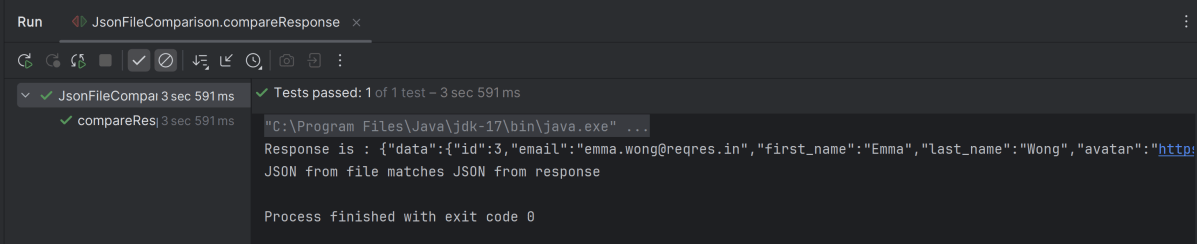
        System.out.println("Response is : " + expectedResponse);

        // Verify the status code
        response.then().statusCode(200);

        // Read JSON content from response
        JsonNode jsonFromResponse = objectMapper.readTree(expectedResponse);

        Assert.assertEquals(jsonFromFile, jsonFromResponse);

        // Compare JSON content
        if (jsonFromFile.equals(jsonFromResponse)) {
            System.out.println("JSON from file matches JSON from response");
        } else {
            System.out.println("JSON content does not match");
        }
    }
}

ObjectMapper objectMapper = new ObjectMapper();
JsonNode jsonFromFile = objectMapper.readTree(jsonFile);

Response response = RestAssured.given().when().get("https://reqres.in/api/users/3").then().extract().response();
String expectedResponse = response.getBody().asString();
System.out.println("Response is : " + expectedResponse);

// Verify the status code
response.then().statusCode(200);

JsonNode jsonFromResponse = objectMapper.readTree(expectedResponse);
 Assert.assertEquals(jsonFromFile, jsonFromResponse);

Fluent Wait in Serenity

HOME

In the previous tutorials, I explained the Implicit Wait in Serenity and Explicit Wait in Serenity. This tutorial will explain the Fluent Wait in Serenity.

What is Fluent Wait?

Fluent waits provide more flexibility, allowing us to specify polling intervals and ignore specific exceptions during the wait time.  Fluent Wait not only lets you specify the maximum amount of time to wait for a condition but also allows you to define the frequency with which the condition is checked and to ignore specific exceptions during the wait time.

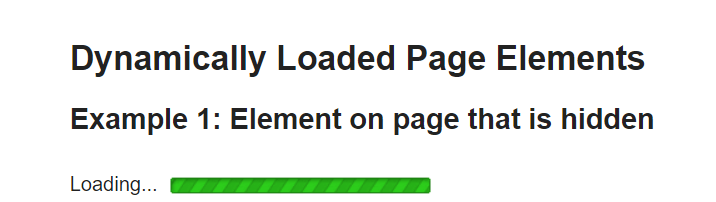
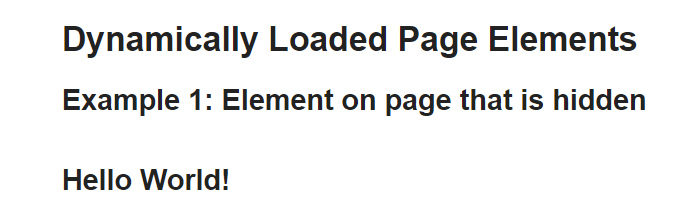
Below is the example of Fluent wait.

import net.serenitybdd.annotations.DefaultUrl;
import net.serenitybdd.annotations.Managed;
import net.serenitybdd.core.annotations.findby.FindBy;
import net.serenitybdd.core.pages.PageObject;
import net.serenitybdd.core.pages.WebElementFacade;
import net.serenitybdd.junit.runners.SerenityRunner;
import org.junit.Test;
import org.junit.runner.RunWith;
import org.openqa.selenium.ElementNotInteractableException;
import org.openqa.selenium.WebDriver;
import org.openqa.selenium.WebElement;
import org.openqa.selenium.support.ui.FluentWait;

import java.time.Duration;
import java.util.function.Function;

@RunWith(SerenityRunner.class)
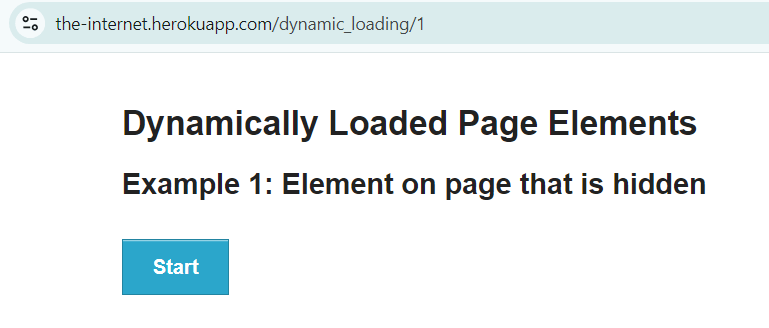
@DefaultUrl("http://the-internet.herokuapp.com/dynamic_loading/1")
public class FluentWait_Demo extends PageObject {

    @Managed
    WebDriver driver;

    @FindBy(xpath = "//*[@id='start']/button")
    WebElementFacade startButton;


    @FindBy(xpath = "//*[@id='finish']/h4")
    WebElementFacade pageText;

    @Test
    public void fluentWaitDemo() throws InterruptedException {

        open();
        startButton.click();
        waitForElementWithFluentWait(pageText);

    }

    public void waitForElementWithFluentWait(WebElement pageText) {
        FluentWait wait = new FluentWait<>(getDriver())
                .withTimeout(Duration.ofSeconds(10))
                .pollingEvery(Duration.ofSeconds(2))
                .ignoring(ElementNotInteractableException.class);

        wait.until((Function<WebDriver, Boolean>)
                driver -> pageText.isDisplayed());

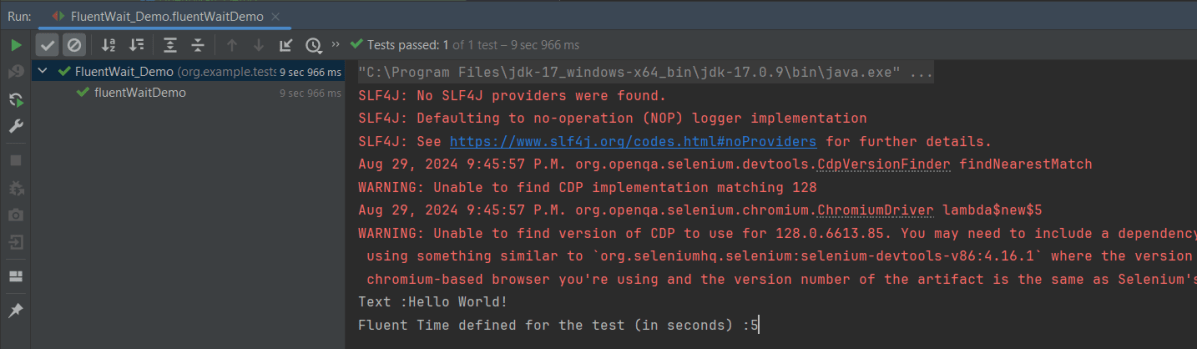
        System.out.println("Text :" + pageText.getText());
        System.out.println("Fluent Time defined for the test (in seconds) :" + getWaitForTimeout().toSeconds());
    }
}

public void waitForElementWithFluentWait(WebElement pageText) {
        FluentWait wait = new FluentWait<>(getDriver())
                .withTimeout(Duration.ofSeconds(10))
                .pollingEvery(Duration.ofSeconds(2))
                .ignoring(ElementNotInteractableException.class);

       wait.until(driver -> pageText.isDisplayed());

        System.out.println("Text :" + pageText.getText());
        System.out.println("Fluent Time defined for the test (in seconds) :" + getWaitForTimeout().toSeconds());
    }

We are done! Congratulations on making it through this tutorial and hope you found it useful! Happy Learning!!

Appending Data to Excel with Python using openpyxl

HOME

pip install openpyxl

workbook = load_workbook("C:\\Users\\Vibha\\Automation\\SearchInBing.xlsx")

sheet = workbook.active

new_data =[
    ["Scrum Master", "5-10 Years", "35K"],
    ["Consultatnt", "8-12 Years", "37K"]
]

last_row = sheet.max_row + 1

for i, row in enumerate(new_data, start=last_row):
    for j, value in enumerate(row, start=1):
        sheet.cell(row=i, column=j, value=value)

workbook.save("C:\\Users\\Vibha\\Automation\\SearchInBing.xlsx")

from openpyxl.reader.excel import load_workbook
from openpyxl.styles import Font


#Load the workbook
workbook = load_workbook("C:\\Users\\ykv12\\Documents\\Vibha\\Automation\\SearchInBing.xlsx")

sheet = workbook.active

#Sample data
new_data =[
    ["Scrum Master", "5-10 Years", "35K"],
    ["Consultatnt", "8-12 Years", "37K"]
]

#Append the new data to the sheet
last_row = sheet.max_row + 1
for i, row in enumerate(new_data, start=last_row):
    for j, value in enumerate(row, start=1):
        sheet.cell(row=i, column=j, value=value)

#Save the workbook
workbook.save("C:\\Users\\ykv12\\Documents\\Vibha\\Automation\\SearchInBing.xlsx")

print("Data is appended in the Excel file successfully")

What is CucumberOptions in Cucumber?

HOME

mvn clean test -Dcucumber.options="--tags @smoke --plugin pretty"

import org.junit.runner.RunWith;
import io.cucumber.junit.Cucumber;
import io.cucumber.junit.CucumberOptions;

@RunWith(Cucumber.class)
@CucumberOptions(
         features = "src/test/resources/features",
         glue = "com.mycompany.stepdefinitions",
         plugin = {"pretty", "html:target/cucumber-reports.html", "json:target/cucumber.json"},
         tags = "@smoke",
         monochrome = true,
         dryRun = false
     )

public class RunCucumberTests {
}

cucumber.features=src/test/resources/features
cucumber.glue=com.mycompany.stepdefinitions
cucumber.plugin=pretty, html:target/cucumber-reports.html, json:target/cucumber.json
cucumber.tags=@smoke

import org.junit.runner.RunWith;
import io.cucumber.junit.Cucumber;
import io.cucumber.junit.CucumberOptions;

@RunWith(Cucumber.class)
@CucumberOptions( features = "src/test/resources/features",
    glue = "com.mycompany.stepdefinitions",
    plugin = {"pretty", "html:target/cucumber-reports.html", "json:target/cucumber.json"},
    tags = "@smoke",
    monochrome = true,
    dryRun = false,
    strict = true,
    name = "Login functionality"  )

public class RunCucumberTest {
}

What is Glue in Cucumber?

HOME

import org.junit.runner.RunWith;
import io.cucumber.junit.Cucumber;
import io.cucumber.junit.CucumberOptions;
 
@RunWith(Cucumber.class)
@CucumberOptions(plugin = "pretty", features = "src/test/resources/features",
glue = "com.example.customer")
 
public class CucumberRunnerTest {
 
}
glue = {"com.example.customer", "com.example.agents"}

Create and Format Excel Files with Python Openpyxl – Tutorial

HOME

pip install openpyxl

workbook = Workbook()
sheet = workbook.active

sheet.title ="Sample Sheet"

data =[
    ["Name", "Designation", "EmployeeId"],
    ["Tom", "BA", 11001],
    ["Trina", "PO", 11002],
    ["Will", "Dev", 11003]
]

for row in data:
    sheet.append(row)
workbook.save("C:\\Users\\Vibha\\Automation\\WriteExcel.xlsx")
from openpyxl.workbook import Workbook

#Create a new workbook
workbook = Workbook()
sheet = workbook.active

#Rename the sheet
sheet.title ="Sample Sheet"

#Sample data
data =[
    ["Name", "Designation", "EmployeeId"],
    ["Tom", "BA", 11001],
    ["Trina", "PO", 11002],
    ["Will", "Dev", 11003]
]

#Write data to the sheet
for row in data:
    sheet.append(row)

#Save the workbook
workbook.save("C:\\Users\\Documents\\Vibha\\Automation\\WriteExcel.xlsx")
print("Data is written the Excel file successfully")

from openpyxl.styles import Font
from openpyxl.workbook import Workbook

#Create a new workbook
workbook = Workbook()
sheet = workbook.active

#Rename the sheet
sheet.title ="Sample Sheet"

#Sample data
headers =  ["Name", "Designation", "EmployeeId"]
rows =[
    ["Tom", "BA", 11001],
    ["Trina", "PO", 11002],
    ["Will", "Dev", 11003]
]

#Write headers with bold font
for col_num, header in enumerate(headers, start=1):
    cell = sheet.cell(row=1, column=col_num, value=header)
    cell.font = Font(bold=True)


#Write rows
for row_num, row_data in enumerate(rows, start=2):
    for col_num, cell_value in enumerate(row_data, start=1):
       sheet.cell(row=row_num, column=col_num, value=cell_value)

#Save the workbook
workbook.save("C:\\Users\\Documents\\Vibha\\Automation\\FormattedExcel.xlsx")
print("Data is written the Excel file successfully")