Last Updated On
Welcome to the world of API testing with Playwright in Java!
In this tutorial, we will see how to handle Query Parameters in API Tests using the Playwright Java framework.
Table of Contents
What is Query Parameters?
Query parameters are a way to pass information to an API flexibly and simply. They are added to the end of the API endpoint URL as a series of key-value pairs. To append query params to the end of a URL, a ‘?’ Is added followed immediately by a query parameter.
Handling HTTP query parameters in Playwright typically involves setting up your request with the desired parameters before navigating to a URL. Playwright provides methods to easily construct and use URLs with query parameters.
Below is an example of Query Parameter.
https://jsonplaceholder.typicode.com/comments?postId=1
System requirements
The following prerequisites are required to be installed on the machine to begin with a smooth setup and installation.
- Java 11 or higher
- IntelliJ IDE or any other IDE to create a project
- Maven
Dependency List
- Playwright – 1.57.0
- Java 17
- Maven – 3.9.6
- TestNG – 7.11.0
- Maven Compiler Plugin – 3.15.0
- Maven Surefire Plugin – 3.5.4
Implementation Steps
1. Create a new Maven Project
The first step in setup is to create a new Maven project. I will be using IntelliJ in this tutorial. The following steps need to be followed to create a new Maven project :
Open IntelliJ, Navigate to File >> New >> Project

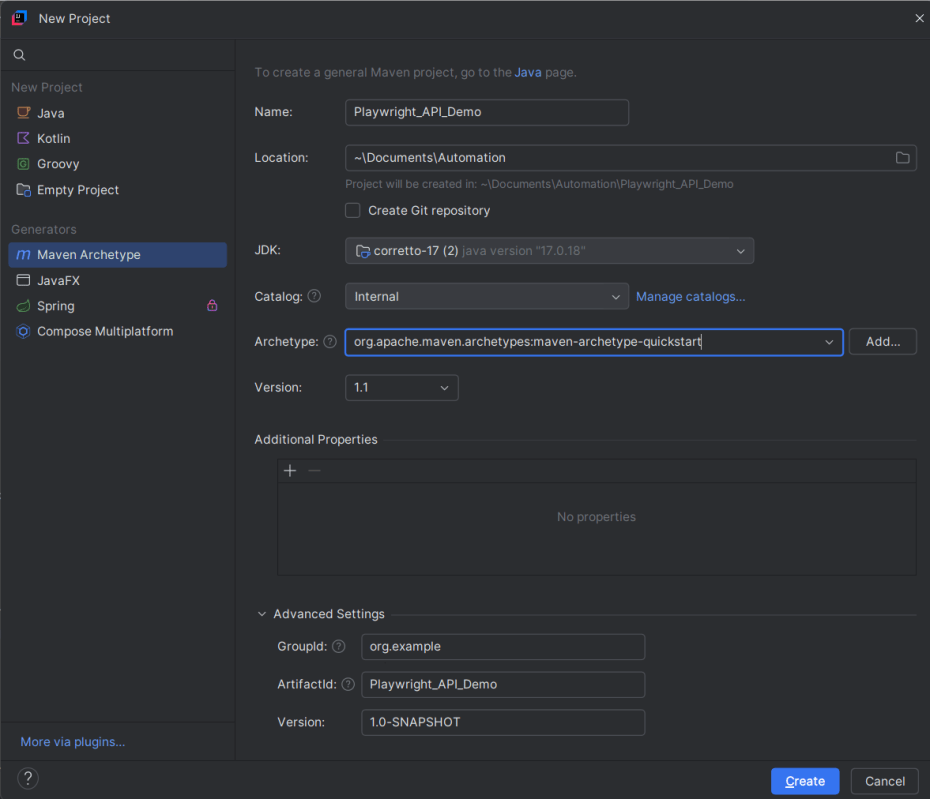
2. In the New Project window, enter the following details:
- Name of the Project – Playwright_API_Demo
- Location/path where the project needs to be saved – Documents/Playwright (my location)
- Select JDK version — I am using JDK 17
- Archetype — Search for quickstart and select maven-archetype-quickstart from the results
Click on the Create button to create the project.
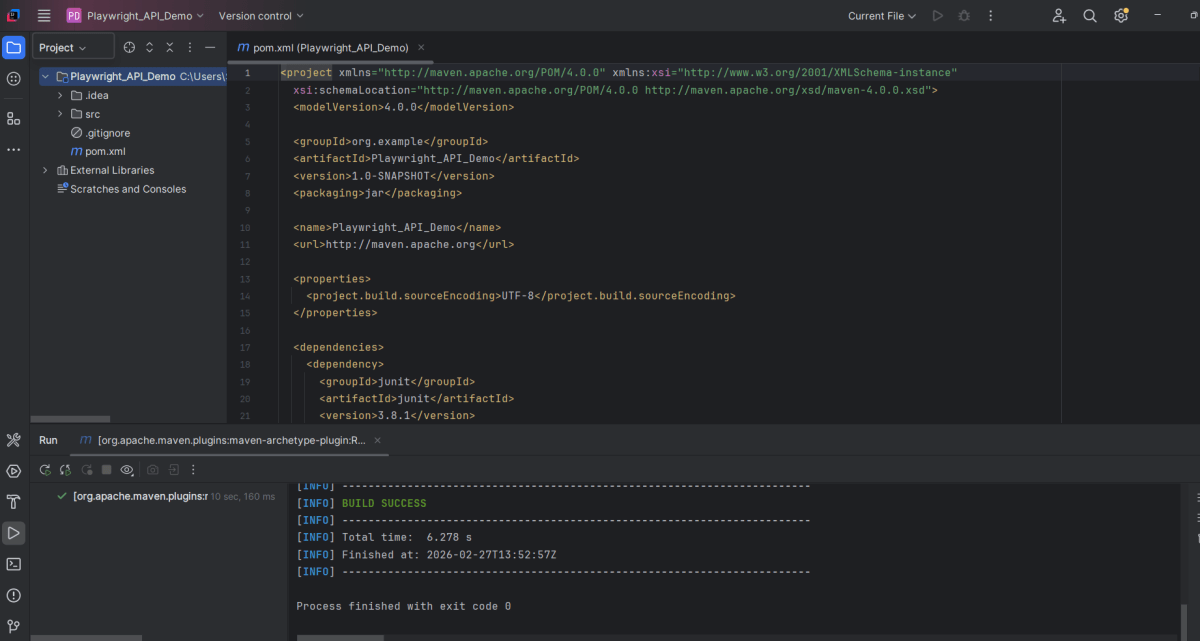
This will create a project as shown below in the IntelliJ.
2. Setup Playwright with Java and TestNG
Add the Playwright and TestNG dependencies to the pom.xml. The latest dependency can be found from here.
<project xmlns="http://maven.apache.org/POM/4.0.0" xmlns:xsi="http://www.w3.org/2001/XMLSchema-instance"
  xsi:schemaLocation="http://maven.apache.org/POM/4.0.0 http://maven.apache.org/xsd/maven-4.0.0.xsd">
  <modelVersion>4.0.0</modelVersion>

  <groupId>org.example</groupId>
  <artifactId>Playwright_API_Demo</artifactId>
  <version>1.0-SNAPSHOT</version>
  <packaging>jar</packaging>

  <name>Playwright_API_Demo</name>
  <url>http://maven.apache.org</url>

  <properties>
    <project.build.sourceEncoding>UTF-8</project.build.sourceEncoding>
    <playwright.version>1.57.0</playwright.version>
    <testng.version>7.11.0</testng.version>
    <maven.compiler.plugin.version>3.15.0</maven.compiler.plugin.version>
    <maven.compiler.source.version>17</maven.compiler.source.version>
    <maven.compiler.target.version>17</maven.compiler.target.version>
    <maven.surefire.plugin.version>3.5.4</maven.surefire.plugin.version>
  </properties>

  <dependencies>

    <!-- Playwright -->
    <dependency>
      <groupId>com.microsoft.playwright</groupId>
      <artifactId>playwright</artifactId>
      <version>${playwright.version}</version>
    </dependency>

    <!-- TestNG -->
    <dependency>
      <groupId>org.testng</groupId>
      <artifactId>testng</artifactId>
      <version>${testng.version}</version>
      <scope>test</scope>
    </dependency>

  </dependencies>

  <build>
    <plugins>
      <plugin>
        <groupId>org.apache.maven.plugins</groupId>
        <artifactId>maven-compiler-plugin</artifactId>
        <version>${maven.compiler.plugin.version}</version>
        <configuration>
          <source>${maven.compiler.source.version}</source>
          <target>${maven.compiler.target.version}</target>
        </configuration>
      </plugin>
      <plugin>
        <groupId>org.apache.maven.plugins</groupId>
        <artifactId>maven-surefire-plugin</artifactId>
        <version>${maven.surefire.plugin.version}</version>
        <configuration>
          <suiteXmlFiles>
            <suiteXmlFile>testng.xml</suiteXmlFile>
          </suiteXmlFiles>
        </configuration>
        <dependencies>
        </dependencies>
      </plugin>
    </plugins>
  </build>
</project>
After adding the dependency, refresh the project. We can see that the Playwright jar files are downloaded in External Libraries.
3. Create API tests
Create Setup Methods
@BeforeMethod: This annotation indicates that `setUp()` will run before each test method, ensuring that the Playwright environment and API request context are properly initialized.
 @BeforeMethod
    void setUp() {
        createPlaywright();
        createAPIRequestContext();
    }
createPlaywright(): Initializes a new Playwright instance, which is essential for accessing the APIRequest capabilities.
 void createPlaywright() {
        playwright = Playwright.create();
    }
createAPIRequestContext(): Sets up the API request context with a base URL (`https://jsonplaceholder.typicode.com`) and common headers (like “Accept: application/json”) that will be used for all requests.
void createAPIRequestContext() {
        Map<String, String> headers = new HashMap<>();
        headers.put("Accept", "application/json");

        request = playwright.request().newContext(new APIRequest.NewContextOptions()
                .setBaseURL("https://jsonplaceholder.typicode.com")
                .setExtraHTTPHeaders(headers));
    }
Create TearDown Methods
`@AfterMethod`: Ensures that resources are properly disposed of after every test method execution by calling `request.dispose()` and `playwright.close()`. This avoids resource leaks and ensures clean execution for subsequent tests.
  @AfterMethod
    void tearDown() {
        if (request != null) {
            request.dispose();
        }
        if (playwright != null) {
            playwright.close();
        }
    }
Query Parameter
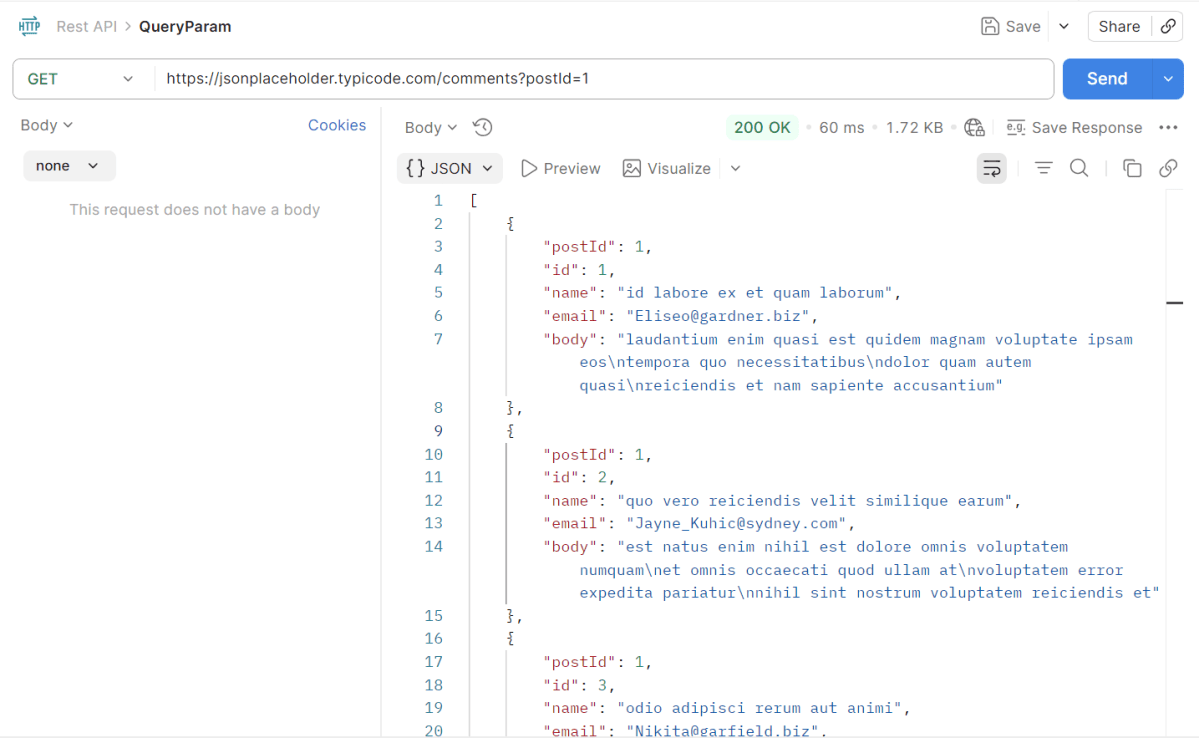
The corresponding API Test in Playwright Framework.
 @Test
    public void getCommentsByPostId() {

        // GET /comments?postId=1
        APIResponse response = request.get("/comments",
                RequestOptions.create().setQueryParam("postId", "1"));

        Assert.assertEquals(response.status(), 200, "Expected 200 for GET /comments?postId=1");

        String body = response.text();
        System.out.println("GET Response: " + body);

        Gson gson = new Gson();
        JsonObject[] posts = gson.fromJson(body, JsonObject[].class);

        Assert.assertTrue(posts.length > 0, "Expected at least one post for postId=1");
        Assert.assertEquals(posts[0].get("postId").getAsInt(), 1, "Expected postId=1 in first result");
        Assert.assertEquals(posts[0].get("id").getAsInt(), 1, "Expected id=1 in first result");
        Assert.assertEquals(posts[0].get("email").getAsString(), "Eliseo@gardner.biz", "Expected email is incorrect for first result" + posts[0].get("email").getAsString());
    }
Explanation
1.Sending an API GET Request
Sends an HTTP GET request to the `/comments` endpoint with a query parameter `postId` set to `“1”`.
APIResponse response = request.get("/comments",
                RequestOptions.create().setQueryParam("postId", "1"));
2. Validate the Status Code
Verifies that the response status code is 200 (OK).
Assert.assertEquals(response.status(), 200, "Expected 200 for GET /comments?postId=1");
3. Read the response body
Prints the entire response content to the console for debugging or logging.
String body = response.text();
System.out.println("GET Response: " + body);
4. Parsing the JSON Response
Parses the response body into an array of `JsonObject`. This assumes the API returns a JSON array of objects, each representing a comment.
Gson gson = new Gson();
JsonObject[] posts = gson.fromJson(body, JsonObject[].class);
5. Validate the Response data
Checks that there is at least one comment in the response, indicating the API return is not empty.
Assert.assertTrue(posts.length > 0, "Expected at least one post for postId=1");
Verifies that the `postId` in the first comment object is `1`.
Verifies that the `id` in the first comment object is `1`.
Verifies that the `email` in the first comment object is `Eliseo@gardner.biz`.
Assert.assertEquals(posts[0].get("postId").getAsInt(), 1, "Expected postId=1 in first result");
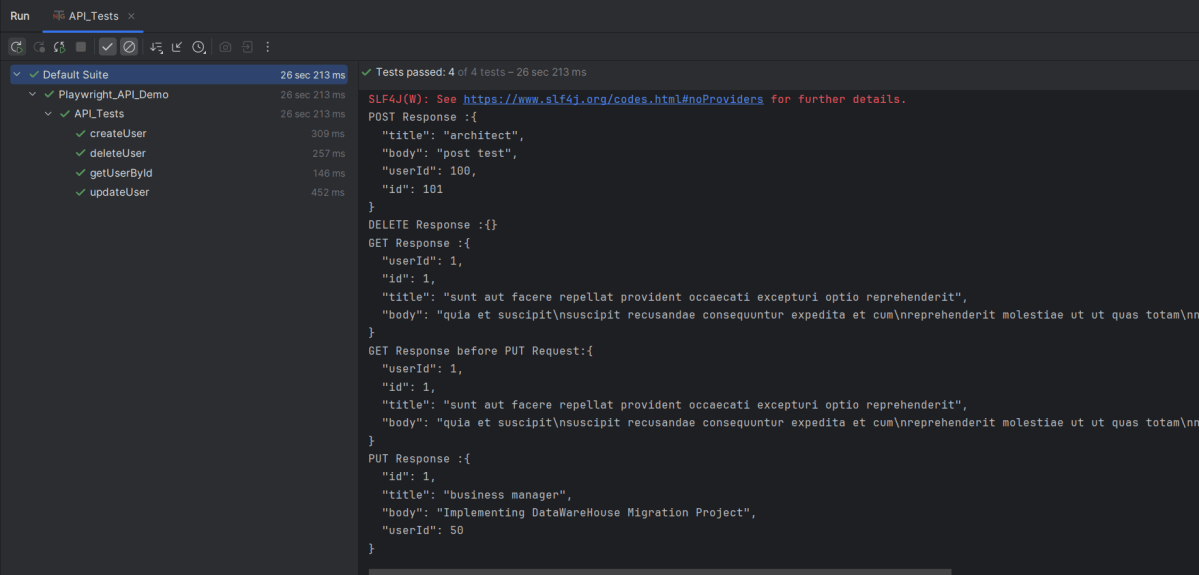
4. Test Execution through IntelliJ
Go to the Test class and right-click and select Run ‘API_Tests’. The tests will run as IntelliJ tests.
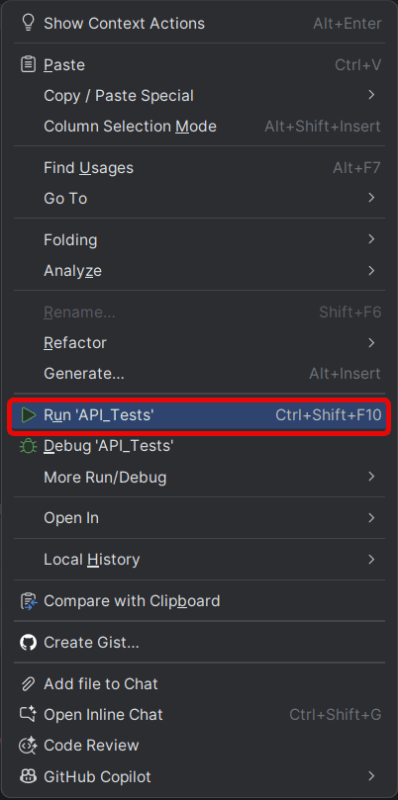
Below is the test execution result.
5. Run the tests using the command line
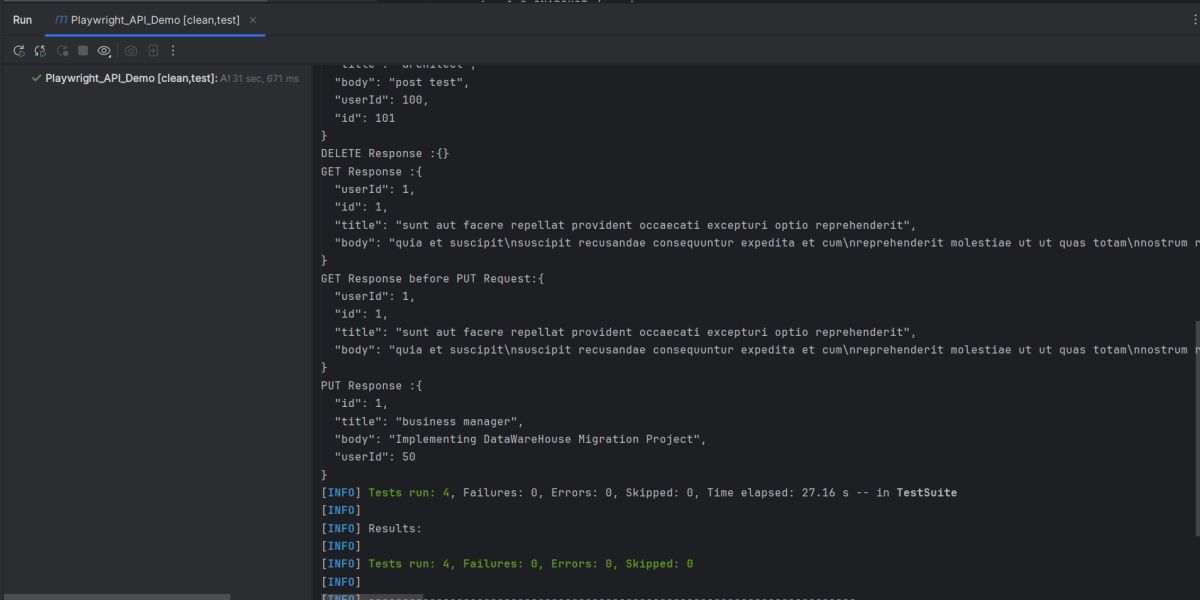
Use the below command to run the tests using the command line.
mvn clean test
The output of the above program is
6. TestNG Report Generation
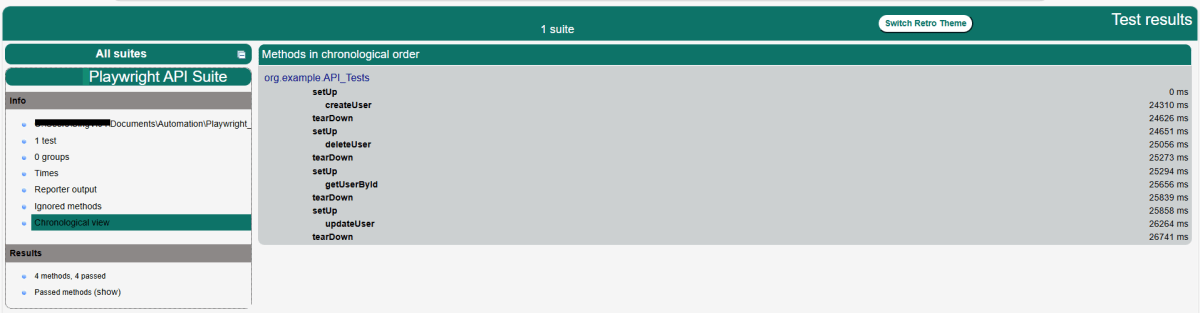
TestNG creates a target directory that contains index.html report.
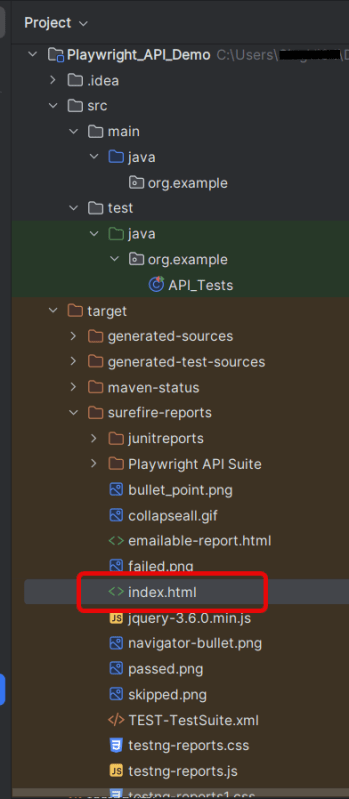
Right-click on the index.html and open it in the browser.
Summary
- Playwright: Utilized for its ability to handle HTTP requests and execute browser interactions. This code leverages Playwright for making API calls rather than web UI interactions.
- Gson: Simplifies the parsing of JSON responses into Java objects, allowing easy assertion of specific fields.
- TestNG: Provides the testing framework features such as test annotations and assertions used to validate the API responses.
 QA Automation Expert