In this article we will see how we can download a pdf file in chrome using selenium at a desired location in java on Edge browser.
We need to add Selenium dependency to the project. We can find the latest version from here – Maven.
<dependency>
    <groupId>org.seleniumhq.selenium</groupId>
    <artifactId>selenium-java</artifactId>
    <version>4.25.0</version>
</dependency>
Implementation Steps
Step 1 – Define directory path for PDF to be downloaded
Define the directory path where the PDF will be downloaded. Here, it will create a directory with the name of downloads in the project.
String downloadFilepath = System.getProperty("user.dir") + File.separator + "downloads";
Step 2 – Configure EdgeOptions to set download preferences in Edge
This includes setting the browser to always download PDFs instead of opening them in the browser, and specifying the default download directory.
EdgeOptions options = new EdgeOptions();
Map<String, Object> prefs = new HashMap<>();
prefs.put("download.default_directory", downloadFilepath);
prefs.put("download.prompt_for_download", false);
Explanation
prefs.put("download.default_directory", downloadFilepath);
Set the default directory for downloads.
prefs.put("download.prompt_for_download", false);
Disable the download prompt that usually appears.
Step 3 – Initialize WebDriver and Open Webpage
WebDriver driver = new EdgeDriver(options);
driver.manage().window().maximize();
driver.get("https://freetestdata.com/document-files/pdf/");
Step 4 – Find and Click the Download Link
Locate the download link using XPath and click on it to start the download.
WebElement downloadLink = driver.findElement(By.xpath("//*[@class="elementor-button-text"]"));
downloadLink.click();
Step 5 – Wait for the Download to Complete
This is used to pause the execution for a specified amount of time (5 seconds here) to allow the file to download completely. It is not recommended to use Thread.sleep in production.
Thread.sleep(5000);
Step 6 – Verify the File Download
Check if the downloaded file exists in the specified download directory or not.
 File downloadedFile = new File(downloadFilepath + "/Free_Test_Data_100KB_PDF.pdf");
        if (downloadedFile.exists()) {
            System.out.println("File is downloaded!");
        } else {
            System.out.println("File is not downloaded.");
      }
Step 7 – Quit the WebDriver
driver.quit();
The complete program can be seen below:
package com.example;

import org.openqa.selenium.By;
import org.openqa.selenium.WebDriver;
import org.openqa.selenium.WebElement;
import org.openqa.selenium.edge.EdgeDriver;
import org.openqa.selenium.edge.EdgeOptions;
import org.openqa.selenium.firefox.FirefoxDriver;
import org.openqa.selenium.firefox.FirefoxOptions;

import java.io.File;
import java.util.HashMap;
import java.util.Map;

public class EdgeDownload_PDF {

    public static void main(String[] args) throws InterruptedException {


        String downloadFilepath = System.getProperty("user.dir") + File.separator + "downloads";

        EdgeOptions options = new EdgeOptions();
        Map<String, Object> prefs = new HashMap<>();
        prefs.put("download.default_directory", downloadFilepath);
        prefs.put("download.prompt_for_download", false);

        WebDriver driver = new EdgeDriver(options);
        driver.manage().window().maximize();
        driver.get("https://freetestdata.com/document-files/pdf/");

        // Locate and click the download link or button if necessary
         WebElement downloadLink = driver.findElement(By.xpath("//*[@class=\"elementor-button-text\"]"));
        downloadLink.click();

        // Wait for the download to complete
        try {
            Thread.sleep(5000);
        } catch (InterruptedException e) {
            e.printStackTrace();
        }

        // Check if the file exists
        File downloadedFile = new File(downloadFilepath + "/Free_Test_Data_100KB_PDF.pdf");
        if (downloadedFile.exists()) {
            System.out.println("File is downloaded from Edge!");
        } else {
            System.out.println("File is not downloaded.");
        }

        driver.quit();
    }

}
The output of the above program is

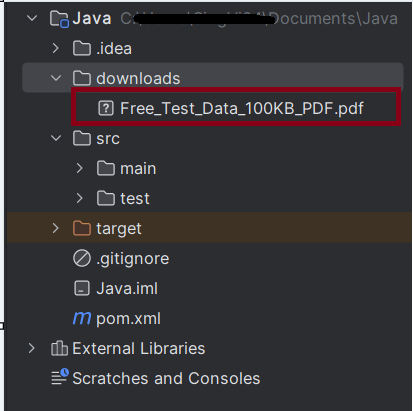
We can see that a downloads folder is created, and it has the downloaded pdf file – Free_Test_Data_100KB_PDF.pdf.
Summary:
- Setup: Configures Chrome to automatically download PDFs and sets the download directory.
- Download and Verify: Navigates to a specific URL, clicks the download link, waits for the download to complete, and verifies if the file exists in the specified directory.
- Cleanup: Closes the browser session.
That’s it! Congratulations on making it through this tutorial and hope you found it useful! Happy Learning!!
 QA Automation Expert