TestNG Listeners in Selenium

 HOME

The listener is defined as an interface that modifies the default TestNG’s behaviour. There are several interfaces that allow you to modify TestNG’s behaviour that are called “TestNG Listeners”.  It allows customizing TestNG reports or logs. There are many types of TestNG listeners available. Here are a few listeners:

  • IAnnotationTransformer 
  • IAnnotationTransformer2 
  • IHookable 
  • IInvokedMethodListener 
  • IMethodInterceptor 
  • IReporter 
  • ISuiteListener 
  • ITestListener 

When you implement one of these interfaces, you can let TestNG know about it in either of the following ways:

  • Using in your testng.xml file.
  • Using the @Listeners annotation on any of your test classes.

ITestListener has the following methods

  • OnStart   Invoked before running all the test methods belonging to the classes inside the tag and calling all their Configuration methods.
  • onTestSuccess  onTestSuccess method is called on the success of any Test.
  • onTestFailure  onTestFailure method is called on the failure of any Test.
  • onTestSkipped – onTestSkipped method is called on skipped of any Test.
  • onTestFailedButWithinSuccessPercentage– method is called each time Test fails but is within success percentage. Invoked each time a method fails but has been annotated with successPercentage and this failure still keeps it within the success percentage requested.
  • onFinish – Invoked after all the test methods belonging to the classes inside the tag have run and all their Configuration methods have been called.
  • onTestStart Invoked each time before a test will be invoked. The ITestResult is only partially filled with the references to class, method, start millis, and status.

Here, I explain the use of listener – ITestListener  in a program mentioned below

Step 1) Create a class “ListenerDemo” that implements ‘ITestListener’. Add methods like onTestFailure, onTestSkipped, onTestStart, onTestSuccess to this class

Step 2) Create another class “ListenerTestCases” for the login process automation. Selenium will execute these ‘TestCases’ to login automatically.

Step 3) Next, implement this listener in our regular project class i.e. “ListenerTestCases “. There are two different ways to connect to the class and interface.

The first way is to use Listeners annotation (@Listeners) as shown below:

@Listeners(com.selenium.testng.TestNGDemo.ListenerDemo.class)

Step 4): Execute the “ListenerTestCases” class. Methods in class “TestPass ” are called automatically according to the behaviour of methods annotated as @Test.

Step 5): Verify the Output that logs display at the console.

import org.testng.ITestContext;
import org.testng.ITestListener;
import org.testng.ITestResult;
 
public class ListenerDemo implements ITestListener {
 
            // When Test case get failed, this method is called.
            public void onTestFailure(ITestResult Result) {
                        System.out.println("The name of the testcase failed is :" + Result.getName());
            }
 
            // When Test case get Skipped, this method is called.
            public void onTestSkipped(ITestResult Result) {
                        System.out.println("The name of the testcase Skipped is :" + Result.getName());
            }
 
            // When Test case get Started, this method is called.
            public void onTestStart(ITestResult Result) {
                        System.out.println(Result.getName() + " test case started");
            }
 
            // When Test case get passed, this method is called.
            public void onTestSuccess(ITestResult Result) {
                        System.out.println("The name of the testcase passed is :" + Result.getName());
            } 
}

In the below test, there are 2 test cases. One Test passes and another fails. When we are executing ListenerTestCases, it will call the ListenersDemo internally.

import org.openqa.selenium.By;
import org.openqa.selenium.WebDriver;
importorg.openqa.selenium.chrome.ChromeDriver;
import org.testng.Assert;
import org.testng.annotations.Listeners;
import org.testng.annotations.Test;
 
@Listeners(com.selenium.testng.TestNGDemo.ListenerDemo.class)
public class ListenerTestCases {
 
            static WebDriver driver;
 
            @Test
            public void TestPass() {
                        System.setProperty("webdriver.chrome.driver",
                                    "C:\\Users\\Vibha\\Desktop\\SeleniumKT\\chromedriver_win32\\chromedriver.exe");
                        driver= new ChromeDriver();
                        driver.get("https://opensource-demo.orangehrmlive.com/");
                        driver.findElement(By.name("txtUsername")).sendKeys("Admin");
                        driver.findElement(By.name("txtPassword")).sendKeys("admin123");
                        driver.findElement(By.id("btnLogin")).submit();
                        String dashboardTitle = driver.findElement(By.id("welcome")).getText();
                        Assert.assertTrue(dashboardTitle.contains("Welcome"));
            }
 
            @Test
            public void TestFail() {
                        System.setProperty("webdriver.chrome.driver",
                                    "C:\\Users\\Vibha\\Desktop\\SeleniumKT\\chromedriver_win32\\chromedriver.exe");
                        driver= new ChromeDriver();
                        driver.get("https://opensource-demo.orangehrmlive.com/");
                        driver.findElement(By.name("txtUsername")).sendKeys("Admin");
                        driver.findElement(By.name("txtPassword")).sendKeys("admin123");
                        driver.findElement(By.id("btnLogin")).submit();
                        String dashboardTitle = driver.findElement(By.id("welcome")).getText();
                        Assert.assertTrue(dashboardTitle.contains("Hello"));
            }
}

Output
TestFail test case started
The name of the testcase failed is :TestFail
TestPass test case started
The name of the testcase passed is :TestPass
PASSED: TestPass
FAILED: TestFail
java.lang.AssertionError: did not expect to find [true] but found [false]

The output of the above program is

To execute this program, we need to Right-click and select Run as – TestNG.

There is another way to execute the Listener class, which is using testng.xml. There is a Listener class named “ListenerDemo” where the implementation of various methods of the listener is present. If we want to run the tests using testng.xml, then there is no need of mentioning Listeners in the ListenerTestCases class.

<?xml version = "1.0"encoding = "UTF-8"?>
<!DOCTYPE suite SYSTEM "http://testng.org/testng-1.0.dtd">
<suite name = "TestSuite">
<listeners>
<listener class-name ="com.selenium.testng.TestNGDemo.ListenerDemo"/>
</listeners>
 
<test name ="Test">
<classes>
<class name="com.selenium.testng.TestNGDemo.ListenerTestCases"/>
</classes>
</test>
</suite>

The test execution result will look like something shown below.

TestNG generates various types of reports under the test-output folder. Open “emailable-report.html”, as this is an HTML report open it with the browser. It will look like something below.

TestNG also produces an “index.html” report, and it resides under the test-output folder.

There is another example of Listener –ITestResult.

We are done! Congratulations on making it through this tutorial and hope you found it useful! Happy Learning!!

Cross Browser Testing using Selenium and TestNG

 HOME

What is Cross Browser Testing?

Cross Browser is a technique in which a web application tests on different browsers and operating systems.  Cross Browser testing, make sure that the site rendered the same in every browser.

Suppose, we have to execute 25 tests cases to test a web application on Google Chrome Browser and it takes around 4 hrs to execute these tests. However, we do not know if a user is going to access the web application on which browser. Therefore, now the same set of test cases need to executes on Firefox, Edge, Internet Explorer, Safari and Opera.

Therefore, now we need to execute 25*6=150 test cases and test execution hour changes from 4 to 24 hrs to check that the web application is working as expected. What is the best approach to handle this situation is to automate these tests and perform cross browser testing

Why do we need to perform cross browser testing?

Each website is built by anyone or combination of these technologies – HTML, CSS and Javascript. Each browser uses different rendering engines to compute these technologies. Chrome uses Blink, WebKit on iOS, V8 JavaScript engine, Firefox uses Gecko, Edge uses Chromium-based with Blink and V8 engines, Safari uses Webkit rendering engine, IE uses Trident and so on.

1) Font size, image orientation and alignment mismatch in different browsers

2) Different browser is compatible with different operating systems

3) CSS,HTML validation difference can be there

Lets see an example of Cross Browser testing using Selenium and TestNG.

Step 1 – Add the below dependencies to the POM.xml, in case of Maven project.

<dependencies>
  
      <dependency>
          <groupId>org.seleniumhq.selenium</groupId>
          <artifactId>selenium-java</artifactId>
          <version>3.141.59</version>
      </dependency>
      
      <dependency>
          <groupId>io.github.bonigarcia</groupId>
          <artifactId>webdrivermanager</artifactId>
          <version>5.2.1</version>
       </dependency>

      <dependency>
           <groupId>org.testng</groupId>
           <artifactId>testng</artifactId>
           <version>7.5</version>
           <scope>test</scope>
      </dependency>

  </dependencies>

Step 2 – We have used Selenium WebDriver with TestNG to automate the test cases to run on 3 different browsers – Chrome, Firefox and Edge

Step 3 – The test are running on all 3 browsers in parallel as we have used  parallel=“tests”

Step 4 – thread-count=”3″ means that 3 threads will start and each browser will use a thread

Step 5 –  @Parameters(“browser”) – parameter will be passed from testng.xml. To know more about @Parameters in TestNG, please refer to this tutorial.

Let us create a helper class which contains the methods to initialize the browser and close the browser.

import java.util.concurrent.TimeUnit;
import org.openqa.selenium.WebDriver;
import org.testng.annotations.AfterMethod;
import org.testng.annotations.BeforeMethod;
import org.testng.annotations.Parameters;

import io.github.bonigarcia.wdm.WebDriverManager;

public class BaseClass {
	
	WebDriver driver;
	  
    @BeforeMethod
    @Parameters("browser")
    public void setup(String browser) throws Exception {

       if (browser.equalsIgnoreCase("firefox")) {
          
    	    driver = WebDriverManager.firefoxdriver().create();
            System.out.println("Browser Started:" + browser);
       
       } else if (browser.equalsIgnoreCase("chrome")) {
        	
        	 driver = WebDriverManager.chromedriver().create();
             System.out.println("Browser Started:" + browser);
       } else if (browser.equalsIgnoreCase("edge")) {
            
             driver = WebDriverManager.edgedriver().create();
             System.out.println("Browser Started:" + browser);
       } else {               
                 throw new Exception("Browser is not correct");
        }
       
       driver.get("https://opensource-demo.orangehrmlive.com/");
       driver.manage().timeouts().implicitlyWait(10, TimeUnit.SECONDS);
       driver.manage().window().maximize();
    }
	

	    @AfterMethod
	    public  void closeBrowser() {
	    	
	    	driver.quit();
	    	
			  
	    }
	}

CrossBrowserTests

import static org.testng.Assert.assertTrue;
import org.openqa.selenium.By;
import org.testng.Assert;
import org.testng.annotations.Test;

public class CrossBrowserTests extends BaseClass{
	
    @Test
    public void invalidLoginTest() throws InterruptedException {
    	
    	System.out.println("Test Case1");
               
        driver.get("https://opensource-demo.orangehrmlive.com/");
        driver.manage().window().maximize();      
        driver.findElement(By.name("txtUsername")).sendKeys("admin123123");
        driver.findElement(By.name("txtPassword")).sendKeys("adm");
        driver.findElement(By.id("btnLogin")).click();
        String expectedError = driver.findElement(By.id("spanMessage")).getText();
        Assert.assertTrue(expectedError.contains("Invalid credentials"));

    }

    @Test
    public void verifyLinkedIn() {

    	System.out.println("Test Case2");
    	
        driver.manage().window().maximize();
        Boolean linkedInIcon = driver.findElement(By.xpath("//*[@id='social-icons']/a[1]/img")).isEnabled();
        assertTrue(linkedInIcon);
    }

    
    @Test
    public void validLoginTest() throws InterruptedException {
    	
    	System.out.println("Test Case3");

        driver.findElement(By.name("txtUsername")).sendKeys("Admin");
        driver.findElement(By.name("txtPassword")).sendKeys("admin123");
        driver.findElement(By.id("btnLogin")).click();
        String expectedTitle = driver.findElement(By.xpath("//*[@id='content']/div/div[1]/h1")).getText();
        Assert.assertTrue(expectedTitle.contains("Dashboard"));
    }

}

We need to specify the values of browser in the TestNG XML file that will pass to the test case file.

<?xml version="1.0" encoding="UTF-8"?>
<!DOCTYPE suite SYSTEM "https://testng.org/testng-1.0.dtd">
<suite name="Suite" parallel="tests" thread-count="3">
  <test name="Chrome Test">
   <parameter name="browser" value="chrome" />
    <classes>
      <class name="com.example.crossbrowser.CrossBrowserTests"/>
    </classes>
  </test> <!-- Test -->
  
    <test name="firefox Test">
   <parameter name="browser" value="firefox" />
    <classes>
      <class name="com.example.crossbrowser.CrossBrowserTests"/>
    </classes>
  </test> <!-- Test -->
  
    <test name="Edge Test">
   <parameter name="browser" value="edge" />
    <classes>
      <class name="com.example.crossbrowser.CrossBrowserTests"/>
    </classes>
  </test> <!-- Test -->
</suite> <!-- Suite -->


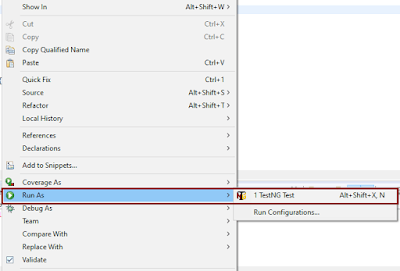
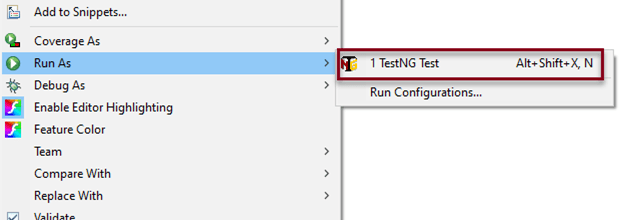
To execute this program, we need to Right click on the program and select Run as – TestNG Test

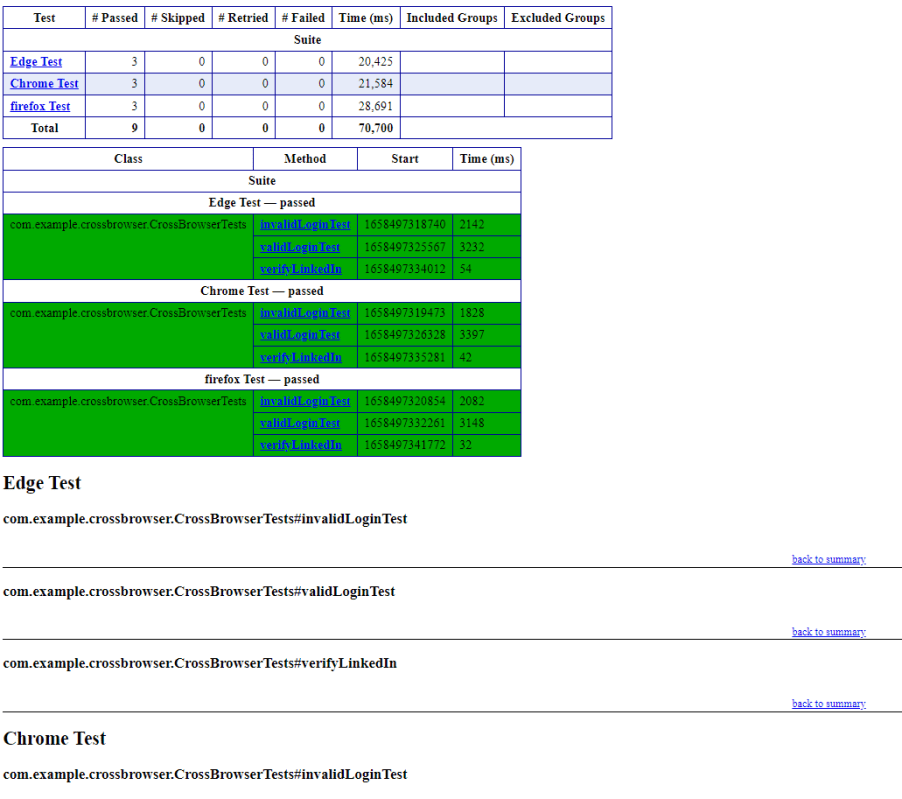
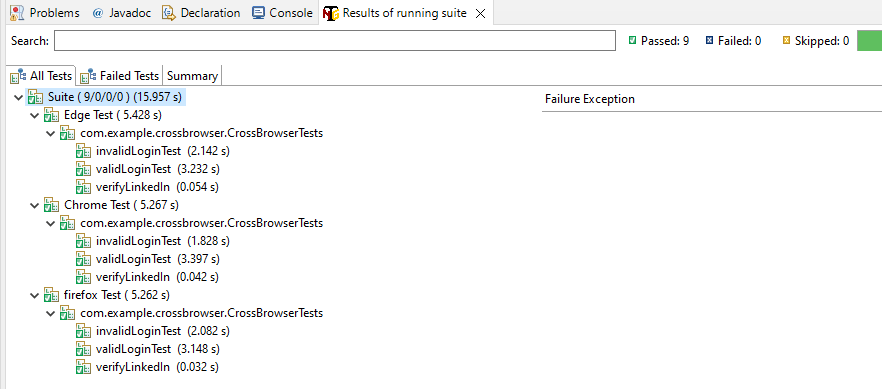
The test execution result looks like as shown below. It shows the test execution status of all the tests. As, in this program, 3 tests are executed and all 3 of them passes. The same result can be depicted from below image.

TestNG Report Generation

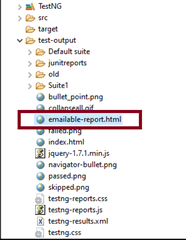
TestNG generates various type of reports under test-output folder like emailable-report.html, index.html, testng-results.xml

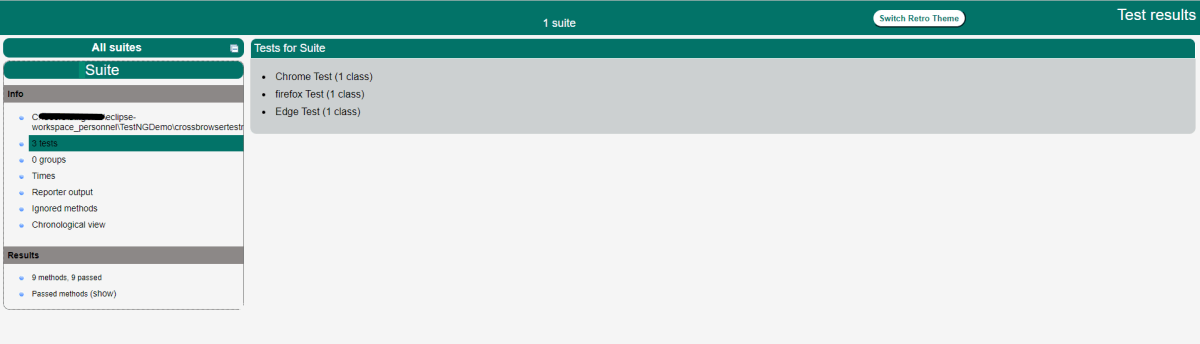
We are interested in ’emailable-report.html’ report. Open ’emailable-report.html’, as this is a html report open it with browser. Below image shows emailable-report.html.

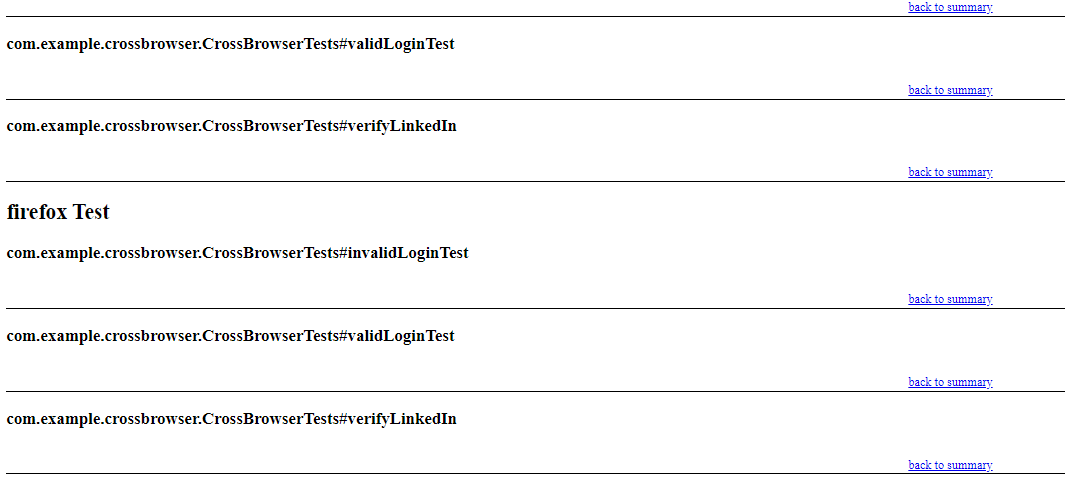
TestNG also produce “index.html” report and it resides under test-output folder. Below image shows index.html report.

We are done! Congratulations on making it through this tutorial and hope you found it useful! Happy Learning!!
Assertions in TestNG

HOME

package com.example;
import org.testng.Assert;
import org.testng.annotations.Test;

public class testAssertions {

    @Test
    public void testAssertions() {

        // test data
        String str1 = new String("TestNG");
        String str2 = new String("TestNG");
        String str3 = null;
        String str4 = "TestNG";
        String str5 = "TestNG";
        String str6 = new String("Not_TestNG");

        int val1 = 5;
        int val2 = 6;

        // Check that two objects are equal
        Assert.assertEquals(str1, str2);
        System.out.println("Equals Assertion is successful");

        // Check that two objects are not equal
        Assert.assertNotEquals(str1, str6);
        System.out.println("NotEquals Assertion is successful");

        // Check that a condition is true
        Assert.assertTrue(val1 < val2);
        System.out.println("True Assertion is successful");

        // Check that a condition is false
        Assert.assertFalse(val1 > val2);
        System.out.println("False Assertion is successful");

        // Check that an object isn't null
        Assert.assertNotNull(str1);
        System.out.println("Not Null Assertion is successful");

        // Check that an object is null
        Assert.assertNull(str3);

        // Check if two object references point to the same object
        Assert.assertSame(str4, str5);
        System.out.println("Same Assertion is successful");

        // Check if two object references not point to the same object
        Assert.assertNotSame(str1, str3);
        System.out.println("Not Same Assertion is successful");
    }
}

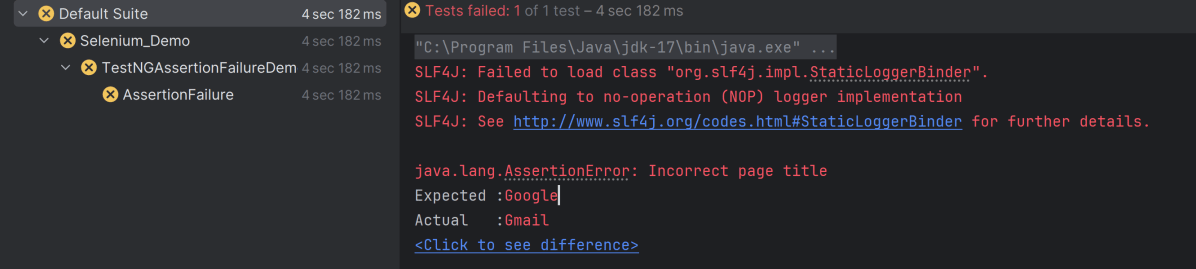
Lets see if an assertion fails, how the output looks shown below. In the below example, we are verifying the pageTitle of Gmail. If the test fails, we should see the message provided in the assertion also.

import org.openqa.selenium.WebDriver;
import org.openqa.selenium.firefox.FirefoxDriver;
import org.openqa.selenium.firefox.FirefoxOptions;
import org.testng.Assert;
import org.testng.annotations.Test;

public class TestNGAssertionFailureDemo {

    @Test
    public void AssertionFailure() throws InterruptedException {

        FirefoxOptions options = new FirefoxOptions();
        WebDriver driver = new FirefoxDriver(options);
        // Test Condition 1: If Page title matches with actualTitle then it finds email
        // title and enters the value which we pass
        driver.get("https://www.gmail.com");
        String actualTitle = "Google";
        String expectedTitle = driver.getTitle();
        Assert.assertEquals(expectedTitle, actualTitle, "Incorrect page title");
    }
}

You can show in the output console, there is an error message “Incorrect page title” as we have mentioned this message in the Assertion.

TestNG Annotations

 HOME

In the previous tutorial, we have discussed How to Download and Install TestNG in Eclipse. In the this tutorial, we are going to discuss about the various annotations available in TestNG. Below is the list of annotations:-

  • @Test – This marks a class or a method as a part of the test.
  • @BeforeSuite – The @BeforeSuite method in TestNG runs before the execution of all other test methods. It will run only once before all tests in the suite have to run.
  • @AfterSuite – The @AfterSuite method in TestNG runs after the execution of all other test methods. It will run only once after all tests in the suite have run.
  • @BeforeTest – The @BeforeTest method in TestNG runs before the execution of first @Test method. It runs only once per class.
  • @AfterTest – The @AfterTest method in TestNG executes after the execution of all the test methods that are inside that folder.
  • @BeforeClass – The @BeforeClass method in TestNG will run before the first method invokes of the current class.
  • @AfterClass – The @AfterClass method in TestNG will execute after all the test methods of the current class execute.
  • @BeforeMethod – The @BeforeMethod method in TestNG will execute before each test method. 
  • @AfterMethod – The @AfterMethod method in TestNG will run after each test method is executed.
  • @BeforeGroups – The @BeforeGroups method in TestNG run before the test cases of that group execute. It executes just once.
  • @AfterGroups – The @AfterGroups method in TestNG run after the test cases of that group execute. It executes only once. 
  • @ParametersThis annotation is used to pass parameters to test methods.
  • @DataProvider – If we use @DataProvider annotation for any method that means you are using that method as a data supplier. The configuration of @DataProvider annotated method must be like it always return Object[][] which we can use in @Test annotated method. The @Test method that wants to receive data from this DataProvider needs to use a dataProvider name equals to the name of this annotation.
  • @Factory – Marks a method as a factory that returns objects that will be used by TestNG as Test classes. The method must return Object[ ].
  • @Listeners– This annotation is used with test class. It helps in writing logs and results.

Lets see a program to understand the sequence in which these annotations run in the program.

import org.testng.annotations.*;

public class AnnotationsExample {

    @BeforeTest
    public void init(){
        System.out.println("---------------- Before Test ------------- ");
        //open the browser
    }

    @AfterTest
    public void quit(){
        System.out.println("---------------- After Test ------------- ");
        //close the browser
    }

    @BeforeMethod
    public void beforeMethod() {
        System.out.println("############# Before Method ############# ");
        //Initialize the Report
    }

    @AfterMethod
    public void afterMethod() {
        System.out.println("############ After Method ##############");
        //Finalize the Report
    }

    @BeforeClass
    public void beforeClass() {
        System.out.println("************* Before Class *************");
    }

    @AfterClass
    public void afterClass() {
        System.out.println("************* After Class ***************");
    }

    @BeforeSuite
    public void beforeSuite() {
        System.out.println("This will execute Before Suite");
    }

    @AfterSuite
    public void afterSuite() {
        System.out.println("This will execute After Suite");
    }

    @Test
    public void loginTest(){
        System.out.println("Login the application ");

    }

    @Test
    public void logout(){
        System.out.println("Logout the application ");

    }

}

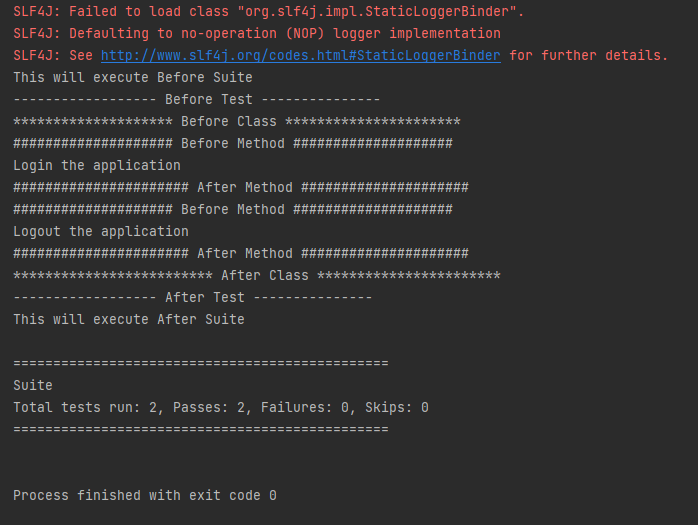
Execution process is as follows:

  1. First of all, beforeSuite() method is executed only once.

2. Lastly, the afterSuite() method executes only once.

3. @BeforeMethod and @AfterMethod are executed twice, one for Test Case 1 and again for Test Case 2.

4. Methods beforeTest(), beforeClass(), afterClass(), and afterTest() methods are executed only once.

5. To execute this program, we need to Right click and select Run as -> TestNG or Run testng.xml.


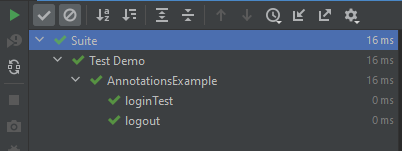
The test execution result will look like something shown below

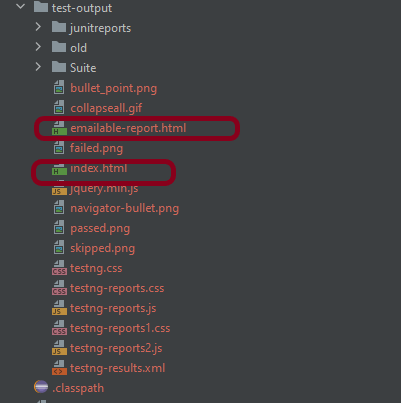
TestNG generates various type of reports under test-output folder.

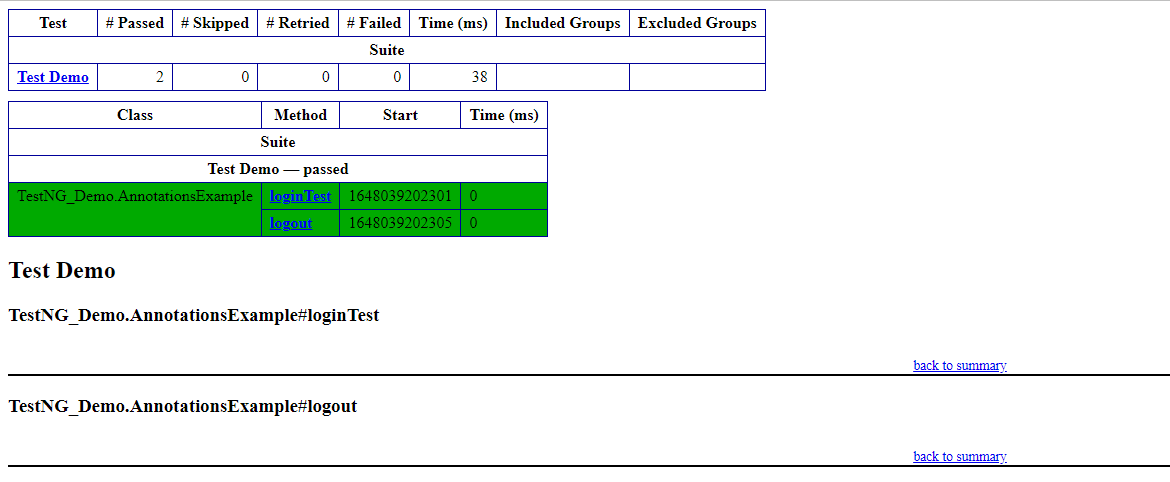
Open ‘emailable-report.html‘, as this is a html report open it with browser. It will look like something below.

TestNG also produce “index.html” report and it resides under test-output folder.

Congratulations. We are done. Happy Learning!!

Screenshot of Failed Test Cases in Selenium WebDriver

HOME

In the previous tutorials, I have explained how we can take screenshots in Selenium using FileUtils or FileHandler. In this tutorial, I will explain how to capture screenshots of Failed Test Cases in Selenium.

We are going to use TestNG to capture screenshot of failed test cases.

We will be using below mentioned features of TestNG

1) ITestResult – This  Interface will provide us the result of test case execution. @AfterMethod method can declare a parameter of type ITestResult, which will reflect the result of the test method that was just run.

2) @AfterMethod – The annotated method will be run after each test method. Any @AfterMethod can declare a parameter of type java.lang.reflect.Method. This parameter will receive the test method that will be called once this after the method as run.

3) result.getName() – will return name of test case so that screenshot name will be same as test case name

4) @BeforeTest – The annotated method will be run before any test method belonging to the classes inside the tag is run.

5) @AfterTest – The annotated method will be run after all the test methods belonging to the classes inside the tag have run.

We are executing 2 test cases. One of the Test Case will pass and another will fail. This program will only capture the screenshot of failed test case, not the passed one as we have used condition

if (ITestResult.FAILURE == result.getStatus())

Let see this as a program. 

import java.io.File;
import org.apache.commons.io.FileUtils;
import org.openqa.selenium.By;
import org.openqa.selenium.OutputType;
import org.openqa.selenium.TakesScreenshot;
import org.openqa.selenium.WebDriver;
import org.openqa.selenium.firefox.FirefoxDriver;
import org.testng.Assert;
import org.testng.ITestResult;
import org.testng.annotations.AfterMethod;
import org.testng.annotations.AfterTest;
import org.testng.annotations.BeforeTest;
import org.testng.annotations.Test;
 
public class ScreenshotFailedCases {
    static WebDriver driver;
 
    @BeforeTest
    public static void init() {
        System.setProperty("webdriver.gecko.driver", "src\\test\\resources\\webdrivers\\window\\geckodriver.exe");
 
        // Initiate Firefox browser
        driver = new FirefoxDriver();
 
        // Maximize the browser
        driver.manage().window().maximize();
 
        // Pass application url
        driver.get("https://duckduckgo.com/");
        System.out.println("BeforeTest");
    }
 
    @Test
    public void captureCorrectScreenMethod() throws Exception {
        String Text = driver.findElement(By.xpath("//*[@id='logo_homepage_link']")).getText();
        // Verify the text on the landing page
        Assert.assertTrue(Text.contains("About DuckDuckGo"));
    }
 
    @Test
    public void captureIncorrectScreenMethod() throws Exception {
                        
		// Fail test by using incorrect XPath to find the search box
        driver.findElement(By.xpath("//*[@name='qe']")).sendKeys("agile");
    }
 
    @AfterTest
    public static void exit() {
                        
		// Close the WebPage
        driver.quit();
    }
 
    // AfterMethod annotation - This method executes after every test execution
    @AfterMethod
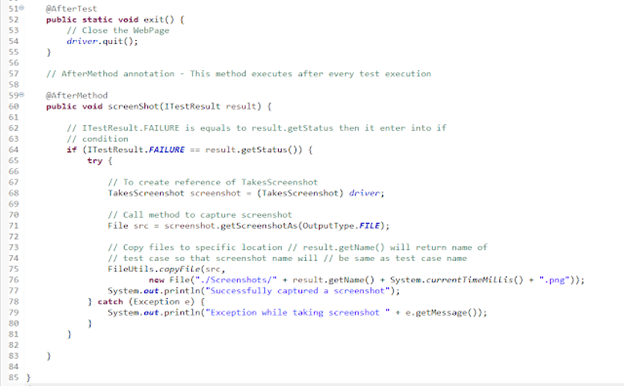
    public void screenShot(ITestResult result) {
 
        // ITestResult.FAILURE is equals to result.getStatus then it enter into
        // if condition
                        
	if (ITestResult.FAILURE == result.getStatus()) {
            try {
                    
		         // To create reference of TakesScreenshot
                 TakesScreenshot screenshot = (TakesScreenshot) driver;
 
                 // Call method to capture screenshot
                 File src = screenshot.getScreenshotAs(OutputType.FILE);
 
                 // Copy files to specific location result.getName() will 
                 // return  name of test case so that screenshot name will be same as test case name
                    
		   FileUtils.copyFile(src, new File("./Screenshots/" + result.getName() + System.currentTimeMillis() + ".png"));
                    System.out.println("Successfully captured a screenshot");
                } catch (Exception e) {
                    System.out.println("Exception while taking screenshot " + e.getMessage());
           }
        }
    }
}

A folder with name Screenshots is created and the screenshot is placed in that folder as you can see the image below

Execution Status as shown below

TestNG Report – Go to test-output folder and open emailable-report.html

TestNG – How to group Tests in Selenium using TestNG

HOME

<?xml version = "1.0"encoding = "UTF-8"?>
<!DOCTYPE suite SYSTEM "http://testng.org/testng-1.0.dtd">
<suite name = "Suite1">
  <test name = "Test Demo">
      <groups>
         <run>
              <include name = "e2etest"/>
          </run>
        </groups>
    <classes>
          <class name = "TestNGGroupDemo"/>
     </classes>  
   </test>
</suite>

In below example, we have shown the syntax of how to use groups in the XML file. @Test(groups = { “e2etest”, “integerationtest” }) .

Below is the sample code.

import org.testng.annotations.Test;

public class TestNGGroupDemo {

	@Test(alwaysRun = true, groups = { "e2etest", "integerationtest" })
	public void testPrintMessage() {
		System.out.println("This method is run by both e2e and integeration test");
	}

	@Test(alwaysRun = true, groups = { "e2etest" })
	public void testE2EMessage() {
		System.out.println("This method is run by e2e test");
	}

	@Test(alwaysRun = true, groups = { "integerationtest" })
	public void testingIntegrationMessage() {
		System.out.println("This method is run by integeration test");
	}

	@Test(alwaysRun = true, groups = { "acceptancetest" })
	public void testingAcceptanceMessage() {
		System.out.println("This method is run by Acceptance test");
	}

	@Test(alwaysRun = true, groups = { "e2etest", "acceptancetest" })
	public void testE2EAndAcceptanceMessage() {
		System.out.println("This method is run by both e2e and acceptance test");
	}

	@Test(alwaysRun = true, groups = { "e2etest", "integerationtest", "acceptancetest" })
	public void testE2EAndAcceptanceAndIntegrationMessage() {
		System.out.println("This method is run by e2e, integration and acceptance test");
	}

}

Output
[RemoteTestNG] detected TestNG version 7.4.0
This method is run by e2e, integration and acceptance test
This method is run by both e2e and acceptance test
This method is run by e2e test
This method is run by both e2e and integeration test

===============================================
Suite
Total tests run: 4, Passes: 4, Failures: 0, Skips: 0
===============================================

The output of the above program is

The result will look like something shown below. Here, we can see that Test Case Passed is 4, Failed 0 and Skipped 0.

To view the report, go to the Eclipse folder and you can see a folder with name test-output inside the Project where we have created TestNG class. Here, it is  C:\Users\vibha\eclipse-workspace\Demo\test-output

Groups of Groups

Groups can also include other groups. These groups are called “MetaGroups”. TestNG provides the flexibility of providing groups inside another group and running them according to your needs.
Let’s create a group inside a group in our XML file.

Here, I have created a created a new group with the name ‘SuperGroup‘ and included our group “acceptancetest” into it. Then we called the newly created group (SuperGroup) for execution by including it in the run tag. The output will be like this:

<?xml version="1.0" encoding="UTF-8"?>
<!DOCTYPE suite SYSTEM "https://testng.org/testng-1.0.dtd">
<suite name="Suite">
   <test name = "Test Demo">
       <groups>
        	<define name = "SuperGroup">
   			   <include name = "acceptancetest"></include>
   		</define>
          <run>
              <include name = "SuperGroup"/>
          </run>
        </groups>
    <classes>
      <class name="TestNGGroupDemo"/>
    </classes>
  </test> <!-- Test -->
</suite> <!-- Suite -->

Lets, add another group “e2etest” to SuperGroup. In this case, we will see all the tests marked with “e2etest” and “acceptancetest“.

<?xml version="1.0" encoding="UTF-8"?>
<!DOCTYPE suite SYSTEM "https://testng.org/testng-1.0.dtd">
<suite name="Suite">
   <test name = "Test Demo">
       <groups>
        	<define name = "SuperGroup">
   			   <include name = "acceptancetest"></include>
   			    <include name = "e2etest"></include>
   		</define>
          <run>
              <include name = "SuperGroup"/>
          </run>
        </groups>
    <classes>
      <class name="TestNGGroupDemo"/>
    </classes>
  </test> <!-- Test -->
</suite> <!-- Suite -->

We are done! Congratulations on making it through this tutorial and hope you found it useful! Happy Learning!!
How to disable Selenium Test Cases using TestNG Feature – @Ignore

HOME

The previous tutorial discussed prioritizing the Test Cases using TestNG. In this tutorial, we will see how we can disable the Test Cases using TestNG. 

Imagine there are 100 test cases in a Regression Test Suite. We need to execute 99 test cases in a release and do want not to execute any particular test case. But we do not want to delete that test case from the Test Suite also. In this case, TestNG has a feature that allows skipping a particular test case by setting the parameters to.

@Enabled Annotation

@Test(enabled = false)

To use two or more parameters in a single annotation, separate them with a comma:

@Test(priority = 3, enabled = false)

To Run the TestNG program, Right-click on the program, and select Run As TestNG Test.

Below is an example to implement the above-mentioned scenario.

import org.testng.annotations.Test;
 
public class TestNGDisableDemo {
 
    @Test(priority = 3)
     public static void FirstTest() {
           System.out.println("This is Test Case 1, but after priority Test Case 3");
     }
 
     @Test(priority = 4)
     public static void SecondTest() {
          System.out.println("This is Test Case 2, but after priority Test Case 4");
     }
 
     @Test(enabled = false)
     public static void ThirdTest() {
           System.out.println("This is Test Case 3, but now skipped");
     }
 
     @Test(priority = 1)
     public static void FourthTest() {
            System.out.println("This is Test Case 4, but after priority Test Case 1");
     }
}


The output of the above program is

@Ignore Annotation

There is another way of skipping the tests by using the @Ignore annotation.

TestNG lets you ignore all the @Test methods :

  • In a class (or)
  • In a particular package (or)
  • In a package and all of its child packages

Ignore a Test

Below is an example where we have skipped the execution of a particular test.

import org.testng.annotations.Ignore;
import org.testng.annotations.Test;

public class IgnoreDemo{
	
	@Test
	public void FirstTest() {
	
		System.out.println("This is Test Case 1");
    
	}
	
	@Test
	public void SecondTest() {
	
		System.out.println("This is Test Case 2");
    
	}
	
	@Ignore
	@Test
	public void ThirdTest() {
	
		System.out.println("This is Test Case 3");
    
	}
	
	@Test
	public void FourthTest() {
	
		System.out.println("This is Test Case 4");
    
	}

}

In the above example, we have assigned @Ignore to the third test. So, this test should be skipped while the execution.

The output of the above program is

Ignore a Class

To understand this concept, we need to create 2 test classes – IgnoreDemo and IgnoreDemo2. Imagine we want to ignore all the tests in the class, so we can use @Ignore at the class level.

IgnoreDemo

import org.testng.annotations.Ignore;
import org.testng.annotations.Test;

@Ignore
public class PriorityDemo {
	
	@Test
	public void FirstTest() {
	
		System.out.println("This is Test Case 1");
    
	}
	
	@Test
	public void SecondTest() {
	
		System.out.println("This is Test Case 2");
    
	}
	

	@Test
	public void ThirdTest() {
	
		System.out.println("This is Test Case 3");
    
	}
	
	@Test
	public void FourthTest() {
	
		System.out.println("This is Test Case 4");
    
	}

}

IgnoreDemo2

package com.example;

import org.testng.annotations.Ignore;
import org.testng.annotations.Test;


public class PriorityDemo2 {
	
	@Test
	public void FirstTest() {
	
		System.out.println("This is Test Case 1 of Class 2");
    
	}
	
	@Test
	public void SecondTest() {
	
		System.out.println("This is Test Case 2 of Class 2");
    
	}
	

	@Test
	public void ThirdTest() {
	
		System.out.println("This is Test Case 3 of Class 2");
    
	}
	
	@Test
	public void FourthTest() {
	
		System.out.println("This is Test Case 4 of Class 2");
    
	}

}

To run both the classes together, we need to create a testng.xml. The easiest way is to select both the classes and Right-Click and select TestNG -> Convert to TestNG.

testng.xml

<?xml version="1.0" encoding="UTF-8"?>
<!DOCTYPE suite SYSTEM "https://testng.org/testng-1.0.dtd">
<suite name="Suite">
  <test thread-count="5" name="Test">
    <classes>
      <class name="com.example.PriorityDemo2"/>
      <class name="com.example.PriorityDemo"/>
    </classes>
  </test> <!-- Test -->
</suite> <!-- Suite -->

Right-click on the testng.xml and select Run As -> TestNG Suite.

As we have assigned the @Ignore annotation at the class level of PriorityDemo class, it will ignore all the 4 tests present in that particular class.

The output of the above program is

We are done. Congratulations on making it through this tutorial and hope you found it useful!

TestNG Framework – How to download and install TestNG in Eclipse

HOME

In the previous tutorial, we discussed what is TestNG and why it is important. This tutorial will discuss how can we download and install TestNG in Eclipse and how to use it.

Pre-Requisite 

1) Eclipse should be installed and configured. Please refer to Install and Configure to set up Eclipse on your system.

Install/Setup TestNG

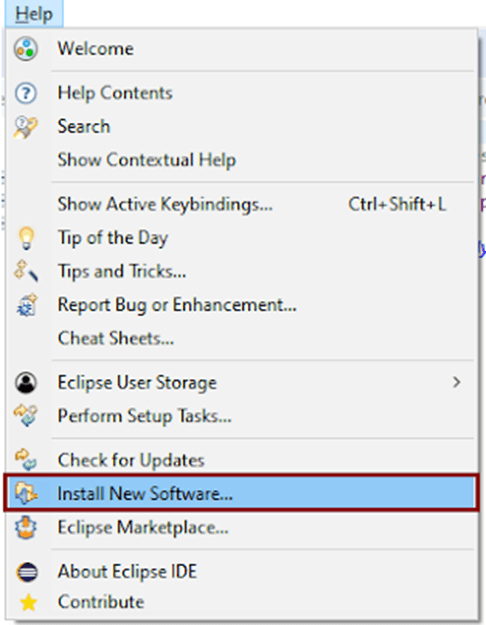
1) Launch Eclipse and go to the “Help” option present at the top and select –“Install New Software”.

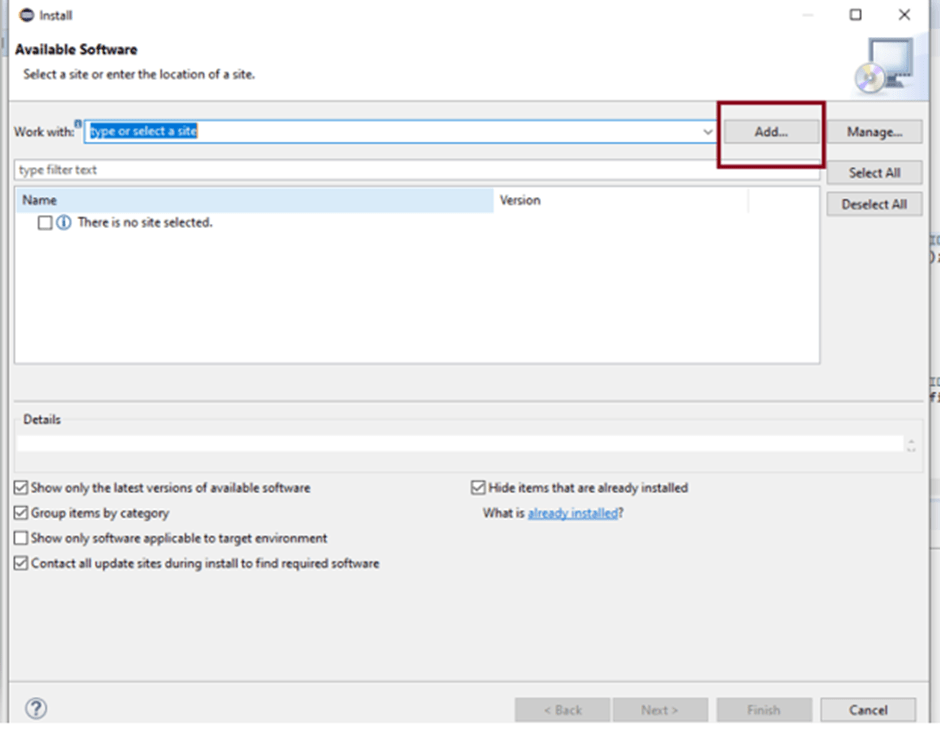
2) A dialog box will appear, click the Add button.

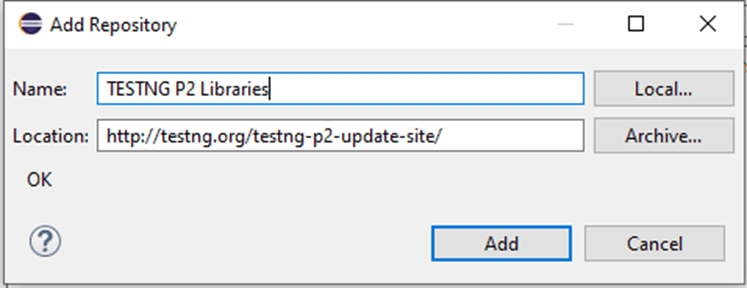
3) A new dialog box will appear. Mention the Name as TestNG and the location asTestNG P2 – https://testng.org/testng-p2-update-site&#8221; and click the Add button.

4) This time we will see TestNG is added to Install dialog box.

5) Accept the terms and conditions and then click the Finish button.

6) Once the installation is completed, you will get a message to Restart the Eclipse. Select Restart the Eclipse

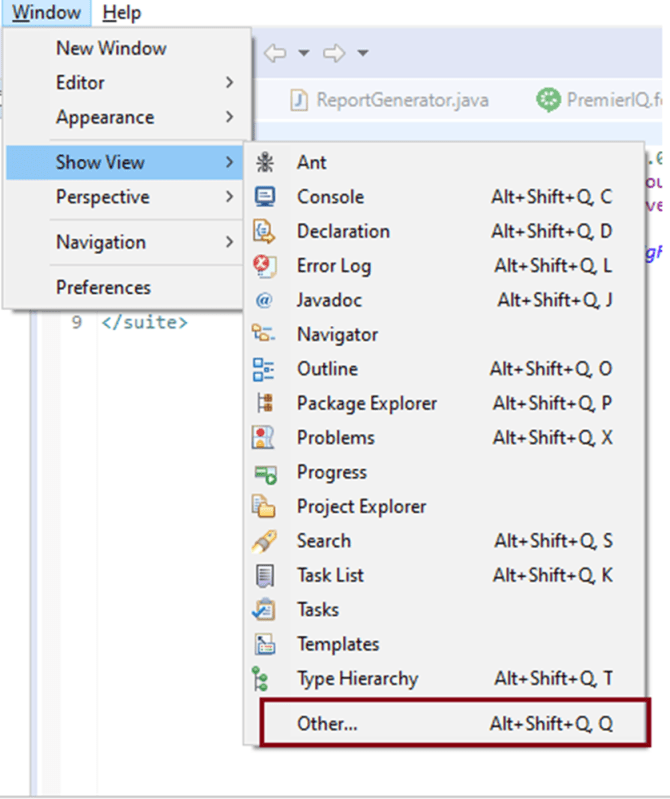
7) To verify if TestNG is installed successfully or not, go to Window, select Show View, and then Other.

8) Select Java and see, within the Java folder, you will see TestNG. This shows that TestNG is successfully installed on the machine.

Steps to follow to create a TestNG class

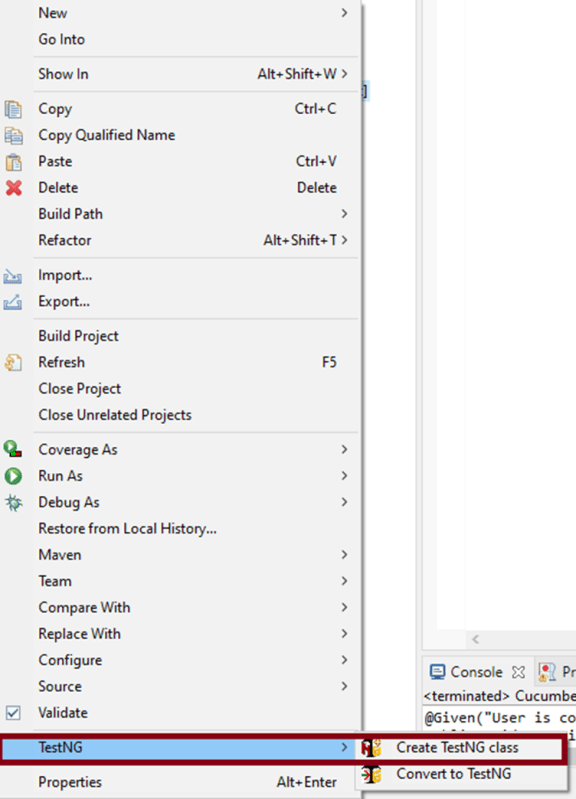
1) Create a new TestNG class. Right-click on the Folder where you want to create the TestNG class. Select TestNG and then Create the TestNG class as shown in the below image.

2) In the below image, we can see that the Source folder is the name of the folder we want to create the class, and we can mention the name of the class in the Class name. Under annotations, I have checked @BeforeTest and @AfterTest and click the Finish button.

3) We can see that the structure of the new TestNG class looks like as shown below.

4) In the below example, we want to navigate to an Amazon page and search for Hard Drive.

@BeforeTest : Launch Firefox and direct it to the Base URL

@Test : Search for HardDrive

@AfterTest : Close Firefox browser

import org.testng.annotations.Test;
import org.testng.annotations.BeforeTest;
import java.util.concurrent.TimeUnit;
import org.openqa.selenium.By;
import org.openqa.selenium.WebDriver;
import org.openqa.selenium.firefox.FirefoxDriver;
import org.testng.annotations.AfterTest;

public class TestNG_Demo {

   public WebDriver driver;

   @BeforeTest
    public void beforeTest() {
      
     System.setProperty("webdriver.gecko.driver","C:\\Users\\vibha\\Downloads\\geckodriver-v0.26.0-win64\\geckodriver.exe");
    driver = new FirefoxDriver();
    driver.manage().timeouts().implicitlyWait(60, TimeUnit.SECONDS);
    driver.manage().window().maximize();
    driver.get("https://www.amazon.com//");
 }

@Test
public void Validation() {
    driver.findElement(By.xpath("//*[@id='twotabsearchtextbox']")).sendKeys("hard drive");
    //XPath for search button
      driver.findElement(By.xpath("//*[@class='nav-input']")).click();
   }

@AfterTest
public void afterTest() {
    driver.quit();
  } 
}

5) To execute this program, we need to Right-click and select Run as – TestNG Test.

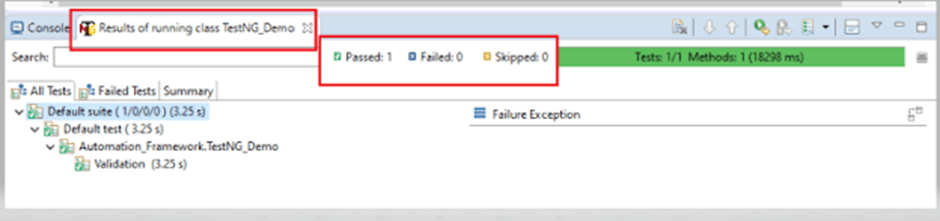
6) The result will look like something shown below. Here, we can see that Test Case Passed is 1, Failed 0, and Skipped 0.

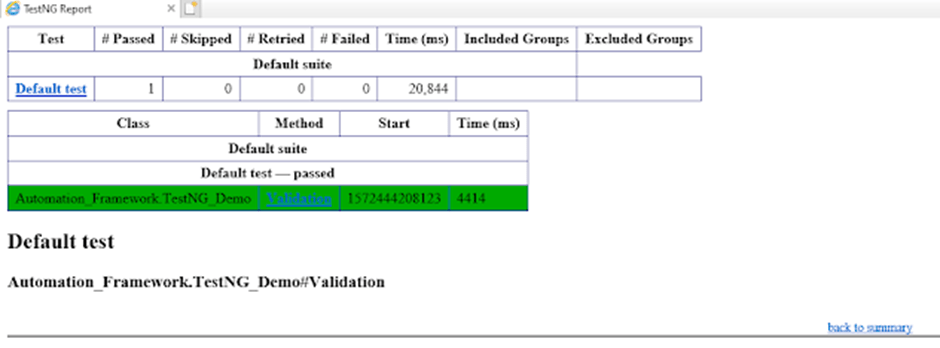
7) As we know that TestNG also produce HTML Reports. To access the report, go to the Eclipse folder, and you can see a folder with name test-output inside the Project where we have created TestNG class. Here, it is  C:\Users\vibha\Downloads\eclipse-workspace\Demo

We are done! Congratulations on making it through this tutorial and hope you found it useful! Happy Learning!!
TestNG Framework – Introduction to TestNG

HOME

Selenium Introduction

HOME

    WebDriver talks to a browser through a driver. Communication is two-way: WebDriver passes commands to the browser through the driver and receives information back via the same route. The driver is specific to the browser, such as ChromeDriver for Google’s Chrome/Chromium, GeckoDriver for Mozilla’s Firefox, etc. The driver runs on the same system as the browser.