In the previous tutorial, we have seen the Integration Of Jenkins With Selenium WebDriver. In this tutorial, we show you how to integrate the Gradle project with Jenkins.
Table Of Contents
Prerequisite
- Jenkins installed and started on the computer
- Gradle is installed on the machine
Setup GRADLE_HOME in Jenkins
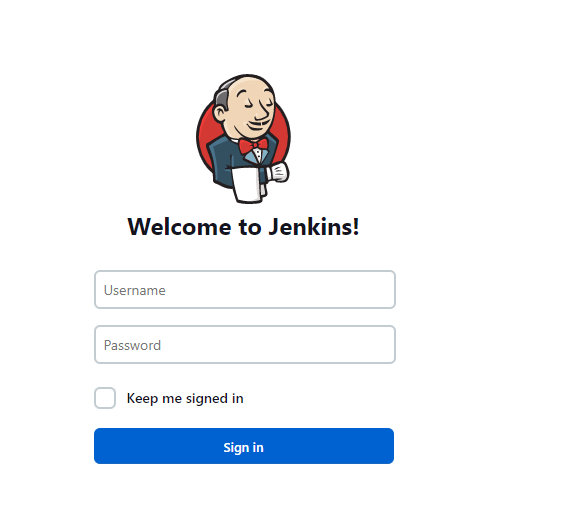
Step 1: Start the Jenkins server
Open the browser and navigate to the localhost and the port in which Jenkins is running.
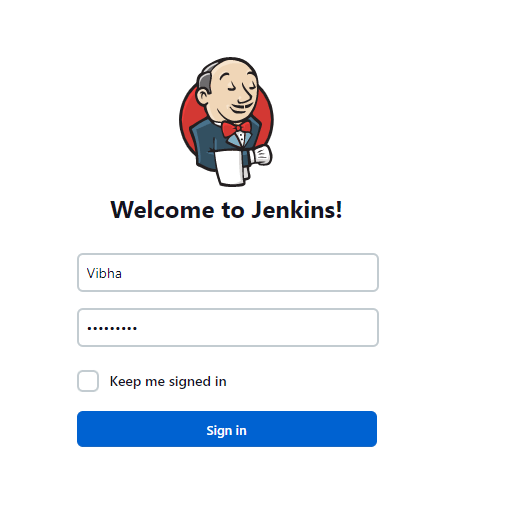
Step 2: Log in to Jenkins UI
You need to provide a username and password and click on Sign in button.
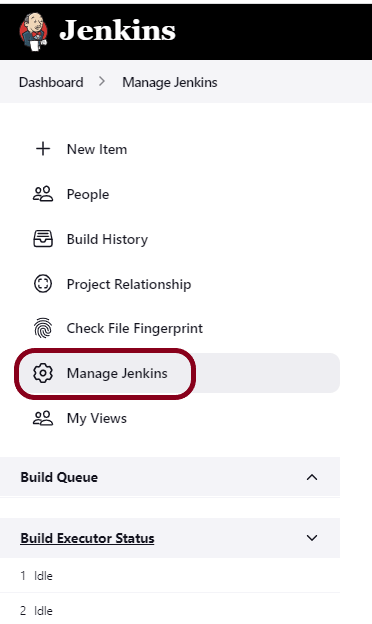
Step 3: Select Manage Jenkins
Go to Jenkins Dashboard. After that, click on the Manage Jenkins link as shown below:
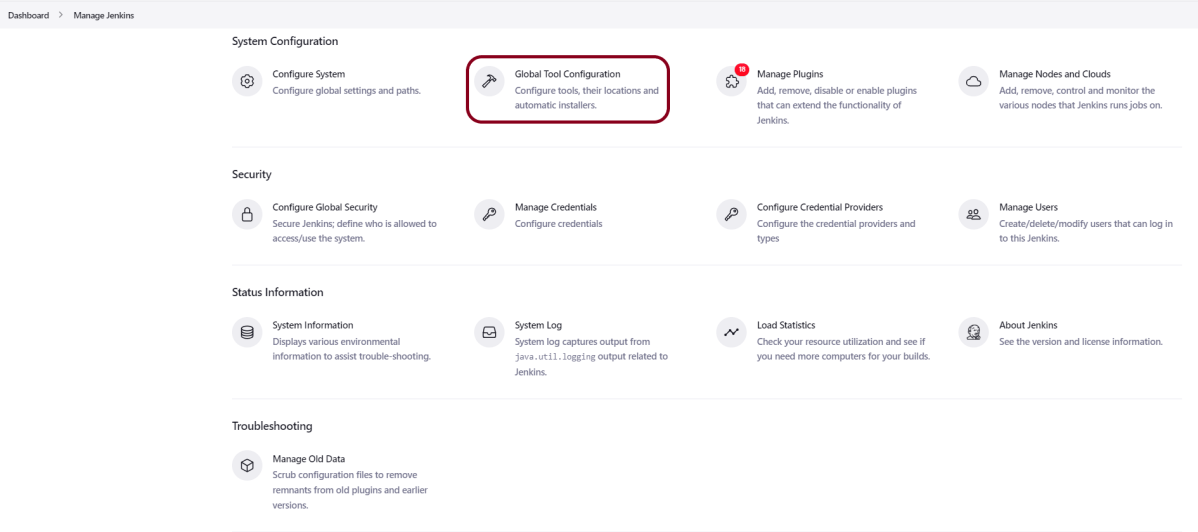
Step 4: Select the Global Tool Configuration option
When we click on the “Manage Jenkins” link, we are redirected to the Manage Jenkins page, where we can see various types of options, including the “Global Tool Configuration” option.
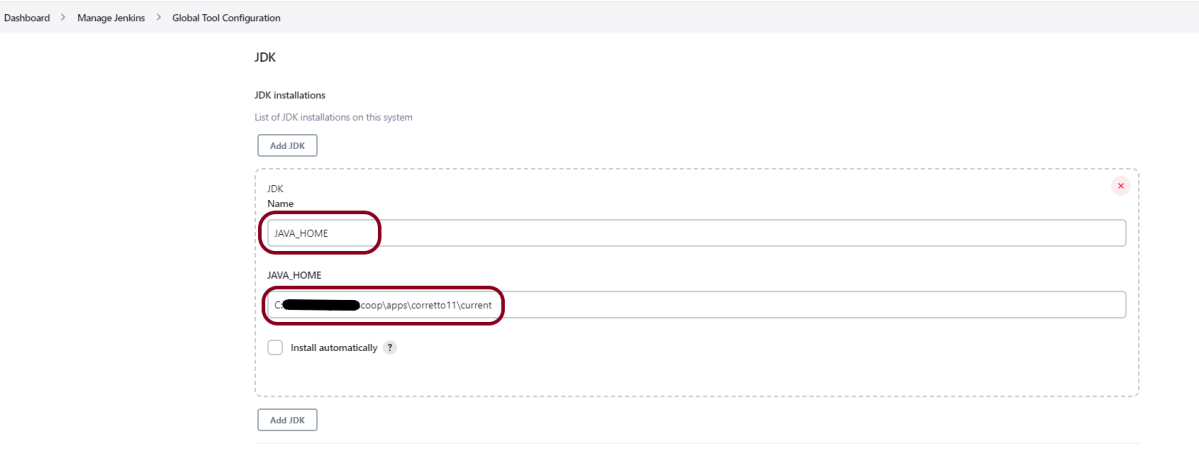
Step 5: Setup JDK Path
We need to set the JDK path in Jenkins as shown below. To know more about setting up Java in Jenkins, please refer to this tutorial – How to configure Java and Maven in Jenkins.
Step 6: Setup Gradle Path
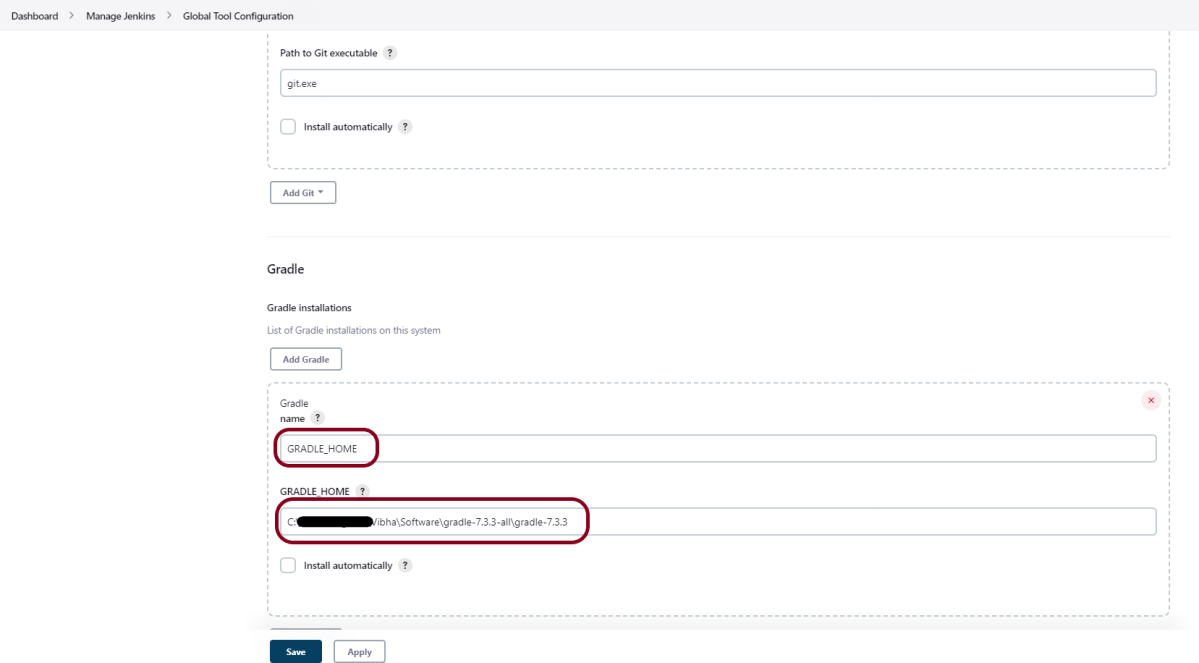
We need to set the Gradle path in Jenkins as shown below.
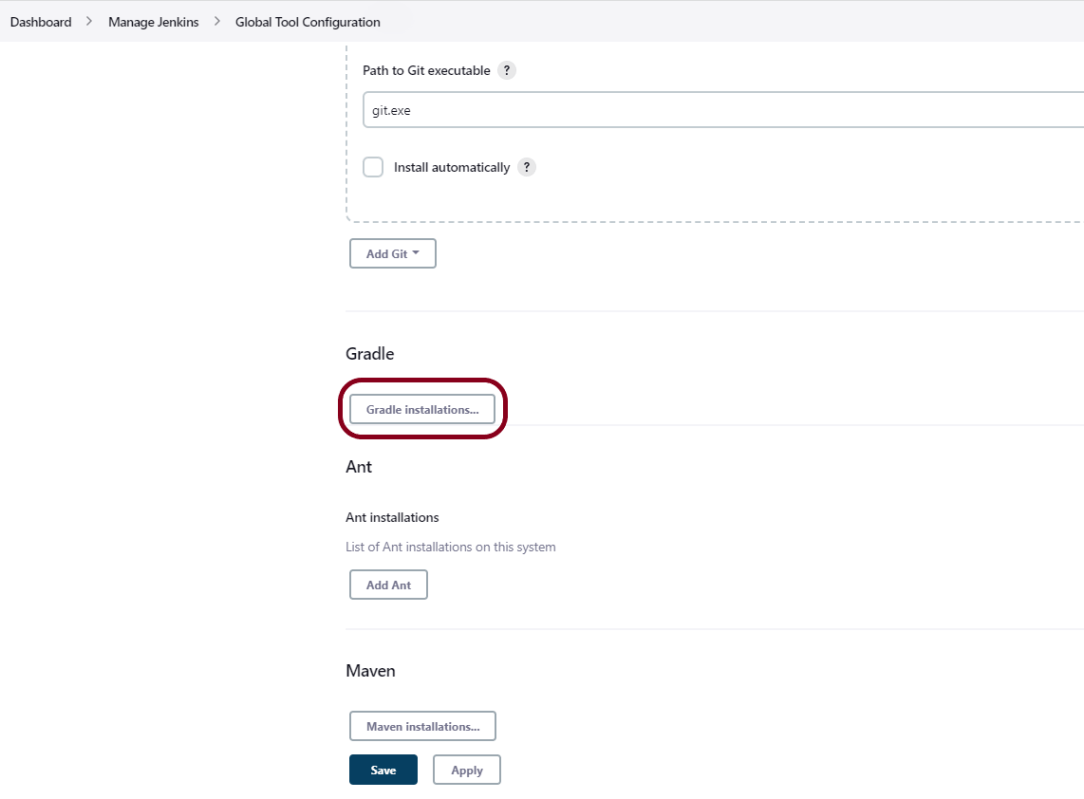
Click on the Add Gradle Installations button. Kindly note that by default, “Install Automatically” will be checked, so since we are going to use the Gradle installed on our local machine, “Install automatically” will install the latest version of Gradle, and you will also need to provide credentials to download the relevant Maven.
Provide the Gradle’s name as we gave as Gradle 7.3.3 because that is what is currently installed on my machine, and also provide the path of Gradle in the GRADLE_HOME textbox.
Click on the Apply and Save buttons.
Integrate Gradle Project with Jenkins
Step 1: Create a new project using the FreeStyle project plugin
- Give the Name of the project.
- Click on the Freestyle project.
- Click on the OK button.

Step 2: Enter the project description in the Description box
In the general section, describe the project in the description section.
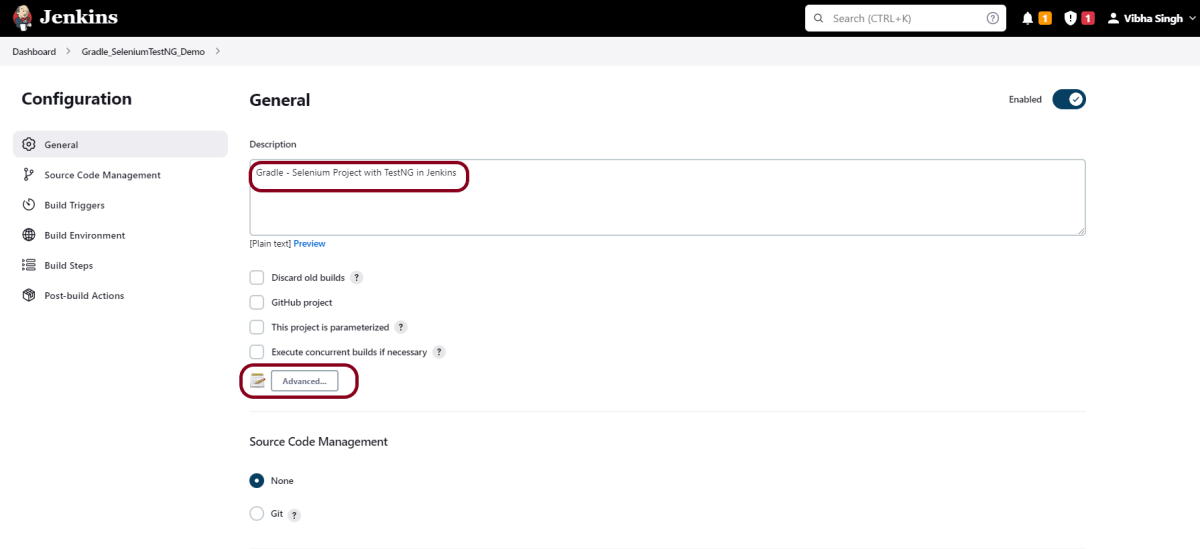
Click on the Advanced button. Mention the full path of the project.

Step 3: Build Management
Go to the Build section of the new job and select the option – “Invoke Gradle Script“.
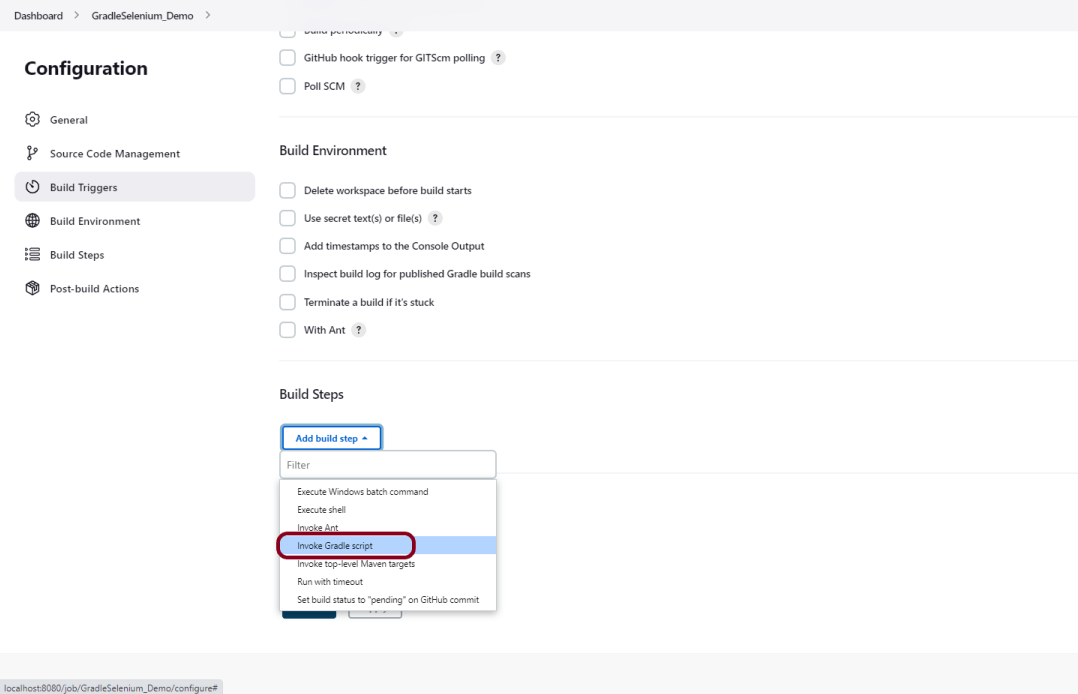
Provide the below-mentioned information:
- In the Gradle version, enter – GRADLE_HOME.
- In the Tasks option section, enter “clean test”

Step 4: Select “Publish TestNG Results” from “Post Build Actions”
Scroll down to “Post Build Actions” and click on the “Add Post Build Actions” drop-down list.
Select “Publish TestNG Results“.
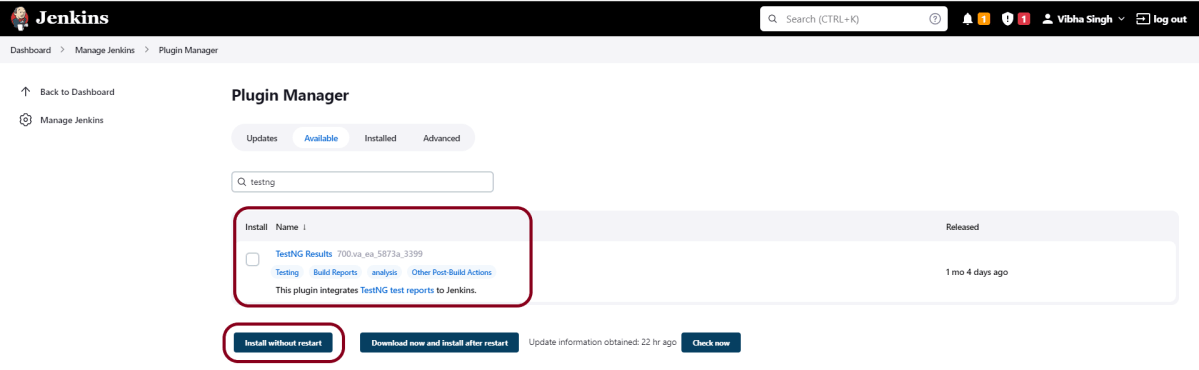
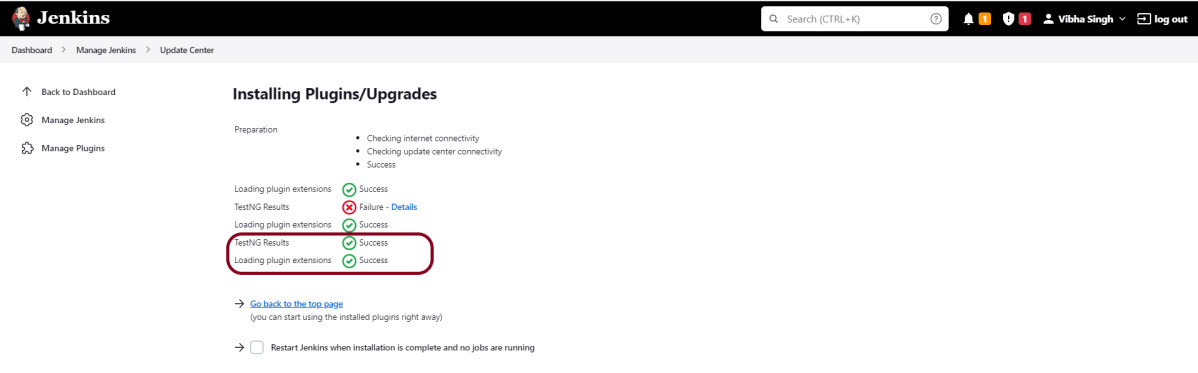
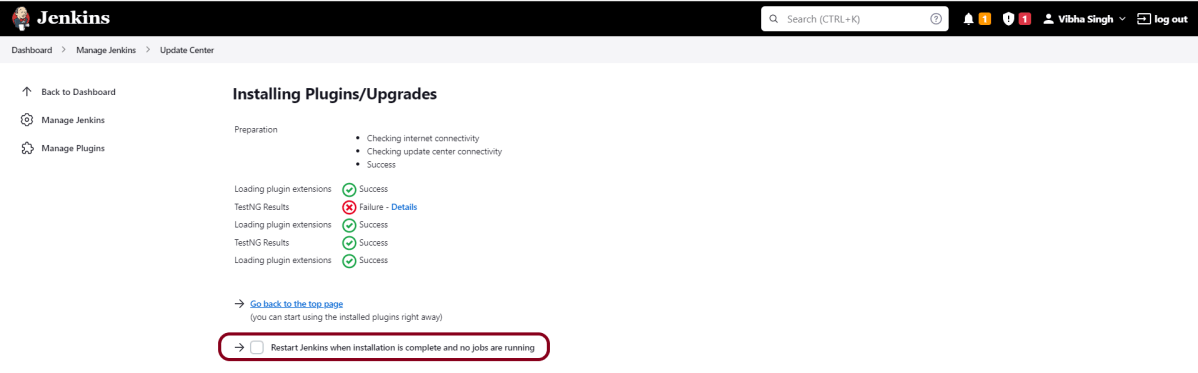
To know, how to install TestNG plugin, please refer to this tutorial – How to generate TestNG Report in Jenkins.

Enter TestNG XML Report Pattern as “**GradleReports/testng-results.xml” and click on the Save button
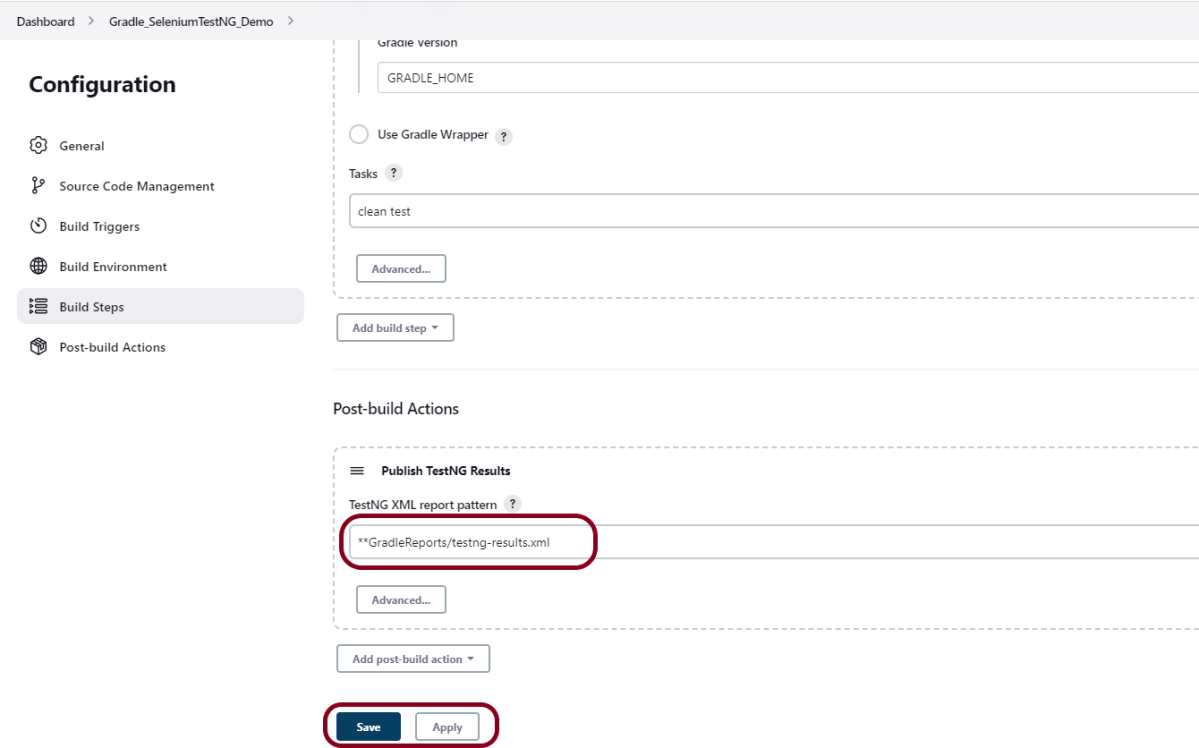
We have created a new project “Gradle_SeleniumTestNG_Demo” with the configuration to run TestNG Tests and also to generate TestNG Reports after execution using Jenkins.
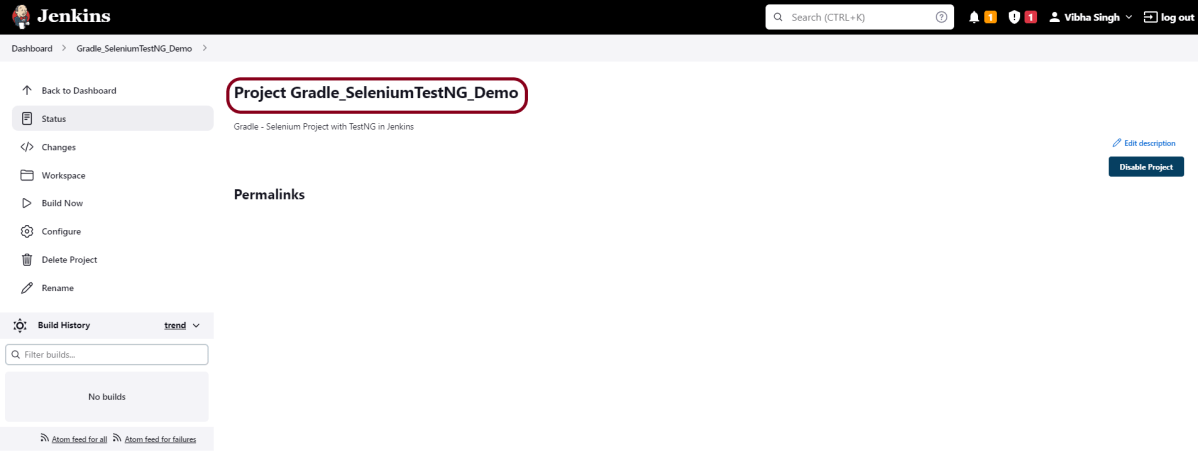
Step 5: Execute the tests
Let’s execute it now by clicking on the “Build Now” button.

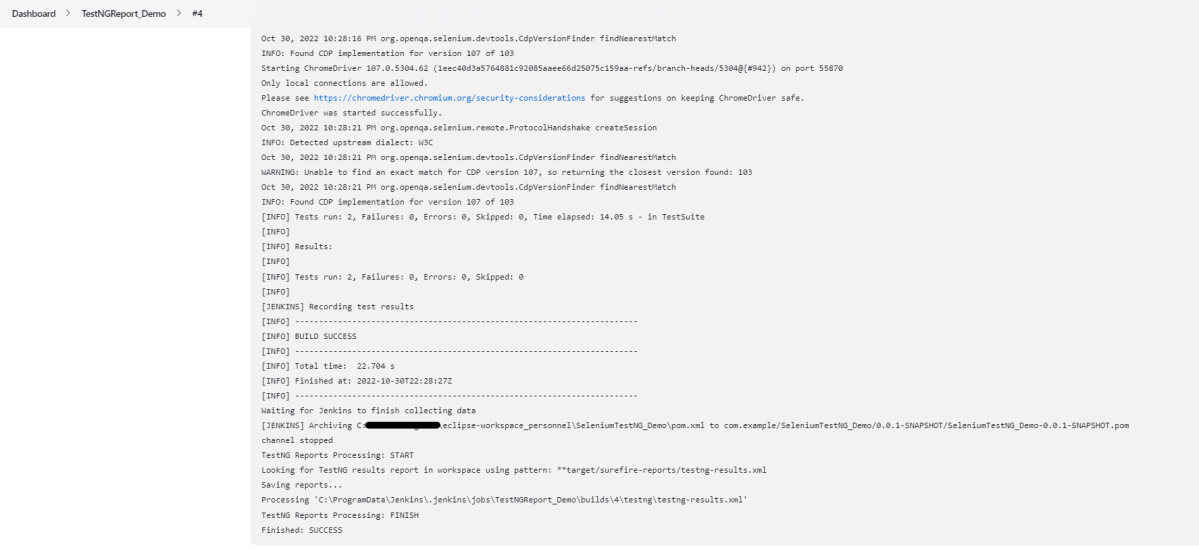
Right-click on Build Number (here in my case it is #2) and click on Console Output to see the result.
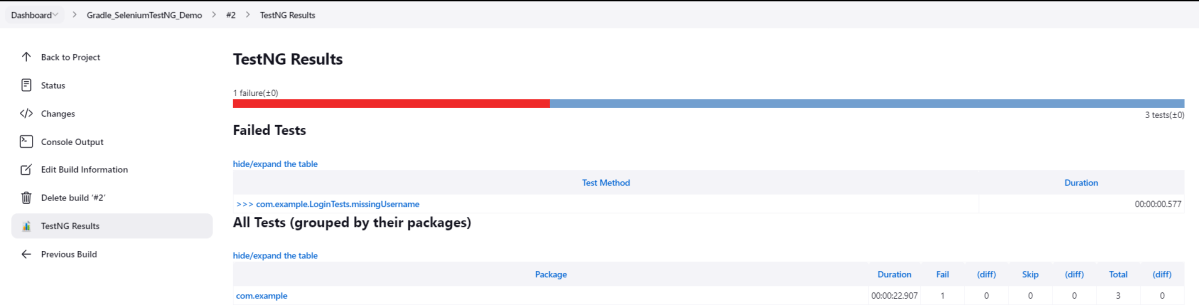
The below screen shows that the build failed because I failed one of the tests intentionally to show how the result looks with passed and failed tests.

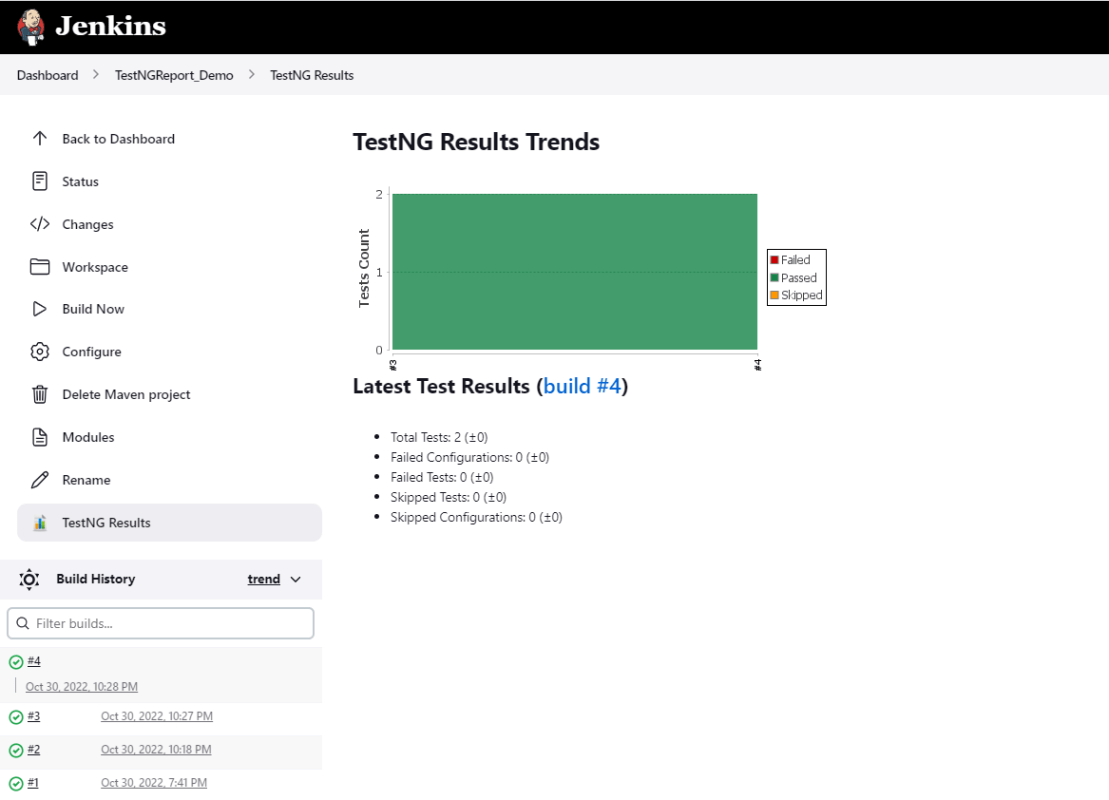
Once the execution is completed, we could see a link to view ‘TestNG Results’.
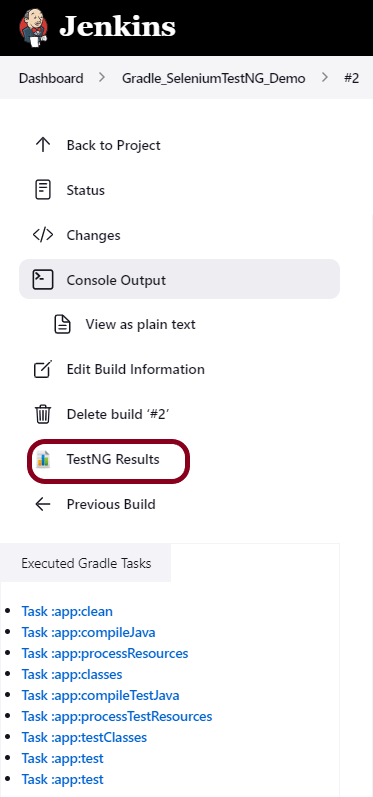
Click on the TestNG Results. It displays the summary of the tests.
This way, we could integrate the Gradle project with Jenkins.
Congratulations on making it through this tutorial and hope you found it useful! Happy Learning!! Cheers!!





 QA Automation Expert