Running only the last failed tests in Playwright can be a useful strategy. It helps in quickly debugging failures. This approach ensures that intermittent issues are resolved.
Playwright provides a way to run tests from the last failed test file using the `–rerun` command-line option. This option is particularly useful in large test suites to focus specifically on the problematic tests.
First, execute your regular test suite. For example:
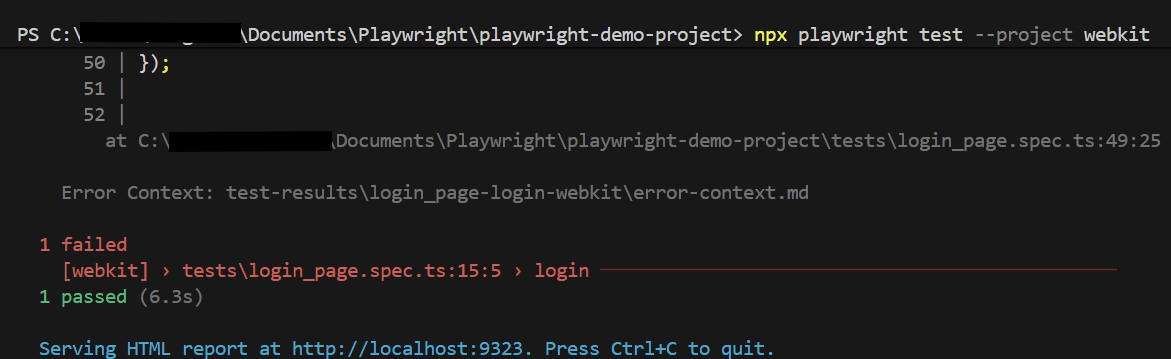
npx playwright test --project webkit
Below are the tests used in this example.
import { test, expect } from '@playwright/test';

test('has title', async ({ page, browserName }) => {
  await page.goto('https://opensource-demo.orangehrmlive.com/');

  console.log(`Running test on browser: ${browserName}`);  // Print the browser name

  await page.waitForTimeout(3000); // Wait for 3 seconds

  // Expect a title "to contain" a substring.
  await expect(page).toHaveTitle(/OrangeHRM/);
});


test('login', async ({ page, browserName }) => {

  const username = 'Admin';
  const password = 'admin123'

  await page.goto('https://opensource-demo.orangehrmlive.com/');

  console.log(`Running test on browser: ${browserName}`);  // Print the browser name

  // Fill in the username
   await page.fill('input[name="username"]', username);

   // Print the username
  console.log(`Logging in with username: ${username}`);

  // Fill in the password
    await page.fill('input[name="password"]', password);

  // Print the password
  console.log(`Logging in with password: ${password}`);

  // Click the login button - Use XPath to locate and click the login button
  const loginButton = page.locator('//button[@type="submit" and contains(@class, "orangehrm-login-button")]');
  await loginButton.click();

  // Check if the page contains text Dashboard - Locate the element using XPath
  const dashboardElement = await page.locator('//h6[contains(@class, "oxd-topbar-header-breadcrumb-module")]');

  // Get the text content from the element
  const dashboardText = await dashboardElement.textContent();

  // Print the text
  console.log(`Dashboard text: ${dashboardText}`);

  expect(dashboardText).toContain('Dashboard1');
});
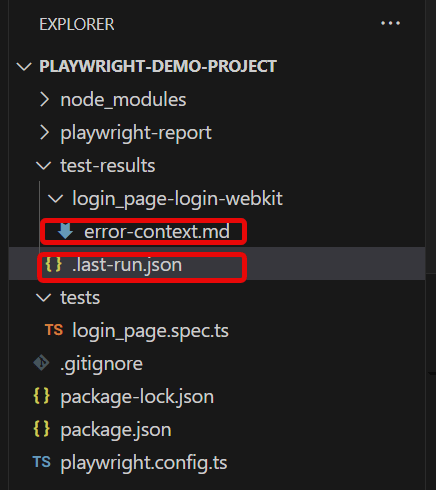
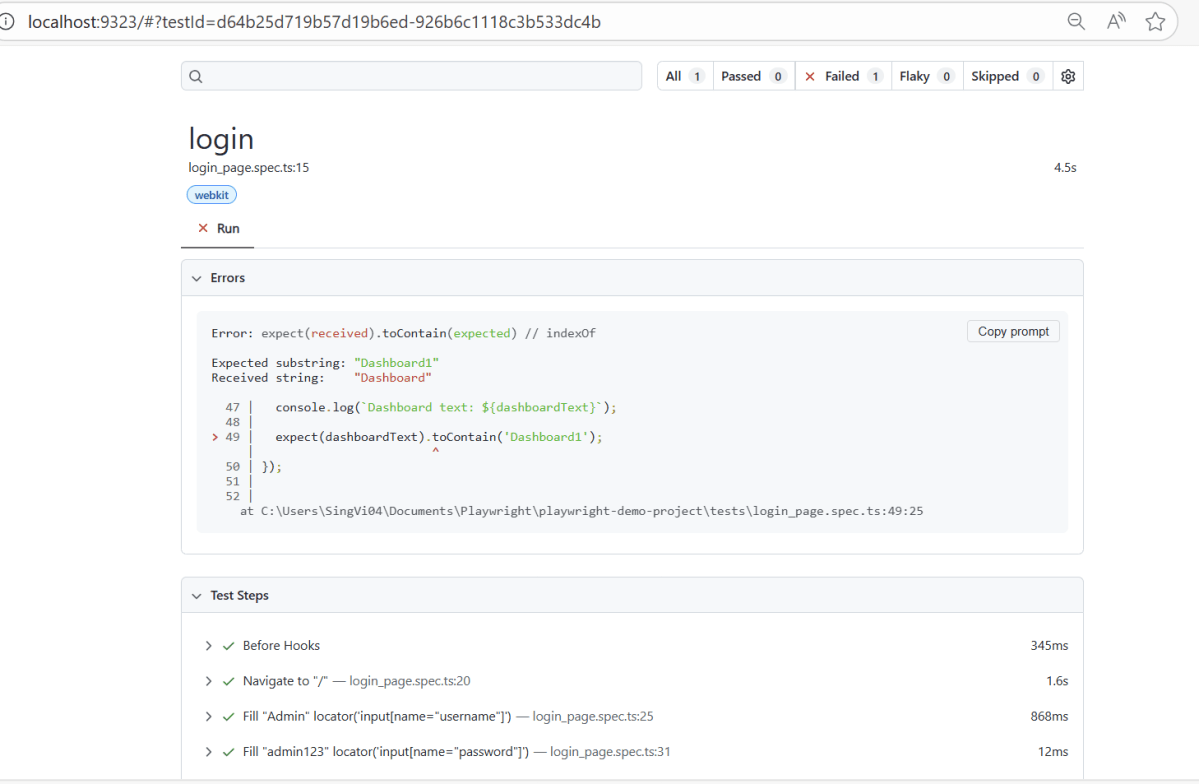
Go to the funnel shape icon called “Testing” or “Test Explorer View”. The failed test detail is mentioned in error-context.md file.
The output of the above program is
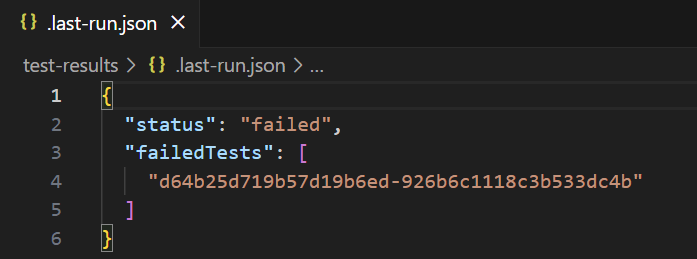
When the tests complete, the failed tests are noted in a file. You can run the last failed tests using the command:
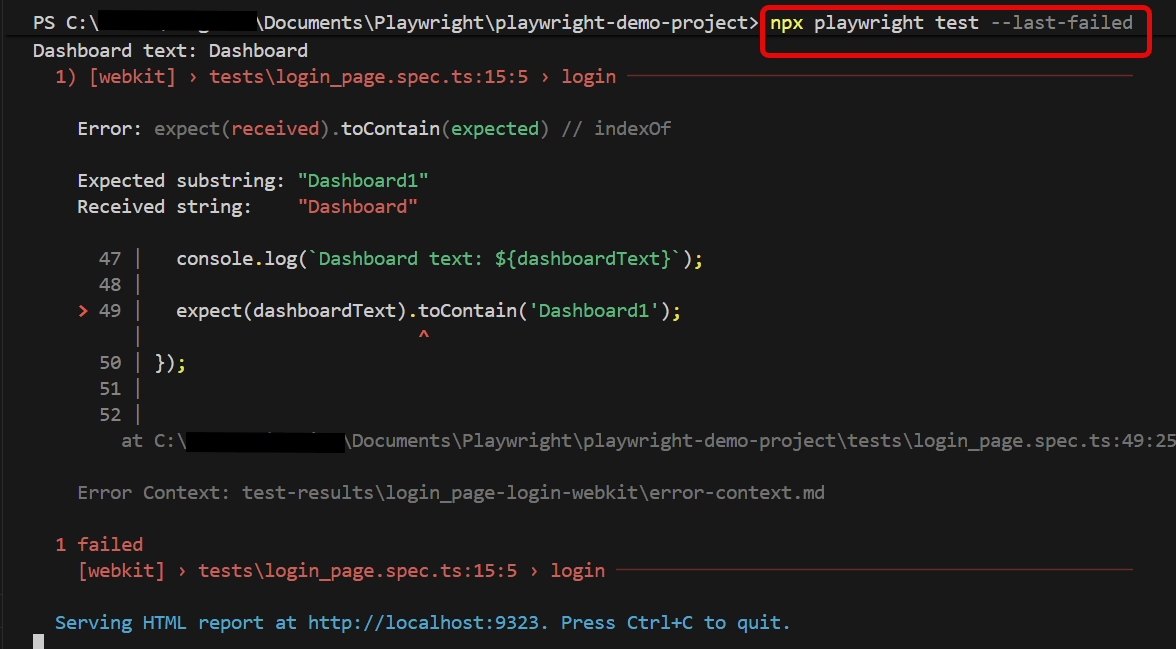
npx playwright test --last-failed
It specifically targets the tests that did not pass in the last test run and executes them again. This is useful for quickly rechecking and fixing issues in tests without having to run the entire test suite again.
The output of the above program is
Below is the report generated and it shows that only 1 test is executed.
Playwright is a modern and powerful end-to-end testing framework developed by Microsoft, specifically designed for the automation of web applications. It supports programming languages like Java, Python, C#, and NodeJS. Playwright comes with Apache 2.0 License and is most popular with NodeJS with Javascript/Typescript.
We know that Playwright runs the tests in non-headed mode. This means we can’t see the test opening the web page and performing various actions on it. But, we can run the tests in headed mode. This is useful for debugging or observing the actions taken by the test.
System requirements
The following prerequisites are required to be installed on the machine to begin with a smooth setup and installation.
Java 8 or higher
IntelliJ IDE or any other IDE to create a project
Maven
Browsers on which tests need to be run, like Chrome, Firefox, etc.
To run the tests in headed mode, use the below command:-
Below method is used to initialize a new Playwright instance. It is placed inside a try-with-resources block. This ensures that resources are closed automatically after use.
(Playwright playwright = Playwright.create())
2. Launch Web Browser in Visible mode
A new Chromium browser instance is launched in visible mode. The BrowserType.LaunchOptions class contains various settings that define how the browser should be started. The setHeadless(false) call is a method on the LaunchOptionsobject. Setting headlessto falsecauses the browser to launch in visible mode. This allows us to see the browser window as the automation runs.
The script pauses execution for 2000 milliseconds (or 2 seconds) using `page.waitForTimeout(2000)`, allowing time for the page to fully load. This is often used in testing to manage asynchronous loading of elements.
page.waitForTimeout(2000);
6. Print the title
The title of the page is retrieved and printed to the console using page.title().
System.out.println("Title :" + page.title());
7. Assert the page title
Below line asserts that the page has the title matching the regular expression “OrangeHRM”. The use of Pattern.compile() allows for matching with a regular expression, which can be beneficial for flexible title checking.
The try-with-resources structure ensures the browser and Playwright instance close automatically after the test completes.
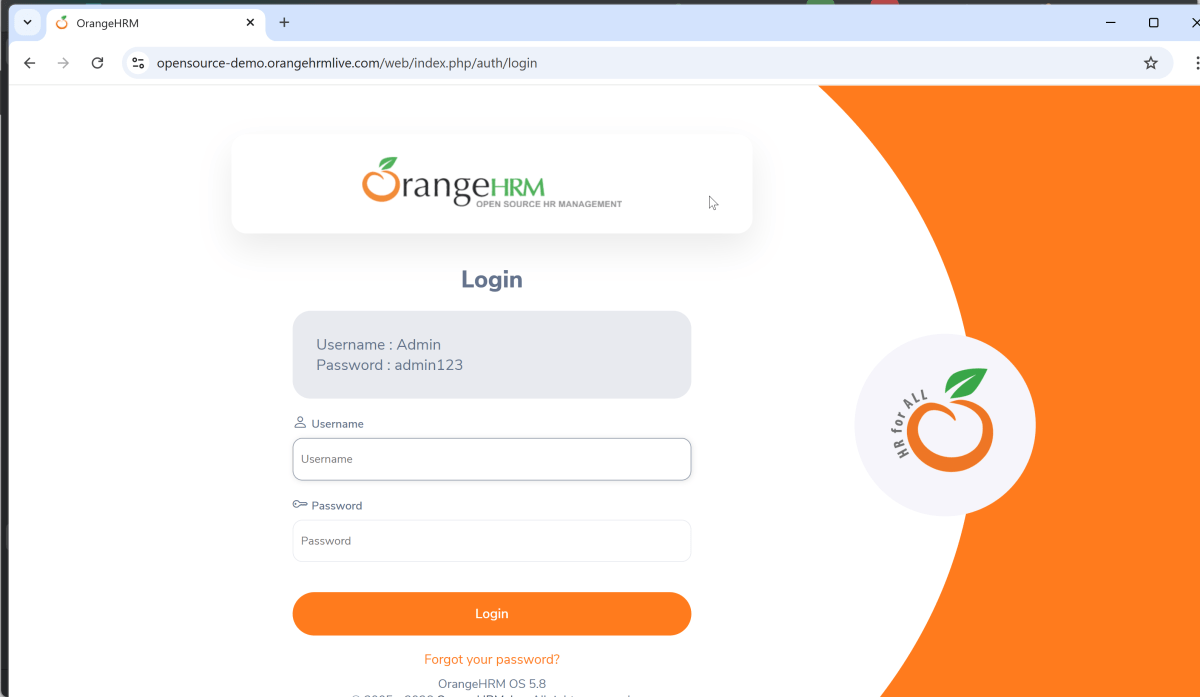
The test execution in Playwright is very fast. Therefore, I have used the waitForTimeout() method to slow down the execution for 2 seconds. This allows for taking a print screen of the page. It opens the website as shown below.
Sending a JSON file as a payload from an external source using Playwright requires you to read the file from the local filesystem. You then include its contents in the HTTP request. In this tutorial, I will explain to pass a JSON file as a payload to the request. This is needed when the payload is static or there is minimal change in the request payload.
Node.js version 18 or higher and npm (comes with Node.js)
Windows 10+, macOS 12+, or Ubuntu 20.04+
Visual Studio for Code is already installed.
Playwright is already installed
Below is the sample JSON payload used in the request.
Here’s how you can handle them in Playwright:
1. Setup Your Playwright Testing Environment:
Verify that the Playwright installed in your project. If you haven’t yet installed it, you can use:
npm install playwright
2. Update playwright.config.ts
Playwright Test comes with a few built-in reporters for different needs and ability to provide custom reporters. We will add detail in playwright.config.ts to generate the html report, once the test execution is finished.
First, ensure your JSON file is well-structured and readable.
import { test, expect } from '@playwright/test';
const fs = require('fs');

test('Send JSON file as payload', async ({ request }) => {

  try {
    // Read and parse JSON file directly into a JavaScript object
    const jsonPayload = JSON.parse(fs.readFileSync('tests/payloads/jsonpayload.json', 'utf8'));

    console.log('JSON data parsed successfully:', jsonPayload);

    // Perform a POST request
    const postResponse = await request.post('https://jsonplaceholder.typicode.com/users', {
      headers: {
        'Content-Type': 'application/json'
      },
      data: JSON.stringify(jsonPayload)
    });

    // Check the response status code - expecting 201 if the resource creation is successful
    expect(postResponse.status()).toBe(201);

    // Parse the response data
    const postResponseBody = await postResponse.json();
    console.log('RESPONSE:', postResponseBody);

    // Validate the response properties - adapt as needed
    expect(postResponseBody).toHaveProperty('title', 'Architect');
    expect(postResponseBody).toHaveProperty('body', 'DW-BI');
    expect(postResponseBody).toHaveProperty('userId', 5);

  } catch (error) {
    if (error instanceof Error) {
      console.error('Error message:', error.message);
    } else {
      console.error('An unknown error occurred:', error);
    }
  }
});
Explanation:
1. Imports
This line imports the testand expectfunctions from Playwright’s testing library. These functions provide a structure for writing tests and asserting conditions within them.
import { test, expect } from '@playwright/test';
2. Test Definition
This defines an asynchronous test case named “Send JSON file as payload”. The test receives a request object as a parameter, which is used to perform HTTP requests.
test('Send JSON file as payload', async ({ request })
3. Read the JSON File
First, you need to read the JSON file into your script. This is typically done using the `fs` module in Node.js.
const fs = require('fs');
4. Read and Parse JSON File
The script attempts to read a JSON file located at ‘tests/payloads/jsonpayload.json’ using fs.readFileSync.
The JSON content is parsed into a JavaScript object using JSON.parse.
// Read and parse JSON file directly into a JavaScript object
const jsonPayload = JSON.parse(fs.readFileSync('tests/payloads/jsonpayload.json', 'utf8'));

console.log('JSON data parsed successfully:', jsonPayload);
5. Performing a POST Request
Sends a POST request to the specified URL. The headers include ‘Content-Type’: ‘application/json’, denoting the request body data format. The request body is the stringified version of the JSON payload.
 // Perform a POST request
    const postResponse = await request.post('https://jsonplaceholder.typicode.com/users', {
      headers: {
        'Content-Type': 'application/json'
      },
      data: JSON.stringify(jsonPayload)
    });
6. Checking the Response Status Code
Retrieve HTTP status code for response validation.
expect(postResponse.status()).toBe(201);
7. Parsing the Response Data
Parse response data into JSON format
// Parse the response data
const postResponseBody = await postResponse.json();
8. Logging the Response
This outputs the response body to the console, allowing you to see the returned JSON data.
console.log(postResponseBody);
9. Perform assertions on the response
The assertions verify that the response contains expected data. expect assertions validate certain properties in the response
The property `title` should be ‘Architect’.
The property `body` should be ‘DW-BI’.
The property `userId` should be 5.
// Validate the response properties - adapt as needed
expect(postResponseBody).toHaveProperty('title', 'Architect');
expect(postResponseBody).toHaveProperty('body', 'DW-BI');
expect(postResponseBody).toHaveProperty('userId', 5);
10. Error Handling
There’s a `try-catch` block capturing errors during file reading, request making, and response handling. The `catch` block checks if the error is an instance of `Error` to log its message.
4. Execute the tests through Test Explorer View
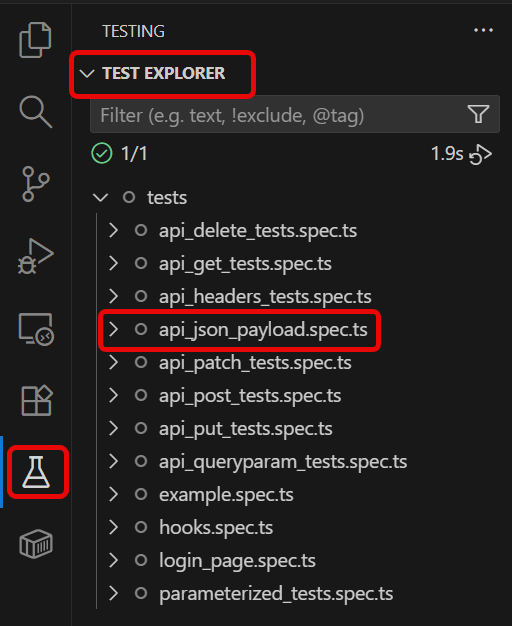
Go to the funnel shape icon called “Testing” or “Test Explorer View”. You can run the tests from the test Explorer view too now. You can run all of the tests in all of the test specs in this directory.
You can also come in and run all of the tests in a particular specification file. Alternatively, run individual tests within a specification file. Here, I want to run the tests of api_json_payload_tests.spec.ts file.
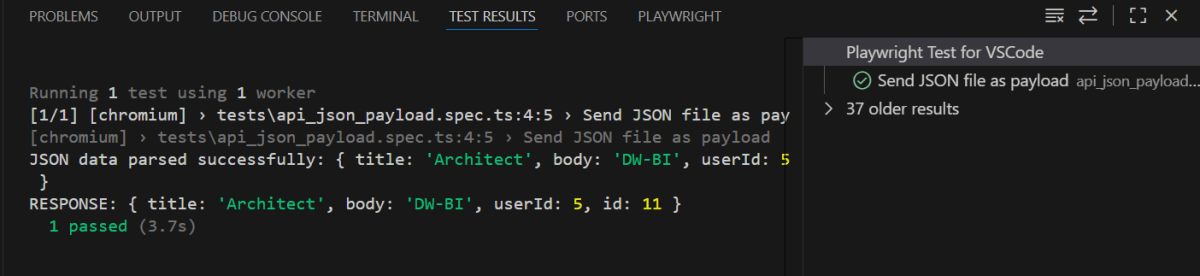
The output of the above program is
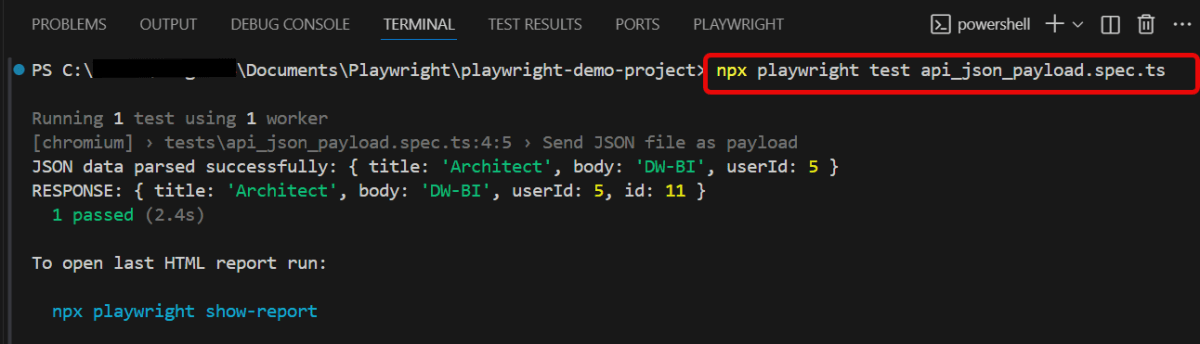
5. Execute the tests through Command Line
You can also run the tests through the command line. Go to the terminal and use the below command:-
npx playwright test api_json_payload.spec.ts
This command runs all the tests present in this file.
6. Evaluate Test Results
Analyze console outputs and assertions to validate the response data, ensuring that your API endpoints are functioning as designed.
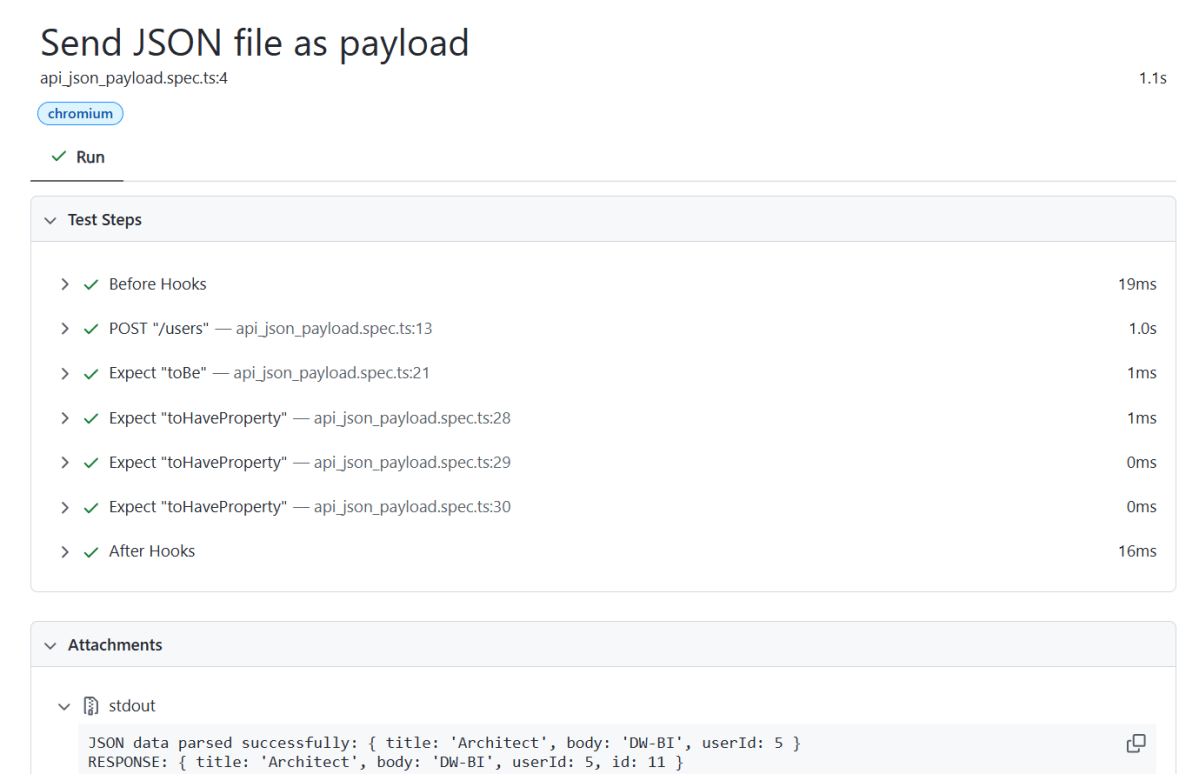
Playwright generates a test report after the execution of the tests. This test report can be viewed by using the below command:
npx playwright show-report
The output of the above command is
The Index.html report is shown below:
Summary:
File Paths: The file paths are correctly specified relative to the execution directory or use absolute paths. Content-Type Headers: The `Content-Type` header should match the format of the data being sent (`application/json` for JSON). Network Configuration: The target endpoint should support POST requests and accept data in the given formats.
Query parameters are a way to pass information to an API flexibly and simply. They are added to the end of the API endpoint URL as a series of key-value pairs. To append query params to the end of a URL, a ‘?’ Is added followed immediately by a query parameter.
Handling HTTP query parameters in Playwright typically involves setting up your request with the desired parameters before navigating to a URL. Playwright provides methods to easily construct and use URLs with query parameters.
Verify that the Playwright installed in your project. If you haven’t yet installed it, you can use:
npm install playwright
2. Update playwright.config.ts
Playwright Test comes with a few built-in reporters for different needs and ability to provide custom reporters. We will add detail in playwright.config.ts to generate the html report, once the test execution is finished.
You can construct a URL using Node.js’s `URL` API, where you append your query parameters to a base URL.
// Define a type for the expected structure of a comment
type Comment = {
  postId: number;
  id: number;
  name: string;
  email: string;
  body: string;
};

import { test, expect } from '@playwright/test';

test('API Testing - Query Params with Playwright', async ({ request }) => {
  const queryParams = new URLSearchParams({ postId: '1' });

  // Perform a GET request
  const response = await request.get(`https://jsonplaceholder.typicode.com/comments?${queryParams.toString()}`);

  // Check the response status code
  expect(response.status()).toBe(200);

  // Parse the response data
  const responseBody = await response.json();
  console.log(responseBody);

  // Assertions based on expected response
  const postIds = responseBody.map((item: Comment) => item.postId);
  console.log(postIds);

  // Assert that every postId in the response is '1'
  expect([...new Set(postIds)]).toEqual([1]);

  // Extract IDs from the response body
  const ids = responseBody.map((item: Comment) => item.id);
  console.log(ids);

  // Expected IDs to assert against
  const expectedIds = [1, 2, 3, 4, 5];

  // Assert that the IDs are as expected
  expect(ids).toEqual(expectedIds);
});
Explanation:
1. Type Definition
A TypeScript type Comment is defined to specify the structure of the expected response object. This includes properties like postId, id, name, email, and body.
This line imports the testand expectfunctions from Playwright’s testing library. These functions provide a structure for writing tests and asserting conditions within them.
import { test, expect } from '@playwright/test';
3. Test Definition
This defines an asynchronous test case named “Query Params with Playwright”. The test receives a `request` object as a parameter, which is used to perform HTTP requests.
Retrieve HTTP status code for response validation.
expect(response.status()).toBe(200);
7. Parsing the Response Data
Parse response data into JSON format
const responseBody = await response.json();
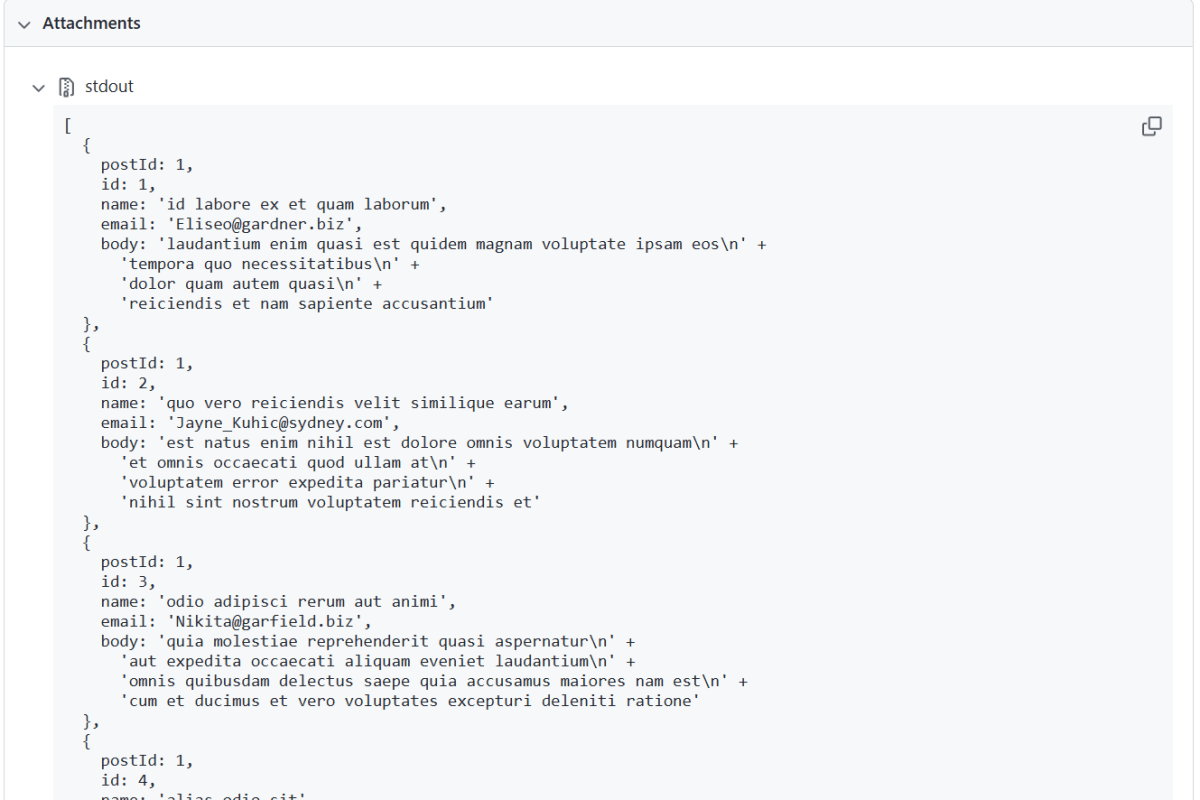
8. Logging the Response
This outputs the response body to the console, allowing you to see the returned JSON data.
console.log(responseBody);
9. Perform assertions on the response
The assertions verify that the response contains expected data.
The code extracts and logs postIds from each item in the `responseBody`.
An assertion ensures all postId‘s in the response are 1, corresponding to the query parameter used
Similarly, idsare extracted, logged, and compared against a predefined list of expected IDs [1, 2, 3, 4, 5].
An assertion checks that the `ids` match the expected IDs. This ensures that the response is consistent with the anticipated results when querying with postId=1
// Assertions based on expected response
  const postIds = responseBody.map((item: Comment) => item.postId);
  console.log(postIds);

  // Assert that every postId in the response is '1'
  expect([...new Set(postIds)]).toEqual([1]);

  // Extract IDs from the response body
  const ids = responseBody.map((item: Comment) => item.id);
  console.log(ids);

  // Expected IDs to assert against
  const expectedIds = [1, 2, 3, 4, 5];

  // Assert that the IDs are as expected
  expect(ids).toEqual(expectedIds);
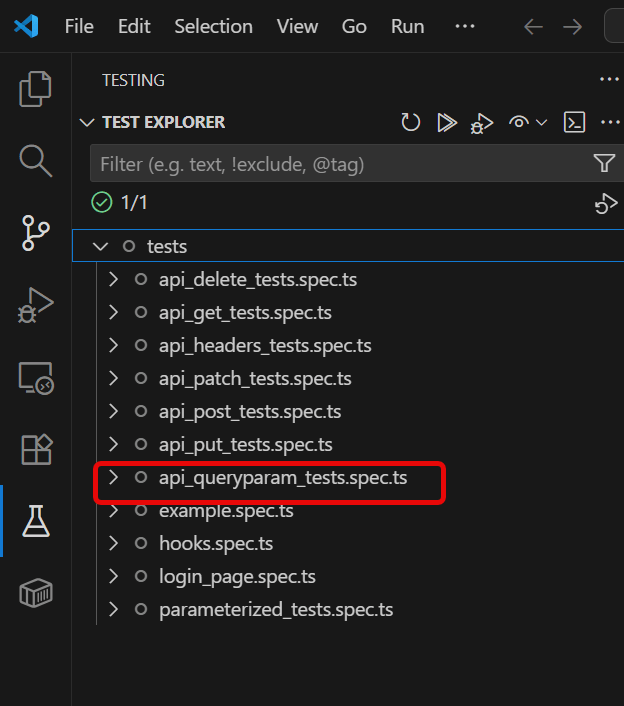
4. Execute the tests through Test Explorer View
Go to the funnel shape icon called “Testing” or “Test Explorer View”. You can run the tests from the test Explorer view too now. You can run all of the tests in all of the test specs in this directory.
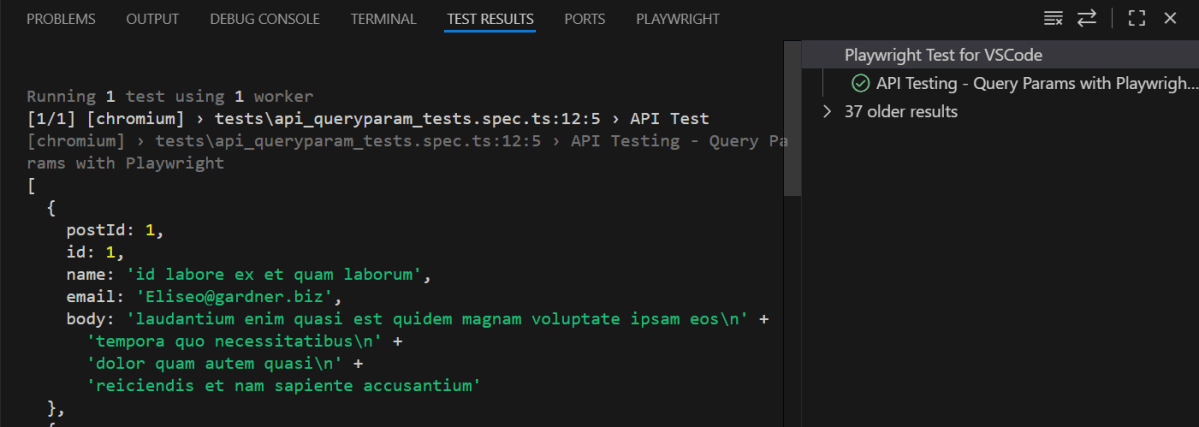
You can also come in and run all of the tests in a particular specification file. Alternatively, run individual tests within a specification file. Here, I want to run the tests of api_queryparam_tests.spec.ts file.
The output of the above program is
5. Execute the tests through Command Line
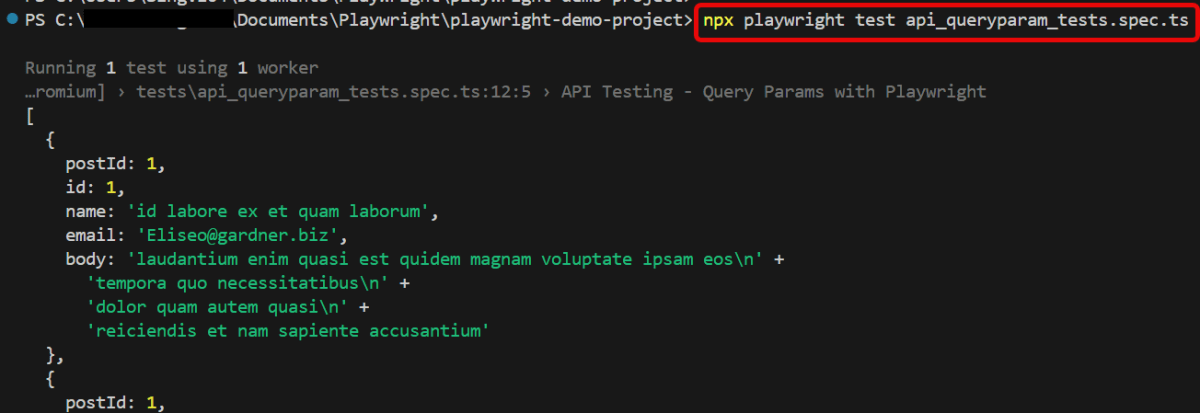
You can also run the tests through the command line. Go to the terminal and use the below command:-
npx playwright test api_queryparam_tests.spec.ts
This command runs all the tests present in this file.
6. Evaluate Test Results
Analyze console outputs and assertions to validate the response data, ensuring that your API endpoints are functioning as designed.
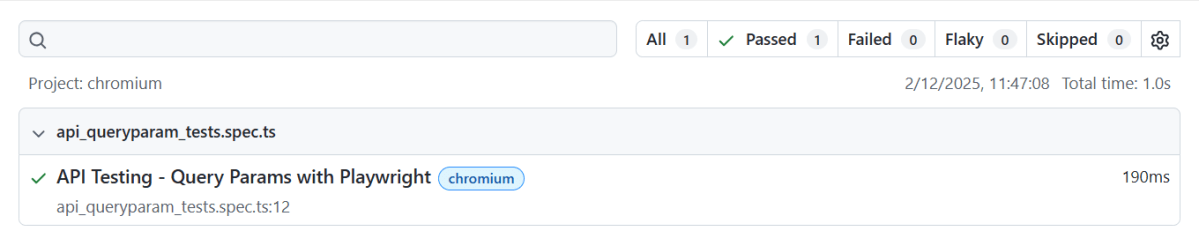
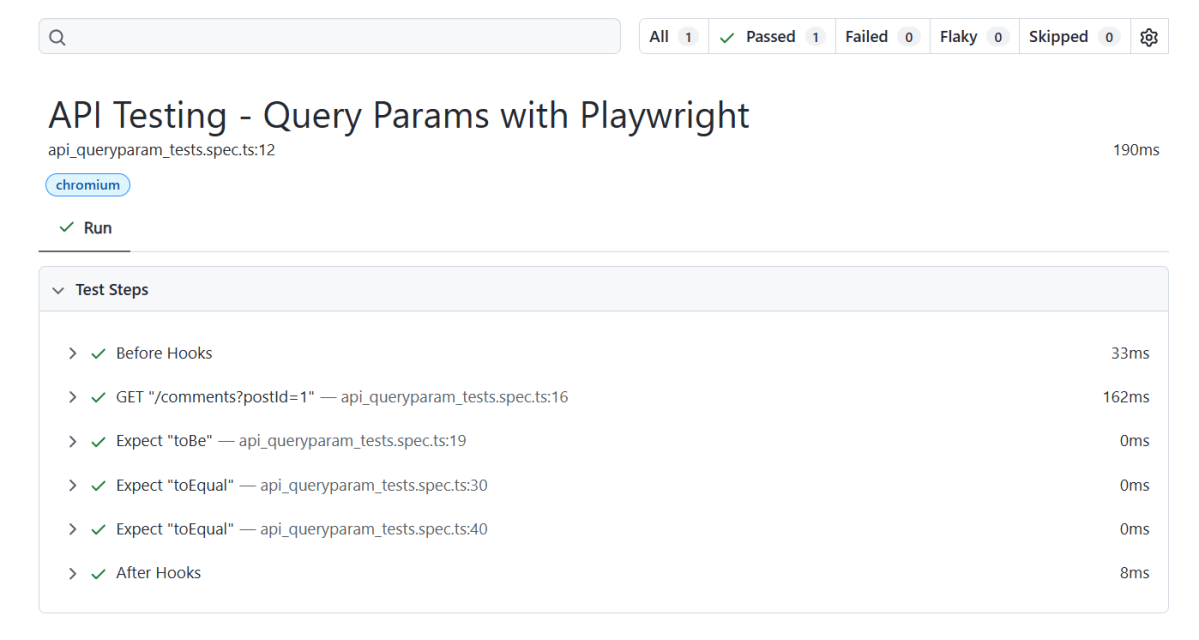
Playwright generates a test report after the execution of the tests. This test report can be viewed by using the below command:
npx playwright show-report
The output of the above command is
Below is an example of Index.html Report generated by Playwright.
A DELETE request is an HTTP method used in web development to remove a specific resource from a server. Upon a successful deletion, the server will respond with a status code like 200 OK or 204 No Content.
System Requirement
Node.js version 18 or higher and npm (comes with Node.js)
Windows 10+, macOS 12+, or Ubuntu 20.04+
Visual Studio for Code is already installed.
Playwright is already installed
3.1 Setup Your Playwright Testing Environment:
Verify that the Playwright installed in your project. If you haven’t yet installed it, you can use:
npm install playwright
3.2 Update playwright.config.ts
Playwright Test comes with a few built-in reporters for different needs and ability to provide custom reporters. We will add detail in playwright.config.ts to generate the html report, once the test execution is finished.
Here’s an example script demonstrating API testing for DELETE operation using Playwright:
import { test, expect } from '@playwright/test';

 test('API Testing - DELETE with Playwright', async ({ request }) => {

// Perform a DELETE request
const response = await request.delete('https://jsonplaceholder.typicode.com/posts/1');

     // Check the response status code
     expect(response.status()).toBe(200);

      // Parse the response data
     const responseBody = await response.json();
     console.log(responseBody);

   });
Explanation:
1. Imports
This line imports the test and expect functions from Playwright’s testing library. These functions provide a structure for writing tests and asserting conditions within them.
import { test, expect } from '@playwright/test';
2. Test Definition
This defines an asynchronous test case named “API Testing – DELETE with Playwright”. The test receives a requestobject as a parameter, which is used to perform HTTP requests.
Retrieve HTTP status code for response validation.
expect(response.status()).toBe(200);
5. Parsing the Response Data
Parse response data into JSON format
const responseBody = await response.json();
6. Logging the Response
This outputs the response body to the console, allowing you to see the returned JSON data.
console.log(responseBody);
3.4 Execute the tests through Test Explorer View
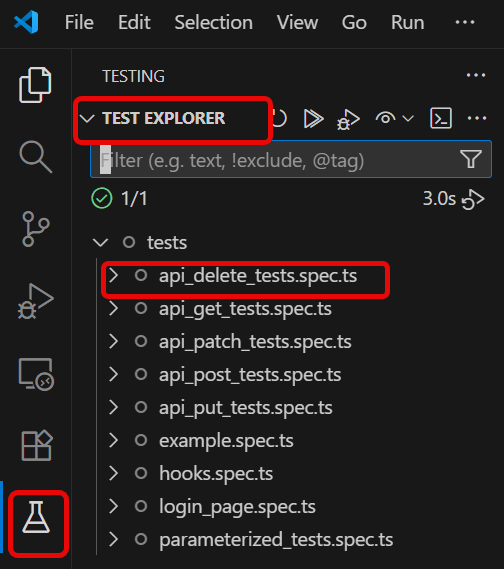
Go to the funnel shape icon called “Testing” or “Test Explorer View”. You can run the tests from the test Explorer view too now. You can run all of the tests in all of the test specs in this directory.
You can also come in and run all of the tests in a particular specification file. Alternatively, run individual tests within a specification file. Here, I want to run the tests of api_delete_tests.spec.ts file.
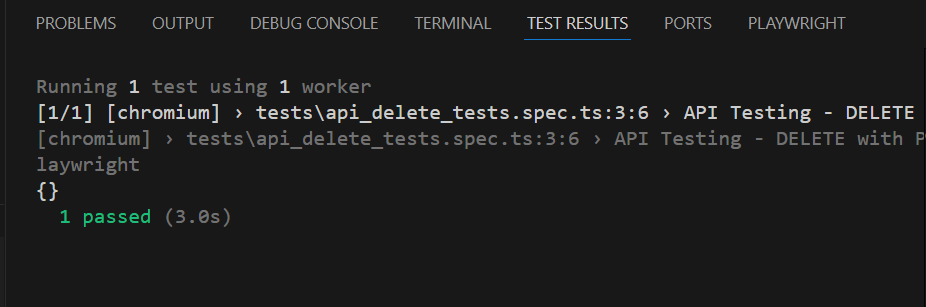
The output of the above program is
3.5 Execute the tests through Command Line
You can also run the tests through the command line. Go to the terminal and use the below command:-
npx playwright test api_delete_tests.spec.ts
This command runs all the tests present in this file.
3.6 Evaluate Test Results
Analyze console outputs and assertions to validate the response data, ensuring that your API endpoints are functioning as designed.
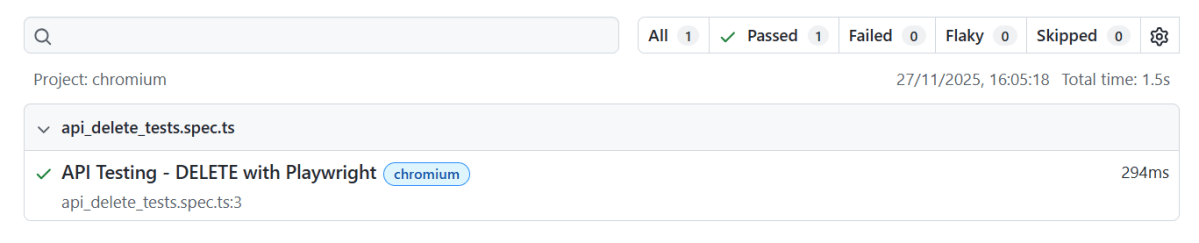
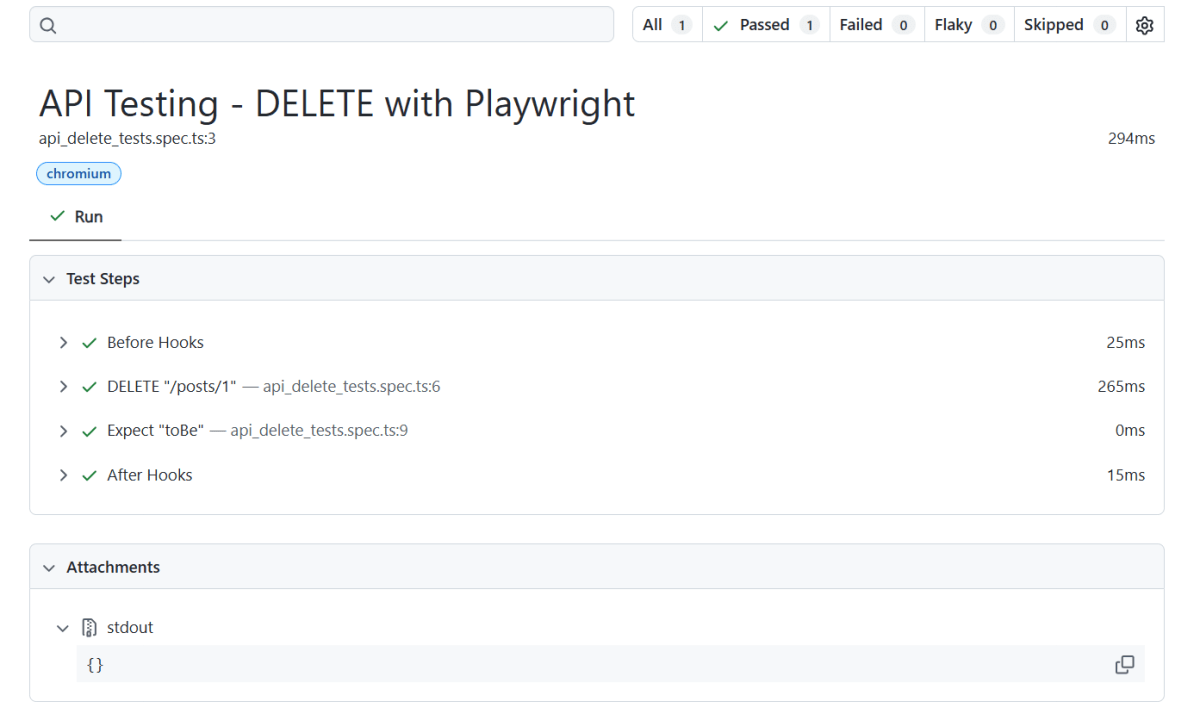
Playwright generates a test report after the execution of the tests. This test report can be viewed by using the below command:
Node.js version 18 or higher and npm (comes with Node.js)
Windows 10+, macOS 12+, or Ubuntu 20.04+
Visual Studio for Code is already installed.
Playwright is already installed
What is PATCH Request?
A PATCH request is an HTTP method used in RESTful APIs to apply partial modifications to a resource. Unlike other methods that may require a complete representation of the resource, PATCH allows for updating only specific parts of the data.
1. Setup Your Playwright Testing Environment:
Verify that the Playwright installed in your project. If you haven’t yet installed it, you can use:
npm install playwright
2. Update playwright.config.ts
Playwright Test comes with a few built-in reporters for different needs and ability to provide custom reporters. We will add detail in playwright.config.ts to generate the html report, once the test execution is finished.
Here’s an example script demonstrating API testing for PATCH operation using Playwright:
import { test, expect } from '@playwright/test';

test('API Testing - PATCH with Playwright', async ({ request }) => {

const response = await request.get('https://jsonplaceholder.typicode.com/posts/1');

    // Check the response status code
    expect(response.status()).toBe(200);

    // Parse the response data
    const responseBody = await response.json();
    console.log(responseBody);


     // Perform a PATCH request
     const patchResponse = await request.patch('https://jsonplaceholder.typicode.com/posts/1', {
       data: {
         title: 'Manager'
       }
     });

    // Check the response status code
    expect(patchResponse.status()).toBe(200);

    // Parse the response data
    const patchResponseBody = await patchResponse.json();
    console.log(patchResponseBody);

    // Validate the response
    expect(patchResponseBody).toHaveProperty('title', 'Manager');

   });
Explanation:
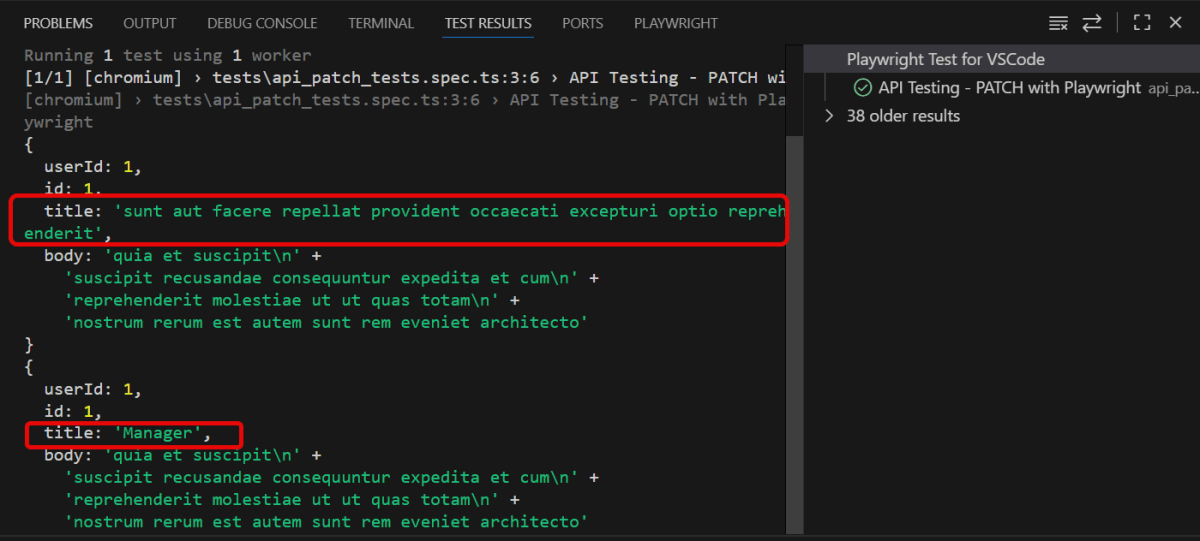
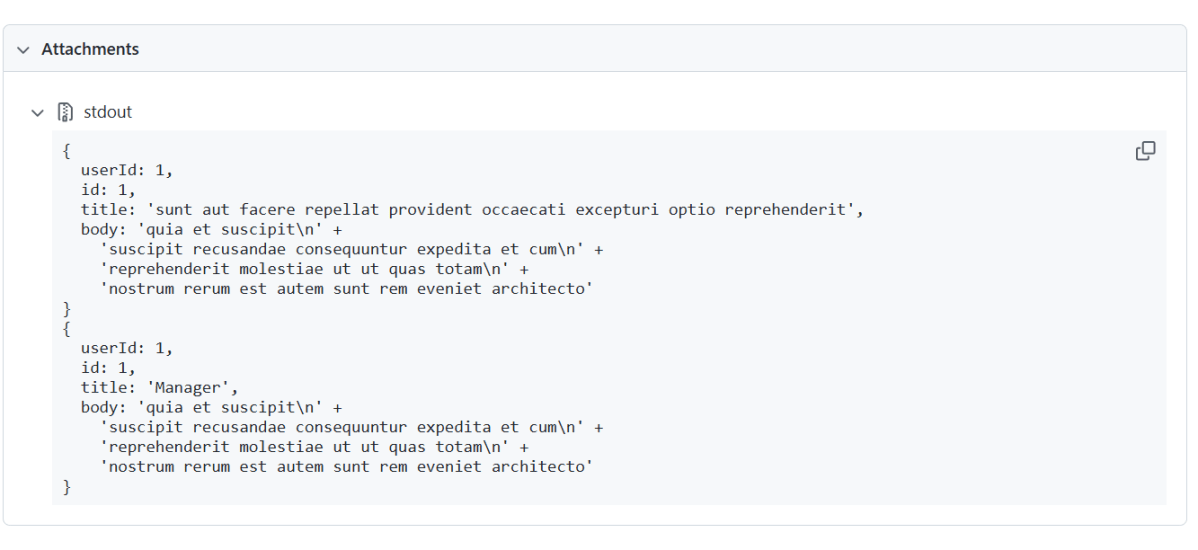
In the above example, first I have sent a GET request to see the body structure of the response. Then I sent a PATCH request to see the changes in the response body.
1. Imports
This line imports the `test` and `expect` functions from the Playwright testing module. They provide a structure for creating tests and validating outcomes.
import { test, expect } from '@playwright/test';
2. Test Definition
This defines a test case named “API Testing – PATCH with Playwright” using an asynchronous function. The requestparameter allows you to perform HTTP operations like GET, PATCH, etc.
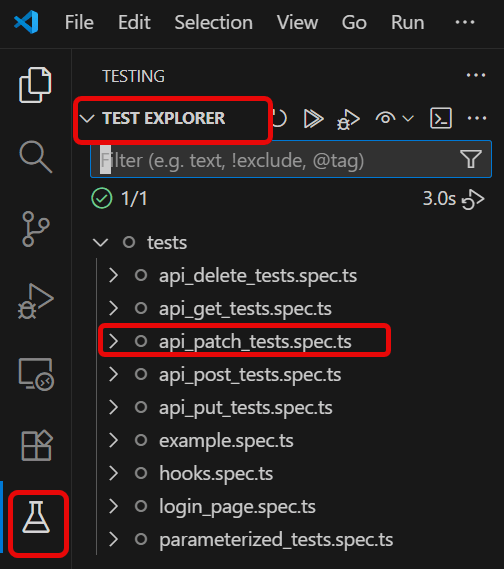
Go to the funnel shape icon called “Testing” or “Test Explorer View”. You can run the tests from the test Explorer view too now. You can run all of the tests in all of the test specs in this directory.
You can also come in and run all of the tests in a particular specification file. Alternatively, run individual tests within a specification file. Here, I want to run the tests of api_patch_tests.spec.ts file.
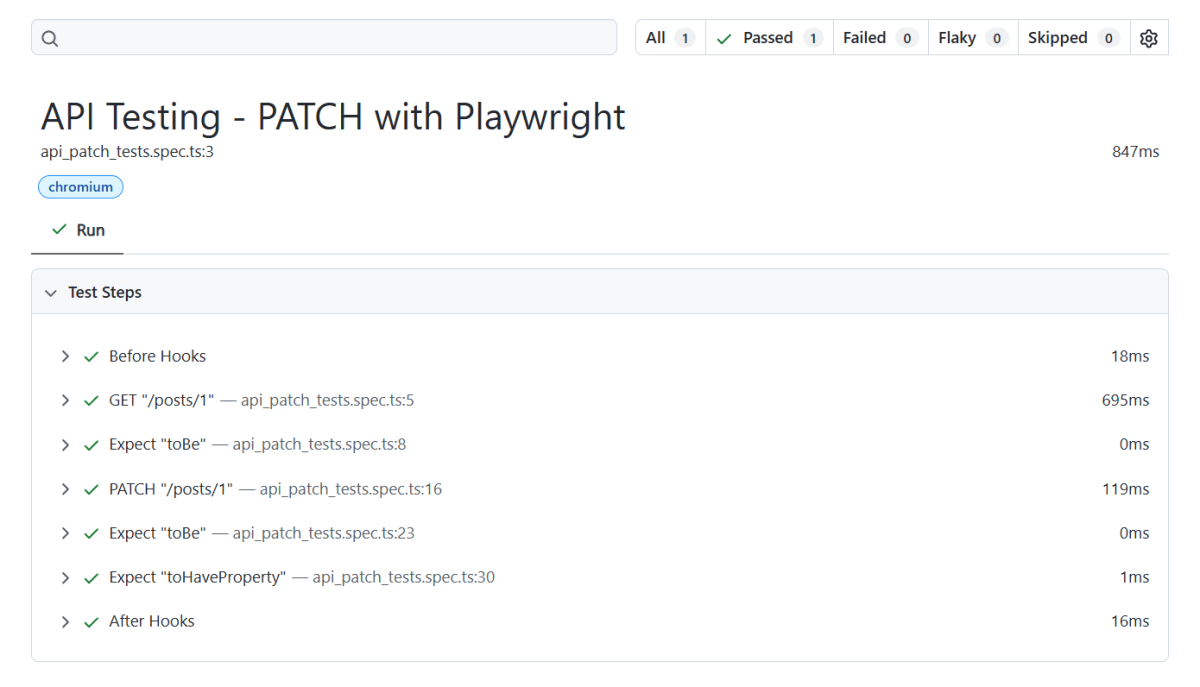
The output of the above program is
5. Execute the tests through Command Line
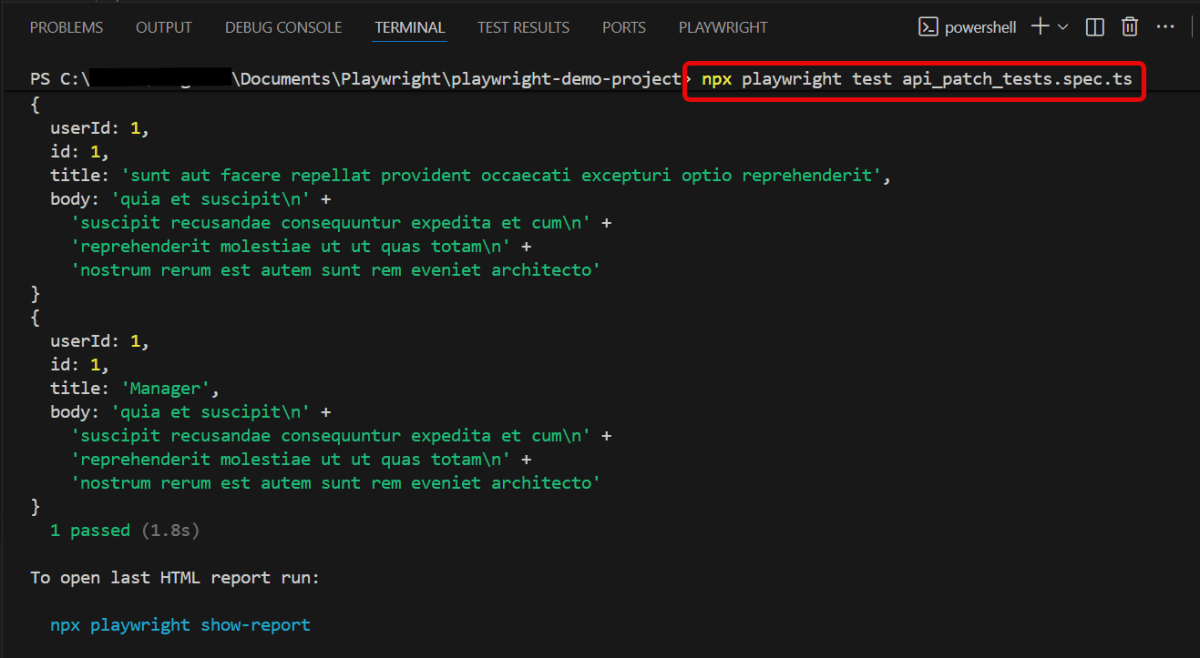
You can also run the tests through the command line. Go to the terminal and use the below command:-
npx playwright test api_patch_tests.spec.ts
This command runs all the tests present in this file.
6. Evaluate Test Results
Analyze console outputs and assertions to validate the response data, ensuring that your API endpoints are functioning as designed.
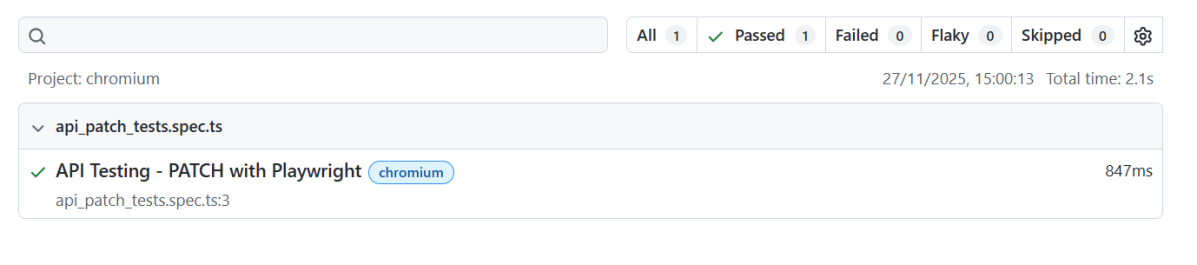
Playwright generates a test report after the execution of the tests. This test report can be viewed by using the below command:
Playwright’s snapshot assertions are an incredibly powerful tool. They ensure your app’s UI remains consistent across code changes. This applies to different browsers and devices. This allows developers to ensure that the UI remains consistent across changes and helps detect unintended changes.
Node.js version 18 or higher and npm (comes with Node.js)
Windows 10+, macOS 12+, or Ubuntu 20.04+
Visual Studio for Code is already installed.
Playwright is already installed
What is the use of Snapshot Testing?
The primary goal of snapshot testing is to automatically detect any visual discrepancies introduced by code modifications. This is particularly useful for components or pages where the visual layout is important and needs to be maintained accurately.
Advantages of Snapshot Testing
Regression Detection: Quickly detects unintended UI changes or regressions.
Efficiency: Offers efficient way to check UI consistency across various browsers and devices.
Reduces Manual UI Testing: Automates a part of the visual testing process. It often involves manual inspection. This automation saves time and reduces human error.
How Snapshot Testing works:
Capture: Playwright captures the current state of a web page or a specific element. It does this by taking a screenshot during the test execution.
Compare: The captured screenshot is compared against a previously stored “baseline” or “expected” snapshot.
Detect Changes: If any differences are found between the current and baseline screenshots, it’s flagged as a failed test. This indicates a visual change.
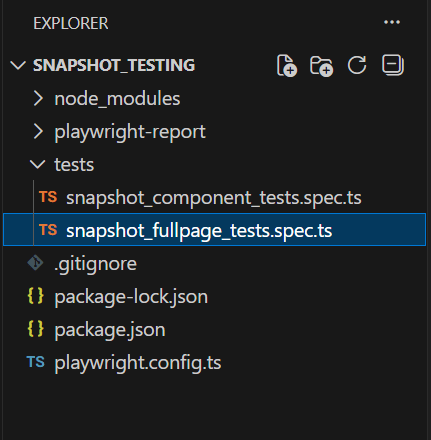
Project Structure
When should I use page snapshots?
Page snapshots are excellent for verifying the entire page works as expected. Use page snapshots to test layout, responsiveness, and accessibility. Page snapshots can be flaky. After all, if anything within the viewport changes, the entire snapshot will fail.
Below is an example of Snapshot testing of full page.
import { test, expect } from '@playwright/test';

test('snapshot test example', async ({ page }) => {

    // Navigate to the page you want to test
     await page.goto('https://playwright.dev/');

     // Capture a snapshot of the whole page
     const screenshot = await page.screenshot();

     // Compare the screenshot to a stored baseline snapshot
     expect(screenshot).toMatchSnapshot('login_page.png');

    });
Go to the command line and use the below command to run the test:
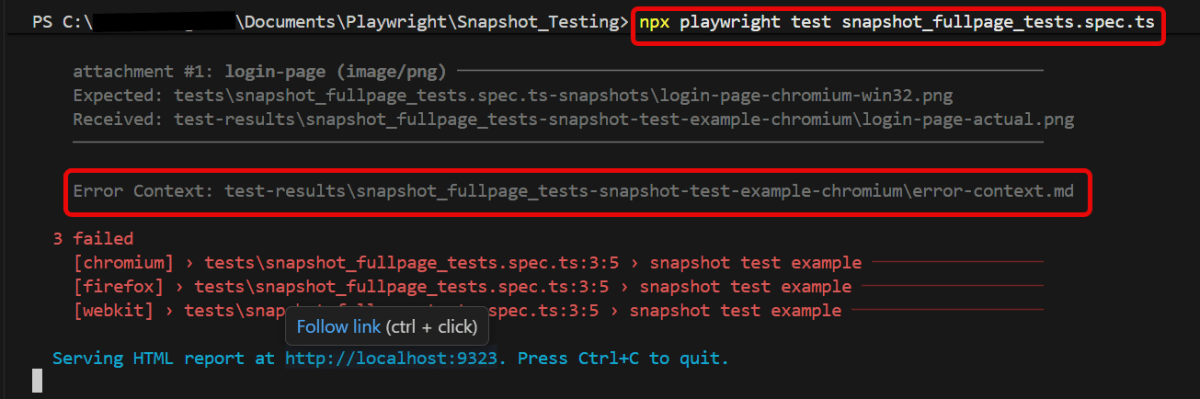
npx playwright test snapshot_fullpage_tests.spec.ts
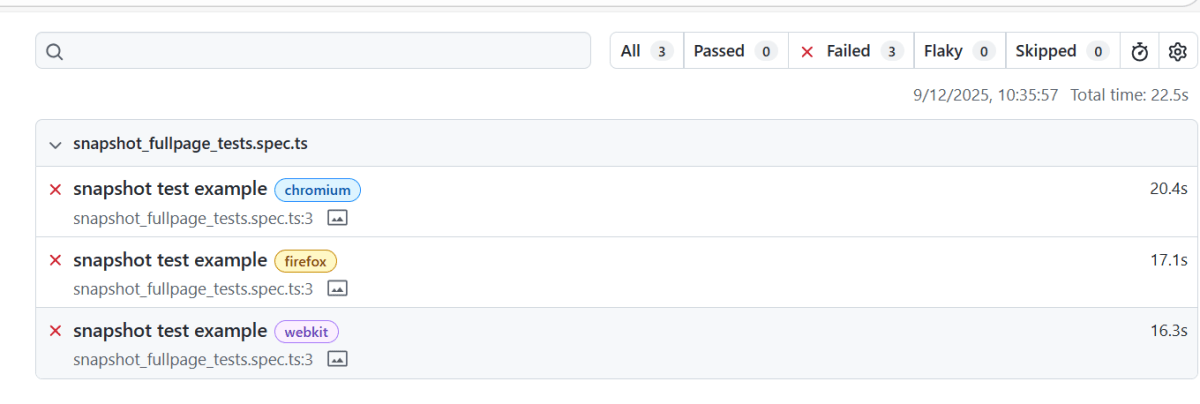
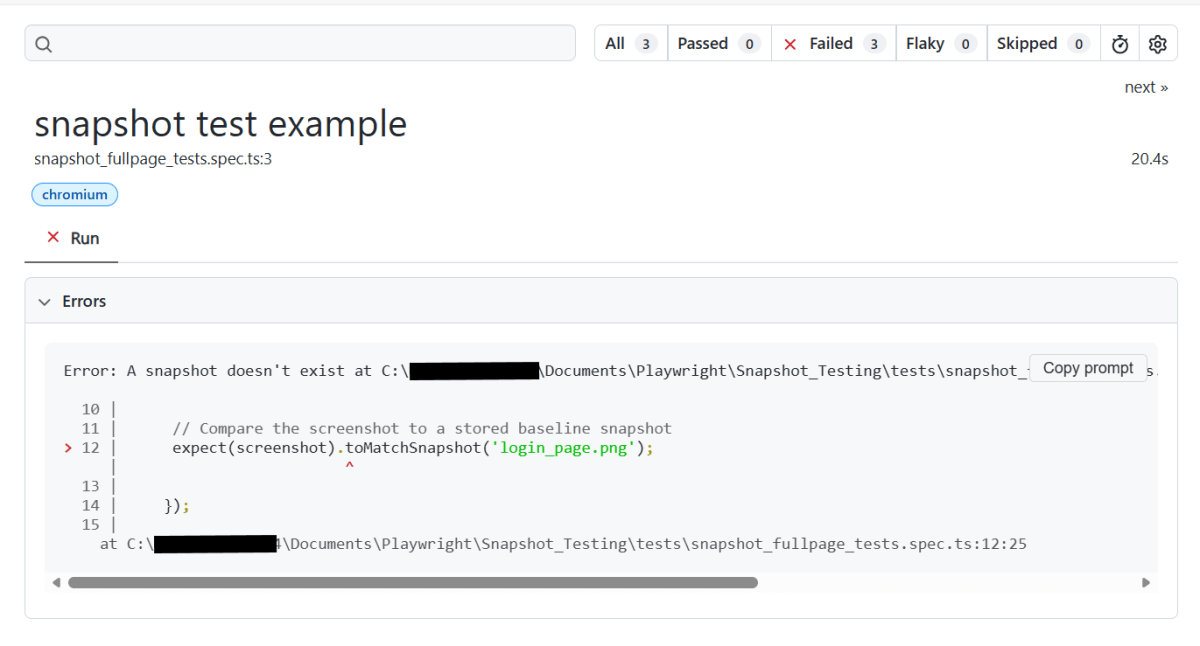
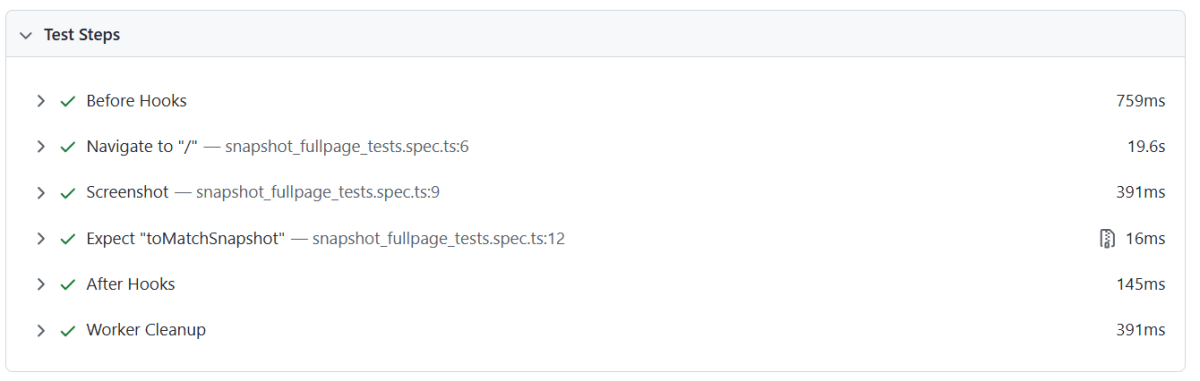
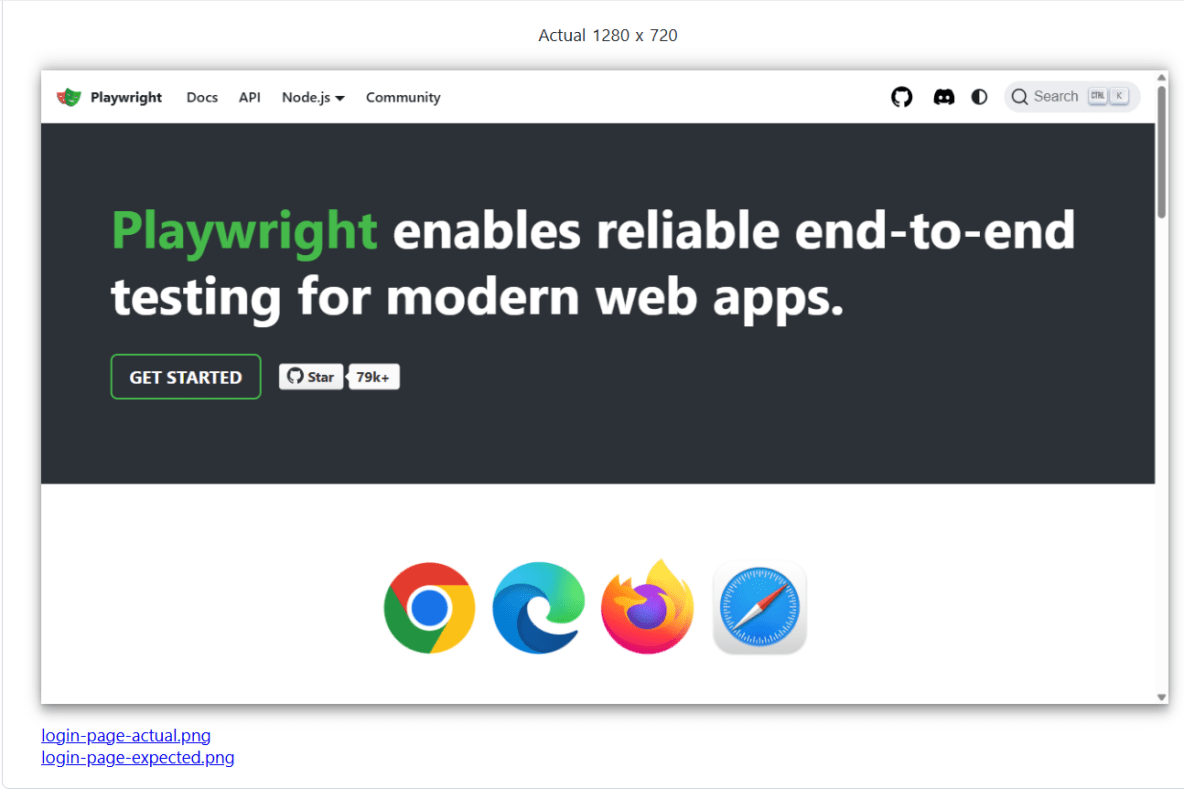
When we run the tests, all the tests will fail. The screenshot is then generated. This screenshot is used as a baseline for the future tests.
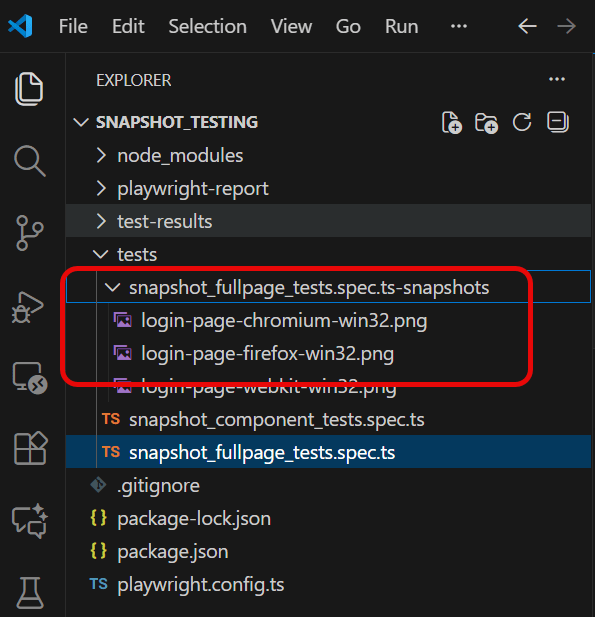
Go to the project. You will see a new folder in the tests directory. It contains the screenshots of the tests. Here, we are running 1 test on 3 different browsers, so 3 screenshots are generated.
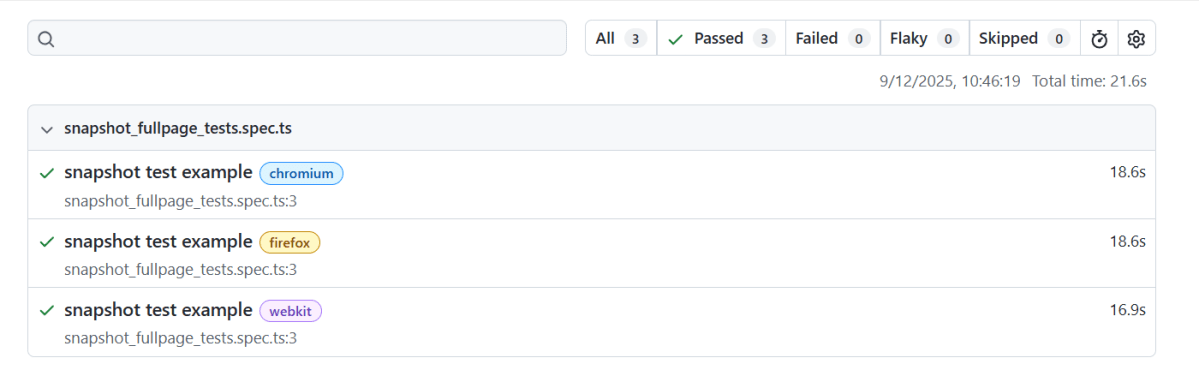
Playwright also generates Test Report – index.html.
Now, let us rerun the test. This time, the tests will pass, because we have a baseline to compare with the new screenshot.
The test report generated is shown below:
When should I use element snapshots?
Element snapshots, as you expect, focus exclusively on a single page element. This makes them an excellent choice for testing components in isolation, or for verifying an element behaves as expected within a certain context.
Element snapshots are substantially less brittle than page snapshots, but they require a bit more overhead to set up.
Here’s an example of an element snapshot:
import { test, expect } from '@playwright/test';

test('snapshot test example', async ({ page }) => {

    // Navigate to the page you want to test
    await page.goto('https://playwright.dev/');

    // Select the specific UI component using a locator method
    const component = await page.locator('//*[@id="__docusaurus_skipToContent_fallback"]/header/div/h1/span');

    // Capture a snapshot of a component in the page
    const screenshot = await component.screenshot();

    // Compare the screenshot to a stored baseline snapshot
    expect(screenshot).toMatchSnapshot('Title.png');

});
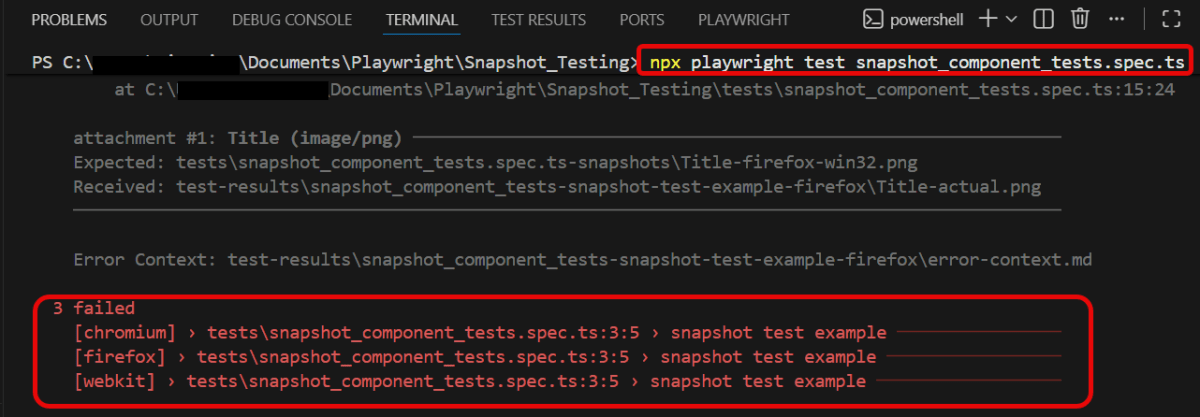
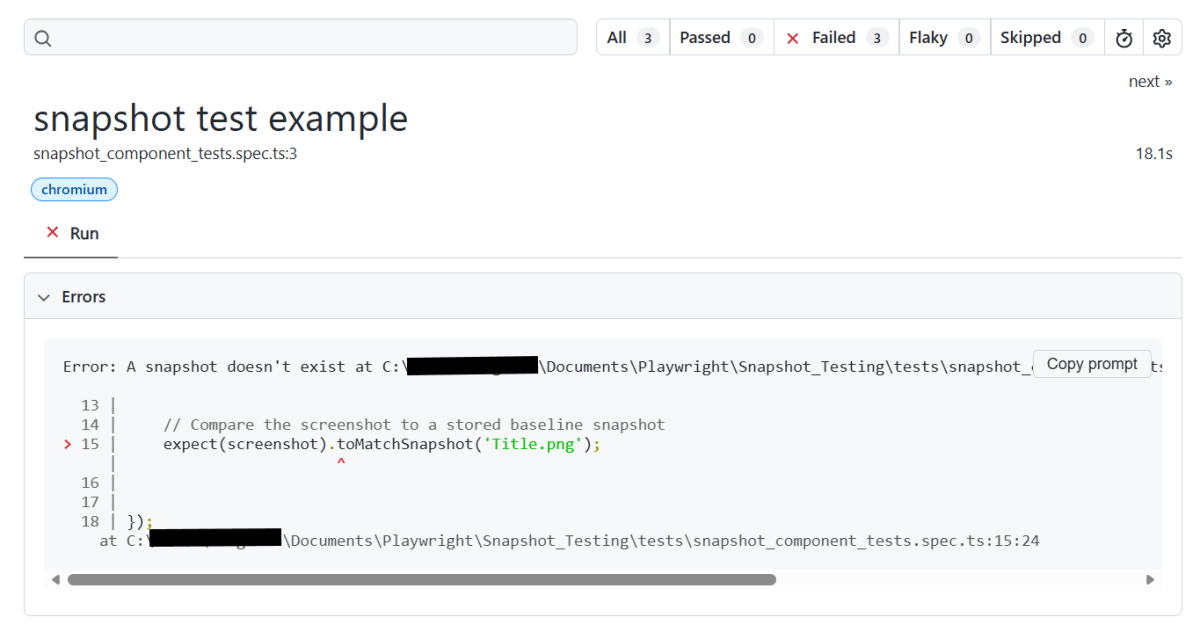
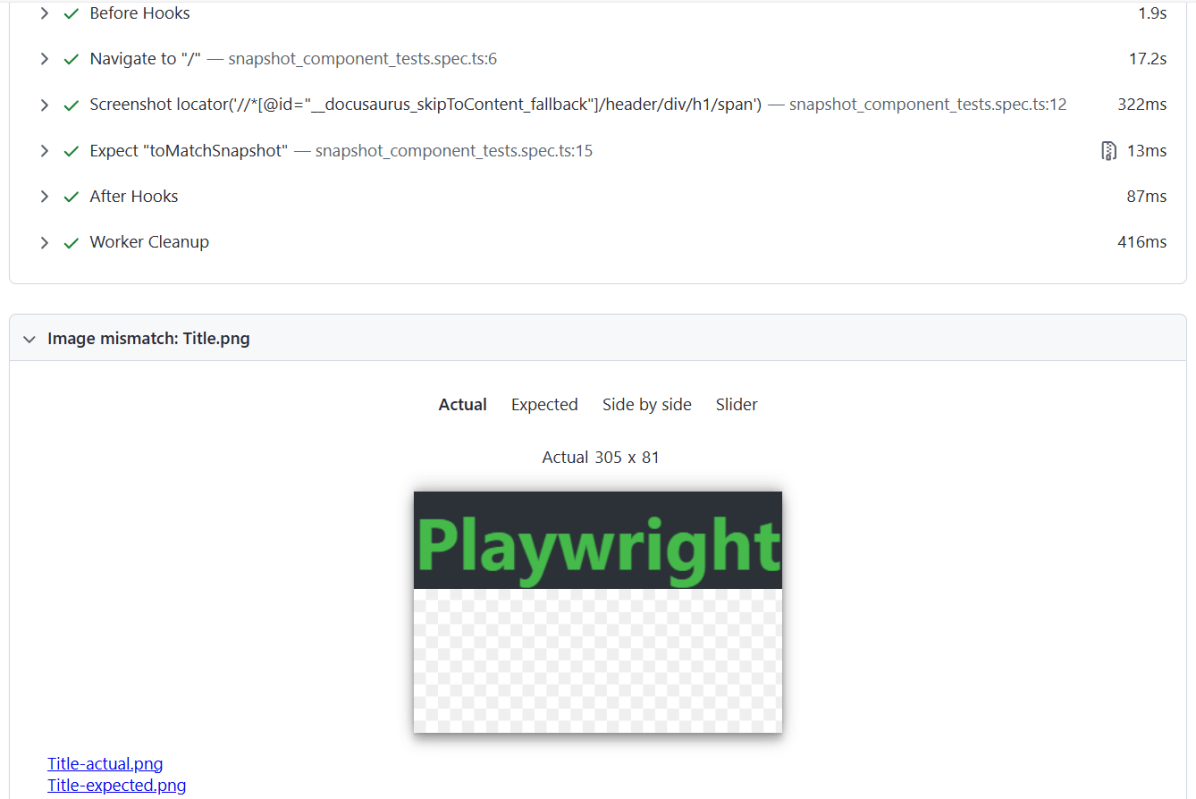
The output of the above program
Challenges
1. Dynamic Content: Handling pages with unpredictable dynamic content can result in false positives due to differences in dynamic data. 2. Storage: More snapshots mean increased storage requirements. 3. Maintenance: Baselines need to be updated when deliberate visual changes are made.
Below is the playwright.config.ts used in the project.
playwright.config.ts
import { defineConfig, devices } from '@playwright/test';

/**
 * See https://playwright.dev/docs/test-configuration.
 */
export default defineConfig({
  testDir: './tests',

 /* Run tests in files in parallel */
  fullyParallel: true,

 /* Reporter to use. See https://playwright.dev/docs/test-reporters */
  reporter: 'html',

 /* Shared settings for all the projects below. See https://playwright.dev/docs/api/class-testoptions. */
  use: {

    /* Collect trace when retrying the failed test. See https://playwright.dev/docs/trace-viewer */
    trace: 'on-first-retry'

  },

  /* Configure projects for major browsers */
  projects: [
    {
      name: 'chromium',
      use: { ...devices['Desktop Chrome'] },
    },

  ]

});
Below are the tests mentioned in login_page.spec.ts
login_page.spec.ts
import { test, expect } from '@playwright/test';

test('has title', async ({ page, browserName }) => {
  await page.goto('https://opensource-demo.orangehrmlive.com/');

  // Print the browser name
  console.log(`Running test on browser: ${browserName}`);

  // Expect a title "to contain" a substring.
  await expect(page).toHaveTitle(/OrangeHRM/);
});


test('valid login', async ({ page, browserName }) => {

  const username = 'Admin';
  const password = 'admin123'

  await page.goto('https://opensource-demo.orangehrmlive.com/');

  // Print the browser name
  console.log(`Running test on browser: ${browserName}`);

  // Fill in the username
  await page.fill('input[name="username"]', username);

  // Fill in the password
  await page.fill('input[name="password"]', password);

  // Click the login button - Use XPath to locate and click the login button
  const loginButton = await page.locator('//button[@type="submit" and contains(@class, "orangehrm-login-button")]').click();

  // Get the text content from the element
  const dashboardText = await page.locator('//h6[contains(@class, "oxd-topbar-header-breadcrumb-module")]').textContent();

  // Print the text
  console.log(`Dashboard text: ${dashboardText}`);

  expect(dashboardText).toContain('Dashboard');

});


test('invalid username', async ({ page, browserName }) => {

  const username = 'Admin123';
  const password = 'admin123'

  await page.goto('https://opensource-demo.orangehrmlive.com/');

  // Print the browser name
  console.log(`Running test on browser: ${browserName}`);

  // Fill in the username
  await page.fill('input[name="username"]', username);

  // Fill in the password
  await page.fill('input[name="password"]', password);

  // Click the login button - Use XPath to locate and click the login button
  const loginButton = await page.locator('//button[@type="submit" and contains(@class, "orangehrm-login-button")]').click();

  // Get the text content from the element
  const actualErrorMessage = await page.locator('//p[contains(@class, "oxd-alert-content-text") and text()="Invalid credentials"]').textContent();

  // Print the text
  console.log(`Dashboard text: ${actualErrorMessage}`);

  expect(actualErrorMessage).toContain('Invalid credentials');

});
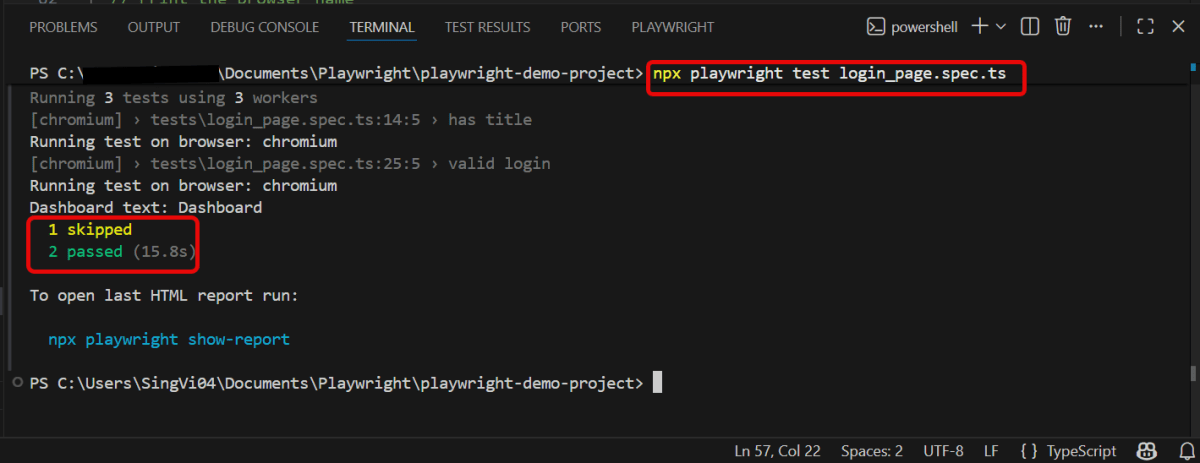
In the above playwright.config file, we have specified 1 browser – chromium.
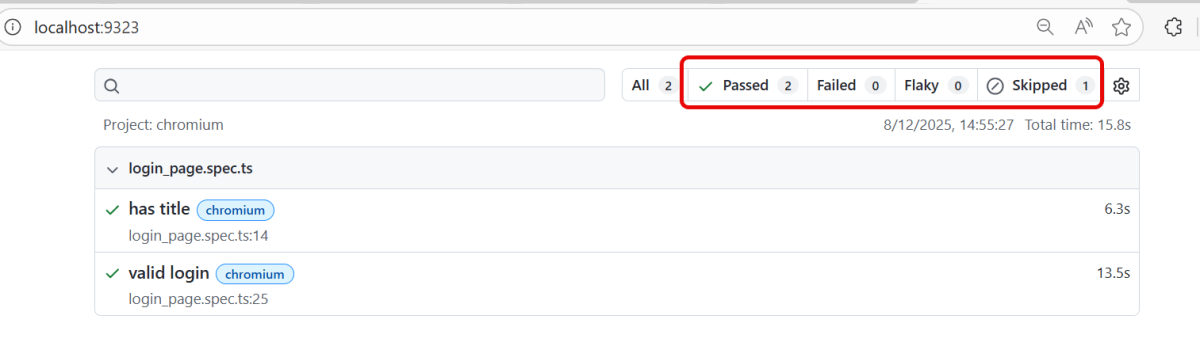
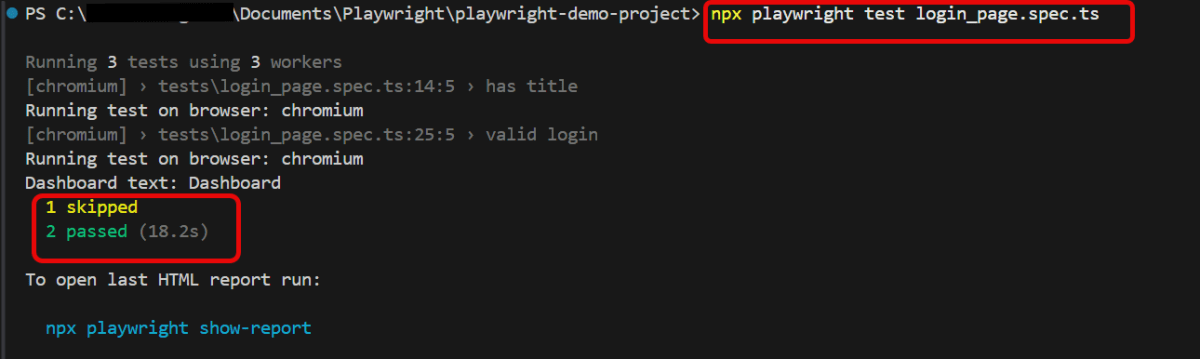
1. test.skip()
Playwright does not run such a test. Use this annotation when the test is not applicable in some configuration.
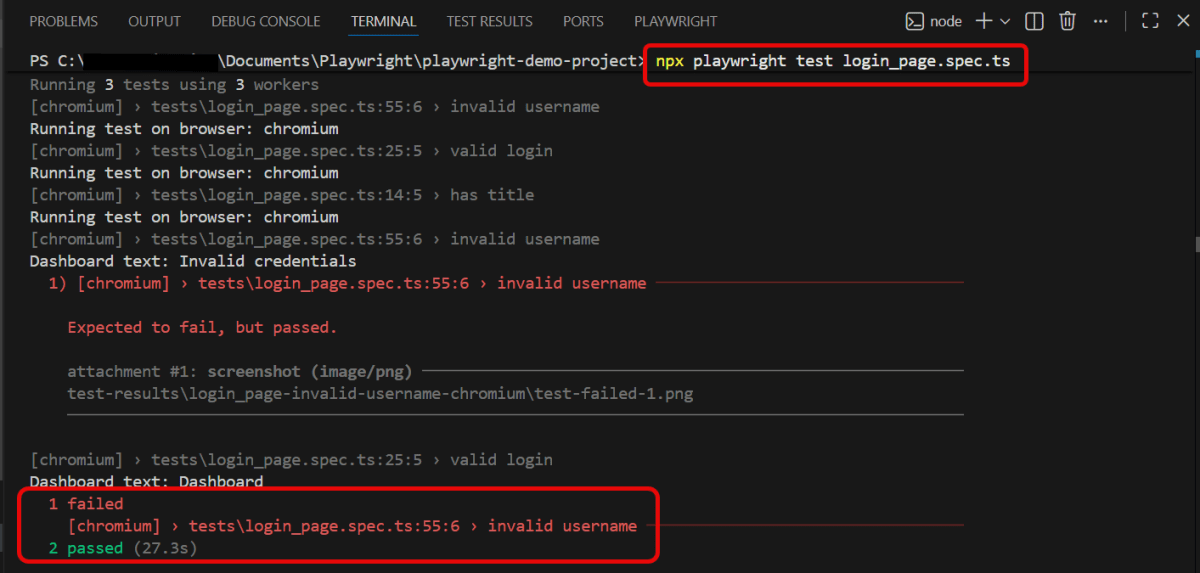
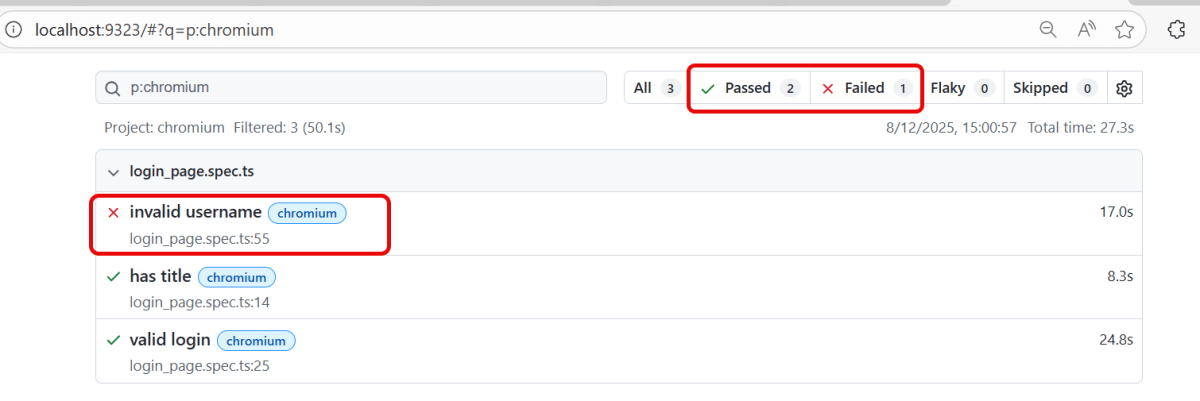
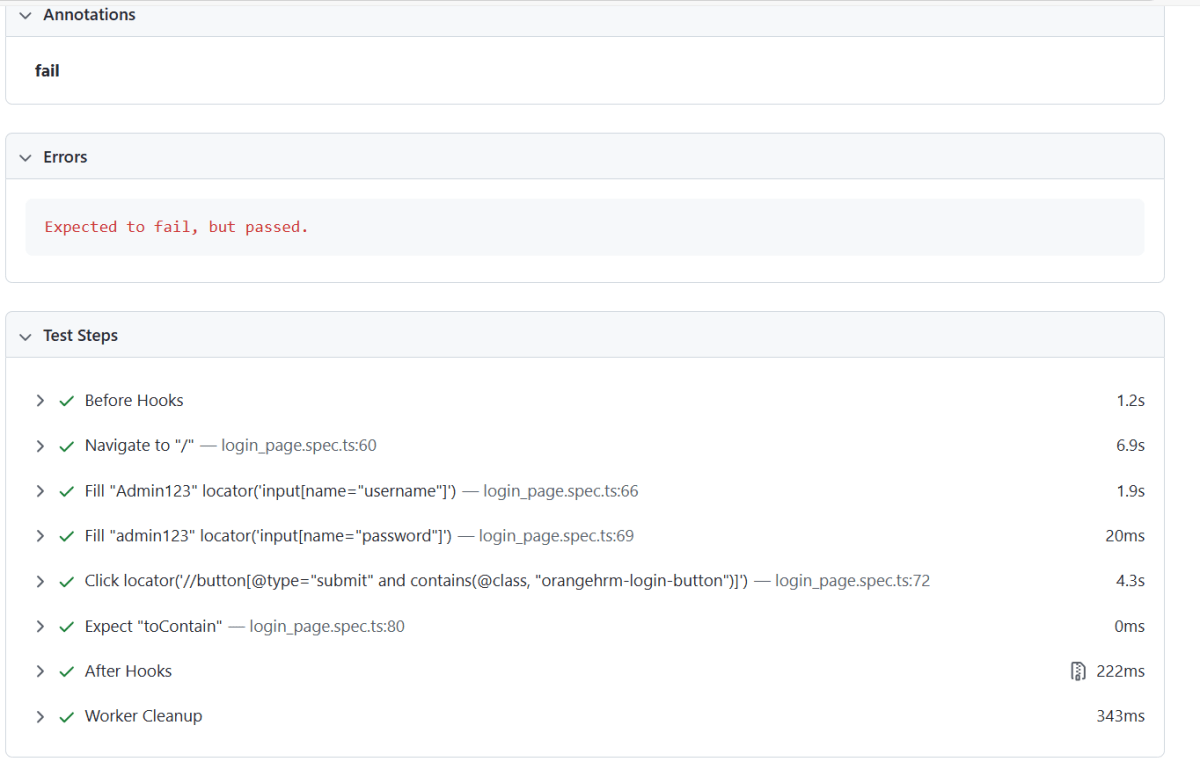
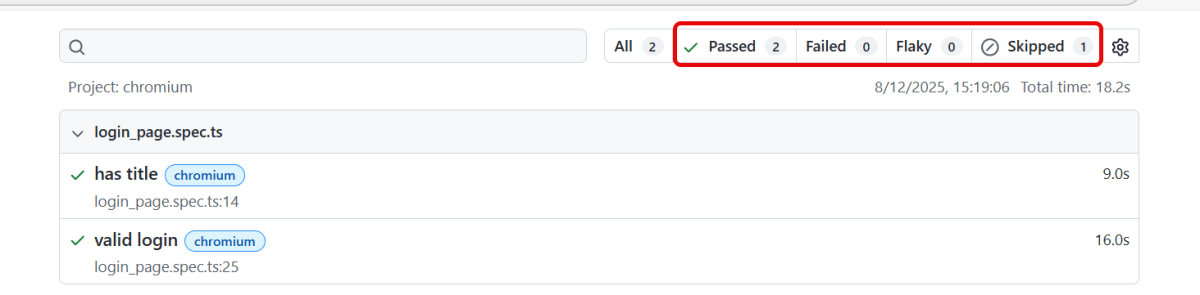
We can see this in the Index.html report generated by Playwright. I have marked invalid username as fail, but the test passes. So, it shows that the test failed.
3. test.fixme()
The `fixme` annotation is used for tests that are expected to fail due to known issues or bugs. It indicates that the test should be skipped until the problems are resolved. It also serves as a reminder that attention is needed to fix the test.
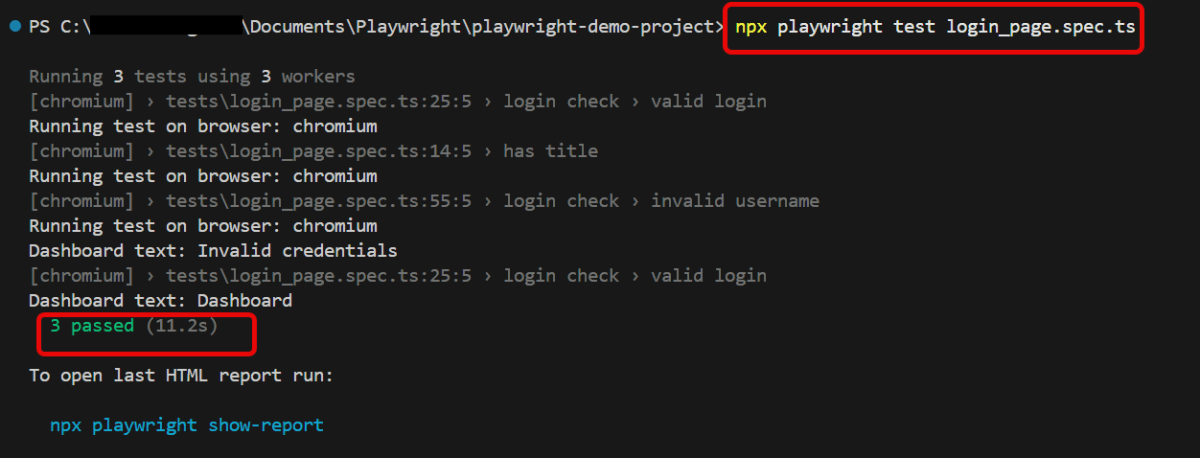
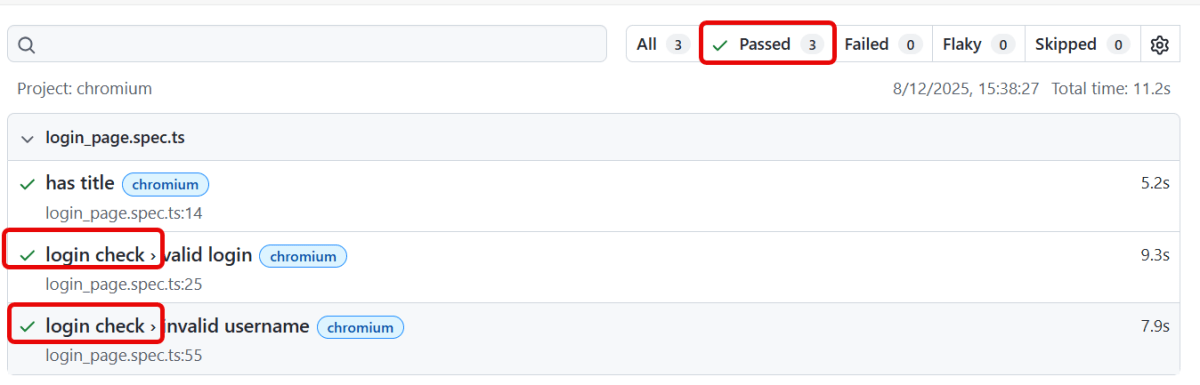
We can see that we have grouped 2 tests into 1 with title – login check in the Index.html report generated by Playwright.
8. Tag tests
8.1 Sometimes you want to tag your tests as @fast or @slow, and then filter by tag in the test report. Or you might want to only run tests that have a certain tag.
To tag a test, either provide an additional details object when declaring a test, or add @-token to the test title. Note that tags must start with @ symbol.
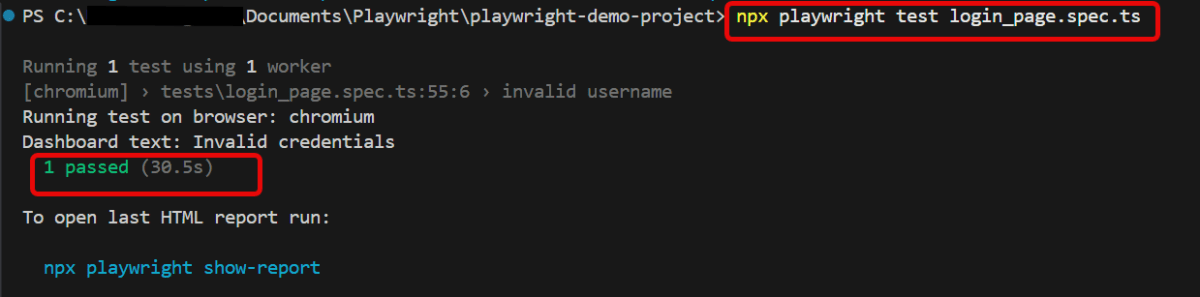
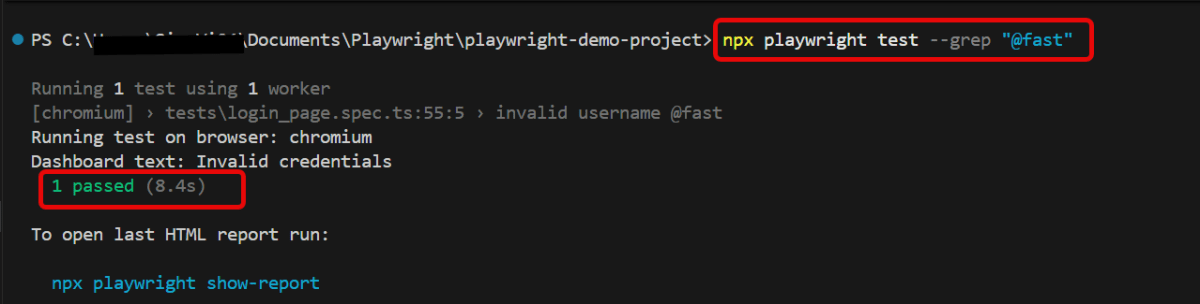
You can now run tests that have a particular tag with --grep command line option in Powershell. To run the test tagged as @fast, use the below command:
npx playwright test --grep "@fast"
The output of the above program
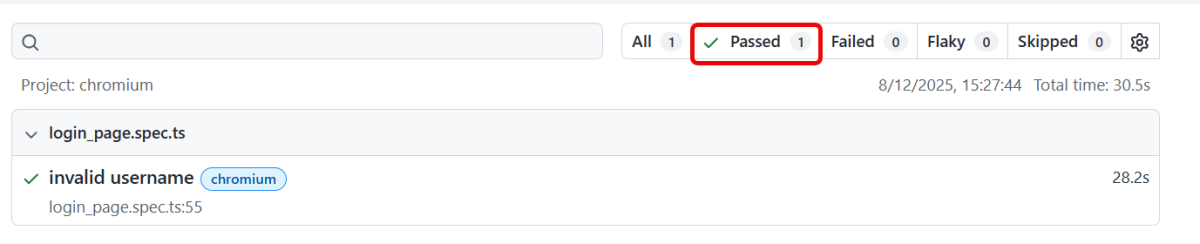
We can see tagged test in the Index.html report generated by Playwright.
8.2 If we want the opposite, we can skip the tests with a certain tag:
npx playwright test login_page.spec.ts --grep-invert "@fast"
8.3 To run tests containing either tag (logical OR operator):
npx playwright test --grep --% "@fast^|@slow"
8.4 Run tests containing both tags (logical AND operator) using regex lookaheads:
npx playwright test --grep "(?=.*@fast)(?=.*@slow)"
Playwright can be used to get access to the REST API of the application.
In this tutorial, I will go through the steps to execute the PUT requests in Playwright.
What is PUT Request?
A PUT request is an HTTP method used to update a resource at a specified URL, or to create the resource if it does not exist. A key feature of PUT requests is idempotency. This means that multiple identical PUT requests will have the same effect as a single request.
1. Setup Your Playwright Testing Environment:
Verify that the Playwright installed in your project. If you haven’t yet installed it, you can use:
npm install playwright
2. Update playwright.config.ts
Playwright Test comes with a few built-in reporters for different needs and ability to provide custom reporters. We will add detail in playwright.config.ts to generate the html report, once the test execution is finished.
Here’s an example script demonstrating API testing for PUT operation using Playwright:
import { test, expect } from '@playwright/test';

 test('API Testing - PUT with Playwright', async ({ request }) => {

    // Perform a GET request
    const response = await request.get('https://jsonplaceholder.typicode.com/posts/1');

     // Check the response status code
     expect(response.status()).toBe(200);

     // Parse the response data
     const responseBody = await response.json();
     console.log(responseBody);

     // Perform a PUT request
     const putResponse = await request.put('https://jsonplaceholder.typicode.com/posts/1', {
       data: {
         title: 'Manager',
         body: 'Test',
         userId: 1
       }
     });

     // Check the response status code
     expect(putResponse.status()).toBe(200);

     // Parse the response data
     const putResponseBody = await putResponse.json();
     console.log(putResponseBody);

     // Validate the response
     expect(putResponseBody).toHaveProperty('title', 'Manager');
     expect(putResponseBody).toHaveProperty('body', 'Test');
     expect(putResponseBody).toHaveProperty('userId', 1);
   });
Explanation:
In the above example, first I have sent a GET request to see the body structure of the response. Then I sent a PUT request to see the changes in the response body.
1. Imports
This line imports the testand expectfunctions from Playwright’s testing library. These functions provide a structure for writing tests and asserting conditions within them.
import { test, expect } from '@playwright/test';
2. Test Definition
This defines an asynchronous test case named “API Testing – PUT with Playwright”. The test receives a request object as a parameter, which is used to perform HTTP requests.2.
test('API Testing - PUT with Playwright', async ({ request })
3. Performing a GET Request
 // Perform a GET request
    const response = await request.get('https://jsonplaceholder.typicode.com/posts/1');

     // Check the response status code
     expect(response.status()).toBe(200);

     // Parse the response data
     const responseBody = await response.json();
     console.log(responseBody);
4. Performing a PUT Request
Sends a PUT request to the specified URL. data transmits the body of the request.
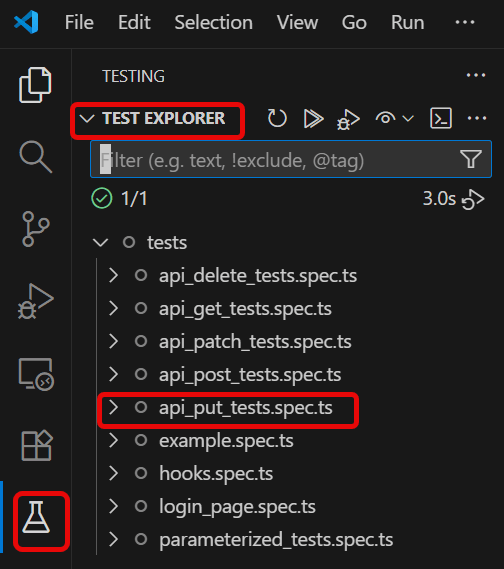
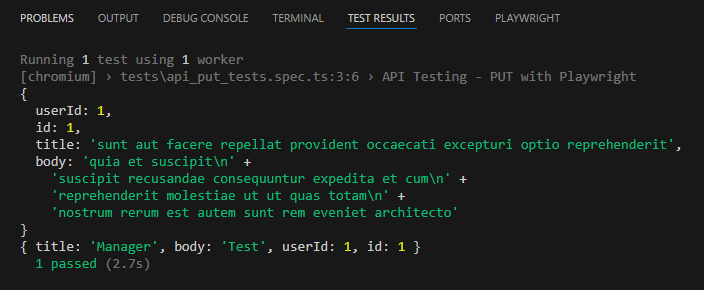
Go to the funnel shape icon called “Testing” or “Test Explorer View”. You can run the tests from the test Explorer view too now. You can run all of the tests in all of the test specs in this directory.
You can also come in and run all of the tests in a particular specification file. Alternatively, run individual tests within a specification file. Here, I want to run the tests of api_put_tests.spec.ts file.
The output of the above program is
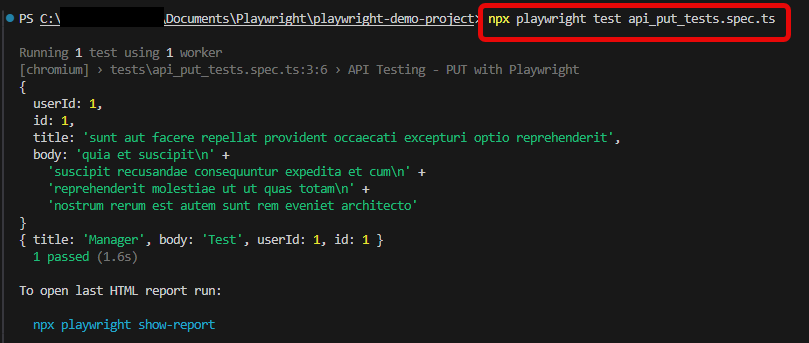
5. Execute the tests through Command Line
You can also run the tests through the command line. Go to the terminal and use the below command:-
npx playwright test api_put_tests.spec.ts
This command runs all the tests present in this file.
6. Evaluate Test Results
Analyze console outputs and assertions to validate the response data, ensuring that your API endpoints are functioning as designed.
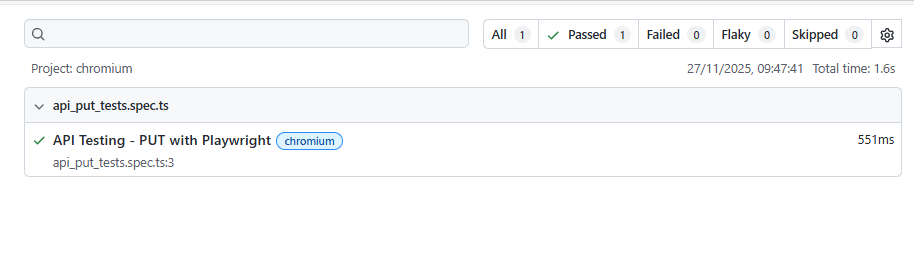
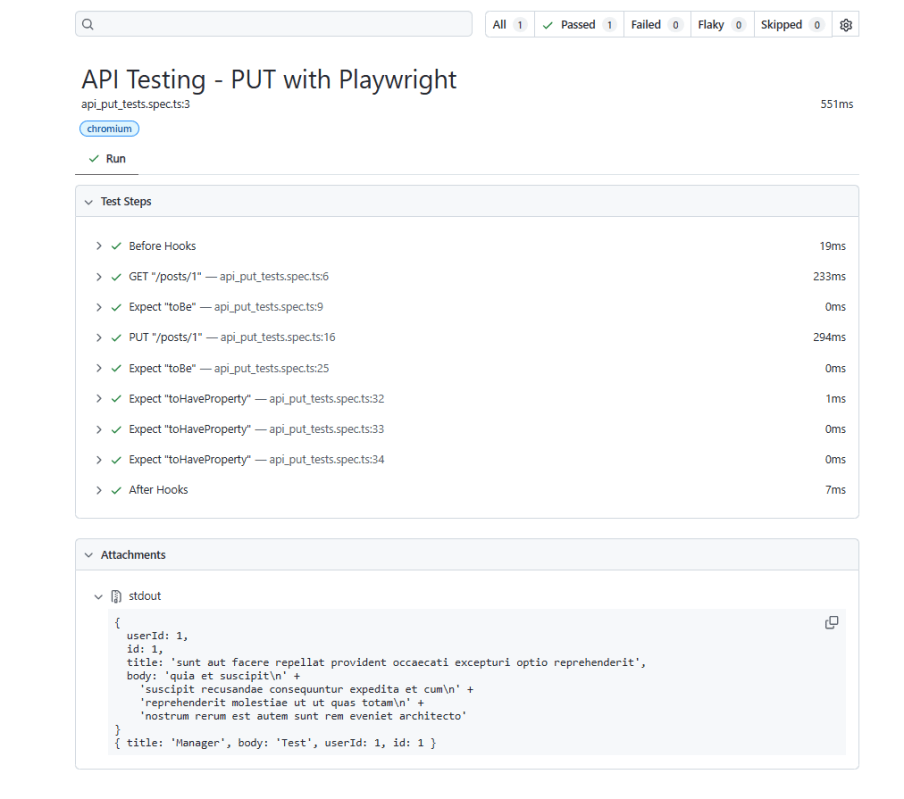
Playwright generates a test report after the execution of the tests. This test report can be viewed by using the below command:








 QA Automation Expert